
Pasquale Vitale 
Engineering Ingegneria Informatica 
FIWARE TechCamp – FIWARE LAB Cloud Portal 
Wednesday, December 3, 2014 - Lyngby, Denmark 
pvitale@eng.it, @pasquy1973
Summary 
 
FIWARE LAB Cloud Hosting 
 
Deploying your first VM 
 
Deploying components for your application 
 
Object Storage API 
 
Reference Information
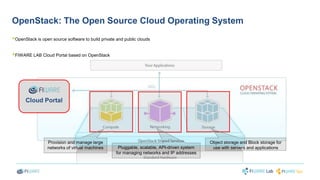
OpenStack: The Open Source Cloud Operating System 
 
OpenStack is open source software to build private and public clouds 
 
FIWARE LAB Cloud Portal based on OpenStack 
Provision and manage large 
networks of virtual machines 
Object storage and Block storage for 
Pluggable, scalable, API-driven system use with servers and applications 
for managing networks and IP addresses 
Cloud Portal
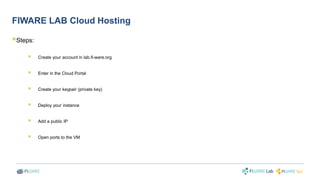
FIWARE LAB Cloud Hosting 
 
Steps: 
 
Create your account in lab.fi-ware.org 
 
Enter in the Cloud Portal 
 
Create your keypair (private key) 
 
Deploy your instance 
 
Add a public IP 
 
Open ports to the VM
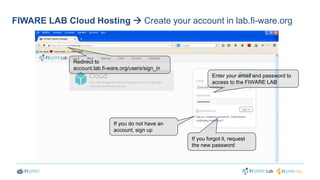
FIWARE LAB Cloud Hosting  Create your account in lab.fi-ware.org 
Enter your email and password to 
access to the FIWARE LAB 
If you forgot it, request 
the new password 
Redirect to 
account.lab.fi-ware.org/users/sign_in 
If you do not have an 
account, sign up
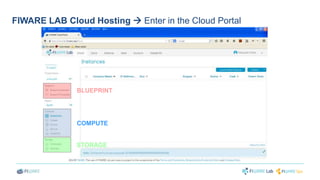
FIWARE LAB Cloud Hosting  Enter in the Cloud Portal 
BLUEPRINT 
COMPUTE 
STORAGE
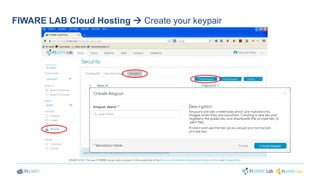
FIWARE LAB Cloud Hosting  Create your keypair
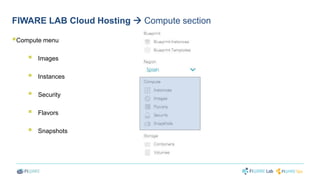
FIWARE LAB Cloud Hosting  Compute section 
 
Compute menu 
 
Images 
 
Instances 
 
Security 
 
Flavors 
 
Snapshots
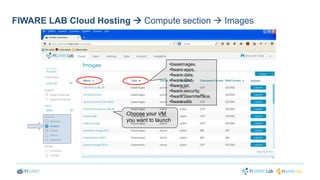
FIWARE LAB Cloud Hosting  Compute section  Images 
•baseimages, 
•fiware:apps, 
•fiware:data, 
•fiware:i2nd, 
•fiware:iot, 
•fiware:security, 
•fiware:userinterface, 
•fiware:utils 
Choose your VM 
you want to launch
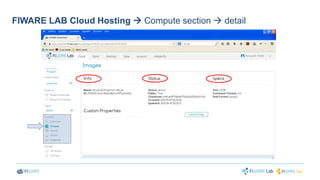
FIWARE LAB Cloud Hosting  Compute section  detail
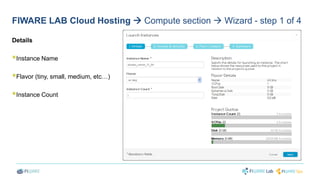
FIWARE LAB Cloud Hosting  Compute section  Wizard - step 1 of 4 
Details 
 
Instance Name 
 
Flavor (tiny, small, medium, etc…) 
 
Instance Count
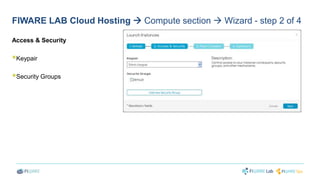
FIWARE LAB Cloud Hosting  Compute section  Wizard - step 2 of 4 
Access & Security 
 
Keypair 
 
Security Groups
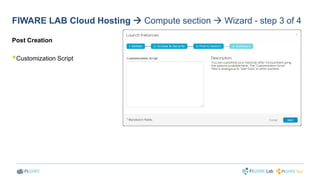
FIWARE LAB Cloud Hosting  Compute section  Wizard - step 3 of 4 
Post Creation 
 
Customization Script
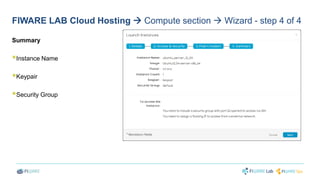
FIWARE LAB Cloud Hosting  Compute section  Wizard - step 4 of 4 
Summary 
 
Instance Name 
 
Keypair 
 
Security Group
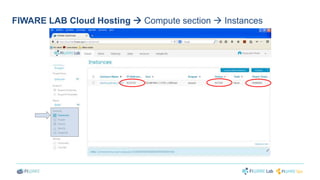
FIWARE LAB Cloud Hosting  Compute section  Instances
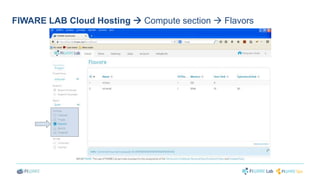
FIWARE LAB Cloud Hosting  Compute section  Flavors
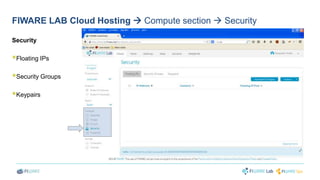
FIWARE LAB Cloud Hosting  Compute section  Security 
Security 
 
Floating IPs 
 
Security Groups 
 
Keypairs
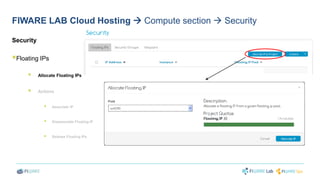
FIWARE LAB Cloud Hosting  Compute section  Security 
Security 
 
Floating IPs 
 
Allocate Floating IPs 
 
Actions 
 
Associate IP 
 Disassociate Floating IP 
 
Release Floating IPs
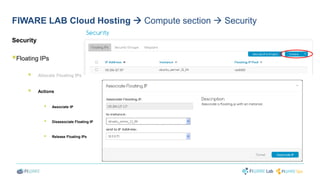
FIWARE LAB Cloud Hosting  Compute section  Security 
Security 
 
Floating IPs 
 
Allocate Floating IPs 
 
Actions 
 
Associate IP 
 Disassociate Floating IP 
 
Release Floating IPs
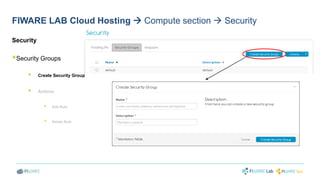
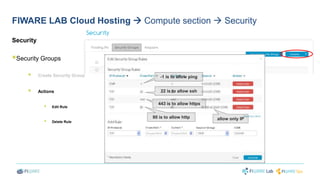
FIWARE LAB Cloud Hosting  Compute section  Security 
Security 
 
Security Groups 
 
Create Security Group 
 
Actions 
 
Edit Rule 
 Delete Rule
FIWARE LAB Cloud Hosting  Compute section  Security 
Security 
 
Security Groups 
 
Create Security Group 
 
Actions 
 
Edit Rule 
 Delete Rule 
-1 is to allow ping 
22 is to allow ssh 
443 is to allow https 
80 is to allow http allow only IP
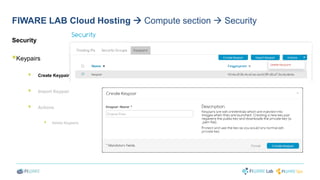
FIWARE LAB Cloud Hosting  Compute section  Security 
Security 
 
Keypairs 
 
Create Keypair 
 
Import Keypair 
 
Actions 
 Delete Keypairs
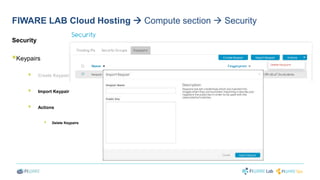
FIWARE LAB Cloud Hosting  Compute section  Security 
Security 
 
Keypairs 
 
Create Keypair 
 
Import Keypair 
 
Actions 
 Delete Keypairs
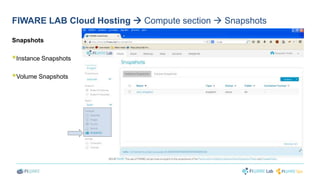
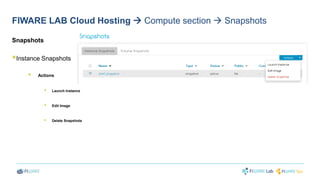
FIWARE LAB Cloud Hosting  Compute section  Snapshots 
Snapshots 
 
Instance Snapshots 
 
Volume Snapshots
FIWARE LAB Cloud Hosting  Compute section  Snapshots 
Snapshots 
 
Instance Snapshots 
 
Actions 
 
Launch Instance 
 
Edit Image 
 
Delete Snapshots
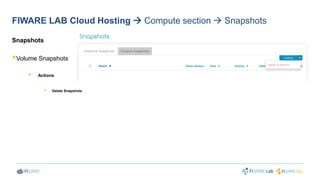
FIWARE LAB Cloud Hosting  Compute section  Snapshots 
Snapshots 
 
Volume Snapshots 
 
Actions 
 
Delete Snapshots
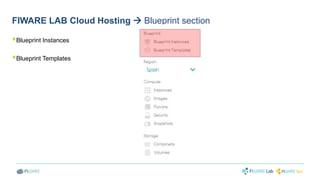
FIWARE LAB Cloud Hosting  Blueprint section 
 
Blueprint Instances 
 
Blueprint Templates
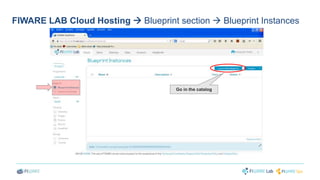
FIWARE LAB Cloud Hosting  Blueprint section  Blueprint Instances 
Go in the catalog
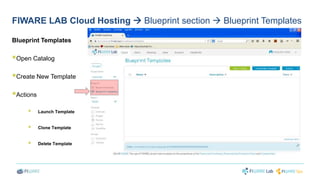
FIWARE LAB Cloud Hosting  Blueprint section  Blueprint Templates 
Blueprint Templates 
 
Open Catalog 
 
Create New Template 
 
Actions 
 
Launch Template 
 
Clone Template 
 
Delete Template
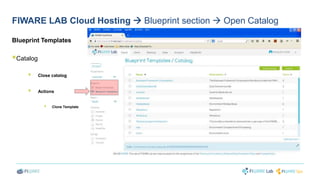
FIWARE LAB Cloud Hosting  Blueprint section  Open Catalog 
Blueprint Templates 
 
Catalog 
 
Close catalog 
 
Actions 
 
Clone Template
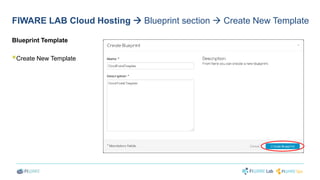
FIWARE LAB Cloud Hosting  Blueprint section  Create New Template 
Blueprint Template 
 
Create New Template
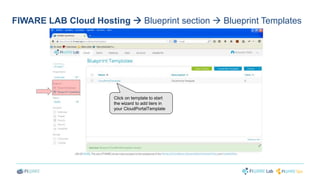
FIWARE LAB Cloud Hosting  Blueprint section  Blueprint Templates 
Click on template to start 
the wizard to add tiers in 
your CloudPortalTemplate
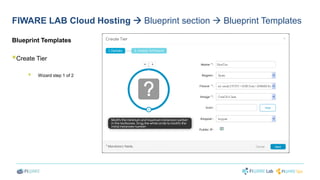
FIWARE LAB Cloud Hosting  Blueprint section  Blueprint Templates 
Blueprint Templates 
 
Create Tier 
 
Wizard step 1 of 2
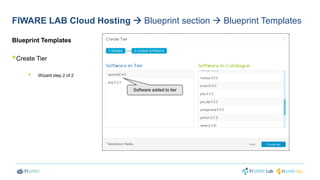
FIWARE LAB Cloud Hosting  Blueprint section  Blueprint Templates 
Blueprint Templates 
 
Create Tier 
 
Wizard step 2 of 2 
Software added to tier
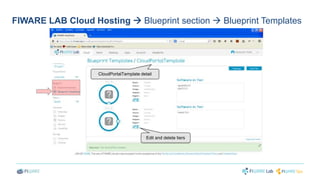
FIWARE LAB Cloud Hosting  Blueprint section  Blueprint Templates 
CloudPortalTemplate detail 
Edit and delete tiers
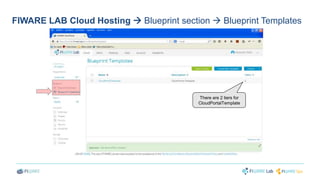
FIWARE LAB Cloud Hosting  Blueprint section  Blueprint Templates 
There are 2 tiers for 
CloudPortalTemplate
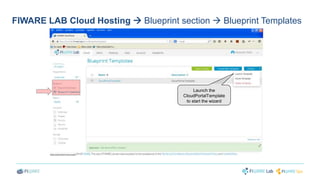
FIWARE LAB Cloud Hosting  Blueprint section  Blueprint Templates 
Launch the 
CloudPortalTemplate 
to start the wizard
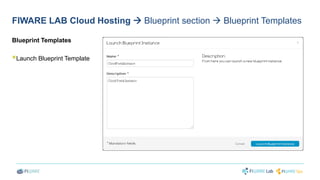
FIWARE LAB Cloud Hosting  Blueprint section  Blueprint Templates 
Blueprint Templates 
 
Launch Blueprint Template
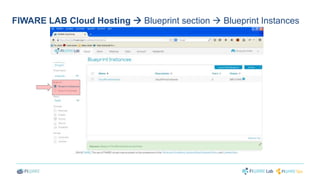
FIWARE LAB Cloud Hosting  Blueprint section  Blueprint Instances
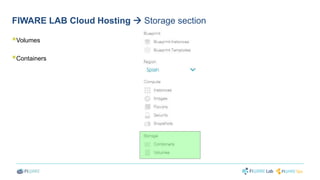
FIWARE LAB Cloud Hosting  Storage section 
 
Volumes 
 
Containers
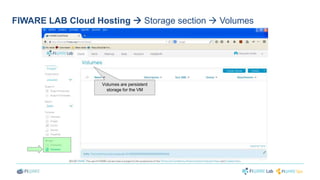
FIWARE LAB Cloud Hosting  Storage section  Volumes 
Volumes are persistent 
storage for the VM
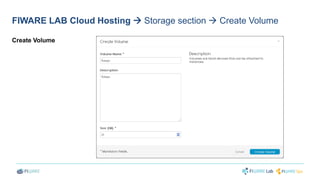
FIWARE LAB Cloud Hosting  Storage section  Create Volume 
Create Volume
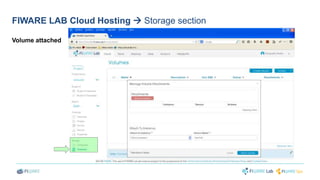
FIWARE LAB Cloud Hosting  Storage section 
Volume attached
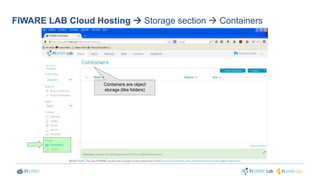
FIWARE LAB Cloud Hosting  Storage section  Containers 
Containers are object 
storage (like folders)
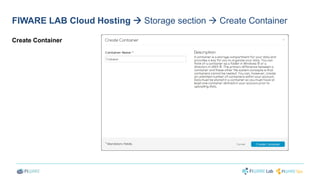
FIWARE LAB Cloud Hosting  Storage section  Create Container 
Create Container
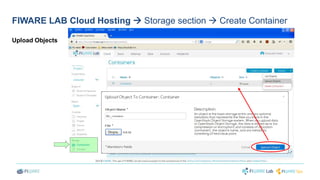
FIWARE LAB Cloud Hosting  Storage section  Create Container 
Upload Objects
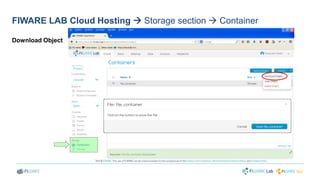
FIWARE LAB Cloud Hosting  Storage section  Container 
Download Object
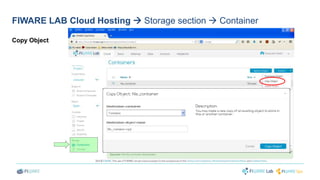
FIWARE LAB Cloud Hosting  Storage section  Container 
Copy Object
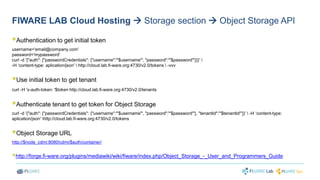
FIWARE LAB Cloud Hosting  Storage section  Object Storage API 
 
Authentication to get initial token 
username='email@company.com' 
password='mypassword' 
curl -d '{"auth": {"passwordCredentials": {"username":"'$username'", "password":"'$password'"}}}'  
-H ‘content-type: aplication/json'  http://cloud.lab.fi-ware.org:4730/v2.0/tokens  -vvv 
 
Use initial token to get tenant 
curl -H 'x-auth-token: '$token http://cloud.lab.fi-ware.org:4730/v2.0/tenants 
 
Authenticate tenant to get token for Object Storage 
curl -d '{"auth": {"passwordCredentials": {"username":"'$username'", "password":"'$password'"}, "tenantId":"'$tenantId'"}}'  -H ‘content-type: 
aplication/json' http://cloud.lab.fi-ware.org:4730/v2.0/tokens 
 
Object Storage URL 
http://$node_cdmi:8080/cdmi/$auth/container/ 
 
http://forge.fi-ware.org/plugins/mediawiki/wiki/fiware/index.php/Object_Storage_-_User_and_Programmers_Guide
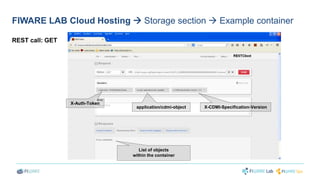
FIWARE LAB Cloud Hosting  Storage section  Example container 
REST call: GET 
X-Auth-Token 
application/cdmi-object X-CDMI-Specification-Version 
List of objects 
within the container
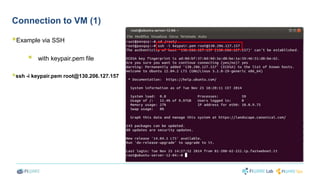
Connection to VM (1) 
 
Example via SSH 
 
with keypair.pem file 
 
ssh -i keypair.pem root@130.206.127.157
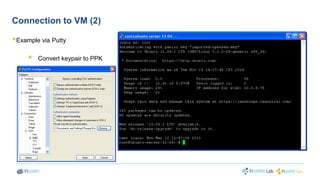
Connection to VM (2) 
 
Example via Putty 
 
Convert keypair to PPK
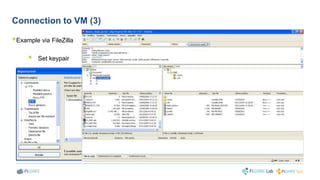
Connection to VM (3) 
 
Example via FileZilla 
 
Set keypair
Information 
 
If you have any question or problem contact to 
fiware-lab-help@lists.fi-ware.org 
 
You can see webinars, courses, videos in the FIWARE Academy 
http://edu.fi-ware.org 
 
You can use stackoverflow to ask question using the fiware and/or filab tags.
Thanks!

Fiware cloud capabilities_and_setting_up_your_environment

  • 1.
    Pasquale Vitale EngineeringIngegneria Informatica FIWARE TechCamp – FIWARE LAB Cloud Portal Wednesday, December 3, 2014 - Lyngby, Denmark pvitale@eng.it, @pasquy1973
  • 2.
    Summary  FIWARELAB Cloud Hosting  Deploying your first VM  Deploying components for your application  Object Storage API  Reference Information
  • 3.
    OpenStack: The OpenSource Cloud Operating System  OpenStack is open source software to build private and public clouds  FIWARE LAB Cloud Portal based on OpenStack Provision and manage large networks of virtual machines Object storage and Block storage for Pluggable, scalable, API-driven system use with servers and applications for managing networks and IP addresses Cloud Portal
  • 4.
    FIWARE LAB CloudHosting  Steps:  Create your account in lab.fi-ware.org  Enter in the Cloud Portal  Create your keypair (private key)  Deploy your instance  Add a public IP  Open ports to the VM
  • 5.
    FIWARE LAB CloudHosting  Create your account in lab.fi-ware.org Enter your email and password to access to the FIWARE LAB If you forgot it, request the new password Redirect to account.lab.fi-ware.org/users/sign_in If you do not have an account, sign up
  • 6.
    FIWARE LAB CloudHosting  Enter in the Cloud Portal BLUEPRINT COMPUTE STORAGE
  • 7.
    FIWARE LAB CloudHosting  Create your keypair
  • 8.
    FIWARE LAB CloudHosting  Compute section  Compute menu  Images  Instances  Security  Flavors  Snapshots
  • 9.
    FIWARE LAB CloudHosting  Compute section  Images •baseimages, •fiware:apps, •fiware:data, •fiware:i2nd, •fiware:iot, •fiware:security, •fiware:userinterface, •fiware:utils Choose your VM you want to launch
  • 10.
    FIWARE LAB CloudHosting  Compute section  detail
  • 11.
    FIWARE LAB CloudHosting  Compute section  Wizard - step 1 of 4 Details  Instance Name  Flavor (tiny, small, medium, etc…)  Instance Count
  • 12.
    FIWARE LAB CloudHosting  Compute section  Wizard - step 2 of 4 Access & Security  Keypair  Security Groups
  • 13.
    FIWARE LAB CloudHosting  Compute section  Wizard - step 3 of 4 Post Creation  Customization Script
  • 14.
    FIWARE LAB CloudHosting  Compute section  Wizard - step 4 of 4 Summary  Instance Name  Keypair  Security Group
  • 15.
    FIWARE LAB CloudHosting  Compute section  Instances
  • 16.
    FIWARE LAB CloudHosting  Compute section  Flavors
  • 17.
    FIWARE LAB CloudHosting  Compute section  Security Security  Floating IPs  Security Groups  Keypairs
  • 18.
    FIWARE LAB CloudHosting  Compute section  Security Security  Floating IPs  Allocate Floating IPs  Actions  Associate IP  Disassociate Floating IP  Release Floating IPs
  • 19.
    FIWARE LAB CloudHosting  Compute section  Security Security  Floating IPs  Allocate Floating IPs  Actions  Associate IP  Disassociate Floating IP  Release Floating IPs
  • 20.
    FIWARE LAB CloudHosting  Compute section  Security Security  Security Groups  Create Security Group  Actions  Edit Rule  Delete Rule
  • 21.
    FIWARE LAB CloudHosting  Compute section  Security Security  Security Groups  Create Security Group  Actions  Edit Rule  Delete Rule -1 is to allow ping 22 is to allow ssh 443 is to allow https 80 is to allow http allow only IP
  • 22.
    FIWARE LAB CloudHosting  Compute section  Security Security  Keypairs  Create Keypair  Import Keypair  Actions  Delete Keypairs
  • 23.
    FIWARE LAB CloudHosting  Compute section  Security Security  Keypairs  Create Keypair  Import Keypair  Actions  Delete Keypairs
  • 24.
    FIWARE LAB CloudHosting  Compute section  Snapshots Snapshots  Instance Snapshots  Volume Snapshots
  • 25.
    FIWARE LAB CloudHosting  Compute section  Snapshots Snapshots  Instance Snapshots  Actions  Launch Instance  Edit Image  Delete Snapshots
  • 26.
    FIWARE LAB CloudHosting  Compute section  Snapshots Snapshots  Volume Snapshots  Actions  Delete Snapshots
  • 27.
    FIWARE LAB CloudHosting  Blueprint section  Blueprint Instances  Blueprint Templates
  • 28.
    FIWARE LAB CloudHosting  Blueprint section  Blueprint Instances Go in the catalog
  • 29.
    FIWARE LAB CloudHosting  Blueprint section  Blueprint Templates Blueprint Templates  Open Catalog  Create New Template  Actions  Launch Template  Clone Template  Delete Template
  • 30.
    FIWARE LAB CloudHosting  Blueprint section  Open Catalog Blueprint Templates  Catalog  Close catalog  Actions  Clone Template
  • 31.
    FIWARE LAB CloudHosting  Blueprint section  Create New Template Blueprint Template  Create New Template
  • 32.
    FIWARE LAB CloudHosting  Blueprint section  Blueprint Templates Click on template to start the wizard to add tiers in your CloudPortalTemplate
  • 33.
    FIWARE LAB CloudHosting  Blueprint section  Blueprint Templates Blueprint Templates  Create Tier  Wizard step 1 of 2
  • 34.
    FIWARE LAB CloudHosting  Blueprint section  Blueprint Templates Blueprint Templates  Create Tier  Wizard step 2 of 2 Software added to tier
  • 35.
    FIWARE LAB CloudHosting  Blueprint section  Blueprint Templates CloudPortalTemplate detail Edit and delete tiers
  • 36.
    FIWARE LAB CloudHosting  Blueprint section  Blueprint Templates There are 2 tiers for CloudPortalTemplate
  • 37.
    FIWARE LAB CloudHosting  Blueprint section  Blueprint Templates Launch the CloudPortalTemplate to start the wizard
  • 38.
    FIWARE LAB CloudHosting  Blueprint section  Blueprint Templates Blueprint Templates  Launch Blueprint Template
  • 39.
    FIWARE LAB CloudHosting  Blueprint section  Blueprint Instances
  • 40.
    FIWARE LAB CloudHosting  Storage section  Volumes  Containers
  • 41.
    FIWARE LAB CloudHosting  Storage section  Volumes Volumes are persistent storage for the VM
  • 42.
    FIWARE LAB CloudHosting  Storage section  Create Volume Create Volume
  • 43.
    FIWARE LAB CloudHosting  Storage section Volume attached
  • 44.
    FIWARE LAB CloudHosting  Storage section  Containers Containers are object storage (like folders)
  • 45.
    FIWARE LAB CloudHosting  Storage section  Create Container Create Container
  • 46.
    FIWARE LAB CloudHosting  Storage section  Create Container Upload Objects
  • 47.
    FIWARE LAB CloudHosting  Storage section  Container Download Object
  • 48.
    FIWARE LAB CloudHosting  Storage section  Container Copy Object
  • 49.
    FIWARE LAB CloudHosting  Storage section  Object Storage API  Authentication to get initial token username='email@company.com' password='mypassword' curl -d '{"auth": {"passwordCredentials": {"username":"'$username'", "password":"'$password'"}}}' -H ‘content-type: aplication/json' http://cloud.lab.fi-ware.org:4730/v2.0/tokens -vvv  Use initial token to get tenant curl -H 'x-auth-token: '$token http://cloud.lab.fi-ware.org:4730/v2.0/tenants  Authenticate tenant to get token for Object Storage curl -d '{"auth": {"passwordCredentials": {"username":"'$username'", "password":"'$password'"}, "tenantId":"'$tenantId'"}}' -H ‘content-type: aplication/json' http://cloud.lab.fi-ware.org:4730/v2.0/tokens  Object Storage URL http://$node_cdmi:8080/cdmi/$auth/container/  http://forge.fi-ware.org/plugins/mediawiki/wiki/fiware/index.php/Object_Storage_-_User_and_Programmers_Guide
  • 50.
    FIWARE LAB CloudHosting  Storage section  Example container REST call: GET X-Auth-Token application/cdmi-object X-CDMI-Specification-Version List of objects within the container
  • 51.
    Connection to VM(1)  Example via SSH  with keypair.pem file  ssh -i keypair.pem root@130.206.127.157
  • 52.
    Connection to VM(2)  Example via Putty  Convert keypair to PPK
  • 53.
    Connection to VM(3)  Example via FileZilla  Set keypair
  • 54.
    Information  Ifyou have any question or problem contact to fiware-lab-help@lists.fi-ware.org  You can see webinars, courses, videos in the FIWARE Academy http://edu.fi-ware.org  You can use stackoverflow to ask question using the fiware and/or filab tags.
  • 55.