FIWARE Lab Cloud
José Ignacio Carretero Guarde
Fiware Cloud & Platform Expert
joseignacio.carretero@fiware.org
@jicarreterogu
The cloud portal: https://cloud.lab.fiware.org
2
3
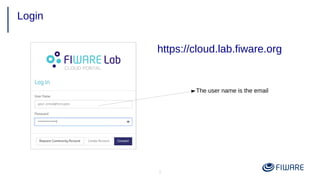
Login
The user name is the email
https://cloud.lab.fiware.org
4
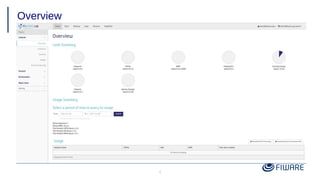
Overview
The 1st
VM: Prerequisites
5
6
●
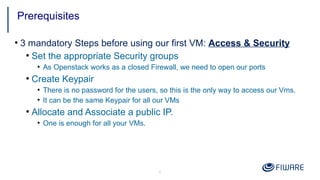
3 mandatory Steps before using our first VM: Access & Security
●
Set the appropriate Security groups
●
As Openstack works as a closed Firewall, we need to open our ports
●
Create Keypair
●
There is no password for the users, so this is the only way to access our Vms.
●
It can be the same Keypair for all our VMs
●
Allocate and Associate a public IP.
●
One is enough for all your VMs.
Prerequisites
7
Creating a Security Group
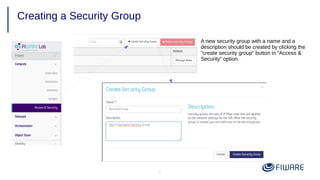
A new security group with a name and a
description should be created by clicking the
“create security group” button in “Access &
Security” option.
8
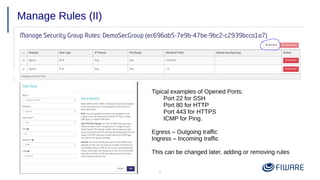
Manage Rules
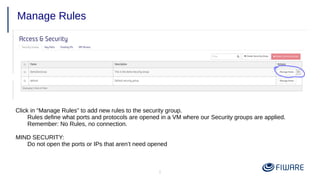
Click in “Manage Rules” to add new rules to the security group.
Rules define what ports and protocols are opened in a VM where our Security groups are applied.
Remember: No Rules, no connection.
MIND SECURITY:
Do not open the ports or IPs that aren’t need opened
9
Manage Rules (II)
Tipical examples of Opened Ports:
Port 22 for SSH
Port 80 for HTTP
Port 443 for HTTPS
ICMP for Ping.
Egress – Outgoing traffic
Ingress – Incoming traffic
This can be changed later, adding or removing rules
10
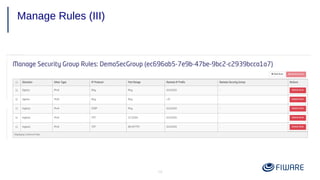
Manage Rules (III)
11
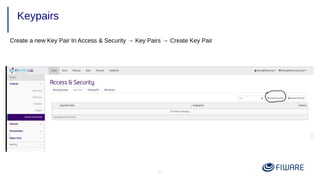
Keypairs
Create a new Key Pair In Access & Security → Key Pairs → Create Key Pair
12
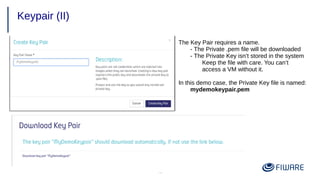
Keypair (II)
The Key Pair requires a name.
- The Private .pem file will be downloaded
- The Private Key isn’t stored in the system
Keep the file with care. You can’t
access a VM without it.
In this demo case, the Private Key file is named:
mydemokeypair.pem
13
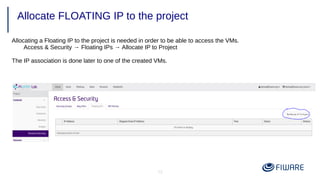
Allocate FLOATING IP to the project
Allocating a Floating IP to the project is needed in order to be able to access the VMs.
Access & Security → Floating IPs → Allocate IP to Project
The IP association is done later to one of the created VMs.
14
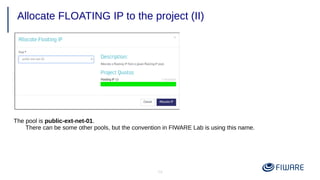
Allocate FLOATING IP to the project (II)
The pool is public-ext-net-01.
There can be some other pools, but the convention in FIWARE Lab is using this name.
Creating and accessing the 1st
VM
15
16
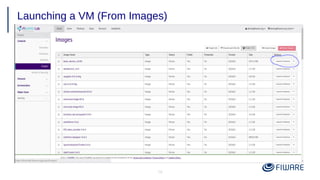
Launching a VM (From Images)
17
Launch a VM From Images (II)
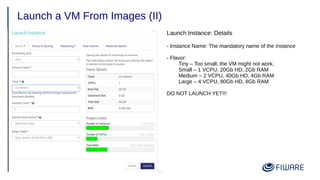
Launch Instance: Details
- Instance Name: The mandatory name of the instance
- Flavor:
Tiny – Too small, the VM might not work.
Small – 1 VCPU, 20Gb HD, 2Gb RAM
Medium – 2 VCPU, 40Gb HD, 4Gb RAM
Large – 4 VCPU, 80Gb HD, 8Gb RAM
DO NOT LAUNCH YET!!!
18
Launch a VM From Images (III)
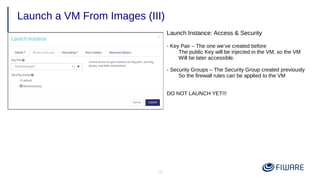
Launch Instance: Access & Security
- Key Pair – The one we’ve created before
The public Key will be injected in the VM, so the VM
Will be later accessible.
- Security Groups – The Security Group created previously
So the firewall rules can be applied to the VM
DO NOT LAUNCH YET!!!
19
Launch a VM From Images (IV)
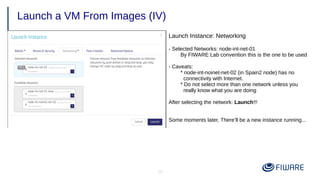
Launch Instance: Networking
- Selected Networks: node-int-net-01
By FIWARE Lab convention this is the one to be used
- Caveats:
* node-int-noinet-net-02 (in Spain2 node) has no
connectivity with Internet.
* Do not select more than one network unless you
really know what you are doing
After selecting the network: Launch!!!
Some moments later, There’ll be a new instance running...
20
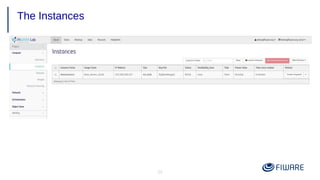
The Instances
21
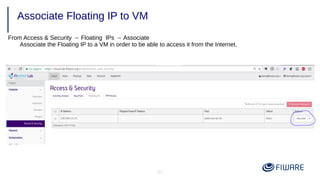
Associate Floating IP to VM
From Access & Security → Floating IPs → Associate
Associate the Floating IP to a VM in order to be able to access it from the Internet.
22
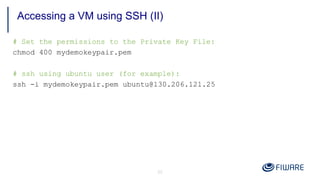
Accessing a VM using SSH (II)
# Set the permissions to the Private Key File:
chmod 400 mydemokeypair.pem
# ssh using ubuntu user (for example):
ssh -i mydemokeypair.pem ubuntu@130.206.121.25
23
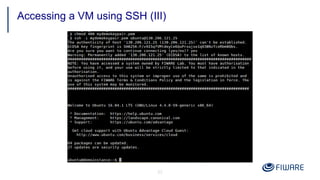
Accessing a VM using SSH (III)
Operations on Our VM
24
25
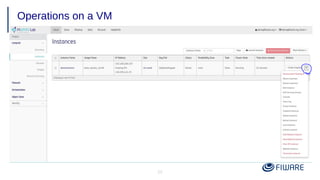
Operations on a VM
26
●
Soft Reboot Instance
●
Graceful reboot of the instance.
●
Hard Reboot Instance
●
Similar to Hardware Reboot of the instance
●
Shutoff/Start Instance
●
Pause and Resume Instance.
●
Suspend and Resume Instance
●
Terminate Instance
●
Delete the instance. Forever.
●
Create Snapshot
The most commonly used Operations
27
●
Creating Images from running Instances: Copy a running instance
●
In order to be able to deploy later another instance from the copy.
●
Think of Snapshots as “freezing” an image.
●
Snapshots are not a Backup Mechanism.
●
They can help, but thet have serious limitations that backup tools
can manage perfectly.
●
They require large amounts of disk space.
Snapshots
28
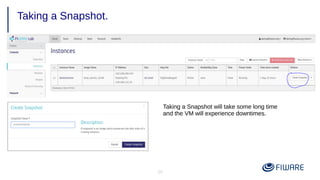
Taking a Snapshot.
Taking a Snapshot will take some long time
and the VM will experience downtimes.
29
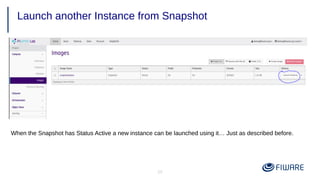
Launch another Instance from Snapshot
When the Snapshot has Status Active a new instance can be launched using it… Just as described before.
Persistent Volumes
30
31
●
The Instance disk are ephemeral
●
The disk exists as long as the instance exists
●
When the instance disappears, the disk is destroyed.
●
Volumes are used to have persistent disks
●
Persistent disk which will survive instances.
Volumes
32
●
Steps to use a Volume:
●
Create a Volume
●
Attach volume to an instance
●
Partition and format the disk within an instance
●
Mount the disk
●
Possibly, add to your /etc/fstab
Volumes (II)
33
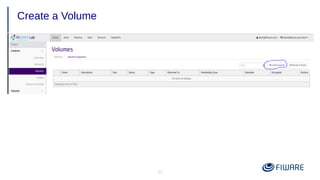
Create a Volume
34
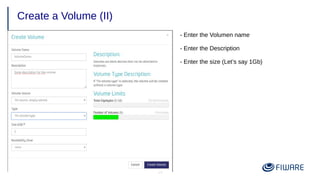
Create a Volume (II)
- Enter the Volumen name
- Enter the Description
- Enter the size (Let’s say 1Gb)
35
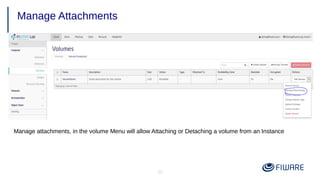
Manage Attachments
Manage attachments, in the volume Menu will allow Attaching or Detaching a volume from an Instance
36
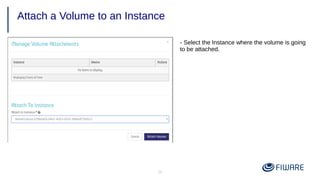
Attach a Volume to an Instance
- Select the Instance where the volume is going
to be attached.
37
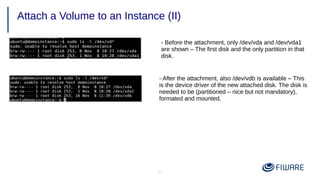
Attach a Volume to an Instance (II)
- Before the attachment, only /dev/vda and /dev/vda1
are shown – The first disk and the only partition in that
disk.
- After the attachment, also /dev/vdb is available – This
is the device driver of the new attached disk. The disk is
needed to be (partitioned – nice but not mandatory),
formated and mounted.
38
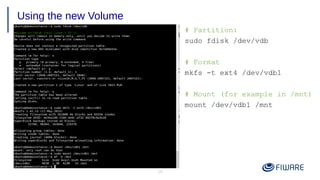
Using the new Volume
# Partition:
sudo fdisk /dev/vdb
# Format
mkfs -t ext4 /dev/vdb1
# Mount (for example in /mnt)
mount /dev/vdb1 /mnt
39
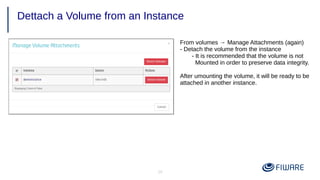
Dettach a Volume from an Instance
From volumes → Manage Attachments (again)
- Detach the volume from the instance
- It is recommended that the volume is not
Mounted in order to preserve data integrity.
After umounting the volume, it will be ready to be
attached in another instance.
Object Storage
40
41
●
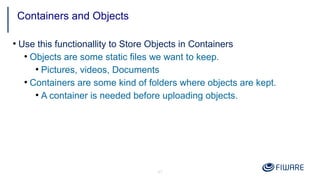
Use this functionallity to Store Objects in Containers
●
Objects are some static files we want to keep.
●
Pictures, videos, Documents
●
Containers are some kind of folders where objects are kept.
●
A container is needed before uploading objects.
Containers and Objects
42
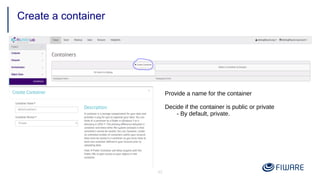
Create a container
Provide a name for the container
Decide if the container is public or private
- By default, private.
43
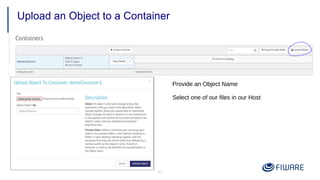
Upload an Object to a Container
Provide an Object Name
Select one of our files in our Host
44
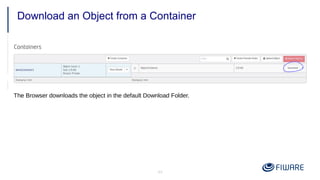
Download an Object from a Container
The Browser downloads the object in the default Download Folder.
45
●
Delete Objects from a Container
●
The objects will be deleted forever from the container
●
Delete a Container
●
Delete a container forever.
●
The container must be empty to be deleted, So we need to
delete all objects in the container before doing this.
Delete Containers and Objects
A word on Settings
46
47
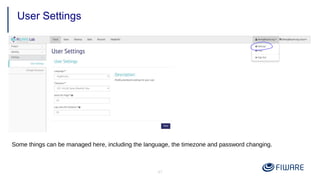
User Settings
Some things can be managed here, including the language, the timezone and password changing.
Thank you!!!
48
http://fiware.org
Follow @FIWARE on Twitter

FIWARE Lab Cloud Portal

  • 1.
    FIWARE Lab Cloud JoséIgnacio Carretero Guarde Fiware Cloud & Platform Expert joseignacio.carretero@fiware.org @jicarreterogu
  • 2.
    The cloud portal:https://cloud.lab.fiware.org 2
  • 3.
    3 Login The user nameis the email https://cloud.lab.fiware.org
  • 4.
  • 5.
  • 6.
    6 ● 3 mandatory Stepsbefore using our first VM: Access & Security ● Set the appropriate Security groups ● As Openstack works as a closed Firewall, we need to open our ports ● Create Keypair ● There is no password for the users, so this is the only way to access our Vms. ● It can be the same Keypair for all our VMs ● Allocate and Associate a public IP. ● One is enough for all your VMs. Prerequisites
  • 7.
    7 Creating a SecurityGroup A new security group with a name and a description should be created by clicking the “create security group” button in “Access & Security” option.
  • 8.
    8 Manage Rules Click in“Manage Rules” to add new rules to the security group. Rules define what ports and protocols are opened in a VM where our Security groups are applied. Remember: No Rules, no connection. MIND SECURITY: Do not open the ports or IPs that aren’t need opened
  • 9.
    9 Manage Rules (II) Tipicalexamples of Opened Ports: Port 22 for SSH Port 80 for HTTP Port 443 for HTTPS ICMP for Ping. Egress – Outgoing traffic Ingress – Incoming traffic This can be changed later, adding or removing rules
  • 10.
  • 11.
    11 Keypairs Create a newKey Pair In Access & Security → Key Pairs → Create Key Pair
  • 12.
    12 Keypair (II) The KeyPair requires a name. - The Private .pem file will be downloaded - The Private Key isn’t stored in the system Keep the file with care. You can’t access a VM without it. In this demo case, the Private Key file is named: mydemokeypair.pem
  • 13.
    13 Allocate FLOATING IPto the project Allocating a Floating IP to the project is needed in order to be able to access the VMs. Access & Security → Floating IPs → Allocate IP to Project The IP association is done later to one of the created VMs.
  • 14.
    14 Allocate FLOATING IPto the project (II) The pool is public-ext-net-01. There can be some other pools, but the convention in FIWARE Lab is using this name.
  • 15.
  • 16.
    16 Launching a VM(From Images)
  • 17.
    17 Launch a VMFrom Images (II) Launch Instance: Details - Instance Name: The mandatory name of the instance - Flavor: Tiny – Too small, the VM might not work. Small – 1 VCPU, 20Gb HD, 2Gb RAM Medium – 2 VCPU, 40Gb HD, 4Gb RAM Large – 4 VCPU, 80Gb HD, 8Gb RAM DO NOT LAUNCH YET!!!
  • 18.
    18 Launch a VMFrom Images (III) Launch Instance: Access & Security - Key Pair – The one we’ve created before The public Key will be injected in the VM, so the VM Will be later accessible. - Security Groups – The Security Group created previously So the firewall rules can be applied to the VM DO NOT LAUNCH YET!!!
  • 19.
    19 Launch a VMFrom Images (IV) Launch Instance: Networking - Selected Networks: node-int-net-01 By FIWARE Lab convention this is the one to be used - Caveats: * node-int-noinet-net-02 (in Spain2 node) has no connectivity with Internet. * Do not select more than one network unless you really know what you are doing After selecting the network: Launch!!! Some moments later, There’ll be a new instance running...
  • 20.
  • 21.
    21 Associate Floating IPto VM From Access & Security → Floating IPs → Associate Associate the Floating IP to a VM in order to be able to access it from the Internet.
  • 22.
    22 Accessing a VMusing SSH (II) # Set the permissions to the Private Key File: chmod 400 mydemokeypair.pem # ssh using ubuntu user (for example): ssh -i mydemokeypair.pem ubuntu@130.206.121.25
  • 23.
    23 Accessing a VMusing SSH (III)
  • 24.
  • 25.
  • 26.
    26 ● Soft Reboot Instance ● Gracefulreboot of the instance. ● Hard Reboot Instance ● Similar to Hardware Reboot of the instance ● Shutoff/Start Instance ● Pause and Resume Instance. ● Suspend and Resume Instance ● Terminate Instance ● Delete the instance. Forever. ● Create Snapshot The most commonly used Operations
  • 27.
    27 ● Creating Images fromrunning Instances: Copy a running instance ● In order to be able to deploy later another instance from the copy. ● Think of Snapshots as “freezing” an image. ● Snapshots are not a Backup Mechanism. ● They can help, but thet have serious limitations that backup tools can manage perfectly. ● They require large amounts of disk space. Snapshots
  • 28.
    28 Taking a Snapshot. Takinga Snapshot will take some long time and the VM will experience downtimes.
  • 29.
    29 Launch another Instancefrom Snapshot When the Snapshot has Status Active a new instance can be launched using it… Just as described before.
  • 30.
  • 31.
    31 ● The Instance diskare ephemeral ● The disk exists as long as the instance exists ● When the instance disappears, the disk is destroyed. ● Volumes are used to have persistent disks ● Persistent disk which will survive instances. Volumes
  • 32.
    32 ● Steps to usea Volume: ● Create a Volume ● Attach volume to an instance ● Partition and format the disk within an instance ● Mount the disk ● Possibly, add to your /etc/fstab Volumes (II)
  • 33.
  • 34.
    34 Create a Volume(II) - Enter the Volumen name - Enter the Description - Enter the size (Let’s say 1Gb)
  • 35.
    35 Manage Attachments Manage attachments,in the volume Menu will allow Attaching or Detaching a volume from an Instance
  • 36.
    36 Attach a Volumeto an Instance - Select the Instance where the volume is going to be attached.
  • 37.
    37 Attach a Volumeto an Instance (II) - Before the attachment, only /dev/vda and /dev/vda1 are shown – The first disk and the only partition in that disk. - After the attachment, also /dev/vdb is available – This is the device driver of the new attached disk. The disk is needed to be (partitioned – nice but not mandatory), formated and mounted.
  • 38.
    38 Using the newVolume # Partition: sudo fdisk /dev/vdb # Format mkfs -t ext4 /dev/vdb1 # Mount (for example in /mnt) mount /dev/vdb1 /mnt
  • 39.
    39 Dettach a Volumefrom an Instance From volumes → Manage Attachments (again) - Detach the volume from the instance - It is recommended that the volume is not Mounted in order to preserve data integrity. After umounting the volume, it will be ready to be attached in another instance.
  • 40.
  • 41.
    41 ● Use this functionallityto Store Objects in Containers ● Objects are some static files we want to keep. ● Pictures, videos, Documents ● Containers are some kind of folders where objects are kept. ● A container is needed before uploading objects. Containers and Objects
  • 42.
    42 Create a container Providea name for the container Decide if the container is public or private - By default, private.
  • 43.
    43 Upload an Objectto a Container Provide an Object Name Select one of our files in our Host
  • 44.
    44 Download an Objectfrom a Container The Browser downloads the object in the default Download Folder.
  • 45.
    45 ● Delete Objects froma Container ● The objects will be deleted forever from the container ● Delete a Container ● Delete a container forever. ● The container must be empty to be deleted, So we need to delete all objects in the container before doing this. Delete Containers and Objects
  • 46.
    A word onSettings 46
  • 47.
    47 User Settings Some thingscan be managed here, including the language, the timezone and password changing.
  • 48.