Simple Docker hosting on FIWARE Lab
Kenneth Nagin
IBM
Cloud Chapter Lead, FIWARE
nagin@il.ibm.com
FIWARE Lab Cloud Docker Hosting Overview
• Docker Hub: cloud service for managing and sharing Docker container images, including
FIWARE services, i.e. Generic Enablers (GEs) (http://catalogue.fiware.org/enablers);
• Docker Engine: creates and runs Docker containers; pulls/pushes images from/to
Docker Hub;
• Docker Compose: defines and runs multi-container applications;.
• Docker Swarm: manages a pool of Docker hosts using the full suite of Docker tools.
Because Docker Swarm serves the standard Docker API, any tool that already
communicates with a Docker daemon, e.g. Docker-Compose, can use Swarm to
transparently scale to multiple hosts.
• Docker Machine: creates and manages Docker hosts locally or on cloud providers
(including OpenStack). It can be used to create and manage Docker swam clusters.
• FIWARE Lab Docker Hosting: Docker Containers, Docker machines, and Docker Swarm
clusters can be hosted on the FIWARE lab, but remotely created and managed by local
Docker clients;
5
Simple Docker hosting on FIWARE
Remotely Managed by Docker Client
……
Region
….
Region
….
client
client
docker-engine
docker-machine
docker-compose
docker-swarm
docker api, openstack api, ssh
any tool based
on
docker-apidocker cli
Set up steps
1. Sign up fiware account (https://account.lab.fiware.org/sign_up/)
2. (Optionall) Request Community Upgrade
3. The orgranization automatically associated with your account must be able to
allocate at least on floating point IP and access at least one FIWARE region.
You can create other organizations.
4. In Cloud service
– Create Security Group that exposes ports for daemon, ssh, and any other
ports that are required.
– Allocated a floating point IP
5. Install docker and docker machine on your local computer
6. Use docker-machine to create hosts & swarm clusters on the desired FIWARE
regions
7
10
FIWARE Set up: Add security group for docker-machine
SSH: Port 22
Docker Daemon Port 2376
Docker Swarm Master Port: 3376
Auto allocated user ports: 32768-
33768
Other User Ports e.g. 8080
11
FIWARE set up: Allocate at least one public ip
12
docker-machine create docker host on FIWARE
export OS_REGION_NAME=<fiware region> #e.g. 'Spain2’
export OS_TENANT_NAME=<user’s organization> #e.g. ‘username cloud’
export OS_USERNAME=<user’s email address> #e.g. ‘username@gmail.com’
export OS_PASSWORD=<user’s password>
Export OS_DOMAIN_NAME=‘default’
export OS_AUTH_URL='http://cloud.lab.fi-ware.org:4730/v2.0/'
export OS_AUTH_STRATEGY='keystone'
13
docker-machine create docker host on fiware
$ docker-machine create -d openstack --openstack-flavor-id="2“ 
--openstack-image-name=“base_Ubuntu_14.04” 
--openstack-net-name="node-int-net-01" 
--openstack-floatingip-pool="public-ext-net-01" 
--openstack-sec-groups="docker-machine-sg" 
--openstack-ssh-user=“ubuntu” 
FIWARE-SPAIN2
Don’t forget to configure the security group with all necessary ports.
15
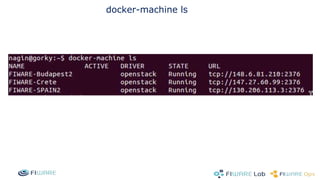
docker-machine ls
>eval “$(docker-machine env FIWARE-SPAIN2)”
>docker info
>eval $(docker-machine env FIWARE-SPAIN2)
>docker run hello-world
>eval $(docker-machine env FIWARE-SPAIN2)
>docker-compose up –d
>docker-compose ps
curl <FIWARE-SPAIN2 IP>:<EXPOSED PORT>
>curl <FIWARE-SPAIN2 IP>:<EXPOSED PORT>
21
Docker create swarm container
Save token in $TOKEN
> docker
22
Docker Swarm: create master
>export OS_REGION_NAME=Spain2
>docker-machine create -d openstack 
--openstack-flavor-id="2" 
--openstack-image-id=“base_Ubuntu_14.4” 
--openstack-net-name="node-int-net-01" 
--openstack-floatingip-pool="public-ext-net-01“ 
--openstack-sec-groups="docker-machine-sg" 
--openstack-ssh-user=“ubuntu” 
--swarm --swarm-master 
--swarm-discovery token://$TOKEN 
FIWARE-SPAIN2
23
Docker Swarm: create agent
>export OS_REGION_NAME=Crete
>docker-machine create -d openstack 
–-openstack-flavor-id="2" 
--openstack-image-id=“base_Ubuntu_14.4” 
--openstack-net-name="node-int-net-01" 
--openstack-floatingip-pool="public-ext-net-01" 
--openstack-sec-groups="docker-machine-sg“ 
--openstack-ssh-user=“ubuntu” 
--swarm 
--swarm-discovery token://$TOKEN 
FIWARE-Crete
docker swarm
• docker-machine ls
>eval “$(docker-machine env --swarm FIWARE-SPAIN2)”
>docker info
>eval $(docker-machine env --swarm FIWARE-SPAIN2)
>docker run hello-world
>docker ps -a
>eval $(docker-machine env --swarm FIWARE-SPAIN2)
>docker-compose up -d
>docker ps
>curl http://147.27.60.99:32768/employees/resources/employees/
>eval $(docker-machine env --swarm FIWARE-SPAIN2)
>docker-compose stop
>docker-compose ps
Limitations
•labor-intensive for non-trivial environments
•security
•multi-tenancy
•scalability
•manageability
•limited Docker features (storage, network, etc)
•not production-ready (high availability, etc)
Simple docker hosting on fiware lab

Simple docker hosting on fiware lab

  • 1.
    Simple Docker hostingon FIWARE Lab Kenneth Nagin IBM Cloud Chapter Lead, FIWARE nagin@il.ibm.com
  • 5.
    FIWARE Lab CloudDocker Hosting Overview • Docker Hub: cloud service for managing and sharing Docker container images, including FIWARE services, i.e. Generic Enablers (GEs) (http://catalogue.fiware.org/enablers); • Docker Engine: creates and runs Docker containers; pulls/pushes images from/to Docker Hub; • Docker Compose: defines and runs multi-container applications;. • Docker Swarm: manages a pool of Docker hosts using the full suite of Docker tools. Because Docker Swarm serves the standard Docker API, any tool that already communicates with a Docker daemon, e.g. Docker-Compose, can use Swarm to transparently scale to multiple hosts. • Docker Machine: creates and manages Docker hosts locally or on cloud providers (including OpenStack). It can be used to create and manage Docker swam clusters. • FIWARE Lab Docker Hosting: Docker Containers, Docker machines, and Docker Swarm clusters can be hosted on the FIWARE lab, but remotely created and managed by local Docker clients; 5
  • 6.
    Simple Docker hostingon FIWARE Remotely Managed by Docker Client …… Region …. Region …. client client docker-engine docker-machine docker-compose docker-swarm docker api, openstack api, ssh any tool based on docker-apidocker cli
  • 7.
    Set up steps 1.Sign up fiware account (https://account.lab.fiware.org/sign_up/) 2. (Optionall) Request Community Upgrade 3. The orgranization automatically associated with your account must be able to allocate at least on floating point IP and access at least one FIWARE region. You can create other organizations. 4. In Cloud service – Create Security Group that exposes ports for daemon, ssh, and any other ports that are required. – Allocated a floating point IP 5. Install docker and docker machine on your local computer 6. Use docker-machine to create hosts & swarm clusters on the desired FIWARE regions 7
  • 10.
    10 FIWARE Set up:Add security group for docker-machine SSH: Port 22 Docker Daemon Port 2376 Docker Swarm Master Port: 3376 Auto allocated user ports: 32768- 33768 Other User Ports e.g. 8080
  • 11.
    11 FIWARE set up:Allocate at least one public ip
  • 12.
    12 docker-machine create dockerhost on FIWARE export OS_REGION_NAME=<fiware region> #e.g. 'Spain2’ export OS_TENANT_NAME=<user’s organization> #e.g. ‘username cloud’ export OS_USERNAME=<user’s email address> #e.g. ‘username@gmail.com’ export OS_PASSWORD=<user’s password> Export OS_DOMAIN_NAME=‘default’ export OS_AUTH_URL='http://cloud.lab.fi-ware.org:4730/v2.0/' export OS_AUTH_STRATEGY='keystone'
  • 13.
    13 docker-machine create dockerhost on fiware $ docker-machine create -d openstack --openstack-flavor-id="2“ --openstack-image-name=“base_Ubuntu_14.04” --openstack-net-name="node-int-net-01" --openstack-floatingip-pool="public-ext-net-01" --openstack-sec-groups="docker-machine-sg" --openstack-ssh-user=“ubuntu” FIWARE-SPAIN2 Don’t forget to configure the security group with all necessary ports.
  • 15.
  • 16.
    >eval “$(docker-machine envFIWARE-SPAIN2)” >docker info
  • 17.
    >eval $(docker-machine envFIWARE-SPAIN2) >docker run hello-world
  • 19.
    >eval $(docker-machine envFIWARE-SPAIN2) >docker-compose up –d >docker-compose ps curl <FIWARE-SPAIN2 IP>:<EXPOSED PORT> >curl <FIWARE-SPAIN2 IP>:<EXPOSED PORT>
  • 21.
    21 Docker create swarmcontainer Save token in $TOKEN > docker
  • 22.
    22 Docker Swarm: createmaster >export OS_REGION_NAME=Spain2 >docker-machine create -d openstack --openstack-flavor-id="2" --openstack-image-id=“base_Ubuntu_14.4” --openstack-net-name="node-int-net-01" --openstack-floatingip-pool="public-ext-net-01“ --openstack-sec-groups="docker-machine-sg" --openstack-ssh-user=“ubuntu” --swarm --swarm-master --swarm-discovery token://$TOKEN FIWARE-SPAIN2
  • 23.
    23 Docker Swarm: createagent >export OS_REGION_NAME=Crete >docker-machine create -d openstack –-openstack-flavor-id="2" --openstack-image-id=“base_Ubuntu_14.4” --openstack-net-name="node-int-net-01" --openstack-floatingip-pool="public-ext-net-01" --openstack-sec-groups="docker-machine-sg“ --openstack-ssh-user=“ubuntu” --swarm --swarm-discovery token://$TOKEN FIWARE-Crete
  • 24.
  • 25.
    >eval “$(docker-machine env--swarm FIWARE-SPAIN2)” >docker info
  • 26.
    >eval $(docker-machine env--swarm FIWARE-SPAIN2) >docker run hello-world >docker ps -a
  • 27.
    >eval $(docker-machine env--swarm FIWARE-SPAIN2) >docker-compose up -d >docker ps >curl http://147.27.60.99:32768/employees/resources/employees/
  • 28.
    >eval $(docker-machine env--swarm FIWARE-SPAIN2) >docker-compose stop >docker-compose ps
  • 29.
    Limitations •labor-intensive for non-trivialenvironments •security •multi-tenancy •scalability •manageability •limited Docker features (storage, network, etc) •not production-ready (high availability, etc)