http://www.fiware.org
http://lab.fiware.org
Follow @FIWARE on Twitter
Federating new FIWARE Lab nodes
Fernando López
Telefonica I+D
Contact email
fernando.lopezaguilar@telefonica.com
@flopezaguilar
Table of content
 Starting point.
 Check the installation of an OpenStack instance.
 Request admin user and OpenStack service users.
 Where and What you need to change.
1
STARTING POINT
FIWARE Lab
2
Starting points
 FIWARE Lab Nodes Handbook,
(https://forge.fiware.org/plugins/mediawiki/wiki/fiware/index.php/FIWARE_Lab_
Nodes_Handbook)
 Detailed information about:
• requirements,
• process for joining,
• tools for operating a node,
• operating and maintaining a node.
3
Starting points: Contact persons
 Federated Keystone service: Álvaro Alonso aalonsog@dit.upm.es
 FI-Health service: Fernando López fernando.lopezaguilar@telefonica.com
 Infographics service: Silvio Cretti silvio.cretti@create-net.org
 Monitoring service: Fernando López fernando.lopezaguilar@telefonica.com
 FIWARE Images distribution: Fernando López
fernando.lopezaguilar@telefonica.com
 Jira: Manuel Escriche Vicente manuel.escrichevicente@telefonica.com
4
Starting points: Installing FIWARE Lab node
 Installing FIWARE Lab node
(https://forge.fiware.org/plugins/mediawiki/wiki/fiware/index.php/Installing_FIWA
RE_Lab_Node).
• Manual installation.
• Using Mirantis FUEL tool.
• Using FIWARE Deploy tool.
5
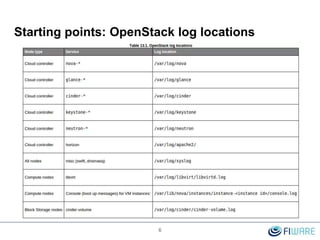
Starting points: OpenStack log locations
6
Starting points: Default configuration files
 Glance
• Files can be located in /etc/glance directory.
• glance-api.conf and glance-registry.conf
• Detailed information:
› http://docs.openstack.org/kilo/config-reference/content/section_glance-api.conf.html
› http://docs.openstack.org/kilo/config-reference/content/section_glance-registry.conf.html
7
7
Starting points: Default configuration files
 Nova
• nova.conf contains compute configuration options
• Can be found in /etc/nova directory.
• One per each compute node.
• Detailed information:
› http://docs.openstack.org/kilo/config-reference/content/compute-nova-conf.html
› http://docs.openstack.org/kilo/config-reference/content/list-of-compute-config-
options.html#config_table_nova_common
8
8
Starting points: Default configuration files
 Neutron
• metadata_agent.ini for the Metadata Agent component.
• neutron.conf, neutron configuration file
• Detailed information:
› http://docs.openstack.org/kilo/config-reference/content/networking-options-metadata.html
› http://docs.openstack.org/kilo/config-reference/content/networking-options-nova.html
› http://docs.openstack.org/kilo/config-reference/content/networking-options-auth_token.html
9
9
Starting points: Default configuration files
 Cinder
• Block storage service.
• cinder.conf Installed in /etc/cinder by default.
• Detailed information:
› http://docs.openstack.org/kilo/config-reference/content/section_cinder.conf.html
10
10
Starting points: Default configuration files
 Ceilometer
• Telemetry service in OpenStack.
• ceilometer.conf can be found in /etc/ceilometer/ directory.
• Detailed information:
› http://docs.openstack.org/kilo/config-reference/content/section_ceilometer.conf.html
11
11
CHECK THE INSTALLATION OF
AN OPENSTACK INSTANCE.
FIWARE Lab
12
Check the installation of an OpenStack instance
 https://forge.fiware.org/plugins/mediawiki/wiki/fiware/index.php/Testing_FIWAR
E_Lab_Node_locally
 First step, check the status of OpenStack services, following the command line
tools.
 Second step, check the functionalities offered through the OpenStack API.
13
13
Check the installation of an OpenStack instance:
First step
 Check the different nova services (from controller node).
• $ nova service-list
 Check the different neutron agent (from controller node).
• $ neutron agent-list
 Check the different cinder component (from controller node).
• $ cinder service-list
 If you have installed HA services (corosync/pacemaker)
• $ crm status
14
14
Check the installation of an OpenStack instance:
Second step
 This procedure try to check the OpenStack services through their APIs.
 External person access to your local OpenStack Horizon service and make
some tests.
• Provide user/password and the local OpenStack Horizon endpoint.
 Check network convention and access to the VM created.
 Give the green light to start the federation.
15
15
REQUEST ADMIN USER AND
OPENSTACK SERVICE USERS
FIWARE Lab
16
Request admin user and OpenStack service
users
 Send the service endpoints to Federation Keystone owner (Álvaro Alonso).
 Decide the name of the node (Region Name).
• Usually following the name of the city where the node is installed.
• It will be the name that we use in the cloud portal and different tools.
• e.g. Trento, Volos, Lannion, …
• https://cloud.lab.fiware.org/
17
17
Request admin user and OpenStack service
users
 Request the user and password of your local services to Álvaro.
• It will be used to configure the Federation Keystone connectivity.
› Nova
› Cinder
› Ceilometer
› Neutron
› Glance
18
18
Request admin user and OpenStack service
users
 Request the admin user.
• It will be used to access your node from the administrative purpose.
• Used with the FIWARE Ops tools (FI-Health, Calendar, …)
• Usually it is defined like admin-<region name>, e.g. admin-lannion
19
19
WHERE AND WHAT YOU NEED
TO CHANGE
FIWARE Lab
20
Where and What you need to change
 We have
• Federated Keystone
 We need
• A new OpenStack installation: A new region to be federated.
21
Where and What you need to change
 Works to be done:
• On Federated Keystone:
› Services endpoints must be provided for the new region.
› New service users must be provided.
• On OpenStack side (new region)
› Change Keystone endpoints everywhere.
› Change Keystone credentials everywhere.
22
Where and What you need to change
 We give you details of the configuration taking into account that you have an
OpenStack Kilo version.
 This is not going to be an exhaustive explanation, we assume that you have
enough knowledge to work with OpenStack.
23
Where and What you need to change
 Keystone administrator provides users and passwords and the Nova user
tenant ID:
• Glance: GLUSER, GLPWD
• Nova: NVUSER; NVPWD, NOVA_TENANT_ID
• Neutron: NTUSER, NTPWD
• Cinder: CDUSER, CDPWD
• Ceilometer: CLUSER, CLPWD
 IMPORTANT, it is mandatory that you have those data from Keystone
administrator (Álvaro Alonso).
24
Check the installation of an OpenStack instance
25
 There are several keystone endpoints and things we could do to increase the
performance.
 Prevent DNS Lookups:
• http://cloud.lab.fiware.org could be changed by http://130.206.84.8
 Use HTTPS instead of HTTP:
• http://cloud.lab.fiware.org:4730 can be changed by https://cloud.lab.fiware.org:5000
• http://cloud.lab.fiware.org:4731 can be changed by https://cloud.lab.fiware.org:35357

 To achieve HTTPS and prevent DNS lookups (need to configure insecure https
queries to be ok, … bad solution )
• http://cloud.lab.fiware.org could somehow be changed by https://130.206.84.8
Check the installation of an OpenStack instance:
Glance
26
 We need and admin_user, admin_password: (GLUSER, GLPWD)
 Files to change: glance-api.conf, glance-registry.conf
[keystone_authtoken]
identity_uri = http://cloud.lab.fiware.org:4731
admin_tenant_name = service
admin_user = GLUSER
admin_password = GLPWD
auth_uri = http://cloud.lab.fiware.org:4730/v2.0
[paste_deploy]
flavor = keystone
27
Check the installation of an OpenStack instance:
Nova
 We need and Nova’s and Neutron’s users and passwords: (NVUSER, NVPWD,
NTUSER, NTPWD).
 Files to change: nova.conf (every one both in controllers and computes nodes)
[keystone_authtoken]
auth_url = http://cloud.lab.fiware.org:4731
auth_uri = http://cloud.lab.fiware.org:4730
project_domain_id = default
user_domain_id = default
auth_plugin = password
project_name = service
username = NVUSER
password = NVPWD
28
Check the installation of an OpenStack instance:
Nova
### Same nova.conf as in the previous slide
[neutron]
url = http://<whatever>:9696
auth_strategy = keystone
admin_auth_url = http://cloud.lab.fiware.org:4731/v2.0
admin_tenant_name = service
admin_username = NTUSER
admin_password = NTPWD
service_metadata_proxy = True
metadata_proxy_shared_secret = very_difficult_secret_key
29
Check the installation of an OpenStack instance:
Neutron
 We need and Nova’s and Neutron’s users and passwords and nova Tenant ID.
• NVUSER, NVPWD, NTUSER, NTPWD, NOVA_TENANT_ID
 Files to change: neutron.conf (everywhere when we have it)
[keystone_authtoken]
auth_url = http://cloud.lab.fiware.org:4731
auth_uri = http://cloud.lab.fiware.org:4730
project_domain_id = default
user_domain_id = default
auth_plugin = password
project_name = service
username = NTUSER
password = NTPWD
30
Check the installation of an OpenStack instance:
Neutron
#### Comes from the previous slide
[nova]
auth_url = http://cloud.lab.fiware.org:4731
project_domain_id = default
user_domain_id = default
auth_plugin = password
project_name = service
username = NVUSER
password = NVPWD
admin_tenant_id = NOVA_TENANT_ID
31
Check the installation of an OpenStack instance:
Neutron
 Files to change: metadata_agent.ini (every metadata_agent.ini).
[DEFAULT]
auth_url = http://cloud.lab.fiware.org:4731
auth_uri = http://cloud.lab.fiware.org:4730
auth_region = YOUR_REGION_NAME
project_domain_id = default
user_domain_id = default
auth_plugin = password
project_name = service
username = NTUSER
password = NTPWD
32
Check the installation of an OpenStack instance:
Cinder
 We need and Cinders’s users and passwords: (CDUSER, CDPWD)
 Files to change: cinder.conf (every file that we could have)
[keystone_authtoken]
auth_url = http://cloud.lab.fiware.org:4731
auth_uri = http://cloud.lab.fiware.org:4730
project_domain_id = default
user_domain_id = default
auth_plugin = password
project_name = service
username = CDUSER
password = CDPWD
33
Check the installation of an OpenStack instance:
Ceilometer
 We need and Ceilometer’s users and passwords: (CLUSER, CLPWD)
 Files to change: ceilometer.conf --- Every ceilometer.conf
[keystone_authtoken]
auth_url = http://cloud.lab.fiware.org:4731
auth_uri = http://cloud.lab.fiware.org:4730
project_domain_id = default
user_domain_id = default
auth_plugin = password
project_name = service
username = CLUSER
password = CLPWD
REFERENCES
FIWARE FOUNDATION
34
References
 FIWARE Lab Cloud portal: https://cloud.lab.fiware.org
 FIWARE Lab Account portal: https://account.lab.fiware.org/idm/
 FIWARE Lab Nodes Handbook:
https://forge.fiware.org/plugins/mediawiki/wiki/fiware/index.php/FIWARE_Lab
_Nodes_Handbook
 Sanity Check: https://fi-health.lab.fiware.org/
 Infographics portal: http://infographic.lab.fiware.org/
35
http://fiware.org
http://lab.fiware.org
Follow @Fiware on Twitter !
Thanks!

Federating new FIWARE Lab nodes

  • 1.
    http://www.fiware.org http://lab.fiware.org Follow @FIWARE onTwitter Federating new FIWARE Lab nodes Fernando López Telefonica I+D Contact email fernando.lopezaguilar@telefonica.com @flopezaguilar
  • 2.
    Table of content Starting point.  Check the installation of an OpenStack instance.  Request admin user and OpenStack service users.  Where and What you need to change. 1
  • 3.
  • 4.
    Starting points  FIWARELab Nodes Handbook, (https://forge.fiware.org/plugins/mediawiki/wiki/fiware/index.php/FIWARE_Lab_ Nodes_Handbook)  Detailed information about: • requirements, • process for joining, • tools for operating a node, • operating and maintaining a node. 3
  • 5.
    Starting points: Contactpersons  Federated Keystone service: Álvaro Alonso aalonsog@dit.upm.es  FI-Health service: Fernando López fernando.lopezaguilar@telefonica.com  Infographics service: Silvio Cretti silvio.cretti@create-net.org  Monitoring service: Fernando López fernando.lopezaguilar@telefonica.com  FIWARE Images distribution: Fernando López fernando.lopezaguilar@telefonica.com  Jira: Manuel Escriche Vicente manuel.escrichevicente@telefonica.com 4
  • 6.
    Starting points: InstallingFIWARE Lab node  Installing FIWARE Lab node (https://forge.fiware.org/plugins/mediawiki/wiki/fiware/index.php/Installing_FIWA RE_Lab_Node). • Manual installation. • Using Mirantis FUEL tool. • Using FIWARE Deploy tool. 5
  • 7.
  • 8.
    Starting points: Defaultconfiguration files  Glance • Files can be located in /etc/glance directory. • glance-api.conf and glance-registry.conf • Detailed information: › http://docs.openstack.org/kilo/config-reference/content/section_glance-api.conf.html › http://docs.openstack.org/kilo/config-reference/content/section_glance-registry.conf.html 7 7
  • 9.
    Starting points: Defaultconfiguration files  Nova • nova.conf contains compute configuration options • Can be found in /etc/nova directory. • One per each compute node. • Detailed information: › http://docs.openstack.org/kilo/config-reference/content/compute-nova-conf.html › http://docs.openstack.org/kilo/config-reference/content/list-of-compute-config- options.html#config_table_nova_common 8 8
  • 10.
    Starting points: Defaultconfiguration files  Neutron • metadata_agent.ini for the Metadata Agent component. • neutron.conf, neutron configuration file • Detailed information: › http://docs.openstack.org/kilo/config-reference/content/networking-options-metadata.html › http://docs.openstack.org/kilo/config-reference/content/networking-options-nova.html › http://docs.openstack.org/kilo/config-reference/content/networking-options-auth_token.html 9 9
  • 11.
    Starting points: Defaultconfiguration files  Cinder • Block storage service. • cinder.conf Installed in /etc/cinder by default. • Detailed information: › http://docs.openstack.org/kilo/config-reference/content/section_cinder.conf.html 10 10
  • 12.
    Starting points: Defaultconfiguration files  Ceilometer • Telemetry service in OpenStack. • ceilometer.conf can be found in /etc/ceilometer/ directory. • Detailed information: › http://docs.openstack.org/kilo/config-reference/content/section_ceilometer.conf.html 11 11
  • 13.
    CHECK THE INSTALLATIONOF AN OPENSTACK INSTANCE. FIWARE Lab 12
  • 14.
    Check the installationof an OpenStack instance  https://forge.fiware.org/plugins/mediawiki/wiki/fiware/index.php/Testing_FIWAR E_Lab_Node_locally  First step, check the status of OpenStack services, following the command line tools.  Second step, check the functionalities offered through the OpenStack API. 13 13
  • 15.
    Check the installationof an OpenStack instance: First step  Check the different nova services (from controller node). • $ nova service-list  Check the different neutron agent (from controller node). • $ neutron agent-list  Check the different cinder component (from controller node). • $ cinder service-list  If you have installed HA services (corosync/pacemaker) • $ crm status 14 14
  • 16.
    Check the installationof an OpenStack instance: Second step  This procedure try to check the OpenStack services through their APIs.  External person access to your local OpenStack Horizon service and make some tests. • Provide user/password and the local OpenStack Horizon endpoint.  Check network convention and access to the VM created.  Give the green light to start the federation. 15 15
  • 17.
    REQUEST ADMIN USERAND OPENSTACK SERVICE USERS FIWARE Lab 16
  • 18.
    Request admin userand OpenStack service users  Send the service endpoints to Federation Keystone owner (Álvaro Alonso).  Decide the name of the node (Region Name). • Usually following the name of the city where the node is installed. • It will be the name that we use in the cloud portal and different tools. • e.g. Trento, Volos, Lannion, … • https://cloud.lab.fiware.org/ 17 17
  • 19.
    Request admin userand OpenStack service users  Request the user and password of your local services to Álvaro. • It will be used to configure the Federation Keystone connectivity. › Nova › Cinder › Ceilometer › Neutron › Glance 18 18
  • 20.
    Request admin userand OpenStack service users  Request the admin user. • It will be used to access your node from the administrative purpose. • Used with the FIWARE Ops tools (FI-Health, Calendar, …) • Usually it is defined like admin-<region name>, e.g. admin-lannion 19 19
  • 21.
    WHERE AND WHATYOU NEED TO CHANGE FIWARE Lab 20
  • 22.
    Where and Whatyou need to change  We have • Federated Keystone  We need • A new OpenStack installation: A new region to be federated. 21
  • 23.
    Where and Whatyou need to change  Works to be done: • On Federated Keystone: › Services endpoints must be provided for the new region. › New service users must be provided. • On OpenStack side (new region) › Change Keystone endpoints everywhere. › Change Keystone credentials everywhere. 22
  • 24.
    Where and Whatyou need to change  We give you details of the configuration taking into account that you have an OpenStack Kilo version.  This is not going to be an exhaustive explanation, we assume that you have enough knowledge to work with OpenStack. 23
  • 25.
    Where and Whatyou need to change  Keystone administrator provides users and passwords and the Nova user tenant ID: • Glance: GLUSER, GLPWD • Nova: NVUSER; NVPWD, NOVA_TENANT_ID • Neutron: NTUSER, NTPWD • Cinder: CDUSER, CDPWD • Ceilometer: CLUSER, CLPWD  IMPORTANT, it is mandatory that you have those data from Keystone administrator (Álvaro Alonso). 24
  • 26.
    Check the installationof an OpenStack instance 25  There are several keystone endpoints and things we could do to increase the performance.  Prevent DNS Lookups: • http://cloud.lab.fiware.org could be changed by http://130.206.84.8  Use HTTPS instead of HTTP: • http://cloud.lab.fiware.org:4730 can be changed by https://cloud.lab.fiware.org:5000 • http://cloud.lab.fiware.org:4731 can be changed by https://cloud.lab.fiware.org:35357   To achieve HTTPS and prevent DNS lookups (need to configure insecure https queries to be ok, … bad solution ) • http://cloud.lab.fiware.org could somehow be changed by https://130.206.84.8
  • 27.
    Check the installationof an OpenStack instance: Glance 26  We need and admin_user, admin_password: (GLUSER, GLPWD)  Files to change: glance-api.conf, glance-registry.conf [keystone_authtoken] identity_uri = http://cloud.lab.fiware.org:4731 admin_tenant_name = service admin_user = GLUSER admin_password = GLPWD auth_uri = http://cloud.lab.fiware.org:4730/v2.0 [paste_deploy] flavor = keystone
  • 28.
    27 Check the installationof an OpenStack instance: Nova  We need and Nova’s and Neutron’s users and passwords: (NVUSER, NVPWD, NTUSER, NTPWD).  Files to change: nova.conf (every one both in controllers and computes nodes) [keystone_authtoken] auth_url = http://cloud.lab.fiware.org:4731 auth_uri = http://cloud.lab.fiware.org:4730 project_domain_id = default user_domain_id = default auth_plugin = password project_name = service username = NVUSER password = NVPWD
  • 29.
    28 Check the installationof an OpenStack instance: Nova ### Same nova.conf as in the previous slide [neutron] url = http://<whatever>:9696 auth_strategy = keystone admin_auth_url = http://cloud.lab.fiware.org:4731/v2.0 admin_tenant_name = service admin_username = NTUSER admin_password = NTPWD service_metadata_proxy = True metadata_proxy_shared_secret = very_difficult_secret_key
  • 30.
    29 Check the installationof an OpenStack instance: Neutron  We need and Nova’s and Neutron’s users and passwords and nova Tenant ID. • NVUSER, NVPWD, NTUSER, NTPWD, NOVA_TENANT_ID  Files to change: neutron.conf (everywhere when we have it) [keystone_authtoken] auth_url = http://cloud.lab.fiware.org:4731 auth_uri = http://cloud.lab.fiware.org:4730 project_domain_id = default user_domain_id = default auth_plugin = password project_name = service username = NTUSER password = NTPWD
  • 31.
    30 Check the installationof an OpenStack instance: Neutron #### Comes from the previous slide [nova] auth_url = http://cloud.lab.fiware.org:4731 project_domain_id = default user_domain_id = default auth_plugin = password project_name = service username = NVUSER password = NVPWD admin_tenant_id = NOVA_TENANT_ID
  • 32.
    31 Check the installationof an OpenStack instance: Neutron  Files to change: metadata_agent.ini (every metadata_agent.ini). [DEFAULT] auth_url = http://cloud.lab.fiware.org:4731 auth_uri = http://cloud.lab.fiware.org:4730 auth_region = YOUR_REGION_NAME project_domain_id = default user_domain_id = default auth_plugin = password project_name = service username = NTUSER password = NTPWD
  • 33.
    32 Check the installationof an OpenStack instance: Cinder  We need and Cinders’s users and passwords: (CDUSER, CDPWD)  Files to change: cinder.conf (every file that we could have) [keystone_authtoken] auth_url = http://cloud.lab.fiware.org:4731 auth_uri = http://cloud.lab.fiware.org:4730 project_domain_id = default user_domain_id = default auth_plugin = password project_name = service username = CDUSER password = CDPWD
  • 34.
    33 Check the installationof an OpenStack instance: Ceilometer  We need and Ceilometer’s users and passwords: (CLUSER, CLPWD)  Files to change: ceilometer.conf --- Every ceilometer.conf [keystone_authtoken] auth_url = http://cloud.lab.fiware.org:4731 auth_uri = http://cloud.lab.fiware.org:4730 project_domain_id = default user_domain_id = default auth_plugin = password project_name = service username = CLUSER password = CLPWD
  • 35.
  • 36.
    References  FIWARE LabCloud portal: https://cloud.lab.fiware.org  FIWARE Lab Account portal: https://account.lab.fiware.org/idm/  FIWARE Lab Nodes Handbook: https://forge.fiware.org/plugins/mediawiki/wiki/fiware/index.php/FIWARE_Lab _Nodes_Handbook  Sanity Check: https://fi-health.lab.fiware.org/  Infographics portal: http://infographic.lab.fiware.org/ 35
  • 37.