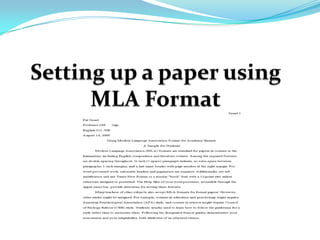
Setting up a paper using MLA Format
Overview     The instructions you are about to read are about how to write a paper using MLA formatting.  I will be giving instructions on;Setting your margins
Spacing your sentences
 Applying a header to the page, etc.       This power point will walk you through setting up the paper step by step using screen shots and written instructions to ensure that you correctly accomplish each step before moving on to the next.  This power point will help anyone who is trying to write a paper in MLA format and should not be used if MLA format is not the desired format of the paper they are trying to set up.   If this is knowledge you wish to acquire then lets begin.   
Knowledge Needed to BeginYou will need basic computer skills.
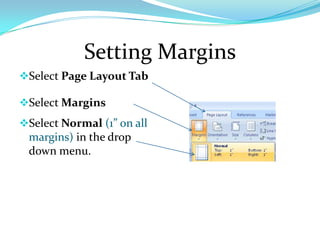
You will also need to have access to Microsoft office Word 2007. Setting MarginsSelect Page Layout Tab
Select Margins
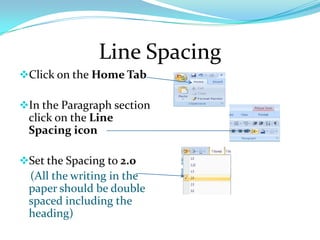
Select Normal(1” on all margins) in the drop down menu.Line SpacingClick on the Home Tab
In the Paragraph section click on the Line Spacing icon
Set the Spacing to 2.0(All the writing in the paper should be double spaced including the heading)
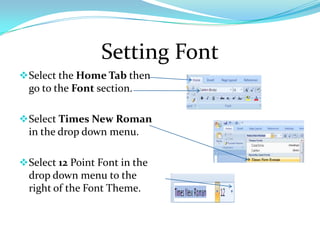
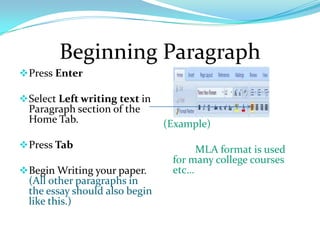
Setting FontSelect the Home Tab then go to the Font section.

Setting Up A Paper Using Mla Format

  • 1.
    Setting up apaper using MLA Format
  • 2.
    Overview The instructions you are about to read are about how to write a paper using MLA formatting.  I will be giving instructions on;Setting your margins
  • 3.
  • 4.
     Applying a headerto the page, etc.  This power point will walk you through setting up the paper step by step using screen shots and written instructions to ensure that you correctly accomplish each step before moving on to the next.  This power point will help anyone who is trying to write a paper in MLA format and should not be used if MLA format is not the desired format of the paper they are trying to set up.   If this is knowledge you wish to acquire then lets begin.   
  • 5.
    Knowledge Needed toBeginYou will need basic computer skills.
  • 6.
    You will alsoneed to have access to Microsoft office Word 2007. Setting MarginsSelect Page Layout Tab
  • 7.
  • 8.
    Select Normal(1” onall margins) in the drop down menu.Line SpacingClick on the Home Tab
  • 9.
    In the Paragraphsection click on the Line Spacing icon
  • 10.
    Set the Spacingto 2.0(All the writing in the paper should be double spaced including the heading)
  • 11.
    Setting FontSelect theHome Tab then go to the Font section.