Information Security
Awareness Training
How to protect electronic information at the
Department of Postsecondary Education
What do you think of
when you hear the term
“information
security?”
Goal of Security for DPE
Ensure that
the right person has
the right informatio
n at the right time
Goals for today
• Purpose of Security Training
• Potential Threats
• Protecting Data at Work
• Mobile Device Security
• New Security Policies
• Reporting Security Breaches
PURPOSE OF TRAINING
Who is responsible for computer security?
• Everyone is responsible for protecting the
Department’s information
• DPE personnel are expected to act
responsibly and ethically when accessing
Departmental data
• Compliance with Departmental policies,
Board policies, and state and federal law is
required.
The security of a system is
only as good as its weakest
link. If even one person
does not pay attention to
security, the security of the
whole system is
compromised
Why do I need to learn about security?
Good Security Standards follow the "90/10"
Rule:
• 10% of security safeguards are technical
• 90% of security safeguards rely on the
computer user (YOU!) to adhere to good
computing practices
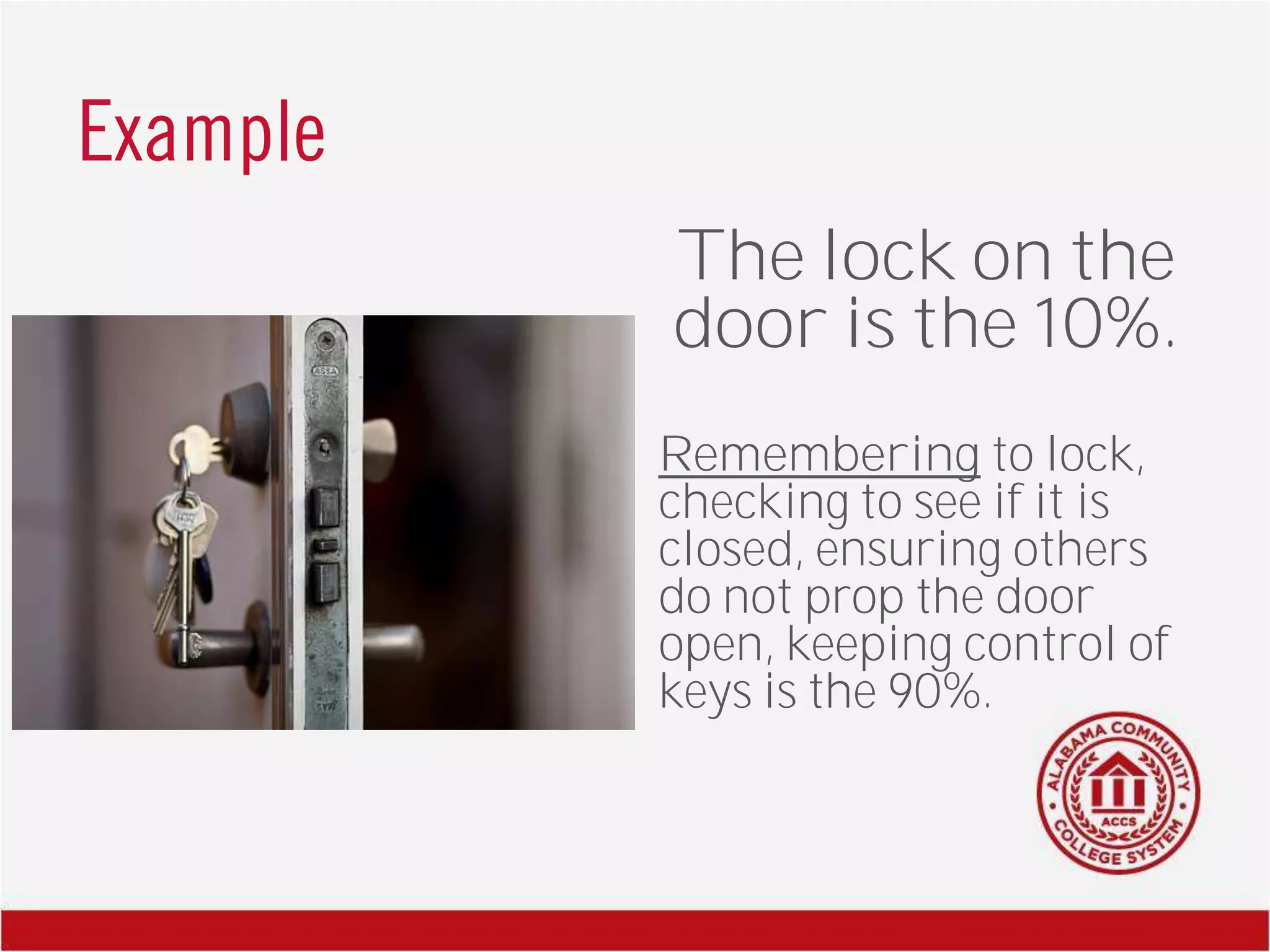
Example
The lock on the
door is the 10%.
Remembering to lock,
checking to see if it is
closed, ensuring others
do not prop the door
open, keeping control of
keys is the 90%.
What could happen
Poor security can place information at risk. Some examples are:
– Your laptop containing data is stolen
– A hacker breaks into an application and alters data
– A departmental server is destroyed by a virus and the backup copy
of the data is out of date
POTENTIAL THREATS
Malicious Software
Malicious software (also known as malware) is a
serious threat. These are programs that can "infect"
other programs, damage hard drives, erase critical
information, take critical systems off-line, and forward
your data to external sites without your knowledge.
Malware includes:
– Viruses
– Worms
– Trojan Horse programs
– Spyware
– Programs which accidentally harm any
system or data
Signs of Malware
• Unusual items appearing on the screen (graphics,
odd messages, or system error messages).
• Corrupted or inaccessible program files, hard disks,
or diskettes.
• Programs taking longer to start up, running more
slowly than usual, or not running at all.
• Increased number of pop-up advertisements
• Changed settings that can't be changed back
to the way they were
• Web browser contains additional components
that you don't remember downloading
Protecting against Malware
Anti-virus software running on DPE’s
managed workstations protects against most
malware.
Should you suspect that your computer is
infected, take immediate action:
• Close all of your files and programs
• Document what symptoms were observed
• Shut down your system
• Contact the Help Desk
Password Attacks
A password attack is any type of attack in which
the attacker attempts to obtain or make use of
passwords illegitimately.
Types of Password Attacks:
– Guessing
– Stealing
– Dictionary attack
– Brute force attack
– Sophisticated methods
Protecting against Password Attacks
• Change password often
• Use Strong Passwords
• Use random words/methods instead of
personal information
Social Network Attacks
Types of Social Networking Attacks:
– Evil Twin (account phishing)
– Clickbaiting and Clickjacking
– Drive-by download
Wireless Threats
• Evil Twins
Wireless Safety Tips
• Stay off of open or unsecured wireless
networks
• On public wireless networks, ensure
firewall is set to Public
• Use cellular or a Mi-Fi
Physical Security Threats
• Destruction of hardware to make data
unavailable
• Theft of devices (either to steal information,
or to sell hardware)
• Keyloggers
Identity Theft
Identity theft is the unauthorized collection and use of your personal
information for criminal purposes. This information can be used to open
credit card and bank accounts, redirect mail, establish cellular phone service,
rent vehicles, and even secure employment. If this happens, you could be left
with the bills, charges, bad checks, and taxes.
Signs of Identity Theft:
− Unexplained bank statements, charges on phone,
credit cards or other consumer accounts
− Being denied a loan you qualify for
− Unexplained changes in your bank access codes
− Missing credit card bills or other mail
− Unusual calls regarding your personal or financial
information
Social Engineering
Social engineering is the practice of obtaining confidential information by
manipulation of legitimate users. A social engineer will commonly use the
telephone or Internet to trick people into revealing sensitive information or
getting them to do something that is against typical policies.
Social engineers exploit
the natural tendency of a
person to trust another’s
word, rather than
exploiting computer
security holes.
Social Engineering Techniques
• Impersonation
• Hoax
• Phishing
• URL Hijacking
• Spam
• Shoulder surfing
• Dumpster Diving
• Tailgating
Signs of Social Engineering
– Refusal to give contact information
– Rushing
– Name-dropping
– Intimidation
– Small mistakes (misspellings,
misnomers, odd questions)
– Requesting forbidden information
Avoid being a victim
• Be suspicious of unsolicited phone calls, visits, or email messages from individuals
asking about employees or other internal information.
• If an unknown individual claims to be from a legitimate organization, try to verify
his or her identity directly with the company.
• Do not provide personal information or information about your organization
unless you are certain of a person's authority to have the information.
• Do not reveal personal or financial information in email, and do not respond to
email solicitations for this information. This includes following links sent in email.
• If you are unsure whether an email request is legitimate, try to verify it by
contacting the company directly. Do not use contact information provided on a
web site connected to the request.
Internal Threats
Survey after survey has shown that most damage
is done by insiders -- people with authorized
access to a computer network. Many insiders
have the access and knowledge to compromise or
shut down entire systems and networks.
You are expected to report information that
comes to your attention and that raises
potential concerns about computer security.
PROTECTING DATA AT WORK
Protecting data
• Use strong passwords
• Pay attention to your computer's security
• Use email safely
• Use the Internet responsibly and securely
• Dispose of media properly
• Physically secure devices containing PII
Strong Passwords
• Avoid using password based on your name
• Do not use easily guessed numbers
• Change your password frequently
• Use passwords that are eight or more letters
in length with upper case, lower case,
numbers, and symbols
Be aware of your computer’s security
• Lock your computer before leaving your
desk unattended
• Secure your laptop when travelling
• Before going home, log off the network
• Manage your data in a manner that reflects
its sensitivity
Use Email Safely
• Don’t open suspicious or unsolicited
attachments
• Avoid responding to spam (especially links
that claim you will be removed from list)
• Never provide credit card numbers,
passwords, or person info in response to
email messages
Use the Internet Responsibily
• Don't post sensitive Department information
or Department-related comments on message
boards, in chat rooms or anywhere else on the
Internet.
• Don't visit inappropriate Internet sites.
• Don't download non-business-related files to
the Department’s network or to your
Department-issued computer. Downloads
from the Internet are often virus hazards.
Dispose of media properly
• Before electronic media is disposed of,
appropriate care must be taken to ensure that
no unauthorized person can access data by
ordinary means.
• Electronic media such as floppy disks,
rewritable CD-ROMS, zip disks, videotapes,
and audiotapes should be erased if the media
type allows it or destroyed if erasure is not
possible.
• Paper files may need to be shredded
MOBILE DEVICE SECURITY
Mobile Device Tips
• Lock your laptop to a fixed piece of furniture using a metal laptop cable if you
leave it unattended. Locking devices are available through office-supply
companies.
• Guard laptops, PDAs, CDs, cell phones and papers at all times.
• Implement a password-protected screen lock.
• Don't store sensitive information, such as usernames, passwords, social
security numbers, bank account numbers, or credit card numbers on the
device.
• Keep data backed up on a PC or server in case your mobile device is gone
forever.
• Store important data separately. There are many forms of storage media,
including floppy disks, zip disks, CDs, DVDs, and removable flash drives (also
known as USB drives or thumb drives). By saving your data on removable
media and keeping it in a different location, you can protect your data even if
your laptop is stolen.
DEPARTMENT SECURITY POLICIES
Policies
• Acceptable Use Policy
• User Account Policy
• Password Policy
• Email Access Policy
• Shared Calendar Policy
• Mobile Device Policy
• Remote Access Policy
Questions and Comments
Randy Bowman
Acting Director of the Information Technology, Data, Planning and
Research Division
(334) 293-4542
randy.bowman@dpe.edu

Information Security Awareness Training

  • 1.
    Information Security Awareness Training Howto protect electronic information at the Department of Postsecondary Education
  • 2.
    What do youthink of when you hear the term “information security?”
  • 3.
    Goal of Securityfor DPE Ensure that the right person has the right informatio n at the right time
  • 4.
    Goals for today •Purpose of Security Training • Potential Threats • Protecting Data at Work • Mobile Device Security • New Security Policies • Reporting Security Breaches
  • 5.
  • 6.
    Who is responsiblefor computer security? • Everyone is responsible for protecting the Department’s information • DPE personnel are expected to act responsibly and ethically when accessing Departmental data • Compliance with Departmental policies, Board policies, and state and federal law is required.
  • 7.
    The security ofa system is only as good as its weakest link. If even one person does not pay attention to security, the security of the whole system is compromised
  • 8.
    Why do Ineed to learn about security? Good Security Standards follow the "90/10" Rule: • 10% of security safeguards are technical • 90% of security safeguards rely on the computer user (YOU!) to adhere to good computing practices
  • 9.
    Example The lock onthe door is the 10%. Remembering to lock, checking to see if it is closed, ensuring others do not prop the door open, keeping control of keys is the 90%.
  • 10.
    What could happen Poorsecurity can place information at risk. Some examples are: – Your laptop containing data is stolen – A hacker breaks into an application and alters data – A departmental server is destroyed by a virus and the backup copy of the data is out of date
  • 11.
  • 12.
    Malicious Software Malicious software(also known as malware) is a serious threat. These are programs that can "infect" other programs, damage hard drives, erase critical information, take critical systems off-line, and forward your data to external sites without your knowledge. Malware includes: – Viruses – Worms – Trojan Horse programs – Spyware – Programs which accidentally harm any system or data
  • 13.
    Signs of Malware •Unusual items appearing on the screen (graphics, odd messages, or system error messages). • Corrupted or inaccessible program files, hard disks, or diskettes. • Programs taking longer to start up, running more slowly than usual, or not running at all. • Increased number of pop-up advertisements • Changed settings that can't be changed back to the way they were • Web browser contains additional components that you don't remember downloading
  • 14.
    Protecting against Malware Anti-virussoftware running on DPE’s managed workstations protects against most malware. Should you suspect that your computer is infected, take immediate action: • Close all of your files and programs • Document what symptoms were observed • Shut down your system • Contact the Help Desk
  • 15.
    Password Attacks A passwordattack is any type of attack in which the attacker attempts to obtain or make use of passwords illegitimately. Types of Password Attacks: – Guessing – Stealing – Dictionary attack – Brute force attack – Sophisticated methods
  • 16.
    Protecting against PasswordAttacks • Change password often • Use Strong Passwords • Use random words/methods instead of personal information
  • 17.
    Social Network Attacks Typesof Social Networking Attacks: – Evil Twin (account phishing) – Clickbaiting and Clickjacking – Drive-by download
  • 18.
    Wireless Threats • EvilTwins Wireless Safety Tips • Stay off of open or unsecured wireless networks • On public wireless networks, ensure firewall is set to Public • Use cellular or a Mi-Fi
  • 19.
    Physical Security Threats •Destruction of hardware to make data unavailable • Theft of devices (either to steal information, or to sell hardware) • Keyloggers
  • 20.
    Identity Theft Identity theftis the unauthorized collection and use of your personal information for criminal purposes. This information can be used to open credit card and bank accounts, redirect mail, establish cellular phone service, rent vehicles, and even secure employment. If this happens, you could be left with the bills, charges, bad checks, and taxes. Signs of Identity Theft: − Unexplained bank statements, charges on phone, credit cards or other consumer accounts − Being denied a loan you qualify for − Unexplained changes in your bank access codes − Missing credit card bills or other mail − Unusual calls regarding your personal or financial information
  • 21.
    Social Engineering Social engineeringis the practice of obtaining confidential information by manipulation of legitimate users. A social engineer will commonly use the telephone or Internet to trick people into revealing sensitive information or getting them to do something that is against typical policies.
  • 22.
    Social engineers exploit thenatural tendency of a person to trust another’s word, rather than exploiting computer security holes.
  • 23.
    Social Engineering Techniques •Impersonation • Hoax • Phishing • URL Hijacking • Spam • Shoulder surfing • Dumpster Diving • Tailgating
  • 24.
    Signs of SocialEngineering – Refusal to give contact information – Rushing – Name-dropping – Intimidation – Small mistakes (misspellings, misnomers, odd questions) – Requesting forbidden information
  • 25.
    Avoid being avictim • Be suspicious of unsolicited phone calls, visits, or email messages from individuals asking about employees or other internal information. • If an unknown individual claims to be from a legitimate organization, try to verify his or her identity directly with the company. • Do not provide personal information or information about your organization unless you are certain of a person's authority to have the information. • Do not reveal personal or financial information in email, and do not respond to email solicitations for this information. This includes following links sent in email. • If you are unsure whether an email request is legitimate, try to verify it by contacting the company directly. Do not use contact information provided on a web site connected to the request.
  • 26.
    Internal Threats Survey aftersurvey has shown that most damage is done by insiders -- people with authorized access to a computer network. Many insiders have the access and knowledge to compromise or shut down entire systems and networks. You are expected to report information that comes to your attention and that raises potential concerns about computer security.
  • 27.
  • 28.
    Protecting data • Usestrong passwords • Pay attention to your computer's security • Use email safely • Use the Internet responsibly and securely • Dispose of media properly • Physically secure devices containing PII
  • 29.
    Strong Passwords • Avoidusing password based on your name • Do not use easily guessed numbers • Change your password frequently • Use passwords that are eight or more letters in length with upper case, lower case, numbers, and symbols
  • 30.
    Be aware ofyour computer’s security • Lock your computer before leaving your desk unattended • Secure your laptop when travelling • Before going home, log off the network • Manage your data in a manner that reflects its sensitivity
  • 31.
    Use Email Safely •Don’t open suspicious or unsolicited attachments • Avoid responding to spam (especially links that claim you will be removed from list) • Never provide credit card numbers, passwords, or person info in response to email messages
  • 32.
    Use the InternetResponsibily • Don't post sensitive Department information or Department-related comments on message boards, in chat rooms or anywhere else on the Internet. • Don't visit inappropriate Internet sites. • Don't download non-business-related files to the Department’s network or to your Department-issued computer. Downloads from the Internet are often virus hazards.
  • 33.
    Dispose of mediaproperly • Before electronic media is disposed of, appropriate care must be taken to ensure that no unauthorized person can access data by ordinary means. • Electronic media such as floppy disks, rewritable CD-ROMS, zip disks, videotapes, and audiotapes should be erased if the media type allows it or destroyed if erasure is not possible. • Paper files may need to be shredded
  • 34.
  • 35.
    Mobile Device Tips •Lock your laptop to a fixed piece of furniture using a metal laptop cable if you leave it unattended. Locking devices are available through office-supply companies. • Guard laptops, PDAs, CDs, cell phones and papers at all times. • Implement a password-protected screen lock. • Don't store sensitive information, such as usernames, passwords, social security numbers, bank account numbers, or credit card numbers on the device. • Keep data backed up on a PC or server in case your mobile device is gone forever. • Store important data separately. There are many forms of storage media, including floppy disks, zip disks, CDs, DVDs, and removable flash drives (also known as USB drives or thumb drives). By saving your data on removable media and keeping it in a different location, you can protect your data even if your laptop is stolen.
  • 36.
  • 37.
    Policies • Acceptable UsePolicy • User Account Policy • Password Policy • Email Access Policy • Shared Calendar Policy • Mobile Device Policy • Remote Access Policy
  • 38.
    Questions and Comments RandyBowman Acting Director of the Information Technology, Data, Planning and Research Division (334) 293-4542 randy.bowman@dpe.edu