Screencasting with Jing

                               BEN ANDERSON
                          WWW.TECH4CLASSROOMS.COM


Copyright www.tech4classrooms.com
Outline

 What is Jing
 What does Jing Cost?
 What is a Screencapture?
 What is a Screencast?
 Jing and Screencasting
 Installing Jing
 Setting Jing Preferences
 Screencaptures with Jing
 Screencasting with Jing
 Sharing and Educational Uses of Jing

Copyright www.tech4classrooms.com
What is Jing?

 Jing captures anything you see on your computer
  screen, as an image or short video, and lets you share
  it instantly.
 It is a free piece of software from
  Techsmith.com that must be
  installed on your computer.
  They also make a more robust
  product for screenrecording
  called Camtasia and Camtasia Studio


Copyright www.tech4classrooms.com
What Does Jing Cost

 Jing is Free
 When you install Jing you must create a
  Screencast.com account associated with a valid email
  address.
 Screencast.com is TechSmiths media hosting
  solution that Jings uses to host your content.
 You get 2 GB of storage and 2 GB of bandwidth per
  month for Free.
 You can also save Jing files to your own computer via
  and FTP server.
Copyright www.tech4classrooms.com
What is a Screencapture?

 A screen capture is a snapshot of your computer
   screen or a portion of your screen much like a still
   photograph.


Copyright www.tech4classrooms.com
What is a Screencast?

 A screencast is a video recording of your computer
  screen or a portion of it while you are performing
  some task on it. If you want to narrate what you are
  doing on the screen you can record audio at the same
  time you’re recording the action on your screen.
 When published to the Web, this is known as a
  screencast.


Copyright www.tech4classrooms.com
Jing and Screencasting

 With Jing you can record both screencaptures and
  screenrecordings.
 Screenrecordings can be published as screencasts.


Copyright www.tech4classrooms.com
Installing Jing

 Download from www.techsmith.com/jing.html
 Install on your computer
 Setup a Screencast.com account
 Start Using Jing


Copyright www.tech4classrooms.com
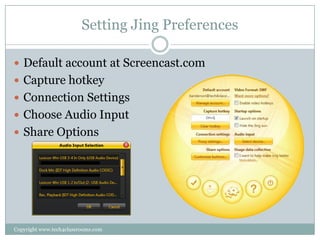
Setting Jing Preferences

 Default account at Screencast.com
 Capture hotkey
 Connection Settings
 Choose Audio Input
 Share Options


Copyright www.tech4classrooms.com
Take a Screen Capture with Jing

 Step 1 – Mouse over the Jing sun and click capture
 Step 2 – Click and Drag cursor around what you
  want to capture
 Step 3 – Click on Capture Image

Jing Capture
Window
In the Capture window
you can give the
captured image a name,
highlight areas with
color, add call-outs,
arrows, and text.


Copyright www.tech4classrooms.com
Annotate Screen Capture

 Step 4 – Annotate your screen capture with the
   comment and drawing tools.
      Highlight certain features or areas of the image
      Add colored arrows
      Add text boxes or callouts
      Draw highlights


Copyright www.tech4classrooms.com
Share a Screen Capture

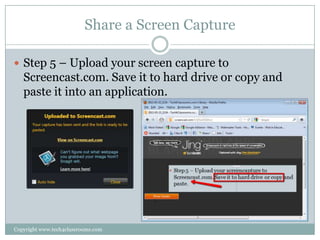
 Step 5 – Upload your screen capture to
   Screencast.com. Save it to hard drive or copy and
   paste it into an application.


Copyright www.tech4classrooms.com
Create a Screencast – Before You Begin

 Before you begin screen recording, make sure you
   have the following.
   Quiet place to record
   A good quality microphone
   A webcam if you have the pro version of Jing


Copyright www.tech4classrooms.com
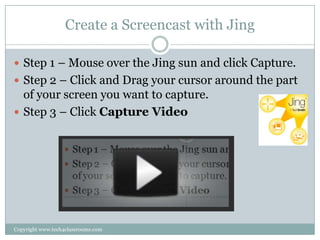
Create a Screencast with Jing

 Step 1 – Mouse over the Jing sun and click Capture.
 Step 2 – Click and Drag your cursor around the part
  of your screen you want to capture.
 Step 3 – Click Capture Video


Copyright www.tech4classrooms.com
Create a Screencast with Jing

 Step 4 – Wait for the count down before you begin
  speaking and recording your video.
 Step 5 – Click Stop when you are finished recording.


A video of how to do
a screen recording
with Jing. Play
actual video on next
slide.


Copyright www.tech4classrooms.com
Publish and Share Your Screencast

 Step 6 - Preview your recording
 Step 7 - Give it a name
 Step 8 - Upload it to your Screencast.com account or
   save it to your local hard drive.


Copyright www.tech4classrooms.com
Sharing Your Screencast

Once saved as a video file, your screencast can be
shared on a variety of websites.
 Screencast.com
 YouTube
 TeacherTube
 Facebook
 Blip.TV
 Any website or blog
Screencasts can also be shared on mobile devices.

Copyright www.tech4classrooms.com
Educational Uses of Jing

 Record lectures
 Record announcements
 Record audio and video feedback for students
 Introduce assignments each week
 Other


Copyright www.tech4classrooms.com
Free Screencasting Resources


     Visit www.tech4classrooms.com to find more free
       resources for Screencasting and lots of other
                  technology programs.


        Free Technology Resources for Schools
              www.tech4classrooms.com


Copyright www.tech4classrooms.com

Screencasting with Jing

  • 1.
    Screencasting with Jing BEN ANDERSON WWW.TECH4CLASSROOMS.COM Copyright www.tech4classrooms.com
  • 2.
    Outline  What isJing  What does Jing Cost?  What is a Screencapture?  What is a Screencast?  Jing and Screencasting  Installing Jing  Setting Jing Preferences  Screencaptures with Jing  Screencasting with Jing  Sharing and Educational Uses of Jing Copyright www.tech4classrooms.com
  • 3.
    What is Jing? Jing captures anything you see on your computer screen, as an image or short video, and lets you share it instantly.  It is a free piece of software from Techsmith.com that must be installed on your computer. They also make a more robust product for screenrecording called Camtasia and Camtasia Studio Copyright www.tech4classrooms.com
  • 4.
    What Does JingCost  Jing is Free  When you install Jing you must create a Screencast.com account associated with a valid email address.  Screencast.com is TechSmiths media hosting solution that Jings uses to host your content.  You get 2 GB of storage and 2 GB of bandwidth per month for Free.  You can also save Jing files to your own computer via and FTP server. Copyright www.tech4classrooms.com
  • 5.
    What is aScreencapture?  A screen capture is a snapshot of your computer screen or a portion of your screen much like a still photograph. Copyright www.tech4classrooms.com
  • 6.
    What is aScreencast?  A screencast is a video recording of your computer screen or a portion of it while you are performing some task on it. If you want to narrate what you are doing on the screen you can record audio at the same time you’re recording the action on your screen.  When published to the Web, this is known as a screencast. Copyright www.tech4classrooms.com
  • 7.
    Jing and Screencasting With Jing you can record both screencaptures and screenrecordings.  Screenrecordings can be published as screencasts. Copyright www.tech4classrooms.com
  • 8.
    Installing Jing  Downloadfrom www.techsmith.com/jing.html  Install on your computer  Setup a Screencast.com account  Start Using Jing Copyright www.tech4classrooms.com
  • 9.
    Setting Jing Preferences Default account at Screencast.com  Capture hotkey  Connection Settings  Choose Audio Input  Share Options Copyright www.tech4classrooms.com
  • 10.
    Take a ScreenCapture with Jing  Step 1 – Mouse over the Jing sun and click capture  Step 2 – Click and Drag cursor around what you want to capture  Step 3 – Click on Capture Image Jing Capture Window In the Capture window you can give the captured image a name, highlight areas with color, add call-outs, arrows, and text. Copyright www.tech4classrooms.com
  • 11.
    Annotate Screen Capture Step 4 – Annotate your screen capture with the comment and drawing tools.  Highlight certain features or areas of the image  Add colored arrows  Add text boxes or callouts  Draw highlights Copyright www.tech4classrooms.com
  • 12.
    Share a ScreenCapture  Step 5 – Upload your screen capture to Screencast.com. Save it to hard drive or copy and paste it into an application. Copyright www.tech4classrooms.com
  • 13.
    Create a Screencast– Before You Begin  Before you begin screen recording, make sure you have the following. Quiet place to record A good quality microphone A webcam if you have the pro version of Jing Copyright www.tech4classrooms.com
  • 14.
    Create a Screencastwith Jing  Step 1 – Mouse over the Jing sun and click Capture.  Step 2 – Click and Drag your cursor around the part of your screen you want to capture.  Step 3 – Click Capture Video Copyright www.tech4classrooms.com
  • 15.
    Create a Screencastwith Jing  Step 4 – Wait for the count down before you begin speaking and recording your video.  Step 5 – Click Stop when you are finished recording. A video of how to do a screen recording with Jing. Play actual video on next slide. Copyright www.tech4classrooms.com
  • 16.
    Publish and ShareYour Screencast  Step 6 - Preview your recording  Step 7 - Give it a name  Step 8 - Upload it to your Screencast.com account or save it to your local hard drive. Copyright www.tech4classrooms.com
  • 17.
    Sharing Your Screencast Oncesaved as a video file, your screencast can be shared on a variety of websites.  Screencast.com  YouTube  TeacherTube  Facebook  Blip.TV  Any website or blog Screencasts can also be shared on mobile devices. Copyright www.tech4classrooms.com
  • 18.
    Educational Uses ofJing  Record lectures  Record announcements  Record audio and video feedback for students  Introduce assignments each week  Other Copyright www.tech4classrooms.com
  • 19.
    Free Screencasting Resources Visit www.tech4classrooms.com to find more free resources for Screencasting and lots of other technology programs. Free Technology Resources for Schools www.tech4classrooms.com Copyright www.tech4classrooms.com