http://scratch.mit.edu
Getting Started With
version 2.0
http://scratch.mit.edu
Getting StartedGetting Started
This guide shows you how to make a project in SCRATCH.
To start a new project, go to
SCRATCH and click Create.
If you have a SCRATCH account,
sign in so your project saves.
SCRATCH is a programming language that lets you create
your own interactive stories, animations, games, music, and art.
http://scratch.mit.edu
Start MovingStart Moving11
Drag a MOVE block into the Scripts area.
Click on the block to make the cat move.
http://scratch.mit.edu
Add a SoundAdd a Sound22
Click and listen.
If you can’t hear it, check that the
sound on your computer is on.
Drag out a PLAY DRUM and snap it onto the MOVE block.
You can choose different drums from
the pull-down menu.
Click
http://scratch.mit.edu
Start a DanceStart a Dance33
Add another MOVE block. Click inside the
block and type in a minus sign.
Add another PLAY DRUM block, then choose
a drum from the menu. Click to run.
Click on any of the blocks
to run the stack.
http://scratch.mit.edu
Again and AgainAgain and Again44
You can change how many
times it repeats.
Click to run.
Drag out a REPEAT block and drop it on top of the stack.
You want the mouth of the REPEAT to wrap around the other blocks.
To drag a stack, pick it up from the top block.
You can click on any block
to run a stack.
http://scratch.mit.edu
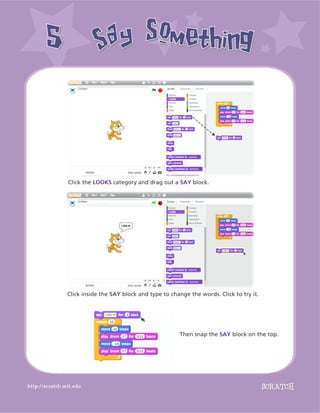
Say SomethingSay Something55
Then snap the SAY block on the top.
Click the LOOKS category and drag out a SAY block.
Click inside the SAY block and type to change the words. Click to try it.
http://scratch.mit.edu
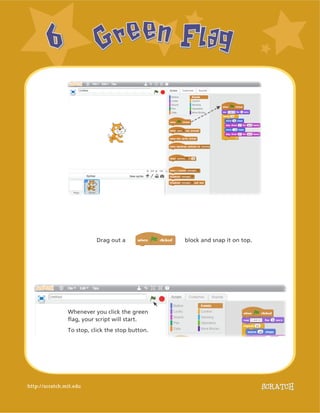
Green FlagGreen Flag66
Whenever you click the green
flag, your script will start.
To stop, click the stop button.
Drag out a block and snap it on top.
http://scratch.mit.edu
Change ColorChange Color77
Click to see what it does.
Drag out a CHANGE EFFECT block.
Now try something different...
http://scratch.mit.edu
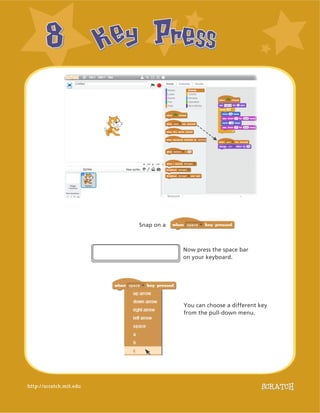
Key PressKey Press88
Now press the space bar
on your keyboard.
Snap on a
You can choose a different key
from the pull-down menu.
http://scratch.mit.edu
Add a BackdropAdd a Backdrop99
You can add a backdrop to the Stage.
Click 	 to
choose a new
backdrop.
Choose a backdrop from the library (such as “Spotlight-Stage”).
Click OK.
The new backdrop now appears on the Stage.
http://scratch.mit.edu
Add a SpriteAdd a Sprite1010
Choose from the library
Paint your own sprite
Upload your own image or sprite
Take a picture (from a webcam)
NEW SPRITE BUTTONS:
Each object in Scratch is
called a sprite.
To add a new sprite, click
one of these buttons.
To add this sprite, click
then click People and select
“Cassy Dance.”
You can drag the characters
to where you want them.
http://scratch.mit.edu
Explore!Explore!1111
ADD SOUND
Click the SOUNDS tab.
You can Choose a sound
Record your own sound
Or Import a sound file.
(MP3, AIF, or WAV format)
CHANGE COSTUMES
Each sprite can have more than
one costume.
To change the current costume,
click the COSTUMES tab.
Then click on a different costume
for the sprite.
ANIMATE
You can animate a sprite by
switching between costumes.
Click the SCRIPTS tab.
Create a script that switches
between costumes.
Now you can tell the sprite what to do. Try the following, or explore on your own.
Then, click the SCRIPTS tab,
and drag in a PLAY SOUND block.
Choose your sound from
the pull-down menu.
http://scratch.mit.edu
Tips!Tips!1212
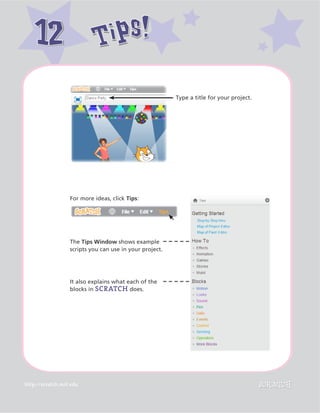
Type a title for your project.
For more ideas, click Tips:
The Tips Window shows example
scripts you can use in your project.
It also explains what each of the
blocks in SCRATCH does.
http://scratch.mit.edu
Save and ShareSave and Share
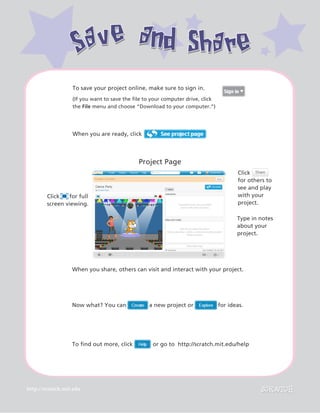
When you share, others can visit and interact with your project.
To find out more, click	 or go to http://scratch.mit.edu/help
Now what? You can a new project or for ideas.
To save your project online, make sure to sign in.
(If you want to save the file to your computer drive, click
the File menu and choose “Download to your computer.”)
When you are ready, click
Click for full
screen viewing.
Project Page
Click
for others to
see and play
with your
project.
Type in notes
about your
project.
Scratch is a programming language that makes it easy
to create your own interactive stories, games, and animations –
and share your creations with others on the web.
Scratch is developed by the Lifelong Kindergarten research
group at the MIT Media Lab (http://llk.media.mit.edu). Our
group develops new technologies that, in the spirit of the
blocks and fingerpaint of kindergarten, expand the range of
what people can design, create, and learn.
The Scratch project has been supported with funding from
the National Science Foundation, Intel Foundation, Microsoft,
MacArthur Foundation, LEGO Foundation, Google, Dell,
Inversoft, and the MIT Media Lab research consortia.
Supported by NSF Grants 0325828 and 1002713. Any opinions, findings, and
conclusions or recommendations expressed on this site are those of the
authors and do not necessarily reflect the views of the National Science
Foundation.
©2013 Lifelong Kindergarten Group, MIT Media Lab

Getting started-guide-scratch2

  • 1.
  • 2.
    http://scratch.mit.edu Getting StartedGetting Started Thisguide shows you how to make a project in SCRATCH. To start a new project, go to SCRATCH and click Create. If you have a SCRATCH account, sign in so your project saves. SCRATCH is a programming language that lets you create your own interactive stories, animations, games, music, and art.
  • 3.
    http://scratch.mit.edu Start MovingStart Moving11 Draga MOVE block into the Scripts area. Click on the block to make the cat move.
  • 4.
    http://scratch.mit.edu Add a SoundAdda Sound22 Click and listen. If you can’t hear it, check that the sound on your computer is on. Drag out a PLAY DRUM and snap it onto the MOVE block. You can choose different drums from the pull-down menu. Click
  • 5.
    http://scratch.mit.edu Start a DanceStarta Dance33 Add another MOVE block. Click inside the block and type in a minus sign. Add another PLAY DRUM block, then choose a drum from the menu. Click to run. Click on any of the blocks to run the stack.
  • 6.
    http://scratch.mit.edu Again and AgainAgainand Again44 You can change how many times it repeats. Click to run. Drag out a REPEAT block and drop it on top of the stack. You want the mouth of the REPEAT to wrap around the other blocks. To drag a stack, pick it up from the top block. You can click on any block to run a stack.
  • 7.
    http://scratch.mit.edu Say SomethingSay Something55 Thensnap the SAY block on the top. Click the LOOKS category and drag out a SAY block. Click inside the SAY block and type to change the words. Click to try it.
  • 8.
    http://scratch.mit.edu Green FlagGreen Flag66 Wheneveryou click the green flag, your script will start. To stop, click the stop button. Drag out a block and snap it on top.
  • 9.
    http://scratch.mit.edu Change ColorChange Color77 Clickto see what it does. Drag out a CHANGE EFFECT block. Now try something different...
  • 10.
    http://scratch.mit.edu Key PressKey Press88 Nowpress the space bar on your keyboard. Snap on a You can choose a different key from the pull-down menu.
  • 11.
    http://scratch.mit.edu Add a BackdropAdda Backdrop99 You can add a backdrop to the Stage. Click to choose a new backdrop. Choose a backdrop from the library (such as “Spotlight-Stage”). Click OK. The new backdrop now appears on the Stage.
  • 12.
    http://scratch.mit.edu Add a SpriteAdda Sprite1010 Choose from the library Paint your own sprite Upload your own image or sprite Take a picture (from a webcam) NEW SPRITE BUTTONS: Each object in Scratch is called a sprite. To add a new sprite, click one of these buttons. To add this sprite, click then click People and select “Cassy Dance.” You can drag the characters to where you want them.
  • 13.
    http://scratch.mit.edu Explore!Explore!1111 ADD SOUND Click theSOUNDS tab. You can Choose a sound Record your own sound Or Import a sound file. (MP3, AIF, or WAV format) CHANGE COSTUMES Each sprite can have more than one costume. To change the current costume, click the COSTUMES tab. Then click on a different costume for the sprite. ANIMATE You can animate a sprite by switching between costumes. Click the SCRIPTS tab. Create a script that switches between costumes. Now you can tell the sprite what to do. Try the following, or explore on your own. Then, click the SCRIPTS tab, and drag in a PLAY SOUND block. Choose your sound from the pull-down menu.
  • 14.
    http://scratch.mit.edu Tips!Tips!1212 Type a titlefor your project. For more ideas, click Tips: The Tips Window shows example scripts you can use in your project. It also explains what each of the blocks in SCRATCH does.
  • 15.
    http://scratch.mit.edu Save and ShareSaveand Share When you share, others can visit and interact with your project. To find out more, click or go to http://scratch.mit.edu/help Now what? You can a new project or for ideas. To save your project online, make sure to sign in. (If you want to save the file to your computer drive, click the File menu and choose “Download to your computer.”) When you are ready, click Click for full screen viewing. Project Page Click for others to see and play with your project. Type in notes about your project.
  • 16.
    Scratch is aprogramming language that makes it easy to create your own interactive stories, games, and animations – and share your creations with others on the web. Scratch is developed by the Lifelong Kindergarten research group at the MIT Media Lab (http://llk.media.mit.edu). Our group develops new technologies that, in the spirit of the blocks and fingerpaint of kindergarten, expand the range of what people can design, create, and learn. The Scratch project has been supported with funding from the National Science Foundation, Intel Foundation, Microsoft, MacArthur Foundation, LEGO Foundation, Google, Dell, Inversoft, and the MIT Media Lab research consortia. Supported by NSF Grants 0325828 and 1002713. Any opinions, findings, and conclusions or recommendations expressed on this site are those of the authors and do not necessarily reflect the views of the National Science Foundation. ©2013 Lifelong Kindergarten Group, MIT Media Lab