1. Purpose: This document highlights the basic process flow for a PM – WCM (Work
      Clearance Management) scenario using an Enhanced Model.

   2. Inclusions in this document: Primarily the WCM – enhanced process flow details with
      touch points with PM order processing

   3. Exclusions from this document: PM Order processing steps in details particularly post
      Release processing like Time confirmation, Material Issue, Service entry, TECO, Settlement
      etc. These are current ongoing processes and it is understood that end users are experts in
      such process steps. Just the touch points have been mentioned in this document.

   4. WCM Process and terminologies:

There are 2 WCM models that SAP supports: Standard Model and Enhanced Model
At Planning Plant level only 1 model can be activated.

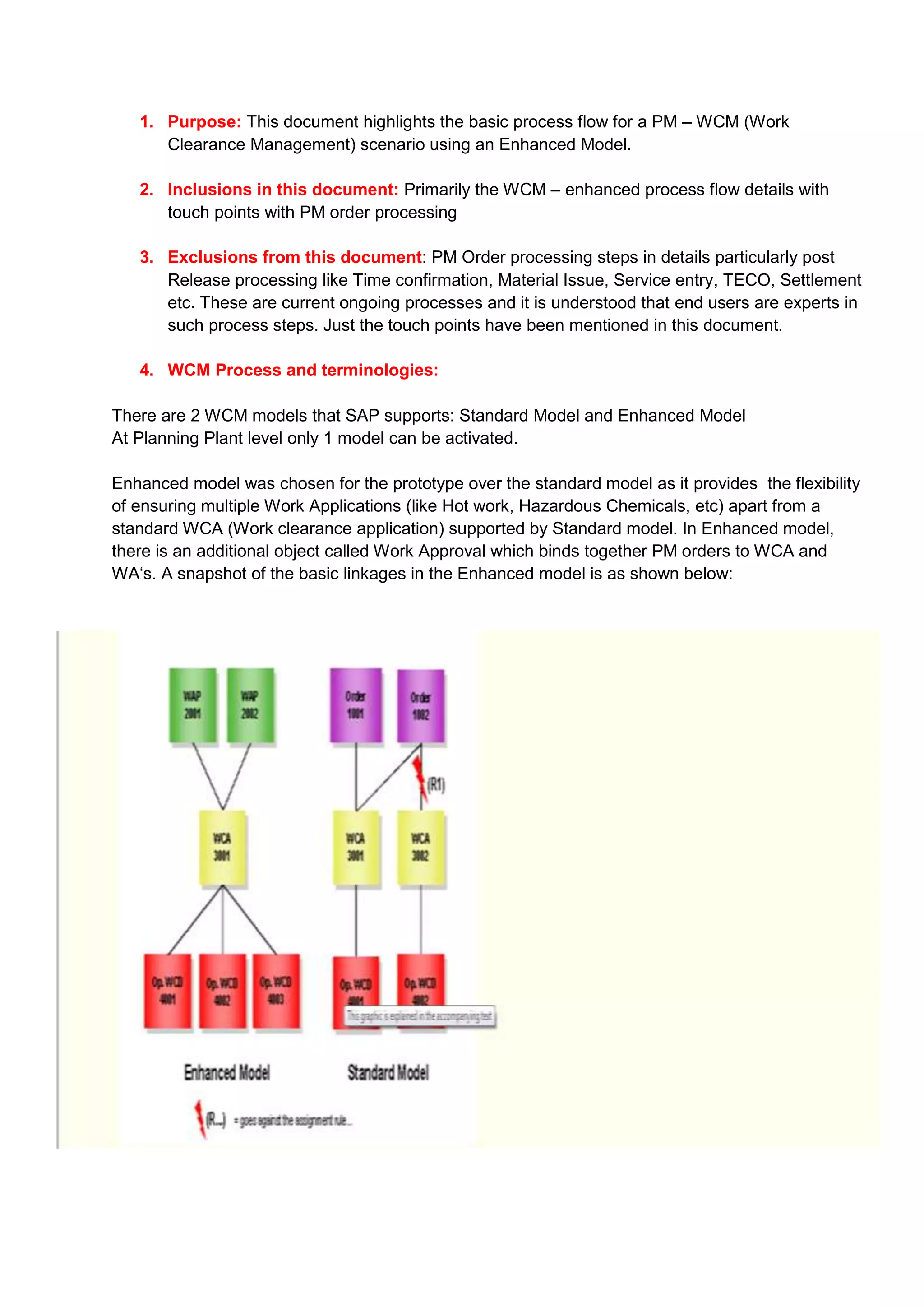
Enhanced model was chosen for the prototype over the standard model as it provides the flexibility
of ensuring multiple Work Applications (like Hot work, Hazardous Chemicals, etc) apart from a
standard WCA (Work clearance application) supported by Standard model. In Enhanced model,
there is an additional object called Work Approval which binds together PM orders to WCA and
WA„s. A snapshot of the basic linkages in the Enhanced model is as shown below:
The enhanced model follows the following rules:
-   An application can be assigned to several work approvals and vice versa
-   A work approval can only be assigned to one application of an application type (WCA, WA of
    different types have a different application type)
-   A WCA can be assigned to several Operational WCDs and vice versa.

    In Enhanced model, PM Order is linked to WCM Objects as below:
    PM Order --> WAP (Work Approval) --> WCA & WA --> WCD (Work Clearance documents- Linked
    to WCA)

    In Standard model, PM Order is linked to WCM Objects as below:

    PM Order --> WCA --> WCD (Work Clearance documents- Linked to WCA)


       5. Terminologies:

    Work approvalis an Umbrella Object in WCM which can have under it WCA, other Work applications
    (WA) including Hot work Approvals, Chemical environment approvals, Hazardous Gas approvals
    etc. Work approval links PM Maintenance Orders to WCA and other applications in an Enhanced
    WCM scenario. In a standard scenario, it is the WCA which links PM Order to WCD‟s.

    Work Clearance application (WCA) is a WCM Object which represents a Safety certificate in
    particular for Lockout/Tagout. It is used to control maintenance processing and groups together
    Operational WCD‟s. A Work clearance Application can be assigned to several Operational WCD‟s
    and vice versa.. In the Enhanced model (as configured), a WCA is used to control communication
    between work approvals and Operational WCD‟s. The term WCD will be elaborated in next step

    Work applications are additional specific work related certificates. For example Hot work application,
    Hazardous Chemical/Gas/Particulate work certificate etc. The Hot work application, for instance, is
    to protect a maintenance personnel from a hot working environment before entering the actual
    maintenance site.

    Operational WCDis a WCM Object that is actually meant for executing the Operational cycle. The
    default operational cycle is Tagging with Temporary Untagging phase. It would consist of 3 key
    phases namely Tagging phase, Temporary Untagging phase (To test when work has been done
    before making a system fully operational) and Untagging phase.It is in the WCD that we define
    Lockout/Tagout operations for Technical Objects which need to be isolated temporarily from
    Technical system.

    Operational WCDshould be assigned to WCA and its status will affect the status of WCA. Here the
    status of WCD will be transferred to the linked WCA. For example, once the Tagging operation is
    finished, the Tagged status will be assigned to WCD and transferred to WCA.

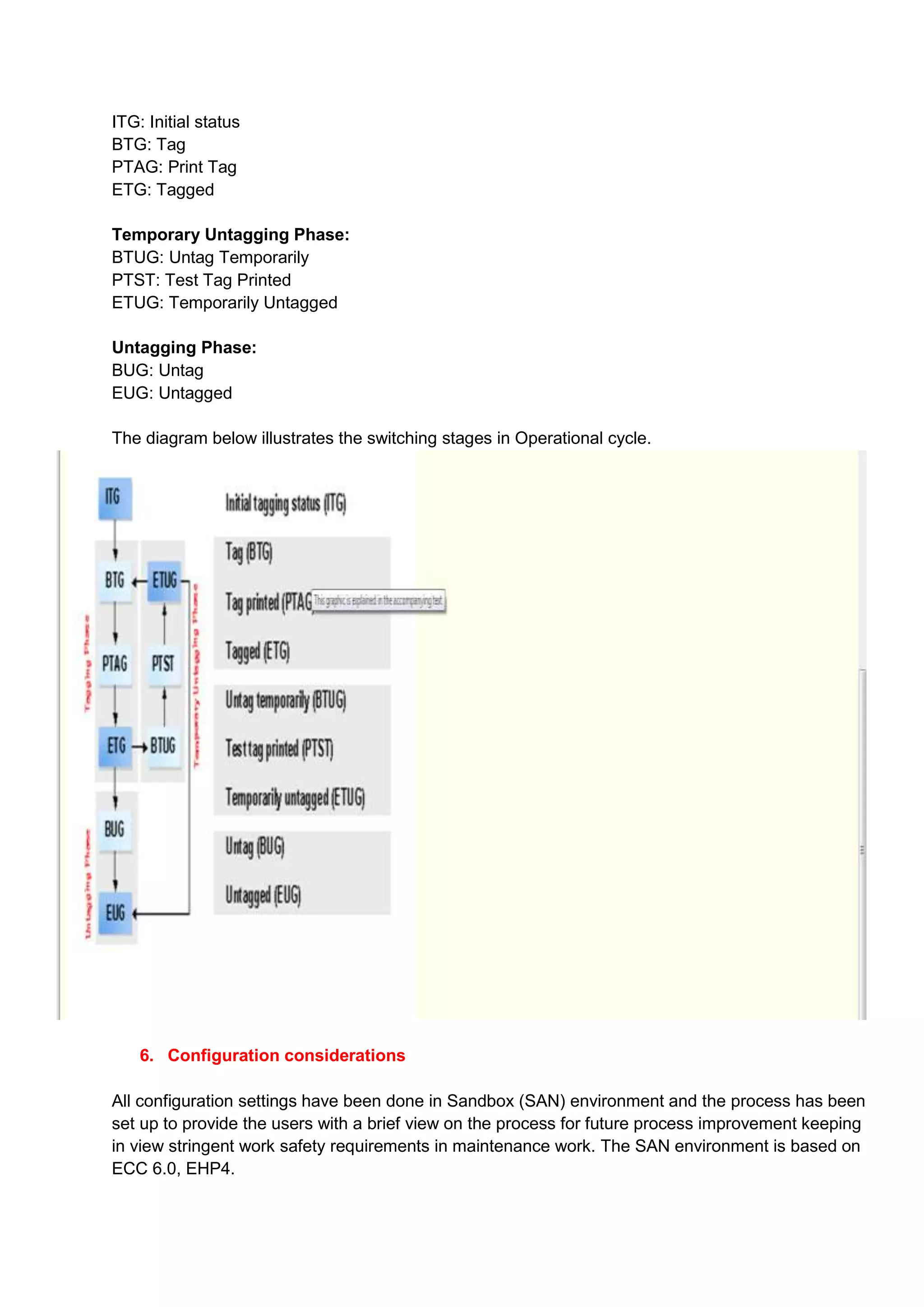
    The various system statuses that the Operational WCD goes through owing to these phases
    include:

    Tagging Phase:
ITG: Initial status
BTG: Tag
PTAG: Print Tag
ETG: Tagged

Temporary Untagging Phase:
BTUG: Untag Temporarily
PTST: Test Tag Printed
ETUG: Temporarily Untagged

Untagging Phase:
BUG: Untag
EUG: Untagged

The diagram below illustrates the switching stages in Operational cycle.


    6. Configuration considerations

All configuration settings have been done in Sandbox (SAN) environment and the process has been
set up to provide the users with a brief view on the process for future process improvement keeping
in view stringent work safety requirements in maintenance work. The SAN environment is based on
ECC 6.0, EHP4.
Only the Mid-West Mining 0011 plant has been activated for Work Clearance Management in SAN
(Sandbox) environment.

As an example a High Voltage Distribution unit at Mid-West Mining 0011 planning plant.


   7. Master Data used in this document

Planning Plant: 0011
Functional Location:EN24-E01-006 – High Voltage Distribution
Equipment:10026639 - Elect Switch ABS#2-SSC Supply
Planner Group: 101
Main WorkCtr: MWM3
Plant: 0011

   8. Process Flow in SAP

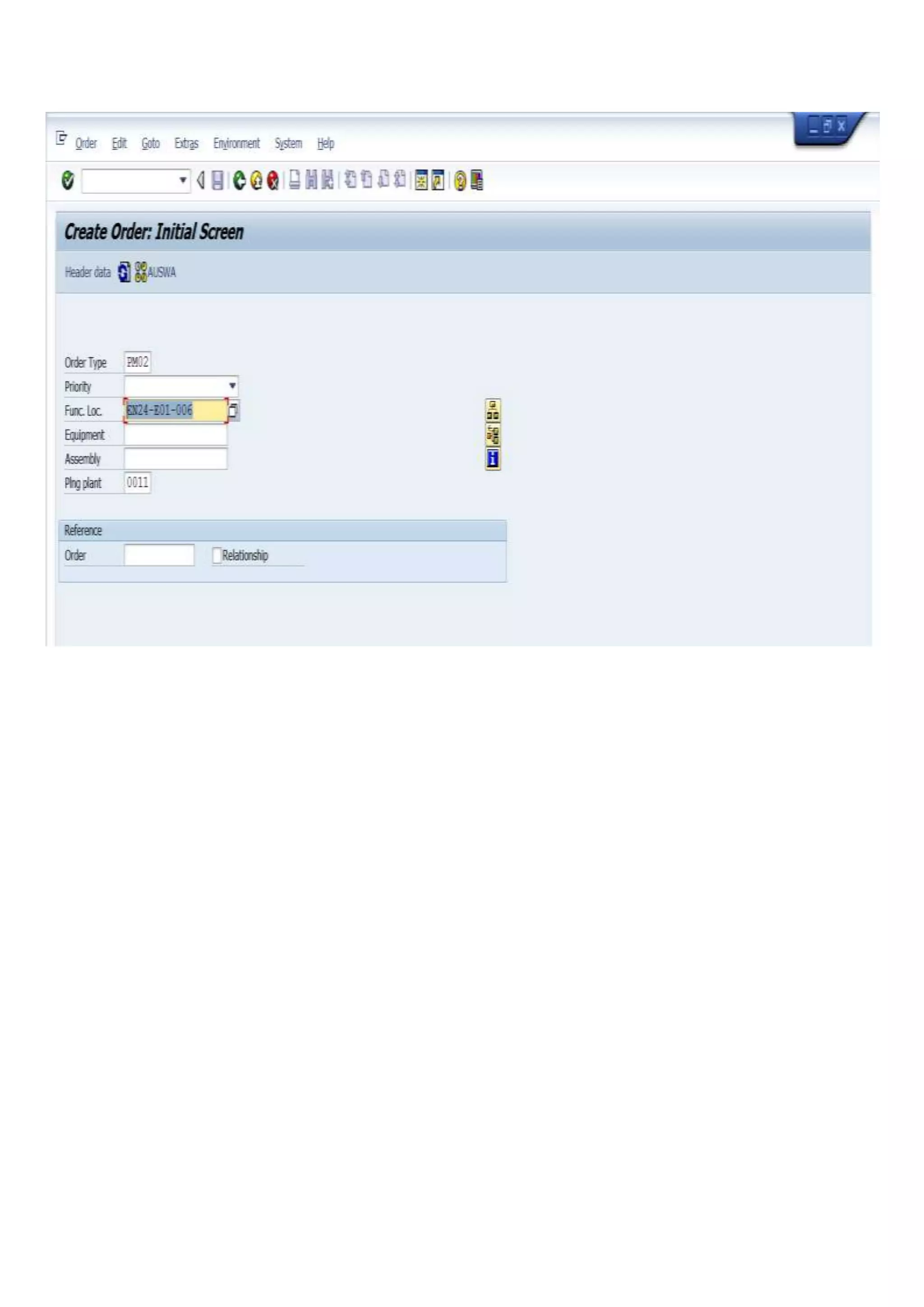
       8.1 PM Work Order is created – Planned or Immediate

       In this document PM Work Order type PM02 – Manually Generated Work Order is used.
       Also Linkage to Notifications is not considered. That can be done separately as per current
       process. In that case a Notification would be created first followed by and Order

       In planned scenario, Order would be generated through scheduling of a Maintenance plan

       Tcode: IW31
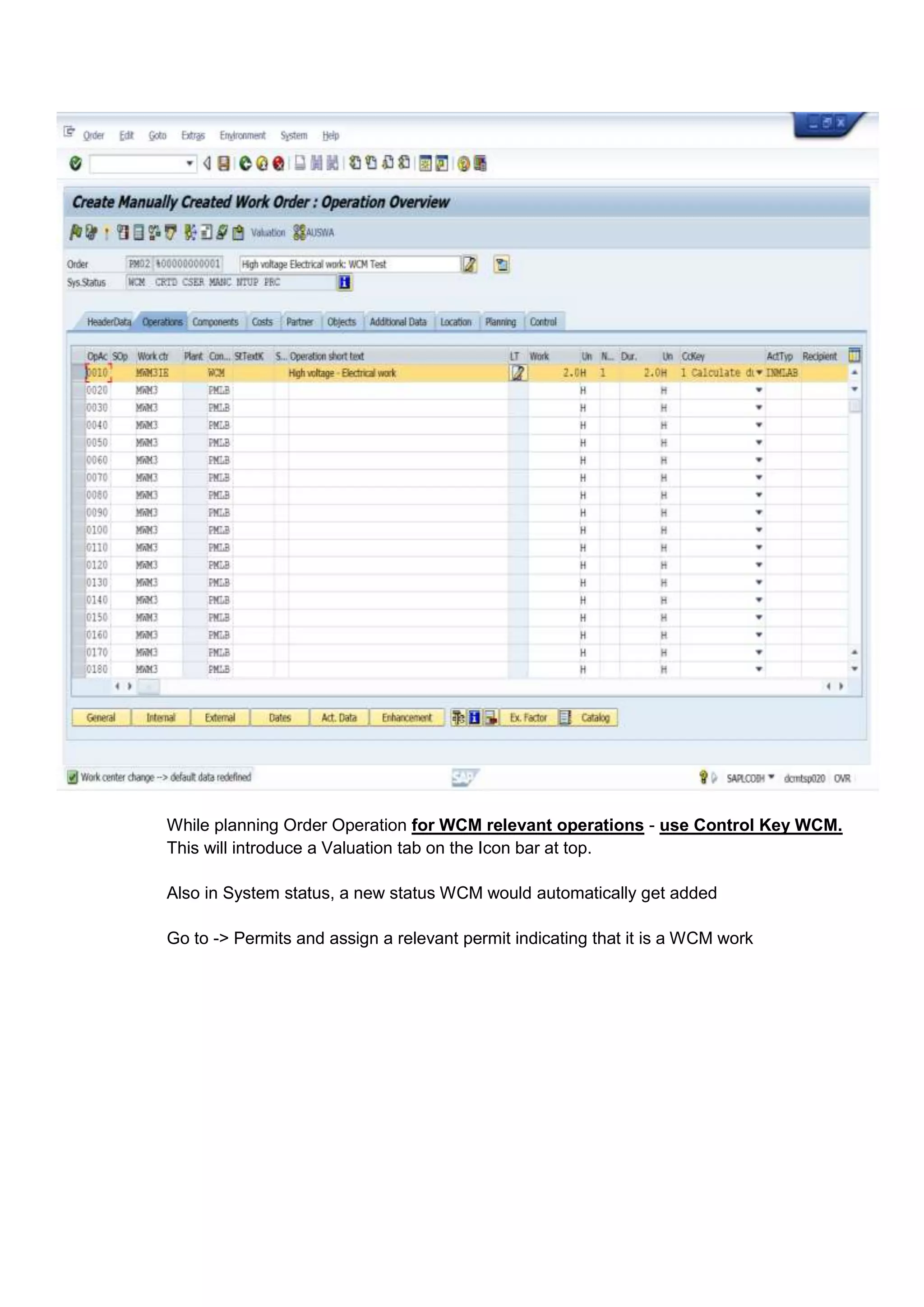
While planning Order Operation for WCM relevant operations - use Control Key WCM.
This will introduce a Valuation tab on the Icon bar at top.

Also in System status, a new status WCM would automatically get added

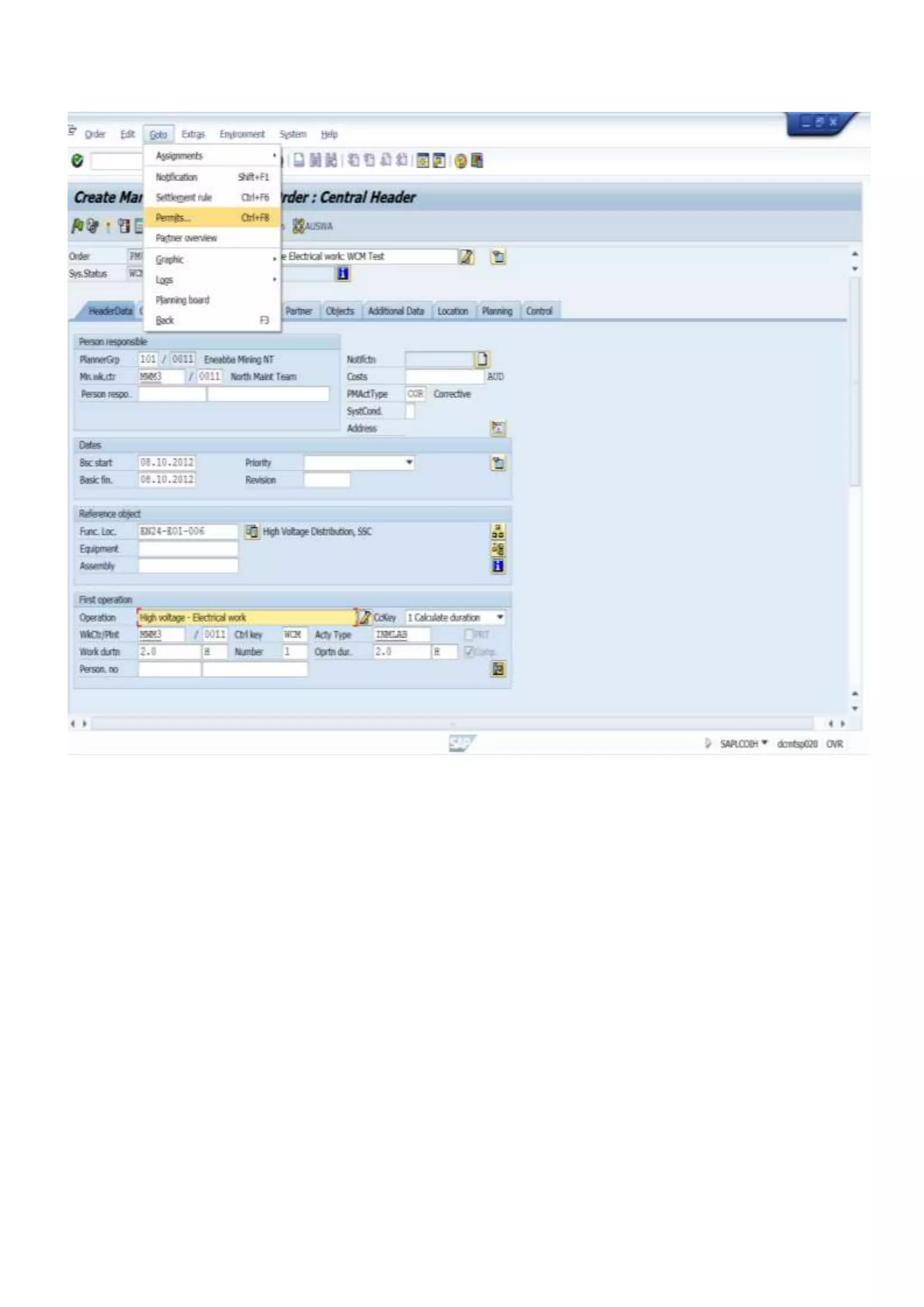
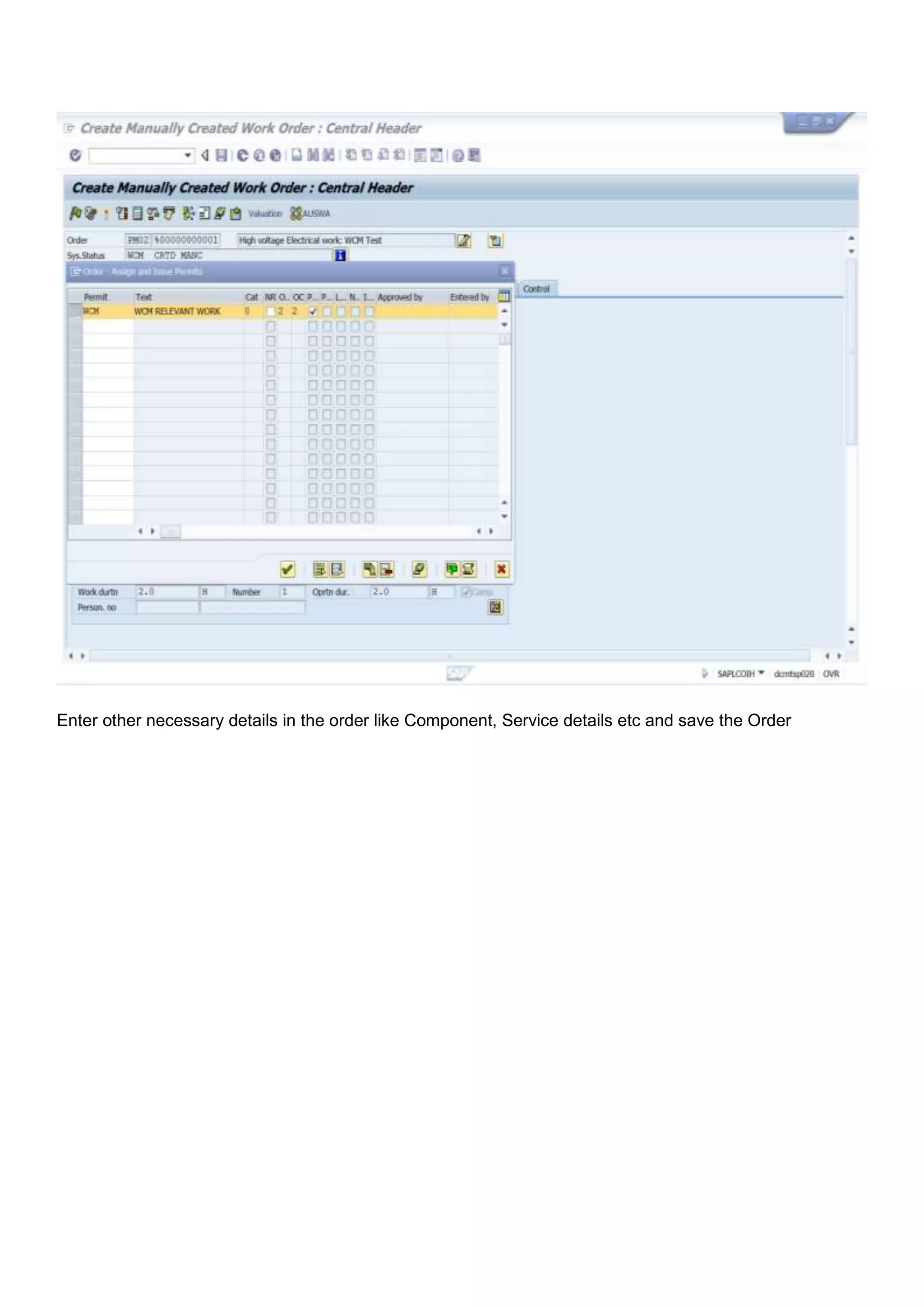
Go to -> Permits and assign a relevant permit indicating that it is a WCM work
Enter other necessary details in the order like Component, Service details etc and save the Order
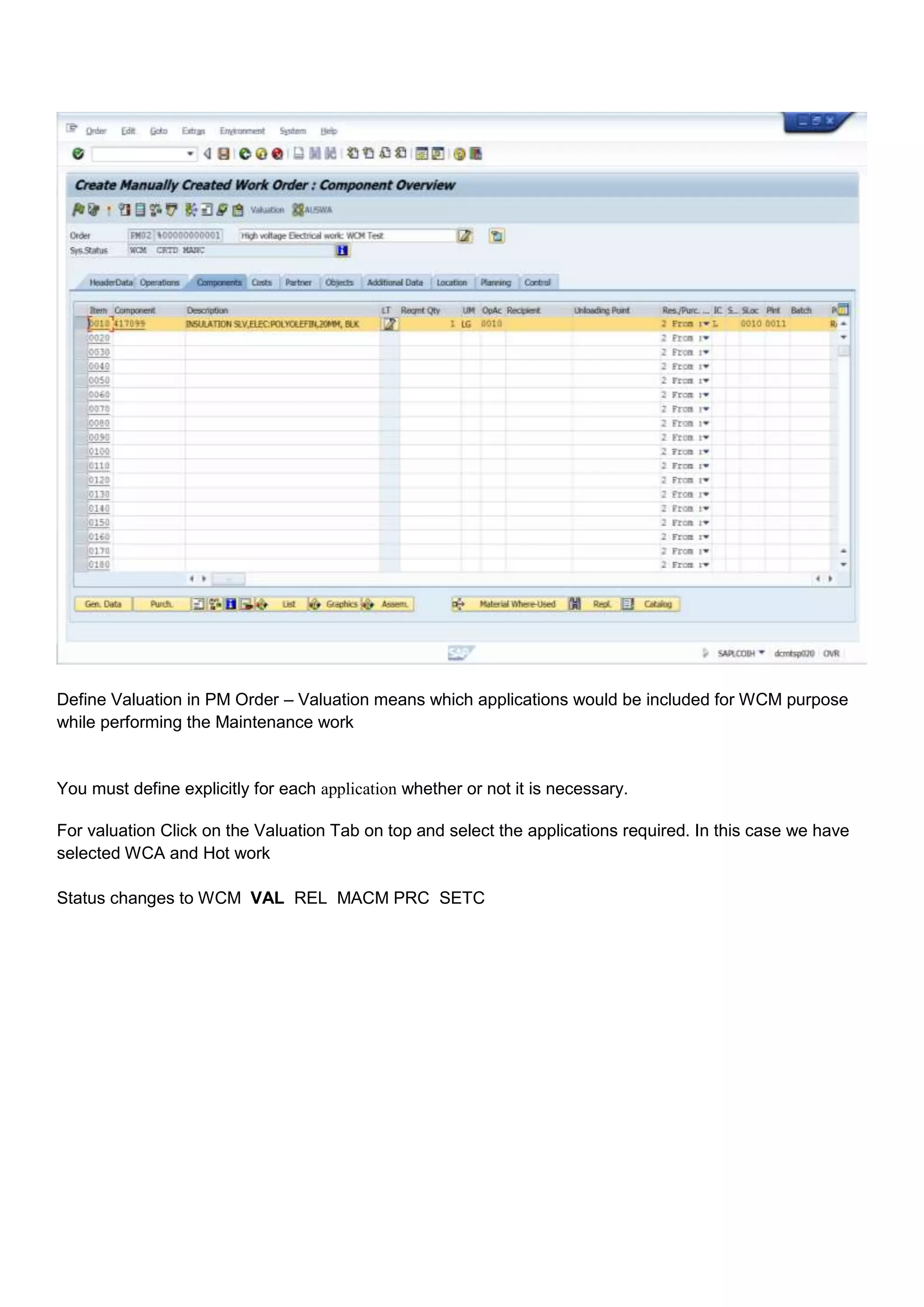
Define Valuation in PM Order – Valuation means which applications would be included for WCM purpose
while performing the Maintenance work


You must define explicitly for each application whether or not it is necessary.

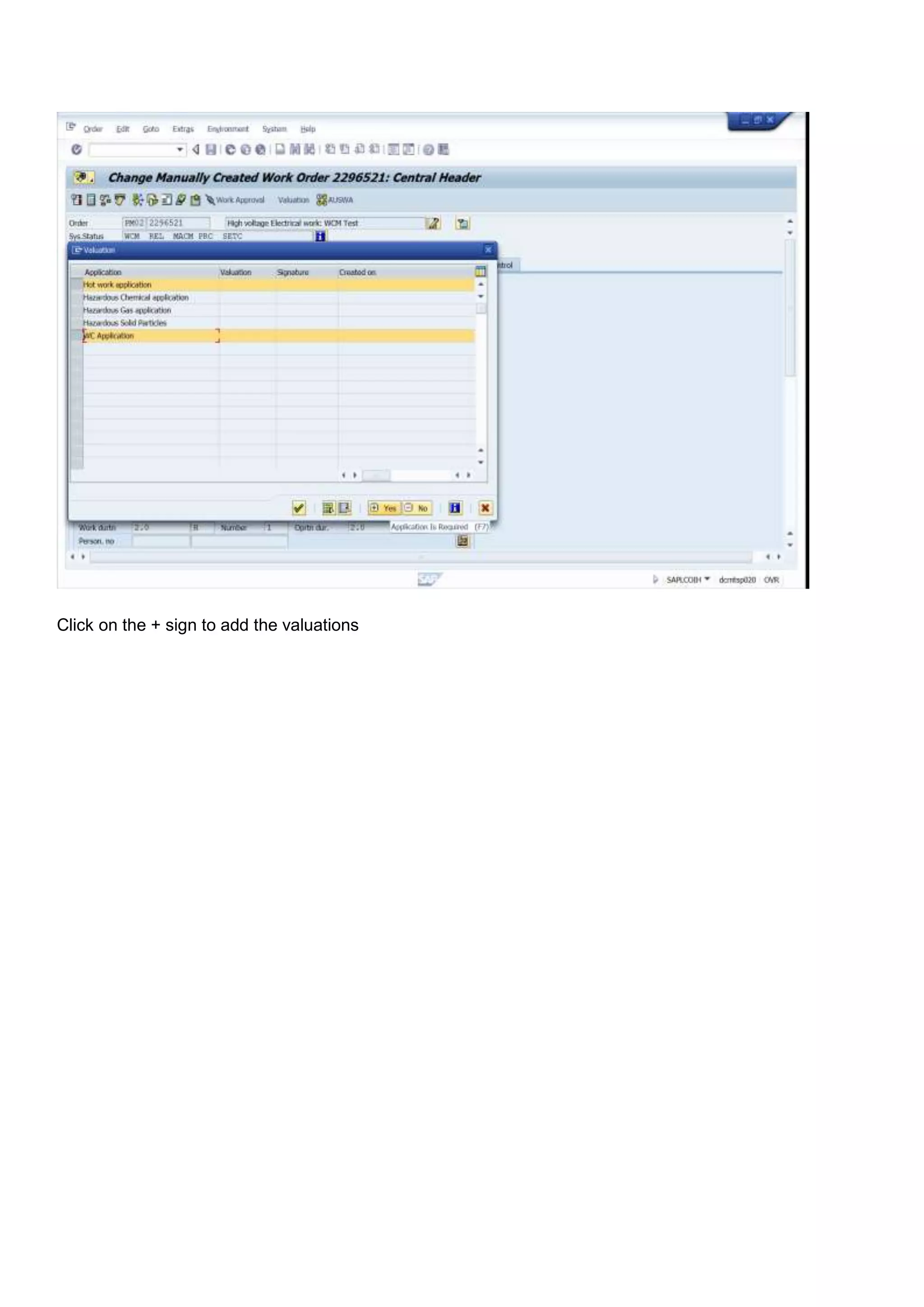
For valuation Click on the Valuation Tab on top and select the applications required. In this case we have
selected WCA and Hot work

Status changes to WCM VAL REL MACM PRC SETC
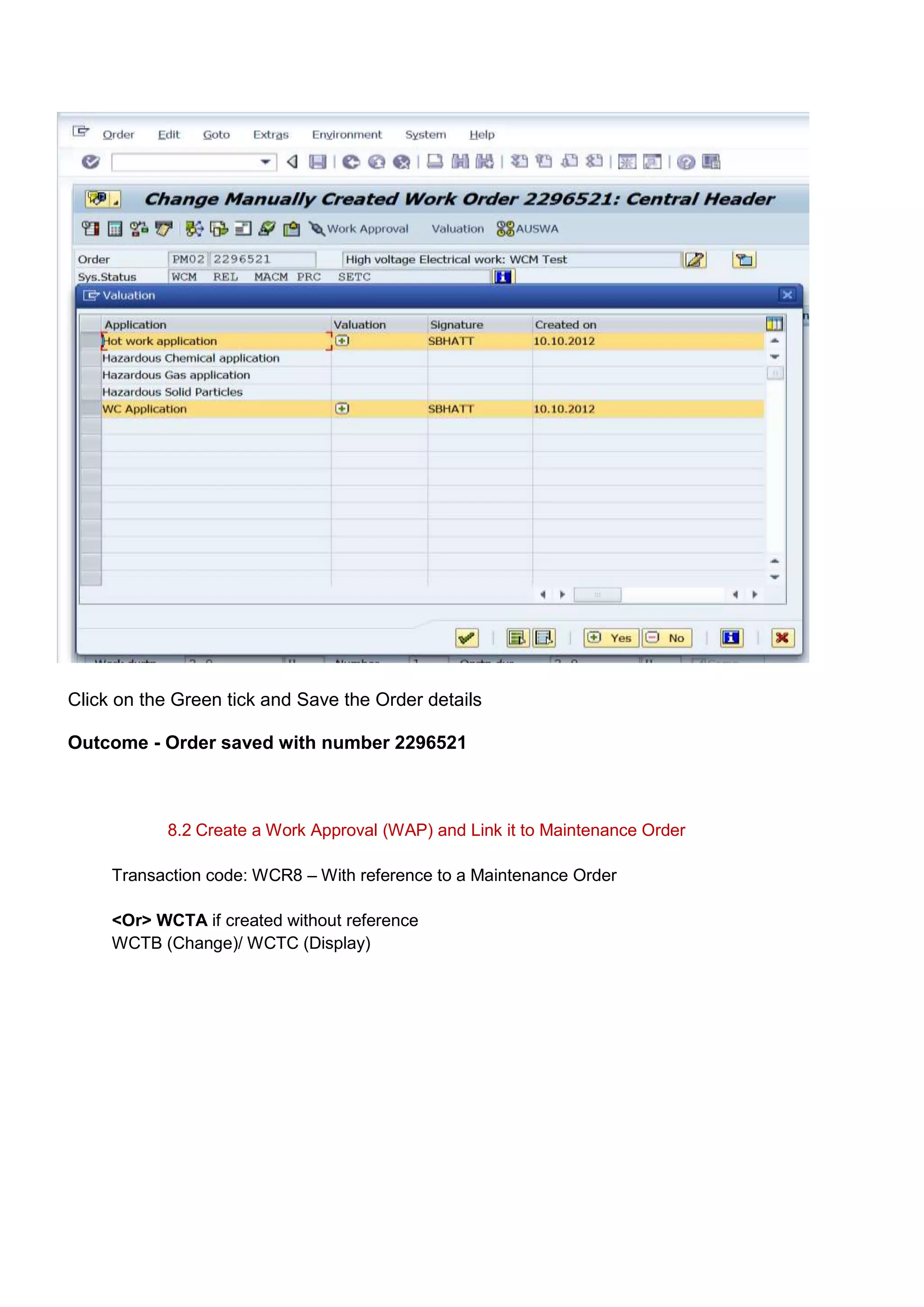
Click on the + sign to add the valuations
Click on the Green tick and Save the Order details

Outcome - Order saved with number 2296521


            8.2 Create a Work Approval (WAP) and Link it to Maintenance Order

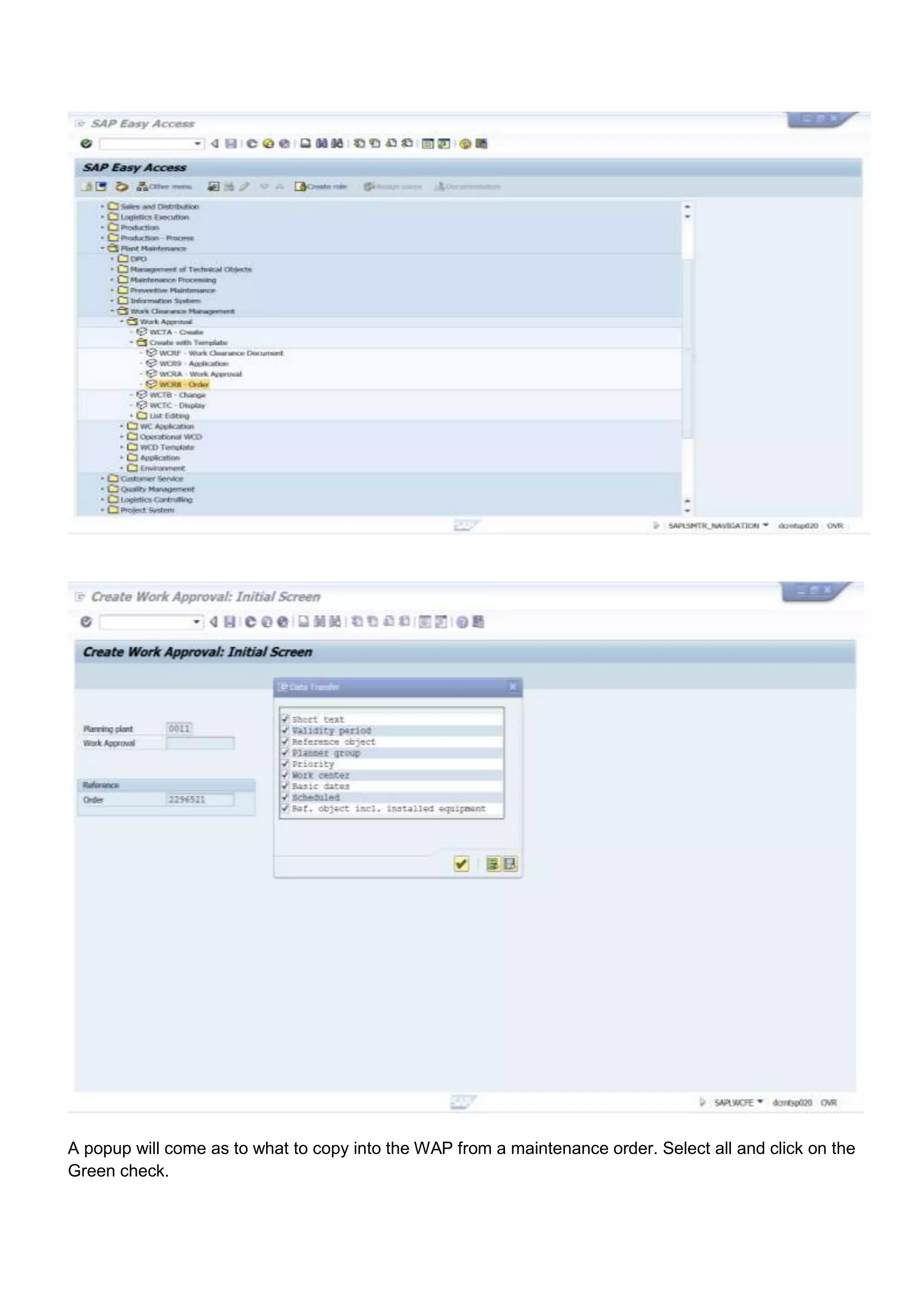
     Transaction code: WCR8 – With reference to a Maintenance Order

     <Or> WCTA if created without reference
     WCTB (Change)/ WCTC (Display)
A popup will come as to what to copy into the WAP from a maintenance order. Select all and click on the
Green check.
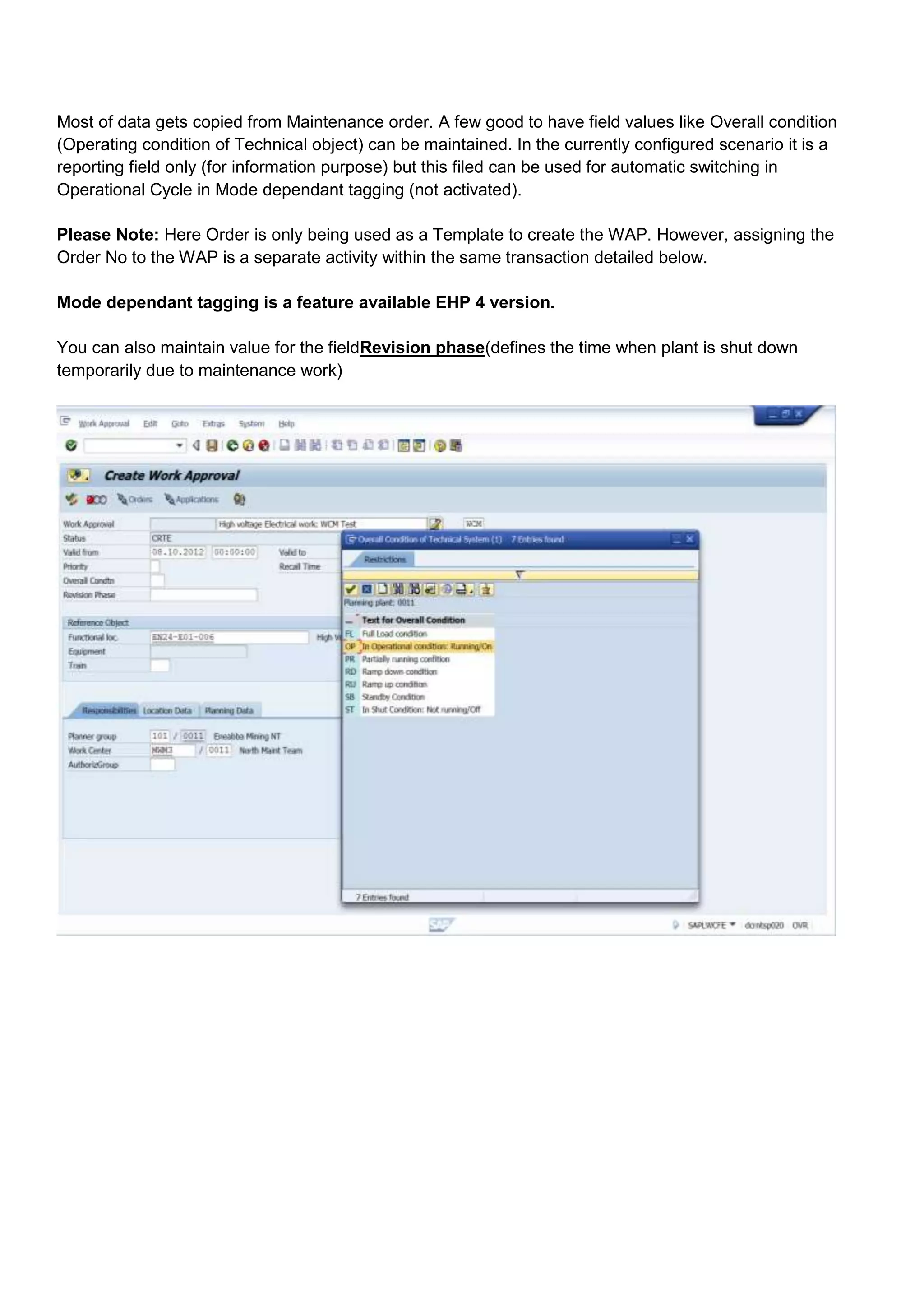
Most of data gets copied from Maintenance order. A few good to have field values like Overall condition
(Operating condition of Technical object) can be maintained. In the currently configured scenario it is a
reporting field only (for information purpose) but this filed can be used for automatic switching in
Operational Cycle in Mode dependant tagging (not activated).

Please Note: Here Order is only being used as a Template to create the WAP. However, assigning the
Order No to the WAP is a separate activity within the same transaction detailed below.

Mode dependant tagging is a feature available EHP 4 version.

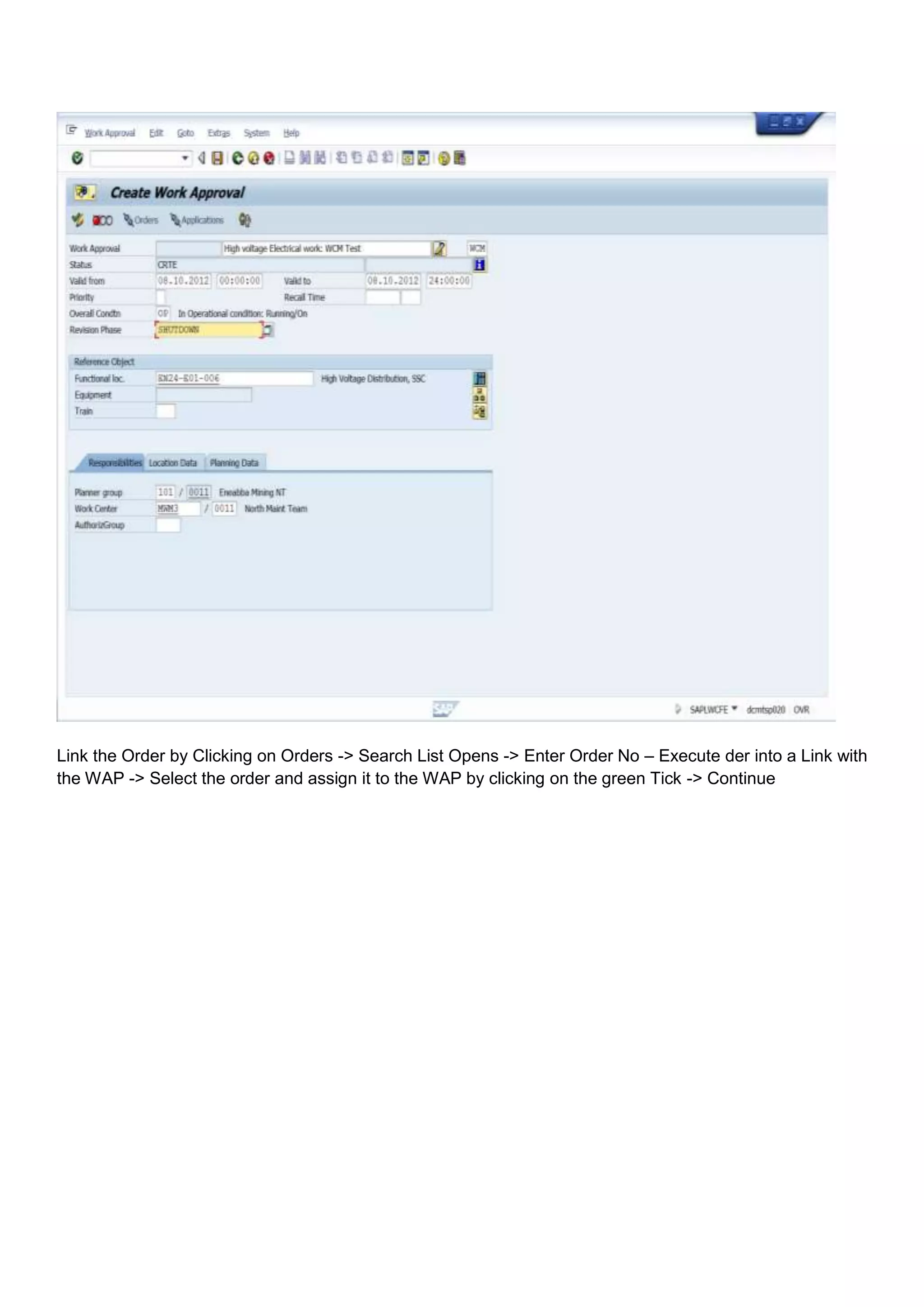
You can also maintain value for the fieldRevision phase(defines the time when plant is shut down
temporarily due to maintenance work)
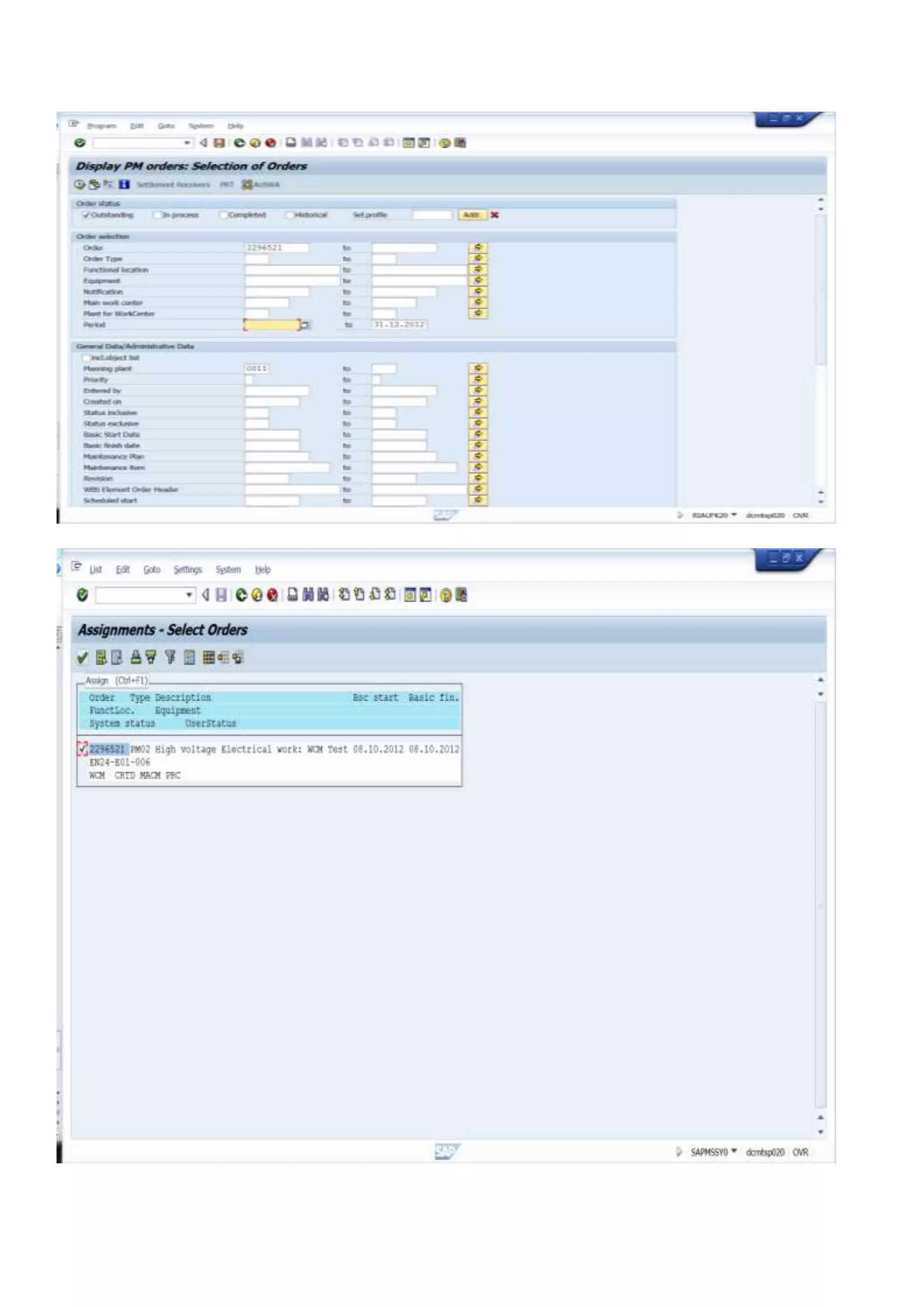
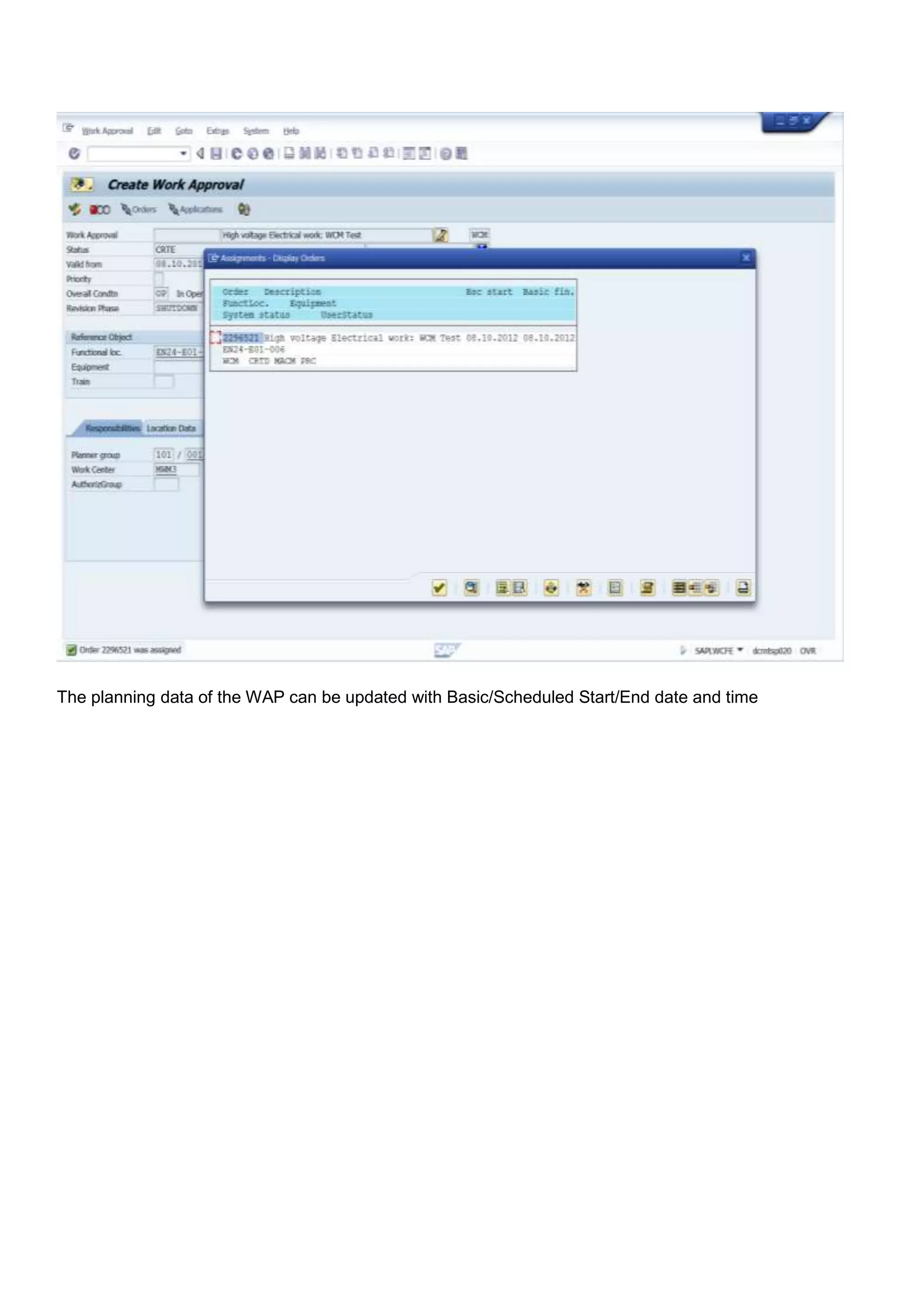
Link the Order by Clicking on Orders -> Search List Opens -> Enter Order No – Execute der into a Link with
the WAP -> Select the order and assign it to the WAP by clicking on the green Tick -> Continue
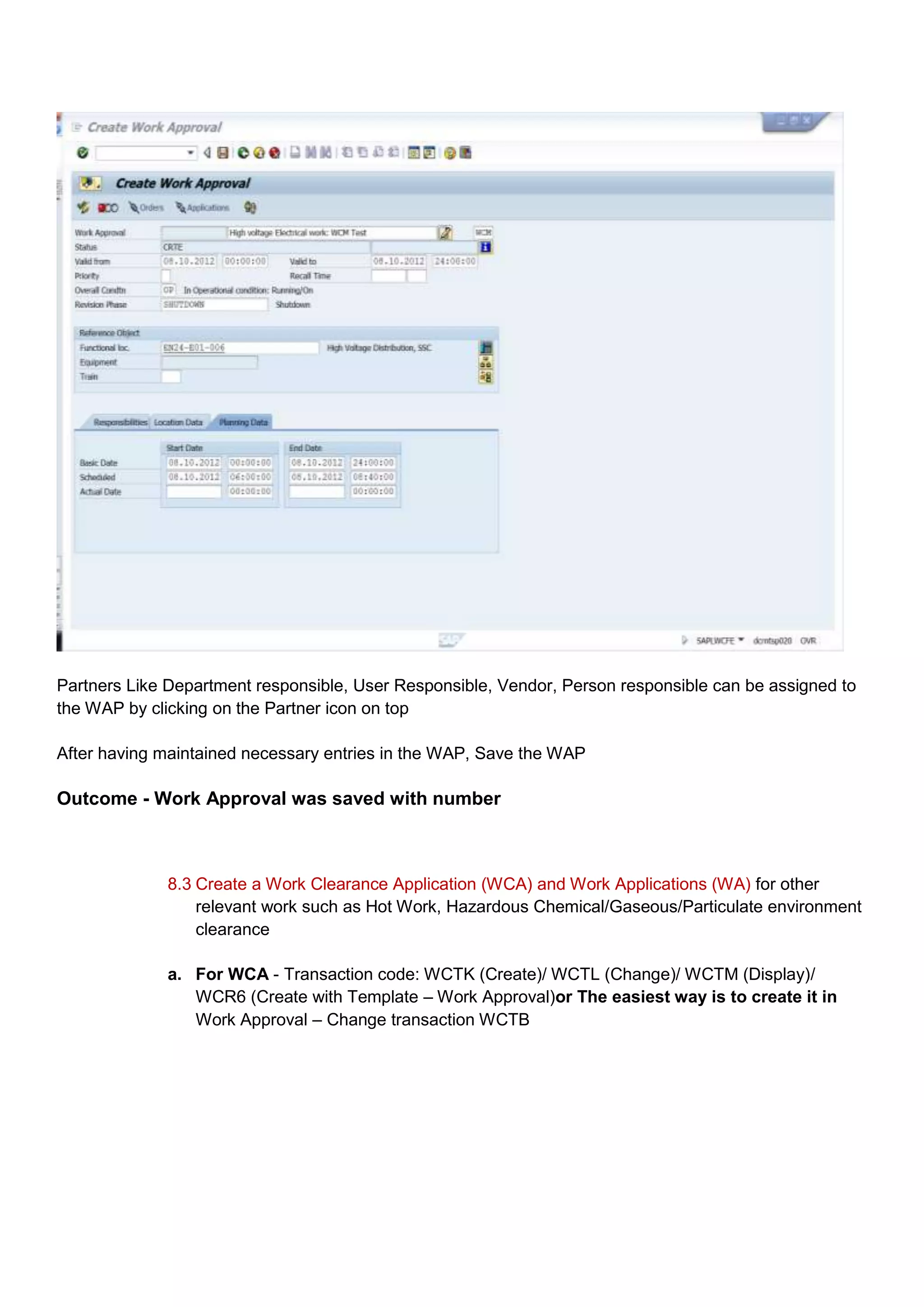
The planning data of the WAP can be updated with Basic/Scheduled Start/End date and time
Partners Like Department responsible, User Responsible, Vendor, Person responsible can be assigned to
the WAP by clicking on the Partner icon on top

After having maintained necessary entries in the WAP, Save the WAP

Outcome - Work Approval was saved with number


              8.3 Create a Work Clearance Application (WCA) and Work Applications (WA) for other
                  relevant work such as Hot Work, Hazardous Chemical/Gaseous/Particulate environment
                  clearance

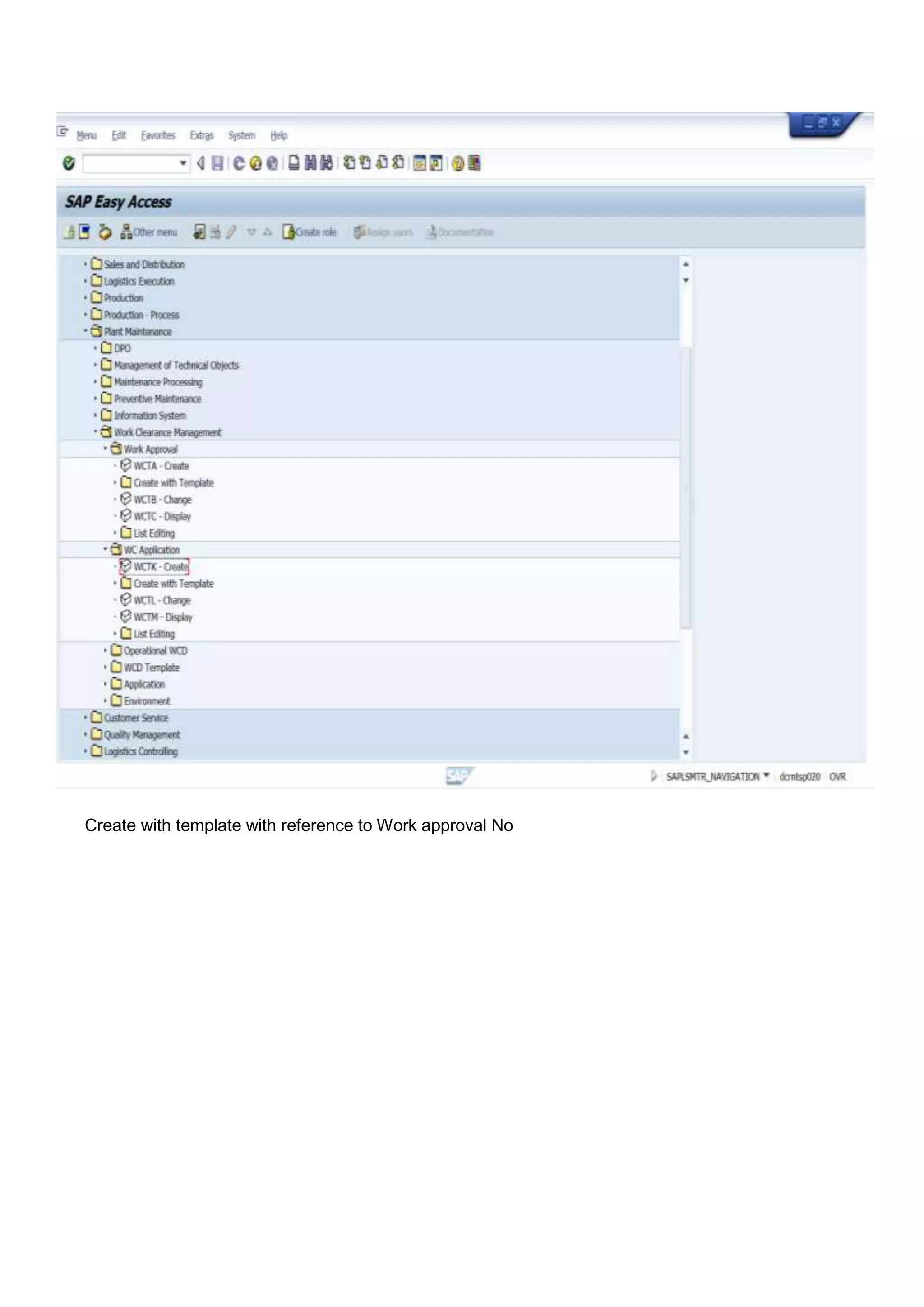
              a. For WCA - Transaction code: WCTK (Create)/ WCTL (Change)/ WCTM (Display)/
                 WCR6 (Create with Template – Work Approval)or The easiest way is to create it in
                 Work Approval – Change transaction WCTB
Create with template with reference to Work approval No
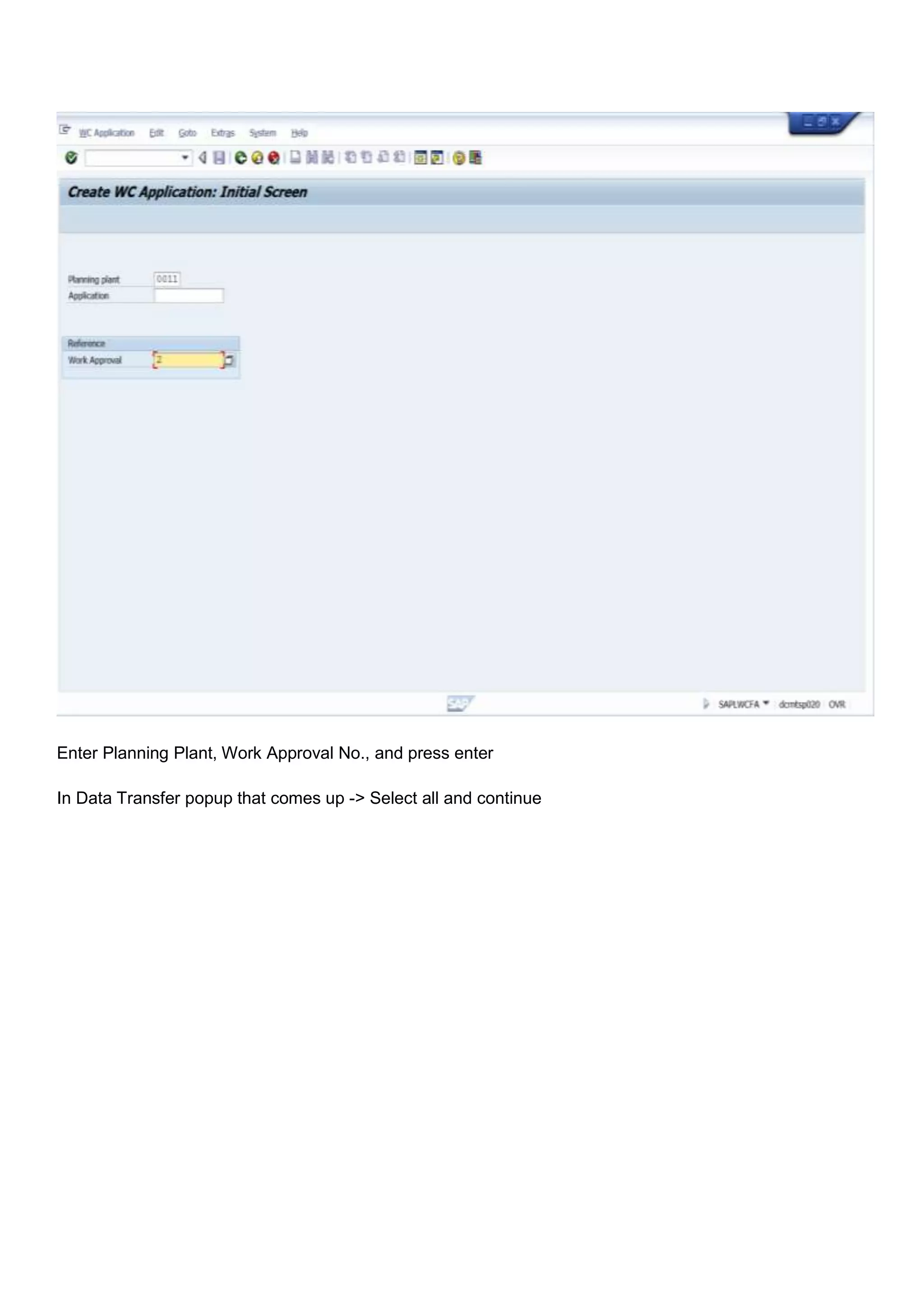
Enter Planning Plant, Work Approval No., and press enter

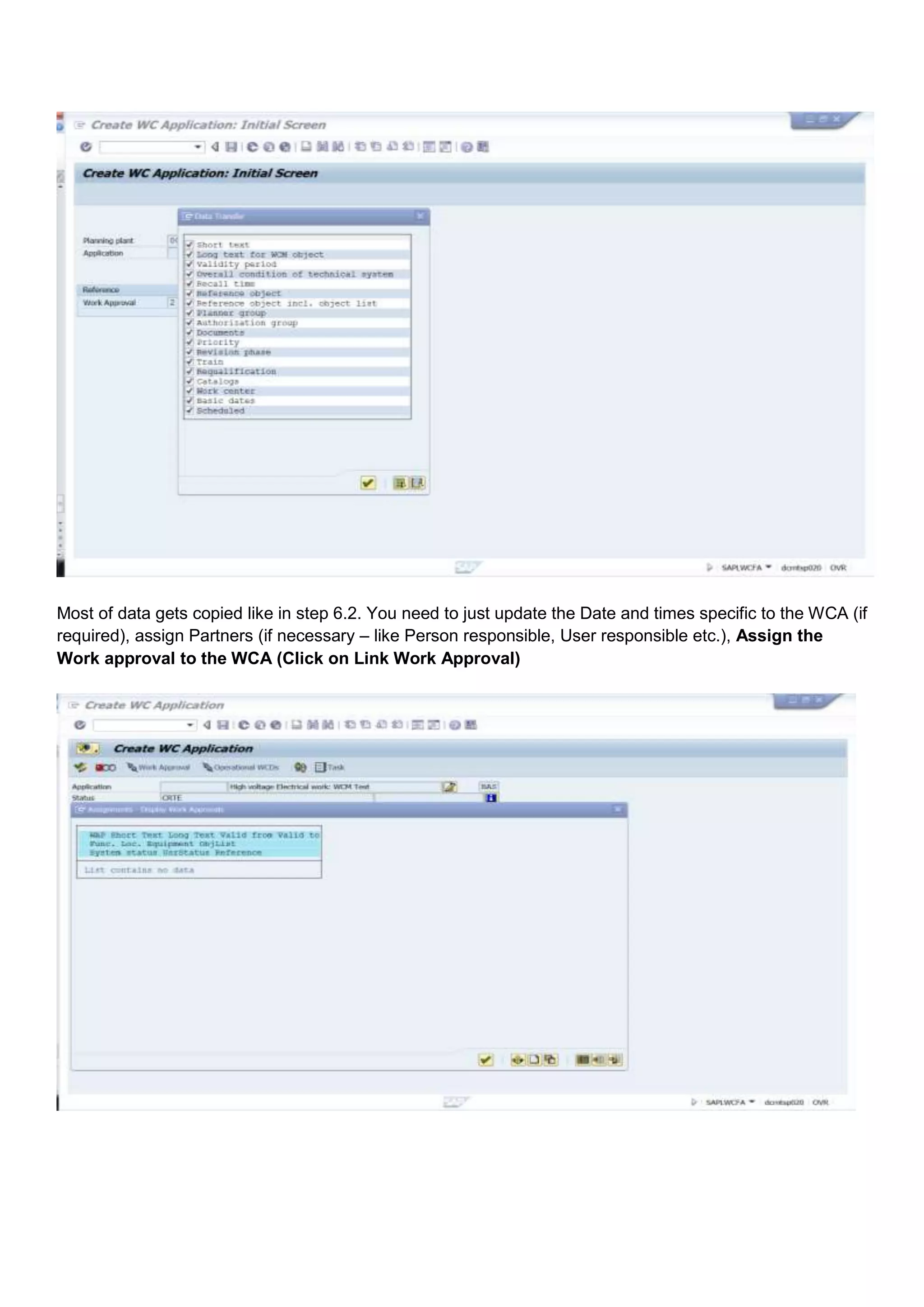
In Data Transfer popup that comes up -> Select all and continue
Most of data gets copied like in step 6.2. You need to just update the Date and times specific to the WCA (if
required), assign Partners (if necessary – like Person responsible, User responsible etc.), Assign the
Work approval to the WCA (Click on Link Work Approval)
Click on Multiple selection Option           .

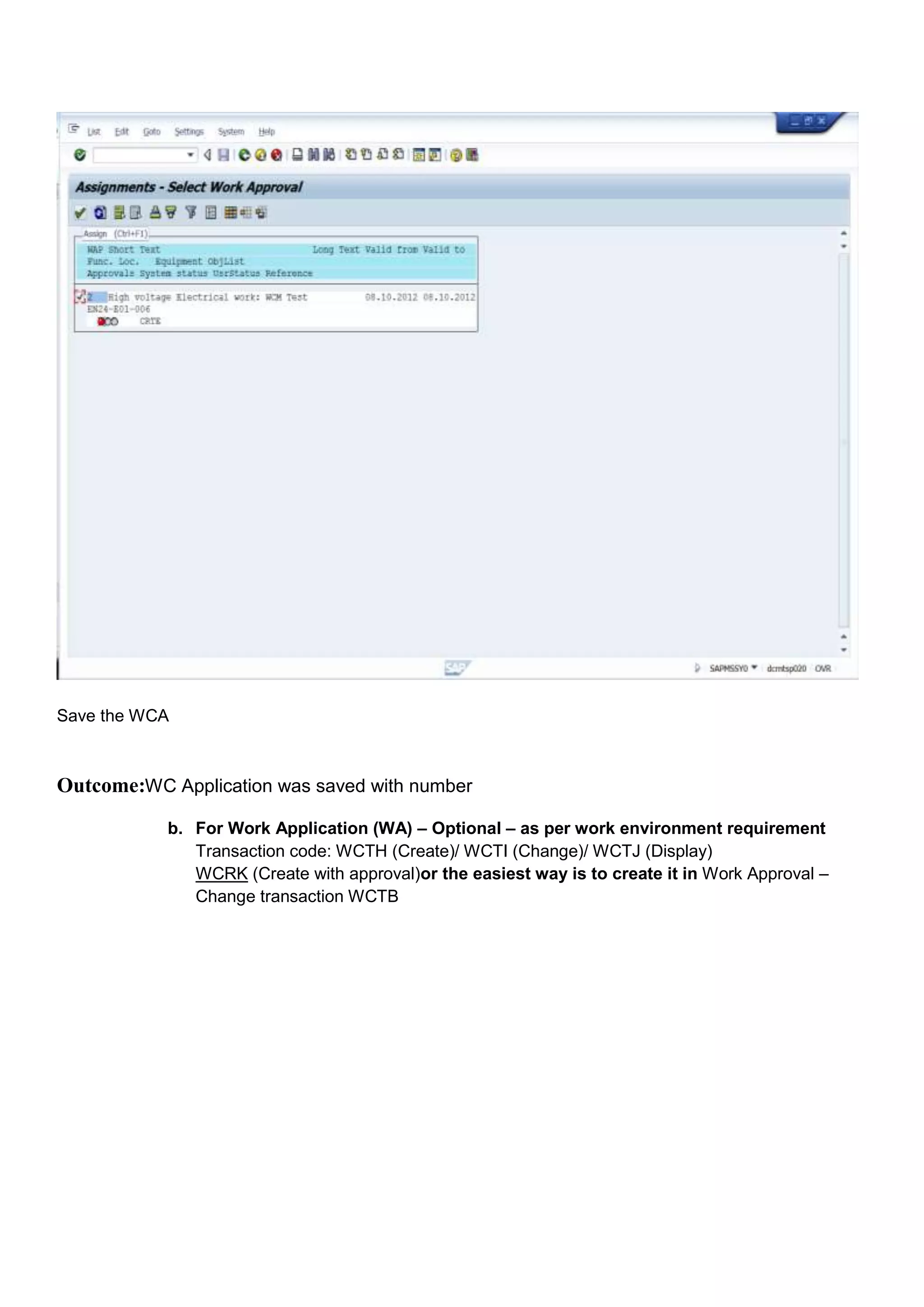
A report opens up. As the Work approval No is known from step 6.2, you can directly enter the work
approval no in selection criteria. Select and assign the WAN no. to the WCA
Save the WCA


Outcome:WC Application was saved with number
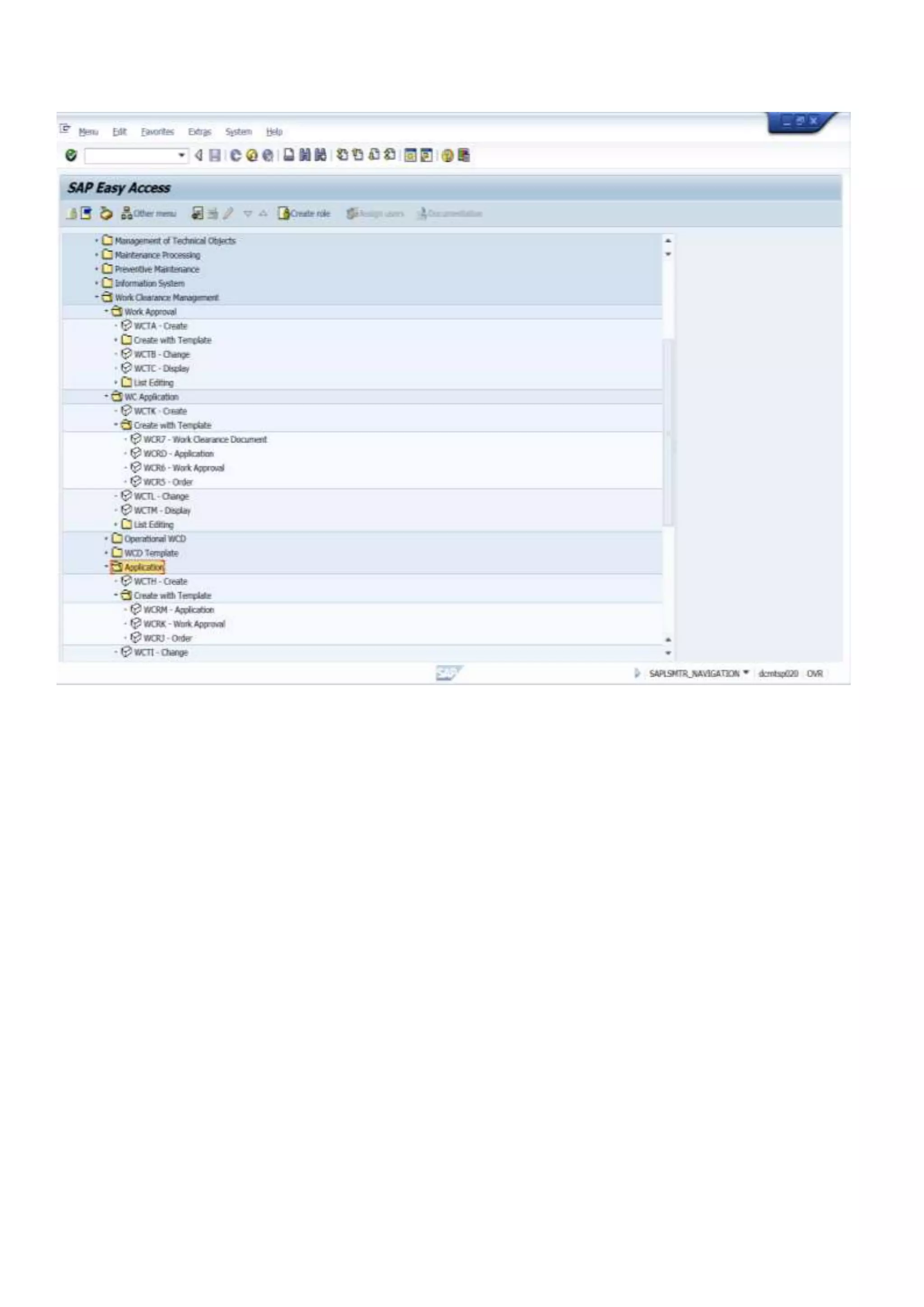
           b. For Work Application (WA) – Optional – as per work environment requirement
              Transaction code: WCTH (Create)/ WCTI (Change)/ WCTJ (Display)
              WCRK (Create with approval)or the easiest way is to create it in Work Approval –
              Change transaction WCTB
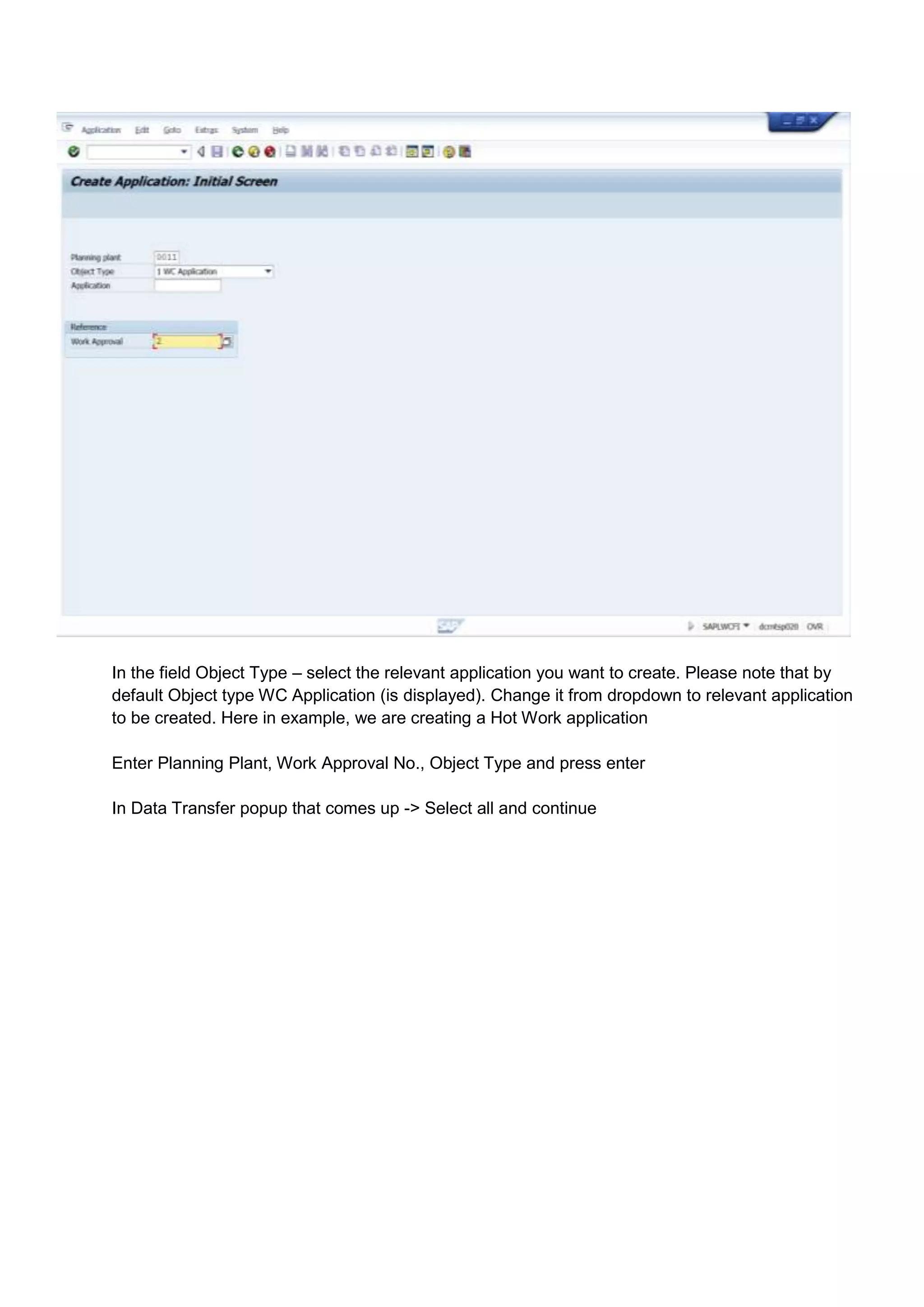
In the field Object Type – select the relevant application you want to create. Please note that by
default Object type WC Application (is displayed). Change it from dropdown to relevant application
to be created. Here in example, we are creating a Hot Work application

Enter Planning Plant, Work Approval No., Object Type and press enter

In Data Transfer popup that comes up -> Select all and continue
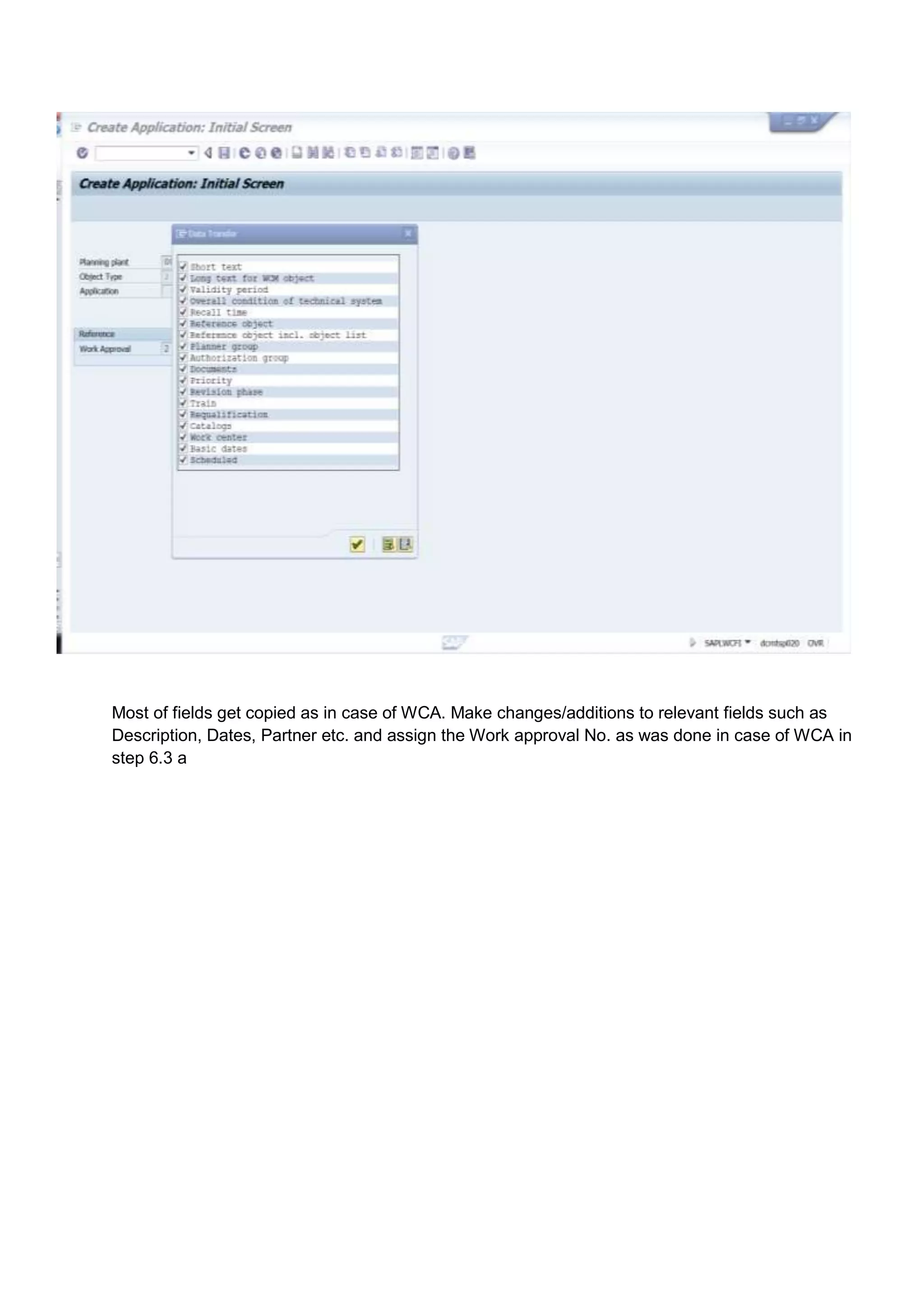
Most of fields get copied as in case of WCA. Make changes/additions to relevant fields such as
Description, Dates, Partner etc. and assign the Work approval No. as was done in case of WCA in
step 6.3 a
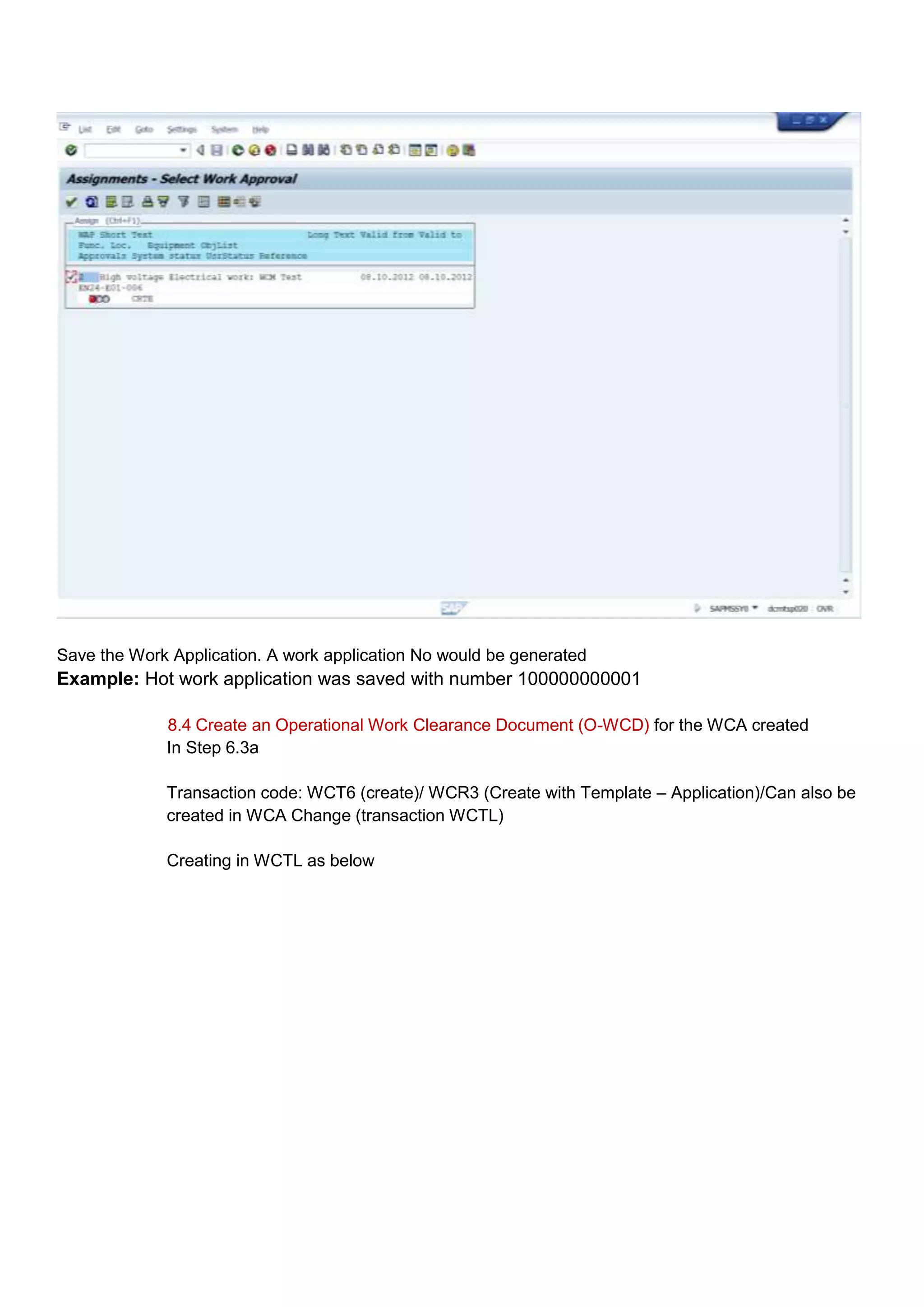
Save the Work Application. A work application No would be generated
Example: Hot work application was saved with number 100000000001

             8.4 Create an Operational Work Clearance Document (O-WCD) for the WCA created
             In Step 6.3a

             Transaction code: WCT6 (create)/ WCR3 (Create with Template – Application)/Can also be
             created in WCA Change (transaction WCTL)

             Creating in WCTL as below
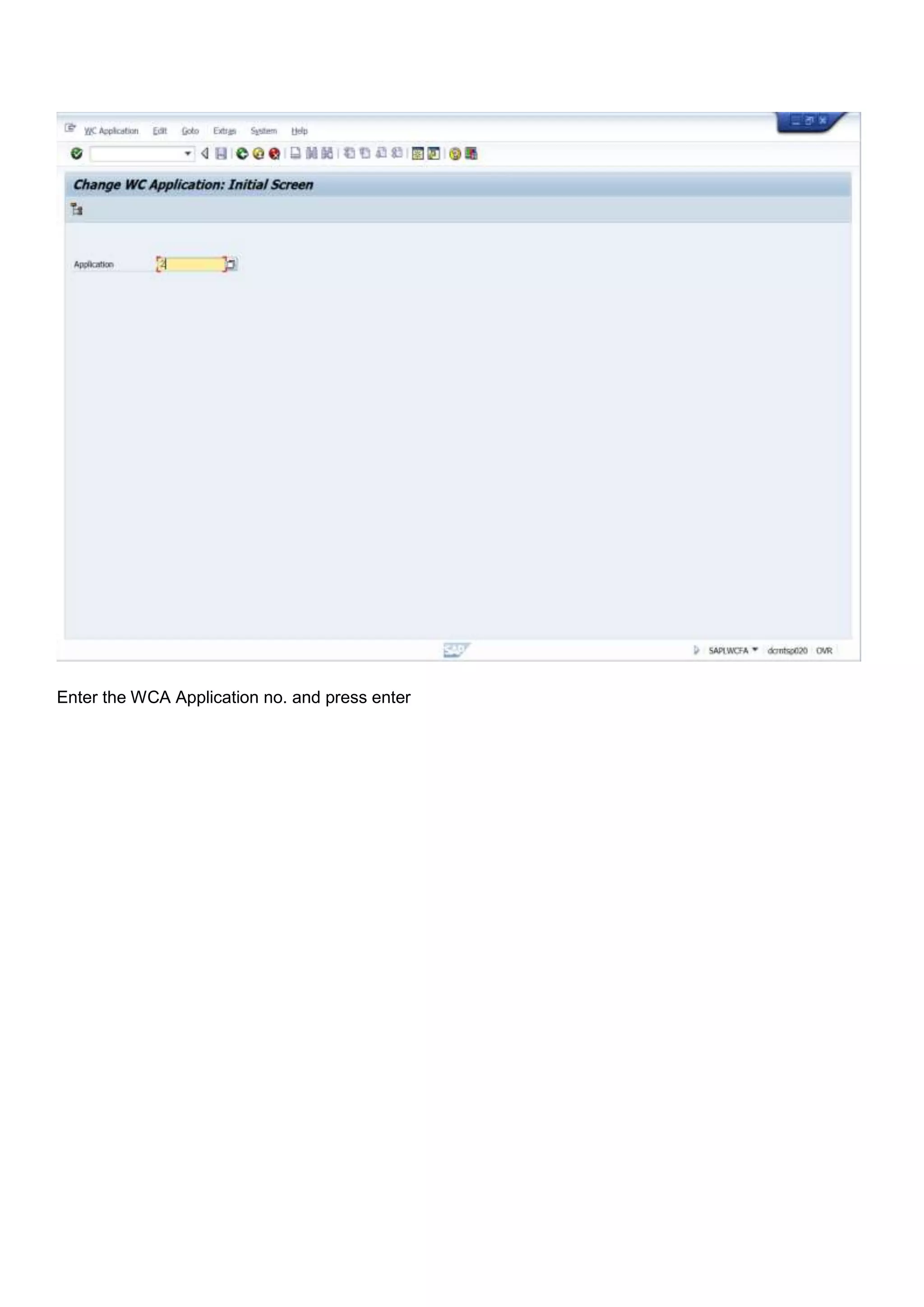
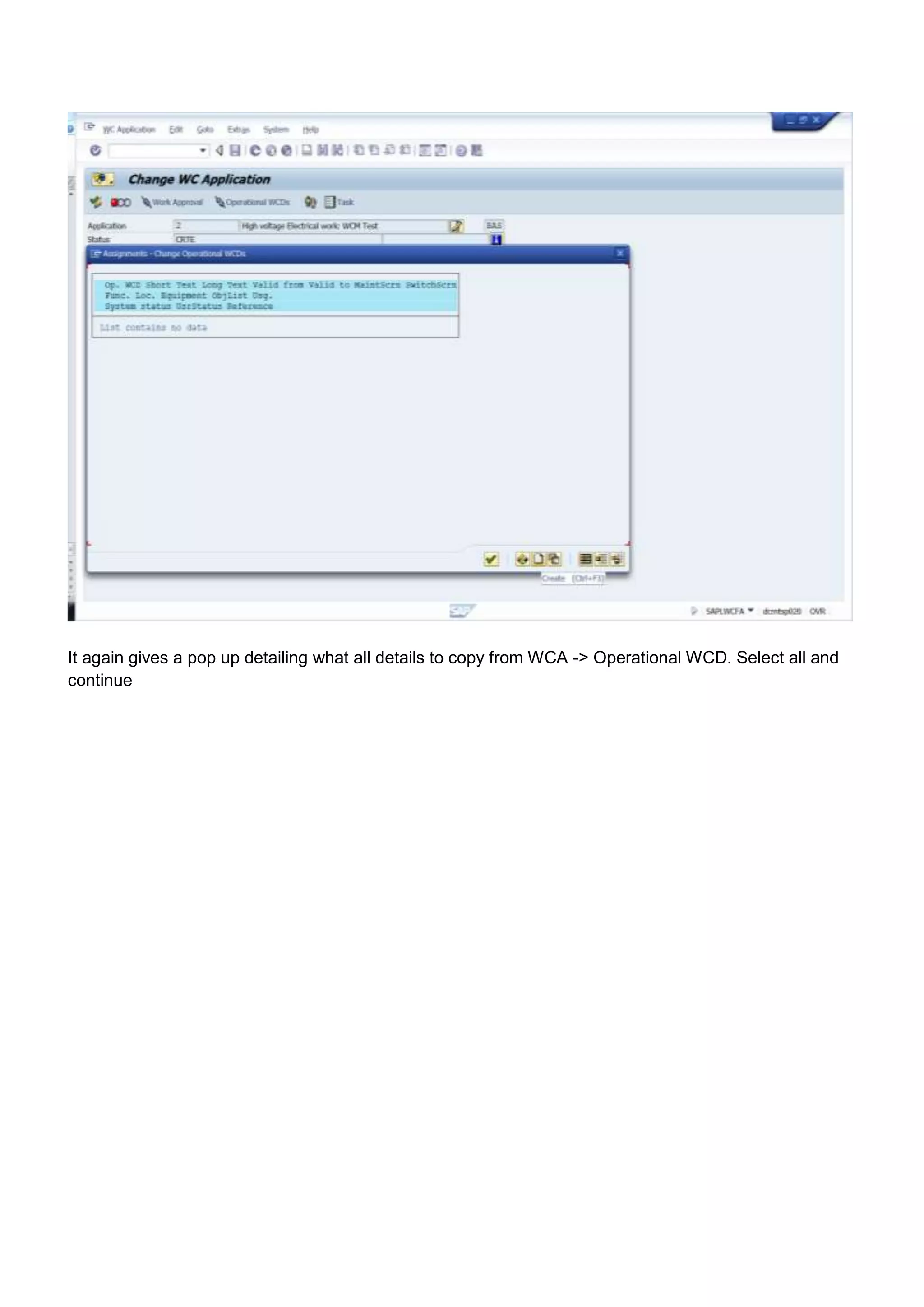
Enter the WCA Application no. and press enter
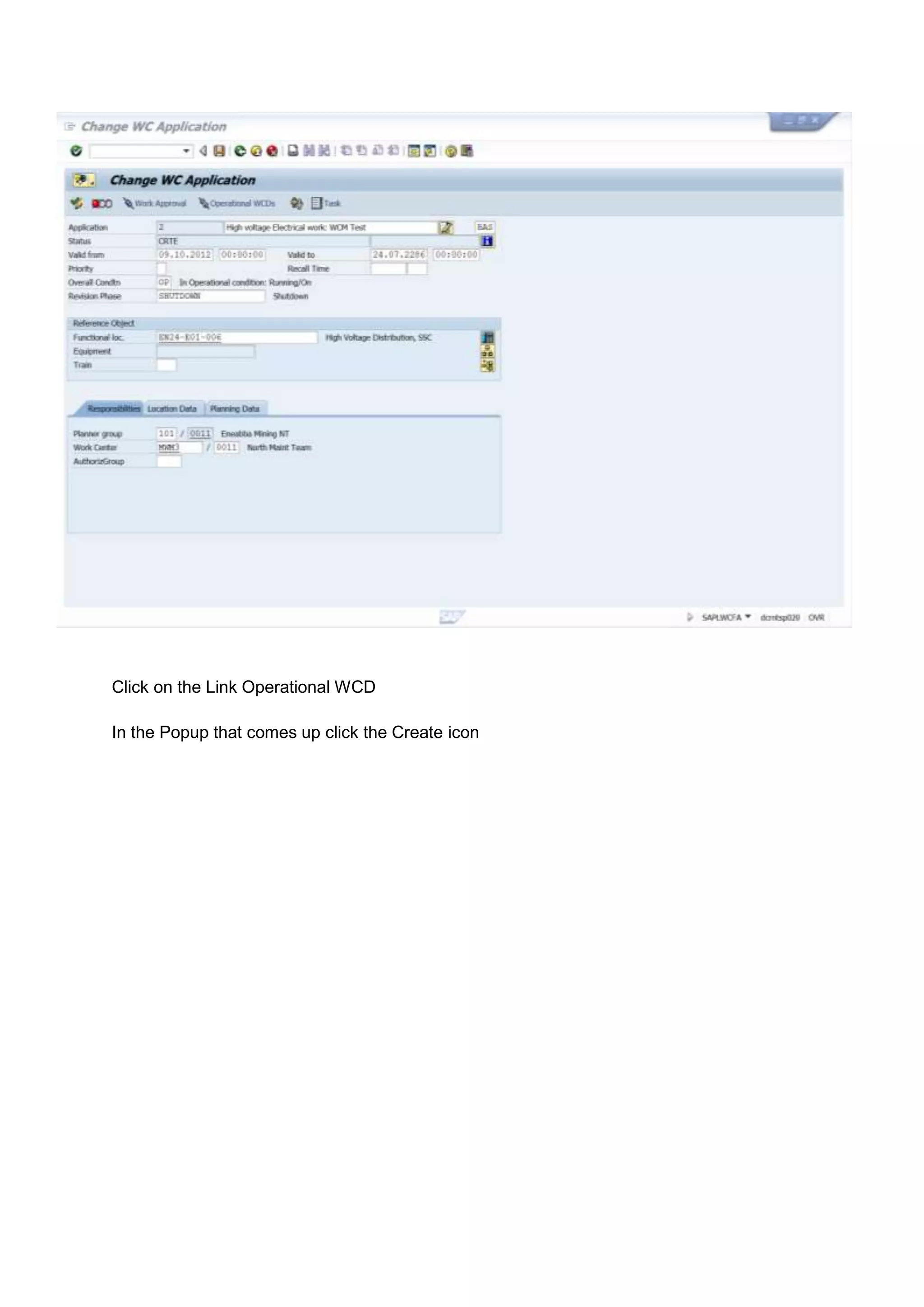
Click on the Link Operational WCD

In the Popup that comes up click the Create icon
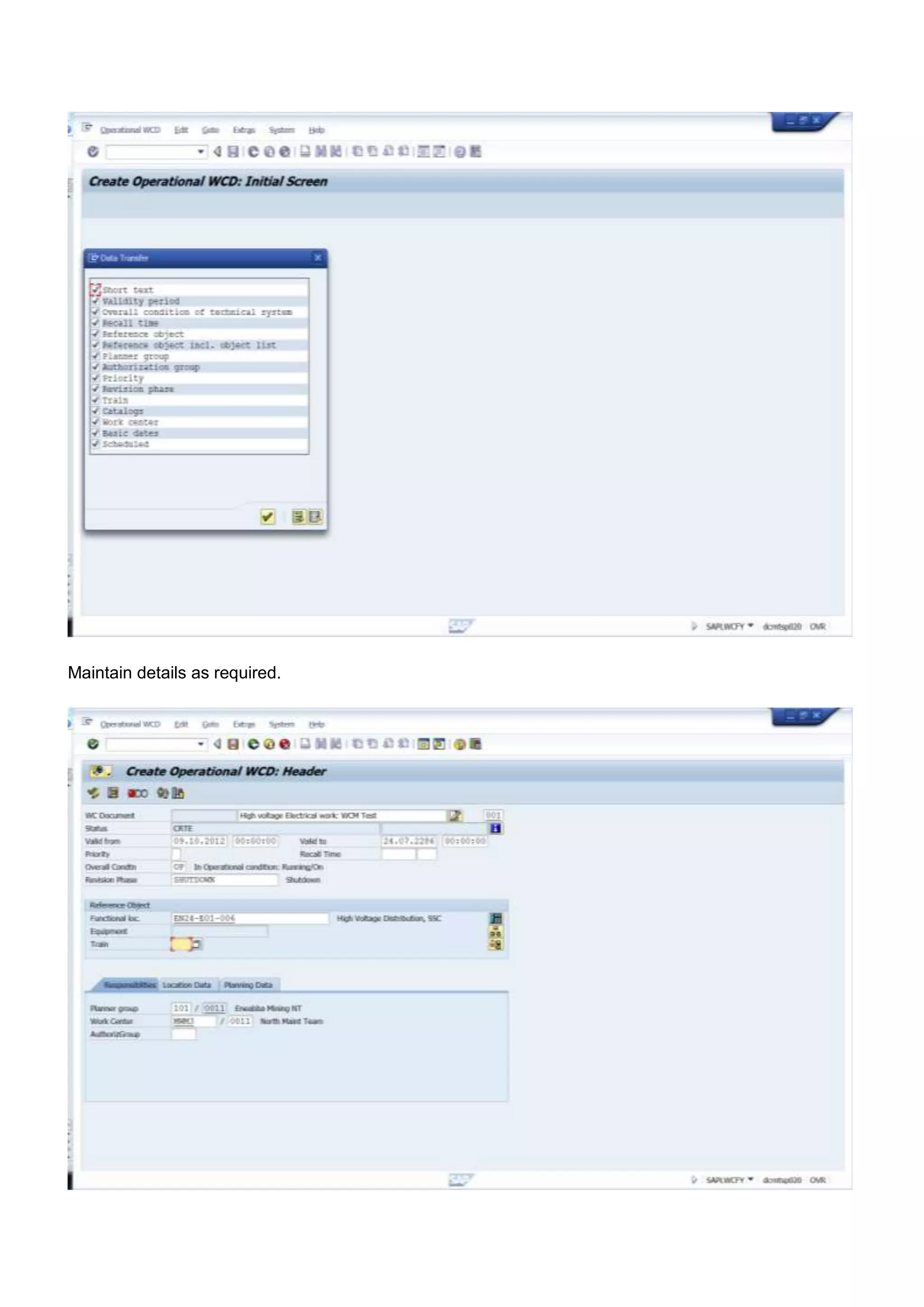
It again gives a pop up detailing what all details to copy from WCA -> Operational WCD. Select all and
continue
Maintain details as required.
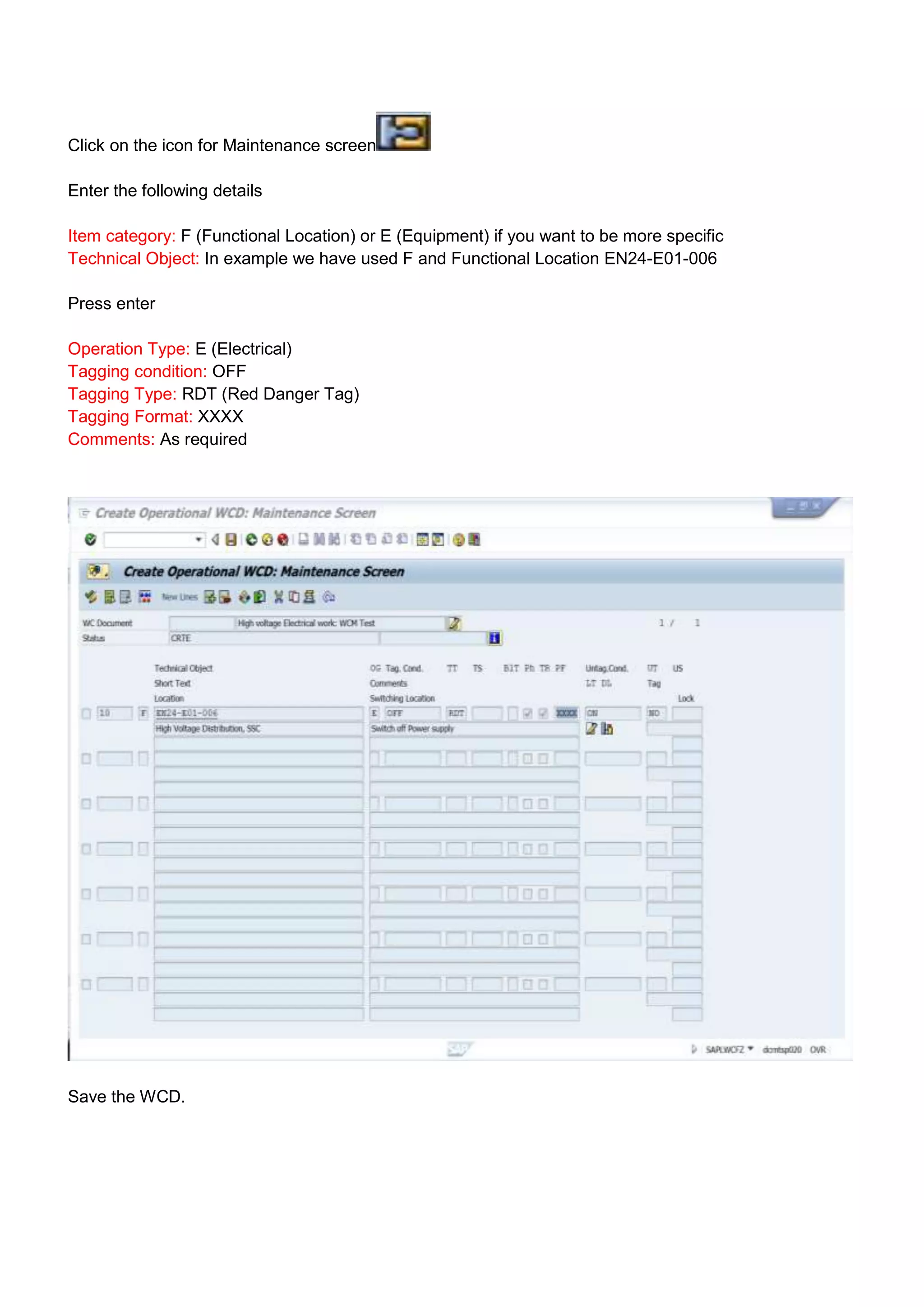
Click on the icon for Maintenance screen

Enter the following details

Item category: F (Functional Location) or E (Equipment) if you want to be more specific
Technical Object: In example we have used F and Functional Location EN24-E01-006

Press enter

Operation Type: E (Electrical)
Tagging condition: OFF
Tagging Type: RDT (Red Danger Tag)
Tagging Format: XXXX
Comments: As required


Save the WCD.
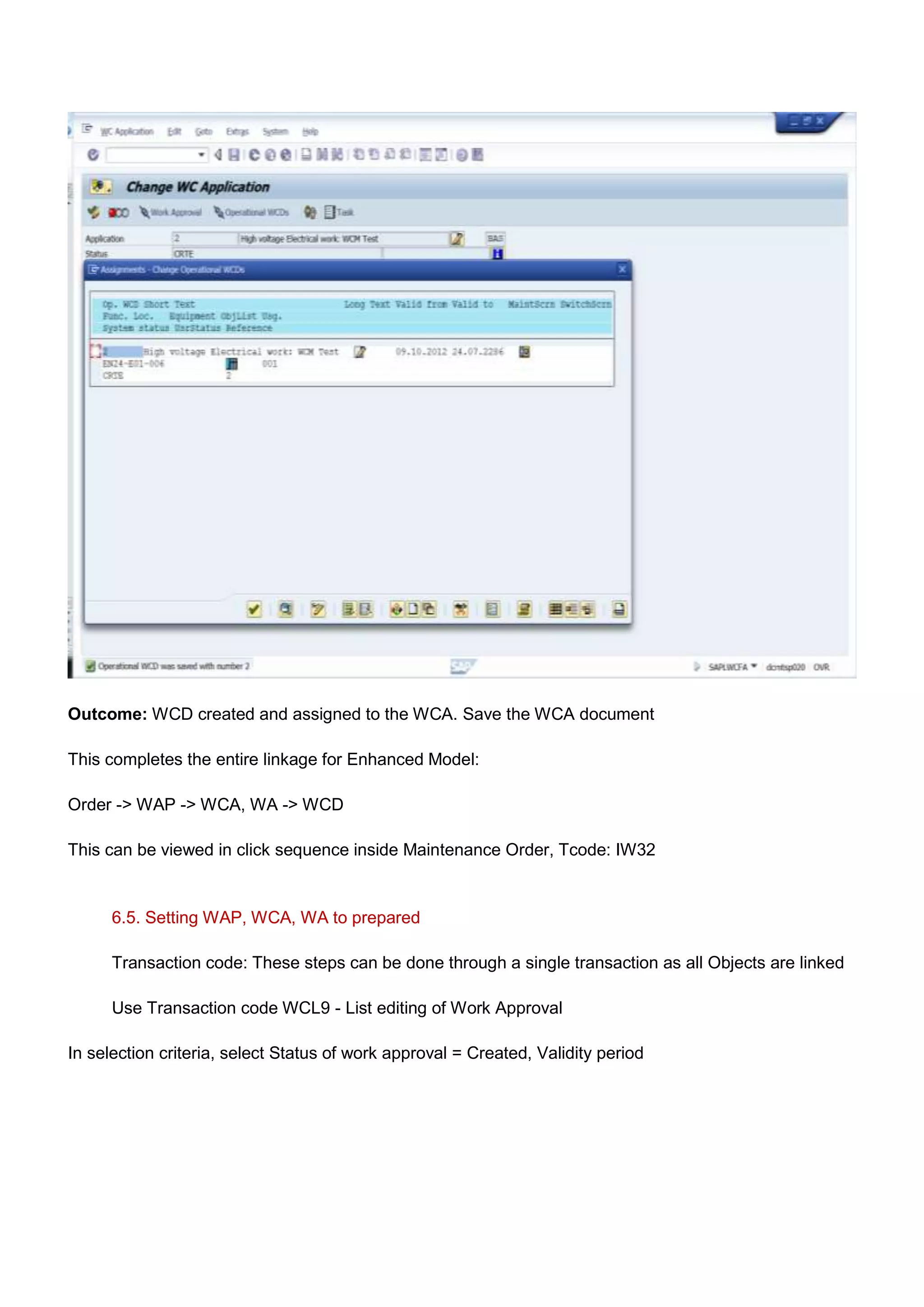
Outcome: WCD created and assigned to the WCA. Save the WCA document

This completes the entire linkage for Enhanced Model:

Order -> WAP -> WCA, WA -> WCD

This can be viewed in click sequence inside Maintenance Order, Tcode: IW32


      6.5. Setting WAP, WCA, WA to prepared

      Transaction code: These steps can be done through a single transaction as all Objects are linked

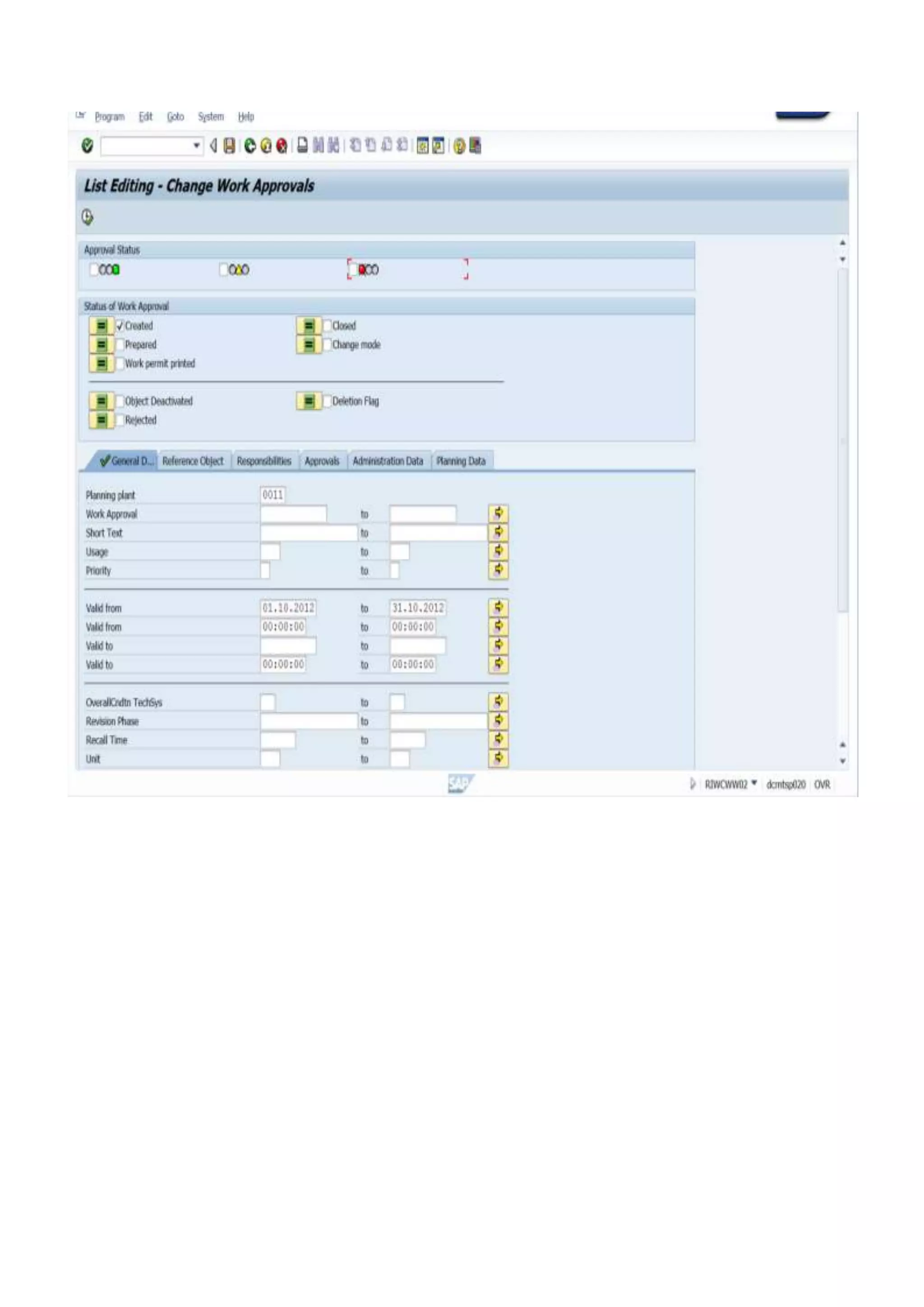
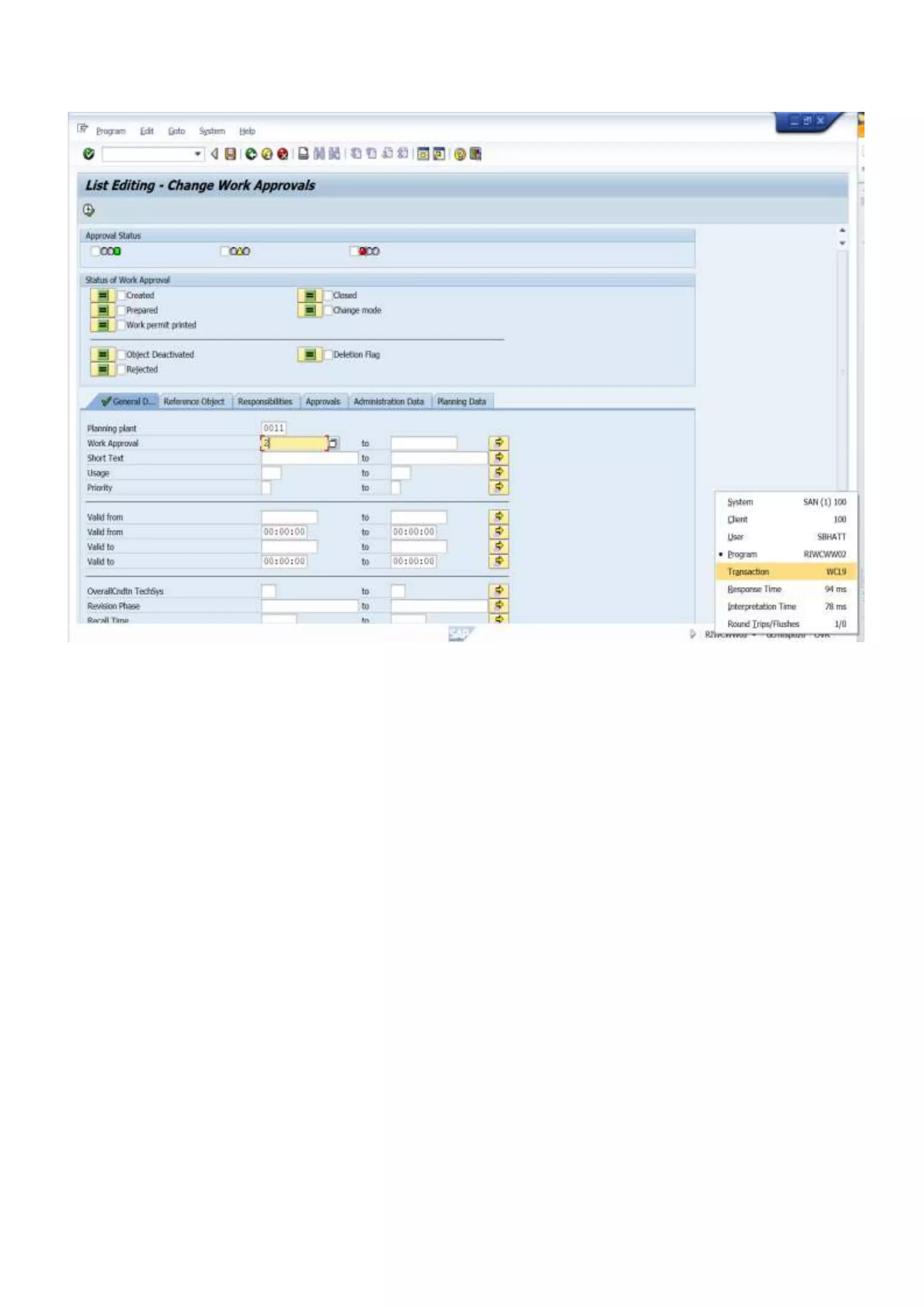
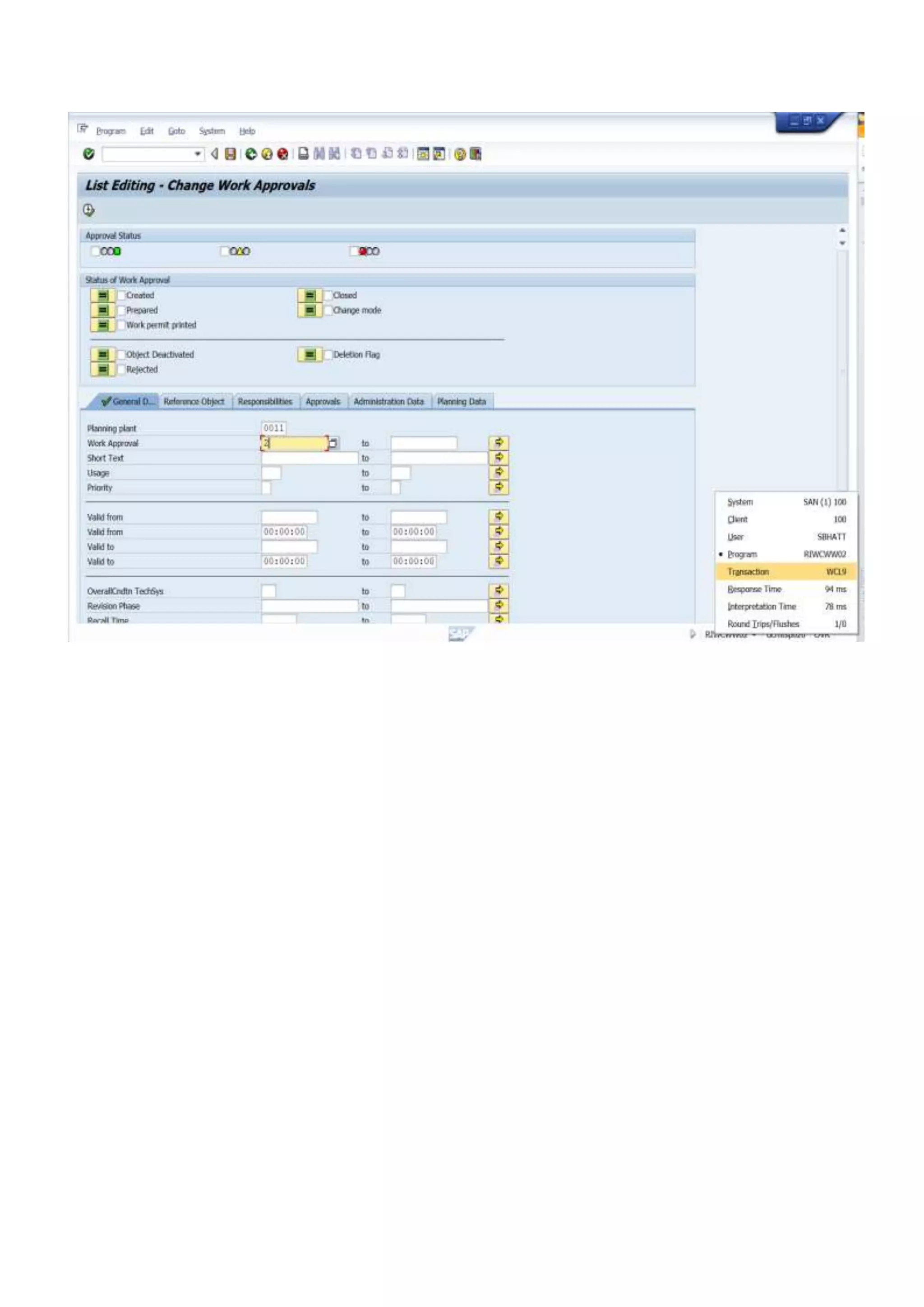
      Use Transaction code WCL9 - List editing of Work Approval

In selection criteria, select Status of work approval = Created, Validity period
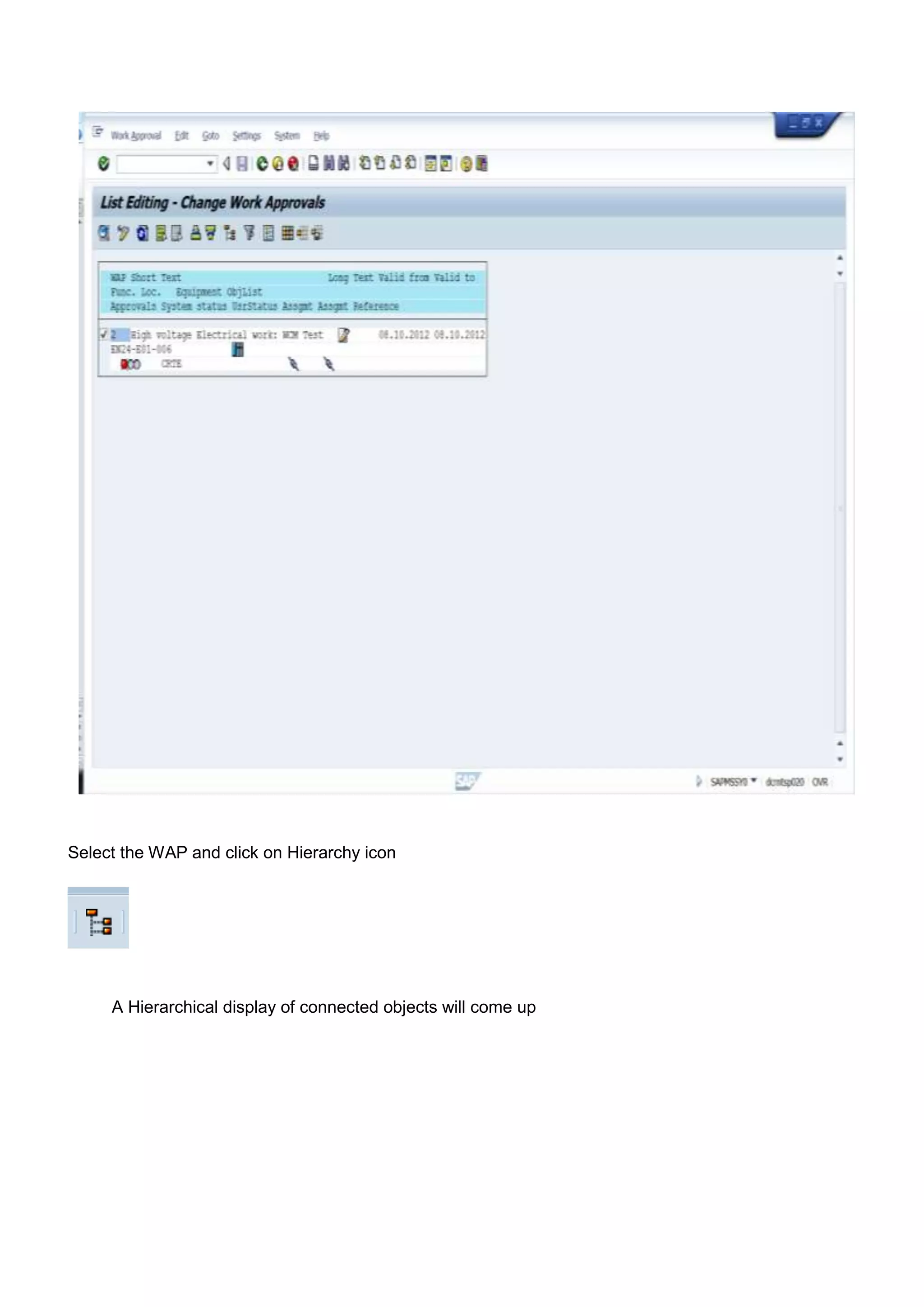
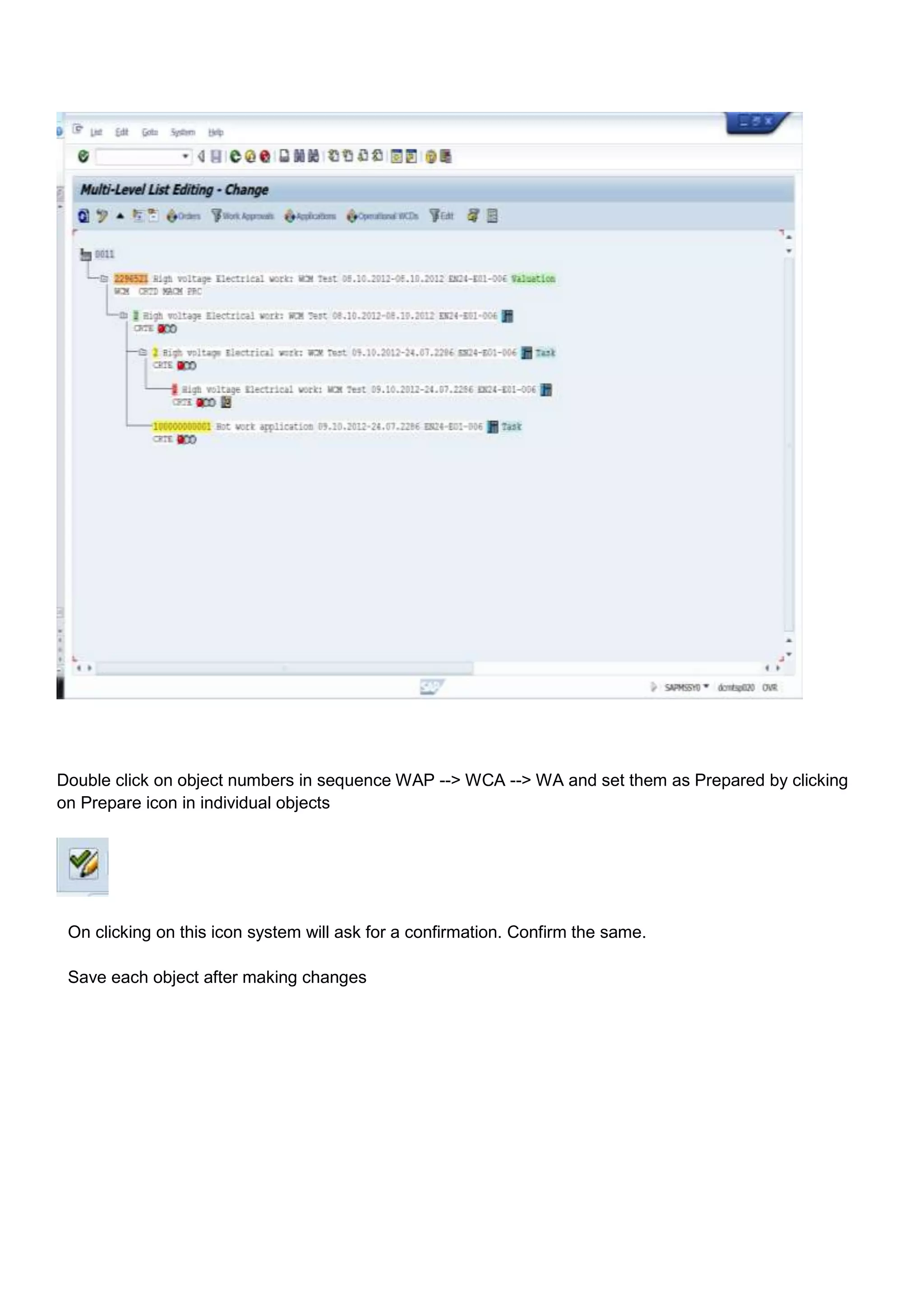
Select the WAP and click on Hierarchy icon


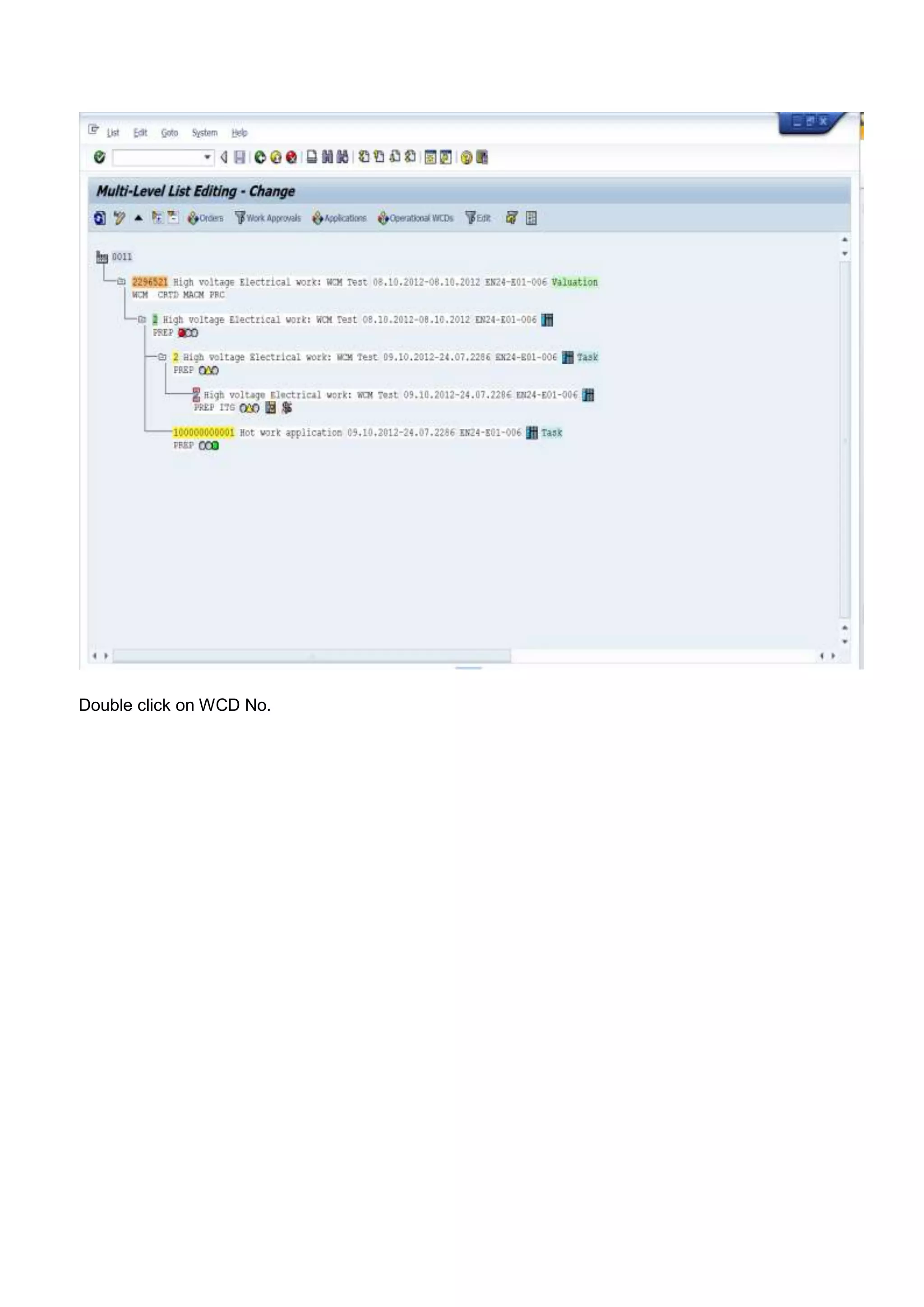
     A Hierarchical display of connected objects will come up
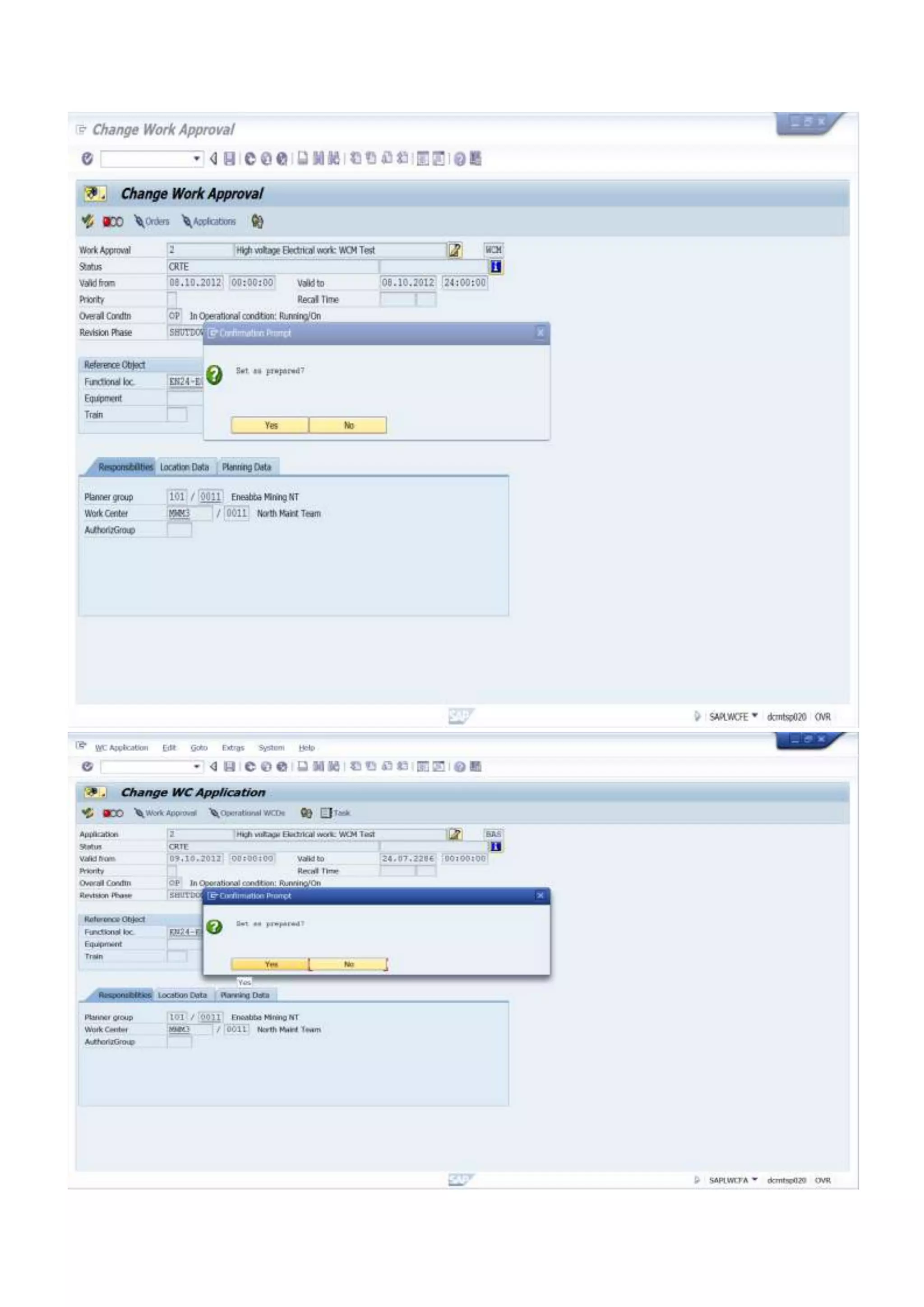
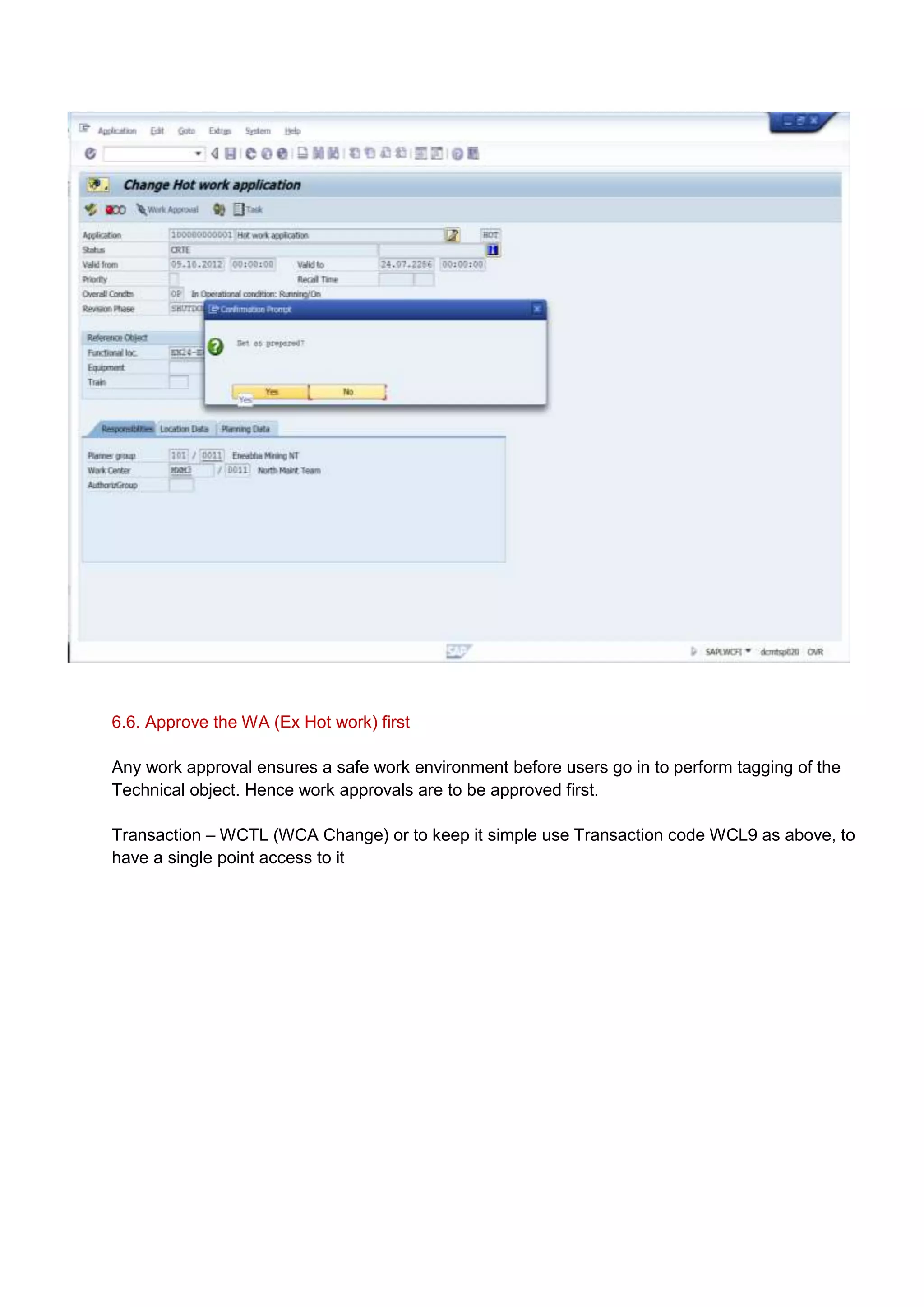
Double click on object numbers in sequence WAP --> WCA --> WA and set them as Prepared by clicking
on Prepare icon in individual objects


 On clicking on this icon system will ask for a confirmation. Confirm the same.

 Save each object after making changes
6.6. Approve the WA (Ex Hot work) first

Any work approval ensures a safe work environment before users go in to perform tagging of the
Technical object. Hence work approvals are to be approved first.

Transaction – WCTL (WCA Change) or to keep it simple use Transaction code WCL9 as above, to
have a single point access to it
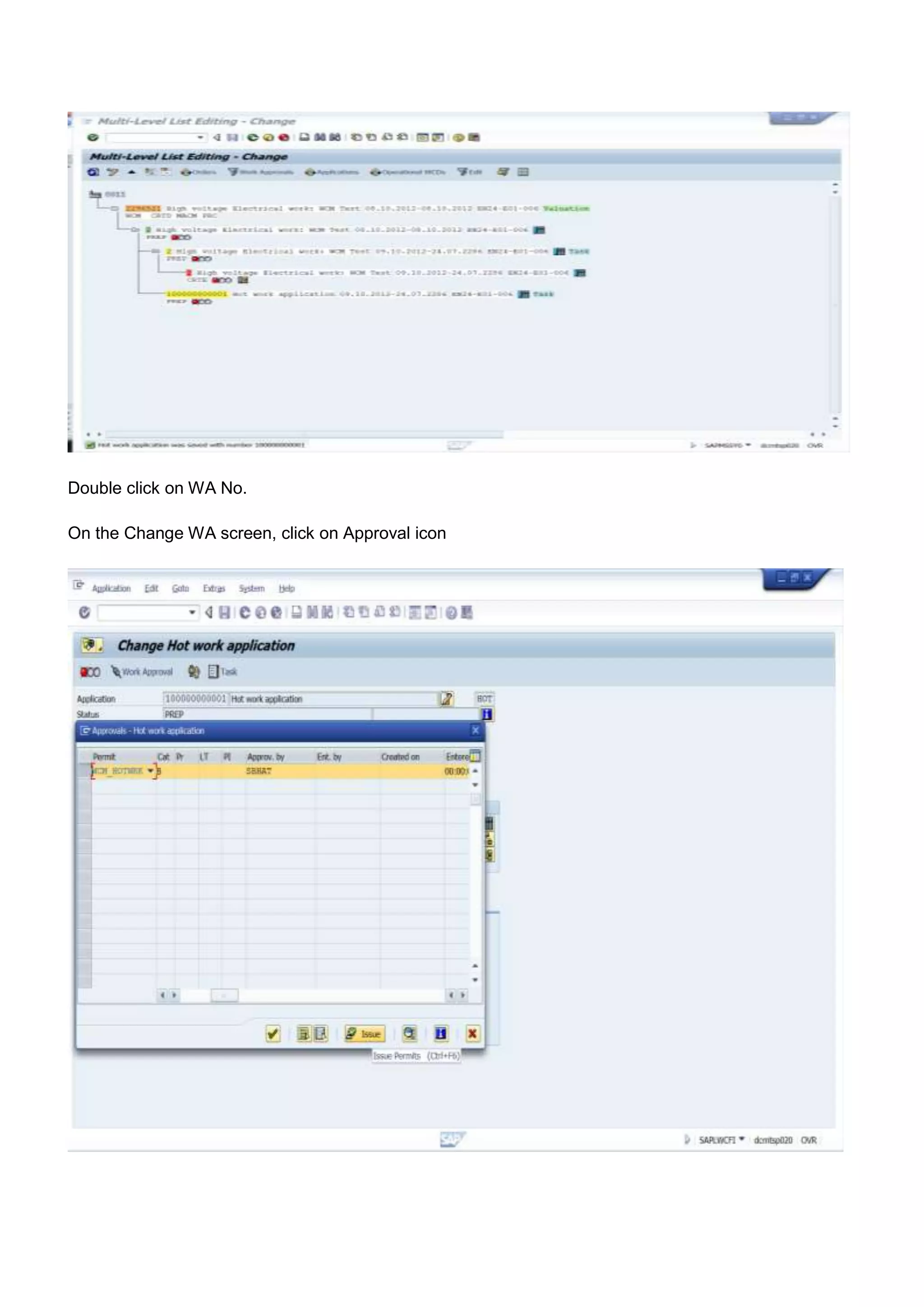
Double click on WA No.

On the Change WA screen, click on Approval icon
Save the WA after approving the Work permit in it. You will see that the Traffic Light against the WA
document in this case Hot work changes to Green Light


Note: There is a Hierarchy of approval functionality within WCM with which sequence of approvals of
WCM object can be controlled. For ex. Work approval permits to be cleared before Tagging approval
permit can be cleared. In this case it has not been activated.

     6.7. Approve the Tagging approval

Transaction – WCTL (WCA Change) or to keep it simple use Transaction code WCL9 as above, to have a
single point access to it


Double click on WCA No.

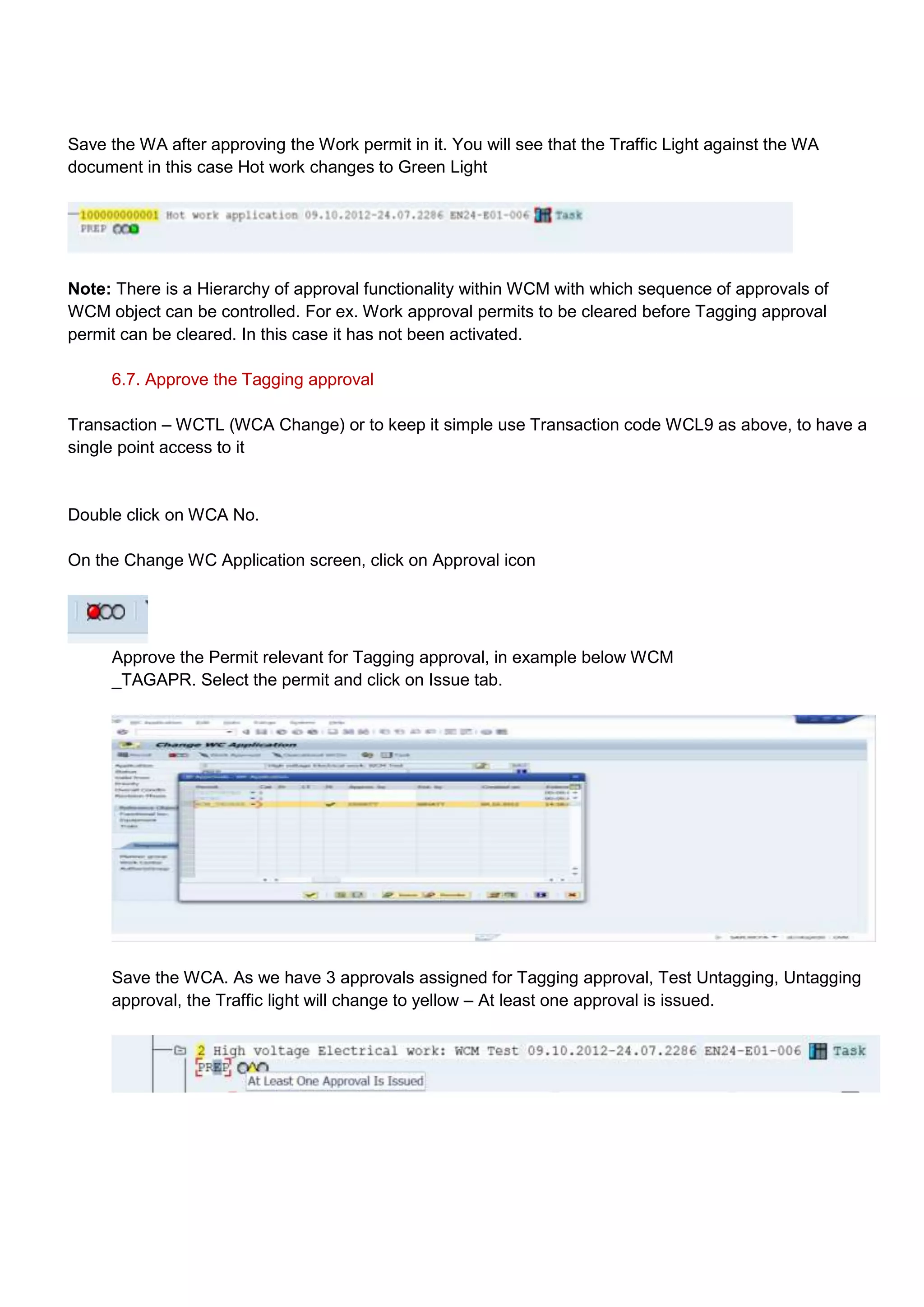
On the Change WC Application screen, click on Approval icon


     Approve the Permit relevant for Tagging approval, in example below WCM
     _TAGAPR. Select the permit and click on Issue tab.


     Save the WCA. As we have 3 approvals assigned for Tagging approval, Test Untagging, Untagging
     approval, the Traffic light will change to yellow – At least one approval is issued.
6.8. Set WCD to prepared to start Tagging

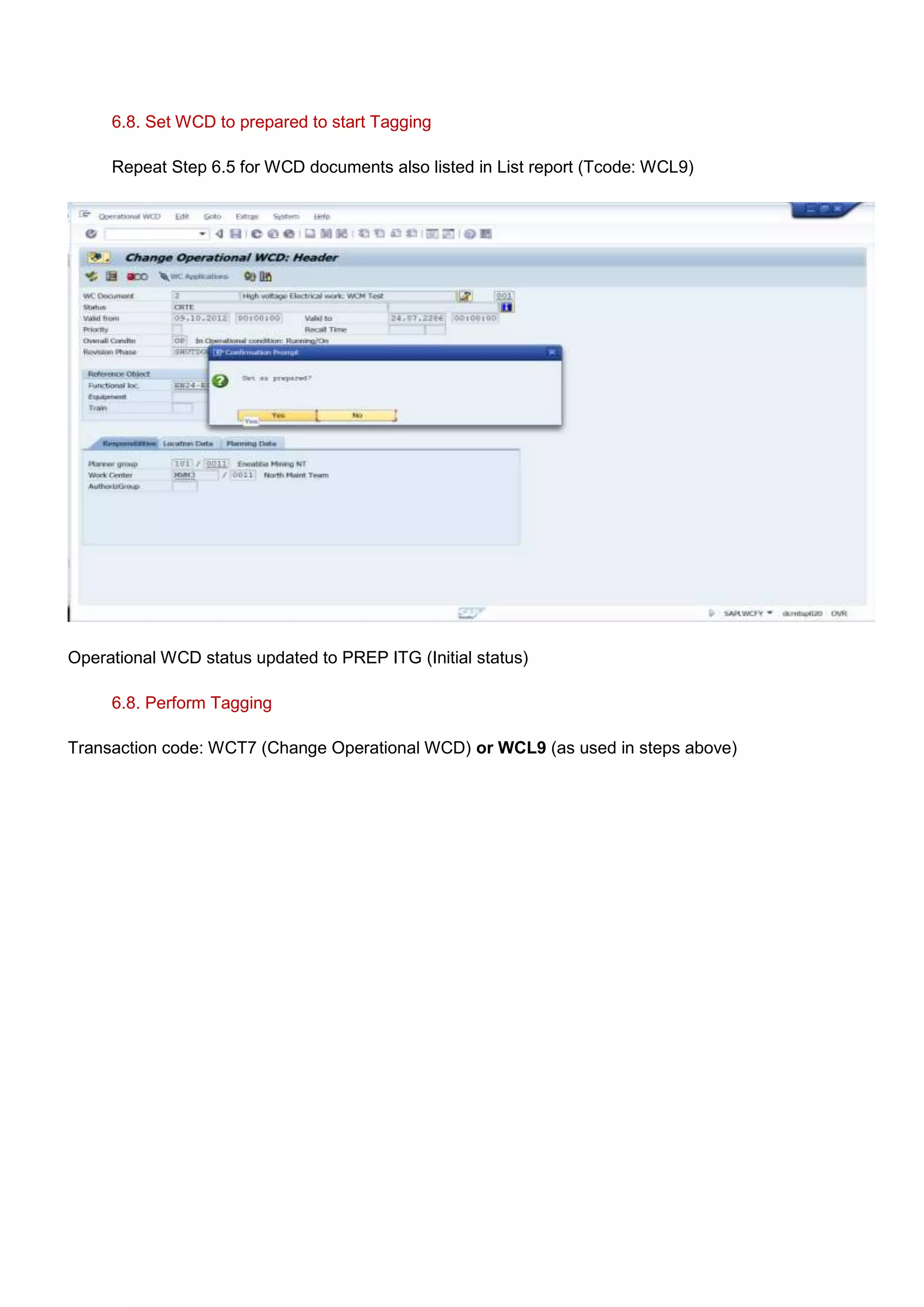
     Repeat Step 6.5 for WCD documents also listed in List report (Tcode: WCL9)


Operational WCD status updated to PREP ITG (Initial status)

     6.8. Perform Tagging

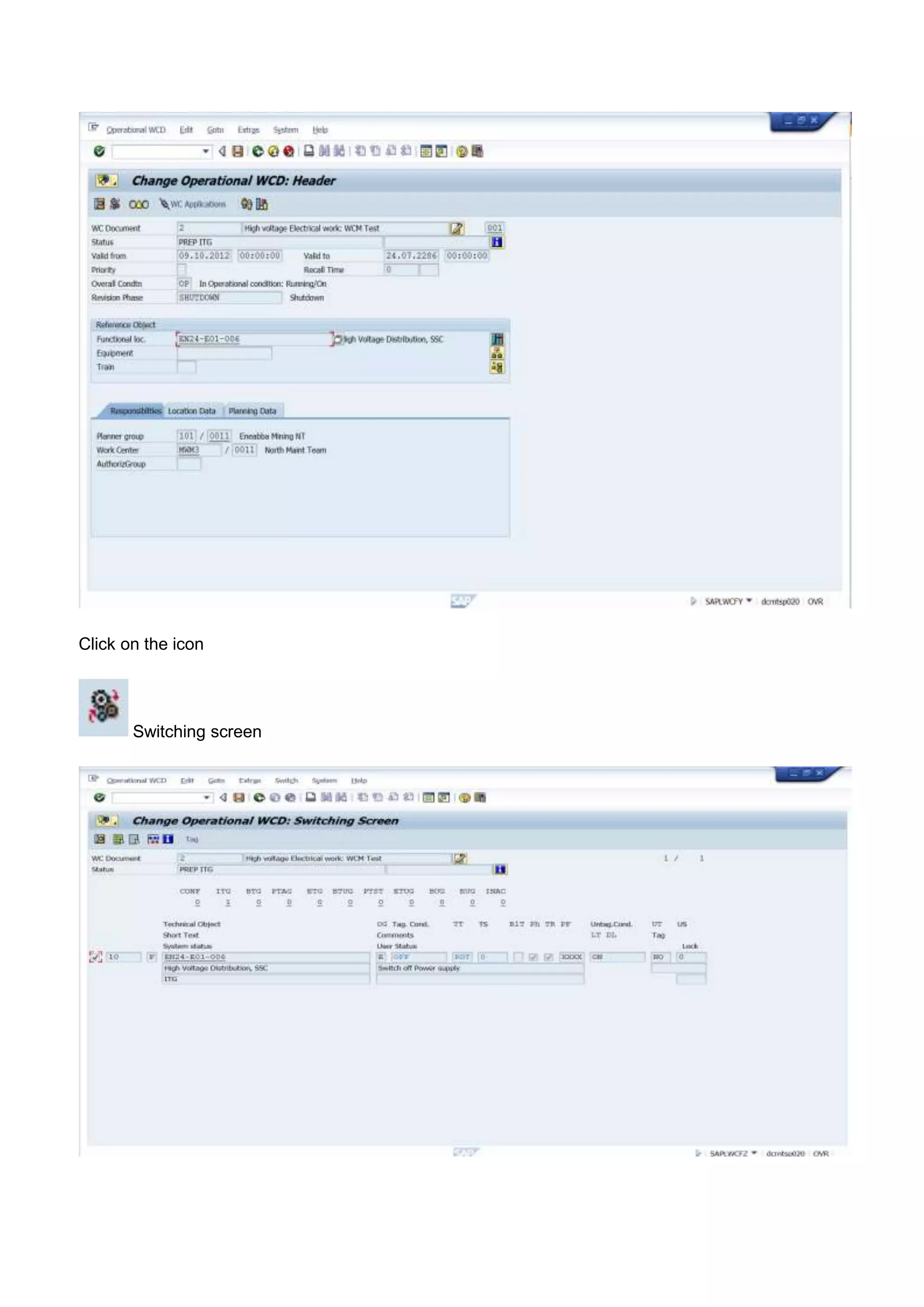
Transaction code: WCT7 (Change Operational WCD) or WCL9 (as used in steps above)
Double click on WCD No.
Click on the icon


       Switching screen
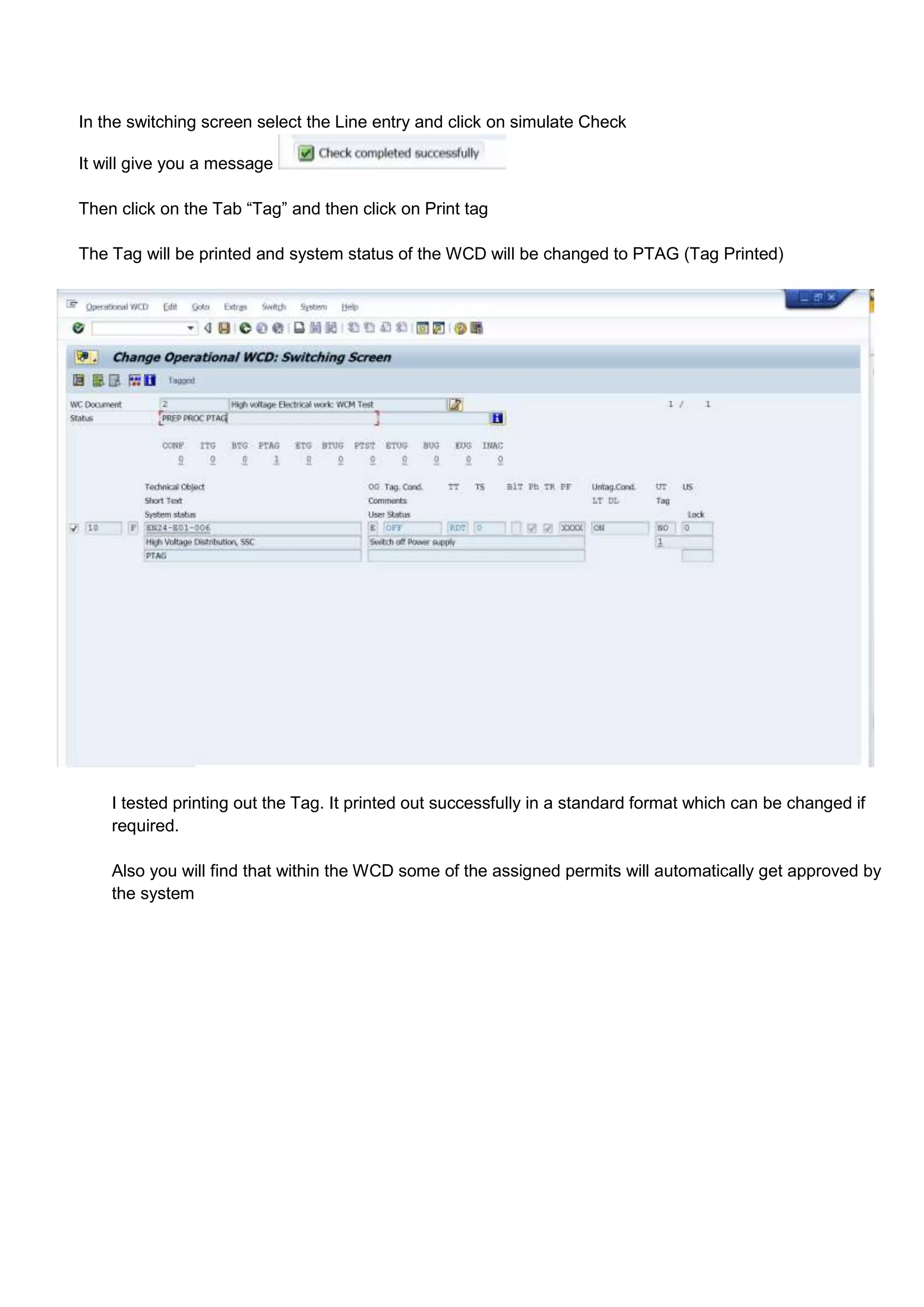
In the switching screen select the Line entry and click on simulate Check

It will give you a message

Then click on the Tab “Tag” and then click on Print tag

The Tag will be printed and system status of the WCD will be changed to PTAG (Tag Printed)


    I tested printing out the Tag. It printed out successfully in a standard format which can be changed if
    required.

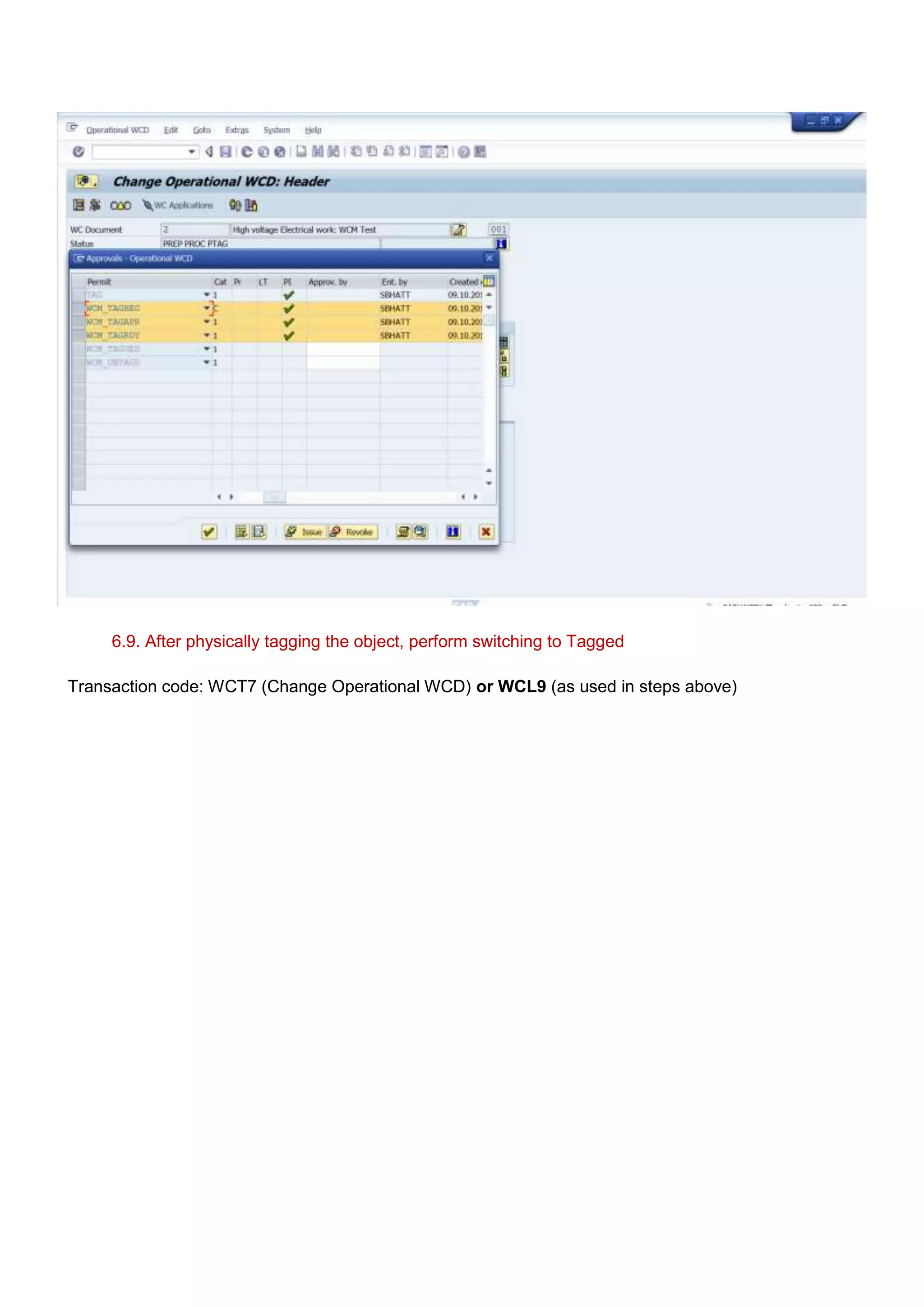
    Also you will find that within the WCD some of the assigned permits will automatically get approved by
    the system
6.9. After physically tagging the object, perform switching to Tagged

Transaction code: WCT7 (Change Operational WCD) or WCL9 (as used in steps above)
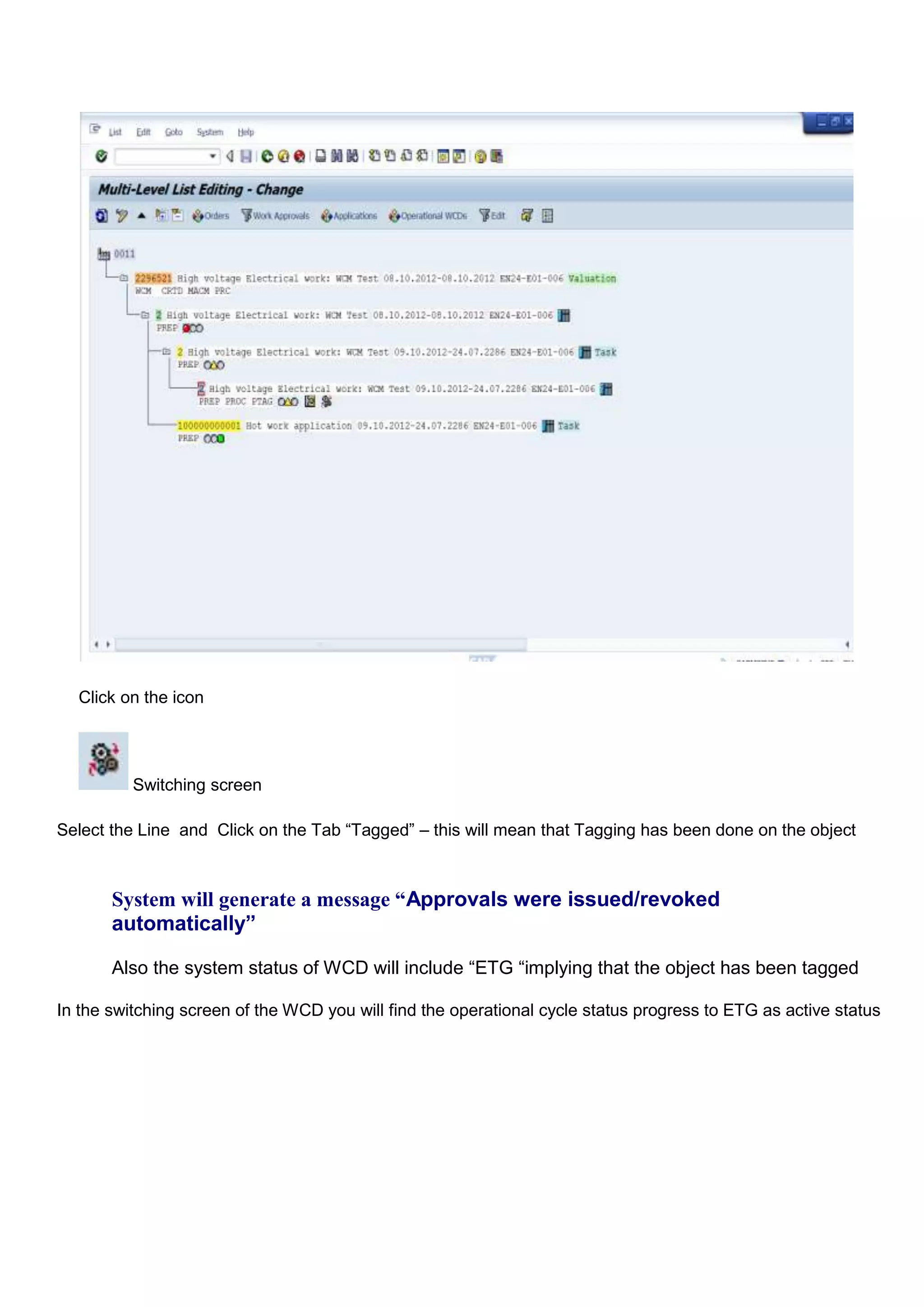
Click on the icon


          Switching screen

Select the Line and Click on the Tab “Tagged” – this will mean that Tagging has been done on the object


       System will generate a message “Approvals were issued/revoked
       automatically”

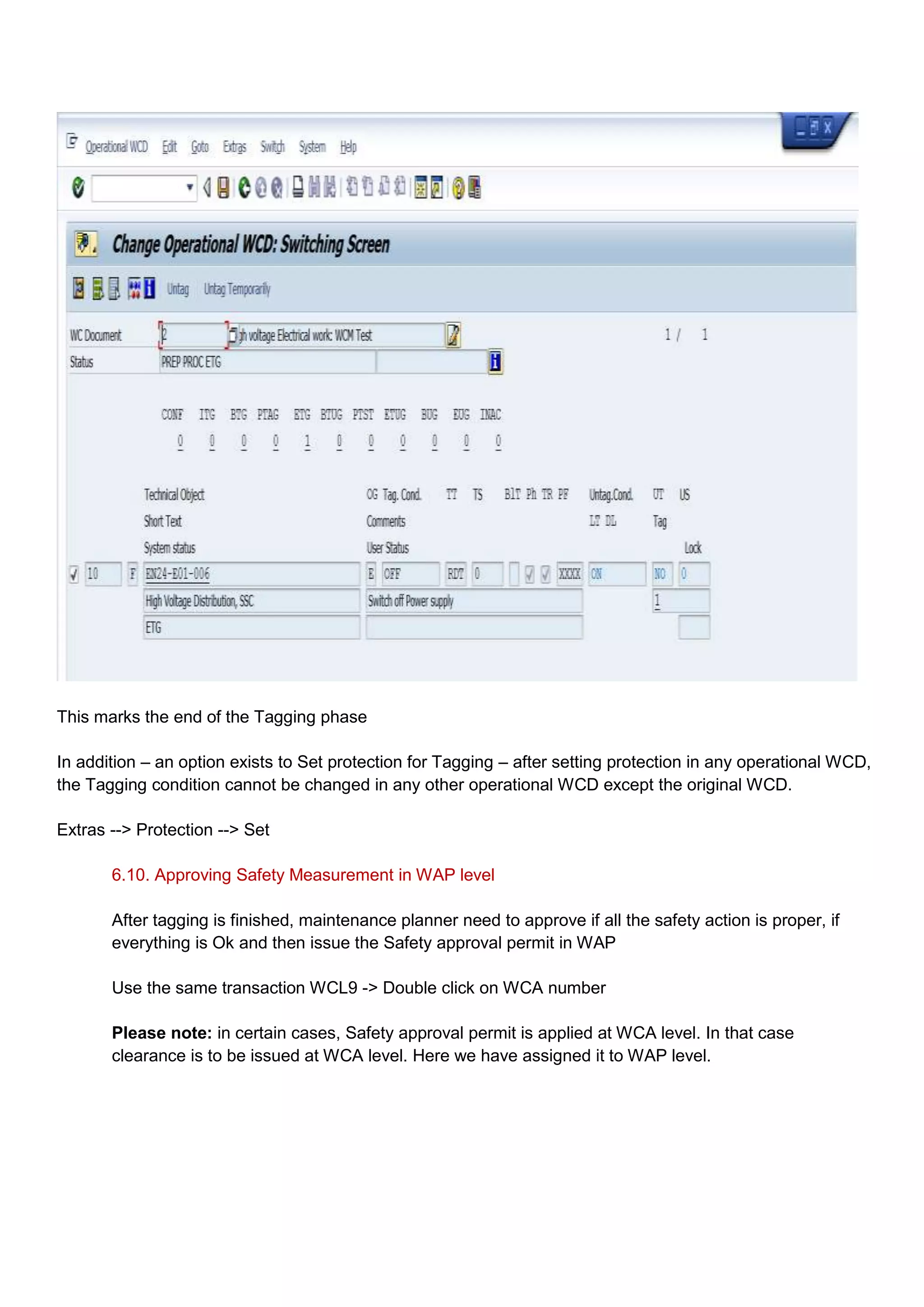
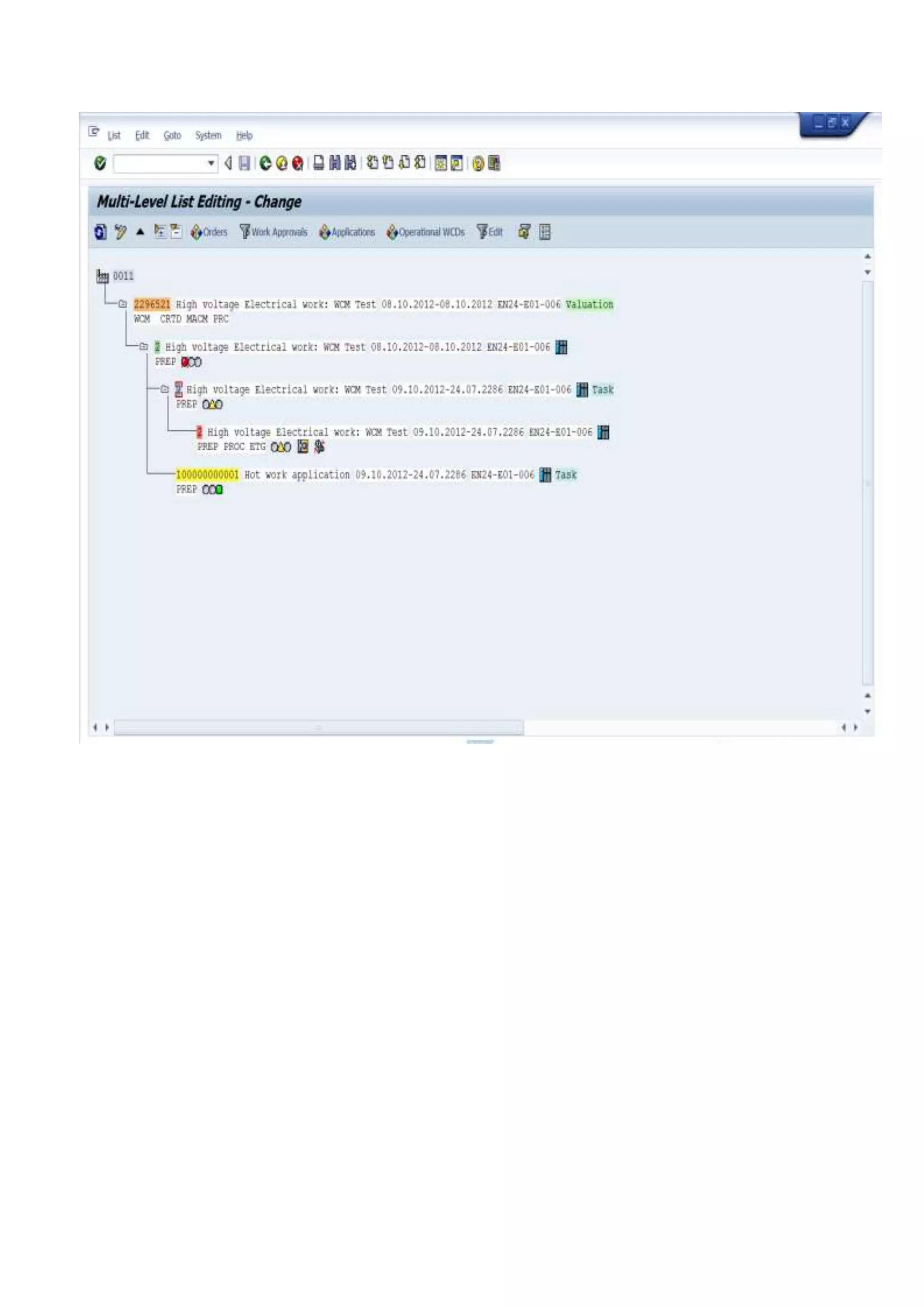
       Also the system status of WCD will include “ETG “implying that the object has been tagged

In the switching screen of the WCD you will find the operational cycle status progress to ETG as active status
This marks the end of the Tagging phase

In addition – an option exists to Set protection for Tagging – after setting protection in any operational WCD,
the Tagging condition cannot be changed in any other operational WCD except the original WCD.

Extras --> Protection --> Set

       6.10. Approving Safety Measurement in WAP level

       After tagging is finished, maintenance planner need to approve if all the safety action is proper, if
       everything is Ok and then issue the Safety approval permit in WAP

       Use the same transaction WCL9 -> Double click on WCA number

       Please note: in certain cases, Safety approval permit is applied at WCA level. In that case
       clearance is to be issued at WCA level. Here we have assigned it to WAP level.
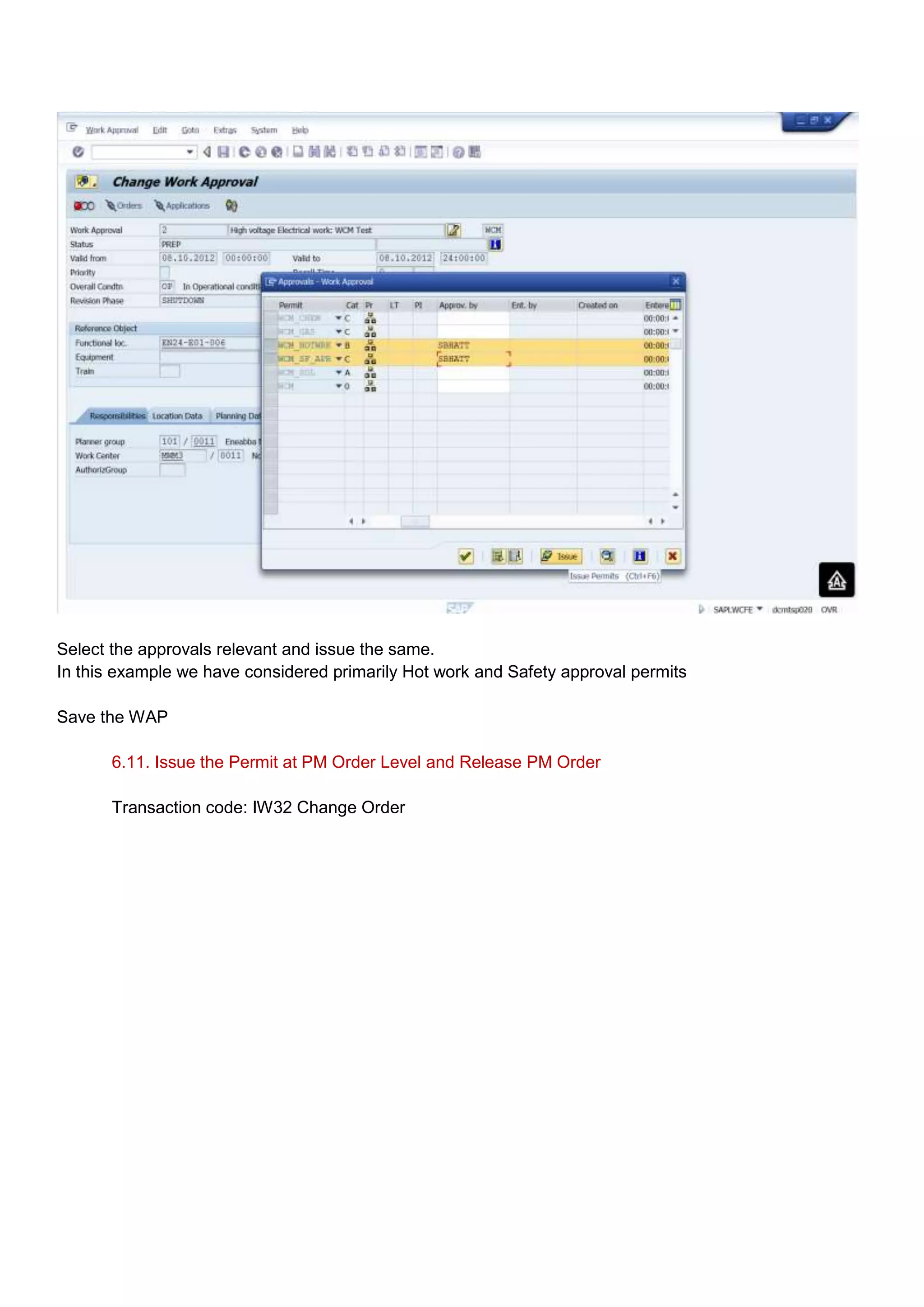
Select the approvals relevant and issue the same.
In this example we have considered primarily Hot work and Safety approval permits

Save the WAP

       6.11. Issue the Permit at PM Order Level and Release PM Order

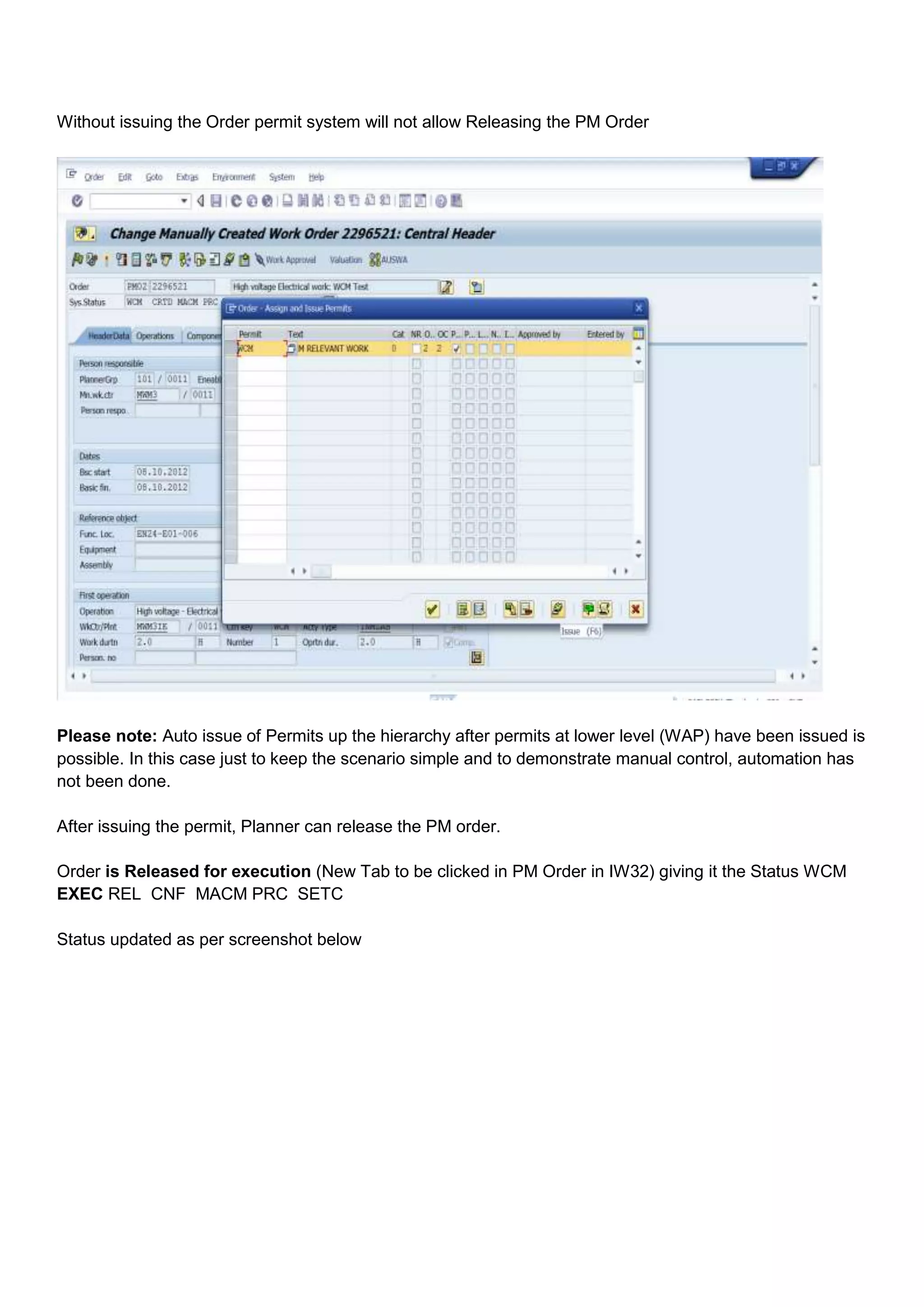
       Transaction code: IW32 Change Order
Without issuing the Order permit system will not allow Releasing the PM Order


Please note: Auto issue of Permits up the hierarchy after permits at lower level (WAP) have been issued is
possible. In this case just to keep the scenario simple and to demonstrate manual control, automation has
not been done.

After issuing the permit, Planner can release the PM order.

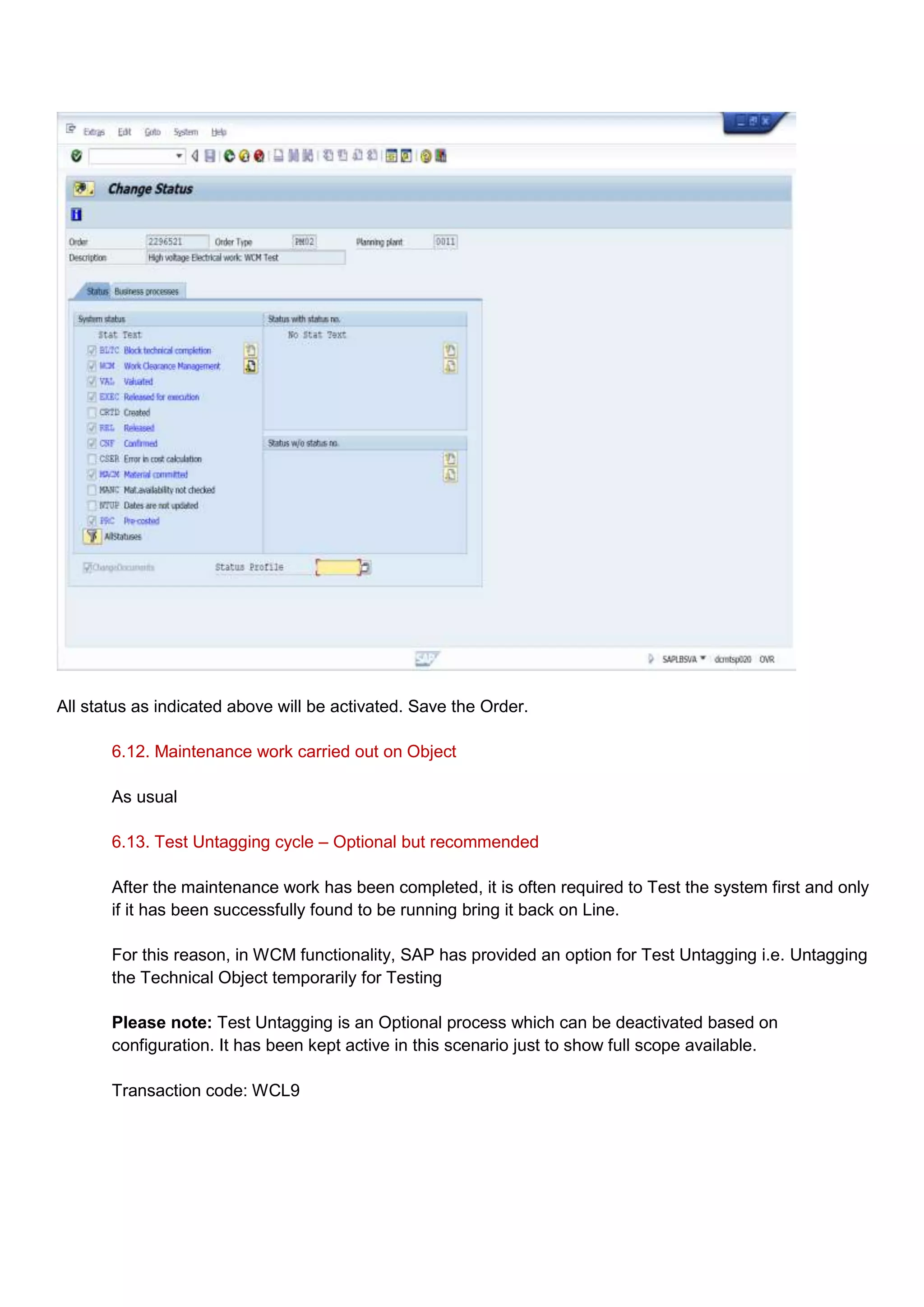
Order is Released for execution (New Tab to be clicked in PM Order in IW32) giving it the Status WCM
EXEC REL CNF MACM PRC SETC

Status updated as per screenshot below
All status as indicated above will be activated. Save the Order.

       6.12. Maintenance work carried out on Object

       As usual

       6.13. Test Untagging cycle – Optional but recommended

       After the maintenance work has been completed, it is often required to Test the system first and only
       if it has been successfully found to be running bring it back on Line.

       For this reason, in WCM functionality, SAP has provided an option for Test Untagging i.e. Untagging
       the Technical Object temporarily for Testing

       Please note: Test Untagging is an Optional process which can be deactivated based on
       configuration. It has been kept active in this scenario just to show full scope available.

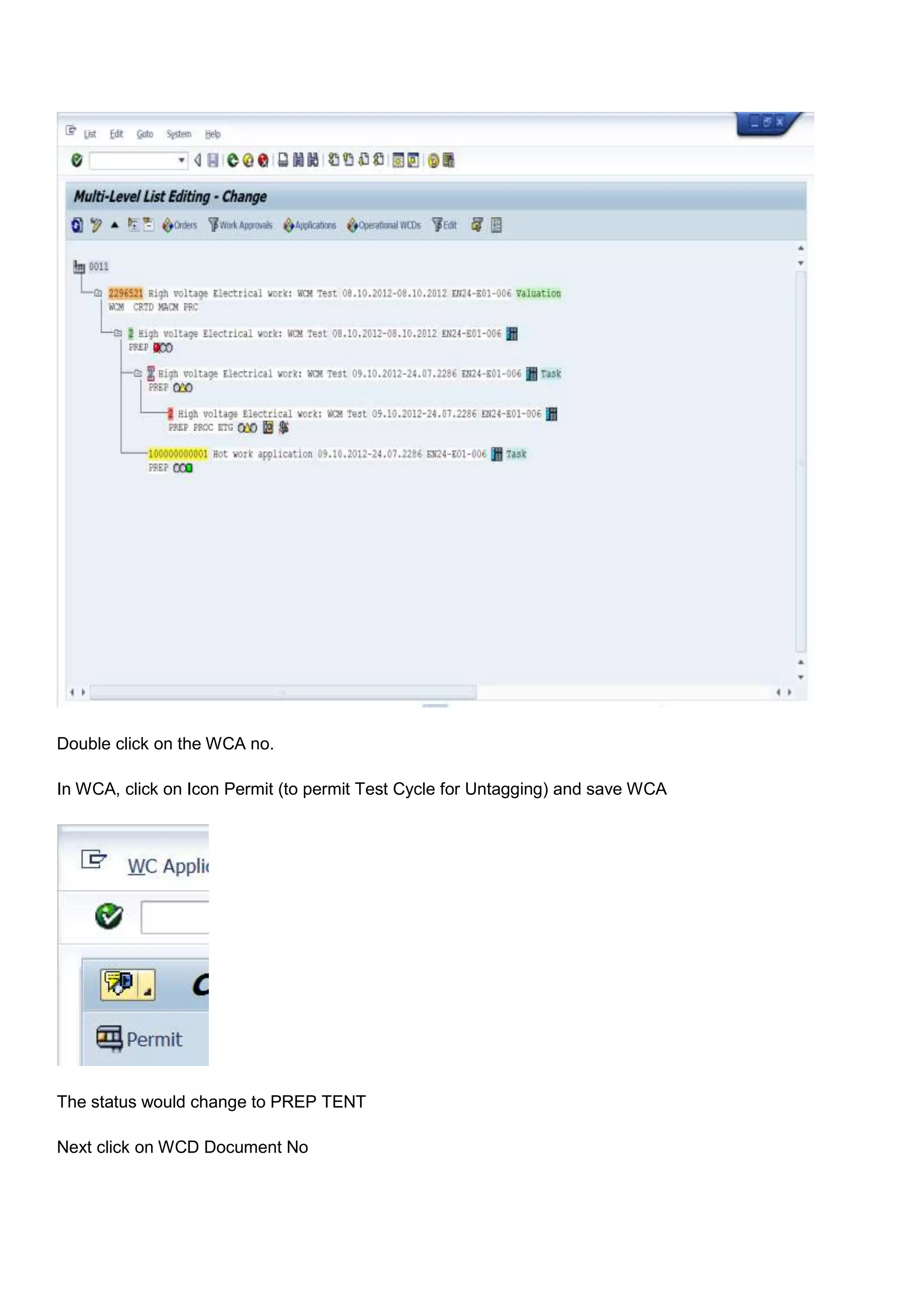
       Transaction code: WCL9
Double click on the WCA no.

In WCA, click on Icon Permit (to permit Test Cycle for Untagging) and save WCA


The status would change to PREP TENT

Next click on WCD Document No
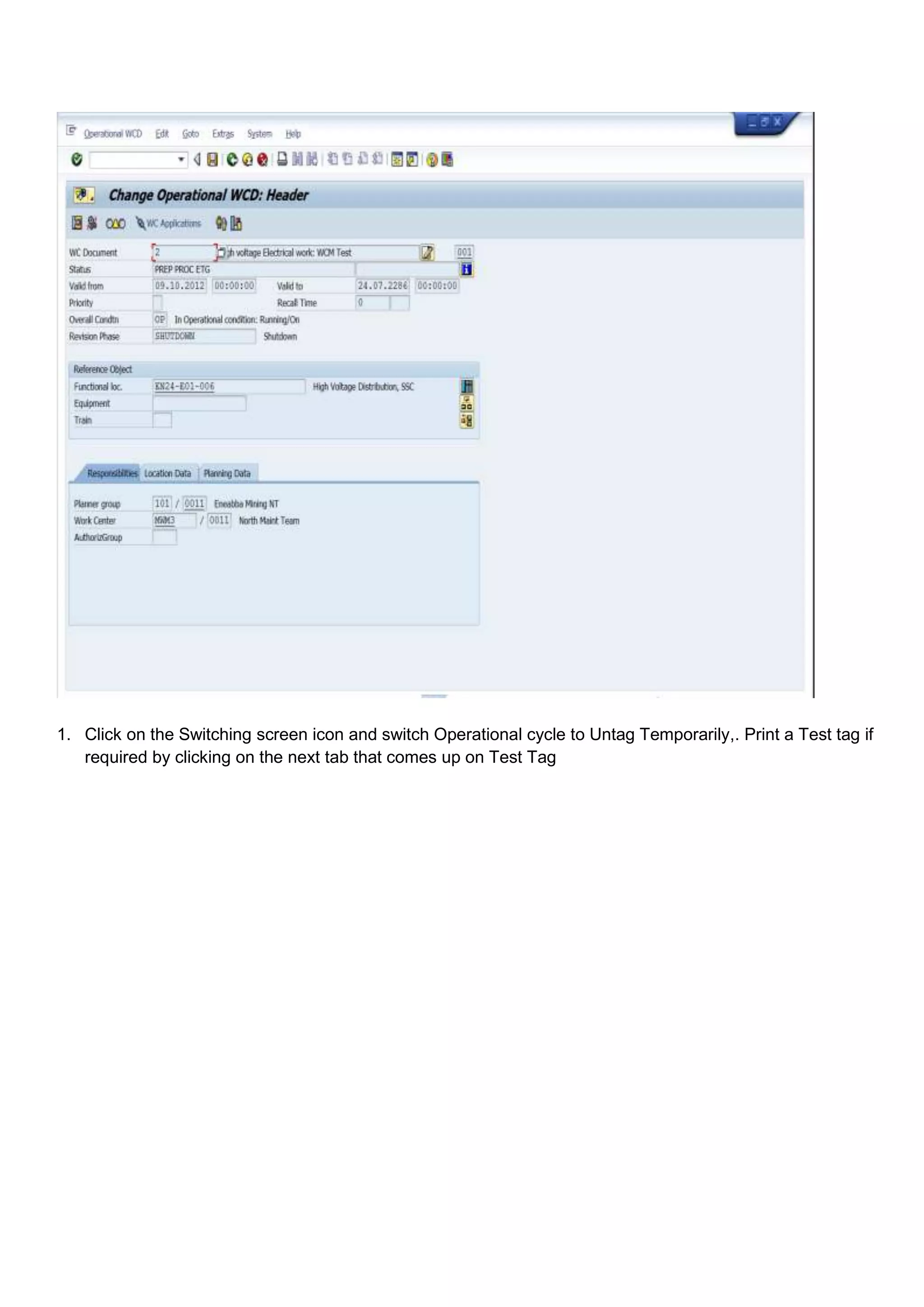
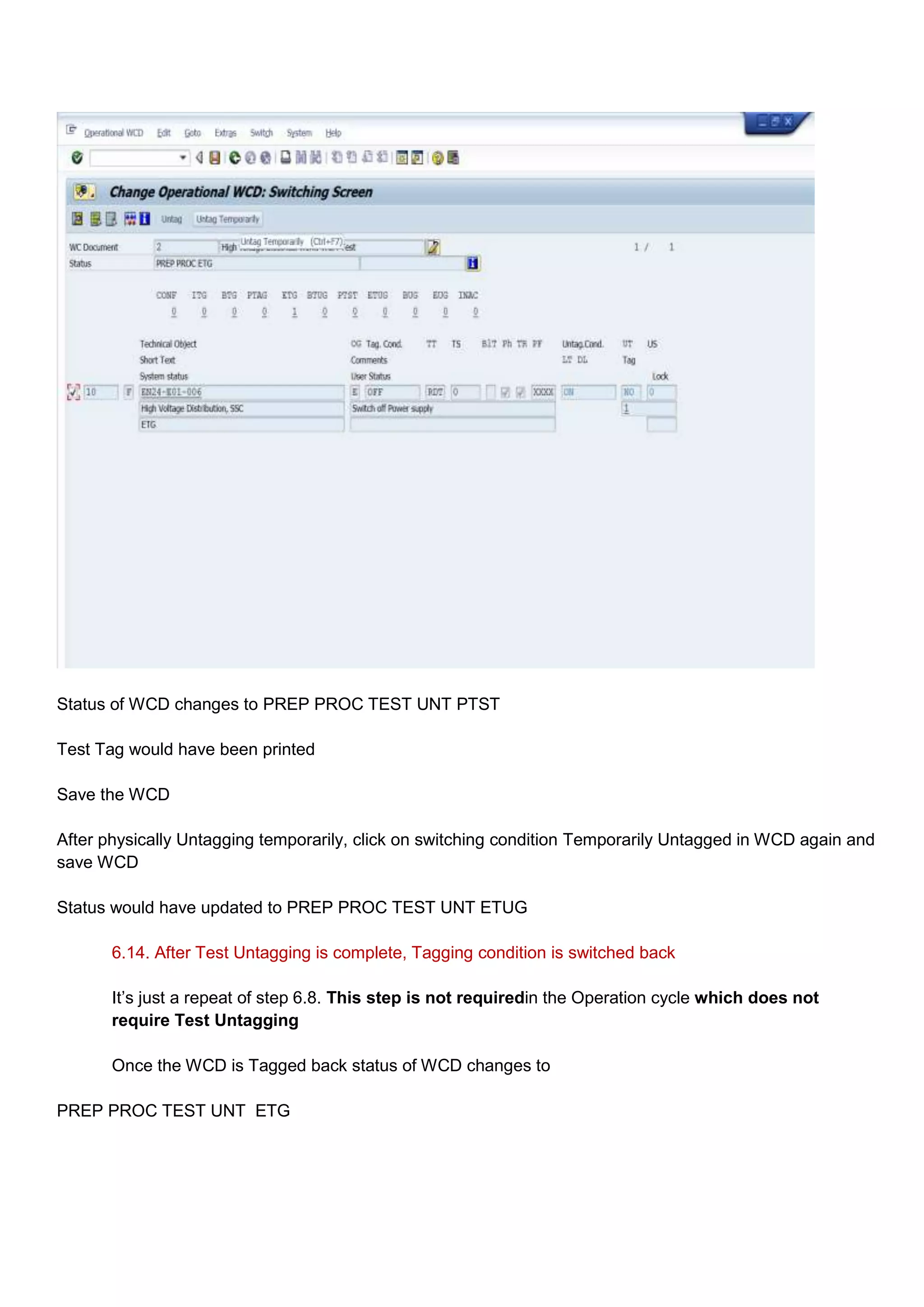
1. Click on the Switching screen icon and switch Operational cycle to Untag Temporarily,. Print a Test tag if
   required by clicking on the next tab that comes up on Test Tag
Status of WCD changes to PREP PROC TEST UNT PTST

Test Tag would have been printed

Save the WCD

After physically Untagging temporarily, click on switching condition Temporarily Untagged in WCD again and
save WCD

Status would have updated to PREP PROC TEST UNT ETUG

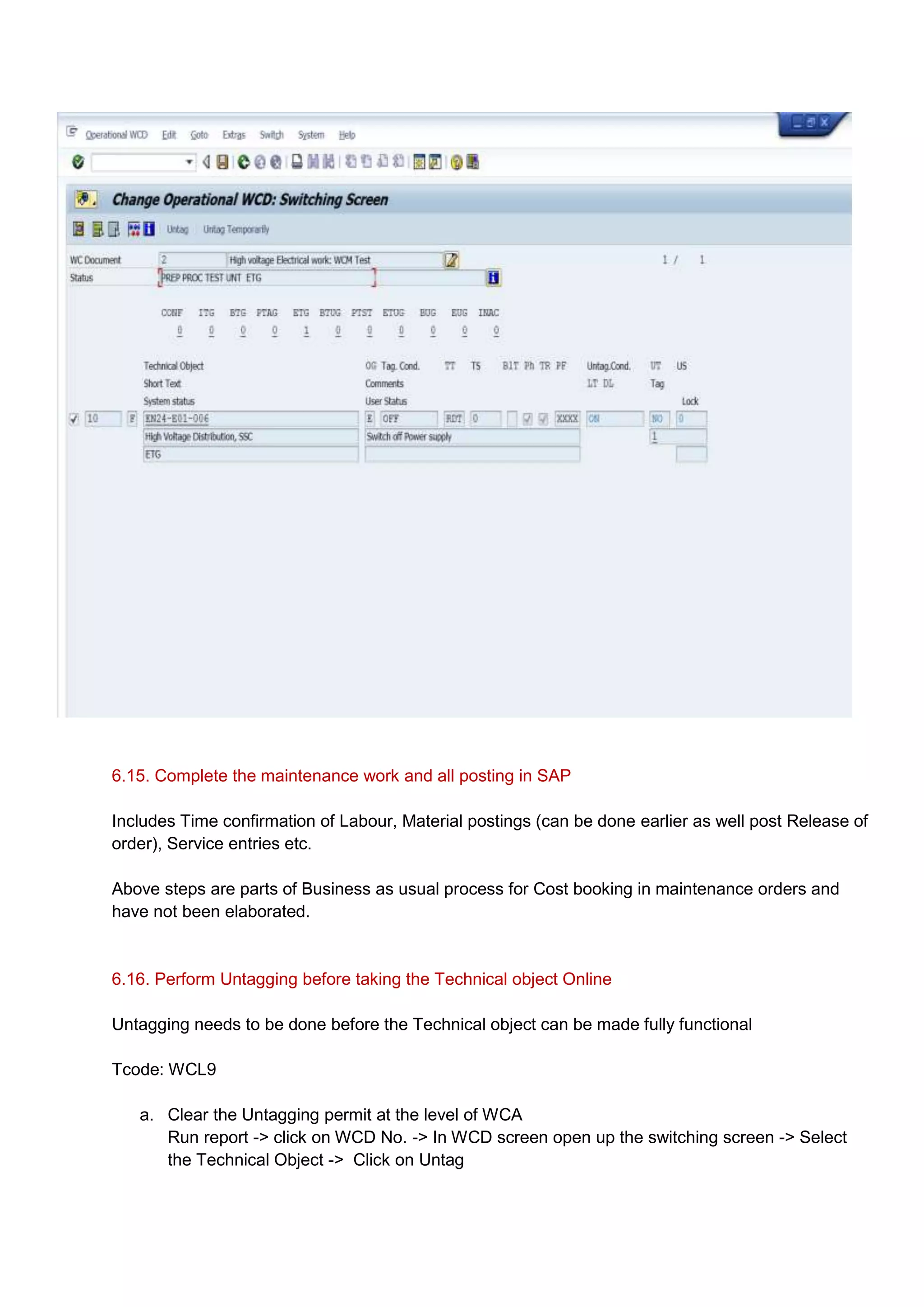
       6.14. After Test Untagging is complete, Tagging condition is switched back

       It‟s just a repeat of step 6.8. This step is not requiredin the Operation cycle which does not
       require Test Untagging

       Once the WCD is Tagged back status of WCD changes to

PREP PROC TEST UNT ETG
6.15. Complete the maintenance work and all posting in SAP

Includes Time confirmation of Labour, Material postings (can be done earlier as well post Release of
order), Service entries etc.

Above steps are parts of Business as usual process for Cost booking in maintenance orders and
have not been elaborated.


6.16. Perform Untagging before taking the Technical object Online

Untagging needs to be done before the Technical object can be made fully functional

Tcode: WCL9

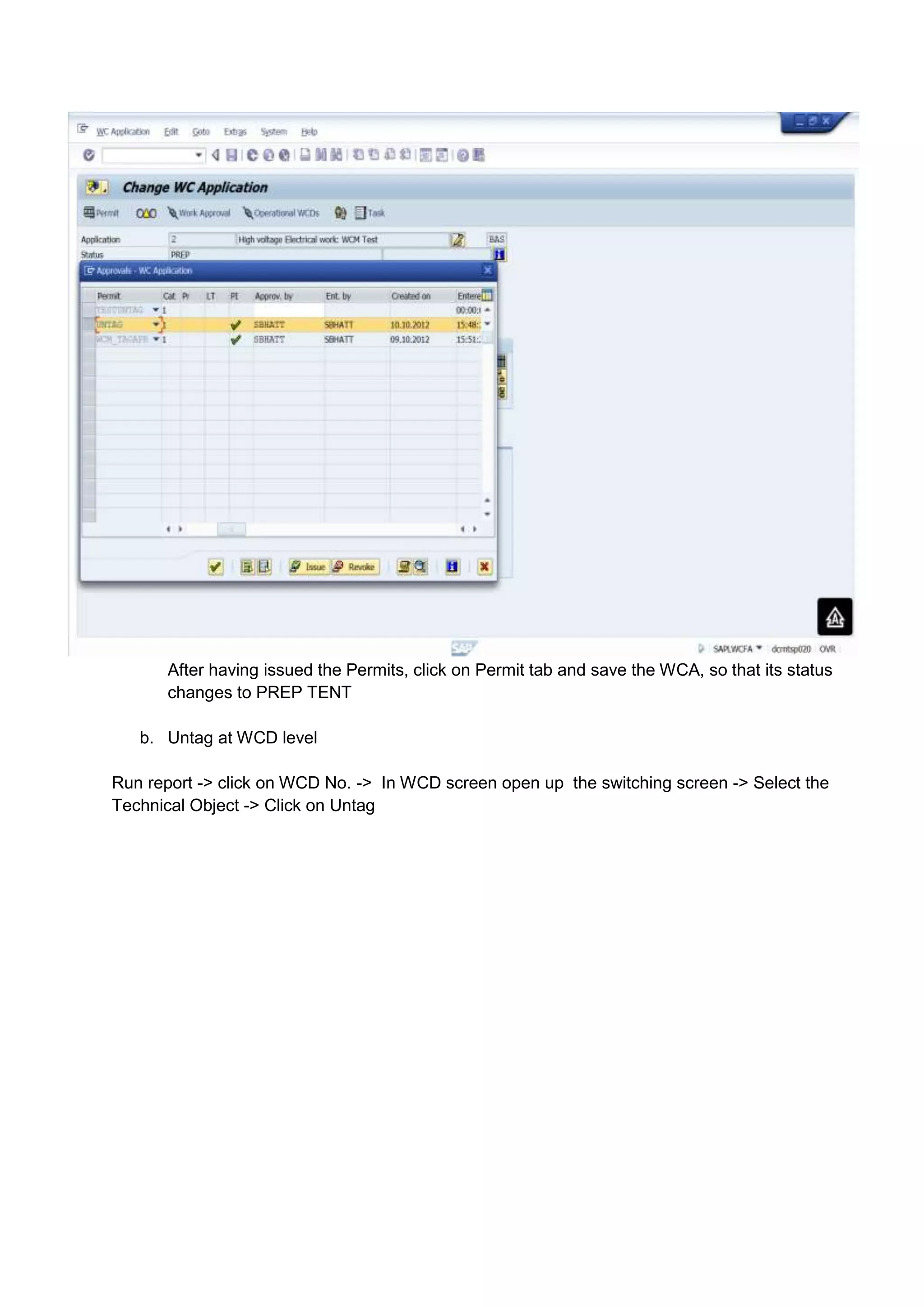
   a. Clear the Untagging permit at the level of WCA
      Run report -> click on WCD No. -> In WCD screen open up the switching screen -> Select
      the Technical Object -> Click on Untag
After having issued the Permits, click on Permit tab and save the WCA, so that its status
       changes to PREP TENT

   b. Untag at WCD level

Run report -> click on WCD No. -> In WCD screen open up the switching screen -> Select the
Technical Object -> Click on Untag
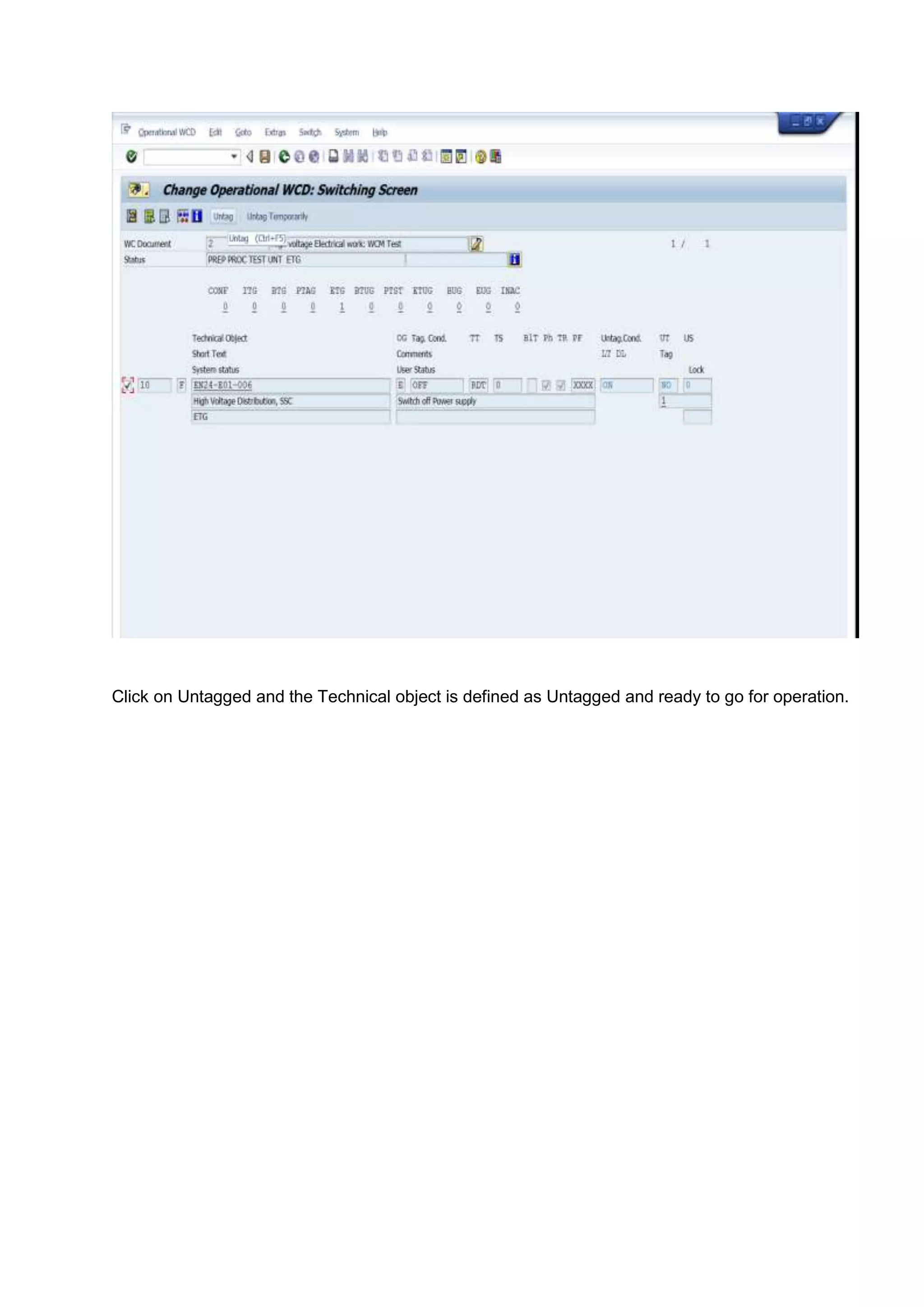
Click on Untagged and the Technical object is defined as Untagged and ready to go for operation.
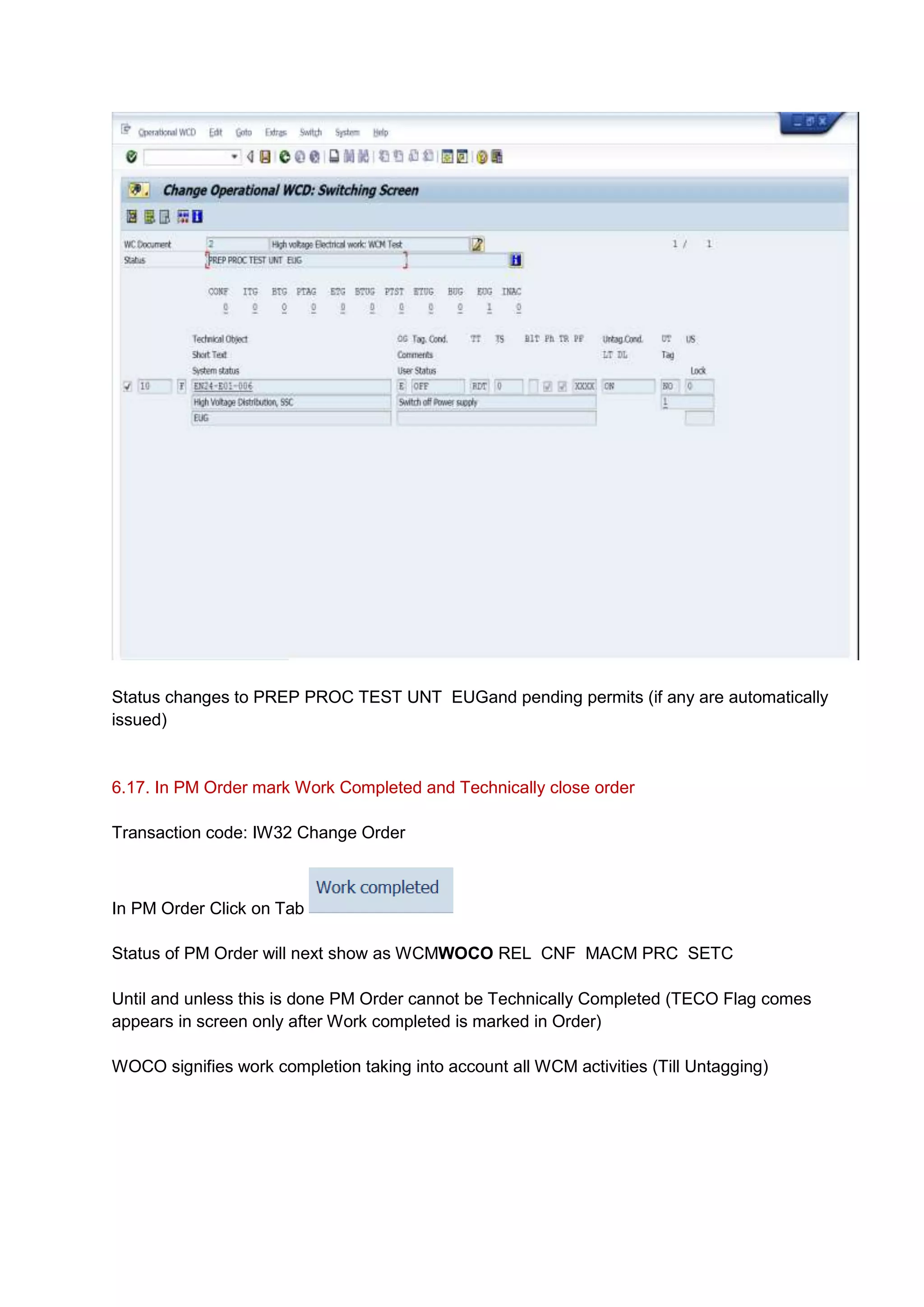
Status changes to PREP PROC TEST UNT EUGand pending permits (if any are automatically
issued)


6.17. In PM Order mark Work Completed and Technically close order

Transaction code: IW32 Change Order


In PM Order Click on Tab

Status of PM Order will next show as WCMWOCO REL CNF MACM PRC SETC

Until and unless this is done PM Order cannot be Technically Completed (TECO Flag comes
appears in screen only after Work completed is marked in Order)

WOCO signifies work completion taking into account all WCM activities (Till Untagging)
6.18. Close WCM Objects

     Transaction code: WCL9

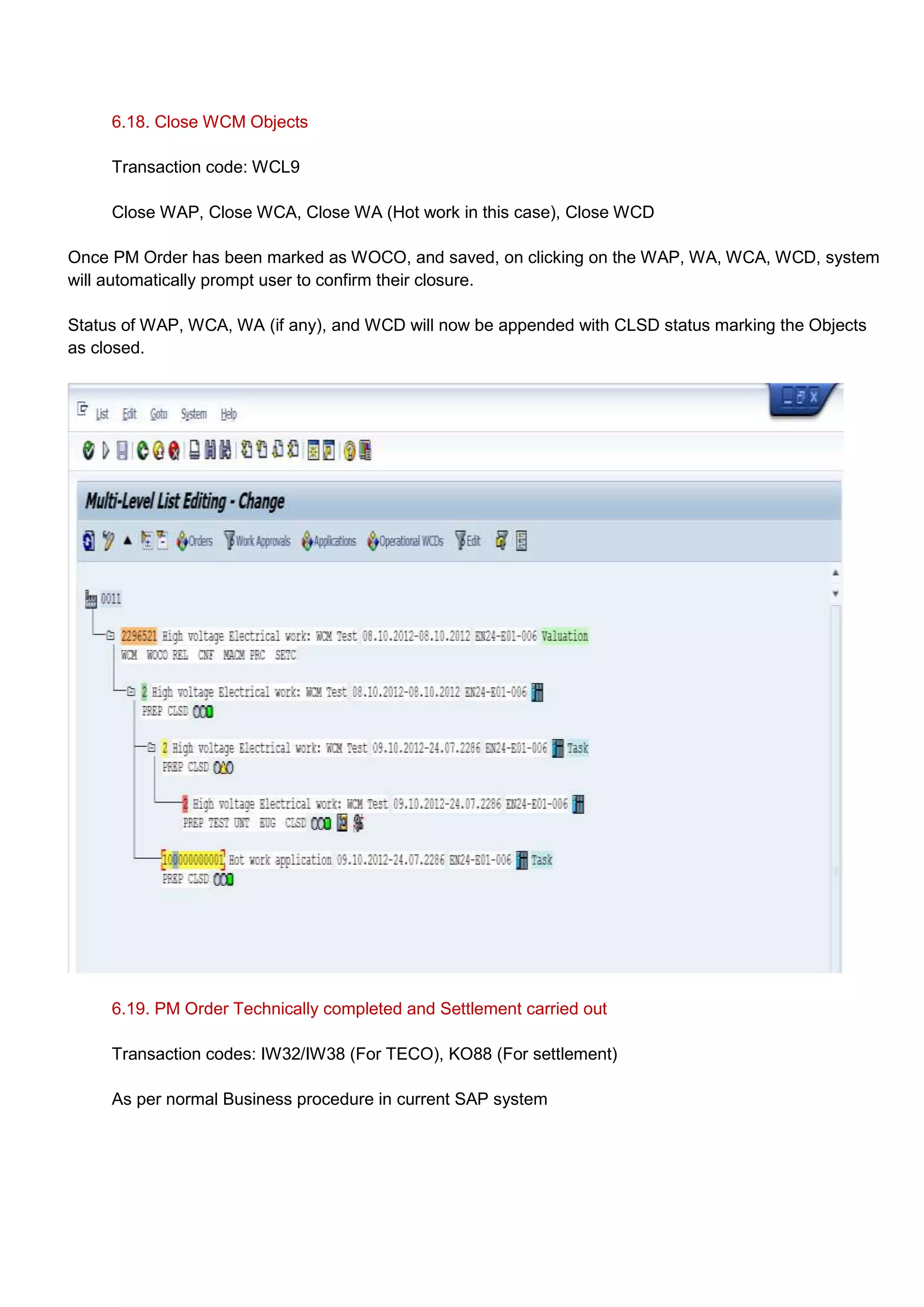
     Close WAP, Close WCA, Close WA (Hot work in this case), Close WCD

Once PM Order has been marked as WOCO, and saved, on clicking on the WAP, WA, WCA, WCD, system
will automatically prompt user to confirm their closure.

Status of WAP, WCA, WA (if any), and WCD will now be appended with CLSD status marking the Objects
as closed.


     6.19. PM Order Technically completed and Settlement carried out

     Transaction codes: IW32/IW38 (For TECO), KO88 (For settlement)

     As per normal Business procedure in current SAP system

SAP PM - WCM: Enhanced Model - Entire process flow with SAP screenshots

  • 1.
    1. Purpose: Thisdocument highlights the basic process flow for a PM – WCM (Work Clearance Management) scenario using an Enhanced Model. 2. Inclusions in this document: Primarily the WCM – enhanced process flow details with touch points with PM order processing 3. Exclusions from this document: PM Order processing steps in details particularly post Release processing like Time confirmation, Material Issue, Service entry, TECO, Settlement etc. These are current ongoing processes and it is understood that end users are experts in such process steps. Just the touch points have been mentioned in this document. 4. WCM Process and terminologies: There are 2 WCM models that SAP supports: Standard Model and Enhanced Model At Planning Plant level only 1 model can be activated. Enhanced model was chosen for the prototype over the standard model as it provides the flexibility of ensuring multiple Work Applications (like Hot work, Hazardous Chemicals, etc) apart from a standard WCA (Work clearance application) supported by Standard model. In Enhanced model, there is an additional object called Work Approval which binds together PM orders to WCA and WA„s. A snapshot of the basic linkages in the Enhanced model is as shown below:
  • 2.
    The enhanced modelfollows the following rules: - An application can be assigned to several work approvals and vice versa - A work approval can only be assigned to one application of an application type (WCA, WA of different types have a different application type) - A WCA can be assigned to several Operational WCDs and vice versa. In Enhanced model, PM Order is linked to WCM Objects as below: PM Order --> WAP (Work Approval) --> WCA & WA --> WCD (Work Clearance documents- Linked to WCA) In Standard model, PM Order is linked to WCM Objects as below: PM Order --> WCA --> WCD (Work Clearance documents- Linked to WCA) 5. Terminologies: Work approvalis an Umbrella Object in WCM which can have under it WCA, other Work applications (WA) including Hot work Approvals, Chemical environment approvals, Hazardous Gas approvals etc. Work approval links PM Maintenance Orders to WCA and other applications in an Enhanced WCM scenario. In a standard scenario, it is the WCA which links PM Order to WCD‟s. Work Clearance application (WCA) is a WCM Object which represents a Safety certificate in particular for Lockout/Tagout. It is used to control maintenance processing and groups together Operational WCD‟s. A Work clearance Application can be assigned to several Operational WCD‟s and vice versa.. In the Enhanced model (as configured), a WCA is used to control communication between work approvals and Operational WCD‟s. The term WCD will be elaborated in next step Work applications are additional specific work related certificates. For example Hot work application, Hazardous Chemical/Gas/Particulate work certificate etc. The Hot work application, for instance, is to protect a maintenance personnel from a hot working environment before entering the actual maintenance site. Operational WCDis a WCM Object that is actually meant for executing the Operational cycle. The default operational cycle is Tagging with Temporary Untagging phase. It would consist of 3 key phases namely Tagging phase, Temporary Untagging phase (To test when work has been done before making a system fully operational) and Untagging phase.It is in the WCD that we define Lockout/Tagout operations for Technical Objects which need to be isolated temporarily from Technical system. Operational WCDshould be assigned to WCA and its status will affect the status of WCA. Here the status of WCD will be transferred to the linked WCA. For example, once the Tagging operation is finished, the Tagged status will be assigned to WCD and transferred to WCA. The various system statuses that the Operational WCD goes through owing to these phases include: Tagging Phase:
  • 3.
    ITG: Initial status BTG:Tag PTAG: Print Tag ETG: Tagged Temporary Untagging Phase: BTUG: Untag Temporarily PTST: Test Tag Printed ETUG: Temporarily Untagged Untagging Phase: BUG: Untag EUG: Untagged The diagram below illustrates the switching stages in Operational cycle. 6. Configuration considerations All configuration settings have been done in Sandbox (SAN) environment and the process has been set up to provide the users with a brief view on the process for future process improvement keeping in view stringent work safety requirements in maintenance work. The SAN environment is based on ECC 6.0, EHP4.
  • 4.
    Only the Mid-WestMining 0011 plant has been activated for Work Clearance Management in SAN (Sandbox) environment. As an example a High Voltage Distribution unit at Mid-West Mining 0011 planning plant. 7. Master Data used in this document Planning Plant: 0011 Functional Location:EN24-E01-006 – High Voltage Distribution Equipment:10026639 - Elect Switch ABS#2-SSC Supply Planner Group: 101 Main WorkCtr: MWM3 Plant: 0011 8. Process Flow in SAP 8.1 PM Work Order is created – Planned or Immediate In this document PM Work Order type PM02 – Manually Generated Work Order is used. Also Linkage to Notifications is not considered. That can be done separately as per current process. In that case a Notification would be created first followed by and Order In planned scenario, Order would be generated through scheduling of a Maintenance plan Tcode: IW31
  • 6.
    While planning OrderOperation for WCM relevant operations - use Control Key WCM. This will introduce a Valuation tab on the Icon bar at top. Also in System status, a new status WCM would automatically get added Go to -> Permits and assign a relevant permit indicating that it is a WCM work
  • 8.
    Enter other necessarydetails in the order like Component, Service details etc and save the Order
  • 9.
    Define Valuation inPM Order – Valuation means which applications would be included for WCM purpose while performing the Maintenance work You must define explicitly for each application whether or not it is necessary. For valuation Click on the Valuation Tab on top and select the applications required. In this case we have selected WCA and Hot work Status changes to WCM VAL REL MACM PRC SETC
  • 10.
    Click on the+ sign to add the valuations
  • 11.
    Click on theGreen tick and Save the Order details Outcome - Order saved with number 2296521 8.2 Create a Work Approval (WAP) and Link it to Maintenance Order Transaction code: WCR8 – With reference to a Maintenance Order <Or> WCTA if created without reference WCTB (Change)/ WCTC (Display)
  • 12.
    A popup willcome as to what to copy into the WAP from a maintenance order. Select all and click on the Green check.
  • 13.
    Most of datagets copied from Maintenance order. A few good to have field values like Overall condition (Operating condition of Technical object) can be maintained. In the currently configured scenario it is a reporting field only (for information purpose) but this filed can be used for automatic switching in Operational Cycle in Mode dependant tagging (not activated). Please Note: Here Order is only being used as a Template to create the WAP. However, assigning the Order No to the WAP is a separate activity within the same transaction detailed below. Mode dependant tagging is a feature available EHP 4 version. You can also maintain value for the fieldRevision phase(defines the time when plant is shut down temporarily due to maintenance work)
  • 14.
    Link the Orderby Clicking on Orders -> Search List Opens -> Enter Order No – Execute der into a Link with the WAP -> Select the order and assign it to the WAP by clicking on the green Tick -> Continue
  • 16.
    The planning dataof the WAP can be updated with Basic/Scheduled Start/End date and time
  • 17.
    Partners Like Departmentresponsible, User Responsible, Vendor, Person responsible can be assigned to the WAP by clicking on the Partner icon on top After having maintained necessary entries in the WAP, Save the WAP Outcome - Work Approval was saved with number 8.3 Create a Work Clearance Application (WCA) and Work Applications (WA) for other relevant work such as Hot Work, Hazardous Chemical/Gaseous/Particulate environment clearance a. For WCA - Transaction code: WCTK (Create)/ WCTL (Change)/ WCTM (Display)/ WCR6 (Create with Template – Work Approval)or The easiest way is to create it in Work Approval – Change transaction WCTB
  • 18.
    Create with templatewith reference to Work approval No
  • 19.
    Enter Planning Plant,Work Approval No., and press enter In Data Transfer popup that comes up -> Select all and continue
  • 20.
    Most of datagets copied like in step 6.2. You need to just update the Date and times specific to the WCA (if required), assign Partners (if necessary – like Person responsible, User responsible etc.), Assign the Work approval to the WCA (Click on Link Work Approval)
  • 21.
    Click on Multipleselection Option . A report opens up. As the Work approval No is known from step 6.2, you can directly enter the work approval no in selection criteria. Select and assign the WAN no. to the WCA
  • 22.
    Save the WCA Outcome:WCApplication was saved with number b. For Work Application (WA) – Optional – as per work environment requirement Transaction code: WCTH (Create)/ WCTI (Change)/ WCTJ (Display) WCRK (Create with approval)or the easiest way is to create it in Work Approval – Change transaction WCTB
  • 24.
    In the fieldObject Type – select the relevant application you want to create. Please note that by default Object type WC Application (is displayed). Change it from dropdown to relevant application to be created. Here in example, we are creating a Hot Work application Enter Planning Plant, Work Approval No., Object Type and press enter In Data Transfer popup that comes up -> Select all and continue
  • 25.
    Most of fieldsget copied as in case of WCA. Make changes/additions to relevant fields such as Description, Dates, Partner etc. and assign the Work approval No. as was done in case of WCA in step 6.3 a
  • 26.
    Save the WorkApplication. A work application No would be generated Example: Hot work application was saved with number 100000000001 8.4 Create an Operational Work Clearance Document (O-WCD) for the WCA created In Step 6.3a Transaction code: WCT6 (create)/ WCR3 (Create with Template – Application)/Can also be created in WCA Change (transaction WCTL) Creating in WCTL as below
  • 27.
    Enter the WCAApplication no. and press enter
  • 28.
    Click on theLink Operational WCD In the Popup that comes up click the Create icon
  • 29.
    It again givesa pop up detailing what all details to copy from WCA -> Operational WCD. Select all and continue
  • 30.
  • 31.
    Click on theicon for Maintenance screen Enter the following details Item category: F (Functional Location) or E (Equipment) if you want to be more specific Technical Object: In example we have used F and Functional Location EN24-E01-006 Press enter Operation Type: E (Electrical) Tagging condition: OFF Tagging Type: RDT (Red Danger Tag) Tagging Format: XXXX Comments: As required Save the WCD.
  • 32.
    Outcome: WCD createdand assigned to the WCA. Save the WCA document This completes the entire linkage for Enhanced Model: Order -> WAP -> WCA, WA -> WCD This can be viewed in click sequence inside Maintenance Order, Tcode: IW32 6.5. Setting WAP, WCA, WA to prepared Transaction code: These steps can be done through a single transaction as all Objects are linked Use Transaction code WCL9 - List editing of Work Approval In selection criteria, select Status of work approval = Created, Validity period
  • 34.
    Select the WAPand click on Hierarchy icon A Hierarchical display of connected objects will come up
  • 35.
    Double click onobject numbers in sequence WAP --> WCA --> WA and set them as Prepared by clicking on Prepare icon in individual objects On clicking on this icon system will ask for a confirmation. Confirm the same. Save each object after making changes
  • 37.
    6.6. Approve theWA (Ex Hot work) first Any work approval ensures a safe work environment before users go in to perform tagging of the Technical object. Hence work approvals are to be approved first. Transaction – WCTL (WCA Change) or to keep it simple use Transaction code WCL9 as above, to have a single point access to it
  • 38.
    Double click onWA No. On the Change WA screen, click on Approval icon
  • 39.
    Save the WAafter approving the Work permit in it. You will see that the Traffic Light against the WA document in this case Hot work changes to Green Light Note: There is a Hierarchy of approval functionality within WCM with which sequence of approvals of WCM object can be controlled. For ex. Work approval permits to be cleared before Tagging approval permit can be cleared. In this case it has not been activated. 6.7. Approve the Tagging approval Transaction – WCTL (WCA Change) or to keep it simple use Transaction code WCL9 as above, to have a single point access to it Double click on WCA No. On the Change WC Application screen, click on Approval icon Approve the Permit relevant for Tagging approval, in example below WCM _TAGAPR. Select the permit and click on Issue tab. Save the WCA. As we have 3 approvals assigned for Tagging approval, Test Untagging, Untagging approval, the Traffic light will change to yellow – At least one approval is issued.
  • 40.
    6.8. Set WCDto prepared to start Tagging Repeat Step 6.5 for WCD documents also listed in List report (Tcode: WCL9) Operational WCD status updated to PREP ITG (Initial status) 6.8. Perform Tagging Transaction code: WCT7 (Change Operational WCD) or WCL9 (as used in steps above)
  • 42.
  • 43.
    Click on theicon Switching screen
  • 44.
    In the switchingscreen select the Line entry and click on simulate Check It will give you a message Then click on the Tab “Tag” and then click on Print tag The Tag will be printed and system status of the WCD will be changed to PTAG (Tag Printed) I tested printing out the Tag. It printed out successfully in a standard format which can be changed if required. Also you will find that within the WCD some of the assigned permits will automatically get approved by the system
  • 45.
    6.9. After physicallytagging the object, perform switching to Tagged Transaction code: WCT7 (Change Operational WCD) or WCL9 (as used in steps above)
  • 47.
    Click on theicon Switching screen Select the Line and Click on the Tab “Tagged” – this will mean that Tagging has been done on the object System will generate a message “Approvals were issued/revoked automatically” Also the system status of WCD will include “ETG “implying that the object has been tagged In the switching screen of the WCD you will find the operational cycle status progress to ETG as active status
  • 48.
    This marks theend of the Tagging phase In addition – an option exists to Set protection for Tagging – after setting protection in any operational WCD, the Tagging condition cannot be changed in any other operational WCD except the original WCD. Extras --> Protection --> Set 6.10. Approving Safety Measurement in WAP level After tagging is finished, maintenance planner need to approve if all the safety action is proper, if everything is Ok and then issue the Safety approval permit in WAP Use the same transaction WCL9 -> Double click on WCA number Please note: in certain cases, Safety approval permit is applied at WCA level. In that case clearance is to be issued at WCA level. Here we have assigned it to WAP level.
  • 50.
    Select the approvalsrelevant and issue the same. In this example we have considered primarily Hot work and Safety approval permits Save the WAP 6.11. Issue the Permit at PM Order Level and Release PM Order Transaction code: IW32 Change Order
  • 51.
    Without issuing theOrder permit system will not allow Releasing the PM Order Please note: Auto issue of Permits up the hierarchy after permits at lower level (WAP) have been issued is possible. In this case just to keep the scenario simple and to demonstrate manual control, automation has not been done. After issuing the permit, Planner can release the PM order. Order is Released for execution (New Tab to be clicked in PM Order in IW32) giving it the Status WCM EXEC REL CNF MACM PRC SETC Status updated as per screenshot below
  • 52.
    All status asindicated above will be activated. Save the Order. 6.12. Maintenance work carried out on Object As usual 6.13. Test Untagging cycle – Optional but recommended After the maintenance work has been completed, it is often required to Test the system first and only if it has been successfully found to be running bring it back on Line. For this reason, in WCM functionality, SAP has provided an option for Test Untagging i.e. Untagging the Technical Object temporarily for Testing Please note: Test Untagging is an Optional process which can be deactivated based on configuration. It has been kept active in this scenario just to show full scope available. Transaction code: WCL9
  • 53.
    Double click onthe WCA no. In WCA, click on Icon Permit (to permit Test Cycle for Untagging) and save WCA The status would change to PREP TENT Next click on WCD Document No
  • 54.
    1. Click onthe Switching screen icon and switch Operational cycle to Untag Temporarily,. Print a Test tag if required by clicking on the next tab that comes up on Test Tag
  • 55.
    Status of WCDchanges to PREP PROC TEST UNT PTST Test Tag would have been printed Save the WCD After physically Untagging temporarily, click on switching condition Temporarily Untagged in WCD again and save WCD Status would have updated to PREP PROC TEST UNT ETUG 6.14. After Test Untagging is complete, Tagging condition is switched back It‟s just a repeat of step 6.8. This step is not requiredin the Operation cycle which does not require Test Untagging Once the WCD is Tagged back status of WCD changes to PREP PROC TEST UNT ETG
  • 56.
    6.15. Complete themaintenance work and all posting in SAP Includes Time confirmation of Labour, Material postings (can be done earlier as well post Release of order), Service entries etc. Above steps are parts of Business as usual process for Cost booking in maintenance orders and have not been elaborated. 6.16. Perform Untagging before taking the Technical object Online Untagging needs to be done before the Technical object can be made fully functional Tcode: WCL9 a. Clear the Untagging permit at the level of WCA Run report -> click on WCD No. -> In WCD screen open up the switching screen -> Select the Technical Object -> Click on Untag
  • 57.
    After having issuedthe Permits, click on Permit tab and save the WCA, so that its status changes to PREP TENT b. Untag at WCD level Run report -> click on WCD No. -> In WCD screen open up the switching screen -> Select the Technical Object -> Click on Untag
  • 58.
    Click on Untaggedand the Technical object is defined as Untagged and ready to go for operation.
  • 59.
    Status changes toPREP PROC TEST UNT EUGand pending permits (if any are automatically issued) 6.17. In PM Order mark Work Completed and Technically close order Transaction code: IW32 Change Order In PM Order Click on Tab Status of PM Order will next show as WCMWOCO REL CNF MACM PRC SETC Until and unless this is done PM Order cannot be Technically Completed (TECO Flag comes appears in screen only after Work completed is marked in Order) WOCO signifies work completion taking into account all WCM activities (Till Untagging)
  • 60.
    6.18. Close WCMObjects Transaction code: WCL9 Close WAP, Close WCA, Close WA (Hot work in this case), Close WCD Once PM Order has been marked as WOCO, and saved, on clicking on the WAP, WA, WCA, WCD, system will automatically prompt user to confirm their closure. Status of WAP, WCA, WA (if any), and WCD will now be appended with CLSD status marking the Objects as closed. 6.19. PM Order Technically completed and Settlement carried out Transaction codes: IW32/IW38 (For TECO), KO88 (For settlement) As per normal Business procedure in current SAP system