Work Order Management
Tools (W09)
Work Management Track
1. Open Internet Explorer
2. Type into the address bar: www.maintenanceconnection.com
3. Click Log In button
4. Enter the following:
Member ID: W_CHECKPOINT
Password: Checkpoint2014
Note: During the seminar, please do not “Save” while following along with a
specific example unless directed to do so by your course instructor.
Wireless SSID: CHECKPOINT
Wireless Password: CHECKPOINT
Logon Instructions
Presenter Name: Joe Rogan
Background information:
• Role and expertise at Maintenance
Connection
• Fun Fact
Presenter Bio
Work Matrix
Work Manager and Labor Calendars
Work Order History Tab
Work Order Expanded Explorer
Agenda
Work Matrix Overview
Selecting Groups and Subgroups
Actions
Work Matrix
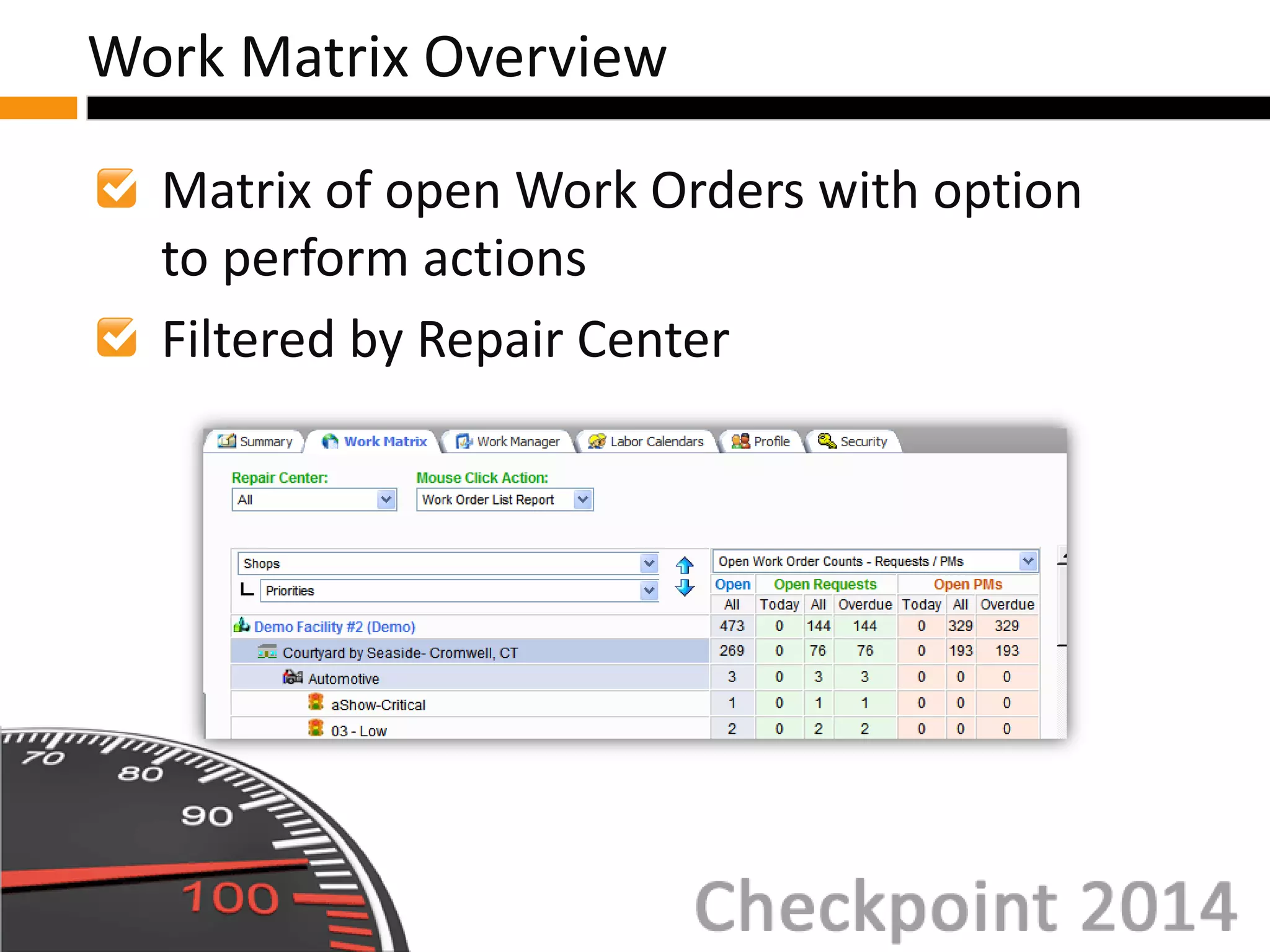
Matrix of open Work Orders with option
to perform actions
Filtered by Repair Center
Work Matrix Overview
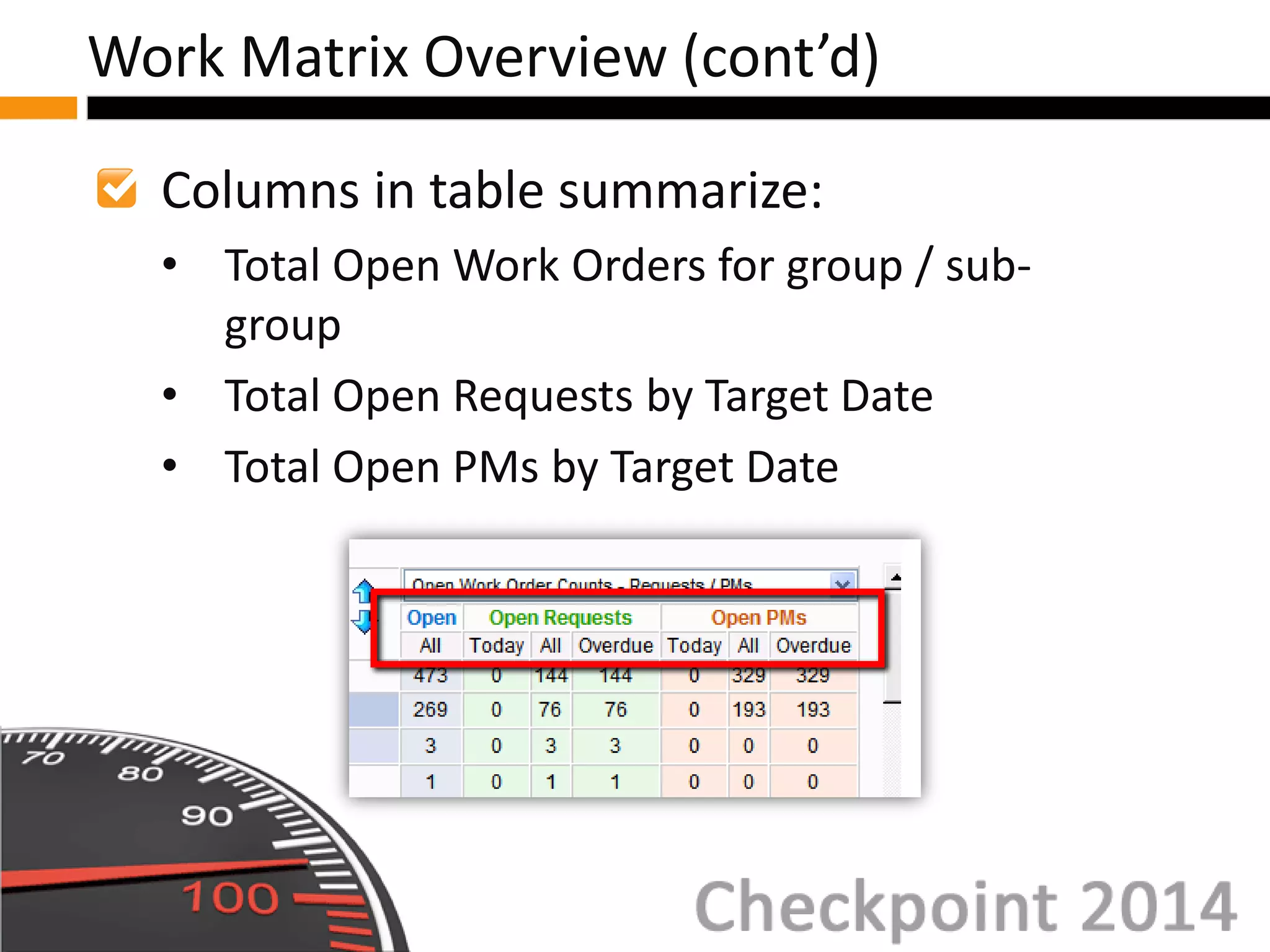
Columns in table summarize:
• Total Open Work Orders for group / sub-
group
• Total Open Requests by Target Date
• Total Open PMs by Target Date
Work Matrix Overview (cont’d)
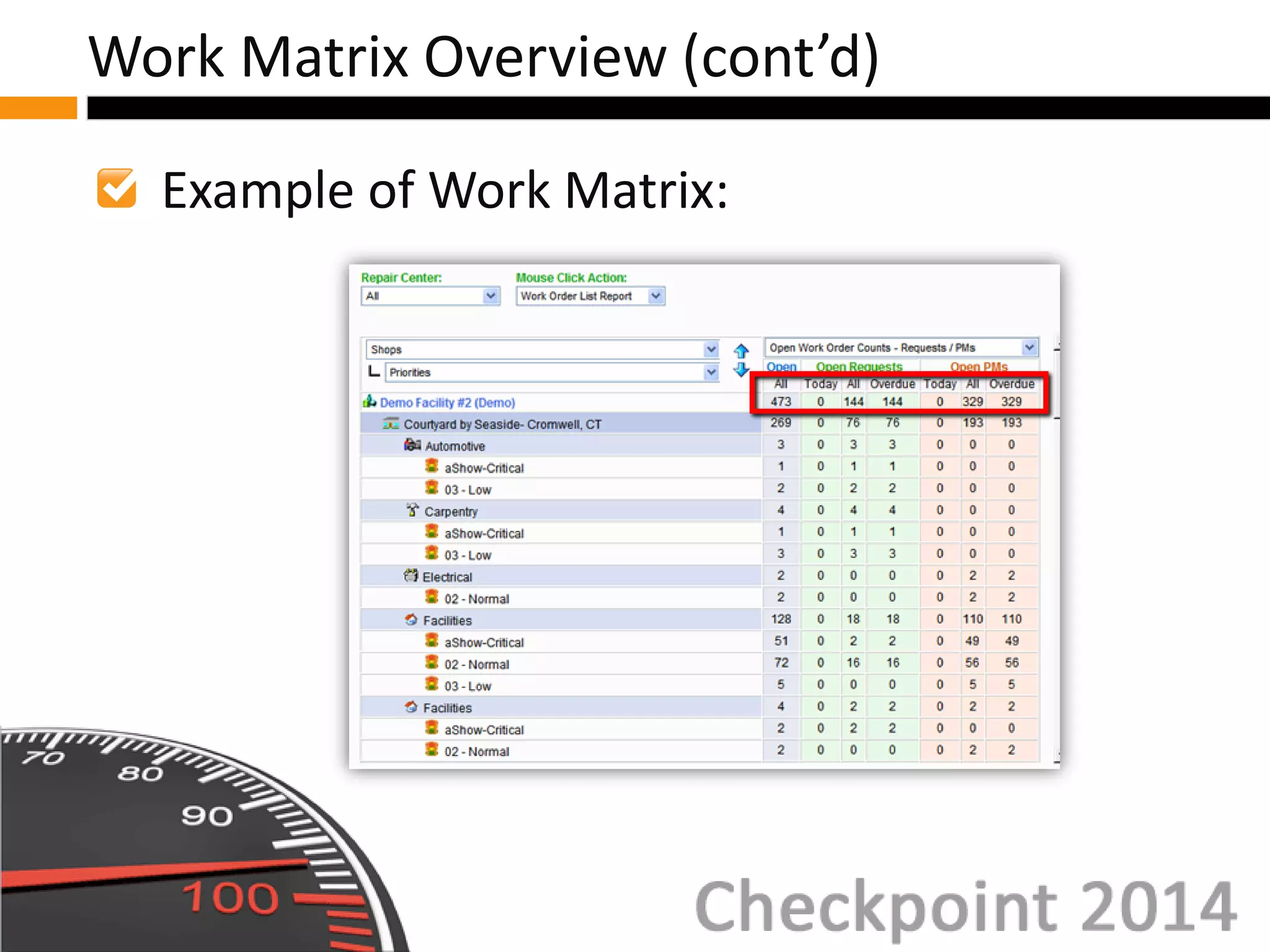
Example of Work Matrix:
Work Matrix Overview (cont’d)
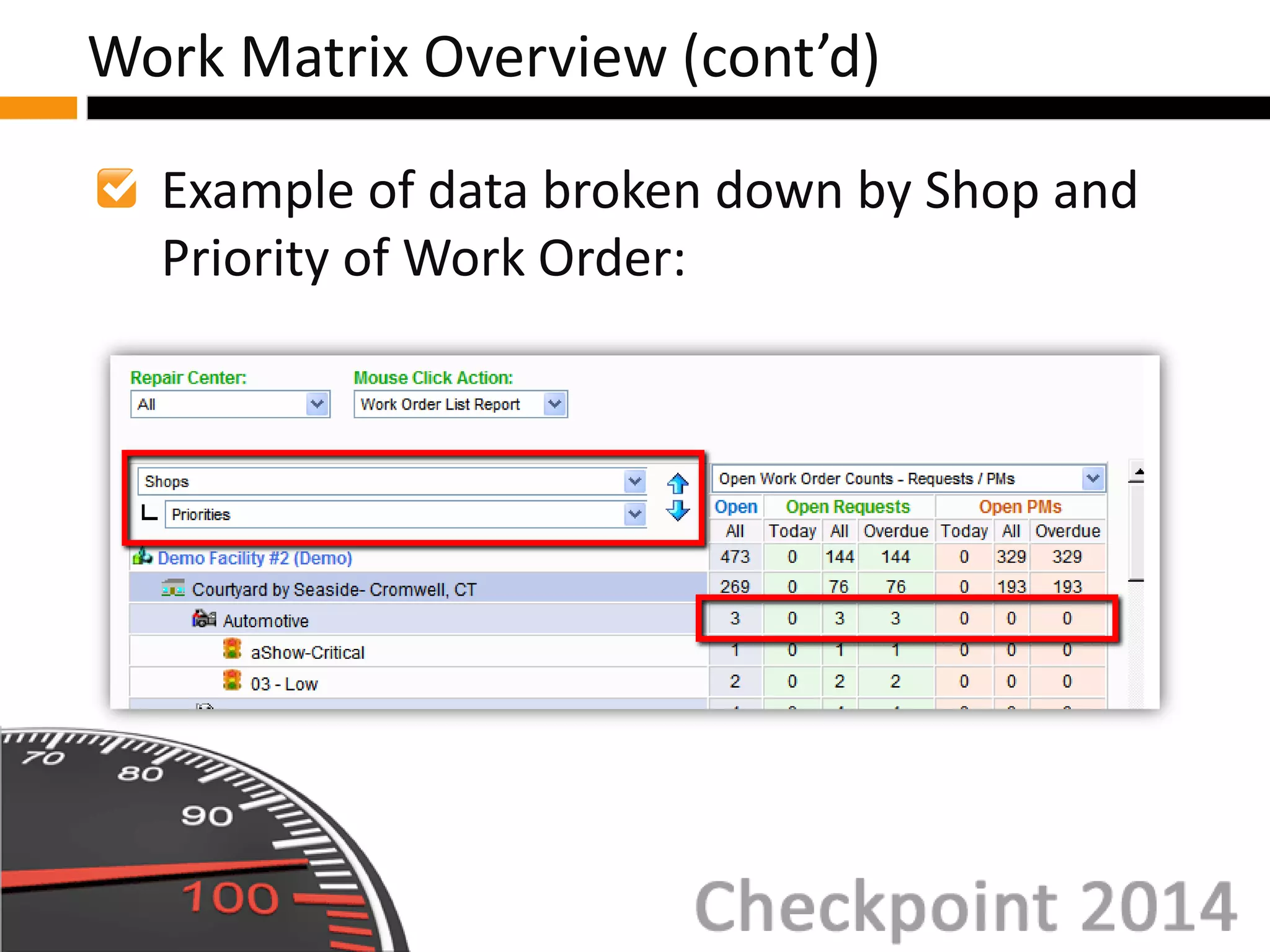
Example of data broken down by Shop and
Priority of Work Order:
Work Matrix Overview (cont’d)
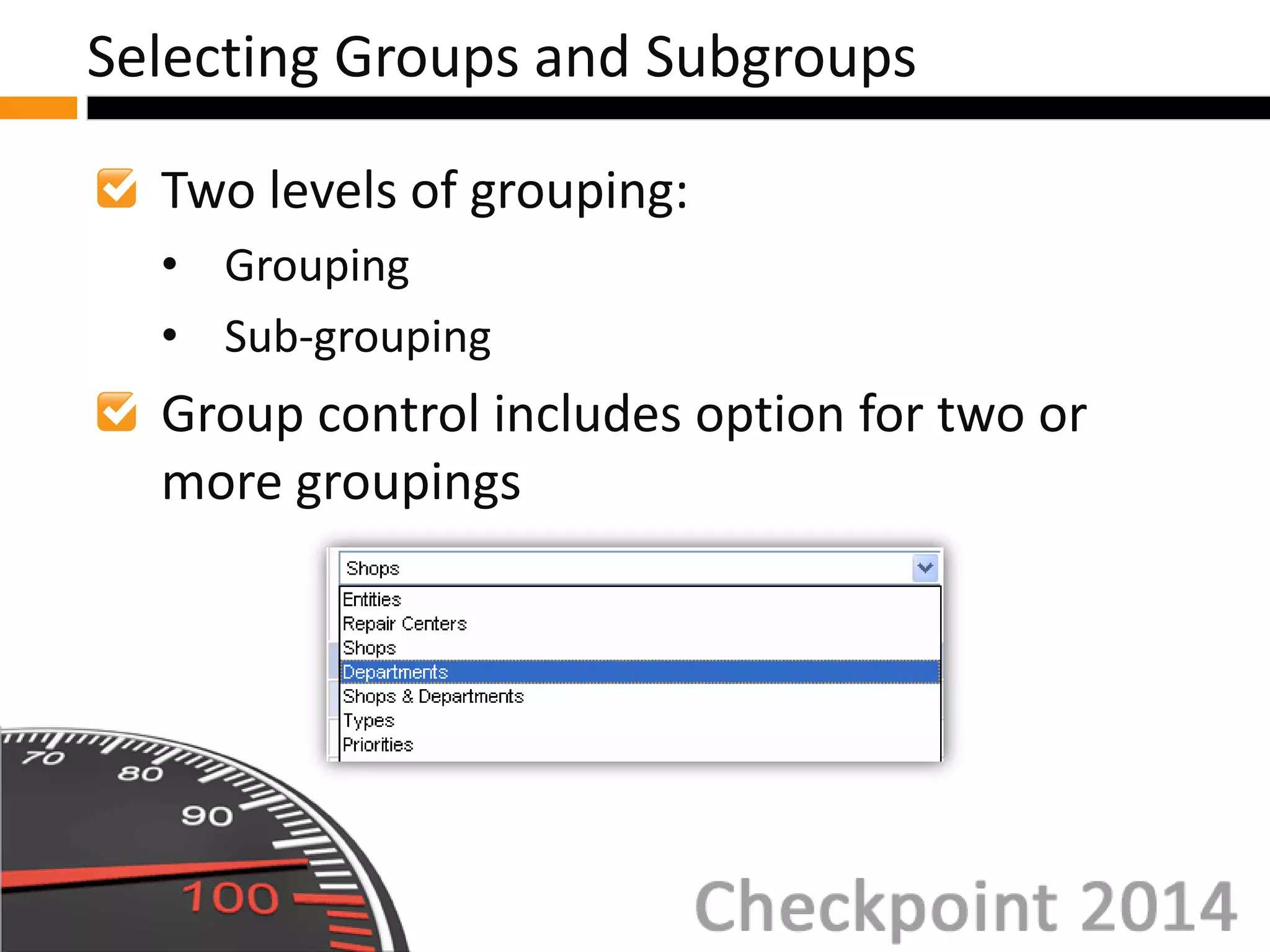
Two levels of grouping:
• Grouping
• Sub-grouping
Group control includes option for two or
more groupings
Selecting Groups and Subgroups
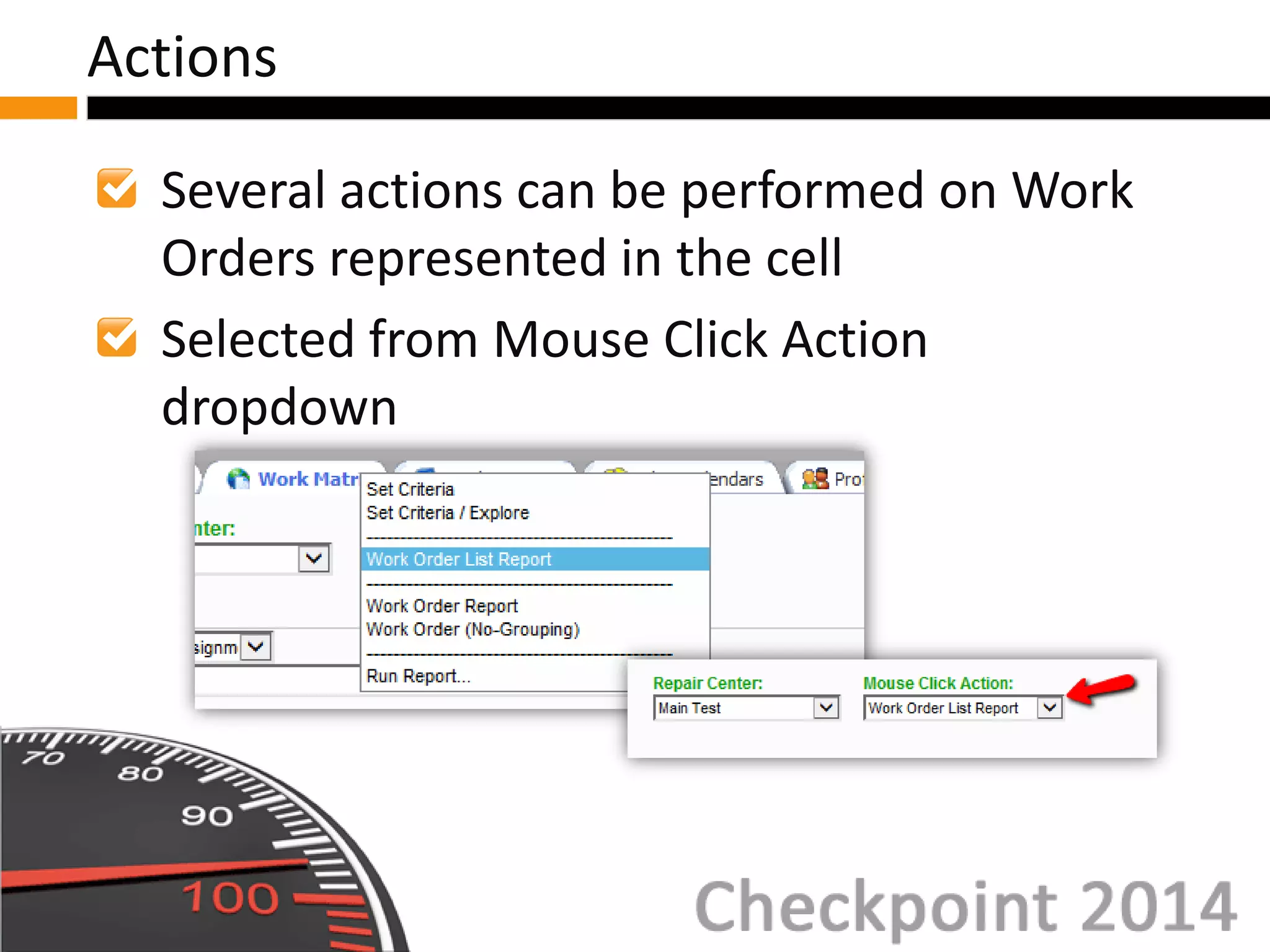
Several actions can be performed on Work
Orders represented in the cell
Selected from Mouse Click Action
dropdown
Actions
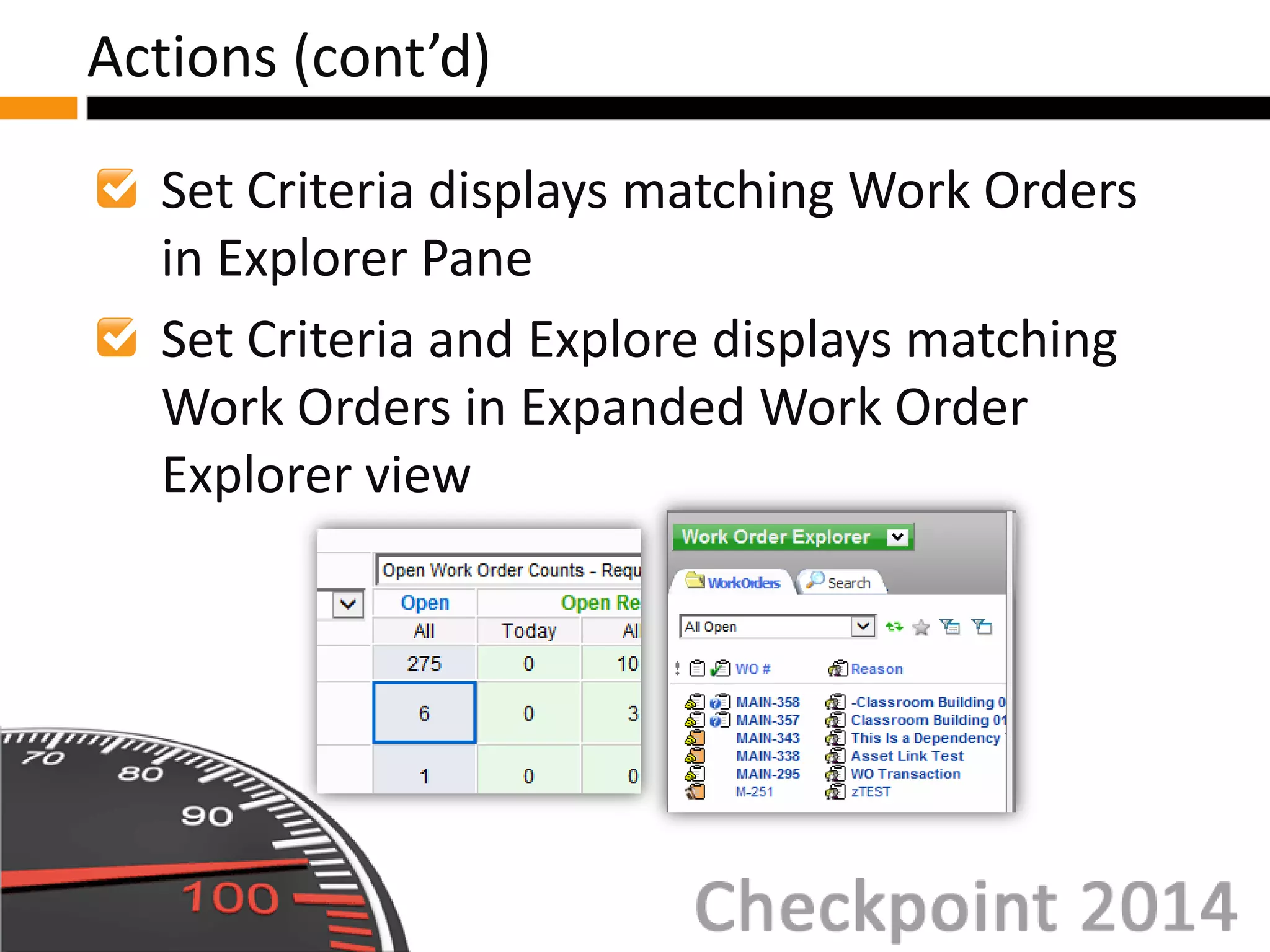
Set Criteria displays matching Work Orders
in Explorer Pane
Set Criteria and Explore displays matching
Work Orders in Expanded Work Order
Explorer view
Actions (cont’d)
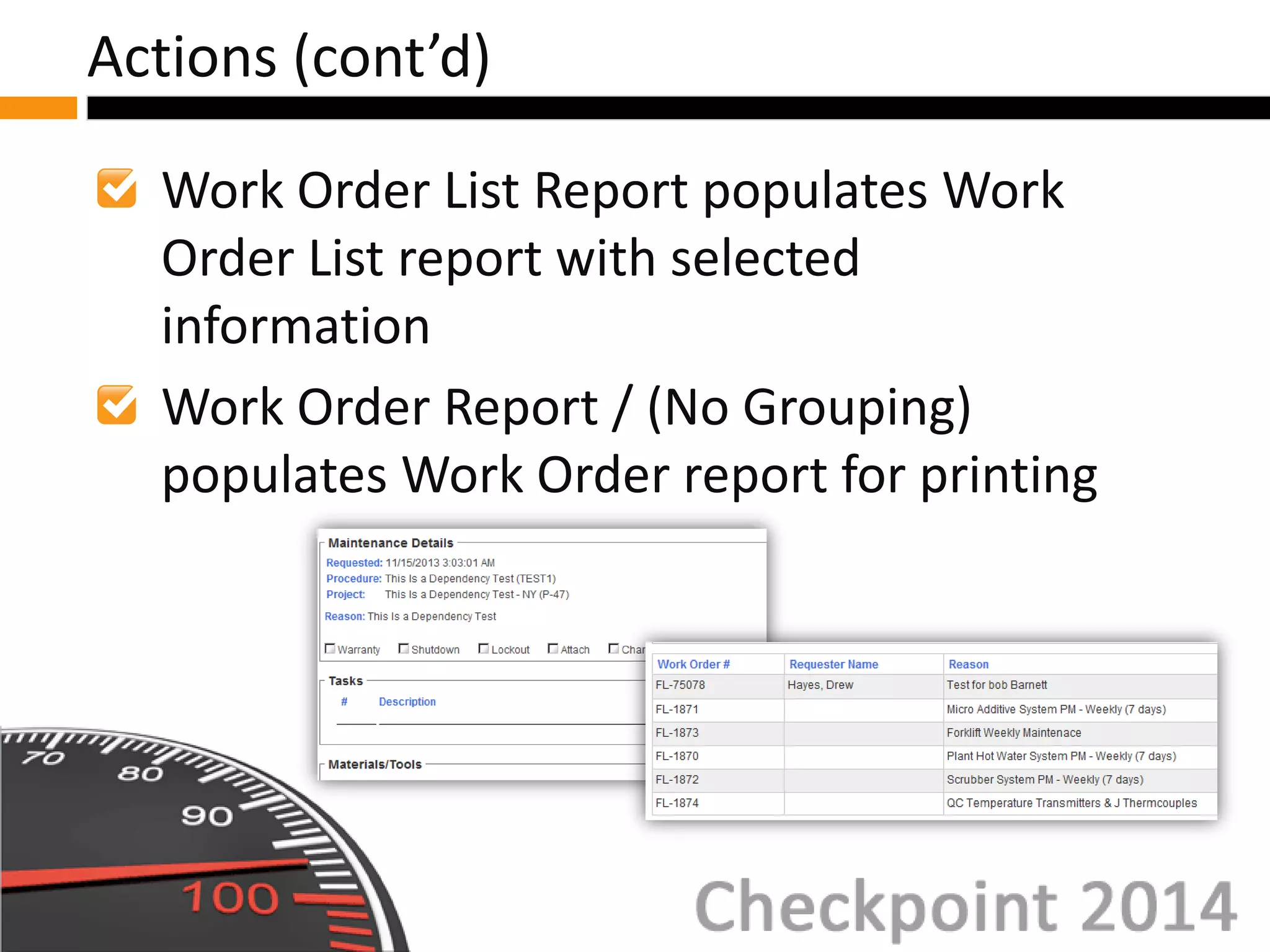
Work Order List Report populates Work
Order List report with selected
information
Work Order Report / (No Grouping)
populates Work Order report for printing
Actions (cont’d)
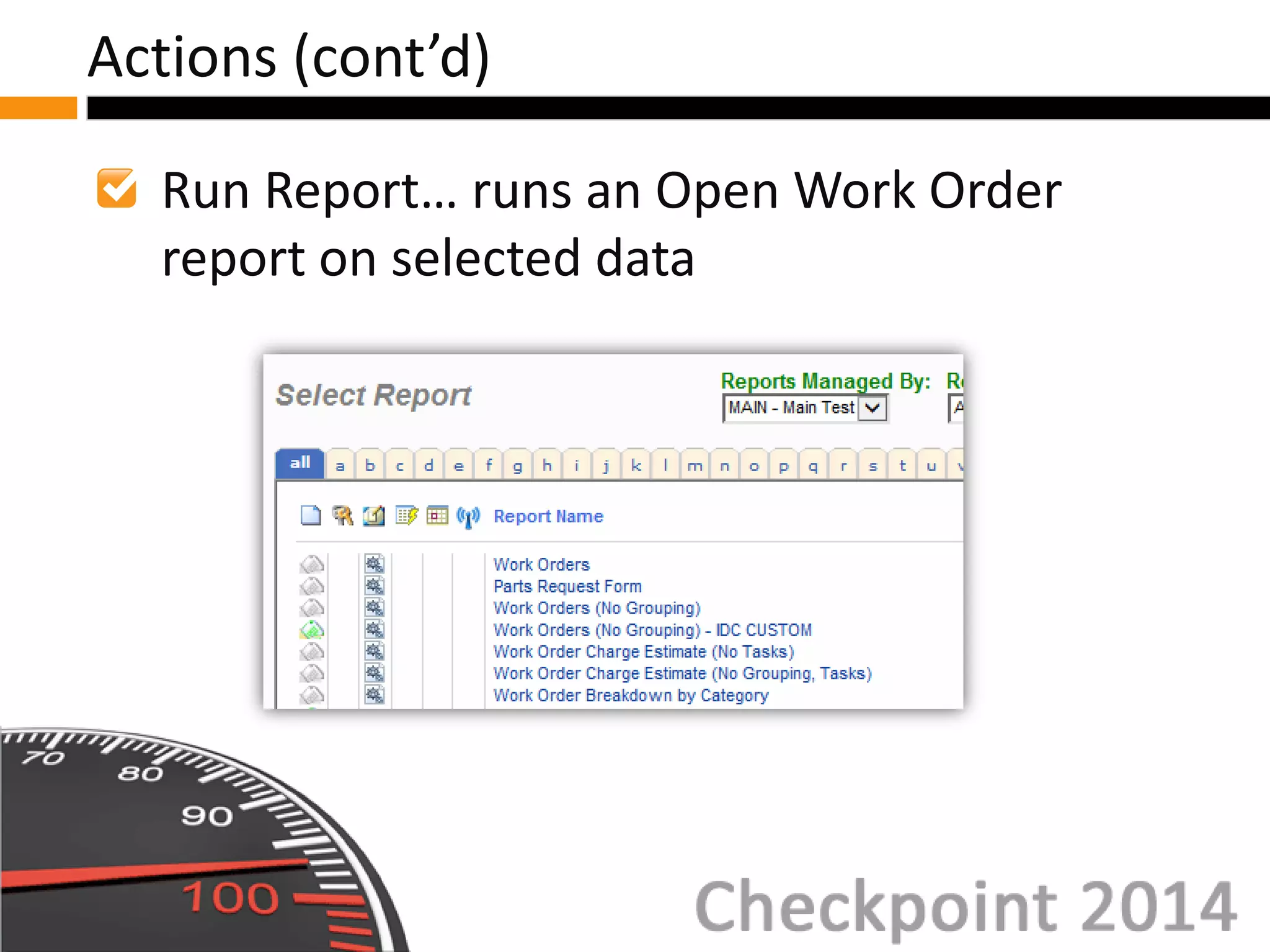
Run Report… runs an Open Work Order
report on selected data
Actions (cont’d)
Work Manager Overview
General Interface
Views
Labor Calendars Overview
Work Manager and Labor Calendar
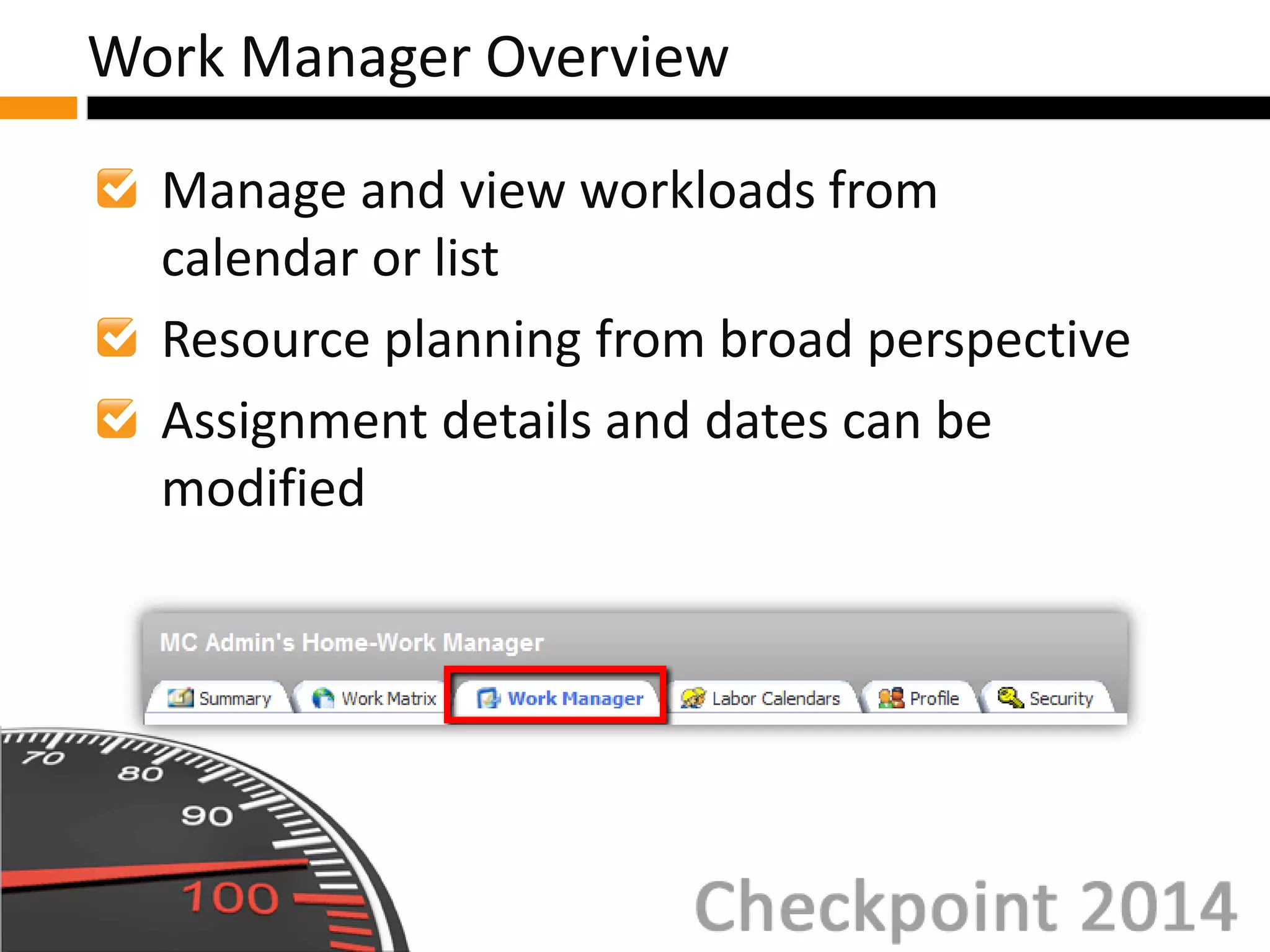
Manage and view workloads from
calendar or list
Resource planning from broad perspective
Assignment details and dates can be
modified
Work Manager Overview
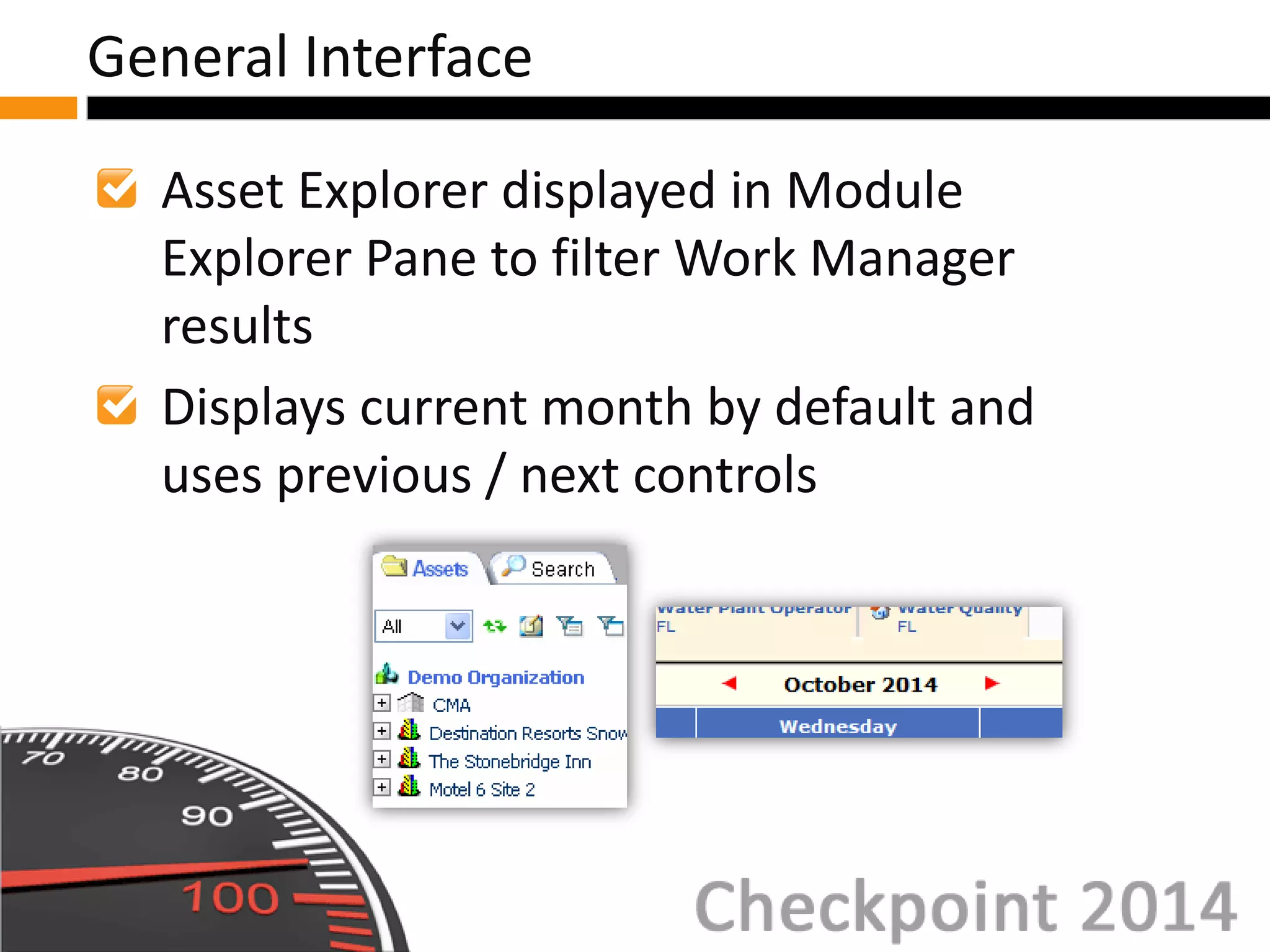
Asset Explorer displayed in Module
Explorer Pane to filter Work Manager
results
Displays current month by default and
uses previous / next controls
General Interface
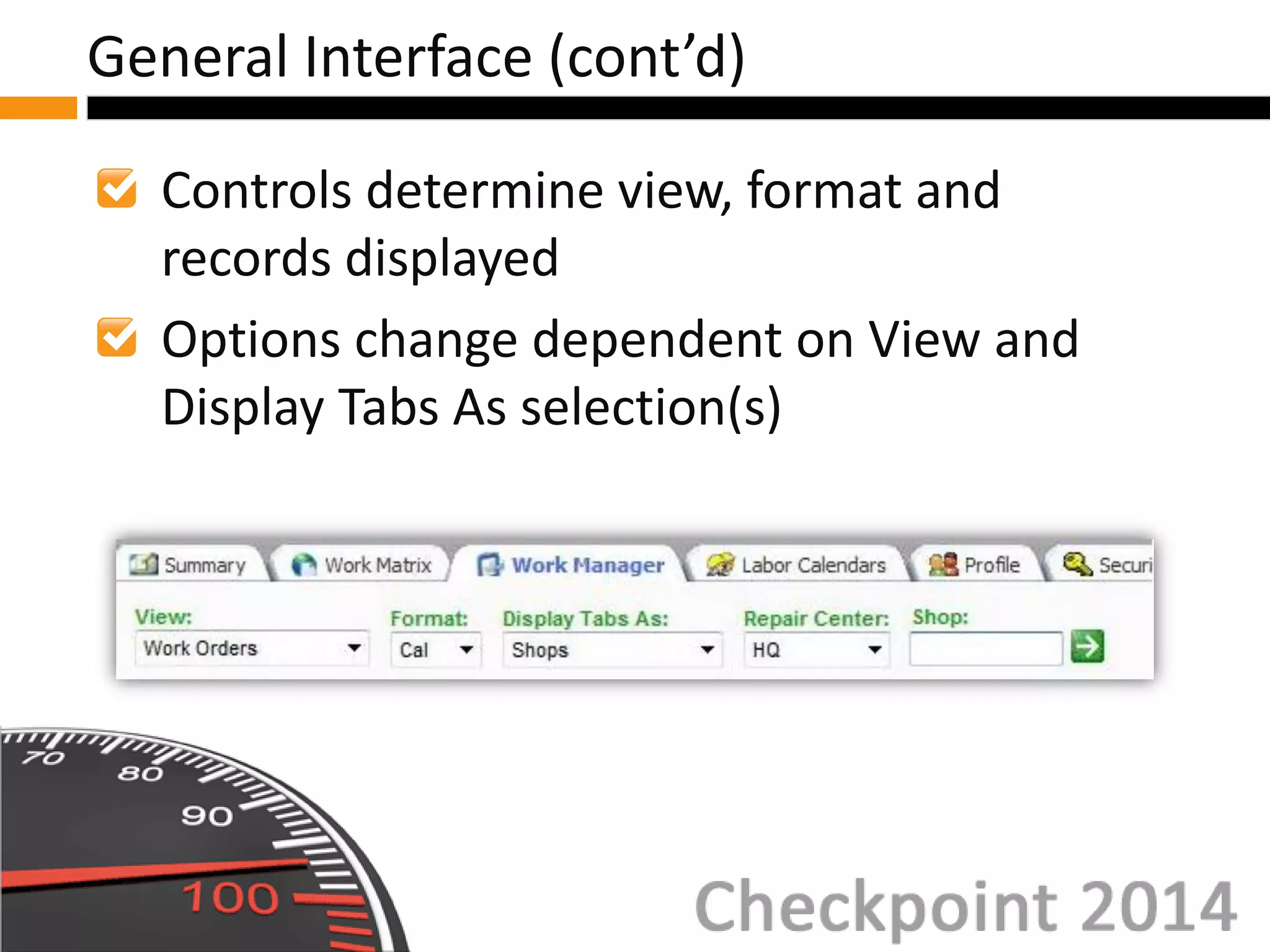
Controls determine view, format and
records displayed
Options change dependent on View and
Display Tabs As selection(s)
General Interface (cont’d)
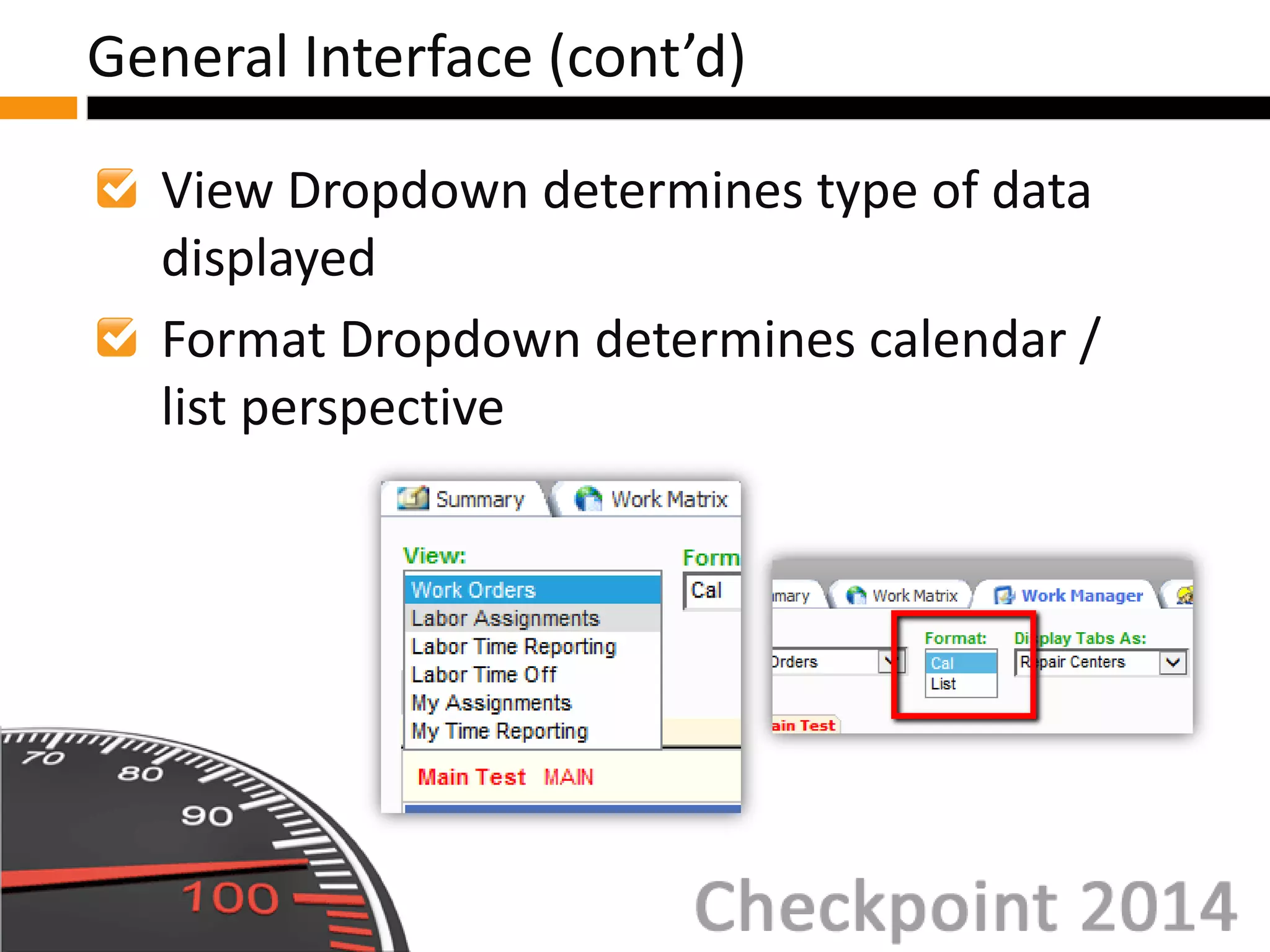
View Dropdown determines type of data
displayed
Format Dropdown determines calendar /
list perspective
General Interface (cont’d)
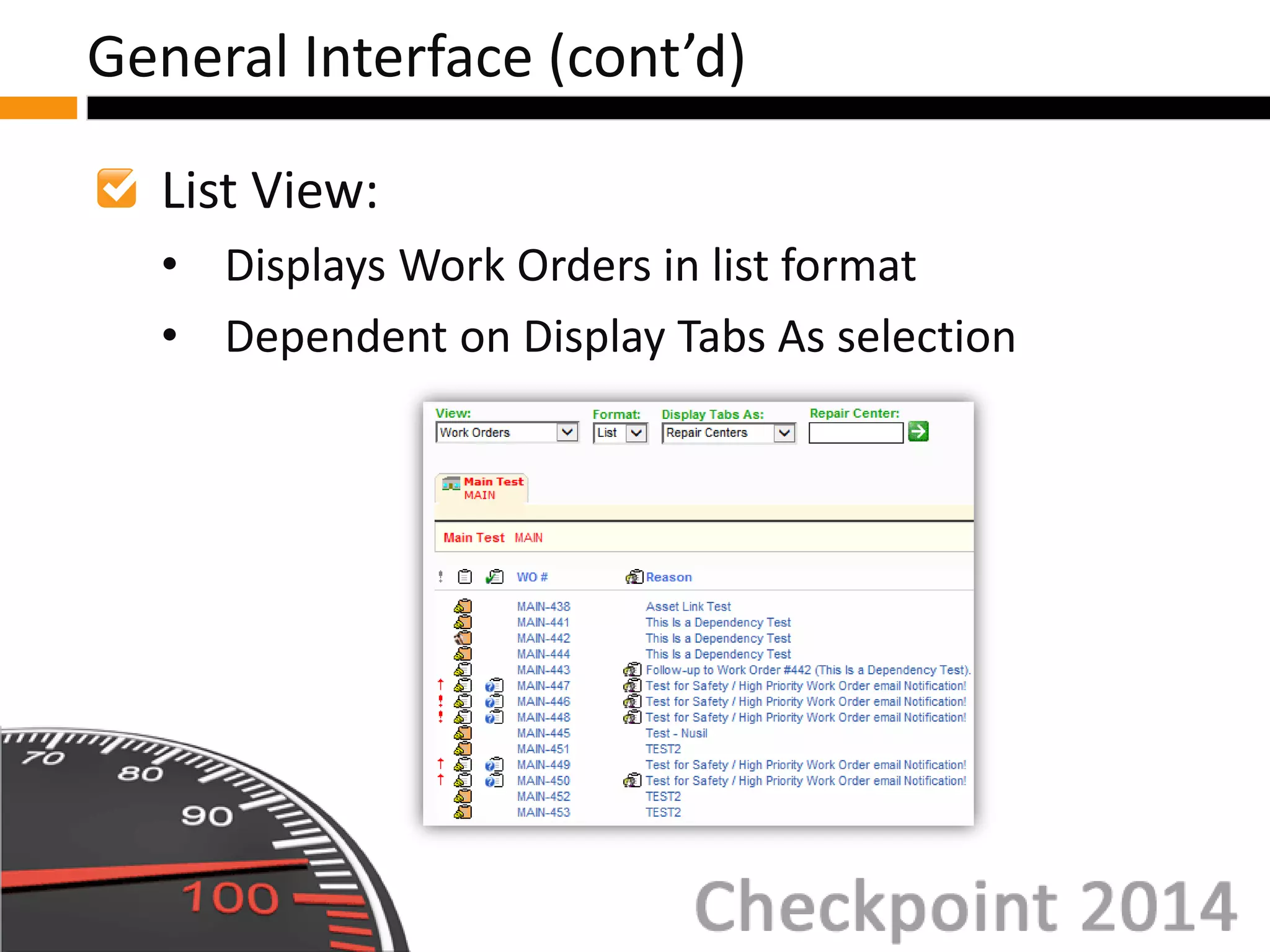
List View:
• Displays Work Orders in list format
• Dependent on Display Tabs As selection
General Interface (cont’d)
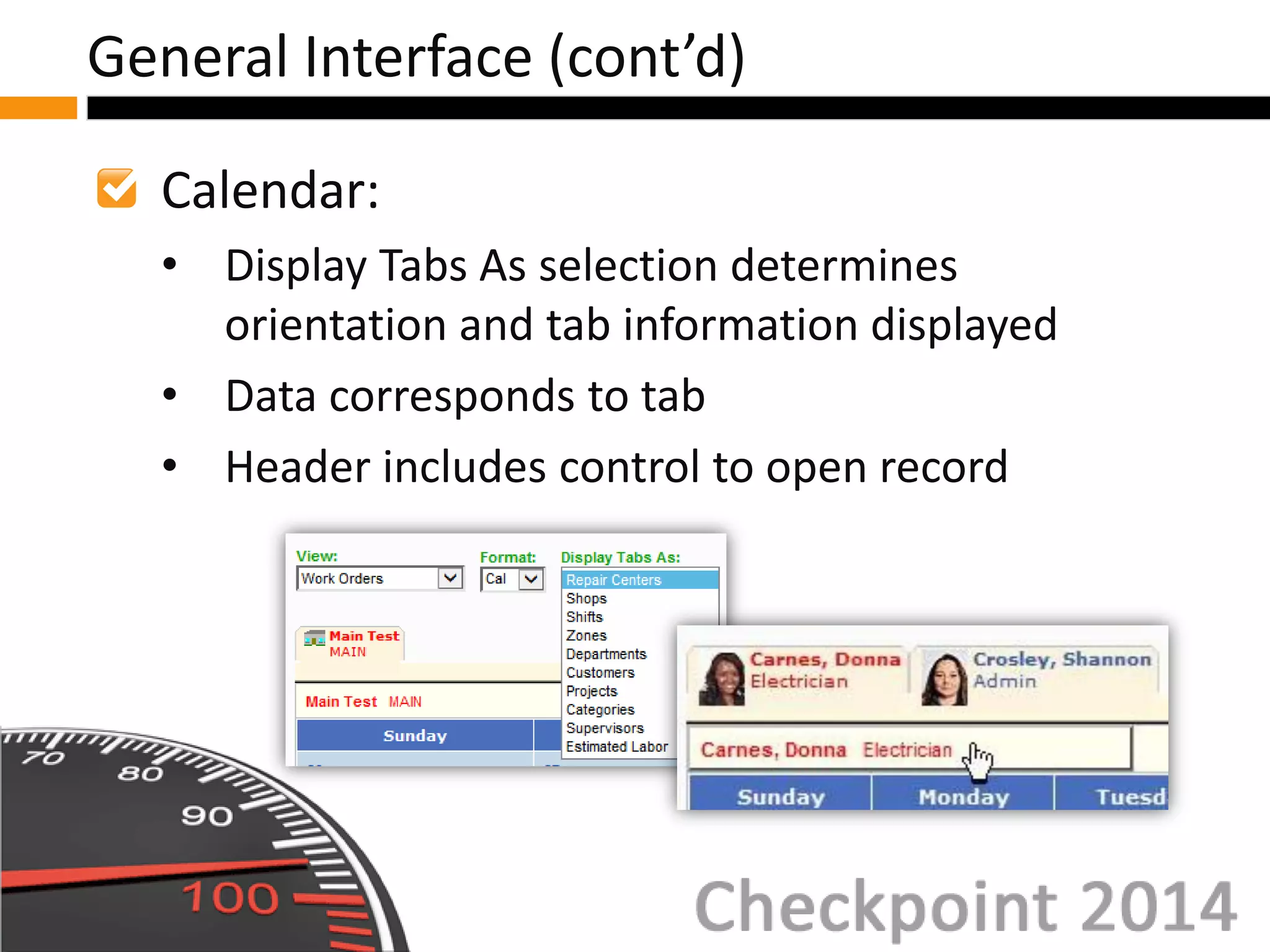
Calendar:
• Display Tabs As selection determines
orientation and tab information displayed
• Data corresponds to tab
• Header includes control to open record
General Interface (cont’d)
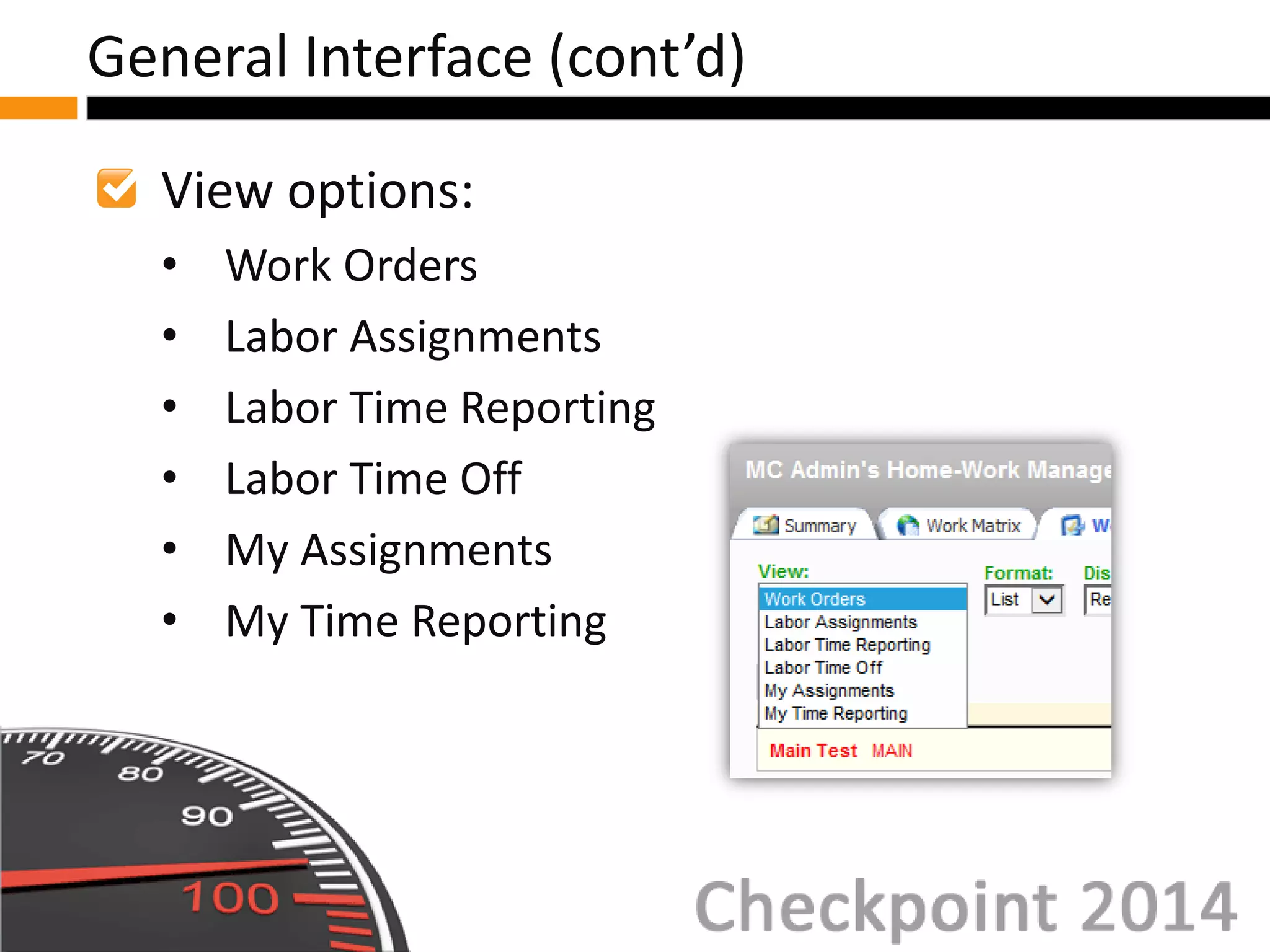
View options:
• Work Orders
• Labor Assignments
• Labor Time Reporting
• Labor Time Off
• My Assignments
• My Time Reporting
General Interface (cont’d)
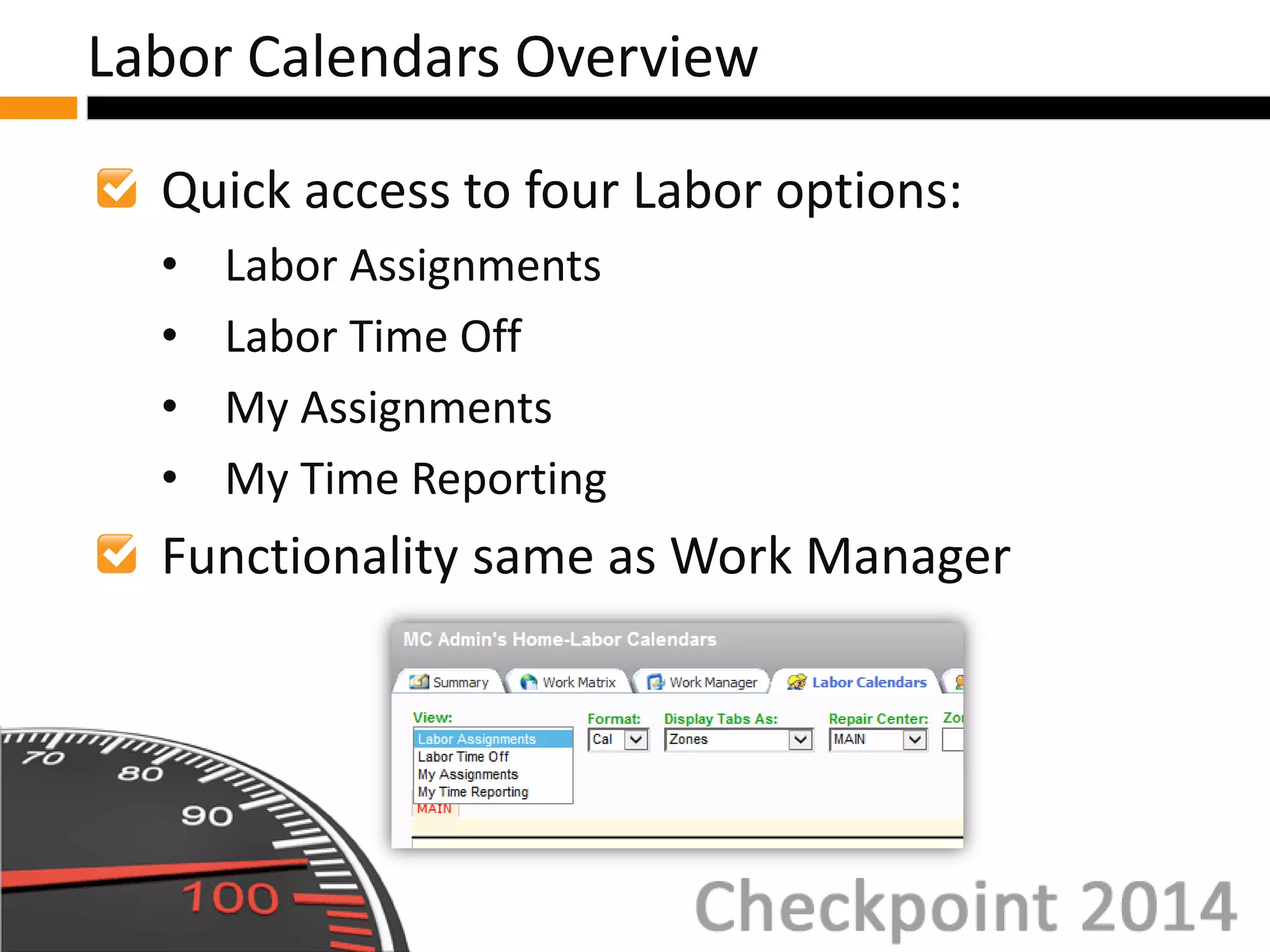
Quick access to four Labor options:
• Labor Assignments
• Labor Time Off
• My Assignments
• My Time Reporting
Functionality same as Work Manager
Labor Calendars Overview
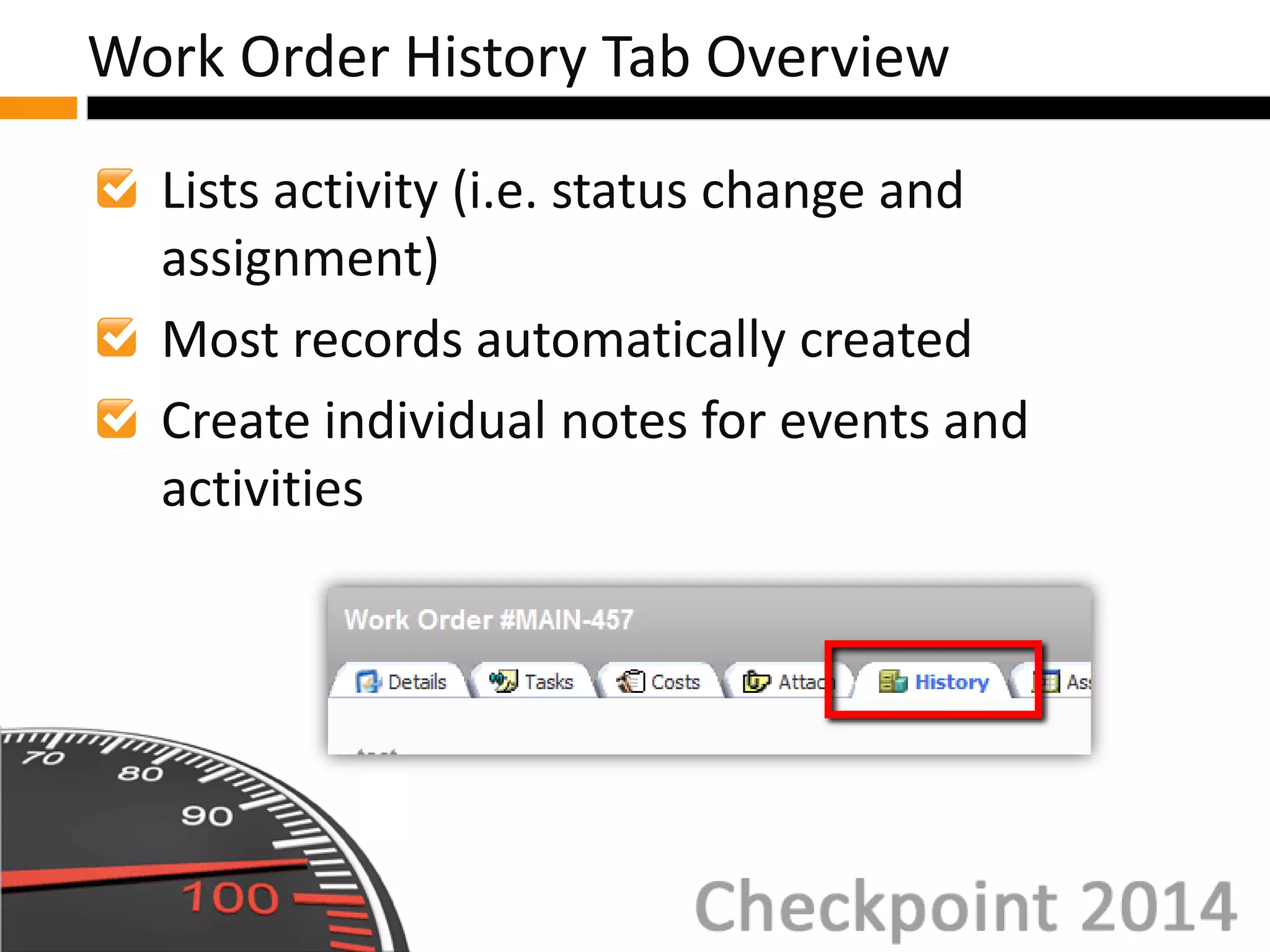
Work Order History Tab Overview
Fields and Columns
Modifying Status History
Work Order History Tab
Lists activity (i.e. status change and
assignment)
Most records automatically created
Create individual notes for events and
activities
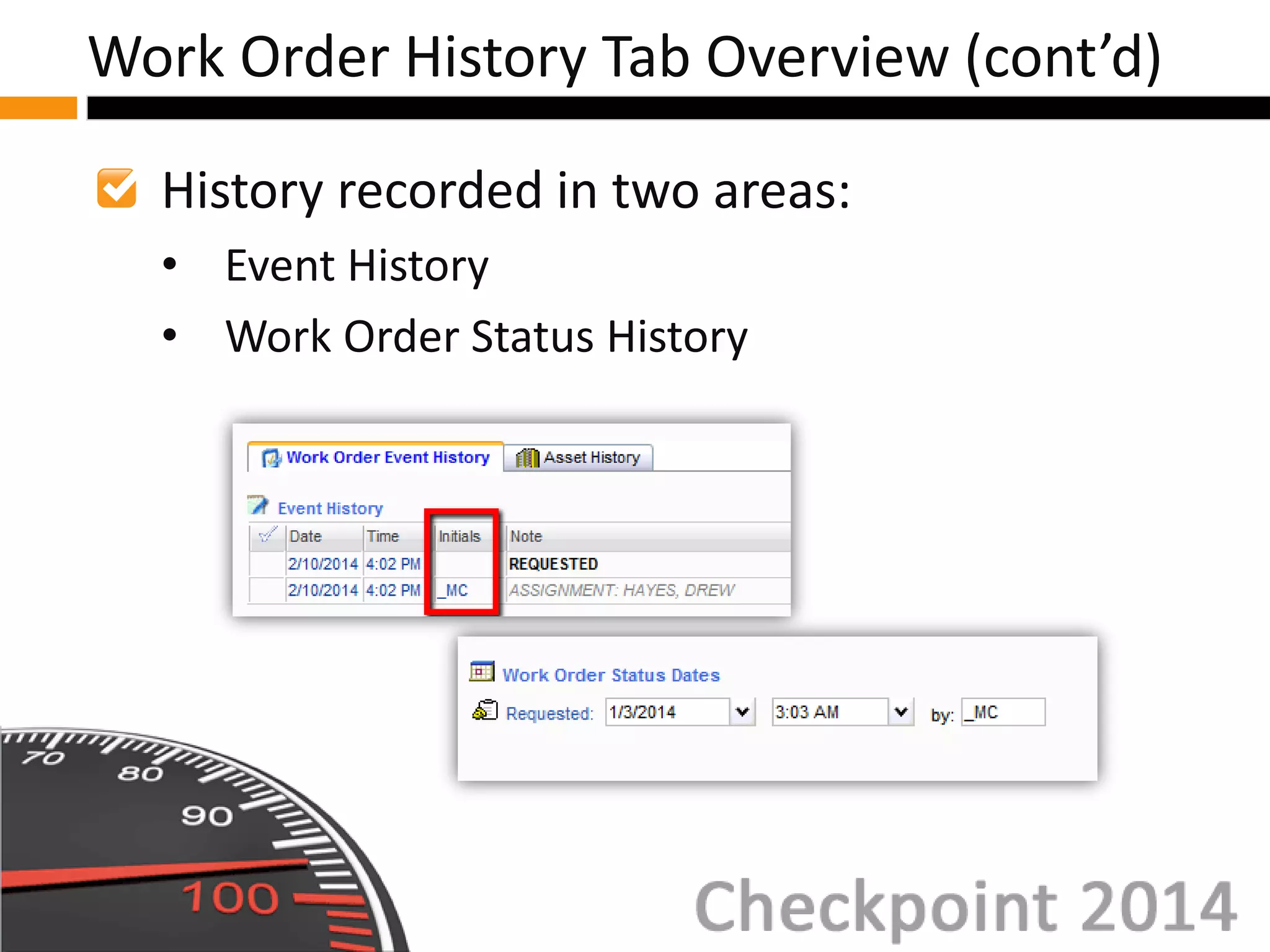
Work Order History Tab Overview
History recorded in two areas:
• Event History
• Work Order Status History
Work Order History Tab Overview (cont’d)
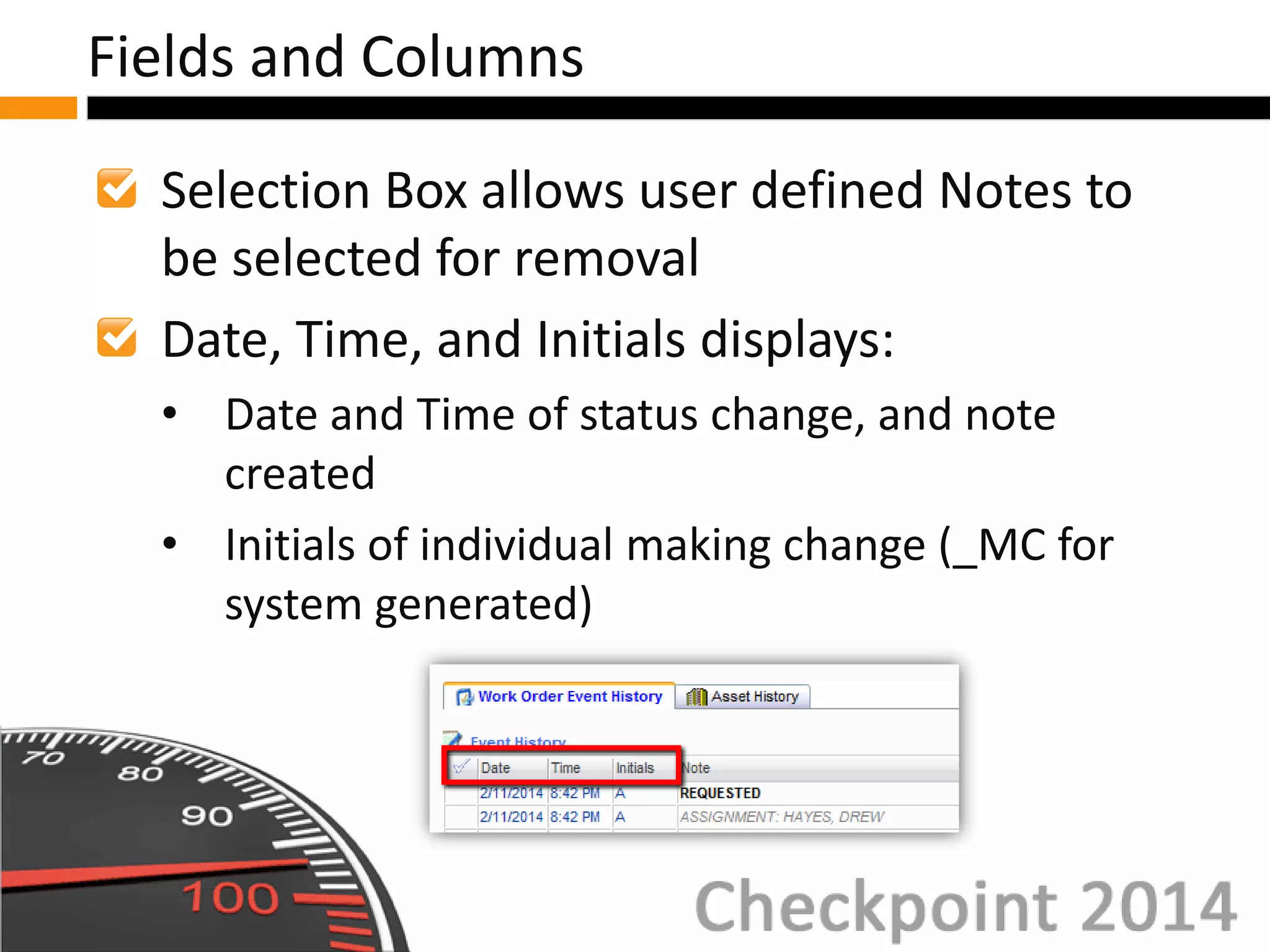
Selection Box allows user defined Notes to
be selected for removal
Date, Time, and Initials displays:
• Date and Time of status change, and note
created
• Initials of individual making change (_MC for
system generated)
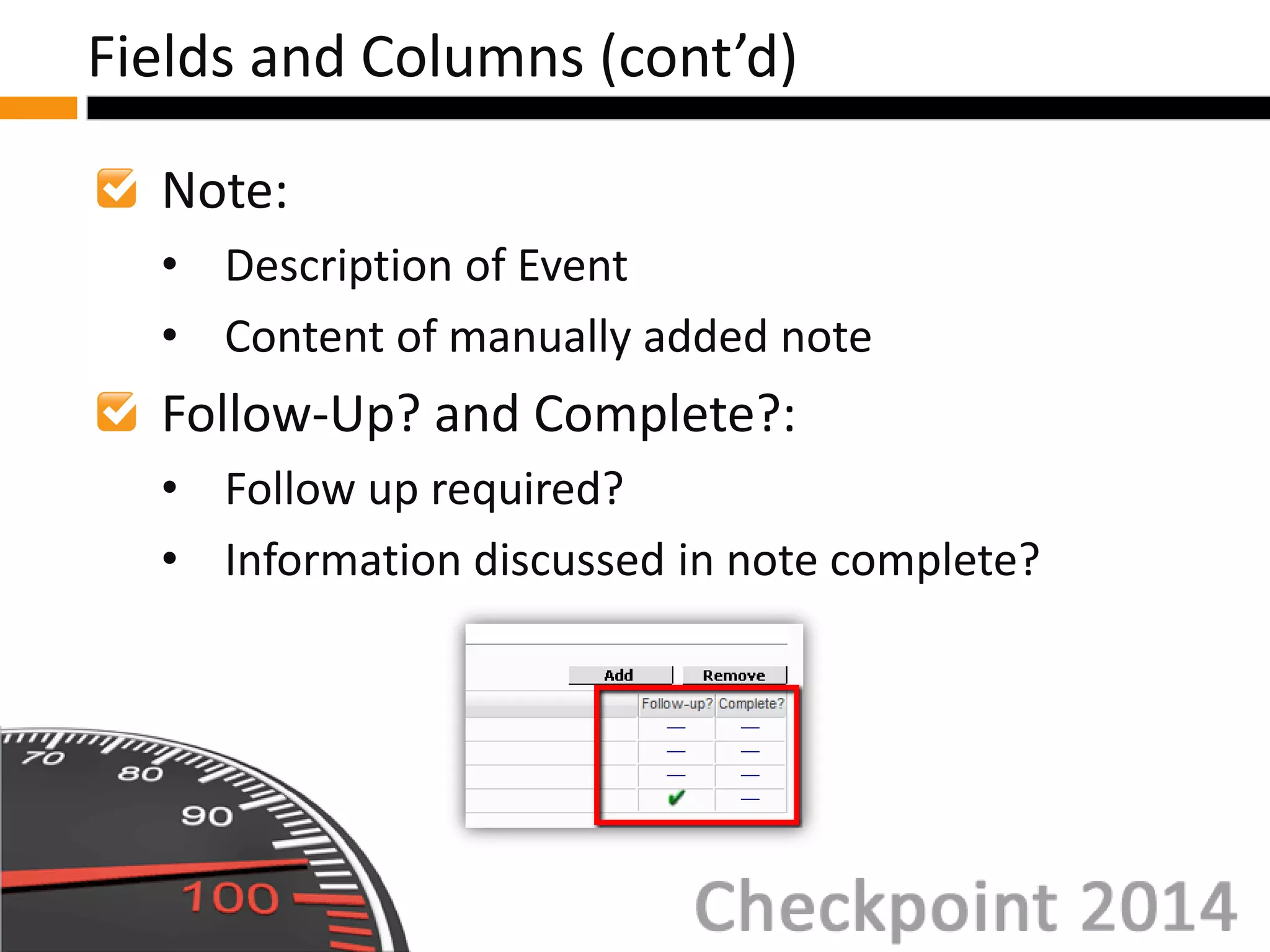
Fields and Columns
Note:
• Description of Event
• Content of manually added note
Follow-Up? and Complete?:
• Follow up required?
• Information discussed in note complete?
Fields and Columns (cont’d)
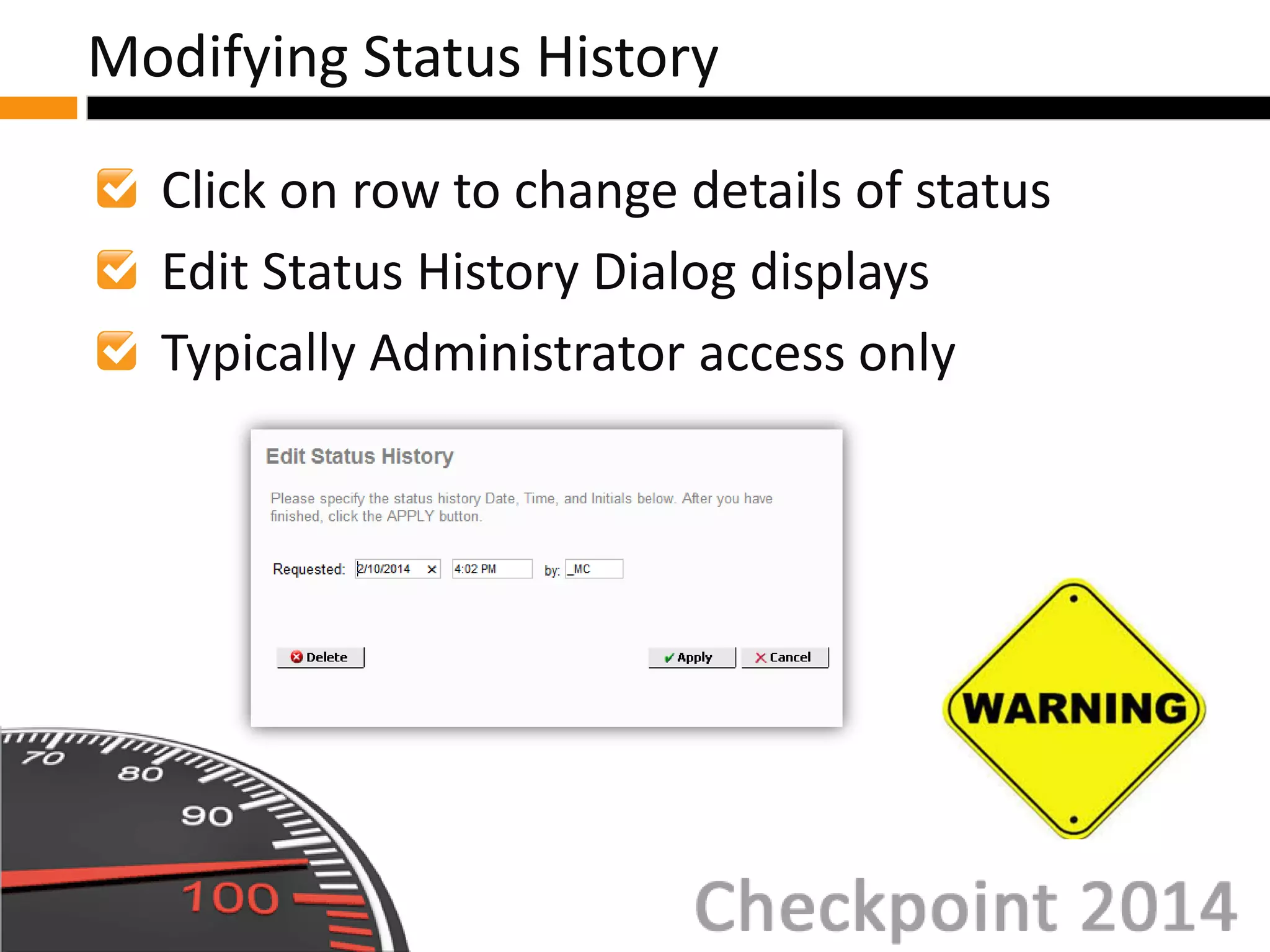
Click on row to change details of status
Edit Status History Dialog displays
Typically Administrator access only
Modifying Status History
Work Order Expanded Explorer Overview
Multiple Selects and Actions
Favorites List
Work Order Expanded Explorer
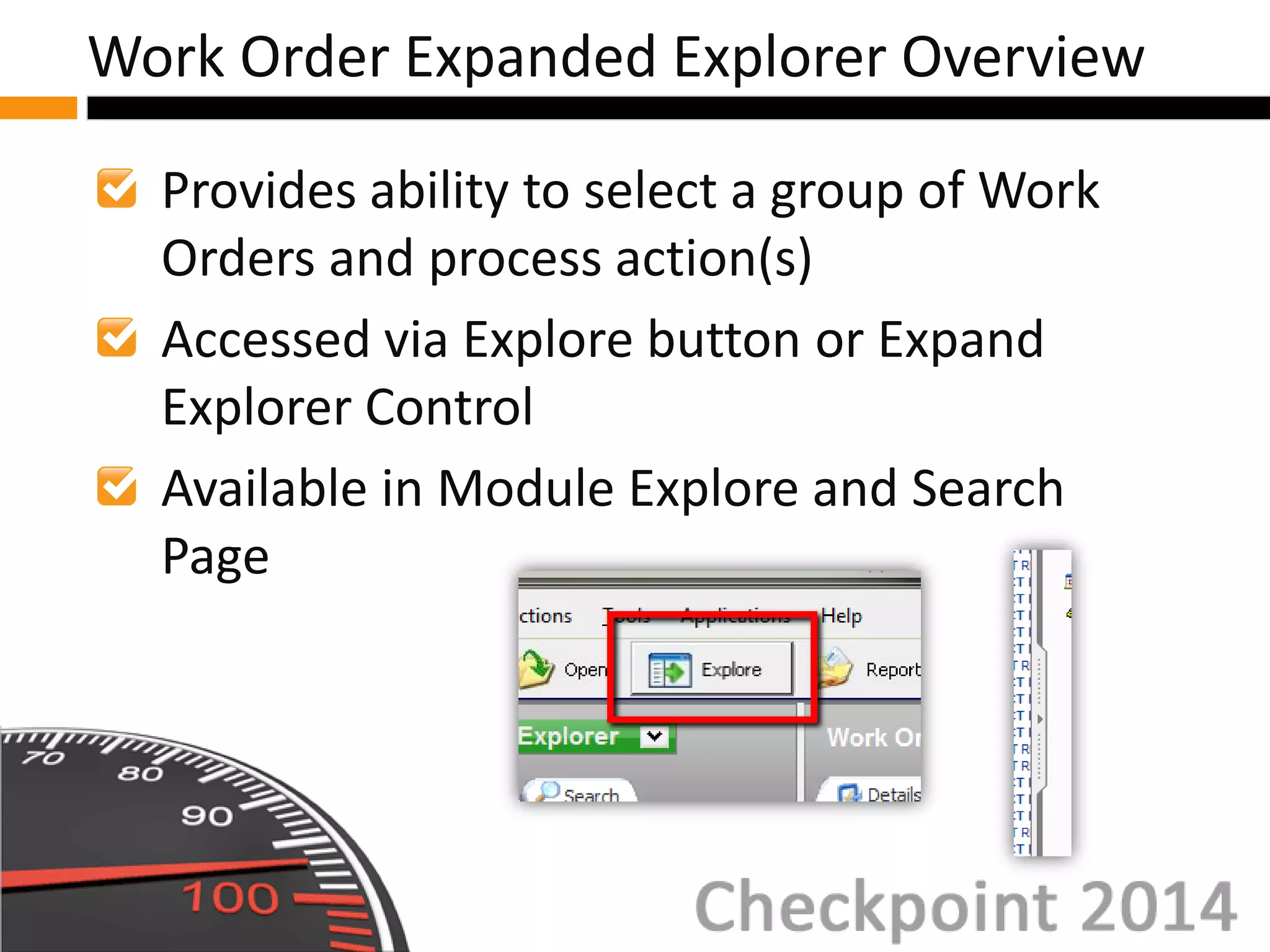
Provides ability to select a group of Work
Orders and process action(s)
Accessed via Explore button or Expand
Explorer Control
Available in Module Explore and Search
Page
Work Order Expanded Explorer Overview
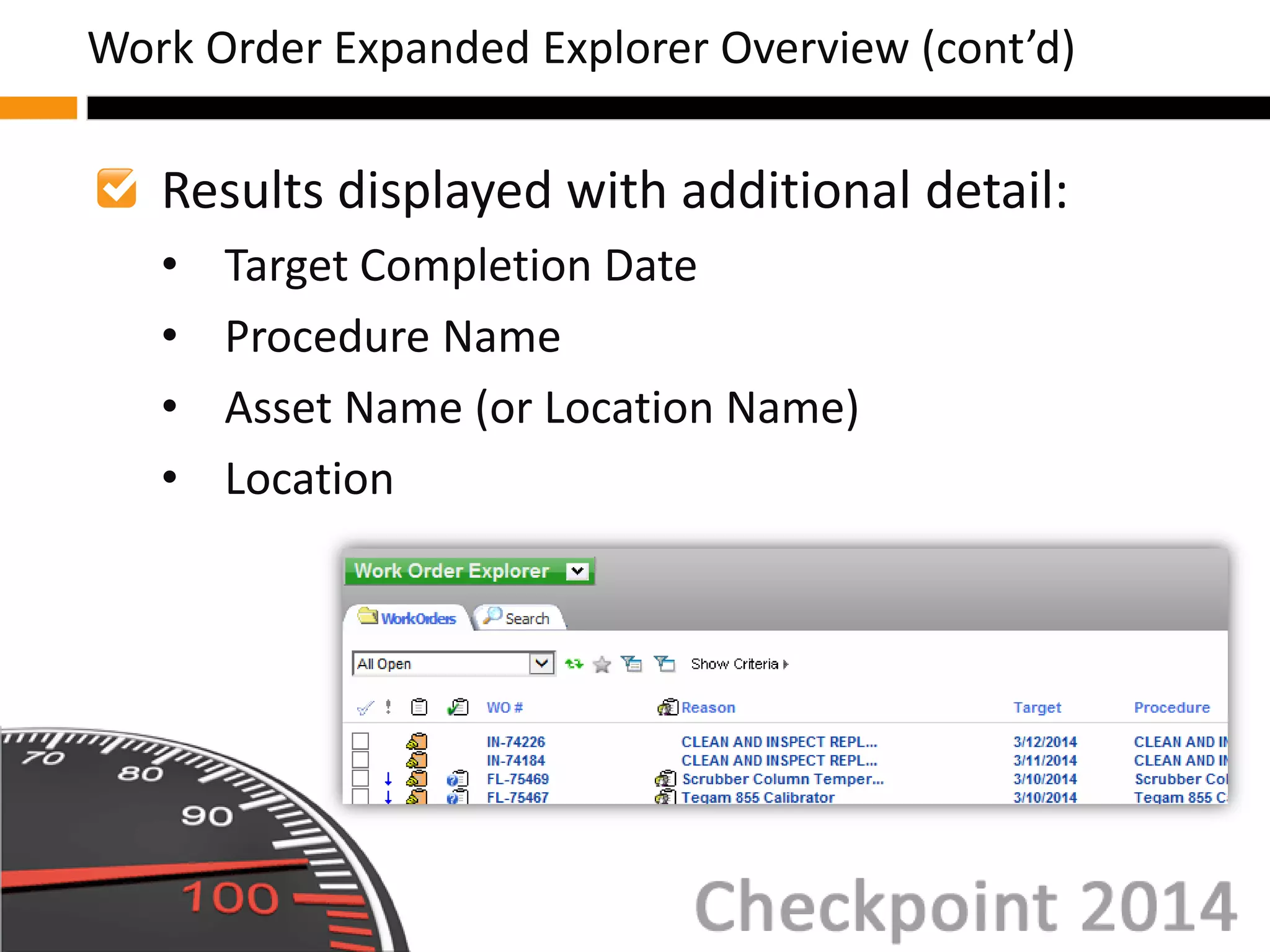
Results displayed with additional detail:
• Target Completion Date
• Procedure Name
• Asset Name (or Location Name)
• Location
Work Order Expanded Explorer Overview (cont’d)
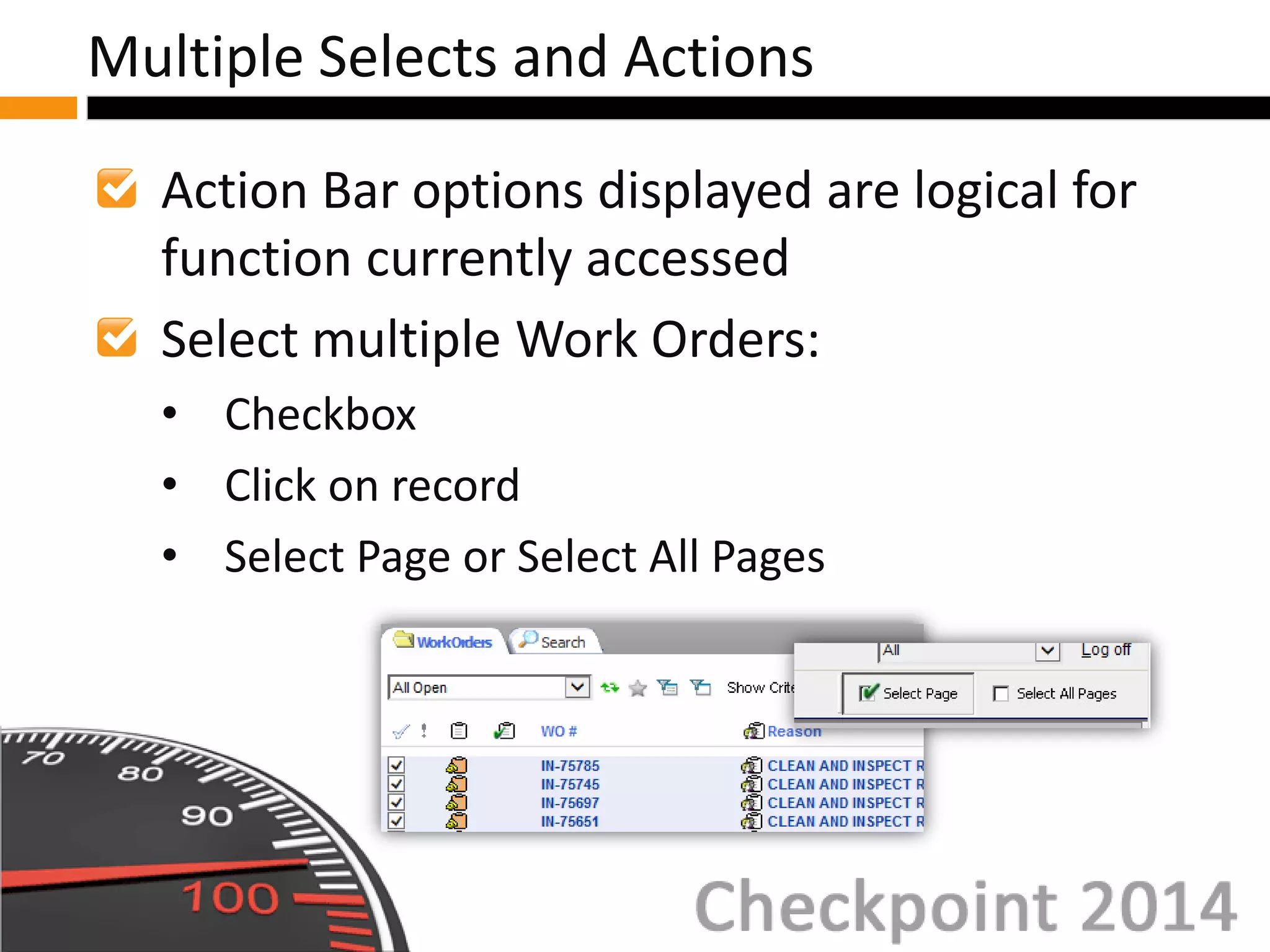
Action Bar options displayed are logical for
function currently accessed
Select multiple Work Orders:
• Checkbox
• Click on record
• Select Page or Select All Pages
Multiple Selects and Actions
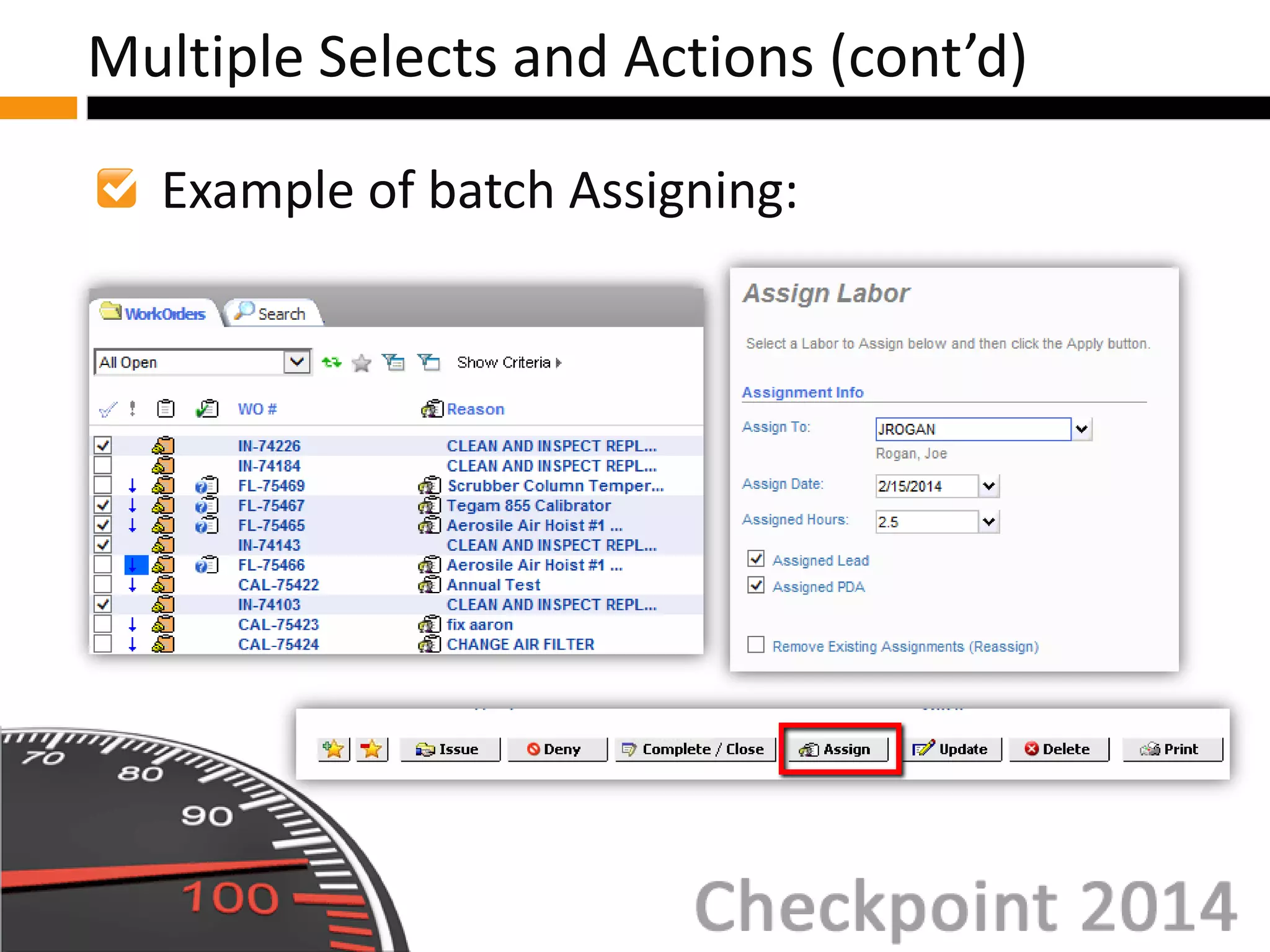
Example of batch Assigning:
Multiple Selects and Actions (cont’d)
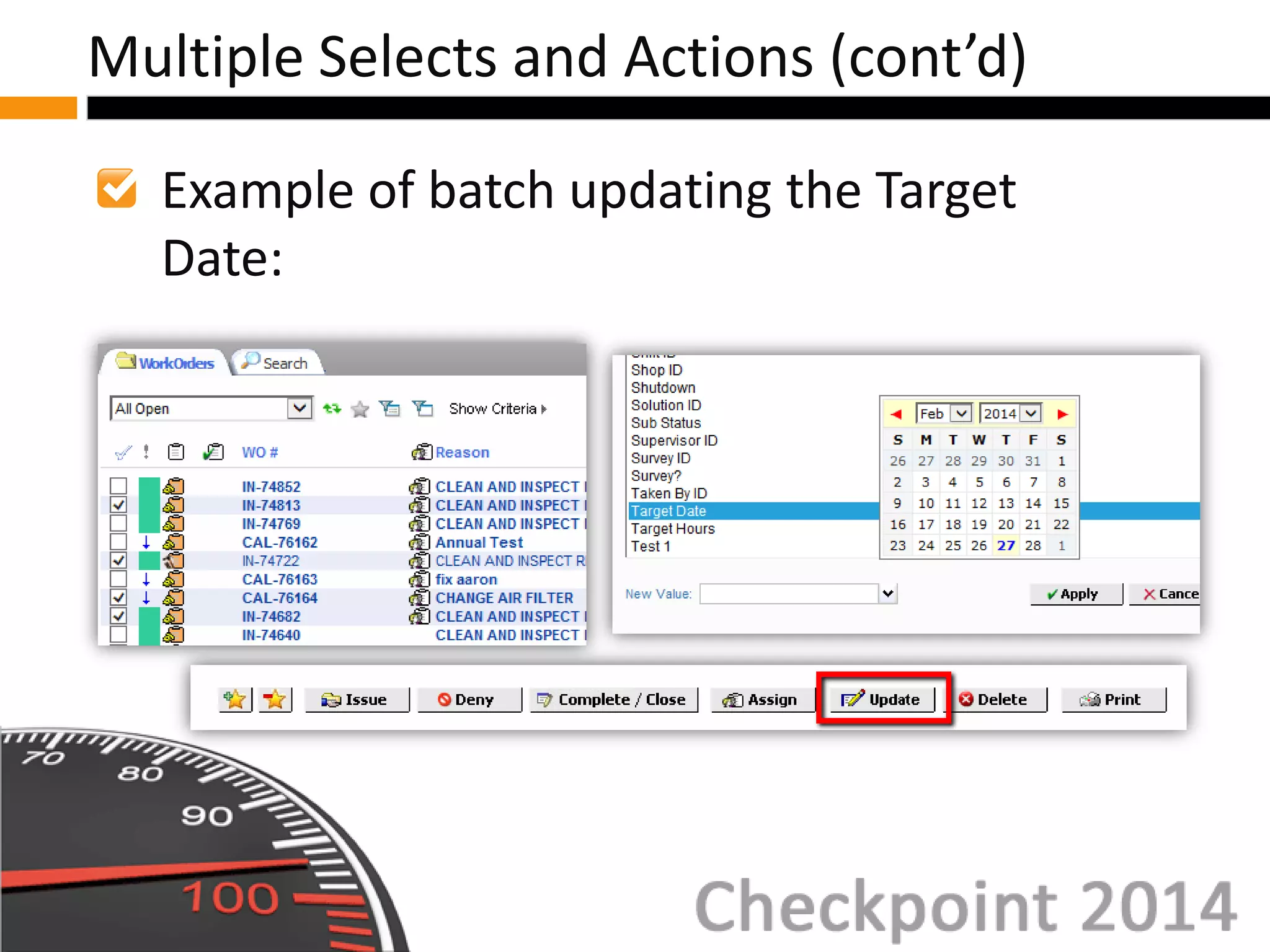
Example of batch updating the Target
Date:
Multiple Selects and Actions (cont’d)
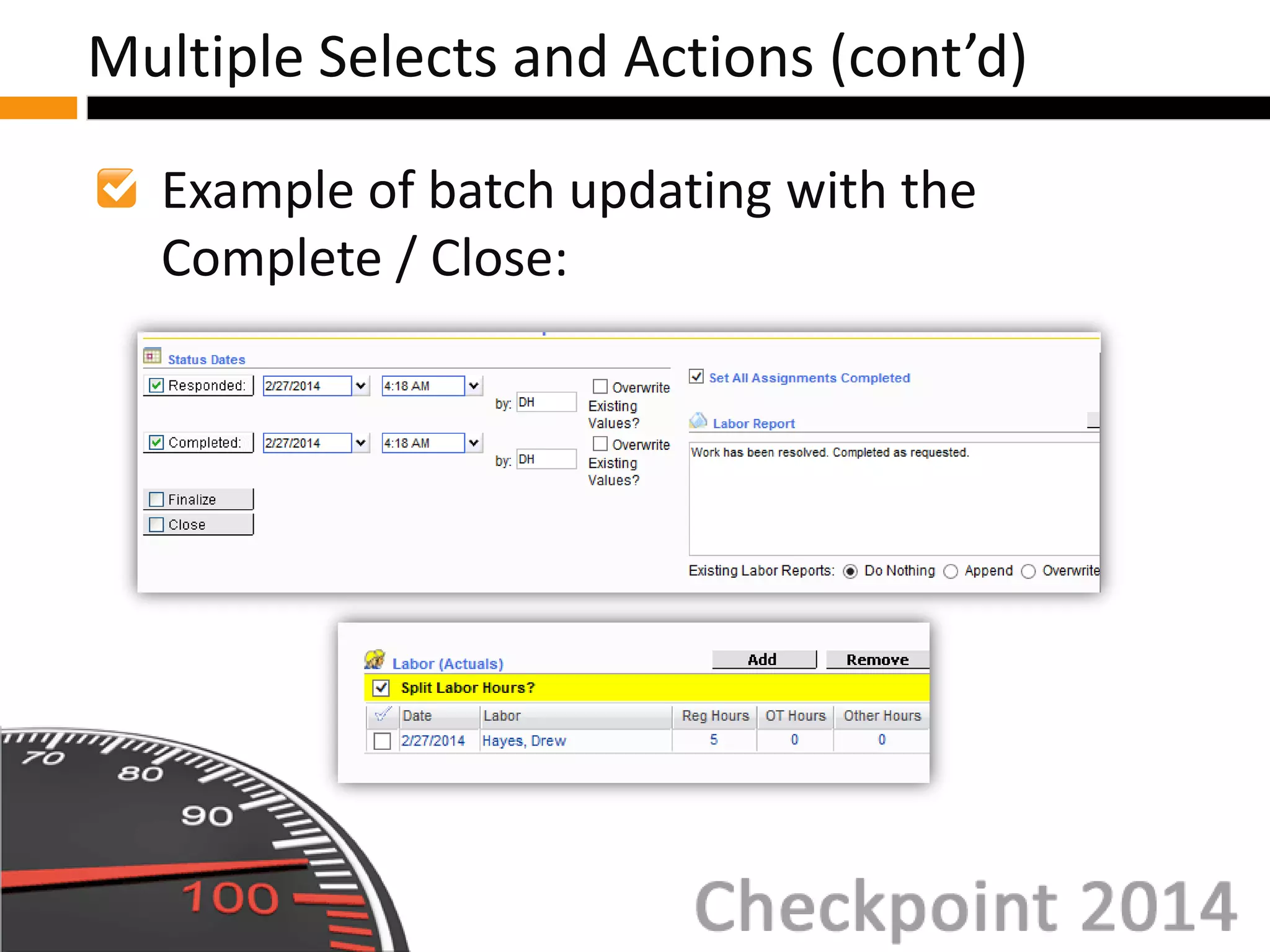
Example of batch updating with the
Complete / Close:
Multiple Selects and Actions (cont’d)
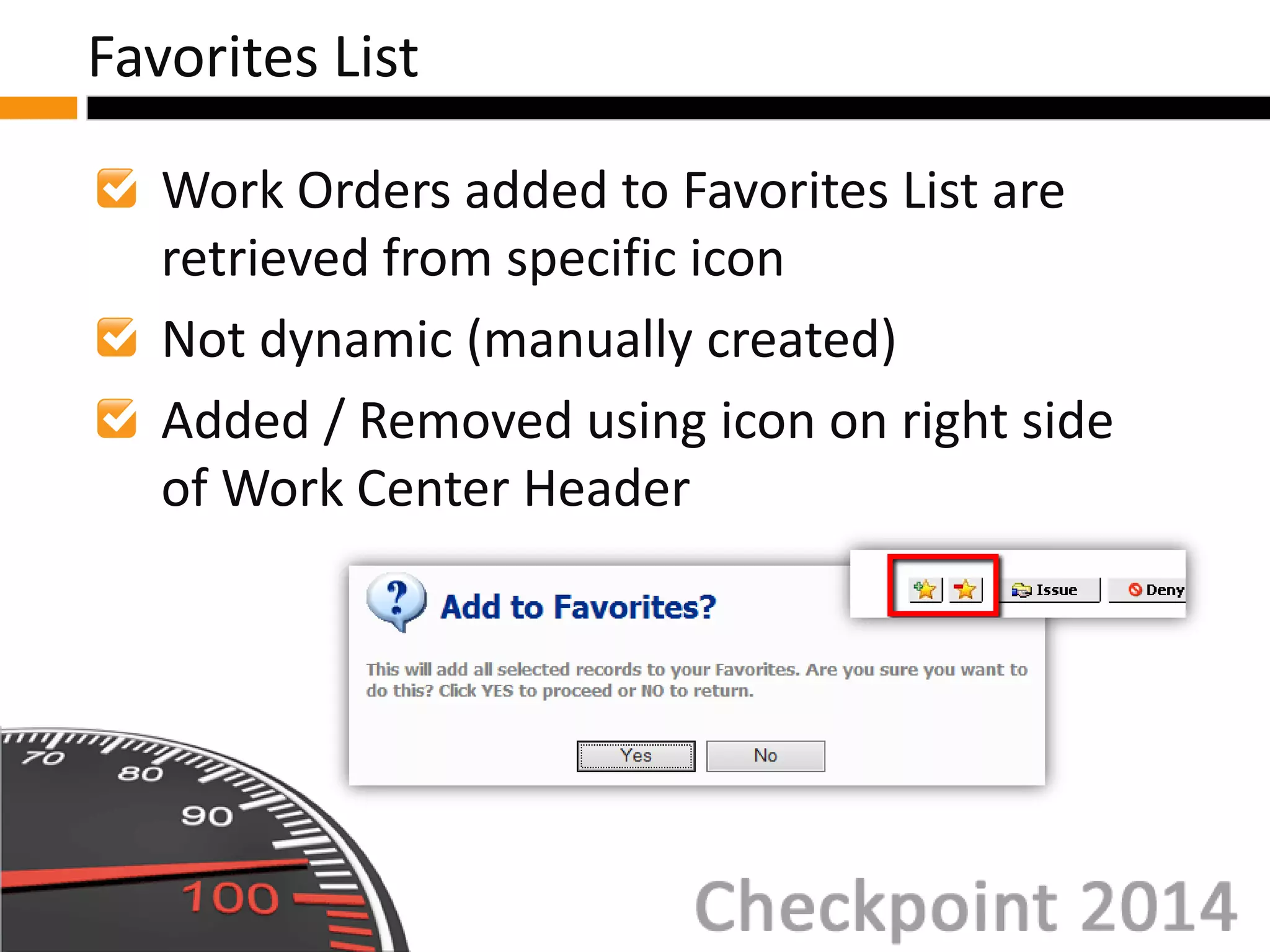
Work Orders added to Favorites List are
retrieved from specific icon
Not dynamic (manually created)
Added / Removed using icon on right side
of Work Center Header
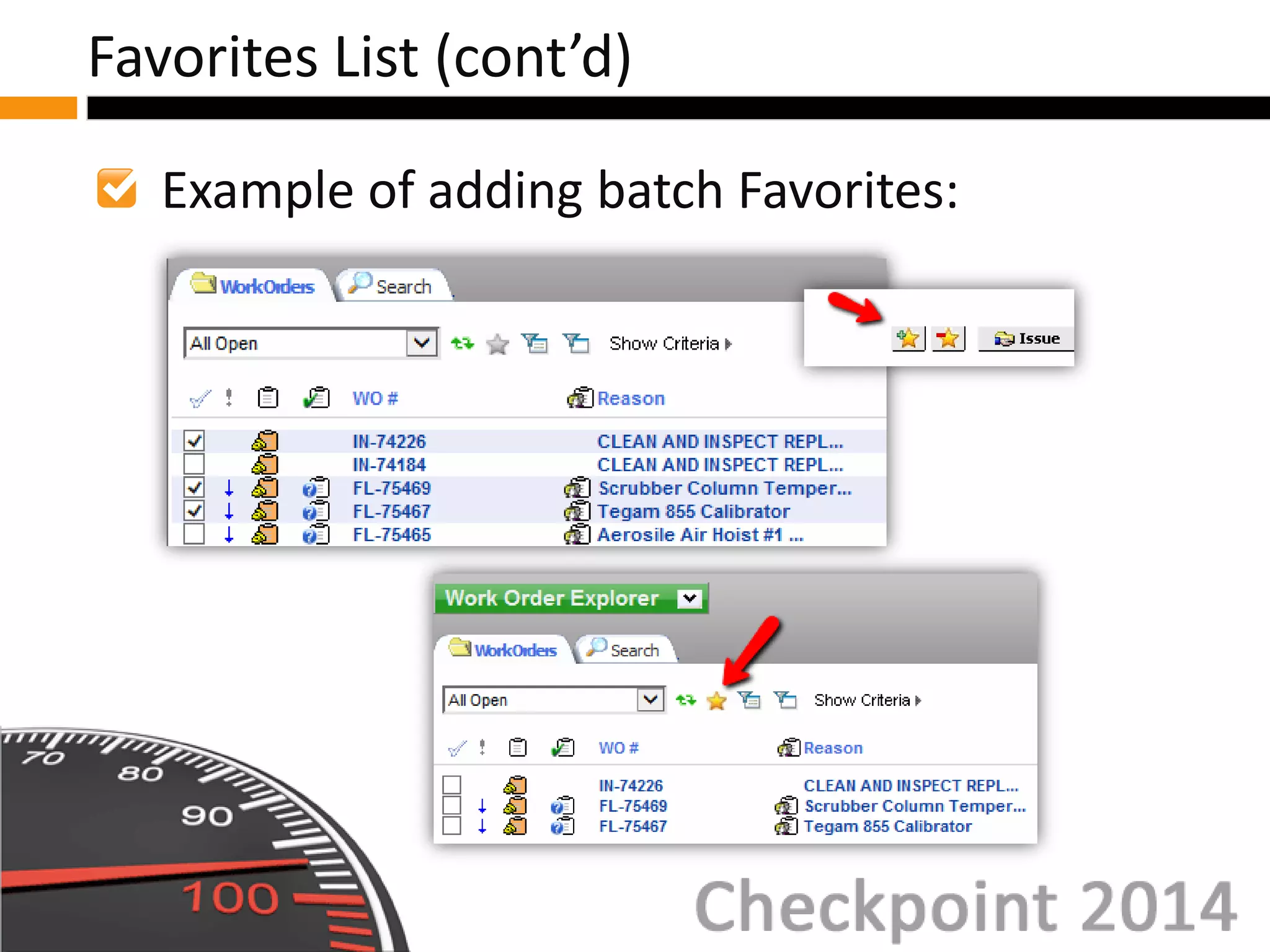
Favorites List
Example of adding batch Favorites:
Favorites List (cont’d)
Now let’s practice creating two test Work
Orders, and batch closing them!
Batch Close Work Orders: Hands-On
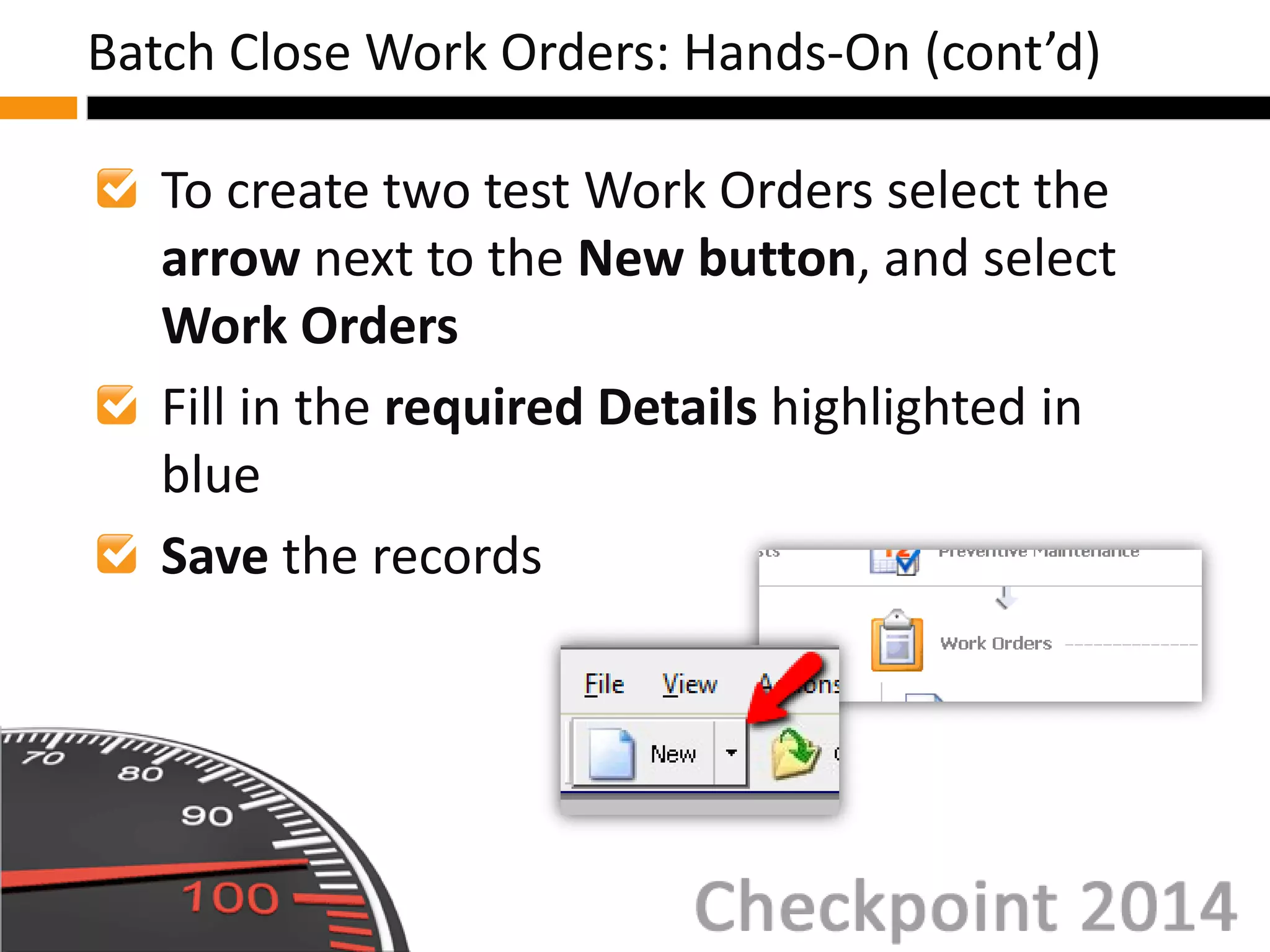
To create two test Work Orders select the
arrow next to the New button, and select
Work Orders
Fill in the required Details highlighted in
blue
Save the records
Batch Close Work Orders: Hands-On (cont’d)
Open the Work Order Explorer in
Expanded Explorer View
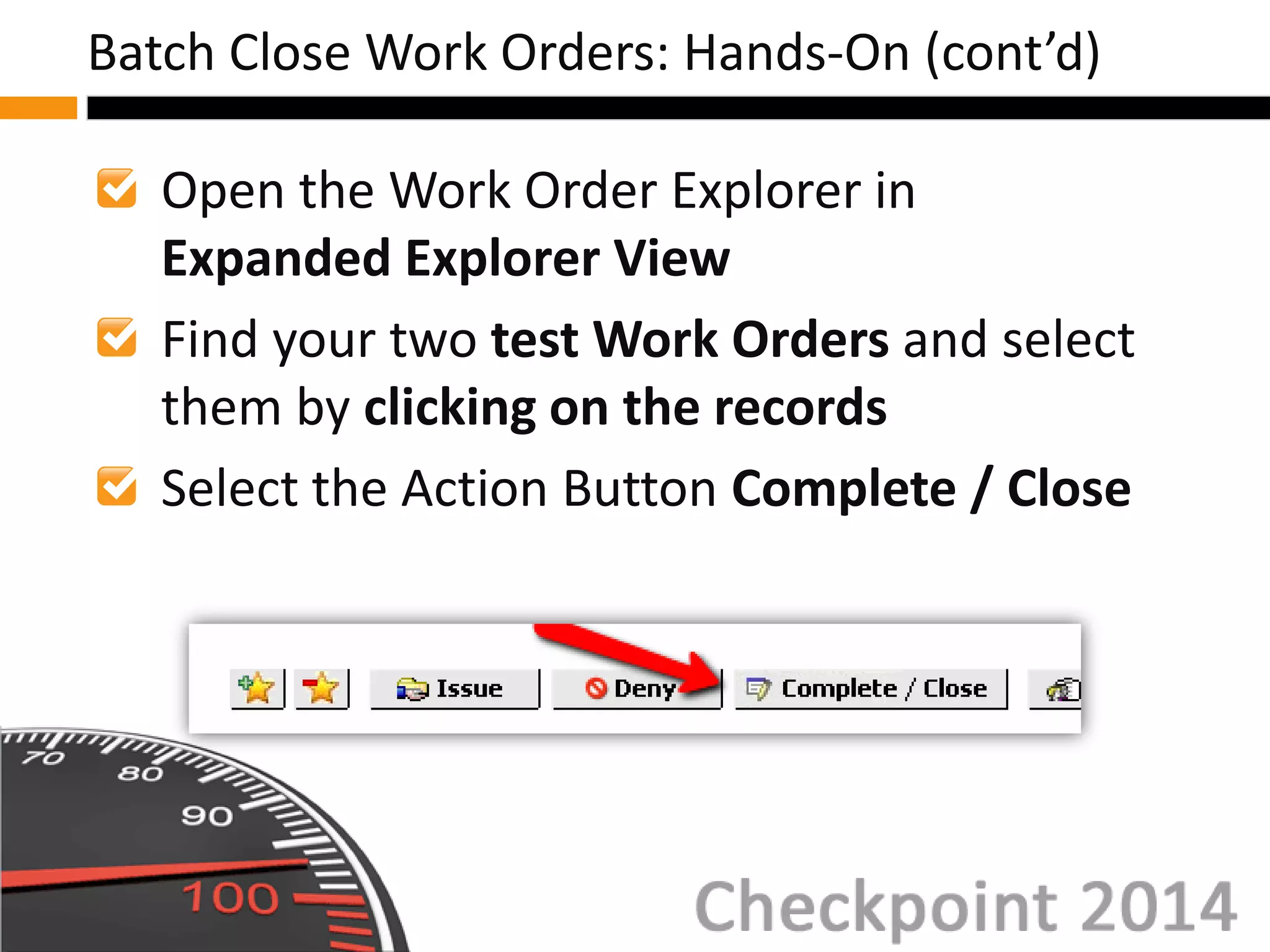
Find your two test Work Orders and select
them by clicking on the records
Select the Action Button Complete / Close
Batch Close Work Orders: Hands-On (cont’d)
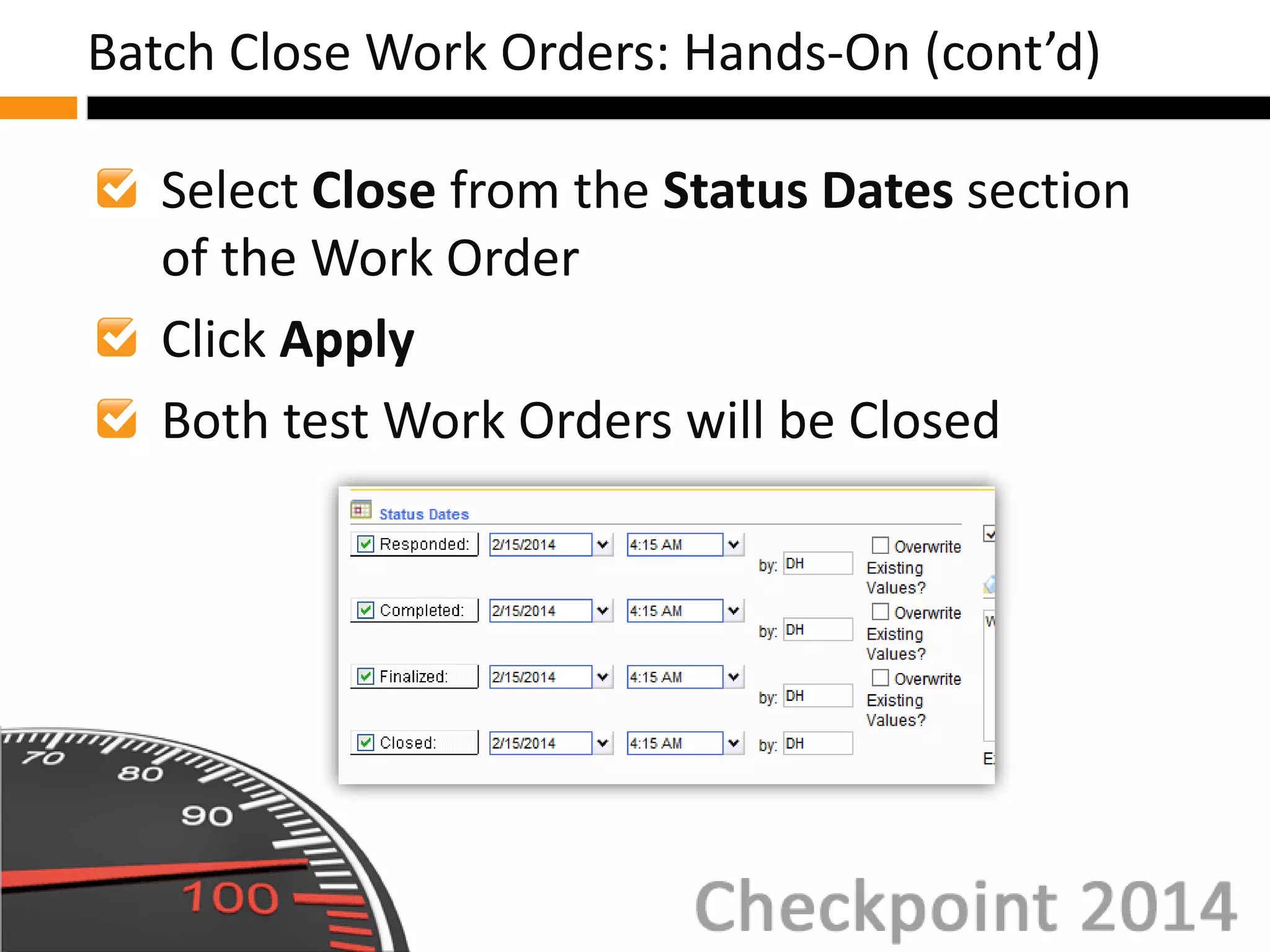
Select Close from the Status Dates section
of the Work Order
Click Apply
Both test Work Orders will be Closed
Batch Close Work Orders: Hands-On (cont’d)
You have now successfully completed
creating two test Work Orders, and closed
them using the Batch Update feature!
Batch Close Work Orders: Hands-On (cont’d)
For access to documentation and tutorials,
reference www.mcuserconnect.com
MC User Connect
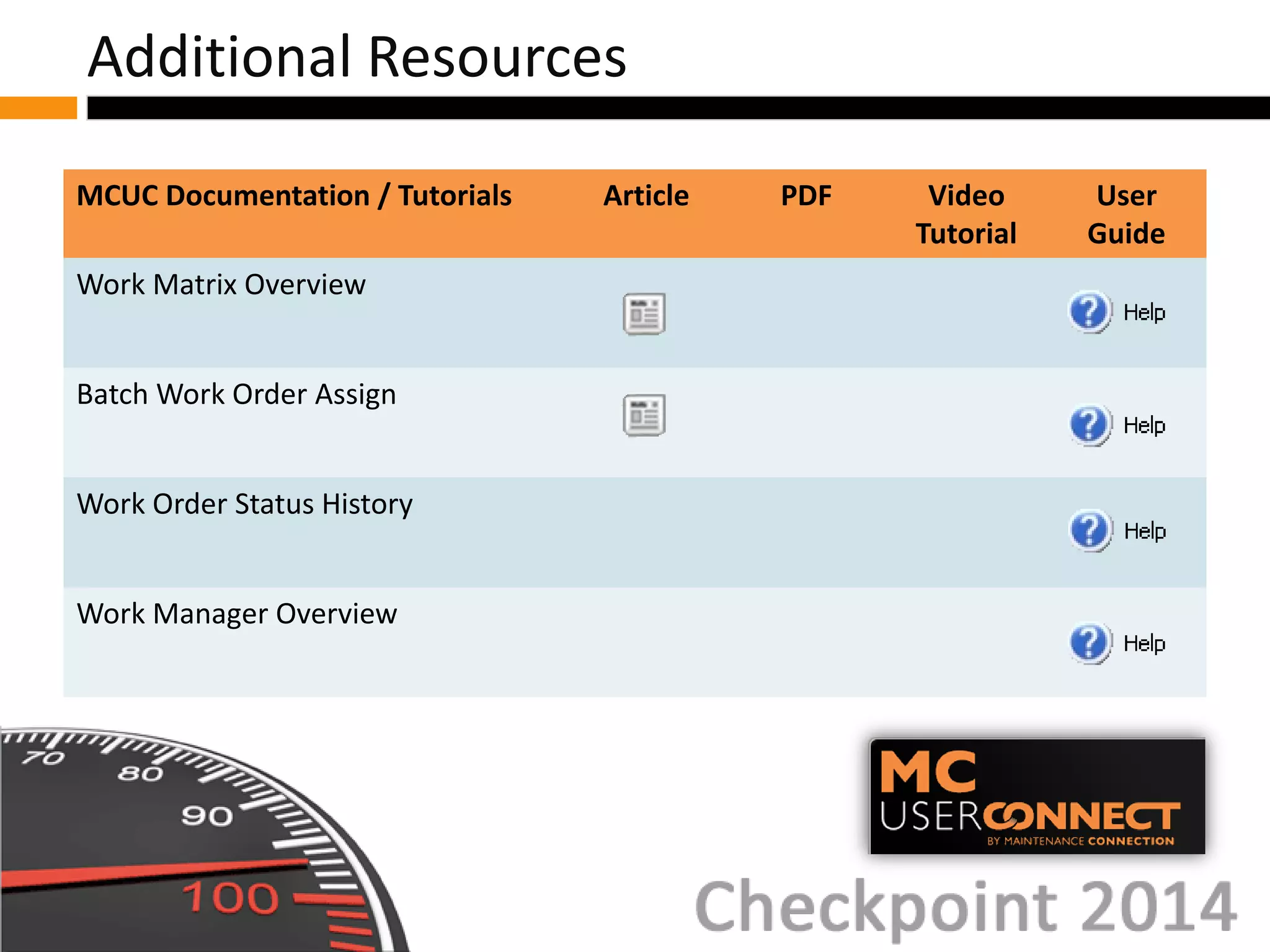
MCUC Documentation / Tutorials Article PDF Video
Tutorial
User
Guide
Work Matrix Overview
Batch Work Order Assign
Work Order Status History
Work Manager Overview
Additional Resources

W09 - Work Order Management Tools

  • 1.
    Work Order Management Tools(W09) Work Management Track
  • 2.
    1. Open InternetExplorer 2. Type into the address bar: www.maintenanceconnection.com 3. Click Log In button 4. Enter the following: Member ID: W_CHECKPOINT Password: Checkpoint2014 Note: During the seminar, please do not “Save” while following along with a specific example unless directed to do so by your course instructor. Wireless SSID: CHECKPOINT Wireless Password: CHECKPOINT Logon Instructions
  • 3.
    Presenter Name: JoeRogan Background information: • Role and expertise at Maintenance Connection • Fun Fact Presenter Bio
  • 4.
    Work Matrix Work Managerand Labor Calendars Work Order History Tab Work Order Expanded Explorer Agenda
  • 5.
    Work Matrix Overview SelectingGroups and Subgroups Actions Work Matrix
  • 6.
    Matrix of openWork Orders with option to perform actions Filtered by Repair Center Work Matrix Overview
  • 7.
    Columns in tablesummarize: • Total Open Work Orders for group / sub- group • Total Open Requests by Target Date • Total Open PMs by Target Date Work Matrix Overview (cont’d)
  • 8.
    Example of WorkMatrix: Work Matrix Overview (cont’d)
  • 9.
    Example of databroken down by Shop and Priority of Work Order: Work Matrix Overview (cont’d)
  • 10.
    Two levels ofgrouping: • Grouping • Sub-grouping Group control includes option for two or more groupings Selecting Groups and Subgroups
  • 11.
    Several actions canbe performed on Work Orders represented in the cell Selected from Mouse Click Action dropdown Actions
  • 12.
    Set Criteria displaysmatching Work Orders in Explorer Pane Set Criteria and Explore displays matching Work Orders in Expanded Work Order Explorer view Actions (cont’d)
  • 13.
    Work Order ListReport populates Work Order List report with selected information Work Order Report / (No Grouping) populates Work Order report for printing Actions (cont’d)
  • 14.
    Run Report… runsan Open Work Order report on selected data Actions (cont’d)
  • 15.
    Work Manager Overview GeneralInterface Views Labor Calendars Overview Work Manager and Labor Calendar
  • 16.
    Manage and viewworkloads from calendar or list Resource planning from broad perspective Assignment details and dates can be modified Work Manager Overview
  • 17.
    Asset Explorer displayedin Module Explorer Pane to filter Work Manager results Displays current month by default and uses previous / next controls General Interface
  • 18.
    Controls determine view,format and records displayed Options change dependent on View and Display Tabs As selection(s) General Interface (cont’d)
  • 19.
    View Dropdown determinestype of data displayed Format Dropdown determines calendar / list perspective General Interface (cont’d)
  • 20.
    List View: • DisplaysWork Orders in list format • Dependent on Display Tabs As selection General Interface (cont’d)
  • 21.
    Calendar: • Display TabsAs selection determines orientation and tab information displayed • Data corresponds to tab • Header includes control to open record General Interface (cont’d)
  • 22.
    View options: • WorkOrders • Labor Assignments • Labor Time Reporting • Labor Time Off • My Assignments • My Time Reporting General Interface (cont’d)
  • 23.
    Quick access tofour Labor options: • Labor Assignments • Labor Time Off • My Assignments • My Time Reporting Functionality same as Work Manager Labor Calendars Overview
  • 24.
    Work Order HistoryTab Overview Fields and Columns Modifying Status History Work Order History Tab
  • 25.
    Lists activity (i.e.status change and assignment) Most records automatically created Create individual notes for events and activities Work Order History Tab Overview
  • 26.
    History recorded intwo areas: • Event History • Work Order Status History Work Order History Tab Overview (cont’d)
  • 27.
    Selection Box allowsuser defined Notes to be selected for removal Date, Time, and Initials displays: • Date and Time of status change, and note created • Initials of individual making change (_MC for system generated) Fields and Columns
  • 28.
    Note: • Description ofEvent • Content of manually added note Follow-Up? and Complete?: • Follow up required? • Information discussed in note complete? Fields and Columns (cont’d)
  • 29.
    Click on rowto change details of status Edit Status History Dialog displays Typically Administrator access only Modifying Status History
  • 30.
    Work Order ExpandedExplorer Overview Multiple Selects and Actions Favorites List Work Order Expanded Explorer
  • 31.
    Provides ability toselect a group of Work Orders and process action(s) Accessed via Explore button or Expand Explorer Control Available in Module Explore and Search Page Work Order Expanded Explorer Overview
  • 32.
    Results displayed withadditional detail: • Target Completion Date • Procedure Name • Asset Name (or Location Name) • Location Work Order Expanded Explorer Overview (cont’d)
  • 33.
    Action Bar optionsdisplayed are logical for function currently accessed Select multiple Work Orders: • Checkbox • Click on record • Select Page or Select All Pages Multiple Selects and Actions
  • 34.
    Example of batchAssigning: Multiple Selects and Actions (cont’d)
  • 35.
    Example of batchupdating the Target Date: Multiple Selects and Actions (cont’d)
  • 36.
    Example of batchupdating with the Complete / Close: Multiple Selects and Actions (cont’d)
  • 37.
    Work Orders addedto Favorites List are retrieved from specific icon Not dynamic (manually created) Added / Removed using icon on right side of Work Center Header Favorites List
  • 38.
    Example of addingbatch Favorites: Favorites List (cont’d)
  • 39.
    Now let’s practicecreating two test Work Orders, and batch closing them! Batch Close Work Orders: Hands-On
  • 40.
    To create twotest Work Orders select the arrow next to the New button, and select Work Orders Fill in the required Details highlighted in blue Save the records Batch Close Work Orders: Hands-On (cont’d)
  • 41.
    Open the WorkOrder Explorer in Expanded Explorer View Find your two test Work Orders and select them by clicking on the records Select the Action Button Complete / Close Batch Close Work Orders: Hands-On (cont’d)
  • 42.
    Select Close fromthe Status Dates section of the Work Order Click Apply Both test Work Orders will be Closed Batch Close Work Orders: Hands-On (cont’d)
  • 43.
    You have nowsuccessfully completed creating two test Work Orders, and closed them using the Batch Update feature! Batch Close Work Orders: Hands-On (cont’d)
  • 44.
    For access todocumentation and tutorials, reference www.mcuserconnect.com MC User Connect
  • 45.
    MCUC Documentation /Tutorials Article PDF Video Tutorial User Guide Work Matrix Overview Batch Work Order Assign Work Order Status History Work Manager Overview Additional Resources