Vishal Aggarwal, Joe Bumbaca
Using webhooks to
handle data changes
in your app
WiFi: QBConnect Password: not required#QBConnect
2
Today’s speakers
Vishal Aggarwal
Senior Product Manager
@vishala
Joe Bumbaca
Senior Software Engineer
#QBConnect | @IntuitDev | @vishala
Overview of Webhooks
Key Enablers
Demo
Payload
Supported Entities/Operations
Best Practices
Looking into the future
Q&A
Agenda
web•hooks |ˈwebˌhoŏ ks|
pattern of enabling user-defined callbacks in web applications
– Jeff Lindsay
Hacker, Philosopher
5
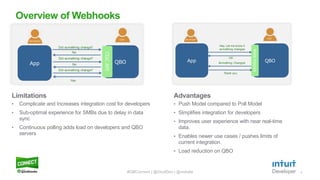
Advantages
• Push Model compared to Poll Model
• Simplifies integration for developers
• Improves user experience with near real-time
data.
• Enables newer use cases / pushes limits of
current integration.
• Load reduction on QBO
Limitations
• Complicate and Increases integration cost for developers
• Sub-optimal experience for SMBs due to delay in data
sync
• Continuous polling adds load on developers and QBO
servers
Overview of Webhooks
#QBConnect | @IntuitDev | @vishala
Developer
App QBO
CDCAPI
Did something change?
No
Did something change?
No
Did something change?
Yes
User Developer
App QBO
Web·hooks
Hey, Let me know if
something changes
OK
Thank you
Something Changed
User
6
Source : Jeff Lindsay
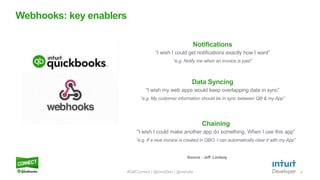
Webhooks: key enablers
#QBConnect | @IntuitDev | @vishala
Notifications
“I wish I could get notifications exactly how I want”
“e.g. Notify me when an invoice is paid”
Data Syncing
“I wish my web apps would keep overlapping data in sync”
“e.g. My customer information should be in sync between QB & my App”
Chaining
“I wish I could make another app do something, When I use this app”
“e.g. If a new invoice is created in QBO, I can automatically clear it with my App”
Demo
8
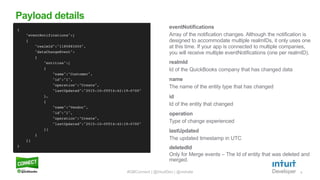
eventNotifications
Array of the notification changes. Although the notification is
designed to accommodate multiple realmIDs, it only uses one
at this time. If your app is connected to multiple companies,
you will receive multiple eventNotifications (one per realmID).
Payload details
#QBConnect | @IntuitDev | @vishala
realmId
Id of the QuickBooks company that has changed data
name
The name of the entity type that has changed
id
Id of the entity that changed
operation
Type of change experienced
lastUpdated
The updated timestamp in UTC
deletedId
Only for Merge events – The Id of entity that was deleted and
merged.
9
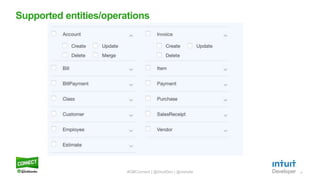
Supported entities/operations
#QBConnect | @IntuitDev | @vishala
10
Reliability
Respond Promptly
Manage Concurrency
Notification Ordering
Retry Policy
Integration best practices
#QBConnect | @IntuitDev | @vishala
11
Reliability
• In order to compensate for the possibility of missed or
dropped packets, make a ChangeDataCapture (CDC) call
for each entity received up to the last notification time (as
shown in sample app) upon receipt of new notification.
• You can additionally make a daily CDC call for all entities to
ensure that your database is consistently up to date.
Integration best practices
#QBConnect | @IntuitDev | @vishala
12
Respond Promptly
• Your endpoint should respond within three seconds; otherwise,
the transaction will time out and be retried.
• To make sure you can always respond quickly, do not process
the notification payload or perform complex operations within
the Webhooks endpoint implementation.
• It is a good idea to do the processing on a separate thread
asynchronously using a queue.
Integration best practices
#QBConnect | @IntuitDev | @vishala
13
Manage Concurrency
• Event notifications are sent for each realmID at a time.
•When there are multiple changes happening rapidly, your
app may receive notifications frequently.
•Care should be taken to process the queue linearly to avoid
processing the same changes more than once.
Integration best practices
#QBConnect | @IntuitDev | @vishala
14
Notification Ordering
• While we make all effort to send the events in order, it is
possible to receive an older event in a subsequent
notification.
• The event timestamp field in the notification payload is
always the source of truth for when an event has occurred.
Integration best practices
#QBConnect | @IntuitDev | @SpeakerTwitterHandle
15
Retry Policy
• If the endpoint is down, we will retry progressively (first time
after 20 minutes, then again after 30 minutes, and a third
time after 50 minutes) and finally drop the message.
• The endpoint will become inactive after one day.
Integration best practices
#QBConnect | @IntuitDev | @vishala
16
• API based subscription per company
• Configure aggregation period
• Event Log Viewer
• Capability to replay events
Looking into the future
#QBConnect | @IntuitDev | @vishala
Questions?
Thanks for coming!
We’d love your feedback.
Before you head out, take a minute to rate this session in the
QuickBooks Connect mobile app.
Keep the conversation going
developer.intuit.com/hub/quickbooks-connect
Access Session Slides
Engage with Speakers and Fellow Developers
Get Questions Answered
QuickBooks Connect 2016 - Using WebHooks to handle data changes in your app

QuickBooks Connect 2016 - Using WebHooks to handle data changes in your app

  • 1.
    Vishal Aggarwal, JoeBumbaca Using webhooks to handle data changes in your app WiFi: QBConnect Password: not required#QBConnect
  • 2.
    2 Today’s speakers Vishal Aggarwal SeniorProduct Manager @vishala Joe Bumbaca Senior Software Engineer #QBConnect | @IntuitDev | @vishala
  • 3.
    Overview of Webhooks KeyEnablers Demo Payload Supported Entities/Operations Best Practices Looking into the future Q&A Agenda
  • 4.
    web•hooks |ˈwebˌhoŏ ks| patternof enabling user-defined callbacks in web applications – Jeff Lindsay Hacker, Philosopher
  • 5.
    5 Advantages • Push Modelcompared to Poll Model • Simplifies integration for developers • Improves user experience with near real-time data. • Enables newer use cases / pushes limits of current integration. • Load reduction on QBO Limitations • Complicate and Increases integration cost for developers • Sub-optimal experience for SMBs due to delay in data sync • Continuous polling adds load on developers and QBO servers Overview of Webhooks #QBConnect | @IntuitDev | @vishala Developer App QBO CDCAPI Did something change? No Did something change? No Did something change? Yes User Developer App QBO Web·hooks Hey, Let me know if something changes OK Thank you Something Changed User
  • 6.
    6 Source : JeffLindsay Webhooks: key enablers #QBConnect | @IntuitDev | @vishala Notifications “I wish I could get notifications exactly how I want” “e.g. Notify me when an invoice is paid” Data Syncing “I wish my web apps would keep overlapping data in sync” “e.g. My customer information should be in sync between QB & my App” Chaining “I wish I could make another app do something, When I use this app” “e.g. If a new invoice is created in QBO, I can automatically clear it with my App”
  • 7.
  • 8.
    8 eventNotifications Array of thenotification changes. Although the notification is designed to accommodate multiple realmIDs, it only uses one at this time. If your app is connected to multiple companies, you will receive multiple eventNotifications (one per realmID). Payload details #QBConnect | @IntuitDev | @vishala realmId Id of the QuickBooks company that has changed data name The name of the entity type that has changed id Id of the entity that changed operation Type of change experienced lastUpdated The updated timestamp in UTC deletedId Only for Merge events – The Id of entity that was deleted and merged.
  • 9.
  • 10.
    10 Reliability Respond Promptly Manage Concurrency NotificationOrdering Retry Policy Integration best practices #QBConnect | @IntuitDev | @vishala
  • 11.
    11 Reliability • In orderto compensate for the possibility of missed or dropped packets, make a ChangeDataCapture (CDC) call for each entity received up to the last notification time (as shown in sample app) upon receipt of new notification. • You can additionally make a daily CDC call for all entities to ensure that your database is consistently up to date. Integration best practices #QBConnect | @IntuitDev | @vishala
  • 12.
    12 Respond Promptly • Yourendpoint should respond within three seconds; otherwise, the transaction will time out and be retried. • To make sure you can always respond quickly, do not process the notification payload or perform complex operations within the Webhooks endpoint implementation. • It is a good idea to do the processing on a separate thread asynchronously using a queue. Integration best practices #QBConnect | @IntuitDev | @vishala
  • 13.
    13 Manage Concurrency • Eventnotifications are sent for each realmID at a time. •When there are multiple changes happening rapidly, your app may receive notifications frequently. •Care should be taken to process the queue linearly to avoid processing the same changes more than once. Integration best practices #QBConnect | @IntuitDev | @vishala
  • 14.
    14 Notification Ordering • Whilewe make all effort to send the events in order, it is possible to receive an older event in a subsequent notification. • The event timestamp field in the notification payload is always the source of truth for when an event has occurred. Integration best practices #QBConnect | @IntuitDev | @SpeakerTwitterHandle
  • 15.
    15 Retry Policy • Ifthe endpoint is down, we will retry progressively (first time after 20 minutes, then again after 30 minutes, and a third time after 50 minutes) and finally drop the message. • The endpoint will become inactive after one day. Integration best practices #QBConnect | @IntuitDev | @vishala
  • 16.
    16 • API basedsubscription per company • Configure aggregation period • Event Log Viewer • Capability to replay events Looking into the future #QBConnect | @IntuitDev | @vishala
  • 17.
  • 18.
    Thanks for coming! We’dlove your feedback. Before you head out, take a minute to rate this session in the QuickBooks Connect mobile app. Keep the conversation going developer.intuit.com/hub/quickbooks-connect Access Session Slides Engage with Speakers and Fellow Developers Get Questions Answered

Editor's Notes

  • #4 This is a sample AGENDA using the Agenda layout. Placeholder text boxes that appear as part of the selected layout have predefined fonts, sizes and colors. To change the appearance of any line of text, on the Home tab, in the Paragraph group, click Increase Indent or Decrease Indent. The selected text will reformat to the predefined size according to its indent level. Note: Any changes to the color, size, spacing or font in the placeholder text box will break its connection to the Master style. It will no longer automatically conform when switching between layouts or when imported into another presentation.
  • #7 This is a sample CAPTIONED VISUAL using the Subtitle Captioned Visual layout. Select the type of visual you wish to show in the placeholder on the left by choosing and clicking on one of the icons shown it the center of box. You can choose between Tables, Charts, SmartArt, Pictures, Movies or Text, Note: If the same layout is reapplied, the placeholder boxes reset to their default positions. Your content will all still remain but would need to be readjusted from the default (again).
  • #9 This is a sample CAPTIONED VISUAL using the Subtitle Captioned Visual layout. Select the type of visual you wish to show in the placeholder on the left by choosing and clicking on one of the icons shown it the center of box. You can choose between Tables, Charts, SmartArt, Pictures, Movies or Text, Note: If the same layout is reapplied, the placeholder boxes reset to their default positions. Your content will all still remain but would need to be readjusted from the default (again).
  • #10 This is a sample CAPTIONED VISUAL using the Subtitle Captioned Visual layout. Select the type of visual you wish to show in the placeholder on the left by choosing and clicking on one of the icons shown it the center of box. You can choose between Tables, Charts, SmartArt, Pictures, Movies or Text, Note: If the same layout is reapplied, the placeholder boxes reset to their default positions. Your content will all still remain but would need to be readjusted from the default (again).
  • #11 This is a sample INTRODUCTION using the 1-Column layout. Placeholder text boxes that appear as part of the selected layout have predefined fonts, sizes and colors. To change the appearance of any line of text, on the Home tab, in the Paragraph group, click Increase Indent or Decrease Indent. The selected text will reformat to the predefined size according to its indent level. Note: Any changes to the color, size, spacing or font in the placeholder text box will break its connection to the Master style. It will no longer automatically conform when switching between layouts or when imported into another presentation.
  • #12 This is a sample INTRODUCTION using the 1-Column layout. Placeholder text boxes that appear as part of the selected layout have predefined fonts, sizes and colors. To change the appearance of any line of text, on the Home tab, in the Paragraph group, click Increase Indent or Decrease Indent. The selected text will reformat to the predefined size according to its indent level. Note: Any changes to the color, size, spacing or font in the placeholder text box will break its connection to the Master style. It will no longer automatically conform when switching between layouts or when imported into another presentation.
  • #13 This is a sample INTRODUCTION using the 1-Column layout. Placeholder text boxes that appear as part of the selected layout have predefined fonts, sizes and colors. To change the appearance of any line of text, on the Home tab, in the Paragraph group, click Increase Indent or Decrease Indent. The selected text will reformat to the predefined size according to its indent level. Note: Any changes to the color, size, spacing or font in the placeholder text box will break its connection to the Master style. It will no longer automatically conform when switching between layouts or when imported into another presentation.
  • #14 This is a sample INTRODUCTION using the 1-Column layout. Placeholder text boxes that appear as part of the selected layout have predefined fonts, sizes and colors. To change the appearance of any line of text, on the Home tab, in the Paragraph group, click Increase Indent or Decrease Indent. The selected text will reformat to the predefined size according to its indent level. Note: Any changes to the color, size, spacing or font in the placeholder text box will break its connection to the Master style. It will no longer automatically conform when switching between layouts or when imported into another presentation.
  • #15 This is a sample INTRODUCTION using the 1-Column layout. Placeholder text boxes that appear as part of the selected layout have predefined fonts, sizes and colors. To change the appearance of any line of text, on the Home tab, in the Paragraph group, click Increase Indent or Decrease Indent. The selected text will reformat to the predefined size according to its indent level. Note: Any changes to the color, size, spacing or font in the placeholder text box will break its connection to the Master style. It will no longer automatically conform when switching between layouts or when imported into another presentation.
  • #16 This is a sample INTRODUCTION using the 1-Column layout. Placeholder text boxes that appear as part of the selected layout have predefined fonts, sizes and colors. To change the appearance of any line of text, on the Home tab, in the Paragraph group, click Increase Indent or Decrease Indent. The selected text will reformat to the predefined size according to its indent level. Note: Any changes to the color, size, spacing or font in the placeholder text box will break its connection to the Master style. It will no longer automatically conform when switching between layouts or when imported into another presentation.
  • #17 This is a sample INTRODUCTION using the 1-Column layout. Placeholder text boxes that appear as part of the selected layout have predefined fonts, sizes and colors. To change the appearance of any line of text, on the Home tab, in the Paragraph group, click Increase Indent or Decrease Indent. The selected text will reformat to the predefined size according to its indent level. Note: Any changes to the color, size, spacing or font in the placeholder text box will break its connection to the Master style. It will no longer automatically conform when switching between layouts or when imported into another presentation.