I started my double page construction on
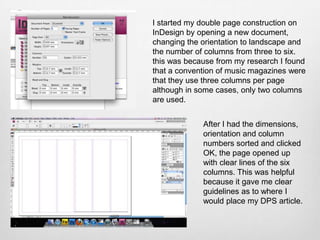
InDesign by opening a new document,
changing the orientation to landscape and
the number of columns from three to six.
this was because from my research I found
that a convention of music magazines were
that they use three columns per page
although in some cases, only two columns
are used.


             After I had the dimensions,
             orientation and column
             numbers sorted and clicked
             OK, the page opened up
             with clear lines of the six
             columns. This was helpful
             because it gave me clear
             guidelines as to where I
             would place my DPS article.
I then started to get my content
        onto the page so I could start to
        work around it and decide where
        to place my main image etc. I
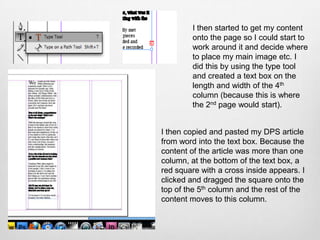
        did this by using the type tool
        and created a text box on the
        length and width of the 4th
        column (because this is where
        the 2nd page would start).


I then copied and pasted my DPS article
from word into the text box. Because the
content of the article was more than one
column, at the bottom of the text box, a
red square with a cross inside appears. I
clicked and dragged the square onto the
top of the 5th column and the rest of the
content moves to this column.
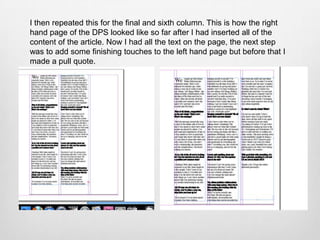
I then repeated this for the final and sixth column. This is how the right
hand page of the DPS looked like so far after I had inserted all of the
content of the article. Now I had all the text on the page, the next step
was to add some finishing touches to the left hand page but before that I
made a pull quote.
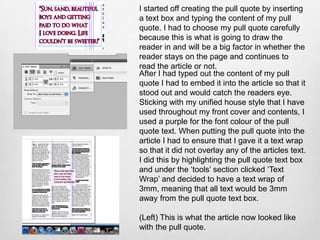
I started off creating the pull quote by inserting
a text box and typing the content of my pull
quote. I had to choose my pull quote carefully
because this is what is going to draw the
reader in and will be a big factor in whether the
reader stays on the page and continues to
read the article or not.
After I had typed out the content of my pull
quote I had to embed it into the article so that it
stood out and would catch the readers eye.
Sticking with my unified house style that I have
used throughout my front cover and contents, I
used a purple for the font colour of the pull
quote text. When putting the pull quote into the
article I had to ensure that I gave it a text wrap
so that it did not overlay any of the articles text.
I did this by highlighting the pull quote text box
and under the ‘tools’ section clicked ‘Text
Wrap’ and decided to have a text wrap of
3mm, meaning that all text would be 3mm
away from the pull quote text box.

(Left) This is what the article now looked like
with the pull quote.
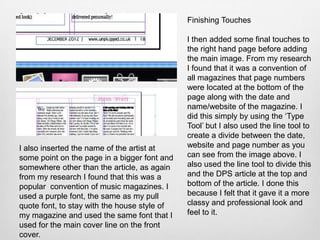
Finishing Touches

                                              I then added some final touches to
                                              the right hand page before adding
                                              the main image. From my research
                                              I found that it was a convention of
                                              all magazines that page numbers
                                              were located at the bottom of the
                                              page along with the date and
                                              name/website of the magazine. I
                                              did this simply by using the ‘Type
                                              Tool’ but I also used the line tool to
                                              create a divide between the date,
I also inserted the name of the artist at     website and page number as you
some point on the page in a bigger font and   can see from the image above. I
somewhere other than the article, as again    also used the line tool to divide this
from my research I found that this was a      and the DPS article at the top and
popular convention of music magazines. I      bottom of the article. I done this
used a purple font, the same as my pull       because I felt that it gave it a more
quote font, to stay with the house style of   classy and professional look and
my magazine and used the same font that I     feel to it.
used for the main cover line on the front
cover.
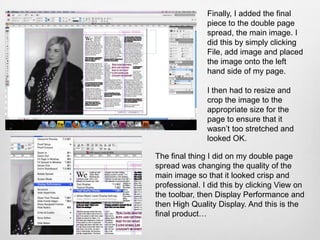
Finally, I added the final
               piece to the double page
               spread, the main image. I
               did this by simply clicking
               File, add image and placed
               the image onto the left
               hand side of my page.

               I then had to resize and
               crop the image to the
               appropriate size for the
               page to ensure that it
               wasn’t too stretched and
               looked OK.

The final thing I did on my double page
spread was changing the quality of the
main image so that it looked crisp and
professional. I did this by clicking View on
the toolbar, then Display Performance and
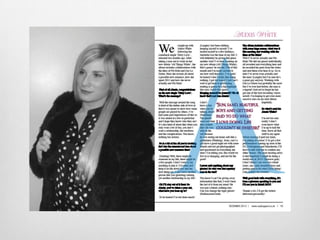
then High Quality Display. And this is the
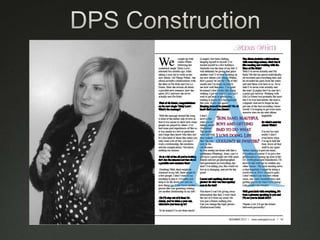
final product…
Presentation1

Presentation1

  • 2.
    I started mydouble page construction on InDesign by opening a new document, changing the orientation to landscape and the number of columns from three to six. this was because from my research I found that a convention of music magazines were that they use three columns per page although in some cases, only two columns are used. After I had the dimensions, orientation and column numbers sorted and clicked OK, the page opened up with clear lines of the six columns. This was helpful because it gave me clear guidelines as to where I would place my DPS article.
  • 3.
    I then startedto get my content onto the page so I could start to work around it and decide where to place my main image etc. I did this by using the type tool and created a text box on the length and width of the 4th column (because this is where the 2nd page would start). I then copied and pasted my DPS article from word into the text box. Because the content of the article was more than one column, at the bottom of the text box, a red square with a cross inside appears. I clicked and dragged the square onto the top of the 5th column and the rest of the content moves to this column.
  • 4.
    I then repeatedthis for the final and sixth column. This is how the right hand page of the DPS looked like so far after I had inserted all of the content of the article. Now I had all the text on the page, the next step was to add some finishing touches to the left hand page but before that I made a pull quote.
  • 5.
    I started offcreating the pull quote by inserting a text box and typing the content of my pull quote. I had to choose my pull quote carefully because this is what is going to draw the reader in and will be a big factor in whether the reader stays on the page and continues to read the article or not. After I had typed out the content of my pull quote I had to embed it into the article so that it stood out and would catch the readers eye. Sticking with my unified house style that I have used throughout my front cover and contents, I used a purple for the font colour of the pull quote text. When putting the pull quote into the article I had to ensure that I gave it a text wrap so that it did not overlay any of the articles text. I did this by highlighting the pull quote text box and under the ‘tools’ section clicked ‘Text Wrap’ and decided to have a text wrap of 3mm, meaning that all text would be 3mm away from the pull quote text box. (Left) This is what the article now looked like with the pull quote.
  • 6.
    Finishing Touches I then added some final touches to the right hand page before adding the main image. From my research I found that it was a convention of all magazines that page numbers were located at the bottom of the page along with the date and name/website of the magazine. I did this simply by using the ‘Type Tool’ but I also used the line tool to create a divide between the date, I also inserted the name of the artist at website and page number as you some point on the page in a bigger font and can see from the image above. I somewhere other than the article, as again also used the line tool to divide this from my research I found that this was a and the DPS article at the top and popular convention of music magazines. I bottom of the article. I done this used a purple font, the same as my pull because I felt that it gave it a more quote font, to stay with the house style of classy and professional look and my magazine and used the same font that I feel to it. used for the main cover line on the front cover.
  • 7.
    Finally, I addedthe final piece to the double page spread, the main image. I did this by simply clicking File, add image and placed the image onto the left hand side of my page. I then had to resize and crop the image to the appropriate size for the page to ensure that it wasn’t too stretched and looked OK. The final thing I did on my double page spread was changing the quality of the main image so that it looked crisp and professional. I did this by clicking View on the toolbar, then Display Performance and then High Quality Display. And this is the final product…