Screen Caps For Contents Page
Screen Shots and Written Process
for my Final Magazine Front Cover
Screen Caps For Contents Page
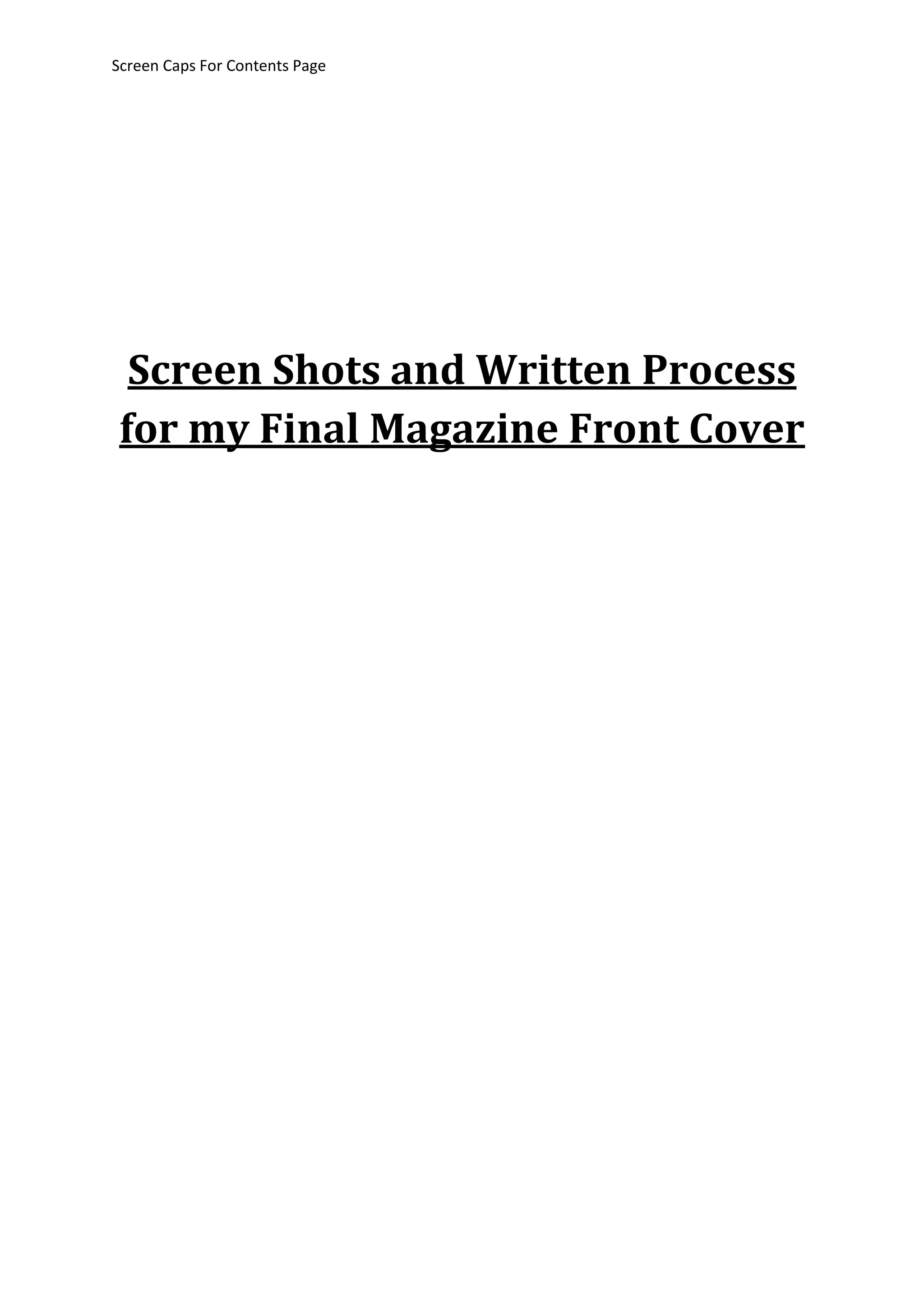
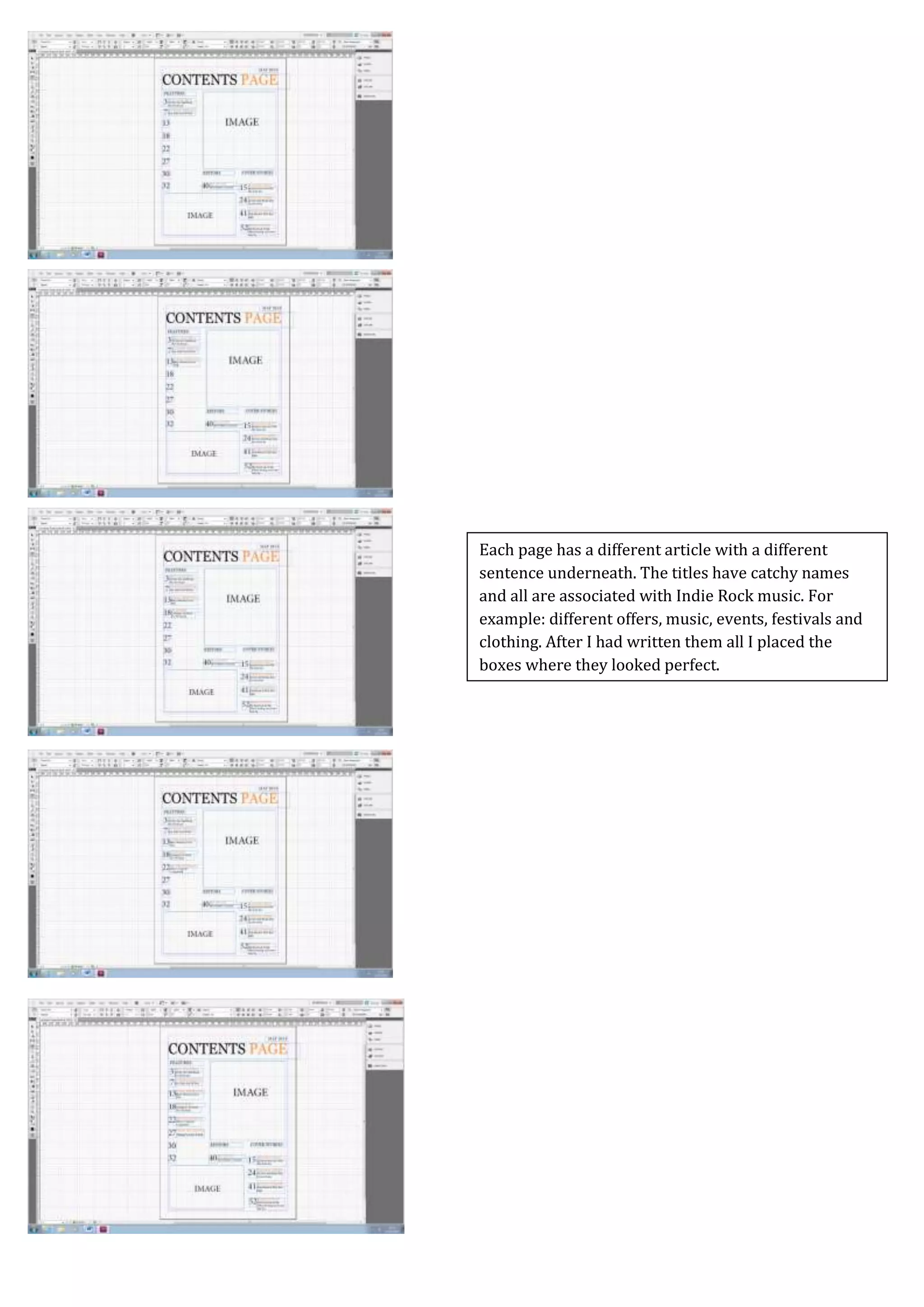
I then did the same for my second image so I could see
the placement of it. This is still sticking to the layout of
my selected Mock Contents Page.
I didn’t have my imaged yet therefore I placed in the
box for my first image and the place I would put that
so I could see the size I needed for the rest of the text
and cover lines to fit in around it.
I then placed in the month and year of this issue which
was ‘May 2013’. I then placed this at the top of the
place in the right hand corner therefore easy to see
and for the readers to know what issue they are
looking at.
I then needed to stick to the house style therefore I
used the same font of ‘Georgia’ and I used the same
colour of a yellowy orange which is also in the same
house style. I didn’t like it when the whole title was
orange however just one word made it look quirky
and with a nice happy summer look.
To start my contents page off I had to open up
InDesign and place on a grid just like my Front Cover.
The first thing I decided to start with on this page was
the title which I named “Contents Page” with the same
page layout as on my Mock Up.
Screen Caps For Contents Page
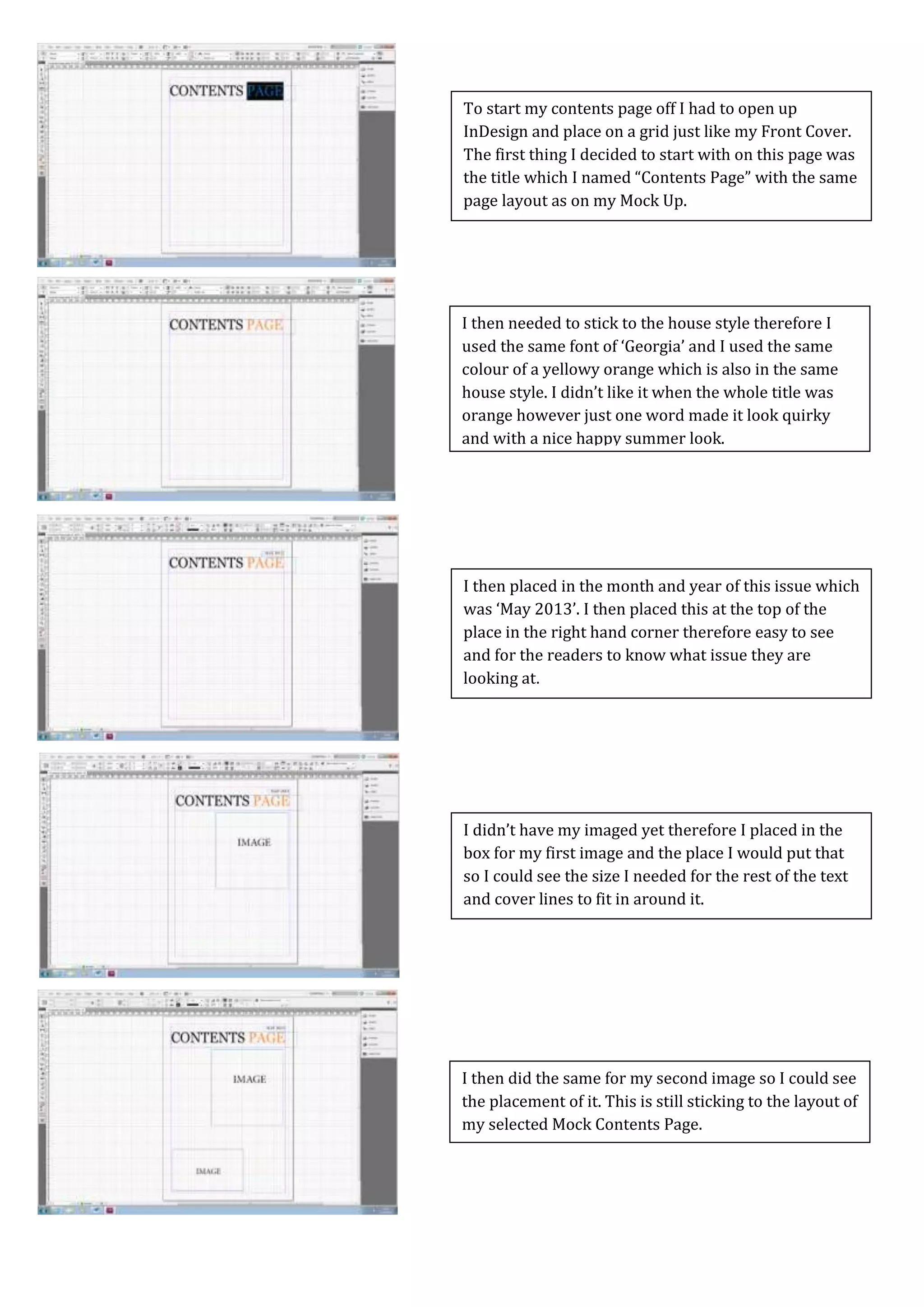
This is adding in numbers to the second and third
columns.
I then started adding in my numbers; I made these big
and easy to read as well as making them all different
so no two articles were overlapping with eachother.
After this I added in my third column of cover lines
this would be named “COVER STORIES”. I then did the
same on the third as the two above.
After this I added in my second column of cover lines
this would be named “EDITORS”. I did the same thing
as the title above and used the same font to make all
the titles look the same.
After this I added in my first column of cover lines this
would be named “FEATURES”. As these titles would
be bigger I placed them in capital letters so the page
would be easy to read. I then used the same ‘Georgia’
font and moved around the box until I found a suitable
location where it looks professional.
Screen Caps For Contents Page
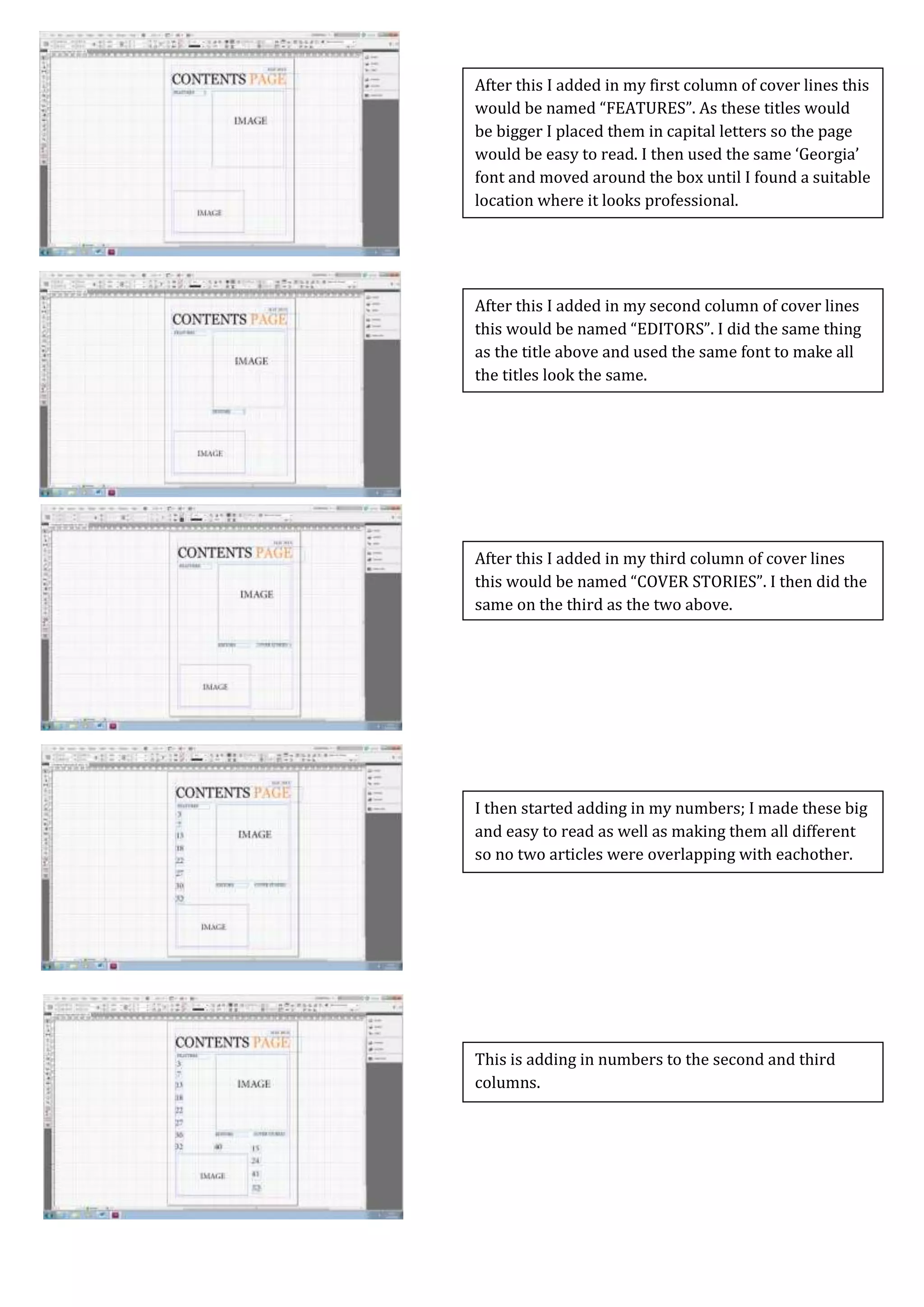
I then did the same for the ‘FEATURES’ column.
I then did the same in the ‘EDITOR’ column, adding
another article.
After that I added in the detailed phrase or catchy
sentence. This tells the reader about the article in a
brief statement to make it easy to locate what they
want to read. This is in a smaller font from the title of
the article and in black therefore the reader is able to
identify what is written.
I then changed the colour of the titles for my cover
stories I just added in titles that I had used on my
front cover but adapted them a bit to make them
readable and not too long. I made these titles a
smaller than the titles of the columns and half the size
of the number. I also made them orange so they are
separated from the detailed phrase that would be
underneath them about that particular page.
After this I added in the titles of the magazines I made
these have a capital at every word and the font
‘Georgia’ on all of them.
Screen Caps For Contents Page
Each page has a different article with a different
sentence underneath. The titles have catchy names
and all are associated with Indie Rock music. For
example: different offers, music, events, festivals and
clothing. After I had written them all I placed the
boxes where they looked perfect.
Screen Caps For Contents Page
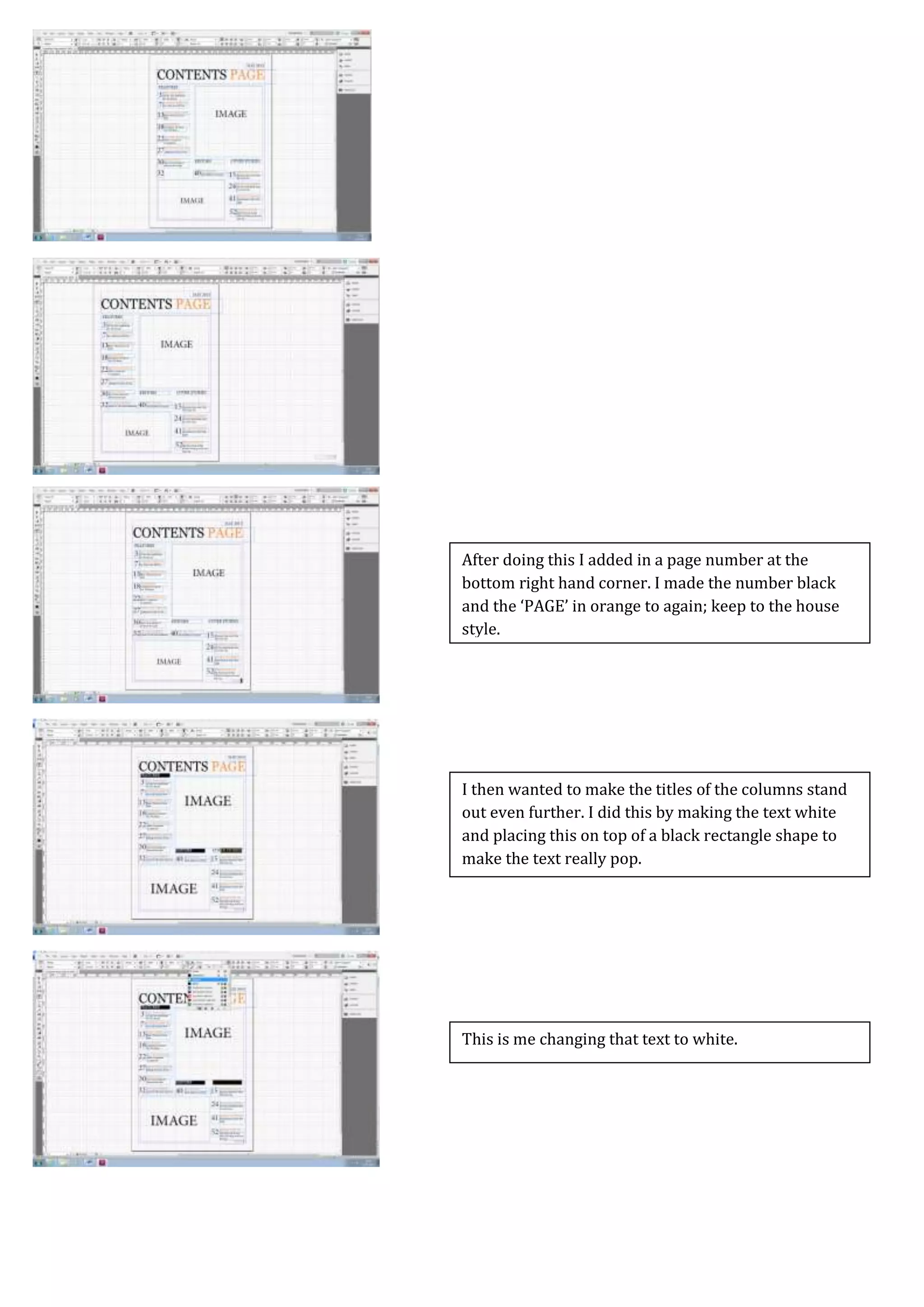
After doing this I added in a page number at the
bottom right hand corner. I made the number black
and the ‘PAGE’ in orange to again; keep to the house
style.
I then wanted to make the titles of the columns stand
out even further. I did this by making the text white
and placing this on top of a black rectangle shape to
make the text really pop.
This is me changing that text to white.
Screen Caps For Contents Page
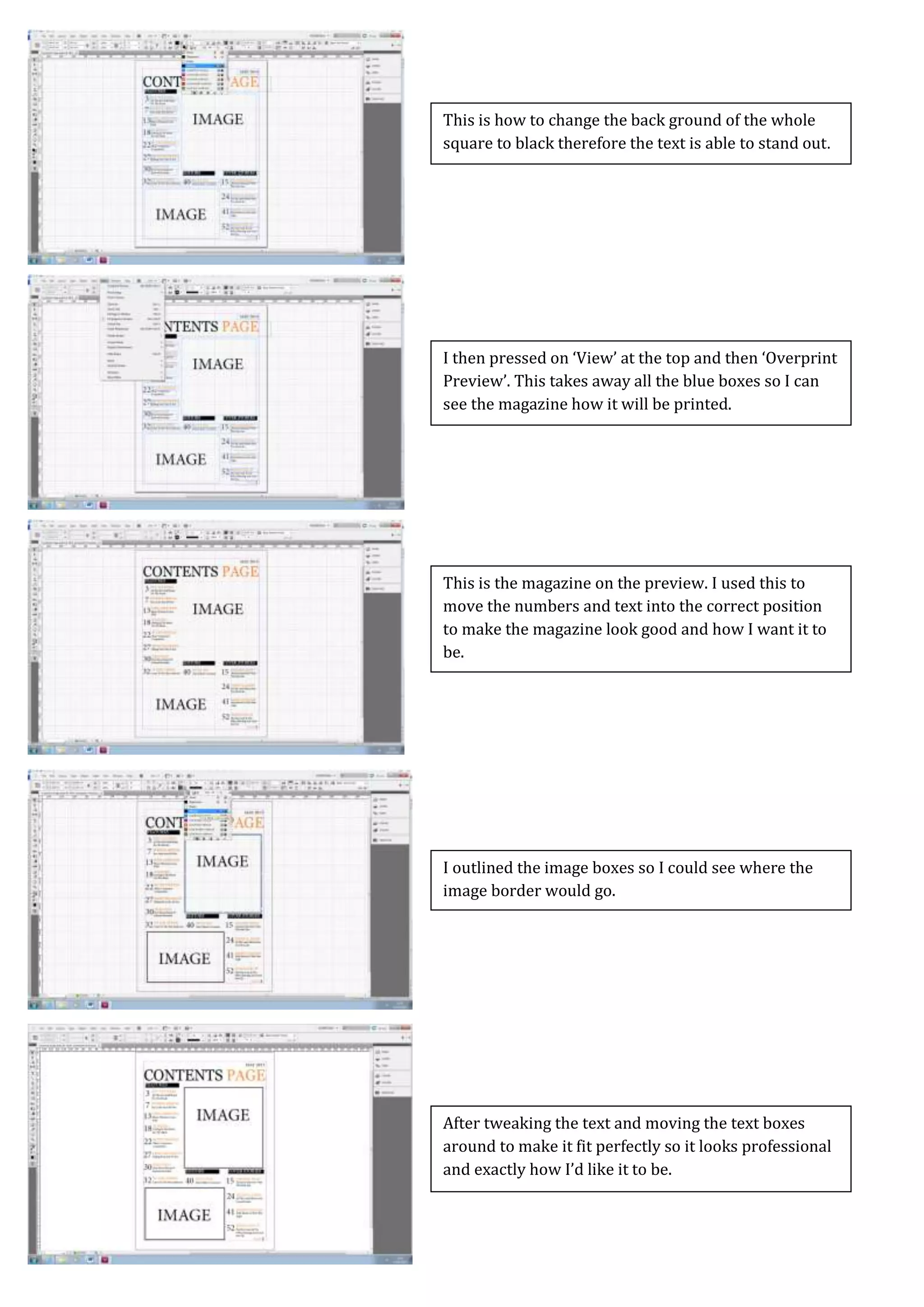
After tweaking the text and moving the text boxes
around to make it fit perfectly so it looks professional
and exactly how I’d like it to be.
I outlined the image boxes so I could see where the
image border would go.
This is the magazine on the preview. I used this to
move the numbers and text into the correct position
to make the magazine look good and how I want it to
be.
I then pressed on ‘View’ at the top and then ‘Overprint
Preview’. This takes away all the blue boxes so I can
see the magazine how it will be printed.
This is how to change the back ground of the whole
square to black therefore the text is able to stand out.
Screen Caps For Contents Page
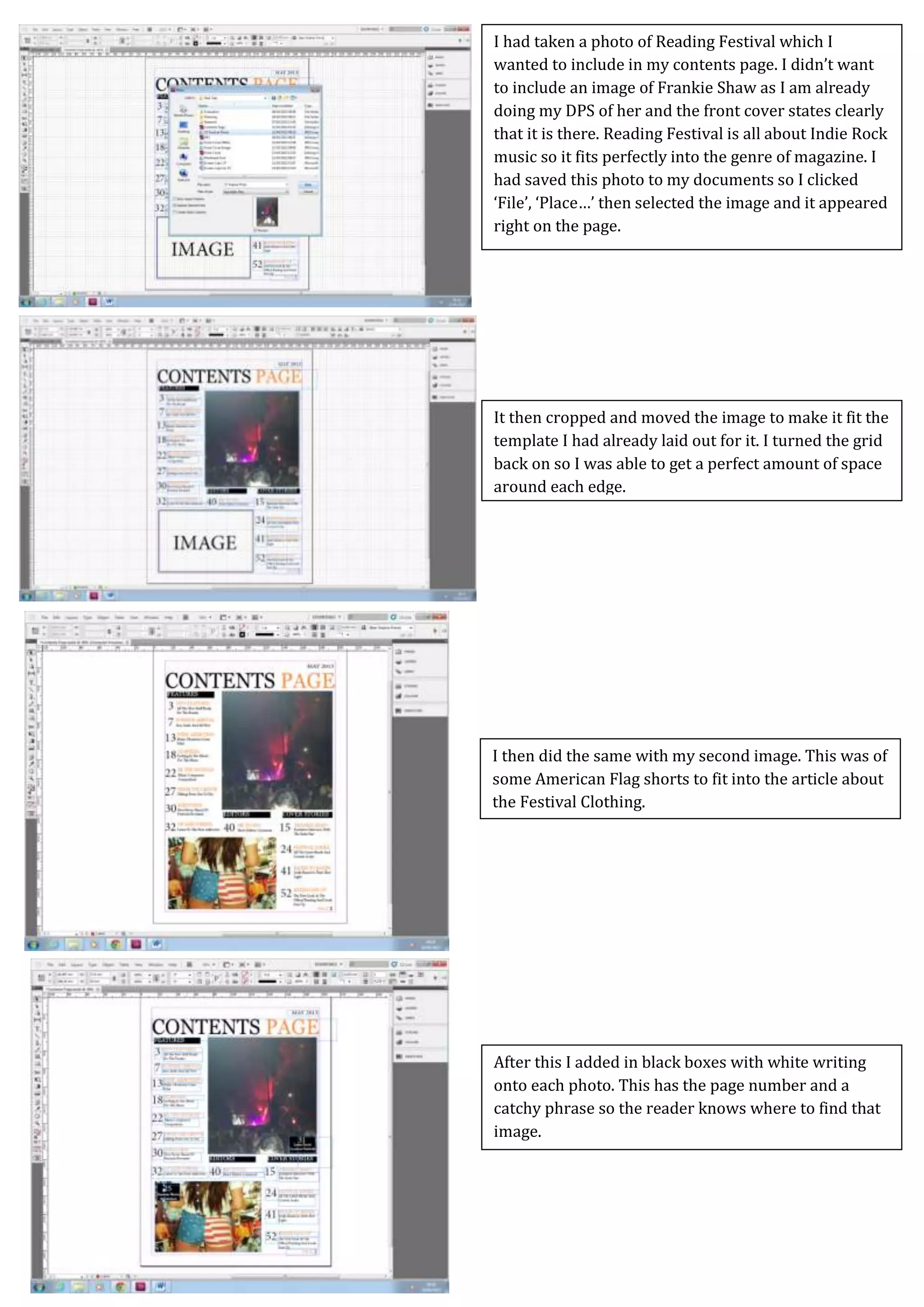
I then did the same with my second image. This was of
some American Flag shorts to fit into the article about
the Festival Clothing.
It then cropped and moved the image to make it fit the
template I had already laid out for it. I turned the grid
back on so I was able to get a perfect amount of space
around each edge.
I had taken a photo of Reading Festival which I
wanted to include in my contents page. I didn’t want
to include an image of Frankie Shaw as I am already
doing my DPS of her and the front cover states clearly
that it is there. Reading Festival is all about Indie Rock
music so it fits perfectly into the genre of magazine. I
had saved this photo to my documents so I clicked
‘File’, ‘Place…’ then selected the image and it appeared
right on the page.
After this I added in black boxes with white writing
onto each photo. This has the page number and a
catchy phrase so the reader knows where to find that
image.
Screen Caps For Contents Page
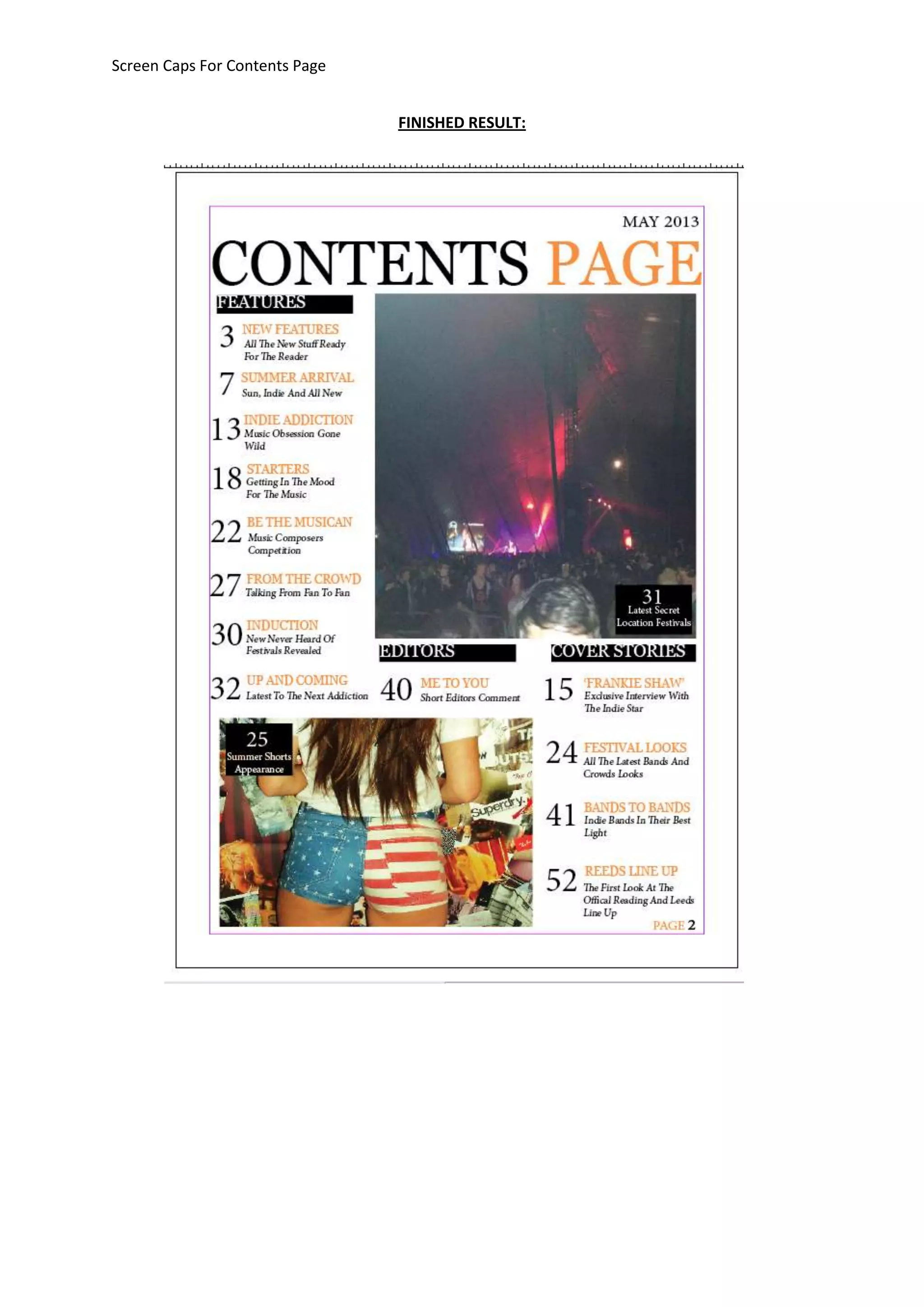
FINISHED RESULT:

Screen Caps For Contents Page

  • 1.
    Screen Caps ForContents Page Screen Shots and Written Process for my Final Magazine Front Cover
  • 2.
    Screen Caps ForContents Page I then did the same for my second image so I could see the placement of it. This is still sticking to the layout of my selected Mock Contents Page. I didn’t have my imaged yet therefore I placed in the box for my first image and the place I would put that so I could see the size I needed for the rest of the text and cover lines to fit in around it. I then placed in the month and year of this issue which was ‘May 2013’. I then placed this at the top of the place in the right hand corner therefore easy to see and for the readers to know what issue they are looking at. I then needed to stick to the house style therefore I used the same font of ‘Georgia’ and I used the same colour of a yellowy orange which is also in the same house style. I didn’t like it when the whole title was orange however just one word made it look quirky and with a nice happy summer look. To start my contents page off I had to open up InDesign and place on a grid just like my Front Cover. The first thing I decided to start with on this page was the title which I named “Contents Page” with the same page layout as on my Mock Up.
  • 3.
    Screen Caps ForContents Page This is adding in numbers to the second and third columns. I then started adding in my numbers; I made these big and easy to read as well as making them all different so no two articles were overlapping with eachother. After this I added in my third column of cover lines this would be named “COVER STORIES”. I then did the same on the third as the two above. After this I added in my second column of cover lines this would be named “EDITORS”. I did the same thing as the title above and used the same font to make all the titles look the same. After this I added in my first column of cover lines this would be named “FEATURES”. As these titles would be bigger I placed them in capital letters so the page would be easy to read. I then used the same ‘Georgia’ font and moved around the box until I found a suitable location where it looks professional.
  • 4.
    Screen Caps ForContents Page I then did the same for the ‘FEATURES’ column. I then did the same in the ‘EDITOR’ column, adding another article. After that I added in the detailed phrase or catchy sentence. This tells the reader about the article in a brief statement to make it easy to locate what they want to read. This is in a smaller font from the title of the article and in black therefore the reader is able to identify what is written. I then changed the colour of the titles for my cover stories I just added in titles that I had used on my front cover but adapted them a bit to make them readable and not too long. I made these titles a smaller than the titles of the columns and half the size of the number. I also made them orange so they are separated from the detailed phrase that would be underneath them about that particular page. After this I added in the titles of the magazines I made these have a capital at every word and the font ‘Georgia’ on all of them.
  • 5.
    Screen Caps ForContents Page Each page has a different article with a different sentence underneath. The titles have catchy names and all are associated with Indie Rock music. For example: different offers, music, events, festivals and clothing. After I had written them all I placed the boxes where they looked perfect.
  • 6.
    Screen Caps ForContents Page After doing this I added in a page number at the bottom right hand corner. I made the number black and the ‘PAGE’ in orange to again; keep to the house style. I then wanted to make the titles of the columns stand out even further. I did this by making the text white and placing this on top of a black rectangle shape to make the text really pop. This is me changing that text to white.
  • 7.
    Screen Caps ForContents Page After tweaking the text and moving the text boxes around to make it fit perfectly so it looks professional and exactly how I’d like it to be. I outlined the image boxes so I could see where the image border would go. This is the magazine on the preview. I used this to move the numbers and text into the correct position to make the magazine look good and how I want it to be. I then pressed on ‘View’ at the top and then ‘Overprint Preview’. This takes away all the blue boxes so I can see the magazine how it will be printed. This is how to change the back ground of the whole square to black therefore the text is able to stand out.
  • 8.
    Screen Caps ForContents Page I then did the same with my second image. This was of some American Flag shorts to fit into the article about the Festival Clothing. It then cropped and moved the image to make it fit the template I had already laid out for it. I turned the grid back on so I was able to get a perfect amount of space around each edge. I had taken a photo of Reading Festival which I wanted to include in my contents page. I didn’t want to include an image of Frankie Shaw as I am already doing my DPS of her and the front cover states clearly that it is there. Reading Festival is all about Indie Rock music so it fits perfectly into the genre of magazine. I had saved this photo to my documents so I clicked ‘File’, ‘Place…’ then selected the image and it appeared right on the page. After this I added in black boxes with white writing onto each photo. This has the page number and a catchy phrase so the reader knows where to find that image.
  • 9.
    Screen Caps ForContents Page FINISHED RESULT: