tonokuriakose123@gmail.com
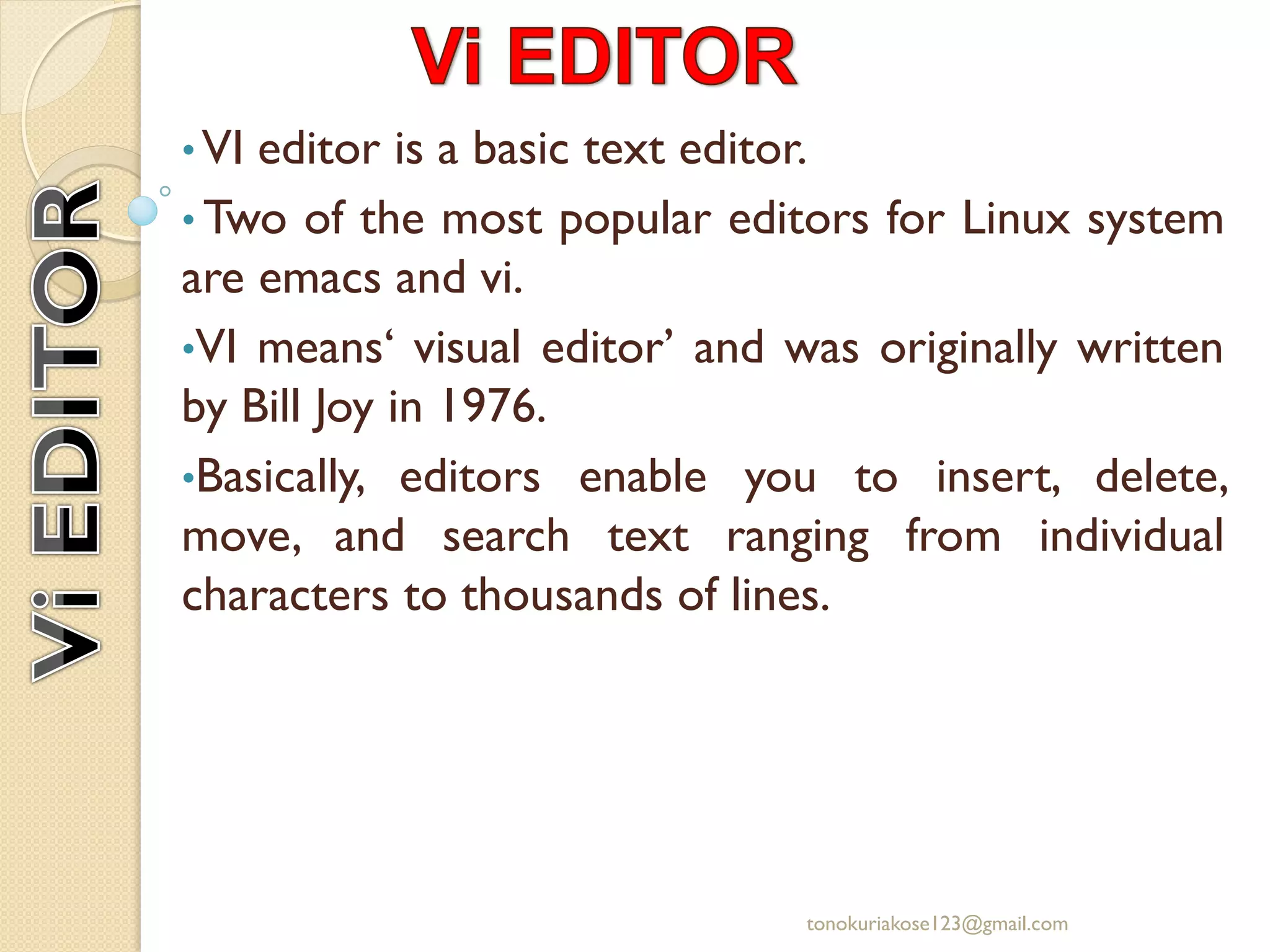
• VI editor is a basic text editor.
• Two of the most popular editors for Linux system
are emacs and vi.
•VI means‘ visual editor’ and was originally written
by Bill Joy in 1976.
•Basically, editors enable you to insert, delete,
move, and search text ranging from individual
characters to thousands of lines.
tonokuriakose123@gmail.com
There are following way you can start using vi editor:
 Open a terminal
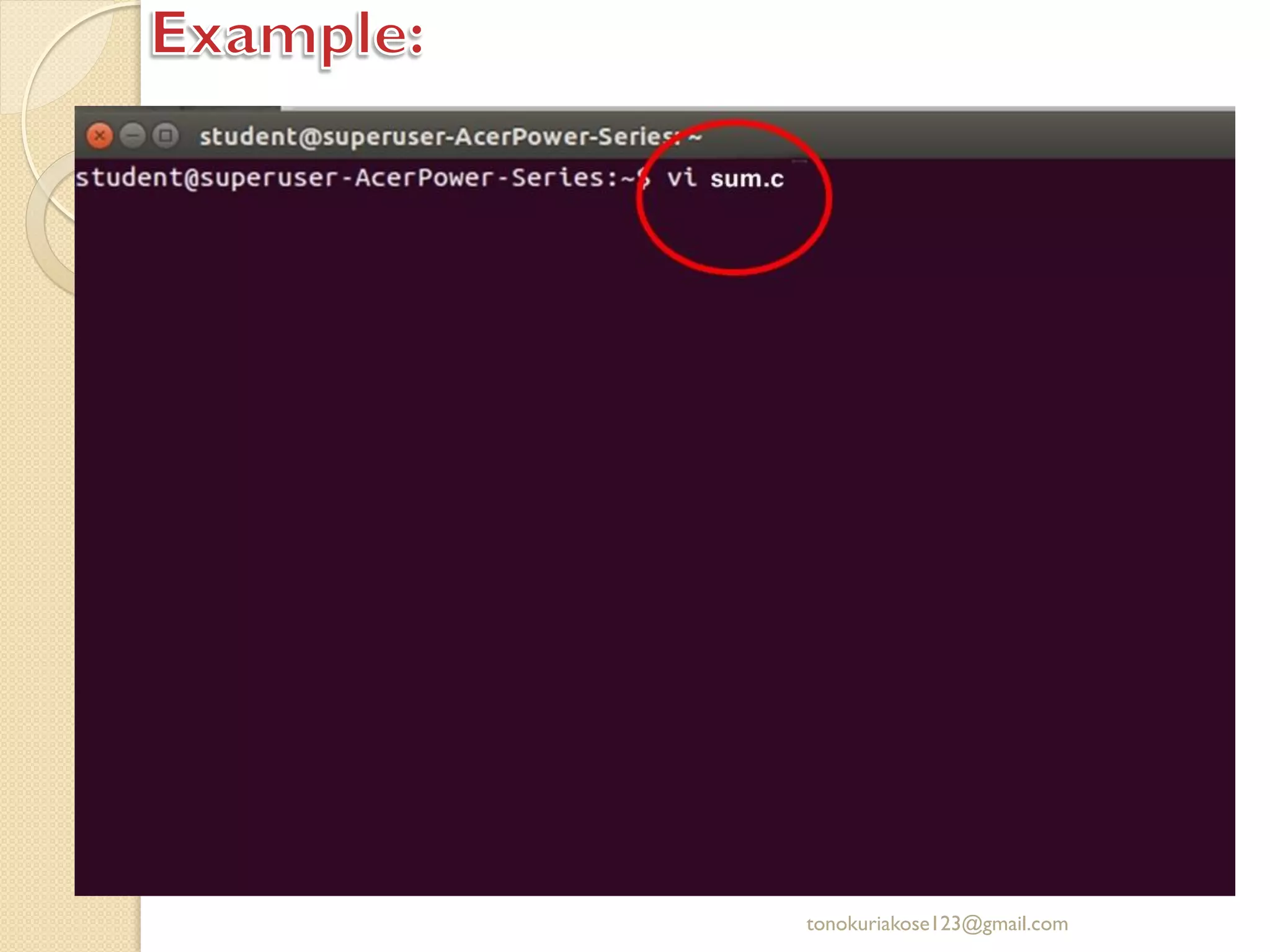
 Type vi followed by the name of existing file or new file
Command Description
vi Creat a unnamed file.
vi filename Creates a new file if it already does not exist,
otherwise opens existing file.
vi -R filename Or view
filename
Opens an existing file in read only mode.
vi +n filename Where n represents the line number where vi
will place its cursor in filename.
tonokuriakose123@gmail.com
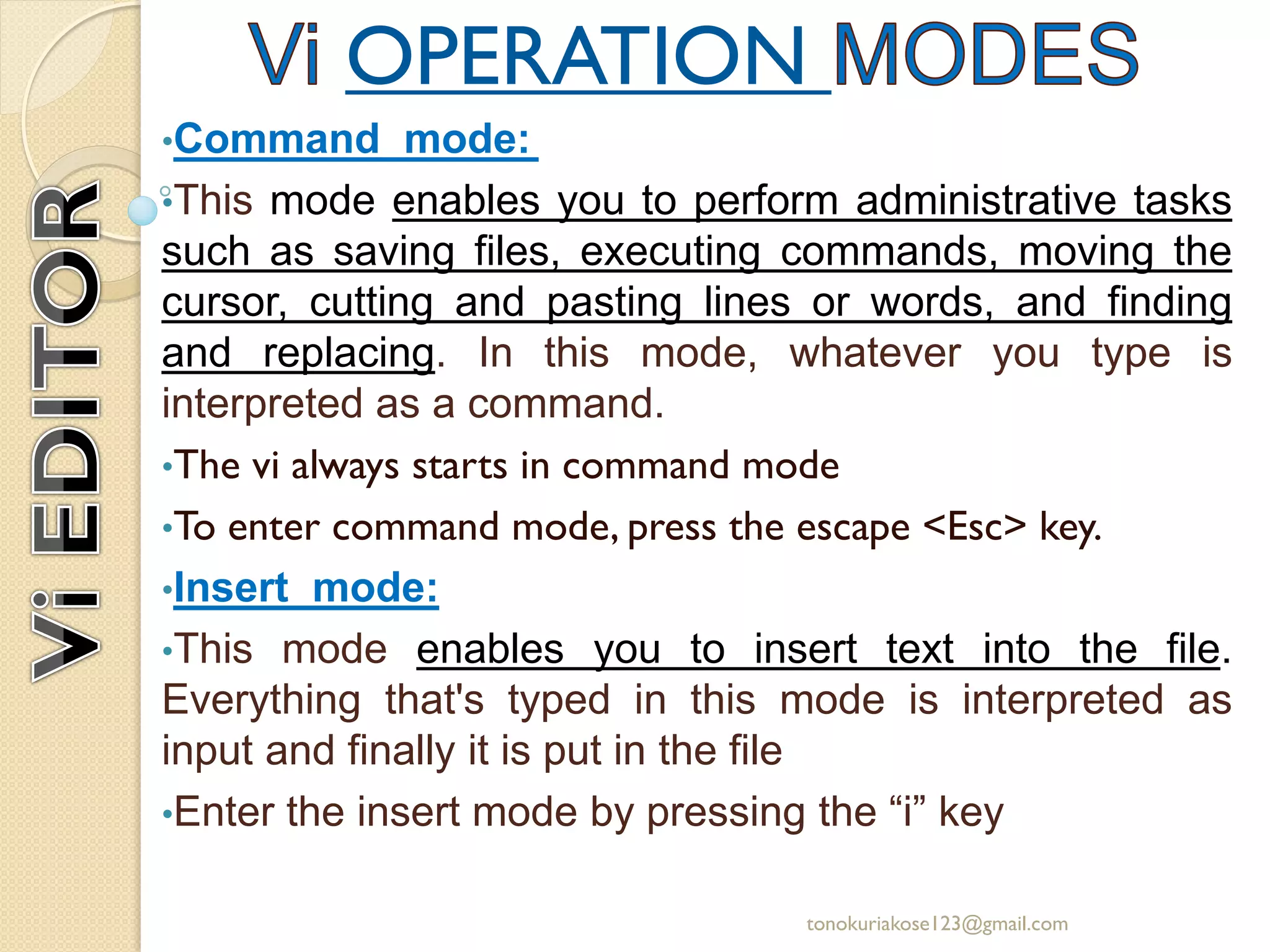
•Command mode:
•This mode enables you to perform administrative tasks
such as saving files, executing commands, moving the
cursor, cutting and pasting lines or words, and finding
and replacing. In this mode, whatever you type is
interpreted as a command.
•The vi always starts in command mode
•To enter command mode, press the escape <Esc> key.
•Insert mode:
•This mode enables you to insert text into the file.
Everything that's typed in this mode is interpreted as
input and finally it is put in the file
•Enter the insert mode by pressing the “i” key
OPERATION
tonokuriakose123@gmail.com
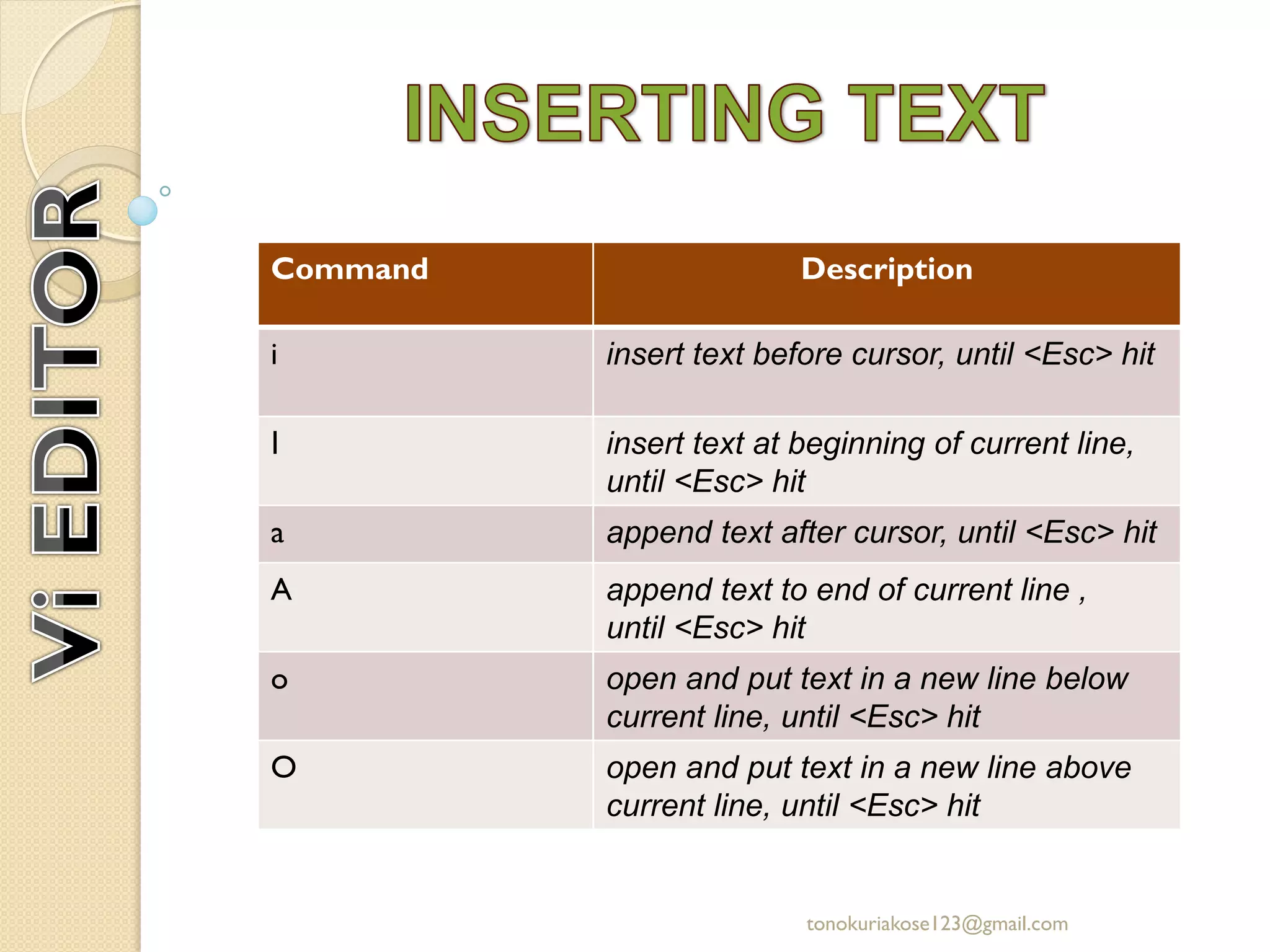
Command Description
i insert text before cursor, until <Esc> hit
I insert text at beginning of current line,
until <Esc> hit
a append text after cursor, until <Esc> hit
A append text to end of current line ,
until <Esc> hit
o open and put text in a new line below
current line, until <Esc> hit
O open and put text in a new line above
current line, until <Esc> hit
tonokuriakose123@gmail.com
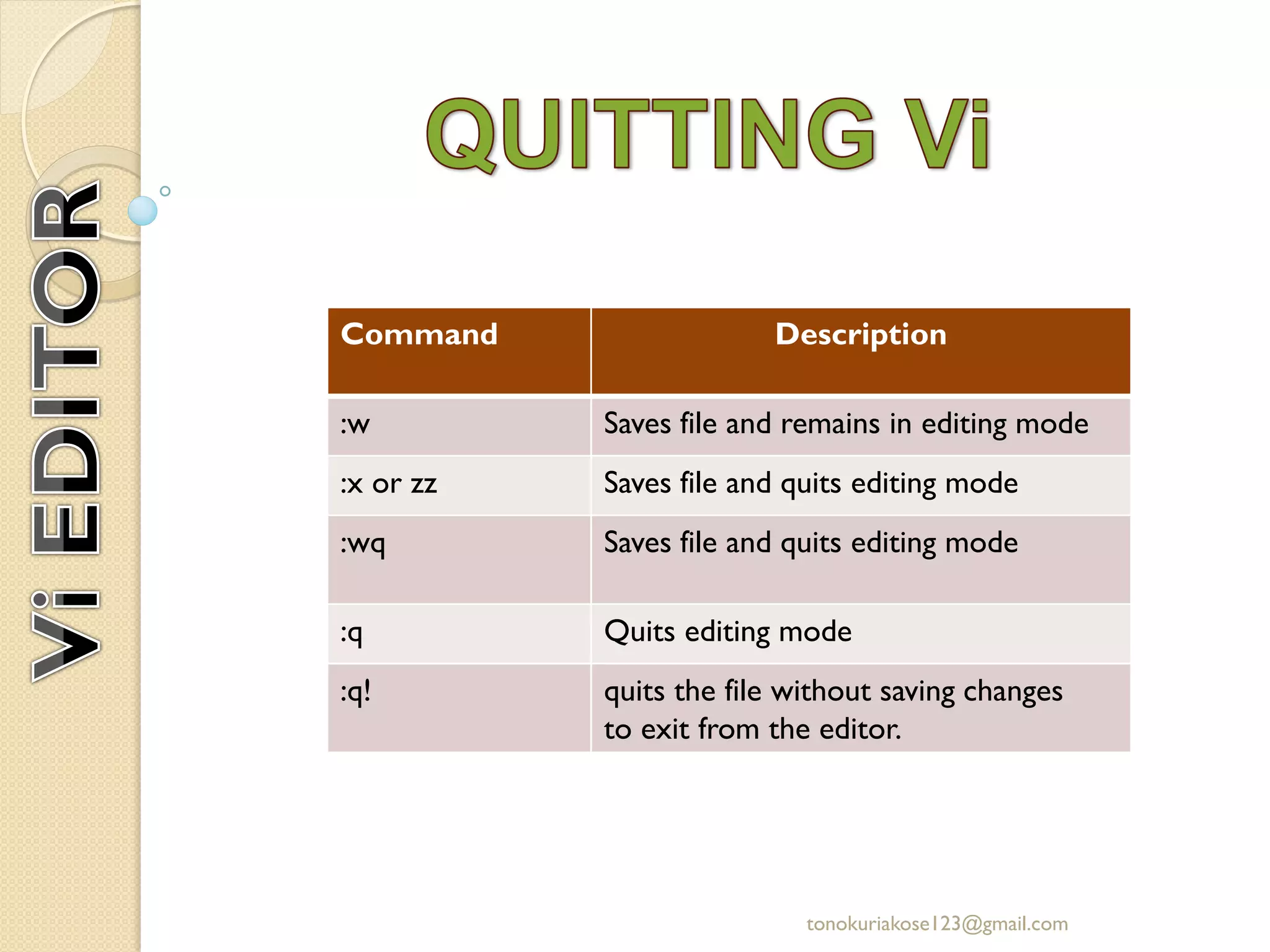
Command Description
:w Saves file and remains in editing mode
:x or zz Saves file and quits editing mode
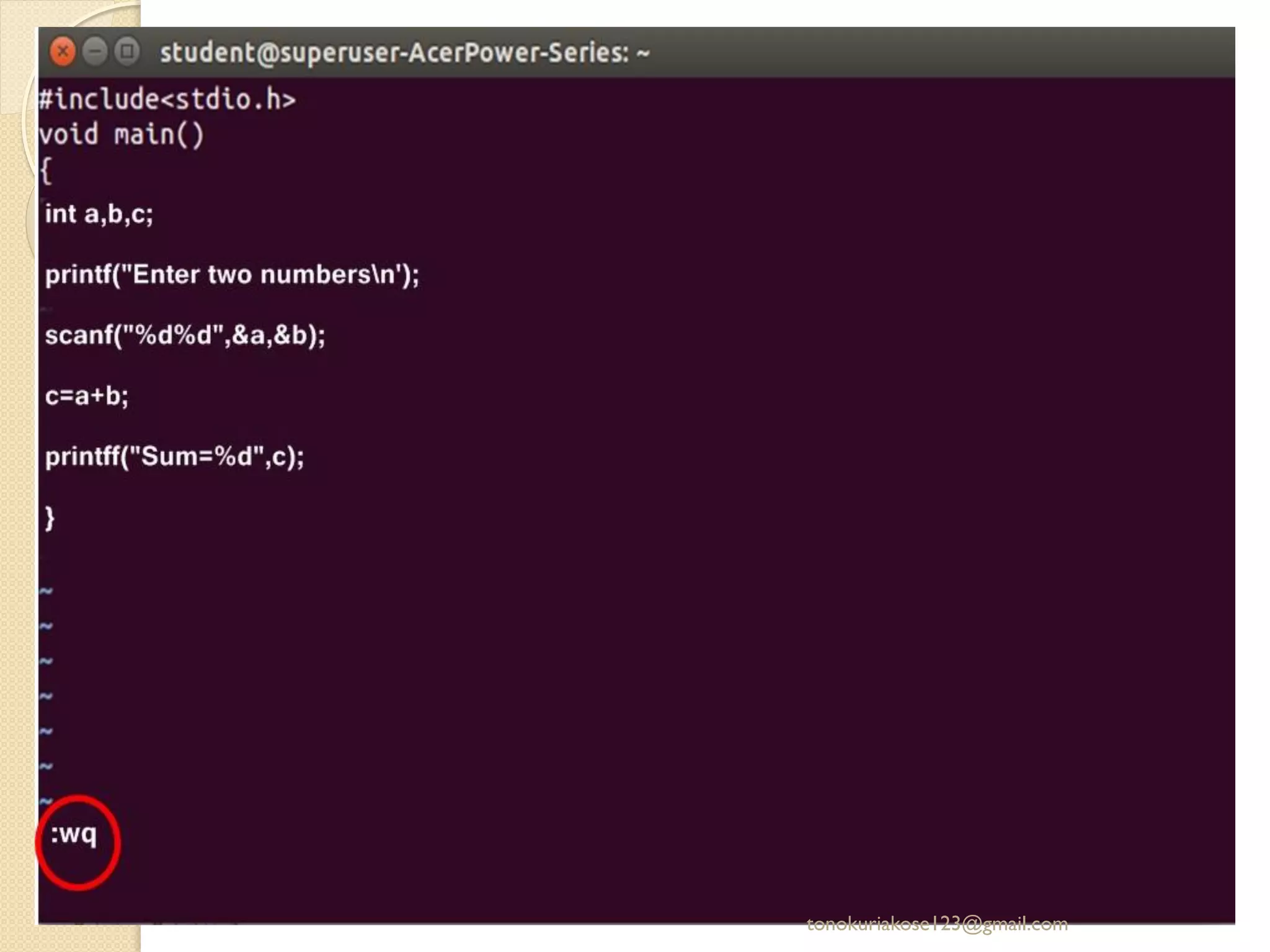
:wq Saves file and quits editing mode
:q Quits editing mode
:q! quits the file without saving changes
to exit from the editor.
tonokuriakose123@gmail.com
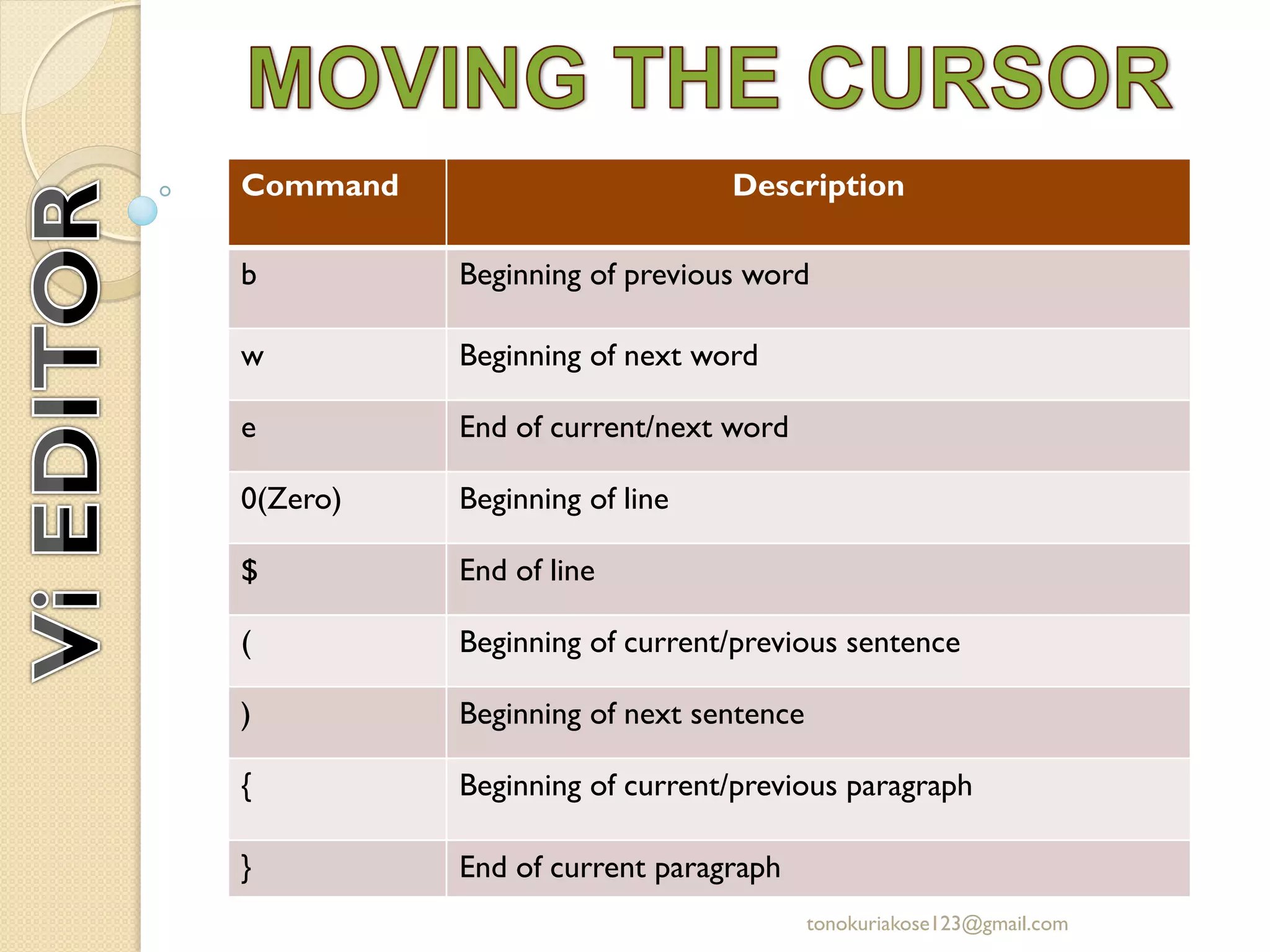
Command Description
b Beginning of previous word
w Beginning of next word
e End of current/next word
0(Zero) Beginning of line
$ End of line
( Beginning of current/previous sentence
) Beginning of next sentence
{ Beginning of current/previous paragraph
} End of current paragraph
tonokuriakose123@gmail.com
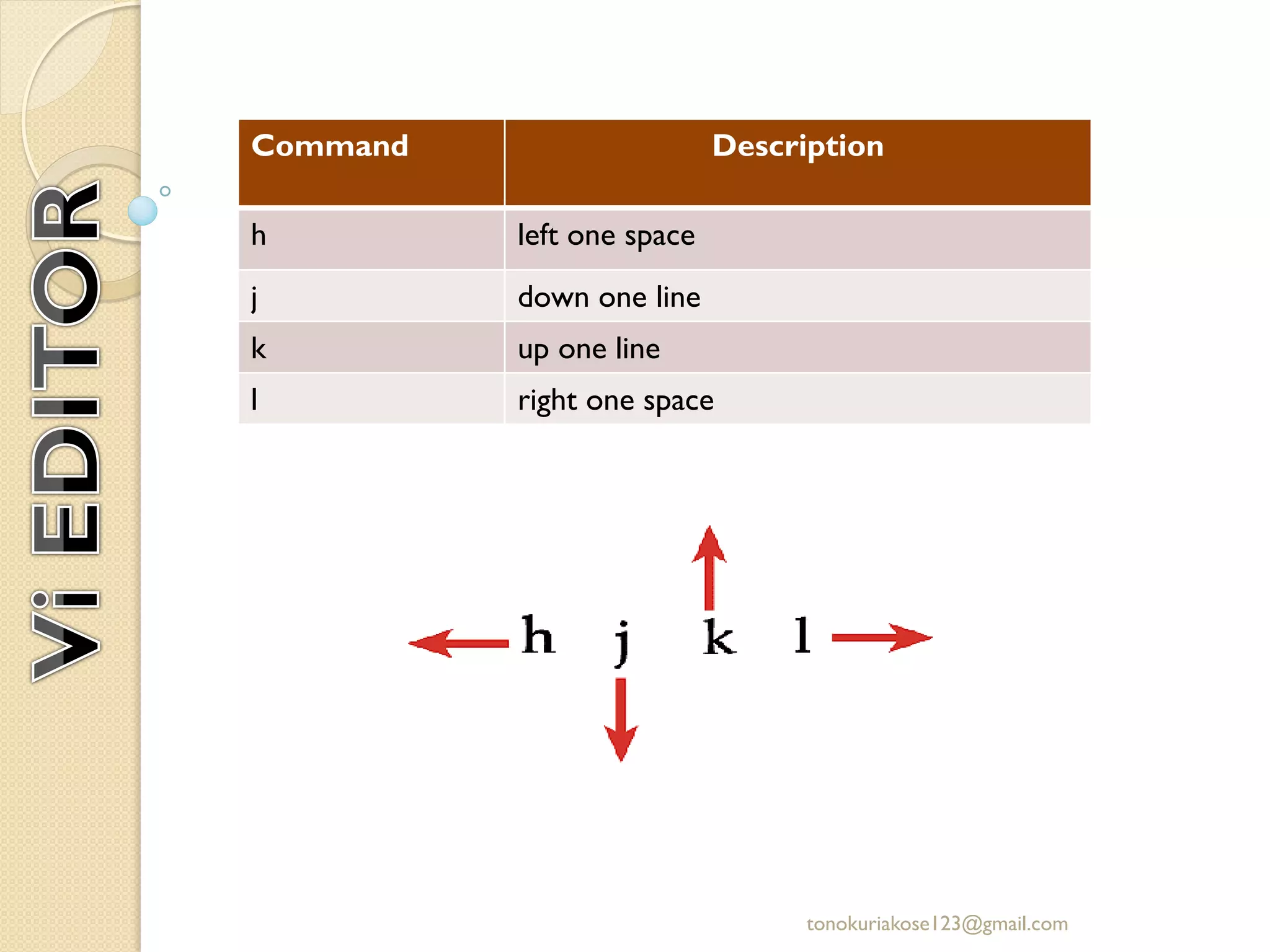
Command Description
h left one space
j down one line
k up one line
l right one space
tonokuriakose123@gmail.com
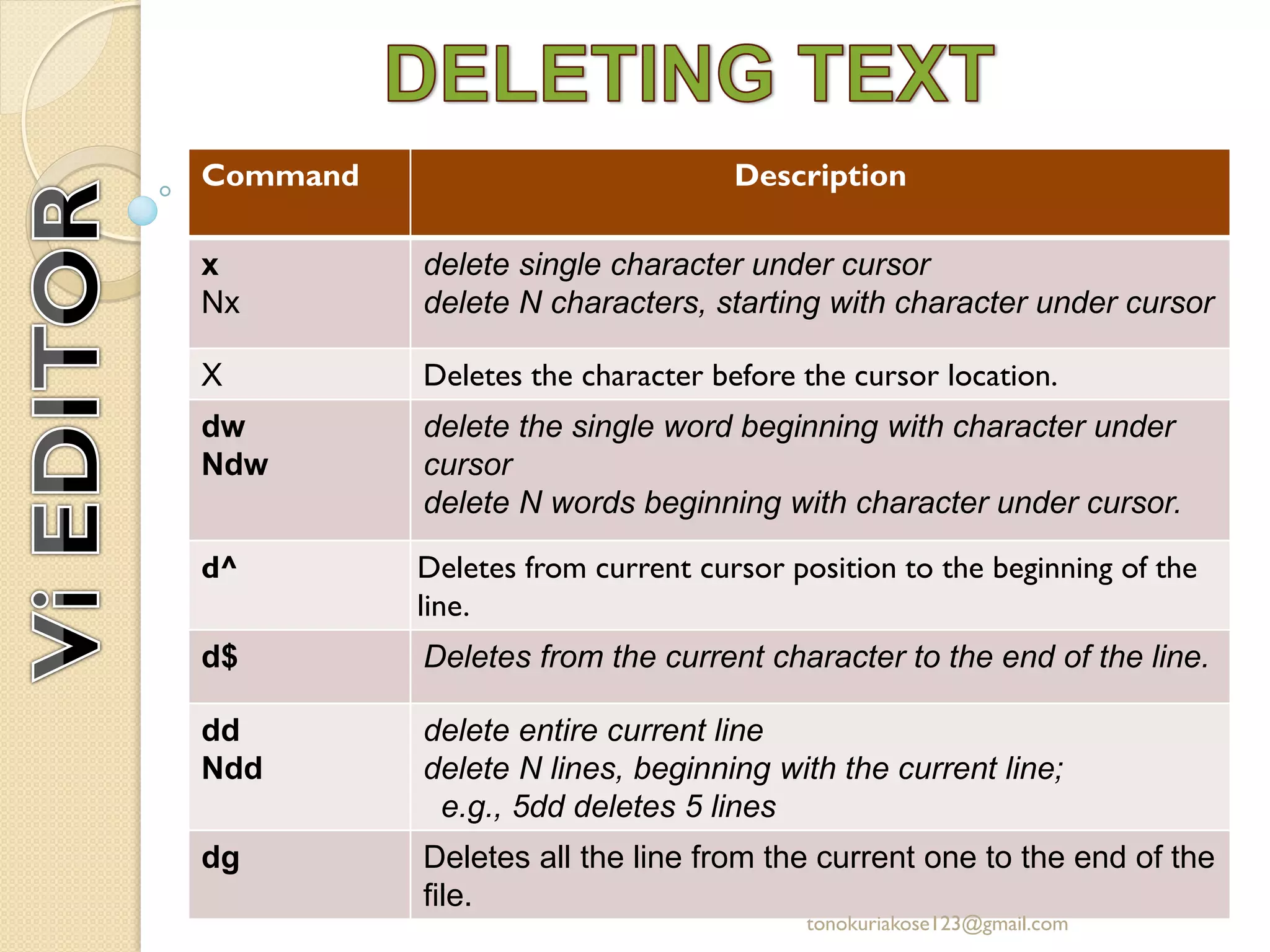
Command Description
x
Nx
delete single character under cursor
delete N characters, starting with character under cursor
X Deletes the character before the cursor location.
dw
Ndw
delete the single word beginning with character under
cursor
delete N words beginning with character under cursor.
d^ Deletes from current cursor position to the beginning of the
line.
d$ Deletes from the current character to the end of the line.
dd
Ndd
delete entire current line
delete N lines, beginning with the current line;
e.g., 5dd deletes 5 lines
dg Deletes all the line from the current one to the end of the
file.
tonokuriakose123@gmail.com
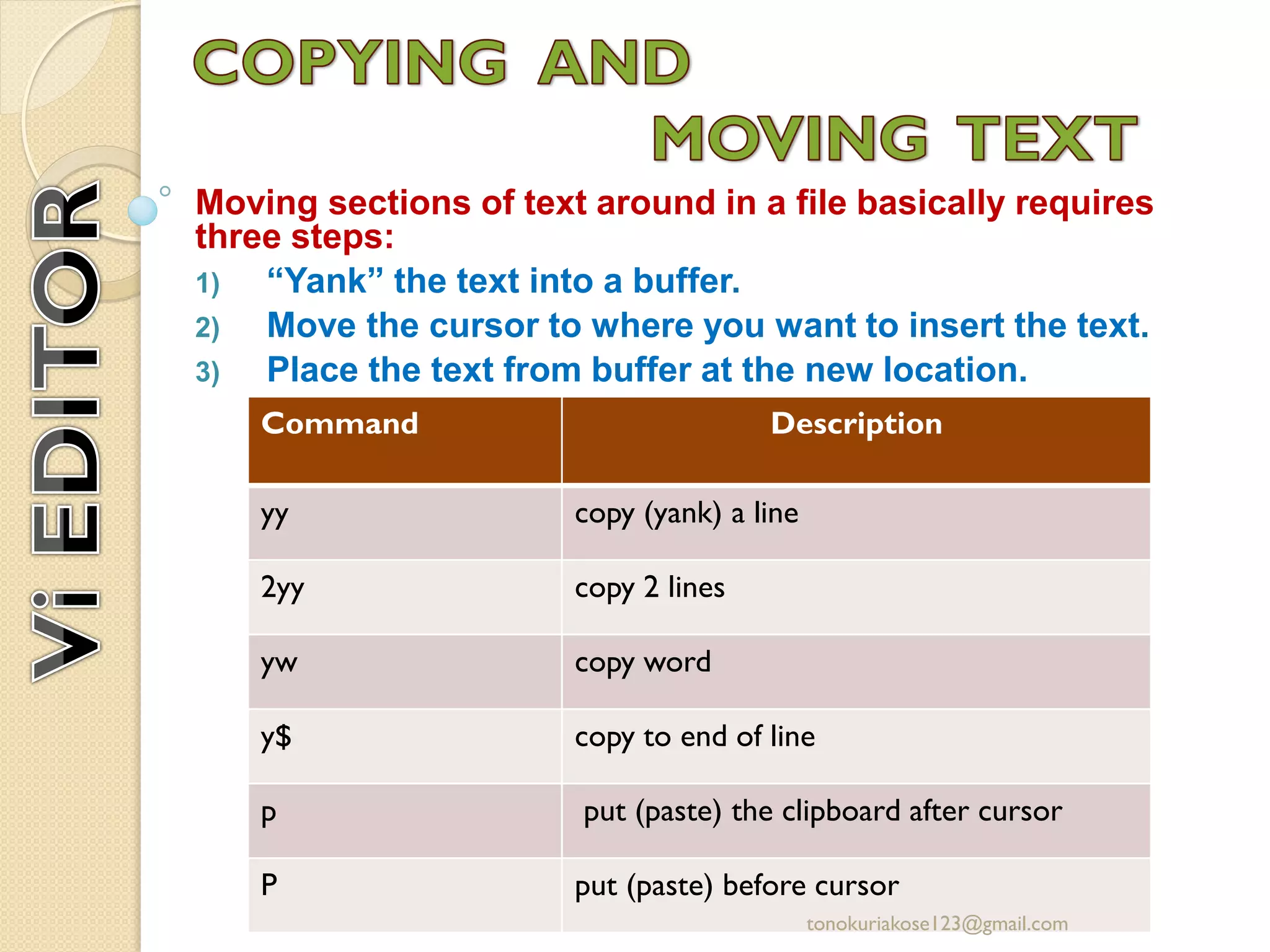
Moving sections of text around in a file basically requires
three steps:
1) “Yank” the text into a buffer.
2) Move the cursor to where you want to insert the text.
3) Place the text from buffer at the new location.
Command Description
yy copy (yank) a line
2yy copy 2 lines
yw copy word
y$ copy to end of line
p put (paste) the clipboard after cursor
P put (paste) before cursor
tonokuriakose123@gmail.com
Command Description
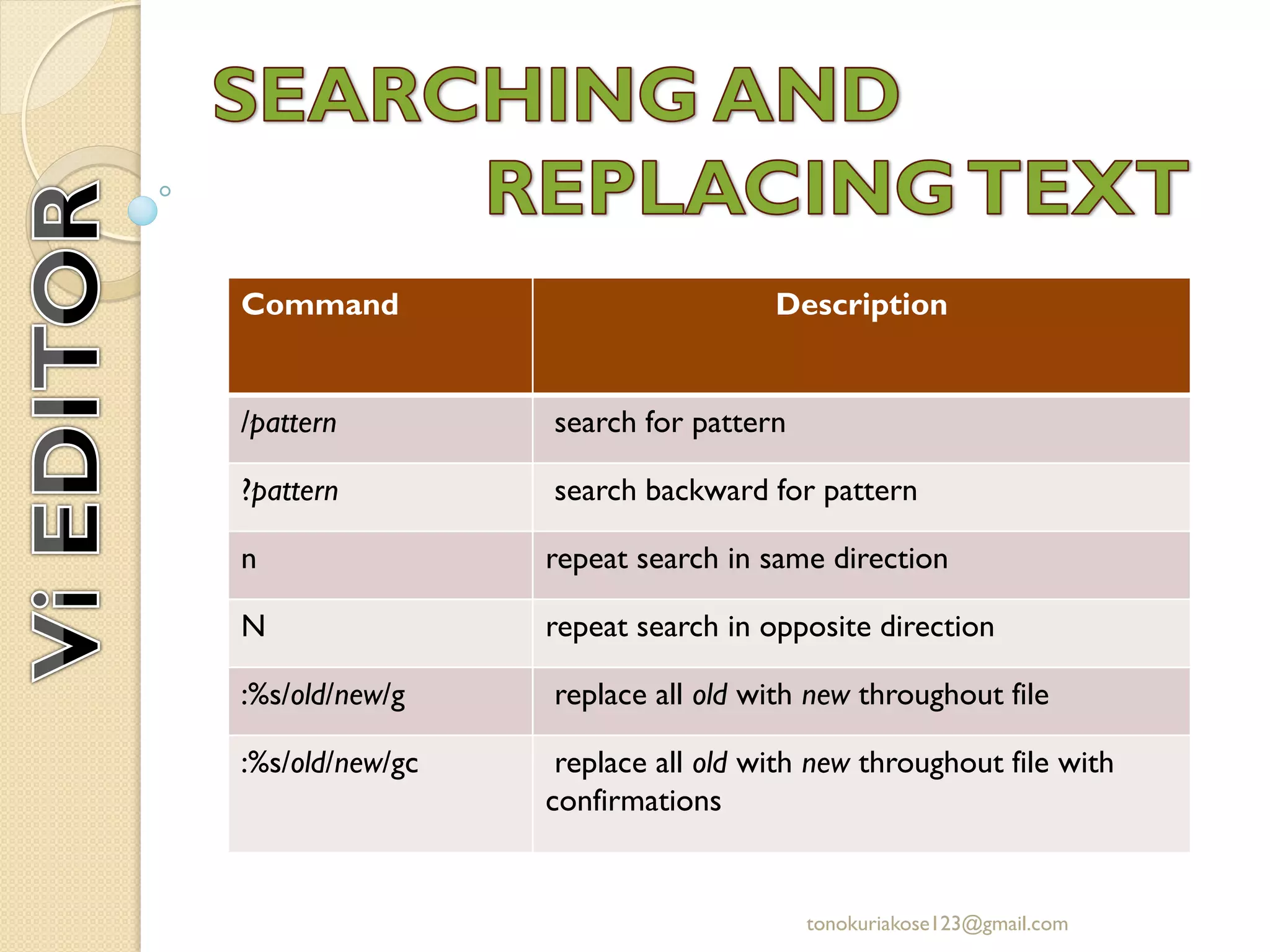
/pattern search for pattern
?pattern search backward for pattern
n repeat search in same direction
N repeat search in opposite direction
:%s/old/new/g replace all old with new throughout file
:%s/old/new/gc replace all old with new throughout file with
confirmations
tonokuriakose123@gmail.com

Vi editor Linux Editors

  • 1.
  • 2.
    • VI editoris a basic text editor. • Two of the most popular editors for Linux system are emacs and vi. •VI means‘ visual editor’ and was originally written by Bill Joy in 1976. •Basically, editors enable you to insert, delete, move, and search text ranging from individual characters to thousands of lines. tonokuriakose123@gmail.com
  • 3.
    There are followingway you can start using vi editor:  Open a terminal  Type vi followed by the name of existing file or new file Command Description vi Creat a unnamed file. vi filename Creates a new file if it already does not exist, otherwise opens existing file. vi -R filename Or view filename Opens an existing file in read only mode. vi +n filename Where n represents the line number where vi will place its cursor in filename. tonokuriakose123@gmail.com
  • 4.
    •Command mode: •This modeenables you to perform administrative tasks such as saving files, executing commands, moving the cursor, cutting and pasting lines or words, and finding and replacing. In this mode, whatever you type is interpreted as a command. •The vi always starts in command mode •To enter command mode, press the escape <Esc> key. •Insert mode: •This mode enables you to insert text into the file. Everything that's typed in this mode is interpreted as input and finally it is put in the file •Enter the insert mode by pressing the “i” key OPERATION tonokuriakose123@gmail.com
  • 5.
    Command Description i inserttext before cursor, until <Esc> hit I insert text at beginning of current line, until <Esc> hit a append text after cursor, until <Esc> hit A append text to end of current line , until <Esc> hit o open and put text in a new line below current line, until <Esc> hit O open and put text in a new line above current line, until <Esc> hit tonokuriakose123@gmail.com
  • 6.
    Command Description :w Savesfile and remains in editing mode :x or zz Saves file and quits editing mode :wq Saves file and quits editing mode :q Quits editing mode :q! quits the file without saving changes to exit from the editor. tonokuriakose123@gmail.com
  • 7.
    Command Description b Beginningof previous word w Beginning of next word e End of current/next word 0(Zero) Beginning of line $ End of line ( Beginning of current/previous sentence ) Beginning of next sentence { Beginning of current/previous paragraph } End of current paragraph tonokuriakose123@gmail.com
  • 8.
    Command Description h leftone space j down one line k up one line l right one space tonokuriakose123@gmail.com
  • 9.
    Command Description x Nx delete singlecharacter under cursor delete N characters, starting with character under cursor X Deletes the character before the cursor location. dw Ndw delete the single word beginning with character under cursor delete N words beginning with character under cursor. d^ Deletes from current cursor position to the beginning of the line. d$ Deletes from the current character to the end of the line. dd Ndd delete entire current line delete N lines, beginning with the current line; e.g., 5dd deletes 5 lines dg Deletes all the line from the current one to the end of the file. tonokuriakose123@gmail.com
  • 10.
    Moving sections oftext around in a file basically requires three steps: 1) “Yank” the text into a buffer. 2) Move the cursor to where you want to insert the text. 3) Place the text from buffer at the new location. Command Description yy copy (yank) a line 2yy copy 2 lines yw copy word y$ copy to end of line p put (paste) the clipboard after cursor P put (paste) before cursor tonokuriakose123@gmail.com
  • 11.
    Command Description /pattern searchfor pattern ?pattern search backward for pattern n repeat search in same direction N repeat search in opposite direction :%s/old/new/g replace all old with new throughout file :%s/old/new/gc replace all old with new throughout file with confirmations tonokuriakose123@gmail.com
  • 12.
  • 13.
  • 14.
  • 15.
  • 16.