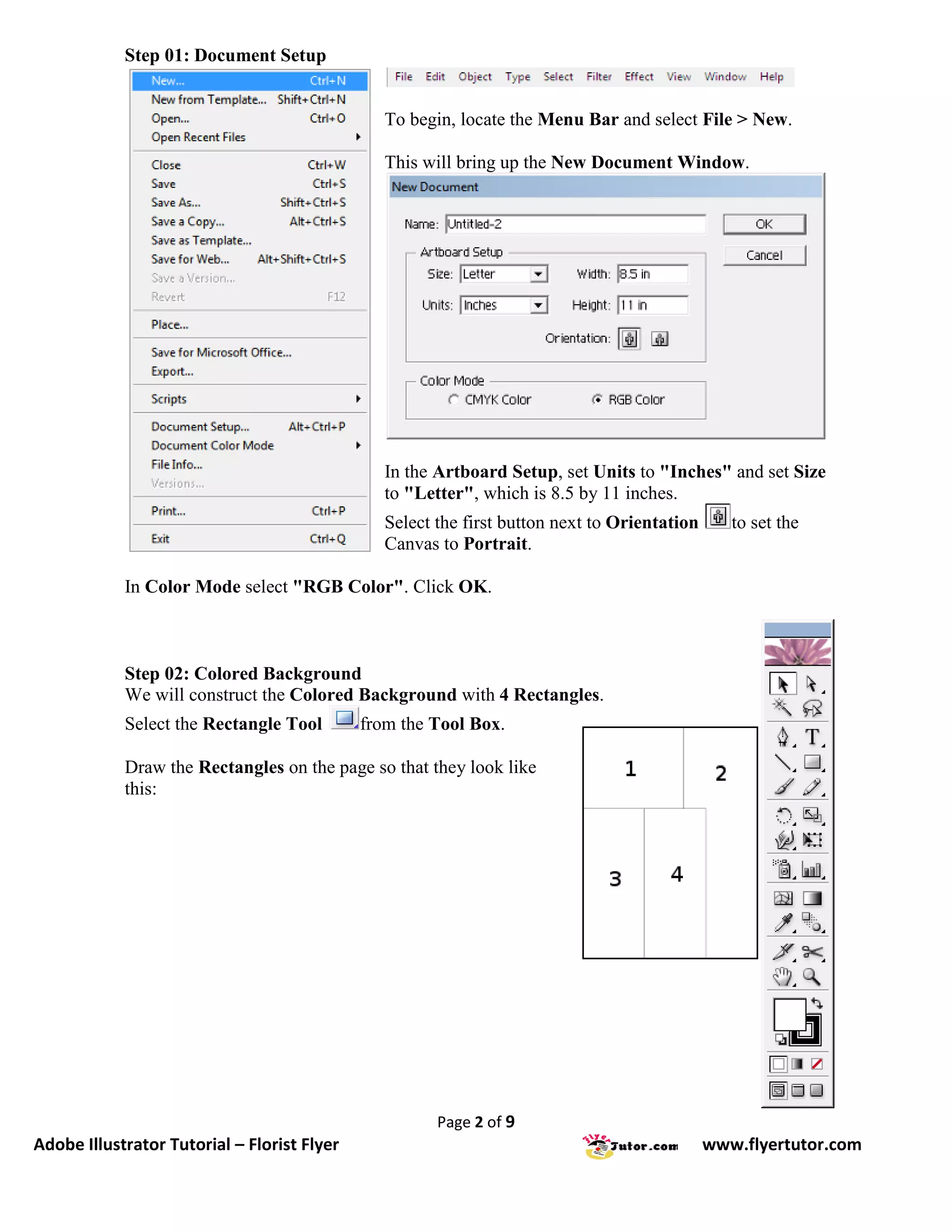
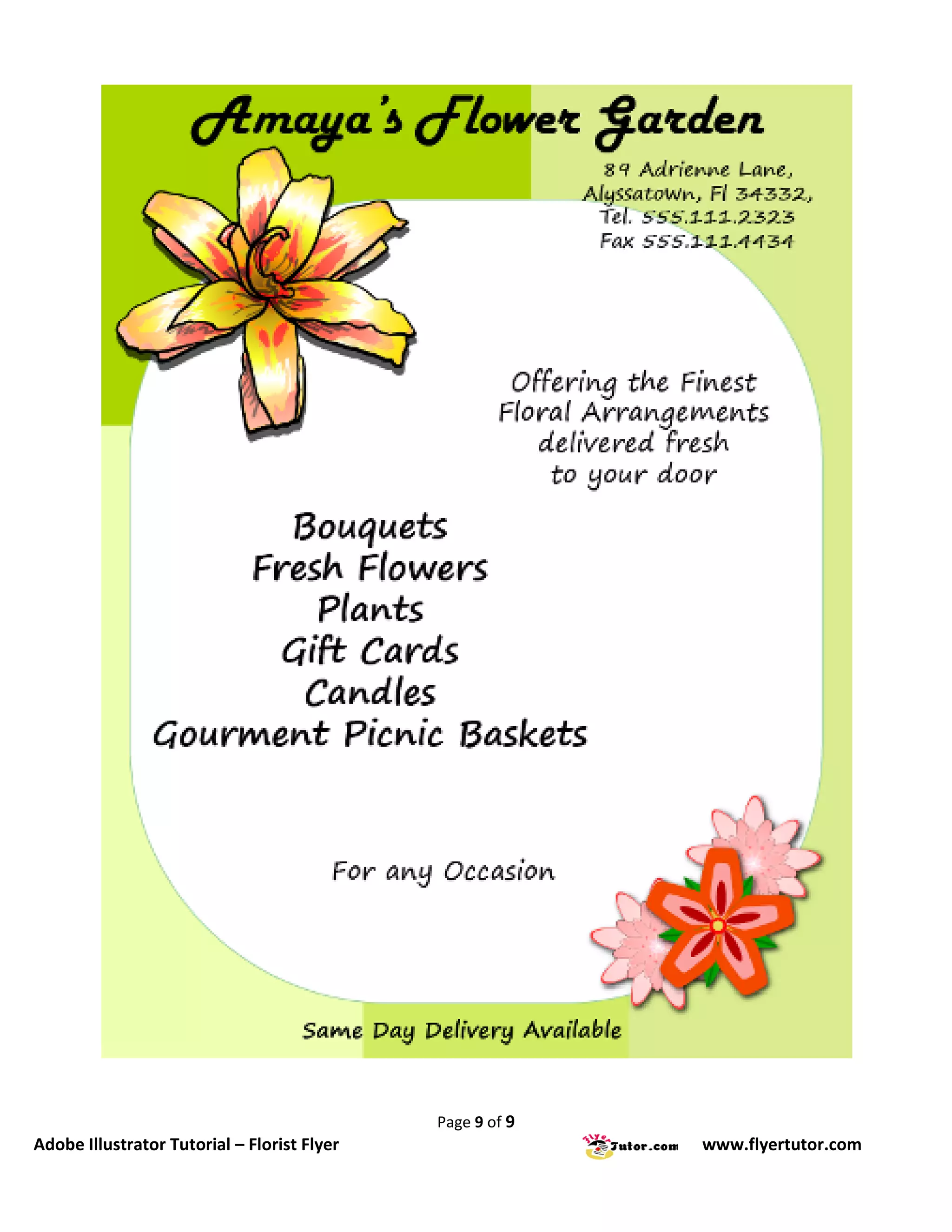
This tutorial will show you the steps to create this simple Flyer using Adobe Illustrator.
             Steps
             01: Document Setup
             02: Colored Background
             03: Fill and Stroke
             04: CMYK to RGB
             05: Fill Rectangle 1
             06: Fill Rectangle 2
             07: Fill Rectangle 3
             08: Fill Rectangle 4
             09: Rounded Rectangle
             10: Add Text
             11: Add New Text
             12: Insert Images
             13: Scale Window
             14: Scale Settings
             15: Drop Shadow Window
             16: Drop Shadow Settings
             17: Duplicate Image
             18: Apply Drop Shadow
             19: Save File


                                                          For a larger image click the link below
                                                             Flower Flyer (400px by 566px)


                          If there is anything that is unclear to you, or you spot any mistakes,
                  please send email to feedback@flyertutor.com Suggestions are always welcome.


                                                       Page 1 of 9
Adobe Illustrator Tutorial – Florist Flyer                                                 www.flyertutor.com
Step 01: Document Setup


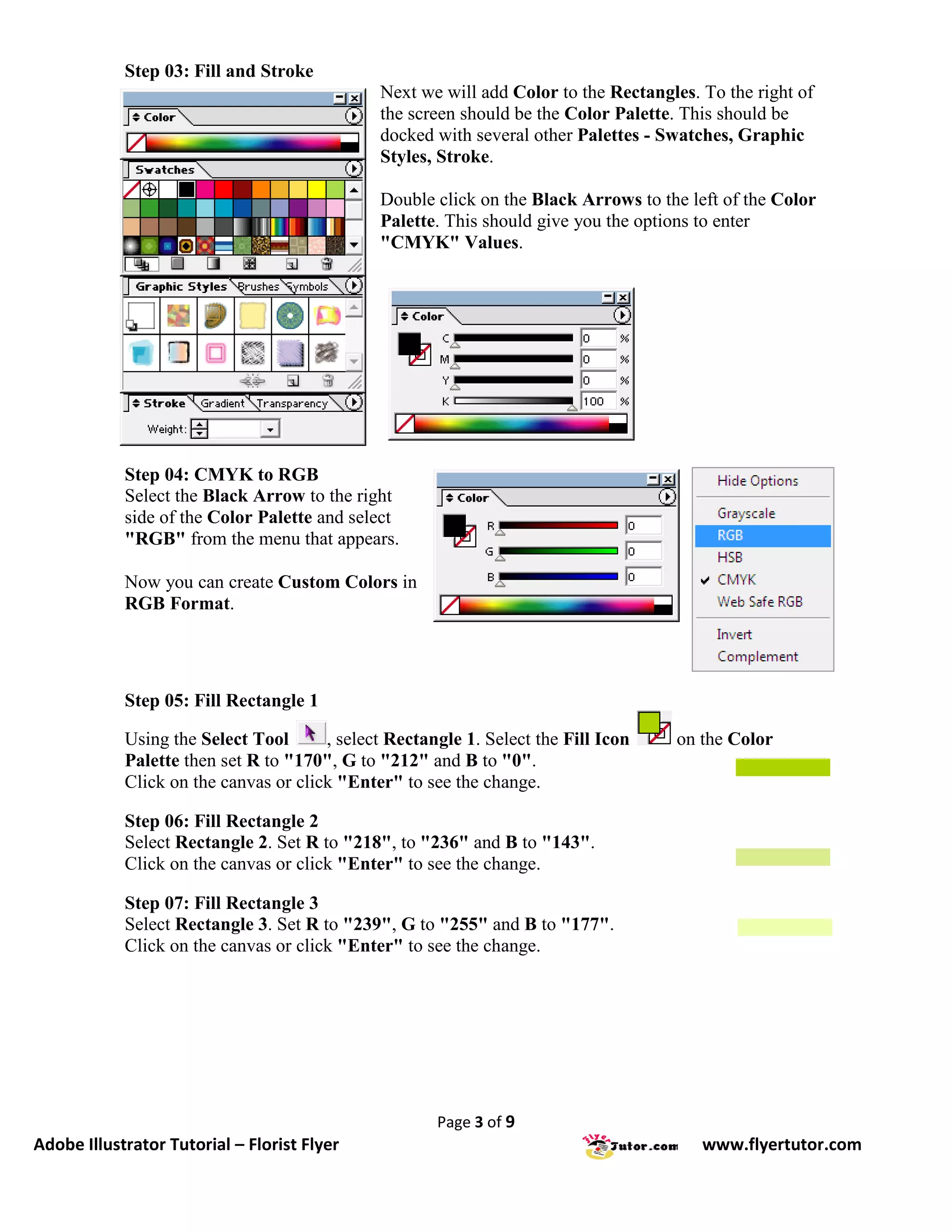
                                                To begin, locate the Menu Bar and select File > New.

                                                This will bring up the New Document Window.


                                                In the Artboard Setup, set Units to "Inches" and set Size
                                                to "Letter", which is 8.5 by 11 inches.
                                                Select the first button next to Orientation      to set the
                                                Canvas to Portrait.

            In Color Mode select "RGB Color". Click OK.


            Step 02: Colored Background
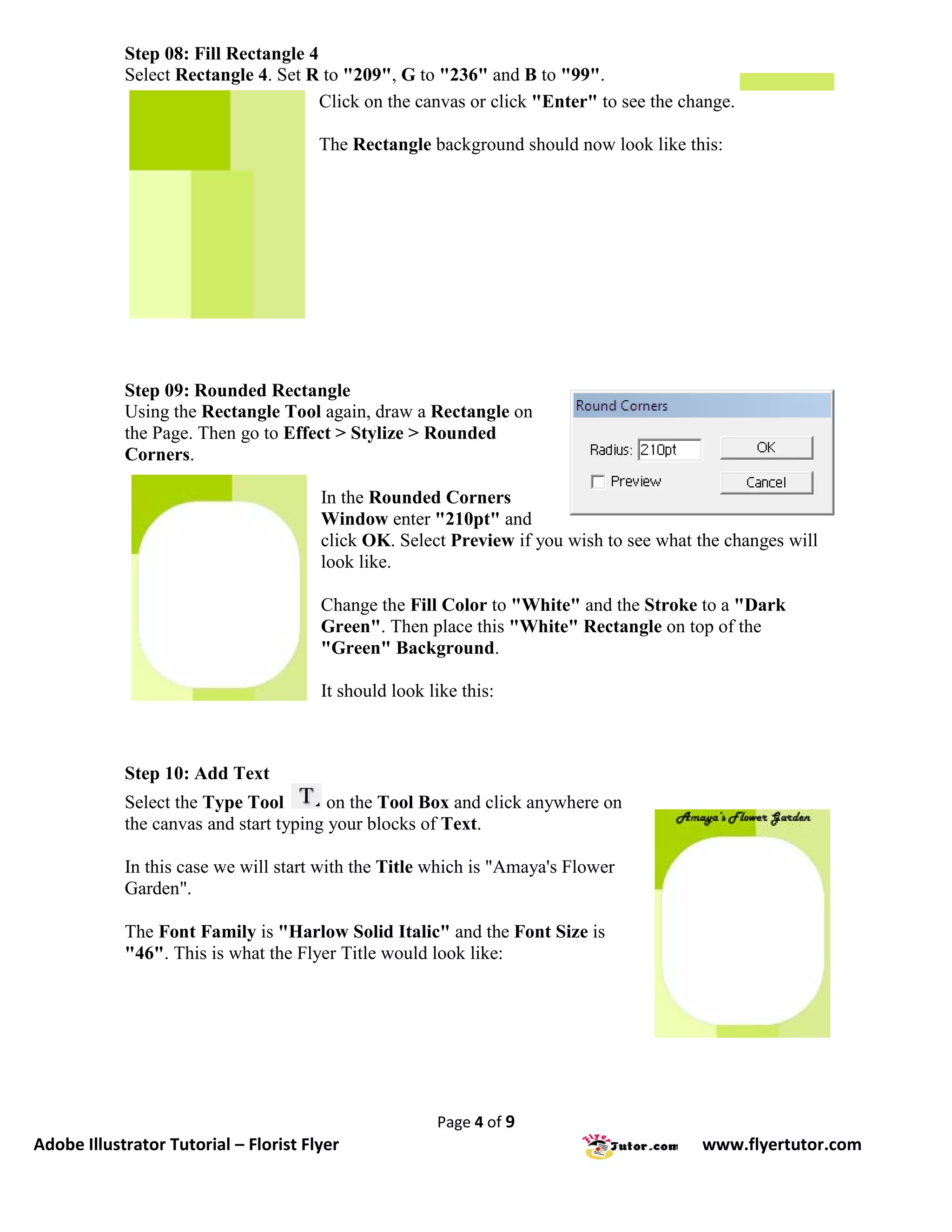
            We will construct the Colored Background with 4 Rectangles.
            Select the Rectangle Tool        from the Tool Box.

            Draw the Rectangles on the page so that they look like
            this:


                                                       Page 2 of 9
Adobe Illustrator Tutorial – Florist Flyer                                                    www.flyertutor.com
Step 03: Fill and Stroke
                                              Next we will add Color to the Rectangles. To the right of
                                              the screen should be the Color Palette. This should be
                                              docked with several other Palettes - Swatches, Graphic
                                              Styles, Stroke.

                                              Double click on the Black Arrows to the left of the Color
                                              Palette. This should give you the options to enter
                                              "CMYK" Values.


            Step 04: CMYK to RGB
            Select the Black Arrow to the right
            side of the Color Palette and select
            "RGB" from the menu that appears.

            Now you can create Custom Colors in
            RGB Format.


            Step 05: Fill Rectangle 1

            Using the Select Tool      , select Rectangle 1. Select the Fill Icon    on the Color
            Palette then set R to "170", G to "212" and B to "0".
            Click on the canvas or click "Enter" to see the change.

            Step 06: Fill Rectangle 2
            Select Rectangle 2. Set R to "218", to "236" and B to "143".
            Click on the canvas or click "Enter" to see the change.

            Step 07: Fill Rectangle 3
            Select Rectangle 3. Set R to "239", G to "255" and B to "177".
            Click on the canvas or click "Enter" to see the change.


                                                      Page 3 of 9
Adobe Illustrator Tutorial – Florist Flyer                                              www.flyertutor.com
Step 08: Fill Rectangle 4
            Select Rectangle 4. Set R to "209", G to "236" and B to "99".
                                      Click on the canvas or click "Enter" to see the change.

                                       The Rectangle background should now look like this:


            Step 09: Rounded Rectangle
            Using the Rectangle Tool again, draw a Rectangle on
            the Page. Then go to Effect > Stylize > Rounded
            Corners.

                                       In the Rounded Corners
                                       Window enter "210pt" and
                                       click OK. Select Preview if you wish to see what the changes will
                                       look like.

                                       Change the Fill Color to "White" and the Stroke to a "Dark
                                       Green". Then place this "White" Rectangle on top of the
                                       "Green" Background.

                                       It should look like this:


            Step 10: Add Text
            Select the Type Tool        on the Tool Box and click anywhere on
            the canvas and start typing your blocks of Text.

            In this case we will start with the Title which is "Amaya's Flower
            Garden".

            The Font Family is "Harlow Solid Italic" and the Font Size is
            "46". This is what the Flyer Title would look like:


                                                       Page 4 of 9
Adobe Illustrator Tutorial – Florist Flyer                                              www.flyertutor.com
Step 11: Add New Text
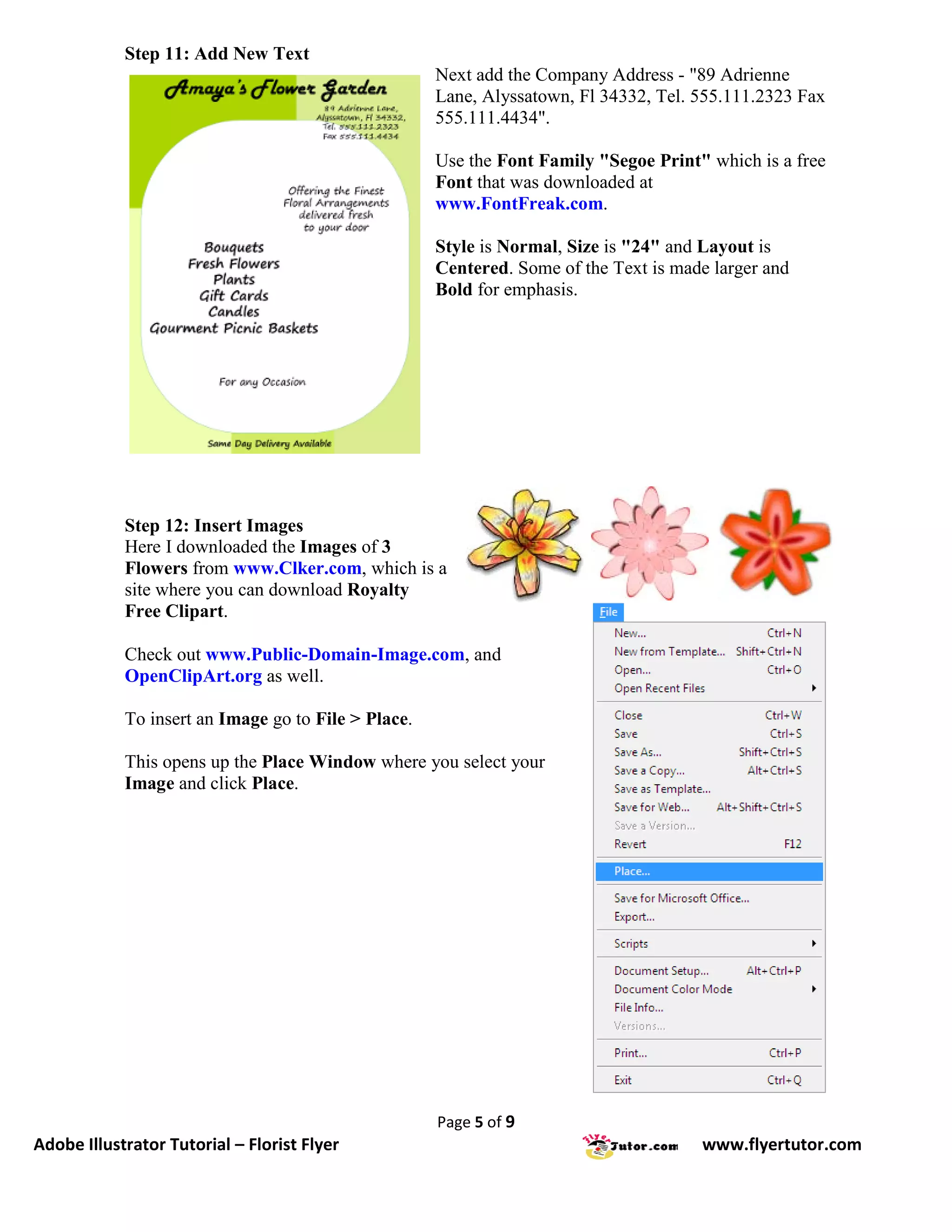
                                                     Next add the Company Address - "89 Adrienne
                                                     Lane, Alyssatown, Fl 34332, Tel. 555.111.2323 Fax
                                                     555.111.4434".

                                                     Use the Font Family "Segoe Print" which is a free
                                                     Font that was downloaded at
                                                     www.FontFreak.com.

                                                     Style is Normal, Size is "24" and Layout is
                                                     Centered. Some of the Text is made larger and
                                                     Bold for emphasis.


            Step 12: Insert Images
            Here I downloaded the Images of 3
            Flowers from www.Clker.com, which is a
            site where you can download Royalty
            Free Clipart.

            Check out www.Public-Domain-Image.com, and
            OpenClipArt.org as well.

            To insert an Image go to File > Place.

            This opens up the Place Window where you select your
            Image and click Place.


                                                     Page 5 of 9
Adobe Illustrator Tutorial – Florist Flyer                                            www.flyertutor.com
Step 13: Scale Window
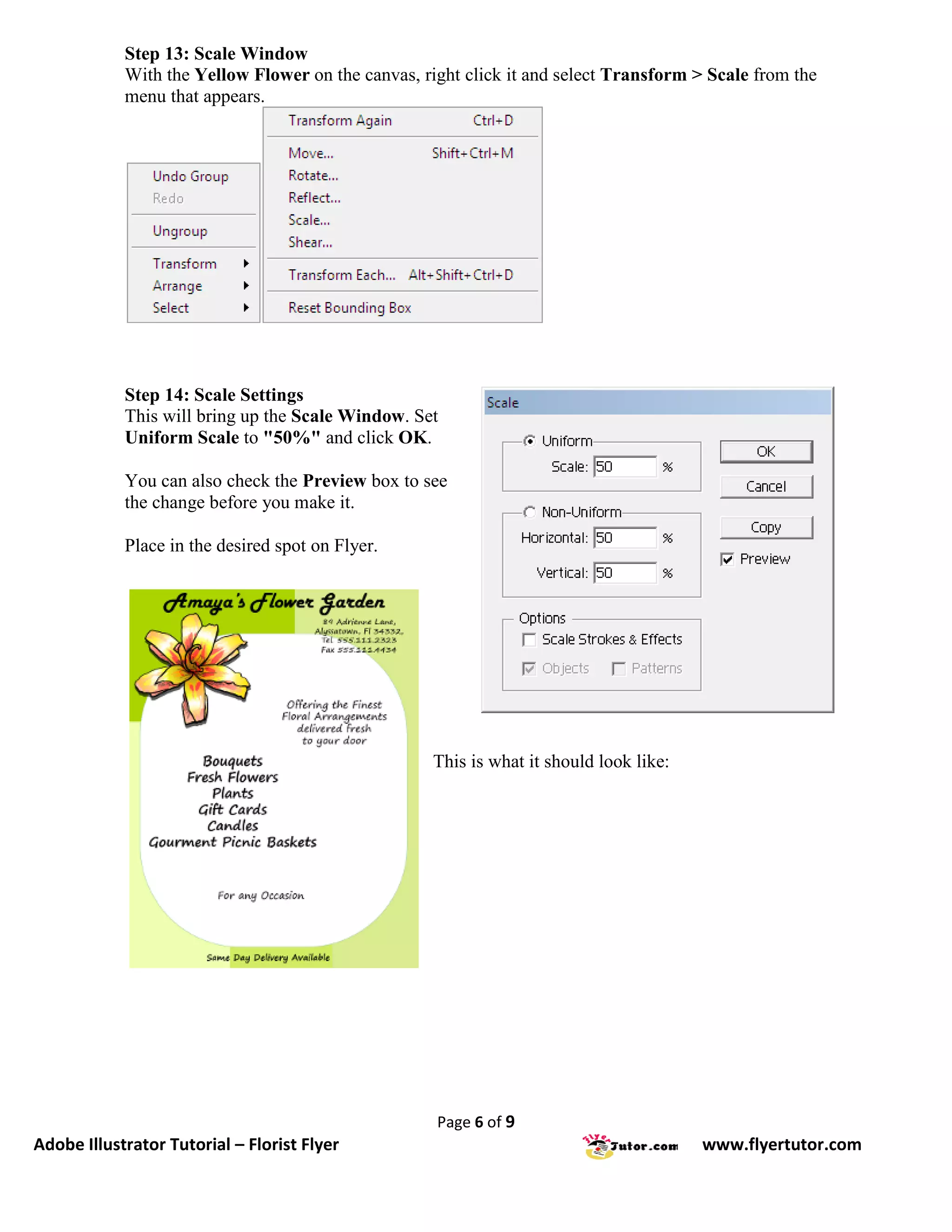
            With the Yellow Flower on the canvas, right click it and select Transform > Scale from the
            menu that appears.


            Step 14: Scale Settings
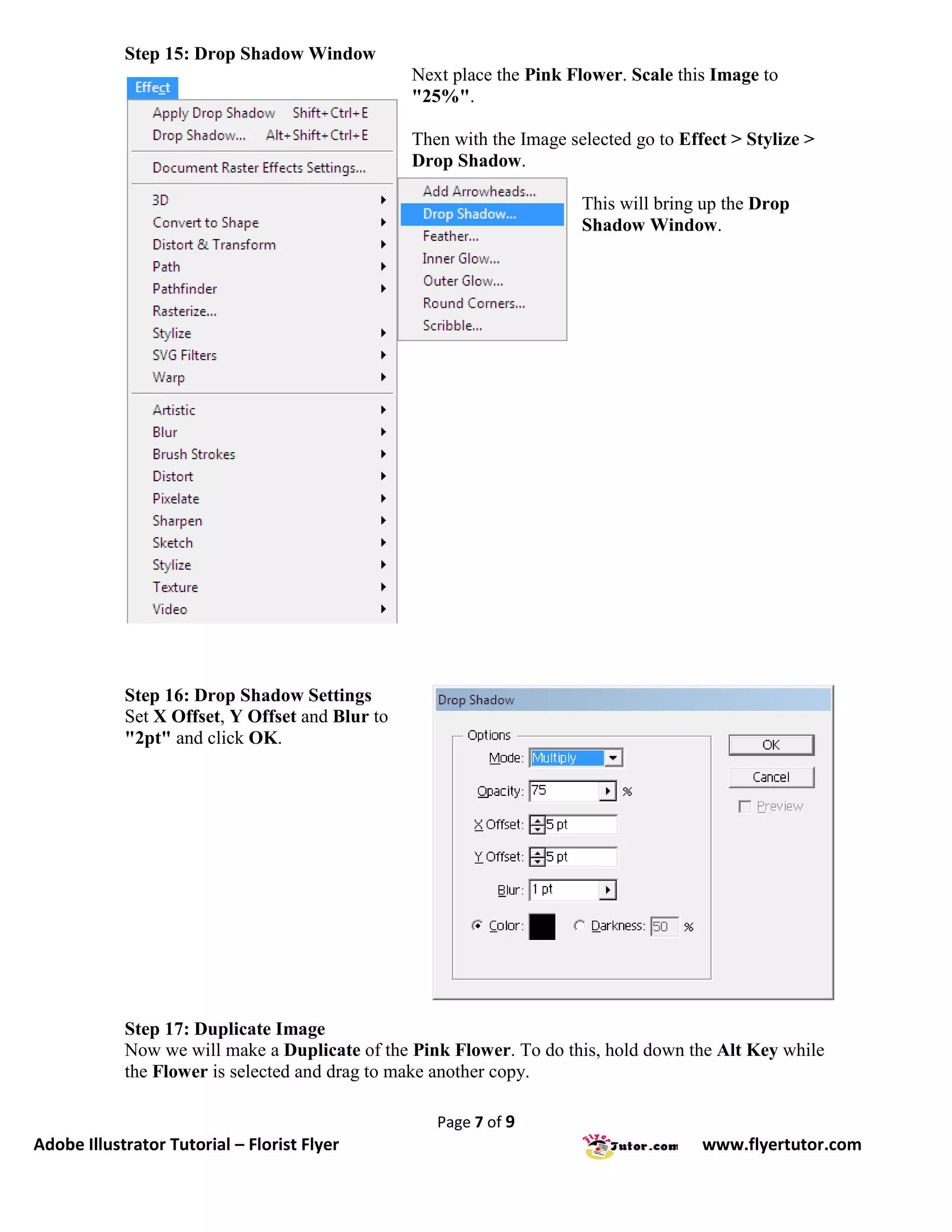
            This will bring up the Scale Window. Set
            Uniform Scale to "50%" and click OK.

            You can also check the Preview box to see
            the change before you make it.

            Place in the desired spot on Flyer.


                                                    This is what it should look like:


                                                    Page 6 of 9
Adobe Illustrator Tutorial – Florist Flyer                                              www.flyertutor.com
Step 15: Drop Shadow Window
                                                 Next place the Pink Flower. Scale this Image to
                                                 "25%".

                                                 Then with the Image selected go to Effect > Stylize >
                                                 Drop Shadow.

                                                                       This will bring up the Drop
                                                                       Shadow Window.


            Step 16: Drop Shadow Settings
            Set X Offset, Y Offset and Blur to
            "2pt" and click OK.


            Step 17: Duplicate Image
            Now we will make a Duplicate of the Pink Flower. To do this, hold down the Alt Key while
            the Flower is selected and drag to make another copy.

                                                    Page 7 of 9
Adobe Illustrator Tutorial – Florist Flyer                                             www.flyertutor.com
Step 18: Apply Drop Shadow
                            Next place the Red Flower. Scale it to "20%".

                              Add the Drop Shadow with the same settings as the Pink Flower.

                              The Images when put together should look like this:


            Step 19: Save File
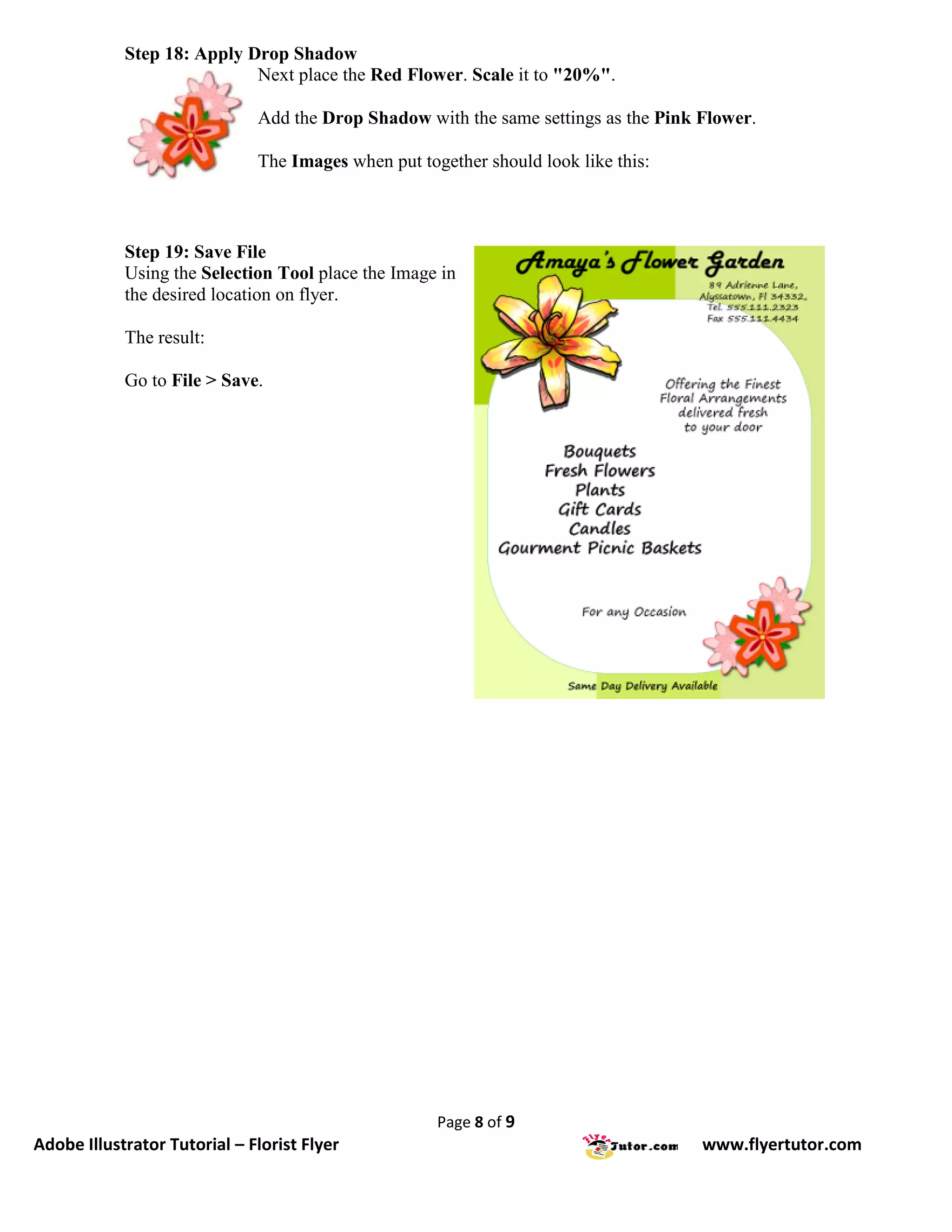
            Using the Selection Tool place the Image in
            the desired location on flyer.

            The result:

            Go to File > Save.


                                                     Page 8 of 9
Adobe Illustrator Tutorial – Florist Flyer                                           www.flyertutor.com
Page 9 of 9
Adobe Illustrator Tutorial – Florist Flyer                 www.flyertutor.com

Illustrator Tutorials: Florist Flyer

  • 1.
    This tutorial willshow you the steps to create this simple Flyer using Adobe Illustrator. Steps 01: Document Setup 02: Colored Background 03: Fill and Stroke 04: CMYK to RGB 05: Fill Rectangle 1 06: Fill Rectangle 2 07: Fill Rectangle 3 08: Fill Rectangle 4 09: Rounded Rectangle 10: Add Text 11: Add New Text 12: Insert Images 13: Scale Window 14: Scale Settings 15: Drop Shadow Window 16: Drop Shadow Settings 17: Duplicate Image 18: Apply Drop Shadow 19: Save File For a larger image click the link below Flower Flyer (400px by 566px) If there is anything that is unclear to you, or you spot any mistakes, please send email to feedback@flyertutor.com Suggestions are always welcome. Page 1 of 9 Adobe Illustrator Tutorial – Florist Flyer www.flyertutor.com
  • 2.
    Step 01: DocumentSetup To begin, locate the Menu Bar and select File > New. This will bring up the New Document Window. In the Artboard Setup, set Units to "Inches" and set Size to "Letter", which is 8.5 by 11 inches. Select the first button next to Orientation to set the Canvas to Portrait. In Color Mode select "RGB Color". Click OK. Step 02: Colored Background We will construct the Colored Background with 4 Rectangles. Select the Rectangle Tool from the Tool Box. Draw the Rectangles on the page so that they look like this: Page 2 of 9 Adobe Illustrator Tutorial – Florist Flyer www.flyertutor.com
  • 3.
    Step 03: Filland Stroke Next we will add Color to the Rectangles. To the right of the screen should be the Color Palette. This should be docked with several other Palettes - Swatches, Graphic Styles, Stroke. Double click on the Black Arrows to the left of the Color Palette. This should give you the options to enter "CMYK" Values. Step 04: CMYK to RGB Select the Black Arrow to the right side of the Color Palette and select "RGB" from the menu that appears. Now you can create Custom Colors in RGB Format. Step 05: Fill Rectangle 1 Using the Select Tool , select Rectangle 1. Select the Fill Icon on the Color Palette then set R to "170", G to "212" and B to "0". Click on the canvas or click "Enter" to see the change. Step 06: Fill Rectangle 2 Select Rectangle 2. Set R to "218", to "236" and B to "143". Click on the canvas or click "Enter" to see the change. Step 07: Fill Rectangle 3 Select Rectangle 3. Set R to "239", G to "255" and B to "177". Click on the canvas or click "Enter" to see the change. Page 3 of 9 Adobe Illustrator Tutorial – Florist Flyer www.flyertutor.com
  • 4.
    Step 08: FillRectangle 4 Select Rectangle 4. Set R to "209", G to "236" and B to "99". Click on the canvas or click "Enter" to see the change. The Rectangle background should now look like this: Step 09: Rounded Rectangle Using the Rectangle Tool again, draw a Rectangle on the Page. Then go to Effect > Stylize > Rounded Corners. In the Rounded Corners Window enter "210pt" and click OK. Select Preview if you wish to see what the changes will look like. Change the Fill Color to "White" and the Stroke to a "Dark Green". Then place this "White" Rectangle on top of the "Green" Background. It should look like this: Step 10: Add Text Select the Type Tool on the Tool Box and click anywhere on the canvas and start typing your blocks of Text. In this case we will start with the Title which is "Amaya's Flower Garden". The Font Family is "Harlow Solid Italic" and the Font Size is "46". This is what the Flyer Title would look like: Page 4 of 9 Adobe Illustrator Tutorial – Florist Flyer www.flyertutor.com
  • 5.
    Step 11: AddNew Text Next add the Company Address - "89 Adrienne Lane, Alyssatown, Fl 34332, Tel. 555.111.2323 Fax 555.111.4434". Use the Font Family "Segoe Print" which is a free Font that was downloaded at www.FontFreak.com. Style is Normal, Size is "24" and Layout is Centered. Some of the Text is made larger and Bold for emphasis. Step 12: Insert Images Here I downloaded the Images of 3 Flowers from www.Clker.com, which is a site where you can download Royalty Free Clipart. Check out www.Public-Domain-Image.com, and OpenClipArt.org as well. To insert an Image go to File > Place. This opens up the Place Window where you select your Image and click Place. Page 5 of 9 Adobe Illustrator Tutorial – Florist Flyer www.flyertutor.com
  • 6.
    Step 13: ScaleWindow With the Yellow Flower on the canvas, right click it and select Transform > Scale from the menu that appears. Step 14: Scale Settings This will bring up the Scale Window. Set Uniform Scale to "50%" and click OK. You can also check the Preview box to see the change before you make it. Place in the desired spot on Flyer. This is what it should look like: Page 6 of 9 Adobe Illustrator Tutorial – Florist Flyer www.flyertutor.com
  • 7.
    Step 15: DropShadow Window Next place the Pink Flower. Scale this Image to "25%". Then with the Image selected go to Effect > Stylize > Drop Shadow. This will bring up the Drop Shadow Window. Step 16: Drop Shadow Settings Set X Offset, Y Offset and Blur to "2pt" and click OK. Step 17: Duplicate Image Now we will make a Duplicate of the Pink Flower. To do this, hold down the Alt Key while the Flower is selected and drag to make another copy. Page 7 of 9 Adobe Illustrator Tutorial – Florist Flyer www.flyertutor.com
  • 8.
    Step 18: ApplyDrop Shadow Next place the Red Flower. Scale it to "20%". Add the Drop Shadow with the same settings as the Pink Flower. The Images when put together should look like this: Step 19: Save File Using the Selection Tool place the Image in the desired location on flyer. The result: Go to File > Save. Page 8 of 9 Adobe Illustrator Tutorial – Florist Flyer www.flyertutor.com
  • 9.
    Page 9 of9 Adobe Illustrator Tutorial – Florist Flyer www.flyertutor.com