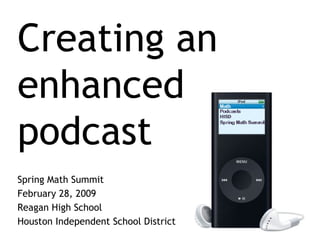
Creating an enhanced podcast Spring Math Summit February 28, 2009 Reagan High School Houston Independent School District
Requirements Presentation software (PowerPoint) A computer with Photo Story free download @  http://www.microsoft.com/windowsxp/using/digitalphotography/PhotoStory/default.mspx Headphones and mic or headset Idea
Select a purpose Vocabulary Algorithm e.g. Division Demonstration e.g. Fractions Lesson Show a procedure or processes Reflective questions or logic puzzle Create  The Adventures of Dr. Negative and Ms. Positive
Storyboard or script Make a map of what you will say during the podcast. Use pictures or words as prompts. Make a script with a note or icon of different images.
Storyboard sample pdf storyboard for printing Notes Sound/Narration Image 1 2 3
Create a Power Point
Save as JPG files
Save as PowerPoint and then as JPG files Notice where your folder of images is saved.
Begin with Photo Story Close your PowerPoint. Have your script or storyboard ready. Open Photo Story.
Begin with Photo Story Begin a new story Import pictures
Add images Navigate to the PowerPoint images you saved. Select all by  clicking on an image then pressing ctrl+a  on the keyboard. Click OK
Arrange images Save your project. Arrange your images by dragging. Click Next. 1 2 3
Add additional text Add any additional text. Click on each image. Add the text for  that  image. Click Next.
Add narration! Plug in your headset. Click on the microphone button and test your mic by following directions on the screen.
Add narration! Click record - start talking Press the stop button when done Preview Undo Repeat Do this for each slide. Next => 1 2 3 4 6
Background Music Use create music. Play with the options until you are satisfied. Set the volume low! Preview Next => 1 2 3 4
Save  If this is for a podcast then choose [Save for playback on a portable device]. If you want higher quality choose [Save your story for playback on a computer]. Browse to where you want it saved. Next =>
The rest of the story…  Photo Story will not save in a format that can be played on an iPod. So if you want to ever have it available as a  podcast it must be  converted to an  mp4 format. Soooo…
Convert  There are free software programs that will convert your podcast and there are converters online. Today we’ll use one of the online options. http://media-convert.com/  or  http://zamzar.com/  or  http://online.movavi.com/   or  http://www.mediaconverter.org/
Share  When your mp4 file is created and works, upload it to our blog so we can all share! Go to  http://houstonisdcia.blogspot.com/ If you are an HISD teacher, contact Marty for username and password info…
Add a Post Click on New Post
Upload your podcast Title it Describe it. Click Video  button to  Insert podcast. 1 2 3
Save and Publish Save. When podcast is uploaded, publish.
View your podcast online http://houstonisdcia.blogspot.com
Podcasting for iPods The format changes when files are uploaded to the  Blogspot  Blog. The files cannot be downloaded – only viewed via a web browser. To have students access your podcasts – have your webmaster upload to the school web space. OR…
Podcasting hosting sources www. Pod Bean.com switchpod.com/ www.gcast.com gabcast.com www.mypodcast.com A place for kids to post podcasts  www.kid-cast.com/
Now it’s the students’ turn Why not have your students podcast? Here are a couple of resources to get you started. Podcasts in the Mathematics classroom  - a paper describing how and why to podcast with students. Mr. E’s virtual classroom  – a website of a teacher using podcasting with his algebra classes
Resources An excellent tutorial on using Photo Story to create an enhanced podcast.  http://www.jakesonline.org/photostory3.pdf Find music for your podcast at  http://www.podsafeaudio.com/
If you need assistance, call or email  Marty Daniel [email_address] For campus professional development,  call or email  Pam Anderson [email_address]

Creating A Math Podcast

  • 1.
    Creating an enhancedpodcast Spring Math Summit February 28, 2009 Reagan High School Houston Independent School District
  • 2.
    Requirements Presentation software(PowerPoint) A computer with Photo Story free download @ http://www.microsoft.com/windowsxp/using/digitalphotography/PhotoStory/default.mspx Headphones and mic or headset Idea
  • 3.
    Select a purposeVocabulary Algorithm e.g. Division Demonstration e.g. Fractions Lesson Show a procedure or processes Reflective questions or logic puzzle Create The Adventures of Dr. Negative and Ms. Positive
  • 4.
    Storyboard or scriptMake a map of what you will say during the podcast. Use pictures or words as prompts. Make a script with a note or icon of different images.
  • 5.
    Storyboard sample pdfstoryboard for printing Notes Sound/Narration Image 1 2 3
  • 6.
  • 7.
  • 8.
    Save as PowerPointand then as JPG files Notice where your folder of images is saved.
  • 9.
    Begin with PhotoStory Close your PowerPoint. Have your script or storyboard ready. Open Photo Story.
  • 10.
    Begin with PhotoStory Begin a new story Import pictures
  • 11.
    Add images Navigateto the PowerPoint images you saved. Select all by clicking on an image then pressing ctrl+a on the keyboard. Click OK
  • 12.
    Arrange images Saveyour project. Arrange your images by dragging. Click Next. 1 2 3
  • 13.
    Add additional textAdd any additional text. Click on each image. Add the text for that image. Click Next.
  • 14.
    Add narration! Plugin your headset. Click on the microphone button and test your mic by following directions on the screen.
  • 15.
    Add narration! Clickrecord - start talking Press the stop button when done Preview Undo Repeat Do this for each slide. Next => 1 2 3 4 6
  • 16.
    Background Music Usecreate music. Play with the options until you are satisfied. Set the volume low! Preview Next => 1 2 3 4
  • 17.
    Save Ifthis is for a podcast then choose [Save for playback on a portable device]. If you want higher quality choose [Save your story for playback on a computer]. Browse to where you want it saved. Next =>
  • 18.
    The rest ofthe story… Photo Story will not save in a format that can be played on an iPod. So if you want to ever have it available as a podcast it must be converted to an mp4 format. Soooo…
  • 19.
    Convert Thereare free software programs that will convert your podcast and there are converters online. Today we’ll use one of the online options. http://media-convert.com/ or http://zamzar.com/ or http://online.movavi.com/ or http://www.mediaconverter.org/
  • 20.
    Share Whenyour mp4 file is created and works, upload it to our blog so we can all share! Go to http://houstonisdcia.blogspot.com/ If you are an HISD teacher, contact Marty for username and password info…
  • 21.
    Add a PostClick on New Post
  • 22.
    Upload your podcastTitle it Describe it. Click Video button to Insert podcast. 1 2 3
  • 23.
    Save and PublishSave. When podcast is uploaded, publish.
  • 24.
    View your podcastonline http://houstonisdcia.blogspot.com
  • 25.
    Podcasting for iPodsThe format changes when files are uploaded to the Blogspot Blog. The files cannot be downloaded – only viewed via a web browser. To have students access your podcasts – have your webmaster upload to the school web space. OR…
  • 26.
    Podcasting hosting sourceswww. Pod Bean.com switchpod.com/ www.gcast.com gabcast.com www.mypodcast.com A place for kids to post podcasts www.kid-cast.com/
  • 27.
    Now it’s thestudents’ turn Why not have your students podcast? Here are a couple of resources to get you started. Podcasts in the Mathematics classroom - a paper describing how and why to podcast with students. Mr. E’s virtual classroom – a website of a teacher using podcasting with his algebra classes
  • 28.
    Resources An excellenttutorial on using Photo Story to create an enhanced podcast. http://www.jakesonline.org/photostory3.pdf Find music for your podcast at http://www.podsafeaudio.com/
  • 29.
    If you needassistance, call or email Marty Daniel [email_address] For campus professional development, call or email Pam Anderson [email_address]