PowerPoint Basics
Berni Durham-Jones
Slide DesignSlide Design
A range of designs can be usedA range of designs can be used
as you will see over the next fewas you will see over the next few
slidesslides
Session Aim: To have a clearerSession Aim: To have a clearer
understanding of the uses ofunderstanding of the uses of
PowerPointPowerPoint
 Learners will be able to:Learners will be able to:
 Use the basic features of PowerPointUse the basic features of PowerPoint
 Understand the difference between good andUnderstand the difference between good and
bad presentationbad presentation
 Produce a presentation using PowerPointProduce a presentation using PowerPoint
 Be aware of advanced techniquesBe aware of advanced techniques
Task: What makes a goodTask: What makes a good
presentation?presentation?
What makes a bad presentation?
Slide Layout
• You can choose a range of
layouts including:
• Title Slide
• Title Only
• Title and Text (bullets)
• Title and 2 Column Text
• Content (table, image, clip art,
organisation chart)
• Increasing and Decreasing Indents
To Insert a Clip Art ImageTo Insert a Clip Art Image
 Click Insert, Picture, Clip ArtClick Insert, Picture, Clip Art
 Type in what you are looking forType in what you are looking for
 Ensure that you have clickedEnsure that you have clicked
Everywhere on All CollectionsEverywhere on All Collections
 Double click your selection toDouble click your selection to
add to the page.add to the page.
Clip Art and ImagesClip Art and Images
Copyright Teachitworld.com http://gallery.e2bn.org/gallery0-tw_library.html
FormattingFormatting
 You can format text by using differentYou can format text by using different
fontsfonts,, sizessizes,, colourscolours
You can also useYou can also use
 You canYou can boldbold,, italicitalic,,
underlineunderline
BackgroundBackground
• You can change the
background to a
specific colour, or use
the set templates or
even use a image as
a background.
• You can increase the
size of text by clicking
on the side of the box
and choosing the
options on the toolbar
Views
• At the moment we are in Normal View
• The next option is slide sorter view
which allows you to view all the slides
together, move, delete, reorder etc
• This will run the slide show from the
current slide
Notes and Printing Handouts
Notes
These can be added
at the bottom of this
slide to assist you
when presenting
Handouts
To save paper and to
provide a copy of your
presentation, when
you click Print, choose
Print What, then
choose Handouts, you
can choose between 1
and 9 per page
Adding DiagramsAdding Diagrams
Double Click
Content
in Slide Design
Option to change
Choose Diagram
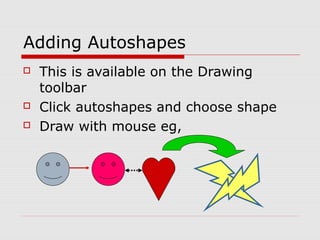
Adding Autoshapes
 This is available on the Drawing
toolbar
 Click autoshapes and choose shape
 Draw with mouse eg,
Time to ….Time to ….
Create your own presentationCreate your own presentation
and practice the skills youand practice the skills you
have learnt today…have learnt today…

Power point basics

  • 1.
  • 2.
    Slide DesignSlide Design Arange of designs can be usedA range of designs can be used as you will see over the next fewas you will see over the next few slidesslides
  • 3.
    Session Aim: Tohave a clearerSession Aim: To have a clearer understanding of the uses ofunderstanding of the uses of PowerPointPowerPoint  Learners will be able to:Learners will be able to:  Use the basic features of PowerPointUse the basic features of PowerPoint  Understand the difference between good andUnderstand the difference between good and bad presentationbad presentation  Produce a presentation using PowerPointProduce a presentation using PowerPoint  Be aware of advanced techniquesBe aware of advanced techniques
  • 4.
    Task: What makesa goodTask: What makes a good presentation?presentation?
  • 5.
    What makes abad presentation?
  • 6.
    Slide Layout • Youcan choose a range of layouts including: • Title Slide • Title Only • Title and Text (bullets) • Title and 2 Column Text • Content (table, image, clip art, organisation chart) • Increasing and Decreasing Indents
  • 7.
    To Insert aClip Art ImageTo Insert a Clip Art Image  Click Insert, Picture, Clip ArtClick Insert, Picture, Clip Art  Type in what you are looking forType in what you are looking for  Ensure that you have clickedEnsure that you have clicked Everywhere on All CollectionsEverywhere on All Collections  Double click your selection toDouble click your selection to add to the page.add to the page.
  • 8.
    Clip Art andImagesClip Art and Images Copyright Teachitworld.com http://gallery.e2bn.org/gallery0-tw_library.html
  • 9.
    FormattingFormatting  You canformat text by using differentYou can format text by using different fontsfonts,, sizessizes,, colourscolours You can also useYou can also use  You canYou can boldbold,, italicitalic,, underlineunderline
  • 10.
    BackgroundBackground • You canchange the background to a specific colour, or use the set templates or even use a image as a background. • You can increase the size of text by clicking on the side of the box and choosing the options on the toolbar
  • 11.
    Views • At themoment we are in Normal View • The next option is slide sorter view which allows you to view all the slides together, move, delete, reorder etc • This will run the slide show from the current slide
  • 12.
    Notes and PrintingHandouts Notes These can be added at the bottom of this slide to assist you when presenting Handouts To save paper and to provide a copy of your presentation, when you click Print, choose Print What, then choose Handouts, you can choose between 1 and 9 per page
  • 13.
    Adding DiagramsAdding Diagrams DoubleClick Content in Slide Design Option to change Choose Diagram
  • 14.
    Adding Autoshapes  Thisis available on the Drawing toolbar  Click autoshapes and choose shape  Draw with mouse eg,
  • 15.
    Time to ….Timeto …. Create your own presentationCreate your own presentation and practice the skills youand practice the skills you have learnt today…have learnt today…