Installing and running Postfix within
a docker container from the
command line
Requirements
• In order to complete this tutorial, you should
make sure that you have docker installed. For
more information about installation please
visit the following page:
http://docs.docker.io/en/latest/
• In addition to installation, you can start using
docker through the interactive tutorial:
http://www.docker.io/gettingstarted/
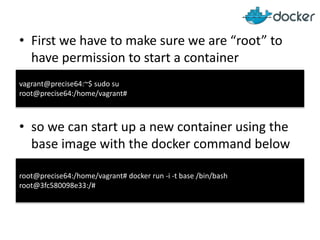
• First we have to make sure we are “root” to
have permission to start a container
• so we can start up a new container using the
base image with the docker command below
root@precise64:/home/vagrant# docker run -i -t base /bin/bash
root@3fc580098e33:/#
vagrant@precise64:~$ sudo su
root@precise64:/home/vagrant#
• Second we need to update our system packages
from what is included in our base image:
root@3fc580098e33:/# apt-get update
Ign http://archive.ubuntu.com quantal InRelease
Hit http://archive.ubuntu.com quantal Release.gpg
Hit http://archive.ubuntu.com quantal Release
Hit http://archive.ubuntu.com quantal/main amd64 Packages
Get:1 http://archive.ubuntu.com quantal/universe amd64 Packages [5274 kB]
Get:2 http://archive.ubuntu.com quantal/multiverse amd64 Packages [131 kB]
Get:3 http://archive.ubuntu.com quantal/main Translation-en [660 kB]
Get:4 http://archive.ubuntu.com quantal/multiverse Translation-en [100 kB]
Get:5 http://archive.ubuntu.com quantal/universe Translation-en [3648 kB]
Fetched 9813 kB in 35s (277 kB/s)
Reading package lists... Done
root@3fc580098e33:/#
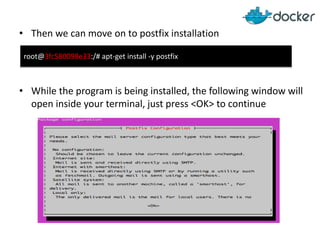
• Then we can move on to postfix installation
• While the program is being installed, the following window will
open inside your terminal, just press <OK> to continue
root@3fc580098e33:/# apt-get install -y postfix
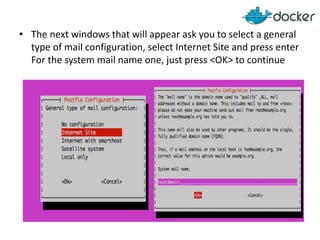
• The next windows that will appear ask you to select a general
type of mail configuration, select Internet Site and press enter
For the system mail name one, just press <OK> to continue
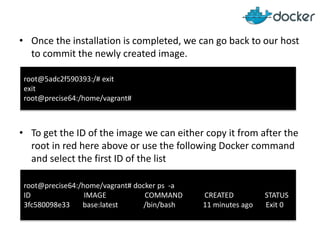
• Once the installation is completed, we can go back to our host
to commit the newly created image.
• To get the ID of the image we can either copy it from after the
root in red here above or use the following Docker command
and select the first ID of the list
root@5adc2f590393:/# exit
exit
root@precise64:/home/vagrant#
root@precise64:/home/vagrant# docker ps -a
ID IMAGE COMMAND CREATED STATUS
3fc580098e33 base:latest /bin/bash 11 minutes ago Exit 0
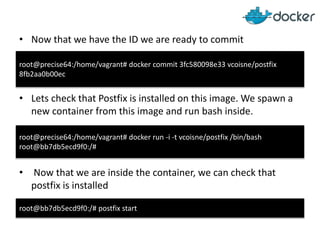
• Now that we have the ID we are ready to commit
• Lets check that Postfix is installed on this image. We spawn a
new container from this image and run bash inside.
• Now that we are inside the container, we can check that
postfix is installed
root@precise64:/home/vagrant# docker commit 3fc580098e33 vcoisne/postfix
8fb2aa0b00ec
root@precise64:/home/vagrant# docker run -i -t vcoisne/postfix /bin/bash
root@bb7db5ecd9f0:/#
root@bb7db5ecd9f0:/# postfix start
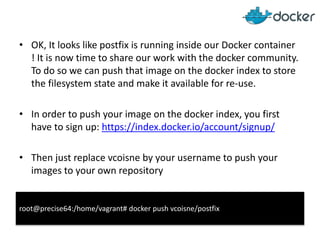
• OK, It looks like postfix is running inside our Docker container
! It is now time to share our work with the docker community.
To do so we can push that image on the docker index to store
the filesystem state and make it available for re-use.
• In order to push your image on the docker index, you first
have to sign up: https://index.docker.io/account/signup/
• Then just replace vcoisne by your username to push your
images to your own repository
root@precise64:/home/vagrant# docker push vcoisne/postfix
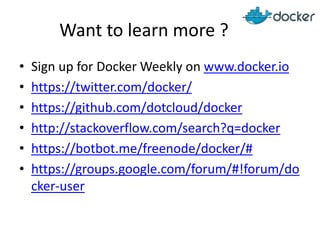
Want to learn more ?
• Sign up for Docker Weekly on www.docker.io
• https://twitter.com/docker/
• https://github.com/dotcloud/docker
• http://stackoverflow.com/search?q=docker
• https://botbot.me/freenode/docker/#
• https://groups.google.com/forum/#!forum/do
cker-user

Installing and Running Postfix within a Docker Container

  • 1.
    Installing and runningPostfix within a docker container from the command line
  • 2.
    Requirements • In orderto complete this tutorial, you should make sure that you have docker installed. For more information about installation please visit the following page: http://docs.docker.io/en/latest/ • In addition to installation, you can start using docker through the interactive tutorial: http://www.docker.io/gettingstarted/
  • 3.
    • First wehave to make sure we are “root” to have permission to start a container • so we can start up a new container using the base image with the docker command below root@precise64:/home/vagrant# docker run -i -t base /bin/bash root@3fc580098e33:/# vagrant@precise64:~$ sudo su root@precise64:/home/vagrant#
  • 4.
    • Second weneed to update our system packages from what is included in our base image: root@3fc580098e33:/# apt-get update Ign http://archive.ubuntu.com quantal InRelease Hit http://archive.ubuntu.com quantal Release.gpg Hit http://archive.ubuntu.com quantal Release Hit http://archive.ubuntu.com quantal/main amd64 Packages Get:1 http://archive.ubuntu.com quantal/universe amd64 Packages [5274 kB] Get:2 http://archive.ubuntu.com quantal/multiverse amd64 Packages [131 kB] Get:3 http://archive.ubuntu.com quantal/main Translation-en [660 kB] Get:4 http://archive.ubuntu.com quantal/multiverse Translation-en [100 kB] Get:5 http://archive.ubuntu.com quantal/universe Translation-en [3648 kB] Fetched 9813 kB in 35s (277 kB/s) Reading package lists... Done root@3fc580098e33:/#
  • 5.
    • Then wecan move on to postfix installation • While the program is being installed, the following window will open inside your terminal, just press <OK> to continue root@3fc580098e33:/# apt-get install -y postfix
  • 6.
    • The nextwindows that will appear ask you to select a general type of mail configuration, select Internet Site and press enter For the system mail name one, just press <OK> to continue
  • 7.
    • Once theinstallation is completed, we can go back to our host to commit the newly created image. • To get the ID of the image we can either copy it from after the root in red here above or use the following Docker command and select the first ID of the list root@5adc2f590393:/# exit exit root@precise64:/home/vagrant# root@precise64:/home/vagrant# docker ps -a ID IMAGE COMMAND CREATED STATUS 3fc580098e33 base:latest /bin/bash 11 minutes ago Exit 0
  • 8.
    • Now thatwe have the ID we are ready to commit • Lets check that Postfix is installed on this image. We spawn a new container from this image and run bash inside. • Now that we are inside the container, we can check that postfix is installed root@precise64:/home/vagrant# docker commit 3fc580098e33 vcoisne/postfix 8fb2aa0b00ec root@precise64:/home/vagrant# docker run -i -t vcoisne/postfix /bin/bash root@bb7db5ecd9f0:/# root@bb7db5ecd9f0:/# postfix start
  • 9.
    • OK, Itlooks like postfix is running inside our Docker container ! It is now time to share our work with the docker community. To do so we can push that image on the docker index to store the filesystem state and make it available for re-use. • In order to push your image on the docker index, you first have to sign up: https://index.docker.io/account/signup/ • Then just replace vcoisne by your username to push your images to your own repository root@precise64:/home/vagrant# docker push vcoisne/postfix
  • 10.
    Want to learnmore ? • Sign up for Docker Weekly on www.docker.io • https://twitter.com/docker/ • https://github.com/dotcloud/docker • http://stackoverflow.com/search?q=docker • https://botbot.me/freenode/docker/# • https://groups.google.com/forum/#!forum/do cker-user