
Manage Data on pcM. Imran IqbalCTO – Value First Messaging (Pvt.) Ltd.
Do you have Data?Do you store data on your Computer?Do you store personal and/or business data?Do you need to access data occasionally/regularly?Do you want to find your required data on the PC quickly?Do you keep on increasing the disk space but still your disk is out of space?
Data SourcesMobile PhoneContactsContacts are most importantHighly used data typeRequired to be managed properlyCommunicationText MessagesSometime may have very important informationRequire proper attention
Data SourcesCommunicationEmailsEmails with Friends, Family member and business contacts Emails communication with clients must be managed properlyEmails are reference documents
Data SourcesDocuments, Worksheets , Presentations etcSuch data have some valuable information Students may have their lectures, assignments and class notesPhotos and VideosDigital media might be largest data on any PC or any other device
Why Manage Data?Better use of available disk  spaceEasy to Find data when ever requiredAvoid duplication of filesEasy to backup and restore Easy to archive historical dataEasy to move data from one place to other like, Office to home and home to office
How to OrganizeOne Root Folder for All DataIt will make data access efficient Root folder on non-system partitionsRecommended for System performance Avoids accidental deletion of data while restoring/ re-installing Operating system.
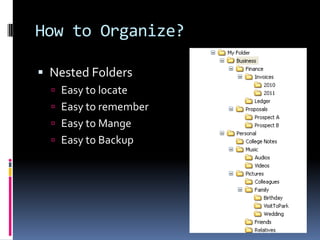
How to Organize?Nested FoldersEasy to locateEasy to rememberEasy to MangeEasy to Backup
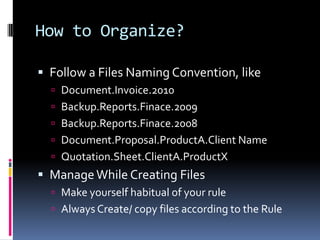
How to Organize?Follow a Files Naming Convention, likeDocument.Invoice.2010Backup.Reports.Finace.2009Backup.Reports.Finace.2008Document.Proposal.ProductA.Client NameQuotation.Sheet.ClientA.ProductXManage While Creating FilesMake yourself habitual of your ruleAlways Create/ copy files according to the Rule
How to Organize?Use subfolders by Files Types likeDocumentsSpread SheetsPresentationsMoviesPhotos
How to Organize?Cleaning/ Purging of DataClean/ purge data on regular basis Purged data can be archived for occasional use on backup diskOrganize Downloaded ContentOrganize the downloaded content in hierarchical way
How to Organize?Don’t Delete, Archive the filesArchived files can be restored Multiple Copies of FilesDocuments / sheets have built-in version feature, use that feature rather than creating a copy of the same file with different nameAvoid creating multiple copies of same file on different location
How to Organize?Use Indexing feature of Operating System to quickly search required dataCreate Shortcuts to Desktop or nearest location from desktopUse Favorites to create links to foldersKeep you desktop clean or use it for temporary storage
How to Organize?Email Clients RulesEmail clients can sort emails on different criteria Apply Rules to Copy/Move emails by Sender Domain, Sender Name, Subject etc to different foldersWeb Emails Folders/ LabelWeb email services do provide Folder/ Label featuresUse these features to organize emails
Data Backup and protection
Data backup ?Mobile Devices might be damagedDevices might be lost/ stolenHardware failure may occurPC/ Mobile are upgraded or replaced
Data ProtectionPersonal Data might need protection likeID Card, Passport, Bank statement, Medical informationBusiness related data might be highly sensitiveBusiness PlansProposals InvoicesCommunication with clients/ Prospects
Public & PrivateData can be divided in toPublicDoesn’t need security PrivateProtection/ encryption required
Data EncryptionEncryption of Data might be useful Mobile Devices have Encryption FeaturesEncryption software are available to secure data/ FoldersEncryption features are now available in Operating Systems, explore them
How to backup?External DiskRemote location / Files ServersOffice ServersUSB Flash DisksCD/DVD
How to Backup?Backup / File Synchronization SoftwareUse Backup software and File Synchronization File Synchronization software always keep track of modified, added and deletedThere are free / low cost software are available Auto Backup software for BusinessBusiness Organizations can use the software tools to auto-backup of network computers Multiple backup copies is a good option
ThanksPlease send your feedback / suggestions onmimran.iqbal@gmail.com

Personal Data Managent

  • 1.
    Manage Data onpcM. Imran IqbalCTO – Value First Messaging (Pvt.) Ltd.
  • 2.
    Do you haveData?Do you store data on your Computer?Do you store personal and/or business data?Do you need to access data occasionally/regularly?Do you want to find your required data on the PC quickly?Do you keep on increasing the disk space but still your disk is out of space?
  • 3.
    Data SourcesMobile PhoneContactsContactsare most importantHighly used data typeRequired to be managed properlyCommunicationText MessagesSometime may have very important informationRequire proper attention
  • 4.
    Data SourcesCommunicationEmailsEmails withFriends, Family member and business contacts Emails communication with clients must be managed properlyEmails are reference documents
  • 5.
    Data SourcesDocuments, Worksheets, Presentations etcSuch data have some valuable information Students may have their lectures, assignments and class notesPhotos and VideosDigital media might be largest data on any PC or any other device
  • 6.
    Why Manage Data?Betteruse of available disk spaceEasy to Find data when ever requiredAvoid duplication of filesEasy to backup and restore Easy to archive historical dataEasy to move data from one place to other like, Office to home and home to office
  • 7.
    How to OrganizeOneRoot Folder for All DataIt will make data access efficient Root folder on non-system partitionsRecommended for System performance Avoids accidental deletion of data while restoring/ re-installing Operating system.
  • 8.
    How to Organize?NestedFoldersEasy to locateEasy to rememberEasy to MangeEasy to Backup
  • 9.
    How to Organize?Followa Files Naming Convention, likeDocument.Invoice.2010Backup.Reports.Finace.2009Backup.Reports.Finace.2008Document.Proposal.ProductA.Client NameQuotation.Sheet.ClientA.ProductXManage While Creating FilesMake yourself habitual of your ruleAlways Create/ copy files according to the Rule
  • 10.
    How to Organize?Usesubfolders by Files Types likeDocumentsSpread SheetsPresentationsMoviesPhotos
  • 11.
    How to Organize?Cleaning/Purging of DataClean/ purge data on regular basis Purged data can be archived for occasional use on backup diskOrganize Downloaded ContentOrganize the downloaded content in hierarchical way
  • 12.
    How to Organize?Don’tDelete, Archive the filesArchived files can be restored Multiple Copies of FilesDocuments / sheets have built-in version feature, use that feature rather than creating a copy of the same file with different nameAvoid creating multiple copies of same file on different location
  • 13.
    How to Organize?UseIndexing feature of Operating System to quickly search required dataCreate Shortcuts to Desktop or nearest location from desktopUse Favorites to create links to foldersKeep you desktop clean or use it for temporary storage
  • 14.
    How to Organize?EmailClients RulesEmail clients can sort emails on different criteria Apply Rules to Copy/Move emails by Sender Domain, Sender Name, Subject etc to different foldersWeb Emails Folders/ LabelWeb email services do provide Folder/ Label featuresUse these features to organize emails
  • 15.
    Data Backup andprotection
  • 16.
    Data backup ?MobileDevices might be damagedDevices might be lost/ stolenHardware failure may occurPC/ Mobile are upgraded or replaced
  • 17.
    Data ProtectionPersonal Datamight need protection likeID Card, Passport, Bank statement, Medical informationBusiness related data might be highly sensitiveBusiness PlansProposals InvoicesCommunication with clients/ Prospects
  • 18.
    Public & PrivateDatacan be divided in toPublicDoesn’t need security PrivateProtection/ encryption required
  • 19.
    Data EncryptionEncryption ofData might be useful Mobile Devices have Encryption FeaturesEncryption software are available to secure data/ FoldersEncryption features are now available in Operating Systems, explore them
  • 20.
    How to backup?ExternalDiskRemote location / Files ServersOffice ServersUSB Flash DisksCD/DVD
  • 21.
    How to Backup?Backup/ File Synchronization SoftwareUse Backup software and File Synchronization File Synchronization software always keep track of modified, added and deletedThere are free / low cost software are available Auto Backup software for BusinessBusiness Organizations can use the software tools to auto-backup of network computers Multiple backup copies is a good option
  • 22.
    ThanksPlease send yourfeedback / suggestions onmimran.iqbal@gmail.com