DATA MANAGEMENT:
  WHERE’D MY FILES GO?
Presented by Miles - January 2013
Agenda

   What do I mean Data Mgmt?
   4 Points
    1.    Develop consistent naming system
    2.    Use Logic Tests to decide location
    3.    Search tips + folder views
    4.    Synchronizing and archiving
        Discussion
What do I mean Data Management?
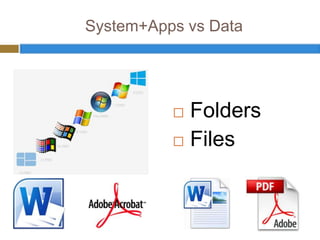
System+Apps vs Data


           Folders
           Files
Point 1: Develop a Consistent Naming System
Naming Strategy: Folders

   Create Consistent Buckets on all machines
   Windows Libraries are a great start
Naming Strategy: Folders

   Departments
   Date Related (eases archiving)
   Tags
   Unique
   Use hyphens, no spaces or underscores


http://www.pcmag.com/article2/0,2817,2385612,00.asp
Naming Strategy: Files

   Use YYYY-MM-DD for dates
   Include versions in file name
   keywords
   Unique
   Indicative of what the file contains
   Scannable (with the human eye)
   Naturally ordered alphabetically
   Consistent!
         Finding files will often come down to search
Naming Strategy: conventions to avoid!

   File type in folder (“PDFs” “DOCs”)
   Generic Words (“data” “files” “follow up”)
   Misspellings (will hurt search results later)
   Referring to containing folder (“abstracting-
    department-checklist-2013-02-03.xls”)
Miles’ example Naming System
My Example System: Top Level

Audio
Documents
Images
Installers
Video
Web
My Example System: Next Level

Documents
  Realogic
    Dept – Marketing
    Dept – Sales
    Dept – Abstract
    Dept – Analysis
    Dept – Human Resources (HR)
    Personnel
  Non-Work
    Personal Finance
    Wellness
    Entertainment
  Tutorials
Images
  Photos
  Graphics
My Example System: Next Next Level

 Documents
  Realogic
   Dept – Marketing
      Collateral
      Reports
      Receipts
      Proposals
      Presentations
   Dept – Abstract
   Dept – Analysis
   Dept – Human Resources (HR)
   Personnel
Point 2: Use Logic Tests to Determine Location
Where – Lots of options

   Local Drives (C:, partitions, Internal data drives)
   Removable Drives
     USB  Sticks
     CD/DVD/Blu-ray

     External drives

   Network Shared (H:, J:, I:)
   Network (personal U: drive)
   Web Cloud Storage
Logic Tests

1.   Is this a final version or a draft?
2.   Will this file need to be shared?
3.   Is this a template from which other data files
     will be made?
4.   Is this associated with a department?
5.   Will you need to work on this from multiple
     locations and computers?
6.   Does this file need to remain confidential?
Logic Tests: Will this file need to be shared?


If Yes:
 consider a shared network drive or in cloud

   storage
If No:
 Local drive or removable storage
Logic Tests: Is this a final version or draft?


If Final:
 consider converting to PDF and store on a

   shared network drive or in cloud storage
If Draft:
 Local drive or removable storage
Logic Tests: Is this a template


If Template:
 Consider the Intranet, a shared network drive

   or in cloud storage
If Draft:
 Local drive or removable storage
Point 3: Search Tips and Windows Views
Search Tips

   If you’ve stuck to your folder + file naming
    conventions, you should only need to know the
    general area
   Use the Window Explorer Search Box


http://windows.microsoft.com/en-US/windows7/Advanced-tips-for-searching-in-Windows
Windows Views

   Details view vs. Thumbnails view
   Sortable columns
   To set current Windows View for all folders:
     InWindows Explorer (Alt +T for Tools) -> Folder
      Options…
     View Tab ->”Apply to Folders”
Point 4: Synchronizing and Archiving
Pure Storage Cloud Apps


http://www.theverge.com/2012/4/24/2954960/google-drive-dropbox-skydrive-sugarsync-cloud-storage-competition
Local File Synchronization
Department-Specific Apps


       Intranet with
Extra Point: Consider whether you need a doc or not?
Notes & Brainstorm Apps


http://www.theverge.com/2012/4/24/2954960/google-drive-dropbox-skydrive-sugarsync-cloud-storage-competition
Content Saving Apps


http://www.theverge.com/2012/4/24/2954960/google-drive-dropbox-skydrive-sugarsync-cloud-storage-competition
Project Management Applications
That’s it

   Discussion

Internal lunchtime-learning--2013 jan22--data management

  • 1.
    DATA MANAGEMENT: WHERE’D MY FILES GO? Presented by Miles - January 2013
  • 2.
    Agenda  What do I mean Data Mgmt?  4 Points 1. Develop consistent naming system 2. Use Logic Tests to decide location 3. Search tips + folder views 4. Synchronizing and archiving  Discussion
  • 3.
    What do Imean Data Management?
  • 4.
    System+Apps vs Data  Folders  Files
  • 5.
    Point 1: Developa Consistent Naming System
  • 6.
    Naming Strategy: Folders  Create Consistent Buckets on all machines  Windows Libraries are a great start
  • 7.
    Naming Strategy: Folders  Departments  Date Related (eases archiving)  Tags  Unique  Use hyphens, no spaces or underscores http://www.pcmag.com/article2/0,2817,2385612,00.asp
  • 8.
    Naming Strategy: Files  Use YYYY-MM-DD for dates  Include versions in file name  keywords  Unique  Indicative of what the file contains  Scannable (with the human eye)  Naturally ordered alphabetically  Consistent! Finding files will often come down to search
  • 9.
    Naming Strategy: conventionsto avoid!  File type in folder (“PDFs” “DOCs”)  Generic Words (“data” “files” “follow up”)  Misspellings (will hurt search results later)  Referring to containing folder (“abstracting- department-checklist-2013-02-03.xls”)
  • 10.
  • 11.
    My Example System:Top Level Audio Documents Images Installers Video Web
  • 12.
    My Example System:Next Level Documents Realogic Dept – Marketing Dept – Sales Dept – Abstract Dept – Analysis Dept – Human Resources (HR) Personnel Non-Work Personal Finance Wellness Entertainment Tutorials Images Photos Graphics
  • 13.
    My Example System:Next Next Level Documents Realogic Dept – Marketing Collateral Reports Receipts Proposals Presentations Dept – Abstract Dept – Analysis Dept – Human Resources (HR) Personnel
  • 14.
    Point 2: UseLogic Tests to Determine Location
  • 15.
    Where – Lotsof options  Local Drives (C:, partitions, Internal data drives)  Removable Drives  USB Sticks  CD/DVD/Blu-ray  External drives  Network Shared (H:, J:, I:)  Network (personal U: drive)  Web Cloud Storage
  • 16.
    Logic Tests 1. Is this a final version or a draft? 2. Will this file need to be shared? 3. Is this a template from which other data files will be made? 4. Is this associated with a department? 5. Will you need to work on this from multiple locations and computers? 6. Does this file need to remain confidential?
  • 17.
    Logic Tests: Willthis file need to be shared? If Yes:  consider a shared network drive or in cloud storage If No:  Local drive or removable storage
  • 18.
    Logic Tests: Isthis a final version or draft? If Final:  consider converting to PDF and store on a shared network drive or in cloud storage If Draft:  Local drive or removable storage
  • 19.
    Logic Tests: Isthis a template If Template:  Consider the Intranet, a shared network drive or in cloud storage If Draft:  Local drive or removable storage
  • 20.
    Point 3: SearchTips and Windows Views
  • 21.
    Search Tips  If you’ve stuck to your folder + file naming conventions, you should only need to know the general area  Use the Window Explorer Search Box http://windows.microsoft.com/en-US/windows7/Advanced-tips-for-searching-in-Windows
  • 22.
    Windows Views  Details view vs. Thumbnails view  Sortable columns  To set current Windows View for all folders:  InWindows Explorer (Alt +T for Tools) -> Folder Options…  View Tab ->”Apply to Folders”
  • 23.
  • 24.
    Pure Storage CloudApps http://www.theverge.com/2012/4/24/2954960/google-drive-dropbox-skydrive-sugarsync-cloud-storage-competition
  • 25.
  • 26.
  • 27.
    Extra Point: Considerwhether you need a doc or not?
  • 28.
    Notes & BrainstormApps http://www.theverge.com/2012/4/24/2954960/google-drive-dropbox-skydrive-sugarsync-cloud-storage-competition
  • 29.
  • 30.
  • 31.
    That’s it  Discussion

Editor's Notes

  • #5 Computer use is split betweenApplications vs ContentSystem vs DataI’m talking about the latterTo me, this is the important stuffApplications can be reinstalled. Data needs to be re-created
  • #25 Dropbox is software that syncs your files online and across your computers. Put your files into your Dropbox on one computer, and they'll be instantly available on any of your other computers that also have Dropbox installed (Windows, Mac, and Linux too!). Because copies of your files are stored on Dropbox's secure servers, you can also access them from any computer or mobile device using the Dropbox website.