Administrative
tools and
features III.
Page 2
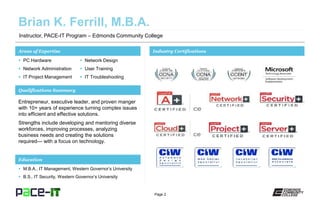
Instructor, PACE-IT Program – Edmonds Community College
Areas of Expertise Industry Certifications
 PC Hardware
 Network Administration
 IT Project Management
 Network Design
 User Training
 IT Troubleshooting
Qualifications Summary
Education
 M.B.A., IT Management, Western Governor’s University
 B.S., IT Security, Western Governor’s University
Entrepreneur, executive leader, and proven manger
with 10+ years of experience turning complex issues
into efficient and effective solutions.
Strengths include developing and mentoring diverse
workforces, improving processes, analyzing
business needs and creating the solutions
required— with a focus on technology.
Page 3
– Disk Management utility.
– Command line utilities.
– Transfer tools.
PACE-IT.
Page 4
Administrative tools and features III.
Page 5
Disk Management is
available in all current
versions of Microsoft
operating systems.
It provides a graphical user interface (GUI) method
for managing drives on a system. It allows the user
to determine drive status, mount drives, extend
partitions, split partitions, assign drive letters, add
drives, and add arrays.
Administrative tools and features III.
Page 6
– Drive status.
» Healthy: what you want to see.
» Unreadable: indicates a failure.
» Foreign: indicates that a dynamic disk has been moved
from one system to another.
» Online: indicates that system is ready to go.
» Online (error): indicates that the drive is about to fail.
» Offline: indicates that the drive is currently not available
to the system; it could indicate a hardware failure.
» Missing: indicates that the system knows about the
drive, but cannot find it.
» Failed: indicates a failed volume.
– Mounting a drive.
» This creates a logical pointer to the drive instead of
assigning a drive letter; it can be used in place of
spanning a volume.
Administrative tools and features III.
Page 7
– Extending partitions.
» Reclaiming unallocated space on a drive.
– Splitting partitions.
» Just what it sounds like—taking one partition and making
into more than one.
– Assigning drive letters.
» MS OSs automatically assign drive letters to new
volumes; Disk Management allows the user to assign a
desired letter to the volume.
– Adding a drive.
» Easy GUI method to add a new drive to the system.
– Adding arrays.
» Microsoft’s method of creating software based RAIDs.
Administrative tools and features III.
Page 8
Administrative tools and features III.
Page 9
The savvy technician knows
how to use the command
line (C:).
The technician who knows how to use the command
line is not reliant on the GUI and can solve
numerous problems through the use of it. Some
powerful tools are available through the command
line and it can be used to reach many other GUI
utilities.
Administrative tools and features III.
Page 10
– Command or CMD.
» Type “command” or “cmd” in a run or search box to get
access to the command prompt.
– Some available GUI utilities.
» msconfig (a.k.a. system configuration): will open the
configuration utility.
» regedit: will open utility that is used to edit the system
registry.
» services.msc: will bring up the services utility.
» mmc: starts the Microsoft Management Console (MMC).
» mstsc: will open the MS Terminal Services Client.
» notepad: will open a simple text editor.
» explorer: brings Windows Explorer into play.
» msinfo32: brings up the systems information utility.
» dxdiag: will bring up the DirectX diagnostic tool.
Administrative tools and features III.
Page 11
Administrative tools and features III.
Page 12
– Microsoft understands the pain (kind
of) of transitioning from an old PC to a
new one.
– Files and Settings Transfer Wizard.
» Window’s basic wizard used to transfer user settings and
files from an old PC to a new one, included in XP.
– Windows Easy Transfer.
» Replacement for the above in Windows Vista and newer.
» Supports different methods of transfer.
– User State Migration Tool (USMT).
» Allows advanced users to use scripting to customize the
transfer of files and settings between computers.
• Currently is only available as a command line utility.
Administrative tools and features III.
Page 13
Administrative tools and features III.
Available in all current versions of Windows. Allows for a GUI method of
easily managing the disks on a system. Status, mounting, partitioning, drive
letter assignment, and adding drives and arrays are all available from this
utility.
Topic
Disk Management utility.
Summary.
The command line is a very powerful and useful tool to the technician. It
also allows easy access to GUI utilities. Some of the GUI utilities available
through the command line are msconfig, regedit, services.msc, mmc,
mstsc, notepad, explorer, msinfo32, and dxdiag.
Command line utilities.
Microsoft provided tools to help transfer user settings and files between an
old PC and a new one. Files and Settings Transfer Wizard (XP) was
replaced by Windows Easy Transfer. USMT is for advanced users and
utilizes scripting to automate the transfer function.
Transfer tools.
Page 14
THANK YOU!
This workforce solution was 100 percent funded by a $3 million grant awarded by the
U.S. Department of Labor's Employment and Training Administration. The solution was
created by the grantee and does not necessarily reflect the official position of the U.S.
Department of Labor. The Department of Labor makes no guarantees, warranties, or
assurances of any kind, express or implied, with respect to such information, including
any information on linked sites and including, but not limited to, accuracy of the
information or its completeness, timeliness, usefulness, adequacy, continued availability
or ownership. Funded by the Department of Labor, Employment and Training
Administration, Grant #TC-23745-12-60-A-53.
PACE-IT is an equal opportunity employer/program and auxiliary aids and services are
available upon request to individuals with disabilities. For those that are hearing
impaired, a video phone is available at the Services for Students with Disabilities (SSD)
office in Mountlake Terrace Hall 159. Check www.edcc.edu/ssd for office hours. Call
425.354.3113 on a video phone for more information about the PACE-IT program. For
any additional special accommodations needed, call the SSD office at 425.640.1814.
Edmonds Community College does not discriminate on the basis of race; color; religion;
national origin; sex; disability; sexual orientation; age; citizenship, marital, or veteran
status; or genetic information in its programs and activities.

Pace IT - Admin Tools (Part 3)

  • 1.
  • 2.
    Page 2 Instructor, PACE-ITProgram – Edmonds Community College Areas of Expertise Industry Certifications  PC Hardware  Network Administration  IT Project Management  Network Design  User Training  IT Troubleshooting Qualifications Summary Education  M.B.A., IT Management, Western Governor’s University  B.S., IT Security, Western Governor’s University Entrepreneur, executive leader, and proven manger with 10+ years of experience turning complex issues into efficient and effective solutions. Strengths include developing and mentoring diverse workforces, improving processes, analyzing business needs and creating the solutions required— with a focus on technology.
  • 3.
    Page 3 – DiskManagement utility. – Command line utilities. – Transfer tools. PACE-IT.
  • 4.
    Page 4 Administrative toolsand features III.
  • 5.
    Page 5 Disk Managementis available in all current versions of Microsoft operating systems. It provides a graphical user interface (GUI) method for managing drives on a system. It allows the user to determine drive status, mount drives, extend partitions, split partitions, assign drive letters, add drives, and add arrays. Administrative tools and features III.
  • 6.
    Page 6 – Drivestatus. » Healthy: what you want to see. » Unreadable: indicates a failure. » Foreign: indicates that a dynamic disk has been moved from one system to another. » Online: indicates that system is ready to go. » Online (error): indicates that the drive is about to fail. » Offline: indicates that the drive is currently not available to the system; it could indicate a hardware failure. » Missing: indicates that the system knows about the drive, but cannot find it. » Failed: indicates a failed volume. – Mounting a drive. » This creates a logical pointer to the drive instead of assigning a drive letter; it can be used in place of spanning a volume. Administrative tools and features III.
  • 7.
    Page 7 – Extendingpartitions. » Reclaiming unallocated space on a drive. – Splitting partitions. » Just what it sounds like—taking one partition and making into more than one. – Assigning drive letters. » MS OSs automatically assign drive letters to new volumes; Disk Management allows the user to assign a desired letter to the volume. – Adding a drive. » Easy GUI method to add a new drive to the system. – Adding arrays. » Microsoft’s method of creating software based RAIDs. Administrative tools and features III.
  • 8.
    Page 8 Administrative toolsand features III.
  • 9.
    Page 9 The savvytechnician knows how to use the command line (C:). The technician who knows how to use the command line is not reliant on the GUI and can solve numerous problems through the use of it. Some powerful tools are available through the command line and it can be used to reach many other GUI utilities. Administrative tools and features III.
  • 10.
    Page 10 – Commandor CMD. » Type “command” or “cmd” in a run or search box to get access to the command prompt. – Some available GUI utilities. » msconfig (a.k.a. system configuration): will open the configuration utility. » regedit: will open utility that is used to edit the system registry. » services.msc: will bring up the services utility. » mmc: starts the Microsoft Management Console (MMC). » mstsc: will open the MS Terminal Services Client. » notepad: will open a simple text editor. » explorer: brings Windows Explorer into play. » msinfo32: brings up the systems information utility. » dxdiag: will bring up the DirectX diagnostic tool. Administrative tools and features III.
  • 11.
  • 12.
    Page 12 – Microsoftunderstands the pain (kind of) of transitioning from an old PC to a new one. – Files and Settings Transfer Wizard. » Window’s basic wizard used to transfer user settings and files from an old PC to a new one, included in XP. – Windows Easy Transfer. » Replacement for the above in Windows Vista and newer. » Supports different methods of transfer. – User State Migration Tool (USMT). » Allows advanced users to use scripting to customize the transfer of files and settings between computers. • Currently is only available as a command line utility. Administrative tools and features III.
  • 13.
    Page 13 Administrative toolsand features III. Available in all current versions of Windows. Allows for a GUI method of easily managing the disks on a system. Status, mounting, partitioning, drive letter assignment, and adding drives and arrays are all available from this utility. Topic Disk Management utility. Summary. The command line is a very powerful and useful tool to the technician. It also allows easy access to GUI utilities. Some of the GUI utilities available through the command line are msconfig, regedit, services.msc, mmc, mstsc, notepad, explorer, msinfo32, and dxdiag. Command line utilities. Microsoft provided tools to help transfer user settings and files between an old PC and a new one. Files and Settings Transfer Wizard (XP) was replaced by Windows Easy Transfer. USMT is for advanced users and utilizes scripting to automate the transfer function. Transfer tools.
  • 14.
  • 15.
    This workforce solutionwas 100 percent funded by a $3 million grant awarded by the U.S. Department of Labor's Employment and Training Administration. The solution was created by the grantee and does not necessarily reflect the official position of the U.S. Department of Labor. The Department of Labor makes no guarantees, warranties, or assurances of any kind, express or implied, with respect to such information, including any information on linked sites and including, but not limited to, accuracy of the information or its completeness, timeliness, usefulness, adequacy, continued availability or ownership. Funded by the Department of Labor, Employment and Training Administration, Grant #TC-23745-12-60-A-53. PACE-IT is an equal opportunity employer/program and auxiliary aids and services are available upon request to individuals with disabilities. For those that are hearing impaired, a video phone is available at the Services for Students with Disabilities (SSD) office in Mountlake Terrace Hall 159. Check www.edcc.edu/ssd for office hours. Call 425.354.3113 on a video phone for more information about the PACE-IT program. For any additional special accommodations needed, call the SSD office at 425.640.1814. Edmonds Community College does not discriminate on the basis of race; color; religion; national origin; sex; disability; sexual orientation; age; citizenship, marital, or veteran status; or genetic information in its programs and activities.