
Microsoft ®  Office  Outlook ®   2003 Training Organize your Inbox presents:
Course contents Overview: Tame the chaos of your Inbox Lesson 1: Color code with automatic formatting Lesson 2: Find it fast with arrangements Lesson 3: Use flags to follow up Organize your Inbox (Continued on next slide.)
Course contents (contd.) Lesson 4: Use folders Lesson 5: Play favorites Organize your Inbox Each lesson includes a list of suggested tasks and a set of test questions.
What's your style in Outlook? Would you say that you organize your e-mail the same way you organize your office? Overview: Tame the chaos of your Inbox Organize your Inbox Your style works for you: Outlook can accommodate you with features that complement your natural work style.  Shawn Lee Jamie Horton
Course goals Use colors to make specific messages stand out.  Easily locate messages by changing the way they are arranged. Use flags to set your own priorities for how and when to follow up on messages.  Organize messages into actual groups and virtual groups by using folders and Search Folders.  Get easy access to the folders you use most often by adding them to the Favorite Folders pane.  Organize your Inbox
Lesson 1 Color code with automatic formatting
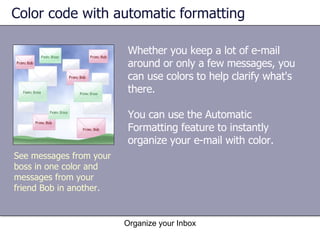
Color code with automatic formatting Whether you keep a lot of e-mail around or only a few messages, you can use colors to help clarify what's there. You can use the Automatic Formatting feature to instantly organize your e-mail with color. Organize your Inbox See messages from your boss in one color and messages from your friend Bob in another.
Color code messages Use Automatic Formatting to make certain messages stand out with color. Even if you have thousands of messages in your Inbox, the green ones will catch your attention. Organize your Inbox
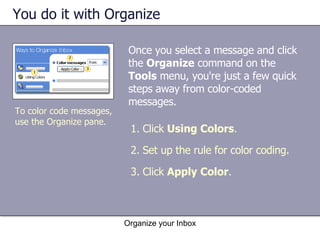
You do it with Organize  Once you select a message and click the  Organize  command on the  Tools  menu, you're just a few quick steps away from color-coded messages. Organize your Inbox Click  Using Colors . Set up the rule for color coding. Click  Apply Color . To color code messages, use the Organize pane.
It’s an Automatic Formatting rule Organize your Inbox To see the rule: Click  Automatic Formatting  in the   Organize   pane. Outlook creates an Automatic Formatting rule and shows you the details in the  Automatic Formatting  dialog box.
Suggestions for practice Color code messages from a specific person. Turn off color coding. Change the color used for automatic formatting. Delete the color coding rule. Organize your Inbox Online practice   (requires Outlook 2003)
Test 1, question 1 Organizing by color would help you: (Pick one answer.) Organize your Inbox Make your Inbox pretty. Quickly notice messages from the boss. Group similar messages.
Test 1, question 1: Answer Quickly notice messages from the boss. Organize your Inbox If you set up a rule to color messages from your boss, you'll be able to spot them right away.
Test 1, question 2 When you click Apply Color in the Organize pane, Outlook creates:  (Pick one answer.) Organize your Inbox A custom font. A fashion statement. An Automatic Formatting rule.
Test 1, question 2: Answer An Automatic Formatting rule. Organize your Inbox Outlook creates a rule that it applies to the messages in your Inbox, or to the messages in whichever folder you were looking in when you created the rule.
Lesson 2 Find it fast with arrangements
Find it fast with arrangements You may be able to spot the message you're looking for more quickly by changing the way messages are arranged. Organize your Inbox
By date, by default By default, Outlook shows messages grouped and sorted by date. Organize your Inbox The type of arrangement. How messages are ordered. Here the newest messages are on top. Outlook displays only relevant date information. To see the full date, position the pointer over the displayed date. In messages grouped by date, one thing you’ll always be able to see is the sender’s name.
Quickly change arrangements You can also arrange messages other ways: by size, by who they're from, or by subject (to name just a few).  To quickly change from one arrangement to another, you would click  Arranged By  and select the choice that suits you. Organize your Inbox The  Arranged By  shortcut menu
Arrange by conversation topic  When you arrange messages by conversation topic, only unread messages are displayed. At first, you'll see only the bits of the conversation that you haven't yet read. To see all the messages, click the arrow next to the conversation title (circled in the picture). Organize your Inbox
See the whole conversation  When you arrange messages by conversation, you see the "traffic flow" of a conversation.  Organize your Inbox Click the arrow to show or hide read messages. Read messages appear as open envelopes. The indentation tells you that a conversation split. (This is a reply to Ted Bremer's message above.) Messages are indented to show you who replied to whom. The dates show you when they replied.
Suggestions for practice Arrange by message sender. Arrange by conversation. Use the shortcut menu to switch to a different arrangement. Organize your Inbox Online practice   (requires Outlook 2003)
Test 2, question 1 To see who replied to whom (and when they replied), you should arrange messages this way: (Pick one answer.) Organize your Inbox By subject. By conversation. By date.
Test 2, question 1: Answer By conversation. Organize your Inbox Arranging messages by conversation will indent related messages, giving you visual cues about who replied to whom and when they replied.
Test 2, question 2 When you arrange messages by date, Outlook hides certain unimportant message details. Which detail will you always see in this view? (Pick one answer.) Organize your Inbox The sender's name. The time the message was sent. The day of the week.
Test 2, question 2: Answer The sender's name. Organize your Inbox In the default arrangement, in which you see messages grouped by the date you received them, you'll always be able to see who sent the message. Depending on when you received the message, some details about when the message was sent will be hidden.
Lesson 3 Use flags to follow up
Use flags to follow up Organize your Inbox You can use flags to prioritize your messages and follow up.
Flag it! Organize your Inbox The Flag Status column. Right-click here to add a flag.  You have six flag colors to choose from. The flags aren’t labeled, so you decide what significance to assign a particular color.  You can flag messages right from your Inbox.
Flag it! Organize your Inbox You can flag messages right from your Inbox. When you've followed up, use the  Flag Complete  command to change the flag status.  Use  Add Reminder  to set a date and time for a reminder.
Base a "To Do" list on flags To quickly get organized, a great trick is to use flags with Search Folders.  After you flag a message, it automatically appears in the  For Follow Up  Search Folder. Organize your Inbox
Suggestions for practice Add a flag by using the Flag Status column. Add a flag to an open message. Add a reminder. Sort messages according to their flags. Organize your Inbox Online practice   (requires Outlook 2003)
Test 3, question 1 A red message flag signifies which of the following: (Pick one answer.) Organize your Inbox Highest priority. Urgent. Whatever you want it to mean.
Test 3, question 1: Answer Whatever you want it to mean. Organize your Inbox With Outlook flags, you decide what the colors mean. You have six to choose from.
Test 3, question 2 Flags can be a great way to create a "To Do" list when you combine their use with this feature:  (Pick one answer.) Organize your Inbox Search Folders. Reminders. Flag poles.
Test 3, question 2: Answer Search Folders. Organize your Inbox When you attach a flag to a message, it will automatically show up in the  For Follow Up  Search Folder. You can look in this folder to see your "To Do" list. (See the next lesson to find out more.)
Lesson 4 Use folders
Use folders Folders can help you sort your messages into intuitive groups. Folders can reflect your personal needs and interests. Organize your Inbox
How to create a folder in your Inbox Organize your Inbox Right-click  Inbox . Click  New Folder . Then, you would type the name of the new folder and click  OK .
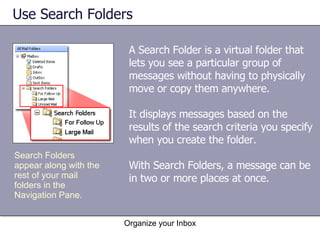
Use Search Folders A Search Folder is a virtual folder that lets you see a particular group of messages without having to physically move or copy them anywhere. It displays messages based on the results of the search criteria you specify when you create the folder. With Search Folders, a message can be in two or more places at once. Organize your Inbox Search Folders appear along with the rest of your mail folders in the Navigation Pane.
Use Search Folders Outlook creates three Search Folders by default: Organize your Inbox Search Folders appear along with the rest of your mail folders in the Navigation Pane. For Follow Up Large Mail Unread Mail
Suggestions for practice Create a folder by right-clicking. Create a folder from the  File  menu. File messages. Use one of the default Search Folders. Create your own Search Folder. Organize your Inbox Online practice   (requires Outlook 2003)
Test 4, question 1 To display messages in a Search Folder, you would: (Pick one answer.) Organize your Inbox Move the messages into the folder by dragging them. Specify the appropriate criteria when you create the folder. Move the messages into the folder by right-clicking them, and then clicking  Move .
Test 4, question 1: Answer Specify the appropriate criteria when you create the folder. Organize your Inbox A Search Folder displays messages based on the results of the search criteria you specify when you create the folder.
Test 4, question 2 The For Follow Up folder, a default Search Folder, will display flagged messages from which of the following folders: (Pick one answer.)  Organize your Inbox All folders in your mailbox. The Inbox only. Only those folders that you specify.
Test 4, question 2: Answer All folders in your mailbox. Organize your Inbox If you want to narrow the scope, you can create customized Search Folders.
Lesson 5 Play favorites
Play favorites Adding a folder to Favorite Folders makes it easy to access. Organize your Inbox
See favorites You see mail folders when you look at e-mail in the Navigation Pane.  Mail folders are visible in two places: Organize your Inbox Favorite Folders All Mail Folders
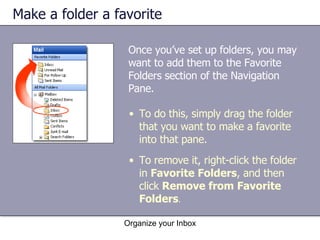
Make a folder a favorite Once you’ve set up folders, you may want to add them to the Favorite Folders section of the Navigation Pane. Organize your Inbox To do this, simply drag the folder that you want to make a favorite into that pane. To remove it, right-click the folder in  Favorite Folders , and then click  Remove from Favorite Folders .
Suggestions for practice Add a folder to Favorite Folders by dragging. Add a folder to Favorite Folders by right-clicking. Remove a folder from Favorite Folders. Organize your Inbox Online practice   (requires Outlook 2003)
Test 5, question 1 To place a folder in Favorite Folders, you would: (Pick one answer.) Organize your Inbox Drag it. Cut and paste it. Move it by using Microsoft Windows ®  Explorer.
Test 5, question 1: Answer Drag it. Organize your Inbox
Test 5, question 2 To remove a folder from the Favorite Folders list only, you would:  (Pick one answer.) Organize your Inbox Delete it. Use the  Remove from Favorite Folders  command. Drag it.
Test 5, question 2: Answer Use the  Remove from Favorite Folders  command. Organize your Inbox Right-click the folder in  Favorite Folders , and then click  Remove from Favorite Folders .  What could be more simple?
Quick Reference Card For a summary of the tasks covered in this course, view the  Quick Reference Card .  Organize your Inbox
USING THIS TEMPLATE See the notes pane or view the full notes page ( View  menu) for detailed help on this template.

Organize Your Inbox!!!

  • 1.
    Microsoft ® Office Outlook ® 2003 Training Organize your Inbox presents:
  • 2.
    Course contents Overview:Tame the chaos of your Inbox Lesson 1: Color code with automatic formatting Lesson 2: Find it fast with arrangements Lesson 3: Use flags to follow up Organize your Inbox (Continued on next slide.)
  • 3.
    Course contents (contd.)Lesson 4: Use folders Lesson 5: Play favorites Organize your Inbox Each lesson includes a list of suggested tasks and a set of test questions.
  • 4.
    What's your stylein Outlook? Would you say that you organize your e-mail the same way you organize your office? Overview: Tame the chaos of your Inbox Organize your Inbox Your style works for you: Outlook can accommodate you with features that complement your natural work style. Shawn Lee Jamie Horton
  • 5.
    Course goals Usecolors to make specific messages stand out. Easily locate messages by changing the way they are arranged. Use flags to set your own priorities for how and when to follow up on messages. Organize messages into actual groups and virtual groups by using folders and Search Folders. Get easy access to the folders you use most often by adding them to the Favorite Folders pane. Organize your Inbox
  • 6.
    Lesson 1 Colorcode with automatic formatting
  • 7.
    Color code withautomatic formatting Whether you keep a lot of e-mail around or only a few messages, you can use colors to help clarify what's there. You can use the Automatic Formatting feature to instantly organize your e-mail with color. Organize your Inbox See messages from your boss in one color and messages from your friend Bob in another.
  • 8.
    Color code messagesUse Automatic Formatting to make certain messages stand out with color. Even if you have thousands of messages in your Inbox, the green ones will catch your attention. Organize your Inbox
  • 9.
    You do itwith Organize Once you select a message and click the Organize command on the Tools menu, you're just a few quick steps away from color-coded messages. Organize your Inbox Click Using Colors . Set up the rule for color coding. Click Apply Color . To color code messages, use the Organize pane.
  • 10.
    It’s an AutomaticFormatting rule Organize your Inbox To see the rule: Click Automatic Formatting in the Organize pane. Outlook creates an Automatic Formatting rule and shows you the details in the Automatic Formatting dialog box.
  • 11.
    Suggestions for practiceColor code messages from a specific person. Turn off color coding. Change the color used for automatic formatting. Delete the color coding rule. Organize your Inbox Online practice (requires Outlook 2003)
  • 12.
    Test 1, question1 Organizing by color would help you: (Pick one answer.) Organize your Inbox Make your Inbox pretty. Quickly notice messages from the boss. Group similar messages.
  • 13.
    Test 1, question1: Answer Quickly notice messages from the boss. Organize your Inbox If you set up a rule to color messages from your boss, you'll be able to spot them right away.
  • 14.
    Test 1, question2 When you click Apply Color in the Organize pane, Outlook creates: (Pick one answer.) Organize your Inbox A custom font. A fashion statement. An Automatic Formatting rule.
  • 15.
    Test 1, question2: Answer An Automatic Formatting rule. Organize your Inbox Outlook creates a rule that it applies to the messages in your Inbox, or to the messages in whichever folder you were looking in when you created the rule.
  • 16.
    Lesson 2 Findit fast with arrangements
  • 17.
    Find it fastwith arrangements You may be able to spot the message you're looking for more quickly by changing the way messages are arranged. Organize your Inbox
  • 18.
    By date, bydefault By default, Outlook shows messages grouped and sorted by date. Organize your Inbox The type of arrangement. How messages are ordered. Here the newest messages are on top. Outlook displays only relevant date information. To see the full date, position the pointer over the displayed date. In messages grouped by date, one thing you’ll always be able to see is the sender’s name.
  • 19.
    Quickly change arrangementsYou can also arrange messages other ways: by size, by who they're from, or by subject (to name just a few). To quickly change from one arrangement to another, you would click Arranged By and select the choice that suits you. Organize your Inbox The Arranged By shortcut menu
  • 20.
    Arrange by conversationtopic When you arrange messages by conversation topic, only unread messages are displayed. At first, you'll see only the bits of the conversation that you haven't yet read. To see all the messages, click the arrow next to the conversation title (circled in the picture). Organize your Inbox
  • 21.
    See the wholeconversation When you arrange messages by conversation, you see the "traffic flow" of a conversation. Organize your Inbox Click the arrow to show or hide read messages. Read messages appear as open envelopes. The indentation tells you that a conversation split. (This is a reply to Ted Bremer's message above.) Messages are indented to show you who replied to whom. The dates show you when they replied.
  • 22.
    Suggestions for practiceArrange by message sender. Arrange by conversation. Use the shortcut menu to switch to a different arrangement. Organize your Inbox Online practice (requires Outlook 2003)
  • 23.
    Test 2, question1 To see who replied to whom (and when they replied), you should arrange messages this way: (Pick one answer.) Organize your Inbox By subject. By conversation. By date.
  • 24.
    Test 2, question1: Answer By conversation. Organize your Inbox Arranging messages by conversation will indent related messages, giving you visual cues about who replied to whom and when they replied.
  • 25.
    Test 2, question2 When you arrange messages by date, Outlook hides certain unimportant message details. Which detail will you always see in this view? (Pick one answer.) Organize your Inbox The sender's name. The time the message was sent. The day of the week.
  • 26.
    Test 2, question2: Answer The sender's name. Organize your Inbox In the default arrangement, in which you see messages grouped by the date you received them, you'll always be able to see who sent the message. Depending on when you received the message, some details about when the message was sent will be hidden.
  • 27.
    Lesson 3 Useflags to follow up
  • 28.
    Use flags tofollow up Organize your Inbox You can use flags to prioritize your messages and follow up.
  • 29.
    Flag it! Organizeyour Inbox The Flag Status column. Right-click here to add a flag. You have six flag colors to choose from. The flags aren’t labeled, so you decide what significance to assign a particular color. You can flag messages right from your Inbox.
  • 30.
    Flag it! Organizeyour Inbox You can flag messages right from your Inbox. When you've followed up, use the Flag Complete command to change the flag status. Use Add Reminder to set a date and time for a reminder.
  • 31.
    Base a "ToDo" list on flags To quickly get organized, a great trick is to use flags with Search Folders. After you flag a message, it automatically appears in the For Follow Up Search Folder. Organize your Inbox
  • 32.
    Suggestions for practiceAdd a flag by using the Flag Status column. Add a flag to an open message. Add a reminder. Sort messages according to their flags. Organize your Inbox Online practice (requires Outlook 2003)
  • 33.
    Test 3, question1 A red message flag signifies which of the following: (Pick one answer.) Organize your Inbox Highest priority. Urgent. Whatever you want it to mean.
  • 34.
    Test 3, question1: Answer Whatever you want it to mean. Organize your Inbox With Outlook flags, you decide what the colors mean. You have six to choose from.
  • 35.
    Test 3, question2 Flags can be a great way to create a "To Do" list when you combine their use with this feature: (Pick one answer.) Organize your Inbox Search Folders. Reminders. Flag poles.
  • 36.
    Test 3, question2: Answer Search Folders. Organize your Inbox When you attach a flag to a message, it will automatically show up in the For Follow Up Search Folder. You can look in this folder to see your "To Do" list. (See the next lesson to find out more.)
  • 37.
    Lesson 4 Usefolders
  • 38.
    Use folders Folderscan help you sort your messages into intuitive groups. Folders can reflect your personal needs and interests. Organize your Inbox
  • 39.
    How to createa folder in your Inbox Organize your Inbox Right-click Inbox . Click New Folder . Then, you would type the name of the new folder and click OK .
  • 40.
    Use Search FoldersA Search Folder is a virtual folder that lets you see a particular group of messages without having to physically move or copy them anywhere. It displays messages based on the results of the search criteria you specify when you create the folder. With Search Folders, a message can be in two or more places at once. Organize your Inbox Search Folders appear along with the rest of your mail folders in the Navigation Pane.
  • 41.
    Use Search FoldersOutlook creates three Search Folders by default: Organize your Inbox Search Folders appear along with the rest of your mail folders in the Navigation Pane. For Follow Up Large Mail Unread Mail
  • 42.
    Suggestions for practiceCreate a folder by right-clicking. Create a folder from the File menu. File messages. Use one of the default Search Folders. Create your own Search Folder. Organize your Inbox Online practice (requires Outlook 2003)
  • 43.
    Test 4, question1 To display messages in a Search Folder, you would: (Pick one answer.) Organize your Inbox Move the messages into the folder by dragging them. Specify the appropriate criteria when you create the folder. Move the messages into the folder by right-clicking them, and then clicking Move .
  • 44.
    Test 4, question1: Answer Specify the appropriate criteria when you create the folder. Organize your Inbox A Search Folder displays messages based on the results of the search criteria you specify when you create the folder.
  • 45.
    Test 4, question2 The For Follow Up folder, a default Search Folder, will display flagged messages from which of the following folders: (Pick one answer.) Organize your Inbox All folders in your mailbox. The Inbox only. Only those folders that you specify.
  • 46.
    Test 4, question2: Answer All folders in your mailbox. Organize your Inbox If you want to narrow the scope, you can create customized Search Folders.
  • 47.
    Lesson 5 Playfavorites
  • 48.
    Play favorites Addinga folder to Favorite Folders makes it easy to access. Organize your Inbox
  • 49.
    See favorites Yousee mail folders when you look at e-mail in the Navigation Pane. Mail folders are visible in two places: Organize your Inbox Favorite Folders All Mail Folders
  • 50.
    Make a foldera favorite Once you’ve set up folders, you may want to add them to the Favorite Folders section of the Navigation Pane. Organize your Inbox To do this, simply drag the folder that you want to make a favorite into that pane. To remove it, right-click the folder in Favorite Folders , and then click Remove from Favorite Folders .
  • 51.
    Suggestions for practiceAdd a folder to Favorite Folders by dragging. Add a folder to Favorite Folders by right-clicking. Remove a folder from Favorite Folders. Organize your Inbox Online practice (requires Outlook 2003)
  • 52.
    Test 5, question1 To place a folder in Favorite Folders, you would: (Pick one answer.) Organize your Inbox Drag it. Cut and paste it. Move it by using Microsoft Windows ® Explorer.
  • 53.
    Test 5, question1: Answer Drag it. Organize your Inbox
  • 54.
    Test 5, question2 To remove a folder from the Favorite Folders list only, you would: (Pick one answer.) Organize your Inbox Delete it. Use the Remove from Favorite Folders command. Drag it.
  • 55.
    Test 5, question2: Answer Use the Remove from Favorite Folders command. Organize your Inbox Right-click the folder in Favorite Folders , and then click Remove from Favorite Folders . What could be more simple?
  • 56.
    Quick Reference CardFor a summary of the tasks covered in this course, view the Quick Reference Card . Organize your Inbox
  • 57.
    USING THIS TEMPLATESee the notes pane or view the full notes page ( View menu) for detailed help on this template.

Editor's Notes

  • #2 [ Note to trainer : For detailed help in customizing this template, see the very last slide. Also, look for additional lesson text in the notes pane of some slides.]