OpenNebula
Tutorial
© OpenNebula Project. Creative Commons Attribution-NonCommercial-ShareAlike License
OpenNebula Hands-on Workshop
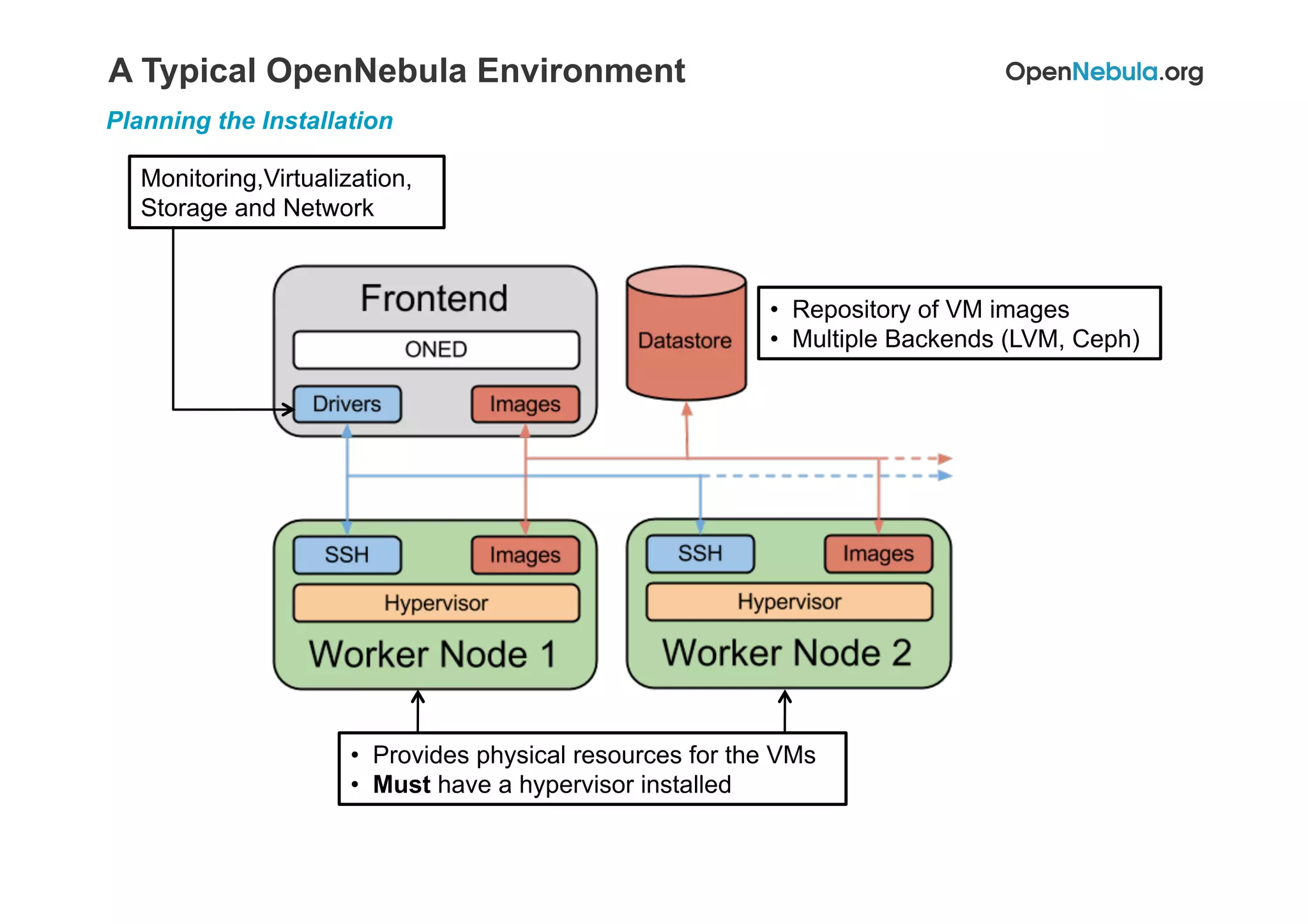
A Typical OpenNebula Environment
Planning the Installation
•  Repository of VM images
•  Multiple Backends (LVM, Ceph)
Monitoring,Virtualization,
Storage and Network
•  Provides physical resources for the VMs
•  Must have a hypervisor installed
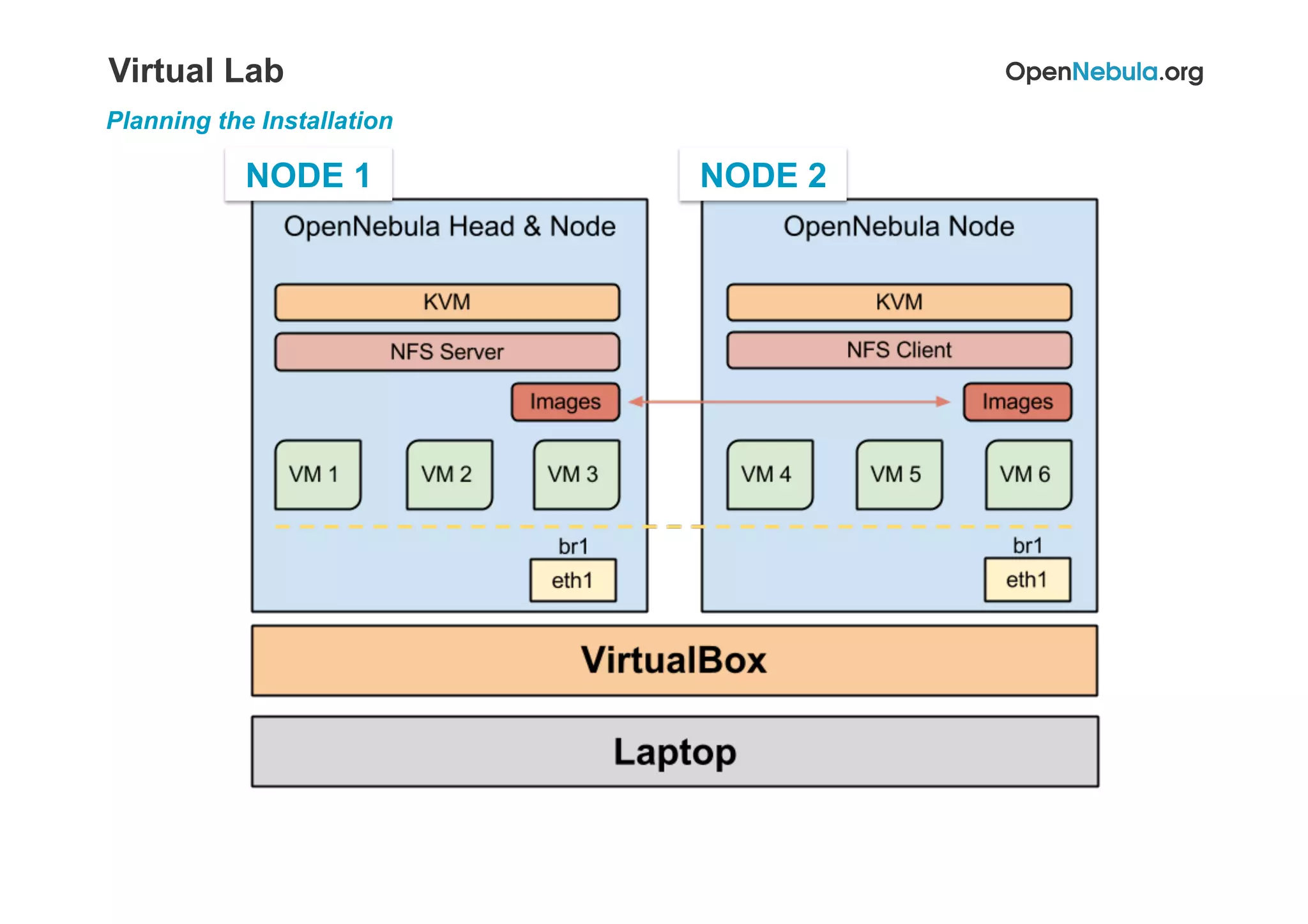
Virtual Lab
Planning the Installation
NODE 1 NODE 2
4Installing and Basic Usage
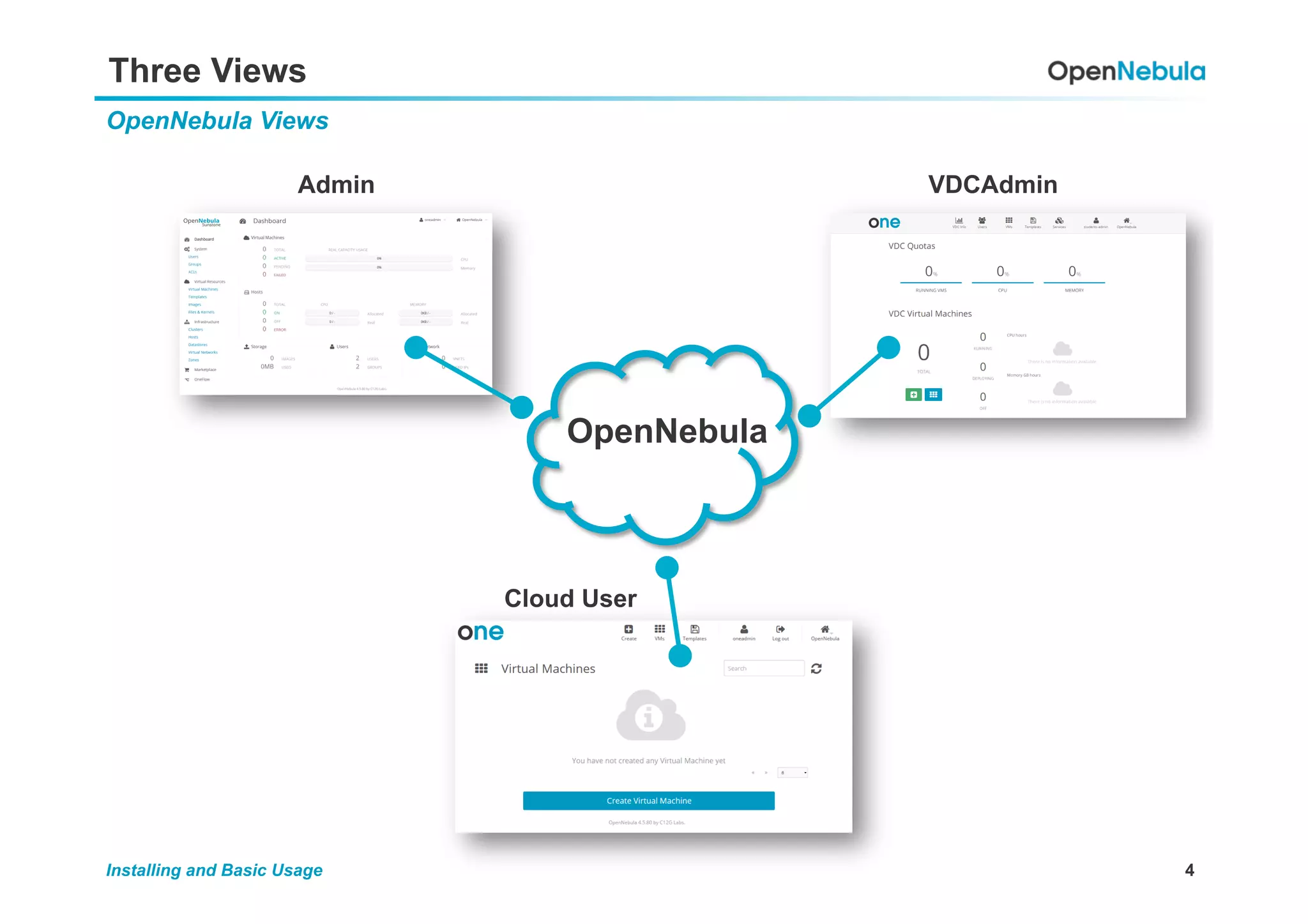
Three Views
OpenNebula Views
OpenNebula
Admin VDCAdmin
Cloud User
5Installing and Basic Usage
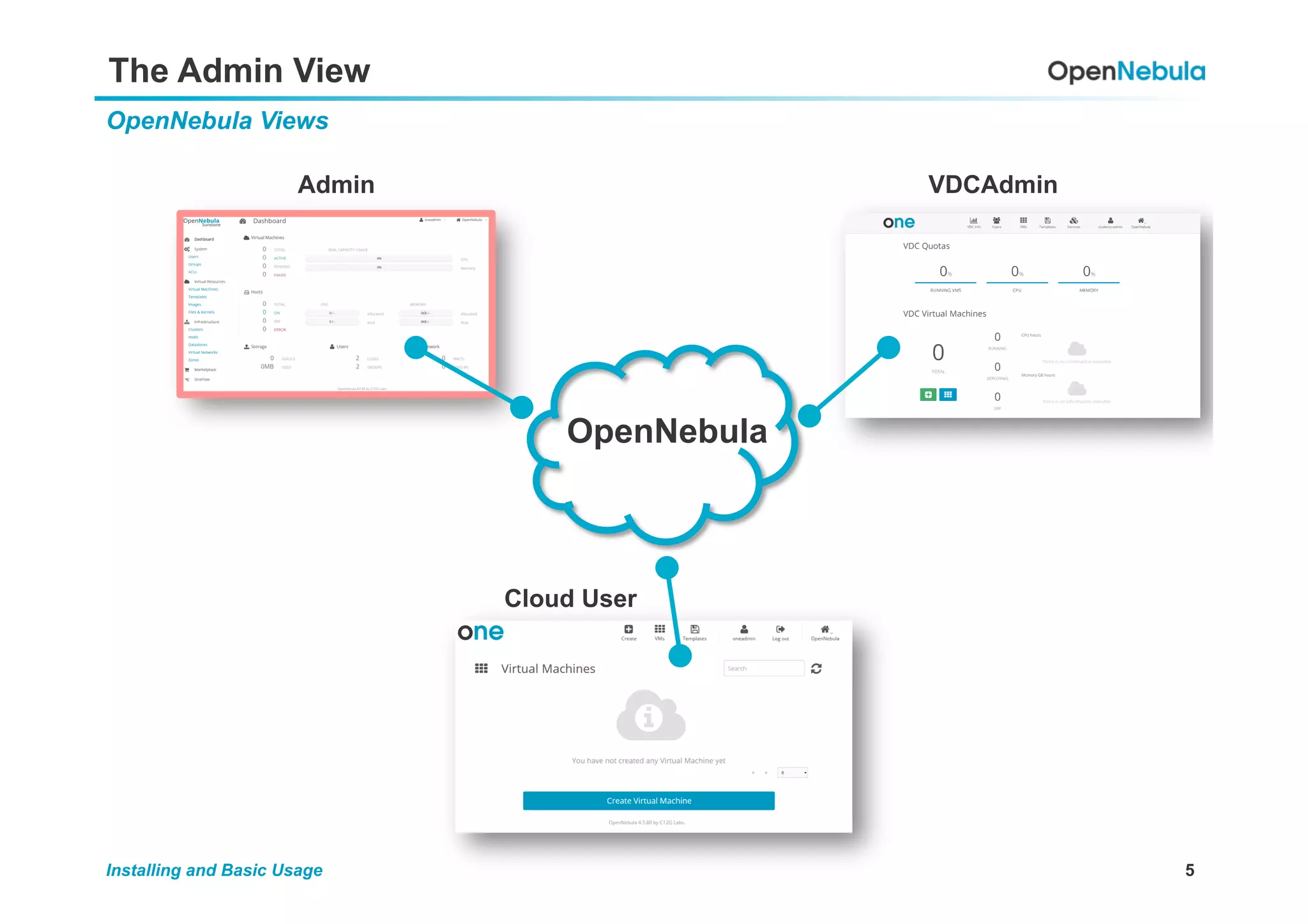
The Admin View
OpenNebula Views
OpenNebula
Admin VDCAdmin
Cloud User
6Installing and Basic Usage
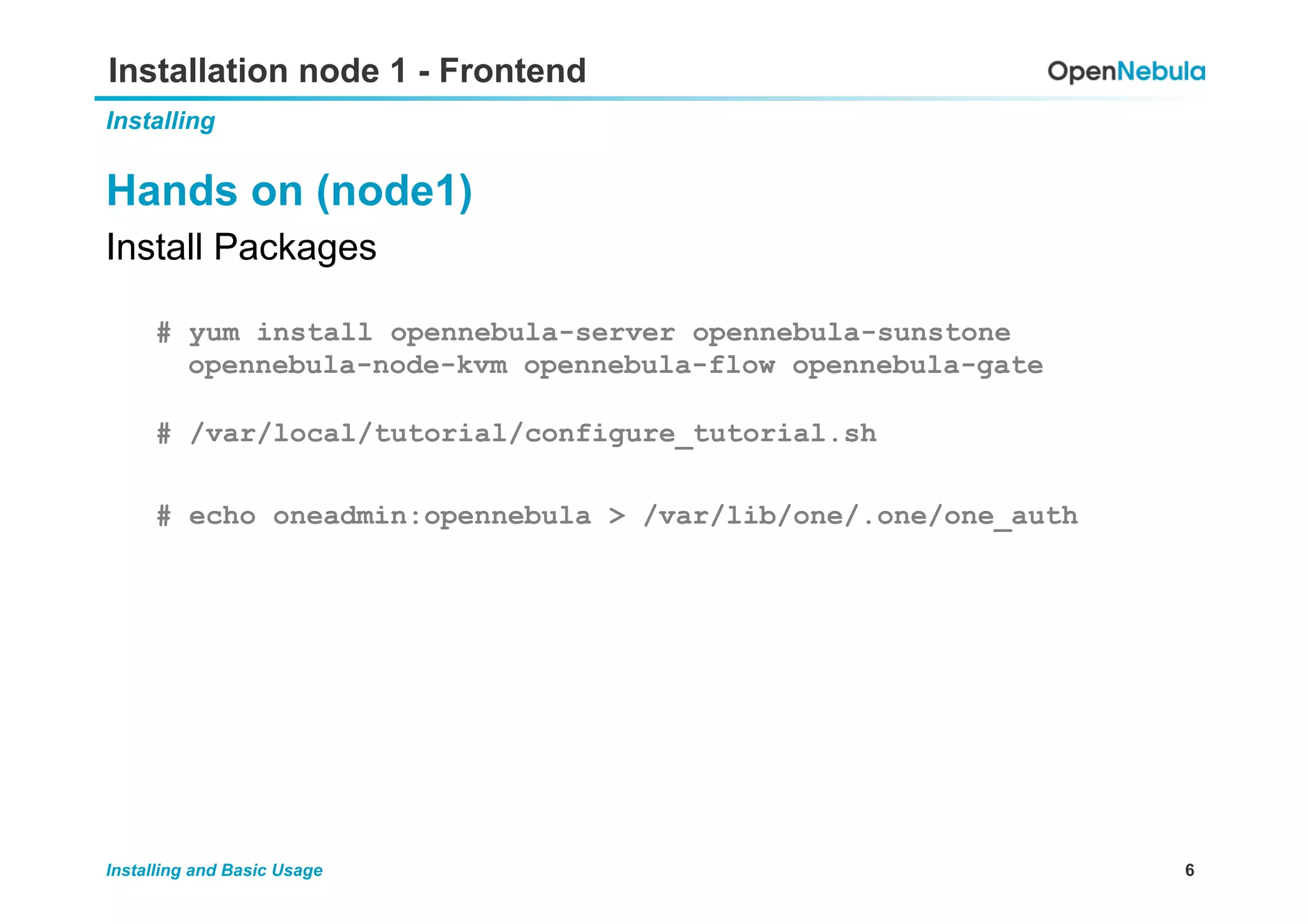
Installation node 1 - Frontend
Installing
Hands on (node1)
Install Packages
# yum install opennebula-server opennebula-sunstone
opennebula-node-kvm opennebula-flow opennebula-gate
# /var/local/tutorial/configure_tutorial.sh
# echo oneadmin:opennebula > /var/lib/one/.one/one_auth
7Installing and Basic Usage
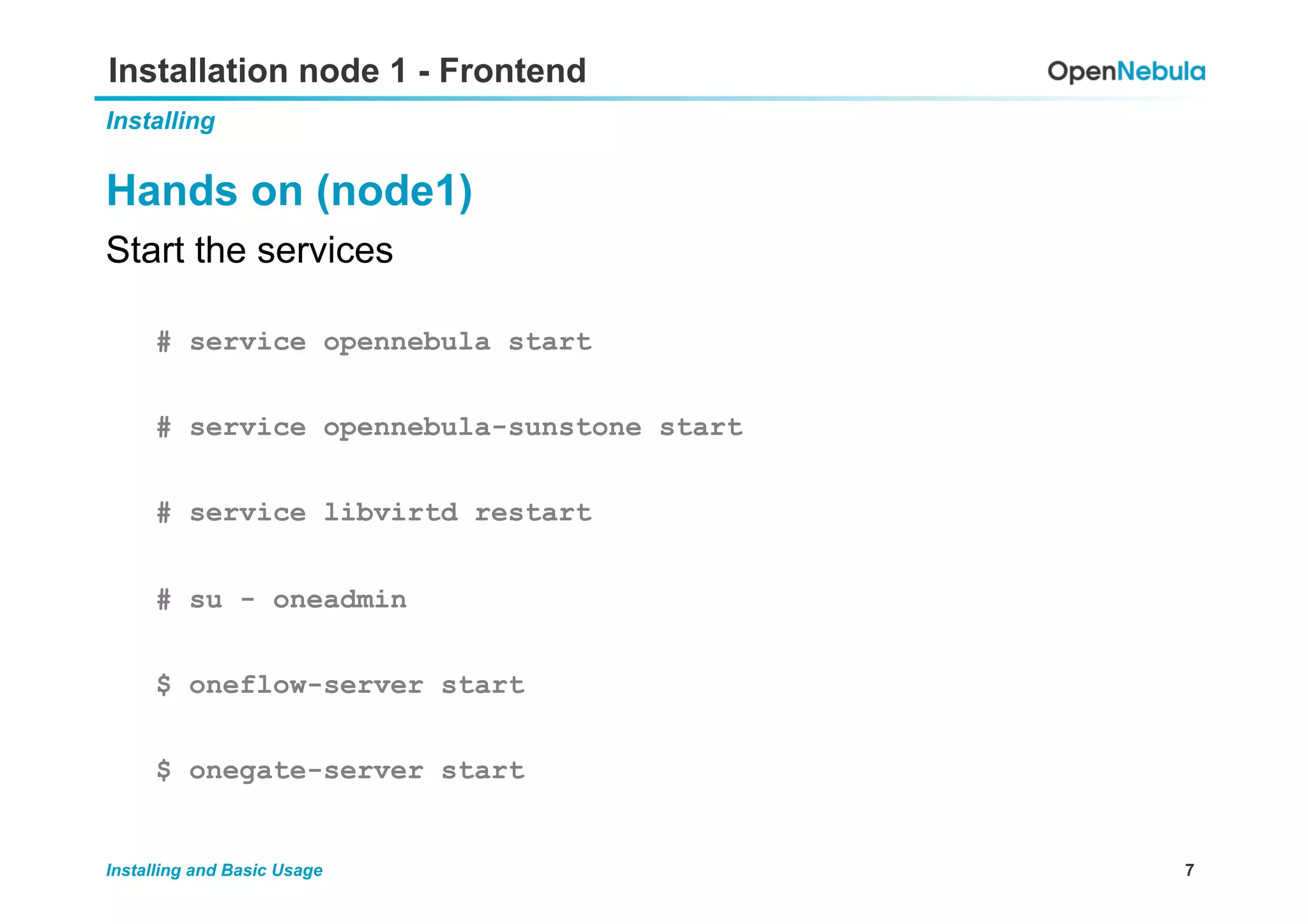
Installation node 1 - Frontend
Installing
Hands on (node1)
Start the services
# service opennebula start
# service opennebula-sunstone start
# service libvirtd restart
# su - oneadmin
$ oneflow-server start
$ onegate-server start
8Installing and Basic Usage
Installation node 1 - Frontend
Installing
Hands on (node1)
Overview of the CLI
# su - oneadmin
$ oneuser show
$ oneuser –h
$ one[TAB]
9Installing and Basic Usage
Installation node 1 - Frontend
Installing
Hands on (node1) !
OpenNebula CLI Commands
$ one[TAB]
oneuser Manage Users oneimage Manage Images
onegroup Manage Groups onetemplate Manage Templates
oneacl Manage ACLs onevm Manage VMs
onehost Manage Hosts oneacct Accounting Tool
onecluster Manage Clusters onemarket Marketplace Tool
onevnet Manage Networks onedb DB Tool
onedatastore Manage Datastores
10Installing and Basic Usage
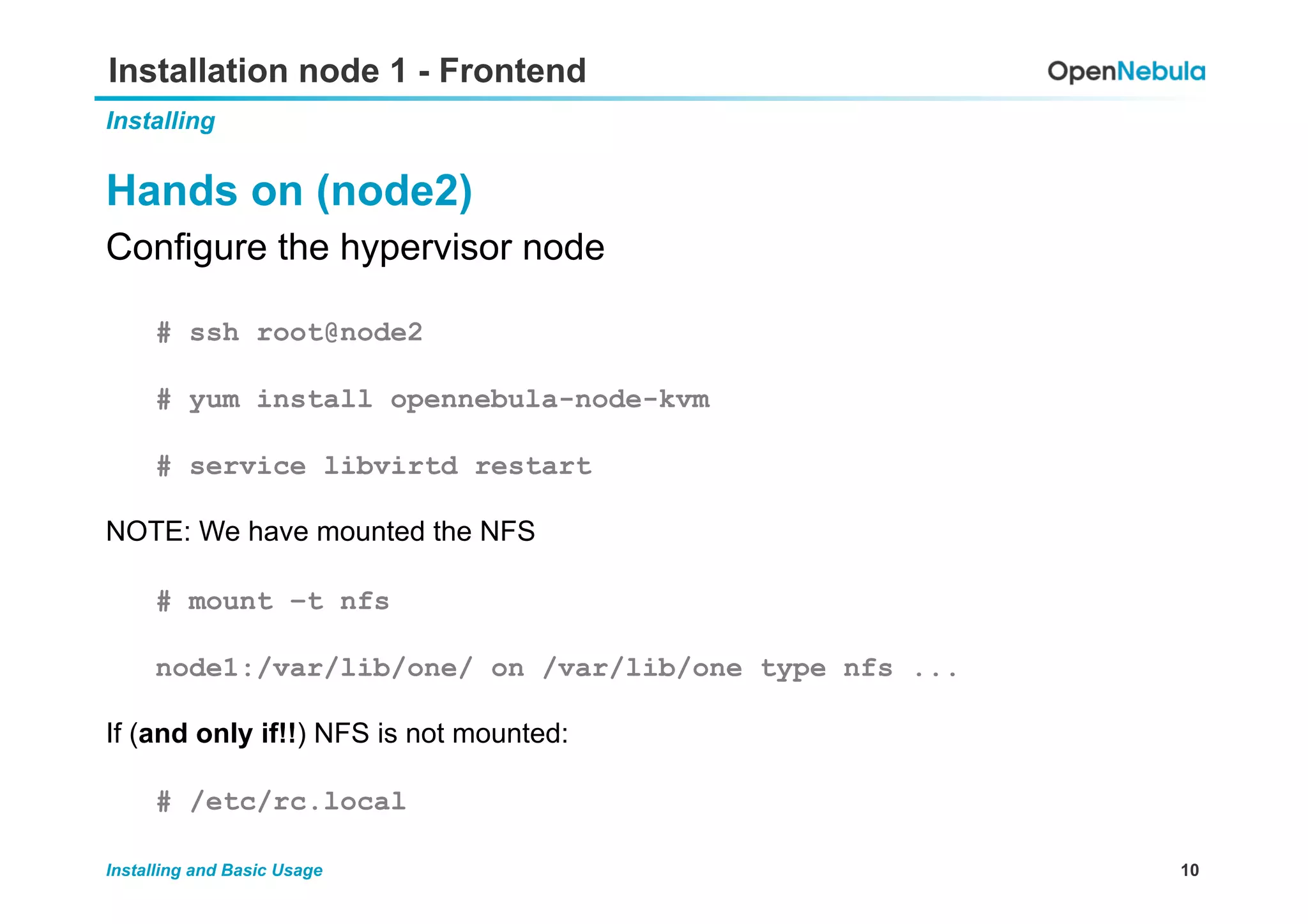
Installation node 1 - Frontend
Installing
Hands on (node2)
Configure the hypervisor node
# ssh root@node2
# yum install opennebula-node-kvm
# service libvirtd restart
NOTE: We have mounted the NFS
# mount –t nfs
node1:/var/lib/one/ on /var/lib/one type nfs ...
If (and only if!!) NFS is not mounted:
# /etc/rc.local
11Installing and Basic Usage
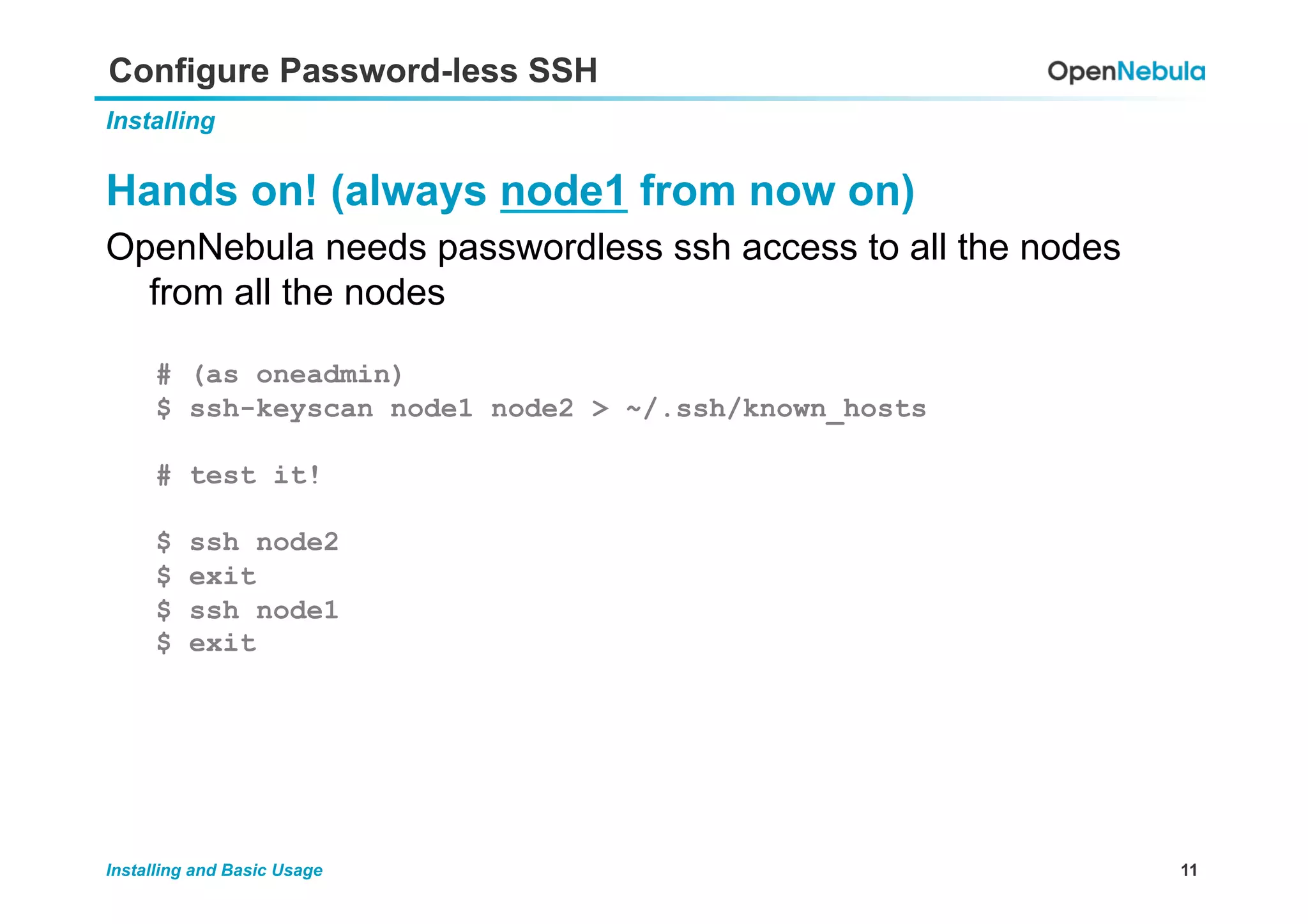
Configure Password-less SSH
Installing
Hands on! (always node1 from now on)
OpenNebula needs passwordless ssh access to all the nodes
from all the nodes
# (as oneadmin)
$ ssh-keyscan node1 node2 > ~/.ssh/known_hosts
# test it!
$ ssh node2
$ exit
$ ssh node1
$ exit
12Installing and Basic Usage
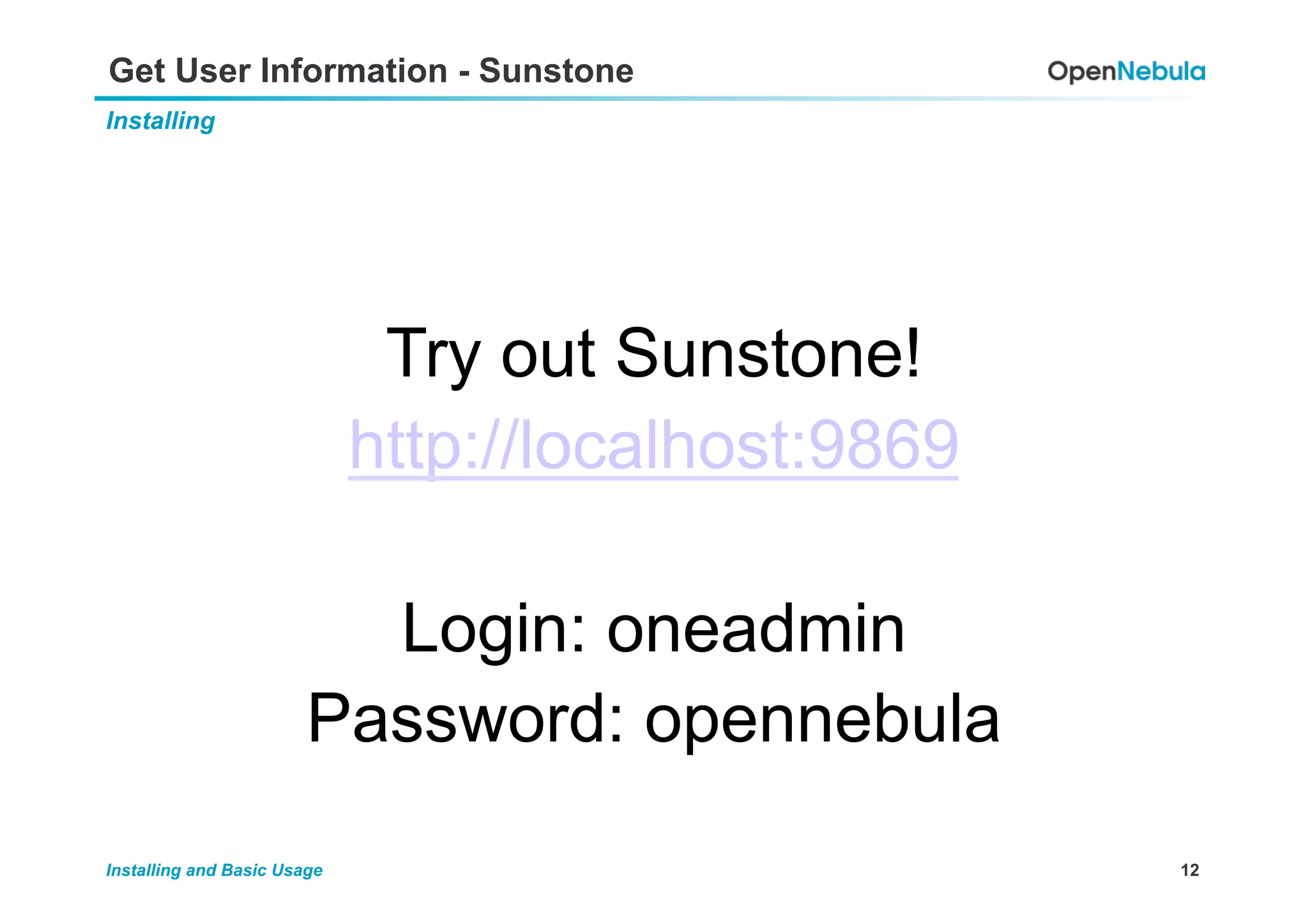
Get User Information - Sunstone
Installing
Try out Sunstone!
http://localhost:9869
Login: oneadmin
Password: opennebula
13Installing and Basic Usage
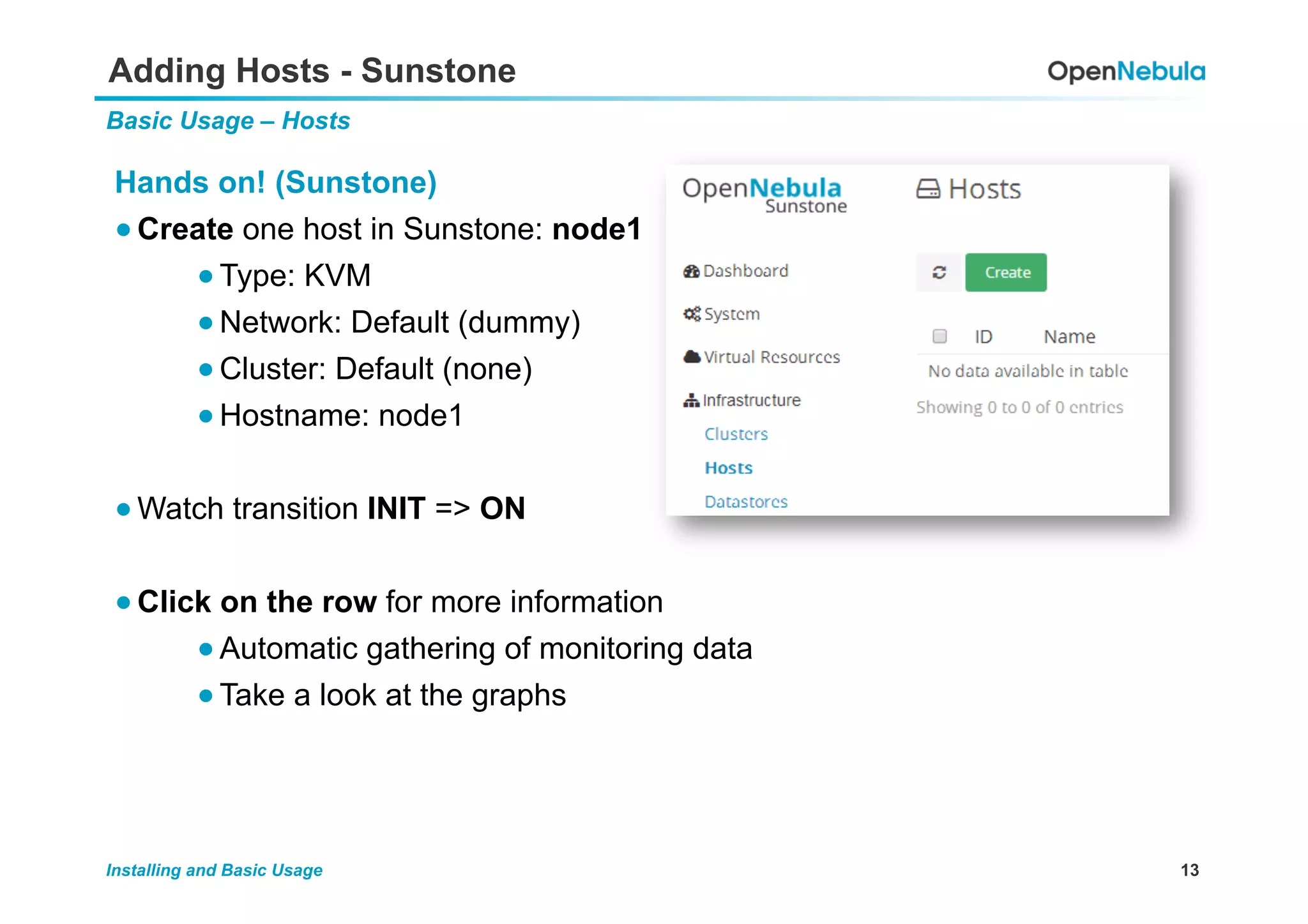
Adding Hosts - Sunstone
Basic Usage – Hosts
Hands on! (Sunstone)
● Create one host in Sunstone: node1
● Type: KVM
● Network: Default (dummy)
● Cluster: Default (none)
● Hostname: node1
● Watch transition INIT => ON
● Click on the row for more information
● Automatic gathering of monitoring data
● Take a look at the graphs
14Installing and Basic Usage
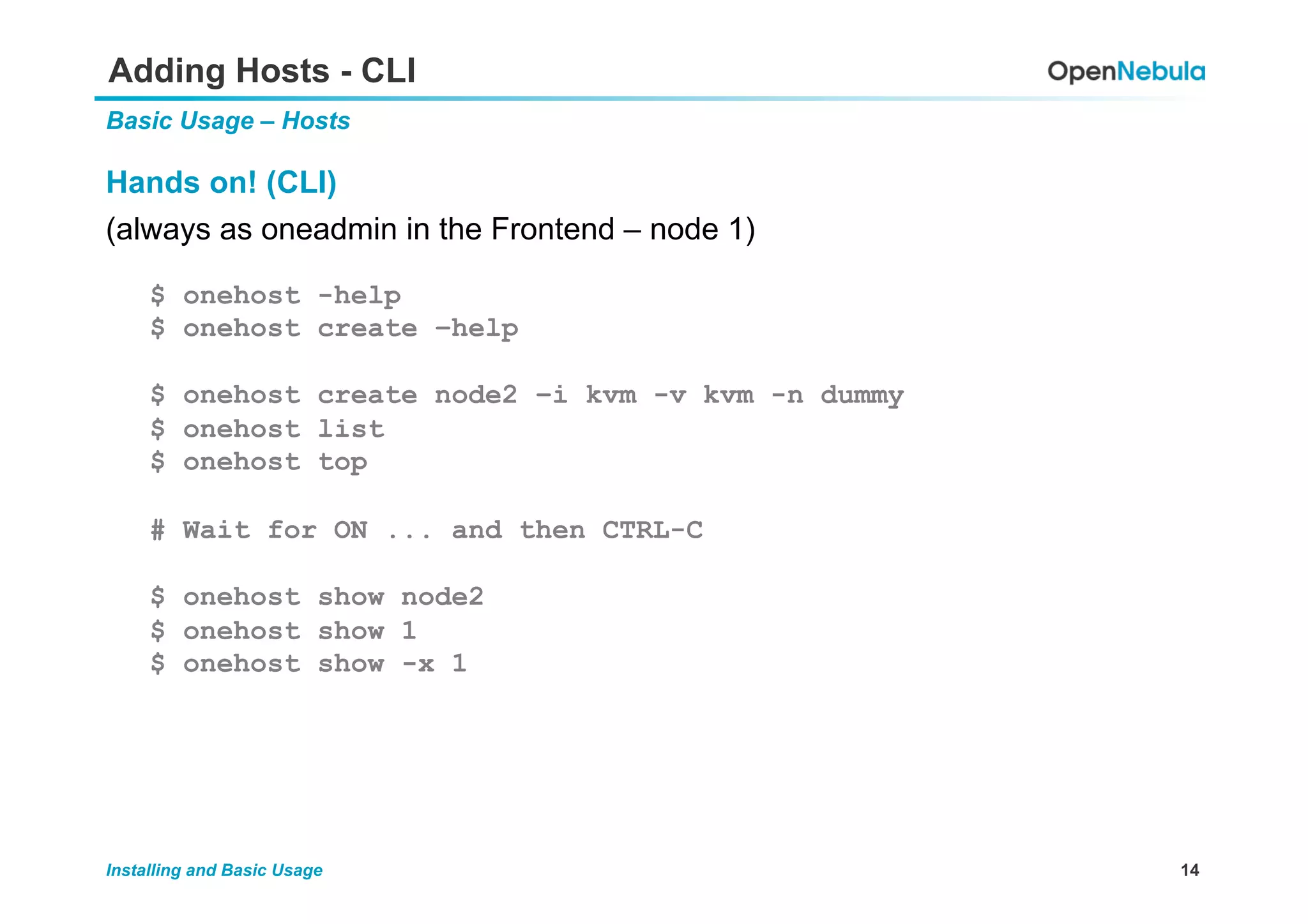
Adding Hosts - CLI
Basic Usage – Hosts
Hands on! (CLI)
(always as oneadmin in the Frontend – node 1)
$ onehost -help
$ onehost create –help
$ onehost create node2 –i kvm -v kvm -n dummy
$ onehost list
$ onehost top
# Wait for ON ... and then CTRL-C
$ onehost show node2
$ onehost show 1
$ onehost show -x 1
15Installing and Basic Usage
Adding Images
Basic Usage – Images
Hands on! (Sunstone)
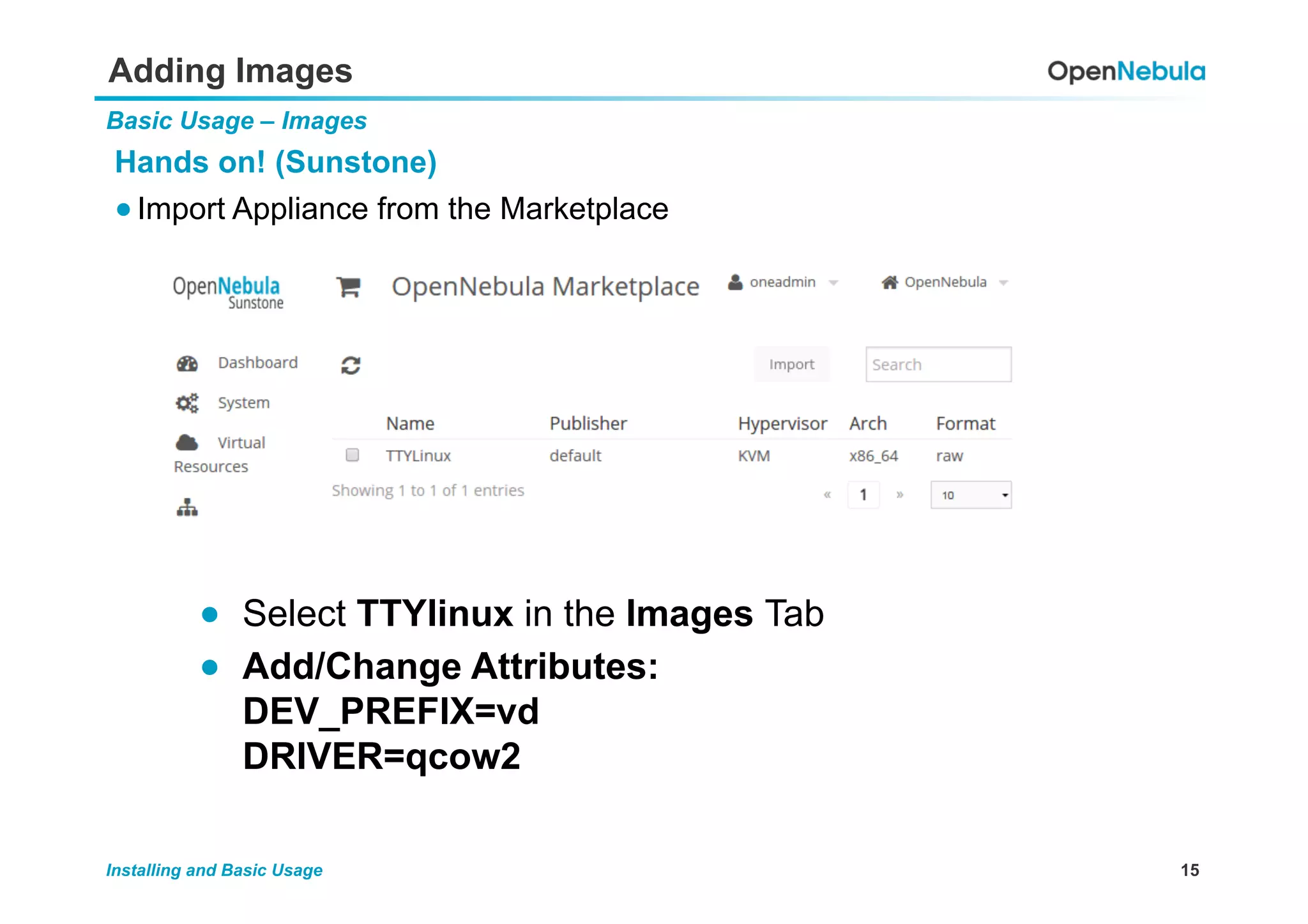
● Import Appliance from the Marketplace
●  Select TTYlinux in the Images Tab
●  Add/Change Attributes:
DEV_PREFIX=vd
DRIVER=qcow2
16Installing and Basic Usage
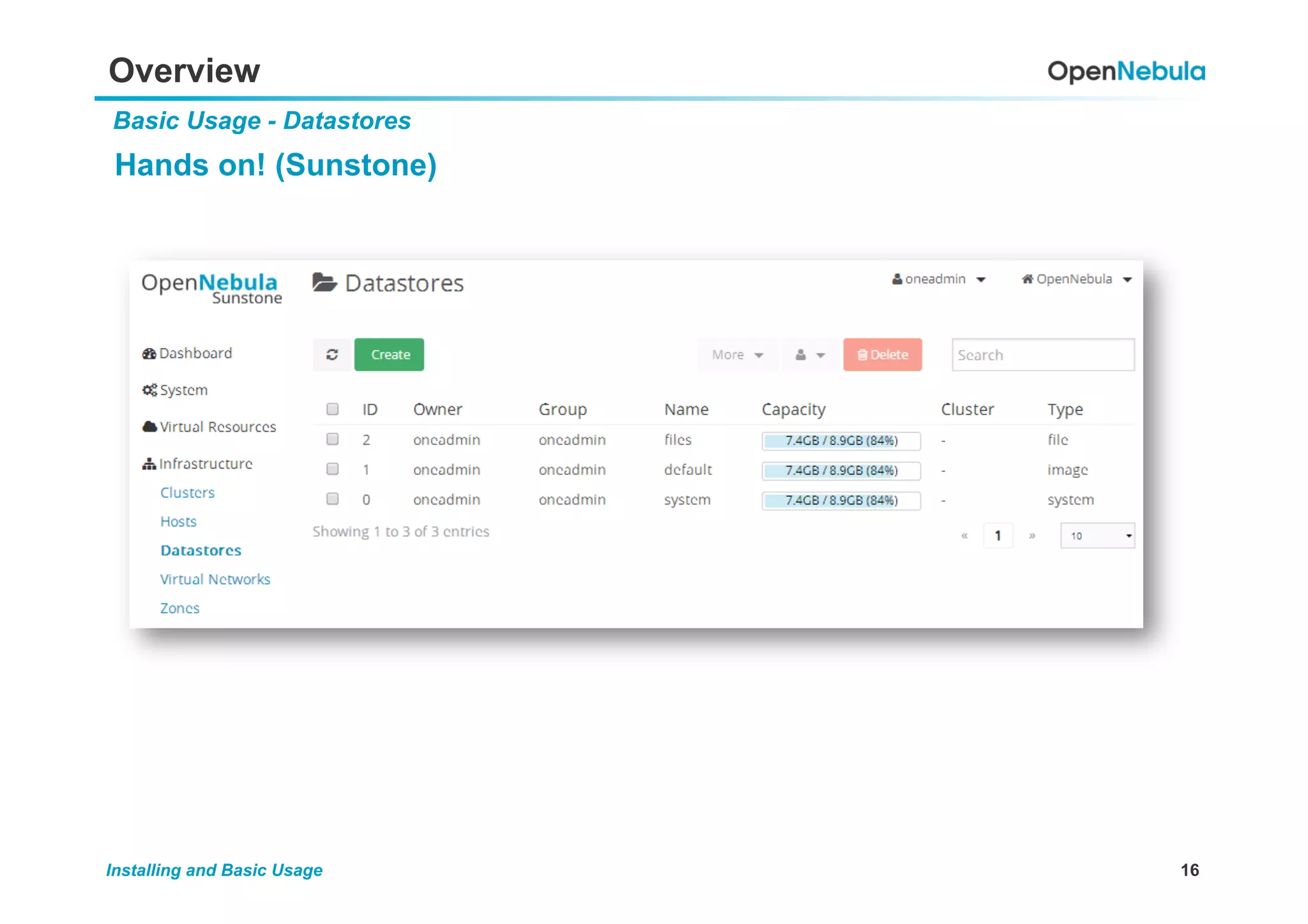
Overview
Basic Usage - Datastores
Hands on! (Sunstone)
17Installing and Basic Usage
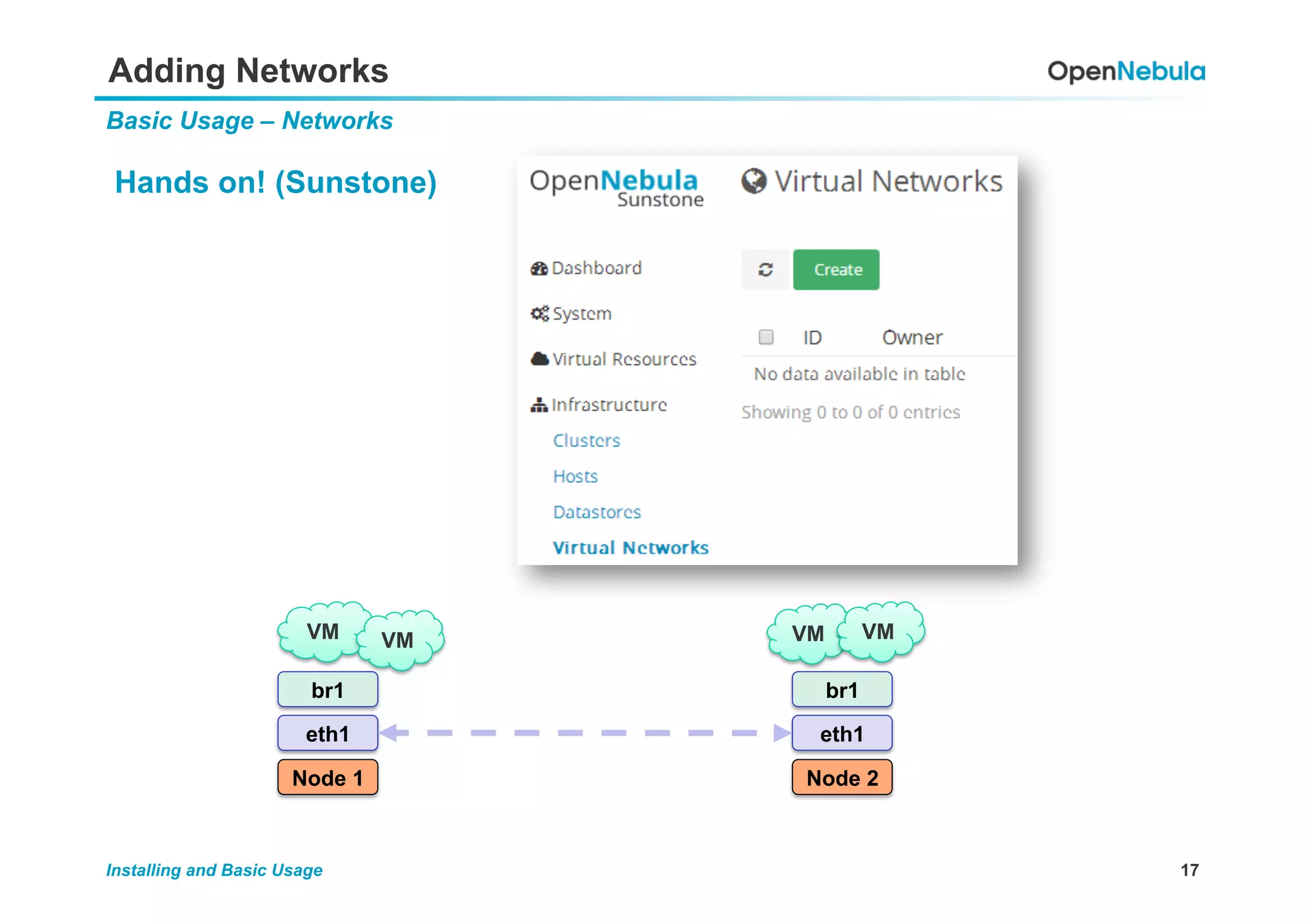
Adding Networks
Basic Usage – Networks
Hands on! (Sunstone)
br1
VM VM
Node 1
eth1
br1
Node 2
eth1
VM VM
18Installing and Basic Usage
Adding Networks
Basic Usage – Networks
Hands on! (Sunstone)
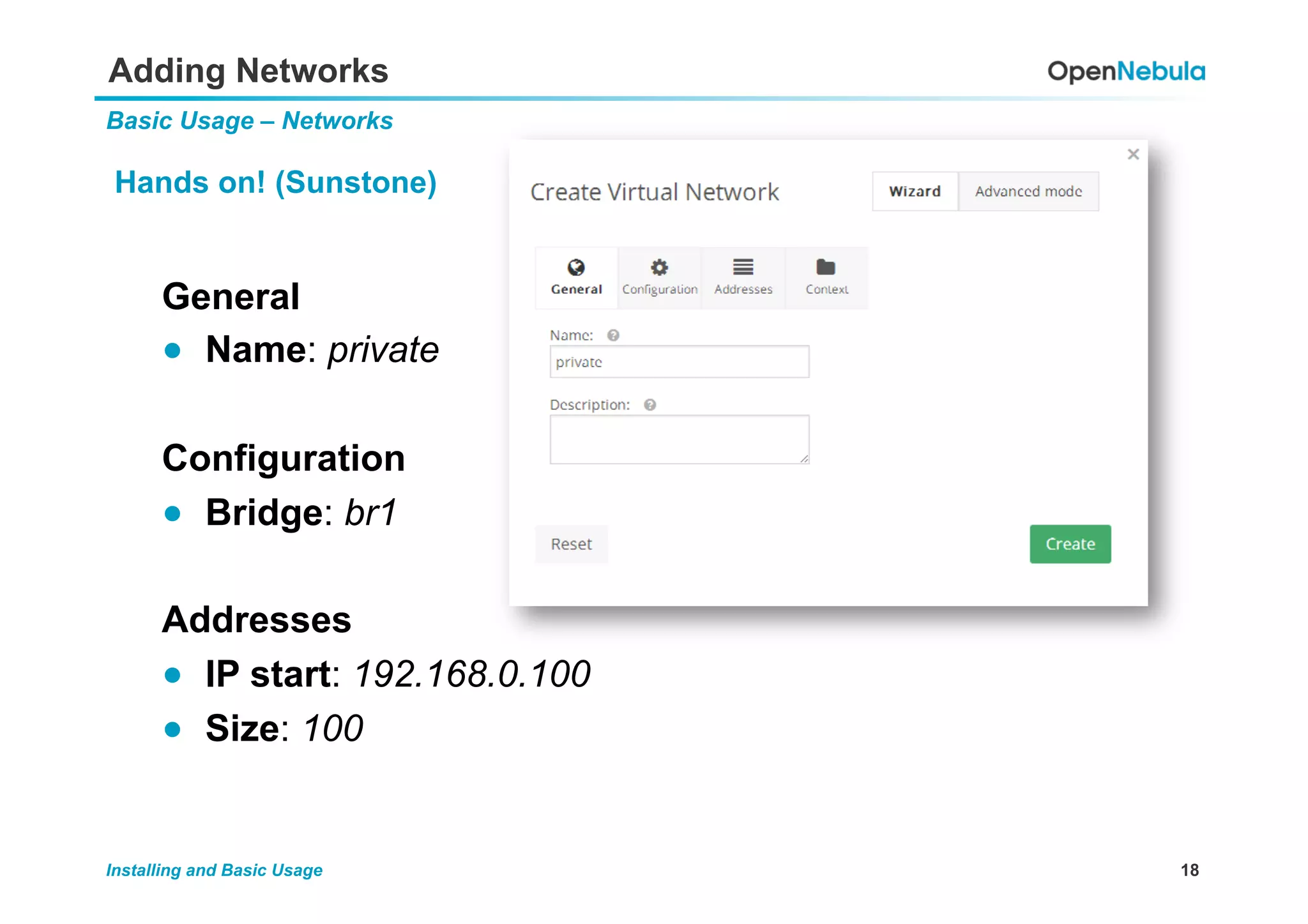
General
●  Name: private
Configuration
●  Bridge: br1
Addresses
●  IP start: 192.168.0.100
●  Size: 100
19Installing and Basic Usage
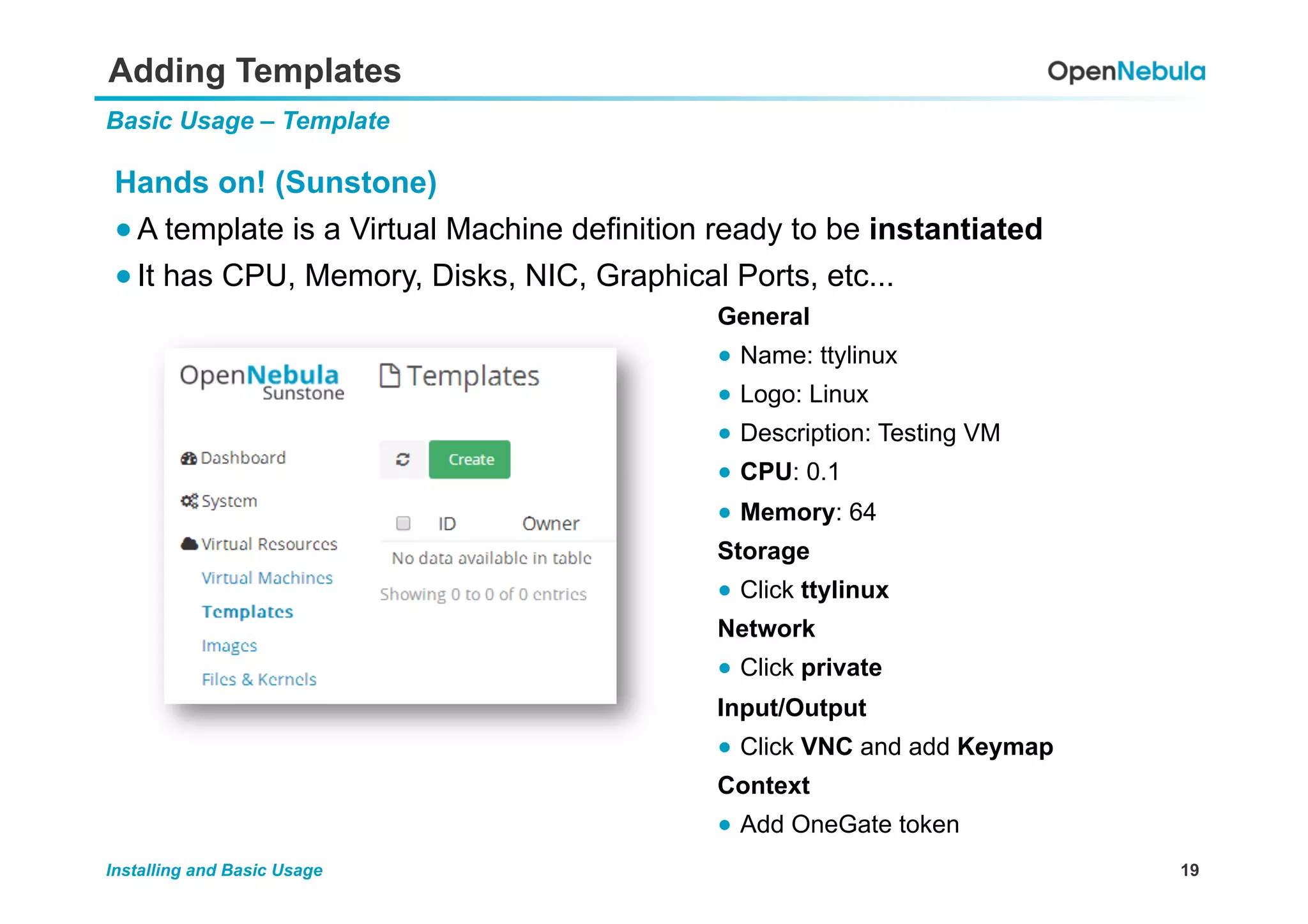
Adding Templates
Basic Usage – Template
Hands on! (Sunstone)
● A template is a Virtual Machine definition ready to be instantiated
● It has CPU, Memory, Disks, NIC, Graphical Ports, etc...
General
●  Name: ttylinux
●  Logo: Linux
●  Description: Testing VM
●  CPU: 0.1
●  Memory: 64
Storage
●  Click ttylinux
Network
●  Click private
Input/Output
●  Click VNC and add Keymap
Context
●  Add OneGate token
20Installing and Basic Usage
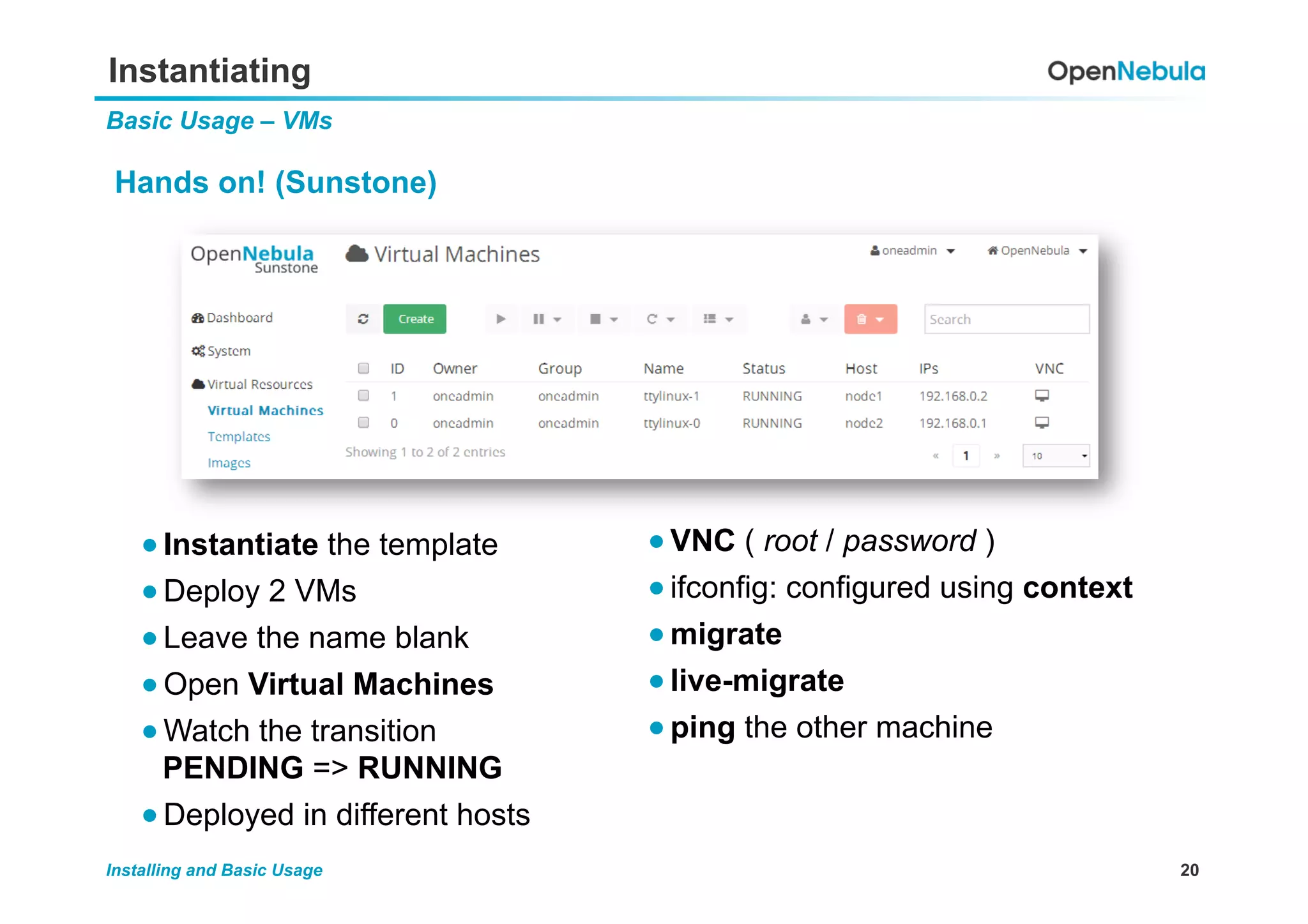
Instantiating
Basic Usage – VMs
Hands on! (Sunstone)
● VNC ( root / password )
● ifconfig: configured using context
● migrate
● live-migrate
● ping the other machine
● Instantiate the template
● Deploy 2 VMs
● Leave the name blank
● Open Virtual Machines
● Watch the transition
PENDING => RUNNING
● Deployed in different hosts
21Installing and Basic Usage
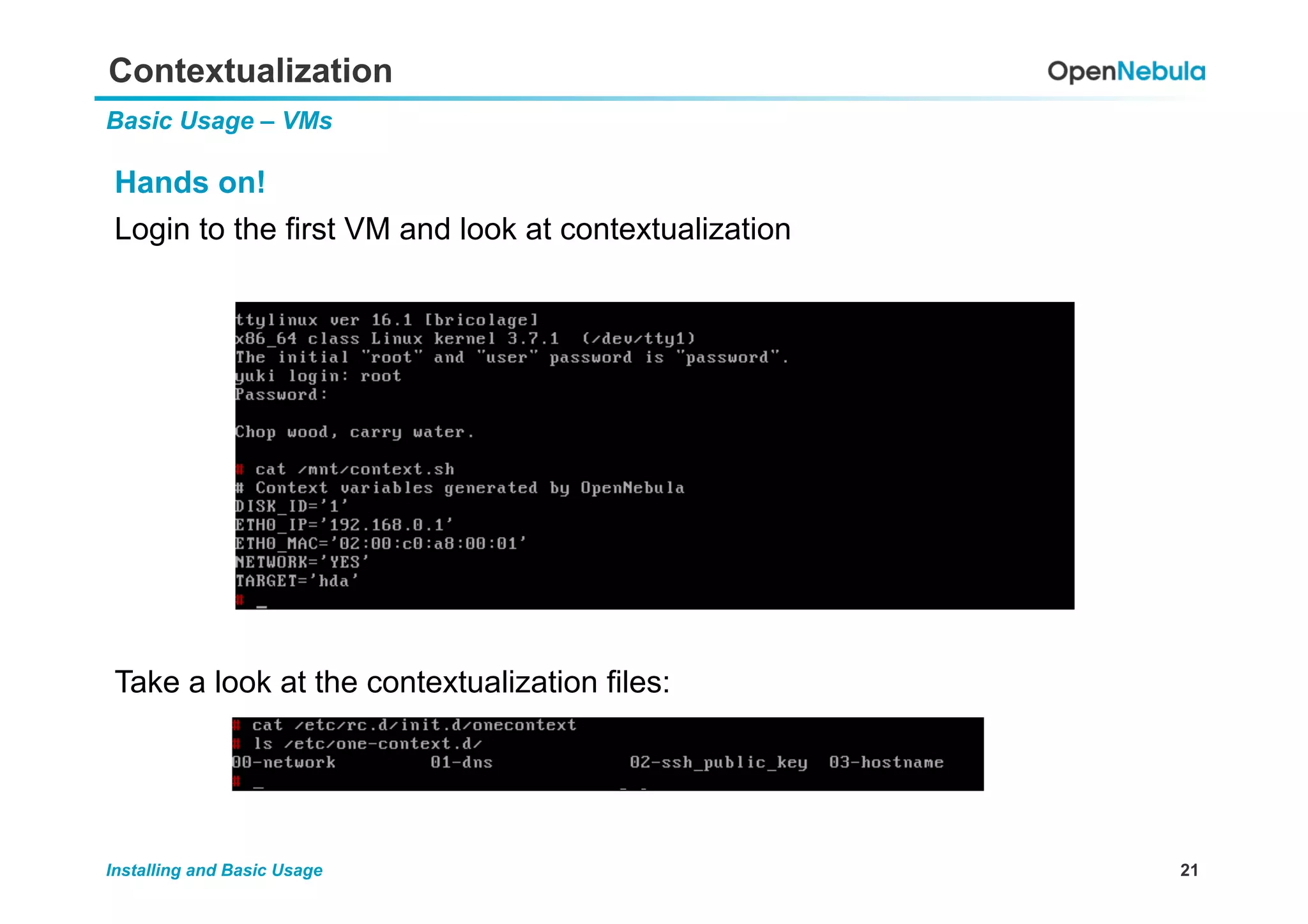
Contextualization
Basic Usage – VMs
Hands on!
Login to the first VM and look at contextualization
Take a look at the contextualization files:
22Installing and Basic Usage
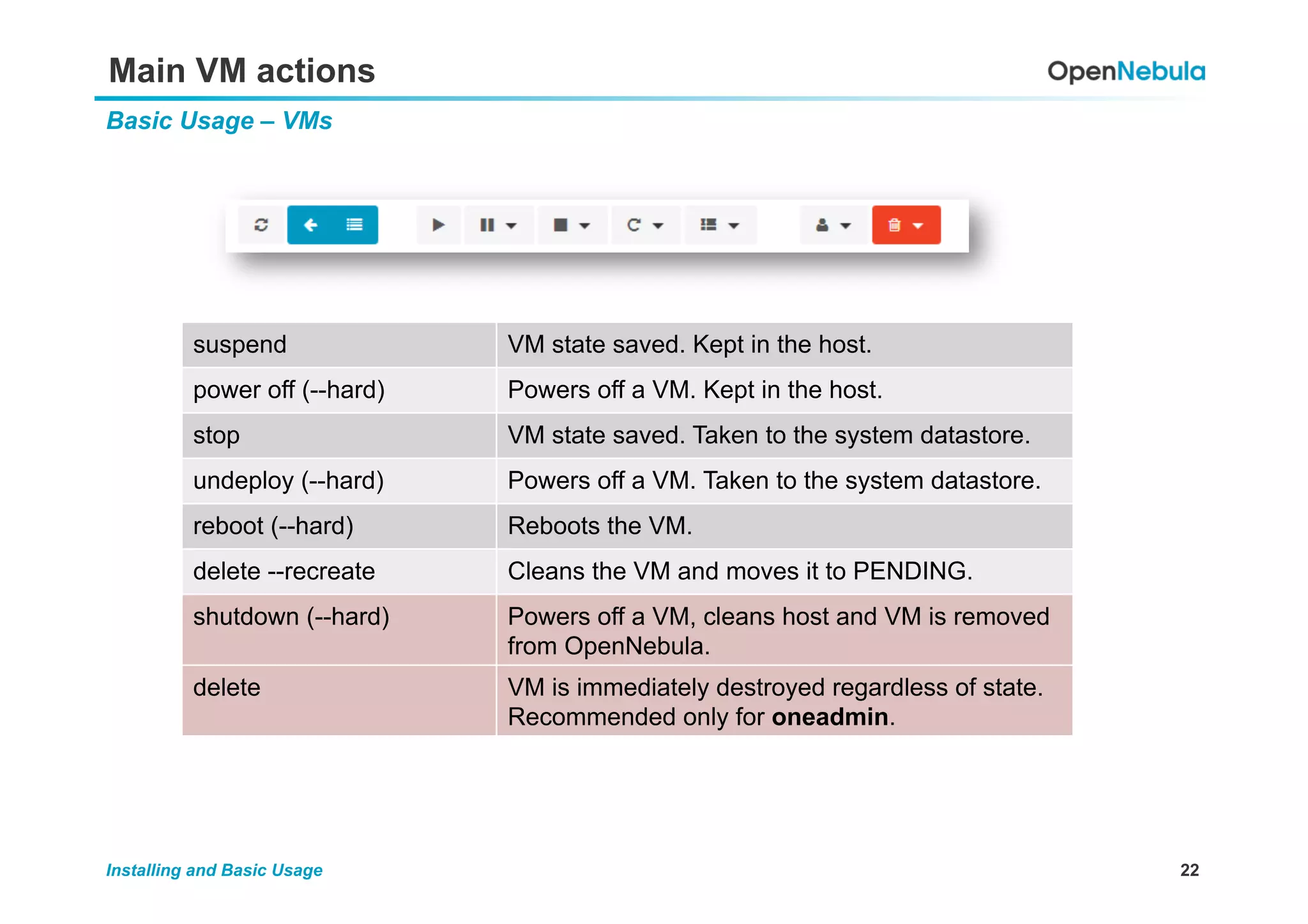
Main VM actions
Basic Usage – VMs
suspend VM state saved. Kept in the host.
power off (--hard) Powers off a VM. Kept in the host.
stop VM state saved. Taken to the system datastore.
undeploy (--hard) Powers off a VM. Taken to the system datastore.
reboot (--hard) Reboots the VM.
delete --recreate Cleans the VM and moves it to PENDING.
shutdown (--hard) Powers off a VM, cleans host and VM is removed
from OpenNebula.
delete VM is immediately destroyed regardless of state.
Recommended only for oneadmin.
23Installing and Basic Usage
Other VM actions
Basic Usage – VMs
Hands on! (Sunstone)
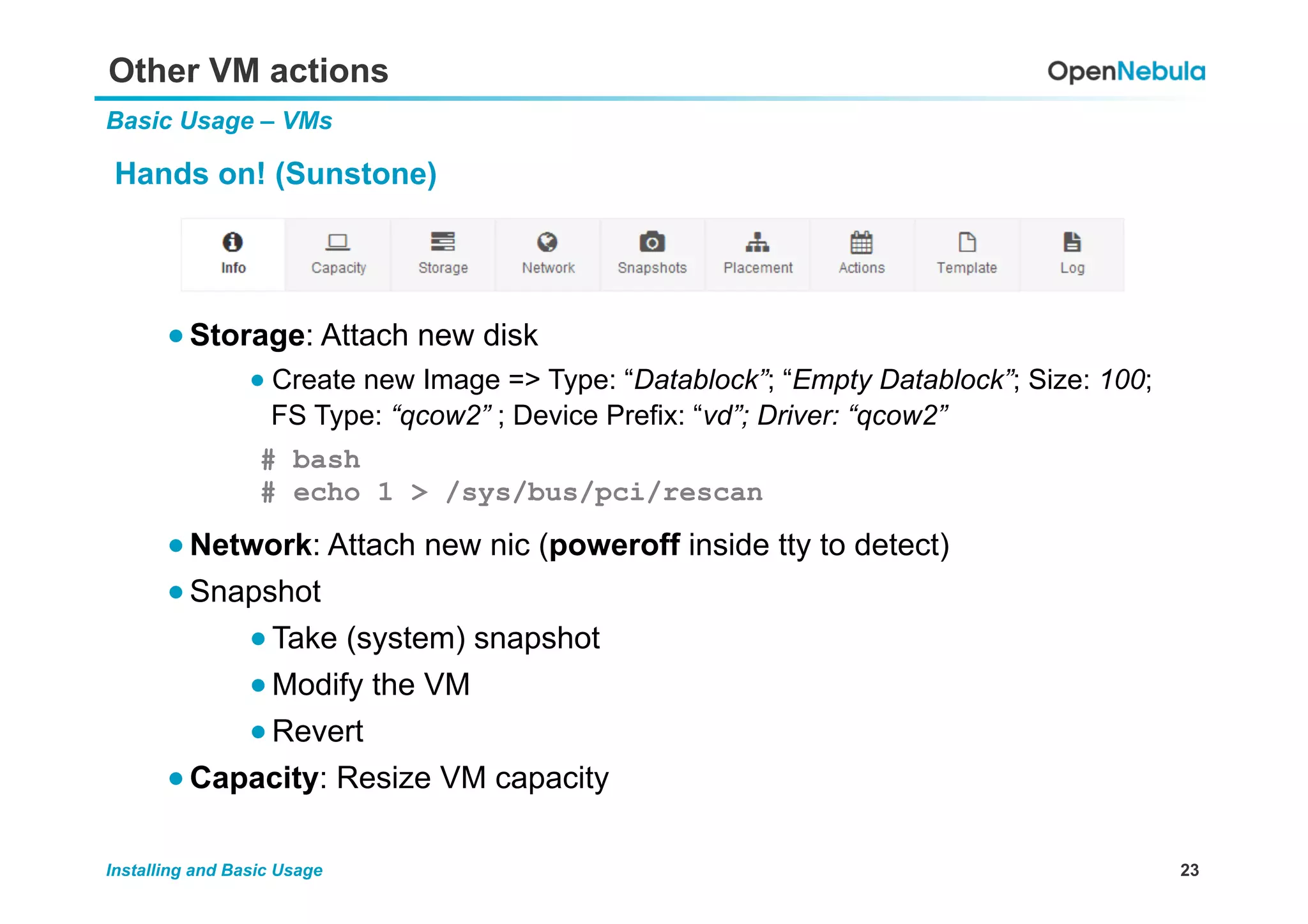
● Storage: Attach new disk
● Create new Image => Type: “Datablock”; “Empty Datablock”; Size: 100;
FS Type: “qcow2” ; Device Prefix: “vd”; Driver: “qcow2”
● Network: Attach new nic (poweroff inside tty to detect)
● Snapshot
● Take (system) snapshot
● Modify the VM
● Revert
● Capacity: Resize VM capacity
# bash
# echo 1 > /sys/bus/pci/rescan
24Installing and Basic Usage
Chmod and Chown, UNIX Style!
Permissions
Hands on! (Sunstone)
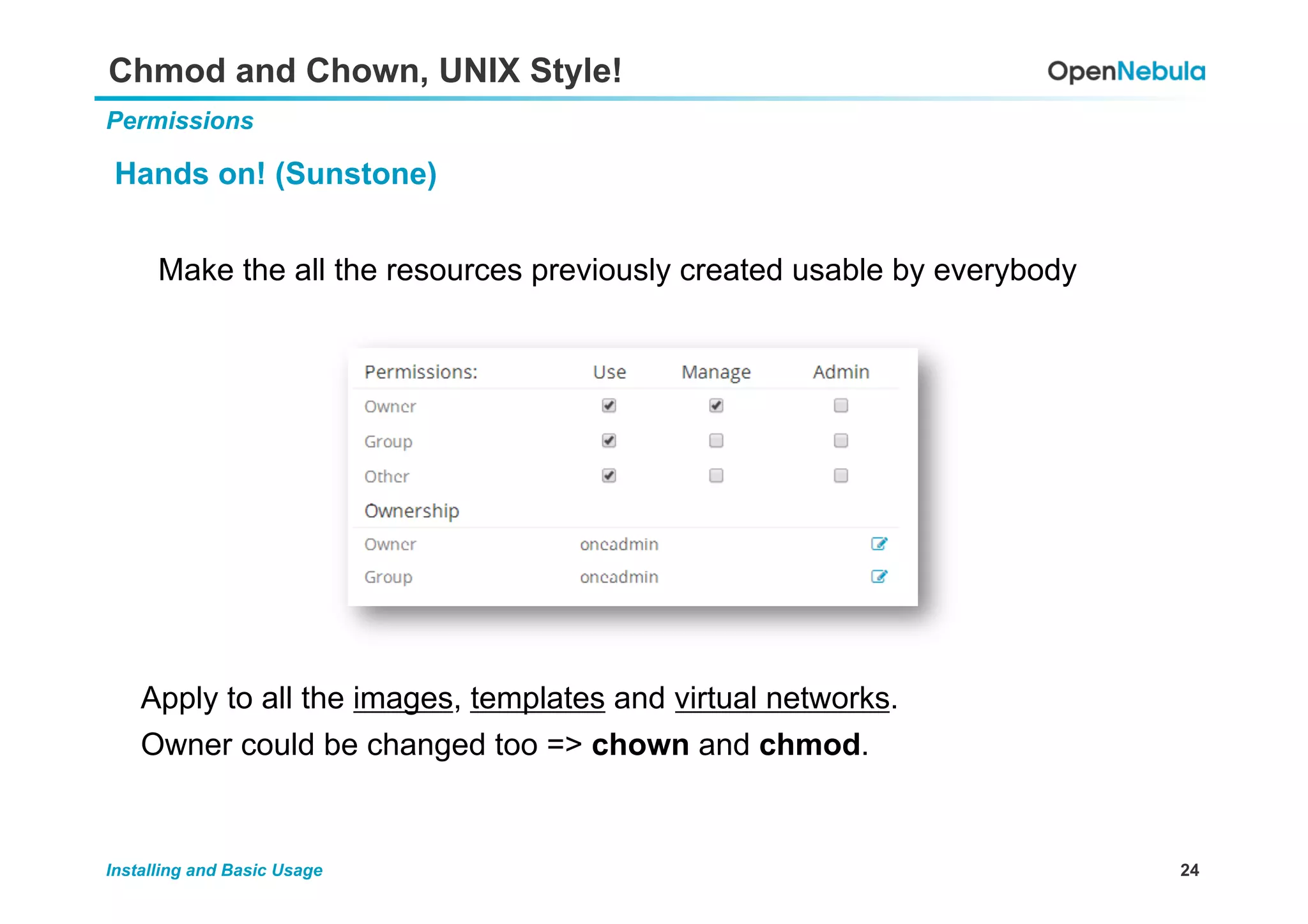
Make the all the resources previously created usable by everybody
Apply to all the images, templates and virtual networks.
Owner could be changed too => chown and chmod.
25Installing and Basic Usage
Creating Groups
Groups
Hands on!
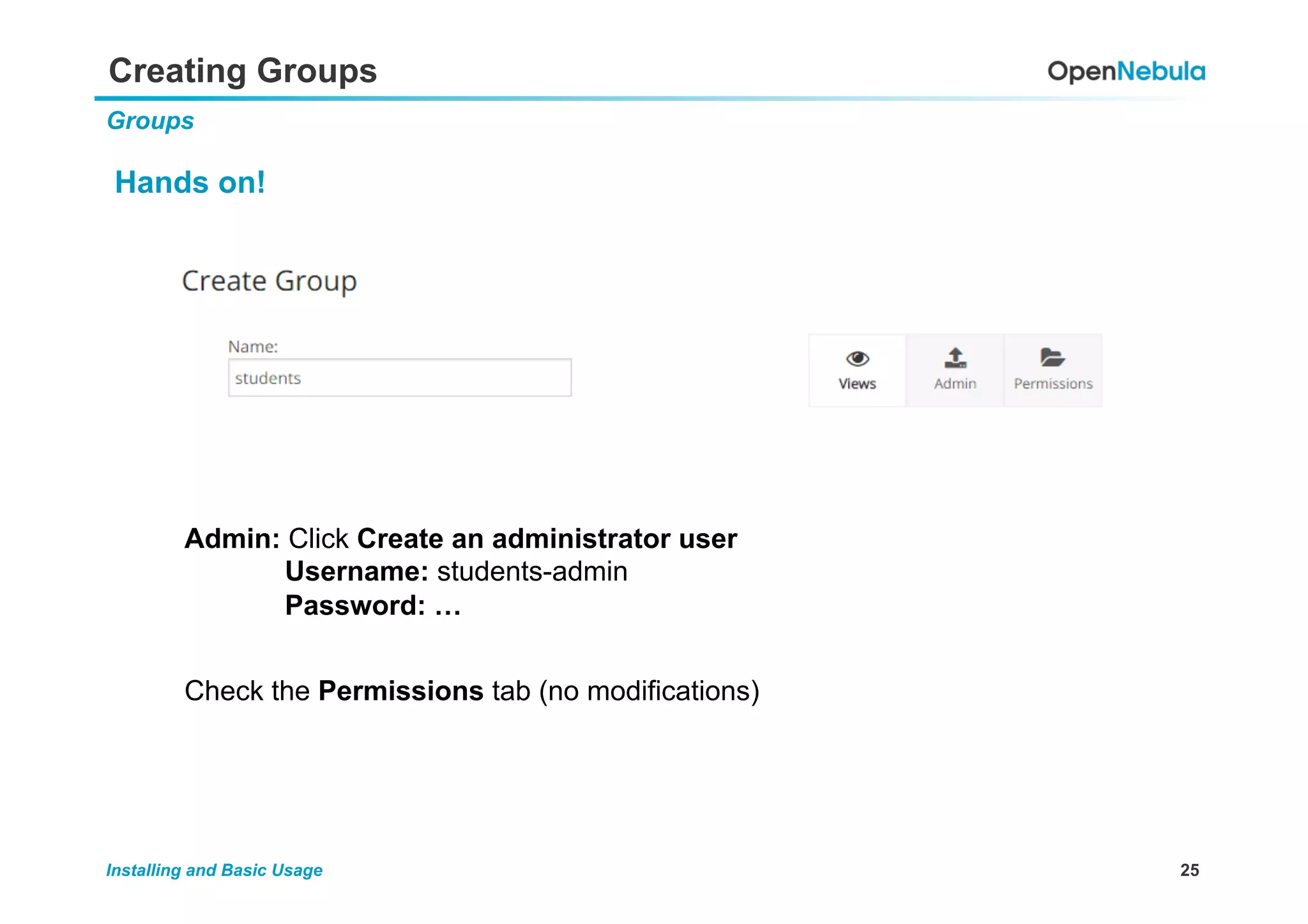
Admin: Click Create an administrator user
Username: students-admin
Password: …
Check the Permissions tab (no modifications)
26Installing and Basic Usage
Associated ACLs
Groups
Hands on!
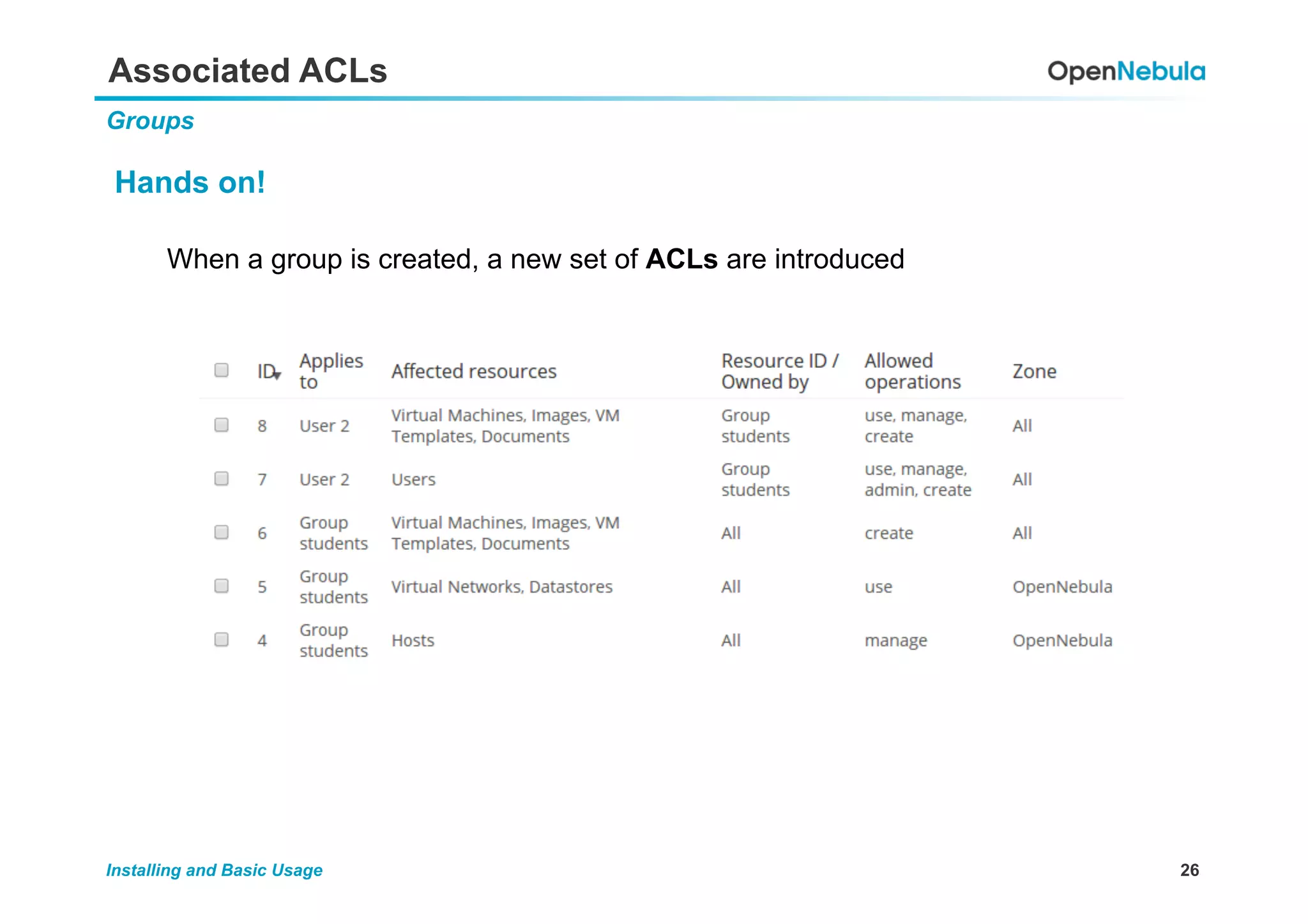
When a group is created, a new set of ACLs are introduced
27Installing and Basic Usage
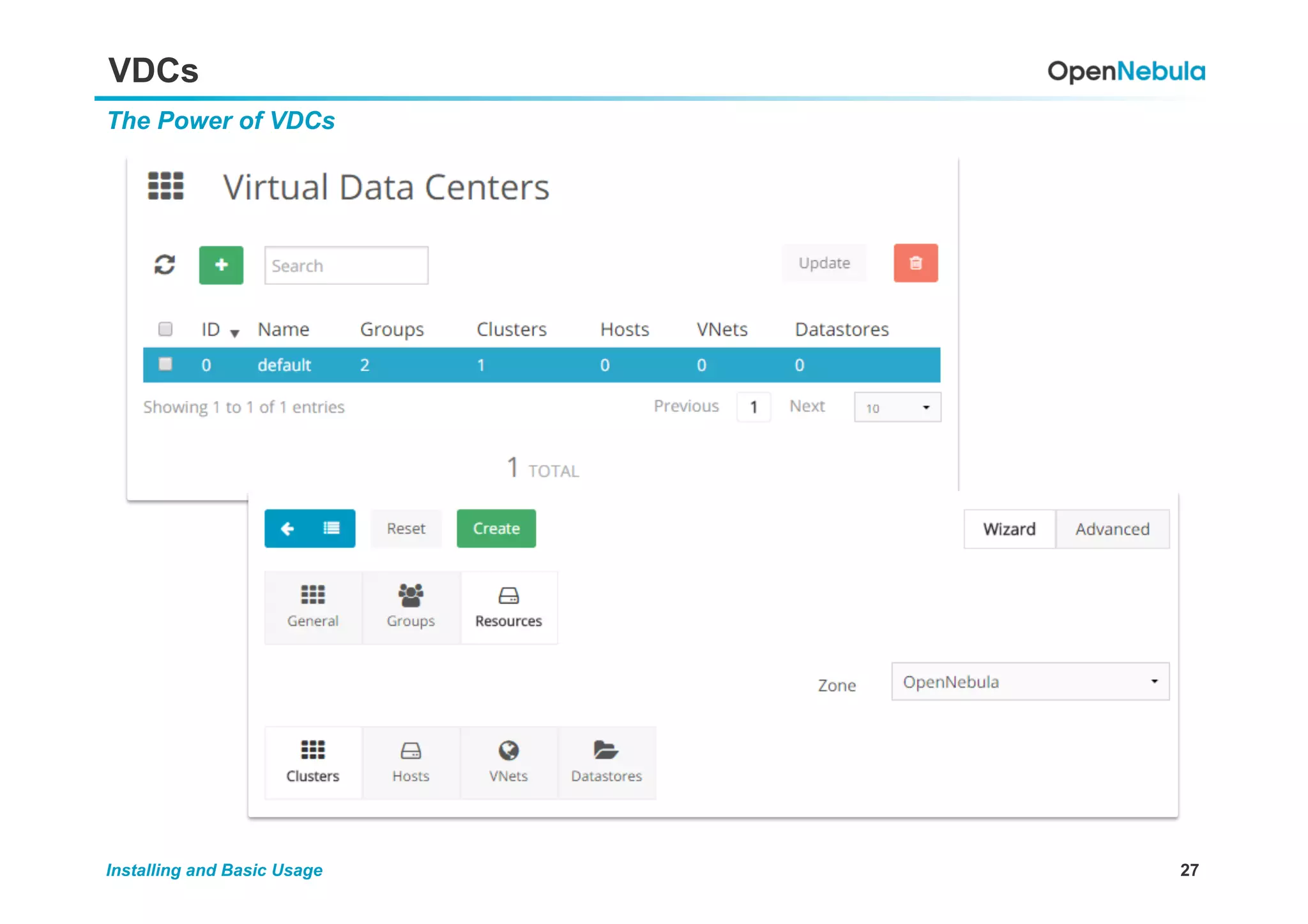
VDCs
The Power of VDCs
28Installing and Basic Usage
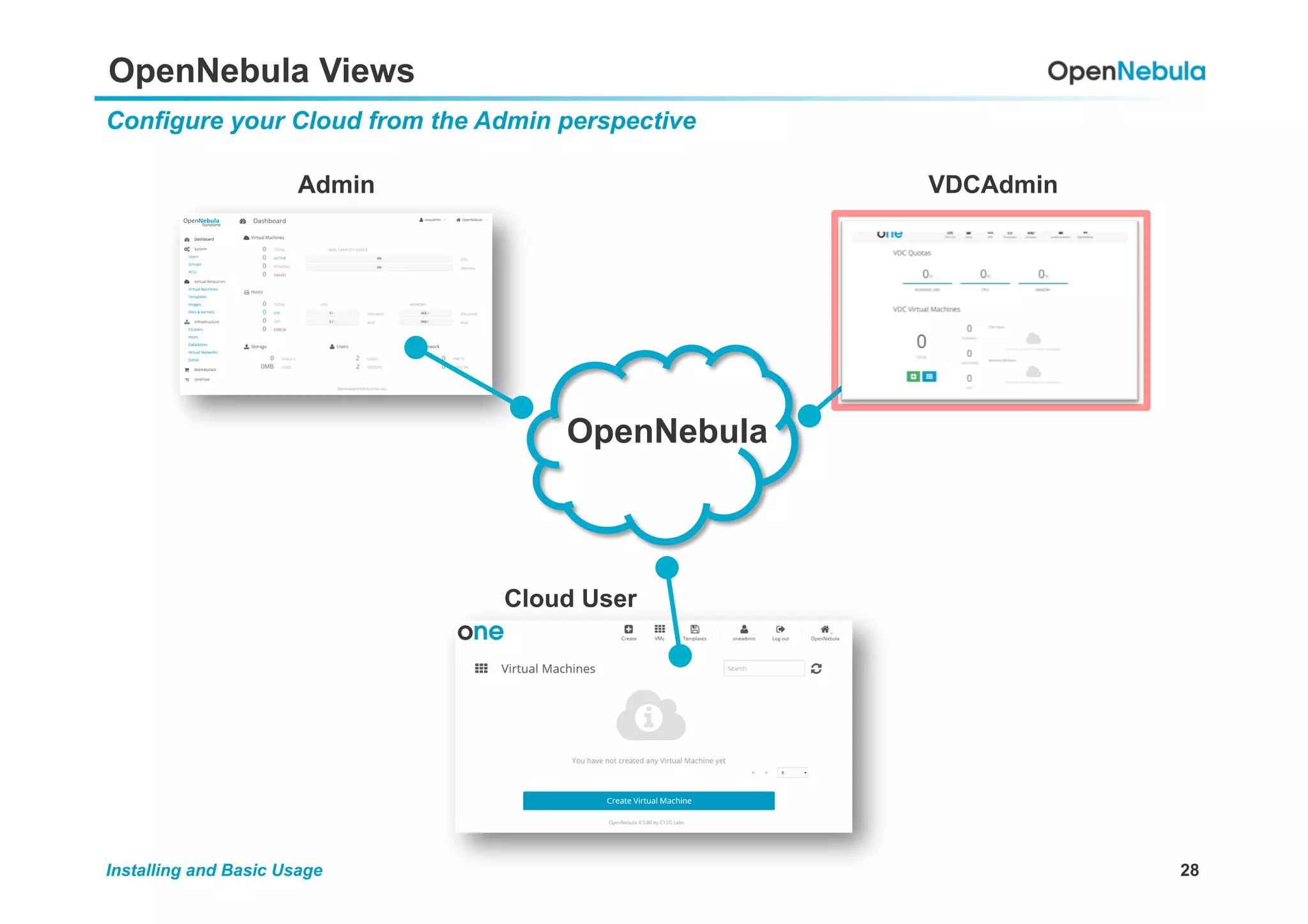
OpenNebula Views
Configure your Cloud from the Admin perspective
OpenNebula
Admin VDCAdmin
Cloud User
29Installing and Basic Usage
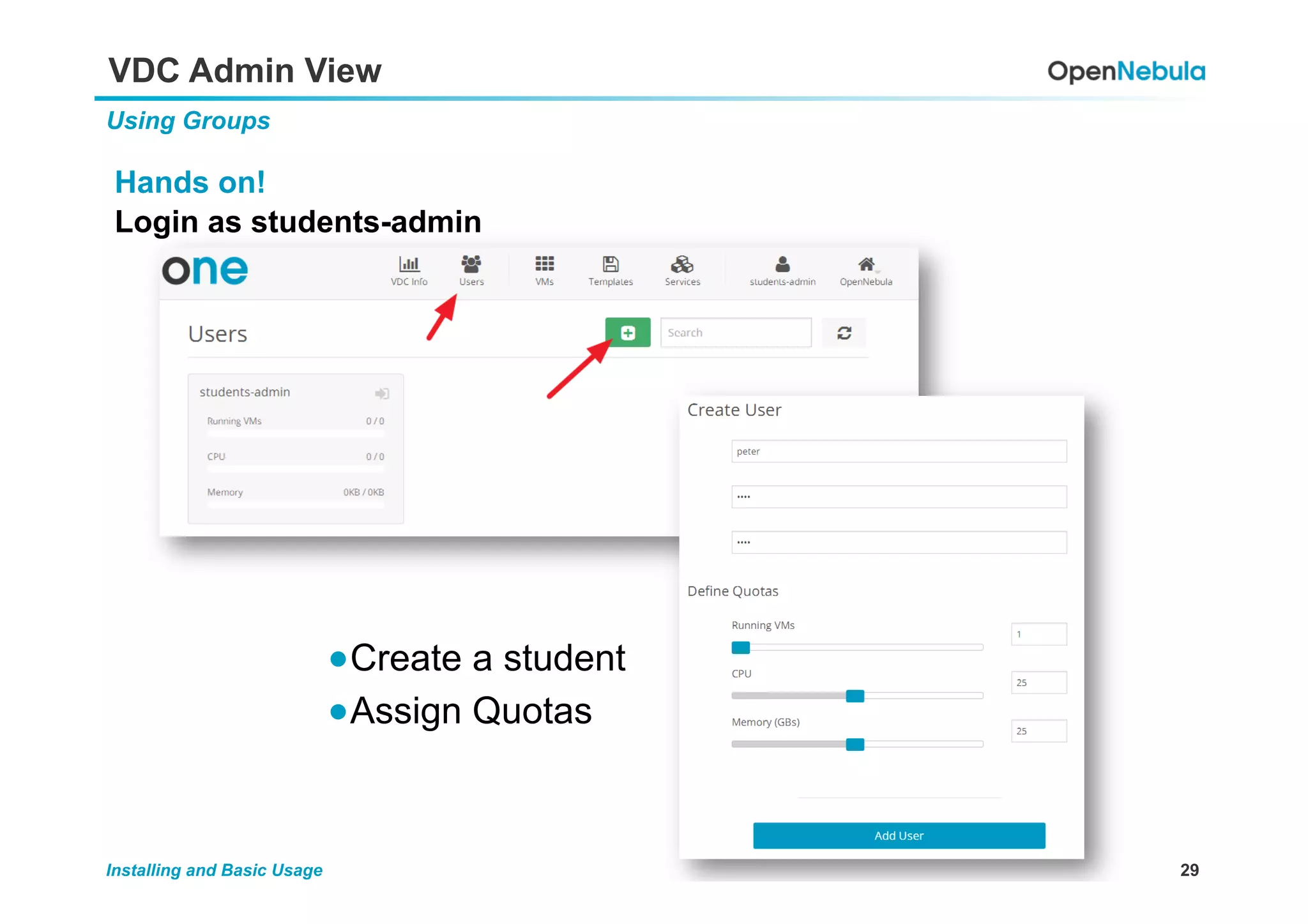
VDC Admin View
Using Groups
Hands on!
Login as students-admin
● Create a student
● Assign Quotas
30Installing and Basic Usage
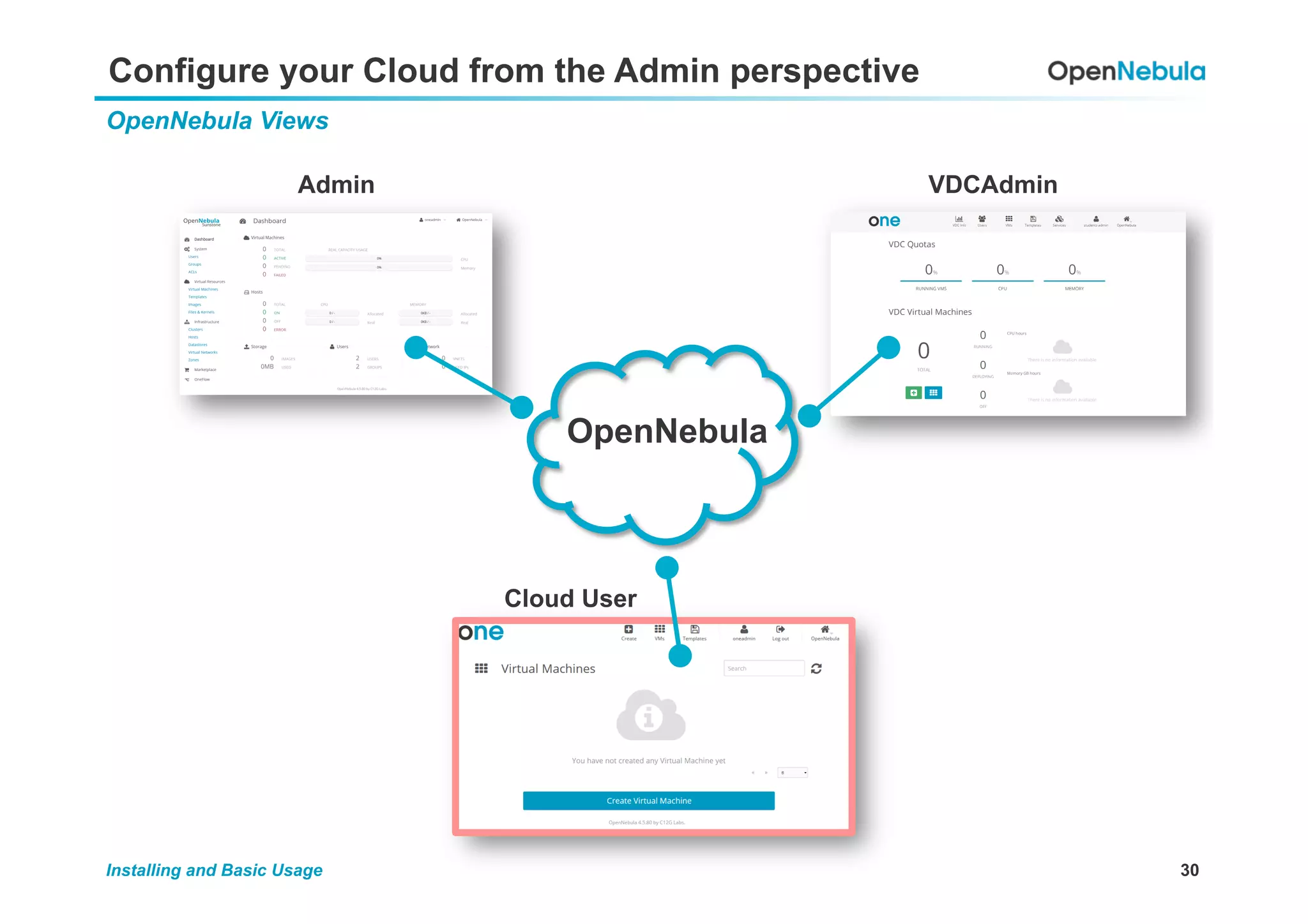
Configure your Cloud from the Admin perspective
OpenNebula Views
OpenNebula
Admin VDCAdmin
Cloud User
31Installing and Basic Usage
Cloud View
OpenNebula Views
Hands on!
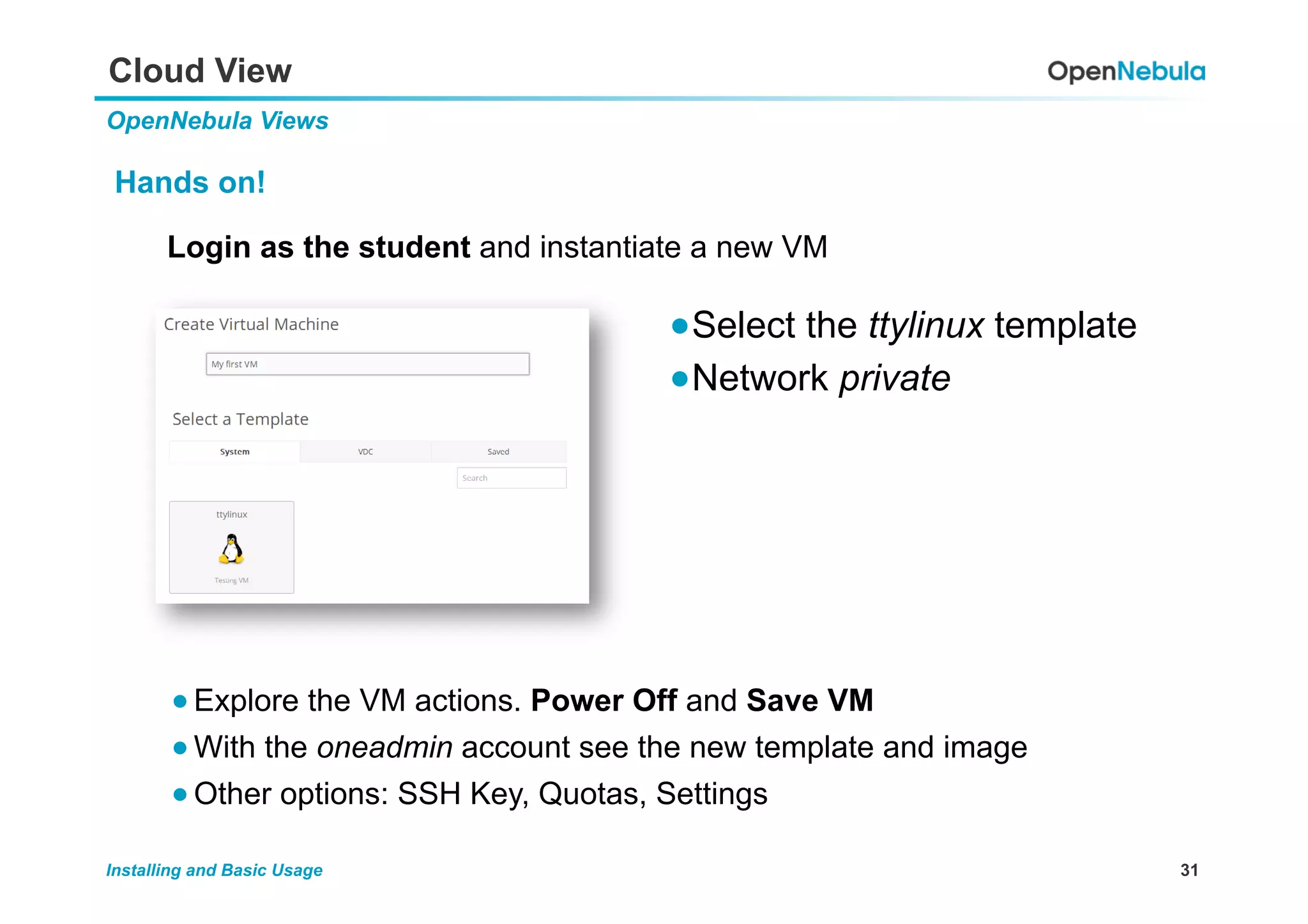
Login as the student and instantiate a new VM
● Select the ttylinux template
● Network private
● Explore the VM actions. Power Off and Save VM
● With the oneadmin account see the new template and image
● Other options: SSH Key, Quotas, Settings
32Installing and Basic Usage
VDC Admin View
Using Groups
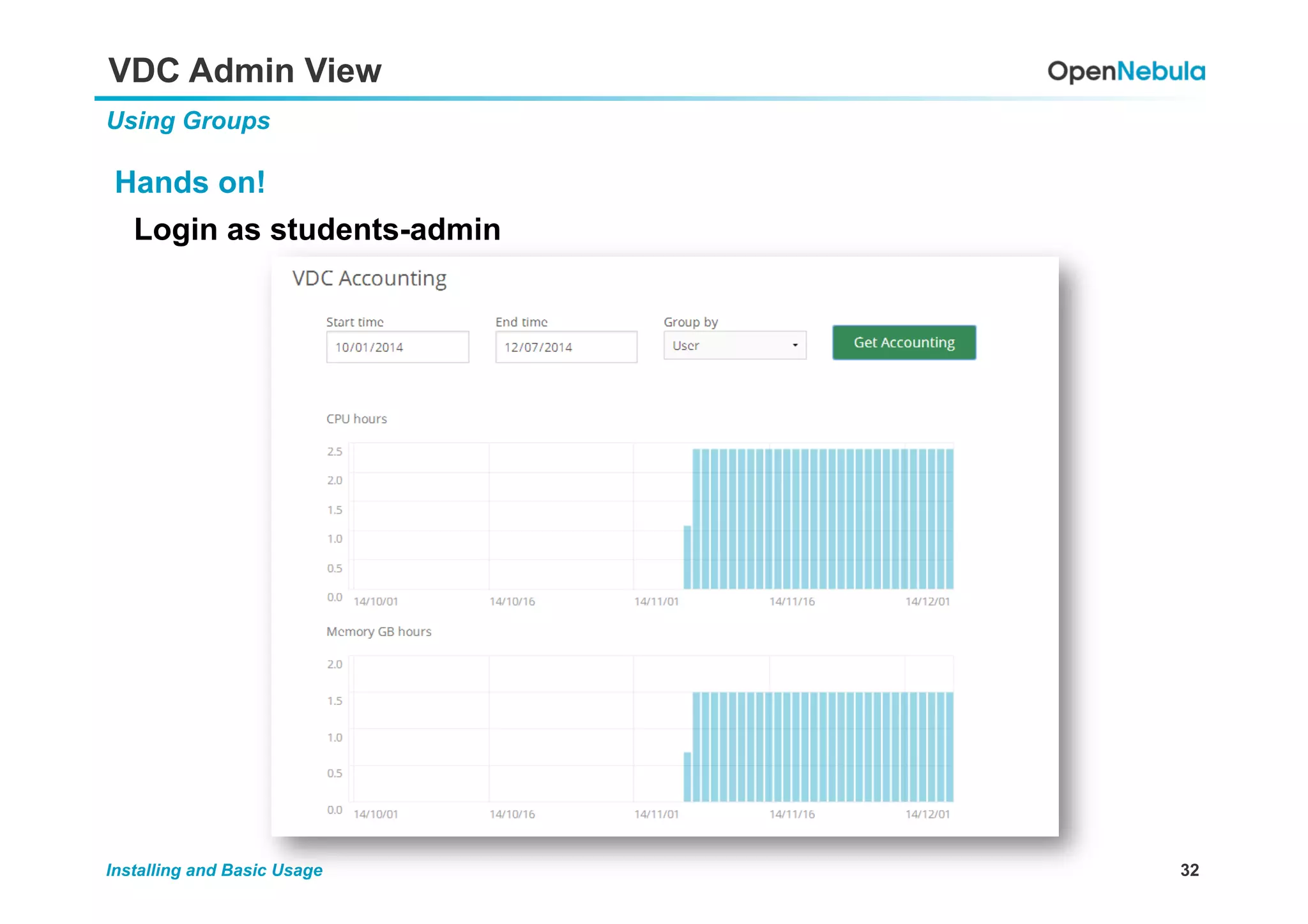
Hands on!
Login as students-admin
33Installing and Basic Usage
Explore
Federation
OpenNebula can scale by federation many OpenNebula instances.
Scheduler
The OpenNebula Scheduler is extremely flexible. Write your own rules
you want to guarantee that your vms end up wherever you need them.
OneFlow
Manage multi-vm services
OneGate
Send custom Metrics to OpenNebula
AppMarket
Deliver appliances ready to be consumed
CloudBursting
Scale out your private resources to EC2
vOneCloud
vCloud Director Replacement with al the OpenNebula Cloud benefits
Other Features
34Installing and Basic Usage
We Will Be Happy to Clarify Any Question
Questions?

OpenNebula TechDay Waterloo 2015 - Open nebula hands on workshop

  • 1.
    OpenNebula Tutorial © OpenNebula Project.Creative Commons Attribution-NonCommercial-ShareAlike License OpenNebula Hands-on Workshop
  • 2.
    A Typical OpenNebulaEnvironment Planning the Installation •  Repository of VM images •  Multiple Backends (LVM, Ceph) Monitoring,Virtualization, Storage and Network •  Provides physical resources for the VMs •  Must have a hypervisor installed
  • 3.
    Virtual Lab Planning theInstallation NODE 1 NODE 2
  • 4.
    4Installing and BasicUsage Three Views OpenNebula Views OpenNebula Admin VDCAdmin Cloud User
  • 5.
    5Installing and BasicUsage The Admin View OpenNebula Views OpenNebula Admin VDCAdmin Cloud User
  • 6.
    6Installing and BasicUsage Installation node 1 - Frontend Installing Hands on (node1) Install Packages # yum install opennebula-server opennebula-sunstone opennebula-node-kvm opennebula-flow opennebula-gate # /var/local/tutorial/configure_tutorial.sh # echo oneadmin:opennebula > /var/lib/one/.one/one_auth
  • 7.
    7Installing and BasicUsage Installation node 1 - Frontend Installing Hands on (node1) Start the services # service opennebula start # service opennebula-sunstone start # service libvirtd restart # su - oneadmin $ oneflow-server start $ onegate-server start
  • 8.
    8Installing and BasicUsage Installation node 1 - Frontend Installing Hands on (node1) Overview of the CLI # su - oneadmin $ oneuser show $ oneuser –h $ one[TAB]
  • 9.
    9Installing and BasicUsage Installation node 1 - Frontend Installing Hands on (node1) ! OpenNebula CLI Commands $ one[TAB] oneuser Manage Users oneimage Manage Images onegroup Manage Groups onetemplate Manage Templates oneacl Manage ACLs onevm Manage VMs onehost Manage Hosts oneacct Accounting Tool onecluster Manage Clusters onemarket Marketplace Tool onevnet Manage Networks onedb DB Tool onedatastore Manage Datastores
  • 10.
    10Installing and BasicUsage Installation node 1 - Frontend Installing Hands on (node2) Configure the hypervisor node # ssh root@node2 # yum install opennebula-node-kvm # service libvirtd restart NOTE: We have mounted the NFS # mount –t nfs node1:/var/lib/one/ on /var/lib/one type nfs ... If (and only if!!) NFS is not mounted: # /etc/rc.local
  • 11.
    11Installing and BasicUsage Configure Password-less SSH Installing Hands on! (always node1 from now on) OpenNebula needs passwordless ssh access to all the nodes from all the nodes # (as oneadmin) $ ssh-keyscan node1 node2 > ~/.ssh/known_hosts # test it! $ ssh node2 $ exit $ ssh node1 $ exit
  • 12.
    12Installing and BasicUsage Get User Information - Sunstone Installing Try out Sunstone! http://localhost:9869 Login: oneadmin Password: opennebula
  • 13.
    13Installing and BasicUsage Adding Hosts - Sunstone Basic Usage – Hosts Hands on! (Sunstone) ● Create one host in Sunstone: node1 ● Type: KVM ● Network: Default (dummy) ● Cluster: Default (none) ● Hostname: node1 ● Watch transition INIT => ON ● Click on the row for more information ● Automatic gathering of monitoring data ● Take a look at the graphs
  • 14.
    14Installing and BasicUsage Adding Hosts - CLI Basic Usage – Hosts Hands on! (CLI) (always as oneadmin in the Frontend – node 1) $ onehost -help $ onehost create –help $ onehost create node2 –i kvm -v kvm -n dummy $ onehost list $ onehost top # Wait for ON ... and then CTRL-C $ onehost show node2 $ onehost show 1 $ onehost show -x 1
  • 15.
    15Installing and BasicUsage Adding Images Basic Usage – Images Hands on! (Sunstone) ● Import Appliance from the Marketplace ●  Select TTYlinux in the Images Tab ●  Add/Change Attributes: DEV_PREFIX=vd DRIVER=qcow2
  • 16.
    16Installing and BasicUsage Overview Basic Usage - Datastores Hands on! (Sunstone)
  • 17.
    17Installing and BasicUsage Adding Networks Basic Usage – Networks Hands on! (Sunstone) br1 VM VM Node 1 eth1 br1 Node 2 eth1 VM VM
  • 18.
    18Installing and BasicUsage Adding Networks Basic Usage – Networks Hands on! (Sunstone) General ●  Name: private Configuration ●  Bridge: br1 Addresses ●  IP start: 192.168.0.100 ●  Size: 100
  • 19.
    19Installing and BasicUsage Adding Templates Basic Usage – Template Hands on! (Sunstone) ● A template is a Virtual Machine definition ready to be instantiated ● It has CPU, Memory, Disks, NIC, Graphical Ports, etc... General ●  Name: ttylinux ●  Logo: Linux ●  Description: Testing VM ●  CPU: 0.1 ●  Memory: 64 Storage ●  Click ttylinux Network ●  Click private Input/Output ●  Click VNC and add Keymap Context ●  Add OneGate token
  • 20.
    20Installing and BasicUsage Instantiating Basic Usage – VMs Hands on! (Sunstone) ● VNC ( root / password ) ● ifconfig: configured using context ● migrate ● live-migrate ● ping the other machine ● Instantiate the template ● Deploy 2 VMs ● Leave the name blank ● Open Virtual Machines ● Watch the transition PENDING => RUNNING ● Deployed in different hosts
  • 21.
    21Installing and BasicUsage Contextualization Basic Usage – VMs Hands on! Login to the first VM and look at contextualization Take a look at the contextualization files:
  • 22.
    22Installing and BasicUsage Main VM actions Basic Usage – VMs suspend VM state saved. Kept in the host. power off (--hard) Powers off a VM. Kept in the host. stop VM state saved. Taken to the system datastore. undeploy (--hard) Powers off a VM. Taken to the system datastore. reboot (--hard) Reboots the VM. delete --recreate Cleans the VM and moves it to PENDING. shutdown (--hard) Powers off a VM, cleans host and VM is removed from OpenNebula. delete VM is immediately destroyed regardless of state. Recommended only for oneadmin.
  • 23.
    23Installing and BasicUsage Other VM actions Basic Usage – VMs Hands on! (Sunstone) ● Storage: Attach new disk ● Create new Image => Type: “Datablock”; “Empty Datablock”; Size: 100; FS Type: “qcow2” ; Device Prefix: “vd”; Driver: “qcow2” ● Network: Attach new nic (poweroff inside tty to detect) ● Snapshot ● Take (system) snapshot ● Modify the VM ● Revert ● Capacity: Resize VM capacity # bash # echo 1 > /sys/bus/pci/rescan
  • 24.
    24Installing and BasicUsage Chmod and Chown, UNIX Style! Permissions Hands on! (Sunstone) Make the all the resources previously created usable by everybody Apply to all the images, templates and virtual networks. Owner could be changed too => chown and chmod.
  • 25.
    25Installing and BasicUsage Creating Groups Groups Hands on! Admin: Click Create an administrator user Username: students-admin Password: … Check the Permissions tab (no modifications)
  • 26.
    26Installing and BasicUsage Associated ACLs Groups Hands on! When a group is created, a new set of ACLs are introduced
  • 27.
    27Installing and BasicUsage VDCs The Power of VDCs
  • 28.
    28Installing and BasicUsage OpenNebula Views Configure your Cloud from the Admin perspective OpenNebula Admin VDCAdmin Cloud User
  • 29.
    29Installing and BasicUsage VDC Admin View Using Groups Hands on! Login as students-admin ● Create a student ● Assign Quotas
  • 30.
    30Installing and BasicUsage Configure your Cloud from the Admin perspective OpenNebula Views OpenNebula Admin VDCAdmin Cloud User
  • 31.
    31Installing and BasicUsage Cloud View OpenNebula Views Hands on! Login as the student and instantiate a new VM ● Select the ttylinux template ● Network private ● Explore the VM actions. Power Off and Save VM ● With the oneadmin account see the new template and image ● Other options: SSH Key, Quotas, Settings
  • 32.
    32Installing and BasicUsage VDC Admin View Using Groups Hands on! Login as students-admin
  • 33.
    33Installing and BasicUsage Explore Federation OpenNebula can scale by federation many OpenNebula instances. Scheduler The OpenNebula Scheduler is extremely flexible. Write your own rules you want to guarantee that your vms end up wherever you need them. OneFlow Manage multi-vm services OneGate Send custom Metrics to OpenNebula AppMarket Deliver appliances ready to be consumed CloudBursting Scale out your private resources to EC2 vOneCloud vCloud Director Replacement with al the OpenNebula Cloud benefits Other Features
  • 34.
    34Installing and BasicUsage We Will Be Happy to Clarify Any Question Questions?