Customizing Virtual Machine
Images
Javier Fontán - OpenNebula Developer
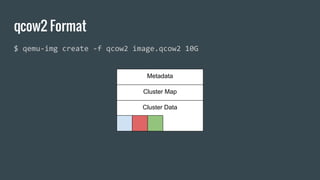
qcow2 Format
$ qemu-img create -f qcow2 image.qcow2 10G
Metadata
Cluster Map
Cluster Data
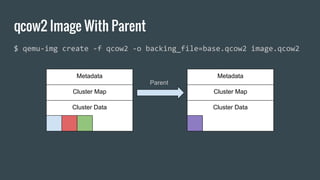
qcow2 Image With Parent
$ qemu-img create -f qcow2 -o backing_file=base.qcow2 image.qcow2
Metadata
Cluster Map
Cluster Data
Metadata
Cluster Map
Cluster Data
Parent
● There are other ways to create your images:
○ virt-install
○ packer.io
○ foreman
○ etc...
● Sometimes modifying already created images is convenient
● Even if you use other image formats you can convert them
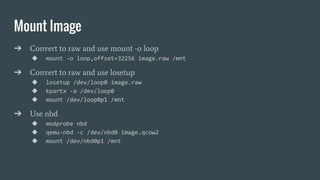
Mount Image
➔ Convert to raw and use mount -o loop
◆ mount -o loop,offset=32256 image.raw /mnt
➔ Convert to raw and use losetup
◆ losetup /dev/loop0 image.raw
◆ kpartx -a /dev/loop0
◆ mount /dev/loop0p1 /mnt
➔ Use nbd
◆ modprobe nbd
◆ qemu-nbd -c /dev/nbd0 image.qcow2
◆ mount /dev/nbd0p1 /mnt
libguestfs
From its webpage http://libguestfs.org:
libguestfs is a set of tools for accessing and modifying virtual machine (VM) disk
images. You can use this for viewing and editing files inside guests, scripting
changes to VMs, monitoring disk used/free statistics, creating guests, P2V, V2V,
performing backups, cloning VMs, building VMs, formatting disks, resizing disks,
and much more.
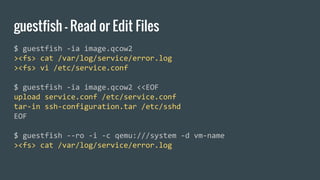
guestfish - Read or Edit Files
$ guestfish -ia image.qcow2
><fs> cat /var/log/service/error.log
><fs> vi /etc/service.conf
$ guestfish -ia image.qcow2 <<EOF
upload service.conf /etc/service.conf
tar-in ssh-configuration.tar /etc/sshd
EOF
$ guestfish --ro -i -c qemu:///system -d vm-name
><fs> cat /var/log/service/error.log
virt-customize
● Starts custom VM and attach disks and connects to network
● Change passwords, create users
● Move files
● Install packages
● Execute scripts
virt-customize [--options]
[ -d domname | -a disk.img [-a disk.img ...] ] [--chmod PERMISSIONS:FILE] [--commands-from-file FILENAME]
[--copy SOURCE:DEST] [--copy-in LOCALPATH:REMOTEDIR] [--delete PATH] [--edit FILE:EXPR] [--firstboot SCRIPT]
[--firstboot-command 'CMD+ARGS'] [--firstboot-install PKG,PKG..] [--hostname HOSTNAME] [--install PKG,PKG..]
[--link TARGET:LINK[:LINK..]] [--mkdir DIR] [--move SOURCE:DEST] [--password USER:SELECTOR] [--root-password SELECTOR]
[--run SCRIPT] [--run-command 'CMD+ARGS'] [--scrub FILE] [--sm-attach SELECTOR] [--sm-register] [--sm-remove]
[--sm-unregister] [--ssh-inject USER[:SELECTOR]] [--truncate FILE] [--truncate-recursive PATH] [--timezone TIMEZONE] [--touch FILE]
[--update] [--upload FILE:DEST] [--write FILE:CONTENT] [--no-logfile] [--password-crypto md5|sha256|sha512]
[--selinux-relabel] [--sm-credentials SELECTOR]
OpenNebula Marketplace Images
● Download CentOS images
● Create CDROM with OpenNebula context packages
● Create script to modify the image
○ Mount CDROM
○ Install context packages
○ Remove cloud-init and NetworkManager packages
○ Install EPEL repository
○ Install growpart packages
OpenNebula Images - Create CDROM
# Download context packages from github
curl -s https://api.github.com/repos/OpenNebula/addon-context-
linux/releases | jq -r '.[0].assets[].browser_download_url' |
xargs -L1 wget -P repo
# Create ISO image with label “EXTRA”
genisoimage -o extra-packages.iso -R -J -V EXTRA repo/
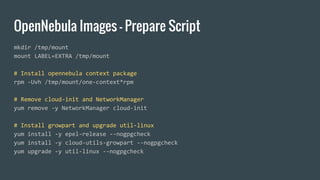
OpenNebula Images - Prepare Script
mkdir /tmp/mount
mount LABEL=EXTRA /tmp/mount
# Install opennebula context package
rpm -Uvh /tmp/mount/one-context*rpm
# Remove cloud-init and NetworkManager
yum remove -y NetworkManager cloud-init
# Install growpart and upgrade util-linux
yum install -y epel-release --nogpgcheck
yum install -y cloud-utils-growpart --nogpgcheck
yum upgrade -y util-linux --nogpgcheck
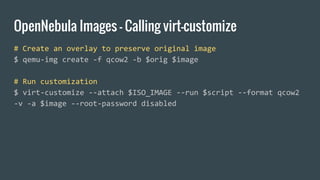
OpenNebula Images - Calling virt-customize
# Create an overlay to preserve original image
$ qemu-img create -f qcow2 -b $orig $image
# Run customization
$ virt-customize --attach $ISO_IMAGE --run $script --format qcow2
-v -a $image --root-password disabled
Optimizing Images
● qemu-img does not know anything about filesystems
● Blocks not allocated (sparse files) or that contain zeroes are not copied
● Normal file deletion does not zero or deallocate blocks
● Swap partitions contain information if used
● This information can be stripped to make the images smaller
● virt-sparsify to the rescue!
Optimizing Images - virt-sparsify
There are two ways of doing sparsification:
● Normal Sparsification:
○ Occupies the maximum space of the image
● In Place Sparsification:
○ Create an sparse qcow2 file
Optimizing Images - Normal Sparsification
● Create overlay of the image
● Create a file in all filesystems and fill it with zeroes until there is not more space
and delete file
● Fill swap partitions with zeroes
● Convert it to a new qcow2 file skipping zero blocks
$ TMPDIR=/var/tmp virt-sparsify original.qcow2 new.qcow2
Optimizing Images - In Place Sparsification
● Uses trim command, normally used for SSD disks
● Deallocates blocks from filesystem
● Does not require the total amount of disk space
● The qcow2 file contains holes and is not the best one for distribution
● Can be converted to a non sparse qcow2 file
● Can not be used with compression
$ virt-sparsify --in-place original.qcow2 new.qcow2
Optimizing Images - Compression
● qcow2 images can have the blocks compressed
● Compression rate is less that xz or bzip2
● Is more convenient as it can be directly used as is
● Use of these images trades disk space for CPU consumption
● Can be done directly in virt-sparsify with --compress (not In Place)
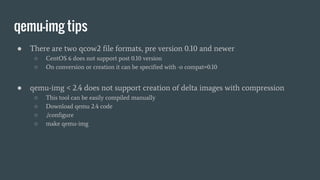
qemu-img tips
● There are two qcow2 file formats, pre version 0.10 and newer
○ CentOS 6 does not support post 0.10 version
○ On conversion or creation it can be specified with -o compat=0.10
● qemu-img < 2.4 does not support creation of delta images with compression
○ This tool can be easily compiled manually
○ Download qemu 2.4 code
○ ./configure
○ make qemu-img
Cangallo!
https://github.com/jfontan/cangallo
Thank You!
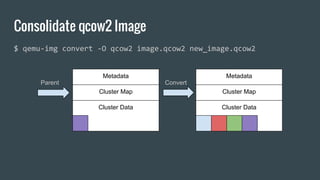
Consolidate qcow2 Image
$ qemu-img convert -O qcow2 image.qcow2 new_image.qcow2
Metadata
Cluster Map
Cluster Data
Parent
Metadata
Cluster Map
Cluster Data
Convert
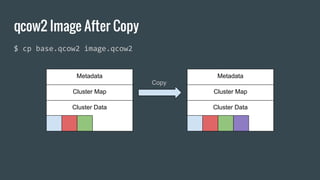
qcow2 Image After Copy
$ cp base.qcow2 image.qcow2
Metadata
Cluster Map
Cluster Data
Metadata
Cluster Map
Cluster Data
Copy
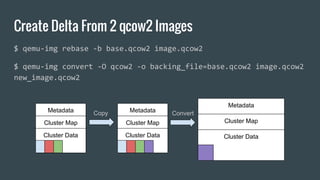
Create Delta From 2 qcow2 Images
$ qemu-img rebase -b base.qcow2 image.qcow2
$ qemu-img convert -O qcow2 -o backing_file=base.qcow2 image.qcow2
new_image.qcow2
Metadata
Cluster Map
Cluster Data
Metadata
Cluster Map
Cluster Data
Copy
Metadata
Cluster Map
Cluster Data
Convert

TechDay - April - Customizing VM Images

  • 1.
    Customizing Virtual Machine Images JavierFontán - OpenNebula Developer
  • 2.
    qcow2 Format $ qemu-imgcreate -f qcow2 image.qcow2 10G Metadata Cluster Map Cluster Data
  • 3.
    qcow2 Image WithParent $ qemu-img create -f qcow2 -o backing_file=base.qcow2 image.qcow2 Metadata Cluster Map Cluster Data Metadata Cluster Map Cluster Data Parent
  • 4.
    ● There areother ways to create your images: ○ virt-install ○ packer.io ○ foreman ○ etc... ● Sometimes modifying already created images is convenient ● Even if you use other image formats you can convert them
  • 5.
    Mount Image ➔ Convertto raw and use mount -o loop ◆ mount -o loop,offset=32256 image.raw /mnt ➔ Convert to raw and use losetup ◆ losetup /dev/loop0 image.raw ◆ kpartx -a /dev/loop0 ◆ mount /dev/loop0p1 /mnt ➔ Use nbd ◆ modprobe nbd ◆ qemu-nbd -c /dev/nbd0 image.qcow2 ◆ mount /dev/nbd0p1 /mnt
  • 6.
    libguestfs From its webpagehttp://libguestfs.org: libguestfs is a set of tools for accessing and modifying virtual machine (VM) disk images. You can use this for viewing and editing files inside guests, scripting changes to VMs, monitoring disk used/free statistics, creating guests, P2V, V2V, performing backups, cloning VMs, building VMs, formatting disks, resizing disks, and much more.
  • 7.
    guestfish - Reador Edit Files $ guestfish -ia image.qcow2 ><fs> cat /var/log/service/error.log ><fs> vi /etc/service.conf $ guestfish -ia image.qcow2 <<EOF upload service.conf /etc/service.conf tar-in ssh-configuration.tar /etc/sshd EOF $ guestfish --ro -i -c qemu:///system -d vm-name ><fs> cat /var/log/service/error.log
  • 8.
    virt-customize ● Starts customVM and attach disks and connects to network ● Change passwords, create users ● Move files ● Install packages ● Execute scripts virt-customize [--options] [ -d domname | -a disk.img [-a disk.img ...] ] [--chmod PERMISSIONS:FILE] [--commands-from-file FILENAME] [--copy SOURCE:DEST] [--copy-in LOCALPATH:REMOTEDIR] [--delete PATH] [--edit FILE:EXPR] [--firstboot SCRIPT] [--firstboot-command 'CMD+ARGS'] [--firstboot-install PKG,PKG..] [--hostname HOSTNAME] [--install PKG,PKG..] [--link TARGET:LINK[:LINK..]] [--mkdir DIR] [--move SOURCE:DEST] [--password USER:SELECTOR] [--root-password SELECTOR] [--run SCRIPT] [--run-command 'CMD+ARGS'] [--scrub FILE] [--sm-attach SELECTOR] [--sm-register] [--sm-remove] [--sm-unregister] [--ssh-inject USER[:SELECTOR]] [--truncate FILE] [--truncate-recursive PATH] [--timezone TIMEZONE] [--touch FILE] [--update] [--upload FILE:DEST] [--write FILE:CONTENT] [--no-logfile] [--password-crypto md5|sha256|sha512] [--selinux-relabel] [--sm-credentials SELECTOR]
  • 9.
    OpenNebula Marketplace Images ●Download CentOS images ● Create CDROM with OpenNebula context packages ● Create script to modify the image ○ Mount CDROM ○ Install context packages ○ Remove cloud-init and NetworkManager packages ○ Install EPEL repository ○ Install growpart packages
  • 10.
    OpenNebula Images -Create CDROM # Download context packages from github curl -s https://api.github.com/repos/OpenNebula/addon-context- linux/releases | jq -r '.[0].assets[].browser_download_url' | xargs -L1 wget -P repo # Create ISO image with label “EXTRA” genisoimage -o extra-packages.iso -R -J -V EXTRA repo/
  • 11.
    OpenNebula Images -Prepare Script mkdir /tmp/mount mount LABEL=EXTRA /tmp/mount # Install opennebula context package rpm -Uvh /tmp/mount/one-context*rpm # Remove cloud-init and NetworkManager yum remove -y NetworkManager cloud-init # Install growpart and upgrade util-linux yum install -y epel-release --nogpgcheck yum install -y cloud-utils-growpart --nogpgcheck yum upgrade -y util-linux --nogpgcheck
  • 12.
    OpenNebula Images -Calling virt-customize # Create an overlay to preserve original image $ qemu-img create -f qcow2 -b $orig $image # Run customization $ virt-customize --attach $ISO_IMAGE --run $script --format qcow2 -v -a $image --root-password disabled
  • 13.
    Optimizing Images ● qemu-imgdoes not know anything about filesystems ● Blocks not allocated (sparse files) or that contain zeroes are not copied ● Normal file deletion does not zero or deallocate blocks ● Swap partitions contain information if used ● This information can be stripped to make the images smaller ● virt-sparsify to the rescue!
  • 14.
    Optimizing Images -virt-sparsify There are two ways of doing sparsification: ● Normal Sparsification: ○ Occupies the maximum space of the image ● In Place Sparsification: ○ Create an sparse qcow2 file
  • 15.
    Optimizing Images -Normal Sparsification ● Create overlay of the image ● Create a file in all filesystems and fill it with zeroes until there is not more space and delete file ● Fill swap partitions with zeroes ● Convert it to a new qcow2 file skipping zero blocks $ TMPDIR=/var/tmp virt-sparsify original.qcow2 new.qcow2
  • 16.
    Optimizing Images -In Place Sparsification ● Uses trim command, normally used for SSD disks ● Deallocates blocks from filesystem ● Does not require the total amount of disk space ● The qcow2 file contains holes and is not the best one for distribution ● Can be converted to a non sparse qcow2 file ● Can not be used with compression $ virt-sparsify --in-place original.qcow2 new.qcow2
  • 17.
    Optimizing Images -Compression ● qcow2 images can have the blocks compressed ● Compression rate is less that xz or bzip2 ● Is more convenient as it can be directly used as is ● Use of these images trades disk space for CPU consumption ● Can be done directly in virt-sparsify with --compress (not In Place)
  • 18.
    qemu-img tips ● Thereare two qcow2 file formats, pre version 0.10 and newer ○ CentOS 6 does not support post 0.10 version ○ On conversion or creation it can be specified with -o compat=0.10 ● qemu-img < 2.4 does not support creation of delta images with compression ○ This tool can be easily compiled manually ○ Download qemu 2.4 code ○ ./configure ○ make qemu-img
  • 19.
  • 20.
  • 21.
    Consolidate qcow2 Image $qemu-img convert -O qcow2 image.qcow2 new_image.qcow2 Metadata Cluster Map Cluster Data Parent Metadata Cluster Map Cluster Data Convert
  • 22.
    qcow2 Image AfterCopy $ cp base.qcow2 image.qcow2 Metadata Cluster Map Cluster Data Metadata Cluster Map Cluster Data Copy
  • 23.
    Create Delta From2 qcow2 Images $ qemu-img rebase -b base.qcow2 image.qcow2 $ qemu-img convert -O qcow2 -o backing_file=base.qcow2 image.qcow2 new_image.qcow2 Metadata Cluster Map Cluster Data Metadata Cluster Map Cluster Data Copy Metadata Cluster Map Cluster Data Convert