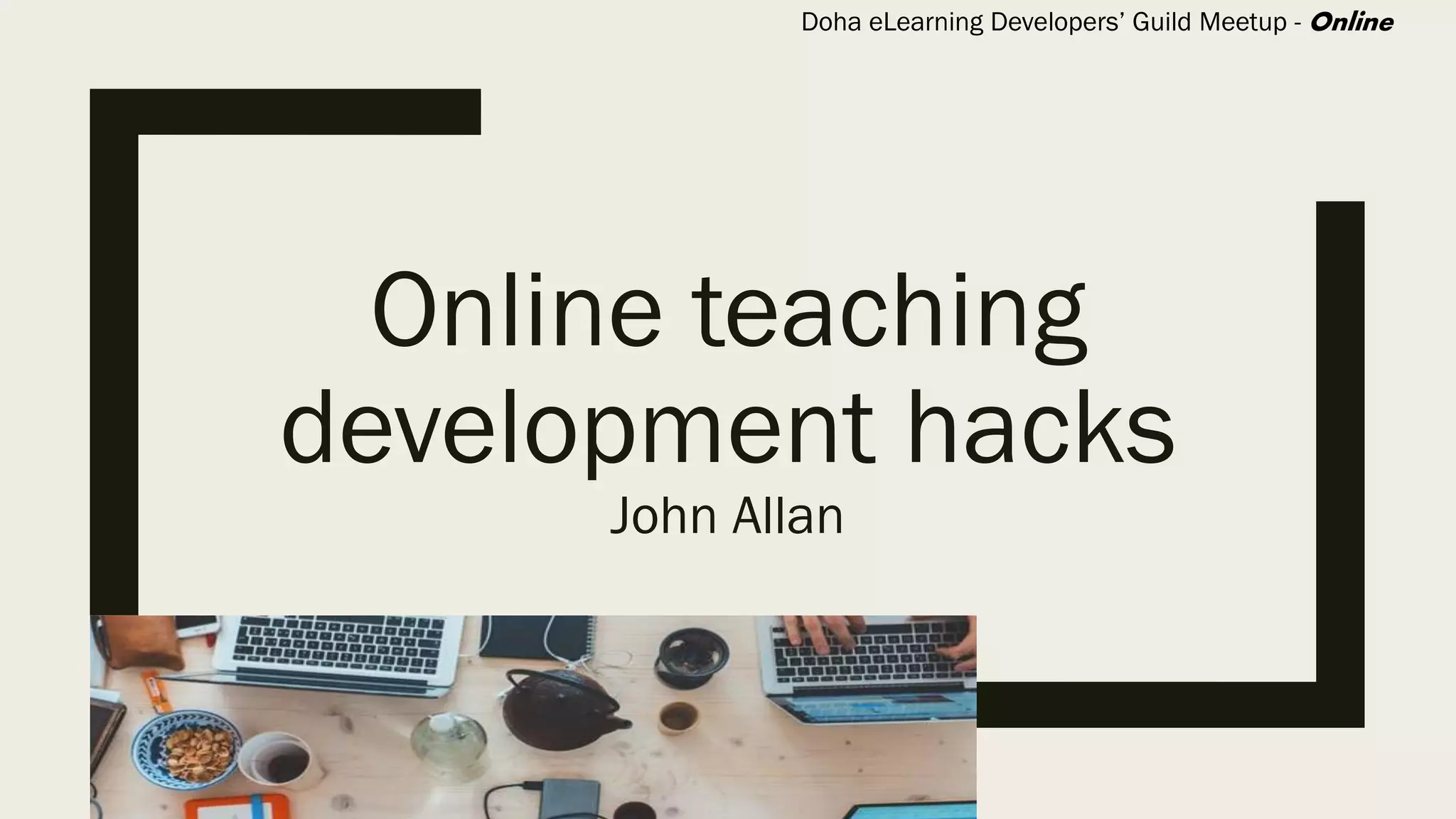
Online teaching
development hacks
John Allan
Doha eLearning Developers’ Guild Meetup - Online
Webinar etiquette – 45 minute session
■ No certificates issued – sorry
■ No recording
■ PowerPoint available via email/slideshare after the session
■ Hand out available via email/slideshare after webinar
■ QUESTIONS? Please type questions in the chat box, they will be answered in 30 mins
■ No personal introductions please as we only have 45 minutes, use the Discussions
area on the DELD Meetup site
Doha eLearning Developers’ Guild
■ DELD Meetup
https://www.meetup.com/Doha-eLearning-Developers-Guild-DeLD-Ed-Tech
■ Since 2015 face-to-face sessions
■ First online Meetup of this series
1. Online teaching (development) hacks
2. Keeping learners Engaged
3. Collaborative Writing in the Cloud
4. Creating Interactive Videos (H5P or EdPuzzle)
5. From the community? (email: John Allan)
Why online teaching hacks?
■ Current requirement - to prepare materials for online delivery
– Teachers
– Trainers
– Developers
– Managers
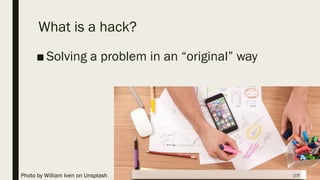
What is a hack?
■ Solving a problem in an “original” way
Photo by William Iven on Unsplash
Make teaching more effective with development hacks!
Photo by Christin Hume on Unsplash
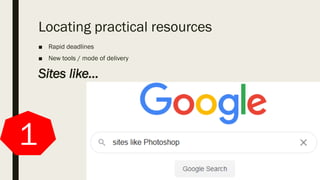
Locating practical resources
■ Rapid deadlines
■ New tools / mode of delivery
Sites like…
1
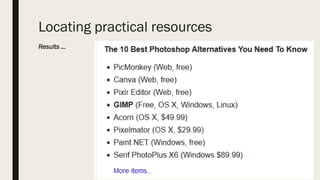
Locating practical resources
Results …
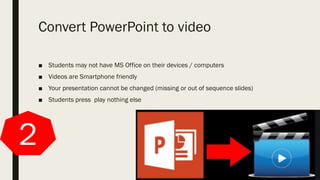
Convert PowerPoint to video
■ Students may not have MS Office on their devices / computers
■ Videos are Smartphone friendly
■ Your presentation cannot be changed (missing or out of sequence slides)
■ Students press play nothing else
2
Convert PowerPoint to video
■ Open / create a PowerPoint slideshow
■ Remove transitions
■ Narrate over slides
■ Save PPT file
■ Export to Video
■ Upload to online host such as YouTube
Convert PowerPoint to PDF
■ No audio or motion
■ Smaller file
■ downloadable
2.1
Parsing online video
■ Break online video down into logical chunks
■ Saves learners time
■ Keeps focus on topic
■ Editing tool is Vibby
3
Parsing online video
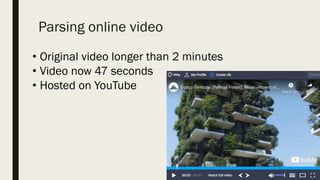
• Original video longer than 2 minutes
• Video now 47 seconds
• Hosted on YouTube
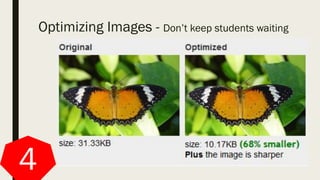
Optimizing Images - Don’t keep students waiting
4
Optimizing Images
■ Change your images to make them smaller, keeping the balance between the
lowest file size and an acceptable quality.
■ Resizing or cropping
■ Online resources such as Webresizer is all you need
■ Choose the best image file type.
PNG – produces higher quality images, but also has a larger file size.
JPEG –adjust the quality level for a good balance of quality and file size.
GIF – only uses 256 colors. It’s the best choice for animated images.
OERs
■ Use Open Educational Resources
■ Free (usually)
■ Customizable
■ Large archives
5
■ Khan Academy,
https://www.khanacademy.org
■ MIT OER, https://ocw.mit.edu/index.htm
■ OER Commons,
https://www.oercommons.org
■ Open Stax, https://openstax.org
■ CK-12, https://www.ck12.org
Step-by-steps
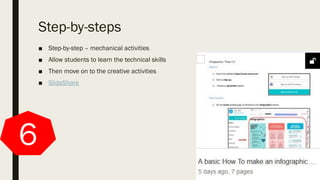
■ Step-by-step – mechanical activities
■ Allow students to learn the technical skills
■ Then move on to the creative activities
■ SlideShare
6
Duplicate (copy & paste)
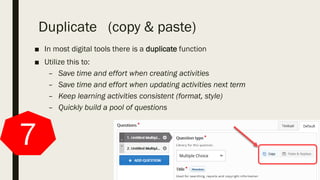
■ In most digital tools there is a duplicate function
■ Utilize this to:
– Save time and effort when creating activities
– Save time and effort when updating activities next term
– Keep learning activities consistent (format, style)
– Quickly build a pool of questions
7
Embed or link?
■ Using a link to external resources takes the students out of your *LMS
or class web page
■ Embed inserts the learning object into your LMS or class web page
■ It may report to the LMS gradebook
8
*Learning Management System (e.g.: Moodle, Blackboard, Sakai, D2L, Canvas)
Embed or link?
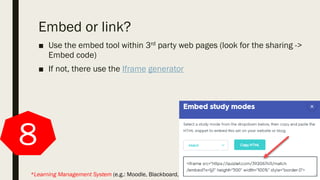
■ Use the embed tool within 3rd party web pages (look for the sharing ->
Embed code)
■ If not, there use the Iframe generator
8
*Learning Management System (e.g.: Moodle, Blackboard, Sakai, D2L, Canvas)
Develop with text
■ Type all ideas into text – without formatting
■ Save the document as “Plain text”
■ Copy and paste the information from here to all
digital generators such as :
– Quizlet
– Kahoot
– Captivate
– Socrative
– Hot Potatoes
– Moodle quizzes
9
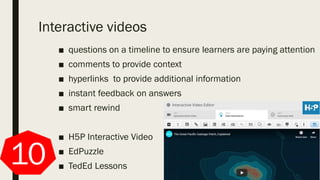
Interactive videos
■ questions on a timeline to ensure learners are paying attention
■ comments to provide context
■ hyperlinks to provide additional information
■ instant feedback on answers
■ smart rewind
■ H5P Interactive Video
■ EdPuzzle
■ TedEd Lessons10
Questions?

Online Teacher Development Hacks webinar 2020

  • 1.
    Online teaching development hacks JohnAllan Doha eLearning Developers’ Guild Meetup - Online
  • 2.
    Webinar etiquette –45 minute session ■ No certificates issued – sorry ■ No recording ■ PowerPoint available via email/slideshare after the session ■ Hand out available via email/slideshare after webinar ■ QUESTIONS? Please type questions in the chat box, they will be answered in 30 mins ■ No personal introductions please as we only have 45 minutes, use the Discussions area on the DELD Meetup site
  • 3.
    Doha eLearning Developers’Guild ■ DELD Meetup https://www.meetup.com/Doha-eLearning-Developers-Guild-DeLD-Ed-Tech ■ Since 2015 face-to-face sessions ■ First online Meetup of this series 1. Online teaching (development) hacks 2. Keeping learners Engaged 3. Collaborative Writing in the Cloud 4. Creating Interactive Videos (H5P or EdPuzzle) 5. From the community? (email: John Allan)
  • 4.
    Why online teachinghacks? ■ Current requirement - to prepare materials for online delivery – Teachers – Trainers – Developers – Managers
  • 5.
    What is ahack? ■ Solving a problem in an “original” way Photo by William Iven on Unsplash
  • 6.
    Make teaching moreeffective with development hacks! Photo by Christin Hume on Unsplash
  • 7.
    Locating practical resources ■Rapid deadlines ■ New tools / mode of delivery Sites like… 1
  • 8.
  • 9.
    Convert PowerPoint tovideo ■ Students may not have MS Office on their devices / computers ■ Videos are Smartphone friendly ■ Your presentation cannot be changed (missing or out of sequence slides) ■ Students press play nothing else 2
  • 10.
    Convert PowerPoint tovideo ■ Open / create a PowerPoint slideshow ■ Remove transitions ■ Narrate over slides ■ Save PPT file ■ Export to Video ■ Upload to online host such as YouTube
  • 11.
    Convert PowerPoint toPDF ■ No audio or motion ■ Smaller file ■ downloadable 2.1
  • 12.
    Parsing online video ■Break online video down into logical chunks ■ Saves learners time ■ Keeps focus on topic ■ Editing tool is Vibby 3
  • 13.
    Parsing online video •Original video longer than 2 minutes • Video now 47 seconds • Hosted on YouTube
  • 14.
    Optimizing Images -Don’t keep students waiting 4
  • 15.
    Optimizing Images ■ Changeyour images to make them smaller, keeping the balance between the lowest file size and an acceptable quality. ■ Resizing or cropping ■ Online resources such as Webresizer is all you need ■ Choose the best image file type. PNG – produces higher quality images, but also has a larger file size. JPEG –adjust the quality level for a good balance of quality and file size. GIF – only uses 256 colors. It’s the best choice for animated images.
  • 16.
    OERs ■ Use OpenEducational Resources ■ Free (usually) ■ Customizable ■ Large archives 5 ■ Khan Academy, https://www.khanacademy.org ■ MIT OER, https://ocw.mit.edu/index.htm ■ OER Commons, https://www.oercommons.org ■ Open Stax, https://openstax.org ■ CK-12, https://www.ck12.org
  • 17.
    Step-by-steps ■ Step-by-step –mechanical activities ■ Allow students to learn the technical skills ■ Then move on to the creative activities ■ SlideShare 6
  • 18.
    Duplicate (copy &paste) ■ In most digital tools there is a duplicate function ■ Utilize this to: – Save time and effort when creating activities – Save time and effort when updating activities next term – Keep learning activities consistent (format, style) – Quickly build a pool of questions 7
  • 19.
    Embed or link? ■Using a link to external resources takes the students out of your *LMS or class web page ■ Embed inserts the learning object into your LMS or class web page ■ It may report to the LMS gradebook 8 *Learning Management System (e.g.: Moodle, Blackboard, Sakai, D2L, Canvas)
  • 20.
    Embed or link? ■Use the embed tool within 3rd party web pages (look for the sharing -> Embed code) ■ If not, there use the Iframe generator 8 *Learning Management System (e.g.: Moodle, Blackboard, Sakai, D2L, Canvas)
  • 21.
    Develop with text ■Type all ideas into text – without formatting ■ Save the document as “Plain text” ■ Copy and paste the information from here to all digital generators such as : – Quizlet – Kahoot – Captivate – Socrative – Hot Potatoes – Moodle quizzes 9
  • 22.
    Interactive videos ■ questionson a timeline to ensure learners are paying attention ■ comments to provide context ■ hyperlinks to provide additional information ■ instant feedback on answers ■ smart rewind ■ H5P Interactive Video ■ EdPuzzle ■ TedEd Lessons10
  • 23.