Page 1 of 18
Setting up an Extensive Reading Class
1. Go to https://xreading.com/login
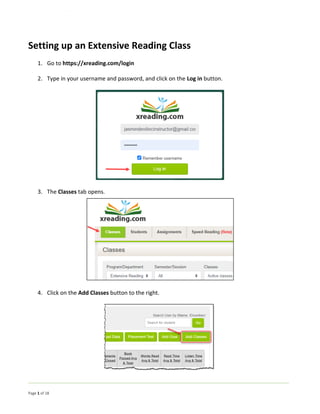
2. Type in your username and password, and click on the Log in button.
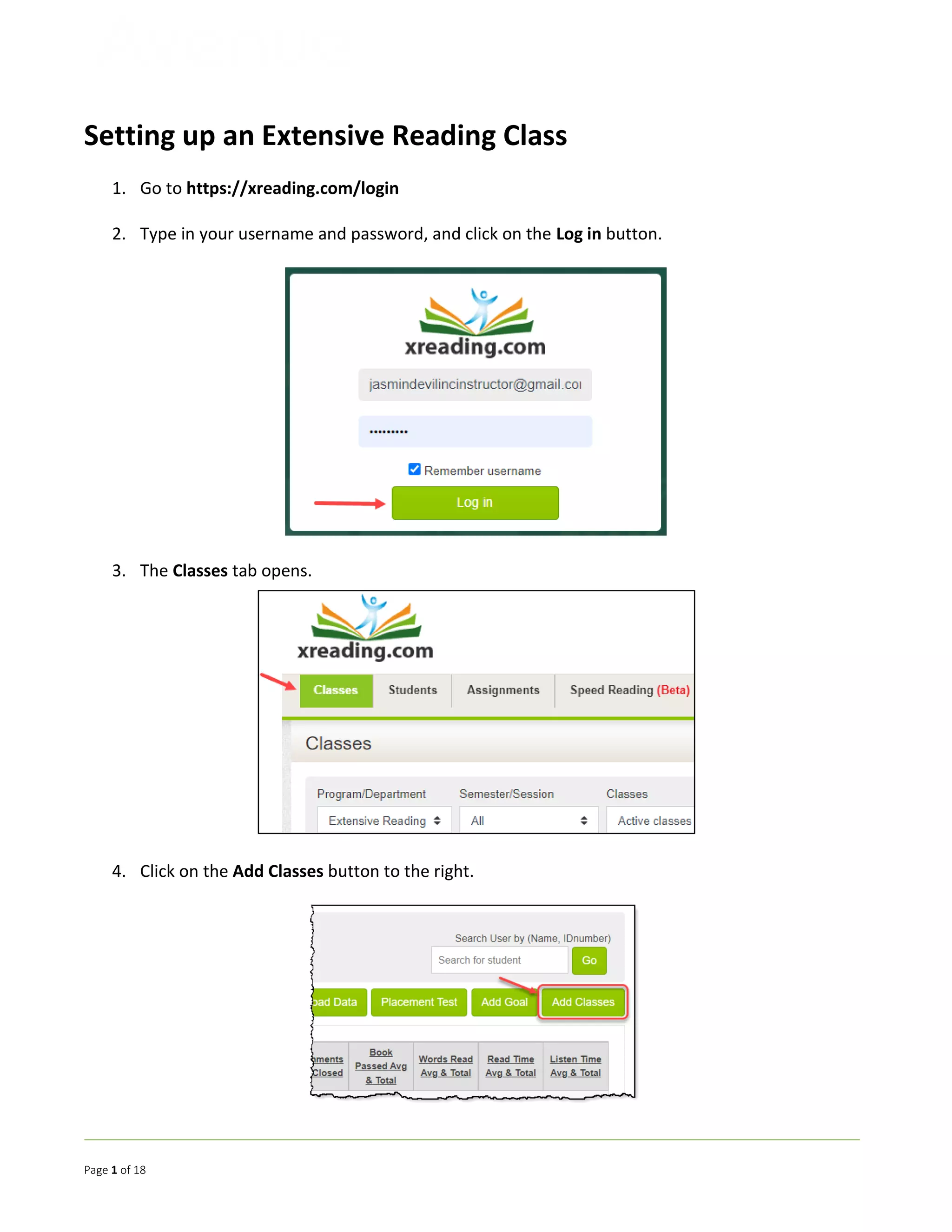
3. The Classes tab opens.
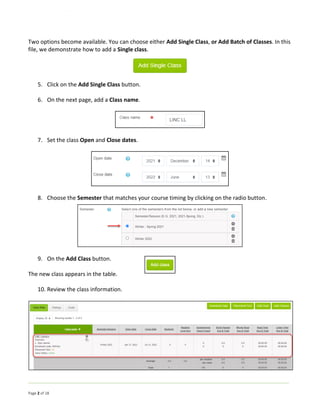
4. Click on the Add Classes button to the right.
Page 2 of 18
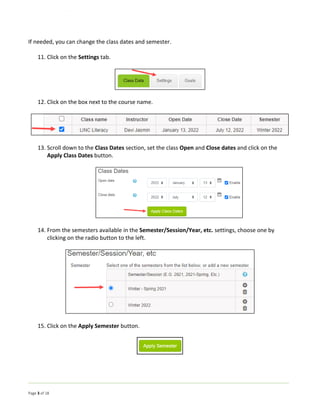
Two options become available. You can choose either Add Single Class, or Add Batch of Classes. In this
file, we demonstrate how to add a Single class.
5. Click on the Add Single Class button.
6. On the next page, add a Class name.
7. Set the class Open and Close dates.
8. Choose the Semester that matches your course timing by clicking on the radio button.
9. On the Add Class button.
The new class appears in the table.
10. Review the class information.
Page 3 of 18
If needed, you can change the class dates and semester.
11. Click on the Settings tab.
12. Click on the box next to the course name.
13. Scroll down to the Class Dates section, set the class Open and Close dates and click on the
Apply Class Dates button.
14. From the semesters available in the Semester/Session/Year, etc. settings, choose one by
clicking on the radio button to the left.
15. Click on the Apply Semester button.
Page 4 of 18
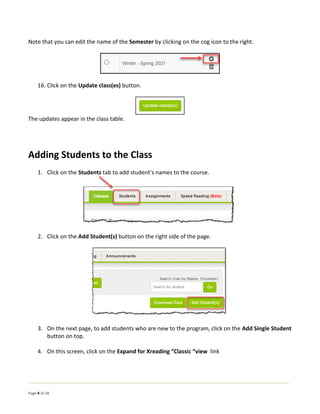
Note that you can edit the name of the Semester by clicking on the cog icon to the right.
16. Click on the Update class(es) button.
The updates appear in the class table.
Adding Students to the Class
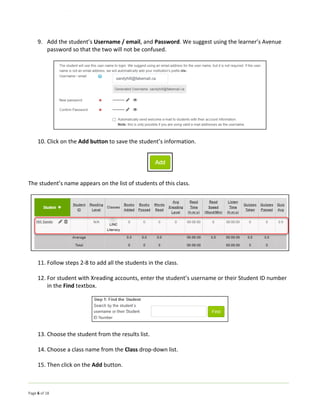
1. Click on the Students tab to add student’s names to the course.
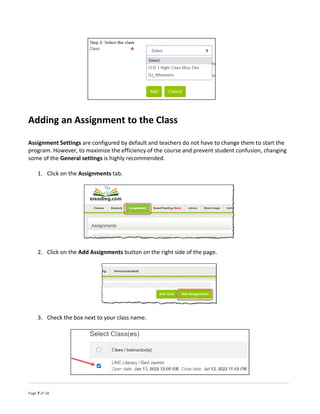
2. Click on the Add Student(s) button on the right side of the page.
3. On the next page, to add students who are new to the program, click on the Add Single Student
button on top.
4. On this screen, click on the Expand for Xreading “Classic “view link
Page 5 of 18
5. To add students who are new to Xreading, click on the Add Single Student button in the middle
of this page.
6. To add students who already have an Xreading account, click on the Add Single Student button
at the bottom of this page.
7. For new Xreading students, add the student’s Family and Given Names and a Display Name. If
students have school ID numbers, add it to the Student ID# field. Otherwise, leave this area
blank.
8. Select the name of the class from the drop-down menu.
Page 6 of 18
9. Add the student’s Username / email, and Password. We suggest using the learner’s Avenue
password so that the two will not be confused.
10. Click on the Add button to save the student’s information.
The student’s name appears on the list of students of this class.
11. Follow steps 2-8 to add all the students in the class.
12. For student with Xreading accounts, enter the student’s username or their Student ID number
in the Find textbox.
13. Choose the student from the results list.
14. Choose a class name from the Class drop-down list.
15. Then click on the Add button.
Page 7 of 18
Adding an Assignment to the Class
Assignment Settings are configured by default and teachers do not have to change them to start the
program. However, to maximize the efficiency of the course and prevent student confusion, changing
some of the General settings is highly recommended.
1. Click on the Assignments tab.
2. Click on the Add Assignments button on the right side of the page.
3. Check the box next to your class name.
Page 8 of 18
Assignment General Settings
Scroll down to the General Settings.
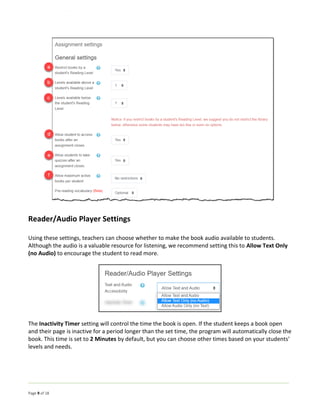
a. To restrict the level of books that an individual student will access, click on Yes from the drop-
down menu. We do not recommend choosing the No option, as it will enable students to see all
available books at all levels.
b. To enable students to read books that are higher than their current level, click on the drop-
down menu, and choose how many levels higher they will be able to access. For literacy level
learners, we suggest setting this on 0 so students will only see books at the LL level. For other
reading levels, we do not recommend any number higher than 1.
c. To restrict the level of books the students can see below their current level click on the drop-
down menu and select a number. We do not recommend setting this number to more than 1
for any level.
d. To make books available to students after the assignment is completed, choose Yes.
e. To allow students to take a quiz after the assignment end date, choose yes from the drop-down
menu.
f. To restrict the number of books a student has access to, choose a suitable option from the
drop-down menu. We suggest leaving this as No restrictions, so students can choose titles that
they would like to read.
Note that the Pre-reading vocabulary option is still in its Beta testing phase. You can select Optional,
Required or Hide from the drop-down menu. We recommend keeping the default Optional, until your
students have a full understanding of how the program basic features work.
Page 9 of 18
Reader/Audio Player Settings
Using these settings, teachers can choose whether to make the book audio available to students.
Although the audio is a valuable resource for listening, we recommend setting this to Allow Text Only
(no Audio) to encourage the student to read more.
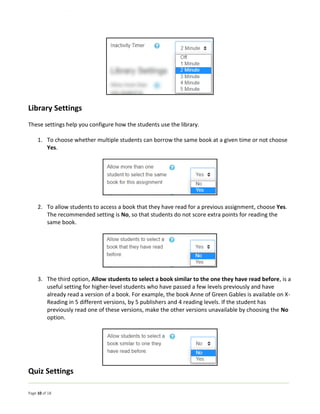
The Inactivity Timer setting will control the time the book is open. If the student keeps a book open
and their page is inactive for a period longer than the set time, the program will automatically close the
book. This time is set to 2 Minutes by default, but you can choose other times based on your students’
levels and needs.
Page 10 of 18
Library Settings
These settings help you configure how the students use the library.
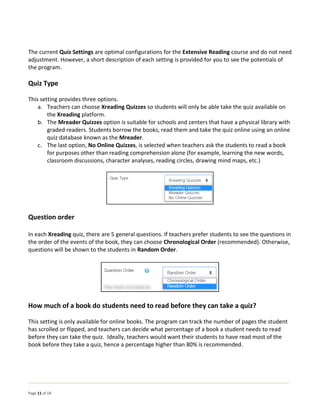
1. To choose whether multiple students can borrow the same book at a given time or not choose
Yes.
2. To allow students to access a book that they have read for a previous assignment, choose Yes.
The recommended setting is No, so that students do not score extra points for reading the
same book.
3. The third option, Allow students to select a book similar to the one they have read before, is a
useful setting for higher-level students who have passed a few levels previously and have
already read a version of a book. For example, the book Anne of Green Gables is available on X-
Reading in 5 different versions, by 5 publishers and 4 reading levels. If the student has
previously read one of these versions, make the other versions unavailable by choosing the No
option.
Quiz Settings
Page 11 of 18
The current Quiz Settings are optimal configurations for the Extensive Reading course and do not need
adjustment. However, a short description of each setting is provided for you to see the potentials of
the program.
Quiz Type
This setting provides three options.
a. Teachers can choose Xreading Quizzes so students will only be able take the quiz available on
the Xreading platform.
b. The Mreader Quizzes option is suitable for schools and centers that have a physical library with
graded readers. Students borrow the books, read them and take the quiz online using an online
quiz database known as the Mreader.
c. The last option, No Online Quizzes, is selected when teachers ask the students to read a book
for purposes other than reading comprehension alone (for example, learning the new words,
classroom discussions, character analyses, reading circles, drawing mind maps, etc.)
Question order
In each Xreading quiz, there are 5 general questions. If teachers prefer students to see the questions in
the order of the events of the book, they can choose Chronological Order (recommended). Otherwise,
questions will be shown to the students in Random Order.
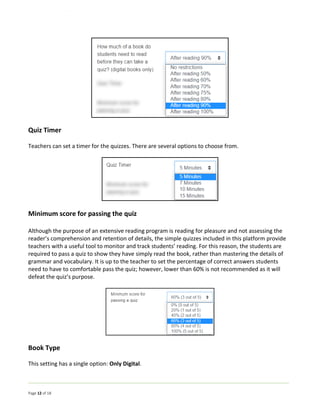
How much of a book do students need to read before they can take a quiz?
This setting is only available for online books. The program can track the number of pages the student
has scrolled or flipped, and teachers can decide what percentage of a book a student needs to read
before they can take the quiz. Ideally, teachers would want their students to have read most of the
book before they take a quiz, hence a percentage higher than 80% is recommended.
Page 12 of 18
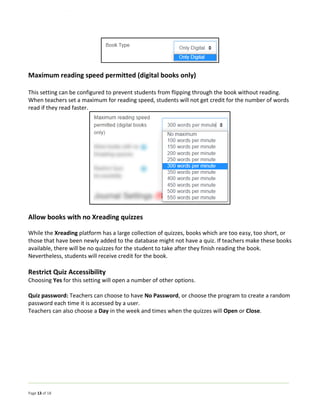
Quiz Timer
Teachers can set a timer for the quizzes. There are several options to choose from.
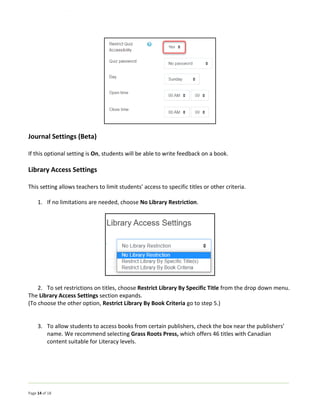
Minimum score for passing the quiz
Although the purpose of an extensive reading program is reading for pleasure and not assessing the
reader’s comprehension and retention of details, the simple quizzes included in this platform provide
teachers with a useful tool to monitor and track students’ reading. For this reason, the students are
required to pass a quiz to show they have simply read the book, rather than mastering the details of
grammar and vocabulary. It is up to the teacher to set the percentage of correct answers students
need to have to comfortable pass the quiz; however, lower than 60% is not recommended as it will
defeat the quiz’s purpose.
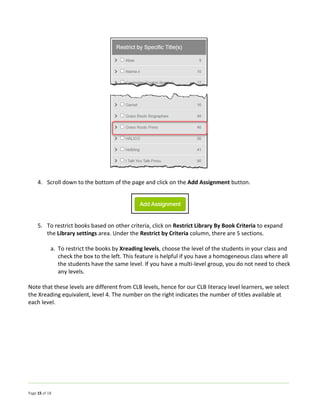
Book Type
This setting has a single option: Only Digital.
Page 13 of 18
Maximum reading speed permitted (digital books only)
This setting can be configured to prevent students from flipping through the book without reading.
When teachers set a maximum for reading speed, students will not get credit for the number of words
read if they read faster.
Allow books with no Xreading quizzes
While the Xreading platform has a large collection of quizzes, books which are too easy, too short, or
those that have been newly added to the database might not have a quiz. If teachers make these books
available, there will be no quizzes for the student to take after they finish reading the book.
Nevertheless, students will receive credit for the book.
Restrict Quiz Accessibility
Choosing Yes for this setting will open a number of other options.
Quiz password: Teachers can choose to have No Password, or choose the program to create a random
password each time it is accessed by a user.
Teachers can also choose a Day in the week and times when the quizzes will Open or Close.
Page 14 of 18
Journal Settings (Beta)
If this optional setting is On, students will be able to write feedback on a book.
Library Access Settings
This setting allows teachers to limit students’ access to specific titles or other criteria.
1. If no limitations are needed, choose No Library Restriction.
2. To set restrictions on titles, choose Restrict Library By Specific Title from the drop down menu.
The Library Access Settings section expands.
(To choose the other option, Restrict Library By Book Criteria go to step 5.)
3. To allow students to access books from certain publishers, check the box near the publishers’
name. We recommend selecting Grass Roots Press, which offers 46 titles with Canadian
content suitable for Literacy levels.
Page 15 of 18
4. Scroll down to the bottom of the page and click on the Add Assignment button.
5. To restrict books based on other criteria, click on Restrict Library By Book Criteria to expand
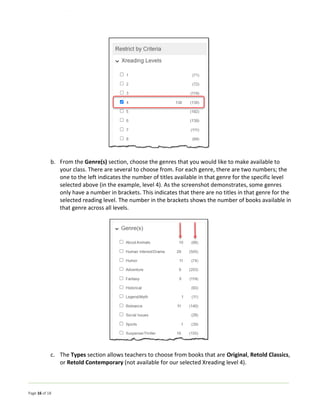
the Library settings area. Under the Restrict by Criteria column, there are 5 sections.
a. To restrict the books by Xreading levels, choose the level of the students in your class and
check the box to the left. This feature is helpful if you have a homogeneous class where all
the students have the same level. If you have a multi-level group, you do not need to check
any levels.
Note that these levels are different from CLB levels, hence for our CLB literacy level learners, we select
the Xreading equivalent, level 4. The number on the right indicates the number of titles available at
each level.
Page 16 of 18
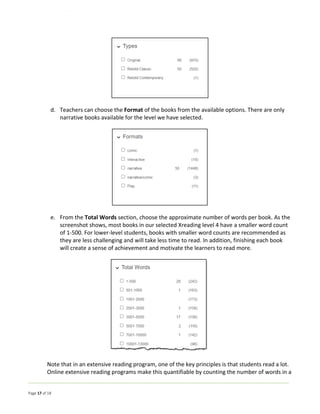
b. From the Genre(s) section, choose the genres that you would like to make available to
your class. There are several to choose from. For each genre, there are two numbers; the
one to the left indicates the number of titles available in that genre for the specific level
selected above (in the example, level 4). As the screenshot demonstrates, some genres
only have a number in brackets. This indicates that there are no titles in that genre for the
selected reading level. The number in the brackets shows the number of books available in
that genre across all levels.
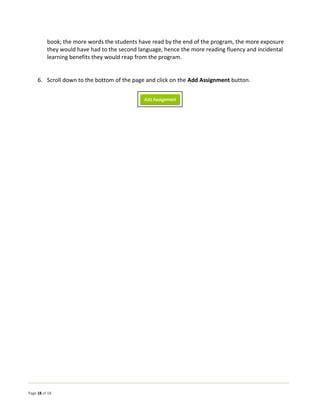
c. The Types section allows teachers to choose from books that are Original, Retold Classics,
or Retold Contemporary (not available for our selected Xreading level 4).
Page 17 of 18
d. Teachers can choose the Format of the books from the available options. There are only
narrative books available for the level we have selected.
e. From the Total Words section, choose the approximate number of words per book. As the
screenshot shows, most books in our selected Xreading level 4 have a smaller word count
of 1-500. For lower-level students, books with smaller word counts are recommended as
they are less challenging and will take less time to read. In addition, finishing each book
will create a sense of achievement and motivate the learners to read more.
Note that in an extensive reading program, one of the key principles is that students read a lot.
Online extensive reading programs make this quantifiable by counting the number of words in a
Page 18 of 18
book; the more words the students have read by the end of the program, the more exposure
they would have had to the second language, hence the more reading fluency and incidental
learning benefits they would reap from the program.
6. Scroll down to the bottom of the page and click on the Add Assignment button.

Xreading Teacher Start up

  • 1.
    Page 1 of18 Setting up an Extensive Reading Class 1. Go to https://xreading.com/login 2. Type in your username and password, and click on the Log in button. 3. The Classes tab opens. 4. Click on the Add Classes button to the right.
  • 2.
    Page 2 of18 Two options become available. You can choose either Add Single Class, or Add Batch of Classes. In this file, we demonstrate how to add a Single class. 5. Click on the Add Single Class button. 6. On the next page, add a Class name. 7. Set the class Open and Close dates. 8. Choose the Semester that matches your course timing by clicking on the radio button. 9. On the Add Class button. The new class appears in the table. 10. Review the class information.
  • 3.
    Page 3 of18 If needed, you can change the class dates and semester. 11. Click on the Settings tab. 12. Click on the box next to the course name. 13. Scroll down to the Class Dates section, set the class Open and Close dates and click on the Apply Class Dates button. 14. From the semesters available in the Semester/Session/Year, etc. settings, choose one by clicking on the radio button to the left. 15. Click on the Apply Semester button.
  • 4.
    Page 4 of18 Note that you can edit the name of the Semester by clicking on the cog icon to the right. 16. Click on the Update class(es) button. The updates appear in the class table. Adding Students to the Class 1. Click on the Students tab to add student’s names to the course. 2. Click on the Add Student(s) button on the right side of the page. 3. On the next page, to add students who are new to the program, click on the Add Single Student button on top. 4. On this screen, click on the Expand for Xreading “Classic “view link
  • 5.
    Page 5 of18 5. To add students who are new to Xreading, click on the Add Single Student button in the middle of this page. 6. To add students who already have an Xreading account, click on the Add Single Student button at the bottom of this page. 7. For new Xreading students, add the student’s Family and Given Names and a Display Name. If students have school ID numbers, add it to the Student ID# field. Otherwise, leave this area blank. 8. Select the name of the class from the drop-down menu.
  • 6.
    Page 6 of18 9. Add the student’s Username / email, and Password. We suggest using the learner’s Avenue password so that the two will not be confused. 10. Click on the Add button to save the student’s information. The student’s name appears on the list of students of this class. 11. Follow steps 2-8 to add all the students in the class. 12. For student with Xreading accounts, enter the student’s username or their Student ID number in the Find textbox. 13. Choose the student from the results list. 14. Choose a class name from the Class drop-down list. 15. Then click on the Add button.
  • 7.
    Page 7 of18 Adding an Assignment to the Class Assignment Settings are configured by default and teachers do not have to change them to start the program. However, to maximize the efficiency of the course and prevent student confusion, changing some of the General settings is highly recommended. 1. Click on the Assignments tab. 2. Click on the Add Assignments button on the right side of the page. 3. Check the box next to your class name.
  • 8.
    Page 8 of18 Assignment General Settings Scroll down to the General Settings. a. To restrict the level of books that an individual student will access, click on Yes from the drop- down menu. We do not recommend choosing the No option, as it will enable students to see all available books at all levels. b. To enable students to read books that are higher than their current level, click on the drop- down menu, and choose how many levels higher they will be able to access. For literacy level learners, we suggest setting this on 0 so students will only see books at the LL level. For other reading levels, we do not recommend any number higher than 1. c. To restrict the level of books the students can see below their current level click on the drop- down menu and select a number. We do not recommend setting this number to more than 1 for any level. d. To make books available to students after the assignment is completed, choose Yes. e. To allow students to take a quiz after the assignment end date, choose yes from the drop-down menu. f. To restrict the number of books a student has access to, choose a suitable option from the drop-down menu. We suggest leaving this as No restrictions, so students can choose titles that they would like to read. Note that the Pre-reading vocabulary option is still in its Beta testing phase. You can select Optional, Required or Hide from the drop-down menu. We recommend keeping the default Optional, until your students have a full understanding of how the program basic features work.
  • 9.
    Page 9 of18 Reader/Audio Player Settings Using these settings, teachers can choose whether to make the book audio available to students. Although the audio is a valuable resource for listening, we recommend setting this to Allow Text Only (no Audio) to encourage the student to read more. The Inactivity Timer setting will control the time the book is open. If the student keeps a book open and their page is inactive for a period longer than the set time, the program will automatically close the book. This time is set to 2 Minutes by default, but you can choose other times based on your students’ levels and needs.
  • 10.
    Page 10 of18 Library Settings These settings help you configure how the students use the library. 1. To choose whether multiple students can borrow the same book at a given time or not choose Yes. 2. To allow students to access a book that they have read for a previous assignment, choose Yes. The recommended setting is No, so that students do not score extra points for reading the same book. 3. The third option, Allow students to select a book similar to the one they have read before, is a useful setting for higher-level students who have passed a few levels previously and have already read a version of a book. For example, the book Anne of Green Gables is available on X- Reading in 5 different versions, by 5 publishers and 4 reading levels. If the student has previously read one of these versions, make the other versions unavailable by choosing the No option. Quiz Settings
  • 11.
    Page 11 of18 The current Quiz Settings are optimal configurations for the Extensive Reading course and do not need adjustment. However, a short description of each setting is provided for you to see the potentials of the program. Quiz Type This setting provides three options. a. Teachers can choose Xreading Quizzes so students will only be able take the quiz available on the Xreading platform. b. The Mreader Quizzes option is suitable for schools and centers that have a physical library with graded readers. Students borrow the books, read them and take the quiz online using an online quiz database known as the Mreader. c. The last option, No Online Quizzes, is selected when teachers ask the students to read a book for purposes other than reading comprehension alone (for example, learning the new words, classroom discussions, character analyses, reading circles, drawing mind maps, etc.) Question order In each Xreading quiz, there are 5 general questions. If teachers prefer students to see the questions in the order of the events of the book, they can choose Chronological Order (recommended). Otherwise, questions will be shown to the students in Random Order. How much of a book do students need to read before they can take a quiz? This setting is only available for online books. The program can track the number of pages the student has scrolled or flipped, and teachers can decide what percentage of a book a student needs to read before they can take the quiz. Ideally, teachers would want their students to have read most of the book before they take a quiz, hence a percentage higher than 80% is recommended.
  • 12.
    Page 12 of18 Quiz Timer Teachers can set a timer for the quizzes. There are several options to choose from. Minimum score for passing the quiz Although the purpose of an extensive reading program is reading for pleasure and not assessing the reader’s comprehension and retention of details, the simple quizzes included in this platform provide teachers with a useful tool to monitor and track students’ reading. For this reason, the students are required to pass a quiz to show they have simply read the book, rather than mastering the details of grammar and vocabulary. It is up to the teacher to set the percentage of correct answers students need to have to comfortable pass the quiz; however, lower than 60% is not recommended as it will defeat the quiz’s purpose. Book Type This setting has a single option: Only Digital.
  • 13.
    Page 13 of18 Maximum reading speed permitted (digital books only) This setting can be configured to prevent students from flipping through the book without reading. When teachers set a maximum for reading speed, students will not get credit for the number of words read if they read faster. Allow books with no Xreading quizzes While the Xreading platform has a large collection of quizzes, books which are too easy, too short, or those that have been newly added to the database might not have a quiz. If teachers make these books available, there will be no quizzes for the student to take after they finish reading the book. Nevertheless, students will receive credit for the book. Restrict Quiz Accessibility Choosing Yes for this setting will open a number of other options. Quiz password: Teachers can choose to have No Password, or choose the program to create a random password each time it is accessed by a user. Teachers can also choose a Day in the week and times when the quizzes will Open or Close.
  • 14.
    Page 14 of18 Journal Settings (Beta) If this optional setting is On, students will be able to write feedback on a book. Library Access Settings This setting allows teachers to limit students’ access to specific titles or other criteria. 1. If no limitations are needed, choose No Library Restriction. 2. To set restrictions on titles, choose Restrict Library By Specific Title from the drop down menu. The Library Access Settings section expands. (To choose the other option, Restrict Library By Book Criteria go to step 5.) 3. To allow students to access books from certain publishers, check the box near the publishers’ name. We recommend selecting Grass Roots Press, which offers 46 titles with Canadian content suitable for Literacy levels.
  • 15.
    Page 15 of18 4. Scroll down to the bottom of the page and click on the Add Assignment button. 5. To restrict books based on other criteria, click on Restrict Library By Book Criteria to expand the Library settings area. Under the Restrict by Criteria column, there are 5 sections. a. To restrict the books by Xreading levels, choose the level of the students in your class and check the box to the left. This feature is helpful if you have a homogeneous class where all the students have the same level. If you have a multi-level group, you do not need to check any levels. Note that these levels are different from CLB levels, hence for our CLB literacy level learners, we select the Xreading equivalent, level 4. The number on the right indicates the number of titles available at each level.
  • 16.
    Page 16 of18 b. From the Genre(s) section, choose the genres that you would like to make available to your class. There are several to choose from. For each genre, there are two numbers; the one to the left indicates the number of titles available in that genre for the specific level selected above (in the example, level 4). As the screenshot demonstrates, some genres only have a number in brackets. This indicates that there are no titles in that genre for the selected reading level. The number in the brackets shows the number of books available in that genre across all levels. c. The Types section allows teachers to choose from books that are Original, Retold Classics, or Retold Contemporary (not available for our selected Xreading level 4).
  • 17.
    Page 17 of18 d. Teachers can choose the Format of the books from the available options. There are only narrative books available for the level we have selected. e. From the Total Words section, choose the approximate number of words per book. As the screenshot shows, most books in our selected Xreading level 4 have a smaller word count of 1-500. For lower-level students, books with smaller word counts are recommended as they are less challenging and will take less time to read. In addition, finishing each book will create a sense of achievement and motivate the learners to read more. Note that in an extensive reading program, one of the key principles is that students read a lot. Online extensive reading programs make this quantifiable by counting the number of words in a
  • 18.
    Page 18 of18 book; the more words the students have read by the end of the program, the more exposure they would have had to the second language, hence the more reading fluency and incidental learning benefits they would reap from the program. 6. Scroll down to the bottom of the page and click on the Add Assignment button.