Mulesoft
File Connector
https://docs.mulesoft.com/mule-user-guide/v/3.8/file-connector
Kumar Gaurav
k10gaurav@gmail.com
Agenda
• Introduction
• Installation and configuration
• Inbound vs outbound endpoint
• Reconnection Tab
• Transformer Tab
• Demo
• Conclusion
About
The File connector allows your Mule application to exchange files with
a file system.
You can implement the File connector as an inbound endpoint (such
as, a message source), or as an outbound endpoint.
This endpoint implements a one-way exchange pattern only.
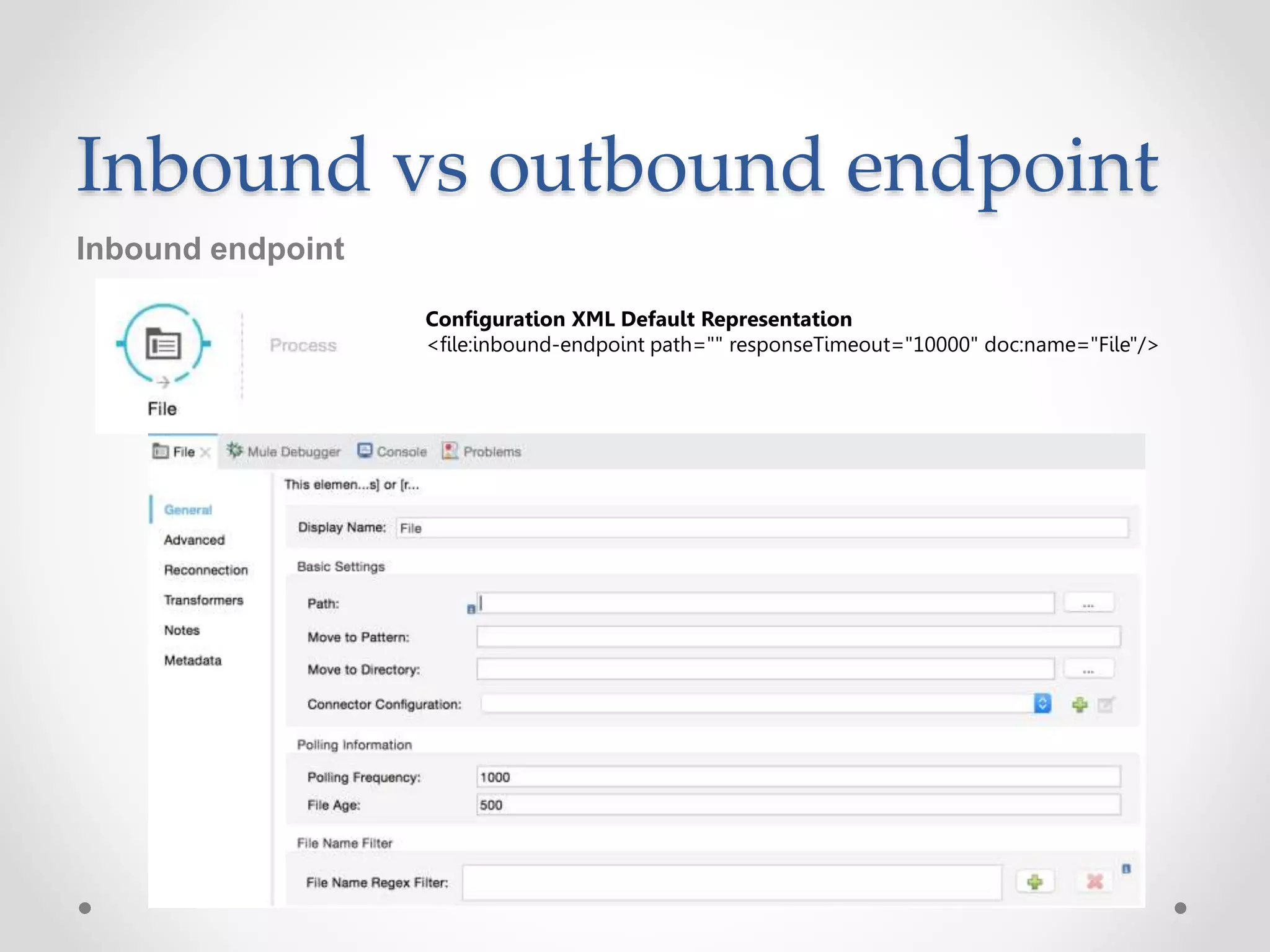
Installation and configuration
Installation:
You can install a connector in Anypoint Studio using the instructions in
Installing a Connector from Anypoint Exchange.
Configuration:
File endpoint configuration consists of two stages:
1. Place the File endpoint within the Mule flow you are developing:
o If you place the File endpoint at the beginning of the flow, it acts as an inbound endpoint
(such as, message source), triggering the flow whenever it receives an incoming file.
o If you place the File building block in the middle or at the end of the flow, it serves as an
outbound endpoint, passing files to the connected file system.
2. Configure the File endpoint by providing values for the fields on the various tabs on
the properties editor.
Inbound vs outbound endpoint
Inbound endpoint
Configuration XML Default Representation
<file:inbound-endpoint path="" responseTimeout="10000" doc:name="File"/>
Inbound vs outbound endpoint
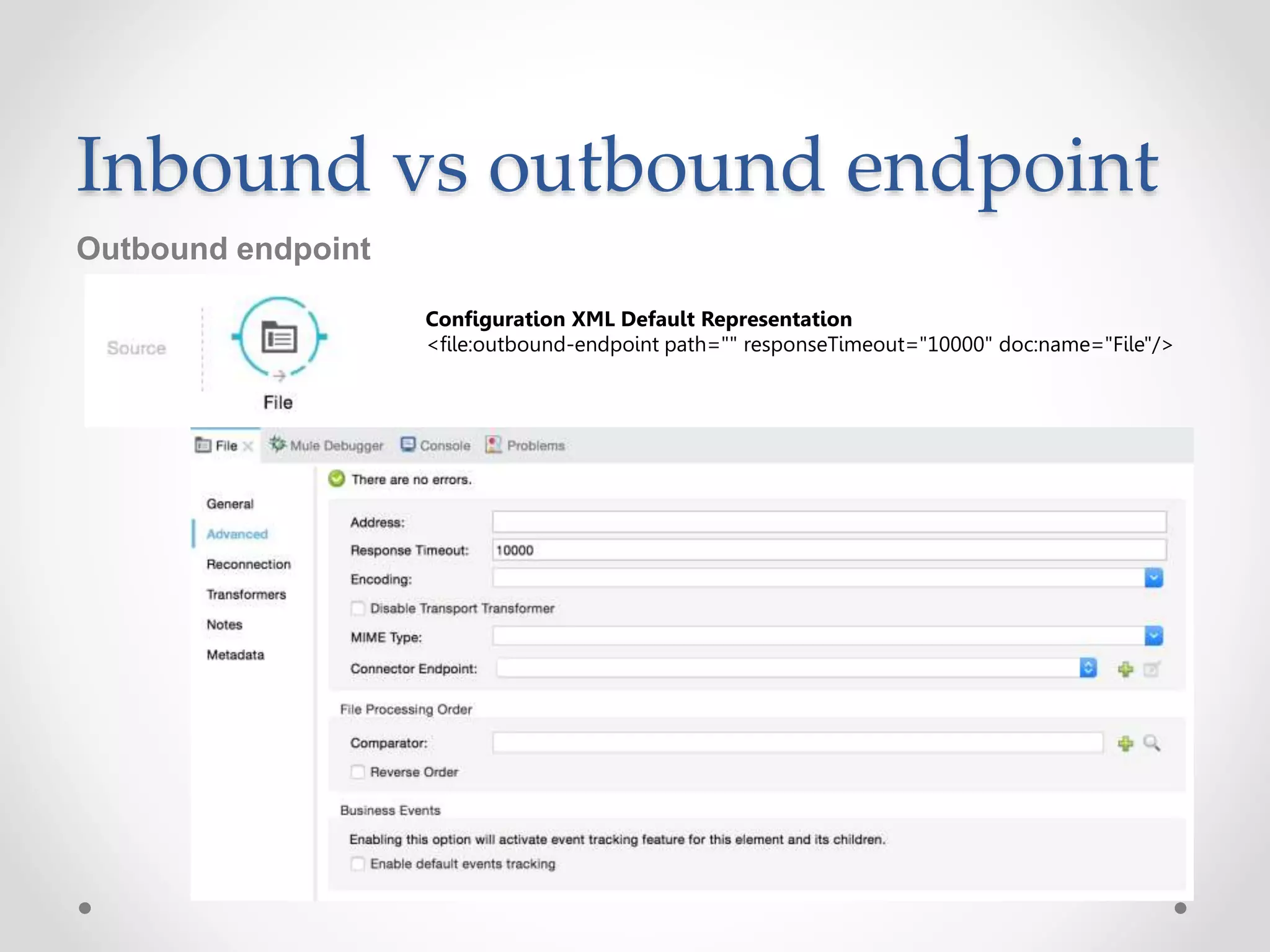
Outbound endpoint
Configuration XML Default Representation
<file:outbound-endpoint path="" responseTimeout="10000" doc:name="File"/>
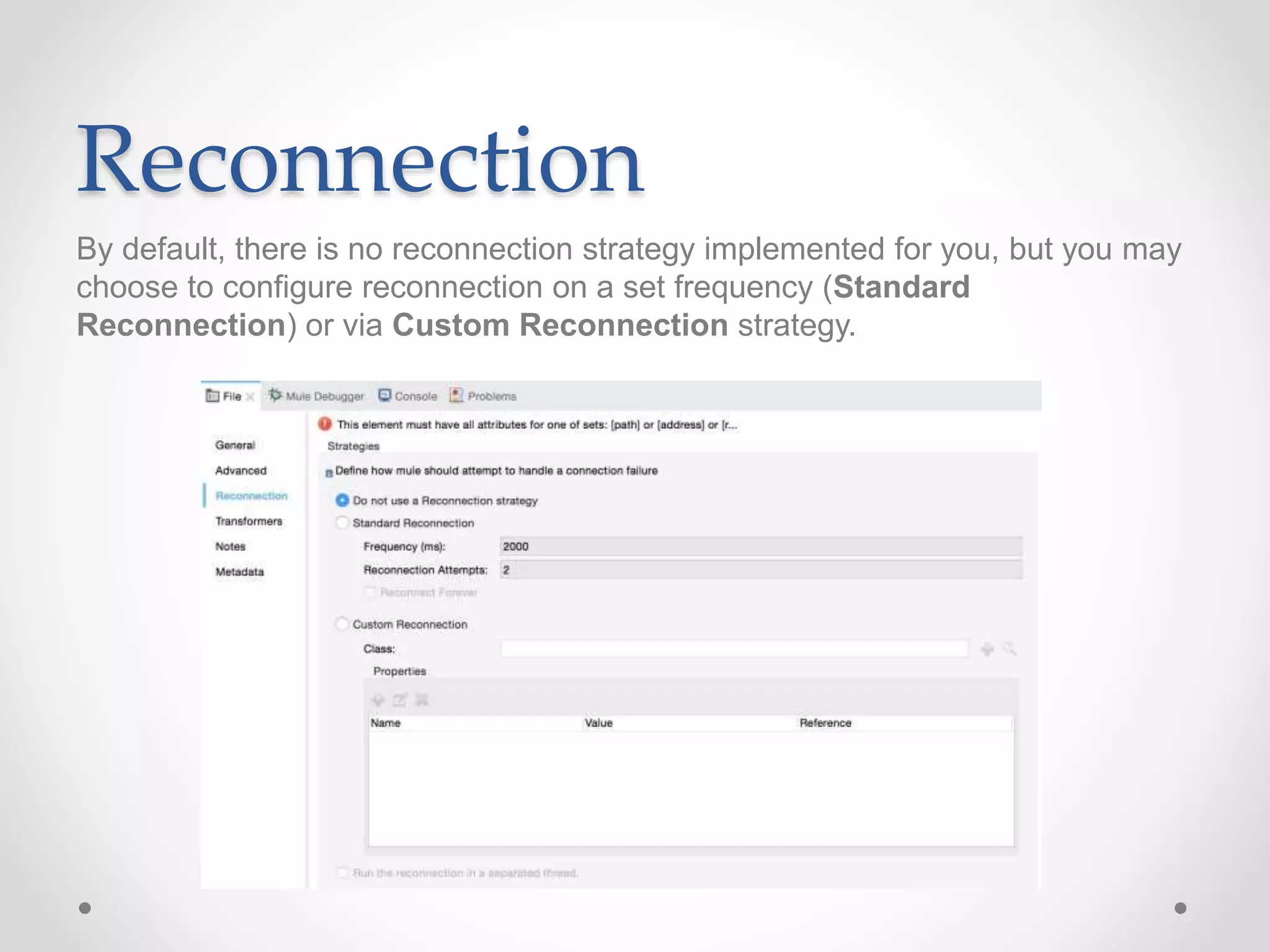
Reconnection
By default, there is no reconnection strategy implemented for you, but you may
choose to configure reconnection on a set frequency (Standard
Reconnection) or via Custom Reconnection strategy.
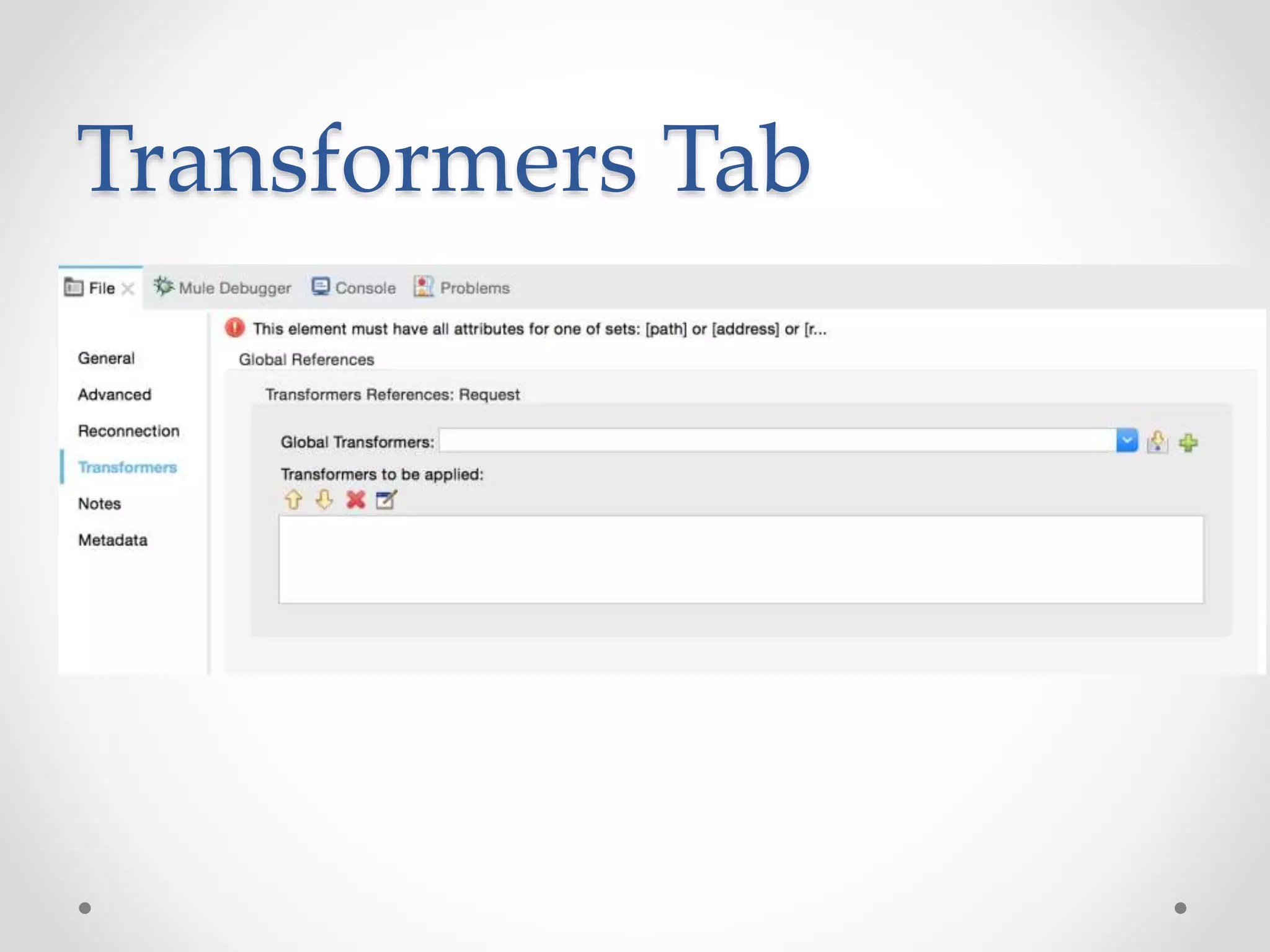
Transformers Tab
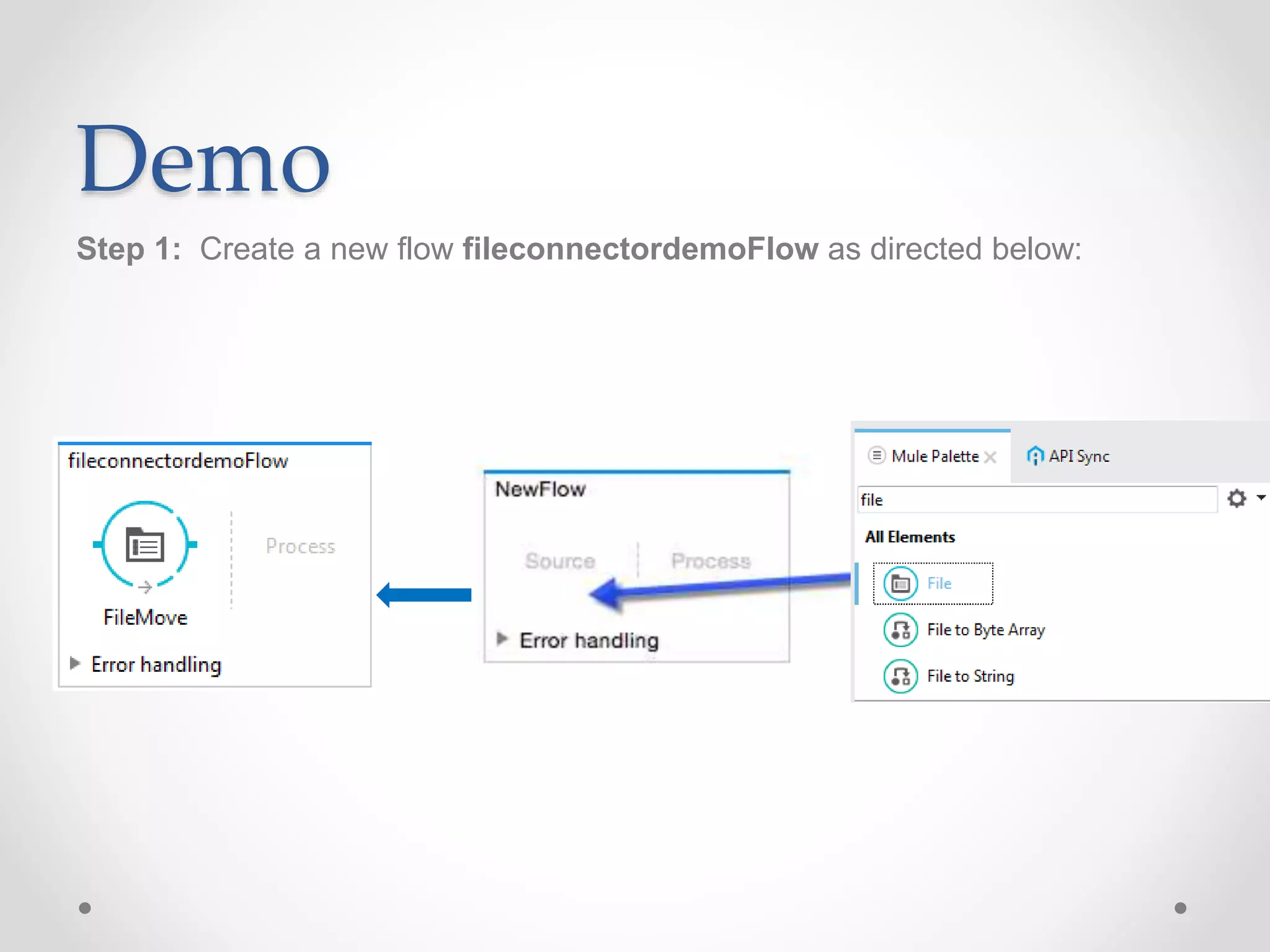
Demo
Step 1: Create a new flow fileconnectordemoFlow as directed below:
Continue…
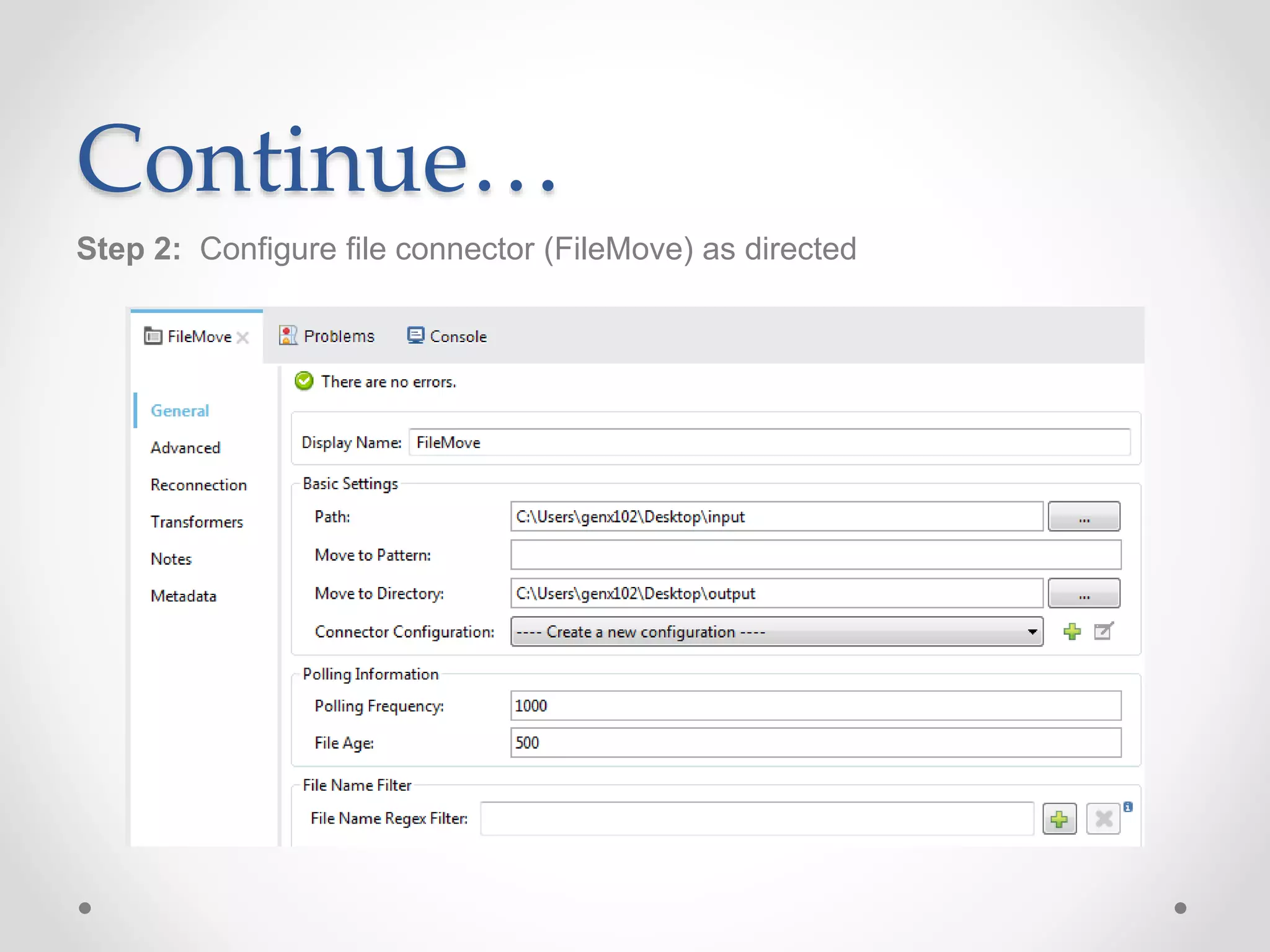
Step 2: Configure file connector (FileMove) as directed
Continue…
Step 3: Add logger just after it to see the operation in log:
Message:
#['FILE_NAME- '+message.inboundProperties.originalFilename],#['FILE_SIZE- '+((message.inboundProperties.fileSize)/1024)+'KB']]
Continue…
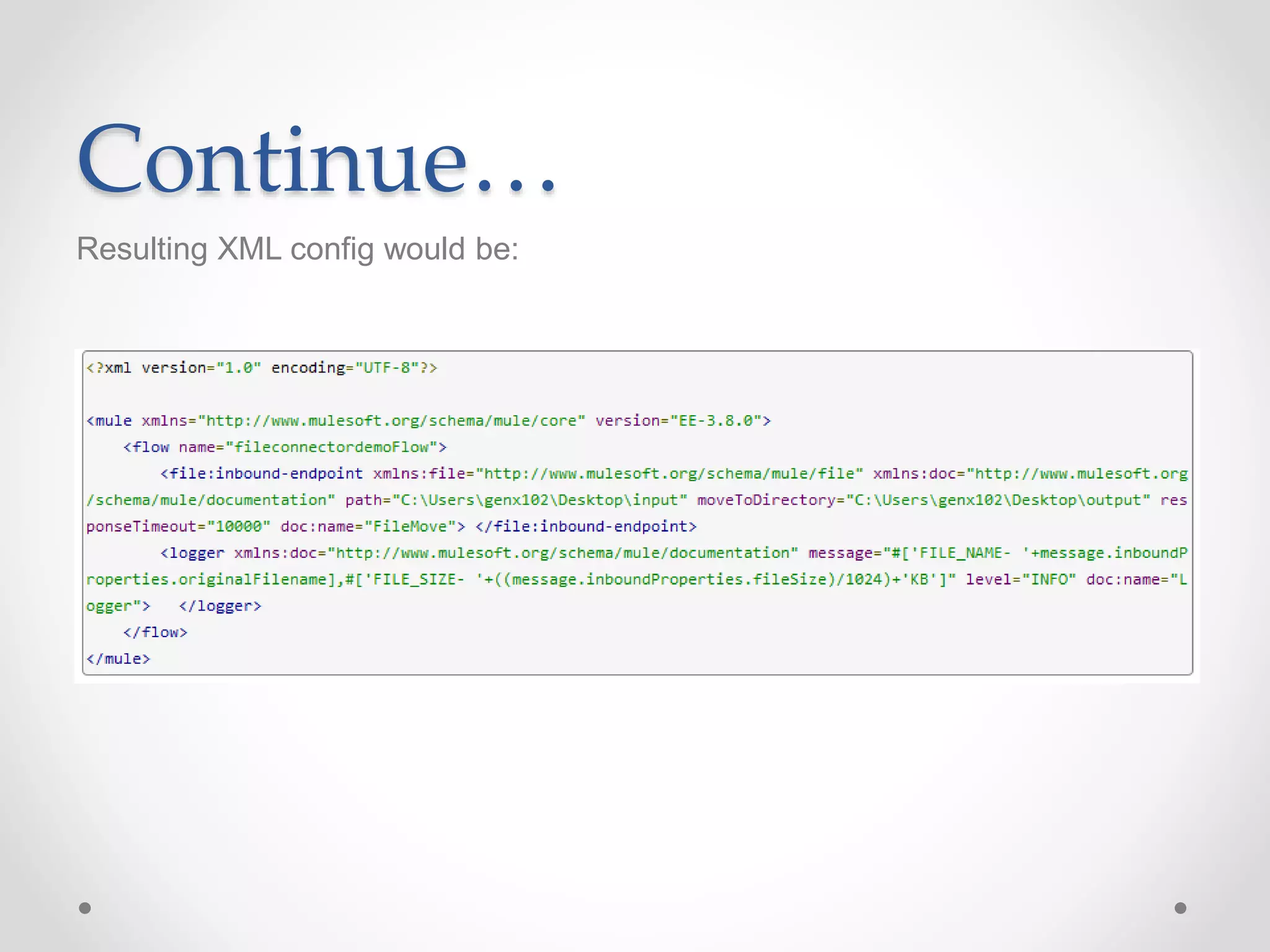
Resulting XML config would be:
Continue…
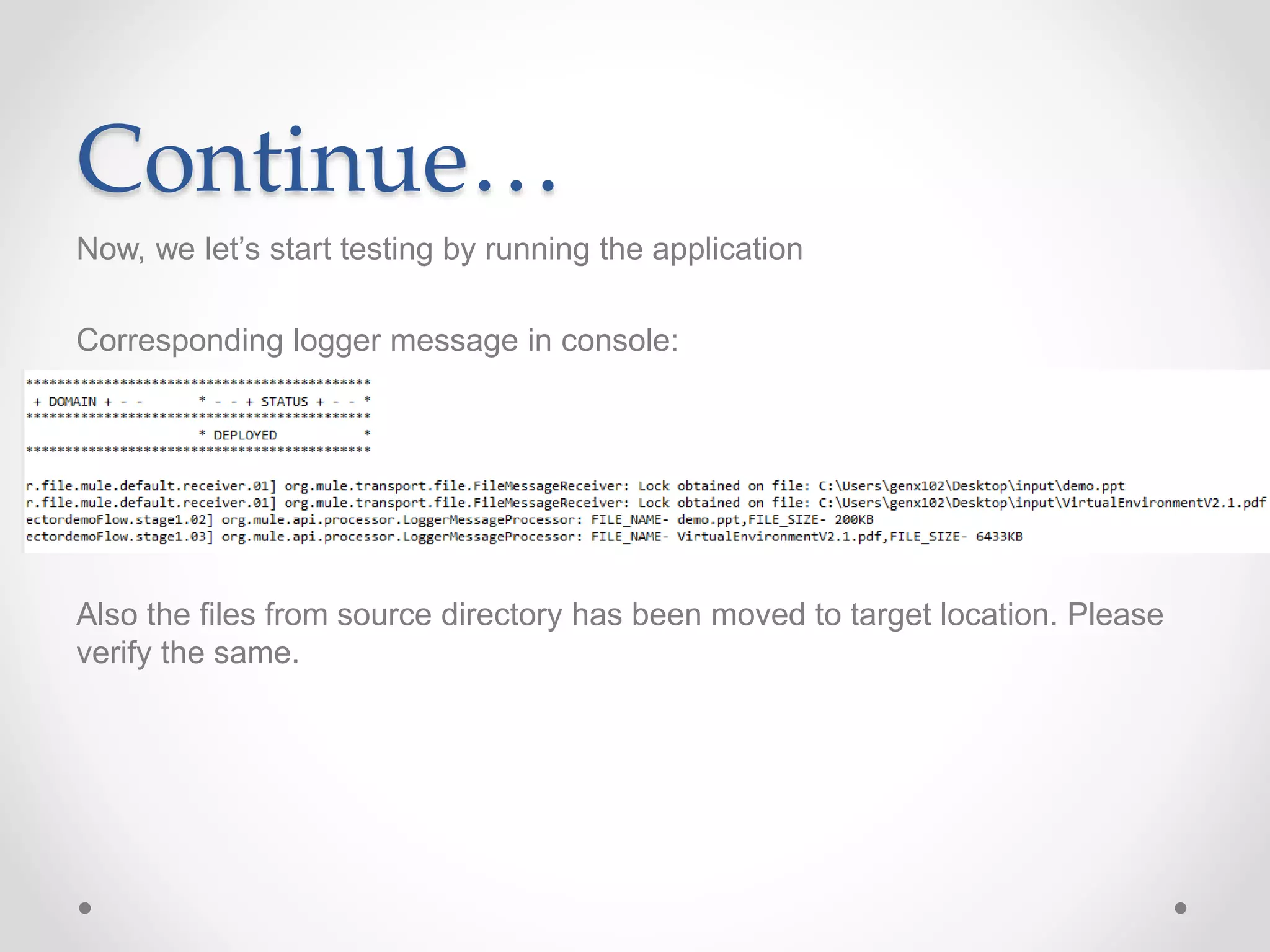
Now, we let’s start testing by running the application
Corresponding logger message in console:
Also the files from source directory has been moved to target location. Please
verify the same.
Conclusion
So this way we have seen how file connector works as a powerful component
in files movement within local file system.
Thank you!

Mulesoft file connector

  • 1.
  • 2.
    Agenda • Introduction • Installationand configuration • Inbound vs outbound endpoint • Reconnection Tab • Transformer Tab • Demo • Conclusion
  • 3.
    About The File connectorallows your Mule application to exchange files with a file system. You can implement the File connector as an inbound endpoint (such as, a message source), or as an outbound endpoint. This endpoint implements a one-way exchange pattern only.
  • 4.
    Installation and configuration Installation: Youcan install a connector in Anypoint Studio using the instructions in Installing a Connector from Anypoint Exchange. Configuration: File endpoint configuration consists of two stages: 1. Place the File endpoint within the Mule flow you are developing: o If you place the File endpoint at the beginning of the flow, it acts as an inbound endpoint (such as, message source), triggering the flow whenever it receives an incoming file. o If you place the File building block in the middle or at the end of the flow, it serves as an outbound endpoint, passing files to the connected file system. 2. Configure the File endpoint by providing values for the fields on the various tabs on the properties editor.
  • 5.
    Inbound vs outboundendpoint Inbound endpoint Configuration XML Default Representation <file:inbound-endpoint path="" responseTimeout="10000" doc:name="File"/>
  • 6.
    Inbound vs outboundendpoint Outbound endpoint Configuration XML Default Representation <file:outbound-endpoint path="" responseTimeout="10000" doc:name="File"/>
  • 7.
    Reconnection By default, thereis no reconnection strategy implemented for you, but you may choose to configure reconnection on a set frequency (Standard Reconnection) or via Custom Reconnection strategy.
  • 8.
  • 9.
    Demo Step 1: Createa new flow fileconnectordemoFlow as directed below:
  • 10.
    Continue… Step 2: Configurefile connector (FileMove) as directed
  • 11.
    Continue… Step 3: Addlogger just after it to see the operation in log: Message: #['FILE_NAME- '+message.inboundProperties.originalFilename],#['FILE_SIZE- '+((message.inboundProperties.fileSize)/1024)+'KB']]
  • 12.
  • 13.
    Continue… Now, we let’sstart testing by running the application Corresponding logger message in console: Also the files from source directory has been moved to target location. Please verify the same.
  • 14.
    Conclusion So this waywe have seen how file connector works as a powerful component in files movement within local file system.
  • 15.