
Integration with Dropbox
using Mule ESB
Prepared By: Rupesh Sinha
Mule ESB
Overview
 What is Dropbox?
 Versions and Assumptions
 Configuring Dropbox
 Configuring Global properties in Mule
 Configuring Dropbox Connector
 Mule Flow for Dropbox Authentication
 Mule Flow for retrieving Dropbox Account Info
 Mule Flow for downloading a File
 Mule Flow for uploading a file
 Mule Flow for deleting a file
 Mule flow for creating a folder
 Conclusion
What is Dropbox?
 Dropbox was founded in 2007
 Dropbox is a file hosting service operated by Dropbox, Inc. ,
headquartered in San Francisco, California
 It offers cloud storage, file synchronization, personal cloud,
and client software for Microsoft Windows, Mac OS
X, Linux, Android, iOS, BlackBerry OS, Windows Phone and web
browsers
 Dropbox allows users to create a special folder on their computers,
which Dropbox then synchronizes so that it appears to be the same
folder (with the same contents) regardless of which computer is used
to view it. Files placed in this folder are also accessible via the
Dropbox website and mobile apps
Versions and Assumptions
• In this presentation, we are using
− Dropbox Cloud Connector 3.3.0
− Anypoint Studio
− Mule ESB Server 3.5.2
− Mule requester Module 1.2.0
• To integrate Dropbox with Mule ESB, you will need a Dropbox
account
• You will need to create a new Dropbox app under Dropbox
developer apps to be able to communicate with your Dropbox
account from Mule ESB application
• We will be using OAuth2 authentication to connect to Dropbox
using Mule ESB Dropbox Cloud Connector
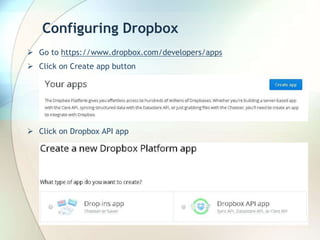
Configuring Dropbox
 Go to https://www.dropbox.com/developers/apps
 Click on Create app button
 Click on Dropbox API app
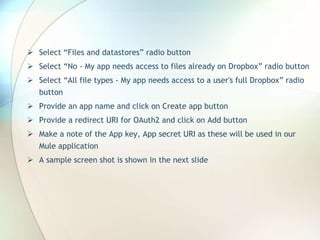
 Select “Files and datastores” radio button
 Select “No - My app needs access to files already on Dropbox” radio button
 Select “All file types - My app needs access to a user's full Dropbox” radio
button
 Provide an app name and click on Create app button
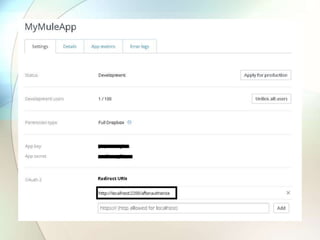
 Provide a redirect URI for OAuth2 and click on Add button
 Make a note of the App key, App secret URI as these will be used in our
Mule application
 A sample screen shot is shown in the next slide
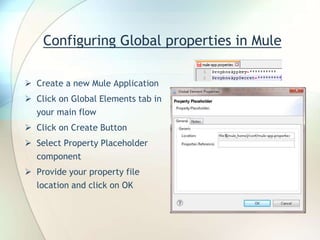
Configuring Global properties in Mule
 Create a new Mule Application
 Click on Global Elements tab in
your main flow
 Click on Create Button
 Select Property Placeholder
component
 Provide your property file
location and click on OK
Configuring Dropbox Connector
 Click on Global Elements tab in your main flow
 Click on Create Button
 Select Dropbox under Connector Configuration group
 Add your Dropbox App Key value to App Key text box
 Add your Dropbox Secret value to App Secret text box
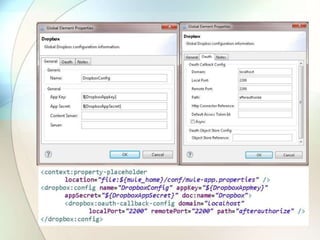
 Click on Oauth tab and specify domain, local port, remote port and
path values. These values should be same as provided in Redirect URL
during Dropbox configuration
 A screen shot and sample XML configuration is shown in the next slide
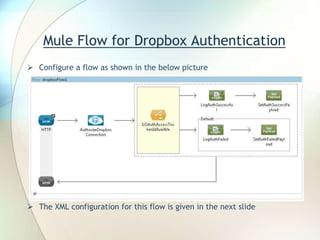
Mule Flow for Dropbox Authentication
 Configure a flow as shown in the below picture
 The XML configuration for this flow is given in the next slide
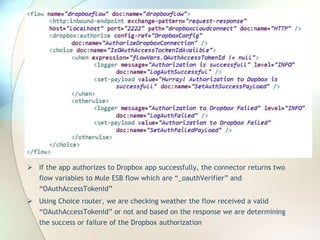
 If the app authorizes to Dropbox app successfully, the connector returns two
flow variables to Mule ESB flow which are “_oauthVerifier” and
“OAuthAccessTokenId”
 Using Choice router, we are checking weather the flow received a valid
“OAuthAccessTokenId” or not and based on the response we are determining
the success or failure of the Dropbox authorization
 Deploy your Mule application
 Hit the following URL on the browser
http://localhost:2222/dropboxcloudconnect
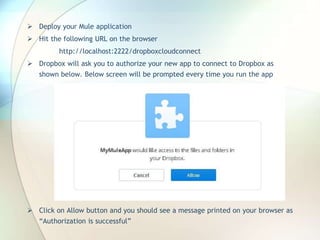
 Dropbox will ask you to authorize your new app to connect to Dropbox as
shown below. Below screen will be prompted every time you run the app
 Click on Allow button and you should see a message printed on your browser as
“Authorization is successful”
Mule Flow for retrieving Dropbox Account Info
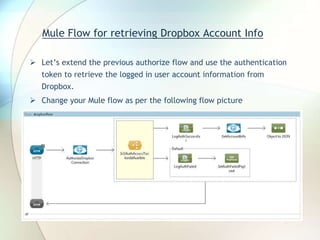
 Let’s extend the previous authorize flow and use the authentication
token to retrieve the logged in user account information from
Dropbox.
 Change your Mule flow as per the following flow picture
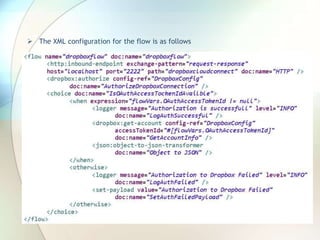
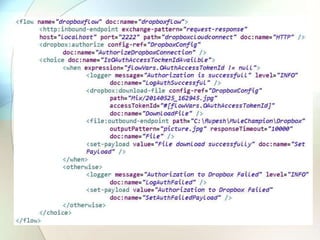
 The XML configuration for the flow is as follows
 In this flow, we have used get-account operation provided by Dropbox
connector to retrieve the logged in user details and print them on the browser
using Object to JSON message transformer
 Deploy your app
 Hit the following URL on the browser
http://localhost:2222/dropboxcloudconnect
 You should now see the logged in user details printed on your browser in JSON
format
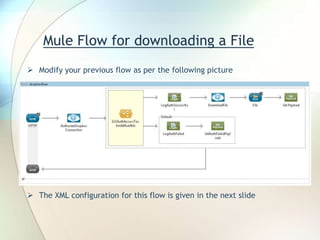
Mule Flow for downloading a File
 Modify your previous flow as per the following picture
 The XML configuration for this flow is given in the next slide
 Deploy your Mule application
 Hit the following URL on the browser
http://localhost:2222/dropboxcloudconnect
 A message should be printed on your browser as “File downloaded successfully”
 You should now see a file downloaded on your system at the given folder
location
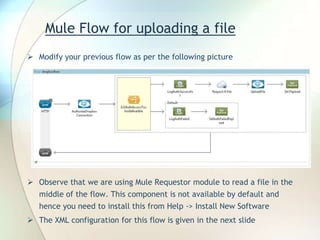
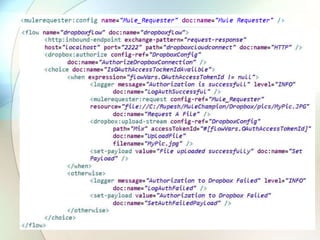
Mule Flow for uploading a file
 Modify your previous flow as per the following picture
 Observe that we are using Mule Requestor module to read a file in the
middle of the flow. This component is not available by default and
hence you need to install this from Help -> Install New Software
 The XML configuration for this flow is given in the next slide
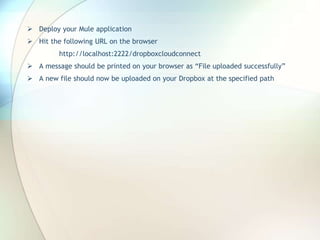
 Deploy your Mule application
 Hit the following URL on the browser
http://localhost:2222/dropboxcloudconnect
 A message should be printed on your browser as “File uploaded successfully”
 A new file should now be uploaded on your Dropbox at the specified path
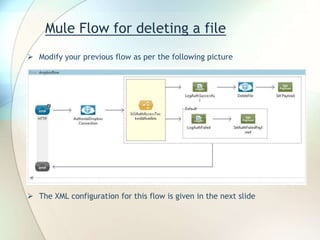
Mule Flow for deleting a file
 Modify your previous flow as per the following picture
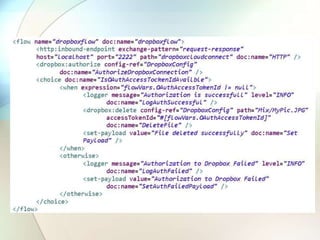
 The XML configuration for this flow is given in the next slide
 Deploy your Mule application
 Hit the following URL on the browser
http://localhost:2222/dropboxcloudconnect
 A message should be printed on your browser as “File deleted successfully”. In
my code I am using a file name which already exists on my Dropbox. If the files
does not exist, application will throw an error
 Once the flow execution completes, the specified file will be deleted from
Dropbox
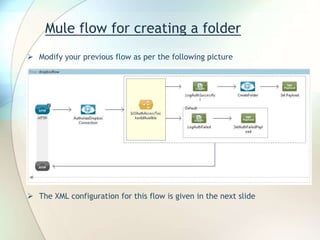
Mule flow for creating a folder
 Modify your previous flow as per the following picture
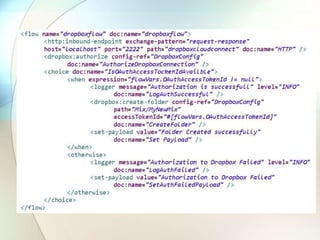
 The XML configuration for this flow is given in the next slide
 Deploy your Mule application
 Hit the following URL on the browser
http://localhost:2222/dropboxcloudconnect
 A message should be printed on your browser as “Folder Created successfully”
 A new folder should now be created on your Dropbox at the specified path
Conclusion
• Mule ESB Dropbox connector provides an easy way to connect to
Dropbox cloud using OAuth2 authentication and allows
performing several operations
• The latest Dropbox connector is simpler to use compared to the
previous version of Dropbox connectors
• Dropbox Connector is available for Mule ESB community edition
• Mule Request module allows to retrieve a file in the middle of
the flow and is very easy to use
• You can use Dropbox connector like FTP connector in your
application to upload files directly on Dropbox cloud storage
Integration with Dropbox using Mule ESB

Integration with Dropbox using Mule ESB

  • 1.
    Integration with Dropbox usingMule ESB Prepared By: Rupesh Sinha Mule ESB
  • 2.
    Overview  What isDropbox?  Versions and Assumptions  Configuring Dropbox  Configuring Global properties in Mule  Configuring Dropbox Connector  Mule Flow for Dropbox Authentication  Mule Flow for retrieving Dropbox Account Info  Mule Flow for downloading a File  Mule Flow for uploading a file  Mule Flow for deleting a file  Mule flow for creating a folder  Conclusion
  • 3.
    What is Dropbox? Dropbox was founded in 2007  Dropbox is a file hosting service operated by Dropbox, Inc. , headquartered in San Francisco, California  It offers cloud storage, file synchronization, personal cloud, and client software for Microsoft Windows, Mac OS X, Linux, Android, iOS, BlackBerry OS, Windows Phone and web browsers  Dropbox allows users to create a special folder on their computers, which Dropbox then synchronizes so that it appears to be the same folder (with the same contents) regardless of which computer is used to view it. Files placed in this folder are also accessible via the Dropbox website and mobile apps
  • 4.
    Versions and Assumptions •In this presentation, we are using − Dropbox Cloud Connector 3.3.0 − Anypoint Studio − Mule ESB Server 3.5.2 − Mule requester Module 1.2.0 • To integrate Dropbox with Mule ESB, you will need a Dropbox account • You will need to create a new Dropbox app under Dropbox developer apps to be able to communicate with your Dropbox account from Mule ESB application • We will be using OAuth2 authentication to connect to Dropbox using Mule ESB Dropbox Cloud Connector
  • 5.
    Configuring Dropbox  Goto https://www.dropbox.com/developers/apps  Click on Create app button  Click on Dropbox API app
  • 6.
     Select “Filesand datastores” radio button  Select “No - My app needs access to files already on Dropbox” radio button  Select “All file types - My app needs access to a user's full Dropbox” radio button  Provide an app name and click on Create app button  Provide a redirect URI for OAuth2 and click on Add button  Make a note of the App key, App secret URI as these will be used in our Mule application  A sample screen shot is shown in the next slide
  • 8.
    Configuring Global propertiesin Mule  Create a new Mule Application  Click on Global Elements tab in your main flow  Click on Create Button  Select Property Placeholder component  Provide your property file location and click on OK
  • 9.
    Configuring Dropbox Connector Click on Global Elements tab in your main flow  Click on Create Button  Select Dropbox under Connector Configuration group  Add your Dropbox App Key value to App Key text box  Add your Dropbox Secret value to App Secret text box  Click on Oauth tab and specify domain, local port, remote port and path values. These values should be same as provided in Redirect URL during Dropbox configuration  A screen shot and sample XML configuration is shown in the next slide
  • 11.
    Mule Flow forDropbox Authentication  Configure a flow as shown in the below picture  The XML configuration for this flow is given in the next slide
  • 12.
     If theapp authorizes to Dropbox app successfully, the connector returns two flow variables to Mule ESB flow which are “_oauthVerifier” and “OAuthAccessTokenId”  Using Choice router, we are checking weather the flow received a valid “OAuthAccessTokenId” or not and based on the response we are determining the success or failure of the Dropbox authorization
  • 13.
     Deploy yourMule application  Hit the following URL on the browser http://localhost:2222/dropboxcloudconnect  Dropbox will ask you to authorize your new app to connect to Dropbox as shown below. Below screen will be prompted every time you run the app  Click on Allow button and you should see a message printed on your browser as “Authorization is successful”
  • 14.
    Mule Flow forretrieving Dropbox Account Info  Let’s extend the previous authorize flow and use the authentication token to retrieve the logged in user account information from Dropbox.  Change your Mule flow as per the following flow picture
  • 15.
     The XMLconfiguration for the flow is as follows
  • 16.
     In thisflow, we have used get-account operation provided by Dropbox connector to retrieve the logged in user details and print them on the browser using Object to JSON message transformer  Deploy your app  Hit the following URL on the browser http://localhost:2222/dropboxcloudconnect  You should now see the logged in user details printed on your browser in JSON format
  • 17.
    Mule Flow fordownloading a File  Modify your previous flow as per the following picture  The XML configuration for this flow is given in the next slide
  • 19.
     Deploy yourMule application  Hit the following URL on the browser http://localhost:2222/dropboxcloudconnect  A message should be printed on your browser as “File downloaded successfully”  You should now see a file downloaded on your system at the given folder location
  • 20.
    Mule Flow foruploading a file  Modify your previous flow as per the following picture  Observe that we are using Mule Requestor module to read a file in the middle of the flow. This component is not available by default and hence you need to install this from Help -> Install New Software  The XML configuration for this flow is given in the next slide
  • 22.
     Deploy yourMule application  Hit the following URL on the browser http://localhost:2222/dropboxcloudconnect  A message should be printed on your browser as “File uploaded successfully”  A new file should now be uploaded on your Dropbox at the specified path
  • 23.
    Mule Flow fordeleting a file  Modify your previous flow as per the following picture  The XML configuration for this flow is given in the next slide
  • 25.
     Deploy yourMule application  Hit the following URL on the browser http://localhost:2222/dropboxcloudconnect  A message should be printed on your browser as “File deleted successfully”. In my code I am using a file name which already exists on my Dropbox. If the files does not exist, application will throw an error  Once the flow execution completes, the specified file will be deleted from Dropbox
  • 26.
    Mule flow forcreating a folder  Modify your previous flow as per the following picture  The XML configuration for this flow is given in the next slide
  • 28.
     Deploy yourMule application  Hit the following URL on the browser http://localhost:2222/dropboxcloudconnect  A message should be printed on your browser as “Folder Created successfully”  A new folder should now be created on your Dropbox at the specified path
  • 29.
    Conclusion • Mule ESBDropbox connector provides an easy way to connect to Dropbox cloud using OAuth2 authentication and allows performing several operations • The latest Dropbox connector is simpler to use compared to the previous version of Dropbox connectors • Dropbox Connector is available for Mule ESB community edition • Mule Request module allows to retrieve a file in the middle of the flow and is very easy to use • You can use Dropbox connector like FTP connector in your application to upload files directly on Dropbox cloud storage