Word processing is the software package that enables you to
create ,edit, print and save documents for future retrieval
reference. Creating a document involves typing by using a
keyboard and saving it. Editing the document involves
correcting the spelling mistakes, if any, deleting or moving
word sentences or paragraph.
So, the term Word Processing refers to the act of processing
the textual information including typing, editing,
formatting and printing.
FEATURES OF MS WORD
1. MS Word offers easy editing of text. Using word you can create
the document and edit them later as and when required, by adding
more text, modifying the existing text, deleting/moving some part
of it.
2. MS Word uses WYSIWYG(What you see is what you get) display.
3. Font size and type of font can also be changed, page number
and header and footer can be included.
4. Saving and retrieving of documents.
5. Cut and paste feature.
6. Document formatting.
7. Printing facility.
8. Spell check.
9. Mail merging.
10. Headers and footers
11. Bold, italics , underline.
12. insert picture, graphs, page numbers, date & time,
symbols.
13. Find and replace.
14. Different font types, size etc.
15. Rulers.
16. Bullets and numbering.
17. Support for tables.
18. Support for macros.
19. Support for multiple languages.
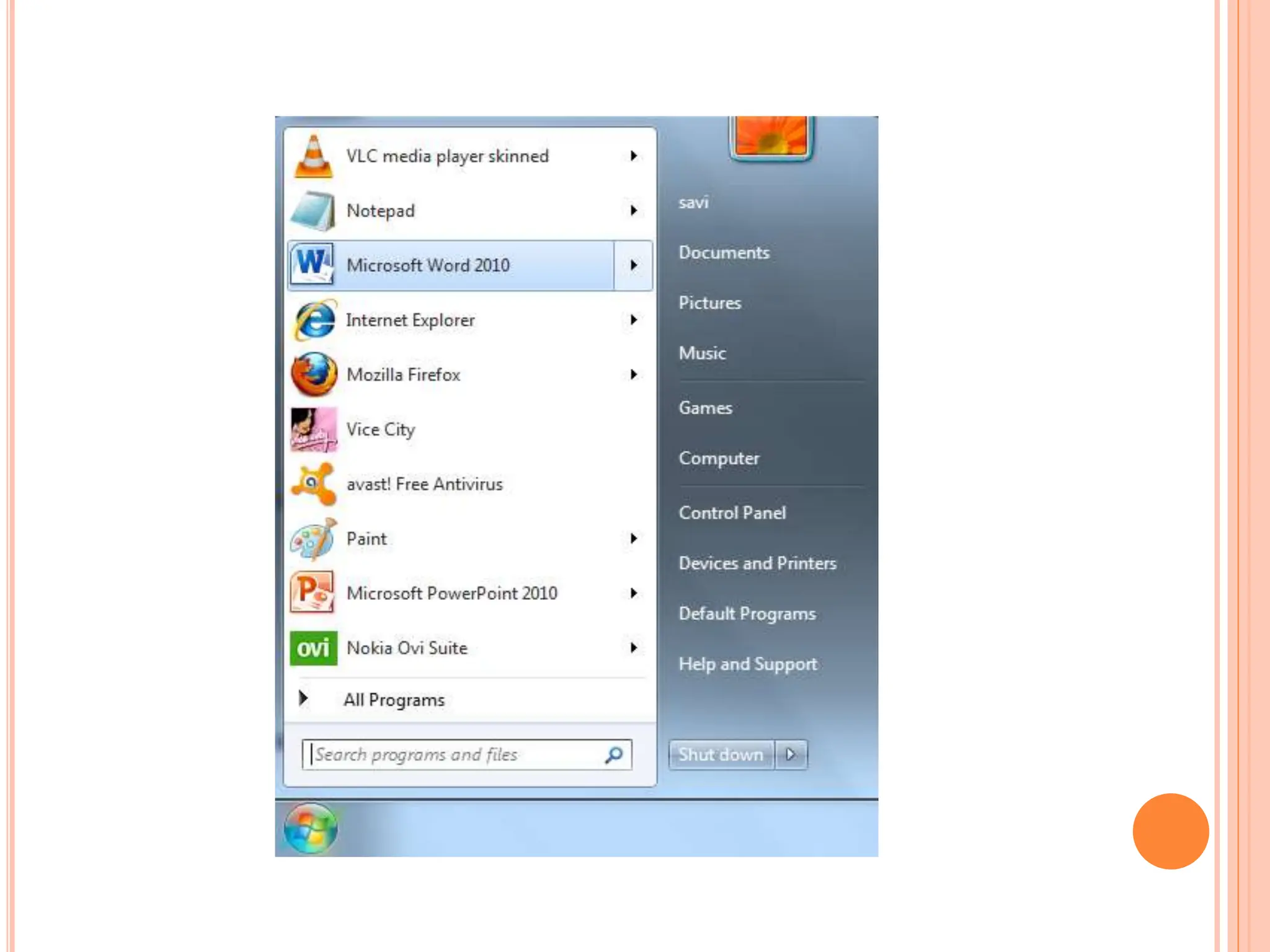
Method 1
1. Take the mouse pointer to start button on the task bar. Click the
left mouse button.
2. Move the pointer to programs. You will notice another menu
coming up to the right.
3. In that menu identify where Microsoft word is placed. Move
the cursor horizontally to come out of the programs.
4. Move into the rectangular area meant for the MS word. Click
the left mouse button there. The computer will start MS-word.
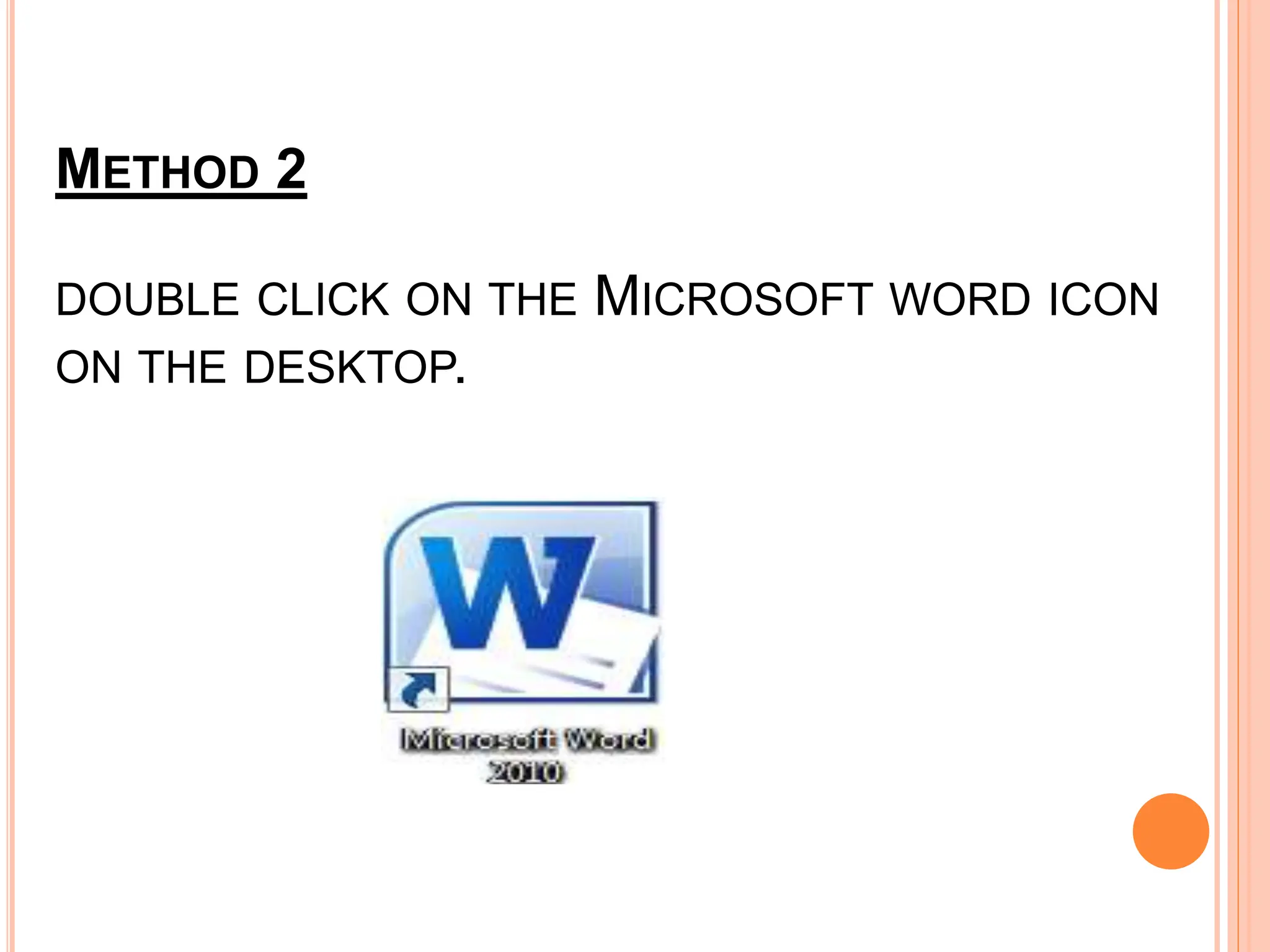
METHOD 2
DOUBLE CLICK ON THE MICROSOFT WORD ICON
ON THE DESKTOP.
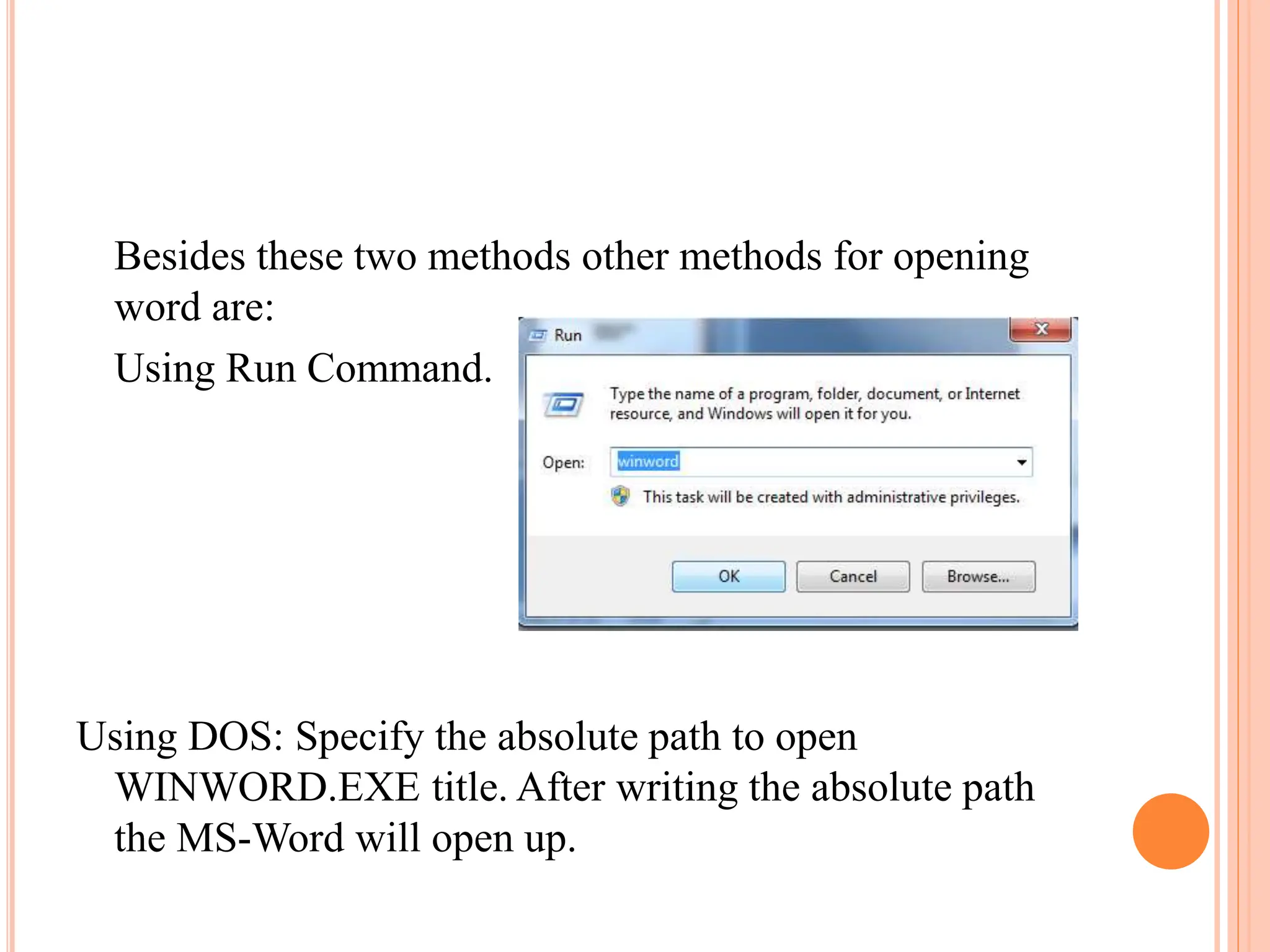
Besides these two methods other methods for opening
word are:
Using Run Command.
Using DOS: Specify the absolute path to open
WINWORD.EXE title. After writing the absolute path
the MS-Word will open up.
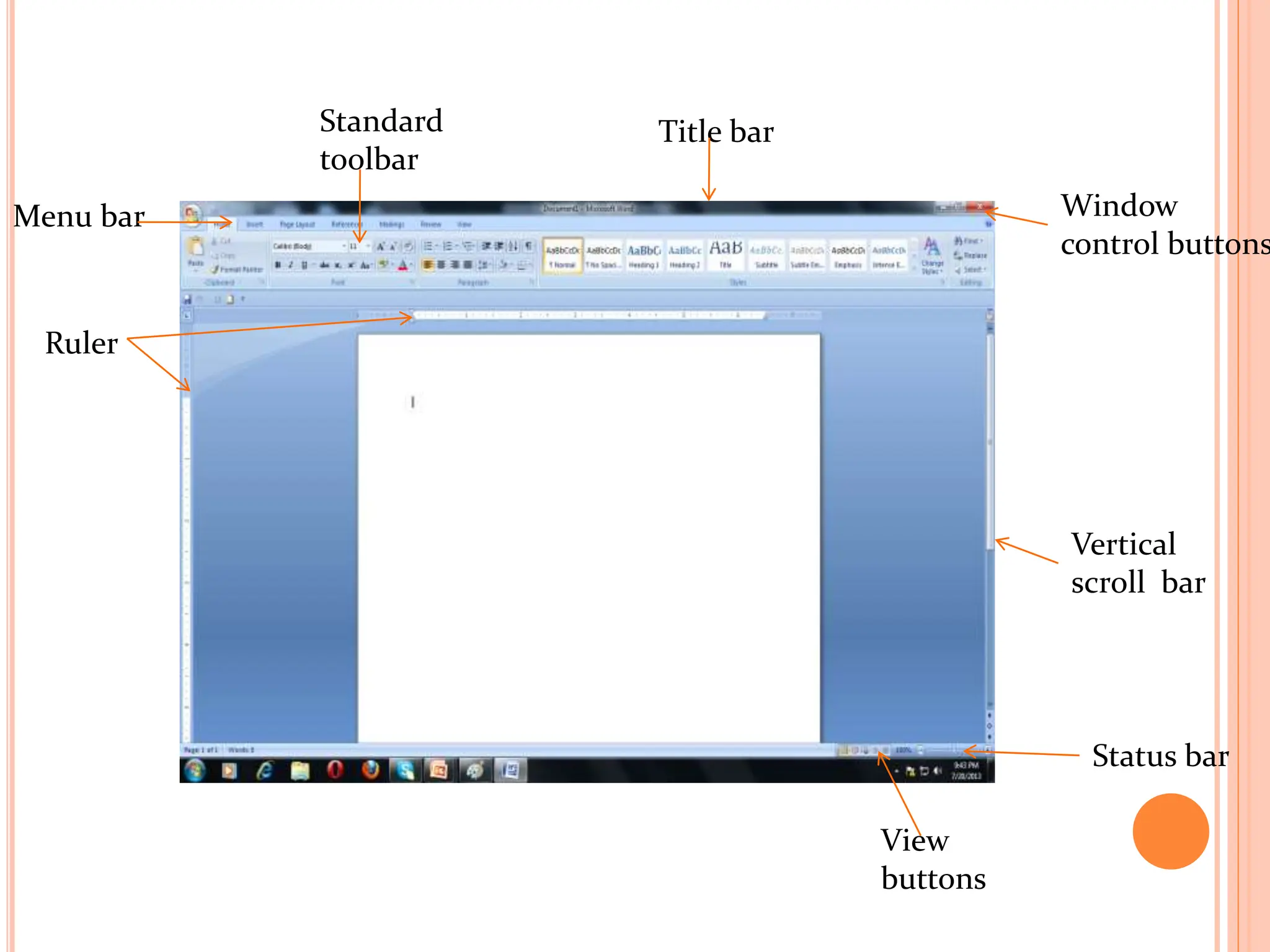
Title bar
Menu bar
Ruler
View
buttons
Status bar
Vertical
scroll bar
Standard
toolbar
Window
control buttons
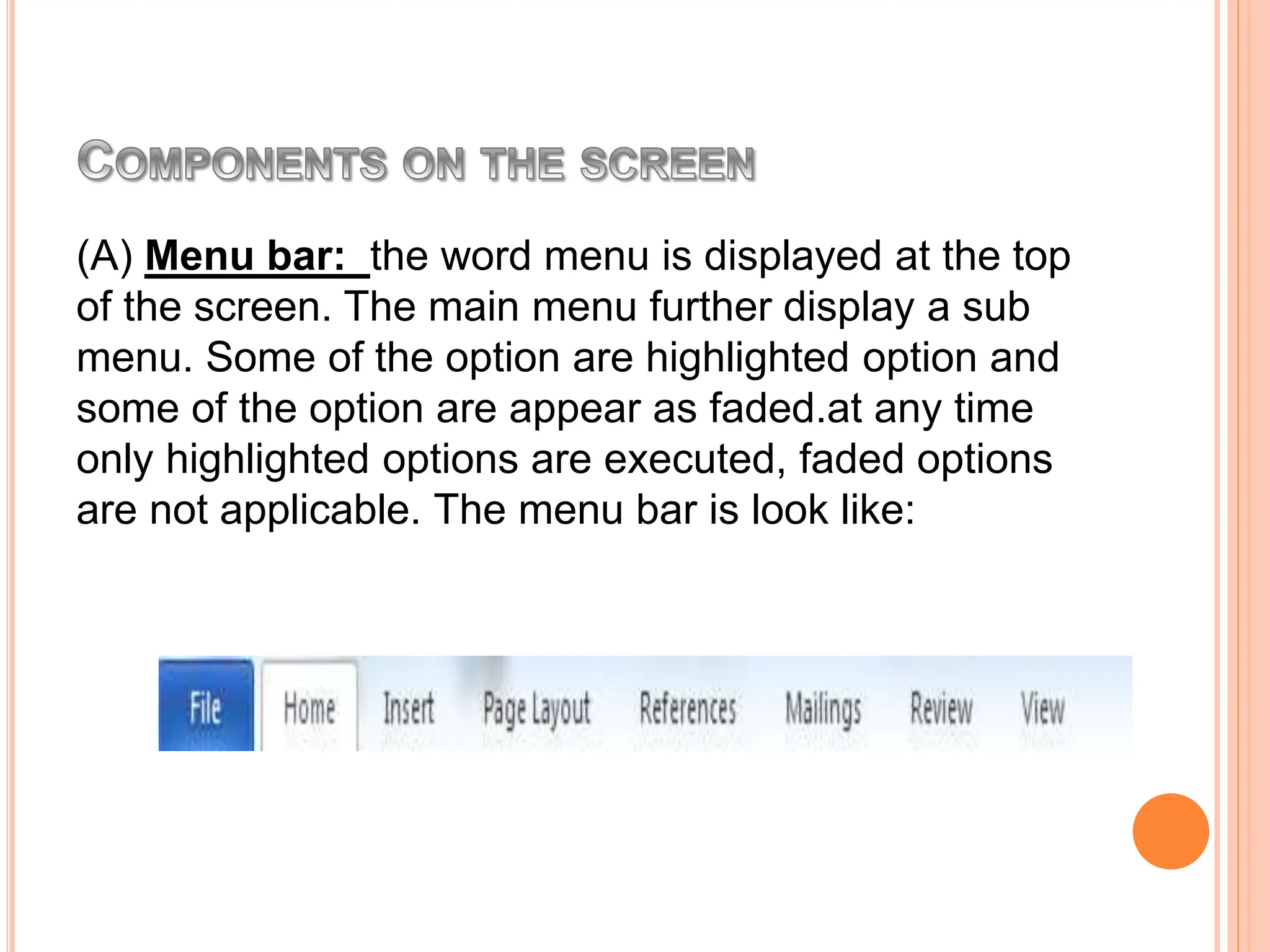
(A) Menu bar: the word menu is displayed at the top
of the screen. The main menu further display a sub
menu. Some of the option are highlighted option and
some of the option are appear as faded.at any time
only highlighted options are executed, faded options
are not applicable. The menu bar is look like:
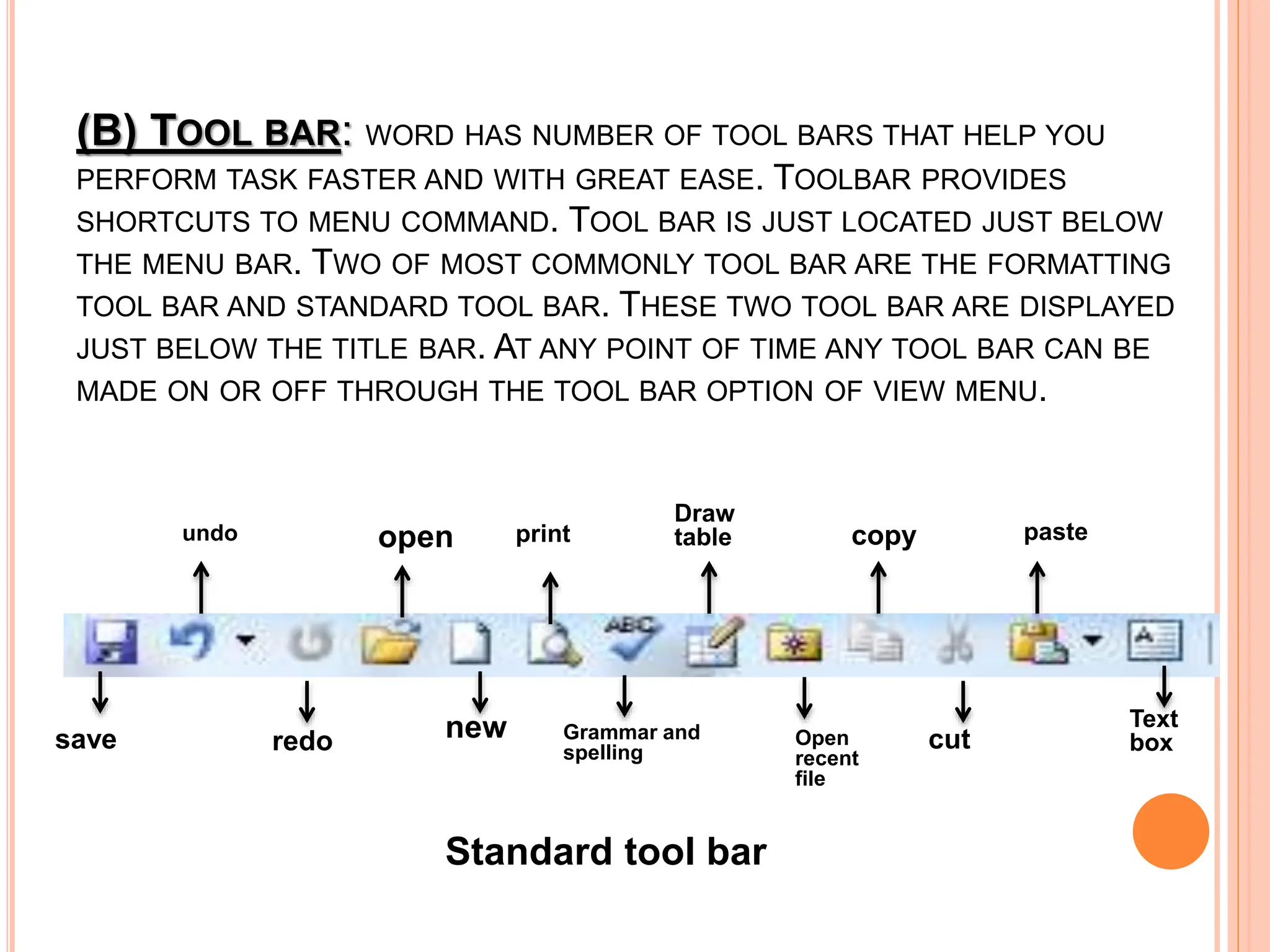
(B) TOOL BAR: WORD HAS NUMBER OF TOOL BARS THAT HELP YOU
PERFORM TASK FASTER AND WITH GREAT EASE. TOOLBAR PROVIDES
SHORTCUTS TO MENU COMMAND. TOOL BAR IS JUST LOCATED JUST BELOW
THE MENU BAR. TWO OF MOST COMMONLY TOOL BAR ARE THE FORMATTING
TOOL BAR AND STANDARD TOOL BAR. THESE TWO TOOL BAR ARE DISPLAYED
JUST BELOW THE TITLE BAR. AT ANY POINT OF TIME ANY TOOL BAR CAN BE
MADE ON OR OFF THROUGH THE TOOL BAR OPTION OF VIEW MENU.
undo
Standard tool bar
Draw
table
save Grammar and
spelling
open
redo new
print
cut
Open
recent
file
paste
Text
box
copy
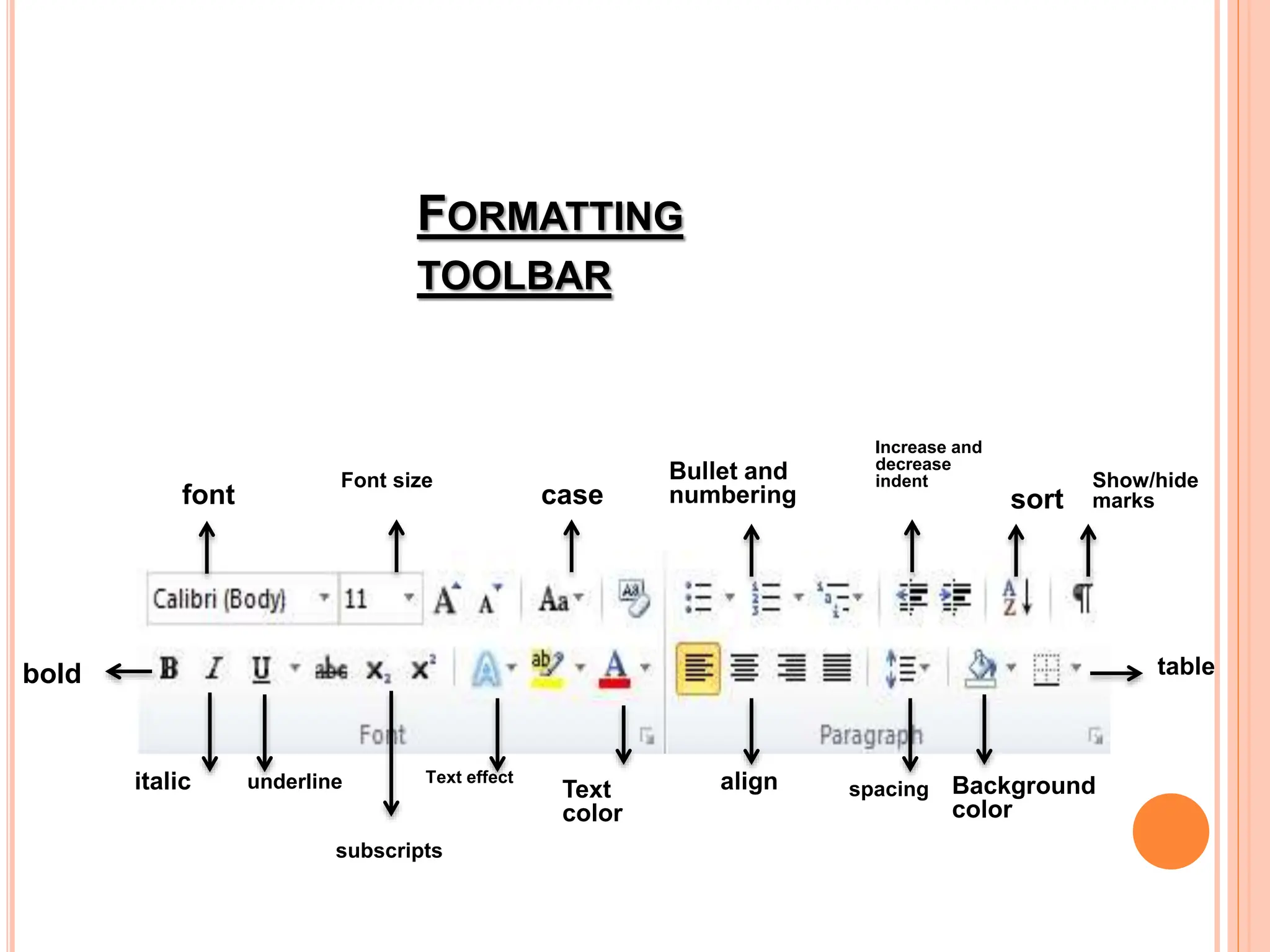
FORMATTING
TOOLBAR
table
italic underline
bold
sort
Increase and
decrease
indent
Bullet and
numbering
case
font
Font size
Background
color
spacing
align
Text effect
Show/hide
marks
Text
color
subscripts
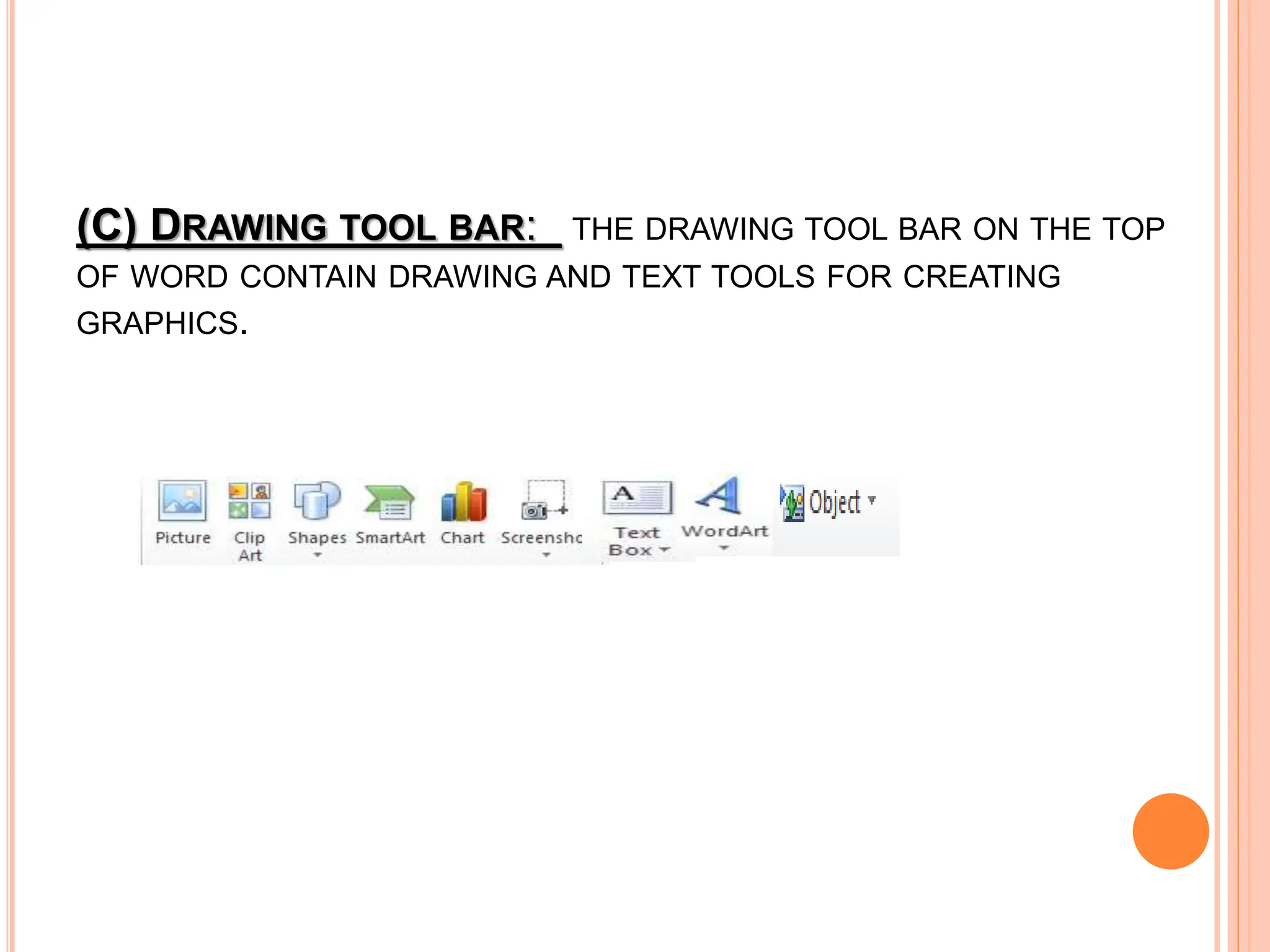
(C) DRAWING TOOL BAR: THE DRAWING TOOL BAR ON THE TOP
OF WORD CONTAIN DRAWING AND TEXT TOOLS FOR CREATING
GRAPHICS.
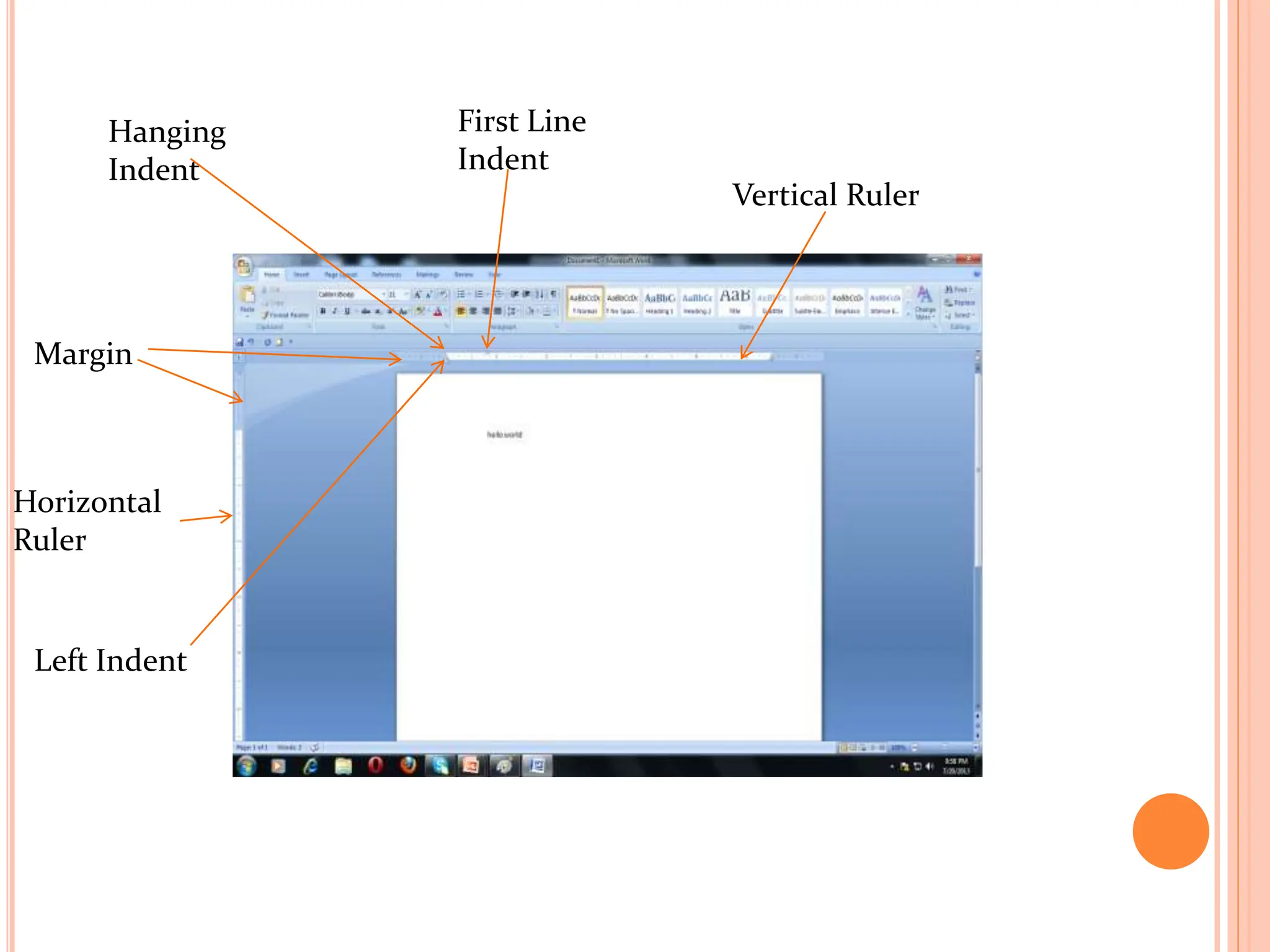
(D) RULER BAR: THE RULER BAR ALLOWS YOU TO FORMAT
THE VERTICAL ALIGNMENT OF TEXT IN A DOCUMENT.
TO DISPLAY THE RULER:
1. CLICK VIEW ON THE MENU BAR.
2.THE OPTION RULER SHOULD HAVE A CHECK MARK NEXT TO IT. IF
IT HAS A CHECK MARK NEXT TO IT, PRESS ESC TO CLOSE THE
MENU. IF IT DOES NOT HAVE A CHECK MARK NEXT TO IT, CONTINUE
O THE NEXT STEP.
3. CLICK RULER. THE RULER NOW APPEARS BELOW THE TOOLBAR.
First Line
Indent
Hanging
Indent
Margin
Horizontal
Ruler
Vertical Ruler
Left Indent
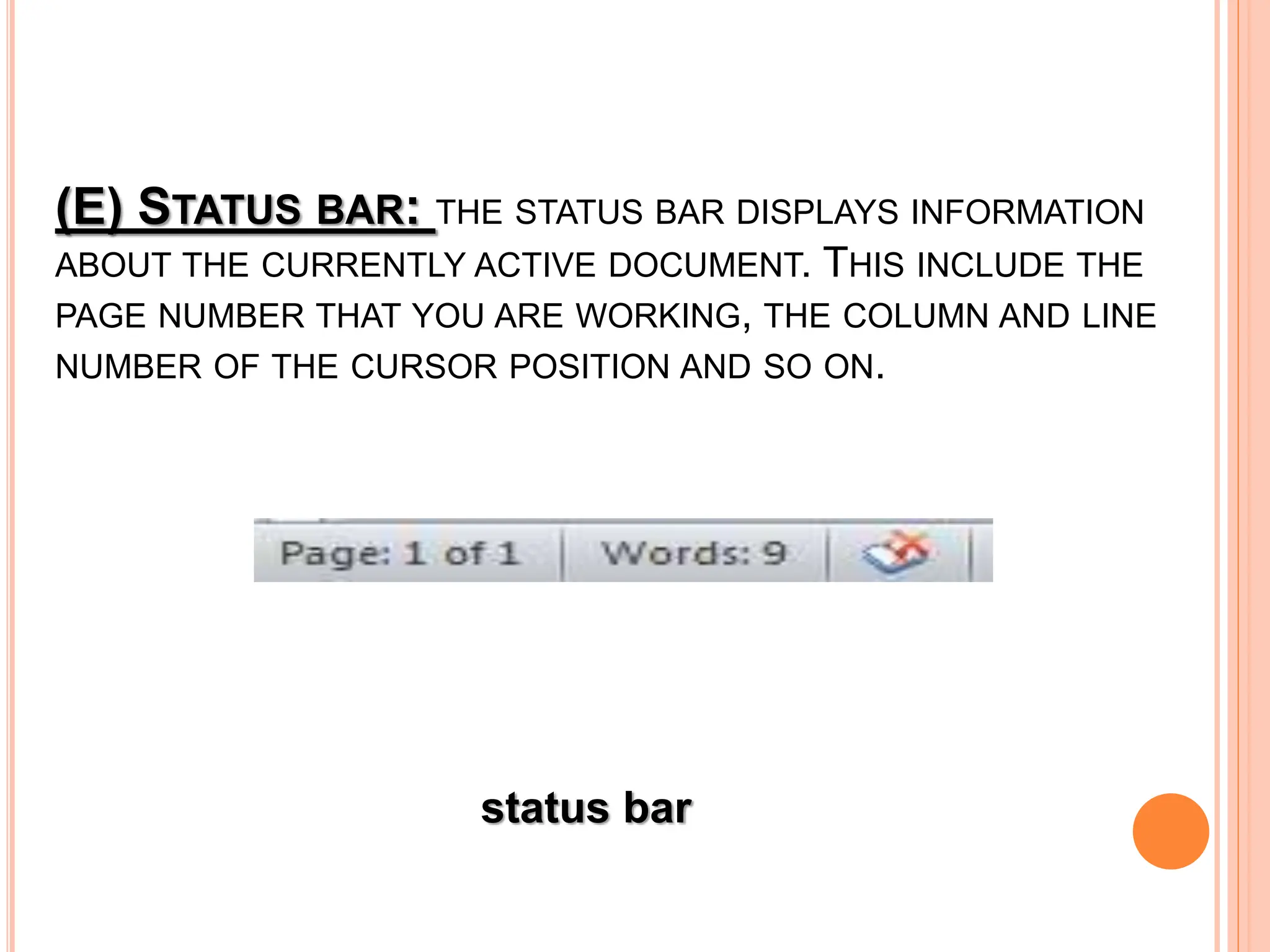
(E) STATUS BAR: THE STATUS BAR DISPLAYS INFORMATION
ABOUT THE CURRENTLY ACTIVE DOCUMENT. THIS INCLUDE THE
PAGE NUMBER THAT YOU ARE WORKING, THE COLUMN AND LINE
NUMBER OF THE CURSOR POSITION AND SO ON.
status bar
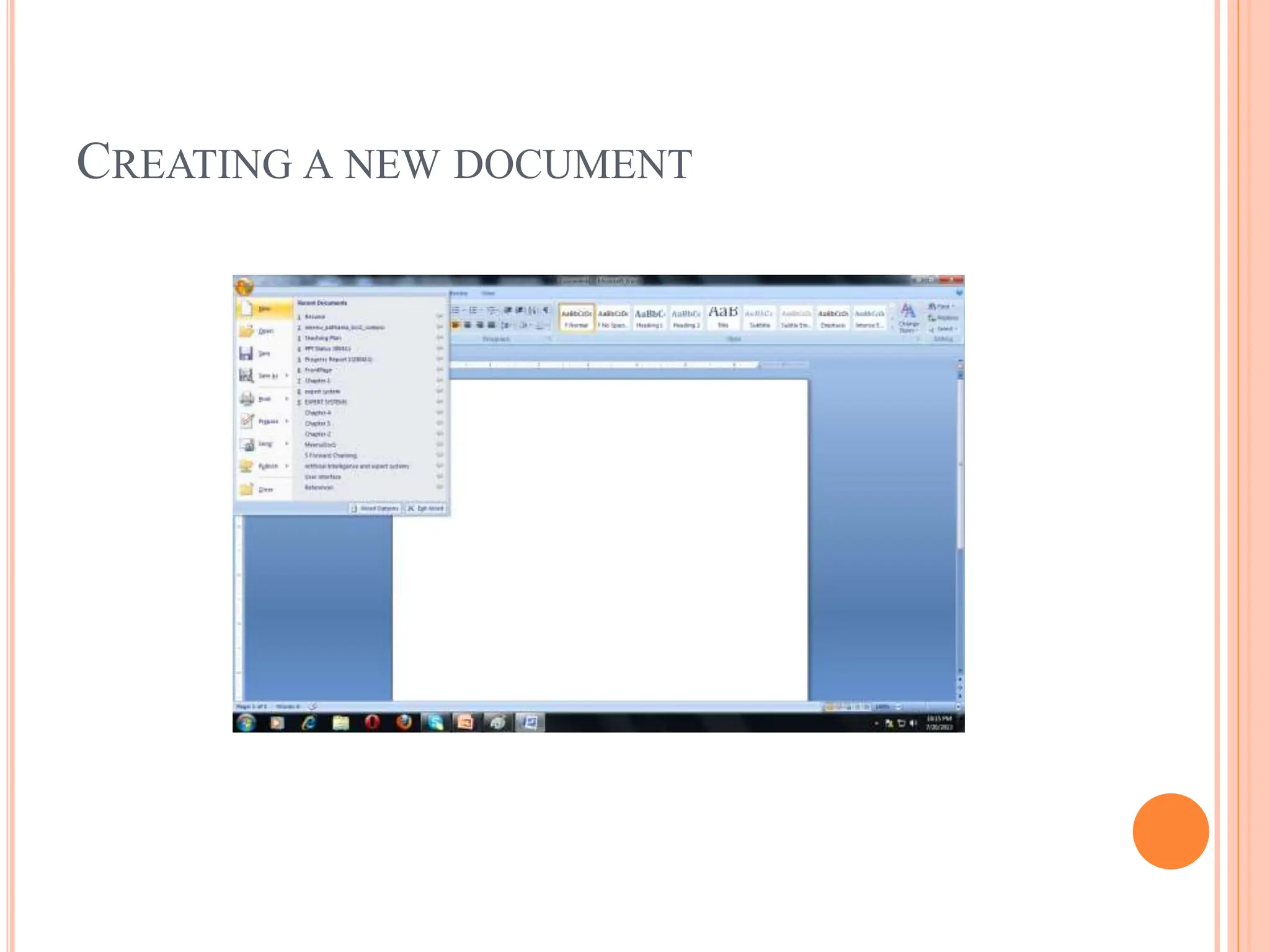
CREATING A NEW DOCUMENT
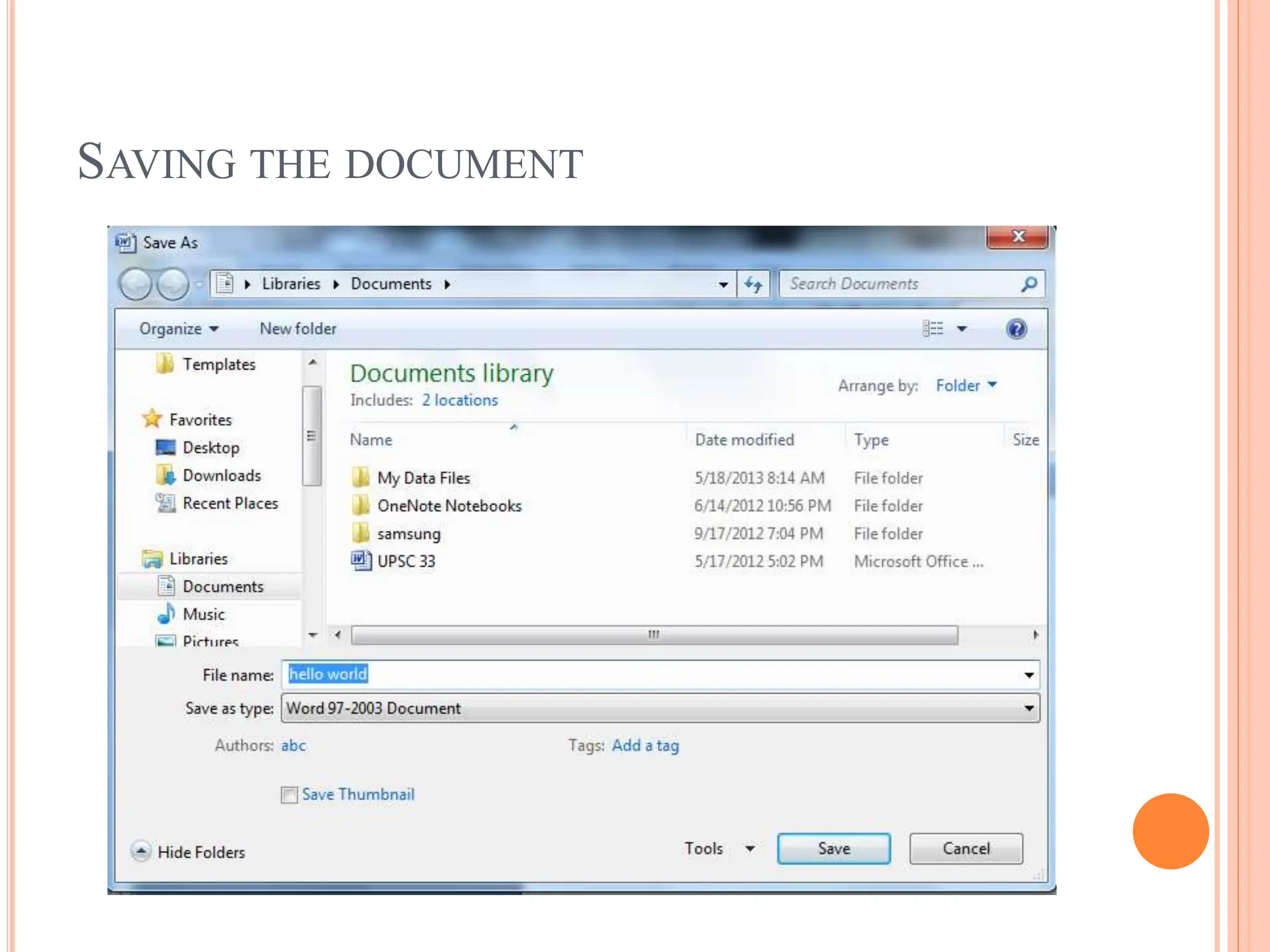
SAVING THE DOCUMENT
OPERATIONS ON TEXT IN DOCUMENT FILE
 Entering text
 To view the typed text
 To insert text
 Selecting text
 Moving text
 Copying text
 Deleting text
 Finding text
 Replacing text
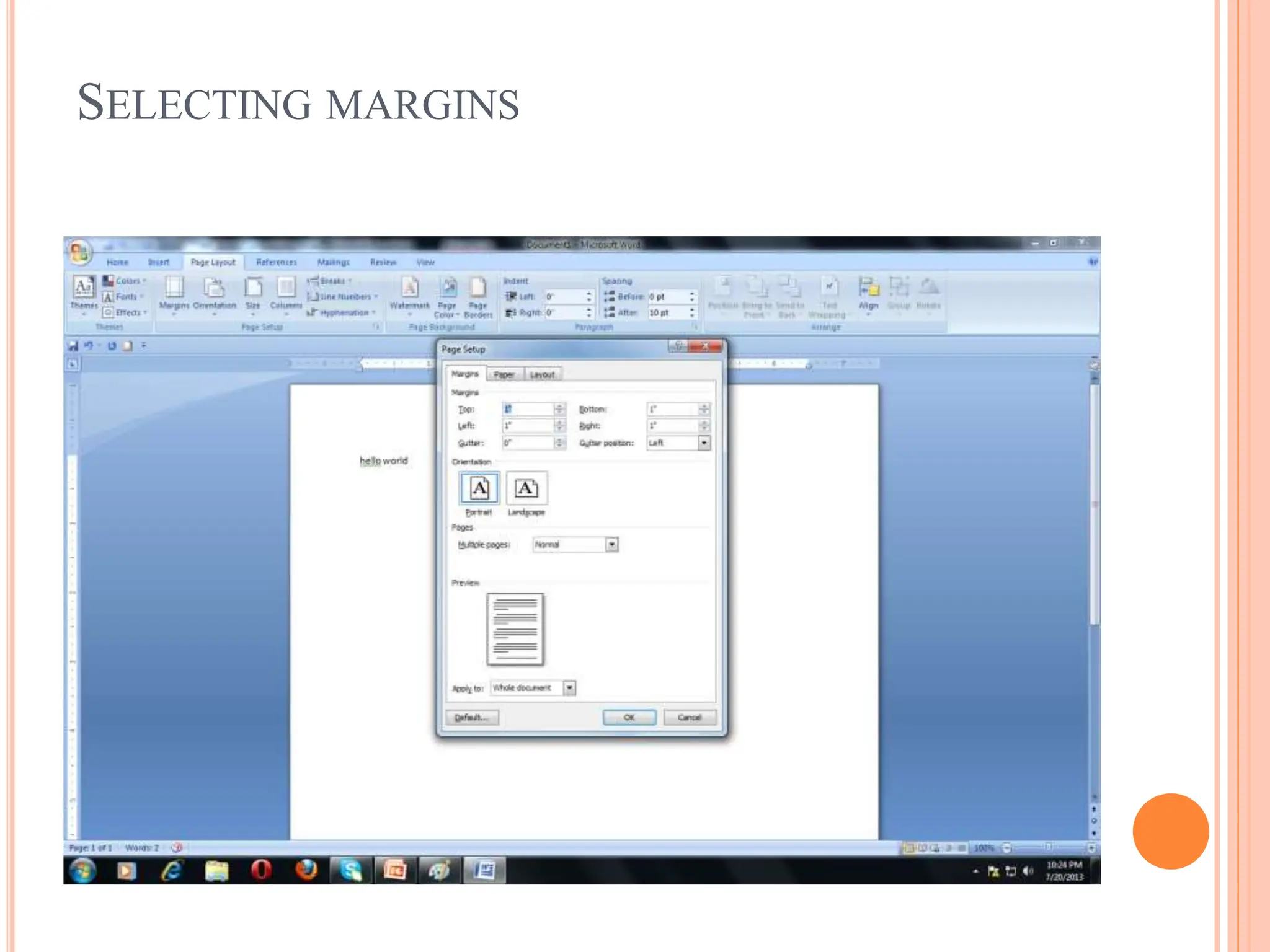
SELECTING MARGINS
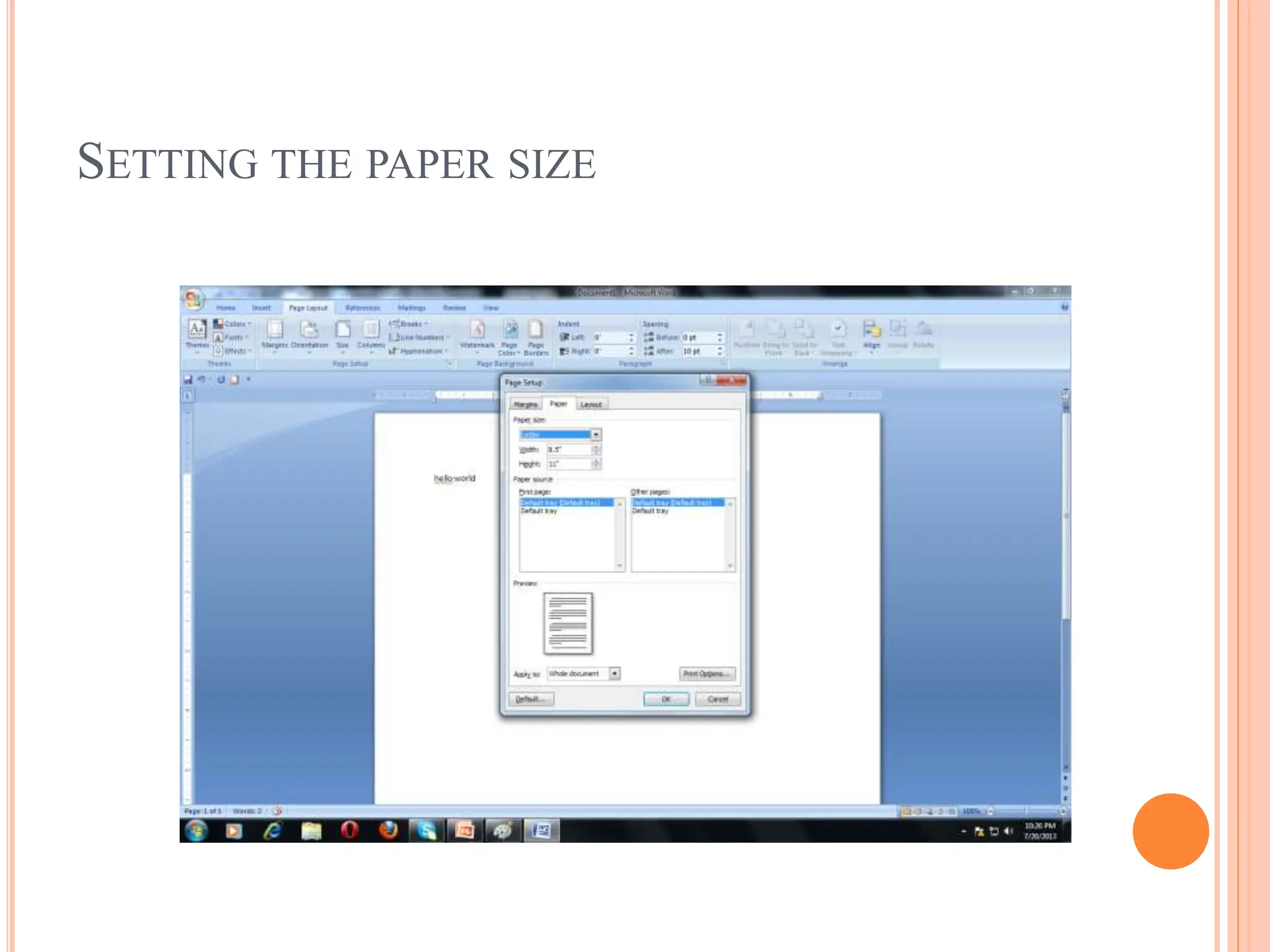
SETTING THE PAPER SIZE
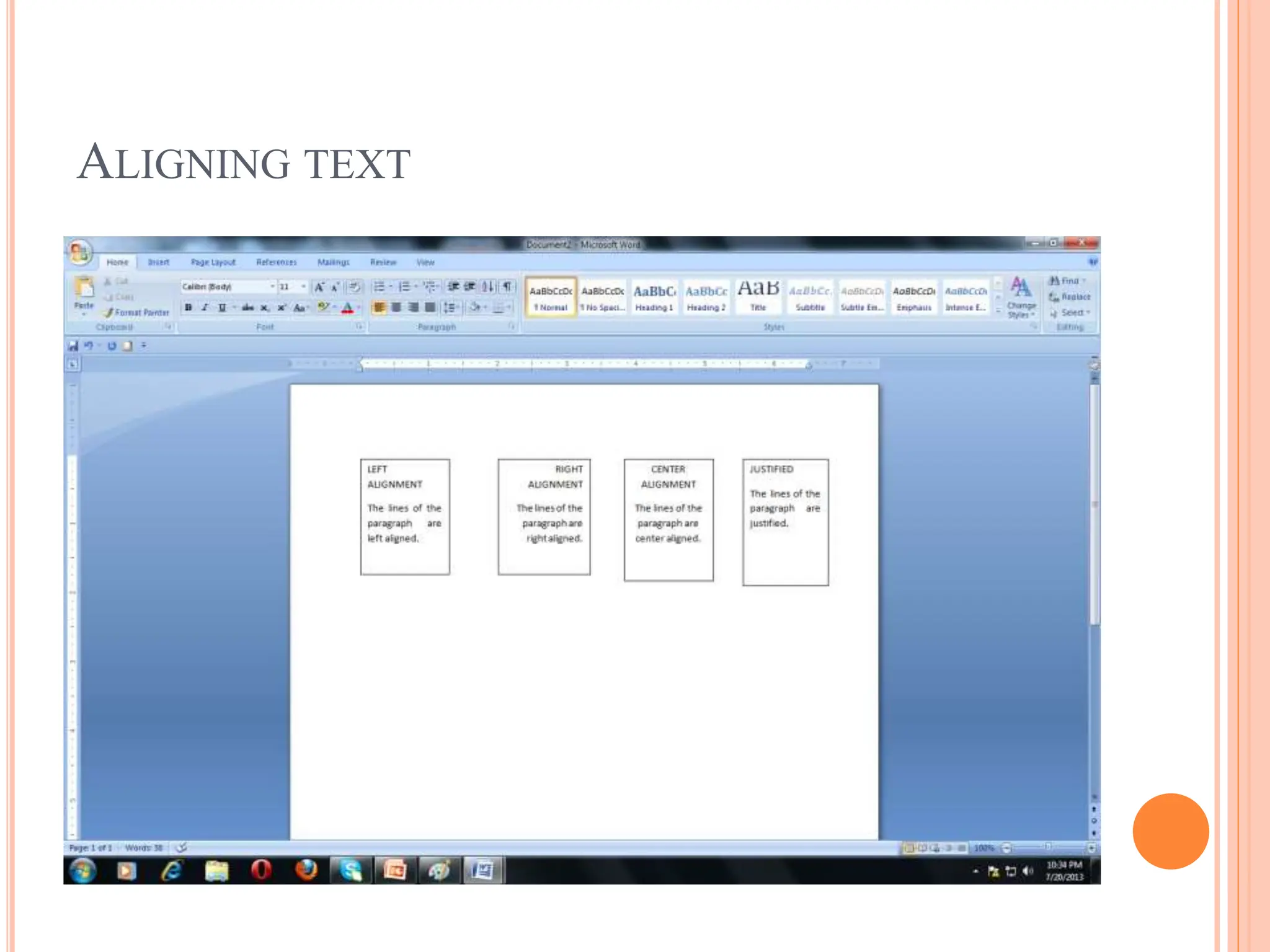
ALIGNING TEXT
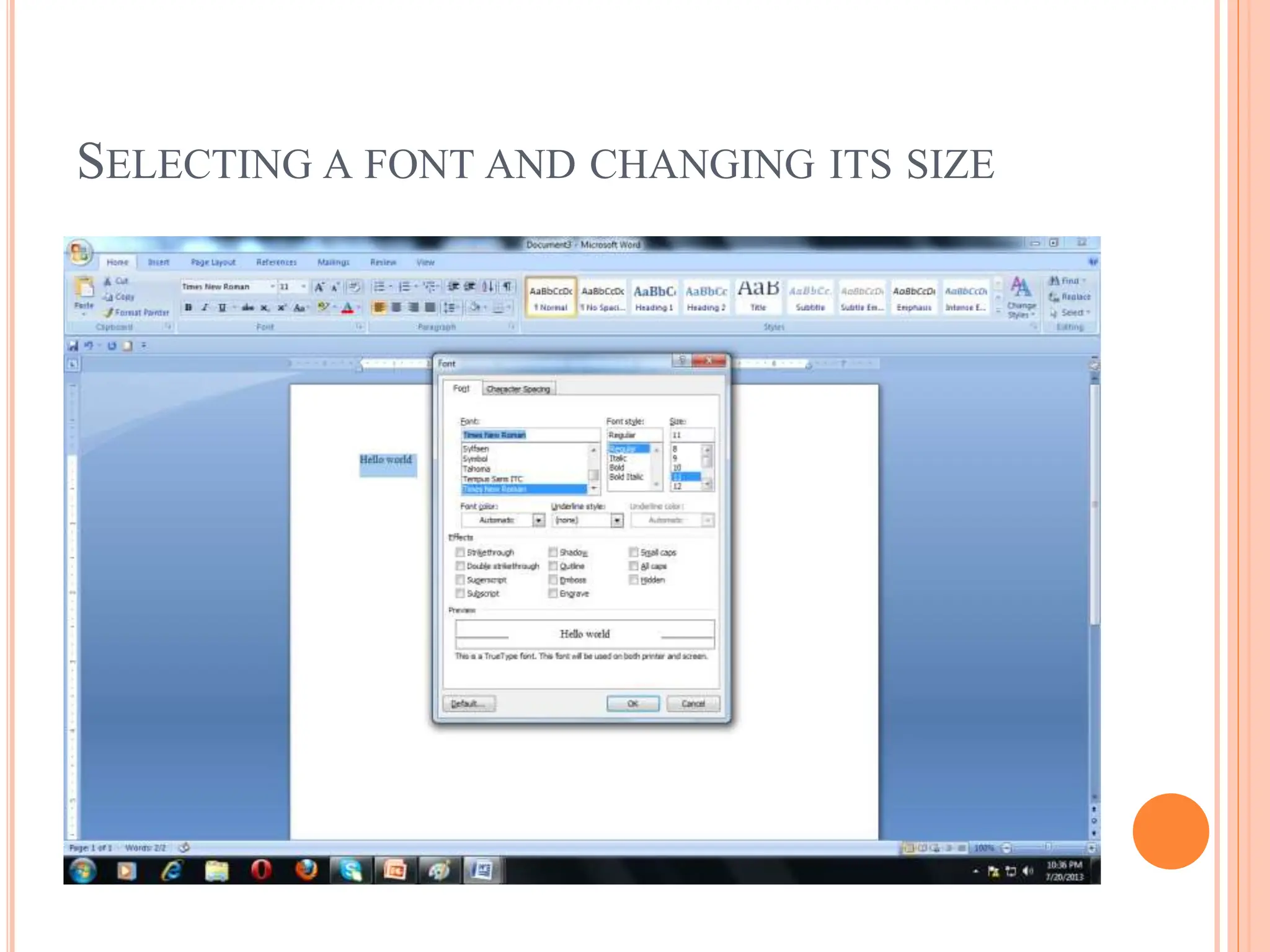
SELECTING A FONT AND CHANGING ITS SIZE
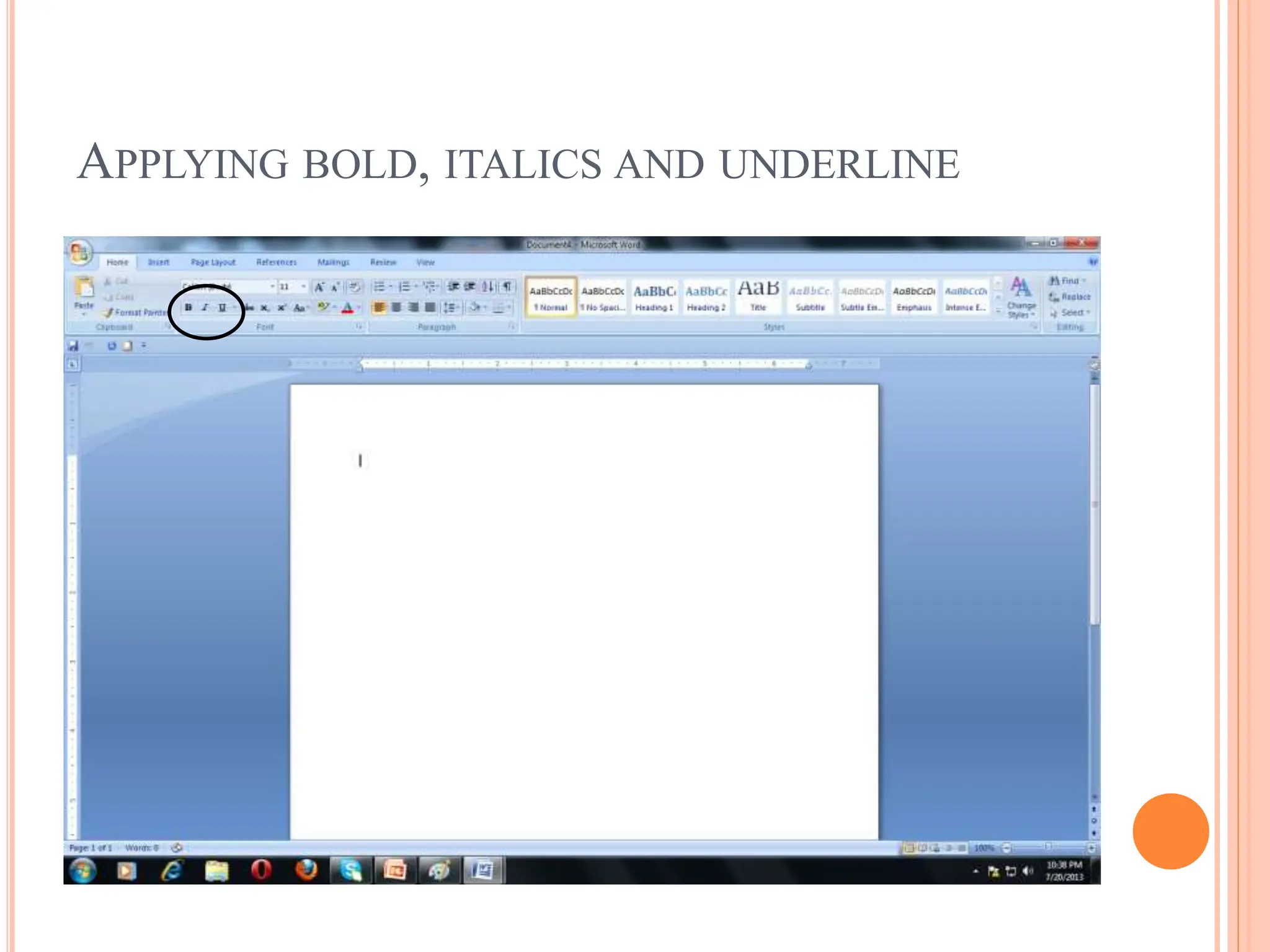
APPLYING BOLD, ITALICS AND UNDERLINE
CHANGING A CASE
SPACING
 Character spacing: The spacing that exists between two
consecutive characters.
 Line spacing: The spacing that exists between two
consecutive lines.
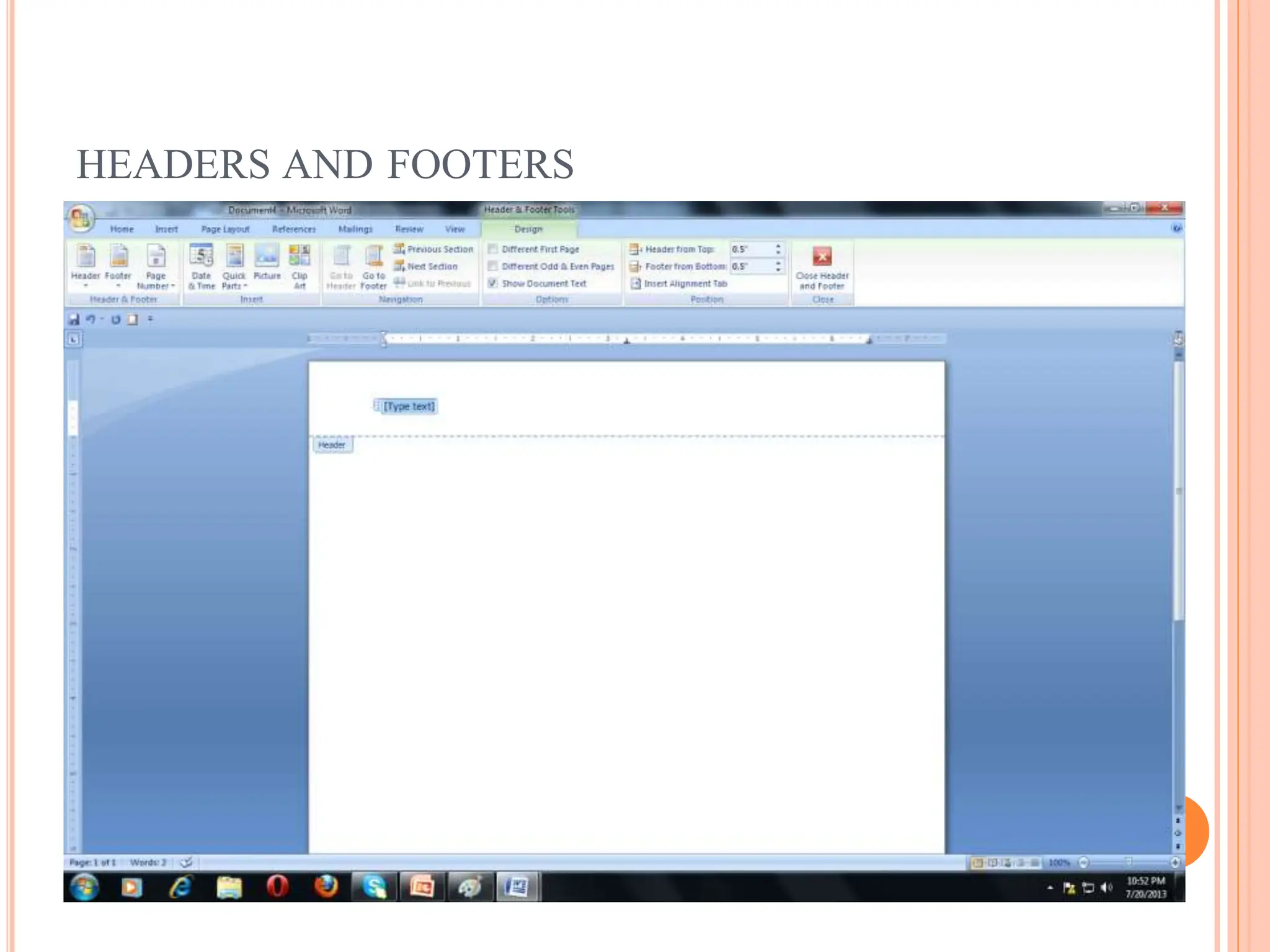
HEADERS AND FOOTERS
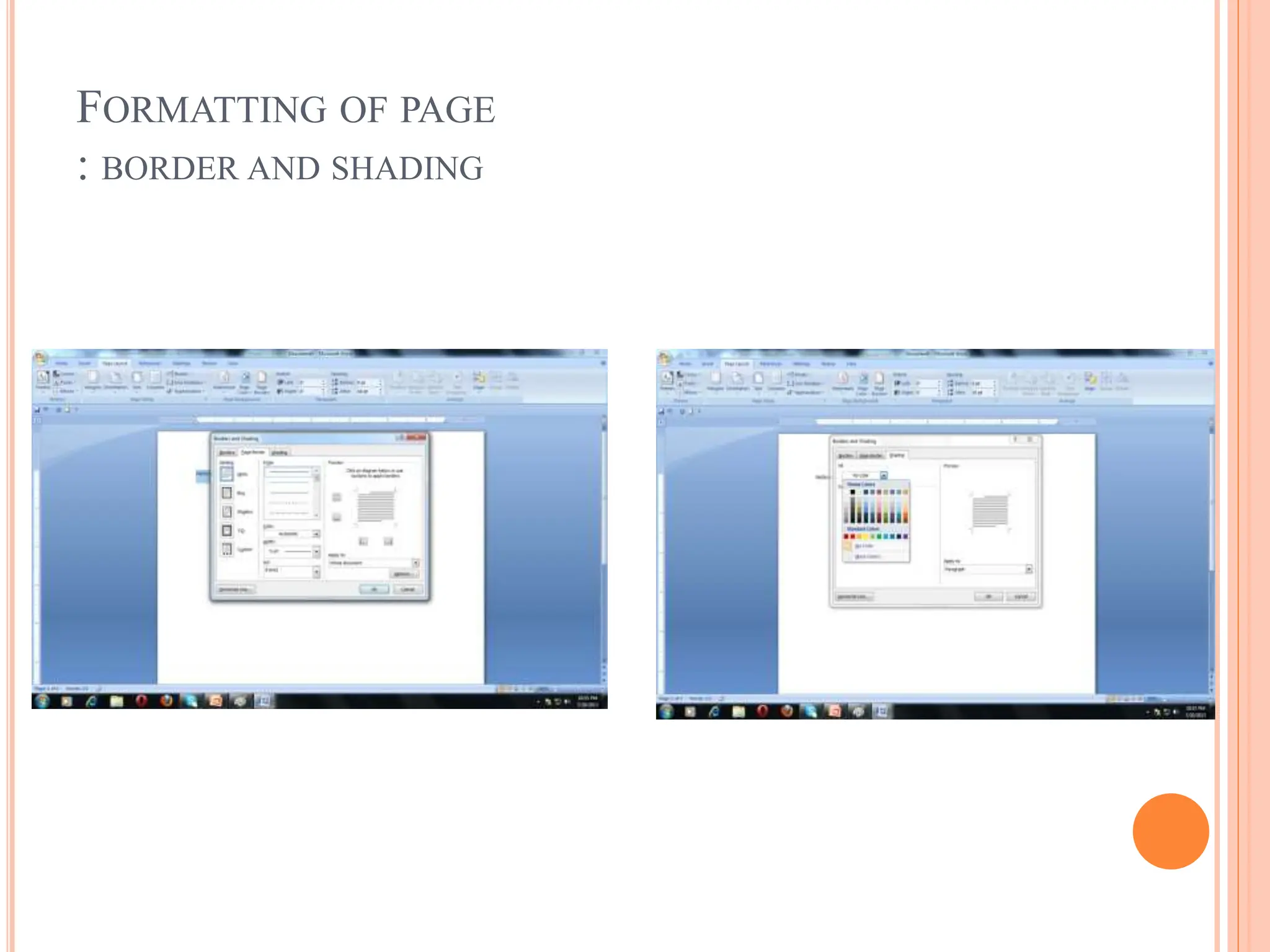
FORMATTING OF PAGE
: BORDER AND SHADING
FIND AND REPLACE
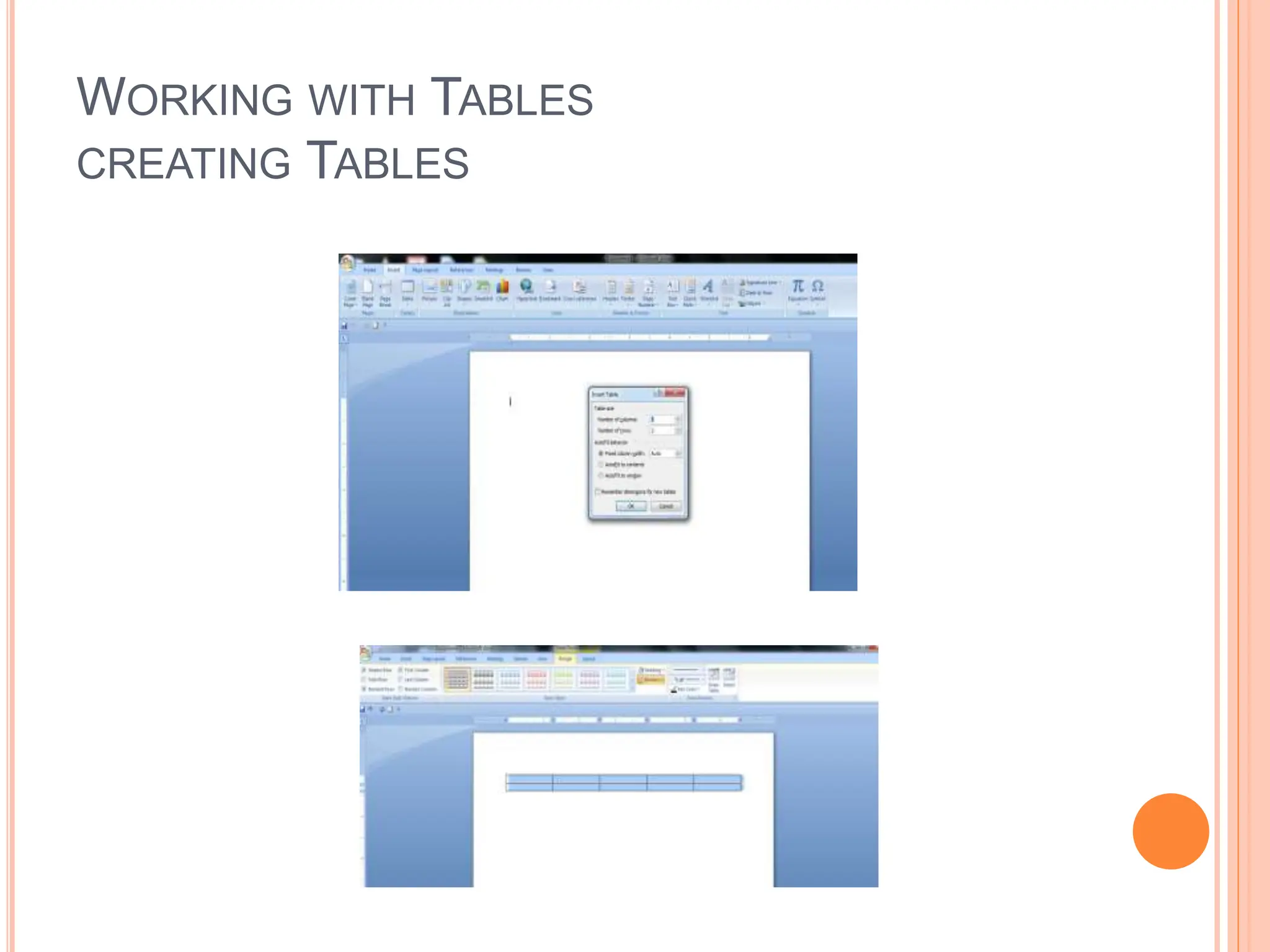
WORKING WITH TABLES
CREATING TABLES
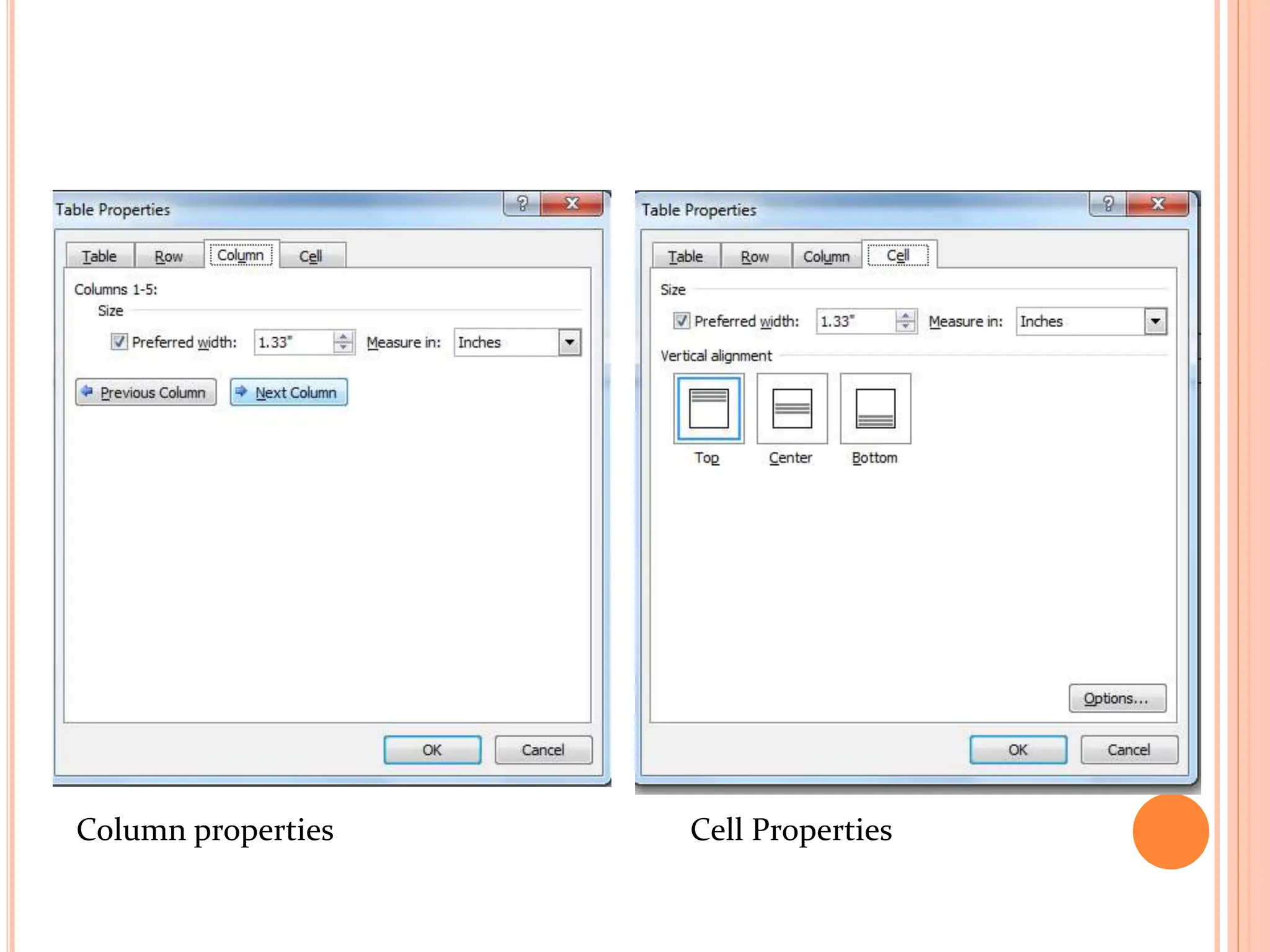
TABLE PROPERTIES
Column properties Cell Properties
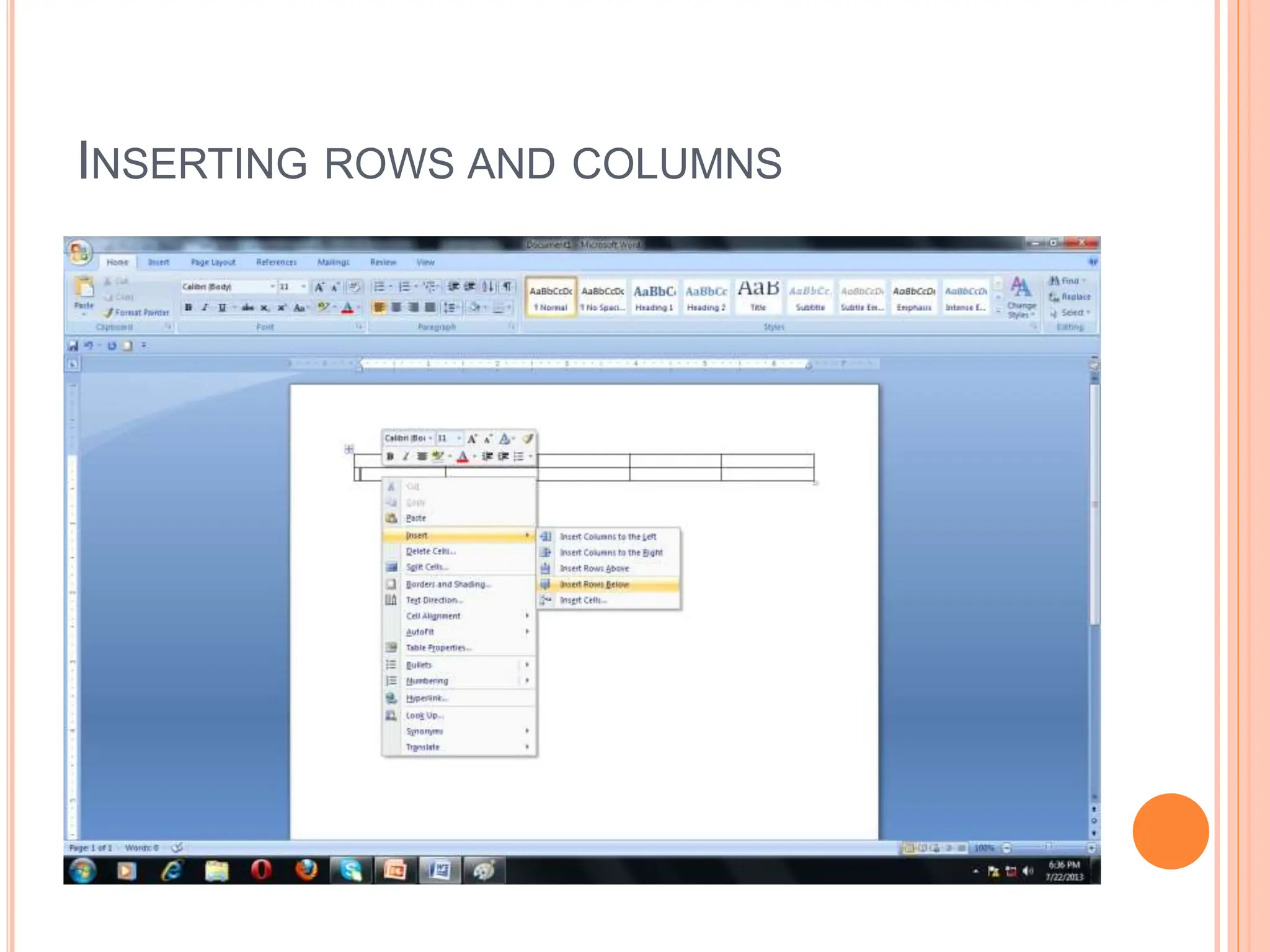
INSERTING ROWS AND COLUMNS
DELETING ROWS OR COLUMNS
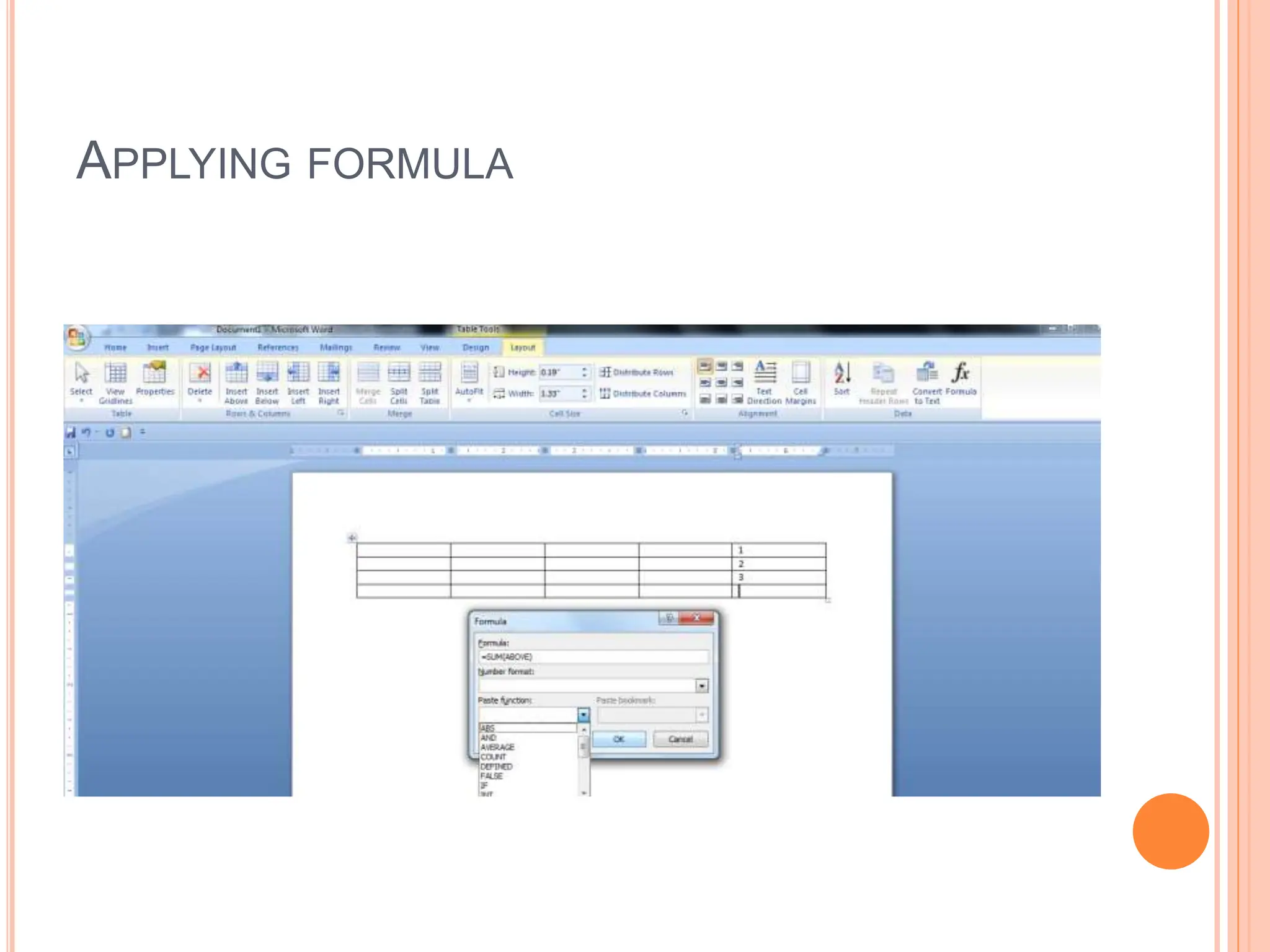
APPLYING FORMULA
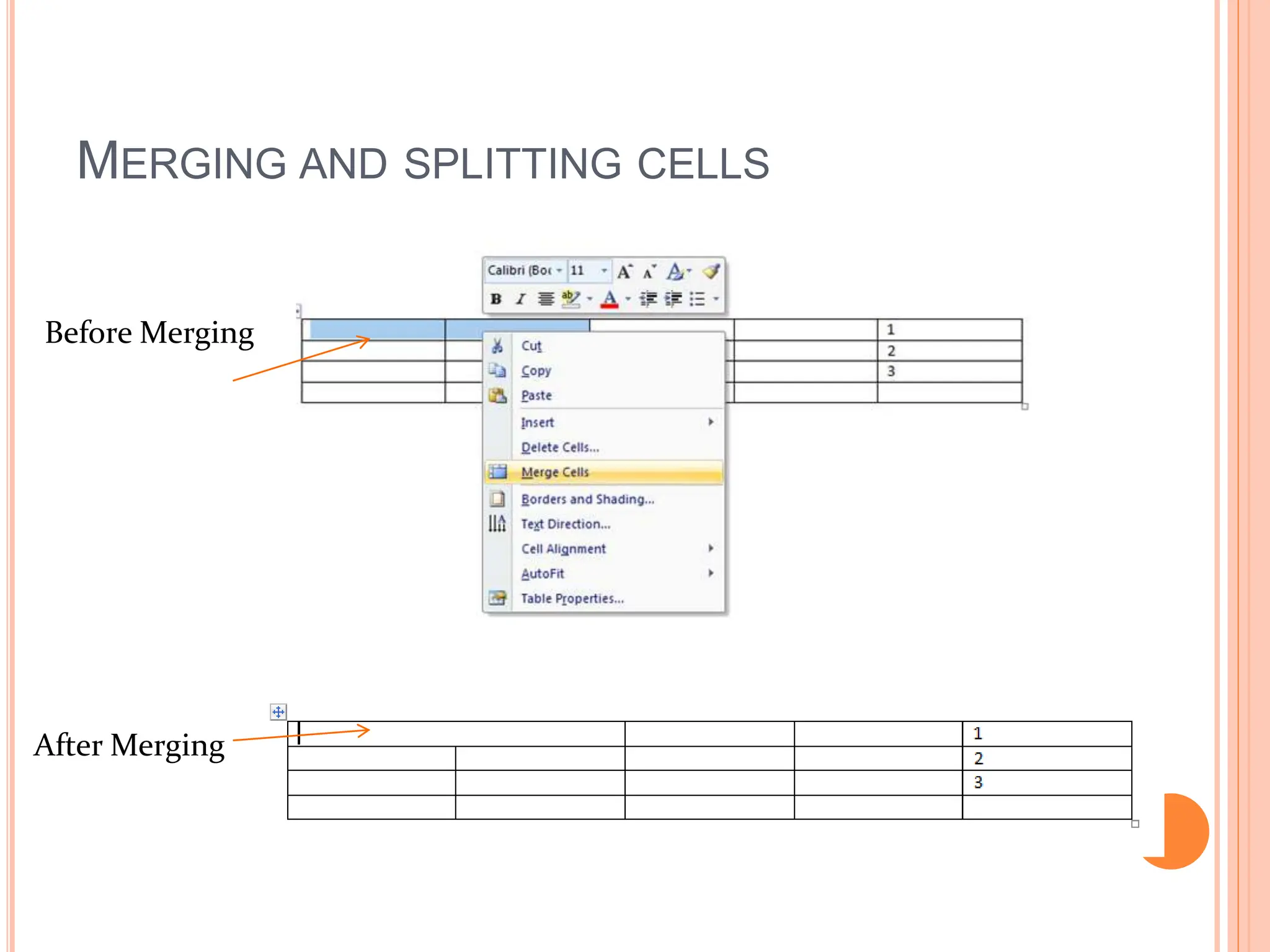
MERGING AND SPLITTING CELLS
Before Merging
After Merging
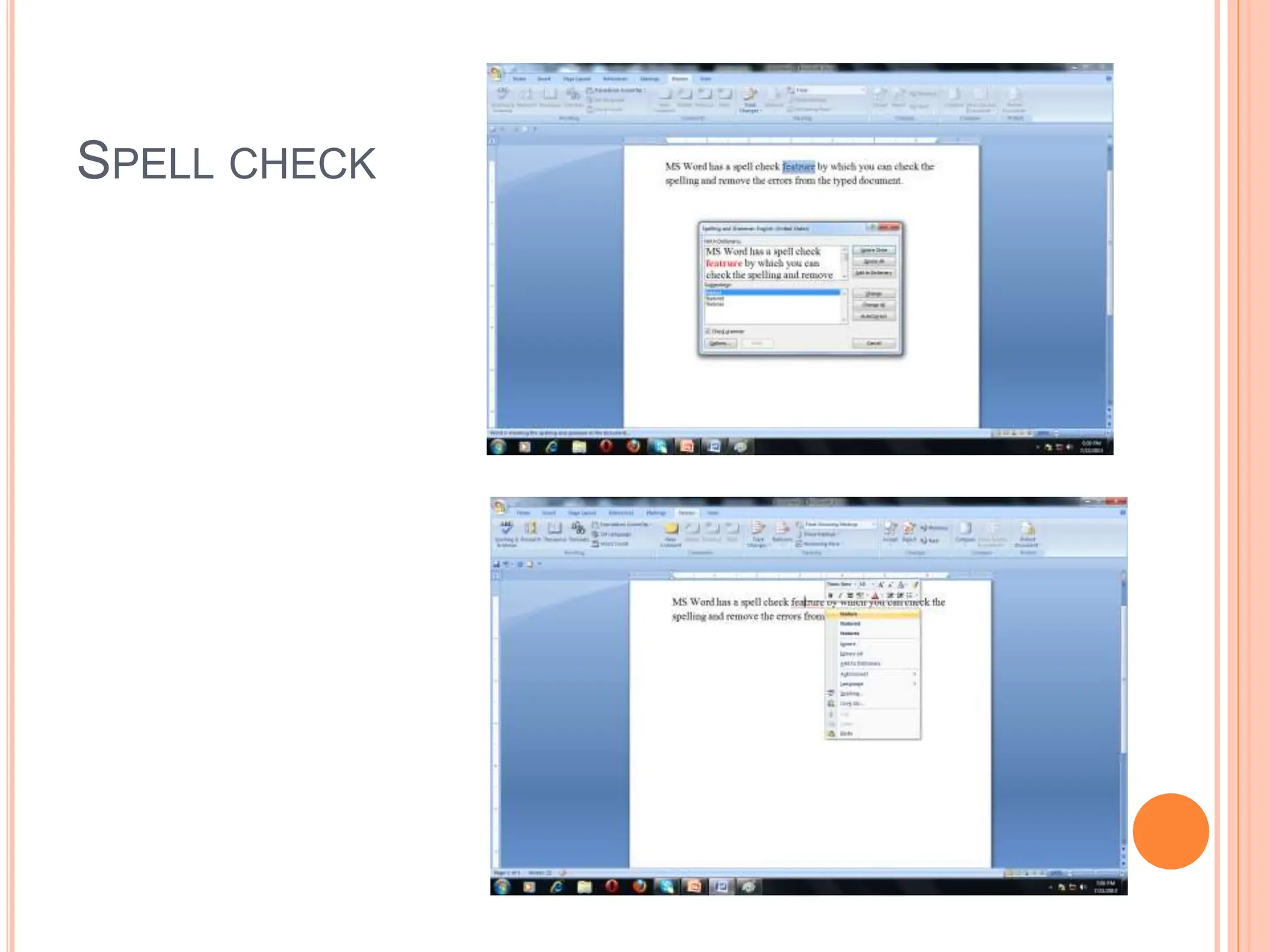
SPELL CHECK
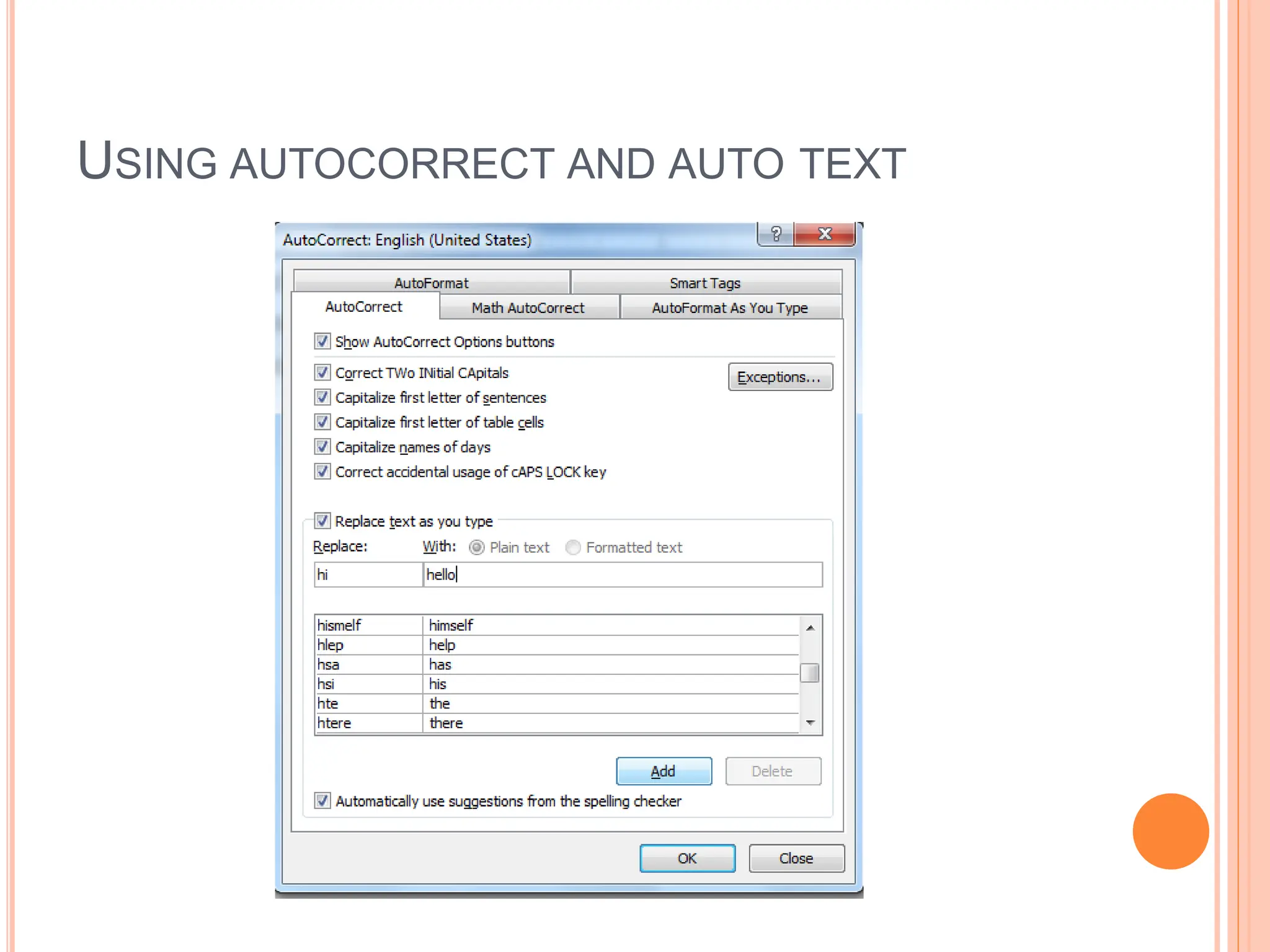
USING AUTOCORRECT AND AUTO TEXT
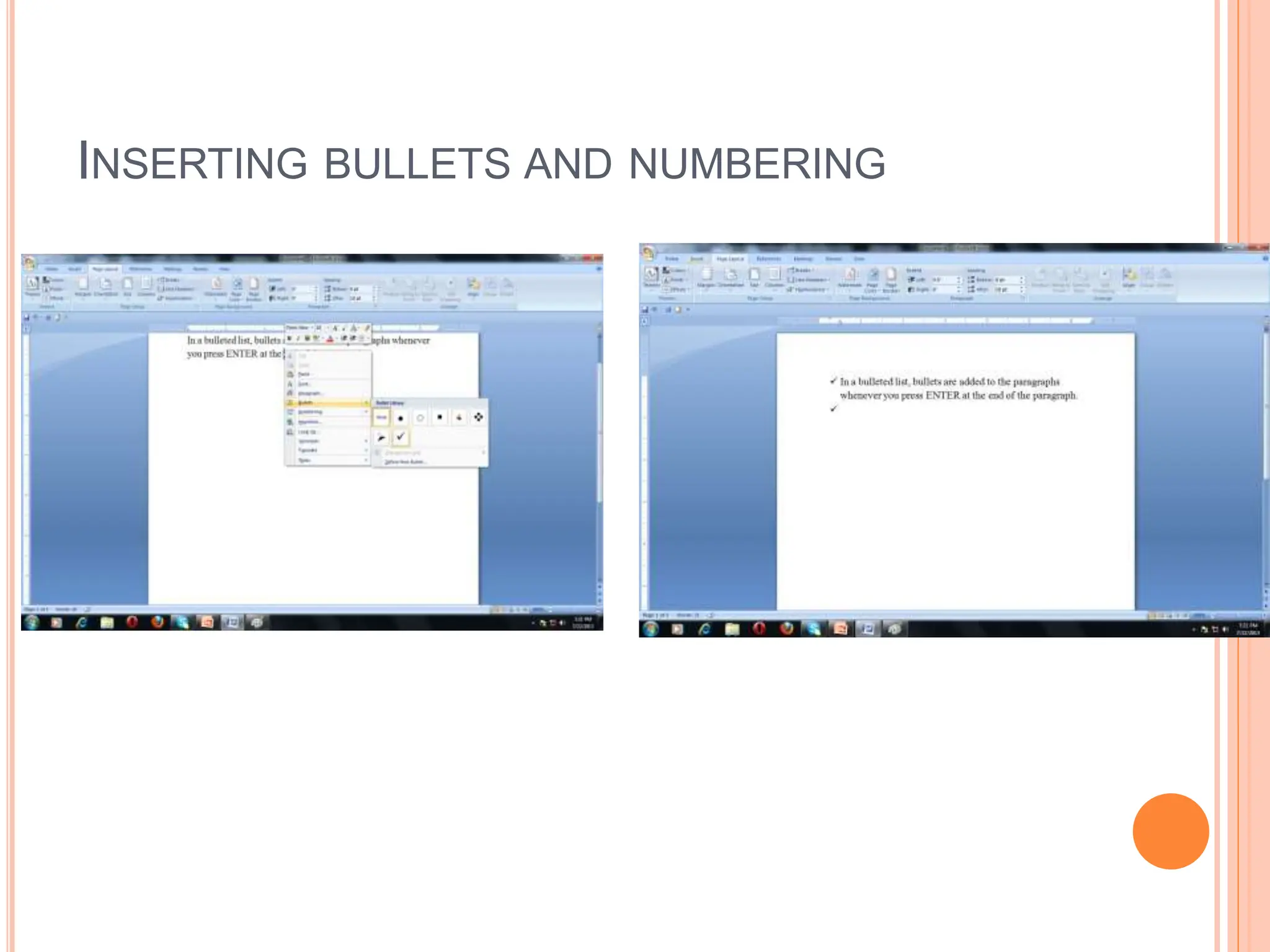
INSERTING BULLETS AND NUMBERING
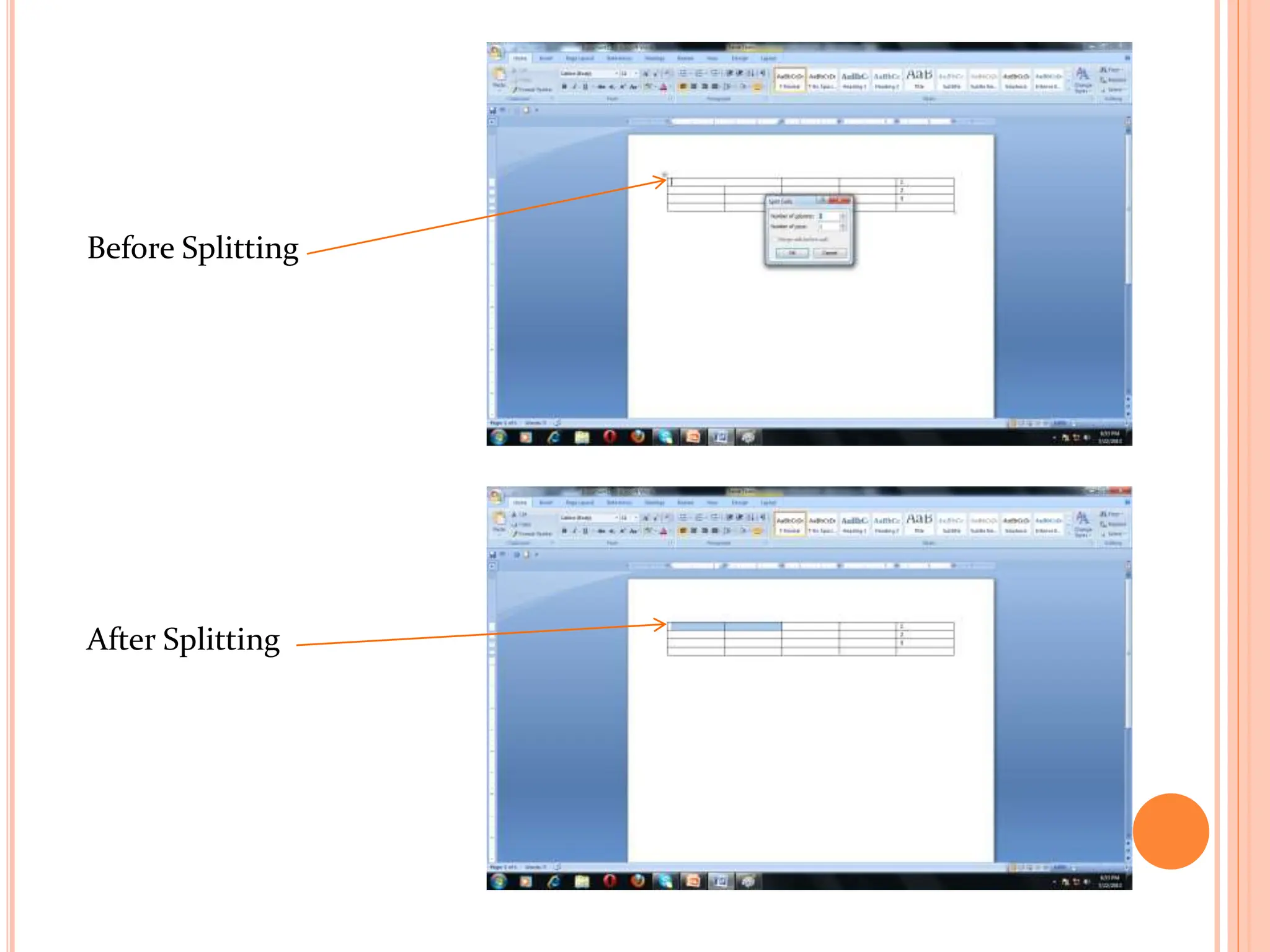
Before Splitting
After Splitting
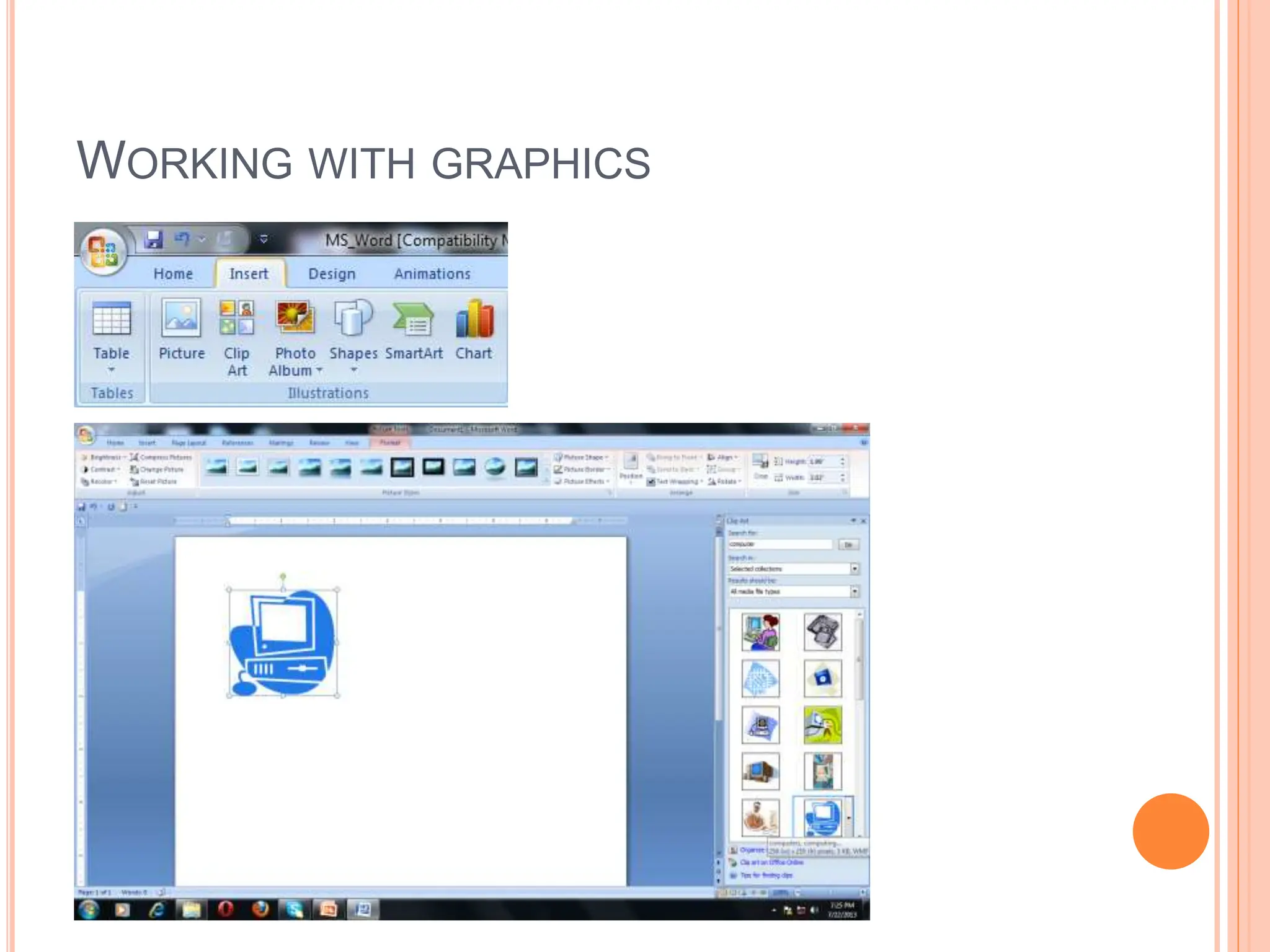
WORKING WITH GRAPHICS
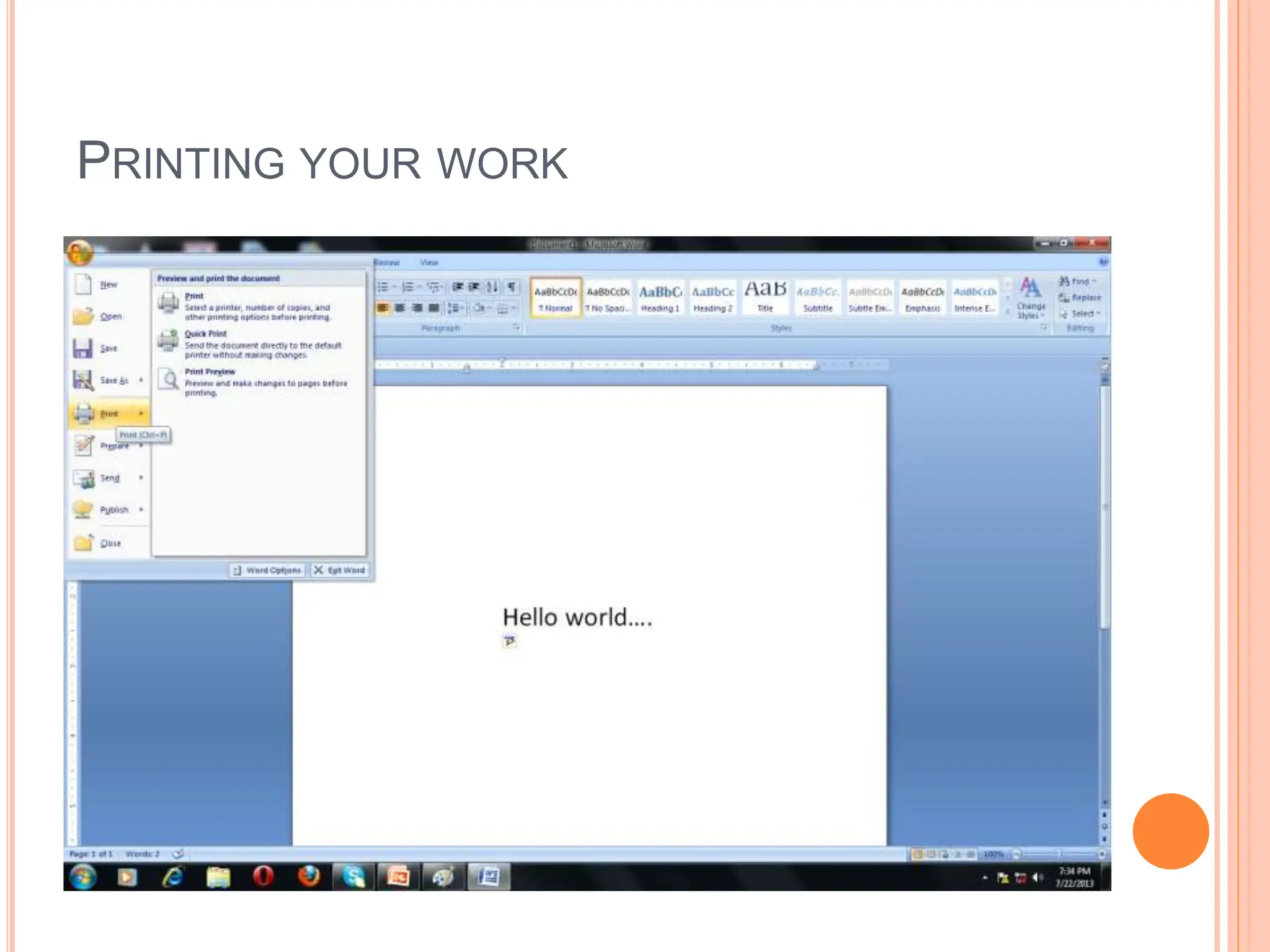
PRINTING YOUR WORK
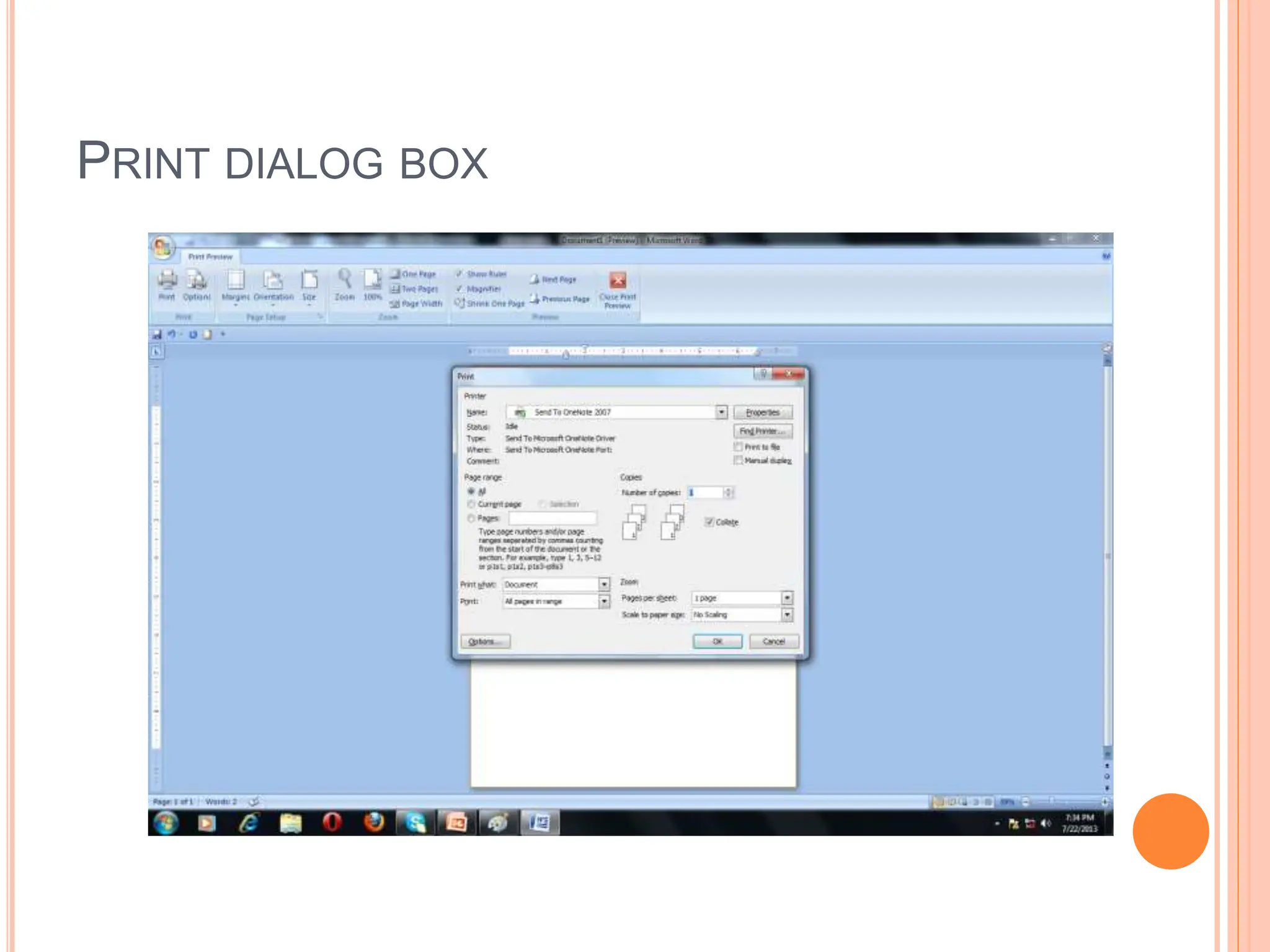
PRINT DIALOG BOX
ms-word office presentation samples s.ppt

ms-word office presentation samples s.ppt

  • 2.
    Word processing isthe software package that enables you to create ,edit, print and save documents for future retrieval reference. Creating a document involves typing by using a keyboard and saving it. Editing the document involves correcting the spelling mistakes, if any, deleting or moving word sentences or paragraph. So, the term Word Processing refers to the act of processing the textual information including typing, editing, formatting and printing.
  • 3.
    FEATURES OF MSWORD 1. MS Word offers easy editing of text. Using word you can create the document and edit them later as and when required, by adding more text, modifying the existing text, deleting/moving some part of it. 2. MS Word uses WYSIWYG(What you see is what you get) display. 3. Font size and type of font can also be changed, page number and header and footer can be included. 4. Saving and retrieving of documents. 5. Cut and paste feature. 6. Document formatting. 7. Printing facility. 8. Spell check. 9. Mail merging. 10. Headers and footers
  • 4.
    11. Bold, italics, underline. 12. insert picture, graphs, page numbers, date & time, symbols. 13. Find and replace. 14. Different font types, size etc. 15. Rulers. 16. Bullets and numbering. 17. Support for tables. 18. Support for macros. 19. Support for multiple languages.
  • 5.
    Method 1 1. Takethe mouse pointer to start button on the task bar. Click the left mouse button. 2. Move the pointer to programs. You will notice another menu coming up to the right. 3. In that menu identify where Microsoft word is placed. Move the cursor horizontally to come out of the programs. 4. Move into the rectangular area meant for the MS word. Click the left mouse button there. The computer will start MS-word.
  • 7.
    METHOD 2 DOUBLE CLICKON THE MICROSOFT WORD ICON ON THE DESKTOP.
  • 8.
    Besides these twomethods other methods for opening word are: Using Run Command. Using DOS: Specify the absolute path to open WINWORD.EXE title. After writing the absolute path the MS-Word will open up.
  • 9.
    Title bar Menu bar Ruler View buttons Statusbar Vertical scroll bar Standard toolbar Window control buttons
  • 10.
    (A) Menu bar:the word menu is displayed at the top of the screen. The main menu further display a sub menu. Some of the option are highlighted option and some of the option are appear as faded.at any time only highlighted options are executed, faded options are not applicable. The menu bar is look like:
  • 11.
    (B) TOOL BAR:WORD HAS NUMBER OF TOOL BARS THAT HELP YOU PERFORM TASK FASTER AND WITH GREAT EASE. TOOLBAR PROVIDES SHORTCUTS TO MENU COMMAND. TOOL BAR IS JUST LOCATED JUST BELOW THE MENU BAR. TWO OF MOST COMMONLY TOOL BAR ARE THE FORMATTING TOOL BAR AND STANDARD TOOL BAR. THESE TWO TOOL BAR ARE DISPLAYED JUST BELOW THE TITLE BAR. AT ANY POINT OF TIME ANY TOOL BAR CAN BE MADE ON OR OFF THROUGH THE TOOL BAR OPTION OF VIEW MENU. undo Standard tool bar Draw table save Grammar and spelling open redo new print cut Open recent file paste Text box copy
  • 12.
    FORMATTING TOOLBAR table italic underline bold sort Increase and decrease indent Bulletand numbering case font Font size Background color spacing align Text effect Show/hide marks Text color subscripts
  • 13.
    (C) DRAWING TOOLBAR: THE DRAWING TOOL BAR ON THE TOP OF WORD CONTAIN DRAWING AND TEXT TOOLS FOR CREATING GRAPHICS.
  • 14.
    (D) RULER BAR:THE RULER BAR ALLOWS YOU TO FORMAT THE VERTICAL ALIGNMENT OF TEXT IN A DOCUMENT. TO DISPLAY THE RULER: 1. CLICK VIEW ON THE MENU BAR. 2.THE OPTION RULER SHOULD HAVE A CHECK MARK NEXT TO IT. IF IT HAS A CHECK MARK NEXT TO IT, PRESS ESC TO CLOSE THE MENU. IF IT DOES NOT HAVE A CHECK MARK NEXT TO IT, CONTINUE O THE NEXT STEP. 3. CLICK RULER. THE RULER NOW APPEARS BELOW THE TOOLBAR.
  • 15.
  • 16.
    (E) STATUS BAR:THE STATUS BAR DISPLAYS INFORMATION ABOUT THE CURRENTLY ACTIVE DOCUMENT. THIS INCLUDE THE PAGE NUMBER THAT YOU ARE WORKING, THE COLUMN AND LINE NUMBER OF THE CURSOR POSITION AND SO ON. status bar
  • 17.
  • 18.
  • 19.
    OPERATIONS ON TEXTIN DOCUMENT FILE  Entering text  To view the typed text  To insert text  Selecting text  Moving text  Copying text  Deleting text  Finding text  Replacing text
  • 20.
  • 21.
  • 22.
  • 23.
    SELECTING A FONTAND CHANGING ITS SIZE
  • 24.
  • 25.
  • 26.
    SPACING  Character spacing:The spacing that exists between two consecutive characters.  Line spacing: The spacing that exists between two consecutive lines.
  • 27.
  • 28.
    FORMATTING OF PAGE :BORDER AND SHADING
  • 29.
  • 30.
  • 31.
  • 32.
  • 33.
  • 34.
  • 35.
  • 36.
    MERGING AND SPLITTINGCELLS Before Merging After Merging
  • 37.
  • 38.
  • 39.
  • 40.
  • 41.
  • 42.
  • 43.