KEMENTERIAN PELAJARAN MALAYSIA 
Self Access Learning Module 
IICCT LLiitterraccy fforr 
SSeccondarry SScchooll 
Prrogrrammee 
INTERNET COMMUNICATIONS 
E-MAIL 
BAHAGIAN PEMBANGUNAN KURIKULUM 
KEMENTERIAN PELAJARAN MALAYSIA
ICTL for Secondary School - E-mail 
MODULE 5 
E-MAIL 
Curriculum Development Division 
Ministry of Education 
1
ICTL for Secondary School - E-mail 
1. Name of Module: E-Mail 
2. Learning Outcomes: Students should be able to: 
a. register an e-mail account 
b. send messages 
c. attach files to messages 
d. receive/retrieve messages 
e. reply messages 
f. download attached files 
g. delete messages 
h. save messages 
i. sign out 
j. open an existing e-mail 
2 
3. Knowledge and Skills 
a. E-mail definition 
b. Recognize peripherals used for communications 
c. Netiquette 
4. Module Summary: 
At the end of the module, students should be able to create an e-mail account 
and communicate using e-mails. 
Notes: 
There are lot of free e-mail on the Internet but this module will show you how 
to create an e-mail account using Yahoo mail.
ICTL for Secondary School - E-mail 
Activity 1: Register an e-mail account 
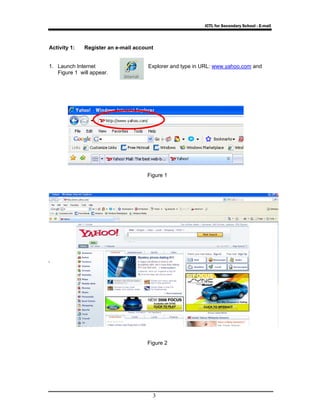
1. Launch Internet Explorer and type in URL: www.yahoo.com and 
3 
Figure 1 will appear. 
Figure 1 
Figure 2
ICTL for Secondary School - E-mail 
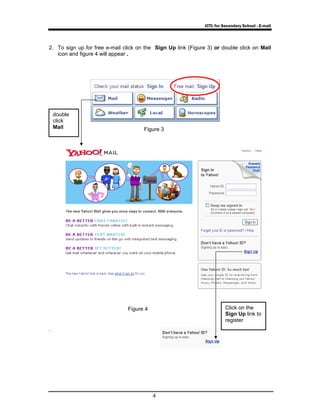
2. To sign up for free e-mail click on the Sign Up link (Figure 3) or double click on Mail 
4 
icon and figure 4 will appear . 
. 
Figure 3 
Figure 4 Click on the 
Sign Up link to 
register 
double 
click 
Mail
ICTL for Secondary School - E-mail 
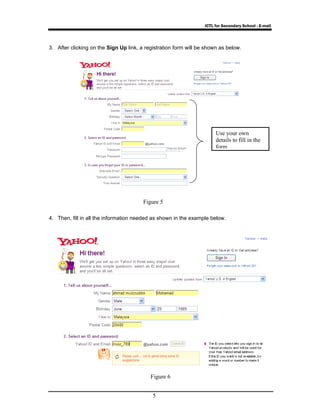
3. After clicking on the Sign Up link, a registration form will be shown as below. 
Figure 5 
4. Then, fill in all the information needed as shown in the example below. 
Figure 6 
5 
Use your own 
details to fill in the 
form
ICTL for Secondary School - E-mail 
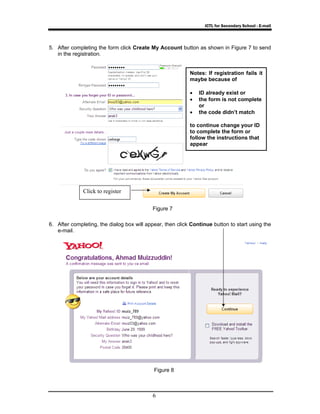
5. After completing the form click Create My Account button as shown in Figure 7 to send 
Figure 7 
6 
in the registration. 
6. After completing, the dialog box will appear, then click Continue button to start using the 
e-mail. 
Figure 8 
Click to register 
Notes: If registration fails it 
maybe because of 
• ID already exist or 
• the form is not complete 
or 
• the code didn’t match 
to continue change your ID 
to complete the form or 
follow the instructions that 
appear
ICTL for Secondary School - E-mail 
7 
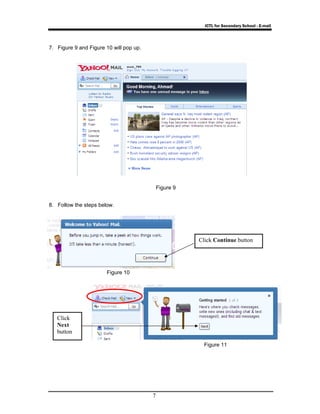
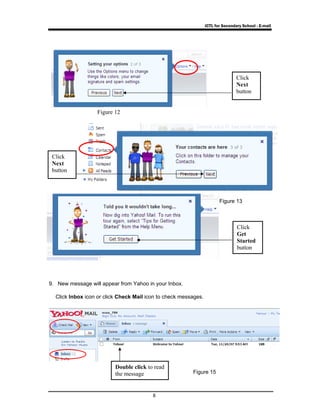
7. Figure 9 and Figure 10 will pop up. 
8. Follow the steps below. 
Click Continue button 
Click 
Next 
button 
Figure 9 
Figure 11 
Figure 10
ICTL for Secondary School - E-mail 
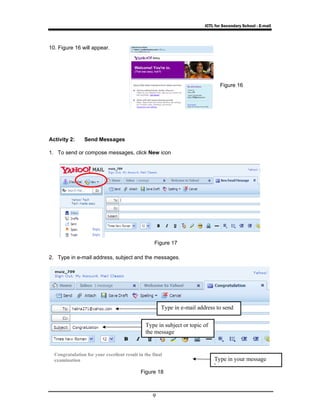
9. New message will appear from Yahoo in your Inbox. 
Click Inbox icon or click Check Mail icon to check messages. 
8 
Click 
Next 
button 
Click 
Next 
button 
Click 
Get 
Started 
button 
Double click to read 
the message 
Figure 13 
Figure 12 
Figure 15
ICTL for Secondary School - E-mail 
Type in subject or topic of 
the message 
9 
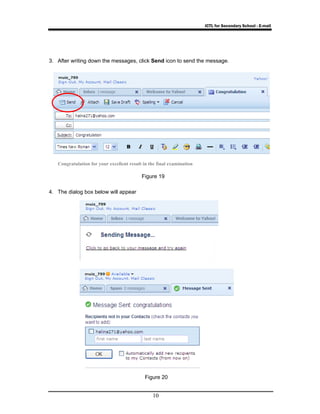
10. Figure 16 will appear. 
Activity 2: Send Messages 
1. To send or compose messages, click New icon 
2. Type in e-mail address, subject and the messages. 
Figure 16 
Figure 17 
Type in e-mail address to send 
Figure 18 
Type in your message 
h 
Congratulation for your excellent result in the final 
examination
ICTL for Secondary School - E-mail 
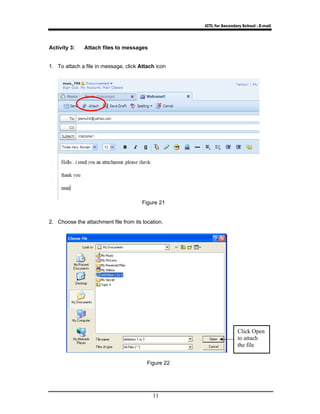
3. After writing down the messages, click Send icon to send the message. 
Congratulation for your excellent result in the final examination 
10 
4. The dialog box below will appear 
Figure 19 
Figure 20
ICTL for Secondary School - E-mail 
Figure 21 
11 
Activity 3: Attach files to messages 
1. To attach a file in message, click Attach icon 
2. Choose the attachment file from its location. 
Figure 22 
Click Open 
to attach 
the file
ICTL for Secondary School - E-mail 
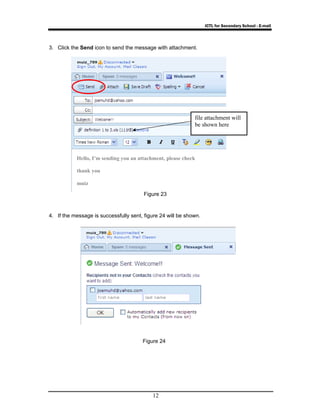
3. Click the Send icon to send the message with attachment. 
Figure 23 
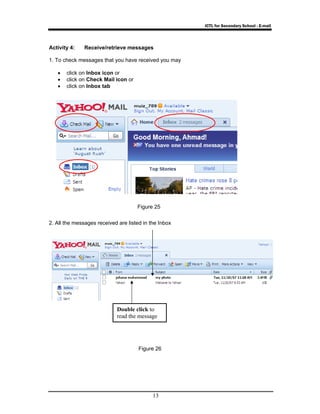
4. If the message is successfully sent, figure 24 will be shown. 
Figure 24 
12 
file attachment will 
be shown here 
Hello, I’m sending you an attachment, please check 
thank you 
muiz
ICTL for Secondary School - E-mail 
Activity 4: Receive/retrieve messages 
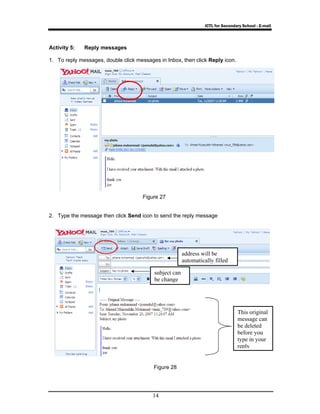
1. To check messages that you have received you may 
Figure 25 
13 
• click on Inbox icon or 
• click on Check Mail icon or 
• click on Inbox tab 
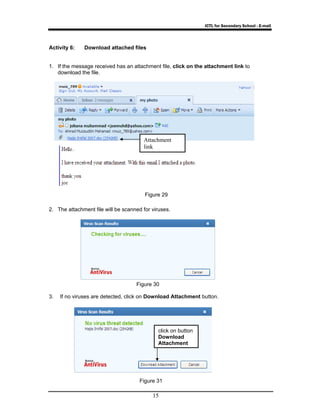
2. All the messages received are listed in the Inbox 
Double click to 
read the message 
Figure 26
ICTL for Secondary School - E-mail 
Activity 5: Reply messages 
1. To reply messages, double click messages in Inbox, then click Reply icon. 
Figure 27 
2. Type the message then click Send icon to send the reply message 
14 
This original 
message can 
be deleted 
before you 
type in your 
reply 
subject can 
be change 
address will be 
automatically filled 
Figure 28
ICTL for Secondary School - E-mail 
Attachment 
link 
Figure 29 
Figure 30 
15 
Activity 6: Download attached files 
1. If the message received has an attachment file, click on the attachment link to 
download the file. 
2. The attachment file will be scanned for viruses. 
3. If no viruses are detected, click on Download Attachment button. 
click on button 
Download 
Attachment 
Figure 31
ICTL for Secondary School - E-mail 
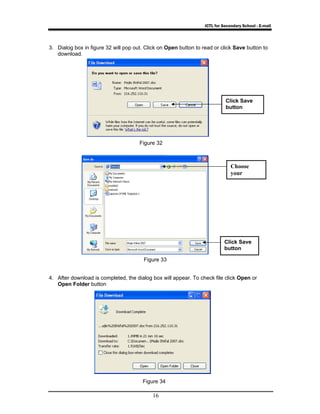
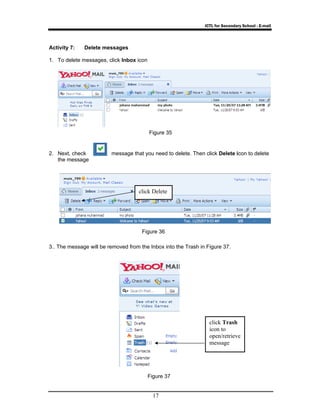
3. Dialog box in figure 32 will pop out. Click on Open button to read or click Save button to 
16 
download. 
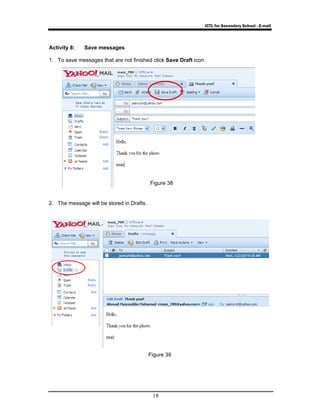
4. After download is completed, the dialog box will appear. To check file click Open or 
Open Folder button 
Click Save 
button 
Choose 
your 
Click Save 
button 
Figure 32 
Figure 33 
Figure 34
ICTL for Secondary School - E-mail 
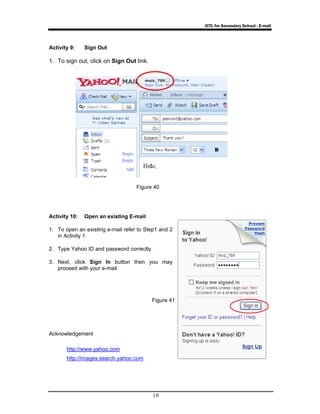
Figure 35 
click Delete 
Figure 36 
17 
Activity 7: Delete messages 
1. To delete messages, click Inbox icon 
2. Next, check message that you need to delete. Then click Delete icon to delete 
the message 
3.. The message will be removed from the Inbox into the Trash in Figure 37. 
click Trash 
icon to 
open/retrieve 
message 
Figure 37
ICTL for Secondary School - E-mail 
Activity 8: Save messages 
1. To save messages that are not finished click Save Draft icon. 
Figure 38 
18 
2. The message will be stored in Drafts. 
Figure 39
ICTL for Secondary School - E-mail 
Figure 40 
19 
Activity 9: Sign Out 
1. To sign out, click on Sign Out link. 
Activity 10: Open an existing E-mail 
1. To open an existing e-mail refer to Step1 and 2 
in Activity 1. 
2. Type Yahoo ID and password correctly. 
3. Next, click Sign In button then you may 
proceed with your e-mail. 
Acknowledgement 
http://www.yahoo.com 
http://images.search.yahoo.com 
Figure 41

Module 5 e mail

  • 1.
    KEMENTERIAN PELAJARAN MALAYSIA Self Access Learning Module IICCT LLiitterraccy fforr SSeccondarry SScchooll Prrogrrammee INTERNET COMMUNICATIONS E-MAIL BAHAGIAN PEMBANGUNAN KURIKULUM KEMENTERIAN PELAJARAN MALAYSIA
  • 2.
    ICTL for SecondarySchool - E-mail MODULE 5 E-MAIL Curriculum Development Division Ministry of Education 1
  • 3.
    ICTL for SecondarySchool - E-mail 1. Name of Module: E-Mail 2. Learning Outcomes: Students should be able to: a. register an e-mail account b. send messages c. attach files to messages d. receive/retrieve messages e. reply messages f. download attached files g. delete messages h. save messages i. sign out j. open an existing e-mail 2 3. Knowledge and Skills a. E-mail definition b. Recognize peripherals used for communications c. Netiquette 4. Module Summary: At the end of the module, students should be able to create an e-mail account and communicate using e-mails. Notes: There are lot of free e-mail on the Internet but this module will show you how to create an e-mail account using Yahoo mail.
  • 4.
    ICTL for SecondarySchool - E-mail Activity 1: Register an e-mail account 1. Launch Internet Explorer and type in URL: www.yahoo.com and 3 Figure 1 will appear. Figure 1 Figure 2
  • 5.
    ICTL for SecondarySchool - E-mail 2. To sign up for free e-mail click on the Sign Up link (Figure 3) or double click on Mail 4 icon and figure 4 will appear . . Figure 3 Figure 4 Click on the Sign Up link to register double click Mail
  • 6.
    ICTL for SecondarySchool - E-mail 3. After clicking on the Sign Up link, a registration form will be shown as below. Figure 5 4. Then, fill in all the information needed as shown in the example below. Figure 6 5 Use your own details to fill in the form
  • 7.
    ICTL for SecondarySchool - E-mail 5. After completing the form click Create My Account button as shown in Figure 7 to send Figure 7 6 in the registration. 6. After completing, the dialog box will appear, then click Continue button to start using the e-mail. Figure 8 Click to register Notes: If registration fails it maybe because of • ID already exist or • the form is not complete or • the code didn’t match to continue change your ID to complete the form or follow the instructions that appear
  • 8.
    ICTL for SecondarySchool - E-mail 7 7. Figure 9 and Figure 10 will pop up. 8. Follow the steps below. Click Continue button Click Next button Figure 9 Figure 11 Figure 10
  • 9.
    ICTL for SecondarySchool - E-mail 9. New message will appear from Yahoo in your Inbox. Click Inbox icon or click Check Mail icon to check messages. 8 Click Next button Click Next button Click Get Started button Double click to read the message Figure 13 Figure 12 Figure 15
  • 10.
    ICTL for SecondarySchool - E-mail Type in subject or topic of the message 9 10. Figure 16 will appear. Activity 2: Send Messages 1. To send or compose messages, click New icon 2. Type in e-mail address, subject and the messages. Figure 16 Figure 17 Type in e-mail address to send Figure 18 Type in your message h Congratulation for your excellent result in the final examination
  • 11.
    ICTL for SecondarySchool - E-mail 3. After writing down the messages, click Send icon to send the message. Congratulation for your excellent result in the final examination 10 4. The dialog box below will appear Figure 19 Figure 20
  • 12.
    ICTL for SecondarySchool - E-mail Figure 21 11 Activity 3: Attach files to messages 1. To attach a file in message, click Attach icon 2. Choose the attachment file from its location. Figure 22 Click Open to attach the file
  • 13.
    ICTL for SecondarySchool - E-mail 3. Click the Send icon to send the message with attachment. Figure 23 4. If the message is successfully sent, figure 24 will be shown. Figure 24 12 file attachment will be shown here Hello, I’m sending you an attachment, please check thank you muiz
  • 14.
    ICTL for SecondarySchool - E-mail Activity 4: Receive/retrieve messages 1. To check messages that you have received you may Figure 25 13 • click on Inbox icon or • click on Check Mail icon or • click on Inbox tab 2. All the messages received are listed in the Inbox Double click to read the message Figure 26
  • 15.
    ICTL for SecondarySchool - E-mail Activity 5: Reply messages 1. To reply messages, double click messages in Inbox, then click Reply icon. Figure 27 2. Type the message then click Send icon to send the reply message 14 This original message can be deleted before you type in your reply subject can be change address will be automatically filled Figure 28
  • 16.
    ICTL for SecondarySchool - E-mail Attachment link Figure 29 Figure 30 15 Activity 6: Download attached files 1. If the message received has an attachment file, click on the attachment link to download the file. 2. The attachment file will be scanned for viruses. 3. If no viruses are detected, click on Download Attachment button. click on button Download Attachment Figure 31
  • 17.
    ICTL for SecondarySchool - E-mail 3. Dialog box in figure 32 will pop out. Click on Open button to read or click Save button to 16 download. 4. After download is completed, the dialog box will appear. To check file click Open or Open Folder button Click Save button Choose your Click Save button Figure 32 Figure 33 Figure 34
  • 18.
    ICTL for SecondarySchool - E-mail Figure 35 click Delete Figure 36 17 Activity 7: Delete messages 1. To delete messages, click Inbox icon 2. Next, check message that you need to delete. Then click Delete icon to delete the message 3.. The message will be removed from the Inbox into the Trash in Figure 37. click Trash icon to open/retrieve message Figure 37
  • 19.
    ICTL for SecondarySchool - E-mail Activity 8: Save messages 1. To save messages that are not finished click Save Draft icon. Figure 38 18 2. The message will be stored in Drafts. Figure 39
  • 20.
    ICTL for SecondarySchool - E-mail Figure 40 19 Activity 9: Sign Out 1. To sign out, click on Sign Out link. Activity 10: Open an existing E-mail 1. To open an existing e-mail refer to Step1 and 2 in Activity 1. 2. Type Yahoo ID and password correctly. 3. Next, click Sign In button then you may proceed with your e-mail. Acknowledgement http://www.yahoo.com http://images.search.yahoo.com Figure 41