KKEEMMEENNTTEERRIIAANN PPEELLAAJJAARRAANN MMAALLAAYYSSIIAA
SSeellff AAcccceessss LLeeaarrnniinngg MMoodduullee
IInntteerrnneett CCoommmmuunniiccaattiioonnss
SSKKYYPPEE
II
PUSAT PERKEMBANGAN KURIKULUM
KEMENTERIAN PELAJARAN MALAYSIA
ICCCTTT LLLiiittteeerrraaacccyyy fffooorrr
SSSeeecccooonnndddaaarrryyy SSSccchhhoooooolll
PPPrrrooogggrrraaammmmmmeee
ICTL for Secondary School - Networks and The Internet Module
MODULE 3
Communicate Using Skype
Curriculum Development Centre
Ministry of Education Malaysia
2
ICTL for Secondary School - Networks and The Internet Module
1. Name of Module : Communicate Using Internet Relay Chat (Skype)
2. Learning Outcomes: The students should be able to:
a. State the steps to download and install Skype
b. Launch Skype
c. Register for a Skype name
d. Add contact
e. Communicate using Skype
3. Knowledge and Skills:
a. Download and install a program
b. Launch a program
c. Create an account
d. Log into registered account
e. Communicate using voice call
f. Communicate using text messages
4. Module Summary: At the end of the module, the student should be able to
communicate by text, audio or video using Skype.
This module contains 7 activities:
Activity 1: Downloading Skype
Activity 2: Installing Skype
Activity 3: Creating an account
Activity 4: Sign into the account
Activity 5: Adding a contact
Activity 6: Start and stop a voice call
Actvity 7: Start and stop text messages
3
ICTL for Secondary School - Networks and The Internet Module
Activity 1: Downloading Skype
Click Start button at the Task Bar
1. Launch Internet Explorer
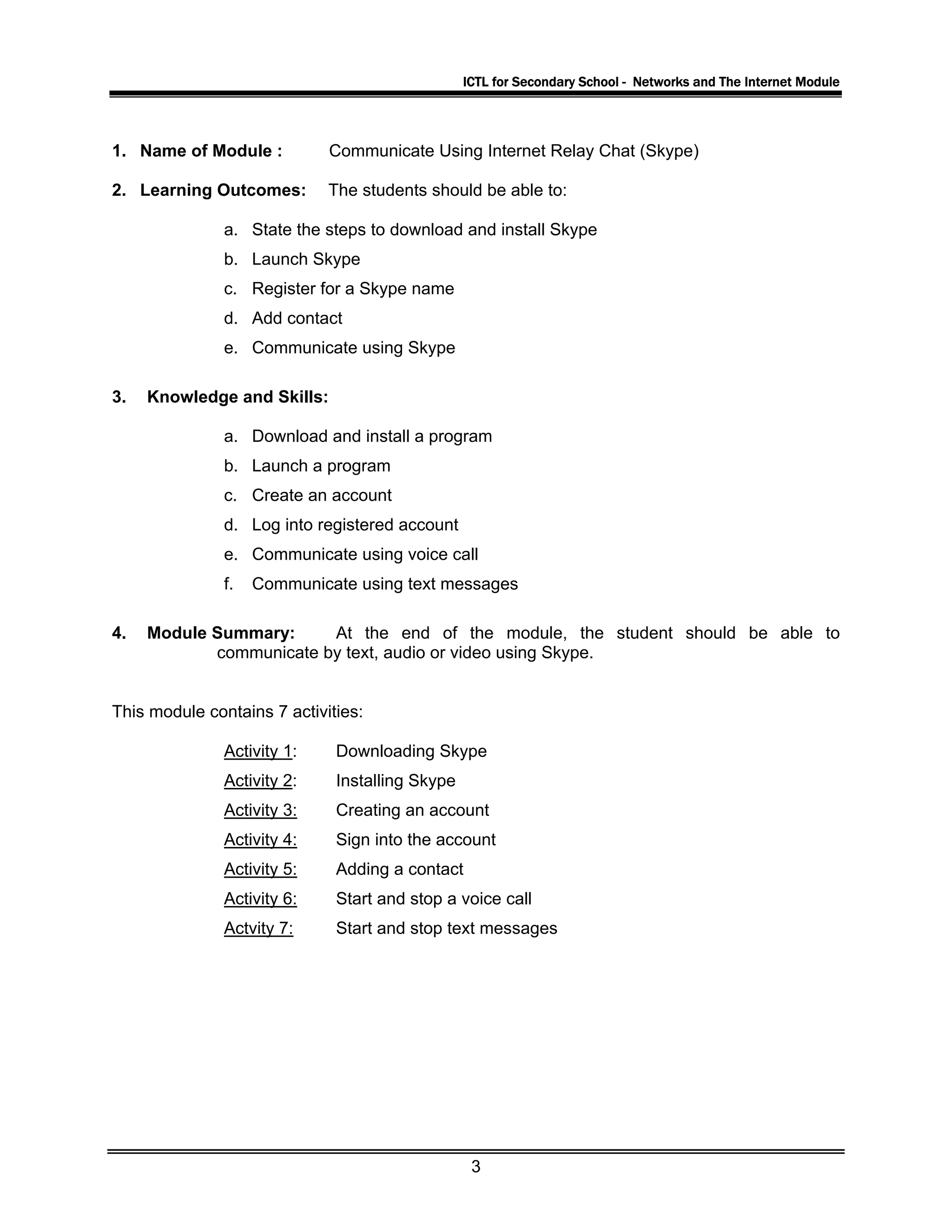
2. In the address bar, type in http://www.skype.com/int/en/ and press Enter. The Skype
website will appear on the screen as shown below
Click this button
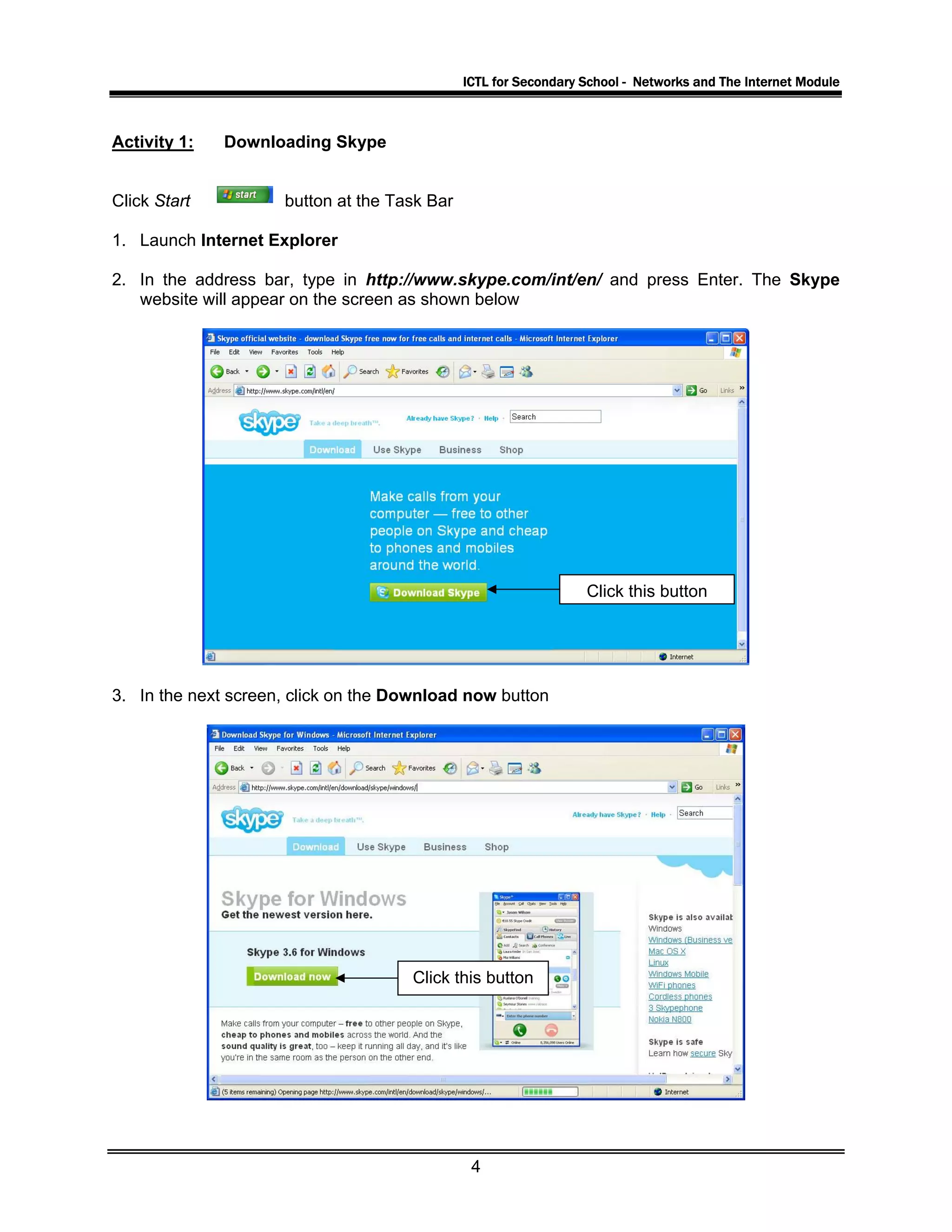
3. In the next screen, click on the Download now button
Click this button
4
ICTL for Secondary School - Networks and The Internet Module
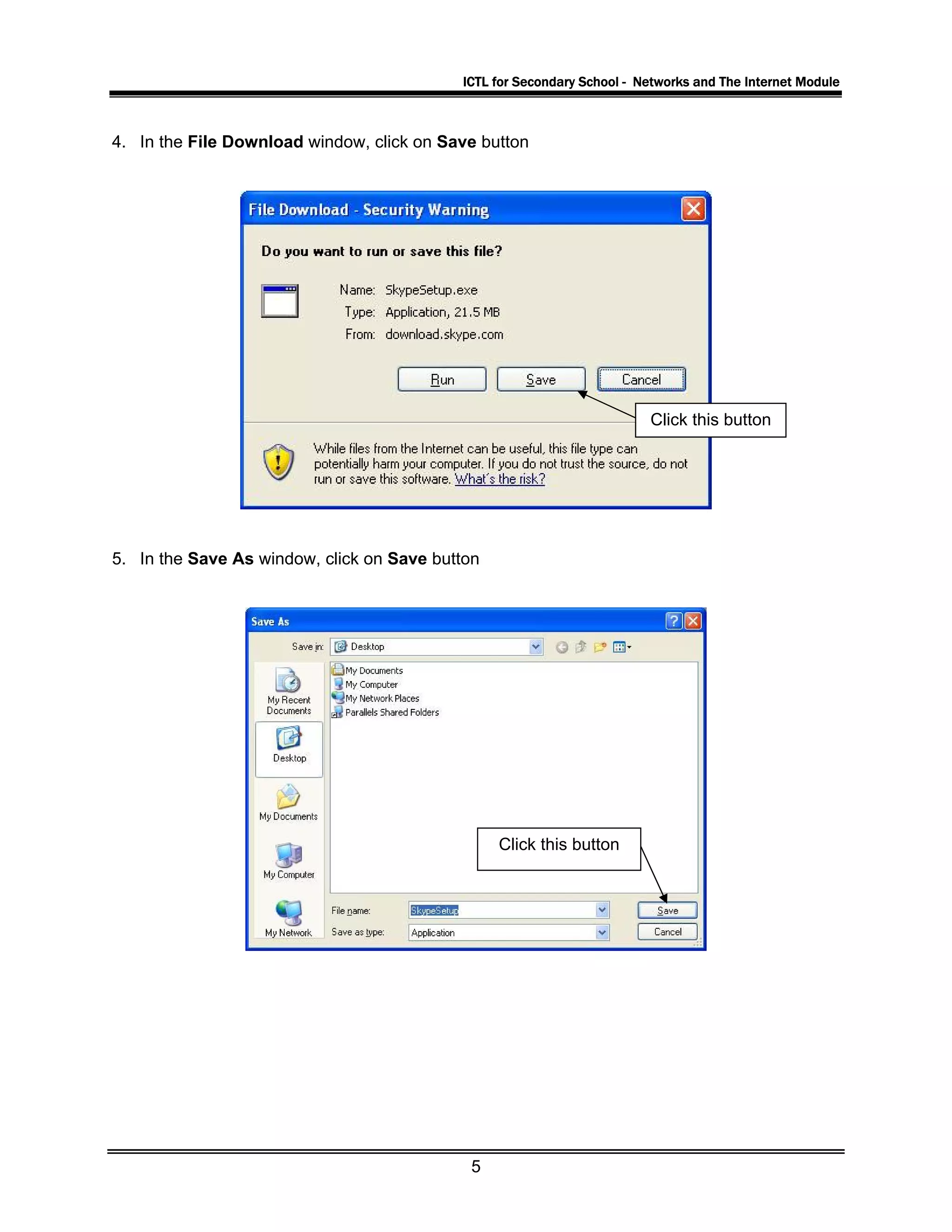
4. In the File Download window, click on Save button
Click this button
5. In the Save As window, click on Save button
Click this button
5
ICTL for Secondary School - Networks and The Internet Module
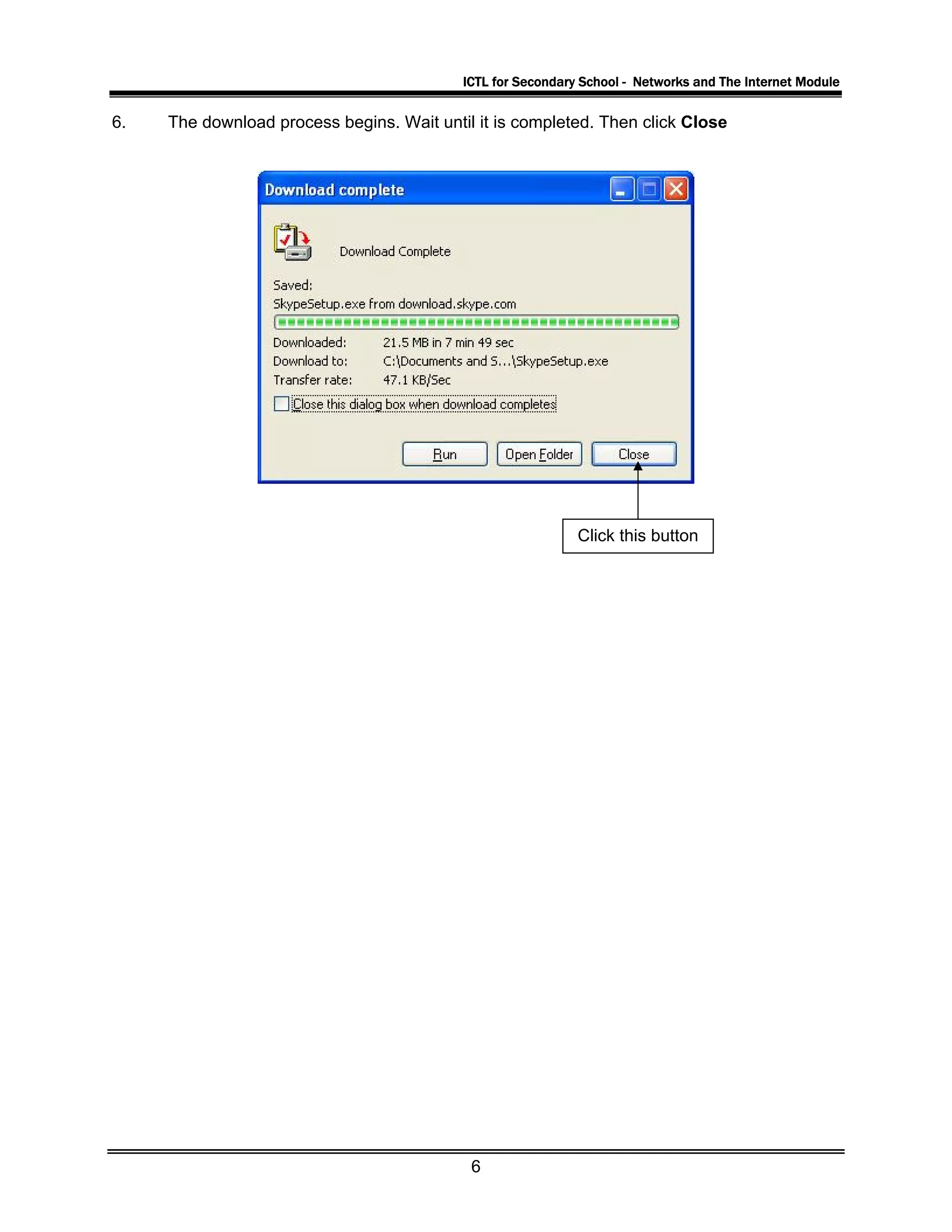
6. The download process begins. Wait until it is completed. Then click Close
Click this button
6
ICTL for Secondary School - Networks and The Internet Module
Activity 2: Installing Skype
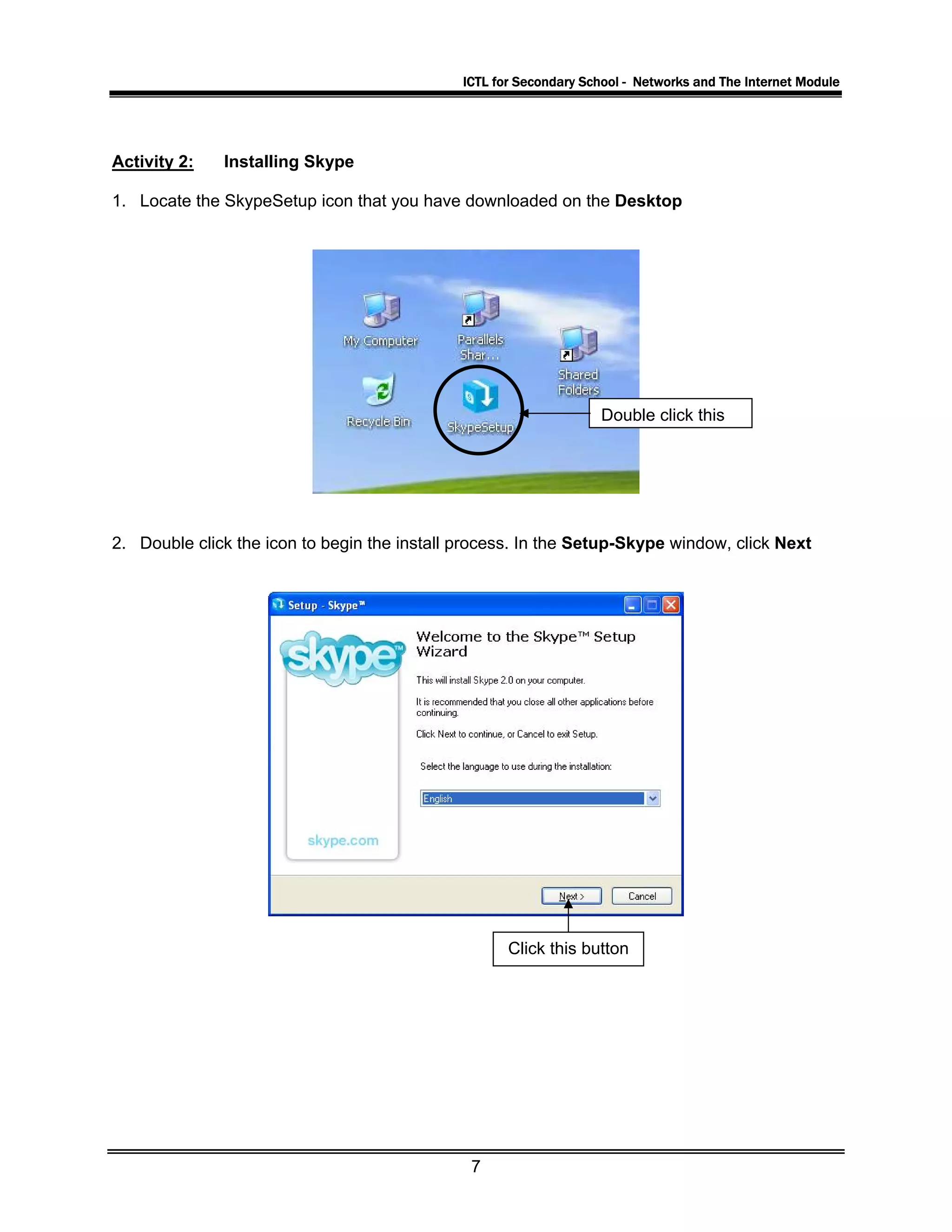
1. Locate the SkypeSetup icon that you have downloaded on the Desktop
Double click this
2. Double click the icon to begin the install process. In the Setup-Skype window, click Next
Click this button
7
ICTL for Secondary School - Networks and The Internet Module
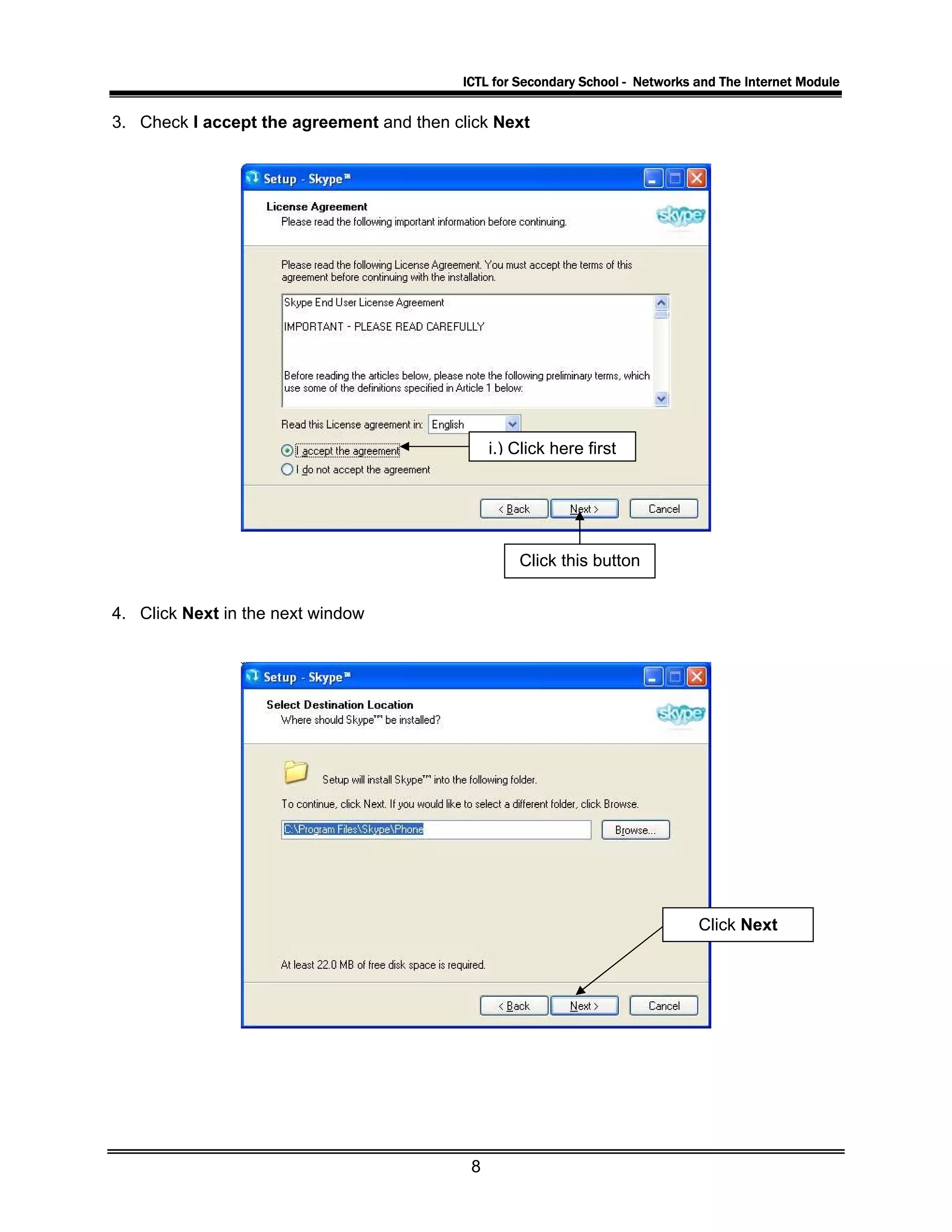
3. Check I accept the agreement and then click Next
i.) Click here first
Click this button
4. Click Next in the next window
Click Next
8
ICTL for Secondary School - Networks and The Internet Module
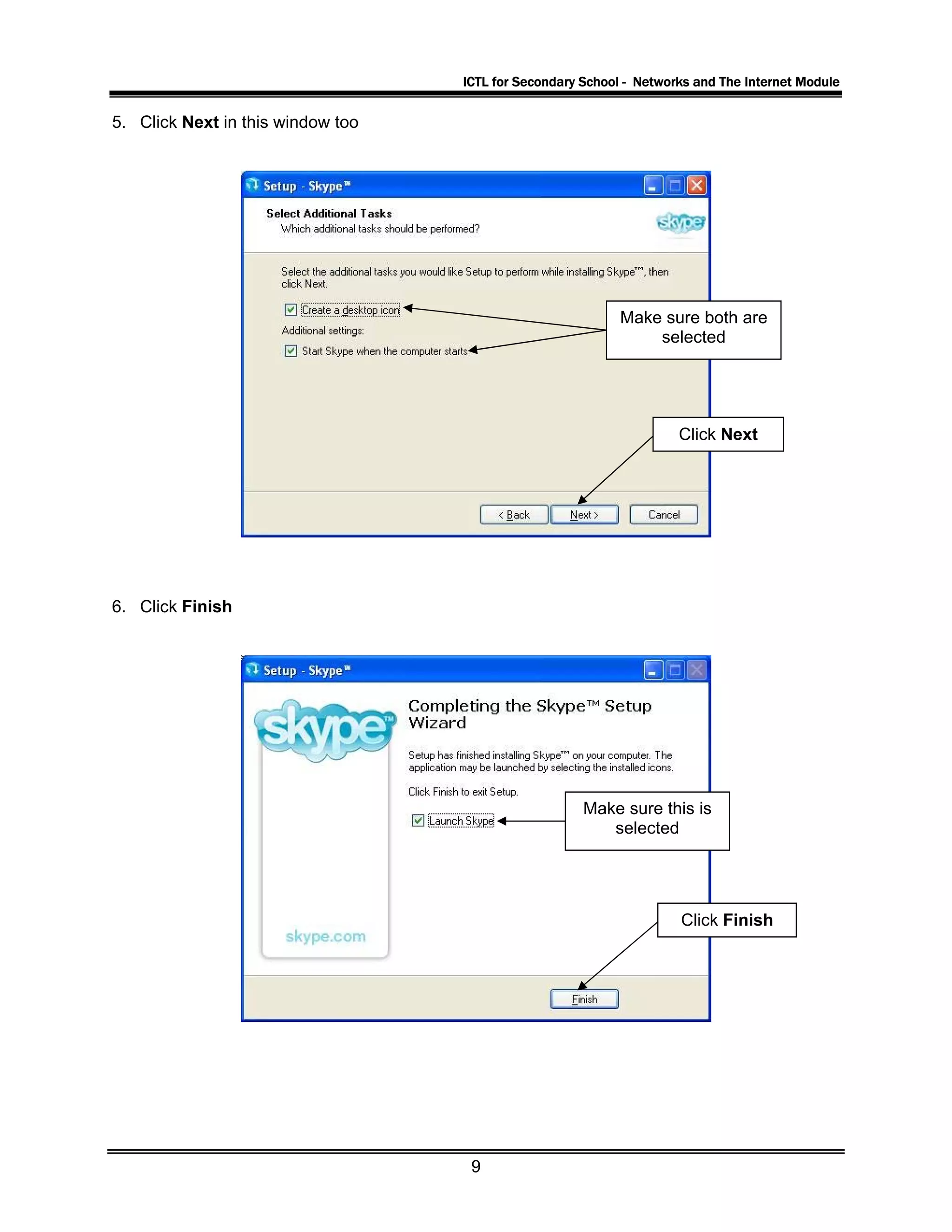
5. Click Next in this window too
Make sure both are
selected
Click Next
6. Click Finish
Make sure this is
selected
Click Finish
9
ICTL for Secondary School - Networks and The Internet Module
Activity 3: Creating an account
1. The Skype application is launched automatically after Setup is completed
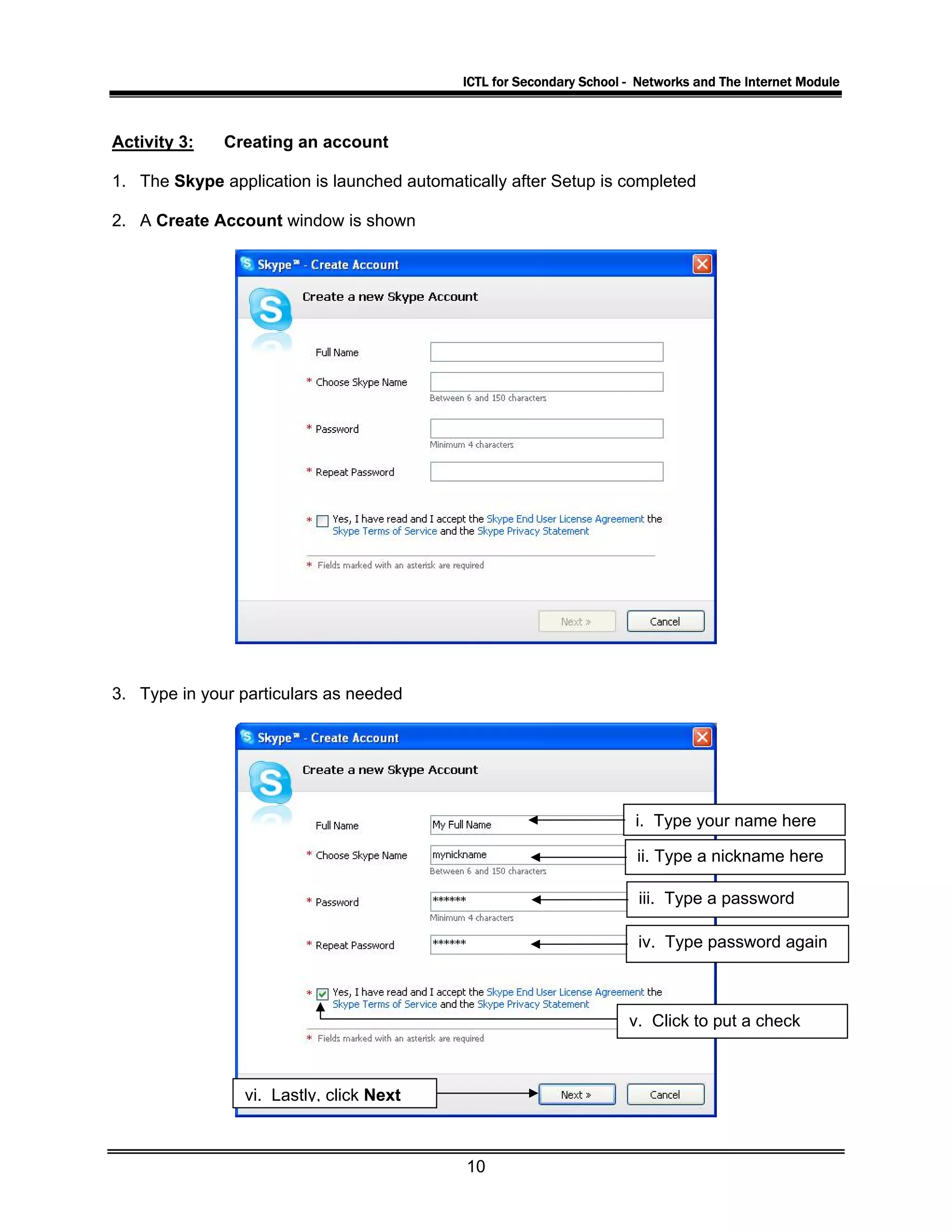
2. A Create Account window is shown
3. Type in your particulars as needed
i. Type your name here
ii. Type a nickname here
iii. Type a password
iv. Type password again
v. Click to put a check
vi. Lastly, click Next
10
ICTL for Secondary School - Networks and The Internet Module
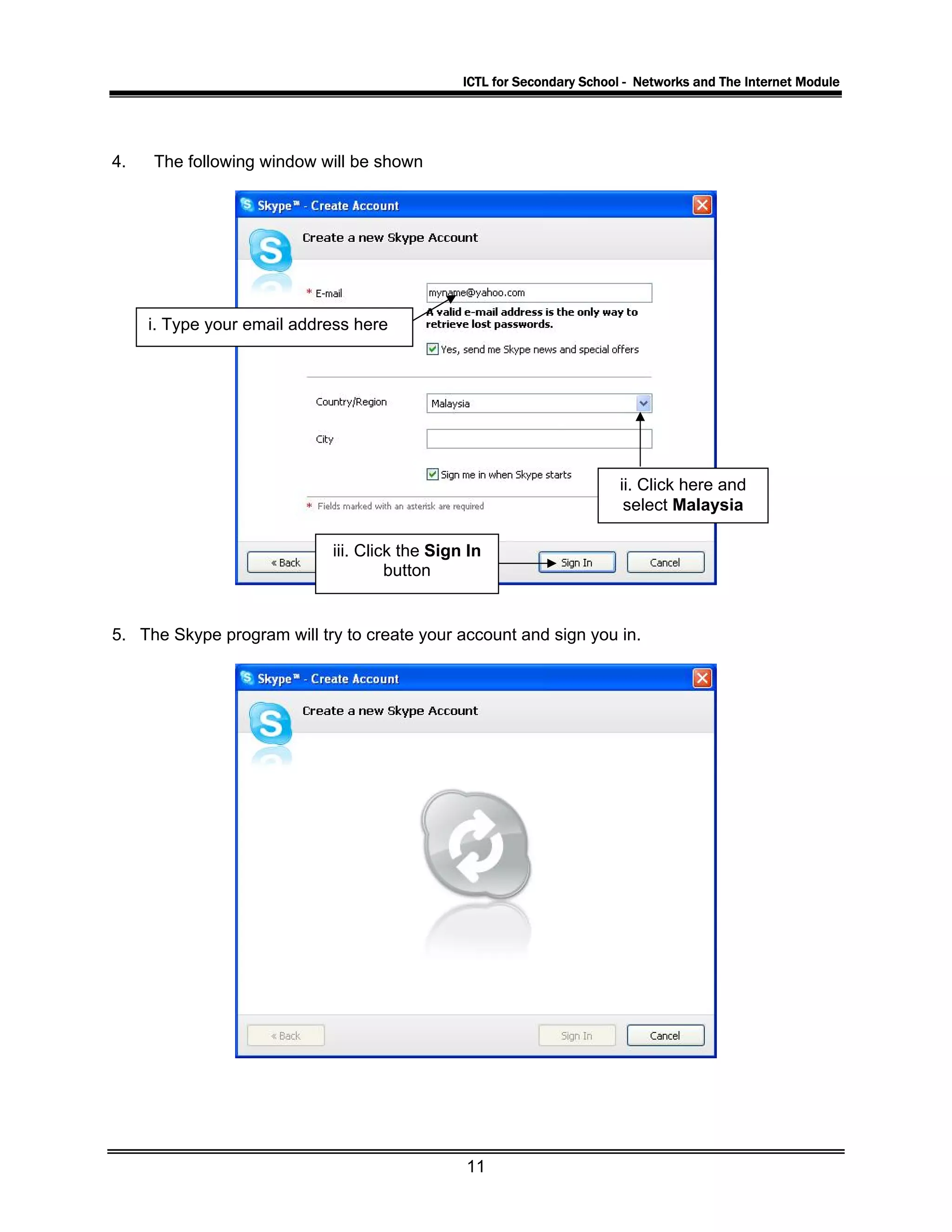
4. The following window will be shown
i. Type your email address here
ii. Click here and
select Malaysia
iii. Click the Sign In
button
5. The Skype program will try to create your account and sign you in.
11
ICTL for Secondary School - Networks and The Internet Module
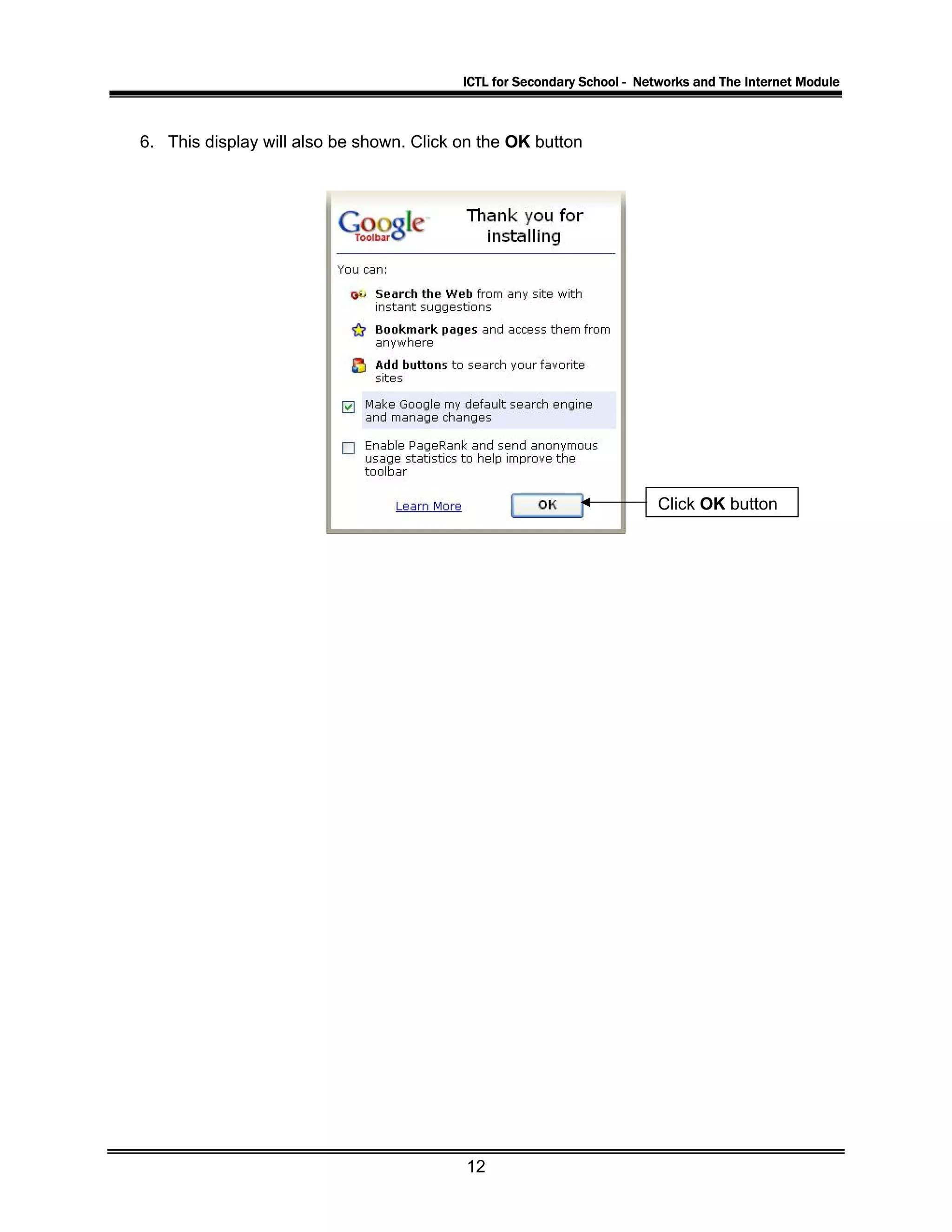
6. This display will also be shown. Click on the OK button
Click OK button
12
ICTL for Secondary School - Networks and The Internet Module
Activity 4: Sign into the Skype account
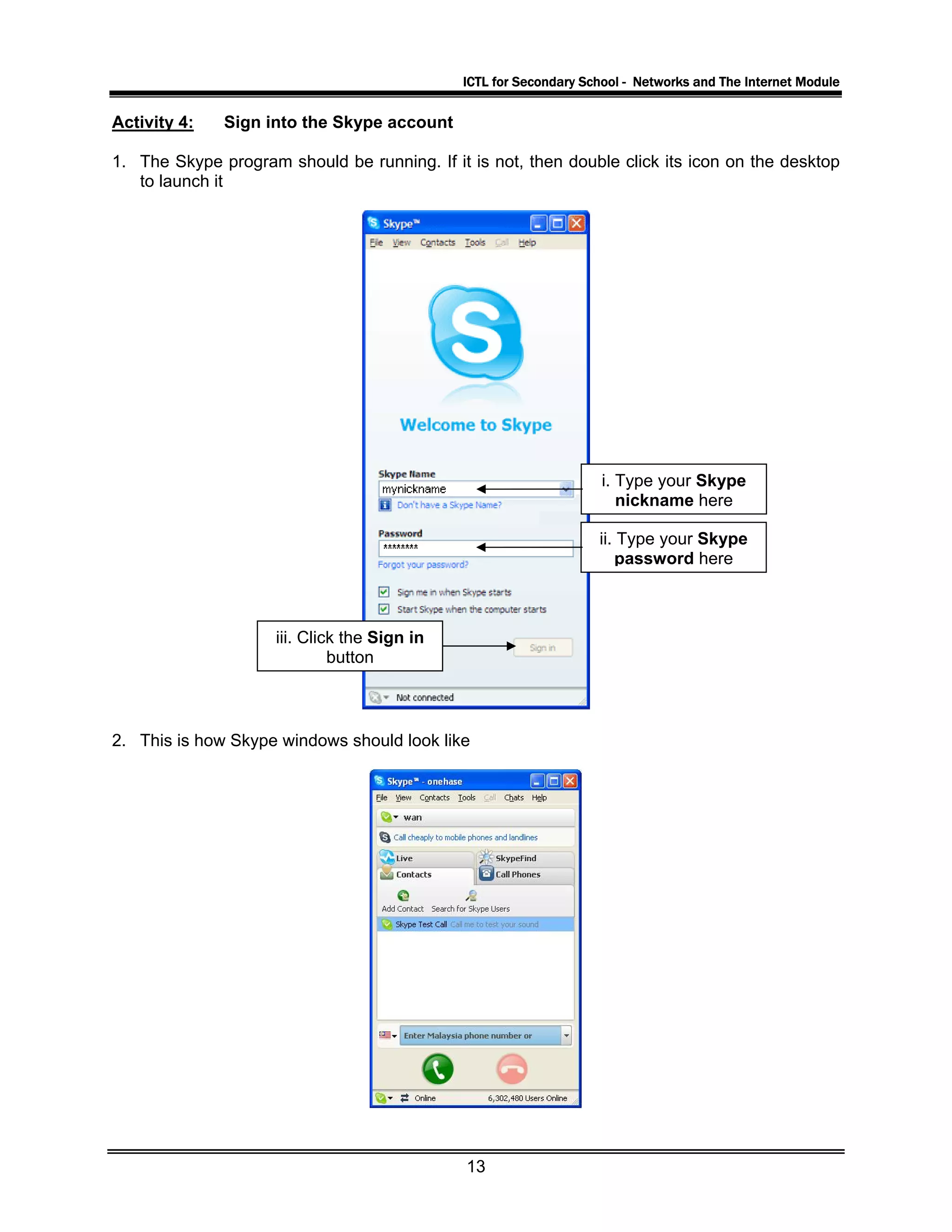
1. The Skype program should be running. If it is not, then double click its icon on the desktop
to launch it
i. Type your Skype
nickname here
ii. Type your Skype
password here
iii. Click the Sign in
button
2. This is how Skype windows should look like
13
ICTL for Secondary School - Networks and The Internet Module
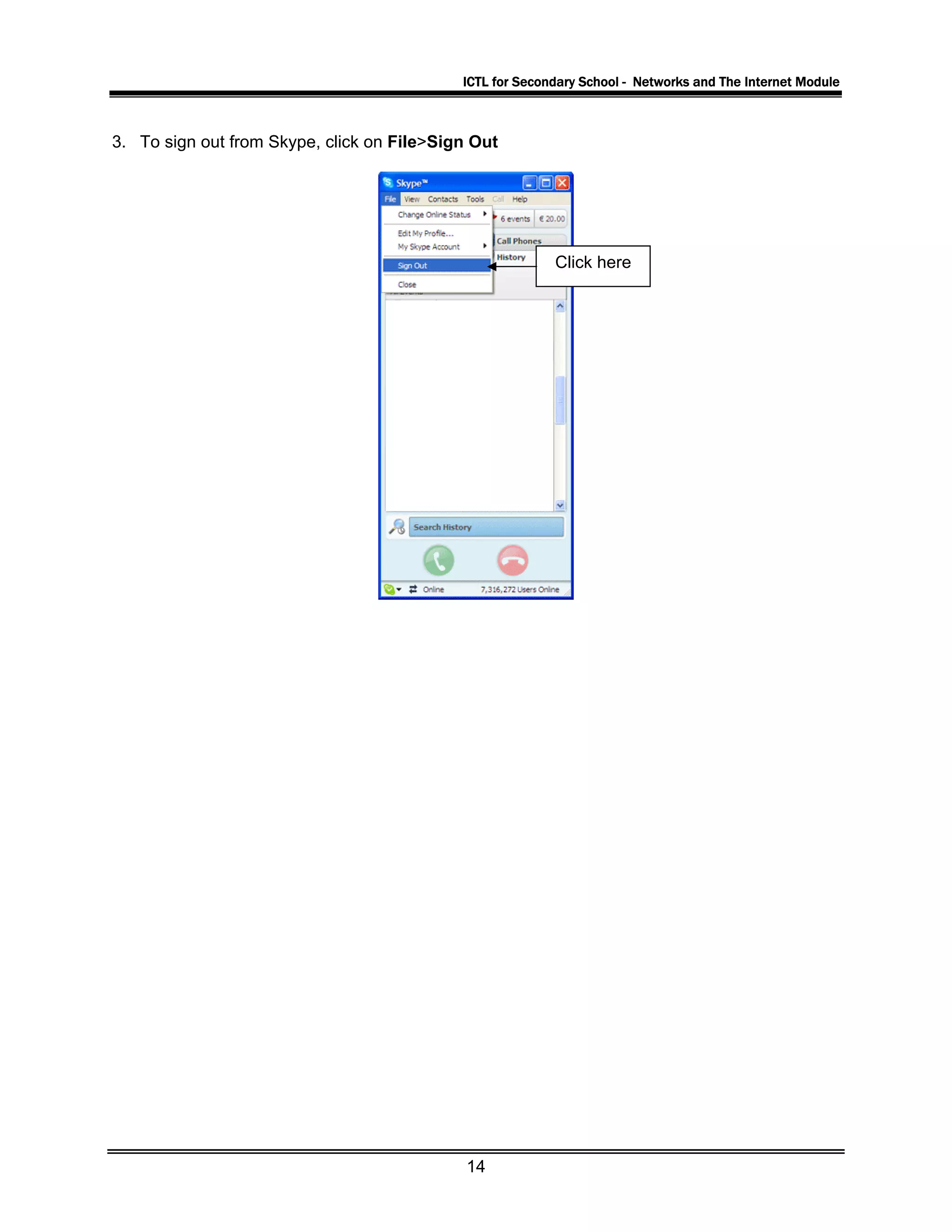
3. To sign out from Skype, click on File>Sign Out
Click here
14
ICTL for Secondary School - Networks and The Internet Module
Activity 5: Add a Contact
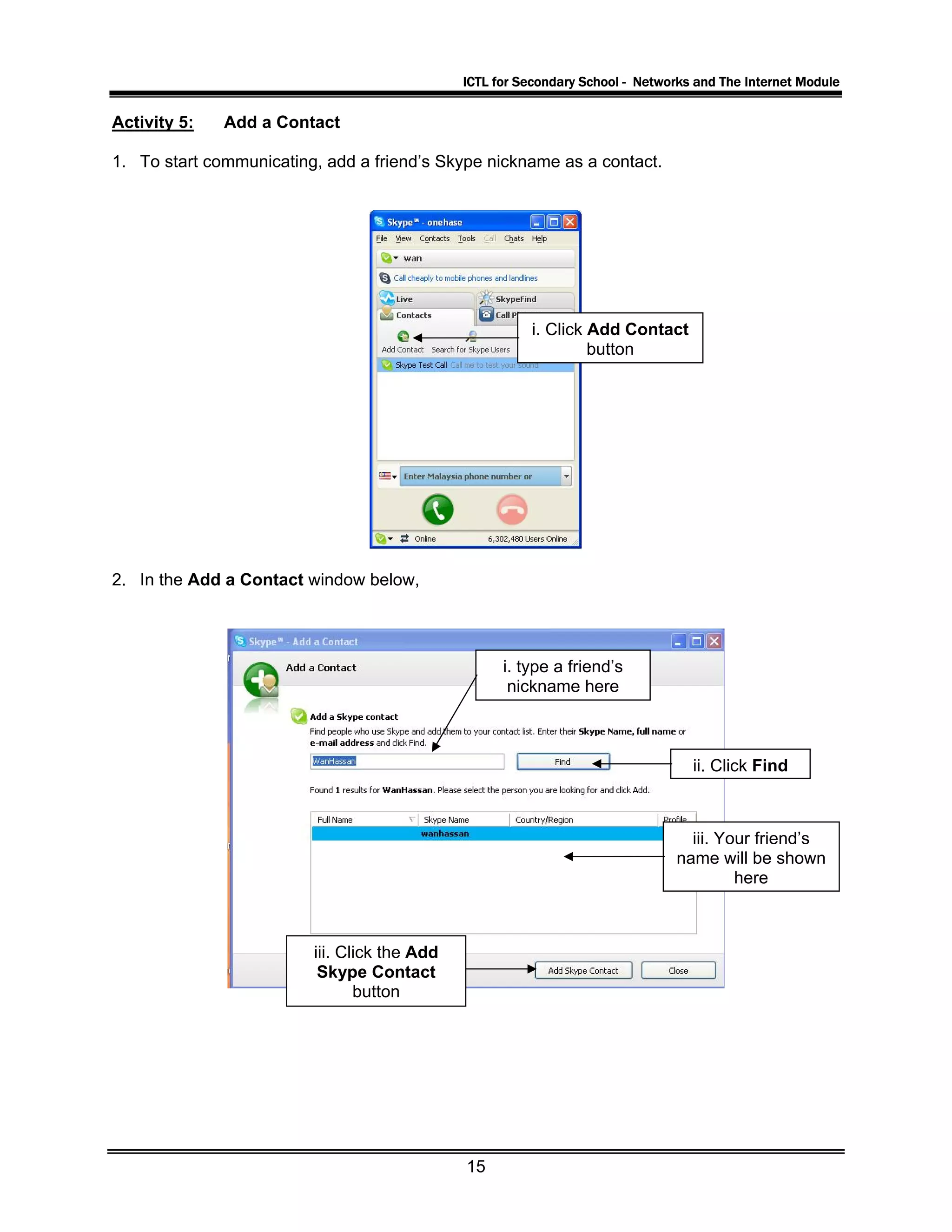
1. To start communicating, add a friend’s Skype nickname as a contact.
i. Click Add Contact
button
2. In the Add a Contact window below,
i. type a friend’s
nickname here
ii. Click Find
iii. Your friend’s
name will be shown
here
iii. Click the Add
Skype Contact
button
15
ICTL for Secondary School - Networks and The Internet Module
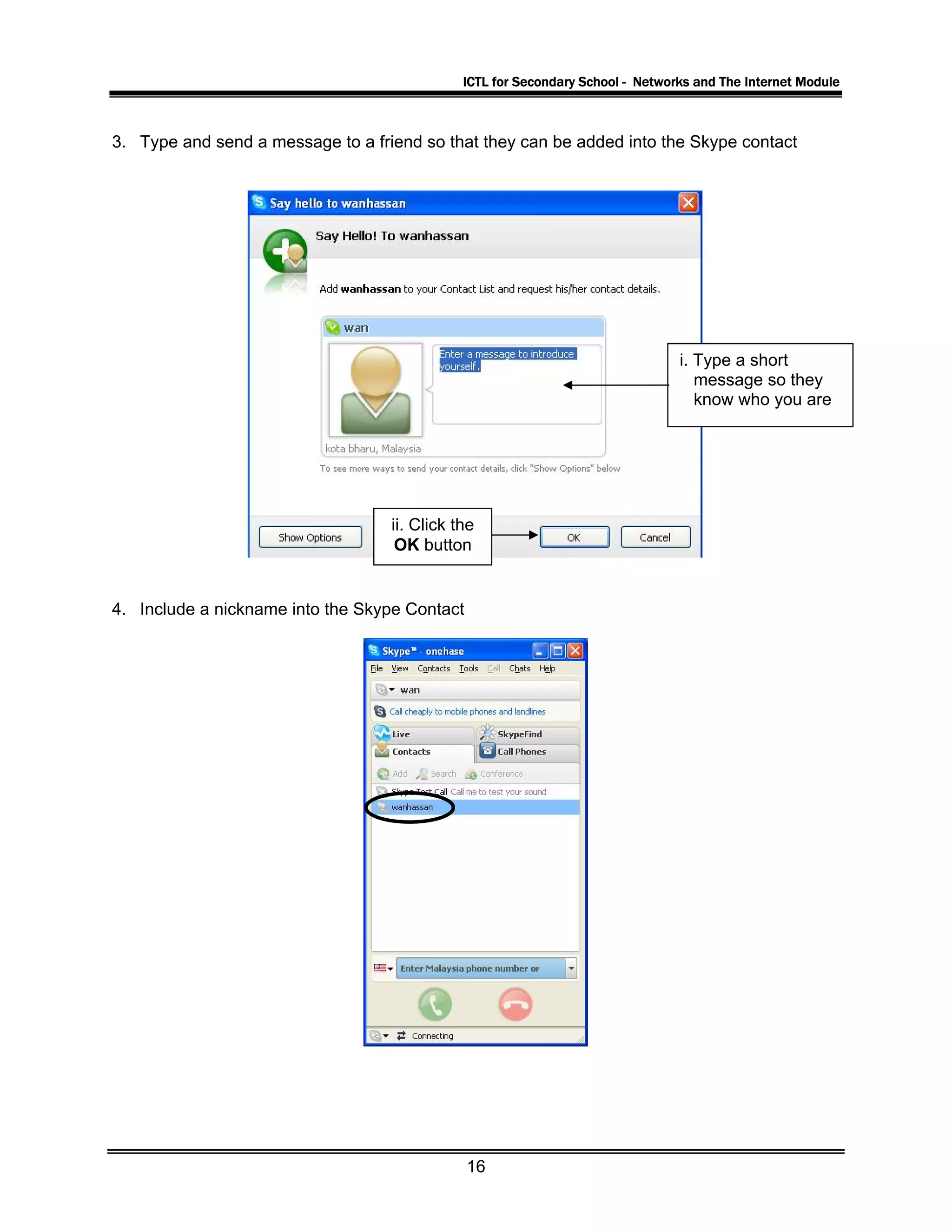
3. Type and send a message to a friend so that they can be added into the Skype contact
i. Type a short
message so they
know who you are
ii. Click the
OK button
4. Include a nickname into the Skype Contact
16
ICTL for Secondary School - Networks and The Internet Module
Activity 6: Start and stop a voice call
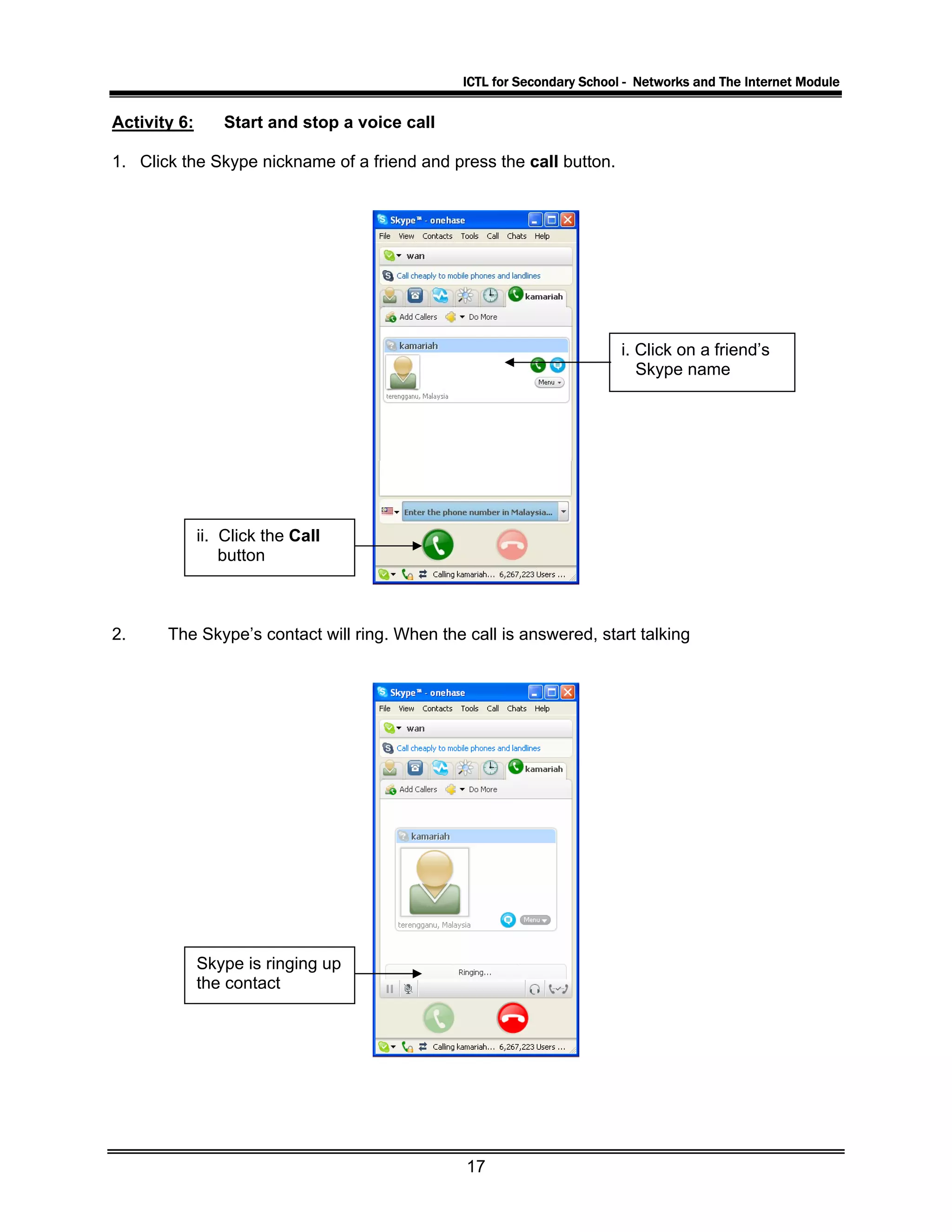
1. Click the Skype nickname of a friend and press the call button.
i. Click on a friend’s
Skype name
ii. Click the Call
button
2. The Skype’s contact will ring. When the call is answered, start talking
Skype is ringing up
the contact
17
ICTL for Secondary School - Networks and The Internet Module
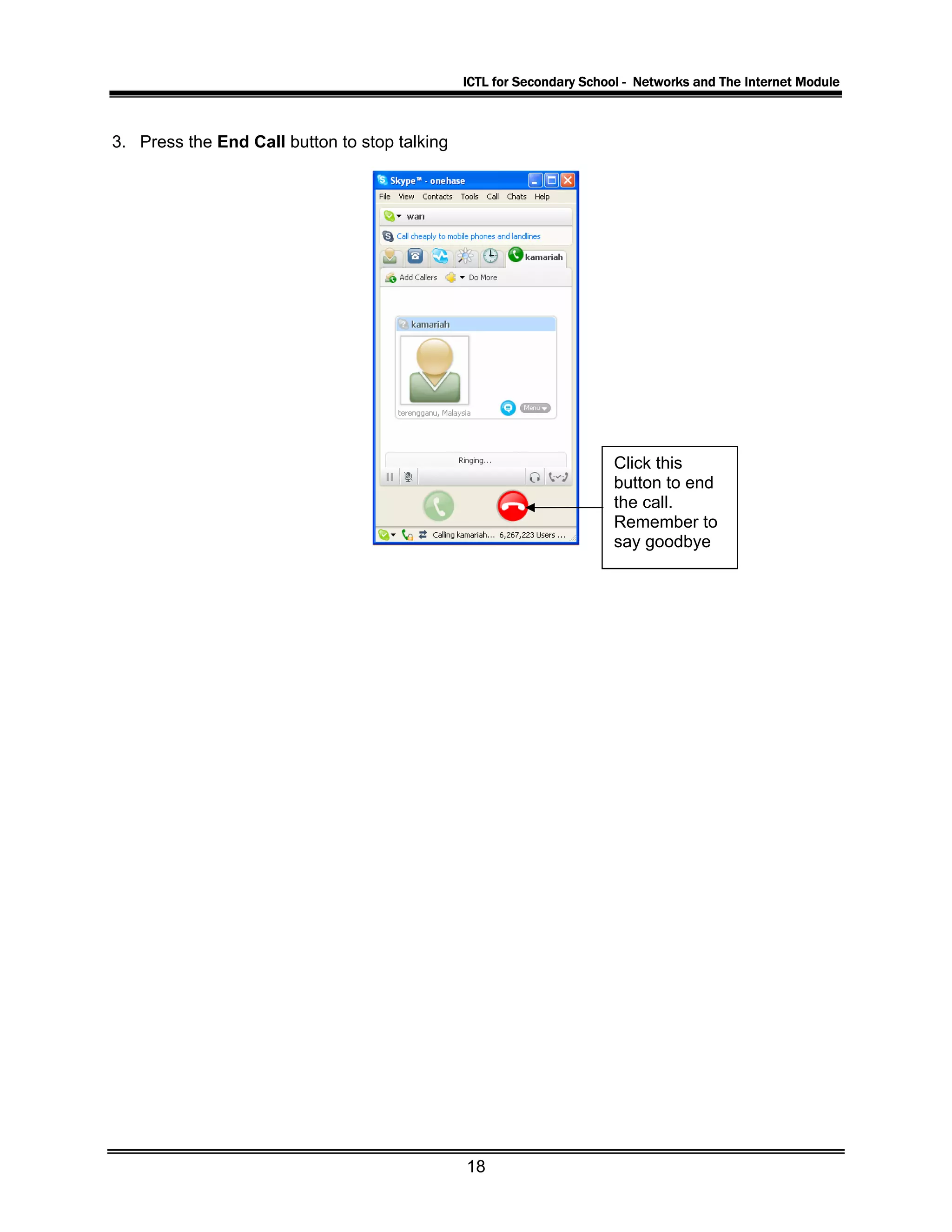
3. Press the End Call button to stop talking
Click this
button to end
the call.
Remember to
say goodbye
18
ICTL for Secondary School - Networks and The Internet Module
Activity 7: Start and stop text messages
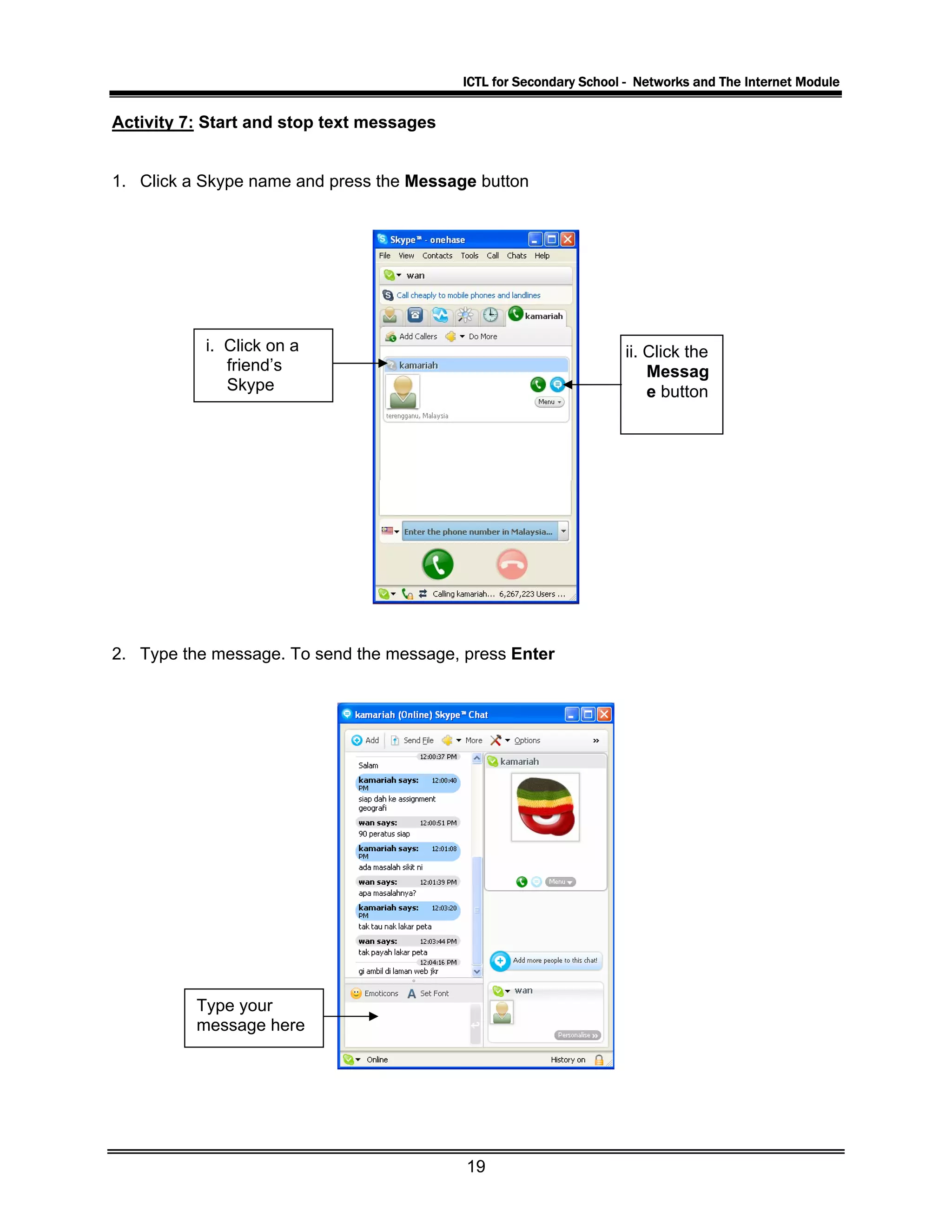
1. Click a Skype name and press the Message button
i. Click on a
friend’s
Skype
ii. Click the
Messag
e button
2. Type the message. To send the message, press Enter
Type your
message here
19
ICTL for Secondary School - Networks and The Internet Module
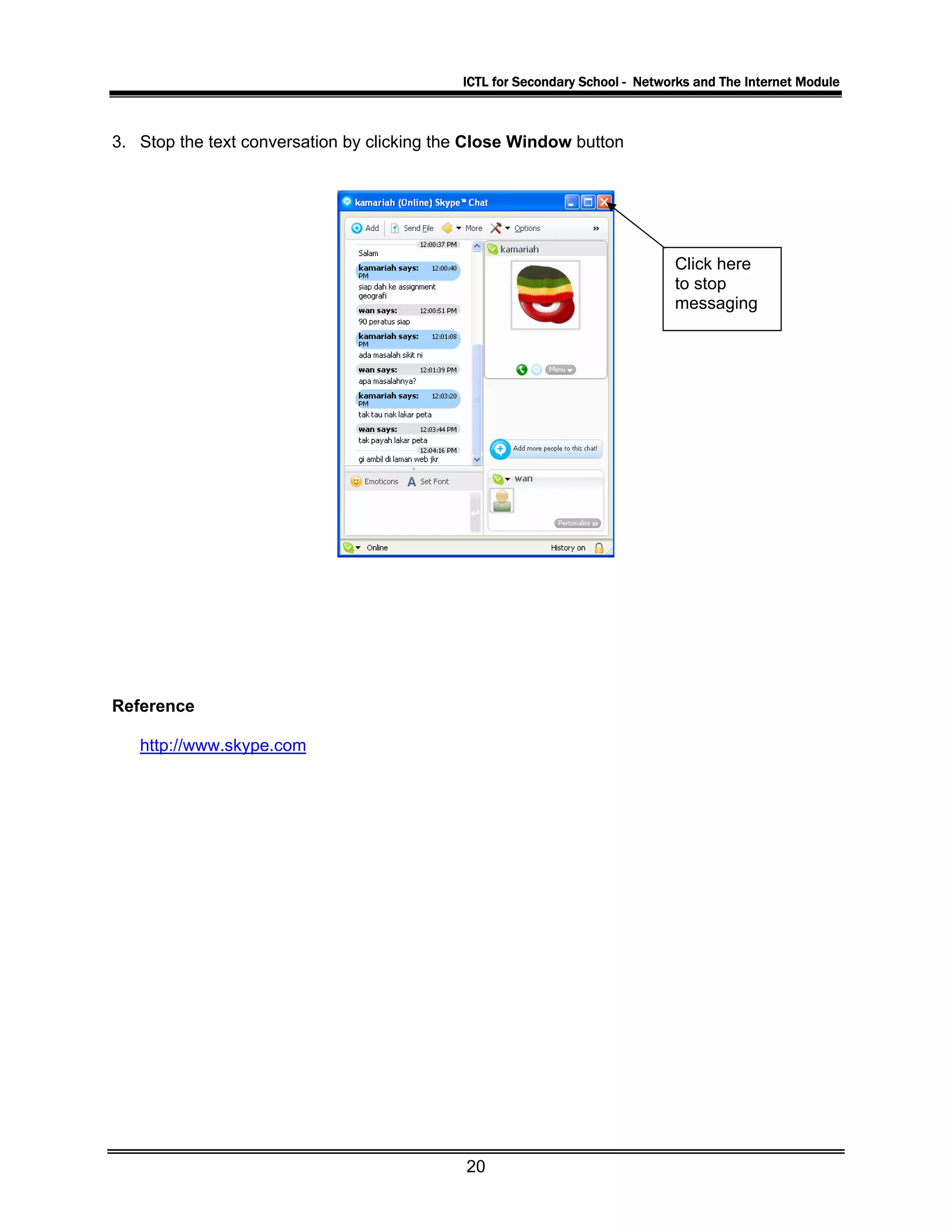
3. Stop the text conversation by clicking the Close Window button
Click here
to stop
messaging
Reference
http://www.skype.com
20

Module Skype

  • 1.
    KKEEMMEENNTTEERRIIAANN PPEELLAAJJAARRAANN MMAALLAAYYSSIIAA SSeellffAAcccceessss LLeeaarrnniinngg MMoodduullee IInntteerrnneett CCoommmmuunniiccaattiioonnss SSKKYYPPEE II PUSAT PERKEMBANGAN KURIKULUM KEMENTERIAN PELAJARAN MALAYSIA ICCCTTT LLLiiittteeerrraaacccyyy fffooorrr SSSeeecccooonnndddaaarrryyy SSSccchhhoooooolll PPPrrrooogggrrraaammmmmmeee
  • 2.
    ICTL for SecondarySchool - Networks and The Internet Module MODULE 3 Communicate Using Skype Curriculum Development Centre Ministry of Education Malaysia 2
  • 3.
    ICTL for SecondarySchool - Networks and The Internet Module 1. Name of Module : Communicate Using Internet Relay Chat (Skype) 2. Learning Outcomes: The students should be able to: a. State the steps to download and install Skype b. Launch Skype c. Register for a Skype name d. Add contact e. Communicate using Skype 3. Knowledge and Skills: a. Download and install a program b. Launch a program c. Create an account d. Log into registered account e. Communicate using voice call f. Communicate using text messages 4. Module Summary: At the end of the module, the student should be able to communicate by text, audio or video using Skype. This module contains 7 activities: Activity 1: Downloading Skype Activity 2: Installing Skype Activity 3: Creating an account Activity 4: Sign into the account Activity 5: Adding a contact Activity 6: Start and stop a voice call Actvity 7: Start and stop text messages 3
  • 4.
    ICTL for SecondarySchool - Networks and The Internet Module Activity 1: Downloading Skype Click Start button at the Task Bar 1. Launch Internet Explorer 2. In the address bar, type in http://www.skype.com/int/en/ and press Enter. The Skype website will appear on the screen as shown below Click this button 3. In the next screen, click on the Download now button Click this button 4
  • 5.
    ICTL for SecondarySchool - Networks and The Internet Module 4. In the File Download window, click on Save button Click this button 5. In the Save As window, click on Save button Click this button 5
  • 6.
    ICTL for SecondarySchool - Networks and The Internet Module 6. The download process begins. Wait until it is completed. Then click Close Click this button 6
  • 7.
    ICTL for SecondarySchool - Networks and The Internet Module Activity 2: Installing Skype 1. Locate the SkypeSetup icon that you have downloaded on the Desktop Double click this 2. Double click the icon to begin the install process. In the Setup-Skype window, click Next Click this button 7
  • 8.
    ICTL for SecondarySchool - Networks and The Internet Module 3. Check I accept the agreement and then click Next i.) Click here first Click this button 4. Click Next in the next window Click Next 8
  • 9.
    ICTL for SecondarySchool - Networks and The Internet Module 5. Click Next in this window too Make sure both are selected Click Next 6. Click Finish Make sure this is selected Click Finish 9
  • 10.
    ICTL for SecondarySchool - Networks and The Internet Module Activity 3: Creating an account 1. The Skype application is launched automatically after Setup is completed 2. A Create Account window is shown 3. Type in your particulars as needed i. Type your name here ii. Type a nickname here iii. Type a password iv. Type password again v. Click to put a check vi. Lastly, click Next 10
  • 11.
    ICTL for SecondarySchool - Networks and The Internet Module 4. The following window will be shown i. Type your email address here ii. Click here and select Malaysia iii. Click the Sign In button 5. The Skype program will try to create your account and sign you in. 11
  • 12.
    ICTL for SecondarySchool - Networks and The Internet Module 6. This display will also be shown. Click on the OK button Click OK button 12
  • 13.
    ICTL for SecondarySchool - Networks and The Internet Module Activity 4: Sign into the Skype account 1. The Skype program should be running. If it is not, then double click its icon on the desktop to launch it i. Type your Skype nickname here ii. Type your Skype password here iii. Click the Sign in button 2. This is how Skype windows should look like 13
  • 14.
    ICTL for SecondarySchool - Networks and The Internet Module 3. To sign out from Skype, click on File>Sign Out Click here 14
  • 15.
    ICTL for SecondarySchool - Networks and The Internet Module Activity 5: Add a Contact 1. To start communicating, add a friend’s Skype nickname as a contact. i. Click Add Contact button 2. In the Add a Contact window below, i. type a friend’s nickname here ii. Click Find iii. Your friend’s name will be shown here iii. Click the Add Skype Contact button 15
  • 16.
    ICTL for SecondarySchool - Networks and The Internet Module 3. Type and send a message to a friend so that they can be added into the Skype contact i. Type a short message so they know who you are ii. Click the OK button 4. Include a nickname into the Skype Contact 16
  • 17.
    ICTL for SecondarySchool - Networks and The Internet Module Activity 6: Start and stop a voice call 1. Click the Skype nickname of a friend and press the call button. i. Click on a friend’s Skype name ii. Click the Call button 2. The Skype’s contact will ring. When the call is answered, start talking Skype is ringing up the contact 17
  • 18.
    ICTL for SecondarySchool - Networks and The Internet Module 3. Press the End Call button to stop talking Click this button to end the call. Remember to say goodbye 18
  • 19.
    ICTL for SecondarySchool - Networks and The Internet Module Activity 7: Start and stop text messages 1. Click a Skype name and press the Message button i. Click on a friend’s Skype ii. Click the Messag e button 2. Type the message. To send the message, press Enter Type your message here 19
  • 20.
    ICTL for SecondarySchool - Networks and The Internet Module 3. Stop the text conversation by clicking the Close Window button Click here to stop messaging Reference http://www.skype.com 20