MiniLink TN Configuration


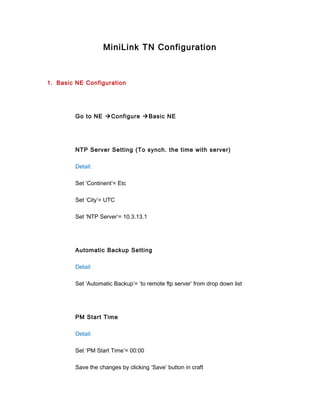
1. Basic NE Configuration


        Go to NE Configure Basic NE


        NTP Server Setting (To synch. the time with server)

        Detail:

        Set ‘Continent’= Etc

        Set ‘City’= UTC

        Set ‘NTP Server’= 10.3.13.1


        Automatic Backup Setting

        Detail:

        Set ‘Automatic Backup’= ‘to remote ftp server’ from drop down list


        PM Start Time

        Detail:

        Set ‘PM Start Time’= 00:00

        Save the changes by clicking ‘Save’ button in craft
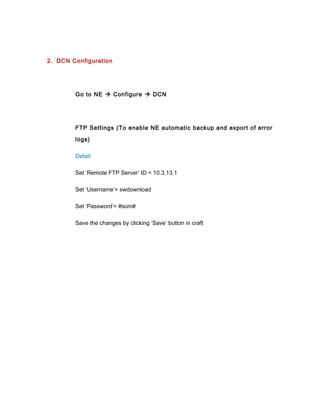
2. DCN Configuration


        Go to NE  Configure  DCN


        FTP Settings (To enable NE automatic backup and export of error

        logs)

        Detail:

        Set ‘Remote FTP Server’ ID = 10.3.13.1

        Set ‘Username’= swdownload

        Set ‘Password’= #som#

        Save the changes by clicking ‘Save’ button in craft
3. Radio Link Configuration


         Go to MMU  Configure Configure Radio Link


         Radio ID Change

         Detail:

         Open the ‘Configure Radio Link’ window and launch the far end as well

         Uncheck ‘Radio ID Check’ Option at both ends

         Save the changes by clicking ‘Save’ button in craft


         Set ‘Terminal ID’= As per plan

         Set ‘Far End ID’ = As per plan

         Save the changes by clicking ‘Save’ button in craft


         Tx Power Setting

         Detail:

         Check the link transmit power, RSL and frequency from LB.
Check the ‘Output Power Mode’ settings. It should be ATPC for all 11GHz link

and RTPC for all other frequencies or stated otherwise in LB. LB must be

consulted for mode conformation.

Note down the link if configuration is not as above.


For ATPC links verify the following:

‘Output Power’ should be set to max. allowable limit. Change the limit

accordingly.

Save the changes by clicking ‘Save’ button in craft


‘Target Input Power’ should be set to -50 dBm.

Note down the link if ‘Target Input Power’ configuration is not as above. No

changes should be done.


Change the ‘Output Power’ according to LB if ‘Output Power Mode’=RTPC. In

case of 1+1 link, changes must be done on all RAUs.

Save the changes by clicking ‘Save’ button in craft


Frequency Check

In case of frequency conflict, no activity needs to be performed. Please note

down the link.
RF Input Alarm Threshold

         Detail:

         Open ‘Advanced’ menu for both ends.

         For links with RTPC settings:

         Set ‘RF Input alarm threshold’= 8dBm less than design RSL.


         For links with ATPC settings:

         Set ‘RF Input alarm threshold’= -55 dBm


         Save the changes by clicking ‘Save’ button in craft


4. Switch Configuration


         Expand MMU  RAU IF

         Go to SWITCH  Configure  Protection


         For 1+1 links verify the switch configuration settings.
‘Switch Mode’ must be set = ‘Automatic’ at both ends.

Change the settings to ‘Automatic’ if not done already


Save the changes by clicking ‘Save’ button in craft

Mini link tn configuration

  • 1.
    MiniLink TN Configuration 1.Basic NE Configuration Go to NE Configure Basic NE NTP Server Setting (To synch. the time with server) Detail: Set ‘Continent’= Etc Set ‘City’= UTC Set ‘NTP Server’= 10.3.13.1 Automatic Backup Setting Detail: Set ‘Automatic Backup’= ‘to remote ftp server’ from drop down list PM Start Time Detail: Set ‘PM Start Time’= 00:00 Save the changes by clicking ‘Save’ button in craft
  • 2.
    2. DCN Configuration Go to NE  Configure  DCN FTP Settings (To enable NE automatic backup and export of error logs) Detail: Set ‘Remote FTP Server’ ID = 10.3.13.1 Set ‘Username’= swdownload Set ‘Password’= #som# Save the changes by clicking ‘Save’ button in craft
  • 3.
    3. Radio LinkConfiguration Go to MMU  Configure Configure Radio Link Radio ID Change Detail: Open the ‘Configure Radio Link’ window and launch the far end as well Uncheck ‘Radio ID Check’ Option at both ends Save the changes by clicking ‘Save’ button in craft Set ‘Terminal ID’= As per plan Set ‘Far End ID’ = As per plan Save the changes by clicking ‘Save’ button in craft Tx Power Setting Detail: Check the link transmit power, RSL and frequency from LB.
  • 4.
    Check the ‘OutputPower Mode’ settings. It should be ATPC for all 11GHz link and RTPC for all other frequencies or stated otherwise in LB. LB must be consulted for mode conformation. Note down the link if configuration is not as above. For ATPC links verify the following: ‘Output Power’ should be set to max. allowable limit. Change the limit accordingly. Save the changes by clicking ‘Save’ button in craft ‘Target Input Power’ should be set to -50 dBm. Note down the link if ‘Target Input Power’ configuration is not as above. No changes should be done. Change the ‘Output Power’ according to LB if ‘Output Power Mode’=RTPC. In case of 1+1 link, changes must be done on all RAUs. Save the changes by clicking ‘Save’ button in craft Frequency Check In case of frequency conflict, no activity needs to be performed. Please note down the link.
  • 5.
    RF Input AlarmThreshold Detail: Open ‘Advanced’ menu for both ends. For links with RTPC settings: Set ‘RF Input alarm threshold’= 8dBm less than design RSL. For links with ATPC settings: Set ‘RF Input alarm threshold’= -55 dBm Save the changes by clicking ‘Save’ button in craft 4. Switch Configuration Expand MMU  RAU IF Go to SWITCH  Configure  Protection For 1+1 links verify the switch configuration settings.
  • 6.
    ‘Switch Mode’ mustbe set = ‘Automatic’ at both ends. Change the settings to ‘Automatic’ if not done already Save the changes by clicking ‘Save’ button in craft