Microsoft Dynamics AX 2009 
Introduction to the CRM module
OBJECTIVES 
OUTLOOK 
SYNCHRONIZATION 
BUSINESS 
RELATIONS 
RESPONSIBILITIES 
CONTACTS ACTIVITIES 
2
Business Relations 
3
BUSINESS RELATIONS 
• The business relations form is the core of the CRM module. Most 
information is entered in the CRM module through the Business 
relations form 
• The business relations form is intended for prospects, i.e. a person 
or organization that the company has not yet done business with – 
either to sell to or purchase from 
• In most circumstances, these business relations will be converted 
into customers or vendors. If the business relations are created and 
then converted to customers or vendors, the party information 
from the global address book is shared and copied to the customer 
or vendor account 
4
TRAINING OBJECTIVES 
• Define business relations and understand their 
significance in CRM 
• Set up the default business relation fields 
• Set up the categorizations necessary to use the 
business relations functionality correctly 
• Create and maintain business relations 
• Converting business relations into customers and 
vendors 
• Know the reports available for contact 
management 
5
BUSINESS RELATION TYPES 
The business relation types available for selection by the user are defined in CRM > SETUP > 
CONTACT MANAGEMENT > RELATION TYPES 
6
SEGMENTS AND SUBSEGMENTS 
• CRM enables business relations to be categorized in two layers: segments and 
subsegments. A company defines segments based on its business models or 
needs. Segments can facilitate data analysis. Data analysis draws on this 
segmentation of business relations to create meaningful results. 
CRM > SETUP > CONTACT MANAGEMENT > BUSINESS RELATIONS > SEGMENTS 
7
SEGMENTS AND SUBSEGMENTS (cont.) 
Each segment can be categorized additionally into subsegments for a specific 
segment: 
CRM > SETUP > CONTACT MANAGEMENT > BUSINESS RELATIONS > 
SUBSEGMENTS 
8
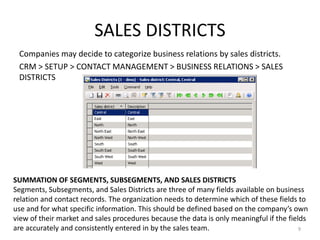
SALES DISTRICTS 
Companies may decide to categorize business relations by sales districts. 
CRM > SETUP > CONTACT MANAGEMENT > BUSINESS RELATIONS > SALES 
DISTRICTS 
SUMMATION OF SEGMENTS, SUBSEGMENTS, AND SALES DISTRICTS 
Segments, Subsegments, and Sales Districts are three of many fields available on business 
relation and contact records. The organization needs to determine which of these fields to 
use and for what specific information. This should be defined based on the company’s own 
view of their market and sales procedures because the data is only meaningful if the fields 
are accurately and consistently entered in by the sales team. 9
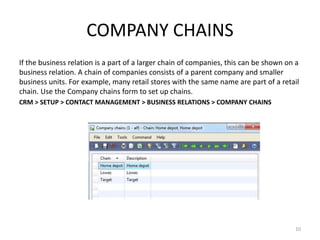
COMPANY CHAINS 
If the business relation is a part of a larger chain of companies, this can be shown on a 
business relation. A chain of companies consists of a parent company and smaller 
business units. For example, many retail stores with the same name are part of a retail 
chain. Use the Company chains form to set up chains. 
CRM > SETUP > CONTACT MANAGEMENT > BUSINESS RELATIONS > COMPANY CHAINS 
10
BUSINESS SECTORS 
Companies use different types of business segmentation and industry classification co 
des to categorize themselves and their business relations. 
CRM > SETUP > CONTACT MANAGEMENT > BUSINESS RELATIONS > BUSINESS 
SECTORS 
11
PIPELINE MANAGEMENT 
Track the progress of contacts with business relations in CRM to easily determine their 
business performance. The status of business relations is defined from a company's 
sales procedures and business methods 
Use the Status table to vary and sub‐divide all types of business relations. 
CRM > SETUP > CONTACT MANAGEMENT > BUSINESS RELATIONS > STATUS 
12
WORKING WITH BUSINESS RELATION 
Create and maintain business relations in the Business relations form. 
CRM > BUSINESS RELATION LIST PAGE > DOUBLE CLICK > BUSINESS 
RELATION DETAILS 
13
NOTE IT 
The Note it form helps the use inserts important notes about the business 
relation. To do this : click on the Note It icon in the overview area. 
A flag in the Note it 
column means that 
there is an active note 
about the business 
relation 
14
CONVERTING A BUSINESS RELATION 
Open the business relations form at CRM > BUSINESS RELATION DETAILS and select 
the prospect record .Click the Functions button > Convert to Customer 
15
DOCUMENTS 
You can view documents related to a business 
relations by clicking on : 
CRM > Business Relations > select the 
Document icon on a Business Relation record 
[Activity] 
link a document to business relation record 
16
Contacts 
17
Contacts 
• The CRM module focuses on person‐to‐person contacts between a 
salesperson and the contact of the business relation. 
• Use the CRM module to store and easily access detailed information for 
each contact. You can keep track of interests, loyalty, and personal 
information to aid you in adding personalized content when 
communicating with a contact. 
You can also: 
• Plan activities 
• Link documents and mailings to the contact 
• Display telemarketing call lists the contact participated in from the 
Contacts form 
When a business relation is recorded in the CRM module, you must connect a 
contact to the business relation. Contact between the business relation and 
the company is accomplished through a contact. 
18
TRAINING OBJECTIVES 
• Create and maintain contacts that are 
connected to business relations 
• Create and maintain activities for business 
relations and contacts 
• Define and assign responsibilities 
19
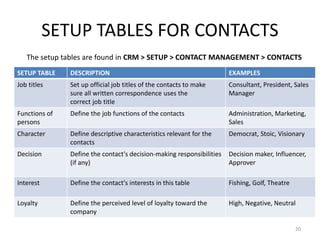
SETUP TABLES FOR CONTACTS 
The setup tables are found in CRM > SETUP > CONTACT MANAGEMENT > CONTACTS 
SETUP TABLE DESCRIPTION EXAMPLES 
Job titles Set up official job titles of the contacts to make 
sure all written correspondence uses the 
correct job title 
Consultant, President, Sales 
Manager 
Functions of 
persons 
Define the job functions of the contacts Administration, Marketing, 
Sales 
Character Define descriptive characteristics relevant for the 
contacts 
Democrat, Stoic, Visionary 
Decision Define the contact's decision‐making responsibilities 
(if any) 
Decision maker, Influencer, 
Approver 
Interest Define the contact's interests in this table Fishing, Golf, Theatre 
Loyalty Define the perceived level of loyalty toward the 
company 
High, Negative, Neutral 
20
Working with Contacts 
Create and maintain contacts are created using the Contacts form 
CRM > CONTACT DETAILS 
21
WORKING WITH CONTACTS (CONT.) 
• CREATING A CONTACT 
• IMPORTING CONTACTS 
• ACTIVITIES 
– Appointments 
– Tasks 
– Actions 
– and events 
• SYNCHRONIZE WITH OUTLOOK 
22
SETUP TABLES FOR ACTIVITIES 
• There are three setup tables for registering activities: 
• Activity phases − Groups the actions required to complete a task. 
• Activity plans − Groups related activities together; group activities 
involved in a convention, activities surrounding a product fair, or activities 
that are part of building a sales proposal. 
• Activity types − Defines types of activities. Examples include meetings, 
letters/faxes, or conference calls. 
None of these tables are mandatory when activities are created, but using 
them eases the categorization of activities 
These setup forms are located at CRM > SETUP > CONTACT MANAGEMENT > 
ACTIVITIES 
23
WORKING WITH ACTIVITIES 
To open the Activities form click on CRM> ACTIVITIES DETAILS 
You can perform the following task with activities : 
FILTERING THE DISPLAY 
CREATING AN ACTIVITY 
MULTIPLE ATTENDEES ON ACTIVITIES 
SYNCHRONIZE WITH MICROSOFT OUTLOOK 
TIME ZONE DIFFERENCES IN ACTIVITIES 
24
RESPONSIBILITIES 
• Responsibilities are tasks or activities within a sales process that are 
defined by users and assigned to specific people within the organization. 
There is no limit to the number of responsibilities that can be assigned. 
• CREATING RESPONSIBILITIES 
• ASSIGNING RESPONSIBILITIES 
25
Quotation 
26
QUOTATION 
A fundamental objective of CRM is issuing quotations to business relations in 
anticipation that their status will change from a prospect or potential customer 
to an actual customer. Salespeople also must be able to issue new quotations to 
existing customers. 
The CRM module enables sales personnel to: 
• Issue quotations to business relations 
• Link quotations to opportunity records 
• Track the progress of opportunities and quotations 
• Follow up on won or lost quotations 
• Analyze the historical record of quotations to a business relation or contact 
person 
• Track internal competitive quote information 
The information gained from issuing quotations, regardless of whether they 
were won or lost, can improve the sales power of the company 
27
TRAINING OBJECTIVES 
• Setup quotations 
• Create and maintain quotations 
• Review quotation reports 
28
SETUP TABLES FOR QUOTATIONS 
CRM>SETUP>QUOTATION 
• DOCUMENT TITLES 
• DOCUMENT INTRODUCTIONS 
• DOCUMENT CONCLUSIONS 
• QUOTATION TYPES 
• QUOTE FOLLOW‐UP ACTIVITIES DEFAULT VALUES 
29
WORKING WITH QUOTATIONS 
CRM > SALES QUOTATION DETAILS 
CREATING A QUOTATION 
PRICE SIMULATIONS 
QUOTATION WORKFLOW 
SALES PIPELINE MANAGEMENT 
QUOTATION REPORTS 
30

Microsoft Dynamics AX 2009 CRM training

  • 1.
    Microsoft Dynamics AX2009 Introduction to the CRM module
  • 2.
    OBJECTIVES OUTLOOK SYNCHRONIZATION BUSINESS RELATIONS RESPONSIBILITIES CONTACTS ACTIVITIES 2
  • 3.
  • 4.
    BUSINESS RELATIONS •The business relations form is the core of the CRM module. Most information is entered in the CRM module through the Business relations form • The business relations form is intended for prospects, i.e. a person or organization that the company has not yet done business with – either to sell to or purchase from • In most circumstances, these business relations will be converted into customers or vendors. If the business relations are created and then converted to customers or vendors, the party information from the global address book is shared and copied to the customer or vendor account 4
  • 5.
    TRAINING OBJECTIVES •Define business relations and understand their significance in CRM • Set up the default business relation fields • Set up the categorizations necessary to use the business relations functionality correctly • Create and maintain business relations • Converting business relations into customers and vendors • Know the reports available for contact management 5
  • 6.
    BUSINESS RELATION TYPES The business relation types available for selection by the user are defined in CRM > SETUP > CONTACT MANAGEMENT > RELATION TYPES 6
  • 7.
    SEGMENTS AND SUBSEGMENTS • CRM enables business relations to be categorized in two layers: segments and subsegments. A company defines segments based on its business models or needs. Segments can facilitate data analysis. Data analysis draws on this segmentation of business relations to create meaningful results. CRM > SETUP > CONTACT MANAGEMENT > BUSINESS RELATIONS > SEGMENTS 7
  • 8.
    SEGMENTS AND SUBSEGMENTS(cont.) Each segment can be categorized additionally into subsegments for a specific segment: CRM > SETUP > CONTACT MANAGEMENT > BUSINESS RELATIONS > SUBSEGMENTS 8
  • 9.
    SALES DISTRICTS Companiesmay decide to categorize business relations by sales districts. CRM > SETUP > CONTACT MANAGEMENT > BUSINESS RELATIONS > SALES DISTRICTS SUMMATION OF SEGMENTS, SUBSEGMENTS, AND SALES DISTRICTS Segments, Subsegments, and Sales Districts are three of many fields available on business relation and contact records. The organization needs to determine which of these fields to use and for what specific information. This should be defined based on the company’s own view of their market and sales procedures because the data is only meaningful if the fields are accurately and consistently entered in by the sales team. 9
  • 10.
    COMPANY CHAINS Ifthe business relation is a part of a larger chain of companies, this can be shown on a business relation. A chain of companies consists of a parent company and smaller business units. For example, many retail stores with the same name are part of a retail chain. Use the Company chains form to set up chains. CRM > SETUP > CONTACT MANAGEMENT > BUSINESS RELATIONS > COMPANY CHAINS 10
  • 11.
    BUSINESS SECTORS Companiesuse different types of business segmentation and industry classification co des to categorize themselves and their business relations. CRM > SETUP > CONTACT MANAGEMENT > BUSINESS RELATIONS > BUSINESS SECTORS 11
  • 12.
    PIPELINE MANAGEMENT Trackthe progress of contacts with business relations in CRM to easily determine their business performance. The status of business relations is defined from a company's sales procedures and business methods Use the Status table to vary and sub‐divide all types of business relations. CRM > SETUP > CONTACT MANAGEMENT > BUSINESS RELATIONS > STATUS 12
  • 13.
    WORKING WITH BUSINESSRELATION Create and maintain business relations in the Business relations form. CRM > BUSINESS RELATION LIST PAGE > DOUBLE CLICK > BUSINESS RELATION DETAILS 13
  • 14.
    NOTE IT TheNote it form helps the use inserts important notes about the business relation. To do this : click on the Note It icon in the overview area. A flag in the Note it column means that there is an active note about the business relation 14
  • 15.
    CONVERTING A BUSINESSRELATION Open the business relations form at CRM > BUSINESS RELATION DETAILS and select the prospect record .Click the Functions button > Convert to Customer 15
  • 16.
    DOCUMENTS You canview documents related to a business relations by clicking on : CRM > Business Relations > select the Document icon on a Business Relation record [Activity] link a document to business relation record 16
  • 17.
  • 18.
    Contacts • TheCRM module focuses on person‐to‐person contacts between a salesperson and the contact of the business relation. • Use the CRM module to store and easily access detailed information for each contact. You can keep track of interests, loyalty, and personal information to aid you in adding personalized content when communicating with a contact. You can also: • Plan activities • Link documents and mailings to the contact • Display telemarketing call lists the contact participated in from the Contacts form When a business relation is recorded in the CRM module, you must connect a contact to the business relation. Contact between the business relation and the company is accomplished through a contact. 18
  • 19.
    TRAINING OBJECTIVES •Create and maintain contacts that are connected to business relations • Create and maintain activities for business relations and contacts • Define and assign responsibilities 19
  • 20.
    SETUP TABLES FORCONTACTS The setup tables are found in CRM > SETUP > CONTACT MANAGEMENT > CONTACTS SETUP TABLE DESCRIPTION EXAMPLES Job titles Set up official job titles of the contacts to make sure all written correspondence uses the correct job title Consultant, President, Sales Manager Functions of persons Define the job functions of the contacts Administration, Marketing, Sales Character Define descriptive characteristics relevant for the contacts Democrat, Stoic, Visionary Decision Define the contact's decision‐making responsibilities (if any) Decision maker, Influencer, Approver Interest Define the contact's interests in this table Fishing, Golf, Theatre Loyalty Define the perceived level of loyalty toward the company High, Negative, Neutral 20
  • 21.
    Working with Contacts Create and maintain contacts are created using the Contacts form CRM > CONTACT DETAILS 21
  • 22.
    WORKING WITH CONTACTS(CONT.) • CREATING A CONTACT • IMPORTING CONTACTS • ACTIVITIES – Appointments – Tasks – Actions – and events • SYNCHRONIZE WITH OUTLOOK 22
  • 23.
    SETUP TABLES FORACTIVITIES • There are three setup tables for registering activities: • Activity phases − Groups the actions required to complete a task. • Activity plans − Groups related activities together; group activities involved in a convention, activities surrounding a product fair, or activities that are part of building a sales proposal. • Activity types − Defines types of activities. Examples include meetings, letters/faxes, or conference calls. None of these tables are mandatory when activities are created, but using them eases the categorization of activities These setup forms are located at CRM > SETUP > CONTACT MANAGEMENT > ACTIVITIES 23
  • 24.
    WORKING WITH ACTIVITIES To open the Activities form click on CRM> ACTIVITIES DETAILS You can perform the following task with activities : FILTERING THE DISPLAY CREATING AN ACTIVITY MULTIPLE ATTENDEES ON ACTIVITIES SYNCHRONIZE WITH MICROSOFT OUTLOOK TIME ZONE DIFFERENCES IN ACTIVITIES 24
  • 25.
    RESPONSIBILITIES • Responsibilitiesare tasks or activities within a sales process that are defined by users and assigned to specific people within the organization. There is no limit to the number of responsibilities that can be assigned. • CREATING RESPONSIBILITIES • ASSIGNING RESPONSIBILITIES 25
  • 26.
  • 27.
    QUOTATION A fundamentalobjective of CRM is issuing quotations to business relations in anticipation that their status will change from a prospect or potential customer to an actual customer. Salespeople also must be able to issue new quotations to existing customers. The CRM module enables sales personnel to: • Issue quotations to business relations • Link quotations to opportunity records • Track the progress of opportunities and quotations • Follow up on won or lost quotations • Analyze the historical record of quotations to a business relation or contact person • Track internal competitive quote information The information gained from issuing quotations, regardless of whether they were won or lost, can improve the sales power of the company 27
  • 28.
    TRAINING OBJECTIVES •Setup quotations • Create and maintain quotations • Review quotation reports 28
  • 29.
    SETUP TABLES FORQUOTATIONS CRM>SETUP>QUOTATION • DOCUMENT TITLES • DOCUMENT INTRODUCTIONS • DOCUMENT CONCLUSIONS • QUOTATION TYPES • QUOTE FOLLOW‐UP ACTIVITIES DEFAULT VALUES 29
  • 30.
    WORKING WITH QUOTATIONS CRM > SALES QUOTATION DETAILS CREATING A QUOTATION PRICE SIMULATIONS QUOTATION WORKFLOW SALES PIPELINE MANAGEMENT QUOTATION REPORTS 30