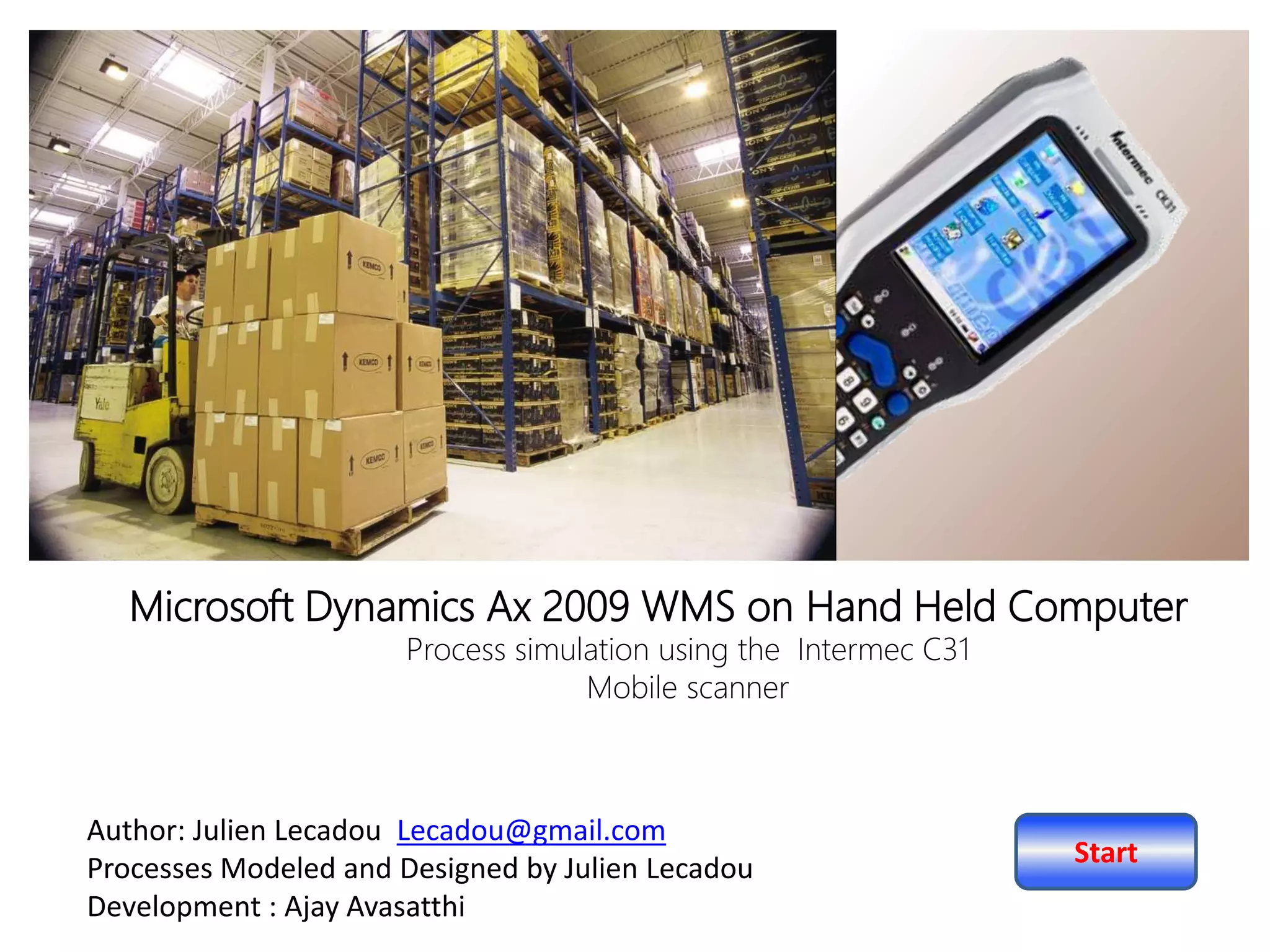
Microsoft Dynamics Ax 2009 WMS on Hand Held Computer 
Process simulation using the Intermec C31 
Mobile scanner 
Author: Julien Lecadou Lecadou@gmail.com 
Processes Modeled and Designed by Julien Lecadou 
Development : Ajay Avasatthi 
Start
Warehouse Process Flow
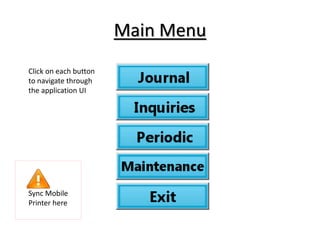
Click on each button 
to navigate through 
the application UI 
Main Menu 
Sync Mobile 
Printer here
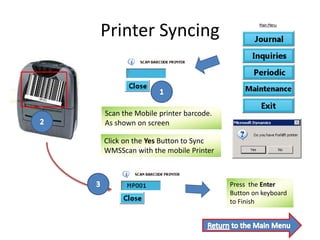
Printer Syncing 
Press the Enter 
Button on keyboard 
to Finish 
Scan the Mobile printer barcode. 
As shown on screen 
Click on the Yes Button to Sync 
WMSScan with the mobile Printer
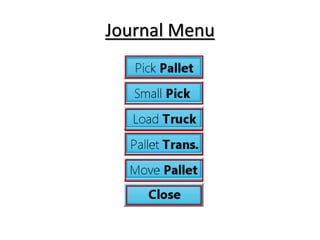
Journal Menu
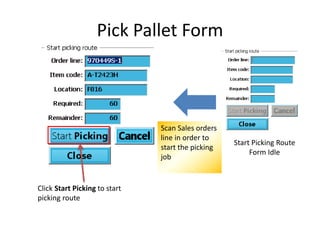
Pick Pallet Form 
Click Start Picking to start 
picking route 
Start Picking Route 
Form Idle 
Scan Sales orders 
line in order to 
start the picking 
job
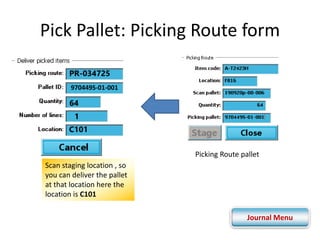
Pick Pallet: Picking Route form 
Picking Route pallet 
PR-034725 
970449S-01-001 
64 
1 
C101 
Scan staging location , so 
you can deliver the pallet 
at that location here the 
location is C101 
Journal Menu
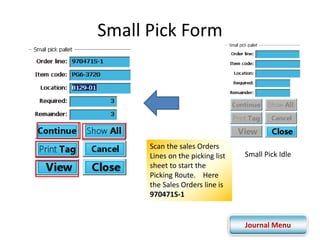
Small Pick Form 
Scan the sales Orders 
Lines on the picking list 
sheet to start the 
Picking Route. Here 
the Sales Orders line is 
970471S-1 
Small Pick Idle 
Journal Menu
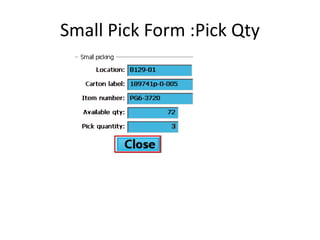
Small Pick Form :Pick Qty
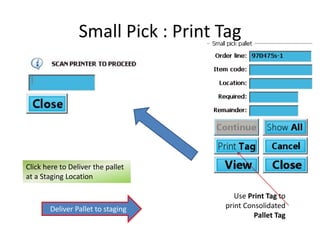
Small Pick : Print Tag 
Use Print Tag to 
print Consolidated 
Pallet Tag 
Click here to Deliver the pallet 
at a Staging Location 
Deliver Pallet to staging
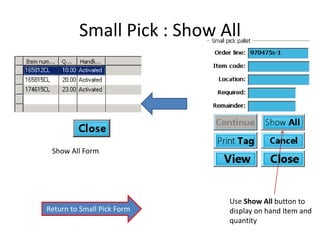
Small Pick : Show All 
Use Show All button to 
display on hand Item and 
quantity 
Show All Form 
Return to Small Pick Form
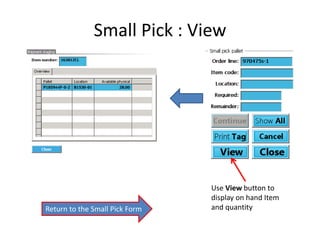
Small Pick : View 
Use View button to 
display on hand Item 
Return to the Small Pick Form and quantity
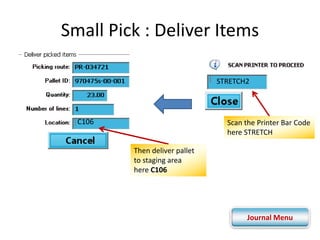
Small Pick : Deliver Items 
STRETCH2 
Scan the Printer Bar Code 
here STRETCH 
C106 
Then deliver pallet 
to staging area 
here C106 
Journal Menu
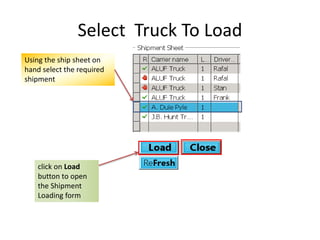
Select Truck To Load 
Using the ship sheet on 
hand select the required 
shipment 
click on Load 
button to open 
the Shipment 
Loading form
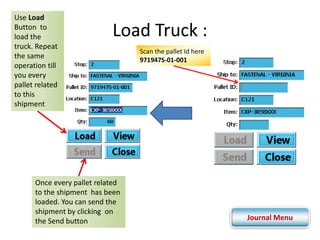
Load Truck : 
Use Load 
Button to 
load the 
truck. Repeat 
the same 
operation till 
you every 
pallet related 
to this 
shipment 
Once every pallet related 
to the shipment has been 
loaded. You can send the 
shipment by clicking on 
the Send button 
Scan the pallet Id here 
971947S-01-001 
Journal Menu
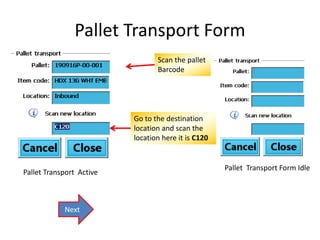
Pallet Transport Form 
Pallet Transport Form Idle 
Pallet Transport Active 
Scan the pallet 
Barcode 
Go to the destination 
location and scan the 
location here it is C120 
Next
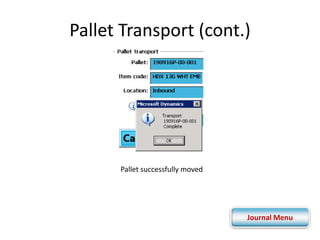
Pallet Transport (cont.) 
Pallet successfully moved 
Journal Menu
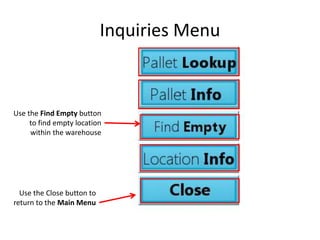
Inquiries Menu 
Use the Find Empty button 
to find empty location 
within the warehouse 
Use the Close button to 
return to the Main Menu 
.
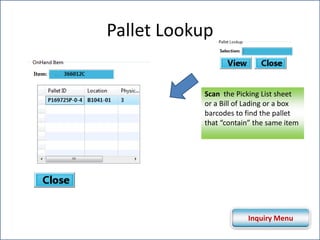
Pallet Lookup 
Scan the Picking List sheet 
or a Bill of Lading or a box 
barcodes to find the pallet 
that “contain” the same item 
Inquiry Menu
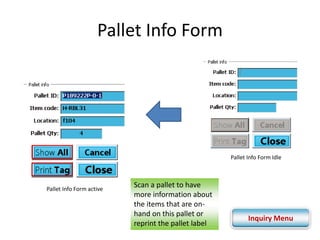
Pallet Info Form 
Pallet Info Form active 
Pallet Info Form Idle 
Scan a pallet to have 
more information about 
the items that are on-hand 
on this pallet or 
reprint the pallet label 
Inquiry Menu
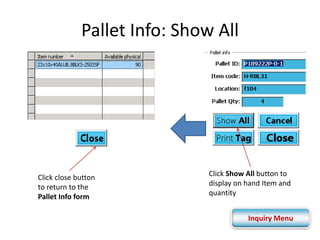
Pallet Info: Show All 
Click close button 
to return to the 
Pallet Info form 
Click Show All button to 
display on hand Item and 
quantity 
Inquiry Menu
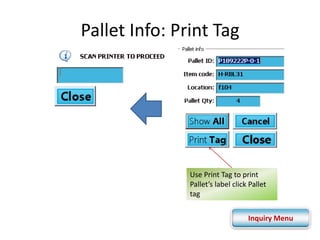
Pallet Info: Print Tag 
Use Print Tag to print 
Pallet’s label click Pallet 
tag 
Inquiry Menu
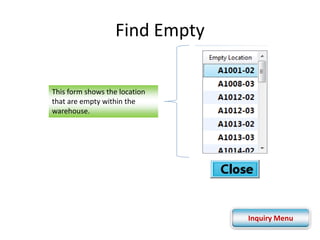
Find Empty 
This form shows the location 
that are empty within the 
warehouse. 
Inquiry Menu
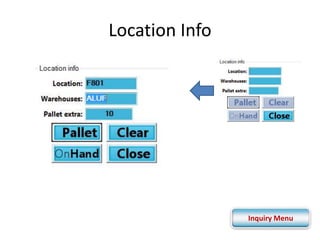
Location Info 
Inquiry Menu
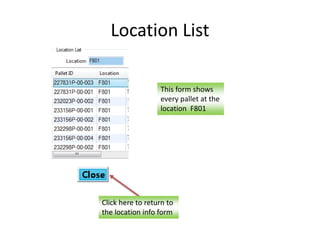
Location List 
This form shows 
every pallet at the 
location F801 
Click here to return to 
the location info form
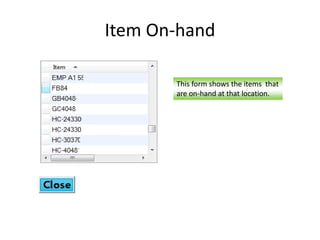
Item On-hand 
This form shows the items that 
are on-hand at that location.
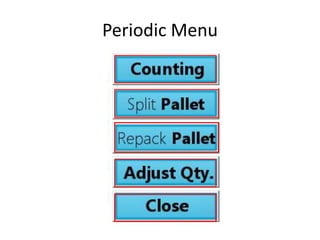
Periodic Menu
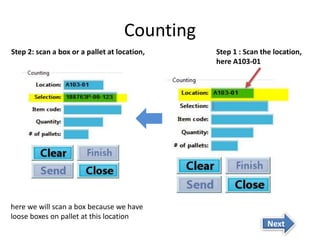
Counting 
Step 1 : Scan the location, 
here A103-01 
Step 2: scan a box or a pallet at location, 
here we will scan a box because we have 
loose boxes on pallet at this location 
Next
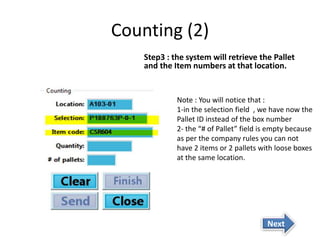
Counting (2) 
Step3 : the system will retrieve the Pallet 
and the Item numbers at that location. 
Note : You will notice that : 
1-in the selection field , we have now the 
Pallet ID instead of the box number 
2- the “# of Pallet” field is empty because 
as per the company rules you can not 
have 2 items or 2 pallets with loose boxes 
at the same location. 
Next
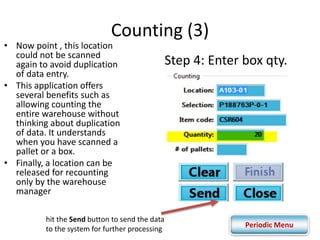
Counting (3) 
Step 4: Enter box qty. 
• Now point , this location 
could not be scanned 
again to avoid duplication 
of data entry. 
• This application offers 
several benefits such as 
allowing counting the 
entire warehouse without 
thinking about duplication 
of data. It understands 
when you have scanned a 
pallet or a box. 
• Finally, a location can be 
released for recounting 
only by the warehouse 
manager 
hit the Send button to send the data 
to the system for further processing 
Periodic Menu
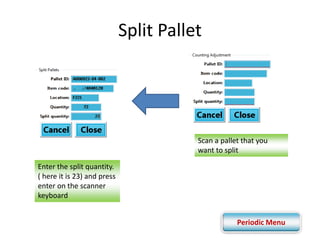
Split Pallet 
Scan a pallet that you 
want to split 
Enter the split quantity. 
( here it is 23) and press 
enter on the scanner 
keyboard 
Periodic Menu
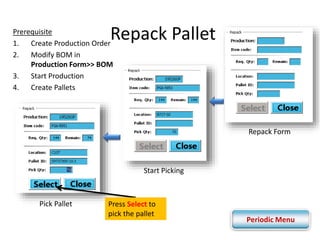
Repack Pallet 
Prerequisite 
1. Create Production Order 
2. Modify BOM in 
Production Form>> BOM 
3. Start Production 
4. Create Pallets 
Repack Form 
Start Picking 
Pick Pallet Press Select to 
pick the pallet 
Periodic Menu
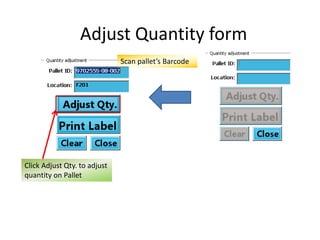
Adjust Quantity form 
Scan pallet’s Barcode 
Click Adjust Qty. to adjust 
quantity on Pallet
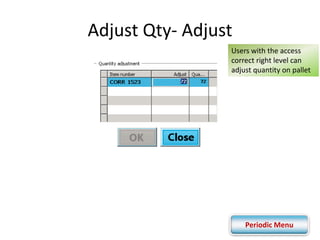
Adjust Qty- Adjust 
Users with the access 
correct right level can 
adjust quantity on pallet 
Periodic Menu
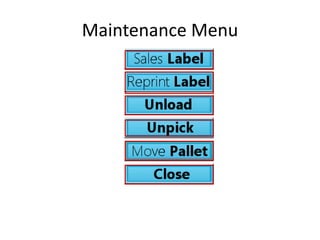
Maintenance Menu
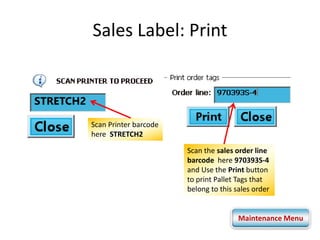
Sales Label: Print 
STRETCH2 
Scan the sales order line 
barcode here 970393S-4 
and Use the Print button 
to print Pallet Tags that 
belong to this sales order 
Scan Printer barcode 
here STRETCH2 
Maintenance Menu
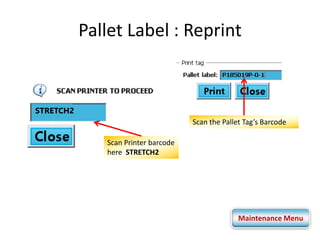
Pallet Label : Reprint 
STRETCH2 
Scan the Pallet Tag’s Barcode 
Scan Printer barcode 
here STRETCH2 
Maintenance Menu
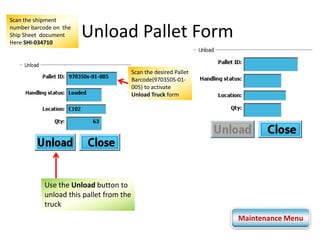
Unload Pallet Form 
Scan the shipment 
number barcode on the 
Ship Sheet document 
Here SHI-034710 
Scan the desired Pallet 
Barcode(970350S-01- 
005) to activate 
Unload Truck form 
Use the Unload button to 
unload this pallet from the 
truck 
Maintenance Menu
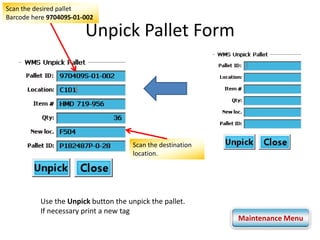
Scan the desired pallet 
Barcode here 970409S-01-002 
Unpick Pallet Form 
Scan the destination 
location. 
Use the Unpick button the unpick the pallet. 
If necessary print a new tag 
Maintenance Menu
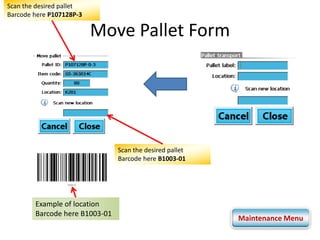
Move Pallet Form 
Scan the desired pallet 
Barcode here P107128P-3 
Scan the desired pallet 
Barcode here B1003-01 
Example of location 
Barcode here B1003-01 
Maintenance Menu

Microsoft Dynamics AX 2009 WMS on handheld device
  • 1.
    Microsoft Dynamics Ax2009 WMS on Hand Held Computer Process simulation using the Intermec C31 Mobile scanner Author: Julien Lecadou Lecadou@gmail.com Processes Modeled and Designed by Julien Lecadou Development : Ajay Avasatthi Start
  • 2.
  • 3.
    Click on eachbutton to navigate through the application UI Main Menu Sync Mobile Printer here
  • 4.
    Printer Syncing Pressthe Enter Button on keyboard to Finish Scan the Mobile printer barcode. As shown on screen Click on the Yes Button to Sync WMSScan with the mobile Printer
  • 5.
  • 6.
    Pick Pallet Form Click Start Picking to start picking route Start Picking Route Form Idle Scan Sales orders line in order to start the picking job
  • 7.
    Pick Pallet: PickingRoute form Picking Route pallet PR-034725 970449S-01-001 64 1 C101 Scan staging location , so you can deliver the pallet at that location here the location is C101 Journal Menu
  • 8.
    Small Pick Form Scan the sales Orders Lines on the picking list sheet to start the Picking Route. Here the Sales Orders line is 970471S-1 Small Pick Idle Journal Menu
  • 9.
    Small Pick Form:Pick Qty
  • 10.
    Small Pick :Print Tag Use Print Tag to print Consolidated Pallet Tag Click here to Deliver the pallet at a Staging Location Deliver Pallet to staging
  • 11.
    Small Pick :Show All Use Show All button to display on hand Item and quantity Show All Form Return to Small Pick Form
  • 12.
    Small Pick :View Use View button to display on hand Item Return to the Small Pick Form and quantity
  • 13.
    Small Pick :Deliver Items STRETCH2 Scan the Printer Bar Code here STRETCH C106 Then deliver pallet to staging area here C106 Journal Menu
  • 14.
    Select Truck ToLoad Using the ship sheet on hand select the required shipment click on Load button to open the Shipment Loading form
  • 15.
    Load Truck : Use Load Button to load the truck. Repeat the same operation till you every pallet related to this shipment Once every pallet related to the shipment has been loaded. You can send the shipment by clicking on the Send button Scan the pallet Id here 971947S-01-001 Journal Menu
  • 16.
    Pallet Transport Form Pallet Transport Form Idle Pallet Transport Active Scan the pallet Barcode Go to the destination location and scan the location here it is C120 Next
  • 17.
    Pallet Transport (cont.) Pallet successfully moved Journal Menu
  • 18.
    Inquiries Menu Usethe Find Empty button to find empty location within the warehouse Use the Close button to return to the Main Menu .
  • 19.
    Pallet Lookup Scanthe Picking List sheet or a Bill of Lading or a box barcodes to find the pallet that “contain” the same item Inquiry Menu
  • 20.
    Pallet Info Form Pallet Info Form active Pallet Info Form Idle Scan a pallet to have more information about the items that are on-hand on this pallet or reprint the pallet label Inquiry Menu
  • 21.
    Pallet Info: ShowAll Click close button to return to the Pallet Info form Click Show All button to display on hand Item and quantity Inquiry Menu
  • 22.
    Pallet Info: PrintTag Use Print Tag to print Pallet’s label click Pallet tag Inquiry Menu
  • 23.
    Find Empty Thisform shows the location that are empty within the warehouse. Inquiry Menu
  • 24.
  • 25.
    Location List Thisform shows every pallet at the location F801 Click here to return to the location info form
  • 26.
    Item On-hand Thisform shows the items that are on-hand at that location.
  • 27.
  • 28.
    Counting Step 1: Scan the location, here A103-01 Step 2: scan a box or a pallet at location, here we will scan a box because we have loose boxes on pallet at this location Next
  • 29.
    Counting (2) Step3: the system will retrieve the Pallet and the Item numbers at that location. Note : You will notice that : 1-in the selection field , we have now the Pallet ID instead of the box number 2- the “# of Pallet” field is empty because as per the company rules you can not have 2 items or 2 pallets with loose boxes at the same location. Next
  • 30.
    Counting (3) Step4: Enter box qty. • Now point , this location could not be scanned again to avoid duplication of data entry. • This application offers several benefits such as allowing counting the entire warehouse without thinking about duplication of data. It understands when you have scanned a pallet or a box. • Finally, a location can be released for recounting only by the warehouse manager hit the Send button to send the data to the system for further processing Periodic Menu
  • 31.
    Split Pallet Scana pallet that you want to split Enter the split quantity. ( here it is 23) and press enter on the scanner keyboard Periodic Menu
  • 32.
    Repack Pallet Prerequisite 1. Create Production Order 2. Modify BOM in Production Form>> BOM 3. Start Production 4. Create Pallets Repack Form Start Picking Pick Pallet Press Select to pick the pallet Periodic Menu
  • 33.
    Adjust Quantity form Scan pallet’s Barcode Click Adjust Qty. to adjust quantity on Pallet
  • 34.
    Adjust Qty- Adjust Users with the access correct right level can adjust quantity on pallet Periodic Menu
  • 35.
  • 36.
    Sales Label: Print STRETCH2 Scan the sales order line barcode here 970393S-4 and Use the Print button to print Pallet Tags that belong to this sales order Scan Printer barcode here STRETCH2 Maintenance Menu
  • 37.
    Pallet Label :Reprint STRETCH2 Scan the Pallet Tag’s Barcode Scan Printer barcode here STRETCH2 Maintenance Menu
  • 38.
    Unload Pallet Form Scan the shipment number barcode on the Ship Sheet document Here SHI-034710 Scan the desired Pallet Barcode(970350S-01- 005) to activate Unload Truck form Use the Unload button to unload this pallet from the truck Maintenance Menu
  • 39.
    Scan the desiredpallet Barcode here 970409S-01-002 Unpick Pallet Form Scan the destination location. Use the Unpick button the unpick the pallet. If necessary print a new tag Maintenance Menu
  • 40.
    Move Pallet Form Scan the desired pallet Barcode here P107128P-3 Scan the desired pallet Barcode here B1003-01 Example of location Barcode here B1003-01 Maintenance Menu