08/20/24 Files, types & access permissions 1
Files, File types and Access
Permissions
08/20/24 Files, types & access permissions 2
Introduction
 Every file on a Linux system is owned
by a user, and users cannot change
or even read each others' files
without being given permission
 Because of this, and because
unprivileged users do not normally
operate with root-level access, Linux
is less susceptible to viruses
08/20/24 Files, types & access permissions 3
Users and groups
 Each user is identified uniquely by a
username and UID, and they have a
home directory
 The user has full access to their home
directory – they can create, move,
and remove files & directories in
anyway subject to limitations such as
disk quotas
08/20/24 Files, types & access permissions 4
Users and groups
 A users ability to gain access to files
& directories depends on the
permissions of the file, uid, & group
affiliations
 Users may be assigned to groups, &
group permissions may then be
applied to files & directories for
collective access
08/20/24 Files, types & access permissions 5
Users and groups
 Groups are uniquely identified by
group names & GIDs
 By default, every user belongs to at
least one group (user private group,
named after their user name) & they
are the only member of that group
08/20/24 Files, types & access permissions 6
File types
 Any information stored on disk is
stored in files.
 UNIX and Linux supports different file
types, some common ones are:
08/20/24 Files, types & access permissions 7
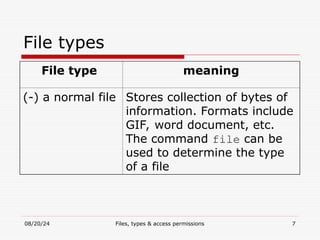
File types
File type meaning
(-) a normal file Stores collection of bytes of
information. Formats include
GIF, word document, etc.
The command file can be
used to determine the type
of a file
08/20/24 Files, types & access permissions 8
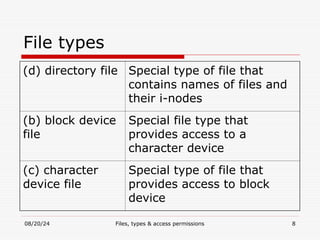
File types
(d) directory file Special type of file that
contains names of files and
their i-nodes
(b) block device
file
Special file type that
provides access to a
character device
(c) character
device file
Special type of file that
provides access to block
device
08/20/24 Files, types & access permissions 9
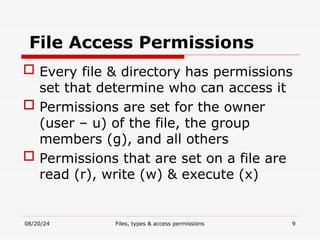
File Access Permissions
 Every file & directory has permissions
set that determine who can access it
 Permissions are set for the owner
(user – u) of the file, the group
members (g), and all others
 Permissions that are set on a file are
read (r), write (w) & execute (x)
08/20/24 Files, types & access permissions 10
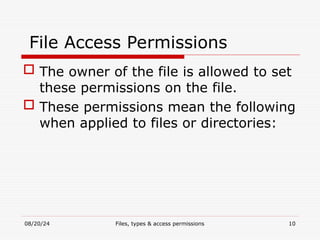
File Access Permissions
 The owner of the file is allowed to set
these permissions on the file.
 These permissions mean the following
when applied to files or directories:
08/20/24 Files, types & access permissions 11
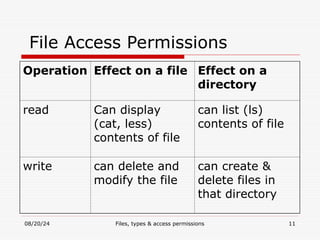
File Access Permissions
Operation Effect on a file Effect on a
directory
read Can display
(cat, less)
contents of file
can list (ls)
contents of file
write can delete and
modify the file
can create &
delete files in
that directory
08/20/24 Files, types & access permissions 12
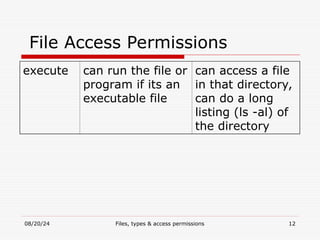
File Access Permissions
execute can run the file or
program if its an
executable file
can access a file
in that directory,
can do a long
listing (ls -al) of
the directory
08/20/24 Files, types & access permissions 13
Users, groups and others
 Processes wishing to access a file on
a UNIX/Linux system are placed into
one of 3 categories:
 User - the individual user who owns
the file
 Group - the collection of people that
belong to the group that owns the file
 Other - anybody who doesn't fall into
the first two categories
08/20/24 Files, types & access permissions 14
File permissions
 Each user category (user, group &
other) has a separate set of file
permissions, which control what file
operations each particular user
category can perform
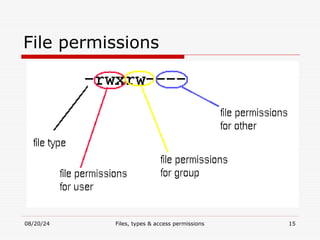
 File permissions consist of 4 fields:
 file type, user permissions, group
permissions, and other permissions.
08/20/24 Files, types & access permissions 15
File permissions
08/20/24 Files, types & access permissions 16
File permissions
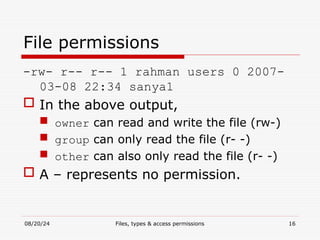
-rw- r-- r-- 1 rahman users 0 2007-
03-08 22:34 sanya1
 In the above output,
 owner can read and write the file (rw-)
 group can only read the file (r- -)
 other can also only read the file (r- -)
 A – represents no permission.
08/20/24 Files, types & access permissions 17
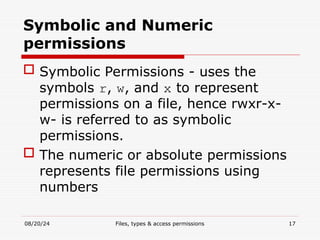
Symbolic and Numeric
permissions
 Symbolic Permissions - uses the
symbols r, w, and x to represent
permissions on a file, hence rwxr-x-
w- is referred to as symbolic
permissions.
 The numeric or absolute permissions
represents file permissions using
numbers
08/20/24 Files, types & access permissions 18
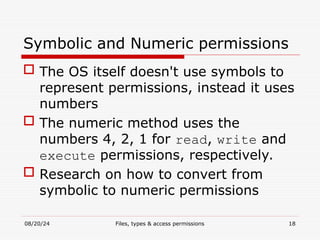
Symbolic and Numeric permissions
 The OS itself doesn't use symbols to
represent permissions, instead it uses
numbers
 The numeric method uses the
numbers 4, 2, 1 for read, write and
execute permissions, respectively.
 Research on how to convert from
symbolic to numeric permissions
08/20/24 Files, types & access permissions 19
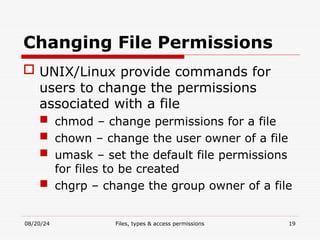
Changing File Permissions
 UNIX/Linux provide commands for
users to change the permissions
associated with a file
 chmod – change permissions for a file
 chown – change the user owner of a file
 umask – set the default file permissions
for files to be created
 chgrp – change the group owner of a file
08/20/24 Files, types & access permissions 20
chmod
 The chmod command is used to
change a file's permissions
 Only the user who owns the file and
root can change permissions of a file
 Its format is:
#chmod [-R] operation files
08/20/24 Files, types & access permissions 21
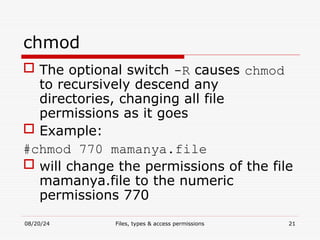
chmod
 The optional switch -R causes chmod
to recursively descend any
directories, changing all file
permissions as it goes
 Example:
#chmod 770 mamanya.file
 will change the permissions of the file
mamanya.file to the numeric
permissions 770
08/20/24 Files, types & access permissions 22
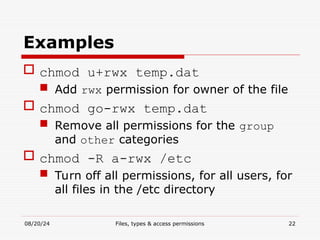
Examples
 chmod u+rwx temp.dat
 Add rwx permission for owner of the file
 chmod go-rwx temp.dat
 Remove all permissions for the group
and other categories
 chmod -R a-rwx /etc
 Turn off all permissions, for all users, for
all files in the /etc directory
08/20/24 Files, types & access permissions 23
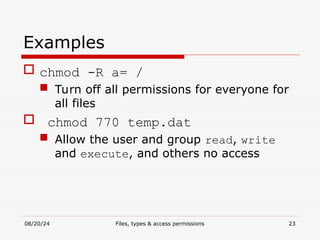
Examples
 chmod -R a= /
 Turn off all permissions for everyone for
all files
 chmod 770 temp.dat
 Allow the user and group read, write
and execute, and others no access
08/20/24 Files, types & access permissions 24
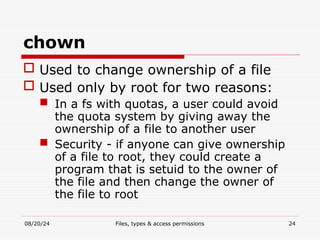
chown
 Used to change ownership of a file
 Used only by root for two reasons:
 In a fs with quotas, a user could avoid
the quota system by giving away the
ownership of a file to another user
 Security - if anyone can give ownership
of a file to root, they could create a
program that is setuid to the owner of
the file and then change the owner of
the file to root
08/20/24 Files, types & access permissions 25
chown
 Format: chown [-R] owner files
 owner is either a numeric user
identifier or a username
 file is a list of files of which you
wish to change the ownership
08/20/24 Files, types & access permissions 26
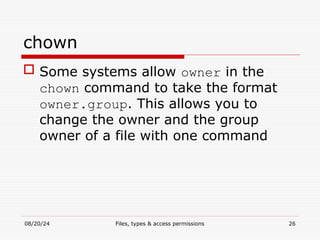
chown
 Some systems allow owner in the
chown command to take the format
owner.group. This allows you to
change the owner and the group
owner of a file with one command
08/20/24 Files, types & access permissions 27
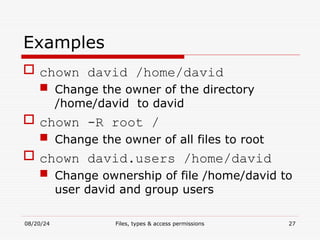
Examples
 chown david /home/david
 Change the owner of the directory
/home/david to david
 chown -R root /
 Change the owner of all files to root
 chown david.users /home/david
 Change ownership of file /home/david to
user david and group users
08/20/24 Files, types & access permissions 28
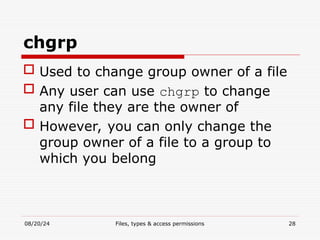
chgrp
 Used to change group owner of a file
 Any user can use chgrp to change
any file they are the owner of
 However, you can only change the
group owner of a file to a group to
which you belong
08/20/24 Files, types & access permissions 29
chgrp
 Format: chgrp [-R] group files
 group is either a numeric group
identifier or a group name
 files is a list of files of which you
wish to change the ownership
08/20/24 Files, types & access permissions 30
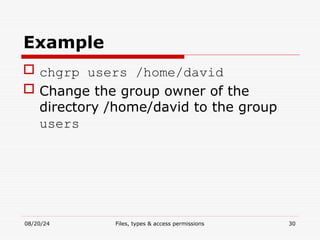
Example
 chgrp users /home/david
 Change the group owner of the
directory /home/david to the group
users
08/20/24 Files, types & access permissions 31
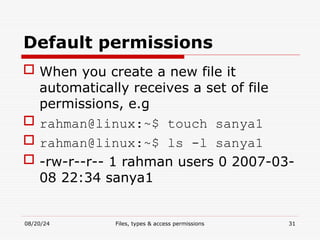
Default permissions
 When you create a new file it
automatically receives a set of file
permissions, e.g
 rahman@linux:~$ touch sanya1
 rahman@linux:~$ ls -l sanya1
 -rw-r--r-- 1 rahman users 0 2007-03-
08 22:34 sanya1
08/20/24 Files, types & access permissions 32
Default permissions
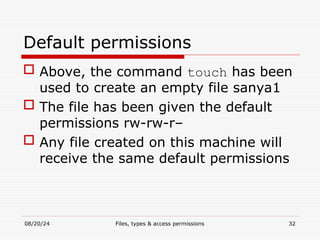
 Above, the command touch has been
used to create an empty file sanya1
 The file has been given the default
permissions rw-rw-r–
 Any file created on this machine will
receive the same default permissions
08/20/24 Files, types & access permissions 33
Default permissions
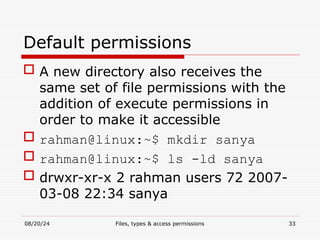
 A new directory also receives the
same set of file permissions with the
addition of execute permissions in
order to make it accessible
 rahman@linux:~$ mkdir sanya
 rahman@linux:~$ ls -ld sanya
 drwxr-xr-x 2 rahman users 72 2007-
03-08 22:34 sanya
08/20/24 Files, types & access permissions 34
Default permissions
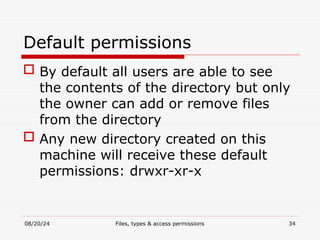
 By default all users are able to see
the contents of the directory but only
the owner can add or remove files
from the directory
 Any new directory created on this
machine will receive these default
permissions: drwxr-xr-x
08/20/24 Files, types & access permissions 35
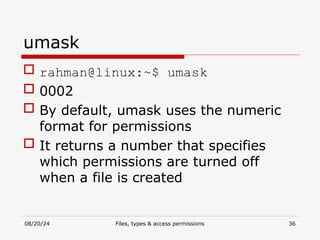
umask
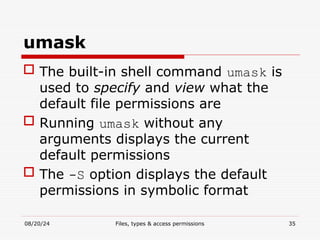
 The built-in shell command umask is
used to specify and view what the
default file permissions are
 Running umask without any
arguments displays the current
default permissions
 The -S option displays the default
permissions in symbolic format
08/20/24 Files, types & access permissions 36
umask
 rahman@linux:~$ umask
 0002
 By default, umask uses the numeric
format for permissions
 It returns a number that specifies
which permissions are turned off
when a file is created
08/20/24 Files, types & access permissions 37
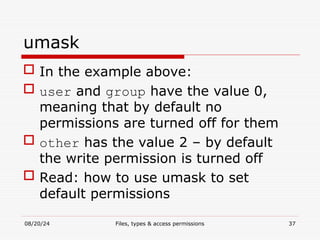
umask
 In the example above:
 user and group have the value 0,
meaning that by default no
permissions are turned off for them
 other has the value 2 – by default
the write permission is turned off
 Read: how to use umask to set
default permissions
08/20/24 Files, types & access permissions 38
File and Directory Commands
 cd - change directory
 ls - list file/directory names
 cp - copy files and directories
 mv - move and/or rename files and
directories
 rm - remove files
 mkdir - make directory
08/20/24 Files, types & access permissions 39
File and Directory Commands
 rmdir - remove an empty directory
 rm -r - recursively remove a directory
and its contents
 file - determine type of file content
 cat - view file content
 less - view text page by page
 find – find a file
08/20/24 Files, types & access permissions 40
Exercise
 See hand out for exercise on file and
directory permissions

PowerPoint Presentation Microsoft notes .ppt

  • 1.
    08/20/24 Files, types& access permissions 1 Files, File types and Access Permissions
  • 2.
    08/20/24 Files, types& access permissions 2 Introduction  Every file on a Linux system is owned by a user, and users cannot change or even read each others' files without being given permission  Because of this, and because unprivileged users do not normally operate with root-level access, Linux is less susceptible to viruses
  • 3.
    08/20/24 Files, types& access permissions 3 Users and groups  Each user is identified uniquely by a username and UID, and they have a home directory  The user has full access to their home directory – they can create, move, and remove files & directories in anyway subject to limitations such as disk quotas
  • 4.
    08/20/24 Files, types& access permissions 4 Users and groups  A users ability to gain access to files & directories depends on the permissions of the file, uid, & group affiliations  Users may be assigned to groups, & group permissions may then be applied to files & directories for collective access
  • 5.
    08/20/24 Files, types& access permissions 5 Users and groups  Groups are uniquely identified by group names & GIDs  By default, every user belongs to at least one group (user private group, named after their user name) & they are the only member of that group
  • 6.
    08/20/24 Files, types& access permissions 6 File types  Any information stored on disk is stored in files.  UNIX and Linux supports different file types, some common ones are:
  • 7.
    08/20/24 Files, types& access permissions 7 File types File type meaning (-) a normal file Stores collection of bytes of information. Formats include GIF, word document, etc. The command file can be used to determine the type of a file
  • 8.
    08/20/24 Files, types& access permissions 8 File types (d) directory file Special type of file that contains names of files and their i-nodes (b) block device file Special file type that provides access to a character device (c) character device file Special type of file that provides access to block device
  • 9.
    08/20/24 Files, types& access permissions 9 File Access Permissions  Every file & directory has permissions set that determine who can access it  Permissions are set for the owner (user – u) of the file, the group members (g), and all others  Permissions that are set on a file are read (r), write (w) & execute (x)
  • 10.
    08/20/24 Files, types& access permissions 10 File Access Permissions  The owner of the file is allowed to set these permissions on the file.  These permissions mean the following when applied to files or directories:
  • 11.
    08/20/24 Files, types& access permissions 11 File Access Permissions Operation Effect on a file Effect on a directory read Can display (cat, less) contents of file can list (ls) contents of file write can delete and modify the file can create & delete files in that directory
  • 12.
    08/20/24 Files, types& access permissions 12 File Access Permissions execute can run the file or program if its an executable file can access a file in that directory, can do a long listing (ls -al) of the directory
  • 13.
    08/20/24 Files, types& access permissions 13 Users, groups and others  Processes wishing to access a file on a UNIX/Linux system are placed into one of 3 categories:  User - the individual user who owns the file  Group - the collection of people that belong to the group that owns the file  Other - anybody who doesn't fall into the first two categories
  • 14.
    08/20/24 Files, types& access permissions 14 File permissions  Each user category (user, group & other) has a separate set of file permissions, which control what file operations each particular user category can perform  File permissions consist of 4 fields:  file type, user permissions, group permissions, and other permissions.
  • 15.
    08/20/24 Files, types& access permissions 15 File permissions
  • 16.
    08/20/24 Files, types& access permissions 16 File permissions -rw- r-- r-- 1 rahman users 0 2007- 03-08 22:34 sanya1  In the above output,  owner can read and write the file (rw-)  group can only read the file (r- -)  other can also only read the file (r- -)  A – represents no permission.
  • 17.
    08/20/24 Files, types& access permissions 17 Symbolic and Numeric permissions  Symbolic Permissions - uses the symbols r, w, and x to represent permissions on a file, hence rwxr-x- w- is referred to as symbolic permissions.  The numeric or absolute permissions represents file permissions using numbers
  • 18.
    08/20/24 Files, types& access permissions 18 Symbolic and Numeric permissions  The OS itself doesn't use symbols to represent permissions, instead it uses numbers  The numeric method uses the numbers 4, 2, 1 for read, write and execute permissions, respectively.  Research on how to convert from symbolic to numeric permissions
  • 19.
    08/20/24 Files, types& access permissions 19 Changing File Permissions  UNIX/Linux provide commands for users to change the permissions associated with a file  chmod – change permissions for a file  chown – change the user owner of a file  umask – set the default file permissions for files to be created  chgrp – change the group owner of a file
  • 20.
    08/20/24 Files, types& access permissions 20 chmod  The chmod command is used to change a file's permissions  Only the user who owns the file and root can change permissions of a file  Its format is: #chmod [-R] operation files
  • 21.
    08/20/24 Files, types& access permissions 21 chmod  The optional switch -R causes chmod to recursively descend any directories, changing all file permissions as it goes  Example: #chmod 770 mamanya.file  will change the permissions of the file mamanya.file to the numeric permissions 770
  • 22.
    08/20/24 Files, types& access permissions 22 Examples  chmod u+rwx temp.dat  Add rwx permission for owner of the file  chmod go-rwx temp.dat  Remove all permissions for the group and other categories  chmod -R a-rwx /etc  Turn off all permissions, for all users, for all files in the /etc directory
  • 23.
    08/20/24 Files, types& access permissions 23 Examples  chmod -R a= /  Turn off all permissions for everyone for all files  chmod 770 temp.dat  Allow the user and group read, write and execute, and others no access
  • 24.
    08/20/24 Files, types& access permissions 24 chown  Used to change ownership of a file  Used only by root for two reasons:  In a fs with quotas, a user could avoid the quota system by giving away the ownership of a file to another user  Security - if anyone can give ownership of a file to root, they could create a program that is setuid to the owner of the file and then change the owner of the file to root
  • 25.
    08/20/24 Files, types& access permissions 25 chown  Format: chown [-R] owner files  owner is either a numeric user identifier or a username  file is a list of files of which you wish to change the ownership
  • 26.
    08/20/24 Files, types& access permissions 26 chown  Some systems allow owner in the chown command to take the format owner.group. This allows you to change the owner and the group owner of a file with one command
  • 27.
    08/20/24 Files, types& access permissions 27 Examples  chown david /home/david  Change the owner of the directory /home/david to david  chown -R root /  Change the owner of all files to root  chown david.users /home/david  Change ownership of file /home/david to user david and group users
  • 28.
    08/20/24 Files, types& access permissions 28 chgrp  Used to change group owner of a file  Any user can use chgrp to change any file they are the owner of  However, you can only change the group owner of a file to a group to which you belong
  • 29.
    08/20/24 Files, types& access permissions 29 chgrp  Format: chgrp [-R] group files  group is either a numeric group identifier or a group name  files is a list of files of which you wish to change the ownership
  • 30.
    08/20/24 Files, types& access permissions 30 Example  chgrp users /home/david  Change the group owner of the directory /home/david to the group users
  • 31.
    08/20/24 Files, types& access permissions 31 Default permissions  When you create a new file it automatically receives a set of file permissions, e.g  rahman@linux:~$ touch sanya1  rahman@linux:~$ ls -l sanya1  -rw-r--r-- 1 rahman users 0 2007-03- 08 22:34 sanya1
  • 32.
    08/20/24 Files, types& access permissions 32 Default permissions  Above, the command touch has been used to create an empty file sanya1  The file has been given the default permissions rw-rw-r–  Any file created on this machine will receive the same default permissions
  • 33.
    08/20/24 Files, types& access permissions 33 Default permissions  A new directory also receives the same set of file permissions with the addition of execute permissions in order to make it accessible  rahman@linux:~$ mkdir sanya  rahman@linux:~$ ls -ld sanya  drwxr-xr-x 2 rahman users 72 2007- 03-08 22:34 sanya
  • 34.
    08/20/24 Files, types& access permissions 34 Default permissions  By default all users are able to see the contents of the directory but only the owner can add or remove files from the directory  Any new directory created on this machine will receive these default permissions: drwxr-xr-x
  • 35.
    08/20/24 Files, types& access permissions 35 umask  The built-in shell command umask is used to specify and view what the default file permissions are  Running umask without any arguments displays the current default permissions  The -S option displays the default permissions in symbolic format
  • 36.
    08/20/24 Files, types& access permissions 36 umask  rahman@linux:~$ umask  0002  By default, umask uses the numeric format for permissions  It returns a number that specifies which permissions are turned off when a file is created
  • 37.
    08/20/24 Files, types& access permissions 37 umask  In the example above:  user and group have the value 0, meaning that by default no permissions are turned off for them  other has the value 2 – by default the write permission is turned off  Read: how to use umask to set default permissions
  • 38.
    08/20/24 Files, types& access permissions 38 File and Directory Commands  cd - change directory  ls - list file/directory names  cp - copy files and directories  mv - move and/or rename files and directories  rm - remove files  mkdir - make directory
  • 39.
    08/20/24 Files, types& access permissions 39 File and Directory Commands  rmdir - remove an empty directory  rm -r - recursively remove a directory and its contents  file - determine type of file content  cat - view file content  less - view text page by page  find – find a file
  • 40.
    08/20/24 Files, types& access permissions 40 Exercise  See hand out for exercise on file and directory permissions