Download free for 30 days
Sign in
Upload
Language (EN)
Support
Business
Mobile
Social Media
Marketing
Technology
Art & Photos
Career
Design
Education
Presentations & Public Speaking
Government & Nonprofit
Healthcare
Internet
Law
Leadership & Management
Automotive
Engineering
Software
Recruiting & HR
Retail
Sales
Services
Science
Small Business & Entrepreneurship
Food
Environment
Economy & Finance
Data & Analytics
Investor Relations
Sports
Spiritual
News & Politics
Travel
Self Improvement
Real Estate
Entertainment & Humor
Health & Medicine
Devices & Hardware
Lifestyle
Change Language
Language
English
Español
Português
Français
Deutsche
Cancel
Save
EN
Uploaded by
no22rah1
PPT, PDF
12 views
Week7 downloading and installing software (1).ppt
Week7 downloading and installing software (1).ppt
Software
◦
Read more
0
Save
Share
Embed
Embed presentation
Download
Download to read offline
1
/ 24
2
/ 24
3
/ 24
4
/ 24
5
/ 24
6
/ 24
7
/ 24
8
/ 24
9
/ 24
10
/ 24
11
/ 24
12
/ 24
13
/ 24
14
/ 24
15
/ 24
16
/ 24
17
/ 24
18
/ 24
19
/ 24
20
/ 24
21
/ 24
22
/ 24
23
/ 24
24
/ 24
More Related Content
PPTX
Lecturehjiwiiiwiiiwiiiiwiiijjwjiwii.pptx
by
ilhammatinzai842
PPT
06 users groups_and_permissions
by
Shay Cohen
PPT
Unix Administration 3
by
Information Technology
PPTX
User and groups administrator
by
Aisha Talat
PPTX
7 - User Administration in Red Hat
by
Shafaan Khaliq Bhatti
DOCX
lec1.docx
by
ismailaboshatra
PDF
Basics of Linux
by
SaifUrRahman180
PPTX
Linux basics part 1
by
Lilesh Pathe
Lecturehjiwiiiwiiiwiiiiwiiijjwjiwii.pptx
by
ilhammatinzai842
06 users groups_and_permissions
by
Shay Cohen
Unix Administration 3
by
Information Technology
User and groups administrator
by
Aisha Talat
7 - User Administration in Red Hat
by
Shafaan Khaliq Bhatti
lec1.docx
by
ismailaboshatra
Basics of Linux
by
SaifUrRahman180
Linux basics part 1
by
Lilesh Pathe
Similar to Week7 downloading and installing software (1).ppt
PPT
Introduction to Unix
by
Sudharsan S
PPTX
11 - Users Management and Groupsss.pptx
by
FutureTechnologies3
PPSX
Unix environment [autosaved]
by
Er Mittinpreet Singh
PPT
Intro to linux systems administration
by
Padam Banthia
PPT
LINUX
by
ARJUN
PPTX
Linux Presentation
by
Muhammad Qazi
PDF
Unit 6 adding new users and storage
by
Bhushan Pawar -Java Trainer
PPT
User administration concepts and mechanisms
by
Duressa Teshome
PPTX
Chapter 3 LectureChapter 3 LectureChapter 3 Lecture.pptx
by
ShahKhir1
PDF
Basics of Linux Commands, Git and Github
by
Devang Garach
PPSX
User Administration in Linux
by
SAMUEL OJO
DOC
58518522 study-aix
by
homeworkping3
PPTX
Using Unix Commands.pptx
by
Harsha Patil
PPTX
Using Unix Commands.pptx
by
Harsha Patil
PPTX
Linux+Command+Line+&+Shell+Scripting+Masterclass+-+Final.pptx
by
newscribduserly
PPT
Chapter 1 Overview of system administration.ppt
by
nahil6
PDF
Linux for CS Majors
by
worr1244
PPT
Linux
by
sravan kumar
PDF
Linux Fundamentals and how to use linux.pdf
by
xikel86509
PPT
chapter 3 linux-lecture.ppt
by
anwarkade1
Introduction to Unix
by
Sudharsan S
11 - Users Management and Groupsss.pptx
by
FutureTechnologies3
Unix environment [autosaved]
by
Er Mittinpreet Singh
Intro to linux systems administration
by
Padam Banthia
LINUX
by
ARJUN
Linux Presentation
by
Muhammad Qazi
Unit 6 adding new users and storage
by
Bhushan Pawar -Java Trainer
User administration concepts and mechanisms
by
Duressa Teshome
Chapter 3 LectureChapter 3 LectureChapter 3 Lecture.pptx
by
ShahKhir1
Basics of Linux Commands, Git and Github
by
Devang Garach
User Administration in Linux
by
SAMUEL OJO
58518522 study-aix
by
homeworkping3
Using Unix Commands.pptx
by
Harsha Patil
Using Unix Commands.pptx
by
Harsha Patil
Linux+Command+Line+&+Shell+Scripting+Masterclass+-+Final.pptx
by
newscribduserly
Chapter 1 Overview of system administration.ppt
by
nahil6
Linux for CS Majors
by
worr1244
Linux
by
sravan kumar
Linux Fundamentals and how to use linux.pdf
by
xikel86509
chapter 3 linux-lecture.ppt
by
anwarkade1
Recently uploaded
PPTX
40m_wAIred_DigitalPlatformRabobank_10022026.pptx
by
SimonedeGijt
PDF
Lost Android Phone Recovery_ Steps That Work Fast.pdf
by
Isabella Reed
PDF
openstack_operations_slides_version1.3_pp.pdf
by
ssuser47d511
DOCX
A Comprehensive Guide To Buy Verified PayPal Accounts_.docx
by
smartusapva.com
PDF
MySQL Routing Guidelines: Designing Smarter Query Routing Together
by
Miguel Araújo
PPTX
Topic: Introduction to Storage Elements Flip-Flops.pptx
by
hn486916
PPTX
Connecting to MCP Servers in OutSystems Platform
by
OzanCali
PDF
Building Smarter AI: 16 RAG Approaches for Accuracy, Memory, and Reasoning Vi...
by
Vineet Sharma
PDF
Langchain4J – An Introduction for Impatient Developers
by
Juarez Junior
PDF
Clean Architecture with Vertical Slice Architecture in .NET 8
by
Vineet Sharma
PDF
On Demand Massage Therapist Booking App Development
by
V3CUBE TECHNOLABS
PDF
The Modern Architect's Codex: Design Patterns in .NET 9
by
Vineet Sharma
PDF
Jira, Powered by Enterprise-Grade Intelligence from NeoroTalks.pdf
by
Neoro Talks
PDF
The Ultimate Guide to Real Estate Tokenization Platforms
by
Daniel Smith
PDF
Versnel innovatie met GitHub Enterprise - Rick Smit GitHub
by
Delta-N
PPTX
‘Analyzing Application Logs Using AI’ Webinar
by
Tier1 app
PDF
Powering Spring AI with Model Context Protocol Integration
by
Juarez Junior
PPTX
How CFD Simulations Support Sustainable Data Center Design Optimization
by
Web Synergies
PDF
Mastering Zero-Allocation Parsers: A Deep Dive into High-Performance C#
by
Vineet Sharma
PDF
Ready, Set, REST! Introducing MySQL's Built-In REST Service
by
Miguel Araújo
40m_wAIred_DigitalPlatformRabobank_10022026.pptx
by
SimonedeGijt
Lost Android Phone Recovery_ Steps That Work Fast.pdf
by
Isabella Reed
openstack_operations_slides_version1.3_pp.pdf
by
ssuser47d511
A Comprehensive Guide To Buy Verified PayPal Accounts_.docx
by
smartusapva.com
MySQL Routing Guidelines: Designing Smarter Query Routing Together
by
Miguel Araújo
Topic: Introduction to Storage Elements Flip-Flops.pptx
by
hn486916
Connecting to MCP Servers in OutSystems Platform
by
OzanCali
Building Smarter AI: 16 RAG Approaches for Accuracy, Memory, and Reasoning Vi...
by
Vineet Sharma
Langchain4J – An Introduction for Impatient Developers
by
Juarez Junior
Clean Architecture with Vertical Slice Architecture in .NET 8
by
Vineet Sharma
On Demand Massage Therapist Booking App Development
by
V3CUBE TECHNOLABS
The Modern Architect's Codex: Design Patterns in .NET 9
by
Vineet Sharma
Jira, Powered by Enterprise-Grade Intelligence from NeoroTalks.pdf
by
Neoro Talks
The Ultimate Guide to Real Estate Tokenization Platforms
by
Daniel Smith
Versnel innovatie met GitHub Enterprise - Rick Smit GitHub
by
Delta-N
‘Analyzing Application Logs Using AI’ Webinar
by
Tier1 app
Powering Spring AI with Model Context Protocol Integration
by
Juarez Junior
How CFD Simulations Support Sustainable Data Center Design Optimization
by
Web Synergies
Mastering Zero-Allocation Parsers: A Deep Dive into High-Performance C#
by
Vineet Sharma
Ready, Set, REST! Introducing MySQL's Built-In REST Service
by
Miguel Araújo
Week7 downloading and installing software (1).ppt
1.
© 2006 ITT
Educational Services Inc. Linux Operating System :: Unit 3 :: Slide 1 Downloading and Installing Software • yum • pirut • Bit Torrent • rmp
2.
© 2006 ITT
Educational Services Inc. Linux Operating System :: Unit 3 :: Slide 2 yum • Yellow Dog Updater, Modified • Ready to use as installed • Works with rpm packages • Download from repositories
3.
© 2006 ITT
Educational Services Inc. Linux Operating System :: Unit 3 :: Slide 3 • yum update • yum install whatever
4.
© 2006 ITT
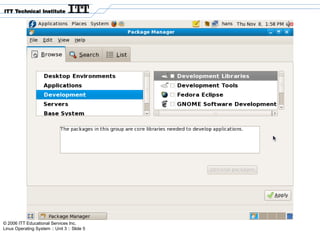
Educational Services Inc. Linux Operating System :: Unit 3 :: Slide 4 pirut • graphical interface to add or remove software
5.
© 2006 ITT
Educational Services Inc. Linux Operating System :: Unit 3 :: Slide 5
6.
© 2006 ITT
Educational Services Inc. Linux Operating System :: Unit 3 :: Slide 6 BitTorrent • P2P – peer to peer • Does not use a dedicated server • tracker – server that allows client to communicate with one anther • peer – client that has downloaded part of the BitTorrent file • seed – has whole file and acts as an addition source for the BitTorrent file • collectively called a swarm
7.
© 2006 ITT
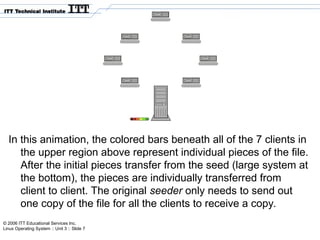
Educational Services Inc. Linux Operating System :: Unit 3 :: Slide 7 In this animation, the colored bars beneath all of the 7 clients in the upper region above represent individual pieces of the file. After the initial pieces transfer from the seed (large system at the bottom), the pieces are individually transferred from client to client. The original seeder only needs to send out one copy of the file for all the clients to receive a copy.
8.
© 2006 ITT
Educational Services Inc. Linux Operating System :: Unit 3 :: Slide 8 RPM • installs • uninstalls • upgrades • queries and verifies rpm packages • used by many different distributions • keeps track of installed packages, version ,where software packages are installed and the dependencies between the packages
9.
© 2006 ITT
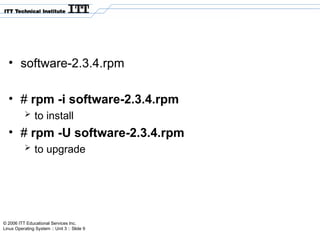
Educational Services Inc. Linux Operating System :: Unit 3 :: Slide 9 • software-2.3.4.rpm • # rpm -i software-2.3.4.rpm to install • # rpm -U software-2.3.4.rpm to upgrade
10.
© 2006 ITT
Educational Services Inc. Linux Operating System :: Unit 3 :: Slide 10 Chapter 16 • Administration Tasks
11.
© 2006 ITT
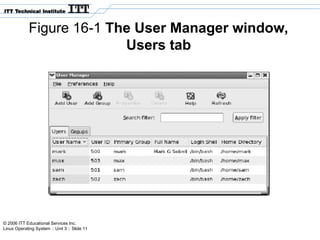
Educational Services Inc. Linux Operating System :: Unit 3 :: Slide 11 Figure 16-1 The User Manager window, Users tab
12.
© 2006 ITT
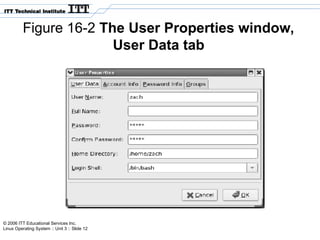
Educational Services Inc. Linux Operating System :: Unit 3 :: Slide 12 Figure 16-2 The User Properties window, User Data tab
13.
© 2006 ITT
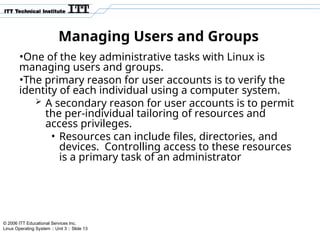
Educational Services Inc. Linux Operating System :: Unit 3 :: Slide 13 Managing Users and Groups •One of the key administrative tasks with Linux is managing users and groups. •The primary reason for user accounts is to verify the identity of each individual using a computer system. A secondary reason for user accounts is to permit the per-individual tailoring of resources and access privileges. • Resources can include files, directories, and devices. Controlling access to these resources is a primary task of an administrator
14.
© 2006 ITT
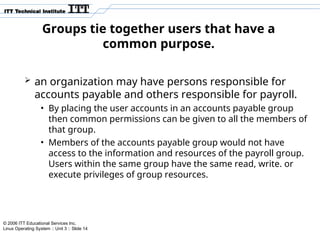
Educational Services Inc. Linux Operating System :: Unit 3 :: Slide 14 Groups tie together users that have a common purpose. an organization may have persons responsible for accounts payable and others responsible for payroll. • By placing the user accounts in an accounts payable group then common permissions can be given to all the members of that group. • Members of the accounts payable group would not have access to the information and resources of the payroll group. Users within the same group have the same read, write. or execute privileges of group resources.
15.
© 2006 ITT
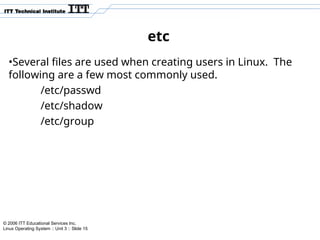
Educational Services Inc. Linux Operating System :: Unit 3 :: Slide 15 etc •Several files are used when creating users in Linux. The following are a few most commonly used. /etc/passwd /etc/shadow /etc/group
16.
© 2006 ITT
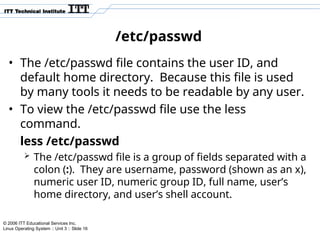
Educational Services Inc. Linux Operating System :: Unit 3 :: Slide 16 /etc/passwd • The /etc/passwd file contains the user ID, and default home directory. Because this file is used by many tools it needs to be readable by any user. • To view the /etc/passwd file use the less command. less /etc/passwd The /etc/passwd file is a group of fields separated with a colon (:). They are username, password (shown as an x), numeric user ID, numeric group ID, full name, user’s home directory, and user’s shell account.
17.
© 2006 ITT
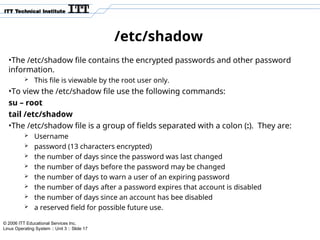
Educational Services Inc. Linux Operating System :: Unit 3 :: Slide 17 /etc/shadow •The /etc/shadow file contains the encrypted passwords and other password information. This file is viewable by the root user only. •To view the /etc/shadow file use the following commands: su – root tail /etc/shadow •The /etc/shadow file is a group of fields separated with a colon (:). They are: Username password (13 characters encrypted) the number of days since the password was last changed the number of days before the password may be changed the number of days to warn a user of an expiring password the number of days after a password expires that account is disabled the number of days since an account has bee disabled a reserved field for possible future use.
18.
© 2006 ITT
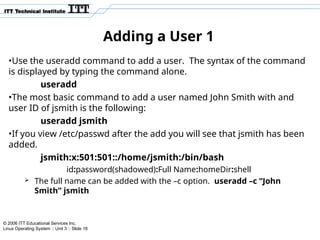
Educational Services Inc. Linux Operating System :: Unit 3 :: Slide 18 Adding a User 1 •Use the useradd command to add a user. The syntax of the command is displayed by typing the command alone. useradd •The most basic command to add a user named John Smith with and user ID of jsmith is the following: useradd jsmith •If you view /etc/passwd after the add you will see that jsmith has been added. jsmith:x:501:501::/home/jsmith:/bin/bash id:password(shadowed):Full Name:homeDir:shell The full name can be added with the –c option. useradd –c “John Smith” jsmith
19.
© 2006 ITT
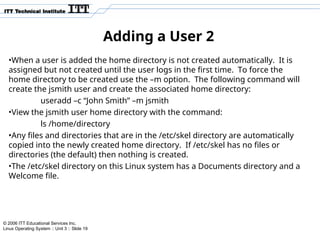
Educational Services Inc. Linux Operating System :: Unit 3 :: Slide 19 Adding a User 2 •When a user is added the home directory is not created automatically. It is assigned but not created until the user logs in the first time. To force the home directory to be created use the –m option. The following command will create the jsmith user and create the associated home directory: useradd –c “John Smith” –m jsmith •View the jsmith user home directory with the command: ls /home/directory •Any files and directories that are in the /etc/skel directory are automatically copied into the newly created home directory. If /etc/skel has no files or directories (the default) then nothing is created. •The /etc/skel directory on this Linux system has a Documents directory and a Welcome file.
20.
© 2006 ITT
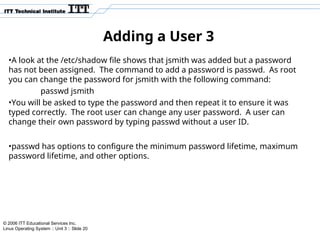
Educational Services Inc. Linux Operating System :: Unit 3 :: Slide 20 Adding a User 3 •A look at the /etc/shadow file shows that jsmith was added but a password has not been assigned. The command to add a password is passwd. As root you can change the password for jsmith with the following command: passwd jsmith •You will be asked to type the password and then repeat it to ensure it was typed correctly. The root user can change any user password. A user can change their own password by typing passwd without a user ID. •passwd has options to configure the minimum password lifetime, maximum password lifetime, and other options.
21.
© 2006 ITT
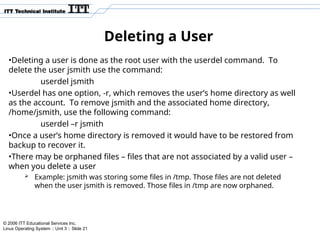
Educational Services Inc. Linux Operating System :: Unit 3 :: Slide 21 Deleting a User •Deleting a user is done as the root user with the userdel command. To delete the user jsmith use the command: userdel jsmith •Userdel has one option, -r, which removes the user’s home directory as well as the account. To remove jsmith and the associated home directory, /home/jsmith, use the following command: userdel –r jsmith •Once a user’s home directory is removed it would have to be restored from backup to recover it. •There may be orphaned files – files that are not associated by a valid user – when you delete a user Example: jsmith was storing some files in /tmp. Those files are not deleted when the user jsmith is removed. Those files in /tmp are now orphaned.
22.
© 2006 ITT
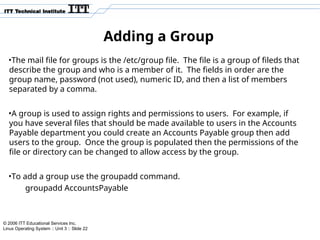
Educational Services Inc. Linux Operating System :: Unit 3 :: Slide 22 Adding a Group •The mail file for groups is the /etc/group file. The file is a group of fileds that describe the group and who is a member of it. The fields in order are the group name, password (not used), numeric ID, and then a list of members separated by a comma. •A group is used to assign rights and permissions to users. For example, if you have several files that should be made available to users in the Accounts Payable department you could create an Accounts Payable group then add users to the group. Once the group is populated then the permissions of the file or directory can be changed to allow access by the group. •To add a group use the groupadd command. groupadd AccountsPayable
23.
© 2006 ITT
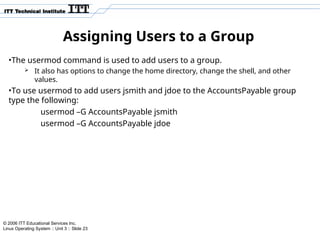
Educational Services Inc. Linux Operating System :: Unit 3 :: Slide 23 Assigning Users to a Group •The usermod command is used to add users to a group. It also has options to change the home directory, change the shell, and other values. •To use usermod to add users jsmith and jdoe to the AccountsPayable group type the following: usermod –G AccountsPayable jsmith usermod –G AccountsPayable jdoe
24.
© 2006 ITT
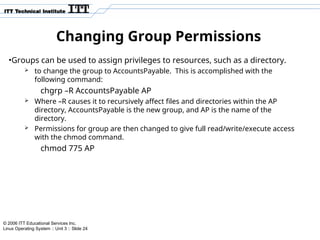
Educational Services Inc. Linux Operating System :: Unit 3 :: Slide 24 Changing Group Permissions •Groups can be used to assign privileges to resources, such as a directory. to change the group to AccountsPayable. This is accomplished with the following command: chgrp –R AccountsPayable AP Where –R causes it to recursively affect files and directories within the AP directory, AccountsPayable is the new group, and AP is the name of the directory. Permissions for group are then changed to give full read/write/execute access with the chmod command. chmod 775 AP
Download



![Unix environment [autosaved]](https://cdn.slidesharecdn.com/ss_thumbnails/unixenvironmentautosaved-151015111256-lva1-app6892-thumbnail.jpg?width=640&height=640&fit=bounds)


