11-1
Presented by:
Sravan Malpani
gdfdgdfdh
fhfjdfhjgfh
gfgjdfhgjd
hffkkfjgkfj
11-2
What is exactly needed?
11-3
Why GNU/Linux?
 Software costs $0
 Advanced Multitasking
 Remote tasking ("real networking")
 Multiuser
 Easy access to programming languages, databases, open-source projects
11-4
Why GNU/Linux?
Contd..
 Software freedoms
1. Free to use for any purpose
2. Free to study and modify the source code
3. Free to share
4. Free to share modified versions
 No dependence on vendors
 Better performance
11-5
Where is Linux Used?
 75% of respondents were already using Linux and
another 14% were evaluating it
 43% of all web sites use Linux servers running the
Apache Web server
11-6
Distributions
Unix Distributions
 Linux
 Solaris ( Sun Micro Systems)
 HP-UX ( Hewlett Packward)
 AIX (IBM)
11-7
Distributions
Linux Distributions
 Red Hat Linux
 Debian
 Mandrake
 SUSE
11-8
Basics
Shell
Shell is nothing but a Command prompt like in windows, When
you enter the commands, you get your work done
The Shell is a command interpreter, it takes each command
and passes it to the OS kernel to be acted upon. It will displays
the results of your operations on screen.
We have 'n' no.of shells available on any Unix Machine. each
one has it's own strengths and weaknesses.
11-9
Continued…
The most commonly available Shell(s) are:
1. Bourne Shell (sh)
2. Korn Shell (ksh)
3. C Shell (csh)
4. Bourne Again Shell (bash)
5. TC Shell (tcsh)
11-10
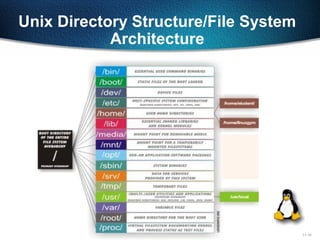
Unix Directory Structure/File System
Architecture
11-11
Logging into the System
 To login to your account type your user name and at the login prompt. Unix
is Case Sensitive.
 When the password prompt appears, type your password. Your password will
never displayed on screen for security Measure. It is also case sensitive
 Then You will get [username@hostname ]#
or [username@hostname <pwd>]$.
 #, means it is administrative User Login
 $, means it is Normal user Login
 And for Administrator always Username is ‘root’, and the User ID and Group
Id is 0.
11-12
Commands and their options
Each and every command will have generally some options to get
more information about the respective outputs.
Options will be used by preceding “-”. Options will be given after
entering the command by giving some space
Basic Commands
11-13
Working with Basic Commands
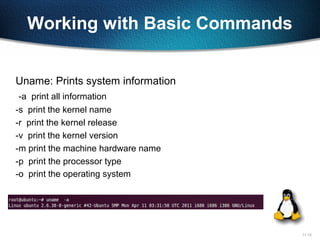
Uname: Prints system information
-a print all information
-s print the kernel name
-r print the kernel release
-v print the kernel version
-m print the machine hardware name
-p print the processor type
-o print the operating system
11-14
Working with Basic Commands
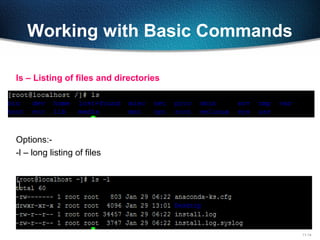
ls – Listing of files and directories
Options:-
-l – long listing of files
11-15
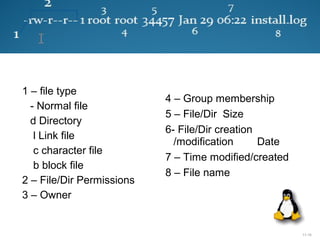
1 – file type
- Normal file
d Directory
l Link file
c character file
b block file
2 – File/Dir Permissions
3 – Owner
4 – Group membership
5 – File/Dir Size
6- File/Dir creation
/modification Date
7 – Time modified/created
8 – File name
11-16
Working with Basic Commands
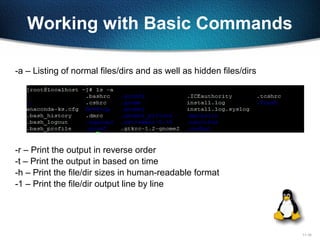
-a – Listing of normal files/dirs and as well as hidden files/dirs
-r – Print the output in reverse order
-t – Print the output in based on time
-h – Print the file/dir sizes in human-readable format
-1 – Print the file/dir output line by line
11-17
Working with Basic Commands
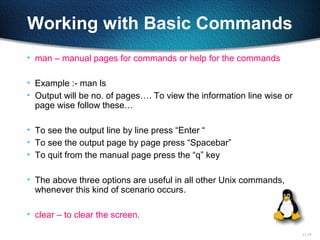
• man – manual pages for commands or help for the commands
• Example :- man ls
• Output will be no. of pages…. To view the information line wise or
page wise follow these…
• To see the output line by line press “Enter “
• To see the output page by page press “Spacebar”
• To quit from the manual page press the “q” key
• The above three options are useful in all other Unix commands,
whenever this kind of scenario occurs.
• clear – to clear the screen.
11-18
Working with Basic Commands
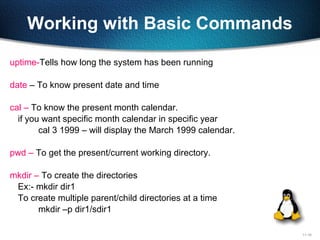
uptime-Tells how long the system has been running
date – To know present date and time
cal – To know the present month calendar.
if you want specific month calendar in specific year
cal 3 1999 – will display the March 1999 calendar.
pwd – To get the present/current working directory.
mkdir – To create the directories
Ex:- mkdir dir1
To create multiple parent/child directories at a time
mkdir –p dir1/sdir1
11-19
Working with Basic Commands
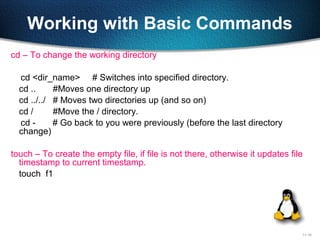
cd – To change the working directory
cd <dir_name> # Switches into specified directory.
cd .. #Moves one directory up
cd ../../ # Moves two directories up (and so on)
cd / #Move the / directory.
cd - # Go back to you were previously (before the last directory
change)
touch – To create the empty file, if file is not there, otherwise it updates file
timestamp to current timestamp.
touch f1
11-20
Working with Basic Commands
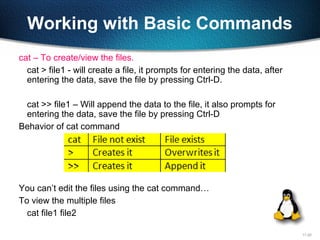
cat – To create/view the files.
cat > file1 - will create a file, it prompts for entering the data, after
entering the data, save the file by pressing Ctrl-D.
cat >> file1 – Will append the data to the file, it also prompts for
entering the data, save the file by pressing Ctrl-D
Behavior of cat command
You can’t edit the files using the cat command…
To view the multiple files
cat file1 file2
11-21
Working with Basic Commands
cp – to copy and paste the files/directories
- Syntax to copy the files
cp [options] <source> <destination>
To copy file1 as file2 in the same location.
cp file1 file2
To copy file1 from your present working directory to some other
directory
cp file1 /opt/dir1/
while copying you want to change the file name
cp file1 /opt/dir1/file2
11-22
Working with Basic Commands
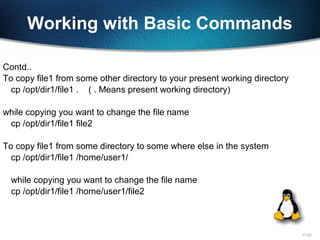
Contd..
To copy file1 from some other directory to your present working directory
cp /opt/dir1/file1 . ( . Means present working directory)
while copying you want to change the file name
cp /opt/dir1/file1 file2
To copy file1 from some directory to some where else in the system
cp /opt/dir1/file1 /home/user1/
while copying you want to change the file name
cp /opt/dir1/file1 /home/user1/file2
11-23
Working with Basic Commands
- Syntax to copy the directories
cp –r [options] <srcdir> <destdir>
Options:-
-f - to copy files/dir forcefully.. This option will be useful when
we want to copy files/dirs, if already exists.
-i – Interactively copying the files by asking question want to copy or
not?
-p – while copying files/dirs to preserve the file attributes like
timestamp, permissions, ownership, groups.
cp –rf /opt/dir1 /home/user1/
11-24
Working with Basic Commands
rm – removing of files/dirs
- Syntax to remove the files
rm [options] <filename>
-To remove a file
rm file1
-To remove all files starts with “f”
rm f*
- To remove all files ends “f”
rm *f
- Syntax to remove the directories
rm –r [options] <dirname>
11-25
Working with Basic Commands
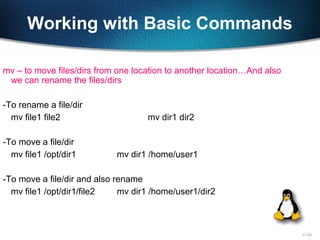
mv – to move files/dirs from one location to another location…And also
we can rename the files/dirs
-To rename a file/dir
mv file1 file2 mv dir1 dir2
-To move a file/dir
mv file1 /opt/dir1 mv dir1 /home/user1
-To move a file/dir and also rename
mv file1 /opt/dir1/file2 mv dir1 /home/user1/dir2
11-26
Working with Basic Commands
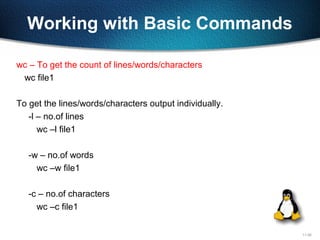
wc – To get the count of lines/words/characters
wc file1
To get the lines/words/characters output individually.
-l – no.of lines
wc –l file1
-w – no.of words
wc –w file1
-c – no.of characters
wc –c file1
11-27
Working with Basic Commands
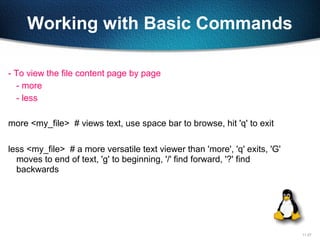
- To view the file content page by page
- more
- less
more <my_file> # views text, use space bar to browse, hit 'q' to exit
less <my_file> # a more versatile text viewer than 'more', 'q' exits, 'G'
moves to end of text, 'g' to beginning, '/' find forward, '?' find
backwards
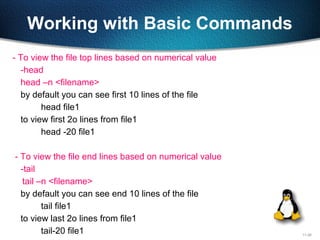
11-28
Working with Basic Commands
- To view the file top lines based on numerical value
-head
head –n <filename>
by default you can see first 10 lines of the file
head file1
to view first 2o lines from file1
head -20 file1
- To view the file end lines based on numerical value
-tail
tail –n <filename>
by default you can see end 10 lines of the file
tail file1
to view last 2o lines from file1
tail-20 file1
11-29

Linux day 1

  • 1.
  • 2.
  • 3.
    11-3 Why GNU/Linux?  Softwarecosts $0  Advanced Multitasking  Remote tasking ("real networking")  Multiuser  Easy access to programming languages, databases, open-source projects
  • 4.
    11-4 Why GNU/Linux? Contd..  Softwarefreedoms 1. Free to use for any purpose 2. Free to study and modify the source code 3. Free to share 4. Free to share modified versions  No dependence on vendors  Better performance
  • 5.
    11-5 Where is LinuxUsed?  75% of respondents were already using Linux and another 14% were evaluating it  43% of all web sites use Linux servers running the Apache Web server
  • 6.
    11-6 Distributions Unix Distributions  Linux Solaris ( Sun Micro Systems)  HP-UX ( Hewlett Packward)  AIX (IBM)
  • 7.
    11-7 Distributions Linux Distributions  RedHat Linux  Debian  Mandrake  SUSE
  • 8.
    11-8 Basics Shell Shell is nothingbut a Command prompt like in windows, When you enter the commands, you get your work done The Shell is a command interpreter, it takes each command and passes it to the OS kernel to be acted upon. It will displays the results of your operations on screen. We have 'n' no.of shells available on any Unix Machine. each one has it's own strengths and weaknesses.
  • 9.
    11-9 Continued… The most commonlyavailable Shell(s) are: 1. Bourne Shell (sh) 2. Korn Shell (ksh) 3. C Shell (csh) 4. Bourne Again Shell (bash) 5. TC Shell (tcsh)
  • 10.
  • 11.
    11-11 Logging into theSystem  To login to your account type your user name and at the login prompt. Unix is Case Sensitive.  When the password prompt appears, type your password. Your password will never displayed on screen for security Measure. It is also case sensitive  Then You will get [username@hostname ]# or [username@hostname <pwd>]$.  #, means it is administrative User Login  $, means it is Normal user Login  And for Administrator always Username is ‘root’, and the User ID and Group Id is 0.
  • 12.
    11-12 Commands and theiroptions Each and every command will have generally some options to get more information about the respective outputs. Options will be used by preceding “-”. Options will be given after entering the command by giving some space Basic Commands
  • 13.
    11-13 Working with BasicCommands Uname: Prints system information -a print all information -s print the kernel name -r print the kernel release -v print the kernel version -m print the machine hardware name -p print the processor type -o print the operating system
  • 14.
    11-14 Working with BasicCommands ls – Listing of files and directories Options:- -l – long listing of files
  • 15.
    11-15 1 – filetype - Normal file d Directory l Link file c character file b block file 2 – File/Dir Permissions 3 – Owner 4 – Group membership 5 – File/Dir Size 6- File/Dir creation /modification Date 7 – Time modified/created 8 – File name
  • 16.
    11-16 Working with BasicCommands -a – Listing of normal files/dirs and as well as hidden files/dirs -r – Print the output in reverse order -t – Print the output in based on time -h – Print the file/dir sizes in human-readable format -1 – Print the file/dir output line by line
  • 17.
    11-17 Working with BasicCommands • man – manual pages for commands or help for the commands • Example :- man ls • Output will be no. of pages…. To view the information line wise or page wise follow these… • To see the output line by line press “Enter “ • To see the output page by page press “Spacebar” • To quit from the manual page press the “q” key • The above three options are useful in all other Unix commands, whenever this kind of scenario occurs. • clear – to clear the screen.
  • 18.
    11-18 Working with BasicCommands uptime-Tells how long the system has been running date – To know present date and time cal – To know the present month calendar. if you want specific month calendar in specific year cal 3 1999 – will display the March 1999 calendar. pwd – To get the present/current working directory. mkdir – To create the directories Ex:- mkdir dir1 To create multiple parent/child directories at a time mkdir –p dir1/sdir1
  • 19.
    11-19 Working with BasicCommands cd – To change the working directory cd <dir_name> # Switches into specified directory. cd .. #Moves one directory up cd ../../ # Moves two directories up (and so on) cd / #Move the / directory. cd - # Go back to you were previously (before the last directory change) touch – To create the empty file, if file is not there, otherwise it updates file timestamp to current timestamp. touch f1
  • 20.
    11-20 Working with BasicCommands cat – To create/view the files. cat > file1 - will create a file, it prompts for entering the data, after entering the data, save the file by pressing Ctrl-D. cat >> file1 – Will append the data to the file, it also prompts for entering the data, save the file by pressing Ctrl-D Behavior of cat command You can’t edit the files using the cat command… To view the multiple files cat file1 file2
  • 21.
    11-21 Working with BasicCommands cp – to copy and paste the files/directories - Syntax to copy the files cp [options] <source> <destination> To copy file1 as file2 in the same location. cp file1 file2 To copy file1 from your present working directory to some other directory cp file1 /opt/dir1/ while copying you want to change the file name cp file1 /opt/dir1/file2
  • 22.
    11-22 Working with BasicCommands Contd.. To copy file1 from some other directory to your present working directory cp /opt/dir1/file1 . ( . Means present working directory) while copying you want to change the file name cp /opt/dir1/file1 file2 To copy file1 from some directory to some where else in the system cp /opt/dir1/file1 /home/user1/ while copying you want to change the file name cp /opt/dir1/file1 /home/user1/file2
  • 23.
    11-23 Working with BasicCommands - Syntax to copy the directories cp –r [options] <srcdir> <destdir> Options:- -f - to copy files/dir forcefully.. This option will be useful when we want to copy files/dirs, if already exists. -i – Interactively copying the files by asking question want to copy or not? -p – while copying files/dirs to preserve the file attributes like timestamp, permissions, ownership, groups. cp –rf /opt/dir1 /home/user1/
  • 24.
    11-24 Working with BasicCommands rm – removing of files/dirs - Syntax to remove the files rm [options] <filename> -To remove a file rm file1 -To remove all files starts with “f” rm f* - To remove all files ends “f” rm *f - Syntax to remove the directories rm –r [options] <dirname>
  • 25.
    11-25 Working with BasicCommands mv – to move files/dirs from one location to another location…And also we can rename the files/dirs -To rename a file/dir mv file1 file2 mv dir1 dir2 -To move a file/dir mv file1 /opt/dir1 mv dir1 /home/user1 -To move a file/dir and also rename mv file1 /opt/dir1/file2 mv dir1 /home/user1/dir2
  • 26.
    11-26 Working with BasicCommands wc – To get the count of lines/words/characters wc file1 To get the lines/words/characters output individually. -l – no.of lines wc –l file1 -w – no.of words wc –w file1 -c – no.of characters wc –c file1
  • 27.
    11-27 Working with BasicCommands - To view the file content page by page - more - less more <my_file> # views text, use space bar to browse, hit 'q' to exit less <my_file> # a more versatile text viewer than 'more', 'q' exits, 'G' moves to end of text, 'g' to beginning, '/' find forward, '?' find backwards
  • 28.
    11-28 Working with BasicCommands - To view the file top lines based on numerical value -head head –n <filename> by default you can see first 10 lines of the file head file1 to view first 2o lines from file1 head -20 file1 - To view the file end lines based on numerical value -tail tail –n <filename> by default you can see end 10 lines of the file tail file1 to view last 2o lines from file1 tail-20 file1
  • 29.