Introduction to
Arduino
Seng Kang Secondary School
Applied Learning Programme (ALP)
Lesson Objective
• What is Arduino
• Parts of Arduino board
• Programming codes / Arduino
Software
What is an Arduino?
• Microcontroller board
• Arduino can be used to develop interactive objects,
taking INPUTS (eg. Switches or sensors) and controlling
physical OUTPUTS (eg. Lights or motors)
• The boards can be assembled by hand or purchased
preassembled
Power in
USB (to
computer)
Digital IO
PWM(3, 5, 6, 9, 10, 11)RESET
POWER
5V / 3.3V / GND
Analog
INPUTS
Arduino
How Arduino works?
Human inputs
Eye
Ear
Nose
Tongue
Skin
Output
examples
Activate arms
Activate legs
Activate mouth
Human brain
Output
examples
Activate LEDs
Activate Servo
Activate buzzer
Arduino inputs
Light Sensors
Heart Rate sensors
Temperature sensors
Other inputs
Arduino Board
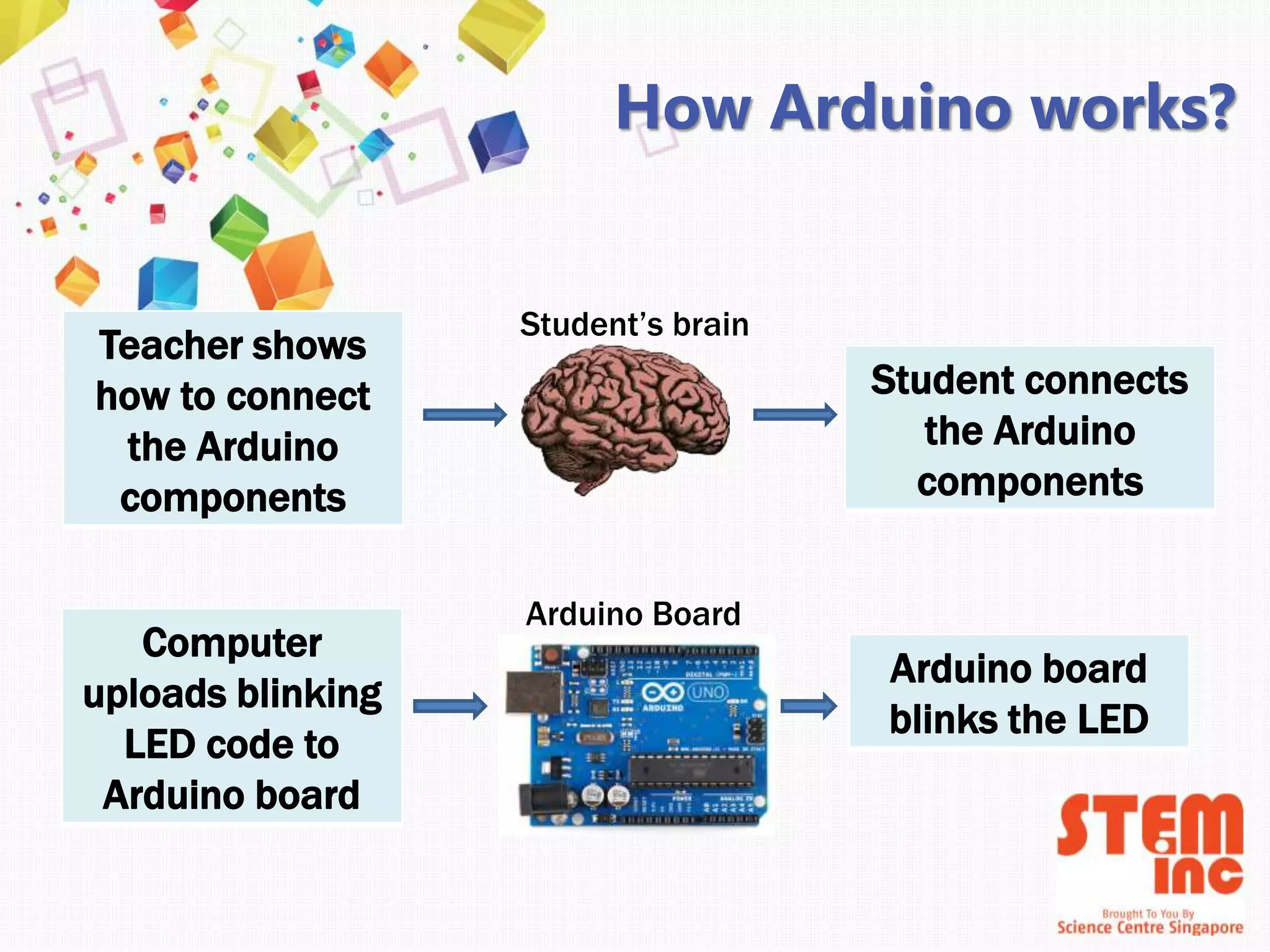
How Arduino works?
Arduino board
blinks the LED
Computer
uploads blinking
LED code to
Arduino board
Teacher shows
how to connect
the Arduino
components
Student connects
the Arduino
components
Student’s brain
Arduino Board
Digital Pins vs Analog Pins
• Digital Pin
– There is two modes
(eg: ON/OFF)
• Analog Pins
– Variable range
(eg: dimming the light,
different intensity)
Arduino Software
(Sketch)
Light Emitting Diode
(LED)
√ Polarity
Examples of LED
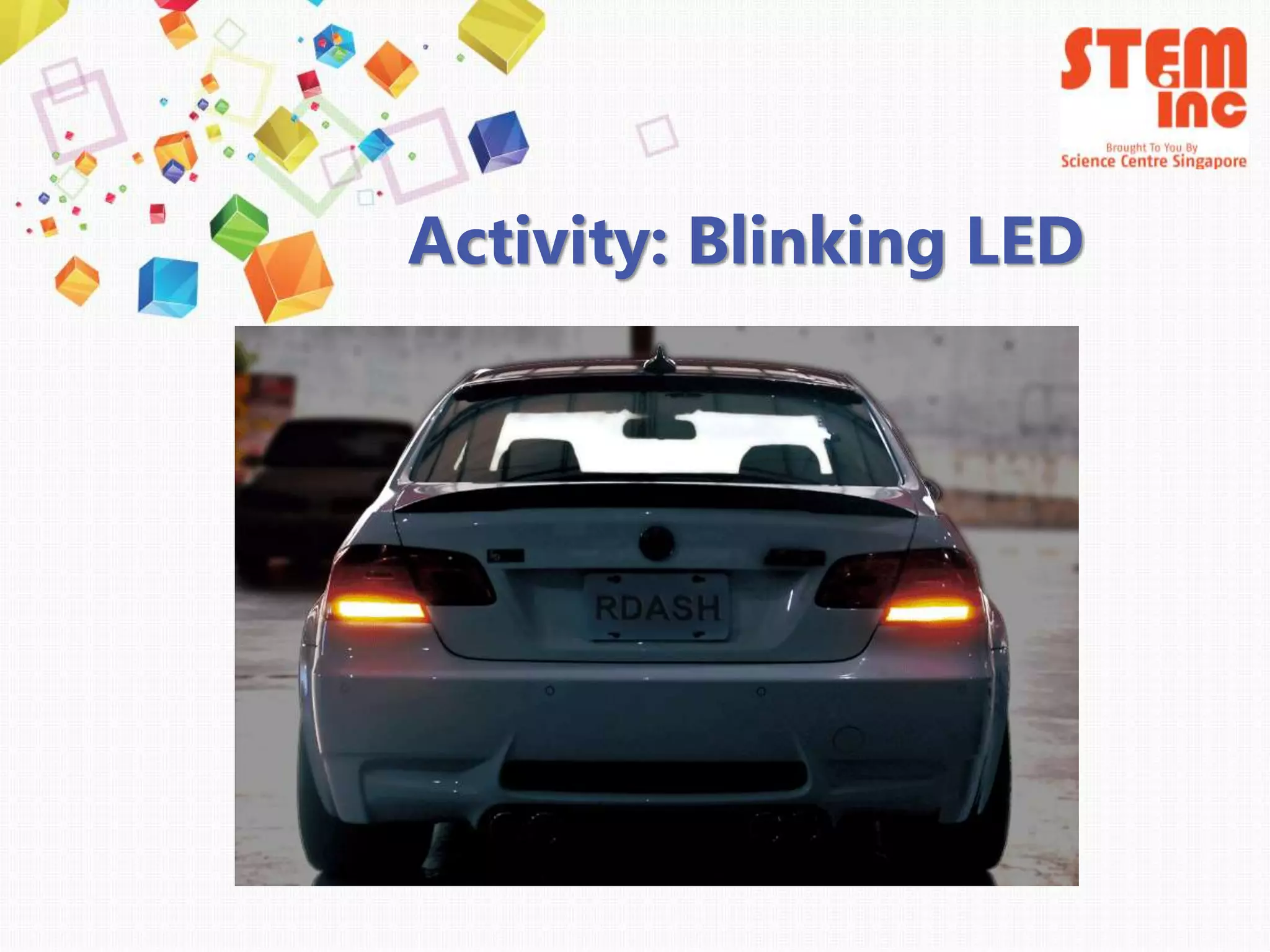
Activity: Blinking LED
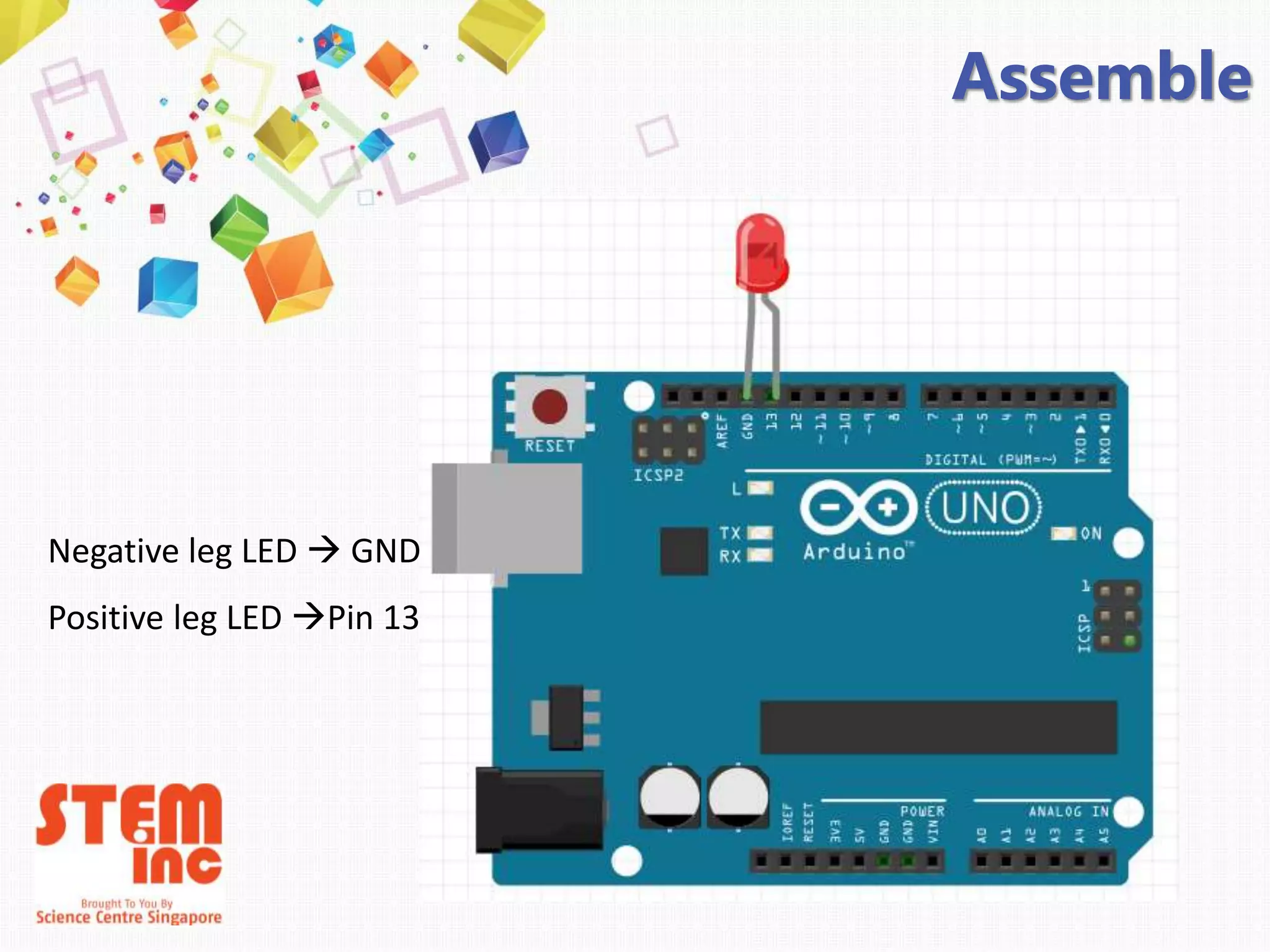
Assemble
Negative leg LED  GND
Positive leg LED Pin 13
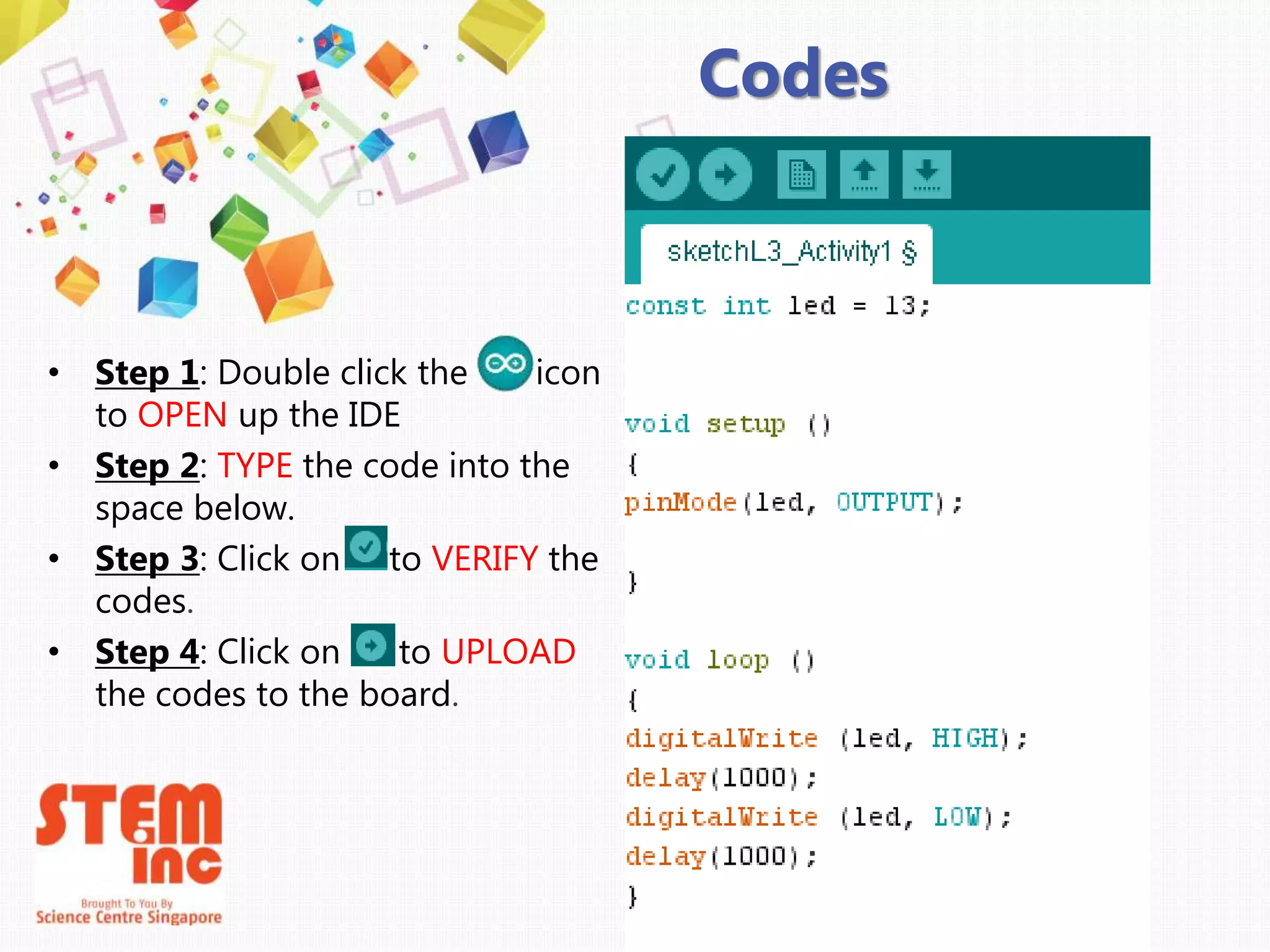
Codes
• Step 1: Double click the icon
to OPEN up the IDE
• Step 2: TYPE the code into the
space below.
• Step 3: Click on to VERIFY the
codes.
• Step 4: Click on to UPLOAD
the codes to the board.
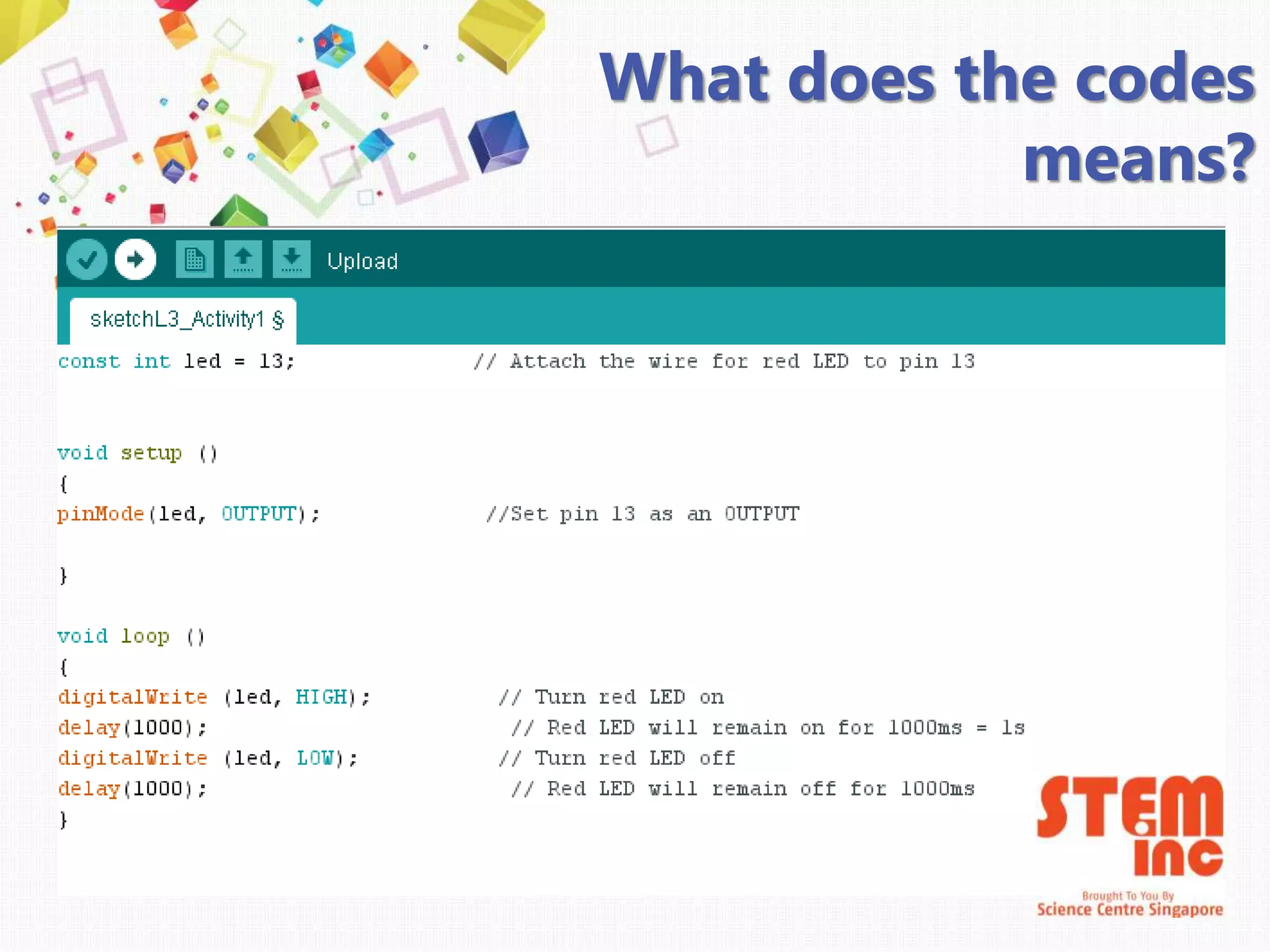
What does the codes
means?
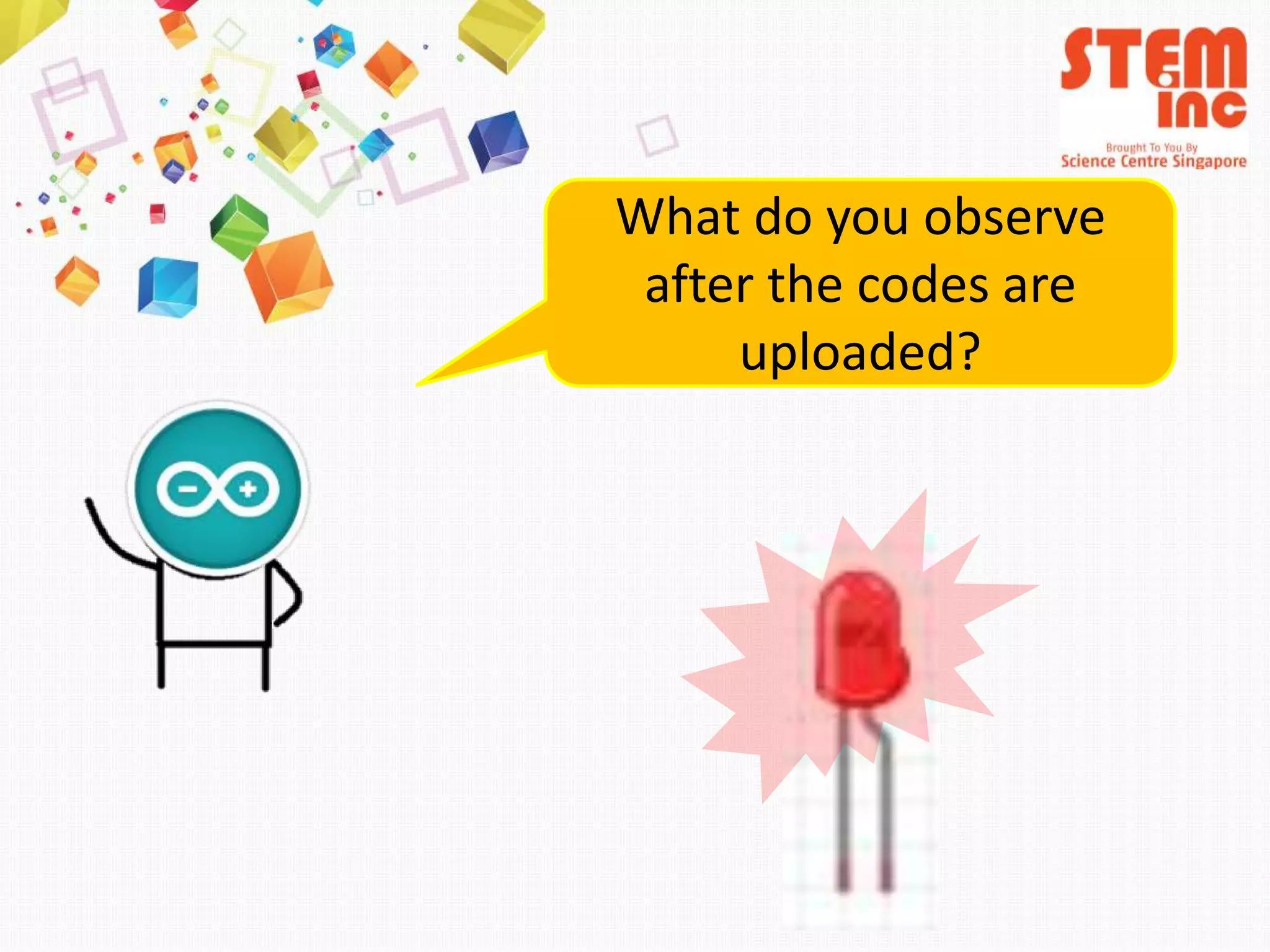
What do you observe
after the codes are
uploaded?
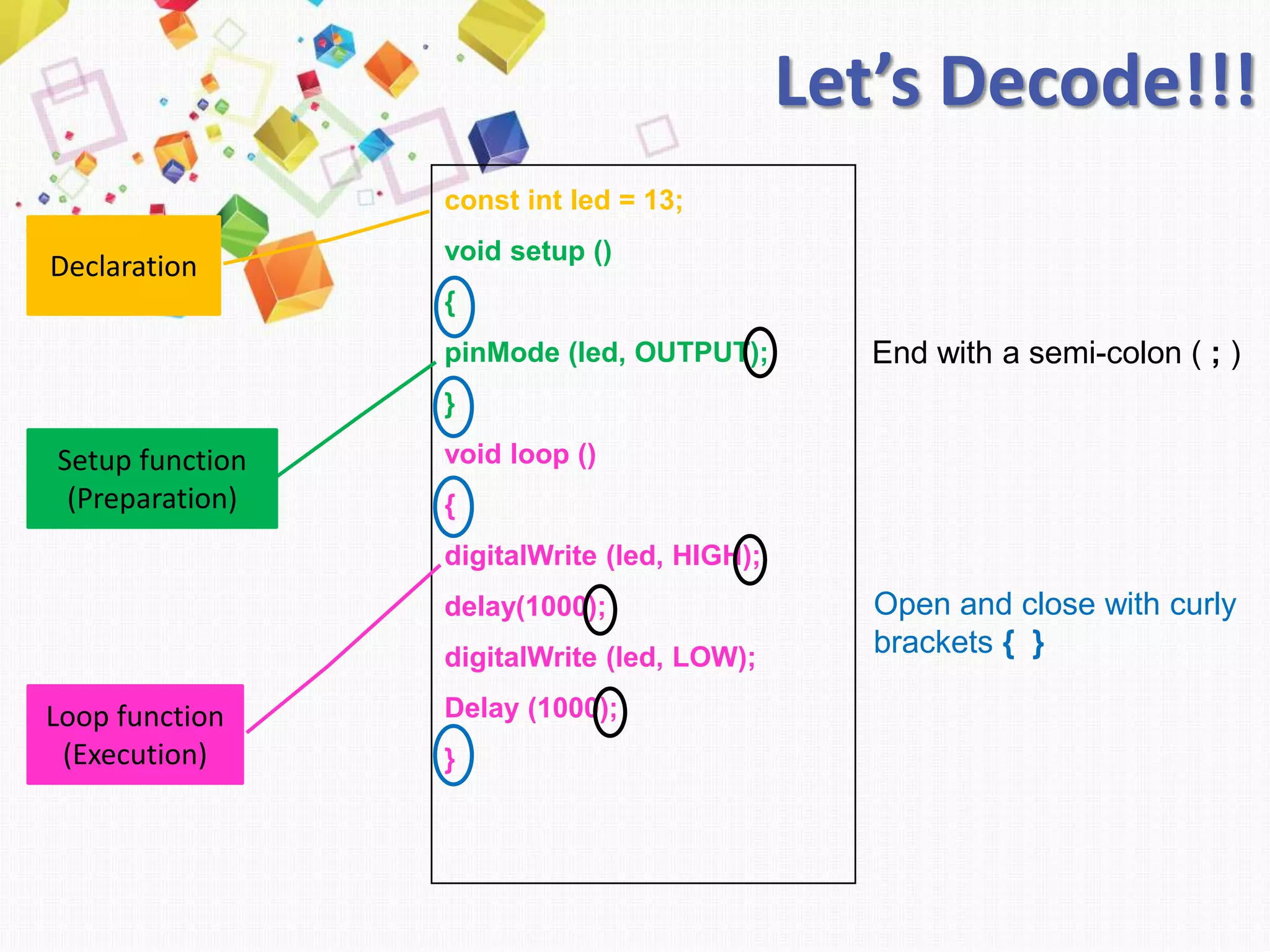
End with a semi-colon ( ; )
const int led = 13;
void setup ()
{
pinMode (led, OUTPUT);
}
void loop ()
{
digitalWrite (led, HIGH);
delay(1000);
digitalWrite (led, LOW);
Delay (1000);
}
Declaration
Setup function
(Preparation)
Loop function
(Execution)
Open and close with curly
brackets { }
Let’s Decode!!!
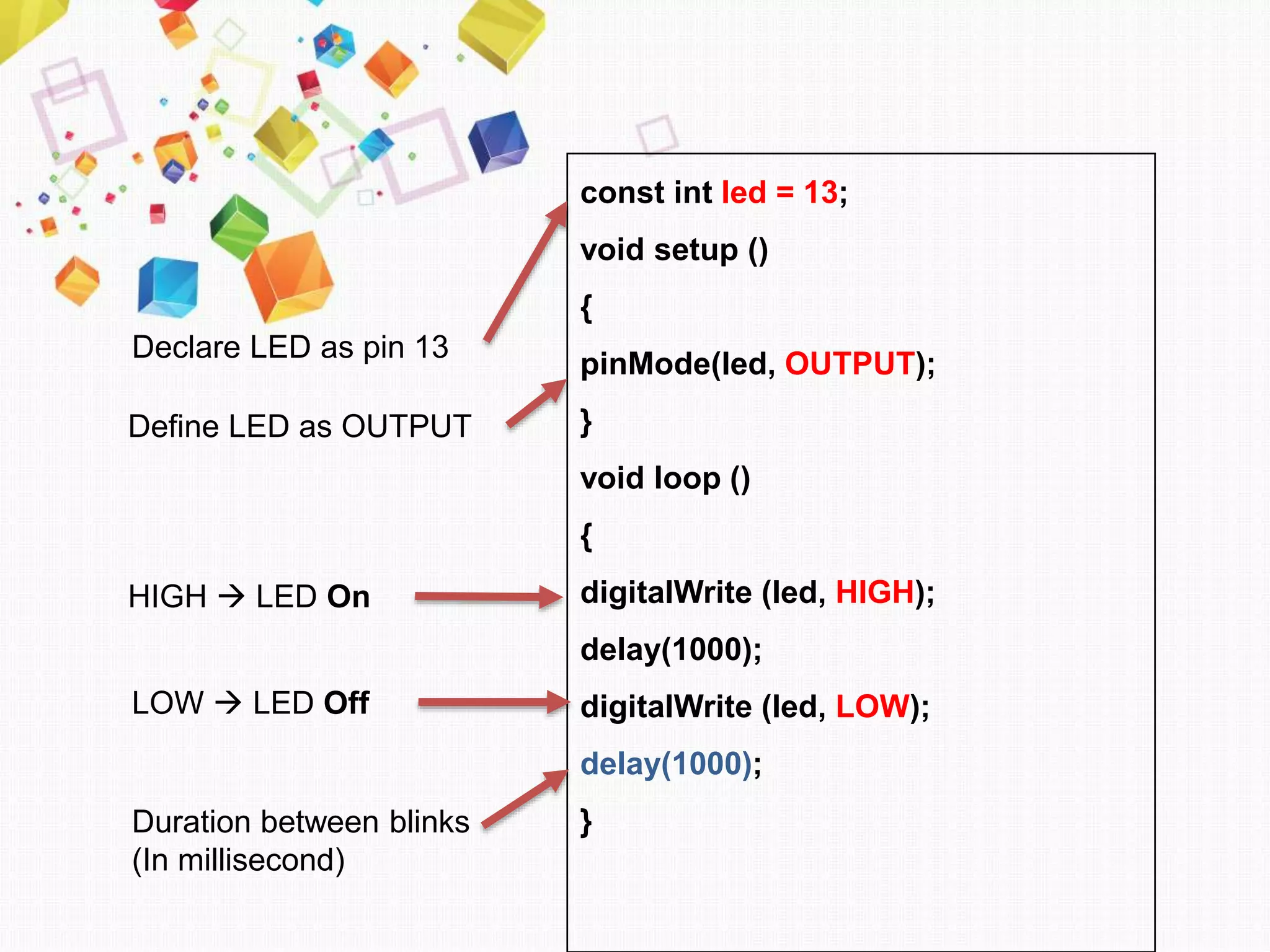
const int led = 13;
void setup ()
{
pinMode(led, OUTPUT);
}
void loop ()
{
digitalWrite (led, HIGH);
delay(1000);
digitalWrite (led, LOW);
delay(1000);
}
Declare LED as pin 13
Define LED as OUTPUT
HIGH  LED On
LOW  LED Off
Duration between blinks
(In millisecond)
void loop ( )
{
digitalWrite (led, HIGH) ;
delay(1000);
digitalWrite (led, LOW);
delay(1000);
}
void loop ( )
{
digitalWrite (led, HIGH) ;
delay(500);
digitalWrite (led, LOW);
delay(500);
}
What do you observe after the
codes are changed?
Keywords
• Arduino Board: Physical programmable circuit board
(also known as microcontroller)
• Sketch: The name that Arduino uses for a program. It is
where the program codes are written.
• LED: Light Emitting Diode. Is an output.

Lesson sample introduction to arduino

  • 1.
    Introduction to Arduino Seng KangSecondary School Applied Learning Programme (ALP)
  • 2.
    Lesson Objective • Whatis Arduino • Parts of Arduino board • Programming codes / Arduino Software
  • 3.
    What is anArduino? • Microcontroller board • Arduino can be used to develop interactive objects, taking INPUTS (eg. Switches or sensors) and controlling physical OUTPUTS (eg. Lights or motors) • The boards can be assembled by hand or purchased preassembled
  • 4.
    Power in USB (to computer) DigitalIO PWM(3, 5, 6, 9, 10, 11)RESET POWER 5V / 3.3V / GND Analog INPUTS Arduino
  • 5.
    How Arduino works? Humaninputs Eye Ear Nose Tongue Skin Output examples Activate arms Activate legs Activate mouth Human brain Output examples Activate LEDs Activate Servo Activate buzzer Arduino inputs Light Sensors Heart Rate sensors Temperature sensors Other inputs Arduino Board
  • 6.
    How Arduino works? Arduinoboard blinks the LED Computer uploads blinking LED code to Arduino board Teacher shows how to connect the Arduino components Student connects the Arduino components Student’s brain Arduino Board
  • 7.
    Digital Pins vsAnalog Pins • Digital Pin – There is two modes (eg: ON/OFF) • Analog Pins – Variable range (eg: dimming the light, different intensity)
  • 8.
  • 9.
  • 10.
  • 11.
  • 12.
    Assemble Negative leg LED GND Positive leg LED Pin 13
  • 13.
    Codes • Step 1:Double click the icon to OPEN up the IDE • Step 2: TYPE the code into the space below. • Step 3: Click on to VERIFY the codes. • Step 4: Click on to UPLOAD the codes to the board.
  • 14.
    What does thecodes means?
  • 15.
    What do youobserve after the codes are uploaded?
  • 16.
    End with asemi-colon ( ; ) const int led = 13; void setup () { pinMode (led, OUTPUT); } void loop () { digitalWrite (led, HIGH); delay(1000); digitalWrite (led, LOW); Delay (1000); } Declaration Setup function (Preparation) Loop function (Execution) Open and close with curly brackets { } Let’s Decode!!!
  • 17.
    const int led= 13; void setup () { pinMode(led, OUTPUT); } void loop () { digitalWrite (led, HIGH); delay(1000); digitalWrite (led, LOW); delay(1000); } Declare LED as pin 13 Define LED as OUTPUT HIGH  LED On LOW  LED Off Duration between blinks (In millisecond)
  • 18.
    void loop () { digitalWrite (led, HIGH) ; delay(1000); digitalWrite (led, LOW); delay(1000); } void loop ( ) { digitalWrite (led, HIGH) ; delay(500); digitalWrite (led, LOW); delay(500); } What do you observe after the codes are changed?
  • 19.
    Keywords • Arduino Board:Physical programmable circuit board (also known as microcontroller) • Sketch: The name that Arduino uses for a program. It is where the program codes are written. • LED: Light Emitting Diode. Is an output.

Editor's Notes

  • #3 Activity 1 – LED Circuit Activity 2 – 2 LED Circuit Activity 3 – Infinite Blink
  • #9 IDE - Integrated Development Environment. Software to write and upload programming codes to Arduino board.
  • #14 Step 1: Double click the icon to OPEN up the IDE Step 2: TYPE the code into the space below. Step 3: Click on to VERIFY the codes. Check for errors in the code. Step 4: Click on to UPLOAD the codes to the board. Check for errors in the code