The UNIX Shell COMP 2021
Basic Shell Syntax   command  [-[options]] [arg] [arg] … The name of the command is first Options are normally single letters that turn an option on or off. They can be combined or given separately. $ ls -dil $ ls -l -d -i Options sometimes also take a value. The value can usually be either given right after the option or separately:   $ ypcat -d  ug.cs.ust.hk  passwd
Command Options   Most commands require you to give all options before filename arguments. The following command works in Linux, but not SunOS: $ cat names -n George W. Bush Bill Gates Bill Gates Bill Clinton George W. Bush cat: cannot open –n Spaces separate options. To turn something with spaces into a single argument, use quotes: $ grep vote thing letter1 grep: can’t open thing letter1:You have the Florida vote thing $ grep ”vote thing” letter1 You have the Florida vote thing
Command Options   Double quotes and single quotes are a bit different. For now, you can use them interchangeably. $ grep ‘vote thing’ letter1   You have the Florida vote thing To escape a single character (prevent it from being treated specially) proceed it with a backslash: $ grep ”We\’ll” letter2 by my office. We'll tidy up a few more things before $ echo ”*”  * $ echo ‘*’ * $ echo \* * $ echo * letter1  letter2  names  secret/
How Does the Shell Find a Command ? The shell searches a list of directories for an executable file with the same name. The list of directories is stored in the PATH variable for Bourne shells and in the path array for  csh/tcsh $ PATH=/usr/local/bin:$PATH sh % set path=(/usr/local/bin $path) csh, tcsh If there is a match in more than one directory, the shell uses the first one it finds. If you want to run a command that is not in one of these directories, you can give a pathname (relative or absolute) instead. ~horner/bin/csound
How Does the Shell Find a Command ? A few commands are built into the shell. This varies from shell to shell. The echo command, for example, is often builtin, for efficiency. You can find out where the shell is getting a particular command using the “ which ” command in any shell: $ which echo echo: shell built-in command. $ which cat /bin/cat $ which grep /bin/grep $ which ls ls:  aliased to ls --color=tty Makes directories blue,  executables green,  and soft links aqua
Alias The C Shell has the  alias  command, which allows you to create command shortcuts. $  alias ls "ls -F" $  alias rm "rm -i" $  alias + "chmod u+x *"   $  alias - "chmod u-x *"   $  alias 2021 "cd ~horner/2021" $ pwd  /bin $ 2021 $ pwd /homes/horner/2021 On most Unix machines (except  Mandriva/Mandrake  in CSLab2), if you put the alias commands in your  .cshrc  file, you can use them every time you login.
Standard Input Every time you login, or run a shell, you are “connected” to the computer on a particular terminal. $ who horner  pts/3  Sep 12 10:23  (csnt1.cs.ust.hk) horner  pts/0  Sep 12 11:57  (csz096.cs.ust.hk) These devices ( pts/0 ) are actually files in the directory  /dev . So, if you are logged in on  pts/0 , this works just fine: $ date > /dev/pts/0 Mon Sep 12 17:08:21 HKT 2011
Standard Input In fact, you can  redirect stdout to a different device (e.g.,  pts/3 ), if you have permission. (The  write  command works this way.) You can find out which terminal a particular shell is connected to using the  tty  command: $ tty /dev/pts/0 $ echo  " Hi Andrew! "  > /dev/pts/3 $
Tee A special command called tee acts like a T-joint in plumbing: $ who horner  pts/3  Feb 14 10:23  (csnt1.cs.ust.hk) horner  pts/0  Feb 14 11:57  (csz096.cs.ust.hk) $ who | sort | tee sortedwho | wc -l 2 $ cat sortedwho horner  pts/0  Feb 14 11:57  (csz096.cs.ust.hk) horner  pts/3  Feb 14 10:23  (csnt1.cs.ust.hk) $ In this example, the output of  sort   is placed in a file “ sortedwho “ and piped to  wc -l , which counts the number of lines.
Background Jobs A simple command or pipeline can be put into the background by following it with the “&” character: $ sort names > names.sort & [1] 3236 $ The shell will print the process ID (PID), and a  job number  (1, in this case). In some shells, you will be notified when the job is done (you may have to hit return again): $ sort names > names.sort & [1] 3236 $ [1]  Done  sort names > names.sort $
Background Jobs Put a job in the background by typing “CTRL-Z” $ ypcat passwd | sort >passwd.sort ^Z Suspended $  The job is suspended - not running - until you either place it in the background using  bg : $ bg [1]  ypcat passwd | sort > passwd.sort & $  or back to the foreground using   fg : $ fg ypcat passwd | sort >passwd.sort $
Jobs The  jobs  command tells you what jobs are running: $ ypcat passwd | sort > passwd.sort ^Z Suspended $ jobs [1]  + Suspended  ypcat passwd | sort > passwd.sort $ You can stop a job with the kill command: $ ypcat passwd | sort > passwd.sort & [1] 3414 3415 $ kill %1 $ [1] Terminated ypcat passwd | Exit 2 sort > passwd.sort $ The “%1” means “job #1”. You can also use the PID.
Jobs The ps command is the main way to find out about jobs: $ ps PID TTY  TIME CMD 1401 pts/0  0:01 csh $ $ ypcat passwd | sort > passwd.sort & [1] 3476 3477 $ ps PID TTY  TIME CMD 3477 pts/0  0:00 sort 1401 pts/0  0:01 csh 3476 pts/0  0:01 ypcat $
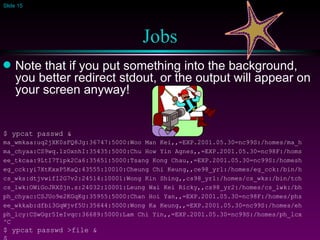
Jobs Note that if you put something into the background, you better redirect stdout, or the output will appear on your screen anyway! $ ypcat passwd & ma_wmkaa:uq2jXK0sFQ8Jg:36747:5000:Woo Man Kei,,=EXP.2001.05.30=nc99S:/homes/ma_h ma_chyaa:CS9wq.1zOxnhI:35435:5000:Chu How Yin Agnes,,=EXP.2001.05.30=nc98F:/homs ee_tkcaa:9LtI7Tipk2Ca6:35651:5000:Tsang Kong Chau,,=EXP.2001.05.30=nc99S:/homesh eg_cck:yi7XtKxxP5KaQ:43555:10010:Cheung Chi Keung,,ce98_yr1:/homes/eg_cck:/bin/h cs_wks:dtjvwifI2G7v2:24514:10001:Wong Kin Shing,,cs98_yr1:/homes/cs_wks:/bin/tch cs_lwk:OWiGoJRXSjn.s:24032:10001:Leung Wai Kei Ricky,,cs98_yr2:/homes/cs_lwk:/bh ph_chyac:CSJUo9e2KGqKg:35955:5000:Chan Hoi Yan,,=EXP.2001.05.30=nc98F:/homes/phs ee_wkkab:dfbi3GqWjvf5U:35644:5000:Wong Ka Keung,,=EXP.2001.05.30=nc99S:/homes/eh ph_lcy:CSwGgr5IeIvqc:36689:5000:Lam Chi Yin,,=EXP.2001.05.30=nc99S:/homes/ph_lcx ^C $ ypcat passwd >file & $
More Pattern Matching The notation “[abcd]” matches any single one of the enclosed characters. $ ls [il]* it  it1  ith  its@  letter1  letter4 $  The notation “[a-z]” matches any lowercase letter. The notation “[0-9]” matches any digit character. The notation “[0-59]” matches any the digit characters 0, 1, 2, 3, 4, 5, and 9. $ ls letter* letter1  letter4 $ ls letter[0-35] letter1 $ ls letter[0-24] letter1  letter4
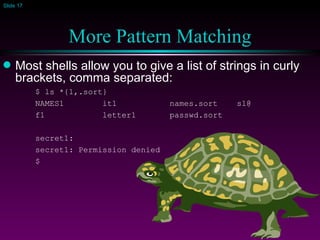
More Pattern Matching Most shells allow you to give a list of strings in curly brackets, comma separated: $ ls *{1,.sort} NAMES1  it1  names.sort  s1@ f1  letter1  passwd.sort secret1: secret1: Permission denied $
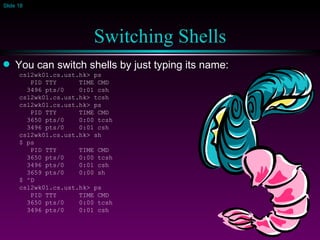
Switching Shells You can switch shells by just typing its name: csl2wk01.cs.ust.hk> ps PID TTY  TIME CMD 3496 pts/0  0:01 csh csl2wk01.cs.ust.hk> tcsh csl2wk01.cs.ust.hk> ps PID TTY  TIME CMD 3650 pts/0  0:00 tcsh 3496 pts/0  0:01 csh csl2wk01.cs.ust.hk> sh $ ps PID TTY  TIME CMD 3650 pts/0  0:00 tcsh 3496 pts/0  0:01 csh 3659 pts/0  0:00 sh $ ^D csl2wk01.cs.ust.hk> ps PID TTY  TIME CMD 3650 pts/0  0:00 tcsh 3496 pts/0  0:01 csh
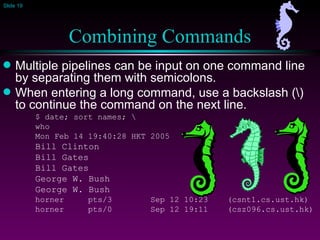
Combining Commands Multiple pipelines can be input on one command line by separating them with semicolons. When entering a long command, use a backslash (\) to continue the command on the next line. $ date; sort names; \ who Mon Feb 14 19:40:28 HKT 2005 Bill Clinton Bill Gates Bill Gates George W. Bush George W. Bush horner  pts/3  Sep 12 10:23  (csnt1.cs.ust.hk) horner  pts/0  Sep 12 19:11  (csz096.cs.ust.hk)
Combining Commands Commands can be grouped together using parentheses There are two main reasons to group commands: To create a “single command” out of a group of commands (especially useful before a pipe):   $ (cat letter1; head -2 names) | sort >list To run a set of commands in their own subshell (especially when trying to limit the effect of a  cd  command): $ (cd secret; ls | wc -l); ls | wc -l   3   25 This line has the effect of counting the files  in secret, and then counting the files in the  current directory.

01c shell

  • 1.
    The UNIX ShellCOMP 2021
  • 2.
    Basic Shell Syntax command [-[options]] [arg] [arg] … The name of the command is first Options are normally single letters that turn an option on or off. They can be combined or given separately. $ ls -dil $ ls -l -d -i Options sometimes also take a value. The value can usually be either given right after the option or separately: $ ypcat -d ug.cs.ust.hk passwd
  • 3.
    Command Options Most commands require you to give all options before filename arguments. The following command works in Linux, but not SunOS: $ cat names -n George W. Bush Bill Gates Bill Gates Bill Clinton George W. Bush cat: cannot open –n Spaces separate options. To turn something with spaces into a single argument, use quotes: $ grep vote thing letter1 grep: can’t open thing letter1:You have the Florida vote thing $ grep ”vote thing” letter1 You have the Florida vote thing
  • 4.
    Command Options Double quotes and single quotes are a bit different. For now, you can use them interchangeably. $ grep ‘vote thing’ letter1 You have the Florida vote thing To escape a single character (prevent it from being treated specially) proceed it with a backslash: $ grep ”We\’ll” letter2 by my office. We'll tidy up a few more things before $ echo ”*” * $ echo ‘*’ * $ echo \* * $ echo * letter1 letter2 names secret/
  • 5.
    How Does theShell Find a Command ? The shell searches a list of directories for an executable file with the same name. The list of directories is stored in the PATH variable for Bourne shells and in the path array for csh/tcsh $ PATH=/usr/local/bin:$PATH sh % set path=(/usr/local/bin $path) csh, tcsh If there is a match in more than one directory, the shell uses the first one it finds. If you want to run a command that is not in one of these directories, you can give a pathname (relative or absolute) instead. ~horner/bin/csound
  • 6.
    How Does theShell Find a Command ? A few commands are built into the shell. This varies from shell to shell. The echo command, for example, is often builtin, for efficiency. You can find out where the shell is getting a particular command using the “ which ” command in any shell: $ which echo echo: shell built-in command. $ which cat /bin/cat $ which grep /bin/grep $ which ls ls: aliased to ls --color=tty Makes directories blue, executables green, and soft links aqua
  • 7.
    Alias The CShell has the alias command, which allows you to create command shortcuts. $ alias ls "ls -F" $ alias rm "rm -i" $ alias + "chmod u+x *" $ alias - "chmod u-x *" $ alias 2021 "cd ~horner/2021" $ pwd /bin $ 2021 $ pwd /homes/horner/2021 On most Unix machines (except Mandriva/Mandrake in CSLab2), if you put the alias commands in your .cshrc file, you can use them every time you login.
  • 8.
    Standard Input Everytime you login, or run a shell, you are “connected” to the computer on a particular terminal. $ who horner pts/3 Sep 12 10:23 (csnt1.cs.ust.hk) horner pts/0 Sep 12 11:57 (csz096.cs.ust.hk) These devices ( pts/0 ) are actually files in the directory /dev . So, if you are logged in on pts/0 , this works just fine: $ date > /dev/pts/0 Mon Sep 12 17:08:21 HKT 2011
  • 9.
    Standard Input Infact, you can redirect stdout to a different device (e.g., pts/3 ), if you have permission. (The write command works this way.) You can find out which terminal a particular shell is connected to using the tty command: $ tty /dev/pts/0 $ echo " Hi Andrew! " > /dev/pts/3 $
  • 10.
    Tee A specialcommand called tee acts like a T-joint in plumbing: $ who horner pts/3 Feb 14 10:23 (csnt1.cs.ust.hk) horner pts/0 Feb 14 11:57 (csz096.cs.ust.hk) $ who | sort | tee sortedwho | wc -l 2 $ cat sortedwho horner pts/0 Feb 14 11:57 (csz096.cs.ust.hk) horner pts/3 Feb 14 10:23 (csnt1.cs.ust.hk) $ In this example, the output of sort is placed in a file “ sortedwho “ and piped to wc -l , which counts the number of lines.
  • 11.
    Background Jobs Asimple command or pipeline can be put into the background by following it with the “&” character: $ sort names > names.sort & [1] 3236 $ The shell will print the process ID (PID), and a job number (1, in this case). In some shells, you will be notified when the job is done (you may have to hit return again): $ sort names > names.sort & [1] 3236 $ [1] Done sort names > names.sort $
  • 12.
    Background Jobs Puta job in the background by typing “CTRL-Z” $ ypcat passwd | sort >passwd.sort ^Z Suspended $ The job is suspended - not running - until you either place it in the background using bg : $ bg [1] ypcat passwd | sort > passwd.sort & $ or back to the foreground using fg : $ fg ypcat passwd | sort >passwd.sort $
  • 13.
    Jobs The jobs command tells you what jobs are running: $ ypcat passwd | sort > passwd.sort ^Z Suspended $ jobs [1] + Suspended ypcat passwd | sort > passwd.sort $ You can stop a job with the kill command: $ ypcat passwd | sort > passwd.sort & [1] 3414 3415 $ kill %1 $ [1] Terminated ypcat passwd | Exit 2 sort > passwd.sort $ The “%1” means “job #1”. You can also use the PID.
  • 14.
    Jobs The pscommand is the main way to find out about jobs: $ ps PID TTY TIME CMD 1401 pts/0 0:01 csh $ $ ypcat passwd | sort > passwd.sort & [1] 3476 3477 $ ps PID TTY TIME CMD 3477 pts/0 0:00 sort 1401 pts/0 0:01 csh 3476 pts/0 0:01 ypcat $
  • 15.
    Jobs Note thatif you put something into the background, you better redirect stdout, or the output will appear on your screen anyway! $ ypcat passwd & ma_wmkaa:uq2jXK0sFQ8Jg:36747:5000:Woo Man Kei,,=EXP.2001.05.30=nc99S:/homes/ma_h ma_chyaa:CS9wq.1zOxnhI:35435:5000:Chu How Yin Agnes,,=EXP.2001.05.30=nc98F:/homs ee_tkcaa:9LtI7Tipk2Ca6:35651:5000:Tsang Kong Chau,,=EXP.2001.05.30=nc99S:/homesh eg_cck:yi7XtKxxP5KaQ:43555:10010:Cheung Chi Keung,,ce98_yr1:/homes/eg_cck:/bin/h cs_wks:dtjvwifI2G7v2:24514:10001:Wong Kin Shing,,cs98_yr1:/homes/cs_wks:/bin/tch cs_lwk:OWiGoJRXSjn.s:24032:10001:Leung Wai Kei Ricky,,cs98_yr2:/homes/cs_lwk:/bh ph_chyac:CSJUo9e2KGqKg:35955:5000:Chan Hoi Yan,,=EXP.2001.05.30=nc98F:/homes/phs ee_wkkab:dfbi3GqWjvf5U:35644:5000:Wong Ka Keung,,=EXP.2001.05.30=nc99S:/homes/eh ph_lcy:CSwGgr5IeIvqc:36689:5000:Lam Chi Yin,,=EXP.2001.05.30=nc99S:/homes/ph_lcx ^C $ ypcat passwd >file & $
  • 16.
    More Pattern MatchingThe notation “[abcd]” matches any single one of the enclosed characters. $ ls [il]* it it1 ith its@ letter1 letter4 $ The notation “[a-z]” matches any lowercase letter. The notation “[0-9]” matches any digit character. The notation “[0-59]” matches any the digit characters 0, 1, 2, 3, 4, 5, and 9. $ ls letter* letter1 letter4 $ ls letter[0-35] letter1 $ ls letter[0-24] letter1 letter4
  • 17.
    More Pattern MatchingMost shells allow you to give a list of strings in curly brackets, comma separated: $ ls *{1,.sort} NAMES1 it1 names.sort s1@ f1 letter1 passwd.sort secret1: secret1: Permission denied $
  • 18.
    Switching Shells Youcan switch shells by just typing its name: csl2wk01.cs.ust.hk> ps PID TTY TIME CMD 3496 pts/0 0:01 csh csl2wk01.cs.ust.hk> tcsh csl2wk01.cs.ust.hk> ps PID TTY TIME CMD 3650 pts/0 0:00 tcsh 3496 pts/0 0:01 csh csl2wk01.cs.ust.hk> sh $ ps PID TTY TIME CMD 3650 pts/0 0:00 tcsh 3496 pts/0 0:01 csh 3659 pts/0 0:00 sh $ ^D csl2wk01.cs.ust.hk> ps PID TTY TIME CMD 3650 pts/0 0:00 tcsh 3496 pts/0 0:01 csh
  • 19.
    Combining Commands Multiplepipelines can be input on one command line by separating them with semicolons. When entering a long command, use a backslash (\) to continue the command on the next line. $ date; sort names; \ who Mon Feb 14 19:40:28 HKT 2005 Bill Clinton Bill Gates Bill Gates George W. Bush George W. Bush horner pts/3 Sep 12 10:23 (csnt1.cs.ust.hk) horner pts/0 Sep 12 19:11 (csz096.cs.ust.hk)
  • 20.
    Combining Commands Commandscan be grouped together using parentheses There are two main reasons to group commands: To create a “single command” out of a group of commands (especially useful before a pipe): $ (cat letter1; head -2 names) | sort >list To run a set of commands in their own subshell (especially when trying to limit the effect of a cd command): $ (cd secret; ls | wc -l); ls | wc -l 3 25 This line has the effect of counting the files in secret, and then counting the files in the current directory.