

Components of Computer
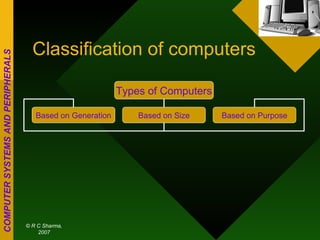
Classification of computers Types of Computers Based on Generation Based on Size Based on Purpose
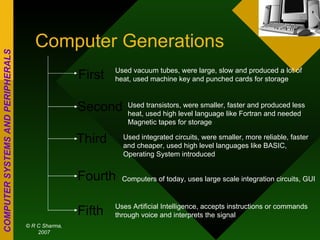
Computer Generations First Second Third Fourth Fifth Used vacuum tubes, were large, slow and produced a lot of heat, used machine key and punched cards for storage Used transistors, were smaller, faster and produced less heat, used high level language like Fortran and needed Magnetic tapes for storage Used integrated circuits, were smaller, more reliable, faster and cheaper, used high level languages like BASIC, Operating System introduced Computers of today, uses large scale integration circuits, GUI Uses Artificial Intelligence, accepts instructions or commands through voice and interprets the signal
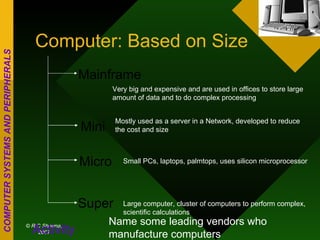
Computer: Based on Size Mainframe Mini Micro Super Very big and expensive and are used in offices to store large amount of data and to do complex processing Mostly used as a server in a Network, developed to reduce the cost and size Small PCs, laptops, palmtops, uses silicon microprocessor Large computer, cluster of computers to perform complex, scientific calculations Activity Name some leading vendors who manufacture computers
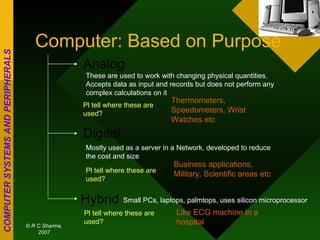
Computer: Based on Purpose Analog Digital Hybrid These are used to work with changing physical quantities. Accepts data as input and records but does not perform any complex calculations on it Mostly used as a server in a Network, developed to reduce the cost and size Small PCs, laptops, palmtops, uses silicon microprocessor Pl tell where these are used? Thermometers, Speedometers, Wrist Watches etc Business applications, Military, Scientific areas etc Pl tell where these are used? Pl tell where these are used? Like ECG machine in a hospital
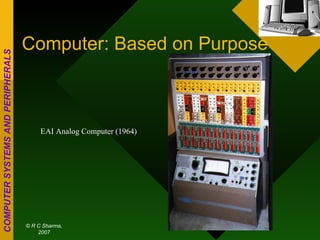
Computer: Based on Purpose EAI Analog Computer (1964)
Computer: Based on Purpose
Data Processing When the data is entered into the computer, it has to be processed to give the output. Depending upon the nature of the work where it is to be used, Data undergoes different types of “Processing” before the captured data gives us meaningful information.
Data Processing In the earlier times, data was entered on punched cards and then processed one after the other. Now a days the data is processed on the basis of TIME SHARING in which different users have ‘access’ to the same computer at the same time
Different ways of Data Processing ONLINE PROCESSING Online processing is when processing on the computer takes place immediately as soon as the data is entered. Real time processing is online processing where the data is processed continuously and immediately after it has been captured. Output is immediate. Updation is also prompt. Example? Airways or Railway Reservation, Debit card
Different ways of Data Processing OFFLINE PROCESSING Offline processing is when processing on the computer takes place on stored data when required to get an output. Batch Processing is a type of offline processing where data is stored and processed at a later stage. Example? Generation of Electricity Bill
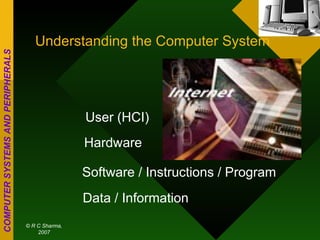
Understanding the Computer System User (HCI) Hardware Software / Instructions / Program Data / Information
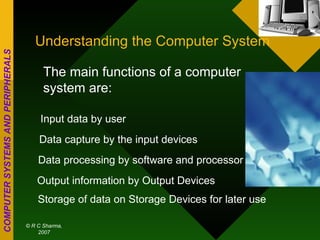
Understanding the Computer System The main functions of a computer system are: Input data by user Data capture by the input devices Data processing by software and processor Output information by Output Devices Storage of data on Storage Devices for later use
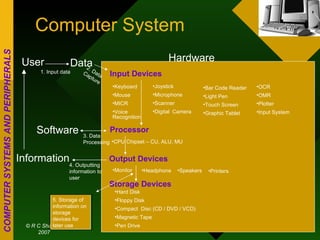
Computer System User Data Information Software Hardware Input Devices Processor Output Devices Storage Devices Keyboard Mouse MICR Voice Recognition Joystick Microphone Scanner Digital  Camera Bar Code Reader Light Pen Touch Screen Graphic Tablet OCR OMR Plotter Input System CPU Chipset – CU, ALU, MU Monitor Hard Disk Floppy Disk Compact  Disc (CD / DVD / VCD) Magnetic Tape Pen Drive Headphone Speakers Printers 1. Input data 2. Data Capture 3. Data Processing 4. Outputting information to user  5. Storage of information on storage devices for later use
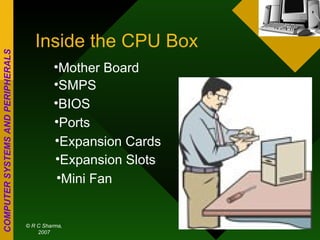
Inside the CPU Box SMPS BIOS Expansion Slots Ports Expansion Cards Mother Board Mini Fan
Some Activities List some areas where analog computers are used List some areas where digital computers are used List places where Batch Processing takes place in our day to day life List areas where Real Time Processing takes place in our day to day life
Some Activities Observe the internal components of the computer which are attached to the mother board Identify various ports and name the peripherals of what attaches to where
Some Activities Understand how to scan documents or photographs Copy them onto a floppy or Compact Disc
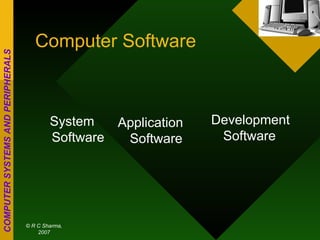
Computer Software Application Software Development Software System Software
System Software Windows Operation System Linux
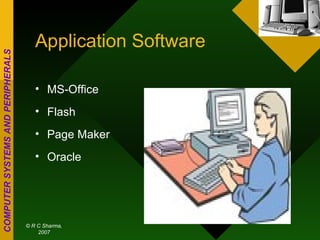
Application Software MS-Office Flash Page Maker Oracle
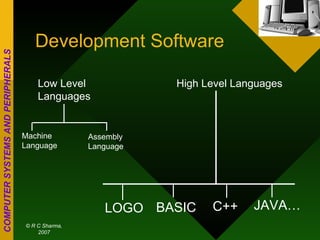
Development Software Low Level Languages High Level Languages Machine Language Assembly Language LOGO BASIC C++ JAVA…
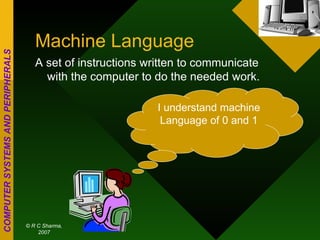
Machine Language A set of instructions written to communicate  with the computer to do the needed work. I understand machine Language of 0 and 1
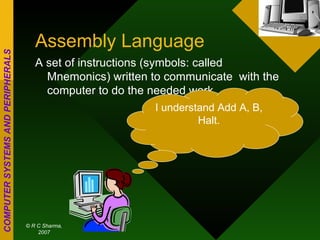
Assembly Language A set of instructions (symbols: called Mnemonics) written to communicate  with the computer to do the needed work. I understand Add A, B, Halt.
Some High Level Languages LOGO BASIC C++ JAVA .NET
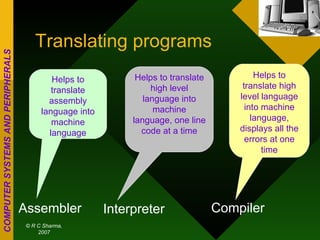
Translating programs Assembler Interpreter Compiler Helps to translate assembly language into machine language Helps to translate high level language into machine language, one line code at a time Helps to translate high level language into machine language, displays all the errors at one time
Computer Applications Database Management Programming Webpage Designing Multimedia Development
Utility Software Antivirus Scanning  Scandisk Defragmenter Speech Recognition
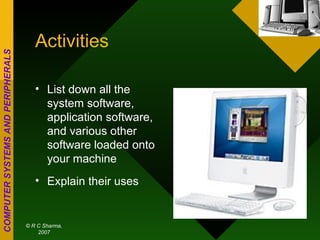
Activities List down all the system software, application software, and various other software loaded onto your machine Explain their uses
Activities Scan your Hard Disk and Removable disks Run Defragment
UPS Uninterruptible Power Supply Technologies Offline, Online and Line-interactive
Offline-Standby Technology During normal operation, the power flows straight through the unit and hence only RFI filtering is usually provided. When the input voltage fails or fluctuates outside of a pre-set tolerance window, the UPS detects this and a relay will close, allowing the UPS to start feeding battery power via the inverter. The inverter is then switched on and either a square, step or sinewave form output is supplied. Upon the return of mains power, the output is switched back onto mains and the inverter is turned off. Typically there will be a break of between 4-10 ms during the transfer to and from the battery mode.  Advantages: Low cost Silent operation (when in standby) Efficient Disadvantages: Minimal power protection – only protects against a small percentage of problems Poor output voltage regulation – fluctuations such as sags and surges will be passed straight to the load Break transfer to battery mode No failsafe – UPS will drop the load if there is a high start-up current, overload or inverter failure.
Line-Interactive Technology A line-interactive UPS operates in a very similar fashion to an offline UPS, except with the advantage of better filtering and output voltage boost/reduce features. Whilst not eliminating mains-borne interference, line-interactive technologies reduce the impact of spikes, surges and sags by ‘clipping’ the peaks and valleys, boosting power or switching to battery back-up. As with offline UPS, when the input voltage fails or fluctuates outside of a pre-set tolerance window, the UPS detects this and a relay will close allowing the UPS to start feeding battery power via the inverter. The inverter, in a good line-interactive UPS, will supply a sinewave output. Upon the return of mains power, the output is switched back onto mains and the inverter is turned off. As with offline UPS, typically there will be a break on the transfer to and from battery mode, though usually this will be shorter than with an offline UPS. Some manufacturers will try to pass their line-interactive UPS off as online models by calling them ‘digital online’, ‘inline’ or ‘online interactive’ – make sure you know what technology the UPS you are buying actually uses. Advantages: Lower cost than online Gives better protection than offline Silent operation when in standby Efficient Disadvantages: Fluctuations, such as spikes, can still be passed straight to the load Break on transfer to battery mode. No failsafe – UPS will drop the load if there is a high start-up current, overload or inverter failure.
Uninterruptible power supplies Uninterruptible power supplies (UPSs) are devices that maintain the supply of power to a load even when the AC input power is interrupted or disturbed. This is typically accomplished by drawing the necessary power from a stored energy source, such as a battery. UPSs may also convert unregulated input power to voltage and frequency-filtered AC power. Thus, the UPS will provide stable power and minimize the effects of electric power supply disturbances and variations.
UPSs are currently found in commercial, industrial, medical and residential markets. Applications include: individual computers and computer systems  shipboard systems  automated manufacturing  microprocessor- and microcontroller-based equipment  medical applications  laboratories  analytical systems  robotics  precision motor-speed applications  military applications  mission-critical fields such as telecommunications and Internet nodes  finance  public health  air traffic control  transport
Antivirus software   Antivirus software  consists of  computer programs  that attempt to identify, thwart and eliminate  computer viruses  and other malicious software ( malware ). Antivirus software typically uses two different techniques to accomplish this: Examining (scanning)  files  to look for known viruses matching definitions in a virus dictionary  Identifying suspicious behavior from any computer program which might indicate infection. Such analysis may include data captures, port monitoring and other methods.
Clean CPU and tower   Regular computer cleaning is recommended to prevent overheating and glitches caused by dust inside your CPU. In addition to shorting out electronics, dust can act as an insulating blanket and prevent heat sinks and other componants from cooling off. A few minutes of careful cleaning will remove the computer killing dust from your CPU's fans, heat sinks, electronics and case, allowing the heat to dissipate and cool air to flow unimpeded throughout your system.
Cleaning the computer For a dust and grime-free CPU and tower we need some computer cleaning supplies: • Anti-static wrist strap or anti-static mat • Soft, lint-free cloth • Canned, compressed air • Mild detergent solution or spray • Q-tips, preferably foam • Computer vacuum (Optional) • CD Drive cleaner disk
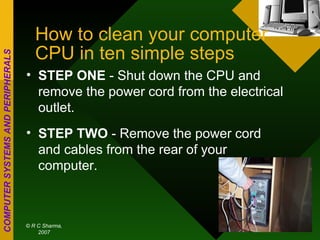
How to clean your computer CPU in ten simple steps STEP ONE  - Shut down the CPU and remove the power cord from the electrical outlet. STEP TWO  - Remove the power cord and cables from the rear of your computer.
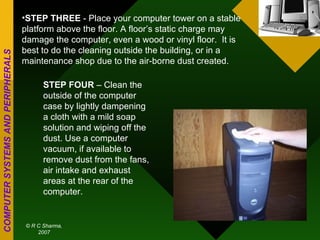
STEP THREE  - Place your computer tower on a stable platform above the floor. A floor’s static charge may damage the computer, even a wood or vinyl floor.  It is best to do the cleaning outside the building, or in a maintenance shop due to the air-borne dust created. STEP FOUR  – Clean the outside of the computer case by lightly dampening a cloth with a mild soap solution and wiping off the dust. Use a computer vacuum, if available to remove dust from the fans, air intake and exhaust areas at the rear of the computer.
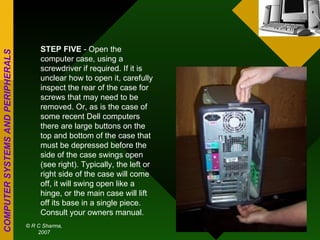
STEP FIVE  - Open the computer case, using a screwdriver if required. If it is unclear how to open it, carefully inspect the rear of the case for screws that may need to be removed. Or, as is the case of some recent Dell computers there are large buttons on the top and bottom of the case that must be depressed before the side of the case swings open (see right). Typically, the left or right side of the case will come off, it will swing open like a hinge, or the main case will lift off its base in a single piece. Consult your owners manual.
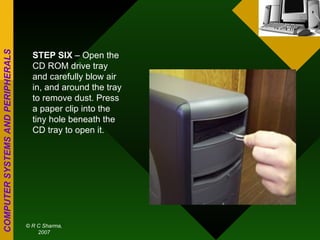
STEP SIX  – Open the CD ROM drive tray and carefully blow air in, and around the tray to remove dust. Press a paper clip into the tiny hole beneath the CD tray to open it.
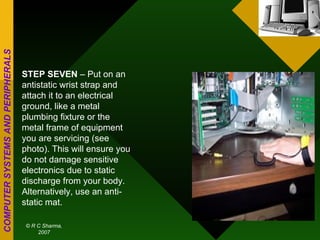
STEP SEVEN  – Put on an antistatic wrist strap and attach it to an electrical ground, like a metal plumbing fixture or the metal frame of equipment you are servicing (see photo). This will ensure you do not damage sensitive electronics due to static discharge from your body. Alternatively, use an anti-static mat.
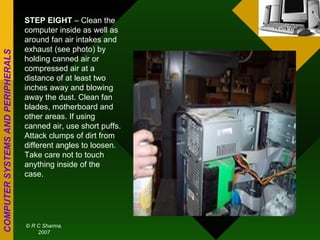
STEP EIGHT  – Clean the computer inside as well as around fan air intakes and exhaust (see photo) by holding canned air or compressed air at a distance of at least two inches away and blowing away the dust. Clean fan blades, motherboard and other areas. If using canned air, use short puffs. Attack clumps of dirt from different angles to loosen. Take care not to touch anything inside of the case.
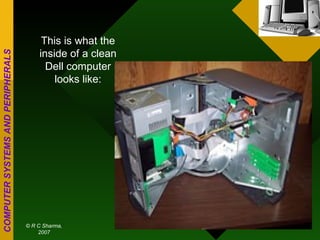
This is what the inside of a clean Dell computer looks like:
STEP NINE  - Replace the computer case cover. STEP TEN  – Clean cables and power cords while they are disconnected. Lightly dampen a cloth with mild soap solution and gently pull the cables and cords through the cloth. Too tight a grip may damage the cables. Dry the cables and power cords with a dry cloth.
Cleaning your computer room regularly is important. Make sure all equipment is covered first and try to minimize air-borne dust.  Your computer room environment should be kept cool and relatively dry.  Other things to consider:
THANK YOU

Learn about Computer Systems

  • 1.
  • 2.
    Classification of computersTypes of Computers Based on Generation Based on Size Based on Purpose
  • 3.
    Computer Generations FirstSecond Third Fourth Fifth Used vacuum tubes, were large, slow and produced a lot of heat, used machine key and punched cards for storage Used transistors, were smaller, faster and produced less heat, used high level language like Fortran and needed Magnetic tapes for storage Used integrated circuits, were smaller, more reliable, faster and cheaper, used high level languages like BASIC, Operating System introduced Computers of today, uses large scale integration circuits, GUI Uses Artificial Intelligence, accepts instructions or commands through voice and interprets the signal
  • 4.
    Computer: Based onSize Mainframe Mini Micro Super Very big and expensive and are used in offices to store large amount of data and to do complex processing Mostly used as a server in a Network, developed to reduce the cost and size Small PCs, laptops, palmtops, uses silicon microprocessor Large computer, cluster of computers to perform complex, scientific calculations Activity Name some leading vendors who manufacture computers
  • 5.
    Computer: Based onPurpose Analog Digital Hybrid These are used to work with changing physical quantities. Accepts data as input and records but does not perform any complex calculations on it Mostly used as a server in a Network, developed to reduce the cost and size Small PCs, laptops, palmtops, uses silicon microprocessor Pl tell where these are used? Thermometers, Speedometers, Wrist Watches etc Business applications, Military, Scientific areas etc Pl tell where these are used? Pl tell where these are used? Like ECG machine in a hospital
  • 6.
    Computer: Based onPurpose EAI Analog Computer (1964)
  • 7.
  • 8.
    Data Processing Whenthe data is entered into the computer, it has to be processed to give the output. Depending upon the nature of the work where it is to be used, Data undergoes different types of “Processing” before the captured data gives us meaningful information.
  • 9.
    Data Processing Inthe earlier times, data was entered on punched cards and then processed one after the other. Now a days the data is processed on the basis of TIME SHARING in which different users have ‘access’ to the same computer at the same time
  • 10.
    Different ways ofData Processing ONLINE PROCESSING Online processing is when processing on the computer takes place immediately as soon as the data is entered. Real time processing is online processing where the data is processed continuously and immediately after it has been captured. Output is immediate. Updation is also prompt. Example? Airways or Railway Reservation, Debit card
  • 11.
    Different ways ofData Processing OFFLINE PROCESSING Offline processing is when processing on the computer takes place on stored data when required to get an output. Batch Processing is a type of offline processing where data is stored and processed at a later stage. Example? Generation of Electricity Bill
  • 12.
    Understanding the ComputerSystem User (HCI) Hardware Software / Instructions / Program Data / Information
  • 13.
    Understanding the ComputerSystem The main functions of a computer system are: Input data by user Data capture by the input devices Data processing by software and processor Output information by Output Devices Storage of data on Storage Devices for later use
  • 14.
    Computer System UserData Information Software Hardware Input Devices Processor Output Devices Storage Devices Keyboard Mouse MICR Voice Recognition Joystick Microphone Scanner Digital Camera Bar Code Reader Light Pen Touch Screen Graphic Tablet OCR OMR Plotter Input System CPU Chipset – CU, ALU, MU Monitor Hard Disk Floppy Disk Compact Disc (CD / DVD / VCD) Magnetic Tape Pen Drive Headphone Speakers Printers 1. Input data 2. Data Capture 3. Data Processing 4. Outputting information to user 5. Storage of information on storage devices for later use
  • 15.
    Inside the CPUBox SMPS BIOS Expansion Slots Ports Expansion Cards Mother Board Mini Fan
  • 16.
    Some Activities Listsome areas where analog computers are used List some areas where digital computers are used List places where Batch Processing takes place in our day to day life List areas where Real Time Processing takes place in our day to day life
  • 17.
    Some Activities Observethe internal components of the computer which are attached to the mother board Identify various ports and name the peripherals of what attaches to where
  • 18.
    Some Activities Understandhow to scan documents or photographs Copy them onto a floppy or Compact Disc
  • 19.
    Computer Software ApplicationSoftware Development Software System Software
  • 20.
    System Software WindowsOperation System Linux
  • 21.
    Application Software MS-OfficeFlash Page Maker Oracle
  • 22.
    Development Software LowLevel Languages High Level Languages Machine Language Assembly Language LOGO BASIC C++ JAVA…
  • 23.
    Machine Language Aset of instructions written to communicate with the computer to do the needed work. I understand machine Language of 0 and 1
  • 24.
    Assembly Language Aset of instructions (symbols: called Mnemonics) written to communicate with the computer to do the needed work. I understand Add A, B, Halt.
  • 25.
    Some High LevelLanguages LOGO BASIC C++ JAVA .NET
  • 26.
    Translating programs AssemblerInterpreter Compiler Helps to translate assembly language into machine language Helps to translate high level language into machine language, one line code at a time Helps to translate high level language into machine language, displays all the errors at one time
  • 27.
    Computer Applications DatabaseManagement Programming Webpage Designing Multimedia Development
  • 28.
    Utility Software AntivirusScanning Scandisk Defragmenter Speech Recognition
  • 29.
    Activities List downall the system software, application software, and various other software loaded onto your machine Explain their uses
  • 30.
    Activities Scan yourHard Disk and Removable disks Run Defragment
  • 31.
    UPS Uninterruptible PowerSupply Technologies Offline, Online and Line-interactive
  • 32.
    Offline-Standby Technology Duringnormal operation, the power flows straight through the unit and hence only RFI filtering is usually provided. When the input voltage fails or fluctuates outside of a pre-set tolerance window, the UPS detects this and a relay will close, allowing the UPS to start feeding battery power via the inverter. The inverter is then switched on and either a square, step or sinewave form output is supplied. Upon the return of mains power, the output is switched back onto mains and the inverter is turned off. Typically there will be a break of between 4-10 ms during the transfer to and from the battery mode. Advantages: Low cost Silent operation (when in standby) Efficient Disadvantages: Minimal power protection – only protects against a small percentage of problems Poor output voltage regulation – fluctuations such as sags and surges will be passed straight to the load Break transfer to battery mode No failsafe – UPS will drop the load if there is a high start-up current, overload or inverter failure.
  • 33.
    Line-Interactive Technology Aline-interactive UPS operates in a very similar fashion to an offline UPS, except with the advantage of better filtering and output voltage boost/reduce features. Whilst not eliminating mains-borne interference, line-interactive technologies reduce the impact of spikes, surges and sags by ‘clipping’ the peaks and valleys, boosting power or switching to battery back-up. As with offline UPS, when the input voltage fails or fluctuates outside of a pre-set tolerance window, the UPS detects this and a relay will close allowing the UPS to start feeding battery power via the inverter. The inverter, in a good line-interactive UPS, will supply a sinewave output. Upon the return of mains power, the output is switched back onto mains and the inverter is turned off. As with offline UPS, typically there will be a break on the transfer to and from battery mode, though usually this will be shorter than with an offline UPS. Some manufacturers will try to pass their line-interactive UPS off as online models by calling them ‘digital online’, ‘inline’ or ‘online interactive’ – make sure you know what technology the UPS you are buying actually uses. Advantages: Lower cost than online Gives better protection than offline Silent operation when in standby Efficient Disadvantages: Fluctuations, such as spikes, can still be passed straight to the load Break on transfer to battery mode. No failsafe – UPS will drop the load if there is a high start-up current, overload or inverter failure.
  • 34.
    Uninterruptible power suppliesUninterruptible power supplies (UPSs) are devices that maintain the supply of power to a load even when the AC input power is interrupted or disturbed. This is typically accomplished by drawing the necessary power from a stored energy source, such as a battery. UPSs may also convert unregulated input power to voltage and frequency-filtered AC power. Thus, the UPS will provide stable power and minimize the effects of electric power supply disturbances and variations.
  • 35.
    UPSs are currentlyfound in commercial, industrial, medical and residential markets. Applications include: individual computers and computer systems shipboard systems automated manufacturing microprocessor- and microcontroller-based equipment medical applications laboratories analytical systems robotics precision motor-speed applications military applications mission-critical fields such as telecommunications and Internet nodes finance public health air traffic control transport
  • 36.
    Antivirus software Antivirus software consists of computer programs that attempt to identify, thwart and eliminate computer viruses and other malicious software ( malware ). Antivirus software typically uses two different techniques to accomplish this: Examining (scanning) files to look for known viruses matching definitions in a virus dictionary Identifying suspicious behavior from any computer program which might indicate infection. Such analysis may include data captures, port monitoring and other methods.
  • 37.
    Clean CPU andtower Regular computer cleaning is recommended to prevent overheating and glitches caused by dust inside your CPU. In addition to shorting out electronics, dust can act as an insulating blanket and prevent heat sinks and other componants from cooling off. A few minutes of careful cleaning will remove the computer killing dust from your CPU's fans, heat sinks, electronics and case, allowing the heat to dissipate and cool air to flow unimpeded throughout your system.
  • 38.
    Cleaning the computerFor a dust and grime-free CPU and tower we need some computer cleaning supplies: • Anti-static wrist strap or anti-static mat • Soft, lint-free cloth • Canned, compressed air • Mild detergent solution or spray • Q-tips, preferably foam • Computer vacuum (Optional) • CD Drive cleaner disk
  • 39.
    How to cleanyour computer CPU in ten simple steps STEP ONE - Shut down the CPU and remove the power cord from the electrical outlet. STEP TWO - Remove the power cord and cables from the rear of your computer.
  • 40.
    STEP THREE - Place your computer tower on a stable platform above the floor. A floor’s static charge may damage the computer, even a wood or vinyl floor.  It is best to do the cleaning outside the building, or in a maintenance shop due to the air-borne dust created. STEP FOUR – Clean the outside of the computer case by lightly dampening a cloth with a mild soap solution and wiping off the dust. Use a computer vacuum, if available to remove dust from the fans, air intake and exhaust areas at the rear of the computer.
  • 41.
    STEP FIVE - Open the computer case, using a screwdriver if required. If it is unclear how to open it, carefully inspect the rear of the case for screws that may need to be removed. Or, as is the case of some recent Dell computers there are large buttons on the top and bottom of the case that must be depressed before the side of the case swings open (see right). Typically, the left or right side of the case will come off, it will swing open like a hinge, or the main case will lift off its base in a single piece. Consult your owners manual.
  • 42.
    STEP SIX – Open the CD ROM drive tray and carefully blow air in, and around the tray to remove dust. Press a paper clip into the tiny hole beneath the CD tray to open it.
  • 43.
    STEP SEVEN – Put on an antistatic wrist strap and attach it to an electrical ground, like a metal plumbing fixture or the metal frame of equipment you are servicing (see photo). This will ensure you do not damage sensitive electronics due to static discharge from your body. Alternatively, use an anti-static mat.
  • 44.
    STEP EIGHT – Clean the computer inside as well as around fan air intakes and exhaust (see photo) by holding canned air or compressed air at a distance of at least two inches away and blowing away the dust. Clean fan blades, motherboard and other areas. If using canned air, use short puffs. Attack clumps of dirt from different angles to loosen. Take care not to touch anything inside of the case.
  • 45.
    This is whatthe inside of a clean Dell computer looks like:
  • 46.
    STEP NINE - Replace the computer case cover. STEP TEN – Clean cables and power cords while they are disconnected. Lightly dampen a cloth with mild soap solution and gently pull the cables and cords through the cloth. Too tight a grip may damage the cables. Dry the cables and power cords with a dry cloth.
  • 47.
    Cleaning your computerroom regularly is important. Make sure all equipment is covered first and try to minimize air-borne dust. Your computer room environment should be kept cool and relatively dry. Other things to consider:
  • 48.