Fundamentals of Information
  Systems, Sixth Edition

         Chapter 2
    Hardware and Software
Why Learn About Hardware and
                Software?
• Organizations invest in computer hardware to:
   – Improve worker productivity
   – Increase revenue, reduce costs
   – Provide better customer service
• Managers:
   – Are expected to know enough about their business needs to
     be able to ask tough questions
Hardware Components (continued)
Hardware Components
• Central processing unit (CPU):
  – Arithmetic/logic unit, the control unit, and the
    register areas
• Arithmetic/logic unit (ALU):
  – Performs mathematical calculations and
    makes logical comparisons
• Control unit:
  – Sequentially accesses program instructions,
    decodes them, and coordinates the flow of
    data in and out of the ALU, registers, primary
    storage, and even secondary storage and
    various output devices
The CPU
Processing Characteristics and
                Functions
• Clock speed:
  – Series of electronic pulses produced at a predetermined rate
    that affects machine cycle time
  – Often measured in:
     • Megahertz (MHz): millions of cycles per second
     • Gigahertz (GHz): billions of cycles per second
• Physical characteristics of the CPU
  – Most CPUs are collections of digital circuits imprinted on
    silicon wafers, or chips, each no bigger than the tip of a
    pencil eraser
Memory Characteristics and
                Functions
• Memory:
  – Provides the CPU with a working storage area for programs
    and data
  – Rapidly provides data and instructions to the CPU
• Storage capacity:
  – Eight bits together form a byte (B)
Memory Characteristics and
  Functions (continued)
Memory Characteristics and Functions
            (continued)
• Types of memory:
  – Random access memory (RAM):
     • Temporary and volatile


  – Read-only memory (ROM):
     • Nonvolatile
     • Provides permanent storage for data and instructions that
       do not change
Multiprocessing
• Multiprocessing:
  – Simultaneous execution of two or more instructions at the
    same time
• Multicore microprocessor:
  – Combines two or more independent processors into a single
    computer
Multiprocessing (continued)
• Parallel computing:
  – Simultaneous execution of the
    same task on multiple
    processors to obtain results
    faster
• Grid computing:
  – Use of a collection of computers
    to work in a coordinated manner
    to solve a common problem
• Cloud computing
  – pools computing resources so
    they can be managed primarily
    by software rather than people.
    Applications typically on
Secondary Storage
• Secondary storage:
  – Advantages:
     • Nonvolatility
     • greater capacity
     • greater economy
  – Disadvantages
     • slower than memory
     • Portability makes vulnerable to loss, theft, damage
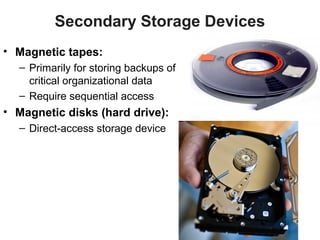
Secondary Storage Devices
• Magnetic tapes:
  – Primarily for storing backups of
    critical organizational data
  – Require sequential access
• Magnetic disks (hard drive):
  – Direct-access storage device
Magnetic Disk (Hard drive)
Secondary Storage Devices (cont’d)
• Redundant array of independent/inexpensive disks
  (RAID):
   – Method of storing data that generates extra bits of data from
     existing data
• Virtual tape:
   – Storage technology for less frequently needed data

• Storage area network:
  – Uses computer servers,
    distributed storage devices, and
    networks to tie everything
    together
Secondary Storage Devices (continued)
• Optical discs:
  – Common form of optical
    disc on which data is not
    normally modified once it
    has been recorded
    (exception CD-RW)
• Digital video disc (DVD):
  – Storage medium used to
    store software, video
    games, and movies
Secondary Storage Devices (continued)

• Solid state secondary storage devices:
  – Store data in memory chips rather than magnetic or optical
    media
  – Have few moving parts, so they are less fragile than hard
    disk drives
  – Disadvantages of SSD:
     • High cost per GB of data storage
     • Lower capacity compared to current hard drives
Input Devices
• Devices used to input general types of data:
   –   Personal computer input devices
   –   Speech recognition technology
   –   Digital cameras
   –   Touch-sensitive screens
   –   Optical data readers
   –   Magnetic ink character recognition (MICR) devices
   –   Pen input devices
   –   Magnetic stripe card
   –   Radio Frequency Identification
Input Devices (continued)


Fundamentals of Information Systems, Sixth Edition   20
Output Devices
• Display monitors:
   – LCD displays:
      • Flat displays that use liquid crystals
   – Organic light-emitting diodes (OLEDs):
      • Use a layer of organic material sandwiched between two
        conductors
      • Less power use
      • Flexible displays


                            http://www.youtube.com/watch?v=LE50vaI1ZeI
END OF CHAPTER 2 Part 1
Computer System Types
Single User
     Portable
        •   Handheld
        •   Laptop
        •   Notebook
        •   netbook
        •   Tablet
     NonPortable
        •   Thin client
        •   Desktop
        •   Nettop
        •   Workstation
Computer System Types
Multi-User computers
  • Server
  Used by many users to perform a specific task, such as running
    network or Internet applications


  • Mainframe

  • Supercomputer
Know this chart!
Overview of Software
• Types of software:
   – Systems software
   – Application software
Systems Software

• Includes:
   – Operating systems
   – Utility programs
Operating Systems
Operating Systems
• Tasks of the operating system:
  – Common computer hardware functions
       • input/output to devices
       • Retrieve/store data to disks
  – User Interface
       • Command based (c:) or graphical (GUI)
  –   Hardware independence
  –   Manage memory and processing tasks
  –   Networking
  –   Control access to system resources
  –   Manage files
Tasks of the Operating System
• User Interface
  – Command-based user interface:
     • Requires that text commands be given to the computer to
       perform basic activities
Tasks of Operating Systems
• User Interface cont’d
  – Graphical user interface (GUI):
     • Uses icons and menus displayed on screen to send commands
       to the computer system
Tasks of Operating Systems
• Hardware independence:
  – Application program interface (API):
     • Allows applications to make use of the operating system
• Memory management:
  – Allows computer to execute program instructions effectively
    and to speed processing
Tasks of Operating Systems

• Processing tasks:
  – Multitasking:
     • More than one program can run at the same time
  – Time-sharing:
     • Allows more than one person to use a computer system at the
       same time
  – Scalability:
     • Ability of the computer to handle an increasing number of
       concurrent users smoothly
Tasks of Operating Systems
• Networking:
  – Allows computers in a network to send/receive data and
    share computing resources
• Access to system resources and security:
  – Login/logout
• File management:
  – Ensures that files are available when needed
  – Protected from access by unauthorized users
Utility Programs
• Help to perform maintenance or correct problems with a
  computer system
• Some can help computer systems run better and longer
  without problems
• Can help to secure and safeguard data
Application Software
• Application programs:
  – Interact with systems software
  – Help you perform common tasks, such as:
     • Creating and formatting text documents
     • Performing calculations
     • Managing information
Personal Application Software
•   Word processing
•   Spreadsheet analysis
•   Database applications
•   Graphics program
•   Personal information managers
•   Software suites and integrated software packages
Examples of Personal Application Software
Types and Functions of Application
                 Software
• Proprietary:
   – One-of-a-kind program for a specific application, usually
     developed and owned by a single company
• Off-the-shelf:
   – Existing software program that is purchased
• Application service provider (ASP):
   – Company that can provide software, support, and computer
     hardware on which to run the software from the user’s
     facilities over a network
Types and Functions of Application
                Software
• Software as a service (SaaS):
  – Allows businesses to subscribe to Web-delivered business
    application software by paying a monthly service charge or a
    per-use fee
  – Can reduce expenses by sharing its running applications
    among many businesses
• Cloud computing:
  – Use of computing resources on the Internet (the cloud)
    rather than on local computers
Mobile Application Software (Apps)
• Operating systems designed for smartphones include:
    – iOS, Android
• Palm WebOS:
    – Dead
http://www.theverge.com/2012/6
   /5/3062611/palm-webos-hp-
   inside-story-pre-postmortem
Workgroup Application Software
• Support teamwork, whether people are in the same
  location or dispersed around the world
• Groupware:
  – Software that helps groups of people work together more
    effectively
Programming Languages
• Sets of keywords, symbols, and a system of rules for
  constructing statements:
   – Humans communicate instructions to be executed by a
     computer
• Programming:
   – Translating what user wants into instructions the computer
     understands and executes
Software Issues and Trends
• Software bug:
  – Defect in a program that keeps it from performing as it
    should
• Copyrights or licensing provisions:
  – In some cases, you are given unlimited use of software on
    one or two computers
  – In other cases, you pay for your usage:
     • If you use the software more, you pay more
• Support
  – One of the biggest challenges IS teams face
  – Trend: Outsource global support to one or more third-party
    distributors
END OF CHAPTER 2 Part 2
• Go to eCampus to take your Chapter 2 quiz

Ch 2

  • 1.
    Fundamentals of Information Systems, Sixth Edition Chapter 2 Hardware and Software
  • 2.
    Why Learn AboutHardware and Software? • Organizations invest in computer hardware to: – Improve worker productivity – Increase revenue, reduce costs – Provide better customer service • Managers: – Are expected to know enough about their business needs to be able to ask tough questions
  • 3.
  • 4.
    Hardware Components • Centralprocessing unit (CPU): – Arithmetic/logic unit, the control unit, and the register areas • Arithmetic/logic unit (ALU): – Performs mathematical calculations and makes logical comparisons • Control unit: – Sequentially accesses program instructions, decodes them, and coordinates the flow of data in and out of the ALU, registers, primary storage, and even secondary storage and various output devices
  • 5.
  • 7.
    Processing Characteristics and Functions • Clock speed: – Series of electronic pulses produced at a predetermined rate that affects machine cycle time – Often measured in: • Megahertz (MHz): millions of cycles per second • Gigahertz (GHz): billions of cycles per second • Physical characteristics of the CPU – Most CPUs are collections of digital circuits imprinted on silicon wafers, or chips, each no bigger than the tip of a pencil eraser
  • 8.
    Memory Characteristics and Functions • Memory: – Provides the CPU with a working storage area for programs and data – Rapidly provides data and instructions to the CPU • Storage capacity: – Eight bits together form a byte (B)
  • 9.
    Memory Characteristics and Functions (continued)
  • 10.
    Memory Characteristics andFunctions (continued) • Types of memory: – Random access memory (RAM): • Temporary and volatile – Read-only memory (ROM): • Nonvolatile • Provides permanent storage for data and instructions that do not change
  • 11.
    Multiprocessing • Multiprocessing: – Simultaneous execution of two or more instructions at the same time • Multicore microprocessor: – Combines two or more independent processors into a single computer
  • 12.
    Multiprocessing (continued) • Parallelcomputing: – Simultaneous execution of the same task on multiple processors to obtain results faster • Grid computing: – Use of a collection of computers to work in a coordinated manner to solve a common problem • Cloud computing – pools computing resources so they can be managed primarily by software rather than people. Applications typically on
  • 13.
    Secondary Storage • Secondarystorage: – Advantages: • Nonvolatility • greater capacity • greater economy – Disadvantages • slower than memory • Portability makes vulnerable to loss, theft, damage
  • 14.
    Secondary Storage Devices •Magnetic tapes: – Primarily for storing backups of critical organizational data – Require sequential access • Magnetic disks (hard drive): – Direct-access storage device
  • 15.
  • 16.
    Secondary Storage Devices(cont’d) • Redundant array of independent/inexpensive disks (RAID): – Method of storing data that generates extra bits of data from existing data • Virtual tape: – Storage technology for less frequently needed data • Storage area network: – Uses computer servers, distributed storage devices, and networks to tie everything together
  • 17.
    Secondary Storage Devices(continued) • Optical discs: – Common form of optical disc on which data is not normally modified once it has been recorded (exception CD-RW) • Digital video disc (DVD): – Storage medium used to store software, video games, and movies
  • 18.
    Secondary Storage Devices(continued) • Solid state secondary storage devices: – Store data in memory chips rather than magnetic or optical media – Have few moving parts, so they are less fragile than hard disk drives – Disadvantages of SSD: • High cost per GB of data storage • Lower capacity compared to current hard drives
  • 19.
    Input Devices • Devicesused to input general types of data: – Personal computer input devices – Speech recognition technology – Digital cameras – Touch-sensitive screens – Optical data readers – Magnetic ink character recognition (MICR) devices – Pen input devices – Magnetic stripe card – Radio Frequency Identification
  • 20.
    Input Devices (continued) Fundamentalsof Information Systems, Sixth Edition 20
  • 21.
    Output Devices • Displaymonitors: – LCD displays: • Flat displays that use liquid crystals – Organic light-emitting diodes (OLEDs): • Use a layer of organic material sandwiched between two conductors • Less power use • Flexible displays http://www.youtube.com/watch?v=LE50vaI1ZeI
  • 22.
  • 23.
    Computer System Types SingleUser Portable • Handheld • Laptop • Notebook • netbook • Tablet NonPortable • Thin client • Desktop • Nettop • Workstation
  • 24.
    Computer System Types Multi-Usercomputers • Server Used by many users to perform a specific task, such as running network or Internet applications • Mainframe • Supercomputer
  • 25.
  • 26.
    Overview of Software •Types of software: – Systems software – Application software
  • 27.
    Systems Software • Includes: – Operating systems – Utility programs
  • 28.
  • 29.
    Operating Systems • Tasksof the operating system: – Common computer hardware functions • input/output to devices • Retrieve/store data to disks – User Interface • Command based (c:) or graphical (GUI) – Hardware independence – Manage memory and processing tasks – Networking – Control access to system resources – Manage files
  • 30.
    Tasks of theOperating System • User Interface – Command-based user interface: • Requires that text commands be given to the computer to perform basic activities
  • 31.
    Tasks of OperatingSystems • User Interface cont’d – Graphical user interface (GUI): • Uses icons and menus displayed on screen to send commands to the computer system
  • 32.
    Tasks of OperatingSystems • Hardware independence: – Application program interface (API): • Allows applications to make use of the operating system • Memory management: – Allows computer to execute program instructions effectively and to speed processing
  • 33.
    Tasks of OperatingSystems • Processing tasks: – Multitasking: • More than one program can run at the same time – Time-sharing: • Allows more than one person to use a computer system at the same time – Scalability: • Ability of the computer to handle an increasing number of concurrent users smoothly
  • 34.
    Tasks of OperatingSystems • Networking: – Allows computers in a network to send/receive data and share computing resources • Access to system resources and security: – Login/logout • File management: – Ensures that files are available when needed – Protected from access by unauthorized users
  • 35.
    Utility Programs • Helpto perform maintenance or correct problems with a computer system • Some can help computer systems run better and longer without problems • Can help to secure and safeguard data
  • 36.
    Application Software • Applicationprograms: – Interact with systems software – Help you perform common tasks, such as: • Creating and formatting text documents • Performing calculations • Managing information
  • 37.
    Personal Application Software • Word processing • Spreadsheet analysis • Database applications • Graphics program • Personal information managers • Software suites and integrated software packages
  • 38.
    Examples of PersonalApplication Software
  • 39.
    Types and Functionsof Application Software • Proprietary: – One-of-a-kind program for a specific application, usually developed and owned by a single company • Off-the-shelf: – Existing software program that is purchased • Application service provider (ASP): – Company that can provide software, support, and computer hardware on which to run the software from the user’s facilities over a network
  • 40.
    Types and Functionsof Application Software • Software as a service (SaaS): – Allows businesses to subscribe to Web-delivered business application software by paying a monthly service charge or a per-use fee – Can reduce expenses by sharing its running applications among many businesses • Cloud computing: – Use of computing resources on the Internet (the cloud) rather than on local computers
  • 41.
    Mobile Application Software(Apps) • Operating systems designed for smartphones include: – iOS, Android • Palm WebOS: – Dead http://www.theverge.com/2012/6 /5/3062611/palm-webos-hp- inside-story-pre-postmortem
  • 42.
    Workgroup Application Software •Support teamwork, whether people are in the same location or dispersed around the world • Groupware: – Software that helps groups of people work together more effectively
  • 43.
    Programming Languages • Setsof keywords, symbols, and a system of rules for constructing statements: – Humans communicate instructions to be executed by a computer • Programming: – Translating what user wants into instructions the computer understands and executes
  • 44.
    Software Issues andTrends • Software bug: – Defect in a program that keeps it from performing as it should • Copyrights or licensing provisions: – In some cases, you are given unlimited use of software on one or two computers – In other cases, you pay for your usage: • If you use the software more, you pay more • Support – One of the biggest challenges IS teams face – Trend: Outsource global support to one or more third-party distributors
  • 45.
    END OF CHAPTER2 Part 2 • Go to eCampus to take your Chapter 2 quiz