
Introduction to Latex
A very quick look at typesetting documents
Neeraj Baghel
M.Tech CSE II YEAR
1
OUTLINE
• Introduction
• Basics of L AT EX
• Tabular
• Images
• Math
• Tools
• Conclusions
2
Introduction
• Latex is an extension of TeX
• TeX is essentially a Markup Language (like
HTML, XML and RTF)
• Used for publishing reports, books, scientific
documents,etc
• LaTeX was created in 1983 by Leslie Lamport.
Introduction
3
Latex vs. Word Processors
• High typeset quality
• Easy to include math formulas
• Source file format id not bounded to a
particular OS or platform
• Latex implementations exists for all platforms
(DOS, Windows, Unices,..)
• Latex is free
• Good for large documents
• Not very easy to learn
Introduction
4
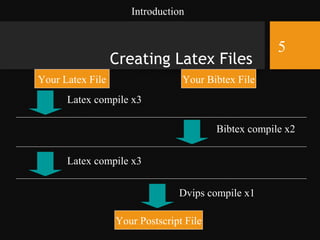
Creating Latex Files
Your Latex File Your Bibtex File
Latex compile x3
Bibtex compile x2
Latex compile x3
Your Postscript File
Dvips compile x1
Introduction
5
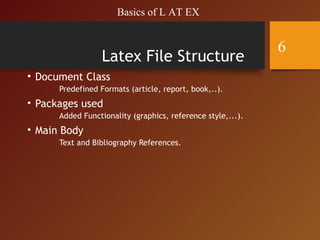
Latex File Structure
• Document Class
Predefined Formats (article, report, book,..).
• Packages used
Added Functionality (graphics, reference style,...).
• Main Body
Text and Bibliography References.
Basics of L AT EX
6
The Basics
• Document Class
documentclass[options]{class}
options = a4paper, 11pt, 12pt, 10pt, twocolumn,
landscape,...
class = article, report, book,...
• Packages
usepackage{package name}
epsfig = insert PS pictures into the
document
fancyhdr = easy definition of footer
and header
Basics of L AT EX
7
Body of Text
• Start with begin{document}
• End with end{document}
• Typesetting Text
•  or newline and newpage
• Quotations
• Bold textbf{……………} or bf
• Italics emph{…………} or textit{………}
or it
• Underline underline{…………} or ul
• Including Multiple Files
• input{filename.tex}
Basics of L AT EX
8
Format
• Sections
• section{…} = 1. Latex is Great
• subsection{…} = 1.1 Why Latex is Great
• subsubsection{…} = 1.1.1 Reason One
• appendix - changes numbering scheme
• chapter{…} - To be used with book and
report document classes
• Titles, Authors and others
• title{…} author{…}
• footnote{…}
Basics of L AT EX
9
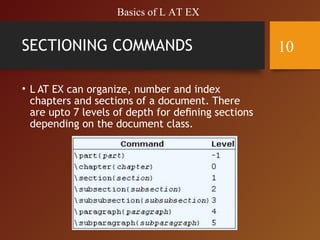
SECTIONING COMMANDS
• L AT EX can organize, number and index
chapters and sections of a document. There
are upto 7 levels of depth for defining sections
depending on the document class.
Basics of L AT EX
10
Format Contd.
• maketitle - Display Title and Author
• tableofcontents - generates TOC
• listoftables - generates LOT
• listoffigures - generates LOF
• Labels
• label{marker} - Marker in document.
• pageref{marker} - Displays page no. of marker.
• ref{marker} - Displays section location of marker.
• Itemise
• Use either enumerate, itemize or description.
• see handout for example.
Basics of L AT EX
11
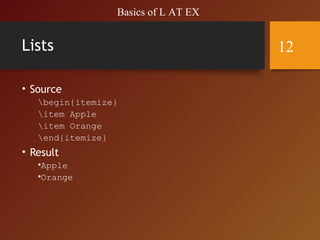
Lists
• Source
begin{itemize}
item Apple
item Orange
end{itemize}
• Result
•Apple
•Orange
Basics of L AT EX
12
Lists
• Enumerate instead of itemize gives a
numbered list
• Lists can be recursive
Basics of L AT EX
13
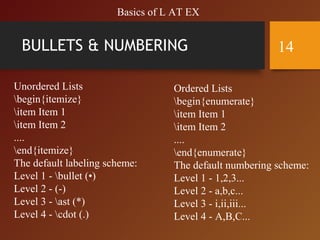
BULLETS & NUMBERING
Unordered Lists
begin{itemize}
item Item 1
item Item 2
....
end{itemize}
The default labeling scheme:
Level 1 - bullet (•)
Level 2 - (-)
Level 3 - ast (*)
Level 4 - cdot (.)
Ordered Lists
begin{enumerate}
item Item 1
item Item 2
....
end{enumerate}
The default numbering scheme:
Level 1 - 1,2,3...
Level 2 - a,b,c...
Level 3 - i,ii,iii...
Level 4 - A,B,C...
Basics of L AT EX
14
Environment
• Something between
• begin{name}
• end{name}
• Many command, for example bf affect the
text until the end of environment
• Can be recursive
• Examples:
• itemize, center, abstract
Basics of L AT EX
15
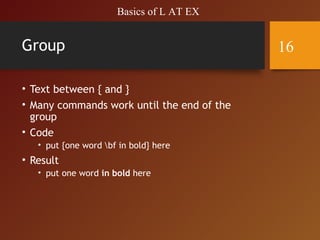
Group
• Text between { and }
• Many commands work until the end of the
group
• Code
• put {one word bf in bold} here
• Result
• put one word in bold here
Basics of L AT EX
16
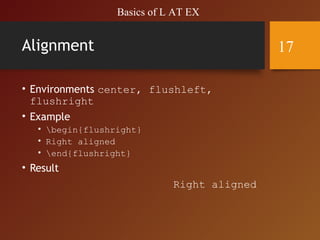
Alignment
• Environments center, flushleft,
flushright
• Example
• begin{flushright}
• Right aligned
• end{flushright}
• Result
Right aligned
Basics of L AT EX
17
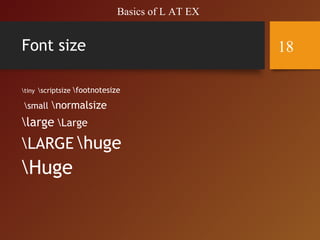
Font size
tiny scriptsize footnotesize
small normalsize
large Large
LARGE huge
Huge
Basics of L AT EX
18
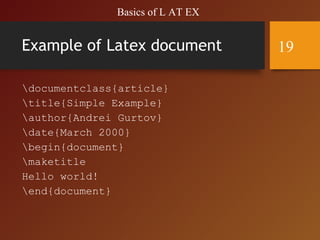
Example of Latex document
documentclass{article}
title{Simple Example}
author{Andrei Gurtov}
date{March 2000}
begin{document}
maketitle
Hello world!
end{document}
Basics of L AT EX
19
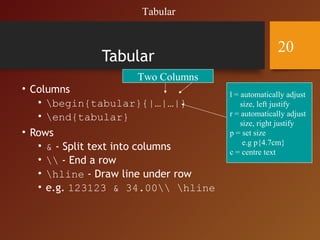
Tabular
• Columns
• begin{tabular}{|…|…|}
• end{tabular}
• Rows
• & - Split text into columns
•  - End a row
• hline - Draw line under row
• e.g. 123123 & 34.00 hline
Two Columns
l = automatically adjust
size, left justify
r = automatically adjust
size, right justify
p = set size
e.g p{4.7cm}
c = centre text
Tabular
20
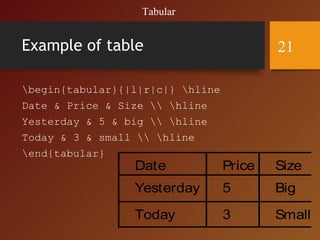
Example of table
begin{tabular}{|l|r|c|} hline
Date & Price & Size  hline
Yesterday & 5 & big  hline
Today & 3 & small  hline
end{tabular}
Date Price Size
Yesterday 5 Big
Today 3 Small
Tabular
21
Floating Bodies
• Floating bodies can stop splitting of tables
and images over pages.
begin{figure}[options]
begin{table}[options]
• They will now appear in the LOF and LOT.
Options (recommendations)
h = place table here
t = place at top of page
b = place at bottom of page
Images
22
Example of floating figure
• begin{figure}[ht]
• centeringepsfig{file=uni.ps, width=5cm}
• caption{University of Helsinki}
• label{uni}
• end{figure}
Figure~ref{uni}
shows...
Images
23
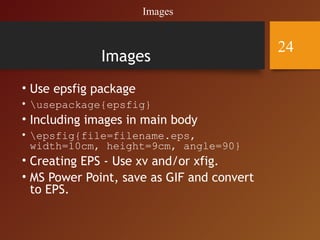
Images
• Use epsfig package
• usepackage{epsfig}
• Including images in main body
• epsfig{file=filename.eps,
width=10cm, height=9cm, angle=90}
• Creating EPS - Use xv and/or xfig.
• MS Power Point, save as GIF and convert
to EPS.
Images
24
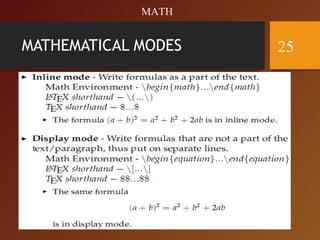
MATHEMATICAL MODES 25
MATH
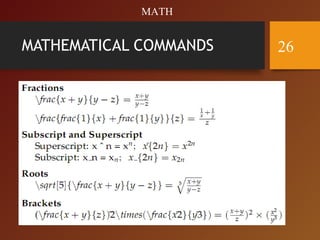
MATHEMATICAL COMMANDS 26
MATH
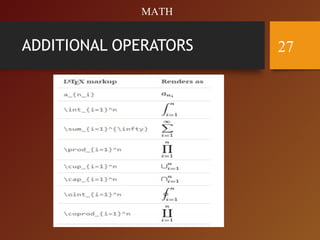
ADDITIONAL OPERATORS 27
MATH
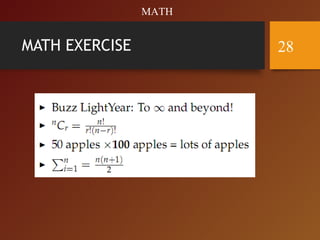
MATH EXERCISE 28
MATH
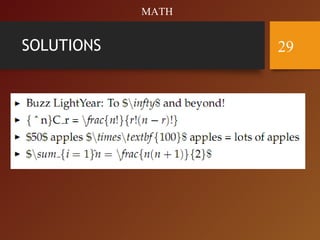
SOLUTIONS 29
MATH
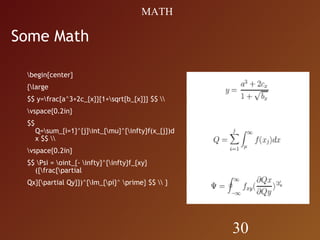
Some Math
begin{center}
{large
$$ y=frac{a^3+2c_{x}}{1+sqrt{b_{x}}} $$ 
vspace{0.2in}
$$
Q=sum_{i=1}^{j}int_{mu}^{infty}f(x_{j})d
x $$ 
vspace{0.2in}
$$ Psi = oint_{- infty}^{infty}f_{xy}
({frac{partial
Qx}{partial Qy}})^{Im_{pi}^ prime} $$  }
30
MATH
Bibliography by hand
begin{thebibliography}{}
bibitem[Come95]{Come95} Comer,
D. E., {it Internetworking with TCP/IP:
Principles, Protocols and Architecture},
volume 1, 3rd edition. Prentice-Hall,
1995.
end{thebibliography}
BIBLIOGRAPHY
31
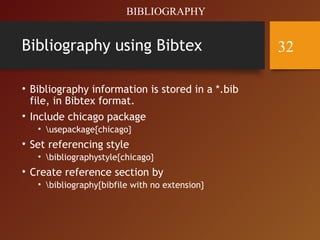
Bibliography using Bibtex
• Bibliography information is stored in a *.bib
file, in Bibtex format.
• Include chicago package
• usepackage{chicago}
• Set referencing style
• bibliographystyle{chicago}
• Create reference section by
• bibliography{bibfile with no extension}
BIBLIOGRAPHY
32
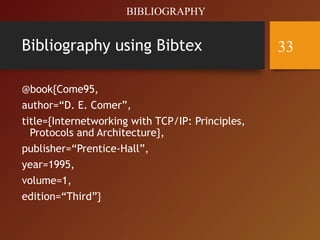
Bibliography using Bibtex
@book{Come95,
author=“D. E. Comer”,
title={Internetworking with TCP/IP: Principles,
Protocols and Architecture},
publisher=“Prentice-Hall”,
year=1995,
volume=1,
edition=“Third”}
BIBLIOGRAPHY
33
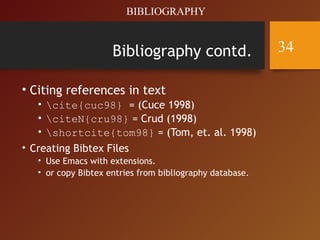
Bibliography contd.
• Citing references in text
• cite{cuc98} = (Cuce 1998)
• citeN{cru98} = Crud (1998)
• shortcite{tom98} = (Tom, et. al. 1998)
• Creating Bibtex Files
• Use Emacs with extensions.
• or copy Bibtex entries from bibliography database.
BIBLIOGRAPHY
34
Tools
UNIX based systems
• xdvi, ghostview, fixps, emacs with latex/bibtex
support.
Windows 98/NT
• Ghostview, Acrobat Distiller, Acrobat Reader,
Scientific Workplace (not the best), the Bibtex
viewer is good. Paint Shop Pro, Latex and Emacs
Online
• Overleaf, ShareLaTeX, LaTeX Base, Papeeria,
Authorea
35
Conclusions
• Mathematical Formulae are easy.
• Avoid GUI latex creators. (Lyx, Klyx, Scientific
Word).
• Use the bibtex search engine:
• Consider converting Postscript files to PDF to
conserve space.
36

Latex intro

  • 1.
    Introduction to Latex Avery quick look at typesetting documents Neeraj Baghel M.Tech CSE II YEAR 1
  • 2.
    OUTLINE • Introduction • Basicsof L AT EX • Tabular • Images • Math • Tools • Conclusions 2
  • 3.
    Introduction • Latex isan extension of TeX • TeX is essentially a Markup Language (like HTML, XML and RTF) • Used for publishing reports, books, scientific documents,etc • LaTeX was created in 1983 by Leslie Lamport. Introduction 3
  • 4.
    Latex vs. WordProcessors • High typeset quality • Easy to include math formulas • Source file format id not bounded to a particular OS or platform • Latex implementations exists for all platforms (DOS, Windows, Unices,..) • Latex is free • Good for large documents • Not very easy to learn Introduction 4
  • 5.
    Creating Latex Files YourLatex File Your Bibtex File Latex compile x3 Bibtex compile x2 Latex compile x3 Your Postscript File Dvips compile x1 Introduction 5
  • 6.
    Latex File Structure •Document Class Predefined Formats (article, report, book,..). • Packages used Added Functionality (graphics, reference style,...). • Main Body Text and Bibliography References. Basics of L AT EX 6
  • 7.
    The Basics • DocumentClass documentclass[options]{class} options = a4paper, 11pt, 12pt, 10pt, twocolumn, landscape,... class = article, report, book,... • Packages usepackage{package name} epsfig = insert PS pictures into the document fancyhdr = easy definition of footer and header Basics of L AT EX 7
  • 8.
    Body of Text •Start with begin{document} • End with end{document} • Typesetting Text • or newline and newpage • Quotations • Bold textbf{……………} or bf • Italics emph{…………} or textit{………} or it • Underline underline{…………} or ul • Including Multiple Files • input{filename.tex} Basics of L AT EX 8
  • 9.
    Format • Sections • section{…}= 1. Latex is Great • subsection{…} = 1.1 Why Latex is Great • subsubsection{…} = 1.1.1 Reason One • appendix - changes numbering scheme • chapter{…} - To be used with book and report document classes • Titles, Authors and others • title{…} author{…} • footnote{…} Basics of L AT EX 9
  • 10.
    SECTIONING COMMANDS • LAT EX can organize, number and index chapters and sections of a document. There are upto 7 levels of depth for defining sections depending on the document class. Basics of L AT EX 10
  • 11.
    Format Contd. • maketitle- Display Title and Author • tableofcontents - generates TOC • listoftables - generates LOT • listoffigures - generates LOF • Labels • label{marker} - Marker in document. • pageref{marker} - Displays page no. of marker. • ref{marker} - Displays section location of marker. • Itemise • Use either enumerate, itemize or description. • see handout for example. Basics of L AT EX 11
  • 12.
    Lists • Source begin{itemize} item Apple itemOrange end{itemize} • Result •Apple •Orange Basics of L AT EX 12
  • 13.
    Lists • Enumerate insteadof itemize gives a numbered list • Lists can be recursive Basics of L AT EX 13
  • 14.
    BULLETS & NUMBERING UnorderedLists begin{itemize} item Item 1 item Item 2 .... end{itemize} The default labeling scheme: Level 1 - bullet (•) Level 2 - (-) Level 3 - ast (*) Level 4 - cdot (.) Ordered Lists begin{enumerate} item Item 1 item Item 2 .... end{enumerate} The default numbering scheme: Level 1 - 1,2,3... Level 2 - a,b,c... Level 3 - i,ii,iii... Level 4 - A,B,C... Basics of L AT EX 14
  • 15.
    Environment • Something between •begin{name} • end{name} • Many command, for example bf affect the text until the end of environment • Can be recursive • Examples: • itemize, center, abstract Basics of L AT EX 15
  • 16.
    Group • Text between{ and } • Many commands work until the end of the group • Code • put {one word bf in bold} here • Result • put one word in bold here Basics of L AT EX 16
  • 17.
    Alignment • Environments center,flushleft, flushright • Example • begin{flushright} • Right aligned • end{flushright} • Result Right aligned Basics of L AT EX 17
  • 18.
    Font size tiny scriptsizefootnotesize small normalsize large Large LARGE huge Huge Basics of L AT EX 18
  • 19.
    Example of Latexdocument documentclass{article} title{Simple Example} author{Andrei Gurtov} date{March 2000} begin{document} maketitle Hello world! end{document} Basics of L AT EX 19
  • 20.
    Tabular • Columns • begin{tabular}{|…|…|} •end{tabular} • Rows • & - Split text into columns • - End a row • hline - Draw line under row • e.g. 123123 & 34.00 hline Two Columns l = automatically adjust size, left justify r = automatically adjust size, right justify p = set size e.g p{4.7cm} c = centre text Tabular 20
  • 21.
    Example of table begin{tabular}{|l|r|c|}hline Date & Price & Size hline Yesterday & 5 & big hline Today & 3 & small hline end{tabular} Date Price Size Yesterday 5 Big Today 3 Small Tabular 21
  • 22.
    Floating Bodies • Floatingbodies can stop splitting of tables and images over pages. begin{figure}[options] begin{table}[options] • They will now appear in the LOF and LOT. Options (recommendations) h = place table here t = place at top of page b = place at bottom of page Images 22
  • 23.
    Example of floatingfigure • begin{figure}[ht] • centeringepsfig{file=uni.ps, width=5cm} • caption{University of Helsinki} • label{uni} • end{figure} Figure~ref{uni} shows... Images 23
  • 24.
    Images • Use epsfigpackage • usepackage{epsfig} • Including images in main body • epsfig{file=filename.eps, width=10cm, height=9cm, angle=90} • Creating EPS - Use xv and/or xfig. • MS Power Point, save as GIF and convert to EPS. Images 24
  • 25.
  • 26.
  • 27.
  • 28.
  • 29.
  • 30.
    Some Math begin{center} {large $$ y=frac{a^3+2c_{x}}{1+sqrt{b_{x}}}$$ vspace{0.2in} $$ Q=sum_{i=1}^{j}int_{mu}^{infty}f(x_{j})d x $$ vspace{0.2in} $$ Psi = oint_{- infty}^{infty}f_{xy} ({frac{partial Qx}{partial Qy}})^{Im_{pi}^ prime} $$ } 30 MATH
  • 31.
    Bibliography by hand begin{thebibliography}{} bibitem[Come95]{Come95}Comer, D. E., {it Internetworking with TCP/IP: Principles, Protocols and Architecture}, volume 1, 3rd edition. Prentice-Hall, 1995. end{thebibliography} BIBLIOGRAPHY 31
  • 32.
    Bibliography using Bibtex •Bibliography information is stored in a *.bib file, in Bibtex format. • Include chicago package • usepackage{chicago} • Set referencing style • bibliographystyle{chicago} • Create reference section by • bibliography{bibfile with no extension} BIBLIOGRAPHY 32
  • 33.
    Bibliography using Bibtex @book{Come95, author=“D.E. Comer”, title={Internetworking with TCP/IP: Principles, Protocols and Architecture}, publisher=“Prentice-Hall”, year=1995, volume=1, edition=“Third”} BIBLIOGRAPHY 33
  • 34.
    Bibliography contd. • Citingreferences in text • cite{cuc98} = (Cuce 1998) • citeN{cru98} = Crud (1998) • shortcite{tom98} = (Tom, et. al. 1998) • Creating Bibtex Files • Use Emacs with extensions. • or copy Bibtex entries from bibliography database. BIBLIOGRAPHY 34
  • 35.
    Tools UNIX based systems •xdvi, ghostview, fixps, emacs with latex/bibtex support. Windows 98/NT • Ghostview, Acrobat Distiller, Acrobat Reader, Scientific Workplace (not the best), the Bibtex viewer is good. Paint Shop Pro, Latex and Emacs Online • Overleaf, ShareLaTeX, LaTeX Base, Papeeria, Authorea 35
  • 36.
    Conclusions • Mathematical Formulaeare easy. • Avoid GUI latex creators. (Lyx, Klyx, Scientific Word). • Use the bibtex search engine: • Consider converting Postscript files to PDF to conserve space. 36

Editor's Notes

  • #2  is a document preparation system.[2] When writing, the writer uses plain text as opposed to the formatted text found 
  • #4 The writer uses markup tagging conventions to define the general structure of a document  to stylise text throughout a document to add citations and cross-references