RASTER ANALYSIS
Source
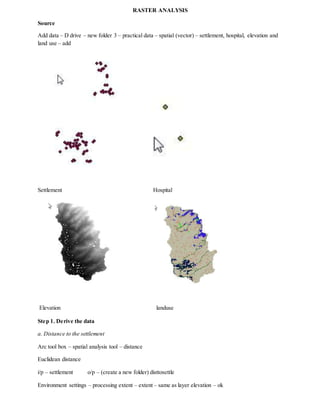
Add data – D drive – new folder 3 – practical data – spatial (vector) – settlement, hospital, elevation and
land use – add
Settlement Hospital
Elevation landuse
Step 1. Derive the data
a. Distance to the settlement
Arc tool box – spatial analysis tool – distance
Euclidean distance
i/p – settlement o/p – (create a new folder) disttosettle
Environment settings – processing extent – extent – same as layer elevation – ok
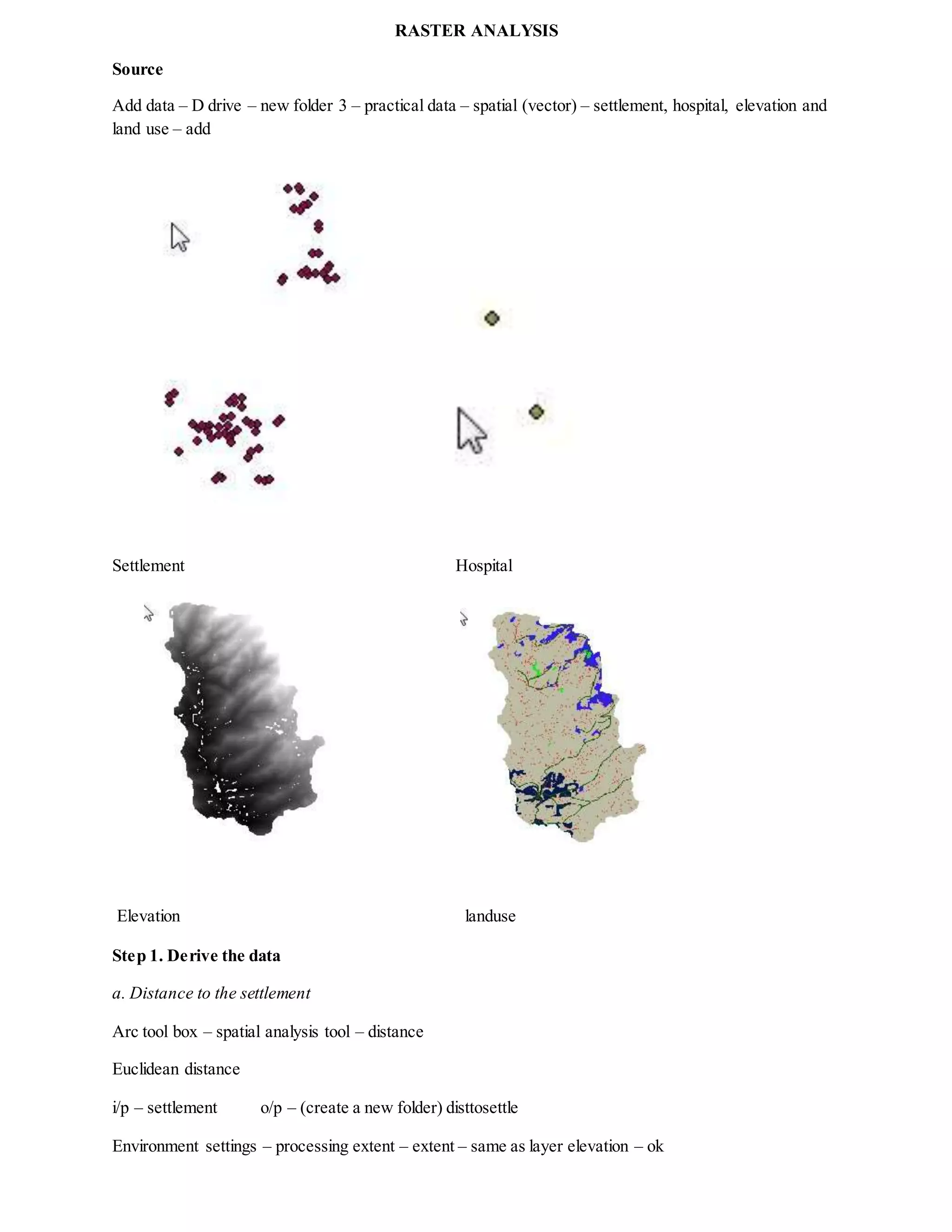
b. Distance to the hospital
Euclidean distance
i/p – hospital o/p – disttohosp
Environment settings – processing extent – extent – same as layer elevation – ok
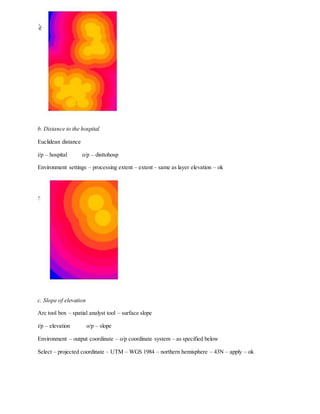
c. Slope of elevation
Arc tool box – spatial analyst tool – surface slope
i/p – elevation o/p – slope
Environment – output coordinate – o/p coordinate system – as specified below
Select – projected coordinate – UTM – WGS 1984 – northern hemisphere – 43N – apply – ok
Step 2. Reclassification
Arc tool box – spatial analyst tool – reclasses
a. Reclassify (settlement)
i/p – disttosettle reclass field - value
Classify – class -10 – method – equal interval - ok – click reverse new value (we have to modify)
o/p – reclasssettle
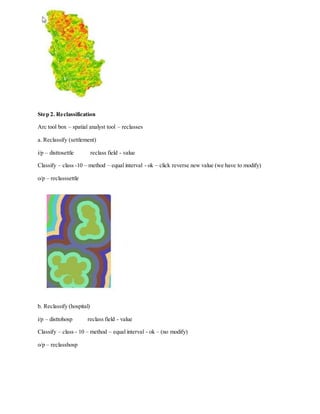
b. Reclassify (hospital)
i/p – disttohosp reclass field - value
Classify – class - 10 – method – equal interval - ok – (no modify)
o/p – reclasshosp
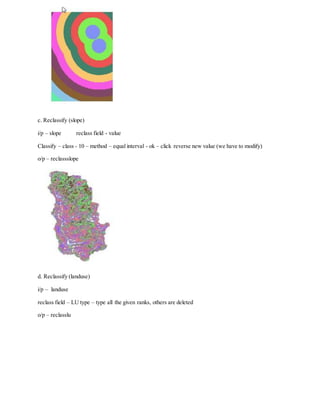
c. Reclassify (slope)
i/p – slope reclass field - value
Classify – class - 10 – method – equal interval - ok – click reverse new value (we have to modify)
o/p – reclassslope
d. Reclassify (landuse)
i/p – landuse
reclass field – LU type – type all the given ranks, others are deleted
o/p – reclasslu
Step 3. Weighted and overlay
Spatial analyst tool – map algebra – raster calculator
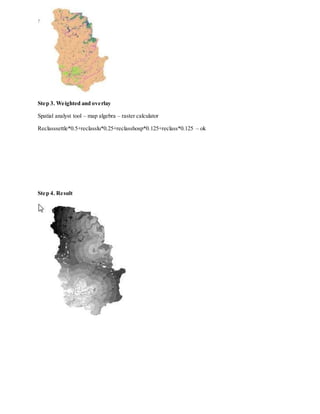
Reclasssettle*0.5+reclasslu*0.25+reclasshosp*0.125+reclass*0.125 – ok
Step 4. Result
Lab report 6 rastor analysis

Lab report 6 rastor analysis

  • 1.
    RASTER ANALYSIS Source Add data– D drive – new folder 3 – practical data – spatial (vector) – settlement, hospital, elevation and land use – add Settlement Hospital Elevation landuse Step 1. Derive the data a. Distance to the settlement Arc tool box – spatial analysis tool – distance Euclidean distance i/p – settlement o/p – (create a new folder) disttosettle Environment settings – processing extent – extent – same as layer elevation – ok
  • 2.
    b. Distance tothe hospital Euclidean distance i/p – hospital o/p – disttohosp Environment settings – processing extent – extent – same as layer elevation – ok c. Slope of elevation Arc tool box – spatial analyst tool – surface slope i/p – elevation o/p – slope Environment – output coordinate – o/p coordinate system – as specified below Select – projected coordinate – UTM – WGS 1984 – northern hemisphere – 43N – apply – ok
  • 3.
    Step 2. Reclassification Arctool box – spatial analyst tool – reclasses a. Reclassify (settlement) i/p – disttosettle reclass field - value Classify – class -10 – method – equal interval - ok – click reverse new value (we have to modify) o/p – reclasssettle b. Reclassify (hospital) i/p – disttohosp reclass field - value Classify – class - 10 – method – equal interval - ok – (no modify) o/p – reclasshosp
  • 4.
    c. Reclassify (slope) i/p– slope reclass field - value Classify – class - 10 – method – equal interval - ok – click reverse new value (we have to modify) o/p – reclassslope d. Reclassify (landuse) i/p – landuse reclass field – LU type – type all the given ranks, others are deleted o/p – reclasslu
  • 5.
    Step 3. Weightedand overlay Spatial analyst tool – map algebra – raster calculator Reclasssettle*0.5+reclasslu*0.25+reclasshosp*0.125+reclass*0.125 – ok Step 4. Result