Satellite Positioning
Topographic Survey
Lab Exercise 5
Due: 07/29/2019
Individual Submission
Objective
To perform a topographic survey using GNSS (Global Navigation Satellite Systems) units
Instruments
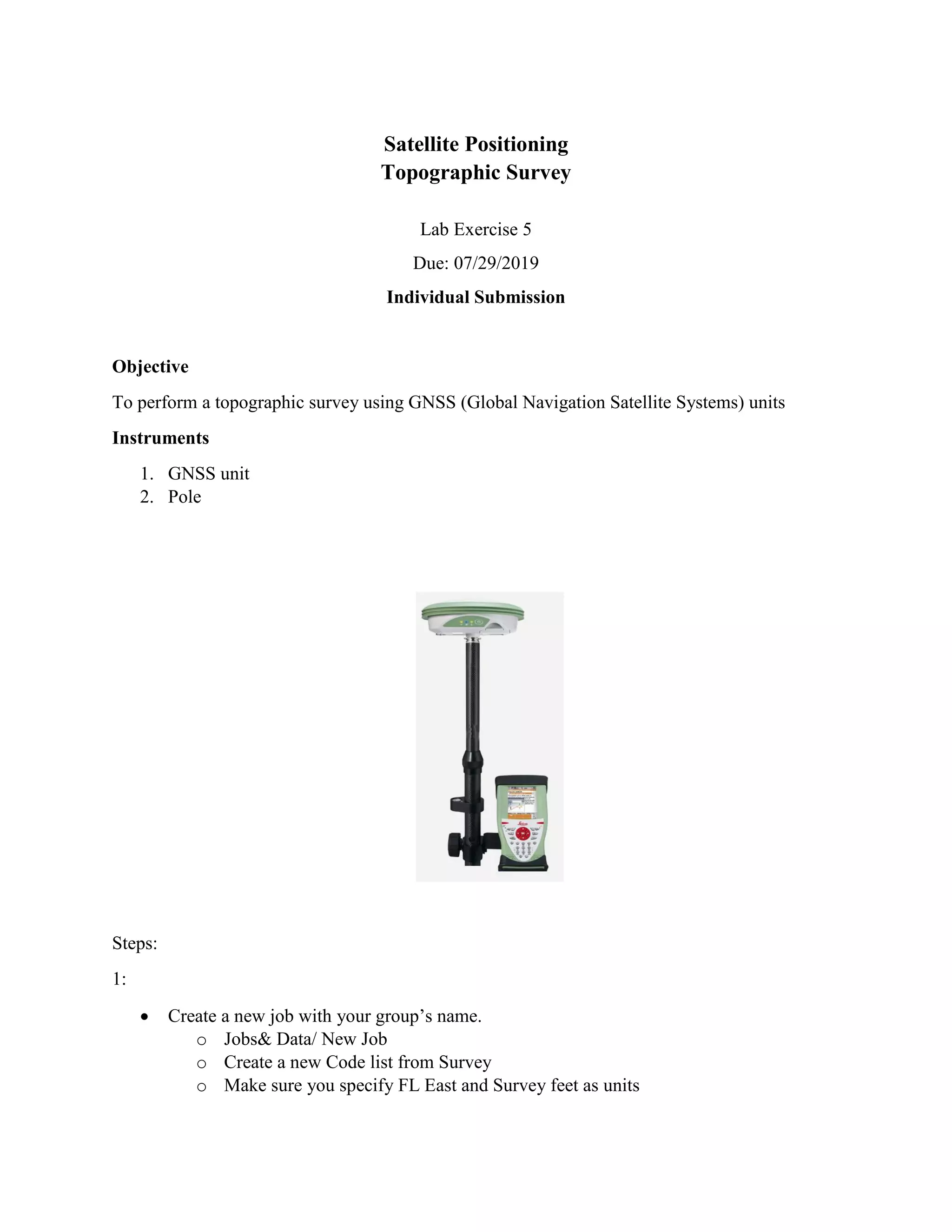
1. GNSS unit
2. Pole
Steps:
1:
• Create a new job with your group’s name.
o Jobs& Data/ New Job
o Create a new Code list from Survey
o Make sure you specify FL East and Survey feet as units
• Make sure you choose the working style at Go to User→working style
wizard→“FPRNNEARSN”
• Hit *
o Go to server/mount point
o Make sure you select “BOCA” for mount point by choosing Source button
o Hit OK
• You are now ready to collect points.
o Go to work
o survey
2:
• Capture at least 15 point features
3:
Go to jobs & Data
Select export & copy data
Select “export ASCII data”
If a USB stick is plugged, it should prompt you to choose USB under “export to”
4:
Create a map using ArcMap. Instructions provided in a separate document
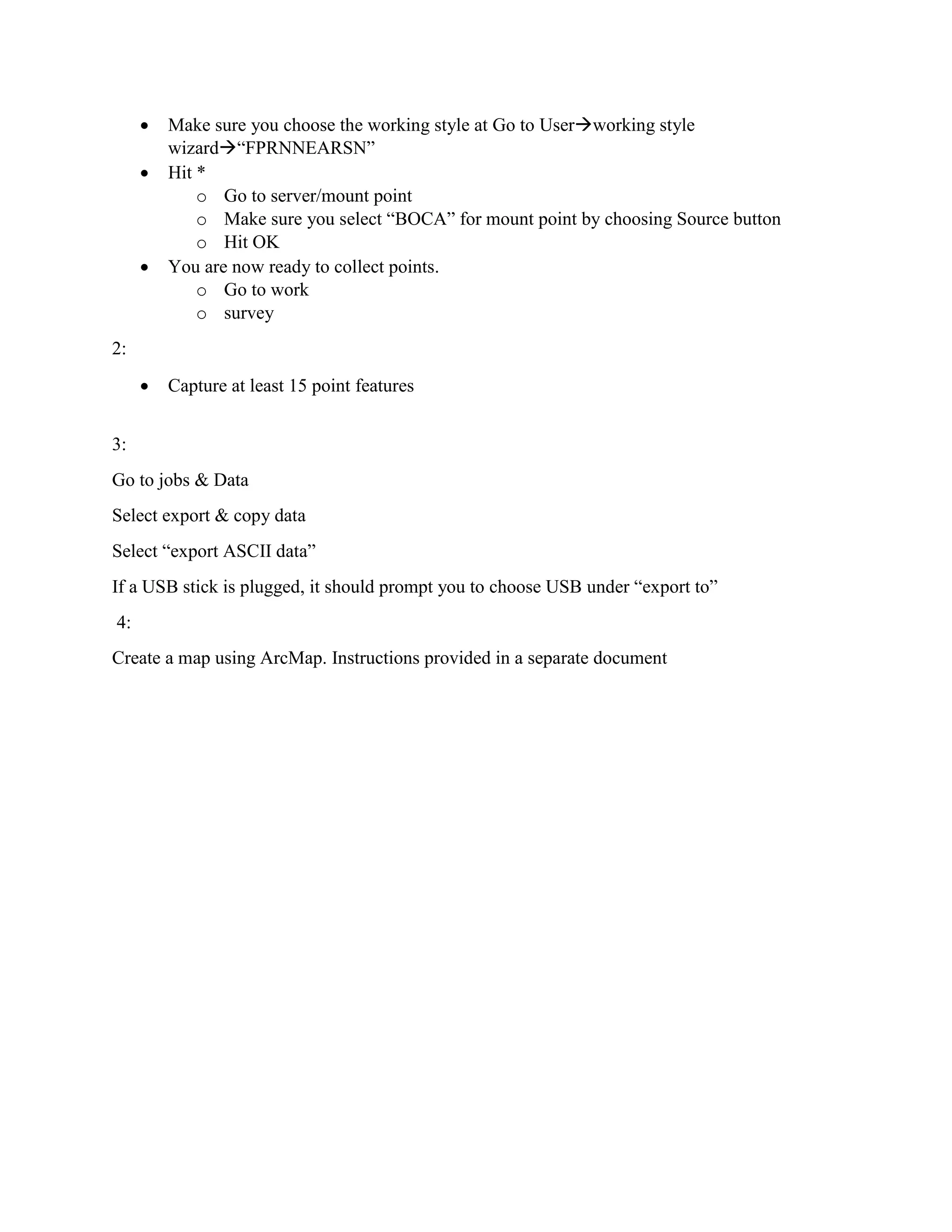
Open ArcMap from Student desktop
Add a basemap
Choose imagery and hit Add
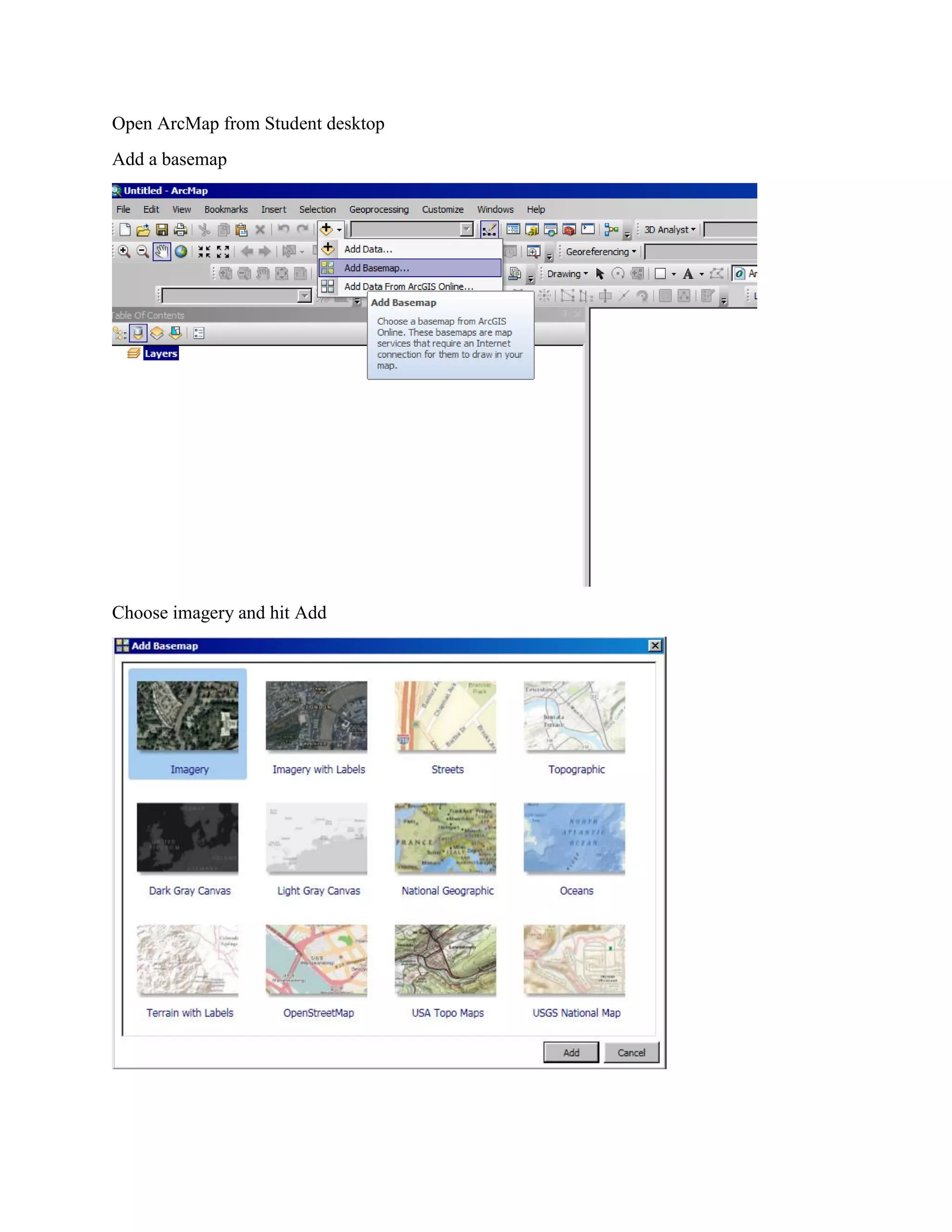
Now Add the data you collected in the field
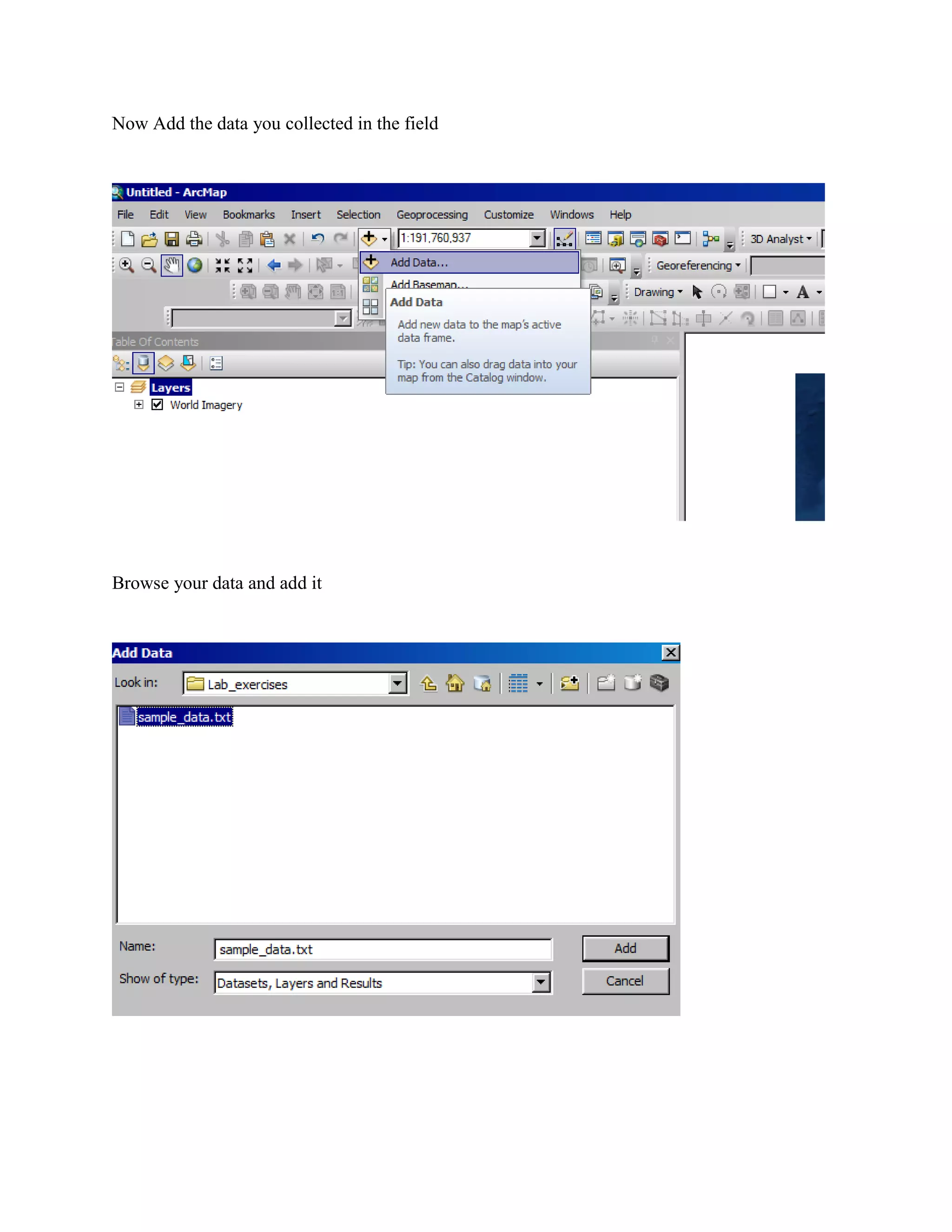
Browse your data and add it
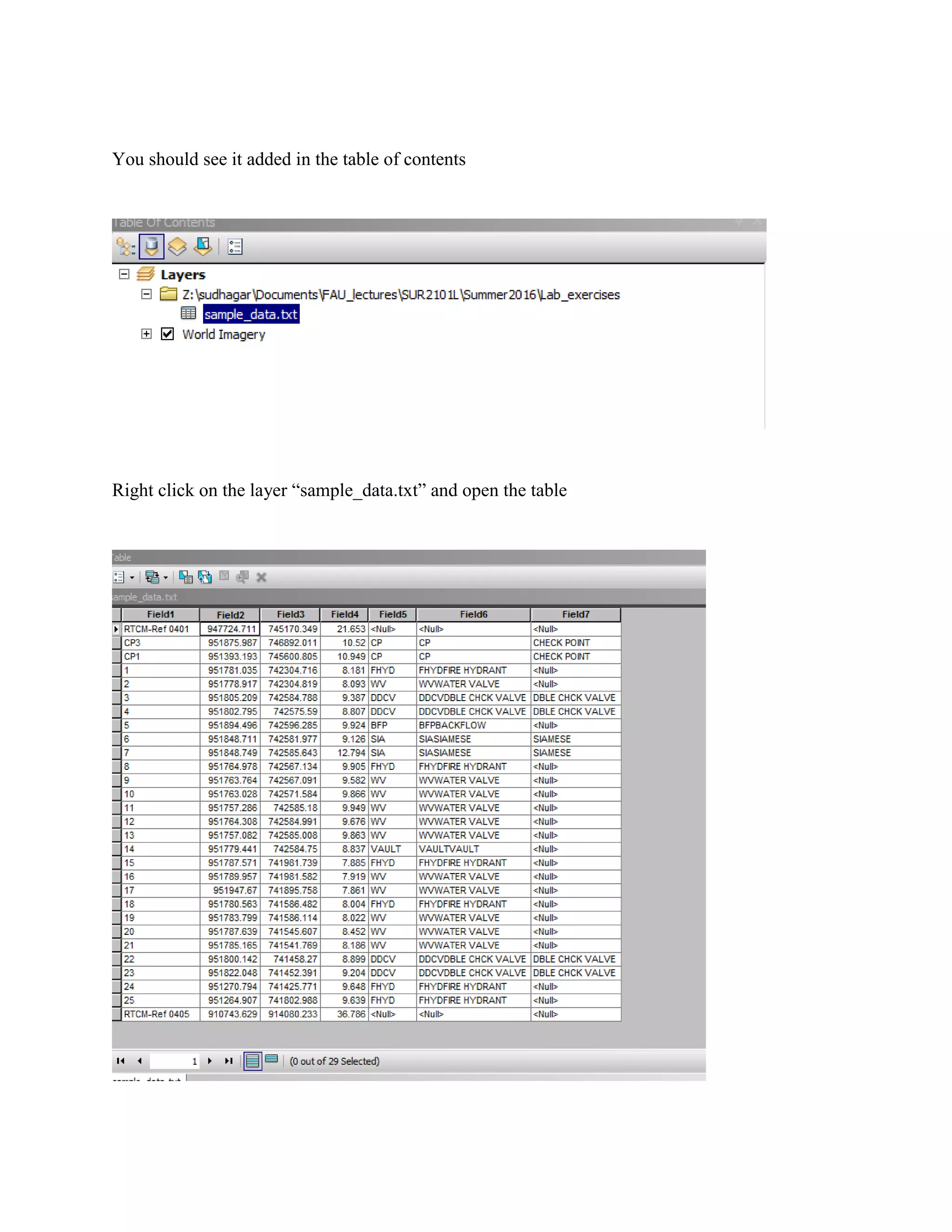
You should see it added in the table of contents
Right click on the layer “sample_data.txt” and open the table
Right click on the layer again from table of contents and select display xy data
Make sure you pick right fields for X, Y and Z
.
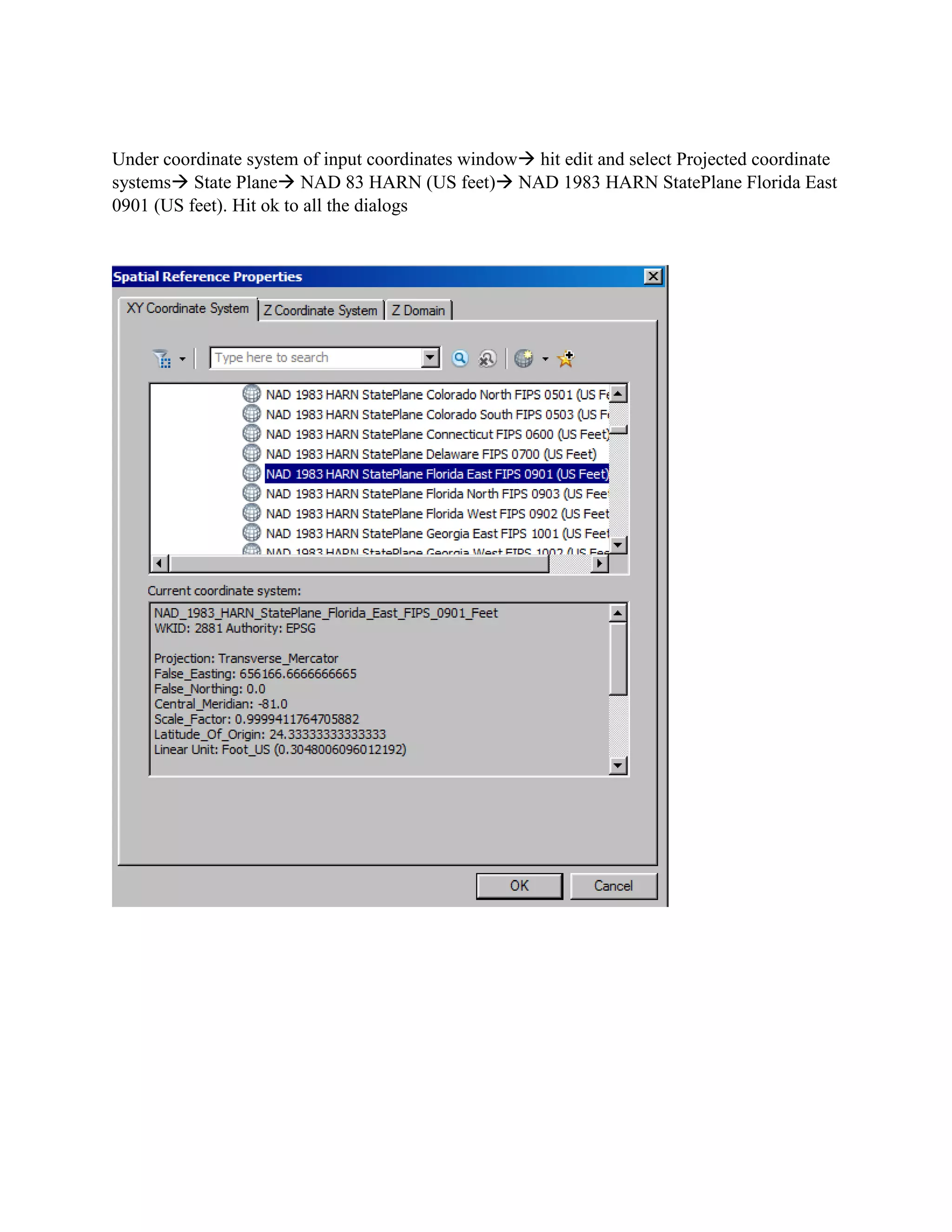
Under coordinate system of input coordinates window→ hit edit and select Projected coordinate
systems→ State Plane→ NAD 83 HARN (US feet)→ NAD 1983 HARN StatePlane Florida East
0901 (US feet). Hit ok to all the dialogs
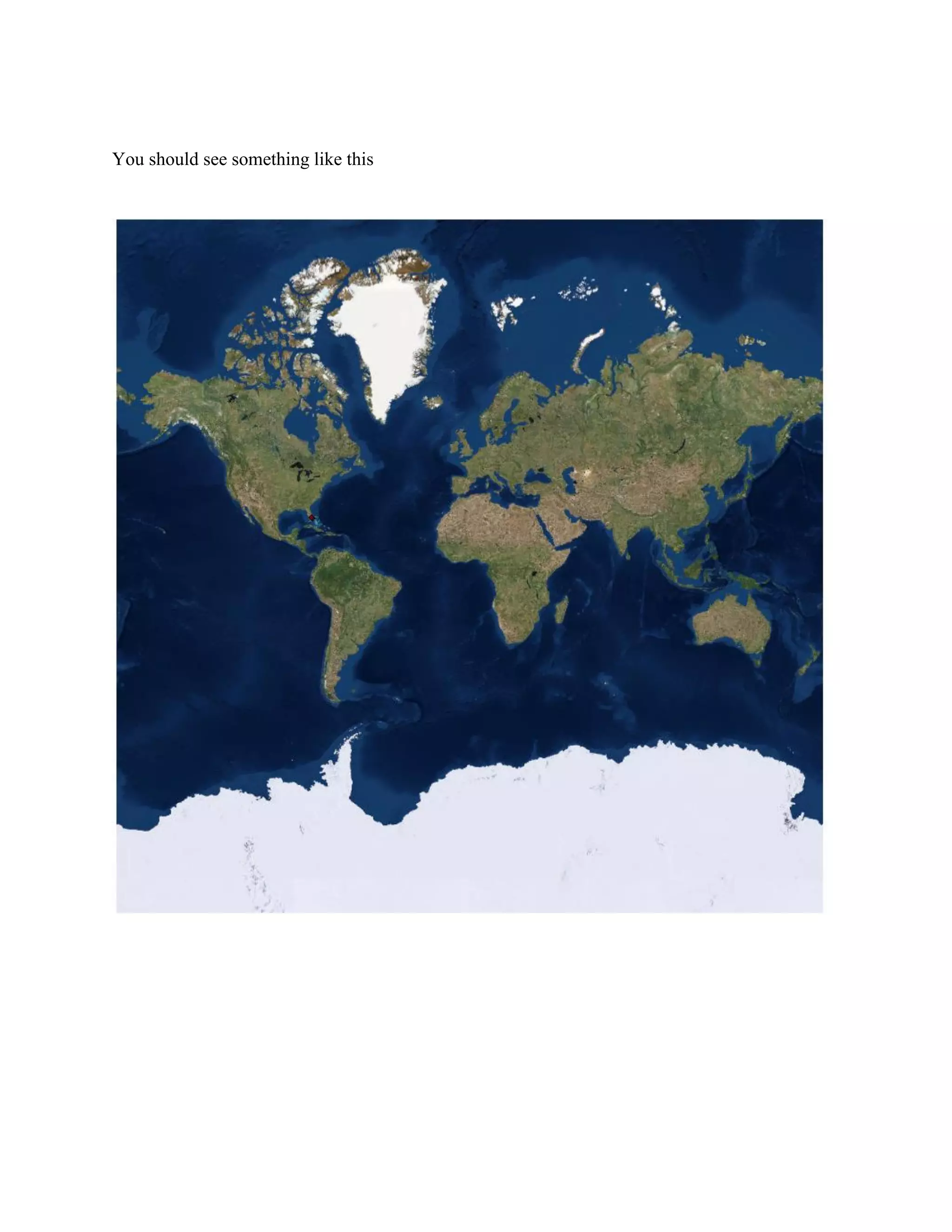
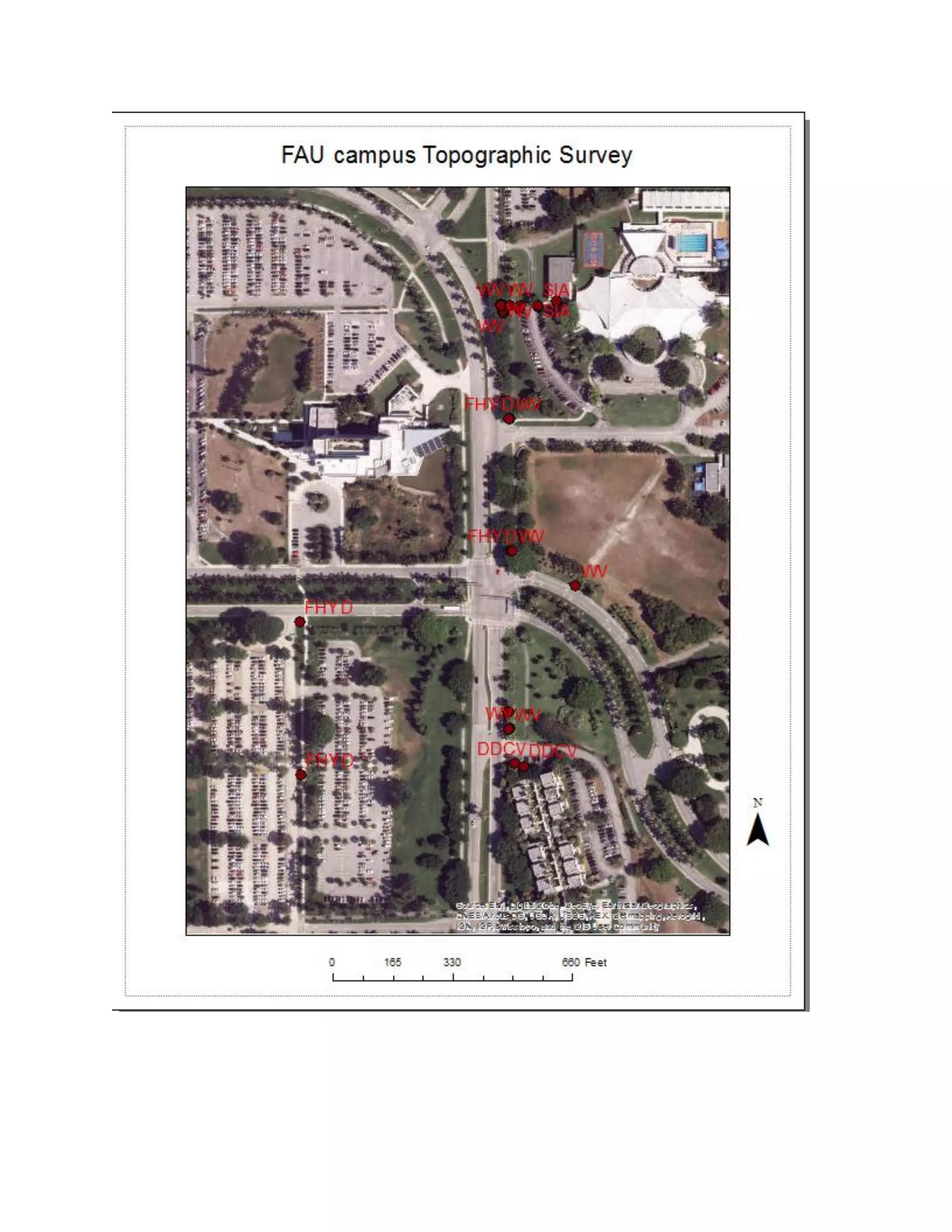
You should see something like this
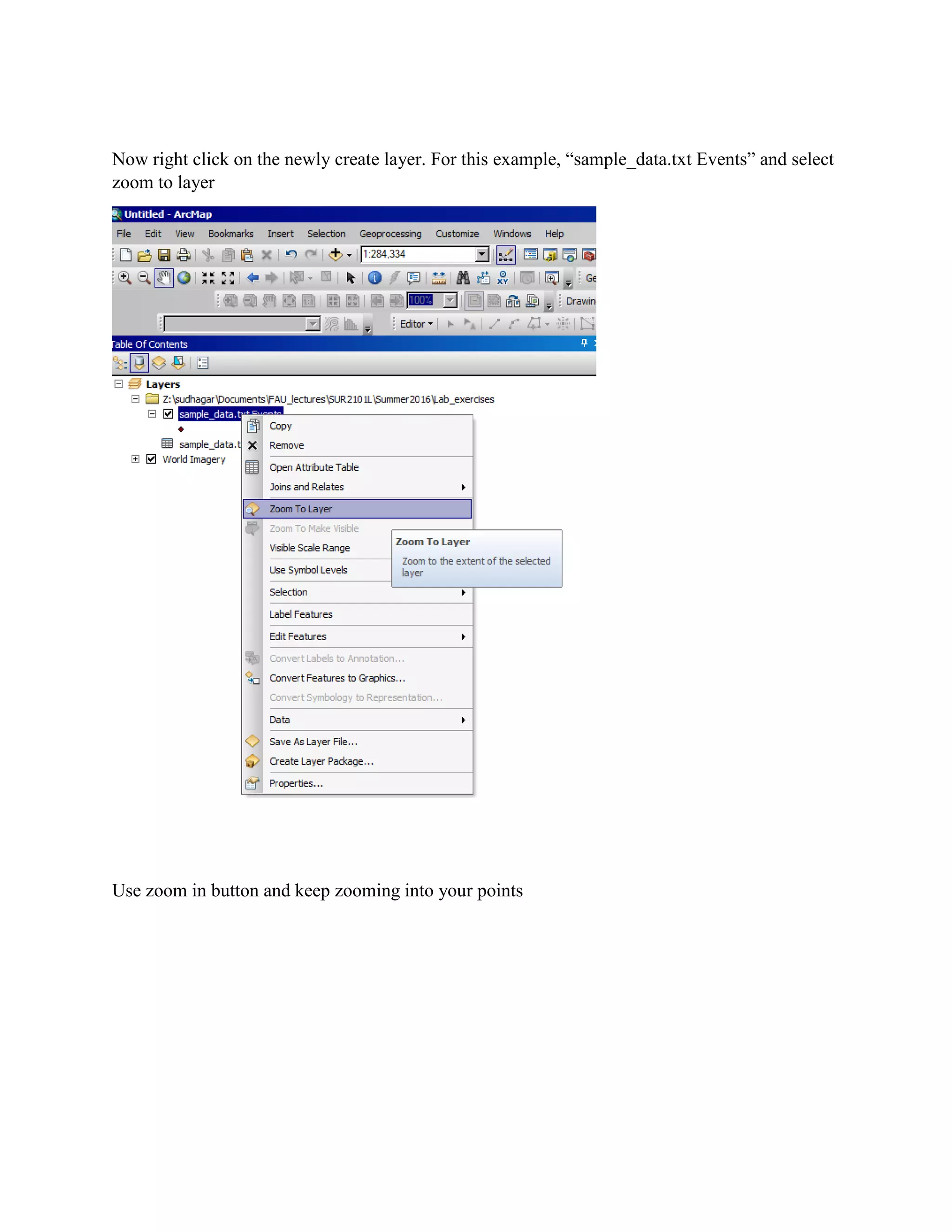
Now right click on the newly create layer. For this example, “sample_data.txt Events” and select
zoom to layer
Use zoom in button and keep zooming into your points
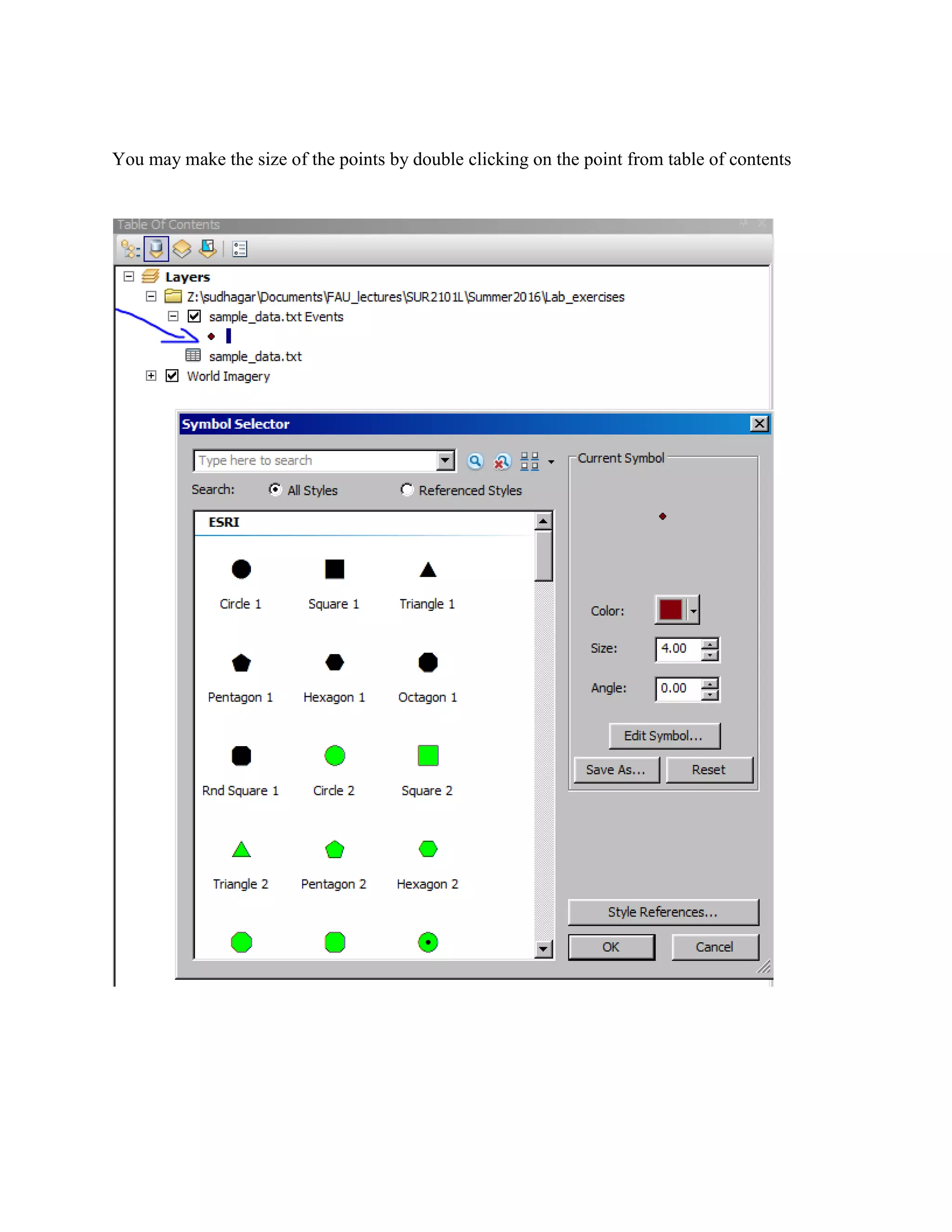
You may make the size of the points by double clicking on the point from table of contents
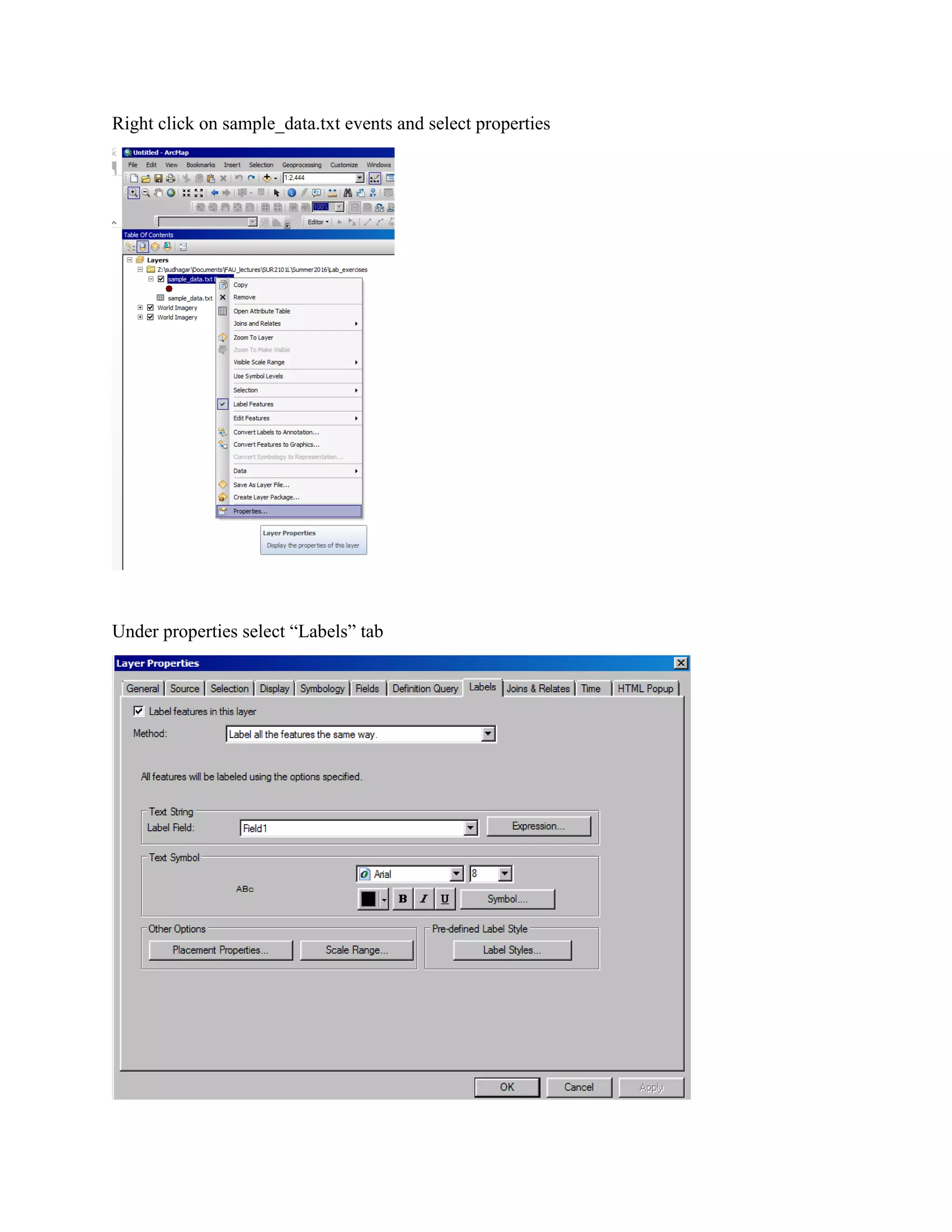
Right click on sample_data.txt events and select properties
Under properties select “Labels” tab
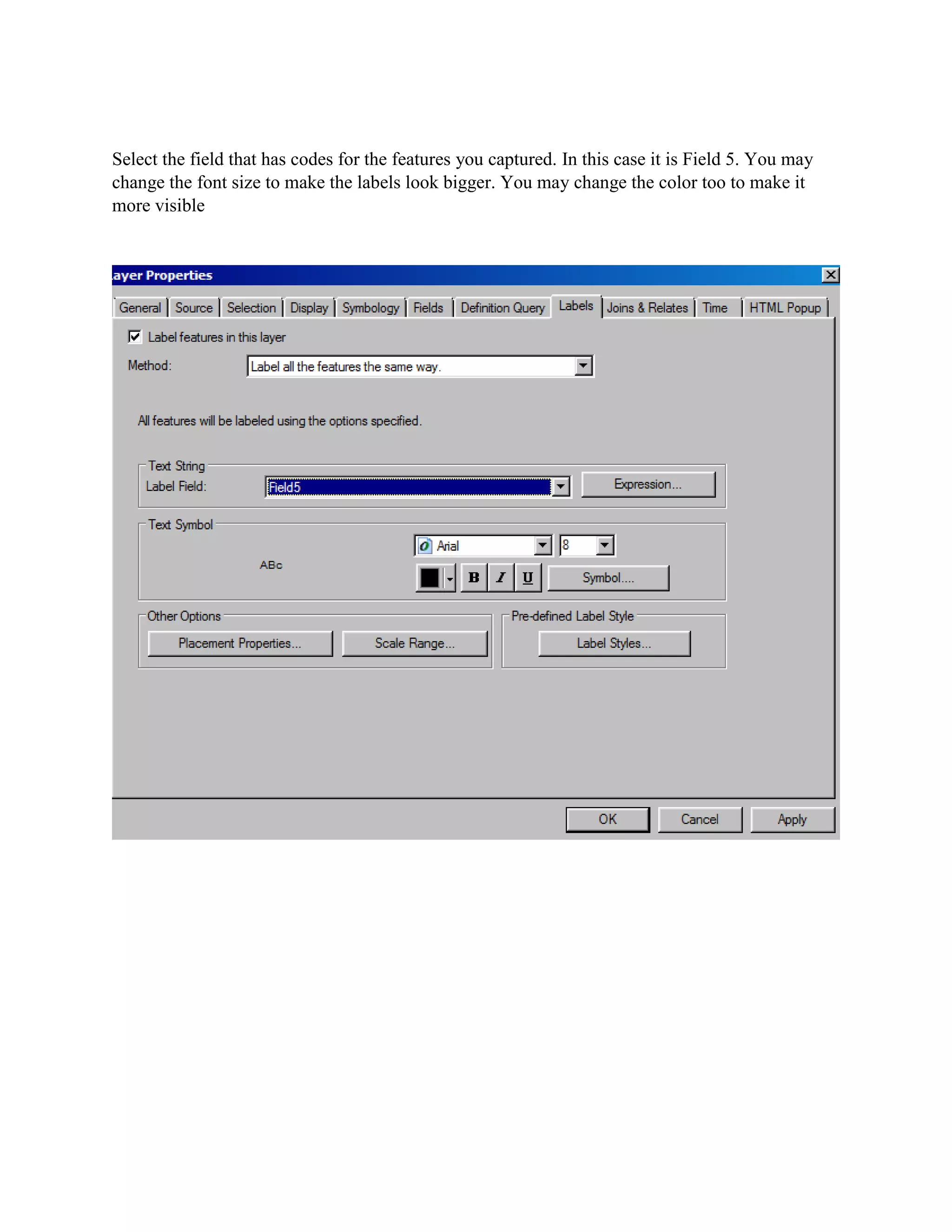
Select the field that has codes for the features you captured. In this case it is Field 5. You may
change the font size to make the labels look bigger. You may change the color too to make it
more visible
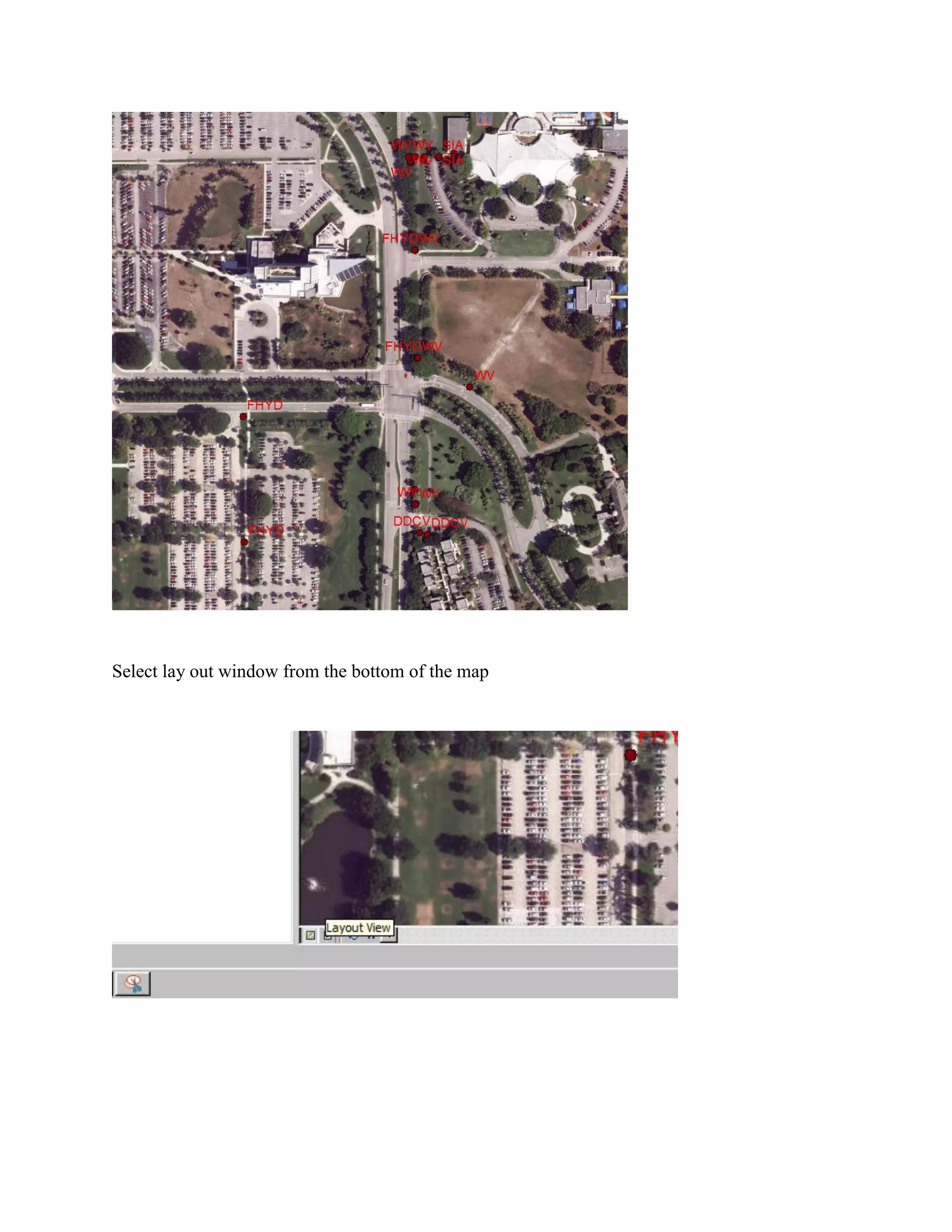
Select lay out window from the bottom of the map
Go to insert menu and add a title, scale bar and north arrow
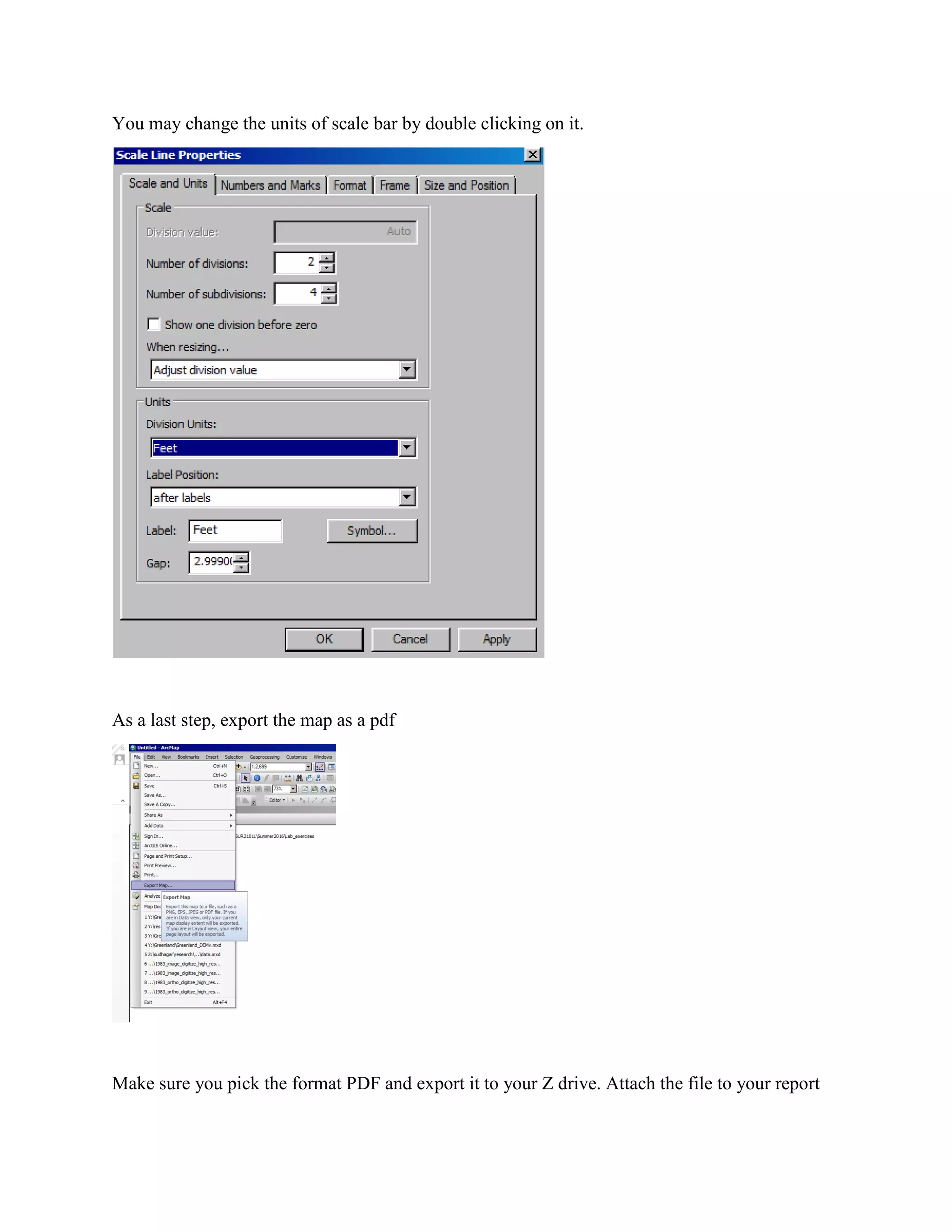
You may change the units of scale bar by double clicking on it.
As a last step, export the map as a pdf
Make sure you pick the format PDF and export it to your Z drive. Attach the file to your report

Lab #5 gps

  • 1.
    Satellite Positioning Topographic Survey LabExercise 5 Due: 07/29/2019 Individual Submission Objective To perform a topographic survey using GNSS (Global Navigation Satellite Systems) units Instruments 1. GNSS unit 2. Pole Steps: 1: • Create a new job with your group’s name. o Jobs& Data/ New Job o Create a new Code list from Survey o Make sure you specify FL East and Survey feet as units
  • 2.
    • Make sureyou choose the working style at Go to User→working style wizard→“FPRNNEARSN” • Hit * o Go to server/mount point o Make sure you select “BOCA” for mount point by choosing Source button o Hit OK • You are now ready to collect points. o Go to work o survey 2: • Capture at least 15 point features 3: Go to jobs & Data Select export & copy data Select “export ASCII data” If a USB stick is plugged, it should prompt you to choose USB under “export to” 4: Create a map using ArcMap. Instructions provided in a separate document
  • 3.
    Open ArcMap fromStudent desktop Add a basemap Choose imagery and hit Add
  • 4.
    Now Add thedata you collected in the field Browse your data and add it
  • 5.
    You should seeit added in the table of contents Right click on the layer “sample_data.txt” and open the table
  • 6.
    Right click onthe layer again from table of contents and select display xy data Make sure you pick right fields for X, Y and Z .
  • 7.
    Under coordinate systemof input coordinates window→ hit edit and select Projected coordinate systems→ State Plane→ NAD 83 HARN (US feet)→ NAD 1983 HARN StatePlane Florida East 0901 (US feet). Hit ok to all the dialogs
  • 8.
    You should seesomething like this
  • 9.
    Now right clickon the newly create layer. For this example, “sample_data.txt Events” and select zoom to layer Use zoom in button and keep zooming into your points
  • 10.
    You may makethe size of the points by double clicking on the point from table of contents
  • 11.
    Right click onsample_data.txt events and select properties Under properties select “Labels” tab
  • 12.
    Select the fieldthat has codes for the features you captured. In this case it is Field 5. You may change the font size to make the labels look bigger. You may change the color too to make it more visible
  • 13.
    Select lay outwindow from the bottom of the map
  • 15.
    Go to insertmenu and add a title, scale bar and north arrow
  • 17.
    You may changethe units of scale bar by double clicking on it. As a last step, export the map as a pdf Make sure you pick the format PDF and export it to your Z drive. Attach the file to your report