welcome
ACTIVITY
1. What is your organization + what is your name?
2. What is your role in your organization?
3. What is your biggest fundraising challenge in 2018?
はじめまして!
Agenda
About GlobalGiving
What’s New
Break
GlobalGiving Driven Funds
GG Rewards
Break
Setting SMART Goals
Network Mapping
Donor Relationship Building
About
GlobalGiving
GlobalGiving is the first and largest global
crowdfunding community that connects nonprofits,
donors, and companies in nearly every country
around the world. We make it possible for local
organizations to access the funding, tools, training,
and support they need to become more effective
and make our world a better place.
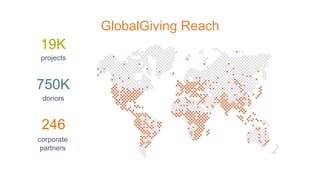
GlobalGiving Reach
19K
projects
750K
donors
246
corporate
partners
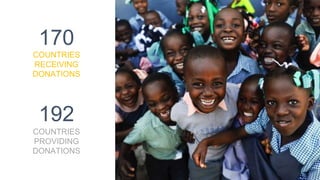
170
COUNTRIES
RECEIVING
DONATIONS
192
COUNTRIES
PROVIDING
DONATIONS
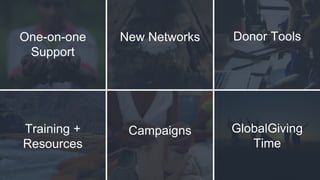
One-on-one
Support
Donor Tools
Training +
Resources
Campaigns GlobalGiving
Time
New Networks
What’s New
2 0 1 7 Y E A R I N R E V I E W
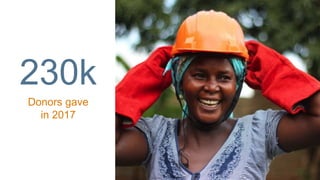
230k
Donors gave
in 2017
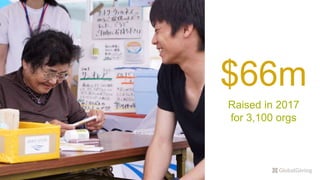
$66m
Raised in 2017
for 3,100 orgs
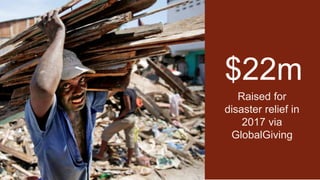
$22m
Raised for
disaster relief in
2017 via
GlobalGiving
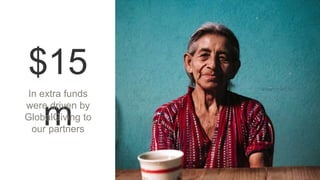
$15
m
In extra funds
were driven by
GlobalGiving to
our partners
N E W T H I N G S W E ’ R E D O I N G
Launch
Redesigned
Dashboard
+ Tools
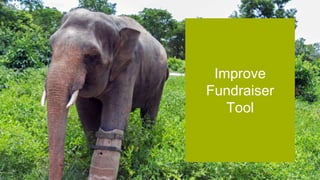
Improve
Fundraiser
Tool
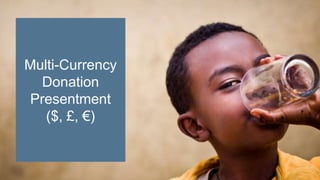
Multi-Currency
Donation
Presentment
($, £, €)
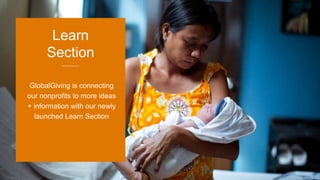
GlobalGiving is connecting
our nonprofits to more ideas
+ information with our newly
launched Learn Section
Learn
Section
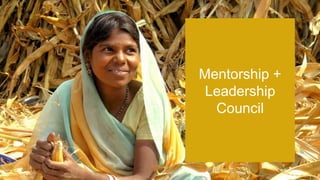
Mentorship +
Leadership
Council
Saved
Credit
Cards
New Fee
7% + 3%
(10%) on
donations
Facebook
Crisis Donate
Button
T H E Y E A R A H E A D
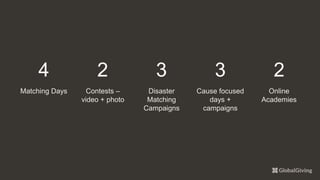
4
Matching Days
2
Contests –
video + photo
3
Disaster
Matching
Campaigns
3
Cause focused
days +
campaigns
2
Online

Academies
Donations $50 and less
are matched
Designed to activate +
motivate donors who give
smaller donations
Little by Little
April
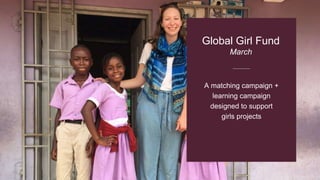
A matching campaign +
learning campaign
designed to support
girls projects
Global Girl Fund
March
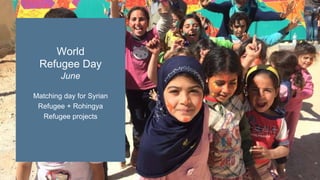
Matching day for Syrian
Refugee + Rohingya
Refugee projects
World
Refugee Day
June
A matching day where the
percentage match is
determined by the GG
Rewards status
GG Rewards
Bonus Days
July
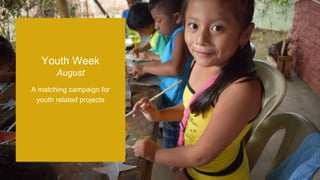
A matching campaign for
youth related projects
Youth Week
August
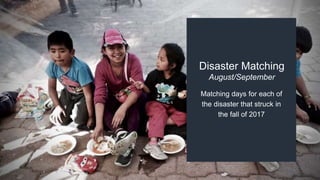
Matching days for each of
the disaster that struck in
the fall of 2017
Disaster Matching
August/September
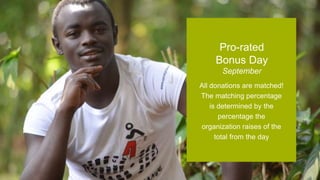
All donations are matched!
The matching percentage
is determined by the
percentage the
organization raises of the
total from the day
Pro-rated
Bonus Day
September
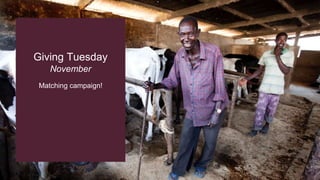
Matching campaign!
Giving Tuesday
November
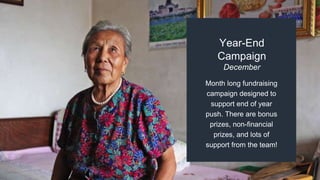
Month long fundraising
campaign designed to
support end of year
push. There are bonus
prizes, non-financial
prizes, and lots of
support from the team!
Year-End
Campaign
December
A two-month, online
course focused on
topics like developing
an online fundraising
strategy and
harnessing social
media for fundraising
Online

Fundraising
Academy
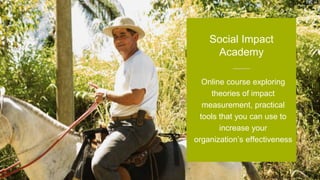
Online course exploring
theories of impact
measurement, practical
tools that you can use to
increase your
organization’s effectiveness
Social Impact
Academy
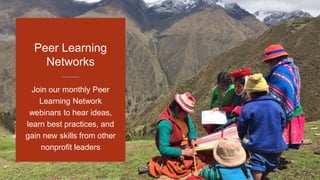
Join our monthly Peer
Learning Network
webinars to hear ideas,
learn best practices, and
gain new skills from other
nonprofit leaders
Peer Learning
Networks
Compete in
GlobalGiving’s Annual
Video Contest for a
chance to be featured
in our donor email and
on our social media.
Video Contest
Submit photos for a
chance to win a $1,000
award and social
media promotion.
Photo Contest
A C T I V I T Y
Pick one of these campaigns, or one you’re already planning
on and discuss why this campaign fits your needs
Pick a Campaign!
Break
GlobalGiving
Driven Funds
W H A T A R E G G D R I V E N F U N D S ?
Through marketing, matching + bonus campaigns,
corporate partnerships, disaster response, and gift
card redemptions, GlobalGiving drives additional
money to nonprofits in our community
It’s that extra money
Last year GlobalGiving drove an
additional $15 million to our partners!
7% + 3% (10%) fee on donations to
international organizations
0%
With this extra money, the typical GlobalGiving
partner had a zero percent net fee in 2015
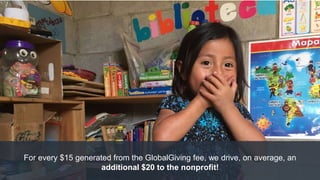
For every $15 generated from the GlobalGiving fee, we drive, on average, an
additional $20 to the nonprofit!
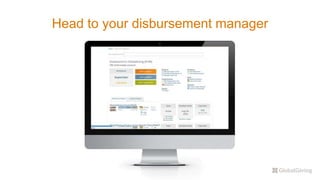
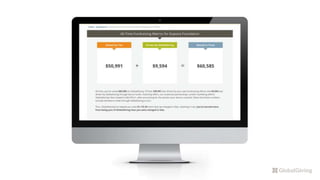
W H E R E D O I F I N D T H I S I N F O R M A T I O N ?
Head to your disbursement manager
H O W D O I I N C R E A S E T H E S E F U N D S ?
GG Rewards
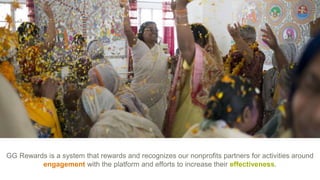
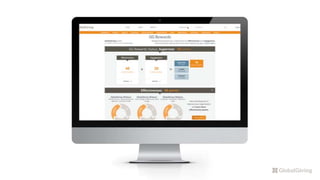
GG Rewards is a system that rewards and recognizes our nonprofits partners for activities around
engagement with the platform and efforts to increase their effectiveness.
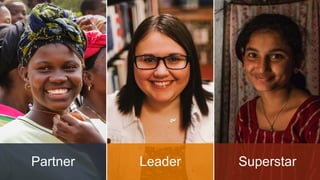
Partner Leader Superstar
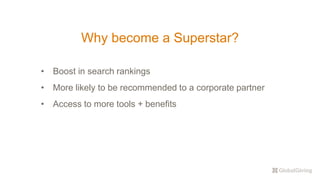
Why become a Superstar?
• Boost in search rankings
• More likely to be recommended to a corporate partner
• Access to more tools + benefits
S O H O W D O E S T H A T W O R K ?
GG nonprofit partners
earn points every time
they complete a GG
Rewards activity
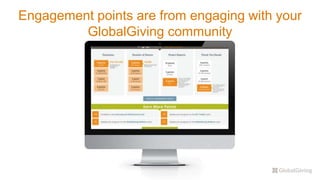
Engagement points are from engaging with your
GlobalGiving community
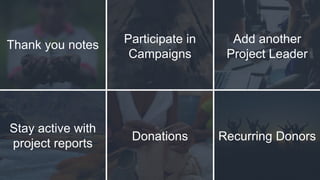
Thank you notes Participate in
Campaigns
Add another
Project Leader
Stay active with
project reports
Donations Recurring Donors
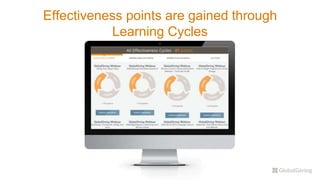
Effectiveness points are gained through
Learning Cycles
We continually experiment. We fail quickly and productively.
We use data and feedback to guide our course.
Core Value: Listen, Act, Learn.
Repeat.
There are lots of Learning Cycles
you can complete
• Watch a GlobalGiving webinar
• Use the “charting impact” tool
• Do a SWOT analysis
• Use GlobalGiving’s
storytelling tool
• Explore and use tools in the
DIY toolkit
• Explore and use the tools in
the Feedback toolkit
• Create your own!
Increasing your GG Rewards status
is the best way to gain visibility +
more GG Driven Funds.
A C T I V I T Y
Take a look at your GG Rewards Dashboard
1. Where are most of your points coming from?
2. Are there any quick wins to boost your points, and maybe your GG
Rewards status?
3. What learning cycle looks the most interesting to you?
What are 3 ways your organization can gain
points towards becoming a Superstar?
Break
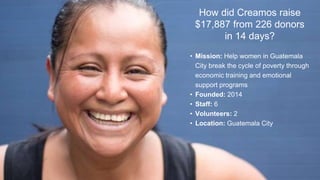
How did Creamos raise
$17,887 from 226 donors
in 14 days?
• Mission: Help women in Guatemala
City break the cycle of poverty through
economic training and emotional
support programs
• Founded: 2014
• Staff: 6
• Volunteers: 2
• Location: Guatemala City
Setting SMART
Fundraising Goals
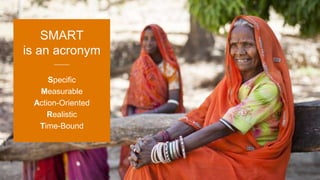
W H A T I S A S M A R T G O A L ?
Specific
Measurable
Action-Oriented
Realistic
Time-Bound
SMART
is an acronym
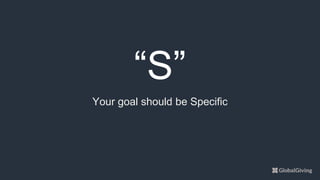
“S”
Your goal should be Specific
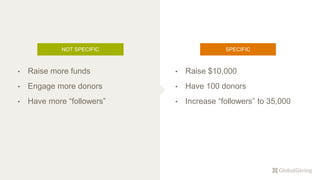
NOT SPECIFIC
• Raise $10,000
• Have 100 donors
• Increase “followers” to 35,000
SPECIFIC
• Raise more funds
• Engage more donors
• Have more “followers”
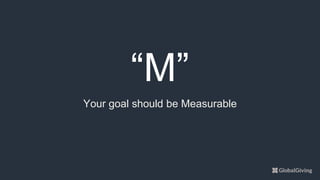
“M”
Your goal should be Measurable
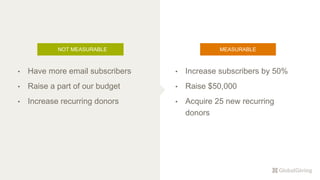
NOT MEASURABLE
• Increase subscribers by 50%
• Raise $50,000
• Acquire 25 new recurring
donors
MEASURABLE
• Have more email subscribers
• Raise a part of our budget
• Increase recurring donors
“A”
Your goal should be Action-Oriented
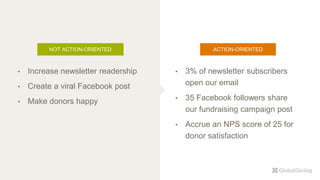
NOT ACTION-ORIENTED
• 3% of newsletter subscribers
open our email
• 35 Facebook followers share
our fundraising campaign post
• Accrue an NPS score of 25 for
donor satisfaction
ACTION-ORIENTED
• Increase newsletter readership
• Create a viral Facebook post
• Make donors happy
“R”
Your goal should be Realistic
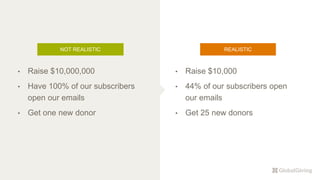
NOT REALISTIC
• Raise $10,000
• 44% of our subscribers open
our emails
• Get 25 new donors
REALISTIC
• Raise $10,000,000
• Have 100% of our subscribers
open our emails
• Get one new donor
“T”
Your goal should be Time-Bound
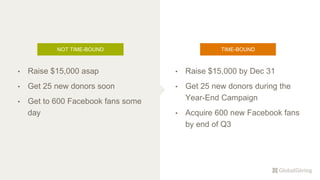
NOT TIME-BOUND
• Raise $15,000 by Dec 31
• Get 25 new donors during the
Year-End Campaign
• Acquire 600 new Facebook fans
by end of Q3
TIME-BOUND
• Raise $15,000 asap
• Get 25 new donors soon
• Get to 600 Facebook fans some
day
Benefits of
SMART Goals:
• Provide focus, direction,
and accountability
• Allow for milestone
checks and
strategic pivots
• Make for better calls-to-
action to donors
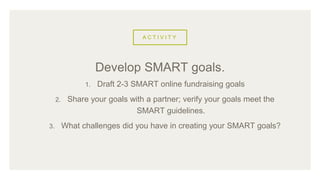
A C T I V I T Y
1. Draft 2-3 SMART online fundraising goals
2. Share your goals with a partner; verify your goals meet the
SMART guidelines.
3. What challenges did you have in creating your SMART goals?
Develop SMART goals.
Network
Mapping
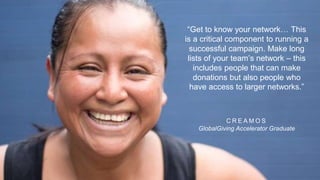
“Get to know your network… This
is a critical component to running a
successful campaign. Make long
lists of your team’s network – this
includes people that can make
donations but also people who
have access to larger networks.”
C R E A M O S
GlobalGiving Accelerator Graduate
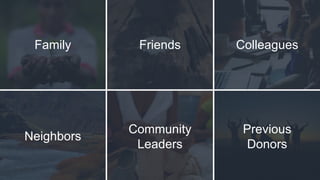
W H O I S I N Y O U R N E T W O R K ?
Family Friends Colleagues
Neighbors
Community
Leaders
Previous
Donors
Don’t be afraid to think
outside of the box!
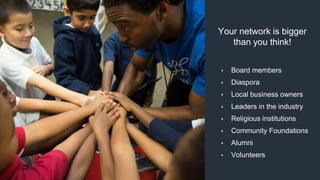
Your network is bigger
than you think!
• Board members
• Diaspora
• Local business owners
• Leaders in the industry
• Religious institutions
• Community Foundations
• Alumni
• Volunteers
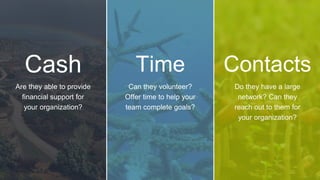
W H A T C A N T H E Y P R O V I D E ?
Are they able to provide
financial support for
your organization?
Cash
Can they volunteer?
Offer time to help your
team complete goals?
Time
Do they have a large
network? Can they
reach out to them for
your organization?
Contacts
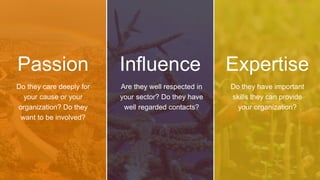
Do they care deeply for
your cause or your
organization? Do they
want to be involved?
Passion
Are they well respected in
your sector? Do they have
well regarded contacts?
Influence
Do they have important
skills they can provide
your organization?
Expertise
A C T I V I T Y
1. Map your current network.
2. Map your potential network.
3. With a partner, brainstorm ideas to reach your potential network.
4. Share a learning with the group.
Network Mapping
Donor
Relationship
building
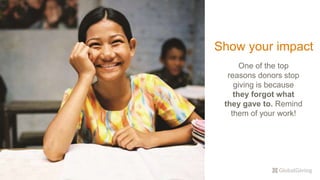
Show your impact
One of the top
reasons donors stop
giving is because
they forgot what
they gave to. Remind
them of your work!
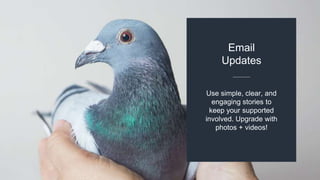
Use simple, clear, and
engaging stories to
keep your supported
involved. Upgrade with
photos + videos!
Email
Updates
Engaging
on Social
Media
Use your stories to remind your donors of the impact they’ve helped
your organization create. This can inspire them to give again,
making new donors into repeat donors!
Don’t let donors forget about you. Keep
them updated on how they’ve helped.
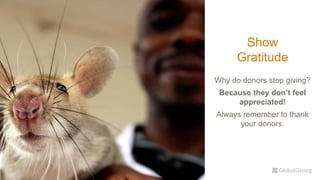
Show
Gratitude
Why do donors stop giving?
Because they don’t feel
appreciated!
Always remember to thank
your donors.
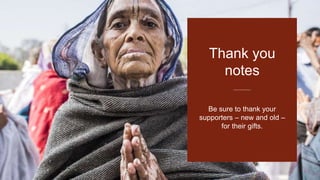
Be sure to thank your
supporters – new and old –
for their gifts.
Thank you
notes
Versus speed when they are being thanked by the organization to
which they gave. Pay attention to what they gave to, if they’ve given
before, and ask them why they give! Engage with your new and old
networks of supporters.
50% of donors prefer personalization …
• Learn Library for NPOs like you:
https://www.globalgiving.org/learn/nonprofits/
• Getting Started - Crowdfundamentals:
https://www.globalgiving.org/learn/beginners-guide-
crowdfunding-success/
• 7 Steps to Crowdfunding Success:
https://www.globalgiving.org/learn/listicle/7-crowdfunding-
steps/
• Next Peer Learning Session - Data Protection May
16th:
https://globalgivinguk.wufoo.eu/forms/qu467oi0a376qi/
U S E F U L R E S O U R C E S
Need assistance? We’re always here to help!
WASHINGTON DC OFFICE
+1 202 232 5784
1110 Vermont Ave. NW Suite 550
Washington DC 20005 USA
US Toll Free: 877 605 2314
Or send us a message through:
https://www.globalgiving.org/aboutus/contact/
質問
ありがとうございます!

Japan GlobalGiving Partner Workshop 2018

  • 1.
  • 2.
    ACTIVITY 1. What isyour organization + what is your name? 2. What is your role in your organization? 3. What is your biggest fundraising challenge in 2018? はじめまして!
  • 3.
    Agenda About GlobalGiving What’s New Break GlobalGivingDriven Funds GG Rewards Break Setting SMART Goals Network Mapping Donor Relationship Building
  • 4.
  • 5.
    GlobalGiving is thefirst and largest global crowdfunding community that connects nonprofits, donors, and companies in nearly every country around the world. We make it possible for local organizations to access the funding, tools, training, and support they need to become more effective and make our world a better place.
  • 6.
  • 7.
  • 8.
  • 9.
  • 10.
    2 0 17 Y E A R I N R E V I E W
  • 11.
  • 12.
  • 13.
    $22m Raised for disaster reliefin 2017 via GlobalGiving
  • 14.
    $15 m In extra funds weredriven by GlobalGiving to our partners
  • 15.
    N E WT H I N G S W E ’ R E D O I N G
  • 16.
  • 17.
  • 18.
  • 19.
    GlobalGiving is connecting ournonprofits to more ideas + information with our newly launched Learn Section Learn Section
  • 20.
  • 21.
  • 22.
    New Fee 7% +3% (10%) on donations
  • 23.
  • 24.
    T H EY E A R A H E A D
  • 25.
    4 Matching Days 2 Contests – video+ photo 3 Disaster Matching Campaigns 3 Cause focused days + campaigns 2 Online Academies
  • 26.
    Donations $50 andless are matched Designed to activate + motivate donors who give smaller donations Little by Little April
  • 27.
    A matching campaign+ learning campaign designed to support girls projects Global Girl Fund March
  • 28.
    Matching day forSyrian Refugee + Rohingya Refugee projects World Refugee Day June
  • 29.
    A matching daywhere the percentage match is determined by the GG Rewards status GG Rewards Bonus Days July
  • 30.
    A matching campaignfor youth related projects Youth Week August
  • 31.
    Matching days foreach of the disaster that struck in the fall of 2017 Disaster Matching August/September
  • 32.
    All donations arematched! The matching percentage is determined by the percentage the organization raises of the total from the day Pro-rated Bonus Day September
  • 33.
  • 34.
    Month long fundraising campaigndesigned to support end of year push. There are bonus prizes, non-financial prizes, and lots of support from the team! Year-End Campaign December
  • 35.
    A two-month, online coursefocused on topics like developing an online fundraising strategy and harnessing social media for fundraising Online Fundraising Academy
  • 36.
    Online course exploring theoriesof impact measurement, practical tools that you can use to increase your organization’s effectiveness Social Impact Academy
  • 37.
    Join our monthlyPeer Learning Network webinars to hear ideas, learn best practices, and gain new skills from other nonprofit leaders Peer Learning Networks
  • 38.
    Compete in GlobalGiving’s Annual VideoContest for a chance to be featured in our donor email and on our social media. Video Contest
  • 39.
    Submit photos fora chance to win a $1,000 award and social media promotion. Photo Contest
  • 40.
    A C TI V I T Y Pick one of these campaigns, or one you’re already planning on and discuss why this campaign fits your needs Pick a Campaign!
  • 41.
  • 42.
  • 43.
    W H AT A R E G G D R I V E N F U N D S ?
  • 44.
    Through marketing, matching+ bonus campaigns, corporate partnerships, disaster response, and gift card redemptions, GlobalGiving drives additional money to nonprofits in our community It’s that extra money
  • 45.
    Last year GlobalGivingdrove an additional $15 million to our partners!
  • 46.
    7% + 3%(10%) fee on donations to international organizations
  • 47.
    0% With this extramoney, the typical GlobalGiving partner had a zero percent net fee in 2015
  • 48.
    For every $15generated from the GlobalGiving fee, we drive, on average, an additional $20 to the nonprofit!
  • 49.
    W H ER E D O I F I N D T H I S I N F O R M A T I O N ?
  • 50.
    Head to yourdisbursement manager
  • 52.
    H O WD O I I N C R E A S E T H E S E F U N D S ?
  • 53.
  • 54.
    GG Rewards isa system that rewards and recognizes our nonprofits partners for activities around engagement with the platform and efforts to increase their effectiveness.
  • 56.
  • 57.
    Why become aSuperstar? • Boost in search rankings • More likely to be recommended to a corporate partner • Access to more tools + benefits
  • 58.
    S O HO W D O E S T H A T W O R K ?
  • 59.
    GG nonprofit partners earnpoints every time they complete a GG Rewards activity
  • 60.
    Engagement points arefrom engaging with your GlobalGiving community
  • 61.
    Thank you notesParticipate in Campaigns Add another Project Leader Stay active with project reports Donations Recurring Donors
  • 62.
    Effectiveness points aregained through Learning Cycles
  • 63.
    We continually experiment.We fail quickly and productively. We use data and feedback to guide our course. Core Value: Listen, Act, Learn. Repeat.
  • 64.
    There are lotsof Learning Cycles you can complete • Watch a GlobalGiving webinar • Use the “charting impact” tool • Do a SWOT analysis • Use GlobalGiving’s storytelling tool • Explore and use tools in the DIY toolkit • Explore and use the tools in the Feedback toolkit • Create your own!
  • 65.
    Increasing your GGRewards status is the best way to gain visibility + more GG Driven Funds.
  • 66.
    A C TI V I T Y Take a look at your GG Rewards Dashboard 1. Where are most of your points coming from? 2. Are there any quick wins to boost your points, and maybe your GG Rewards status? 3. What learning cycle looks the most interesting to you? What are 3 ways your organization can gain points towards becoming a Superstar?
  • 67.
  • 68.
    How did Creamosraise $17,887 from 226 donors in 14 days? • Mission: Help women in Guatemala City break the cycle of poverty through economic training and emotional support programs • Founded: 2014 • Staff: 6 • Volunteers: 2 • Location: Guatemala City
  • 69.
  • 70.
    W H AT I S A S M A R T G O A L ?
  • 71.
  • 72.
  • 73.
    NOT SPECIFIC • Raise$10,000 • Have 100 donors • Increase “followers” to 35,000 SPECIFIC • Raise more funds • Engage more donors • Have more “followers”
  • 74.
  • 75.
    NOT MEASURABLE • Increasesubscribers by 50% • Raise $50,000 • Acquire 25 new recurring donors MEASURABLE • Have more email subscribers • Raise a part of our budget • Increase recurring donors
  • 76.
    “A” Your goal shouldbe Action-Oriented
  • 77.
    NOT ACTION-ORIENTED • 3%of newsletter subscribers open our email • 35 Facebook followers share our fundraising campaign post • Accrue an NPS score of 25 for donor satisfaction ACTION-ORIENTED • Increase newsletter readership • Create a viral Facebook post • Make donors happy
  • 78.
  • 79.
    NOT REALISTIC • Raise$10,000 • 44% of our subscribers open our emails • Get 25 new donors REALISTIC • Raise $10,000,000 • Have 100% of our subscribers open our emails • Get one new donor
  • 80.
  • 81.
    NOT TIME-BOUND • Raise$15,000 by Dec 31 • Get 25 new donors during the Year-End Campaign • Acquire 600 new Facebook fans by end of Q3 TIME-BOUND • Raise $15,000 asap • Get 25 new donors soon • Get to 600 Facebook fans some day
  • 82.
    Benefits of SMART Goals: •Provide focus, direction, and accountability • Allow for milestone checks and strategic pivots • Make for better calls-to- action to donors
  • 83.
    A C TI V I T Y 1. Draft 2-3 SMART online fundraising goals 2. Share your goals with a partner; verify your goals meet the SMART guidelines. 3. What challenges did you have in creating your SMART goals? Develop SMART goals.
  • 84.
  • 85.
    “Get to knowyour network… This is a critical component to running a successful campaign. Make long lists of your team’s network – this includes people that can make donations but also people who have access to larger networks.” C R E A M O S GlobalGiving Accelerator Graduate
  • 86.
    W H OI S I N Y O U R N E T W O R K ?
  • 87.
  • 88.
    Don’t be afraidto think outside of the box!
  • 89.
    Your network isbigger than you think! • Board members • Diaspora • Local business owners • Leaders in the industry • Religious institutions • Community Foundations • Alumni • Volunteers
  • 90.
    W H AT C A N T H E Y P R O V I D E ?
  • 91.
    Are they ableto provide financial support for your organization? Cash Can they volunteer? Offer time to help your team complete goals? Time Do they have a large network? Can they reach out to them for your organization? Contacts
  • 92.
    Do they caredeeply for your cause or your organization? Do they want to be involved? Passion Are they well respected in your sector? Do they have well regarded contacts? Influence Do they have important skills they can provide your organization? Expertise
  • 93.
    A C TI V I T Y 1. Map your current network. 2. Map your potential network. 3. With a partner, brainstorm ideas to reach your potential network. 4. Share a learning with the group. Network Mapping
  • 94.
  • 95.
    Show your impact Oneof the top reasons donors stop giving is because they forgot what they gave to. Remind them of your work!
  • 96.
    Use simple, clear,and engaging stories to keep your supported involved. Upgrade with photos + videos! Email Updates
  • 97.
  • 98.
    Use your storiesto remind your donors of the impact they’ve helped your organization create. This can inspire them to give again, making new donors into repeat donors! Don’t let donors forget about you. Keep them updated on how they’ve helped.
  • 99.
    Show Gratitude Why do donorsstop giving? Because they don’t feel appreciated! Always remember to thank your donors.
  • 100.
    Be sure tothank your supporters – new and old – for their gifts. Thank you notes
  • 101.
    Versus speed whenthey are being thanked by the organization to which they gave. Pay attention to what they gave to, if they’ve given before, and ask them why they give! Engage with your new and old networks of supporters. 50% of donors prefer personalization …
  • 102.
    • Learn Libraryfor NPOs like you: https://www.globalgiving.org/learn/nonprofits/ • Getting Started - Crowdfundamentals: https://www.globalgiving.org/learn/beginners-guide- crowdfunding-success/ • 7 Steps to Crowdfunding Success: https://www.globalgiving.org/learn/listicle/7-crowdfunding- steps/ • Next Peer Learning Session - Data Protection May 16th: https://globalgivinguk.wufoo.eu/forms/qu467oi0a376qi/ U S E F U L R E S O U R C E S
  • 103.
    Need assistance? We’realways here to help! WASHINGTON DC OFFICE +1 202 232 5784 1110 Vermont Ave. NW Suite 550 Washington DC 20005 USA US Toll Free: 877 605 2314 Or send us a message through: https://www.globalgiving.org/aboutus/contact/
  • 104.
  • 105.

Editor's Notes

  • #3 [Ask two participants to share their stories with the larger group – being free to refine based on the feedback given during the pair session. Then, ask for feedback from those in the room.] [Write down a list of what participants share as the critical components of a compelling story]
  • #5 Feel free to swap out the photo Change the color of the overlay to a DARK color Adjust the text size Keep the text white
  • #6 Keep this text set. More versions of this boilerplate language can be found in the Brand Guide.
  • #7 To date, GlobalGiving has vetted more than 10K nonprofit organizations in 170+ countries around the globe, and sent funds to more than 160 countries. More than 3/4 million donors have raised approximately $330MM through GlobalGiving for our nonprofit partners. Additionally, we’ve worked with more than 246 corporate partners.
  • #9 On top of that, we have numerous other benefits including those you see here!
  • #10 Feel free to swap out the photo Change the color of the overlay to a DARK color Adjust the text size Keep the text white
  • #11 Keep the text small and ALL CAPS with loose letter spacing. Change the color of the box but keep it a darker Brand color with white text. Adjust the length of the box to fit your content (not too much space on either side of the text)
  • #12 Swap out the photo to make the presentation your own. GlobalGiving brand compliant photos can be found here via the Box link. Choose a photo that complements your content. Choose a color for the text box that matches the colors in the photo. Compress all images to 150 dpi (go to File > Reduce File Size when you’re done with your deck) Match stat color to complement the photo
  • #13 Swap out the photo to make the presentation your own. GlobalGiving brand compliant photos can be found here via the Box link. Choose a photo that complements your content. Choose a color for the text box that matches the colors in the photo. Compress all images to 150 dpi (go to File > Reduce File Size when you’re done with your deck) Match stat color to complement the photo
  • #14 Swap out the photo to make the presentation your own. GlobalGiving brand compliant photos can be found here via the Box link. Choose a photo that complements your content. Choose a color for the text box that matches the colors in the photo. Compress all images to 150 dpi (go to File > Reduce File Size when you’re done with your deck)
  • #15 Swap out the photo to make the presentation your own. GlobalGiving brand compliant photos can be found here via the Box link. Choose a photo that complements your content. Choose a color for the text box that matches the colors in the photo. Compress all images to 150 dpi (go to File > Reduce File Size when you’re done with your deck)
  • #16 Keep the text small and ALL CAPS with loose letter spacing. Change the color of the box but keep it a darker Brand color with white text. Adjust the length of the box to fit your content (not too much space on either side of the text)
  • #17 Mobile optimized tools so that they are easier to use and support additional features, including sending thank you notes and editing projects on the go
  • #18 Simplify and improve our fundraiser tool as it is used by donors, PLs, and companies to raise funds for the causes that they care about. Look at ways to simplify the experience on our site, perhaps linking off to The Guestbook to handle wedding registries, or linking to Facebook for general fundraisers
  • #19 Starting with Euros, and will add Canadian dollars, Australian dollars, Kenyan shillings, and South African Rand. Will add additional currencies in the future.
  • #20 Swap out the photo to make the presentation your own. GlobalGiving brand compliant photos can be found here via the Box link. Choose a photo that complements your content. Choose a color for the text box that matches the colors in the photo. Compress all images to 150 dpi (go to File > Reduce File Size when you’re done with your deck) Adjust the size of the text but don’t make it smaller.
  • #21 We introduced a mentorship program where you can sign up for a consultation with another peer to get help with your programs. We also will be having the Leadership Council back this year where you can apply to give feedback and input to GG! Look out for applications and dates in upcoming newsletters. LALR
  • #22  Enhance opt-in options for data processing, updating privacy policy, and getting consent from EU donors of days gone by
  • #24 Swap out the photo to make the presentation your own. GlobalGiving brand compliant photos can be found here via the Box link. Choose a photo that complements your content. Choose a color for the text box that matches the colors in the photo. Compress all images to 150 dpi (go to File > Reduce File Size when you’re done with your deck) Adjust the size of the text but don’t make it smaller.
  • #25 Keep the text small and ALL CAPS with loose letter spacing. Change the color of the box but keep it a darker Brand color with white text. Adjust the length of the box to fit your content (not too much space on either side of the text)
  • #26 Adjust the font sizes according to how long the stat labels are. Make sure the colors are visible (should be white or light on dark background)
  • #27 Swap out the photo to make the presentation your own. GlobalGiving brand compliant photos can be found here via the Box link. Choose a photo that complements your content. Choose a color for the text box that matches the colors in the photo. Compress all images to 150 dpi (go to File > Reduce File Size when you’re done with your deck) Adjust the size of the text but don’t make it smaller.
  • #28 Swap out the photo to make the presentation your own. GlobalGiving brand compliant photos can be found here via the Box link. Choose a photo that complements your content. Choose a color for the text box that matches the colors in the photo. Compress all images to 150 dpi (go to File > Reduce File Size when you’re done with your deck) Adjust the size of the text but don’t make it smaller.
  • #29 Swap out the photo to make the presentation your own. GlobalGiving brand compliant photos can be found here via the Box link. Choose a photo that complements your content. Choose a color for the text box that matches the colors in the photo. Compress all images to 150 dpi (go to File > Reduce File Size when you’re done with your deck) Adjust the size of the text but don’t make it smaller.
  • #30 Swap out the photo to make the presentation your own. GlobalGiving brand compliant photos can be found here via the Box link. Choose a photo that complements your content. Choose a color for the text box that matches the colors in the photo. Compress all images to 150 dpi (go to File > Reduce File Size when you’re done with your deck) Adjust the size of the text but don’t make it smaller.
  • #31 Swap out the photo to make the presentation your own. GlobalGiving brand compliant photos can be found here via the Box link. Choose a photo that complements your content. Choose a color for the text box that matches the colors in the photo. Compress all images to 150 dpi (go to File > Reduce File Size when you’re done with your deck) Adjust the size of the text but don’t make it smaller.
  • #32 Swap out the photo to make the presentation your own. GlobalGiving brand compliant photos can be found here via the Box link. Choose a photo that complements your content. Choose a color for the text box that matches the colors in the photo. Compress all images to 150 dpi (go to File > Reduce File Size when you’re done with your deck) Adjust the size of the text but don’t make it smaller.
  • #33 Swap out the photo to make the presentation your own. GlobalGiving brand compliant photos can be found here via the Box link. Choose a photo that complements your content. Choose a color for the text box that matches the colors in the photo. Compress all images to 150 dpi (go to File > Reduce File Size when you’re done with your deck) Adjust the size of the text but don’t make it smaller.
  • #34 Swap out the photo to make the presentation your own. GlobalGiving brand compliant photos can be found here via the Box link. Choose a photo that complements your content. Choose a color for the text box that matches the colors in the photo. Compress all images to 150 dpi (go to File > Reduce File Size when you’re done with your deck) Adjust the size of the text but don’t make it smaller.
  • #35 Swap out the photo to make the presentation your own. GlobalGiving brand compliant photos can be found here via the Box link. Choose a photo that complements your content. Choose a color for the text box that matches the colors in the photo. Compress all images to 150 dpi (go to File > Reduce File Size when you’re done with your deck) Adjust the size of the text but don’t make it smaller.
  • #36 Swap out the photo to make the presentation your own. GlobalGiving brand compliant photos can be found here via the Box link. Choose a photo that complements your content. Choose a color for the text box that matches the colors in the photo. Compress all images to 150 dpi (go to File > Reduce File Size when you’re done with your deck) Adjust the size of the text but don’t make it smaller.
  • #37 Swap out the photo to make the presentation your own. GlobalGiving brand compliant photos can be found here via the Box link. Choose a photo that complements your content. Choose a color for the text box that matches the colors in the photo. Compress all images to 150 dpi (go to File > Reduce File Size when you’re done with your deck) Adjust the size of the text but don’t make it smaller.
  • #38 Swap out the photo to make the presentation your own. GlobalGiving brand compliant photos can be found here via the Box link. Choose a photo that complements your content. Choose a color for the text box that matches the colors in the photo. Compress all images to 150 dpi (go to File > Reduce File Size when you’re done with your deck) Adjust the size of the text but don’t make it smaller.
  • #39 Swap out the photo to make the presentation your own. GlobalGiving brand compliant photos can be found here via the Box link. Choose a photo that complements your content. Choose a color for the text box that matches the colors in the photo. Compress all images to 150 dpi (go to File > Reduce File Size when you’re done with your deck) Adjust the size of the text but don’t make it smaller.
  • #40 Swap out the photo to make the presentation your own. GlobalGiving brand compliant photos can be found here via the Box link. Choose a photo that complements your content. Choose a color for the text box that matches the colors in the photo. Compress all images to 150 dpi (go to File > Reduce File Size when you’re done with your deck) Adjust the size of the text but don’t make it smaller.
  • #41 Step on of the process – based on size of the audience also feel free to do as a group
  • #43 Feel free to swap out the photo Change the color of the overlay to a DARK color Adjust the text size Keep the text white
  • #45 We call these “globalgiving driven funds.”
  • #46 This was in marketing work that we do with newsletters, social media, etc as well as matching funds, corporate partnerships, and gift card redemptions
  • #47 This covers not only our over head (~2%) but our nonprofit service fee which covers our programs, fundraising, and all the things we’re doing to support our partners! This was based on feedback from our partners that our original fee was too high
  • #48 We’re working to drive more funds to your work, making this fee less in reality.
  • #51 Use this slide for a screenshot of a page or an example of something online.
  • #52 Use this slide for a screenshot of a page or an example of something online.
  • #54 Feel free to swap out the photo Change the color of the overlay to a DARK color Adjust the text size Keep the text white
  • #55 Swap out the photo to make the presentation your own. GlobalGiving brand compliant photos can be found here via the Box link. Choose a photo that complements your content. Choose a color for the text that matches the colors in the photo. Compress all images to 150 dpi (go to File > Reduce File Size when you’re done with your deck)
  • #56 This lives in your dashboard You can also go directly here from by clicking on your name when you login and choosing GG Rewards More points
  • #57 Swap out the photos. Feel free to change the colors of the overlays but keep them Brand colors with white text. Keep the text at least this big and keep it Aleo Bold so that it’s readable.
  • #59 Keep the text small and ALL CAPS with loose letter spacing. Change the color of the box but keep it a darker Brand color with white text. Adjust the length of the box to fit your content (not too much space on either side of the text)
  • #60 Swap out the photo to make the presentation your own. GlobalGiving brand compliant photos can be found here via the Box link. Choose a photo that complements your content. Choose a color for the text box that matches the colors in the photo. Compress all images to 150 dpi (go to File > Reduce File Size when you’re done with your deck) Adjust the size of the text but don’t make it smaller.
  • #61 Use this slide for a screenshot of a page or an example of something online.
  • #62 If the text over the photo goes to 2 lines, move the text box up so it’s centered within the box. Swap out the photos. Try not to have text over faces. Feel free to change the colors of the overlays but keep them dark Brand colors with white text.
  • #63 Use this slide for a screenshot of a page or an example of something online.
  • #64 - Limit the number of bulleted lists. This is a lot of content for your audience to digest at once. - Wherever possible, break slides like this into multiple slides with more space for the content to breathe. - You can adjust the size of the text based on your content. Try not to make it smaller than 16pt. - For more tips, just ask Acacia!
  • #65 - Limit the number of bulleted lists. This is a lot of content for your audience to digest at once. - Wherever possible, break slides like this into multiple slides with more space for the content to breathe. - You can adjust the size of the text based on your content. Try not to make it smaller than 16pt. - For more tips, just ask Acacia!
  • #66 Feel free to change the background image and overlay color (keep the colors darker Brand colors). Keep the text size big and white.
  • #67 If people don’t have computers we can also just use one computer and talk about a single org’s dashboard
  • #69 Feel free to swap out the photo and make sure that the text is READABLE. It’s hard to find a photo with enough “negative space” for a photo. If you can find a photo that complements the quote content, great! If you need help choosing a photo, ask Acacia. Keep small text ALL CAPS with loose letter spacing.
  • #70 Feel free to swap out the photo Change the color of the overlay to a DARK color Adjust the text size Keep the text white
  • #71 Keep the text small and ALL CAPS with loose letter spacing. Change the color of the box but keep it a darker Brand color with white text. Adjust the length of the box to fit your content (not too much space on either side of the text)
  • #72 Swap out the photo to make the presentation your own. GlobalGiving brand compliant photos can be found here via the Box link. Choose a photo that complements your content. Choose a color for the text box that matches the colors in the photo. Compress all images to 150 dpi (go to File > Reduce File Size when you’re done with your deck) Adjust the size of the text but don’t make it smaller.
  • #73 Feel free to change the background image and overlay color (keep the colors darker Brand colors). Keep the text size big and white. You can change the stat label to another color but keep the number itself white.
  • #74 Keep small text ALL CAPS with loose letter spacing. - Adjust the font sizes according to how long the stat labels are. Change colors of the year box or the stat labels Make sure the colors are visible (especially on the light gray background.)
  • #75 Feel free to change the background image and overlay color (keep the colors darker Brand colors). Keep the text size big and white. You can change the stat label to another color but keep the number itself white.
  • #76 Keep small text ALL CAPS with loose letter spacing. - Adjust the font sizes according to how long the stat labels are. Change colors of the year box or the stat labels Make sure the colors are visible (especially on the light gray background.)
  • #77 Feel free to change the background image and overlay color (keep the colors darker Brand colors). Keep the text size big and white. You can change the stat label to another color but keep the number itself white.
  • #78 Keep small text ALL CAPS with loose letter spacing. - Adjust the font sizes according to how long the stat labels are. Change colors of the year box or the stat labels Make sure the colors are visible (especially on the light gray background.)
  • #79 Feel free to change the background image and overlay color (keep the colors darker Brand colors). Keep the text size big and white. You can change the stat label to another color but keep the number itself white.
  • #80 Keep small text ALL CAPS with loose letter spacing. - Adjust the font sizes according to how long the stat labels are. Change colors of the year box or the stat labels Make sure the colors are visible (especially on the light gray background.)
  • #81 Feel free to change the background image and overlay color (keep the colors darker Brand colors). Keep the text size big and white. You can change the stat label to another color but keep the number itself white.
  • #82 Keep small text ALL CAPS with loose letter spacing. - Adjust the font sizes according to how long the stat labels are. Change colors of the year box or the stat labels Make sure the colors are visible (especially on the light gray background.)
  • #83 We then discussed the fact that good stories have these 5 traits: 1. An Effective Character Stories should contain a single, compelling character that is relatable to the audience and who is comfortable relaying specific details, memories and experiences. 2. Trajectory Stories should chronicle something that happens—an experience, a journey, a transformation, a discovery—but they don’t need to be a linear, sequential recounting every time. 3. Authenticity Stories should show—rather than tell—the audience about the character’s transformation, using rich details and featuring the character’s own voice, without jargon. 4. Action-Oriented Emotions Stories should convey emotions that move people to act, and marry these with clear, easy-to-find pathways to get them to those desired actions. 5. A Hook Stories should capture the audience’s attention as quickly as possible, giving them a sense of whose story it is and what’s at stake.
  • #84 Feel free to adjust the size of the body copy. It can be a little smaller or bigger. To put a different word in the Objective box, go to the master slide. Make sure that word is ALL CAPS.
  • #85 Feel free to swap out the photo Change the color of the overlay to a DARK color Adjust the text size Keep the text white
  • #86 Feel free to swap out the photo and make sure that the text is READABLE. It’s hard to find a photo with enough “negative space” for a photo. If you can find a photo that complements the quote content, great! If you need help choosing a photo, ask Acacia. Keep small text ALL CAPS with loose letter spacing.
  • #88 If the text over the photo goes to 2 lines, move the text box up so it’s centered within the box. Swap out the photos. Try not to have text over faces. Feel free to change the colors of the overlays but keep them dark Brand colors with white text.
  • #89 Change the color of the text but keep it Aleo Bold so it’s readable. Adjust the length of the box to fit your content (not too much space on either side of the text)
  • #90 Swap out the photo to make the presentation your own. GlobalGiving brand compliant photos can be found here via the Box link. Choose a photo that complements your content. Choose a color for the text box that matches the colors in the photo. Compress all images to 150 dpi (go to File > Reduce File Size when you’re done with your deck) Don’t make the text smaller than 16pt. Change the color of the text box but keep text white.
  • #92 Swap out the photos. Try not to have text over faces. Feel free to change the colors of the overlays but keep them Brand colors with white text.
  • #93 Swap out the photos. Try not to have text over faces. Feel free to change the colors of the overlays but keep them Brand colors with white text.
  • #94 Group Discussion!
  • #95 Feel free to swap out the photo Change the color of the overlay to a DARK color Adjust the text size Keep the text white
  • #97 Swap out the photo to make the presentation your own. GlobalGiving brand compliant photos can be found here via the Box link. Choose a photo that complements your content. Choose a color for the text box that matches the colors in the photo. Compress all images to 150 dpi (go to File > Reduce File Size when you’re done with your deck) Adjust the size of the text but don’t make it smaller.
  • #101 Swap out the photo to make the presentation your own. GlobalGiving brand compliant photos can be found here via the Box link. Choose a photo that complements your content. Choose a color for the text box that matches the colors in the photo. Compress all images to 150 dpi (go to File > Reduce File Size when you’re done with your deck) Adjust the size of the text but don’t make it smaller.
  • #105 Swap out the photo to make the presentation your own. GlobalGiving brand compliant photos can be found here via the Box link. Choose a photo that complements your content. Choose a color for the text box that matches the colors in the photo. Compress all images to 150 dpi (go to File > Reduce File Size when you’re done with your deck)