






ibm.com/redbooks Redpaper
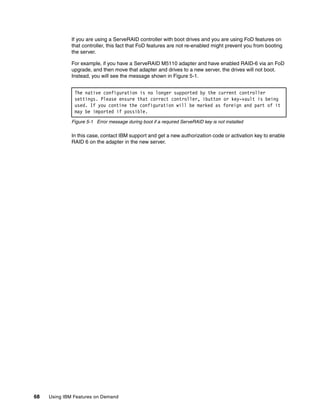
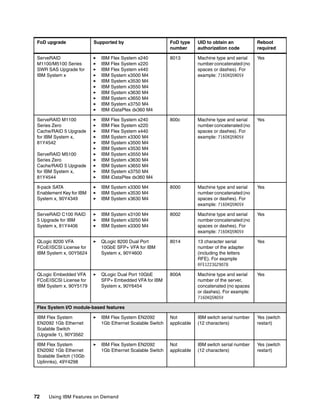
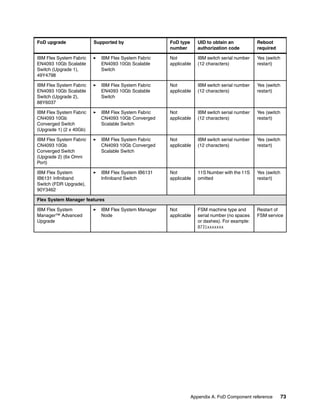
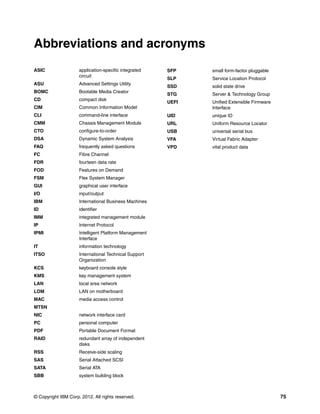
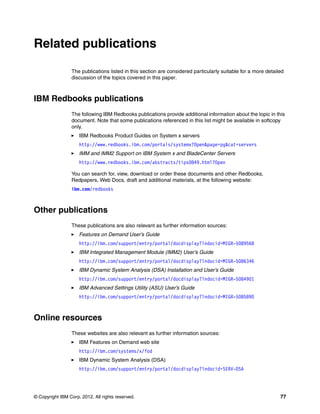
Front cover
Using IBM Features on
Demand
David Watts
Jonathan Hiott
Michael Hurman
Introduces IBM Features on Demand
and the products that use it
Explains how to activate, install
and deploy the license keys
Provides troubleshooting
hints and tips
International Technical Support Organization
Using IBM Features on Demand
October 2012
REDP-4895-00
© Copyright International Business Machines Corporation 2012. All rights reserved.
Note to U.S. Government Users Restricted Rights -- Use, duplication or disclosure restricted by GSA ADP Schedule
Contract with IBM Corp.
First Edition (October 2012)
This edition applies to IBM System x M4 systems as well as IBM BladeCenter servers and IBM Flex System
compute nodes.
This document was created or updated on May 2, 2013.
Note: Before using this information and the product it supports, read the information in “Notices” on page v.
© Copyright IBM Corp. 2012. All rights reserved. iii
Contents
Notices . . . . . . . . . . . . . . . . . . . . . . . . . . . . . . . . . . . . . . . . . . . . . . . . . . . . . . . . . . . . . . . . . .v
Trademarks . . . . . . . . . . . . . . . . . . . . . . . . . . . . . . . . . . . . . . . . . . . . . . . . . . . . . . . . . . . . . . vi
Preface . . . . . . . . . . . . . . . . . . . . . . . . . . . . . . . . . . . . . . . . . . . . . . . . . . . . . . . . . . . . . . . . . vii
The team who wrote this paper . . . . . . . . . . . . . . . . . . . . . . . . . . . . . . . . . . . . . . . . . . . . . . . vii
Now you can become a published author, too! . . . . . . . . . . . . . . . . . . . . . . . . . . . . . . . . . . viii
Comments welcome. . . . . . . . . . . . . . . . . . . . . . . . . . . . . . . . . . . . . . . . . . . . . . . . . . . . . . . viii
Stay connected to IBM Redbooks . . . . . . . . . . . . . . . . . . . . . . . . . . . . . . . . . . . . . . . . . . . . . ix
Chapter 1. Introduction. . . . . . . . . . . . . . . . . . . . . . . . . . . . . . . . . . . . . . . . . . . . . . . . . . . . 1
1.1 Components that offer FoD upgrades. . . . . . . . . . . . . . . . . . . . . . . . . . . . . . . . . . . . . . . 2
1.2 Available tools . . . . . . . . . . . . . . . . . . . . . . . . . . . . . . . . . . . . . . . . . . . . . . . . . . . . . . . . . 3
1.3 Minimum firmware levels. . . . . . . . . . . . . . . . . . . . . . . . . . . . . . . . . . . . . . . . . . . . . . . . . 3
Chapter 2. Acquisition . . . . . . . . . . . . . . . . . . . . . . . . . . . . . . . . . . . . . . . . . . . . . . . . . . . . 5
2.1 Introduction . . . . . . . . . . . . . . . . . . . . . . . . . . . . . . . . . . . . . . . . . . . . . . . . . . . . . . . . . . . 6
2.1.1 FoD part numbers included in the server configuration . . . . . . . . . . . . . . . . . . . . . 6
2.1.2 FoD part numbers purchased separately from the server or chassis . . . . . . . . . . . 7
2.2 Authorization codes. . . . . . . . . . . . . . . . . . . . . . . . . . . . . . . . . . . . . . . . . . . . . . . . . . . . . 7
2.2.1 Tips on managing authorization codes and activation keys . . . . . . . . . . . . . . . . . . 8
2.3 Using the IBM Features on Demand website . . . . . . . . . . . . . . . . . . . . . . . . . . . . . . . . . 9
2.3.1 Register an account with IBM . . . . . . . . . . . . . . . . . . . . . . . . . . . . . . . . . . . . . . . . . 9
2.3.2 Requesting an activation key . . . . . . . . . . . . . . . . . . . . . . . . . . . . . . . . . . . . . . . . 12
2.3.3 Retrieve history . . . . . . . . . . . . . . . . . . . . . . . . . . . . . . . . . . . . . . . . . . . . . . . . . . . 16
2.3.4 Manage an IBM customer number . . . . . . . . . . . . . . . . . . . . . . . . . . . . . . . . . . . . 17
2.3.5 Retrieve an authorization code . . . . . . . . . . . . . . . . . . . . . . . . . . . . . . . . . . . . . . . 19
2.3.6 Generate a report . . . . . . . . . . . . . . . . . . . . . . . . . . . . . . . . . . . . . . . . . . . . . . . . . 20
2.4 Emulex adapter unique identifiers. . . . . . . . . . . . . . . . . . . . . . . . . . . . . . . . . . . . . . . . . 22
2.4.1 Obtaining an FoD Identifier using Emulex OneCommand Manager. . . . . . . . . . . 23
2.4.2 Obtaining an FoD Identifier using Preboot DSA . . . . . . . . . . . . . . . . . . . . . . . . . . 25
Chapter 3. Installation. . . . . . . . . . . . . . . . . . . . . . . . . . . . . . . . . . . . . . . . . . . . . . . . . . . . 29
3.1 Installing a key using IMM2. . . . . . . . . . . . . . . . . . . . . . . . . . . . . . . . . . . . . . . . . . . . . . 30
3.2 Installing a key using Preboot DSA. . . . . . . . . . . . . . . . . . . . . . . . . . . . . . . . . . . . . . . . 35
3.2.1 Install from USB memory key . . . . . . . . . . . . . . . . . . . . . . . . . . . . . . . . . . . . . . . . 40
3.2.2 Download and install from the Internet . . . . . . . . . . . . . . . . . . . . . . . . . . . . . . . . . 41
3.3 Installing a key using Portable DSA . . . . . . . . . . . . . . . . . . . . . . . . . . . . . . . . . . . . . . . 43
3.3.1 Downloading an FoD key from the Internet (download_fod_key) . . . . . . . . . . . . . 43
3.3.2 Installing a previously downloaded FoD key (install_fod_key) . . . . . . . . . . . . . . . 44
3.3.3 Downloading and installing an FoD key (install_imm_fod) . . . . . . . . . . . . . . . . . . 47
3.3.4 Portable DSA command summary . . . . . . . . . . . . . . . . . . . . . . . . . . . . . . . . . . . . 48
3.4 IBM Systems Director Feature Activation Manager . . . . . . . . . . . . . . . . . . . . . . . . . . . 49
3.5 Installing a key using ASU . . . . . . . . . . . . . . . . . . . . . . . . . . . . . . . . . . . . . . . . . . . . . . 50
3.5.1 Installing an activation key locally . . . . . . . . . . . . . . . . . . . . . . . . . . . . . . . . . . . . . 51
3.5.2 Installing an activation key remotely . . . . . . . . . . . . . . . . . . . . . . . . . . . . . . . . . . . 52
3.5.3 Downloading and installing an activation key to a local system . . . . . . . . . . . . . . 53
3.5.4 Downloading and installing an activation key to a remote system . . . . . . . . . . . . 55
iv Using IBM Features on Demand
Chapter 4. Backing up activation keys . . . . . . . . . . . . . . . . . . . . . . . . . . . . . . . . . . . . . . 57
4.1 Backing up feature activation keys using ASU . . . . . . . . . . . . . . . . . . . . . . . . . . . . . . . 58
4.1.1 Exporting all activation keys from the local IMM key repository . . . . . . . . . . . . . . 58
4.1.2 Exporting all activation keys from a remote IMM key repository. . . . . . . . . . . . . . 59
4.2 Backing up FoD UIDs using Preboot DSA . . . . . . . . . . . . . . . . . . . . . . . . . . . . . . . . . . 60
4.3 Backing up FoD UIDs using Portable DSA . . . . . . . . . . . . . . . . . . . . . . . . . . . . . . . . . . 64
Chapter 5. Servicing . . . . . . . . . . . . . . . . . . . . . . . . . . . . . . . . . . . . . . . . . . . . . . . . . . . . . 65
5.1 Replacing a system board. . . . . . . . . . . . . . . . . . . . . . . . . . . . . . . . . . . . . . . . . . . . . . . 66
5.2 Replacing an adapter . . . . . . . . . . . . . . . . . . . . . . . . . . . . . . . . . . . . . . . . . . . . . . . . . . 67
5.3 Moving an adapter . . . . . . . . . . . . . . . . . . . . . . . . . . . . . . . . . . . . . . . . . . . . . . . . . . . . 67
Appendix A. FoD Component reference . . . . . . . . . . . . . . . . . . . . . . . . . . . . . . . . . . . . . 69
Abbreviations and acronyms . . . . . . . . . . . . . . . . . . . . . . . . . . . . . . . . . . . . . . . . . . . . . . 75
Related publications . . . . . . . . . . . . . . . . . . . . . . . . . . . . . . . . . . . . . . . . . . . . . . . . . . . . . 77
IBM Redbooks publications . . . . . . . . . . . . . . . . . . . . . . . . . . . . . . . . . . . . . . . . . . . . . . . . . 77
Other publications . . . . . . . . . . . . . . . . . . . . . . . . . . . . . . . . . . . . . . . . . . . . . . . . . . . . . . . . 77
Online resources . . . . . . . . . . . . . . . . . . . . . . . . . . . . . . . . . . . . . . . . . . . . . . . . . . . . . . . . . 77
Help from IBM . . . . . . . . . . . . . . . . . . . . . . . . . . . . . . . . . . . . . . . . . . . . . . . . . . . . . . . . . . . 78
© Copyright IBM Corp. 2012. All rights reserved. v
Notices
This information was developed for products and services offered in the U.S.A.
IBM may not offer the products, services, or features discussed in this document in other countries. Consult
your local IBM representative for information on the products and services currently available in your area.
Any reference to an IBM product, program, or service is not intended to state or imply that only that IBM
product, program, or service may be used. Any functionally equivalent product, program, or service that does
not infringe any IBM intellectual property right may be used instead. However, it is the user's responsibility to
evaluate and verify the operation of any non-IBM product, program, or service.
IBM may have patents or pending patent applications covering subject matter described in this document. The
furnishing of this document does not grant you any license to these patents. You can send license inquiries, in
writing, to:
IBM Director of Licensing, IBM Corporation, North Castle Drive, Armonk, NY 10504-1785 U.S.A.
The following paragraph does not apply to the United Kingdom or any other country where such
provisions are inconsistent with local law: INTERNATIONAL BUSINESS MACHINES CORPORATION
PROVIDES THIS PUBLICATION "AS IS" WITHOUT WARRANTY OF ANY KIND, EITHER EXPRESS OR
IMPLIED, INCLUDING, BUT NOT LIMITED TO, THE IMPLIED WARRANTIES OF NON-INFRINGEMENT,
MERCHANTABILITY OR FITNESS FOR A PARTICULAR PURPOSE. Some states do not allow disclaimer of
express or implied warranties in certain transactions, therefore, this statement may not apply to you.
This information could include technical inaccuracies or typographical errors. Changes are periodically made
to the information herein; these changes will be incorporated in new editions of the publication. IBM may make
improvements and/or changes in the product(s) and/or the program(s) described in this publication at any time
without notice.
Any references in this information to non-IBM websites are provided for convenience only and do not in any
manner serve as an endorsement of those websites. The materials at those websites are not part of the
materials for this IBM product and use of those websites is at your own risk.
IBM may use or distribute any of the information you supply in any way it believes appropriate without
incurring any obligation to you.
Any performance data contained herein was determined in a controlled environment. Therefore, the results
obtained in other operating environments may vary significantly. Some measurements may have been made
on development-level systems and there is no guarantee that these measurements will be the same on
generally available systems. Furthermore, some measurements may have been estimated through
extrapolation. Actual results may vary. Users of this document should verify the applicable data for their
specific environment.
Information concerning non-IBM products was obtained from the suppliers of those products, their published
announcements or other publicly available sources. IBM has not tested those products and cannot confirm the
accuracy of performance, compatibility or any other claims related to non-IBM products. Questions on the
capabilities of non-IBM products should be addressed to the suppliers of those products.
This information contains examples of data and reports used in daily business operations. To illustrate them
as completely as possible, the examples include the names of individuals, companies, brands, and products.
All of these names are fictitious and any similarity to the names and addresses used by an actual business
enterprise is entirely coincidental.
COPYRIGHT LICENSE:
This information contains sample application programs in source language, which illustrate programming
techniques on various operating platforms. You may copy, modify, and distribute these sample programs in
any form without payment to IBM, for the purposes of developing, using, marketing or distributing application
programs conforming to the application programming interface for the operating platform for which the sample
programs are written. These examples have not been thoroughly tested under all conditions. IBM, therefore,
cannot guarantee or imply reliability, serviceability, or function of these programs.
vi Using IBM Features on Demand
Trademarks
IBM, the IBM logo, and ibm.com are trademarks or registered trademarks of International Business Machines
Corporation in the United States, other countries, or both. These and other IBM trademarked terms are
marked on their first occurrence in this information with the appropriate symbol (® or ™), indicating US
registered or common law trademarks owned by IBM at the time this information was published. Such
trademarks may also be registered or common law trademarks in other countries. A current list of IBM
trademarks is available on the Web at http://www.ibm.com/legal/copytrade.shtml
The following terms are trademarks of the International Business Machines Corporation in the United States,
other countries, or both:
BladeCenter®
IBM Flex System™
IBM Flex System Manager™
IBM®
iDataPlex®
PureFlex™
Redbooks®
Redbooks (logo) ®
RETAIN®
System x®
The following terms are trademarks of other companies:
Intel, Intel logo, Intel Inside logo, and Intel Centrino logo are trademarks or registered trademarks of Intel
Corporation or its subsidiaries in the United States and other countries.
Linux is a trademark of Linus Torvalds in the United States, other countries, or both.
Windows, and the Windows logo are trademarks of Microsoft Corporation in the United States, other
countries, or both.
Other company, product, or service names may be trademarks or service marks of others.
© Copyright IBM Corp. 2012. All rights reserved. vii
Preface
IBM® Features on Demand (FoD) is a new licensing procedure to enable features on System
x®, BladeCenter®, and Flex System servers and components. The components activated by
FoD are already integrated into the server or adapter or other option. These components
remain locked until the upgrade is activated and applied to the server.
Features on Demand enables you to buy the features that you need now with the ability to
enhance your system later without costly hardware upgrades. An example is the x3630 M4
and x3530 M4 servers that have two Intel Gigabit ports as standard but also include the
hardware for two additional Gigabit ports should you later wish to activate them.
If you instead choose to purchase a server and the FoD upgrades at the same time, IBM
manufacturing can install the activation key on the server so that the FoD function is ready for
you to use when you receive the server.
This paper describes the processes involved with activating and installing the FoD upgrades.
We also cover activation key backup and what to do when servicing a system that has FoD
upgrades already installed. This paper is meant for IBM employees, Business Partners, and
customers wishing to better understand the Features on Demand offerings and needing to
purchase, install, or service a system with FoD upgrades.
The team who wrote this paper
This paper was produced by a team of specialists from around the world working at the
International Technical Support Organization, Raleigh Center.
David Watts is a Consulting IT Specialist at the IBM ITSO Center
in Raleigh. He manages residencies and produces IBM
Redbooks® publications on hardware and software topics related
to IBM Flex System, IBM System x, and BladeCenter servers and
associated client platforms. He has authored over 300 books,
papers, and Product Guides. He holds a Bachelor of Engineering
degree from the University of Queensland (Australia), and has
worked for IBM in both the United States and Australia since 1989.
David is an IBM Certified IT Specialist, and a member of the IT
Specialist Certification Review Board.
Jonathan Hiott is a Remote Support Technician for Bladecenter,
PureFlex™, and System x in Atlanta, Georgia. He has been with
IBM since December 2008 and has 11 years of experience in
Information Technology. His areas of expertise include assisting
clients to determine and solve problems on Bladecenter, PureFlex,
and System x hardware.
viii Using IBM Features on Demand
Thanks to the following people for their contributions to this project:
IBM Development
򐂰 Fred Bower
򐂰 Kathy Brown-Fitzpatrick
򐂰 Mollie Church
򐂰 Scott Busi
򐂰 Ke Jie Cao
򐂰 Le We Jie
򐂰 Jakub Kucharski
IBM Marketing
򐂰 Miguel Bravo
򐂰 Otis Lackey
򐂰 Tim Martin
International Technical Support Organization
򐂰 Linda Robinson
Now you can become a published author, too!
Here’s an opportunity to spotlight your skills, grow your career, and become a published
author—all at the same time! Join an ITSO residency project and help write a book in your
area of expertise, while honing your experience using leading-edge technologies. Your efforts
will help to increase product acceptance and customer satisfaction, as you expand your
network of technical contacts and relationships. Residencies run from two to six weeks in
length, and you can participate either in person or as a remote resident working from your
home base.
Find out more about the residency program, browse the residency index, and apply online at:
ibm.com/redbooks/residencies.html
Comments welcome
Your comments are important to us!
Michael Hurman is a Senior IT Specialist for IBM STG Lab
Services in South Africa. He has more than 13 years of
international experience in IT and has co-authored previous IBM
Redbooks publications including Implementing the IBM
BladeCenter S Chassis, SG24-7682 and IBM eX5 Implementation
Guide, SG24-7909. His areas of expertise include assisting clients
to design and implement System x, BladeCenter, IBM Systems
Director, midrange storage and storage area networks solutions.
He started his career at IBM in 2006.
Preface ix
We want our papers to be as helpful as possible. Send us your comments about this paper or
other IBM Redbooks publications in one of the following ways:
򐂰 Use the online Contact us review Redbooks form found at:
ibm.com/redbooks
򐂰 Send your comments in an email to:
redbooks@us.ibm.com
򐂰 Mail your comments to:
IBM Corporation, International Technical Support Organization
Dept. HYTD Mail Station P099
2455 South Road
Poughkeepsie, NY 12601-5400
Stay connected to IBM Redbooks
򐂰 Find us on Facebook:
http://www.facebook.com/IBMRedbooks
򐂰 Follow us on Twitter:
http://twitter.com/ibmredbooks
򐂰 Look for us on LinkedIn:
http://www.linkedin.com/groups?home=&gid=2130806
򐂰 Explore new Redbooks publications, residencies, and workshops with the IBM Redbooks
weekly newsletter:
https://www.redbooks.ibm.com/Redbooks.nsf/subscribe?OpenForm
򐂰 Stay current on recent Redbooks publications with RSS Feeds:
http://www.redbooks.ibm.com/rss.html
x Using IBM Features on Demand
© Copyright IBM Corp. 2012. All rights reserved. 1
Chapter 1. Introduction
IBM Features on Demand (FoD) is technology that allows upgrades to System x,
BladeCenter, and Flex System servers and optional adapters through key activation wherein
features are already present in the particular server or adapter but are not available for use
until they are unlocked with their respective FoD activation key.
The preferred method of activation is done by IBM manufacturing or through the business
partner. If you purchase a feature as part of a server order, the IBM factory or business
partner enables the feature as part of the configuration and testing of the server. You can
begin using the feature when you receive the server.
Alternatively, if you purchase an FoD option or upgrade that is separate from the server order,
you must complete the feature activation when you install the option. In this case, an
authorization code with instructions for activating the feature is mailed to you.
An authorization code is a 22-character alphanumeric string that is the proof of purchase and
entitlement to upgrade one or more units with a particular feature. The authorization code and
instructions for requesting an activation key are on a printed document that is mailed to you. If
you order directly from IBM, the authorization code and instructions can also be sent to the
e-mail address that you provide when you register on the FoD website.
Either way, once keys are applied to the system, they are permanently stored in a key
repository in the server. For upgrades such as adding features to network adapters, the key
repository is the Integrated Management Module II (IMM2) in the server.
The use of IBM Features on Demand has the following benefits:
򐂰 Upgrade as you go
For example, like most servers, the IBM System x3530 M4 has two active Gigabit
Ethernet ports. The server also has two additional Ethernet ports, but you do not need to
enable those until you need them. When you are ready, you purchase and install the
activation key and those ports are now available for use.
򐂰 Lower up front cost
Purchase keys at a later time and add to existing hardware. For example, if you do not
need premium features like RAID 6 and 60 in your RAID controller, or FCoE in an Emulex
1
2 Using IBM Features on Demand
10 GbE adapter, then you do not need to purchase them when you initially order the
server.
򐂰 Software-based key upgrades
Features on Demand is software based. There are no additional hardware components to
install, so remote deployment is much easier and key deployment can be scripted if
needed to upgrade multiple systems at once.
򐂰 Various key management options
Various components of the IBM ToolsCenter support FoD, including IMM2, IBM Advanced
Settings Utility (ASU), IBM Systems Director, and IBM Dynamic System Analysis (DSA).
In this paper, we primarily discuss Server-based features such as the Intel I-350 Ethernet
Controller upgrade, along with IMM2 upgrades, RAID controller upgrades, and Emulex
upgrades.
1.1 Components that offer FoD upgrades
A variety of components support FoD upgrades and the list continues to grow. Here are some
examples:
System upgrades:
򐂰 Upgrading IMM2 to support remote presence or a web interface
򐂰 Activating additional Ethernet ports (Intel I350 Embedded Controller)
򐂰 Activating FCoE and iSCSI on 10 Gb Ethernet ports (Emulex VFA III)
򐂰 Activating RAID 6 or other premium features (ServeRAID 5100)
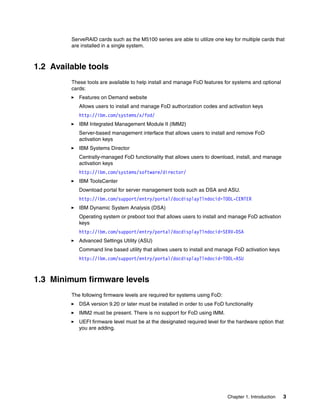
Figure 1-1 shows the rear of the IBM System x3530 M4 with two active Gigabit Ethernet ports
plus two additional ports that can be activated via a Features on Demand upgrade.
Figure 1-1 IBM System x3530 M4 with four Gigabit Ethernet ports: 2 active and 2 via FoD
Most FoD features are per device, such as the Intel I-350 Embedded Dual Port GbE NIC,
Emulex VFA III, and the Integrated Management Module II Remote Presence feature. Each of
these devices requires its own FoD activation key. For the Emulex VFA III, each ASIC, or
chip, requires its own activation key.
Chapter 1. Introduction 3
ServeRAID cards such as the M5100 series are able to utilize one key for multiple cards that
are installed in a single system.
1.2 Available tools
These tools are available to help install and manage FoD features for systems and optional
cards:
򐂰 Features on Demand website
Allows users to install and manage FoD authorization codes and activation keys
http://ibm.com/systems/x/fod/
򐂰 IBM Integrated Management Module II (IMM2)
Server-based management interface that allows users to install and remove FoD
activation keys
򐂰 IBM Systems Director
Centrally-managed FoD functionality that allows users to download, install, and manage
activation keys
http://ibm.com/systems/software/director/
򐂰 IBM ToolsCenter
Download portal for server management tools such as DSA and ASU.
http://ibm.com/support/entry/portal/docdisplay?lndocid=TOOL-CENTER
򐂰 IBM Dynamic System Analysis (DSA)
Operating system or preboot tool that allows users to install and manage FoD activation
keys
http://ibm.com/support/entry/portal/docdisplay?lndocid=SERV-DSA
򐂰 Advanced Settings Utility (ASU)
Command line based utility that allows users to install and manage FoD activation keys
http://ibm.com/support/entry/portal/docdisplay?lndocid=TOOL-ASU
1.3 Minimum firmware levels
The following firmware levels are required for systems using FoD:
򐂰 DSA version 9.20 or later must be installed in order to use FoD functionality
򐂰 IMM2 must be present. There is no support for FoD using IMM.
򐂰 UEFI firmware level must be at the designated required level for the hardware option that
you are adding.
4 Using IBM Features on Demand
© Copyright IBM Corp. 2012. All rights reserved. 5
Chapter 2. Acquisition
An IBM Features on Demand (FoD) activation key provides the means to unlock a feature on
an IBM server, chassis, switch, or option.
This chapter describes the methods available to obtain the Features on Demand activation
keys. It also provides the necessary information required to maintain and report on existing
activation keys.
The procedures to install the keys are in Chapter 3, “Installation” on page 29.
This chapter contains the following sections:
򐂰 2.1, “Introduction” on page 6
򐂰 2.2, “Authorization codes” on page 7
򐂰 2.3, “Using the IBM Features on Demand website” on page 9
򐂰 2.4, “Emulex adapter unique identifiers” on page 22
2
6 Using IBM Features on Demand
2.1 Introduction
IBM Features on Demand (FoD) upgrades are orderable part numbers like any other
System x option. In order to use them, they must be activated first for the specific system or
component they will be used on. The FoD upgrade is activated in one of the following ways:
򐂰 Automatically during manufacturing – if the FoD part numbers are ordered as part of a
configure-to-order (CTO) or Special Bid configuration
򐂰 Manually after delivery via the web interface or other tools – if the FoD part numbers are
ordered separately
We described these two methods in this section.
2.1.1 FoD part numbers included in the server configuration
If you configure an FoD upgrade as part of a server or chassis order, IBM manufacturing or
the business partner enables the feature as part of the configuration and testing of the server
or chassis. You can begin using the feature when you receive the server or chassis. The
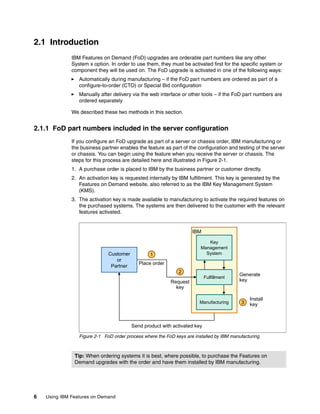
steps for this process are detailed here and illustrated in Figure 2-1.
1. A purchase order is placed to IBM by the business partner or customer directly.
2. An activation key is requested internally by IBM fulfillment. This key is generated by the
Features on Demand website, also referred to as the IBM Key Management System
(KMS).
3. The activation key is made available to manufacturing to activate the required features on
the purchased systems. The systems are then delivered to the customer with the relevant
features activated.
Figure 2-1 FoD order process where the FoD keys are installed by IBM manufacturing
Tip: When ordering systems it is best, where possible, to purchase the Features on
Demand upgrades with the order and have them installed by IBM manufacturing.
Place order
Customer
or
Partner
Key
Management
System
Fulfillment
Request
key
Generate
key
Install
key
Send product with activated key
3
2
1
IBM
Manufacturing
Chapter 2. Acquisition 7
2.1.2 FoD part numbers purchased separately from the server or chassis
If you purchase an FoD option or upgrade separately from a server or chassis order, you will
need to activate the feature yourself using one of the supported interfaces, such as the IMM2
web interface for System x servers. In this case, an authorization code with instructions for
activating the feature is mailed to you.
An authorization code is a 22-character alphanumeric string that is the proof of purchase and
entitlement to upgrade one or more units with a particular feature. Details about obtaining
activation keys from authorization codes is discussed in 2.2, “Authorization codes”.
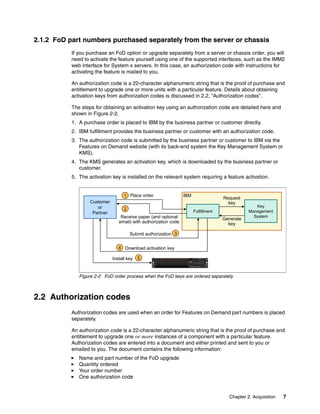
The steps for obtaining an activation key using an authorization code are detailed here and
shown in Figure 2-2.
1. A purchase order is placed to IBM by the business partner or customer directly.
2. IBM fulfillment provides the business partner or customer with an authorization code.
3. The authorization code is submitted by the business partner or customer to IBM via the
Features on Demand website (with its back-end system the Key Management System or
KMS).
4. The KMS generates an activation key, which is downloaded by the business partner or
customer.
5. The activation key is installed on the relevant system requiring a feature activation.
Figure 2-2 FoD order process when the FoD keys are ordered separately
2.2 Authorization codes
Authorization codes are used when an order for Features on Demand part numbers is placed
separately.
An authorization code is a 22-character alphanumeric string that is the proof of purchase and
entitlement to upgrade one or more instances of a component with a particular feature.
Authorization codes are entered into a document and either printed and sent to you or
emailed to you. The document contains the following information:
򐂰 Name and part number of the FoD upgrade
򐂰 Quantity ordered
򐂰 Your order number
򐂰 One authorization code
Place order
Request
key
Generate
key
Key
Management
System
Receive paper (and optional
email) with authorization code
Download activation key
Fulfillment
Customer
or
Partner
Install key
3
Submit authorization
2
1
4
5
IBM
8 Using IBM Features on Demand
򐂰 Instructions on how to use the authorization code to obtain activation keys.
When purchasing an FoD upgrade separately, an authorization code is mailed to the
business partner or customer in the postal mail only. To receive the authorization code via
post, email or both, the business partner or customer must register on the website. The
registration process is described in 2.3.1, “Register an account with IBM” on page 9.
The authorization code is used to generate activation keys from the IBM Features on
Demand website. The authorization code is entered on the website and the subsequent
activation key or keys are generated.
You can also use the authorization code on the website to retrieve the history of all activation
keys generated from that authorization code and to regenerated keys if needed. The process
of using an authorization code to retrieve a feature activation key is detailed in 2.3.2,
“Requesting an activation key” on page 12.
2.2.1 Tips on managing authorization codes and activation keys
This section provides some general useful tips for managing authorization codes and
activation keys.
Distributors and resellers
Some tips for distributors and resellers:
򐂰 Have IBM manufacturing install the feature activation keys as part of the order purchase
where possible to save time and administration.
򐂰 Do not stock FoD authorization codes as a standard business practice. Stocking excess
authorization codes is not recommended because it front loads your expenses and can
cause additional unnecessary administration.
򐂰 Place one order for keys per end customer so that a unique authorization code is
generated for that customer.
򐂰 Determine who is responsible to receive and process FoD authorization codes. Ensure
that more than one person is registered to receive the authorization codes for redundancy
purposes.
Customers
Some tips for customers:
򐂰 Have IBM manufacturing install the feature activation keys as part of the order purchase
where possible to save time and administration.
򐂰 Determine who is responsible to receive and process FoD authorization codes. Ensure
that more than one person is registered to receive the authorization codes for redundancy
purposes.
Tip: Register on the FoD website before placing your FoD order. This will ensure that you
receive the authorization code via email as well as mail at the time of order.
Authorization codes are one-to-many: It is important to note that a single authorization
code might be associated with a single activation key or multiple activation keys for the
same type of component. The number of activations you can get from a single
authorization code is printed on the document that you are sent. It is also listed on the
website.
Chapter 2. Acquisition 9
򐂰 Store the paper authorization codes in a safe place.
򐂰 Ensure that the emailed electronic copies of the authorization codes are backed up and
kept in a central location for those requiring access to them.
򐂰 Learn how to navigate the FoD website for managing FoDs.
򐂰 Store downloaded activation keys in a central location that is backed up. This will be
useful to technical staff that might require quick access to the keys in case of emergency.
Note that the keys can always be retrieved from the FoD website as well.
2.3 Using the IBM Features on Demand website
The IBM Features on Demand (FoD) website is the primary tool used to manage FoDs. The
IBM Features on Demand website is located at the following URL:
http://ibm.com/systems/x/fod/
The website is used to accomplish the tasks outlined in the following sections:
򐂰 2.3.1, “Register an account with IBM” on page 9
򐂰 2.3.2, “Requesting an activation key” on page 12
򐂰 2.3.3, “Retrieve history” on page 16
򐂰 2.3.4, “Manage an IBM customer number” on page 17
򐂰 2.3.5, “Retrieve an authorization code” on page 19
򐂰 2.3.6, “Generate a report” on page 20
2.3.1 Register an account with IBM
It is necessary to register an account with IBM before an authorization code can be used to
obtain single or multiple activation keys. To register an account:
1. Navigate to the following URL and click register at the bottom of the page:
http://ibm.com/systems/x/fod/
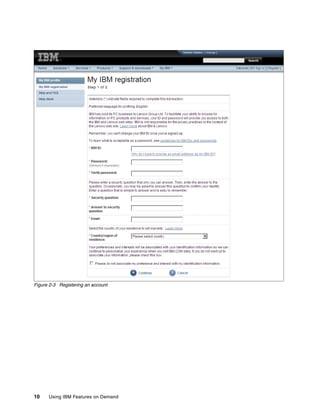
2. Complete the details requested on Step 1 of the My IBM Registration page shown in
Figure 2-3 on page 10 and click Continue.
10 Using IBM Features on Demand
Figure 2-3 Registering an account
Chapter 2. Acquisition 11
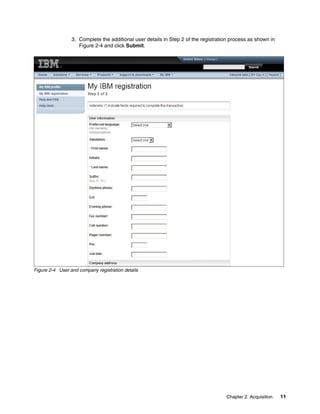
3. Complete the additional user details in Step 2 of the registration process as shown in
Figure 2-4 and click Submit.
Figure 2-4 User and company registration details
12 Using IBM Features on Demand
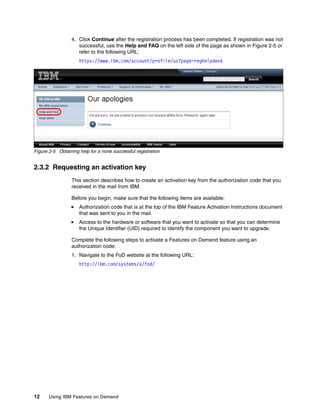
4. Click Continue after the registration process has been completed. If registration was not
successful, use the Help and FAQ on the left side of the page as shown in Figure 2-5 or
refer to the following URL:
https://www.ibm.com/account/profile/us?page=reghelpdesk
Figure 2-5 Obtaining help for a none successful registration
2.3.2 Requesting an activation key
This section describes how to create an activation key from the authorization code that you
received in the mail from IBM.
Before you begin, make sure that the following items are available:
򐂰 Authorization code that is at the top of the IBM Feature Activation Instructions document
that was sent to you in the mail.
򐂰 Access to the hardware or software that you want to activate so that you can determine
the Unique Identifier (UID) required to identify the component you want to upgrade.
Complete the following steps to activate a Features on Demand feature using an
authorization code:
1. Navigate to the FoD website at the following URL:
http://ibm.com/systems/x/fod/
Chapter 2. Acquisition 13
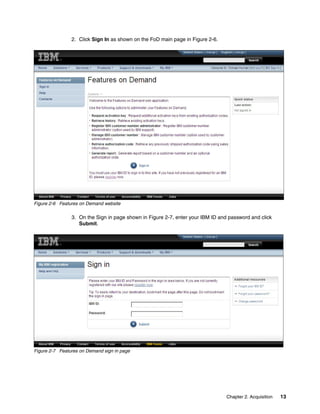
2. Click Sign In as shown on the FoD main page in Figure 2-6.
Figure 2-6 Features on Demand website
3. On the Sign in page shown in Figure 2-7, enter your IBM ID and password and click
Submit.
Figure 2-7 Features on Demand sign in page
14 Using IBM Features on Demand
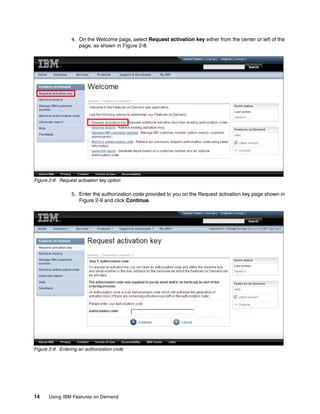
4. On the Welcome page, select Request activation key either from the center or left of the
page, as shown in Figure 2-8.
Figure 2-8 Request activation key option
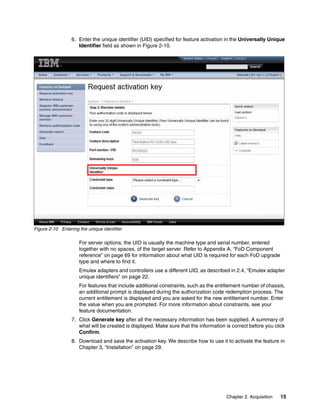
5. Enter the authorization code provided to you on the Request activation key page shown in
Figure 2-9 and click Continue.
Figure 2-9 Entering an authorization code
Chapter 2. Acquisition 15
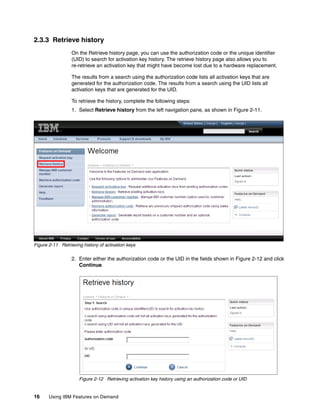
6. Enter the unique identifier (UID) specified for feature activation in the Universally Unique
Identifier field as shown in Figure 2-10.
Figure 2-10 Entering the unique identifier
For server options, the UID is usually the machine type and serial number, entered
together with no spaces, of the target server. Refer to Appendix A, “FoD Component
reference” on page 69 for information about what UID is required for each FoD upgrade
type and where to find it.
Emulex adapters and controllers use a different UID, as described in 2.4, “Emulex adapter
unique identifiers” on page 22.
For features that include additional constraints, such as the entitlement number of chassis,
an additional prompt is displayed during the authorization code redemption process. The
current entitlement is displayed and you are asked for the new entitlement number. Enter
the value when you are prompted. For more information about constraints, see your
feature documentation.
7. Click Generate key after all the necessary information has been supplied. A summary of
what will be created is displayed. Make sure that the information is correct before you click
Confirm.
8. Download and save the activation key. We describe how to use it to activate the feature in
Chapter 3, “Installation” on page 29.
16 Using IBM Features on Demand
2.3.3 Retrieve history
On the Retrieve history page, you can use the authorization code or the unique identifier
(UID) to search for activation key history. The retrieve history page also allows you to
re-retrieve an activation key that might have become lost due to a hardware replacement.
The results from a search using the authorization code lists all activation keys that are
generated for the authorization code. The results from a search using the UID lists all
activation keys that are generated for the UID.
To retrieve the history, complete the following steps:
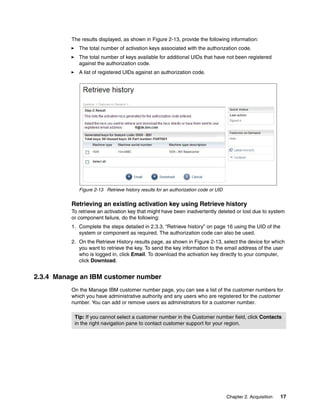
1. Select Retrieve history from the left navigation pane, as shown in Figure 2-11.
Figure 2-11 Retrieving history of activation keys
2. Enter either the authorization code or the UID in the fields shown in Figure 2-12 and click
Continue.
Figure 2-12 Retrieving activation key history using an authorization code or UID
Chapter 2. Acquisition 17
The results displayed, as shown in Figure 2-13, provide the following information:
򐂰 The total number of activation keys associated with the authorization code.
򐂰 The total number of keys available for additional UIDs that have not been registered
against the authorization code.
򐂰 A list of registered UIDs against an authorization code.
Figure 2-13 Retrieve history results for an authorization code or UID
Retrieving an existing activation key using Retrieve history
To retrieve an activation key that might have been inadvertently deleted or lost due to system
or component failure, do the following:
1. Complete the steps detailed in 2.3.3, “Retrieve history” on page 16 using the UID of the
system or component as required. The authorization code can also be used.
2. On the Retrieve History results page, as shown in Figure 2-13, select the device for which
you want to retrieve the key. To send the key information to the email address of the user
who is logged in, click Email. To download the activation key directly to your computer,
click Download.
2.3.4 Manage an IBM customer number
On the Manage IBM customer number page, you can see a list of the customer numbers for
which you have administrative authority and any users who are registered for the customer
number. You can add or remove users as administrators for a customer number.
Tip: If you cannot select a customer number in the Customer number field, click Contacts
in the right navigation pane to contact customer support for your region.
18 Using IBM Features on Demand
To manage the IBM customer number, complete the following steps:
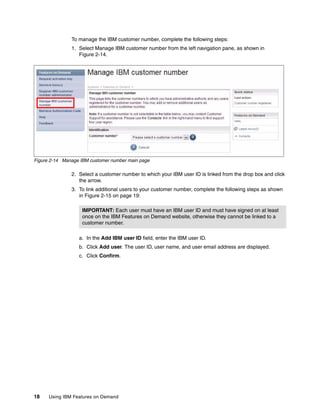
1. Select Manage IBM customer number from the left navigation pane, as shown in
Figure 2-14.
Figure 2-14 Manage IBM customer number main page
2. Select a customer number to which your IBM user ID is linked from the drop box and click
the arrow.
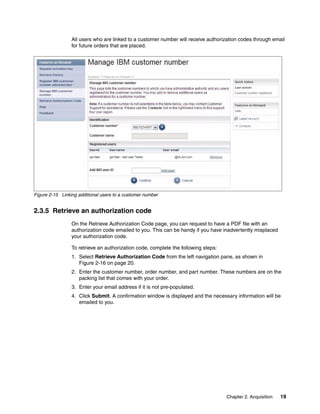
3. To link additional users to your customer number, complete the following steps as shown
in Figure 2-15 on page 19:
a. In the Add IBM user ID field, enter the IBM user ID.
b. Click Add user. The user ID, user name, and user email address are displayed.
c. Click Confirm.
IMPORTANT: Each user must have an IBM user ID and must have signed on at least
once on the IBM Features on Demand website, otherwise they cannot be linked to a
customer number.
Chapter 2. Acquisition 19
All users who are linked to a customer number will receive authorization codes through email
for future orders that are placed.
Figure 2-15 Linking additional users to a customer number
2.3.5 Retrieve an authorization code
On the Retrieve Authorization Code page, you can request to have a PDF file with an
authorization code emailed to you. This can be handy if you have inadvertently misplaced
your authorization code.
To retrieve an authorization code, complete the following steps:
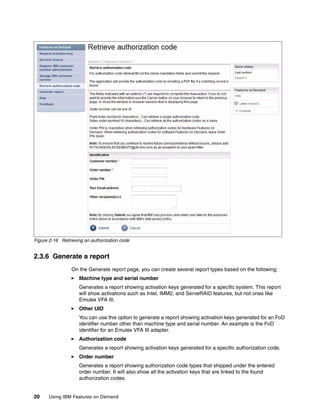
1. Select Retrieve Authorization Code from the left navigation pane, as shown in
Figure 2-16 on page 20.
2. Enter the customer number, order number, and part number. These numbers are on the
packing list that comes with your order.
3. Enter your email address if it is not pre-populated.
4. Click Submit. A confirmation window is displayed and the necessary information will be
emailed to you.
20 Using IBM Features on Demand
Figure 2-16 Retrieving an authorization code
2.3.6 Generate a report
On the Generate report page, you can create several report types based on the following:
򐂰 Machine type and serial number
Generates a report showing activation keys generated for a specific system. This report
will show activations such as Intel, IMM2, and ServeRAID features, but not ones like
Emulex VFA III.
򐂰 Other UID
You can use this option to generate a report showing activation keys generated for an FoD
identifier number other than machine type and serial number. An example is the FoD
identifier for an Emulex VFA III adapter.
򐂰 Authorization code
Generates a report showing activation keys generated for a specific authorization code.
򐂰 Order number
Generates a report showing authorization code types that shipped under the entered
order number. It will also show all the activation keys that are linked to the found
authorization codes.
Chapter 2. Acquisition 21
Reports are generated in a .csv format and are sent via email.
To generate a report:
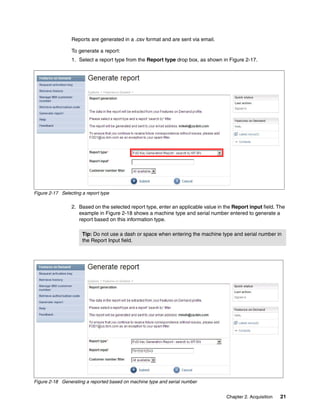
1. Select a report type from the Report type drop box, as shown in Figure 2-17.
Figure 2-17 Selecting a report type
2. Based on the selected report type, enter an applicable value in the Report input field. The
example in Figure 2-18 shows a machine type and serial number entered to generate a
report based on this information type.
Figure 2-18 Generating a reported based on machine type and serial number
Tip: Do not use a dash or space when entering the machine type and serial number in
the Report Input field.
22 Using IBM Features on Demand
3. You can refine the result by selecting a customer number for which you are an
administrator. Select the customer number in the Customer number filter field.
4. Click Submit. A confirmation window is displayed and you will receive an email with the
report attached.
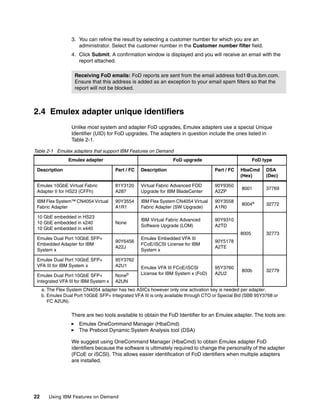
2.4 Emulex adapter unique identifiers
Unlike most system and adapter FoD upgrades, Emulex adapters use a special Unique
Identifier (UID) for FoD upgrades. The adapters in question include the ones listed in
Table 2-1.
Table 2-1 Emulex adapters that support IBM Features on Demand
There are two tools available to obtain the FoD Identifier for an Emulex adapter. The tools are:
򐂰 Emulex OneCommand Manager (HbaCmd)
򐂰 The Preboot Dynamic System Analysis tool (DSA)
We suggest using OneCommand Manager (HbaCmd) to obtain Emulex adapter FoD
identifiers because the software is ultimately required to change the personality of the adapter
(FCoE or iSCSI). This allows easier identification of FoD identifiers when multiple adapters
are installed.
Receiving FoD emails: FoD reports are sent from the email address fod1@us.ibm.com.
Ensure that this address is added as an exception to your email spam filters so that the
report will not be blocked.
Emulex adapter FoD upgrade FoD type
Description Part / FC Description Part / FC HbaCmd
(Hex)
DSA
(Dec)
Emulex 10GbE Virtual Fabric
Adapter II for HS23 (CFFh)
81Y3120
A287
Virtual Fabric Advanced FOD
Upgrade for IBM BladeCenter
90Y9350
A2ZP
8001 37769
IBM Flex System™ CN4054 Virtual
Fabric Adapter
90Y3554
A1R1
IBM Flex System CN4054 Virtual
Fabric Adapter (SW Upgrade)
90Y3558
A1R0
8004a
a. The Flex System CN4054 adapter has two ASICs however only one activation key is needed per adapter.
32772
10 GbE embedded in HS23
10 GbE embedded in x240
10 GbE embedded in x440
None
IBM Virtual Fabric Advanced
Software Upgrade (LOM)
90Y9310
A2TD
8005 32773
Emulex Dual Port 10GbE SFP+
Embedded Adapter for IBM
System x
90Y6456
A22J
Emulex Embedded VFA III
FCoE/iSCSI License for IBM
System x
90Y5178
A2TE
Emulex Dual Port 10GbE SFP+
VFA III for IBM System x
95Y3762
A2U1 Emulex VFA III FCoE/iSCSI
License for IBM System x (FoD)
95Y3760
A2U2
800b 32779
Emulex Dual Port 10GbE SFP+
Integrated VFA III for IBM System x
Noneb
A2UN
b. Emulex Dual Port 10GbE SFP+ Integrated VFA III is only available through CTO or Special Bid (SBB 95Y3768 or
FC A2UN).
Chapter 2. Acquisition 23
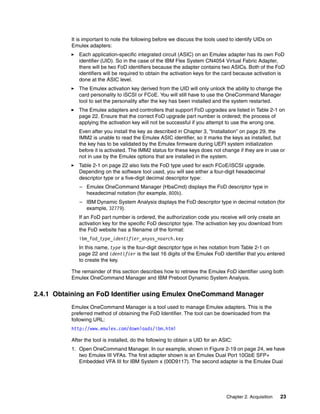
It is important to note the following before we discuss the tools used to identify UIDs on
Emulex adapters:
򐂰 Each application-specific integrated circuit (ASIC) on an Emulex adapter has its own FoD
identifier (UID). So in the case of the IBM Flex System CN4054 Virtual Fabric Adapter,
there will be two FoD identifiers because the adapter contains two ASICs. Both of the FoD
identifiers will be required to obtain the activation keys for the card because activation is
done at the ASIC level.
򐂰 The Emulex activation key derived from the UID will only unlock the ability to change the
card personality to iSCSI or FCoE. You will still have to use the OneCommand Manager
tool to set the personality after the key has been installed and the system restarted.
򐂰 The Emulex adapters and controllers that support FoD upgrades are listed in Table 2-1 on
page 22. Ensure that the correct FoD upgrade part number is ordered; the process of
applying the activation key will not be successful if you attempt to use the wrong one.
Even after you install the key as described in Chapter 3, “Installation” on page 29, the
IMM2 is unable to read the Emulex ASIC identifier, so it marks the keys as installed, but
the key has to be validated by the Emulex firmware during UEFI system initialization
before it is activated. The IMM2 status for these keys does not change if they are in use or
not in use by the Emulex options that are installed in the system.
򐂰 Table 2-1 on page 22 also lists the FoD type used for each FCoE/iSCSI upgrade.
Depending on the software tool used, you will see either a four-digit hexadecimal
descriptor type or a five-digit decimal descriptor type:
– Emulex OneCommand Manager (HbaCmd) displays the FoD descriptor type in
hexadecimal notation (for example, 800b).
– IBM Dynamic System Analysis displays the FoD descriptor type in decimal notation (for
example, 32779).
If an FoD part number is ordered, the authorization code you receive will only create an
activation key for the specific FoD descriptor type. The activation key you download from
the FoD website has a filename of the format:
ibm_fod_type_identifier_anyos_noarch.key
In this name, type is the four-digit descriptor type in hex notation from Table 2-1 on
page 22 and identifier is the last 16 digits of the Emulex FoD identifier that you entered
to create the key.
The remainder of this section describes how to retrieve the Emulex FoD identifier using both
Emulex OneCommand Manager and IBM Preboot Dynamic System Analysis.
2.4.1 Obtaining an FoD Identifier using Emulex OneCommand Manager
Emulex OneCommand Manager is a tool used to manage Emulex adapters. This is the
preferred method of obtaining the FoD Identifier. The tool can be downloaded from the
following URL:
http://www.emulex.com/downloads/ibm.html
After the tool is installed, do the following to obtain a UID for an ASIC:
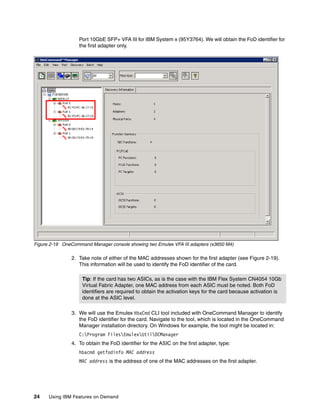
1. Open OneCommand Manager. In our example, shown in Figure 2-19 on page 24, we have
two Emulex III VFAs. The first adapter shown is an Emulex Dual Port 10GbE SFP+
Embedded VFA III for IBM System x (00D9117). The second adapter is the Emulex Dual
24 Using IBM Features on Demand
Port 10GbE SFP+ VFA III for IBM System x (95Y3764). We will obtain the FoD identifier for
the first adapter only.
Figure 2-19 OneCommand Manager console showing two Emulex VFA III adapters (x3650 M4)
2. Take note of either of the MAC addresses shown for the first adapter (see Figure 2-19).
This information will be used to identify the FoD identifier of the card.
3. We will use the Emulex HbaCmd CLI tool included with OneCommand Manager to identify
the FoD identifier for the card. Navigate to the tool, which is located in the OneCommand
Manager installation directory. On Windows for example, the tool might be located in:
C:Program FilesEmulexUtilOCManager
4. To obtain the FoD identifier for the ASIC on the first adapter, type:
hbacmd getfodinfo MAC address
MAC address is the address of one of the MAC addresses on the first adapter.
Tip: If the card has two ASICs, as is the case with the IBM Flex System CN4054 10Gb
Virtual Fabric Adapter, one MAC address from each ASIC must be noted. Both FoD
identifiers are required to obtain the activation keys for the card because activation is
done at the ASIC level.
Chapter 2. Acquisition 25
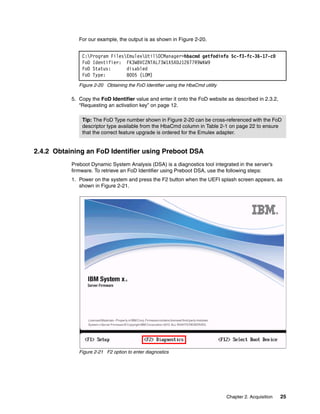
For our example, the output is as shown in Figure 2-20.
Figure 2-20 Obtaining the FoD Identifier using the HbaCmd utility
5. Copy the FoD Identifier value and enter it onto the FoD website as described in 2.3.2,
“Requesting an activation key” on page 12.
2.4.2 Obtaining an FoD Identifier using Preboot DSA
Preboot Dynamic System Analysis (DSA) is a diagnostics tool integrated in the server’s
firmware. To retrieve an FoD Identifier using Preboot DSA, use the following steps:
1. Power on the system and press the F2 button when the UEFI splash screen appears, as
shown in Figure 2-21.
Figure 2-21 F2 option to enter diagnostics
C:Program FilesEmulexUtilOCManager>hbacmd getfodinfo 5c-f3-fc-36-17-c0
FoD Identifier: FK3W8VCZNTAL73W1X5XDJ126T7R9WKW9
FoD Status: disabled
FoD Type: 8005 (LOM)
Tip: The FoD Type number shown in Figure 2-20 can be cross-referenced with the FoD
descriptor type available from the HbaCmd column in Table 2-1 on page 22 to ensure
that the correct feature upgrade is ordered for the Emulex adapter.
26 Using IBM Features on Demand
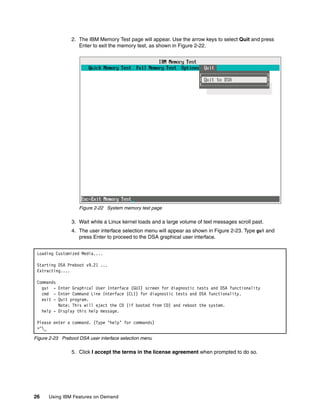
2. The IBM Memory Test page will appear. Use the arrow keys to select Quit and press
Enter to exit the memory test, as shown in Figure 2-22.
Figure 2-22 System memory test page
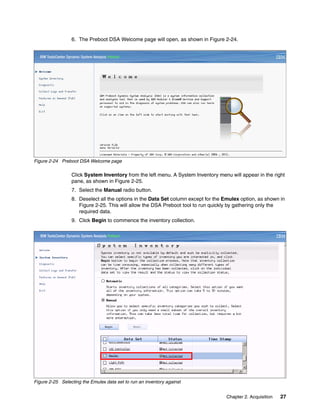
3. Wait while a Linux kernel loads and a large volume of text messages scroll past.
4. The user interface selection menu will appear as shown in Figure 2-23. Type gui and
press Enter to proceed to the DSA graphical user interface.
Figure 2-23 Preboot DSA user interface selection menu
5. Click I accept the terms in the license agreement when prompted to do so.
Loading Customized Media....
Starting DSA Preboot v9.21 ...
Extracting....
Commands
gui - Enter Graphical User Interface (GUI) screen for diagnostic tests and DSA functionality
cmd - Enter Command Line Interface (CLI) for diagnostic tests and DSA functionality.
exit - Quit program.
Note: This will eject the CD (if booted from CD) and reboot the system.
help - Display this help message.
Please enter a command. (Type ‘help’ for commands)
>^_
Chapter 2. Acquisition 27
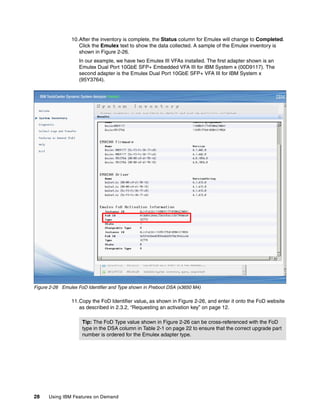
6. The Preboot DSA Welcome page will open, as shown in Figure 2-24.
Figure 2-24 Preboot DSA Welcome page
Click System Inventory from the left menu. A System Inventory menu will appear in the right
pane, as shown in Figure 2-25.
7. Select the Manual radio button.
8. Deselect all the options in the Data Set column except for the Emulex option, as shown in
Figure 2-25. This will allow the DSA Preboot tool to run quickly by gathering only the
required data.
9. Click Begin to commence the inventory collection.
Figure 2-25 Selecting the Emulex data set to run an inventory against
28 Using IBM Features on Demand
10.After the inventory is complete, the Status column for Emulex will change to Completed.
Click the Emulex text to show the data collected. A sample of the Emulex inventory is
shown in Figure 2-26.
In our example, we have two Emulex III VFAs installed. The first adapter shown is an
Emulex Dual Port 10GbE SFP+ Embedded VFA III for IBM System x (00D9117). The
second adapter is the Emulex Dual Port 10GbE SFP+ VFA III for IBM System x
(95Y3764).
Figure 2-26 Emulex FoD Identifier and Type shown in Preboot DSA (x3650 M4)
11.Copy the FoD Identifier value, as shown in Figure 2-26, and enter it onto the FoD website
as described in 2.3.2, “Requesting an activation key” on page 12.
Tip: The FoD Type value shown in Figure 2-26 can be cross-referenced with the FoD
type in the DSA column in Table 2-1 on page 22 to ensure that the correct upgrade part
number is ordered for the Emulex adapter type.
© Copyright IBM Corp. 2012. All rights reserved. 29
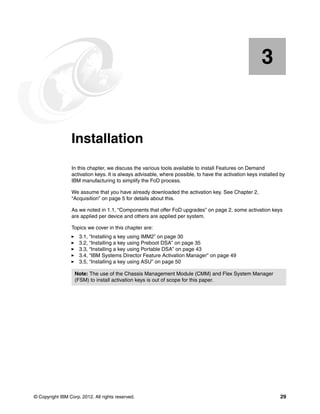
Chapter 3. Installation
In this chapter, we discuss the various tools available to install Features on Demand
activation keys. It is always advisable, where possible, to have the activation keys installed by
IBM manufacturing to simplify the FoD process.
We assume that you have already downloaded the activation key. See Chapter 2,
“Acquisition” on page 5 for details about this.
As we noted in 1.1, “Components that offer FoD upgrades” on page 2, some activation keys
are applied per device and others are applied per system.
Topics we cover in this chapter are:
򐂰 3.1, “Installing a key using IMM2” on page 30
򐂰 3.2, “Installing a key using Preboot DSA” on page 35
򐂰 3.3, “Installing a key using Portable DSA” on page 43
򐂰 3.4, “IBM Systems Director Feature Activation Manager” on page 49
򐂰 3.5, “Installing a key using ASU” on page 50
3
Note: The use of the Chassis Management Module (CMM) and Flex System Manager
(FSM) to install activation keys is out of scope for this paper.
30 Using IBM Features on Demand
3.1 Installing a key using IMM2
In this section, we describe how to apply an FoD activation key using the Integrated
Management Module II (IMM2) web interface.
In this example, we apply the FoD upgrade for the Intel I350 Embedded Dual-port GbE
adapter, used to enable Ethernet ports 3 and 4 on supported servers such as the x3530 M4.
1. If you have not already purchased the FoD upgrade and received the authorization code,
follow the instructions in Chapter 2, “Acquisition” on page 5. The Intel I350 upgrade for the
x3530 M4 is part number 90Y9314.
2. Use the instructions in 2.3.2, “Requesting an activation key” on page 12 to download the
activation key. In our case, the file we downloaded was:
ibm_fod_8003_7160KQ5N05V_anyos_noarch.key
8003 is the FoD type for the Intel I350 2-port upgrade. 7160KQ5N05V is the unique ID,
which in this case is a concatenation of the machine type and serial number of our lab
system.
See Appendix A, “FoD Component reference” on page 69 for a listing of the various FoD
type numbers.
3. Login to the IMM2 web interface using your IMM credentials as shown in Figure 3-1 on
page 31.
If you do not know the IP address of the IMM2, reboot the server and enter System Setup
(pressing F1 when prompted); navigate to System Settings  Integrated Management
Module  Network Configuration and note the IP address listed there.
Using x3100 M4 and x3250 M4 servers: These instructions assume that the web
interface of the IMM2 is enabled. For entry servers such as the x3100 M4 and x3250 M4,
the web interface is itself an FoD upgrade, which represents a chicken-and-egg situation –
we are using the web interface to install an FoD upgrade but an FoD upgrade is needed on
these systems before the web interface can be used.
Therefore, on these servers, you must use another method to install an FoD key (including
the one to enable the IMM2 web interface), such as using Preboot DSA as described in
3.2, “Installing a key using Preboot DSA” on page 35.
Chapter 3. Installation 31
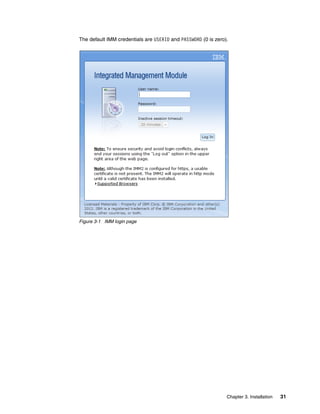
The default IMM credentials are USERID and PASSW0RD (0 is zero).
Figure 3-1 IMM login page
32 Using IBM Features on Demand
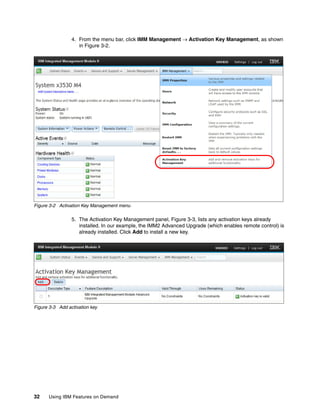
4. From the menu bar, click IMM Management  Activation Key Management, as shown
in Figure 3-2.
Figure 3-2 Activation Key Management menu
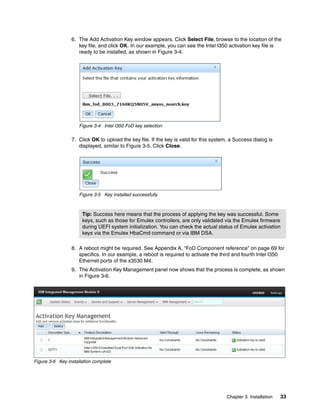
5. The Activation Key Management panel, Figure 3-3, lists any activation keys already
installed. In our example, the IMM2 Advanced Upgrade (which enables remote control) is
already installed. Click Add to install a new key.
Figure 3-3 Add activation key
Chapter 3. Installation 33
6. The Add Activation Key window appears. Click Select File, browse to the location of the
key file, and click OK. In our example, you can see the Intel I350 activation key file is
ready to be installed, as shown in Figure 3-4.
Figure 3-4 Intel I350 FoD key selection
7. Click OK to upload the key file. If the key is valid for this system, a Success dialog is
displayed, similar to Figure 3-5. Click Close.
Figure 3-5 Key installed successfully
8. A reboot might be required. See Appendix A, “FoD Component reference” on page 69 for
specifics. In our example, a reboot is required to activate the third and fourth Intel I350
Ethernet ports of the x3530 M4.
9. The Activation Key Management panel now shows that the process is complete, as shown
in Figure 3-6.
Figure 3-6 Key installation complete
Tip: Success here means that the process of applying the key was successful. Some
keys, such as those for Emulex controllers, are only validated via the Emulex firmware
during UEFI system initialization. You can check the actual status of Emulex activation
keys via the Emulex HbaCmd command or via IBM DSA.
34 Using IBM Features on Demand
Additional considerations for ServeRAID upgrades
All FoD upgrades for ServeRAID controllers are system-wide upgrades and not tied to any
one controller or adapter. For example, if your server has a ServeRAID M5110e controller on
the system planar and three ServeRAID M5110 adapters installed in the server, then applying
one RAID-6 activation key will enable RAID-6 on all four ServeRAID controllers.
See Appendix A, “FoD Component reference” on page 69 for the list (current at the time of
writing) of ServeRAID FoD upgrades.
Additional considerations for Emulex upgrades
The IMM2 is unable to read the Emulex ASIC identifier, so it marks the keys as installed, but
the keys have to be validated by the Emulex firmware during UEFI system initialization. The
IMM2 status for these keys does not change if they are in use or not in use by the Emulex
options that are installed in the system.
To determine if an Emulex key has activated the upgrade feature, use one of the following
tools:
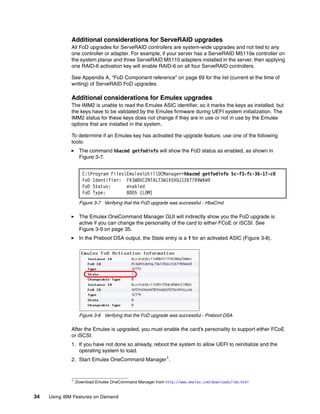
򐂰 The command hbacmd getfodinfo will show the FoD status as enabled, as shown in
Figure 3-7.
Figure 3-7 Verifying that the FoD upgrade was successful - HbaCmd
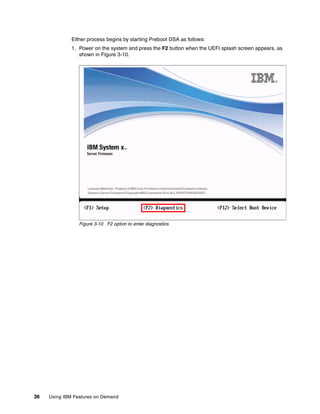
򐂰 The Emulex OneCommand Manager GUI will indirectly show you the FoD upgrade is
active if you can change the personality of the card to either FCoE or iSCSI. See
Figure 3-9 on page 35.
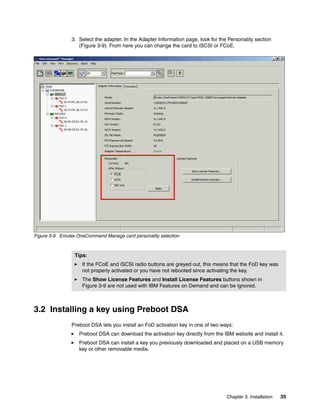
򐂰 In the Preboot DSA output, the State entry is a 1 for an activated ASIC (Figure 3-8).
Figure 3-8 Verifying that the FoD upgrade was successful - Preboot DSA
After the Emulex is upgraded, you must enable the card’s personality to support either FCoE
or iSCSI:
1. If you have not done so already, reboot the system to allow UEFI to reinitialize and the
operating system to load.
2. Start Emulex OneCommand Manager1
.
C:Program FilesEmulexUtilOCManager>hbacmd getfodinfo 5c-f3-fc-36-17-c0
FoD Identifier: FK3W8VCZNTAL73W1X5XDJ126T7R9WKW9
FoD Status: enabled
FoD Type: 8005 (LOM)
1 Download Emulex OneCommand Manager from http://www.emulex.com/downloads/ibm.html
Chapter 3. Installation 35
3. Select the adapter. In the Adapter Information page, look for the Personality section
(Figure 3-9). From here you can change the card to iSCSI or FCoE.
Figure 3-9 Emulex OneCommand Manage card personality selection
3.2 Installing a key using Preboot DSA
Preboot DSA lets you install an FoD activation key in one of two ways:
򐂰 Preboot DSA can download the activation key directly from the IBM website and install it.
򐂰 Preboot DSA can install a key you previously downloaded and placed on a USB memory
key or other removable media.
Tips:
򐂰 If the FCoE and iSCSI radio buttons are greyed out, this means that the FoD key was
not properly activated or you have not rebooted since activating the key.
򐂰 The Show License Features and Install License Features buttons shown in
Figure 3-9 are not used with IBM Features on Demand and can be ignored.
36 Using IBM Features on Demand
Either process begins by starting Preboot DSA as follows:
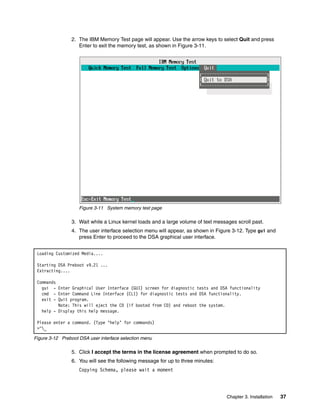
1. Power on the system and press the F2 button when the UEFI splash screen appears, as
shown in Figure 3-10.
Figure 3-10 F2 option to enter diagnostics
Chapter 3. Installation 37
2. The IBM Memory Test page will appear. Use the arrow keys to select Quit and press
Enter to exit the memory test, as shown in Figure 3-11.
Figure 3-11 System memory test page
3. Wait while a Linux kernel loads and a large volume of text messages scroll past.
4. The user interface selection menu will appear, as shown in Figure 3-12. Type gui and
press Enter to proceed to the DSA graphical user interface.
Figure 3-12 Preboot DSA user interface selection menu
5. Click I accept the terms in the license agreement when prompted to do so.
6. You will see the following message for up to three minutes:
Copying Schema, please wait a moment
Loading Customized Media....
Starting DSA Preboot v9.21 ...
Extracting....
Commands
gui - Enter Graphical User Interface (GUI) screen for diagnostic tests and DSA functionality
cmd - Enter Command Line Interface (CLI) for diagnostic tests and DSA functionality.
exit - Quit program.
Note: This will eject the CD (if booted from CD) and reboot the system.
help - Display this help message.
Please enter a command. (Type ‘help’ for commands)
>^_
38 Using IBM Features on Demand
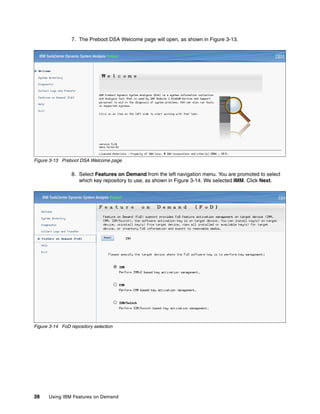
7. The Preboot DSA Welcome page will open, as shown in Figure 3-13.
Figure 3-13 Preboot DSA Welcome page
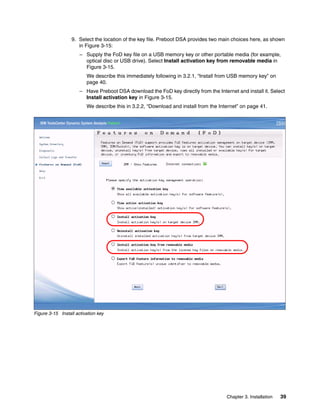
8. Select Features on Demand from the left navigation menu. You are promoted to select
which key repository to use, as shown in Figure 3-14. We selected IMM. Click Next.
Figure 3-14 FoD repository selection
Chapter 3. Installation 39
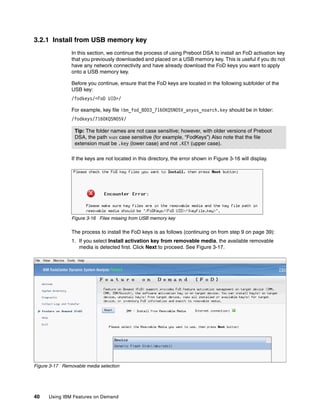
9. Select the location of the key file. Preboot DSA provides two main choices here, as shown
in Figure 3-15:
– Supply the FoD key file on a USB memory key or other portable media (for example,
optical disc or USB drive). Select Install activation key from removable media in
Figure 3-15.
We describe this immediately following in 3.2.1, “Install from USB memory key” on
page 40.
– Have Preboot DSA download the FoD key directly from the Internet and install it. Select
Install activation key in Figure 3-15.
We describe this in 3.2.2, “Download and install from the Internet” on page 41.
Figure 3-15 Install activation key
40 Using IBM Features on Demand
3.2.1 Install from USB memory key
In this section, we continue the process of using Preboot DSA to install an FoD activation key
that you previously downloaded and placed on a USB memory key. This is useful if you do not
have any network connectivity and have already download the FoD keys you want to apply
onto a USB memory key.
Before you continue, ensure that the FoD keys are located in the following subfolder of the
USB key:
/fodkeys/<FoD UID>/
For example, key file ibm_fod_8003_7160KQ5N05V_anyos_noarch.key should be in folder:
/fodkeys/7160KQ5N05V/
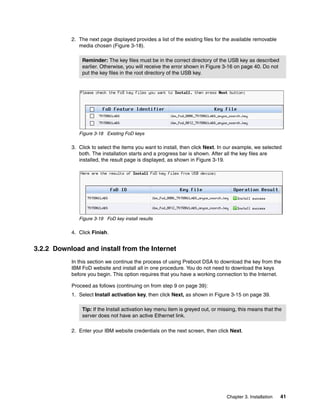
If the keys are not located in this directory, the error shown in Figure 3-16 will display.
Figure 3-16 Files missing from USB memory key
The process to install the FoD keys is as follows (continuing on from step 9 on page 39):
1. If you select Install activation key from removable media, the available removable
media is detected first. Click Next to proceed. See Figure 3-17.
Figure 3-17 Removable media selection
Tip: The folder names are not case sensitive; however, with older versions of Preboot
DSA, the path was case sensitive (for example, “FodKeys”) Also note that the file
extension must be .key (lower case) and not .KEY (upper case).
Chapter 3. Installation 41
2. The next page displayed provides a list of the existing files for the available removable
media chosen (Figure 3-18).
Figure 3-18 Existing FoD keys
3. Click to select the items you want to install, then click Next. In our example, we selected
both. The installation starts and a progress bar is shown. After all the key files are
installed, the result page is displayed, as shown in Figure 3-19.
Figure 3-19 FoD key install results
4. Click Finish.
3.2.2 Download and install from the Internet
In this section we continue the process of using Preboot DSA to download the key from the
IBM FoD website and install all in one procedure. You do not need to download the keys
before you begin. This option requires that you have a working connection to the Internet.
Proceed as follows (continuing on from step 9 on page 39):
1. Select Install activation key, then click Next, as shown in Figure 3-15 on page 39.
2. Enter your IBM website credentials on the next screen, then click Next.
Reminder: The key files must be in the correct directory of the USB key as described
earlier. Otherwise, you will receive the error shown in Figure 3-16 on page 40. Do not
put the key files in the root directory of the USB key.
Tip: If the Install activation key menu item is greyed out, or missing, this means that the
server does not have an active Ethernet link.
42 Using IBM Features on Demand
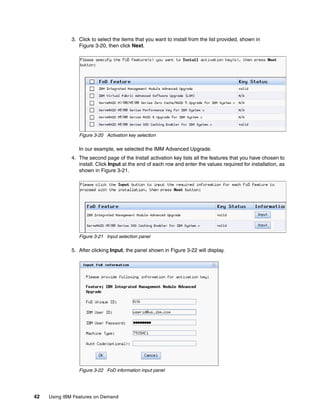
3. Click to select the items that you want to install from the list provided, shown in
Figure 3-20, then click Next.
Figure 3-20 Activation key selection
In our example, we selected the IMM Advanced Upgrade.
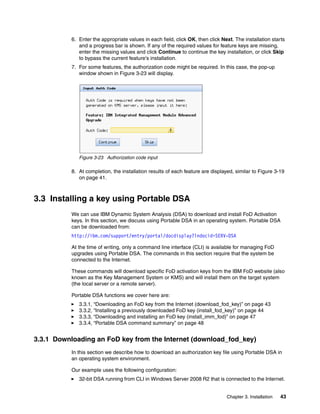
4. The second page of the Install activation key lists all the features that you have chosen to
install. Click Input at the end of each row and enter the values required for installation, as
shown in Figure 3-21.
Figure 3-21 Input selection panel
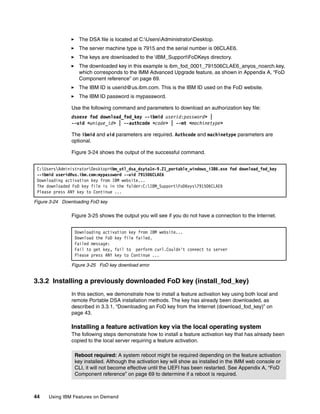
5. After clicking Input, the panel shown in Figure 3-22 will display.
Figure 3-22 FoD information input panel
Chapter 3. Installation 43
6. Enter the appropriate values in each field, click OK, then click Next. The installation starts
and a progress bar is shown. If any of the required values for feature keys are missing,
enter the missing values and click Continue to continue the key installation, or click Skip
to bypass the current feature's installation.
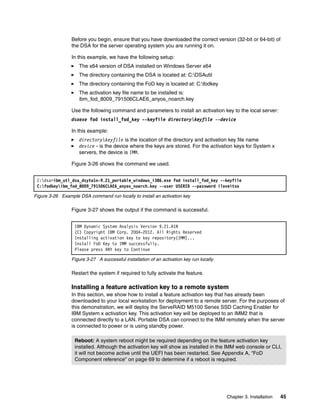
7. For some features, the authorization code might be required. In this case, the pop-up
window shown in Figure 3-23 will display.
Figure 3-23 Authorization code input
8. At completion, the installation results of each feature are displayed, similar to Figure 3-19
on page 41.
3.3 Installing a key using Portable DSA
We can use IBM Dynamic System Analysis (DSA) to download and install FoD Activation
keys. In this section, we discuss using Portable DSA in an operating system. Portable DSA
can be downloaded from:
http://ibm.com/support/entry/portal/docdisplay?lndocid=SERV-DSA
At the time of writing, only a command line interface (CLI) is available for managing FoD
upgrades using Portable DSA. The commands in this section require that the system be
connected to the Internet.
These commands will download specific FoD activation keys from the IBM FoD website (also
known as the Key Management System or KMS) and will install them on the target system
(the local server or a remote server).
Portable DSA functions we cover here are:
򐂰 3.3.1, “Downloading an FoD key from the Internet (download_fod_key)” on page 43
򐂰 3.3.2, “Installing a previously downloaded FoD key (install_fod_key)” on page 44
򐂰 3.3.3, “Downloading and installing an FoD key (install_imm_fod)” on page 47
򐂰 3.3.4, “Portable DSA command summary” on page 48
3.3.1 Downloading an FoD key from the Internet (download_fod_key)
In this section we describe how to download an authorization key file using Portable DSA in
an operating system environment.
Our example uses the following configuration:
򐂰 32-bit DSA running from CLI in Windows Server 2008 R2 that is connected to the Internet.
44 Using IBM Features on Demand
򐂰 The DSA file is located at C:UsersAdministratorDesktop.
򐂰 The server machine type is 7915 and the serial number is 06CLAE6.
򐂰 The keys are downloaded to the IBM_SupportFoDKeys directory.
򐂰 The downloaded key in this example is ibm_fod_0001_791506CLAE6_anyos_noarch.key,
which corresponds to the IMM Advanced Upgrade feature, as shown in Appendix A, “FoD
Component reference” on page 69.
򐂰 The IBM ID is userid@us.ibm.com. This is the IBM ID used on the FoD website.
򐂰 The IBM ID password is mypassword.
Use the following command and parameters to download an authorization key file:
dsaexe fod download_fod_key --ibmid userid:password> |
--uid <unique_id> | --authcode <code> | --mt <machinetype>
The ibmid and uid parameters are required. Authcode and machinetype parameters are
optional.
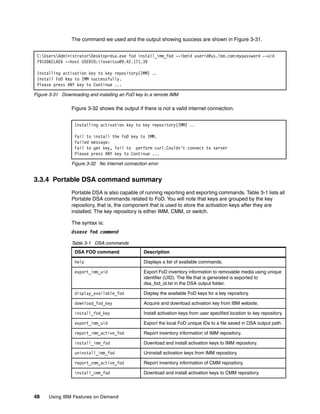
Figure 3-24 shows the output of the successful command.
Figure 3-24 Downloading FoD key
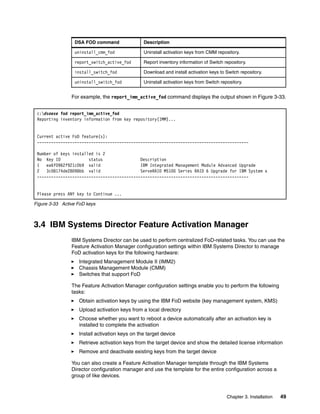
Figure 3-25 shows the output you will see if you do not have a connection to the Internet.
Figure 3-25 FoD key download error
3.3.2 Installing a previously downloaded FoD key (install_fod_key)
In this section, we demonstrate how to install a feature activation key using both local and
remote Portable DSA installation methods. The key has already been downloaded, as
described in 3.3.1, “Downloading an FoD key from the Internet (download_fod_key)” on
page 43.
Installing a feature activation key via the local operating system
The following steps demonstrate how to install a feature activation key that has already been
copied to the local server requiring a feature activation.
C:UsersAdministratorDesktop>ibm_utl_dsa_dsyta1n-9.21_portable_windows_i386.exe fod download_fod_key
--ibmid userid@us.ibm.com:mypassword --uid 791506CLAE6
Downloading activation key from IBM website...
The downloaded FoD key file is in the folder:C:IBM_SupportFoDKeys791506CLAE6
Please press ANY key to Continue ...
Downloading activation key from IBM website...
Download the FoD key file failed.
Failed message:
Fail to get key, fail to perform curl.Couldn't connect to server
Please press ANY key to Continue ...
Reboot required: A system reboot might be required depending on the feature activation
key installed. Although the activation key will show as installed in the IMM web console or
CLI, it will not become effective until the UEFI has been restarted. See Appendix A, “FoD
Component reference” on page 69 to determine if a reboot is required.
Chapter 3. Installation 45
Before you begin, ensure that you have downloaded the correct version (32-bit or 64-bit) of
the DSA for the server operating system you are running it on.
In this example, we have the following setup:
򐂰 The x64 version of DSA installed on Windows Server x64
򐂰 The directory containing the DSA is located at: C:DSAutil
򐂰 The directory containing the FoD key is located at: C:fodkey
򐂰 The activation key file name to be installed is:
ibm_fod_8009_791506CLAE6_anyos_noarch.key
Use the following command and parameters to install an activation key to the local server:
dsaexe fod install_fod_key --keyfile directorykeyfile --device
In this example:
򐂰 directorykeyfile is the location of the directory and activation key file name
򐂰 device - is the device where the keys are stored. For the activation keys for System x
servers, the device is IMM.
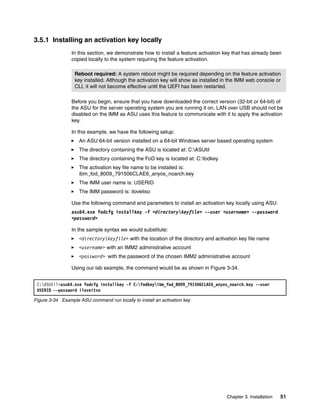
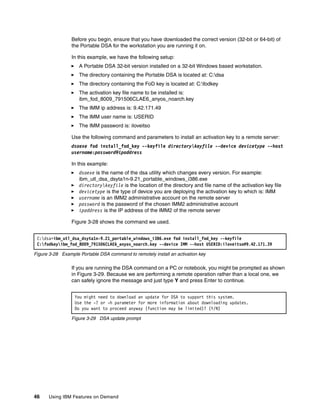
Figure 3-26 shows the command we used.
Figure 3-26 Example DSA command run locally to install an activation key
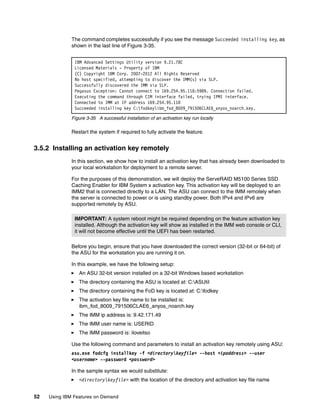
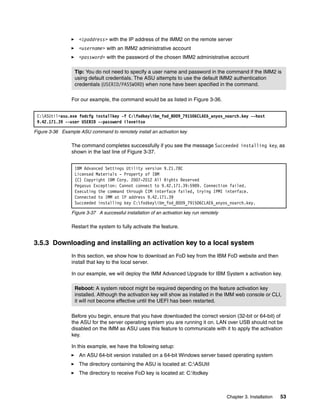
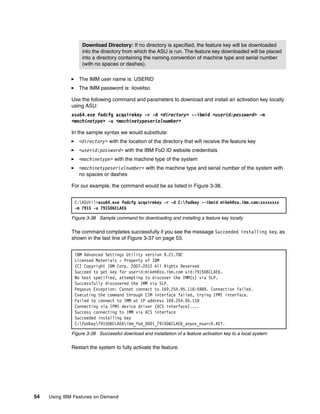
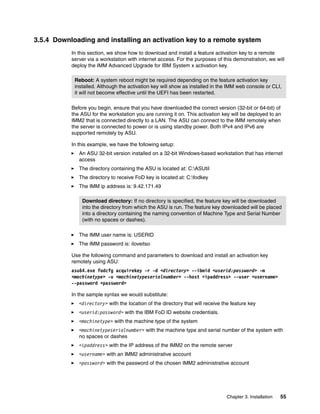
Figure 3-27 shows the output if the command is successful.
Figure 3-27 A successful installation of an activation key run locally
Restart the system if required to fully activate the feature.
Installing a feature activation key to a remote system
In this section, we show how to install a feature activation key that has already been
downloaded to your local workstation for deployment to a remote server. For the purposes of
this demonstration, we will deploy the ServeRAID M5100 Series SSD Caching Enabler for
IBM System x activation key. This activation key will be deployed to an IMM2 that is
connected directly to a LAN. Portable DSA can connect to the IMM remotely when the server
is connected to power or is using standby power.
C:dsa>ibm_utl_dsa_dsyta1n-9.21_portable_windows_i386.exe fod install_fod_key --keyfile
C:fodkeyibm_fod_8009_791506CLAE6_anyos_noarch.key --user USERID --password iloveitso
IBM Dynamic System Analysis Version 9.21.A1N
(C) Copyright IBM Corp. 2004-2012. All Rights Reserved
Installing activation key to key repository(IMM)...
Install FoD Key to IMM successfully.
Please press ANY key to Continue
Reboot: A system reboot might be required depending on the feature activation key
installed. Although the activation key will show as installed in the IMM web console or CLI,
it will not become active until the UEFI has been restarted. See Appendix A, “FoD
Component reference” on page 69 to determine if a reboot is required.
46 Using IBM Features on Demand
Before you begin, ensure that you have downloaded the correct version (32-bit or 64-bit) of
the Portable DSA for the workstation you are running it on.
In this example, we have the following setup:
򐂰 A Portable DSA 32-bit version installed on a 32-bit Windows based workstation.
򐂰 The directory containing the Portable DSA is located at: C:dsa
򐂰 The directory containing the FoD key is located at: C:fodkey
򐂰 The activation key file name to be installed is:
ibm_fod_8009_791506CLAE6_anyos_noarch.key
򐂰 The IMM ip address is: 9.42.171.49
򐂰 The IMM user name is: USERID
򐂰 The IMM password is: iloveitso
Use the following command and parameters to install an activation key to a remote server:
dsaexe fod install_fod_key --keyfile directorykeyfile --device devicetype --host
username:password@ipaddress
In this example:
򐂰 dsaexe is the name of the dsa utility which changes every version. For example:
ibm_utl_dsa_dsyta1n-9.21_portable_windows_i386.exe
򐂰 directorykeyfile is the location of the directory and file name of the activation key file
򐂰 devicetype is the type of device you are deploying the activation key to which is: IMM
򐂰 username is an IMM2 administrative account on the remote server
򐂰 password is the password of the chosen IMM2 administrative account
򐂰 ipaddress is the IP address of the IMM2 of the remote server
Figure 3-28 shows the command we used.
Figure 3-28 Example Portable DSA command to remotely install an activation key
If you are running the DSA command on a PC or notebook, you might be prompted as shown
in Figure 3-29. Because we are performing a remote operation rather than a local one, we
can safely ignore the message and just type Y and press Enter to continue.
Figure 3-29 DSA update prompt
C:dsa>ibm_utl_dsa_dsyta1n-9.21_portable_windows_i386.exe fod install_fod_key --keyfile
C:fodkeyibm_fod_8009_791506CLAE6_anyos_noarch.key --device IMM --host USERID:iloveitso@9.42.171.39
You might need to download an update for DSA to support this system.
Use the -? or -h parameter for more information about downloading updates.
Do you want to proceed anyway (function may be limited)? (Y/N)
Chapter 3. Installation 47
Figure 3-30 shows the output if the command is successful.
Figure 3-30 A successful installation of an activation key run remotely
Restart the system if required to fully activate the feature.
3.3.3 Downloading and installing an FoD key (install_imm_fod)
As an alternative to using two separate DSA commands to first download and then install the
activation keys, you can use one command to do both. In this section we describe how to use
the IMM and Portable DSA to download and install an FoD authorization key.
Our example uses the following:
򐂰 32-bit DSA running from a CLI in Windows Server 2008 R2 that is connected to the
Internet
򐂰 The DSA file is located at C:UsersAdministratorDesktop
򐂰 The server machine type and serial number are 7915 and 06CLAE6
򐂰 The IBM ID is userid@us.ibm.com. This is the IBM ID used on the FoD website
򐂰 The IBM ID password is mypassword
򐂰 The IMM ip address is: 9.42.171.49
򐂰 The IMM user name is: USERID
򐂰 The IMM password is: iloveitso
Use the following command and parameters to download and install every available FoD
activation key linked to a specified UID:
dsaexe fod install_imm_fod --ibmid <userid:password>, --uid <unique_id>,
--authcode <code>, --mt <machinetype>, --host <userid:password@hostip:[port]>
If host is not specified, the repository will default to the IMM on the local system. Authcode
and machinetype parameters are optional.
In this example:
򐂰 <userid:password> is IBM ID website credentials.
򐂰 <unique_id> is the FoD feature unique identifier information.
򐂰 <code> is the authentication code for FoD features.
򐂰 <machinetype> is the target system machine type (IMM).
򐂰 <[http(s)://userid:password@hostip:[port]> is the remote key repository (IMM),
default value being the local IMM device. Default IMM port is 5989.
Logging level set to Status
Copying Schema...
Dynamic System Analysis Version 9.21.A1N
(C) Copyright IBM Corp. 2004-2012. All Rights Reserved.
Installing activation key to key repository(IMM)...
Install FoD Key to IMM successfully.
Please press ANY key to Continue ...
48 Using IBM Features on Demand
The command we used and the output showing success are shown in Figure 3-31.
Figure 3-31 Downloading and installing an FoD key to a remote IMM
Figure 3-32 shows the output if there is not a valid internet connection.
Figure 3-32 No Internet connection error
3.3.4 Portable DSA command summary
Portable DSA is also capable of running reporting and exporting commands. Table 3-1 lists all
Portable DSA commands related to FoD. You will note that keys are grouped by the key
repository, that is, the component that is used to store the activation keys after they are
installed. The key repository is either IMM, CMM, or switch.
The syntax is:
dsaexe fod command
Table 3-1 DSA commands
C:UsersAdministratorDesktop>dsa.exe fod install_imm_fod --ibmid userid@us.ibm.com:mypassword --uid
791506CLAE6 --host USERID:iloveitso@9.42.171.39
Installing activation key to key repository(IMM) ..
Install FoD Key to IMM successfully.
Please press ANY key to Continue ...
Installing activation key to key repository(IMM) ..
Fail to install the FoD key to IMM.
Failed message:
Fail to get key, fail to perform curl.Couldn't connect to server
Please press ANY key to Continue ...
DSA FOD command Description
help Displays a list of available commands.
export_imm_uid Export FoD inventory information to removable media using unique
identifier (UID). The file that is generated is exported to
dsa_fod_id.txt in the DSA output folder.
display_available_fod Display the available FoD keys for a key repository.
download_fod_key Acquire and download activation key from IBM website.
install_fod_key Install activation keys from user specified location to key repository.
export_imm_uid Export the local FoD unique IDs to a file saved in DSA output path.
report_imm_active_fod Report inventory information of IMM repository.
install_imm_fod Download and install activation keys to IMM repository.
uninstall_imm_fod Uninstall activation keys from IMM repository.
report_cmm_active_fod Report inventory information of CMM repository.
install_cmm_fod Download and install activation keys to CMM repository.
Chapter 3. Installation 49
For example, the report_imm_active_fod command displays the output shown in Figure 3-33.
Figure 3-33 Active FoD keys
3.4 IBM Systems Director Feature Activation Manager
IBM Systems Director can be used to perform centralized FoD-related tasks. You can use the
Feature Activation Manager configuration settings within IBM Systems Director to manage
FoD activation keys for the following hardware:
򐂰 Integrated Management Module II (IMM2)
򐂰 Chassis Management Module (CMM)
򐂰 Switches that support FoD
The Feature Activation Manager configuration settings enable you to perform the following
tasks:
򐂰 Obtain activation keys by using the IBM FoD website (key management system, KMS)
򐂰 Upload activation keys from a local directory
򐂰 Choose whether you want to reboot a device automatically after an activation key is
installed to complete the activation
򐂰 Install activation keys on the target device
򐂰 Retrieve activation keys from the target device and show the detailed license information
򐂰 Remove and deactivate existing keys from the target device
You can also create a Feature Activation Manager template through the IBM Systems
Director configuration manager and use the template for the entire configuration across a
group of like devices.
uninstall_cmm_fod Uninstall activation keys from CMM repository.
report_switch_active_fod Report inventory information of Switch repository.
install_switch_fod Download and install activation keys to Switch repository.
uninstall_switch_fod Uninstall activation keys from Switch repository.
DSA FOD command Description
c:dsaexe fod report_imm_active_fod
Reporting inventory information from key repository(IMM)...
Current active FoD feature(s):
------------------------------------------------------------------------------------------
Number of keys installed is 2
No Key ID status Description
1 ea6f0962f921c0b9 valid IBM Integrated Management Module Advanced Upgrade
2 3c08174de28098bb valid ServeRAID M5100 Series RAID 6 Upgrade for IBM System x
------------------------------------------------------------------------------------------
Please press ANY key to Continue ...
50 Using IBM Features on Demand
The usage of Feature Activation Manager within IBM Systems Director has been well
documented in the IBM Features on Demand User's Guide and has therefore not been
covered in this paper. The IBM Features on Demand User's Guide can be found at the
following URL:
http://ibm.com/support/entry/portal/docdisplay?lndocid=MIGR-5089568
3.5 Installing a key using ASU
The Advanced Settings Utility (ASU) is a command line utility used to modify firmware
settings and manage Features on Demand activation keys. It is supported on Windows and
Linux and enables you to manage feature activation keys, both locally or remotely, for the
following:
򐂰 IMM2-based systems
򐂰 Chassis Management Module (CMM), part of IBM Flex System
򐂰 I/O modules
The IBM Advanced Settings Utility can be downloaded at the following URL:
http://ibm.com/support/entry/portal/docdisplay?lndocid=TOOL-ASU
For the purposes of this paper we focus on feature activation key management on
IMM2-based server systems. It is assumed that the reader is already familiar with the usage
of the ASU command. For information about the tool, see IBM Advanced Settings Utility User
Guide, available at:
http://ibm.com/support/entry/portal/docdisplay?lndocid=MIGR-5085890
In this section, we demonstrate how to install a feature activation key using both local and
remote installation methods. The ASU fodcfg is the main command used to manage FoD
activation keys. It supports the following FoD activation key tasks:
򐂰 Acquisition
򐂰 Installation
򐂰 Uninstallation
򐂰 Reporting
򐂰 Exporting
The high level commands used to achieve these tasks are summarized in Table 3-2.
Table 3-2 fodcfg commands
Tip: Whenever possible, have Features on Demand features installed by IBM
manufacturing at the time of product order.
Command Description
acquirekey Acquire and download the activation key from the IBM web site.
installkey Install activation keys from the user-specified location to the key
repository.
unistallkey Uninstall activation keys from the device.
reportkey Inventory information of a specified key repository (for example, IMM)
exportkey Inventory information about a specified key repository. We describe the use of this
command in 4.1, “Backing up feature activation keys using ASU” on page 58.
Chapter 3. Installation 51
3.5.1 Installing an activation key locally
In this section, we demonstrate how to install a feature activation key that has already been
copied locally to the system requiring the feature activation.
Before you begin, ensure that you have downloaded the correct version (32-bit or 64-bit) of
the ASU for the server operating system you are running it on. LAN over USB should not be
disabled on the IMM as ASU uses this feature to communicate with it to apply the activation
key.
In this example, we have the following setup:
򐂰 An ASU 64-bit version installed on a 64-bit Windows server based operating system
򐂰 The directory containing the ASU is located at: C:ASUtil
򐂰 The directory containing the FoD key is located at: C:fodkey
򐂰 The activation key file name to be installed is:
ibm_fod_8009_791506CLAE6_anyos_noarch.key
򐂰 The IMM user name is: USERID
򐂰 The IMM password is: iloveitso
Use the following command and parameters to install an activation key locally using ASU:
asu64.exe fodcfg installkey -f <directorykeyfile> --user <username> --password
<password>
In the sample syntax we would substitute:
򐂰 <directorykeyfile> with the location of the directory and activation key file name
򐂰 <username> with an IMM2 administrative account
򐂰 <password> with the password of the chosen IMM2 administrative account
Using our lab example, the command would be as shown in Figure 3-34.
Figure 3-34 Example ASU command run locally to install an activation key
Reboot required: A system reboot might be required depending on the feature activation
key installed. Although the activation key will show as installed in the IMM web console or
CLI, it will not become effective until the UEFI has been restarted.
C:ASUtil>asu64.exe fodcfg installkey -f C:fodkeyibm_fod_8009_791506CLAE6_anyos_noarch.key --user
USERID --password iloveitso
52 Using IBM Features on Demand
The command completes successfully if you see the message Succeeded installing key, as
shown in the last line of Figure 3-35.
Figure 3-35 A successful installation of an activation key run locally
Restart the system if required to fully activate the feature.
3.5.2 Installing an activation key remotely
In this section, we show how to install an activation key that has already been downloaded to
your local workstation for deployment to a remote server.
For the purposes of this demonstration, we will deploy the ServeRAID M5100 Series SSD
Caching Enabler for IBM System x activation key. This activation key will be deployed to an
IMM2 that is connected directly to a LAN. The ASU can connect to the IMM remotely when
the server is connected to power or is using standby power. Both IPv4 and IPv6 are
supported remotely by ASU.
Before you begin, ensure that you have downloaded the correct version (32-bit or 64-bit) of
the ASU for the workstation you are running it on.
In this example, we have the following setup:
򐂰 An ASU 32-bit version installed on a 32-bit Windows based workstation
򐂰 The directory containing the ASU is located at: C:ASUtil
򐂰 The directory containing the FoD key is located at: C:fodkey
򐂰 The activation key file name to be installed is:
ibm_fod_8009_791506CLAE6_anyos_noarch.key
򐂰 The IMM ip address is: 9.42.171.49
򐂰 The IMM user name is: USERID
򐂰 The IMM password is: iloveitso
Use the following command and parameters to install an activation key remotely using ASU:
asu.exe fodcfg installkey -f <directorykeyfile> --host <ipaddress> --user
<username> --password <password>
In the sample syntax we would substitute:
򐂰 <directorykeyfile> with the location of the directory and activation key file name
IBM Advanced Settings Utility version 9.21.78C
Licensed Materials - Property of IBM
(C) Copyright IBM Corp. 2007-2012 All Rights Reserved
No host specified, attempting to discover the IMM(s) via SLP.
Successfully discovered the IMM via SLP.
Pegasus Exception: Cannot connect to 169.254.95.118:5989. Connection failed.
Executing the command through CIM interface failed, trying IPMI interface.
Connected to IMM at IP address 169.254.95.118
Succeeded installing key C:fodkeyibm_fod_8009_791506CLAE6_anyos_noarch.key.
IMPORTANT: A system reboot might be required depending on the feature activation key
installed. Although the activation key will show as installed in the IMM web console or CLI,
it will not become effective until the UEFI has been restarted.
Chapter 3. Installation 53
򐂰 <ipaddress> with the IP address of the IMM2 on the remote server
򐂰 <username> with an IMM2 administrative account
򐂰 <password> with the password of the chosen IMM2 administrative account
For our example, the command would be as listed in Figure 3-36.
Figure 3-36 Example ASU command to remotely install an activation key
The command completes successfully if you see the message Succeeded installing key, as
shown in the last line of Figure 3-37.
Figure 3-37 A successful installation of an activation key run remotely
Restart the system to fully activate the feature.
3.5.3 Downloading and installing an activation key to a local system
In this section, we show how to download an FoD key from the IBM FoD website and then
install that key to the local server.
In our example, we will deploy the IMM Advanced Upgrade for IBM System x activation key.
Before you begin, ensure that you have downloaded the correct version (32-bit or 64-bit) of
the ASU for the server operating system you are running it on. LAN over USB should not be
disabled on the IMM as ASU uses this feature to communicate with it to apply the activation
key.
In this example, we have the following setup:
򐂰 An ASU 64-bit version installed on a 64-bit Windows server based operating system
򐂰 The directory containing the ASU is located at: C:ASUtil
򐂰 The directory to receive FoD key is located at: C:fodkey
Tip: You do not need to specify a user name and password in the command if the IMM2 is
using default credentials. The ASU attempts to use the default IMM2 authentication
credentials (USERID/PASSW0RD) when none have been specified in the command.
C:ASUtil>asu.exe fodcfg installkey -f C:fodkeyibm_fod_8009_791506CLAE6_anyos_noarch.key --host
9.42.171.39 --user USERID --password iloveitso
IBM Advanced Settings Utility version 9.21.78C
Licensed Materials - Property of IBM
(C) Copyright IBM Corp. 2007-2012 All Rights Reserved
Pegasus Exception: Cannot connect to 9.42.171.39:5989. Connection failed.
Executing the command through CIM interface failed, trying IPMI interface.
Connected to IMM at IP address 9.42.171.39
Succeeded installing key C:fodkeyibm_fod_8009_791506CLAE6_anyos_noarch.key.
Reboot: A system reboot might be required depending on the feature activation key
installed. Although the activation key will show as installed in the IMM web console or CLI,
it will not become effective until the UEFI has been restarted.
54 Using IBM Features on Demand
򐂰 The IMM user name is: USERID
򐂰 The IMM password is: iloveitso
Use the following command and parameters to download and install an activation key locally
using ASU:
asu64.exe fodcfg acquirekey -r -d <directory> --ibmid <userid:password> -m
<machinetype> -u <machinetypeserialnumber>
In the sample syntax we would substitute:
򐂰 <directory> with the location of the directory that will receive the feature key
򐂰 <userid:password> with the IBM FoD ID website credentials
򐂰 <machinetype> with the machine type of the system
򐂰 <machinetypeserialnumber> with the machine type and serial number of the system with
no spaces or dashes
For our example, the command would be as listed in Figure 3-38.
Figure 3-38 Sample command for downloading and installing a feature key locally
The command completes successfully if you see the message Succeeded installing key, as
shown in the last line of Figure 3-37 on page 53.
Figure 3-39 Successful download and installation of a feature activation key to a local system
Restart the system to fully activate the feature.
Download Directory: If no directory is specified, the feature key will be downloaded
into the directory from which the ASU is run. The feature key downloaded will be placed
into a directory containing the naming convention of machine type and serial number
(with no spaces or dashes).
C:ASUtil>asu64.exe fodcfg acquirekey -r -d C:fodkey --ibmid mikeh@za.ibm.com:xxxxxxxx
-m 7915 -u 791506CLAE6
IBM Advanced Settings Utility version 9.21.78C
Licensed Materials - Property of IBM
(C) Copyright IBM Corp. 2007-2012 All Rights Reserved
Succeed to get key for userid:mikeh@za.ibm.com uid:791506CLAE6.
No host specified, attempting to discover the IMM(s) via SLP.
Successfully discovered the IMM via SLP.
Pegasus Exception: Cannot connect to 169.254.95.118:5989. Connection failed.
Executing the command through CIM interface failed, trying IPMI interface.
Failed to connect to IMM at IP address 169.254.95.118
Connecting via IPMI device driver (KCS interface)....
Success connecting to IMM via KCS interface
Succeeded installing key
C:fodkey791506CLAE6ibm_fod_0001_791506CLAE6_anyos_noarch.KEY.
Chapter 3. Installation 55
3.5.4 Downloading and installing an activation key to a remote system
In this section, we show how to download and install a feature activation key to a remote
server via a workstation with internet access. For the purposes of this demonstration, we will
deploy the IMM Advanced Upgrade for IBM System x activation key.
Before you begin, ensure that you have downloaded the correct version (32-bit or 64-bit) of
the ASU for the workstation you are running it on. This activation key will be deployed to an
IMM2 that is connected directly to a LAN. The ASU can connect to the IMM remotely when
the server is connected to power or is using standby power. Both IPv4 and IPv6 are
supported remotely by ASU.
In this example, we have the following setup:
򐂰 An ASU 32-bit version installed on a 32-bit Windows-based workstation that has internet
access
򐂰 The directory containing the ASU is located at: C:ASUtil
򐂰 The directory to receive FoD key is located at: C:fodkey
򐂰 The IMM ip address is: 9.42.171.49
򐂰 The IMM user name is: USERID
򐂰 The IMM password is: iloveitso
Use the following command and parameters to download and install an activation key
remotely using ASU:
asu64.exe fodcfg acquirekey -r -d <directory> --ibmid <userid:password> -m
<machinetype> -u <machinetypeserialnumber> --host <ipaddress> --user <username>
--password <password>
In the sample syntax we would substitute:
򐂰 <directory> with the location of the directory that will receive the feature key
򐂰 <userid:password> with the IBM FoD ID website credentials.
򐂰 <machinetype> with the machine type of the system
򐂰 <machinetypeserialnumber> with the machine type and serial number of the system with
no spaces or dashes
򐂰 <ipaddress> with the IP address of the IMM2 on the remote server
򐂰 <username> with an IMM2 administrative account
򐂰 <password> with the password of the chosen IMM2 administrative account
Reboot: A system reboot might be required depending on the feature activation key
installed. Although the activation key will show as installed in the IMM web console or CLI,
it will not become effective until the UEFI has been restarted.
Download directory: If no directory is specified, the feature key will be downloaded
into the directory from which the ASU is run. The feature key downloaded will be placed
into a directory containing the naming convention of Machine Type and Serial Number
(with no spaces or dashes).
56 Using IBM Features on Demand
For our example, the command would be as listed in Figure 3-40.
Figure 3-40 Sample command for downloading and installing a feature key remotely
The command completes successfully if you see the message Succeeded installing key, as
shown in the last line of Figure 3-41.
Figure 3-41 Successful download and installation of a feature activation key to a local system
Restart the system to fully activate the feature.
C:ASUtil>asu.exe fodcfg acquirekey -r -d C:fodkey --ibmid mikeh@za.ibm.com:xxxxxxxx -m
7915 -u 791506CLAE6 --host 9.42.171.39 --user USERID --password iloveitso
IBM Advanced Settings Utility version 9.21.78C
Licensed Materials - Property of IBM
(C) Copyright IBM Corp. 2007-2012 All Rights Reserved
Succeed to get key for userid:mikeh@za.ibm.com uid:791506CLAE6.
Pegasus Exception: Cannot connect to 9.42.171.39:5989. Connection failed.
Executing the command through CIM interface failed, trying IPMI interface.
Connected to IMM at IP address 9.42.171.39
Succeeded installing key
C:fodkey791506CLAE6ibm_fod_0001_791506CLAE6_anyos_noarch.KEY.
© Copyright IBM Corp. 2012. All rights reserved. 57
Chapter 4. Backing up activation keys
In this chapter, we discuss methods you can use to either save activation keys or save the
UID information about each FoD feature. We document the use of two tools, Advanced
Settings Utility (ASU) and IBM Dynamic System Analysis (DSA).
Sections included in this chapter are:
򐂰 4.1, “Backing up feature activation keys using ASU” on page 58
򐂰 4.2, “Backing up FoD UIDs using Preboot DSA” on page 60
򐂰 4.3, “Backing up FoD UIDs using Portable DSA” on page 64
ASU exports the activation keys so you can later reinstall them if necessary.
DSA (both preboot and portable) exports only the UIDs, which makes it easier to later
download and reinstall them if necessary.
4
Note: You cannot back up the activation keys using IMM2. The IBM Features on Demand
activation keys do not form part of the IMM2 backup; therefore, it is not possible to back
them up using the IMM2 hardware.
58 Using IBM Features on Demand
4.1 Backing up feature activation keys using ASU
The IBM Advanced Settings Utility (ASU) can be used to export feature activation keys from
the IMM2 for backup purposes. The activation keys can be exported to the following
locations:
򐂰 The local operating system that runs on the IMM2-based server. The system must have
the ASU installed locally.
򐂰 A remote system with ASU installed locally.
It is assumed that you are already familiar with the usage of the ASU. Further details are in
the IBM Advanced Settings Utility User’s Guide available from the following location:
http://ibm.com/support/entry/portal/docdisplay?lndocid=MIGR-5085890
The IBM Advanced Settings Utility can be downloaded at the following URL:
http://ibm.com/support/entry/portal/docdisplay?lndocid=TOOL-ASU
4.1.1 Exporting all activation keys from the local IMM key repository
Before you begin, verify that you have downloaded the correct version (32-bit or 64-bit) of the
ASU for the server operating system you are running it on. LAN over USB should not be
disabled on the IMM because ASU uses this feature to communicate with it to apply to export
the activation key.
In the following example, we have this setup:
򐂰 An ASU 64-bit version installed on a 64-bit Windows server based operating system
򐂰 The local directory containing the ASU is located at: C:ASUtil
򐂰 The local directory to export the FoD keys is located at: C:fodkey
򐂰 The IMM user name is: USERID
򐂰 The IMM password is: iloveitso
Use the following ASU command and parameters to export all activation keys from the local
IMM key repository and then save them locally:
asu64.exe fodcfg exportkey -d directory --keyid all --user username --password
password
In the sample syntax we would substitute:
򐂰 directory - with the location of the directory where the FoD keys will be exported to
򐂰 username - with an IMM2 administrative account
򐂰 password - with the password of the chosen IMM2 administrative account
Tip: You do not need to specify a user name and password in the command if the IMM2 is
using default credentials (USERID/PASSW0RD). The ASU attempts to use the default IMM2
authentication credentials when none have been specified in the command. Also note that
if an export directory is not specified, the ASU will export the keys to the directory that it is
run from.
Chapter 4. Backing up activation keys 59
For our example, the command would be as listed in Figure 4-1.
Figure 4-1 The command to export of all activation keys from the local IMM
The command completes successfully if you receive a Succeeded exporting key message
followed by an activation key name. As shown in Figure 4-2, two activation keys have been
exported successfully to the directory specified in the command.
Figure 4-2 Successful export
4.1.2 Exporting all activation keys from a remote IMM key repository
Before you begin, verify that you have downloaded the correct version (32-bit or 64-bit) of the
ASU for the workstation you are running it on.
In the following example, we have this setup:
򐂰 An ASU 32-bit version installed on a 32-bit Windows based workstation
򐂰 The local directory containing the ASU is located at: C:ASUtil
򐂰 The local directory to export the FoD keys is located at: C:fodkey
򐂰 The IMM user name is: USERID
򐂰 The IMM password is: iloveitso
Use the following ASU command and parameters to export all activation keys from the local
IMM key repository and then save them locally:
asu.exe fodcfg exportkey -d <directory> --keyid all --host <ipaddress> --user
<username> --password <password>
In the sample syntax we would substitute:
򐂰 <directory> with the location of the local directory where the FoD keys will be exported to
򐂰 <ipaddress> with the IP address of the IMM2 on the remote server
򐂰 <username> with an IMM2 administrative account
򐂰 <password> with the password of the chosen IMM2 administrative account
C:ASUtil>asu64.exe fodcfg exportkey -d c:fodkey --keyid all --user USERID
--password iloveitso
IBM Advanced Settings Utility version 9.21.78C
Licensed Materials - Property of IBM
(C) Copyright IBM Corp. 2007-2012 All Rights Reserved
No host specified, attempting to discover the IMM(s) via SLP.
Successfully discovered the IMM via SLP.
Pegasus Exception: Cannot connect to 169.254.95.118:5989. Connection failed.
Executing the command through CIM interface failed, trying IPMI interface.
Connected to IMM at IP address 169.254.95.118
Succeeded exporting key ea6f0962f921c0b9.
Succeeded exporting key 3c08174de28098bb.
Tip: You do not need to specify a user name and password in the command if the IMM2 is
using default credentials. The ASU attempts to use the default IMM2 authentication
credentials when none have been specified in the command. Also note that if an export
directory is not specified, the ASU will export the keys to the directory that it is run from.
60 Using IBM Features on Demand
For our example, the command would be as listed in Figure 4-3.
Figure 4-3 Example command to export all keys from a remote IMM key repository
The command completes successfully if you receive a Succeeded exporting key message
followed by an activation key name. As shown in Figure 4-4, two activation keys have been
exported successfully to the remote workstation in the directory specified in the command.
Figure 4-4 Sample output
Store these key files in a safe location. If you replace the system board of the server, you can
use the ASU command to reapply them.
4.2 Backing up FoD UIDs using Preboot DSA
In this section, we describe how to back up FoD unique IDs (UIDs) to a removable media
such as a USB memory key using the Preboot DSA graphical interface. The Preboot DSA
command line tool (CLI) is also available in DSA as a restore method.
To back up the UIDs already installed in a server, do the following:
1. Boot the server to Preboot DSA and select the Features on Demand (FoD) menu, as
shown in Figure 4-5 on page 61.
C:ASUtil>asu.exe fodcfg exportkey -d C:fodkey --keyid all --host 9.42.171.39 --user
USERID --password iloveitso
IBM Advanced Settings Utility version 9.21.78C
Licensed Materials - Property of IBM
(C) Copyright IBM Corp. 2007-2012 All Rights Reserved
Pegasus Exception: Cannot connect to 9.42.171.39:5989. Connection failed.
Executing the command through CIM interface failed, trying IPMI interface.
Connected to IMM at IP address 9.42.171.39
Succeeded exporting key ea6f0962f921c0b9.
Succeeded exporting key 3c08174de28098bb.
Tip: The activation keys that are exported are given file names associated with a key ID
used in ASU. You can use asu fodcfg reportkey command to see the key ID information.
Note: Unlike ASU, Preboot DSA does not back up activation keys. Preboot DSA can only
back up FoD UIDs.
Tip: We describe the steps to boot the server and get to Preboot DSA in 3.2, “Installing
a key using Preboot DSA” on page 35.
Chapter 4. Backing up activation keys 61
Figure 4-5 Preboot DSA Welcome page
2. Specify a target device. As shown in Figure 4-6, select the IMM key repository, then click
Next.
Figure 4-6 Target device selection for key management
62 Using IBM Features on Demand
3. Select Export FoD feature information to removable media (Figure 4-7).
Figure 4-7 Export to removable media
Tip: There are two other options available, CMM and IOM/Switch. For purposes of this
paper, we only discuss the IMM.
Tip: In our lab experiments, exporting information to removable media required an
active Ethernet connection even though it was not used. This might be fixed in updates
to system diagnostics firmware.
Chapter 4. Backing up activation keys 63
4. Click Next after selecting available removable media, as shown in Figure 4-8.
Figure 4-8 Removable media selection
5. The next panel shows available key information to export, as shown in Figure 4-9. Keys
identified as valid can be exported. Keys labeled as N/A are installed, but the IMM is
unable to determine the current status of them (for example, whether or not the hardware
using the keys is present and using the keys).
Figure 4-9 FoD key information available for export
6. After the files have been exported, the FoD information will be stored in the dsa_fod_id.txt
file in the root directory of the removable media.
64 Using IBM Features on Demand
4.3 Backing up FoD UIDs using Portable DSA
In this section, we discuss how to run portable DSA to export UIDs.
The command is issued from a command line on the server and it assumes an operating
system is installed. The following command will export all FoD UIDs on the local system and
store them in file dsa_fod_id.txt locally in the DSA output folder:
dsaexe fod export_imm_uid
The output of the command is shown in Figure 4-10.
Figure 4-10 Export UID using Portable DSA
Tip: At the time of writing, DSA was only able to export the FoD UIDs on the local system
to the local directory.
Querying FoD unique ID... Done!
Exporting the local FoD unique id(s)...
FoD unique IDs are exported as file: C:IBM_Supportdsa_fod_id.txt
Please press ANY key to Continue ...
© Copyright IBM Corp. 2012. All rights reserved. 65
Chapter 5. Servicing
In this chapter, we provide information about servicing systems with IBM Features on
Demand (FoD) capabilities. We discuss servicing optional hardware components such as
expansion cards that offer FoD functionality.
The following topics are covered:
򐂰 5.1, “Replacing a system board” on page 66
򐂰 5.2, “Replacing an adapter” on page 67
򐂰 5.3, “Moving an adapter” on page 67
5
Customer responsibilities: All reactivation procedures for feature activation are a
customer responsibility.
66 Using IBM Features on Demand
5.1 Replacing a system board
The FoD activation keys for servers are stored on the system board’s Integrated
Management Module II (IMM2). This is called the FoD key repository. Activation keys are not
easily lost, except if the system board is replaced.
If the system board is replaced, you will need to reinstall all FoD keys. It is important to first
make sure that the machine type and serial number (MTSN) of the server is applied to the
new system board. The System Firmware update tool or ASU will give you this capability.
Most of the FoD activation keys are tied to MTSN, so failure to reinstate these values will
prevent the FoD upgrades from being reapplied.
Use the following information as guidance on how to re-enable FoD upgrades:
򐂰 For server-level keys such as ServeRAID, Intel Ethernet, and IMM keys, but excluding
Emulex FoD keys, follow these steps:
a. Use the IBM FoD web site and the Retrieve History function to download all keys
associated with the server. See 2.3.3, “Retrieve history” on page 16. You will need to
specify the server UID, which is a concatenation of the machine type and serial number
(for example, 7160KQ5N05V).
b. Reapply the keys to the server using the IMM2 web interface or tools such as DSA or
ASU. See Chapter 3, “Installation” on page 29.
򐂰 For Emulex adapters (that is, for Emulex controllers that are not integrated on the system
board), follow these steps:
a. After you reinstall the adapter onto the replacement system board, use the Emulex
tools (for example, Emulex OneCommand Manager or HbaCmd) to determine the UID
(or both UIDs in the case of the IBM Flex System CN4054 adapter) of the Emulex
adapter.
b. Use the Retrieve History function on the IBM FoD website to download the key
associated with the Emulex UID. See 2.3.3, “Retrieve history” on page 16.
c. Reapply the key to the server using the IMM2 web interface or tools such as DSA or
ASU. See Chapter 3, “Installation” on page 29.
򐂰 For Emulex controllers integrated on the system board, when you replace the system
board, you will get a new UID for the Emulex controller, meaning that your existing FoD
activation key will no longer be valid.
Further information about this situation is in RETAIN® tip H205574:
http://ibm.com/support/entry/portal/docdisplay?lndocid=MIGR-5090088
Suggested steps to follow are:
a. Use the Emulex tools (for example, Emulex OneCommand Manager or HbaCmd) to
determine the UID of the Emulex controller on the replacement system board.
b. Call IBM support and open a request to get your Emulex FoD entitlement transferred to
the UID of the new Emulex controller. You will also need the machine type and serial
number of the server.
For Features on Demand support, go to http://ibm.com/systems/x/fod/ and click
Contacts in the left navigation pane. Alternatively, send an English-only email request
to FOD@us.ibm.com.
Chapter 5. Servicing 67
c. When you have the new entitlement transferred, use the Retrieve History function of
the IBM FoD website to download the key for that UID. See 2.3.3, “Retrieve history” on
page 16.
d. Reapply the key to the server using the IMM2 web interface or tools such as DSA or
ASU. See Chapter 3, “Installation” on page 29.
5.2 Replacing an adapter
In all cases, with the exception of Emulex adapters, the re-enabling of FoD functions when an
adapter is replaced is automatic:
1. Install the replacement adapter.
2. Power on the server; system firmware will interrogate the IMM key repository and
auto-activate all FoD keys, including those related to the replacement adapter.
In the case of Emulex adapters, when you replace the adapter you will get a new UID, which
means that your existing FoD activation key will no longer be valid. Suggested steps to follow
are:
1. Use the Emulex tools (for example, Emulex OneCommand Manager or HbaCmd) to
determine the UID of the new Emulex adapter. Remember that adapters such as the IBM
Flex System CN4054 have two ASICs and therefore two UIDs.
2. Call IBM support and open a request to get your Emulex FoD entitlement transferred to
the UID of the new Emulex adapter. You will also need the machine type and serial
number of the server.
For Features on Demand support, go to http://ibm.com/systems/x/fod/ and click
Contacts in the left navigation pane. Alternatively, send an English-only email request to
FOD@us.ibm.com.
5.3 Moving an adapter
If you move an adapter with FoD features enabled to a new server, those FoD features will
not transfer over. You will need to contact IBM support and open a request to get the FoD
entitlements transferred to the new server’s UID (machine type and serial number
concatenated together).
Tip: The support process will be quicker if you already have the UID of the Emulex
controller on the failed system board. You would have this if you previously ran a
DSA export command as described in Chapter 4, “Backing up activation keys” on
page 57.
New procedure in 4Q/2012: Starting in October 2012, the FoD website will begin offering
a new entitlement transfer function to make transferring FoD licenses (including Emulex
ones) easier.
Tip: The support process will be quicker if you already have the UID of the failed
Emulex adapter. You would have this if you previously ran a DSA export command as
described in Chapter 4, “Backing up activation keys” on page 57.
68 Using IBM Features on Demand
If you are using a ServeRAID controller with boot drives and you are using FoD features on
that controller, this fact that FoD features are not re-enabled might prevent you from booting
the server.
For example, if you have a ServeRAID M5110 adapter and have enabled RAID-6 via an FoD
upgrade, and then move that adapter and drives to a new server, the drives will not boot.
Instead, you will see the message shown in Figure 5-1.
Figure 5-1 Error message during boot if a required ServeRAID key is not installed
In this case, contact IBM support and get a new authorization code or activation key to enable
RAID 6 on the adapter in the new server.
The native configuration is no longer supported by the current controller
settings. Please ensure that correct controller, ibutton or key-vault is being
used. If you contine the configuration will be marked as foreign and part of it
may be imported if possible.
© Copyright IBM Corp. 2012. All rights reserved. 69
Appendix A. FoD Component reference
Table A-1 on page 70 lists all IBM Features on Demand upgrades that were available at the
time of writing.
We also show important information needed when working with these upgrades:
򐂰 What components support the upgrade (current at the time of writing)
򐂰 The FoD type number which is displayed by the various management tools. Also referred
to as the descriptor type.
򐂰 Information on how to find the Unique Identifier (UID) that you will need during the process
of activating a feature. The UID is necessary in the case of a part replacement in that you
will need to enter the UID in to the FoD website in order to retrieve the FoD activation key.
򐂰 Whether a reboot of the server or component is require to activate the feature after you
install it.
A
Tip: The UID information is especially useful, since you may need to know the UID if you
need to replace a part.
70 Using IBM Features on Demand
Table A-1 FoD type numbers and Unique identifiers (UIDs)
FoD upgrade Supported by FoD type
number
UID to obtain an
authorization code
Reboot
required
Server-based features
IBM IMM2 Standard
Upgrade, 90Y3900
򐂰 IBM System x3100 M4
򐂰 IBM System x3250 M4
0004 Machine type and serial
number concatenated (no
spaces or dashes). For
example: 7160KQ5N05V
No
IBM IMM2 Advanced
Upgrade, 90Y3901
򐂰 IBM System x3100 M4
򐂰 IBM System x3250 M4
򐂰 IBM System x3300 M4
򐂰 IBM System x3500 M4
򐂰 IBM System x3530 M4
򐂰 IBM System x3550 M4
򐂰 IBM System x3630 M4
򐂰 IBM System x3650 M4
򐂰 IBM iDataPlex® dx360 M4
0001 Machine type and serial
number concatenated (no
spaces or dashes). For
example: 7160KQ5N05V
No
NIC-based features
Intel I-350 Embedded
Dual Port GbE
Activation for IBM
System x (FoD)
(Powerville 2-4 Port
Upgrade), 90Y9314
򐂰 IBM System x3300 M4
򐂰 IBM System x3530 M4
򐂰 IBM System x3630 M4
8003 Machine type and serial
number concatenated (no
spaces or dashes). For
example: 7160KQ5N05V
Yes
Emulex VFA III
FCoE/iSCSI License for
IBM System x, 95Y3760
򐂰 Emulex Dual Port 10GbE
SFP+ VFA III for IBM
System x, 95Y3762
򐂰 Emulex Dual Port 10GbE
SFP+ Integrated VFA III for
IBM System x, A2UN
800b Emulex ASIC 32 digit
FoD identifier
Yes
Virtual Fabric Advanced
FoD Upgrade for IBM
BladeCenter, 90Y9350
򐂰 Emulex 10GbE VFA II for IBM
BladeCenter HS23, 81Y3120
8001 Emulex ASIC 32 digit
FoD identifier
Yes
IBM Flex System
CN4054 Virtual Fabric
Adapter Upgrade,
90Y3558
򐂰 IBM Flex System CN4054
Virtual Fabric Adapter,
90Y3554
8004 Emulex ASIC 32 digit
FoD identifier
Yes
IBM Virtual Fabric
Advanced Software
Upgrade (LOM),
90Y9310
򐂰 IBM BladeCenter HS23
򐂰 IBM Flex System x240
򐂰 IBM Flex System x440
8005
Emulex ASIC 32 digit
FoD identifier
Yes
Emulex Embedded VFA
III FCoE/iSCSI License
for IBM System x,
90Y5178
򐂰 Emulex Dual Port 10GbE
SFP+ Embedded Adapter for
IBM System x, 90Y6456
Appendix A. FoD Component reference 71
RAID-based features
ServeRAID M5100
Series SSD
Performance Key for
IBM System x, 90Y4273
򐂰 IBM System x3500 M4
򐂰 IBM System x3530 M4
򐂰 IBM System x3550 M4
򐂰 IBM System x3630 M4
򐂰 IBM System x3650 M4
򐂰 IBM System x3750 M4
򐂰 IBM iDataPlex dx360 M4
򐂰 ServeRAID M5110 SAS/SATA
Controller for IBM System x,
81Y4481
8006 Machine type and serial
number concatenated (no
spaces or dashes). For
example: 7160KQ5N05V
Yes
ServeRAID M5100
Series Performance
Upgrade for IBM Flex
System, 90Y4412
򐂰 IBM Flex System x240
򐂰 IBM Flex System x220
򐂰 IBM Flex System x440
ServeRAID M5100
Series SSD Caching
Key for IBM System x,
90Y4318
򐂰 IBM System x3500 M4
򐂰 IBM System x3530 M4
򐂰 IBM System x3550 M4
򐂰 IBM System x3630 M4
򐂰 IBM System x3650 M4
򐂰 IBM System x3750 M4
򐂰 IBM iDataPlex dx360 M4
򐂰 ServeRAID M5110 SAS/SATA
Controller for IBM System x,
81Y4481
8009 Machine type and serial
number concatenated (no
spaces or dashes). For
example: 7160KQ5N05V
Yes
ServeRAID M5100
Series SSD Caching
Enabler for IBM Flex
System, 90Y4447
򐂰 IBM Flex System x240
򐂰 IBM Flex System x220
򐂰 IBM Flex System x440
ServeRAID M5100
Series RAID 6 Upgrade
for IBM System x,
81Y4546
򐂰 IBM System x3300 M4
򐂰 IBM System x3500 M4
򐂰 IBM System x3530 M4
򐂰 IBM System x3550 M4
򐂰 IBM System x3630 M4
򐂰 IBM System x3650 M4
򐂰 IBM System x3750 M4
򐂰 IBM iDataPlex dx360 M4
򐂰 ServeRAID M5110 SAS/SATA
Controller for IBM System x,
81Y4481
8012 Machine type and serial
number concatenated (no
spaces or dashes). For
example: 7160KQ5N05V
Yes
ServeRAID M5100
Series RAID 6 Upgrade
for IBM Flex System
򐂰 IBM Flex System x240
򐂰 IBM Flex System x220
򐂰 IBM Flex System x440
FoD upgrade Supported by FoD type
number
UID to obtain an
authorization code
Reboot
required
72 Using IBM Features on Demand
ServeRAID
M1100/M5100 Series
SWR SAS Upgrade for
IBM System x
򐂰 IBM Flex System x240
򐂰 IBM Flex System x220
򐂰 IBM Flex System x440
򐂰 IBM System x3500 M4
򐂰 IBM System x3530 M4
򐂰 IBM System x3550 M4
򐂰 IBM System x3630 M4
򐂰 IBM System x3650 M4
򐂰 IBM System x3750 M4
򐂰 IBM iDataPlex dx360 M4
8013 Machine type and serial
number concatenated (no
spaces or dashes). For
example: 7160KQ5N05V
Yes
ServeRAID M1100
Series Zero
Cache/RAID 5 Upgrade
for IBM System x,
81Y4542
ServeRAID M5100
Series Zero
Cache/RAID 5 Upgrade
for IBM System x,
81Y4544
򐂰 IBM Flex System x240
򐂰 IBM Flex System x220
򐂰 IBM Flex System x440
򐂰 IBM System x3300 M4
򐂰 IBM System x3500 M4
򐂰 IBM System x3530 M4
򐂰 IBM System x3550 M4
򐂰 IBM System x3630 M4
򐂰 IBM System x3650 M4
򐂰 IBM System x3750 M4
򐂰 IBM iDataPlex dx360 M4
800c Machine type and serial
number concatenated (no
spaces or dashes). For
example: 7160KQ5N05V
Yes
8-pack SATA
Enablement Key for IBM
System x, 90Y4349
򐂰 IBM System x3300 M4
򐂰 IBM System x3530 M4
򐂰 IBM System x3630 M4
8000 Machine type and serial
number concatenated (no
spaces or dashes). For
example: 7160KQ5N05V
Yes
ServeRAID C100 RAID
5 Upgrade for IBM
System x, 81Y4406
򐂰 IBM System x3100 M4
򐂰 IBM System x3250 M4
򐂰 IBM System x3300 M4
8002 Machine type and serial
number concatenated (no
spaces or dashes). For
example: 7160KQ5N05V
Yes
QLogic 8200 VFA
FCoE/iSCSI License for
IBM System x, 00Y5624
򐂰 QLogic 8200 Dual Port
10GbE SFP+ VFA for IBM
System x, 90Y4600
8014 13 character serial
number of the adapter
(including the letters
RFE). For example
RFE1223G29078
Yes
QLogic Embedded VFA
FCoE/iSCSI License for
IBM System x, 90Y5179
򐂰 QLogic Dual Port 10GbE
SFP+ Embedded VFA for IBM
System x, 90Y6454
800A Machine type and serial
number of the server,
concatenated (no spaces
or dashes). For example:
7160KQ5N05V
Yes
Flex System I/O module-based features
IBM Flex System
EN2092 1Gb Ethernet
Scalable Switch
(Upgrade 1), 90Y3562
򐂰 IBM Flex System EN2092
1Gb Ethernet Scalable Switch
Not
applicable
IBM switch serial number
(12 characters)
Yes (switch
restart)
IBM Flex System
EN2092 1Gb Ethernet
Scalable Switch (10Gb
Uplinnks), 49Y4298
򐂰 IBM Flex System EN2092
1Gb Ethernet Scalable Switch
Not
applicable
IBM switch serial number
(12 characters)
Yes (switch
restart)
FoD upgrade Supported by FoD type
number
UID to obtain an
authorization code
Reboot
required
Appendix A. FoD Component reference 73
IBM Flex System Fabric
EN4093 10Gb Scalable
Switch (Upgrade 1),
49Y4798
򐂰 IBM Flex System Fabric
EN4093 10Gb Scalable
Switch
Not
applicable
IBM switch serial number
(12 characters)
Yes (switch
restart)
IBM Flex System Fabric
EN4093 10Gb Scalable
Switch (Upgrade 2),
88Y6037
򐂰 IBM Flex System Fabric
EN4093 10Gb Scalable
Switch
Not
applicable
IBM switch serial number
(12 characters)
Yes (switch
restart)
IBM Flex System Fabric
CN4093 10Gb
Converged Switch
(Upgrade 1) (2 x 40Gb)
򐂰 IBM Flex System Fabric
CN4093 10Gb Converged
Scalable Switch
Not
applicable
IBM switch serial number
(12 characters)
Yes (switch
restart)
IBM Flex System Fabric
CN4093 10Gb
Converged Switch
(Upgrade 2) (6x Omni
Port)
򐂰 IBM Flex System Fabric
CN4093 10Gb Converged
Scalable Switch
Not
applicable
IBM switch serial number
(12 characters)
Yes (switch
restart)
IBM Flex System
IB6131 Infiniband
Switch (FDR Upgrade),
90Y3462
򐂰 IBM Flex System IB6131
Infiniband Switch
Not
applicable
11S Number with the 11S
omitted
Yes (switch
restart)
Flex System Manager features
IBM Flex System
Manager™ Advanced
Upgrade
򐂰 IBM Flex System Manager
Node
Not
applicable
FSM machine type and
serial number (no spaces
or dashes). For example:
8731xxxxxxx
Restart of
FSM service
FoD upgrade Supported by FoD type
number
UID to obtain an
authorization code
Reboot
required
74 Using IBM Features on Demand
© Copyright IBM Corp. 2012. All rights reserved. 75
ASIC application-specific integrated
circuit
ASU Advanced Settings Utility
BOMC Bootable Media Creator
CD compact disk
CIM Common Information Model
CLI command-line interface
CMM Chassis Management Module
CTO configure-to-order
DSA Dynamic System Analysis
FAQ frequently asked questions
FC Fibre Channel
FDR fourteen data rate
FOD Features on Demand
FSM Flex System Manager
GUI graphical user interface
I/O input/output
IBM International Business Machines
ID identifier
IMM integrated management module
IP Internet Protocol
IPMI Intelligent Platform Management
Interface
IT information technology
ITSO International Technical Support
Organization
KCS keyboard console style
KMS key management system
LAN local area network
LOM LAN on motherboard
MAC media access control
MTSN
NIC network interface card
PC personal computer
PDF Portable Document Format
RAID redundant array of independent
disks
RSS Receive-side scaling
SAS Serial Attached SCSI
SATA Serial ATA
SBB system building block
Abbreviations and acronyms
SFP small form-factor pluggable
SLP Service Location Protocol
SSD solid state drive
STG Server & Technology Group
UEFI Unified Extensible Firmware
Interface
UID unique ID
URL Uniform Resource Locator
USB universal serial bus
VFA Virtual Fabric Adapter
VPD vital product data
76 Using IBM Features on Demand
© Copyright IBM Corp. 2012. All rights reserved. 77
Related publications
The publications listed in this section are considered particularly suitable for a more detailed
discussion of the topics covered in this paper.
IBM Redbooks publications
The following IBM Redbooks publications provide additional information about the topic in this
document. Note that some publications referenced in this list might be available in softcopy
only.
򐂰 IBM Redbooks Product Guides on System x servers
http://www.redbooks.ibm.com/portals/systemx?Open&page=pg&cat=servers
򐂰 IMM and IMM2 Support on IBM System x and BladeCenter Servers
http://www.redbooks.ibm.com/abstracts/tips0849.html?Open
You can search for, view, download or order these documents and other Redbooks,
Redpapers, Web Docs, draft and additional materials, at the following website:
ibm.com/redbooks
Other publications
These publications are also relevant as further information sources:
򐂰 Features on Demand User’s Guide
http://ibm.com/support/entry/portal/docdisplay?lndocid=MIGR-5089568
򐂰 IBM Integrated Management Module (IMM2) User’s Guide
http://ibm.com/support/entry/portal/docdisplay?lndocid=MIGR-5086346
򐂰 IBM Dynamic System Analysis (DSA) Installation and User’s Guide
http://ibm.com/support/entry/portal/docdisplay?lndocid=MIGR-5084901
򐂰 IBM Advanced Settings Utility (ASU) User’s Guide
http://ibm.com/support/entry/portal/docdisplay?lndocid=MIGR-5085890
Online resources
These websites are also relevant as further information sources:
򐂰 IBM Features on Demand web site
http://ibm.com/systems/x/fod
򐂰 IBM Dynamic System Analysis (DSA)
http://ibm.com/support/entry/portal/docdisplay?lndocid=SERV-DSA
78 Using IBM Features on Demand
򐂰 IBM Advanced Settings Utility (ASU)
http://ibm.com/support/entry/portal/docdisplay?lndocid=TOOL-ASU
򐂰 RETAIN tip: Feature on Demand key replacement process for Emulex VFA/VFA III
Adapter
http://ibm.com/support/entry/portal/docdisplay?lndocid=MIGR-5090088
Help from IBM
IBM Support and downloads
ibm.com/support
IBM Global Services
ibm.com/services
®
REDP-4895-00
INTERNATIONAL
TECHNICAL
SUPPORT
ORGANIZATION
BUILDING TECHNICAL
INFORMATION BASED ON
PRACTICAL EXPERIENCE
IBM Redbooks are developed
by the IBM International
Technical Support
Organization. Experts from
IBM, Customers and Partners
from around the world create
timely technical information
based on realistic scenarios.
Specific recommendations
are provided to help you
implement IT solutions more
effectively in your
environment.
For more information:
ibm.com/redbooks
Redpaper™
Using IBM Features on
Demand
Introduces IBM
Features on Demand
and the products that
use it
Explains how to
activate, install and
deploy the license
keys
Provides
troubleshooting hints
and tips
IBM® Features on Demand (FoD) is a new licensing procedure to
enable features on System x®, BladeCenter®, and Flex System
servers and components. The components activated by FoD are
already integrated into the server or adapter or other option. These
components remain locked until the upgrade is activated and applied
to the server.
Features on Demand enables you to buy the features that you need
now with the ability to enhance your system later without costly
hardware upgrades. An example is the x3630 M4 and x3530 M4
servers that have two Intel Gigabit ports as standard but also include
the hardware for two additional Gigabit ports should you later wish to
activate them.
If you instead choose to purchase a server and the FoD upgrades at the
same time, IBM manufacturing can install the activation key on the
server so that the FoD function is ready for you to use when you
receive the server.
This paper describes the processes involved with activating and
installing the FoD upgrades. We also cover activation key backup and
what to do when servicing a system that has FoD upgrades already
installed. This paper is meant for IBM employees, Business Partners,
and customers wishing to better understand the Features on Demand
offerings and needing to purchase, install, or service a system with
FoD upgrades.
Back cover

Using IBM Features on Demand

  • 1.
    ibm.com/redbooks Redpaper Front cover UsingIBM Features on Demand David Watts Jonathan Hiott Michael Hurman Introduces IBM Features on Demand and the products that use it Explains how to activate, install and deploy the license keys Provides troubleshooting hints and tips
  • 3.
    International Technical SupportOrganization Using IBM Features on Demand October 2012 REDP-4895-00
  • 4.
    © Copyright InternationalBusiness Machines Corporation 2012. All rights reserved. Note to U.S. Government Users Restricted Rights -- Use, duplication or disclosure restricted by GSA ADP Schedule Contract with IBM Corp. First Edition (October 2012) This edition applies to IBM System x M4 systems as well as IBM BladeCenter servers and IBM Flex System compute nodes. This document was created or updated on May 2, 2013. Note: Before using this information and the product it supports, read the information in “Notices” on page v.
  • 5.
    © Copyright IBMCorp. 2012. All rights reserved. iii Contents Notices . . . . . . . . . . . . . . . . . . . . . . . . . . . . . . . . . . . . . . . . . . . . . . . . . . . . . . . . . . . . . . . . . .v Trademarks . . . . . . . . . . . . . . . . . . . . . . . . . . . . . . . . . . . . . . . . . . . . . . . . . . . . . . . . . . . . . . vi Preface . . . . . . . . . . . . . . . . . . . . . . . . . . . . . . . . . . . . . . . . . . . . . . . . . . . . . . . . . . . . . . . . . vii The team who wrote this paper . . . . . . . . . . . . . . . . . . . . . . . . . . . . . . . . . . . . . . . . . . . . . . . vii Now you can become a published author, too! . . . . . . . . . . . . . . . . . . . . . . . . . . . . . . . . . . viii Comments welcome. . . . . . . . . . . . . . . . . . . . . . . . . . . . . . . . . . . . . . . . . . . . . . . . . . . . . . . viii Stay connected to IBM Redbooks . . . . . . . . . . . . . . . . . . . . . . . . . . . . . . . . . . . . . . . . . . . . . ix Chapter 1. Introduction. . . . . . . . . . . . . . . . . . . . . . . . . . . . . . . . . . . . . . . . . . . . . . . . . . . . 1 1.1 Components that offer FoD upgrades. . . . . . . . . . . . . . . . . . . . . . . . . . . . . . . . . . . . . . . 2 1.2 Available tools . . . . . . . . . . . . . . . . . . . . . . . . . . . . . . . . . . . . . . . . . . . . . . . . . . . . . . . . . 3 1.3 Minimum firmware levels. . . . . . . . . . . . . . . . . . . . . . . . . . . . . . . . . . . . . . . . . . . . . . . . . 3 Chapter 2. Acquisition . . . . . . . . . . . . . . . . . . . . . . . . . . . . . . . . . . . . . . . . . . . . . . . . . . . . 5 2.1 Introduction . . . . . . . . . . . . . . . . . . . . . . . . . . . . . . . . . . . . . . . . . . . . . . . . . . . . . . . . . . . 6 2.1.1 FoD part numbers included in the server configuration . . . . . . . . . . . . . . . . . . . . . 6 2.1.2 FoD part numbers purchased separately from the server or chassis . . . . . . . . . . . 7 2.2 Authorization codes. . . . . . . . . . . . . . . . . . . . . . . . . . . . . . . . . . . . . . . . . . . . . . . . . . . . . 7 2.2.1 Tips on managing authorization codes and activation keys . . . . . . . . . . . . . . . . . . 8 2.3 Using the IBM Features on Demand website . . . . . . . . . . . . . . . . . . . . . . . . . . . . . . . . . 9 2.3.1 Register an account with IBM . . . . . . . . . . . . . . . . . . . . . . . . . . . . . . . . . . . . . . . . . 9 2.3.2 Requesting an activation key . . . . . . . . . . . . . . . . . . . . . . . . . . . . . . . . . . . . . . . . 12 2.3.3 Retrieve history . . . . . . . . . . . . . . . . . . . . . . . . . . . . . . . . . . . . . . . . . . . . . . . . . . . 16 2.3.4 Manage an IBM customer number . . . . . . . . . . . . . . . . . . . . . . . . . . . . . . . . . . . . 17 2.3.5 Retrieve an authorization code . . . . . . . . . . . . . . . . . . . . . . . . . . . . . . . . . . . . . . . 19 2.3.6 Generate a report . . . . . . . . . . . . . . . . . . . . . . . . . . . . . . . . . . . . . . . . . . . . . . . . . 20 2.4 Emulex adapter unique identifiers. . . . . . . . . . . . . . . . . . . . . . . . . . . . . . . . . . . . . . . . . 22 2.4.1 Obtaining an FoD Identifier using Emulex OneCommand Manager. . . . . . . . . . . 23 2.4.2 Obtaining an FoD Identifier using Preboot DSA . . . . . . . . . . . . . . . . . . . . . . . . . . 25 Chapter 3. Installation. . . . . . . . . . . . . . . . . . . . . . . . . . . . . . . . . . . . . . . . . . . . . . . . . . . . 29 3.1 Installing a key using IMM2. . . . . . . . . . . . . . . . . . . . . . . . . . . . . . . . . . . . . . . . . . . . . . 30 3.2 Installing a key using Preboot DSA. . . . . . . . . . . . . . . . . . . . . . . . . . . . . . . . . . . . . . . . 35 3.2.1 Install from USB memory key . . . . . . . . . . . . . . . . . . . . . . . . . . . . . . . . . . . . . . . . 40 3.2.2 Download and install from the Internet . . . . . . . . . . . . . . . . . . . . . . . . . . . . . . . . . 41 3.3 Installing a key using Portable DSA . . . . . . . . . . . . . . . . . . . . . . . . . . . . . . . . . . . . . . . 43 3.3.1 Downloading an FoD key from the Internet (download_fod_key) . . . . . . . . . . . . . 43 3.3.2 Installing a previously downloaded FoD key (install_fod_key) . . . . . . . . . . . . . . . 44 3.3.3 Downloading and installing an FoD key (install_imm_fod) . . . . . . . . . . . . . . . . . . 47 3.3.4 Portable DSA command summary . . . . . . . . . . . . . . . . . . . . . . . . . . . . . . . . . . . . 48 3.4 IBM Systems Director Feature Activation Manager . . . . . . . . . . . . . . . . . . . . . . . . . . . 49 3.5 Installing a key using ASU . . . . . . . . . . . . . . . . . . . . . . . . . . . . . . . . . . . . . . . . . . . . . . 50 3.5.1 Installing an activation key locally . . . . . . . . . . . . . . . . . . . . . . . . . . . . . . . . . . . . . 51 3.5.2 Installing an activation key remotely . . . . . . . . . . . . . . . . . . . . . . . . . . . . . . . . . . . 52 3.5.3 Downloading and installing an activation key to a local system . . . . . . . . . . . . . . 53 3.5.4 Downloading and installing an activation key to a remote system . . . . . . . . . . . . 55
  • 6.
    iv Using IBMFeatures on Demand Chapter 4. Backing up activation keys . . . . . . . . . . . . . . . . . . . . . . . . . . . . . . . . . . . . . . 57 4.1 Backing up feature activation keys using ASU . . . . . . . . . . . . . . . . . . . . . . . . . . . . . . . 58 4.1.1 Exporting all activation keys from the local IMM key repository . . . . . . . . . . . . . . 58 4.1.2 Exporting all activation keys from a remote IMM key repository. . . . . . . . . . . . . . 59 4.2 Backing up FoD UIDs using Preboot DSA . . . . . . . . . . . . . . . . . . . . . . . . . . . . . . . . . . 60 4.3 Backing up FoD UIDs using Portable DSA . . . . . . . . . . . . . . . . . . . . . . . . . . . . . . . . . . 64 Chapter 5. Servicing . . . . . . . . . . . . . . . . . . . . . . . . . . . . . . . . . . . . . . . . . . . . . . . . . . . . . 65 5.1 Replacing a system board. . . . . . . . . . . . . . . . . . . . . . . . . . . . . . . . . . . . . . . . . . . . . . . 66 5.2 Replacing an adapter . . . . . . . . . . . . . . . . . . . . . . . . . . . . . . . . . . . . . . . . . . . . . . . . . . 67 5.3 Moving an adapter . . . . . . . . . . . . . . . . . . . . . . . . . . . . . . . . . . . . . . . . . . . . . . . . . . . . 67 Appendix A. FoD Component reference . . . . . . . . . . . . . . . . . . . . . . . . . . . . . . . . . . . . . 69 Abbreviations and acronyms . . . . . . . . . . . . . . . . . . . . . . . . . . . . . . . . . . . . . . . . . . . . . . 75 Related publications . . . . . . . . . . . . . . . . . . . . . . . . . . . . . . . . . . . . . . . . . . . . . . . . . . . . . 77 IBM Redbooks publications . . . . . . . . . . . . . . . . . . . . . . . . . . . . . . . . . . . . . . . . . . . . . . . . . 77 Other publications . . . . . . . . . . . . . . . . . . . . . . . . . . . . . . . . . . . . . . . . . . . . . . . . . . . . . . . . 77 Online resources . . . . . . . . . . . . . . . . . . . . . . . . . . . . . . . . . . . . . . . . . . . . . . . . . . . . . . . . . 77 Help from IBM . . . . . . . . . . . . . . . . . . . . . . . . . . . . . . . . . . . . . . . . . . . . . . . . . . . . . . . . . . . 78
  • 7.
    © Copyright IBMCorp. 2012. All rights reserved. v Notices This information was developed for products and services offered in the U.S.A. IBM may not offer the products, services, or features discussed in this document in other countries. Consult your local IBM representative for information on the products and services currently available in your area. Any reference to an IBM product, program, or service is not intended to state or imply that only that IBM product, program, or service may be used. Any functionally equivalent product, program, or service that does not infringe any IBM intellectual property right may be used instead. However, it is the user's responsibility to evaluate and verify the operation of any non-IBM product, program, or service. IBM may have patents or pending patent applications covering subject matter described in this document. The furnishing of this document does not grant you any license to these patents. You can send license inquiries, in writing, to: IBM Director of Licensing, IBM Corporation, North Castle Drive, Armonk, NY 10504-1785 U.S.A. The following paragraph does not apply to the United Kingdom or any other country where such provisions are inconsistent with local law: INTERNATIONAL BUSINESS MACHINES CORPORATION PROVIDES THIS PUBLICATION "AS IS" WITHOUT WARRANTY OF ANY KIND, EITHER EXPRESS OR IMPLIED, INCLUDING, BUT NOT LIMITED TO, THE IMPLIED WARRANTIES OF NON-INFRINGEMENT, MERCHANTABILITY OR FITNESS FOR A PARTICULAR PURPOSE. Some states do not allow disclaimer of express or implied warranties in certain transactions, therefore, this statement may not apply to you. This information could include technical inaccuracies or typographical errors. Changes are periodically made to the information herein; these changes will be incorporated in new editions of the publication. IBM may make improvements and/or changes in the product(s) and/or the program(s) described in this publication at any time without notice. Any references in this information to non-IBM websites are provided for convenience only and do not in any manner serve as an endorsement of those websites. The materials at those websites are not part of the materials for this IBM product and use of those websites is at your own risk. IBM may use or distribute any of the information you supply in any way it believes appropriate without incurring any obligation to you. Any performance data contained herein was determined in a controlled environment. Therefore, the results obtained in other operating environments may vary significantly. Some measurements may have been made on development-level systems and there is no guarantee that these measurements will be the same on generally available systems. Furthermore, some measurements may have been estimated through extrapolation. Actual results may vary. Users of this document should verify the applicable data for their specific environment. Information concerning non-IBM products was obtained from the suppliers of those products, their published announcements or other publicly available sources. IBM has not tested those products and cannot confirm the accuracy of performance, compatibility or any other claims related to non-IBM products. Questions on the capabilities of non-IBM products should be addressed to the suppliers of those products. This information contains examples of data and reports used in daily business operations. To illustrate them as completely as possible, the examples include the names of individuals, companies, brands, and products. All of these names are fictitious and any similarity to the names and addresses used by an actual business enterprise is entirely coincidental. COPYRIGHT LICENSE: This information contains sample application programs in source language, which illustrate programming techniques on various operating platforms. You may copy, modify, and distribute these sample programs in any form without payment to IBM, for the purposes of developing, using, marketing or distributing application programs conforming to the application programming interface for the operating platform for which the sample programs are written. These examples have not been thoroughly tested under all conditions. IBM, therefore, cannot guarantee or imply reliability, serviceability, or function of these programs.
  • 8.
    vi Using IBMFeatures on Demand Trademarks IBM, the IBM logo, and ibm.com are trademarks or registered trademarks of International Business Machines Corporation in the United States, other countries, or both. These and other IBM trademarked terms are marked on their first occurrence in this information with the appropriate symbol (® or ™), indicating US registered or common law trademarks owned by IBM at the time this information was published. Such trademarks may also be registered or common law trademarks in other countries. A current list of IBM trademarks is available on the Web at http://www.ibm.com/legal/copytrade.shtml The following terms are trademarks of the International Business Machines Corporation in the United States, other countries, or both: BladeCenter® IBM Flex System™ IBM Flex System Manager™ IBM® iDataPlex® PureFlex™ Redbooks® Redbooks (logo) ® RETAIN® System x® The following terms are trademarks of other companies: Intel, Intel logo, Intel Inside logo, and Intel Centrino logo are trademarks or registered trademarks of Intel Corporation or its subsidiaries in the United States and other countries. Linux is a trademark of Linus Torvalds in the United States, other countries, or both. Windows, and the Windows logo are trademarks of Microsoft Corporation in the United States, other countries, or both. Other company, product, or service names may be trademarks or service marks of others.
  • 9.
    © Copyright IBMCorp. 2012. All rights reserved. vii Preface IBM® Features on Demand (FoD) is a new licensing procedure to enable features on System x®, BladeCenter®, and Flex System servers and components. The components activated by FoD are already integrated into the server or adapter or other option. These components remain locked until the upgrade is activated and applied to the server. Features on Demand enables you to buy the features that you need now with the ability to enhance your system later without costly hardware upgrades. An example is the x3630 M4 and x3530 M4 servers that have two Intel Gigabit ports as standard but also include the hardware for two additional Gigabit ports should you later wish to activate them. If you instead choose to purchase a server and the FoD upgrades at the same time, IBM manufacturing can install the activation key on the server so that the FoD function is ready for you to use when you receive the server. This paper describes the processes involved with activating and installing the FoD upgrades. We also cover activation key backup and what to do when servicing a system that has FoD upgrades already installed. This paper is meant for IBM employees, Business Partners, and customers wishing to better understand the Features on Demand offerings and needing to purchase, install, or service a system with FoD upgrades. The team who wrote this paper This paper was produced by a team of specialists from around the world working at the International Technical Support Organization, Raleigh Center. David Watts is a Consulting IT Specialist at the IBM ITSO Center in Raleigh. He manages residencies and produces IBM Redbooks® publications on hardware and software topics related to IBM Flex System, IBM System x, and BladeCenter servers and associated client platforms. He has authored over 300 books, papers, and Product Guides. He holds a Bachelor of Engineering degree from the University of Queensland (Australia), and has worked for IBM in both the United States and Australia since 1989. David is an IBM Certified IT Specialist, and a member of the IT Specialist Certification Review Board. Jonathan Hiott is a Remote Support Technician for Bladecenter, PureFlex™, and System x in Atlanta, Georgia. He has been with IBM since December 2008 and has 11 years of experience in Information Technology. His areas of expertise include assisting clients to determine and solve problems on Bladecenter, PureFlex, and System x hardware.
  • 10.
    viii Using IBMFeatures on Demand Thanks to the following people for their contributions to this project: IBM Development 򐂰 Fred Bower 򐂰 Kathy Brown-Fitzpatrick 򐂰 Mollie Church 򐂰 Scott Busi 򐂰 Ke Jie Cao 򐂰 Le We Jie 򐂰 Jakub Kucharski IBM Marketing 򐂰 Miguel Bravo 򐂰 Otis Lackey 򐂰 Tim Martin International Technical Support Organization 򐂰 Linda Robinson Now you can become a published author, too! Here’s an opportunity to spotlight your skills, grow your career, and become a published author—all at the same time! Join an ITSO residency project and help write a book in your area of expertise, while honing your experience using leading-edge technologies. Your efforts will help to increase product acceptance and customer satisfaction, as you expand your network of technical contacts and relationships. Residencies run from two to six weeks in length, and you can participate either in person or as a remote resident working from your home base. Find out more about the residency program, browse the residency index, and apply online at: ibm.com/redbooks/residencies.html Comments welcome Your comments are important to us! Michael Hurman is a Senior IT Specialist for IBM STG Lab Services in South Africa. He has more than 13 years of international experience in IT and has co-authored previous IBM Redbooks publications including Implementing the IBM BladeCenter S Chassis, SG24-7682 and IBM eX5 Implementation Guide, SG24-7909. His areas of expertise include assisting clients to design and implement System x, BladeCenter, IBM Systems Director, midrange storage and storage area networks solutions. He started his career at IBM in 2006.
  • 11.
    Preface ix We wantour papers to be as helpful as possible. Send us your comments about this paper or other IBM Redbooks publications in one of the following ways: 򐂰 Use the online Contact us review Redbooks form found at: ibm.com/redbooks 򐂰 Send your comments in an email to: redbooks@us.ibm.com 򐂰 Mail your comments to: IBM Corporation, International Technical Support Organization Dept. HYTD Mail Station P099 2455 South Road Poughkeepsie, NY 12601-5400 Stay connected to IBM Redbooks 򐂰 Find us on Facebook: http://www.facebook.com/IBMRedbooks 򐂰 Follow us on Twitter: http://twitter.com/ibmredbooks 򐂰 Look for us on LinkedIn: http://www.linkedin.com/groups?home=&gid=2130806 򐂰 Explore new Redbooks publications, residencies, and workshops with the IBM Redbooks weekly newsletter: https://www.redbooks.ibm.com/Redbooks.nsf/subscribe?OpenForm 򐂰 Stay current on recent Redbooks publications with RSS Feeds: http://www.redbooks.ibm.com/rss.html
  • 12.
    x Using IBMFeatures on Demand
  • 13.
    © Copyright IBMCorp. 2012. All rights reserved. 1 Chapter 1. Introduction IBM Features on Demand (FoD) is technology that allows upgrades to System x, BladeCenter, and Flex System servers and optional adapters through key activation wherein features are already present in the particular server or adapter but are not available for use until they are unlocked with their respective FoD activation key. The preferred method of activation is done by IBM manufacturing or through the business partner. If you purchase a feature as part of a server order, the IBM factory or business partner enables the feature as part of the configuration and testing of the server. You can begin using the feature when you receive the server. Alternatively, if you purchase an FoD option or upgrade that is separate from the server order, you must complete the feature activation when you install the option. In this case, an authorization code with instructions for activating the feature is mailed to you. An authorization code is a 22-character alphanumeric string that is the proof of purchase and entitlement to upgrade one or more units with a particular feature. The authorization code and instructions for requesting an activation key are on a printed document that is mailed to you. If you order directly from IBM, the authorization code and instructions can also be sent to the e-mail address that you provide when you register on the FoD website. Either way, once keys are applied to the system, they are permanently stored in a key repository in the server. For upgrades such as adding features to network adapters, the key repository is the Integrated Management Module II (IMM2) in the server. The use of IBM Features on Demand has the following benefits: 򐂰 Upgrade as you go For example, like most servers, the IBM System x3530 M4 has two active Gigabit Ethernet ports. The server also has two additional Ethernet ports, but you do not need to enable those until you need them. When you are ready, you purchase and install the activation key and those ports are now available for use. 򐂰 Lower up front cost Purchase keys at a later time and add to existing hardware. For example, if you do not need premium features like RAID 6 and 60 in your RAID controller, or FCoE in an Emulex 1
  • 14.
    2 Using IBMFeatures on Demand 10 GbE adapter, then you do not need to purchase them when you initially order the server. 򐂰 Software-based key upgrades Features on Demand is software based. There are no additional hardware components to install, so remote deployment is much easier and key deployment can be scripted if needed to upgrade multiple systems at once. 򐂰 Various key management options Various components of the IBM ToolsCenter support FoD, including IMM2, IBM Advanced Settings Utility (ASU), IBM Systems Director, and IBM Dynamic System Analysis (DSA). In this paper, we primarily discuss Server-based features such as the Intel I-350 Ethernet Controller upgrade, along with IMM2 upgrades, RAID controller upgrades, and Emulex upgrades. 1.1 Components that offer FoD upgrades A variety of components support FoD upgrades and the list continues to grow. Here are some examples: System upgrades: 򐂰 Upgrading IMM2 to support remote presence or a web interface 򐂰 Activating additional Ethernet ports (Intel I350 Embedded Controller) 򐂰 Activating FCoE and iSCSI on 10 Gb Ethernet ports (Emulex VFA III) 򐂰 Activating RAID 6 or other premium features (ServeRAID 5100) Figure 1-1 shows the rear of the IBM System x3530 M4 with two active Gigabit Ethernet ports plus two additional ports that can be activated via a Features on Demand upgrade. Figure 1-1 IBM System x3530 M4 with four Gigabit Ethernet ports: 2 active and 2 via FoD Most FoD features are per device, such as the Intel I-350 Embedded Dual Port GbE NIC, Emulex VFA III, and the Integrated Management Module II Remote Presence feature. Each of these devices requires its own FoD activation key. For the Emulex VFA III, each ASIC, or chip, requires its own activation key.
  • 15.
    Chapter 1. Introduction3 ServeRAID cards such as the M5100 series are able to utilize one key for multiple cards that are installed in a single system. 1.2 Available tools These tools are available to help install and manage FoD features for systems and optional cards: 򐂰 Features on Demand website Allows users to install and manage FoD authorization codes and activation keys http://ibm.com/systems/x/fod/ 򐂰 IBM Integrated Management Module II (IMM2) Server-based management interface that allows users to install and remove FoD activation keys 򐂰 IBM Systems Director Centrally-managed FoD functionality that allows users to download, install, and manage activation keys http://ibm.com/systems/software/director/ 򐂰 IBM ToolsCenter Download portal for server management tools such as DSA and ASU. http://ibm.com/support/entry/portal/docdisplay?lndocid=TOOL-CENTER 򐂰 IBM Dynamic System Analysis (DSA) Operating system or preboot tool that allows users to install and manage FoD activation keys http://ibm.com/support/entry/portal/docdisplay?lndocid=SERV-DSA 򐂰 Advanced Settings Utility (ASU) Command line based utility that allows users to install and manage FoD activation keys http://ibm.com/support/entry/portal/docdisplay?lndocid=TOOL-ASU 1.3 Minimum firmware levels The following firmware levels are required for systems using FoD: 򐂰 DSA version 9.20 or later must be installed in order to use FoD functionality 򐂰 IMM2 must be present. There is no support for FoD using IMM. 򐂰 UEFI firmware level must be at the designated required level for the hardware option that you are adding.
  • 16.
    4 Using IBMFeatures on Demand
  • 17.
    © Copyright IBMCorp. 2012. All rights reserved. 5 Chapter 2. Acquisition An IBM Features on Demand (FoD) activation key provides the means to unlock a feature on an IBM server, chassis, switch, or option. This chapter describes the methods available to obtain the Features on Demand activation keys. It also provides the necessary information required to maintain and report on existing activation keys. The procedures to install the keys are in Chapter 3, “Installation” on page 29. This chapter contains the following sections: 򐂰 2.1, “Introduction” on page 6 򐂰 2.2, “Authorization codes” on page 7 򐂰 2.3, “Using the IBM Features on Demand website” on page 9 򐂰 2.4, “Emulex adapter unique identifiers” on page 22 2
  • 18.
    6 Using IBMFeatures on Demand 2.1 Introduction IBM Features on Demand (FoD) upgrades are orderable part numbers like any other System x option. In order to use them, they must be activated first for the specific system or component they will be used on. The FoD upgrade is activated in one of the following ways: 򐂰 Automatically during manufacturing – if the FoD part numbers are ordered as part of a configure-to-order (CTO) or Special Bid configuration 򐂰 Manually after delivery via the web interface or other tools – if the FoD part numbers are ordered separately We described these two methods in this section. 2.1.1 FoD part numbers included in the server configuration If you configure an FoD upgrade as part of a server or chassis order, IBM manufacturing or the business partner enables the feature as part of the configuration and testing of the server or chassis. You can begin using the feature when you receive the server or chassis. The steps for this process are detailed here and illustrated in Figure 2-1. 1. A purchase order is placed to IBM by the business partner or customer directly. 2. An activation key is requested internally by IBM fulfillment. This key is generated by the Features on Demand website, also referred to as the IBM Key Management System (KMS). 3. The activation key is made available to manufacturing to activate the required features on the purchased systems. The systems are then delivered to the customer with the relevant features activated. Figure 2-1 FoD order process where the FoD keys are installed by IBM manufacturing Tip: When ordering systems it is best, where possible, to purchase the Features on Demand upgrades with the order and have them installed by IBM manufacturing. Place order Customer or Partner Key Management System Fulfillment Request key Generate key Install key Send product with activated key 3 2 1 IBM Manufacturing
  • 19.
    Chapter 2. Acquisition7 2.1.2 FoD part numbers purchased separately from the server or chassis If you purchase an FoD option or upgrade separately from a server or chassis order, you will need to activate the feature yourself using one of the supported interfaces, such as the IMM2 web interface for System x servers. In this case, an authorization code with instructions for activating the feature is mailed to you. An authorization code is a 22-character alphanumeric string that is the proof of purchase and entitlement to upgrade one or more units with a particular feature. Details about obtaining activation keys from authorization codes is discussed in 2.2, “Authorization codes”. The steps for obtaining an activation key using an authorization code are detailed here and shown in Figure 2-2. 1. A purchase order is placed to IBM by the business partner or customer directly. 2. IBM fulfillment provides the business partner or customer with an authorization code. 3. The authorization code is submitted by the business partner or customer to IBM via the Features on Demand website (with its back-end system the Key Management System or KMS). 4. The KMS generates an activation key, which is downloaded by the business partner or customer. 5. The activation key is installed on the relevant system requiring a feature activation. Figure 2-2 FoD order process when the FoD keys are ordered separately 2.2 Authorization codes Authorization codes are used when an order for Features on Demand part numbers is placed separately. An authorization code is a 22-character alphanumeric string that is the proof of purchase and entitlement to upgrade one or more instances of a component with a particular feature. Authorization codes are entered into a document and either printed and sent to you or emailed to you. The document contains the following information: 򐂰 Name and part number of the FoD upgrade 򐂰 Quantity ordered 򐂰 Your order number 򐂰 One authorization code Place order Request key Generate key Key Management System Receive paper (and optional email) with authorization code Download activation key Fulfillment Customer or Partner Install key 3 Submit authorization 2 1 4 5 IBM
  • 20.
    8 Using IBMFeatures on Demand 򐂰 Instructions on how to use the authorization code to obtain activation keys. When purchasing an FoD upgrade separately, an authorization code is mailed to the business partner or customer in the postal mail only. To receive the authorization code via post, email or both, the business partner or customer must register on the website. The registration process is described in 2.3.1, “Register an account with IBM” on page 9. The authorization code is used to generate activation keys from the IBM Features on Demand website. The authorization code is entered on the website and the subsequent activation key or keys are generated. You can also use the authorization code on the website to retrieve the history of all activation keys generated from that authorization code and to regenerated keys if needed. The process of using an authorization code to retrieve a feature activation key is detailed in 2.3.2, “Requesting an activation key” on page 12. 2.2.1 Tips on managing authorization codes and activation keys This section provides some general useful tips for managing authorization codes and activation keys. Distributors and resellers Some tips for distributors and resellers: 򐂰 Have IBM manufacturing install the feature activation keys as part of the order purchase where possible to save time and administration. 򐂰 Do not stock FoD authorization codes as a standard business practice. Stocking excess authorization codes is not recommended because it front loads your expenses and can cause additional unnecessary administration. 򐂰 Place one order for keys per end customer so that a unique authorization code is generated for that customer. 򐂰 Determine who is responsible to receive and process FoD authorization codes. Ensure that more than one person is registered to receive the authorization codes for redundancy purposes. Customers Some tips for customers: 򐂰 Have IBM manufacturing install the feature activation keys as part of the order purchase where possible to save time and administration. 򐂰 Determine who is responsible to receive and process FoD authorization codes. Ensure that more than one person is registered to receive the authorization codes for redundancy purposes. Tip: Register on the FoD website before placing your FoD order. This will ensure that you receive the authorization code via email as well as mail at the time of order. Authorization codes are one-to-many: It is important to note that a single authorization code might be associated with a single activation key or multiple activation keys for the same type of component. The number of activations you can get from a single authorization code is printed on the document that you are sent. It is also listed on the website.
  • 21.
    Chapter 2. Acquisition9 򐂰 Store the paper authorization codes in a safe place. 򐂰 Ensure that the emailed electronic copies of the authorization codes are backed up and kept in a central location for those requiring access to them. 򐂰 Learn how to navigate the FoD website for managing FoDs. 򐂰 Store downloaded activation keys in a central location that is backed up. This will be useful to technical staff that might require quick access to the keys in case of emergency. Note that the keys can always be retrieved from the FoD website as well. 2.3 Using the IBM Features on Demand website The IBM Features on Demand (FoD) website is the primary tool used to manage FoDs. The IBM Features on Demand website is located at the following URL: http://ibm.com/systems/x/fod/ The website is used to accomplish the tasks outlined in the following sections: 򐂰 2.3.1, “Register an account with IBM” on page 9 򐂰 2.3.2, “Requesting an activation key” on page 12 򐂰 2.3.3, “Retrieve history” on page 16 򐂰 2.3.4, “Manage an IBM customer number” on page 17 򐂰 2.3.5, “Retrieve an authorization code” on page 19 򐂰 2.3.6, “Generate a report” on page 20 2.3.1 Register an account with IBM It is necessary to register an account with IBM before an authorization code can be used to obtain single or multiple activation keys. To register an account: 1. Navigate to the following URL and click register at the bottom of the page: http://ibm.com/systems/x/fod/ 2. Complete the details requested on Step 1 of the My IBM Registration page shown in Figure 2-3 on page 10 and click Continue.
  • 22.
    10 Using IBMFeatures on Demand Figure 2-3 Registering an account
  • 23.
    Chapter 2. Acquisition11 3. Complete the additional user details in Step 2 of the registration process as shown in Figure 2-4 and click Submit. Figure 2-4 User and company registration details
  • 24.
    12 Using IBMFeatures on Demand 4. Click Continue after the registration process has been completed. If registration was not successful, use the Help and FAQ on the left side of the page as shown in Figure 2-5 or refer to the following URL: https://www.ibm.com/account/profile/us?page=reghelpdesk Figure 2-5 Obtaining help for a none successful registration 2.3.2 Requesting an activation key This section describes how to create an activation key from the authorization code that you received in the mail from IBM. Before you begin, make sure that the following items are available: 򐂰 Authorization code that is at the top of the IBM Feature Activation Instructions document that was sent to you in the mail. 򐂰 Access to the hardware or software that you want to activate so that you can determine the Unique Identifier (UID) required to identify the component you want to upgrade. Complete the following steps to activate a Features on Demand feature using an authorization code: 1. Navigate to the FoD website at the following URL: http://ibm.com/systems/x/fod/
  • 25.
    Chapter 2. Acquisition13 2. Click Sign In as shown on the FoD main page in Figure 2-6. Figure 2-6 Features on Demand website 3. On the Sign in page shown in Figure 2-7, enter your IBM ID and password and click Submit. Figure 2-7 Features on Demand sign in page
  • 26.
    14 Using IBMFeatures on Demand 4. On the Welcome page, select Request activation key either from the center or left of the page, as shown in Figure 2-8. Figure 2-8 Request activation key option 5. Enter the authorization code provided to you on the Request activation key page shown in Figure 2-9 and click Continue. Figure 2-9 Entering an authorization code
  • 27.
    Chapter 2. Acquisition15 6. Enter the unique identifier (UID) specified for feature activation in the Universally Unique Identifier field as shown in Figure 2-10. Figure 2-10 Entering the unique identifier For server options, the UID is usually the machine type and serial number, entered together with no spaces, of the target server. Refer to Appendix A, “FoD Component reference” on page 69 for information about what UID is required for each FoD upgrade type and where to find it. Emulex adapters and controllers use a different UID, as described in 2.4, “Emulex adapter unique identifiers” on page 22. For features that include additional constraints, such as the entitlement number of chassis, an additional prompt is displayed during the authorization code redemption process. The current entitlement is displayed and you are asked for the new entitlement number. Enter the value when you are prompted. For more information about constraints, see your feature documentation. 7. Click Generate key after all the necessary information has been supplied. A summary of what will be created is displayed. Make sure that the information is correct before you click Confirm. 8. Download and save the activation key. We describe how to use it to activate the feature in Chapter 3, “Installation” on page 29.
  • 28.
    16 Using IBMFeatures on Demand 2.3.3 Retrieve history On the Retrieve history page, you can use the authorization code or the unique identifier (UID) to search for activation key history. The retrieve history page also allows you to re-retrieve an activation key that might have become lost due to a hardware replacement. The results from a search using the authorization code lists all activation keys that are generated for the authorization code. The results from a search using the UID lists all activation keys that are generated for the UID. To retrieve the history, complete the following steps: 1. Select Retrieve history from the left navigation pane, as shown in Figure 2-11. Figure 2-11 Retrieving history of activation keys 2. Enter either the authorization code or the UID in the fields shown in Figure 2-12 and click Continue. Figure 2-12 Retrieving activation key history using an authorization code or UID
  • 29.
    Chapter 2. Acquisition17 The results displayed, as shown in Figure 2-13, provide the following information: 򐂰 The total number of activation keys associated with the authorization code. 򐂰 The total number of keys available for additional UIDs that have not been registered against the authorization code. 򐂰 A list of registered UIDs against an authorization code. Figure 2-13 Retrieve history results for an authorization code or UID Retrieving an existing activation key using Retrieve history To retrieve an activation key that might have been inadvertently deleted or lost due to system or component failure, do the following: 1. Complete the steps detailed in 2.3.3, “Retrieve history” on page 16 using the UID of the system or component as required. The authorization code can also be used. 2. On the Retrieve History results page, as shown in Figure 2-13, select the device for which you want to retrieve the key. To send the key information to the email address of the user who is logged in, click Email. To download the activation key directly to your computer, click Download. 2.3.4 Manage an IBM customer number On the Manage IBM customer number page, you can see a list of the customer numbers for which you have administrative authority and any users who are registered for the customer number. You can add or remove users as administrators for a customer number. Tip: If you cannot select a customer number in the Customer number field, click Contacts in the right navigation pane to contact customer support for your region.
  • 30.
    18 Using IBMFeatures on Demand To manage the IBM customer number, complete the following steps: 1. Select Manage IBM customer number from the left navigation pane, as shown in Figure 2-14. Figure 2-14 Manage IBM customer number main page 2. Select a customer number to which your IBM user ID is linked from the drop box and click the arrow. 3. To link additional users to your customer number, complete the following steps as shown in Figure 2-15 on page 19: a. In the Add IBM user ID field, enter the IBM user ID. b. Click Add user. The user ID, user name, and user email address are displayed. c. Click Confirm. IMPORTANT: Each user must have an IBM user ID and must have signed on at least once on the IBM Features on Demand website, otherwise they cannot be linked to a customer number.
  • 31.
    Chapter 2. Acquisition19 All users who are linked to a customer number will receive authorization codes through email for future orders that are placed. Figure 2-15 Linking additional users to a customer number 2.3.5 Retrieve an authorization code On the Retrieve Authorization Code page, you can request to have a PDF file with an authorization code emailed to you. This can be handy if you have inadvertently misplaced your authorization code. To retrieve an authorization code, complete the following steps: 1. Select Retrieve Authorization Code from the left navigation pane, as shown in Figure 2-16 on page 20. 2. Enter the customer number, order number, and part number. These numbers are on the packing list that comes with your order. 3. Enter your email address if it is not pre-populated. 4. Click Submit. A confirmation window is displayed and the necessary information will be emailed to you.
  • 32.
    20 Using IBMFeatures on Demand Figure 2-16 Retrieving an authorization code 2.3.6 Generate a report On the Generate report page, you can create several report types based on the following: 򐂰 Machine type and serial number Generates a report showing activation keys generated for a specific system. This report will show activations such as Intel, IMM2, and ServeRAID features, but not ones like Emulex VFA III. 򐂰 Other UID You can use this option to generate a report showing activation keys generated for an FoD identifier number other than machine type and serial number. An example is the FoD identifier for an Emulex VFA III adapter. 򐂰 Authorization code Generates a report showing activation keys generated for a specific authorization code. 򐂰 Order number Generates a report showing authorization code types that shipped under the entered order number. It will also show all the activation keys that are linked to the found authorization codes.
  • 33.
    Chapter 2. Acquisition21 Reports are generated in a .csv format and are sent via email. To generate a report: 1. Select a report type from the Report type drop box, as shown in Figure 2-17. Figure 2-17 Selecting a report type 2. Based on the selected report type, enter an applicable value in the Report input field. The example in Figure 2-18 shows a machine type and serial number entered to generate a report based on this information type. Figure 2-18 Generating a reported based on machine type and serial number Tip: Do not use a dash or space when entering the machine type and serial number in the Report Input field.
  • 34.
    22 Using IBMFeatures on Demand 3. You can refine the result by selecting a customer number for which you are an administrator. Select the customer number in the Customer number filter field. 4. Click Submit. A confirmation window is displayed and you will receive an email with the report attached. 2.4 Emulex adapter unique identifiers Unlike most system and adapter FoD upgrades, Emulex adapters use a special Unique Identifier (UID) for FoD upgrades. The adapters in question include the ones listed in Table 2-1. Table 2-1 Emulex adapters that support IBM Features on Demand There are two tools available to obtain the FoD Identifier for an Emulex adapter. The tools are: 򐂰 Emulex OneCommand Manager (HbaCmd) 򐂰 The Preboot Dynamic System Analysis tool (DSA) We suggest using OneCommand Manager (HbaCmd) to obtain Emulex adapter FoD identifiers because the software is ultimately required to change the personality of the adapter (FCoE or iSCSI). This allows easier identification of FoD identifiers when multiple adapters are installed. Receiving FoD emails: FoD reports are sent from the email address fod1@us.ibm.com. Ensure that this address is added as an exception to your email spam filters so that the report will not be blocked. Emulex adapter FoD upgrade FoD type Description Part / FC Description Part / FC HbaCmd (Hex) DSA (Dec) Emulex 10GbE Virtual Fabric Adapter II for HS23 (CFFh) 81Y3120 A287 Virtual Fabric Advanced FOD Upgrade for IBM BladeCenter 90Y9350 A2ZP 8001 37769 IBM Flex System™ CN4054 Virtual Fabric Adapter 90Y3554 A1R1 IBM Flex System CN4054 Virtual Fabric Adapter (SW Upgrade) 90Y3558 A1R0 8004a a. The Flex System CN4054 adapter has two ASICs however only one activation key is needed per adapter. 32772 10 GbE embedded in HS23 10 GbE embedded in x240 10 GbE embedded in x440 None IBM Virtual Fabric Advanced Software Upgrade (LOM) 90Y9310 A2TD 8005 32773 Emulex Dual Port 10GbE SFP+ Embedded Adapter for IBM System x 90Y6456 A22J Emulex Embedded VFA III FCoE/iSCSI License for IBM System x 90Y5178 A2TE Emulex Dual Port 10GbE SFP+ VFA III for IBM System x 95Y3762 A2U1 Emulex VFA III FCoE/iSCSI License for IBM System x (FoD) 95Y3760 A2U2 800b 32779 Emulex Dual Port 10GbE SFP+ Integrated VFA III for IBM System x Noneb A2UN b. Emulex Dual Port 10GbE SFP+ Integrated VFA III is only available through CTO or Special Bid (SBB 95Y3768 or FC A2UN).
  • 35.
    Chapter 2. Acquisition23 It is important to note the following before we discuss the tools used to identify UIDs on Emulex adapters: 򐂰 Each application-specific integrated circuit (ASIC) on an Emulex adapter has its own FoD identifier (UID). So in the case of the IBM Flex System CN4054 Virtual Fabric Adapter, there will be two FoD identifiers because the adapter contains two ASICs. Both of the FoD identifiers will be required to obtain the activation keys for the card because activation is done at the ASIC level. 򐂰 The Emulex activation key derived from the UID will only unlock the ability to change the card personality to iSCSI or FCoE. You will still have to use the OneCommand Manager tool to set the personality after the key has been installed and the system restarted. 򐂰 The Emulex adapters and controllers that support FoD upgrades are listed in Table 2-1 on page 22. Ensure that the correct FoD upgrade part number is ordered; the process of applying the activation key will not be successful if you attempt to use the wrong one. Even after you install the key as described in Chapter 3, “Installation” on page 29, the IMM2 is unable to read the Emulex ASIC identifier, so it marks the keys as installed, but the key has to be validated by the Emulex firmware during UEFI system initialization before it is activated. The IMM2 status for these keys does not change if they are in use or not in use by the Emulex options that are installed in the system. 򐂰 Table 2-1 on page 22 also lists the FoD type used for each FCoE/iSCSI upgrade. Depending on the software tool used, you will see either a four-digit hexadecimal descriptor type or a five-digit decimal descriptor type: – Emulex OneCommand Manager (HbaCmd) displays the FoD descriptor type in hexadecimal notation (for example, 800b). – IBM Dynamic System Analysis displays the FoD descriptor type in decimal notation (for example, 32779). If an FoD part number is ordered, the authorization code you receive will only create an activation key for the specific FoD descriptor type. The activation key you download from the FoD website has a filename of the format: ibm_fod_type_identifier_anyos_noarch.key In this name, type is the four-digit descriptor type in hex notation from Table 2-1 on page 22 and identifier is the last 16 digits of the Emulex FoD identifier that you entered to create the key. The remainder of this section describes how to retrieve the Emulex FoD identifier using both Emulex OneCommand Manager and IBM Preboot Dynamic System Analysis. 2.4.1 Obtaining an FoD Identifier using Emulex OneCommand Manager Emulex OneCommand Manager is a tool used to manage Emulex adapters. This is the preferred method of obtaining the FoD Identifier. The tool can be downloaded from the following URL: http://www.emulex.com/downloads/ibm.html After the tool is installed, do the following to obtain a UID for an ASIC: 1. Open OneCommand Manager. In our example, shown in Figure 2-19 on page 24, we have two Emulex III VFAs. The first adapter shown is an Emulex Dual Port 10GbE SFP+ Embedded VFA III for IBM System x (00D9117). The second adapter is the Emulex Dual
  • 36.
    24 Using IBMFeatures on Demand Port 10GbE SFP+ VFA III for IBM System x (95Y3764). We will obtain the FoD identifier for the first adapter only. Figure 2-19 OneCommand Manager console showing two Emulex VFA III adapters (x3650 M4) 2. Take note of either of the MAC addresses shown for the first adapter (see Figure 2-19). This information will be used to identify the FoD identifier of the card. 3. We will use the Emulex HbaCmd CLI tool included with OneCommand Manager to identify the FoD identifier for the card. Navigate to the tool, which is located in the OneCommand Manager installation directory. On Windows for example, the tool might be located in: C:Program FilesEmulexUtilOCManager 4. To obtain the FoD identifier for the ASIC on the first adapter, type: hbacmd getfodinfo MAC address MAC address is the address of one of the MAC addresses on the first adapter. Tip: If the card has two ASICs, as is the case with the IBM Flex System CN4054 10Gb Virtual Fabric Adapter, one MAC address from each ASIC must be noted. Both FoD identifiers are required to obtain the activation keys for the card because activation is done at the ASIC level.
  • 37.
    Chapter 2. Acquisition25 For our example, the output is as shown in Figure 2-20. Figure 2-20 Obtaining the FoD Identifier using the HbaCmd utility 5. Copy the FoD Identifier value and enter it onto the FoD website as described in 2.3.2, “Requesting an activation key” on page 12. 2.4.2 Obtaining an FoD Identifier using Preboot DSA Preboot Dynamic System Analysis (DSA) is a diagnostics tool integrated in the server’s firmware. To retrieve an FoD Identifier using Preboot DSA, use the following steps: 1. Power on the system and press the F2 button when the UEFI splash screen appears, as shown in Figure 2-21. Figure 2-21 F2 option to enter diagnostics C:Program FilesEmulexUtilOCManager>hbacmd getfodinfo 5c-f3-fc-36-17-c0 FoD Identifier: FK3W8VCZNTAL73W1X5XDJ126T7R9WKW9 FoD Status: disabled FoD Type: 8005 (LOM) Tip: The FoD Type number shown in Figure 2-20 can be cross-referenced with the FoD descriptor type available from the HbaCmd column in Table 2-1 on page 22 to ensure that the correct feature upgrade is ordered for the Emulex adapter.
  • 38.
    26 Using IBMFeatures on Demand 2. The IBM Memory Test page will appear. Use the arrow keys to select Quit and press Enter to exit the memory test, as shown in Figure 2-22. Figure 2-22 System memory test page 3. Wait while a Linux kernel loads and a large volume of text messages scroll past. 4. The user interface selection menu will appear as shown in Figure 2-23. Type gui and press Enter to proceed to the DSA graphical user interface. Figure 2-23 Preboot DSA user interface selection menu 5. Click I accept the terms in the license agreement when prompted to do so. Loading Customized Media.... Starting DSA Preboot v9.21 ... Extracting.... Commands gui - Enter Graphical User Interface (GUI) screen for diagnostic tests and DSA functionality cmd - Enter Command Line Interface (CLI) for diagnostic tests and DSA functionality. exit - Quit program. Note: This will eject the CD (if booted from CD) and reboot the system. help - Display this help message. Please enter a command. (Type ‘help’ for commands) >^_
  • 39.
    Chapter 2. Acquisition27 6. The Preboot DSA Welcome page will open, as shown in Figure 2-24. Figure 2-24 Preboot DSA Welcome page Click System Inventory from the left menu. A System Inventory menu will appear in the right pane, as shown in Figure 2-25. 7. Select the Manual radio button. 8. Deselect all the options in the Data Set column except for the Emulex option, as shown in Figure 2-25. This will allow the DSA Preboot tool to run quickly by gathering only the required data. 9. Click Begin to commence the inventory collection. Figure 2-25 Selecting the Emulex data set to run an inventory against
  • 40.
    28 Using IBMFeatures on Demand 10.After the inventory is complete, the Status column for Emulex will change to Completed. Click the Emulex text to show the data collected. A sample of the Emulex inventory is shown in Figure 2-26. In our example, we have two Emulex III VFAs installed. The first adapter shown is an Emulex Dual Port 10GbE SFP+ Embedded VFA III for IBM System x (00D9117). The second adapter is the Emulex Dual Port 10GbE SFP+ VFA III for IBM System x (95Y3764). Figure 2-26 Emulex FoD Identifier and Type shown in Preboot DSA (x3650 M4) 11.Copy the FoD Identifier value, as shown in Figure 2-26, and enter it onto the FoD website as described in 2.3.2, “Requesting an activation key” on page 12. Tip: The FoD Type value shown in Figure 2-26 can be cross-referenced with the FoD type in the DSA column in Table 2-1 on page 22 to ensure that the correct upgrade part number is ordered for the Emulex adapter type.
  • 41.
    © Copyright IBMCorp. 2012. All rights reserved. 29 Chapter 3. Installation In this chapter, we discuss the various tools available to install Features on Demand activation keys. It is always advisable, where possible, to have the activation keys installed by IBM manufacturing to simplify the FoD process. We assume that you have already downloaded the activation key. See Chapter 2, “Acquisition” on page 5 for details about this. As we noted in 1.1, “Components that offer FoD upgrades” on page 2, some activation keys are applied per device and others are applied per system. Topics we cover in this chapter are: 򐂰 3.1, “Installing a key using IMM2” on page 30 򐂰 3.2, “Installing a key using Preboot DSA” on page 35 򐂰 3.3, “Installing a key using Portable DSA” on page 43 򐂰 3.4, “IBM Systems Director Feature Activation Manager” on page 49 򐂰 3.5, “Installing a key using ASU” on page 50 3 Note: The use of the Chassis Management Module (CMM) and Flex System Manager (FSM) to install activation keys is out of scope for this paper.
  • 42.
    30 Using IBMFeatures on Demand 3.1 Installing a key using IMM2 In this section, we describe how to apply an FoD activation key using the Integrated Management Module II (IMM2) web interface. In this example, we apply the FoD upgrade for the Intel I350 Embedded Dual-port GbE adapter, used to enable Ethernet ports 3 and 4 on supported servers such as the x3530 M4. 1. If you have not already purchased the FoD upgrade and received the authorization code, follow the instructions in Chapter 2, “Acquisition” on page 5. The Intel I350 upgrade for the x3530 M4 is part number 90Y9314. 2. Use the instructions in 2.3.2, “Requesting an activation key” on page 12 to download the activation key. In our case, the file we downloaded was: ibm_fod_8003_7160KQ5N05V_anyos_noarch.key 8003 is the FoD type for the Intel I350 2-port upgrade. 7160KQ5N05V is the unique ID, which in this case is a concatenation of the machine type and serial number of our lab system. See Appendix A, “FoD Component reference” on page 69 for a listing of the various FoD type numbers. 3. Login to the IMM2 web interface using your IMM credentials as shown in Figure 3-1 on page 31. If you do not know the IP address of the IMM2, reboot the server and enter System Setup (pressing F1 when prompted); navigate to System Settings  Integrated Management Module  Network Configuration and note the IP address listed there. Using x3100 M4 and x3250 M4 servers: These instructions assume that the web interface of the IMM2 is enabled. For entry servers such as the x3100 M4 and x3250 M4, the web interface is itself an FoD upgrade, which represents a chicken-and-egg situation – we are using the web interface to install an FoD upgrade but an FoD upgrade is needed on these systems before the web interface can be used. Therefore, on these servers, you must use another method to install an FoD key (including the one to enable the IMM2 web interface), such as using Preboot DSA as described in 3.2, “Installing a key using Preboot DSA” on page 35.
  • 43.
    Chapter 3. Installation31 The default IMM credentials are USERID and PASSW0RD (0 is zero). Figure 3-1 IMM login page
  • 44.
    32 Using IBMFeatures on Demand 4. From the menu bar, click IMM Management  Activation Key Management, as shown in Figure 3-2. Figure 3-2 Activation Key Management menu 5. The Activation Key Management panel, Figure 3-3, lists any activation keys already installed. In our example, the IMM2 Advanced Upgrade (which enables remote control) is already installed. Click Add to install a new key. Figure 3-3 Add activation key
  • 45.
    Chapter 3. Installation33 6. The Add Activation Key window appears. Click Select File, browse to the location of the key file, and click OK. In our example, you can see the Intel I350 activation key file is ready to be installed, as shown in Figure 3-4. Figure 3-4 Intel I350 FoD key selection 7. Click OK to upload the key file. If the key is valid for this system, a Success dialog is displayed, similar to Figure 3-5. Click Close. Figure 3-5 Key installed successfully 8. A reboot might be required. See Appendix A, “FoD Component reference” on page 69 for specifics. In our example, a reboot is required to activate the third and fourth Intel I350 Ethernet ports of the x3530 M4. 9. The Activation Key Management panel now shows that the process is complete, as shown in Figure 3-6. Figure 3-6 Key installation complete Tip: Success here means that the process of applying the key was successful. Some keys, such as those for Emulex controllers, are only validated via the Emulex firmware during UEFI system initialization. You can check the actual status of Emulex activation keys via the Emulex HbaCmd command or via IBM DSA.
  • 46.
    34 Using IBMFeatures on Demand Additional considerations for ServeRAID upgrades All FoD upgrades for ServeRAID controllers are system-wide upgrades and not tied to any one controller or adapter. For example, if your server has a ServeRAID M5110e controller on the system planar and three ServeRAID M5110 adapters installed in the server, then applying one RAID-6 activation key will enable RAID-6 on all four ServeRAID controllers. See Appendix A, “FoD Component reference” on page 69 for the list (current at the time of writing) of ServeRAID FoD upgrades. Additional considerations for Emulex upgrades The IMM2 is unable to read the Emulex ASIC identifier, so it marks the keys as installed, but the keys have to be validated by the Emulex firmware during UEFI system initialization. The IMM2 status for these keys does not change if they are in use or not in use by the Emulex options that are installed in the system. To determine if an Emulex key has activated the upgrade feature, use one of the following tools: 򐂰 The command hbacmd getfodinfo will show the FoD status as enabled, as shown in Figure 3-7. Figure 3-7 Verifying that the FoD upgrade was successful - HbaCmd 򐂰 The Emulex OneCommand Manager GUI will indirectly show you the FoD upgrade is active if you can change the personality of the card to either FCoE or iSCSI. See Figure 3-9 on page 35. 򐂰 In the Preboot DSA output, the State entry is a 1 for an activated ASIC (Figure 3-8). Figure 3-8 Verifying that the FoD upgrade was successful - Preboot DSA After the Emulex is upgraded, you must enable the card’s personality to support either FCoE or iSCSI: 1. If you have not done so already, reboot the system to allow UEFI to reinitialize and the operating system to load. 2. Start Emulex OneCommand Manager1 . C:Program FilesEmulexUtilOCManager>hbacmd getfodinfo 5c-f3-fc-36-17-c0 FoD Identifier: FK3W8VCZNTAL73W1X5XDJ126T7R9WKW9 FoD Status: enabled FoD Type: 8005 (LOM) 1 Download Emulex OneCommand Manager from http://www.emulex.com/downloads/ibm.html
  • 47.
    Chapter 3. Installation35 3. Select the adapter. In the Adapter Information page, look for the Personality section (Figure 3-9). From here you can change the card to iSCSI or FCoE. Figure 3-9 Emulex OneCommand Manage card personality selection 3.2 Installing a key using Preboot DSA Preboot DSA lets you install an FoD activation key in one of two ways: 򐂰 Preboot DSA can download the activation key directly from the IBM website and install it. 򐂰 Preboot DSA can install a key you previously downloaded and placed on a USB memory key or other removable media. Tips: 򐂰 If the FCoE and iSCSI radio buttons are greyed out, this means that the FoD key was not properly activated or you have not rebooted since activating the key. 򐂰 The Show License Features and Install License Features buttons shown in Figure 3-9 are not used with IBM Features on Demand and can be ignored.
  • 48.
    36 Using IBMFeatures on Demand Either process begins by starting Preboot DSA as follows: 1. Power on the system and press the F2 button when the UEFI splash screen appears, as shown in Figure 3-10. Figure 3-10 F2 option to enter diagnostics
  • 49.
    Chapter 3. Installation37 2. The IBM Memory Test page will appear. Use the arrow keys to select Quit and press Enter to exit the memory test, as shown in Figure 3-11. Figure 3-11 System memory test page 3. Wait while a Linux kernel loads and a large volume of text messages scroll past. 4. The user interface selection menu will appear, as shown in Figure 3-12. Type gui and press Enter to proceed to the DSA graphical user interface. Figure 3-12 Preboot DSA user interface selection menu 5. Click I accept the terms in the license agreement when prompted to do so. 6. You will see the following message for up to three minutes: Copying Schema, please wait a moment Loading Customized Media.... Starting DSA Preboot v9.21 ... Extracting.... Commands gui - Enter Graphical User Interface (GUI) screen for diagnostic tests and DSA functionality cmd - Enter Command Line Interface (CLI) for diagnostic tests and DSA functionality. exit - Quit program. Note: This will eject the CD (if booted from CD) and reboot the system. help - Display this help message. Please enter a command. (Type ‘help’ for commands) >^_
  • 50.
    38 Using IBMFeatures on Demand 7. The Preboot DSA Welcome page will open, as shown in Figure 3-13. Figure 3-13 Preboot DSA Welcome page 8. Select Features on Demand from the left navigation menu. You are promoted to select which key repository to use, as shown in Figure 3-14. We selected IMM. Click Next. Figure 3-14 FoD repository selection
  • 51.
    Chapter 3. Installation39 9. Select the location of the key file. Preboot DSA provides two main choices here, as shown in Figure 3-15: – Supply the FoD key file on a USB memory key or other portable media (for example, optical disc or USB drive). Select Install activation key from removable media in Figure 3-15. We describe this immediately following in 3.2.1, “Install from USB memory key” on page 40. – Have Preboot DSA download the FoD key directly from the Internet and install it. Select Install activation key in Figure 3-15. We describe this in 3.2.2, “Download and install from the Internet” on page 41. Figure 3-15 Install activation key
  • 52.
    40 Using IBMFeatures on Demand 3.2.1 Install from USB memory key In this section, we continue the process of using Preboot DSA to install an FoD activation key that you previously downloaded and placed on a USB memory key. This is useful if you do not have any network connectivity and have already download the FoD keys you want to apply onto a USB memory key. Before you continue, ensure that the FoD keys are located in the following subfolder of the USB key: /fodkeys/<FoD UID>/ For example, key file ibm_fod_8003_7160KQ5N05V_anyos_noarch.key should be in folder: /fodkeys/7160KQ5N05V/ If the keys are not located in this directory, the error shown in Figure 3-16 will display. Figure 3-16 Files missing from USB memory key The process to install the FoD keys is as follows (continuing on from step 9 on page 39): 1. If you select Install activation key from removable media, the available removable media is detected first. Click Next to proceed. See Figure 3-17. Figure 3-17 Removable media selection Tip: The folder names are not case sensitive; however, with older versions of Preboot DSA, the path was case sensitive (for example, “FodKeys”) Also note that the file extension must be .key (lower case) and not .KEY (upper case).
  • 53.
    Chapter 3. Installation41 2. The next page displayed provides a list of the existing files for the available removable media chosen (Figure 3-18). Figure 3-18 Existing FoD keys 3. Click to select the items you want to install, then click Next. In our example, we selected both. The installation starts and a progress bar is shown. After all the key files are installed, the result page is displayed, as shown in Figure 3-19. Figure 3-19 FoD key install results 4. Click Finish. 3.2.2 Download and install from the Internet In this section we continue the process of using Preboot DSA to download the key from the IBM FoD website and install all in one procedure. You do not need to download the keys before you begin. This option requires that you have a working connection to the Internet. Proceed as follows (continuing on from step 9 on page 39): 1. Select Install activation key, then click Next, as shown in Figure 3-15 on page 39. 2. Enter your IBM website credentials on the next screen, then click Next. Reminder: The key files must be in the correct directory of the USB key as described earlier. Otherwise, you will receive the error shown in Figure 3-16 on page 40. Do not put the key files in the root directory of the USB key. Tip: If the Install activation key menu item is greyed out, or missing, this means that the server does not have an active Ethernet link.
  • 54.
    42 Using IBMFeatures on Demand 3. Click to select the items that you want to install from the list provided, shown in Figure 3-20, then click Next. Figure 3-20 Activation key selection In our example, we selected the IMM Advanced Upgrade. 4. The second page of the Install activation key lists all the features that you have chosen to install. Click Input at the end of each row and enter the values required for installation, as shown in Figure 3-21. Figure 3-21 Input selection panel 5. After clicking Input, the panel shown in Figure 3-22 will display. Figure 3-22 FoD information input panel
  • 55.
    Chapter 3. Installation43 6. Enter the appropriate values in each field, click OK, then click Next. The installation starts and a progress bar is shown. If any of the required values for feature keys are missing, enter the missing values and click Continue to continue the key installation, or click Skip to bypass the current feature's installation. 7. For some features, the authorization code might be required. In this case, the pop-up window shown in Figure 3-23 will display. Figure 3-23 Authorization code input 8. At completion, the installation results of each feature are displayed, similar to Figure 3-19 on page 41. 3.3 Installing a key using Portable DSA We can use IBM Dynamic System Analysis (DSA) to download and install FoD Activation keys. In this section, we discuss using Portable DSA in an operating system. Portable DSA can be downloaded from: http://ibm.com/support/entry/portal/docdisplay?lndocid=SERV-DSA At the time of writing, only a command line interface (CLI) is available for managing FoD upgrades using Portable DSA. The commands in this section require that the system be connected to the Internet. These commands will download specific FoD activation keys from the IBM FoD website (also known as the Key Management System or KMS) and will install them on the target system (the local server or a remote server). Portable DSA functions we cover here are: 򐂰 3.3.1, “Downloading an FoD key from the Internet (download_fod_key)” on page 43 򐂰 3.3.2, “Installing a previously downloaded FoD key (install_fod_key)” on page 44 򐂰 3.3.3, “Downloading and installing an FoD key (install_imm_fod)” on page 47 򐂰 3.3.4, “Portable DSA command summary” on page 48 3.3.1 Downloading an FoD key from the Internet (download_fod_key) In this section we describe how to download an authorization key file using Portable DSA in an operating system environment. Our example uses the following configuration: 򐂰 32-bit DSA running from CLI in Windows Server 2008 R2 that is connected to the Internet.
  • 56.
    44 Using IBMFeatures on Demand 򐂰 The DSA file is located at C:UsersAdministratorDesktop. 򐂰 The server machine type is 7915 and the serial number is 06CLAE6. 򐂰 The keys are downloaded to the IBM_SupportFoDKeys directory. 򐂰 The downloaded key in this example is ibm_fod_0001_791506CLAE6_anyos_noarch.key, which corresponds to the IMM Advanced Upgrade feature, as shown in Appendix A, “FoD Component reference” on page 69. 򐂰 The IBM ID is userid@us.ibm.com. This is the IBM ID used on the FoD website. 򐂰 The IBM ID password is mypassword. Use the following command and parameters to download an authorization key file: dsaexe fod download_fod_key --ibmid userid:password> | --uid <unique_id> | --authcode <code> | --mt <machinetype> The ibmid and uid parameters are required. Authcode and machinetype parameters are optional. Figure 3-24 shows the output of the successful command. Figure 3-24 Downloading FoD key Figure 3-25 shows the output you will see if you do not have a connection to the Internet. Figure 3-25 FoD key download error 3.3.2 Installing a previously downloaded FoD key (install_fod_key) In this section, we demonstrate how to install a feature activation key using both local and remote Portable DSA installation methods. The key has already been downloaded, as described in 3.3.1, “Downloading an FoD key from the Internet (download_fod_key)” on page 43. Installing a feature activation key via the local operating system The following steps demonstrate how to install a feature activation key that has already been copied to the local server requiring a feature activation. C:UsersAdministratorDesktop>ibm_utl_dsa_dsyta1n-9.21_portable_windows_i386.exe fod download_fod_key --ibmid userid@us.ibm.com:mypassword --uid 791506CLAE6 Downloading activation key from IBM website... The downloaded FoD key file is in the folder:C:IBM_SupportFoDKeys791506CLAE6 Please press ANY key to Continue ... Downloading activation key from IBM website... Download the FoD key file failed. Failed message: Fail to get key, fail to perform curl.Couldn't connect to server Please press ANY key to Continue ... Reboot required: A system reboot might be required depending on the feature activation key installed. Although the activation key will show as installed in the IMM web console or CLI, it will not become effective until the UEFI has been restarted. See Appendix A, “FoD Component reference” on page 69 to determine if a reboot is required.
  • 57.
    Chapter 3. Installation45 Before you begin, ensure that you have downloaded the correct version (32-bit or 64-bit) of the DSA for the server operating system you are running it on. In this example, we have the following setup: 򐂰 The x64 version of DSA installed on Windows Server x64 򐂰 The directory containing the DSA is located at: C:DSAutil 򐂰 The directory containing the FoD key is located at: C:fodkey 򐂰 The activation key file name to be installed is: ibm_fod_8009_791506CLAE6_anyos_noarch.key Use the following command and parameters to install an activation key to the local server: dsaexe fod install_fod_key --keyfile directorykeyfile --device In this example: 򐂰 directorykeyfile is the location of the directory and activation key file name 򐂰 device - is the device where the keys are stored. For the activation keys for System x servers, the device is IMM. Figure 3-26 shows the command we used. Figure 3-26 Example DSA command run locally to install an activation key Figure 3-27 shows the output if the command is successful. Figure 3-27 A successful installation of an activation key run locally Restart the system if required to fully activate the feature. Installing a feature activation key to a remote system In this section, we show how to install a feature activation key that has already been downloaded to your local workstation for deployment to a remote server. For the purposes of this demonstration, we will deploy the ServeRAID M5100 Series SSD Caching Enabler for IBM System x activation key. This activation key will be deployed to an IMM2 that is connected directly to a LAN. Portable DSA can connect to the IMM remotely when the server is connected to power or is using standby power. C:dsa>ibm_utl_dsa_dsyta1n-9.21_portable_windows_i386.exe fod install_fod_key --keyfile C:fodkeyibm_fod_8009_791506CLAE6_anyos_noarch.key --user USERID --password iloveitso IBM Dynamic System Analysis Version 9.21.A1N (C) Copyright IBM Corp. 2004-2012. All Rights Reserved Installing activation key to key repository(IMM)... Install FoD Key to IMM successfully. Please press ANY key to Continue Reboot: A system reboot might be required depending on the feature activation key installed. Although the activation key will show as installed in the IMM web console or CLI, it will not become active until the UEFI has been restarted. See Appendix A, “FoD Component reference” on page 69 to determine if a reboot is required.
  • 58.
    46 Using IBMFeatures on Demand Before you begin, ensure that you have downloaded the correct version (32-bit or 64-bit) of the Portable DSA for the workstation you are running it on. In this example, we have the following setup: 򐂰 A Portable DSA 32-bit version installed on a 32-bit Windows based workstation. 򐂰 The directory containing the Portable DSA is located at: C:dsa 򐂰 The directory containing the FoD key is located at: C:fodkey 򐂰 The activation key file name to be installed is: ibm_fod_8009_791506CLAE6_anyos_noarch.key 򐂰 The IMM ip address is: 9.42.171.49 򐂰 The IMM user name is: USERID 򐂰 The IMM password is: iloveitso Use the following command and parameters to install an activation key to a remote server: dsaexe fod install_fod_key --keyfile directorykeyfile --device devicetype --host username:password@ipaddress In this example: 򐂰 dsaexe is the name of the dsa utility which changes every version. For example: ibm_utl_dsa_dsyta1n-9.21_portable_windows_i386.exe 򐂰 directorykeyfile is the location of the directory and file name of the activation key file 򐂰 devicetype is the type of device you are deploying the activation key to which is: IMM 򐂰 username is an IMM2 administrative account on the remote server 򐂰 password is the password of the chosen IMM2 administrative account 򐂰 ipaddress is the IP address of the IMM2 of the remote server Figure 3-28 shows the command we used. Figure 3-28 Example Portable DSA command to remotely install an activation key If you are running the DSA command on a PC or notebook, you might be prompted as shown in Figure 3-29. Because we are performing a remote operation rather than a local one, we can safely ignore the message and just type Y and press Enter to continue. Figure 3-29 DSA update prompt C:dsa>ibm_utl_dsa_dsyta1n-9.21_portable_windows_i386.exe fod install_fod_key --keyfile C:fodkeyibm_fod_8009_791506CLAE6_anyos_noarch.key --device IMM --host USERID:iloveitso@9.42.171.39 You might need to download an update for DSA to support this system. Use the -? or -h parameter for more information about downloading updates. Do you want to proceed anyway (function may be limited)? (Y/N)
  • 59.
    Chapter 3. Installation47 Figure 3-30 shows the output if the command is successful. Figure 3-30 A successful installation of an activation key run remotely Restart the system if required to fully activate the feature. 3.3.3 Downloading and installing an FoD key (install_imm_fod) As an alternative to using two separate DSA commands to first download and then install the activation keys, you can use one command to do both. In this section we describe how to use the IMM and Portable DSA to download and install an FoD authorization key. Our example uses the following: 򐂰 32-bit DSA running from a CLI in Windows Server 2008 R2 that is connected to the Internet 򐂰 The DSA file is located at C:UsersAdministratorDesktop 򐂰 The server machine type and serial number are 7915 and 06CLAE6 򐂰 The IBM ID is userid@us.ibm.com. This is the IBM ID used on the FoD website 򐂰 The IBM ID password is mypassword 򐂰 The IMM ip address is: 9.42.171.49 򐂰 The IMM user name is: USERID 򐂰 The IMM password is: iloveitso Use the following command and parameters to download and install every available FoD activation key linked to a specified UID: dsaexe fod install_imm_fod --ibmid <userid:password>, --uid <unique_id>, --authcode <code>, --mt <machinetype>, --host <userid:password@hostip:[port]> If host is not specified, the repository will default to the IMM on the local system. Authcode and machinetype parameters are optional. In this example: 򐂰 <userid:password> is IBM ID website credentials. 򐂰 <unique_id> is the FoD feature unique identifier information. 򐂰 <code> is the authentication code for FoD features. 򐂰 <machinetype> is the target system machine type (IMM). 򐂰 <[http(s)://userid:password@hostip:[port]> is the remote key repository (IMM), default value being the local IMM device. Default IMM port is 5989. Logging level set to Status Copying Schema... Dynamic System Analysis Version 9.21.A1N (C) Copyright IBM Corp. 2004-2012. All Rights Reserved. Installing activation key to key repository(IMM)... Install FoD Key to IMM successfully. Please press ANY key to Continue ...
  • 60.
    48 Using IBMFeatures on Demand The command we used and the output showing success are shown in Figure 3-31. Figure 3-31 Downloading and installing an FoD key to a remote IMM Figure 3-32 shows the output if there is not a valid internet connection. Figure 3-32 No Internet connection error 3.3.4 Portable DSA command summary Portable DSA is also capable of running reporting and exporting commands. Table 3-1 lists all Portable DSA commands related to FoD. You will note that keys are grouped by the key repository, that is, the component that is used to store the activation keys after they are installed. The key repository is either IMM, CMM, or switch. The syntax is: dsaexe fod command Table 3-1 DSA commands C:UsersAdministratorDesktop>dsa.exe fod install_imm_fod --ibmid userid@us.ibm.com:mypassword --uid 791506CLAE6 --host USERID:iloveitso@9.42.171.39 Installing activation key to key repository(IMM) .. Install FoD Key to IMM successfully. Please press ANY key to Continue ... Installing activation key to key repository(IMM) .. Fail to install the FoD key to IMM. Failed message: Fail to get key, fail to perform curl.Couldn't connect to server Please press ANY key to Continue ... DSA FOD command Description help Displays a list of available commands. export_imm_uid Export FoD inventory information to removable media using unique identifier (UID). The file that is generated is exported to dsa_fod_id.txt in the DSA output folder. display_available_fod Display the available FoD keys for a key repository. download_fod_key Acquire and download activation key from IBM website. install_fod_key Install activation keys from user specified location to key repository. export_imm_uid Export the local FoD unique IDs to a file saved in DSA output path. report_imm_active_fod Report inventory information of IMM repository. install_imm_fod Download and install activation keys to IMM repository. uninstall_imm_fod Uninstall activation keys from IMM repository. report_cmm_active_fod Report inventory information of CMM repository. install_cmm_fod Download and install activation keys to CMM repository.
  • 61.
    Chapter 3. Installation49 For example, the report_imm_active_fod command displays the output shown in Figure 3-33. Figure 3-33 Active FoD keys 3.4 IBM Systems Director Feature Activation Manager IBM Systems Director can be used to perform centralized FoD-related tasks. You can use the Feature Activation Manager configuration settings within IBM Systems Director to manage FoD activation keys for the following hardware: 򐂰 Integrated Management Module II (IMM2) 򐂰 Chassis Management Module (CMM) 򐂰 Switches that support FoD The Feature Activation Manager configuration settings enable you to perform the following tasks: 򐂰 Obtain activation keys by using the IBM FoD website (key management system, KMS) 򐂰 Upload activation keys from a local directory 򐂰 Choose whether you want to reboot a device automatically after an activation key is installed to complete the activation 򐂰 Install activation keys on the target device 򐂰 Retrieve activation keys from the target device and show the detailed license information 򐂰 Remove and deactivate existing keys from the target device You can also create a Feature Activation Manager template through the IBM Systems Director configuration manager and use the template for the entire configuration across a group of like devices. uninstall_cmm_fod Uninstall activation keys from CMM repository. report_switch_active_fod Report inventory information of Switch repository. install_switch_fod Download and install activation keys to Switch repository. uninstall_switch_fod Uninstall activation keys from Switch repository. DSA FOD command Description c:dsaexe fod report_imm_active_fod Reporting inventory information from key repository(IMM)... Current active FoD feature(s): ------------------------------------------------------------------------------------------ Number of keys installed is 2 No Key ID status Description 1 ea6f0962f921c0b9 valid IBM Integrated Management Module Advanced Upgrade 2 3c08174de28098bb valid ServeRAID M5100 Series RAID 6 Upgrade for IBM System x ------------------------------------------------------------------------------------------ Please press ANY key to Continue ...
  • 62.
    50 Using IBMFeatures on Demand The usage of Feature Activation Manager within IBM Systems Director has been well documented in the IBM Features on Demand User's Guide and has therefore not been covered in this paper. The IBM Features on Demand User's Guide can be found at the following URL: http://ibm.com/support/entry/portal/docdisplay?lndocid=MIGR-5089568 3.5 Installing a key using ASU The Advanced Settings Utility (ASU) is a command line utility used to modify firmware settings and manage Features on Demand activation keys. It is supported on Windows and Linux and enables you to manage feature activation keys, both locally or remotely, for the following: 򐂰 IMM2-based systems 򐂰 Chassis Management Module (CMM), part of IBM Flex System 򐂰 I/O modules The IBM Advanced Settings Utility can be downloaded at the following URL: http://ibm.com/support/entry/portal/docdisplay?lndocid=TOOL-ASU For the purposes of this paper we focus on feature activation key management on IMM2-based server systems. It is assumed that the reader is already familiar with the usage of the ASU command. For information about the tool, see IBM Advanced Settings Utility User Guide, available at: http://ibm.com/support/entry/portal/docdisplay?lndocid=MIGR-5085890 In this section, we demonstrate how to install a feature activation key using both local and remote installation methods. The ASU fodcfg is the main command used to manage FoD activation keys. It supports the following FoD activation key tasks: 򐂰 Acquisition 򐂰 Installation 򐂰 Uninstallation 򐂰 Reporting 򐂰 Exporting The high level commands used to achieve these tasks are summarized in Table 3-2. Table 3-2 fodcfg commands Tip: Whenever possible, have Features on Demand features installed by IBM manufacturing at the time of product order. Command Description acquirekey Acquire and download the activation key from the IBM web site. installkey Install activation keys from the user-specified location to the key repository. unistallkey Uninstall activation keys from the device. reportkey Inventory information of a specified key repository (for example, IMM) exportkey Inventory information about a specified key repository. We describe the use of this command in 4.1, “Backing up feature activation keys using ASU” on page 58.
  • 63.
    Chapter 3. Installation51 3.5.1 Installing an activation key locally In this section, we demonstrate how to install a feature activation key that has already been copied locally to the system requiring the feature activation. Before you begin, ensure that you have downloaded the correct version (32-bit or 64-bit) of the ASU for the server operating system you are running it on. LAN over USB should not be disabled on the IMM as ASU uses this feature to communicate with it to apply the activation key. In this example, we have the following setup: 򐂰 An ASU 64-bit version installed on a 64-bit Windows server based operating system 򐂰 The directory containing the ASU is located at: C:ASUtil 򐂰 The directory containing the FoD key is located at: C:fodkey 򐂰 The activation key file name to be installed is: ibm_fod_8009_791506CLAE6_anyos_noarch.key 򐂰 The IMM user name is: USERID 򐂰 The IMM password is: iloveitso Use the following command and parameters to install an activation key locally using ASU: asu64.exe fodcfg installkey -f <directorykeyfile> --user <username> --password <password> In the sample syntax we would substitute: 򐂰 <directorykeyfile> with the location of the directory and activation key file name 򐂰 <username> with an IMM2 administrative account 򐂰 <password> with the password of the chosen IMM2 administrative account Using our lab example, the command would be as shown in Figure 3-34. Figure 3-34 Example ASU command run locally to install an activation key Reboot required: A system reboot might be required depending on the feature activation key installed. Although the activation key will show as installed in the IMM web console or CLI, it will not become effective until the UEFI has been restarted. C:ASUtil>asu64.exe fodcfg installkey -f C:fodkeyibm_fod_8009_791506CLAE6_anyos_noarch.key --user USERID --password iloveitso
  • 64.
    52 Using IBMFeatures on Demand The command completes successfully if you see the message Succeeded installing key, as shown in the last line of Figure 3-35. Figure 3-35 A successful installation of an activation key run locally Restart the system if required to fully activate the feature. 3.5.2 Installing an activation key remotely In this section, we show how to install an activation key that has already been downloaded to your local workstation for deployment to a remote server. For the purposes of this demonstration, we will deploy the ServeRAID M5100 Series SSD Caching Enabler for IBM System x activation key. This activation key will be deployed to an IMM2 that is connected directly to a LAN. The ASU can connect to the IMM remotely when the server is connected to power or is using standby power. Both IPv4 and IPv6 are supported remotely by ASU. Before you begin, ensure that you have downloaded the correct version (32-bit or 64-bit) of the ASU for the workstation you are running it on. In this example, we have the following setup: 򐂰 An ASU 32-bit version installed on a 32-bit Windows based workstation 򐂰 The directory containing the ASU is located at: C:ASUtil 򐂰 The directory containing the FoD key is located at: C:fodkey 򐂰 The activation key file name to be installed is: ibm_fod_8009_791506CLAE6_anyos_noarch.key 򐂰 The IMM ip address is: 9.42.171.49 򐂰 The IMM user name is: USERID 򐂰 The IMM password is: iloveitso Use the following command and parameters to install an activation key remotely using ASU: asu.exe fodcfg installkey -f <directorykeyfile> --host <ipaddress> --user <username> --password <password> In the sample syntax we would substitute: 򐂰 <directorykeyfile> with the location of the directory and activation key file name IBM Advanced Settings Utility version 9.21.78C Licensed Materials - Property of IBM (C) Copyright IBM Corp. 2007-2012 All Rights Reserved No host specified, attempting to discover the IMM(s) via SLP. Successfully discovered the IMM via SLP. Pegasus Exception: Cannot connect to 169.254.95.118:5989. Connection failed. Executing the command through CIM interface failed, trying IPMI interface. Connected to IMM at IP address 169.254.95.118 Succeeded installing key C:fodkeyibm_fod_8009_791506CLAE6_anyos_noarch.key. IMPORTANT: A system reboot might be required depending on the feature activation key installed. Although the activation key will show as installed in the IMM web console or CLI, it will not become effective until the UEFI has been restarted.
  • 65.
    Chapter 3. Installation53 򐂰 <ipaddress> with the IP address of the IMM2 on the remote server 򐂰 <username> with an IMM2 administrative account 򐂰 <password> with the password of the chosen IMM2 administrative account For our example, the command would be as listed in Figure 3-36. Figure 3-36 Example ASU command to remotely install an activation key The command completes successfully if you see the message Succeeded installing key, as shown in the last line of Figure 3-37. Figure 3-37 A successful installation of an activation key run remotely Restart the system to fully activate the feature. 3.5.3 Downloading and installing an activation key to a local system In this section, we show how to download an FoD key from the IBM FoD website and then install that key to the local server. In our example, we will deploy the IMM Advanced Upgrade for IBM System x activation key. Before you begin, ensure that you have downloaded the correct version (32-bit or 64-bit) of the ASU for the server operating system you are running it on. LAN over USB should not be disabled on the IMM as ASU uses this feature to communicate with it to apply the activation key. In this example, we have the following setup: 򐂰 An ASU 64-bit version installed on a 64-bit Windows server based operating system 򐂰 The directory containing the ASU is located at: C:ASUtil 򐂰 The directory to receive FoD key is located at: C:fodkey Tip: You do not need to specify a user name and password in the command if the IMM2 is using default credentials. The ASU attempts to use the default IMM2 authentication credentials (USERID/PASSW0RD) when none have been specified in the command. C:ASUtil>asu.exe fodcfg installkey -f C:fodkeyibm_fod_8009_791506CLAE6_anyos_noarch.key --host 9.42.171.39 --user USERID --password iloveitso IBM Advanced Settings Utility version 9.21.78C Licensed Materials - Property of IBM (C) Copyright IBM Corp. 2007-2012 All Rights Reserved Pegasus Exception: Cannot connect to 9.42.171.39:5989. Connection failed. Executing the command through CIM interface failed, trying IPMI interface. Connected to IMM at IP address 9.42.171.39 Succeeded installing key C:fodkeyibm_fod_8009_791506CLAE6_anyos_noarch.key. Reboot: A system reboot might be required depending on the feature activation key installed. Although the activation key will show as installed in the IMM web console or CLI, it will not become effective until the UEFI has been restarted.
  • 66.
    54 Using IBMFeatures on Demand 򐂰 The IMM user name is: USERID 򐂰 The IMM password is: iloveitso Use the following command and parameters to download and install an activation key locally using ASU: asu64.exe fodcfg acquirekey -r -d <directory> --ibmid <userid:password> -m <machinetype> -u <machinetypeserialnumber> In the sample syntax we would substitute: 򐂰 <directory> with the location of the directory that will receive the feature key 򐂰 <userid:password> with the IBM FoD ID website credentials 򐂰 <machinetype> with the machine type of the system 򐂰 <machinetypeserialnumber> with the machine type and serial number of the system with no spaces or dashes For our example, the command would be as listed in Figure 3-38. Figure 3-38 Sample command for downloading and installing a feature key locally The command completes successfully if you see the message Succeeded installing key, as shown in the last line of Figure 3-37 on page 53. Figure 3-39 Successful download and installation of a feature activation key to a local system Restart the system to fully activate the feature. Download Directory: If no directory is specified, the feature key will be downloaded into the directory from which the ASU is run. The feature key downloaded will be placed into a directory containing the naming convention of machine type and serial number (with no spaces or dashes). C:ASUtil>asu64.exe fodcfg acquirekey -r -d C:fodkey --ibmid mikeh@za.ibm.com:xxxxxxxx -m 7915 -u 791506CLAE6 IBM Advanced Settings Utility version 9.21.78C Licensed Materials - Property of IBM (C) Copyright IBM Corp. 2007-2012 All Rights Reserved Succeed to get key for userid:mikeh@za.ibm.com uid:791506CLAE6. No host specified, attempting to discover the IMM(s) via SLP. Successfully discovered the IMM via SLP. Pegasus Exception: Cannot connect to 169.254.95.118:5989. Connection failed. Executing the command through CIM interface failed, trying IPMI interface. Failed to connect to IMM at IP address 169.254.95.118 Connecting via IPMI device driver (KCS interface).... Success connecting to IMM via KCS interface Succeeded installing key C:fodkey791506CLAE6ibm_fod_0001_791506CLAE6_anyos_noarch.KEY.
  • 67.
    Chapter 3. Installation55 3.5.4 Downloading and installing an activation key to a remote system In this section, we show how to download and install a feature activation key to a remote server via a workstation with internet access. For the purposes of this demonstration, we will deploy the IMM Advanced Upgrade for IBM System x activation key. Before you begin, ensure that you have downloaded the correct version (32-bit or 64-bit) of the ASU for the workstation you are running it on. This activation key will be deployed to an IMM2 that is connected directly to a LAN. The ASU can connect to the IMM remotely when the server is connected to power or is using standby power. Both IPv4 and IPv6 are supported remotely by ASU. In this example, we have the following setup: 򐂰 An ASU 32-bit version installed on a 32-bit Windows-based workstation that has internet access 򐂰 The directory containing the ASU is located at: C:ASUtil 򐂰 The directory to receive FoD key is located at: C:fodkey 򐂰 The IMM ip address is: 9.42.171.49 򐂰 The IMM user name is: USERID 򐂰 The IMM password is: iloveitso Use the following command and parameters to download and install an activation key remotely using ASU: asu64.exe fodcfg acquirekey -r -d <directory> --ibmid <userid:password> -m <machinetype> -u <machinetypeserialnumber> --host <ipaddress> --user <username> --password <password> In the sample syntax we would substitute: 򐂰 <directory> with the location of the directory that will receive the feature key 򐂰 <userid:password> with the IBM FoD ID website credentials. 򐂰 <machinetype> with the machine type of the system 򐂰 <machinetypeserialnumber> with the machine type and serial number of the system with no spaces or dashes 򐂰 <ipaddress> with the IP address of the IMM2 on the remote server 򐂰 <username> with an IMM2 administrative account 򐂰 <password> with the password of the chosen IMM2 administrative account Reboot: A system reboot might be required depending on the feature activation key installed. Although the activation key will show as installed in the IMM web console or CLI, it will not become effective until the UEFI has been restarted. Download directory: If no directory is specified, the feature key will be downloaded into the directory from which the ASU is run. The feature key downloaded will be placed into a directory containing the naming convention of Machine Type and Serial Number (with no spaces or dashes).
  • 68.
    56 Using IBMFeatures on Demand For our example, the command would be as listed in Figure 3-40. Figure 3-40 Sample command for downloading and installing a feature key remotely The command completes successfully if you see the message Succeeded installing key, as shown in the last line of Figure 3-41. Figure 3-41 Successful download and installation of a feature activation key to a local system Restart the system to fully activate the feature. C:ASUtil>asu.exe fodcfg acquirekey -r -d C:fodkey --ibmid mikeh@za.ibm.com:xxxxxxxx -m 7915 -u 791506CLAE6 --host 9.42.171.39 --user USERID --password iloveitso IBM Advanced Settings Utility version 9.21.78C Licensed Materials - Property of IBM (C) Copyright IBM Corp. 2007-2012 All Rights Reserved Succeed to get key for userid:mikeh@za.ibm.com uid:791506CLAE6. Pegasus Exception: Cannot connect to 9.42.171.39:5989. Connection failed. Executing the command through CIM interface failed, trying IPMI interface. Connected to IMM at IP address 9.42.171.39 Succeeded installing key C:fodkey791506CLAE6ibm_fod_0001_791506CLAE6_anyos_noarch.KEY.
  • 69.
    © Copyright IBMCorp. 2012. All rights reserved. 57 Chapter 4. Backing up activation keys In this chapter, we discuss methods you can use to either save activation keys or save the UID information about each FoD feature. We document the use of two tools, Advanced Settings Utility (ASU) and IBM Dynamic System Analysis (DSA). Sections included in this chapter are: 򐂰 4.1, “Backing up feature activation keys using ASU” on page 58 򐂰 4.2, “Backing up FoD UIDs using Preboot DSA” on page 60 򐂰 4.3, “Backing up FoD UIDs using Portable DSA” on page 64 ASU exports the activation keys so you can later reinstall them if necessary. DSA (both preboot and portable) exports only the UIDs, which makes it easier to later download and reinstall them if necessary. 4 Note: You cannot back up the activation keys using IMM2. The IBM Features on Demand activation keys do not form part of the IMM2 backup; therefore, it is not possible to back them up using the IMM2 hardware.
  • 70.
    58 Using IBMFeatures on Demand 4.1 Backing up feature activation keys using ASU The IBM Advanced Settings Utility (ASU) can be used to export feature activation keys from the IMM2 for backup purposes. The activation keys can be exported to the following locations: 򐂰 The local operating system that runs on the IMM2-based server. The system must have the ASU installed locally. 򐂰 A remote system with ASU installed locally. It is assumed that you are already familiar with the usage of the ASU. Further details are in the IBM Advanced Settings Utility User’s Guide available from the following location: http://ibm.com/support/entry/portal/docdisplay?lndocid=MIGR-5085890 The IBM Advanced Settings Utility can be downloaded at the following URL: http://ibm.com/support/entry/portal/docdisplay?lndocid=TOOL-ASU 4.1.1 Exporting all activation keys from the local IMM key repository Before you begin, verify that you have downloaded the correct version (32-bit or 64-bit) of the ASU for the server operating system you are running it on. LAN over USB should not be disabled on the IMM because ASU uses this feature to communicate with it to apply to export the activation key. In the following example, we have this setup: 򐂰 An ASU 64-bit version installed on a 64-bit Windows server based operating system 򐂰 The local directory containing the ASU is located at: C:ASUtil 򐂰 The local directory to export the FoD keys is located at: C:fodkey 򐂰 The IMM user name is: USERID 򐂰 The IMM password is: iloveitso Use the following ASU command and parameters to export all activation keys from the local IMM key repository and then save them locally: asu64.exe fodcfg exportkey -d directory --keyid all --user username --password password In the sample syntax we would substitute: 򐂰 directory - with the location of the directory where the FoD keys will be exported to 򐂰 username - with an IMM2 administrative account 򐂰 password - with the password of the chosen IMM2 administrative account Tip: You do not need to specify a user name and password in the command if the IMM2 is using default credentials (USERID/PASSW0RD). The ASU attempts to use the default IMM2 authentication credentials when none have been specified in the command. Also note that if an export directory is not specified, the ASU will export the keys to the directory that it is run from.
  • 71.
    Chapter 4. Backingup activation keys 59 For our example, the command would be as listed in Figure 4-1. Figure 4-1 The command to export of all activation keys from the local IMM The command completes successfully if you receive a Succeeded exporting key message followed by an activation key name. As shown in Figure 4-2, two activation keys have been exported successfully to the directory specified in the command. Figure 4-2 Successful export 4.1.2 Exporting all activation keys from a remote IMM key repository Before you begin, verify that you have downloaded the correct version (32-bit or 64-bit) of the ASU for the workstation you are running it on. In the following example, we have this setup: 򐂰 An ASU 32-bit version installed on a 32-bit Windows based workstation 򐂰 The local directory containing the ASU is located at: C:ASUtil 򐂰 The local directory to export the FoD keys is located at: C:fodkey 򐂰 The IMM user name is: USERID 򐂰 The IMM password is: iloveitso Use the following ASU command and parameters to export all activation keys from the local IMM key repository and then save them locally: asu.exe fodcfg exportkey -d <directory> --keyid all --host <ipaddress> --user <username> --password <password> In the sample syntax we would substitute: 򐂰 <directory> with the location of the local directory where the FoD keys will be exported to 򐂰 <ipaddress> with the IP address of the IMM2 on the remote server 򐂰 <username> with an IMM2 administrative account 򐂰 <password> with the password of the chosen IMM2 administrative account C:ASUtil>asu64.exe fodcfg exportkey -d c:fodkey --keyid all --user USERID --password iloveitso IBM Advanced Settings Utility version 9.21.78C Licensed Materials - Property of IBM (C) Copyright IBM Corp. 2007-2012 All Rights Reserved No host specified, attempting to discover the IMM(s) via SLP. Successfully discovered the IMM via SLP. Pegasus Exception: Cannot connect to 169.254.95.118:5989. Connection failed. Executing the command through CIM interface failed, trying IPMI interface. Connected to IMM at IP address 169.254.95.118 Succeeded exporting key ea6f0962f921c0b9. Succeeded exporting key 3c08174de28098bb. Tip: You do not need to specify a user name and password in the command if the IMM2 is using default credentials. The ASU attempts to use the default IMM2 authentication credentials when none have been specified in the command. Also note that if an export directory is not specified, the ASU will export the keys to the directory that it is run from.
  • 72.
    60 Using IBMFeatures on Demand For our example, the command would be as listed in Figure 4-3. Figure 4-3 Example command to export all keys from a remote IMM key repository The command completes successfully if you receive a Succeeded exporting key message followed by an activation key name. As shown in Figure 4-4, two activation keys have been exported successfully to the remote workstation in the directory specified in the command. Figure 4-4 Sample output Store these key files in a safe location. If you replace the system board of the server, you can use the ASU command to reapply them. 4.2 Backing up FoD UIDs using Preboot DSA In this section, we describe how to back up FoD unique IDs (UIDs) to a removable media such as a USB memory key using the Preboot DSA graphical interface. The Preboot DSA command line tool (CLI) is also available in DSA as a restore method. To back up the UIDs already installed in a server, do the following: 1. Boot the server to Preboot DSA and select the Features on Demand (FoD) menu, as shown in Figure 4-5 on page 61. C:ASUtil>asu.exe fodcfg exportkey -d C:fodkey --keyid all --host 9.42.171.39 --user USERID --password iloveitso IBM Advanced Settings Utility version 9.21.78C Licensed Materials - Property of IBM (C) Copyright IBM Corp. 2007-2012 All Rights Reserved Pegasus Exception: Cannot connect to 9.42.171.39:5989. Connection failed. Executing the command through CIM interface failed, trying IPMI interface. Connected to IMM at IP address 9.42.171.39 Succeeded exporting key ea6f0962f921c0b9. Succeeded exporting key 3c08174de28098bb. Tip: The activation keys that are exported are given file names associated with a key ID used in ASU. You can use asu fodcfg reportkey command to see the key ID information. Note: Unlike ASU, Preboot DSA does not back up activation keys. Preboot DSA can only back up FoD UIDs. Tip: We describe the steps to boot the server and get to Preboot DSA in 3.2, “Installing a key using Preboot DSA” on page 35.
  • 73.
    Chapter 4. Backingup activation keys 61 Figure 4-5 Preboot DSA Welcome page 2. Specify a target device. As shown in Figure 4-6, select the IMM key repository, then click Next. Figure 4-6 Target device selection for key management
  • 74.
    62 Using IBMFeatures on Demand 3. Select Export FoD feature information to removable media (Figure 4-7). Figure 4-7 Export to removable media Tip: There are two other options available, CMM and IOM/Switch. For purposes of this paper, we only discuss the IMM. Tip: In our lab experiments, exporting information to removable media required an active Ethernet connection even though it was not used. This might be fixed in updates to system diagnostics firmware.
  • 75.
    Chapter 4. Backingup activation keys 63 4. Click Next after selecting available removable media, as shown in Figure 4-8. Figure 4-8 Removable media selection 5. The next panel shows available key information to export, as shown in Figure 4-9. Keys identified as valid can be exported. Keys labeled as N/A are installed, but the IMM is unable to determine the current status of them (for example, whether or not the hardware using the keys is present and using the keys). Figure 4-9 FoD key information available for export 6. After the files have been exported, the FoD information will be stored in the dsa_fod_id.txt file in the root directory of the removable media.
  • 76.
    64 Using IBMFeatures on Demand 4.3 Backing up FoD UIDs using Portable DSA In this section, we discuss how to run portable DSA to export UIDs. The command is issued from a command line on the server and it assumes an operating system is installed. The following command will export all FoD UIDs on the local system and store them in file dsa_fod_id.txt locally in the DSA output folder: dsaexe fod export_imm_uid The output of the command is shown in Figure 4-10. Figure 4-10 Export UID using Portable DSA Tip: At the time of writing, DSA was only able to export the FoD UIDs on the local system to the local directory. Querying FoD unique ID... Done! Exporting the local FoD unique id(s)... FoD unique IDs are exported as file: C:IBM_Supportdsa_fod_id.txt Please press ANY key to Continue ...
  • 77.
    © Copyright IBMCorp. 2012. All rights reserved. 65 Chapter 5. Servicing In this chapter, we provide information about servicing systems with IBM Features on Demand (FoD) capabilities. We discuss servicing optional hardware components such as expansion cards that offer FoD functionality. The following topics are covered: 򐂰 5.1, “Replacing a system board” on page 66 򐂰 5.2, “Replacing an adapter” on page 67 򐂰 5.3, “Moving an adapter” on page 67 5 Customer responsibilities: All reactivation procedures for feature activation are a customer responsibility.
  • 78.
    66 Using IBMFeatures on Demand 5.1 Replacing a system board The FoD activation keys for servers are stored on the system board’s Integrated Management Module II (IMM2). This is called the FoD key repository. Activation keys are not easily lost, except if the system board is replaced. If the system board is replaced, you will need to reinstall all FoD keys. It is important to first make sure that the machine type and serial number (MTSN) of the server is applied to the new system board. The System Firmware update tool or ASU will give you this capability. Most of the FoD activation keys are tied to MTSN, so failure to reinstate these values will prevent the FoD upgrades from being reapplied. Use the following information as guidance on how to re-enable FoD upgrades: 򐂰 For server-level keys such as ServeRAID, Intel Ethernet, and IMM keys, but excluding Emulex FoD keys, follow these steps: a. Use the IBM FoD web site and the Retrieve History function to download all keys associated with the server. See 2.3.3, “Retrieve history” on page 16. You will need to specify the server UID, which is a concatenation of the machine type and serial number (for example, 7160KQ5N05V). b. Reapply the keys to the server using the IMM2 web interface or tools such as DSA or ASU. See Chapter 3, “Installation” on page 29. 򐂰 For Emulex adapters (that is, for Emulex controllers that are not integrated on the system board), follow these steps: a. After you reinstall the adapter onto the replacement system board, use the Emulex tools (for example, Emulex OneCommand Manager or HbaCmd) to determine the UID (or both UIDs in the case of the IBM Flex System CN4054 adapter) of the Emulex adapter. b. Use the Retrieve History function on the IBM FoD website to download the key associated with the Emulex UID. See 2.3.3, “Retrieve history” on page 16. c. Reapply the key to the server using the IMM2 web interface or tools such as DSA or ASU. See Chapter 3, “Installation” on page 29. 򐂰 For Emulex controllers integrated on the system board, when you replace the system board, you will get a new UID for the Emulex controller, meaning that your existing FoD activation key will no longer be valid. Further information about this situation is in RETAIN® tip H205574: http://ibm.com/support/entry/portal/docdisplay?lndocid=MIGR-5090088 Suggested steps to follow are: a. Use the Emulex tools (for example, Emulex OneCommand Manager or HbaCmd) to determine the UID of the Emulex controller on the replacement system board. b. Call IBM support and open a request to get your Emulex FoD entitlement transferred to the UID of the new Emulex controller. You will also need the machine type and serial number of the server. For Features on Demand support, go to http://ibm.com/systems/x/fod/ and click Contacts in the left navigation pane. Alternatively, send an English-only email request to FOD@us.ibm.com.
  • 79.
    Chapter 5. Servicing67 c. When you have the new entitlement transferred, use the Retrieve History function of the IBM FoD website to download the key for that UID. See 2.3.3, “Retrieve history” on page 16. d. Reapply the key to the server using the IMM2 web interface or tools such as DSA or ASU. See Chapter 3, “Installation” on page 29. 5.2 Replacing an adapter In all cases, with the exception of Emulex adapters, the re-enabling of FoD functions when an adapter is replaced is automatic: 1. Install the replacement adapter. 2. Power on the server; system firmware will interrogate the IMM key repository and auto-activate all FoD keys, including those related to the replacement adapter. In the case of Emulex adapters, when you replace the adapter you will get a new UID, which means that your existing FoD activation key will no longer be valid. Suggested steps to follow are: 1. Use the Emulex tools (for example, Emulex OneCommand Manager or HbaCmd) to determine the UID of the new Emulex adapter. Remember that adapters such as the IBM Flex System CN4054 have two ASICs and therefore two UIDs. 2. Call IBM support and open a request to get your Emulex FoD entitlement transferred to the UID of the new Emulex adapter. You will also need the machine type and serial number of the server. For Features on Demand support, go to http://ibm.com/systems/x/fod/ and click Contacts in the left navigation pane. Alternatively, send an English-only email request to FOD@us.ibm.com. 5.3 Moving an adapter If you move an adapter with FoD features enabled to a new server, those FoD features will not transfer over. You will need to contact IBM support and open a request to get the FoD entitlements transferred to the new server’s UID (machine type and serial number concatenated together). Tip: The support process will be quicker if you already have the UID of the Emulex controller on the failed system board. You would have this if you previously ran a DSA export command as described in Chapter 4, “Backing up activation keys” on page 57. New procedure in 4Q/2012: Starting in October 2012, the FoD website will begin offering a new entitlement transfer function to make transferring FoD licenses (including Emulex ones) easier. Tip: The support process will be quicker if you already have the UID of the failed Emulex adapter. You would have this if you previously ran a DSA export command as described in Chapter 4, “Backing up activation keys” on page 57.
  • 80.
    68 Using IBMFeatures on Demand If you are using a ServeRAID controller with boot drives and you are using FoD features on that controller, this fact that FoD features are not re-enabled might prevent you from booting the server. For example, if you have a ServeRAID M5110 adapter and have enabled RAID-6 via an FoD upgrade, and then move that adapter and drives to a new server, the drives will not boot. Instead, you will see the message shown in Figure 5-1. Figure 5-1 Error message during boot if a required ServeRAID key is not installed In this case, contact IBM support and get a new authorization code or activation key to enable RAID 6 on the adapter in the new server. The native configuration is no longer supported by the current controller settings. Please ensure that correct controller, ibutton or key-vault is being used. If you contine the configuration will be marked as foreign and part of it may be imported if possible.
  • 81.
    © Copyright IBMCorp. 2012. All rights reserved. 69 Appendix A. FoD Component reference Table A-1 on page 70 lists all IBM Features on Demand upgrades that were available at the time of writing. We also show important information needed when working with these upgrades: 򐂰 What components support the upgrade (current at the time of writing) 򐂰 The FoD type number which is displayed by the various management tools. Also referred to as the descriptor type. 򐂰 Information on how to find the Unique Identifier (UID) that you will need during the process of activating a feature. The UID is necessary in the case of a part replacement in that you will need to enter the UID in to the FoD website in order to retrieve the FoD activation key. 򐂰 Whether a reboot of the server or component is require to activate the feature after you install it. A Tip: The UID information is especially useful, since you may need to know the UID if you need to replace a part.
  • 82.
    70 Using IBMFeatures on Demand Table A-1 FoD type numbers and Unique identifiers (UIDs) FoD upgrade Supported by FoD type number UID to obtain an authorization code Reboot required Server-based features IBM IMM2 Standard Upgrade, 90Y3900 򐂰 IBM System x3100 M4 򐂰 IBM System x3250 M4 0004 Machine type and serial number concatenated (no spaces or dashes). For example: 7160KQ5N05V No IBM IMM2 Advanced Upgrade, 90Y3901 򐂰 IBM System x3100 M4 򐂰 IBM System x3250 M4 򐂰 IBM System x3300 M4 򐂰 IBM System x3500 M4 򐂰 IBM System x3530 M4 򐂰 IBM System x3550 M4 򐂰 IBM System x3630 M4 򐂰 IBM System x3650 M4 򐂰 IBM iDataPlex® dx360 M4 0001 Machine type and serial number concatenated (no spaces or dashes). For example: 7160KQ5N05V No NIC-based features Intel I-350 Embedded Dual Port GbE Activation for IBM System x (FoD) (Powerville 2-4 Port Upgrade), 90Y9314 򐂰 IBM System x3300 M4 򐂰 IBM System x3530 M4 򐂰 IBM System x3630 M4 8003 Machine type and serial number concatenated (no spaces or dashes). For example: 7160KQ5N05V Yes Emulex VFA III FCoE/iSCSI License for IBM System x, 95Y3760 򐂰 Emulex Dual Port 10GbE SFP+ VFA III for IBM System x, 95Y3762 򐂰 Emulex Dual Port 10GbE SFP+ Integrated VFA III for IBM System x, A2UN 800b Emulex ASIC 32 digit FoD identifier Yes Virtual Fabric Advanced FoD Upgrade for IBM BladeCenter, 90Y9350 򐂰 Emulex 10GbE VFA II for IBM BladeCenter HS23, 81Y3120 8001 Emulex ASIC 32 digit FoD identifier Yes IBM Flex System CN4054 Virtual Fabric Adapter Upgrade, 90Y3558 򐂰 IBM Flex System CN4054 Virtual Fabric Adapter, 90Y3554 8004 Emulex ASIC 32 digit FoD identifier Yes IBM Virtual Fabric Advanced Software Upgrade (LOM), 90Y9310 򐂰 IBM BladeCenter HS23 򐂰 IBM Flex System x240 򐂰 IBM Flex System x440 8005 Emulex ASIC 32 digit FoD identifier Yes Emulex Embedded VFA III FCoE/iSCSI License for IBM System x, 90Y5178 򐂰 Emulex Dual Port 10GbE SFP+ Embedded Adapter for IBM System x, 90Y6456
  • 83.
    Appendix A. FoDComponent reference 71 RAID-based features ServeRAID M5100 Series SSD Performance Key for IBM System x, 90Y4273 򐂰 IBM System x3500 M4 򐂰 IBM System x3530 M4 򐂰 IBM System x3550 M4 򐂰 IBM System x3630 M4 򐂰 IBM System x3650 M4 򐂰 IBM System x3750 M4 򐂰 IBM iDataPlex dx360 M4 򐂰 ServeRAID M5110 SAS/SATA Controller for IBM System x, 81Y4481 8006 Machine type and serial number concatenated (no spaces or dashes). For example: 7160KQ5N05V Yes ServeRAID M5100 Series Performance Upgrade for IBM Flex System, 90Y4412 򐂰 IBM Flex System x240 򐂰 IBM Flex System x220 򐂰 IBM Flex System x440 ServeRAID M5100 Series SSD Caching Key for IBM System x, 90Y4318 򐂰 IBM System x3500 M4 򐂰 IBM System x3530 M4 򐂰 IBM System x3550 M4 򐂰 IBM System x3630 M4 򐂰 IBM System x3650 M4 򐂰 IBM System x3750 M4 򐂰 IBM iDataPlex dx360 M4 򐂰 ServeRAID M5110 SAS/SATA Controller for IBM System x, 81Y4481 8009 Machine type and serial number concatenated (no spaces or dashes). For example: 7160KQ5N05V Yes ServeRAID M5100 Series SSD Caching Enabler for IBM Flex System, 90Y4447 򐂰 IBM Flex System x240 򐂰 IBM Flex System x220 򐂰 IBM Flex System x440 ServeRAID M5100 Series RAID 6 Upgrade for IBM System x, 81Y4546 򐂰 IBM System x3300 M4 򐂰 IBM System x3500 M4 򐂰 IBM System x3530 M4 򐂰 IBM System x3550 M4 򐂰 IBM System x3630 M4 򐂰 IBM System x3650 M4 򐂰 IBM System x3750 M4 򐂰 IBM iDataPlex dx360 M4 򐂰 ServeRAID M5110 SAS/SATA Controller for IBM System x, 81Y4481 8012 Machine type and serial number concatenated (no spaces or dashes). For example: 7160KQ5N05V Yes ServeRAID M5100 Series RAID 6 Upgrade for IBM Flex System 򐂰 IBM Flex System x240 򐂰 IBM Flex System x220 򐂰 IBM Flex System x440 FoD upgrade Supported by FoD type number UID to obtain an authorization code Reboot required
  • 84.
    72 Using IBMFeatures on Demand ServeRAID M1100/M5100 Series SWR SAS Upgrade for IBM System x 򐂰 IBM Flex System x240 򐂰 IBM Flex System x220 򐂰 IBM Flex System x440 򐂰 IBM System x3500 M4 򐂰 IBM System x3530 M4 򐂰 IBM System x3550 M4 򐂰 IBM System x3630 M4 򐂰 IBM System x3650 M4 򐂰 IBM System x3750 M4 򐂰 IBM iDataPlex dx360 M4 8013 Machine type and serial number concatenated (no spaces or dashes). For example: 7160KQ5N05V Yes ServeRAID M1100 Series Zero Cache/RAID 5 Upgrade for IBM System x, 81Y4542 ServeRAID M5100 Series Zero Cache/RAID 5 Upgrade for IBM System x, 81Y4544 򐂰 IBM Flex System x240 򐂰 IBM Flex System x220 򐂰 IBM Flex System x440 򐂰 IBM System x3300 M4 򐂰 IBM System x3500 M4 򐂰 IBM System x3530 M4 򐂰 IBM System x3550 M4 򐂰 IBM System x3630 M4 򐂰 IBM System x3650 M4 򐂰 IBM System x3750 M4 򐂰 IBM iDataPlex dx360 M4 800c Machine type and serial number concatenated (no spaces or dashes). For example: 7160KQ5N05V Yes 8-pack SATA Enablement Key for IBM System x, 90Y4349 򐂰 IBM System x3300 M4 򐂰 IBM System x3530 M4 򐂰 IBM System x3630 M4 8000 Machine type and serial number concatenated (no spaces or dashes). For example: 7160KQ5N05V Yes ServeRAID C100 RAID 5 Upgrade for IBM System x, 81Y4406 򐂰 IBM System x3100 M4 򐂰 IBM System x3250 M4 򐂰 IBM System x3300 M4 8002 Machine type and serial number concatenated (no spaces or dashes). For example: 7160KQ5N05V Yes QLogic 8200 VFA FCoE/iSCSI License for IBM System x, 00Y5624 򐂰 QLogic 8200 Dual Port 10GbE SFP+ VFA for IBM System x, 90Y4600 8014 13 character serial number of the adapter (including the letters RFE). For example RFE1223G29078 Yes QLogic Embedded VFA FCoE/iSCSI License for IBM System x, 90Y5179 򐂰 QLogic Dual Port 10GbE SFP+ Embedded VFA for IBM System x, 90Y6454 800A Machine type and serial number of the server, concatenated (no spaces or dashes). For example: 7160KQ5N05V Yes Flex System I/O module-based features IBM Flex System EN2092 1Gb Ethernet Scalable Switch (Upgrade 1), 90Y3562 򐂰 IBM Flex System EN2092 1Gb Ethernet Scalable Switch Not applicable IBM switch serial number (12 characters) Yes (switch restart) IBM Flex System EN2092 1Gb Ethernet Scalable Switch (10Gb Uplinnks), 49Y4298 򐂰 IBM Flex System EN2092 1Gb Ethernet Scalable Switch Not applicable IBM switch serial number (12 characters) Yes (switch restart) FoD upgrade Supported by FoD type number UID to obtain an authorization code Reboot required
  • 85.
    Appendix A. FoDComponent reference 73 IBM Flex System Fabric EN4093 10Gb Scalable Switch (Upgrade 1), 49Y4798 򐂰 IBM Flex System Fabric EN4093 10Gb Scalable Switch Not applicable IBM switch serial number (12 characters) Yes (switch restart) IBM Flex System Fabric EN4093 10Gb Scalable Switch (Upgrade 2), 88Y6037 򐂰 IBM Flex System Fabric EN4093 10Gb Scalable Switch Not applicable IBM switch serial number (12 characters) Yes (switch restart) IBM Flex System Fabric CN4093 10Gb Converged Switch (Upgrade 1) (2 x 40Gb) 򐂰 IBM Flex System Fabric CN4093 10Gb Converged Scalable Switch Not applicable IBM switch serial number (12 characters) Yes (switch restart) IBM Flex System Fabric CN4093 10Gb Converged Switch (Upgrade 2) (6x Omni Port) 򐂰 IBM Flex System Fabric CN4093 10Gb Converged Scalable Switch Not applicable IBM switch serial number (12 characters) Yes (switch restart) IBM Flex System IB6131 Infiniband Switch (FDR Upgrade), 90Y3462 򐂰 IBM Flex System IB6131 Infiniband Switch Not applicable 11S Number with the 11S omitted Yes (switch restart) Flex System Manager features IBM Flex System Manager™ Advanced Upgrade 򐂰 IBM Flex System Manager Node Not applicable FSM machine type and serial number (no spaces or dashes). For example: 8731xxxxxxx Restart of FSM service FoD upgrade Supported by FoD type number UID to obtain an authorization code Reboot required
  • 86.
    74 Using IBMFeatures on Demand
  • 87.
    © Copyright IBMCorp. 2012. All rights reserved. 75 ASIC application-specific integrated circuit ASU Advanced Settings Utility BOMC Bootable Media Creator CD compact disk CIM Common Information Model CLI command-line interface CMM Chassis Management Module CTO configure-to-order DSA Dynamic System Analysis FAQ frequently asked questions FC Fibre Channel FDR fourteen data rate FOD Features on Demand FSM Flex System Manager GUI graphical user interface I/O input/output IBM International Business Machines ID identifier IMM integrated management module IP Internet Protocol IPMI Intelligent Platform Management Interface IT information technology ITSO International Technical Support Organization KCS keyboard console style KMS key management system LAN local area network LOM LAN on motherboard MAC media access control MTSN NIC network interface card PC personal computer PDF Portable Document Format RAID redundant array of independent disks RSS Receive-side scaling SAS Serial Attached SCSI SATA Serial ATA SBB system building block Abbreviations and acronyms SFP small form-factor pluggable SLP Service Location Protocol SSD solid state drive STG Server & Technology Group UEFI Unified Extensible Firmware Interface UID unique ID URL Uniform Resource Locator USB universal serial bus VFA Virtual Fabric Adapter VPD vital product data
  • 88.
    76 Using IBMFeatures on Demand
  • 89.
    © Copyright IBMCorp. 2012. All rights reserved. 77 Related publications The publications listed in this section are considered particularly suitable for a more detailed discussion of the topics covered in this paper. IBM Redbooks publications The following IBM Redbooks publications provide additional information about the topic in this document. Note that some publications referenced in this list might be available in softcopy only. 򐂰 IBM Redbooks Product Guides on System x servers http://www.redbooks.ibm.com/portals/systemx?Open&page=pg&cat=servers 򐂰 IMM and IMM2 Support on IBM System x and BladeCenter Servers http://www.redbooks.ibm.com/abstracts/tips0849.html?Open You can search for, view, download or order these documents and other Redbooks, Redpapers, Web Docs, draft and additional materials, at the following website: ibm.com/redbooks Other publications These publications are also relevant as further information sources: 򐂰 Features on Demand User’s Guide http://ibm.com/support/entry/portal/docdisplay?lndocid=MIGR-5089568 򐂰 IBM Integrated Management Module (IMM2) User’s Guide http://ibm.com/support/entry/portal/docdisplay?lndocid=MIGR-5086346 򐂰 IBM Dynamic System Analysis (DSA) Installation and User’s Guide http://ibm.com/support/entry/portal/docdisplay?lndocid=MIGR-5084901 򐂰 IBM Advanced Settings Utility (ASU) User’s Guide http://ibm.com/support/entry/portal/docdisplay?lndocid=MIGR-5085890 Online resources These websites are also relevant as further information sources: 򐂰 IBM Features on Demand web site http://ibm.com/systems/x/fod 򐂰 IBM Dynamic System Analysis (DSA) http://ibm.com/support/entry/portal/docdisplay?lndocid=SERV-DSA
  • 90.
    78 Using IBMFeatures on Demand 򐂰 IBM Advanced Settings Utility (ASU) http://ibm.com/support/entry/portal/docdisplay?lndocid=TOOL-ASU 򐂰 RETAIN tip: Feature on Demand key replacement process for Emulex VFA/VFA III Adapter http://ibm.com/support/entry/portal/docdisplay?lndocid=MIGR-5090088 Help from IBM IBM Support and downloads ibm.com/support IBM Global Services ibm.com/services
  • 92.
    ® REDP-4895-00 INTERNATIONAL TECHNICAL SUPPORT ORGANIZATION BUILDING TECHNICAL INFORMATION BASEDON PRACTICAL EXPERIENCE IBM Redbooks are developed by the IBM International Technical Support Organization. Experts from IBM, Customers and Partners from around the world create timely technical information based on realistic scenarios. Specific recommendations are provided to help you implement IT solutions more effectively in your environment. For more information: ibm.com/redbooks Redpaper™ Using IBM Features on Demand Introduces IBM Features on Demand and the products that use it Explains how to activate, install and deploy the license keys Provides troubleshooting hints and tips IBM® Features on Demand (FoD) is a new licensing procedure to enable features on System x®, BladeCenter®, and Flex System servers and components. The components activated by FoD are already integrated into the server or adapter or other option. These components remain locked until the upgrade is activated and applied to the server. Features on Demand enables you to buy the features that you need now with the ability to enhance your system later without costly hardware upgrades. An example is the x3630 M4 and x3530 M4 servers that have two Intel Gigabit ports as standard but also include the hardware for two additional Gigabit ports should you later wish to activate them. If you instead choose to purchase a server and the FoD upgrades at the same time, IBM manufacturing can install the activation key on the server so that the FoD function is ready for you to use when you receive the server. This paper describes the processes involved with activating and installing the FoD upgrades. We also cover activation key backup and what to do when servicing a system that has FoD upgrades already installed. This paper is meant for IBM employees, Business Partners, and customers wishing to better understand the Features on Demand offerings and needing to purchase, install, or service a system with FoD upgrades. Back cover