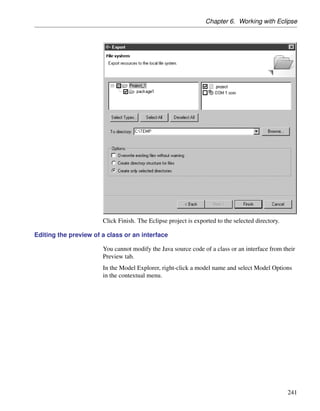
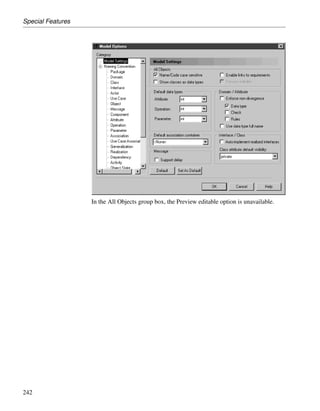
Working with the Eclipse Plugin


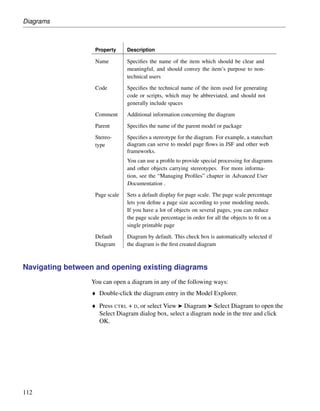
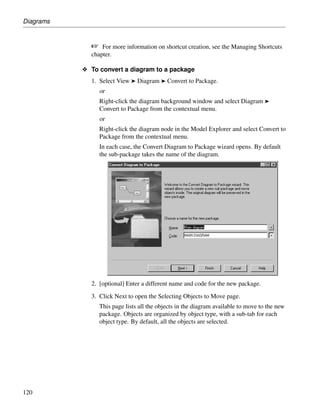
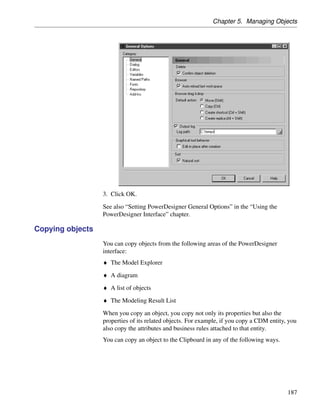
Sybase® PowerDesigner®

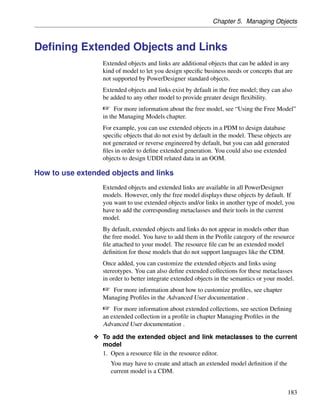
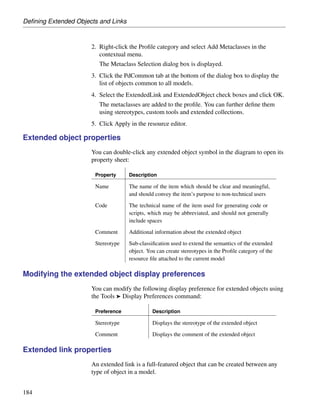
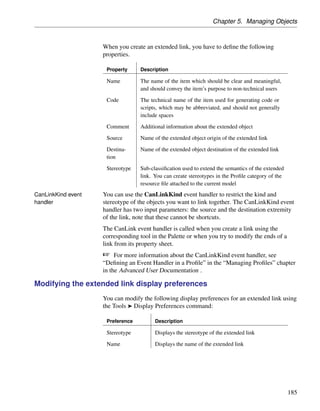
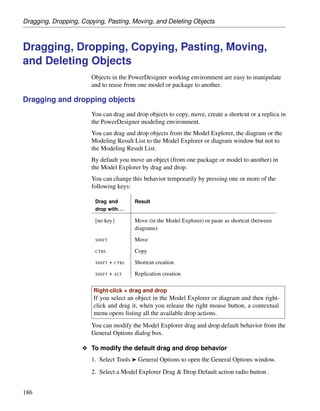
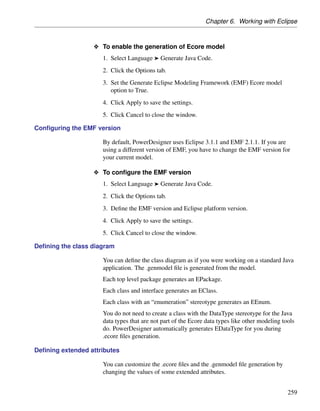
12.5
       Windows
Part number: DC00027-01-1250-01
Last modified: April 2007
Copyright © 1991-2007 Sybase, Inc. and its subsidiaries. All rights reserved.
Information in this manual may change without notice and does not represent a commitment on the part of Sybase, Inc. and its subsidiaries.

Sybase, Inc. provides the software described in this manual under a Sybase License Agreement. The software may be used only in accordance with
the terms of the agreement.
No part of this publication may be reproduced, transmitted, or translated in any form or by any means, electronic, mechanical, manual, optical, or
otherwise, without the prior written permission of Sybase, Inc. and its subsidiaries.
Use, duplication, or disclosure by the government is subject to the restrictions set forth in subparagraph (c)(1)(ii) of DFARS 52.227-7013 for the
DOD and as set forth in FAR 52.227-19(a)-(d) for civilian agencies.
Sybase, SYBASE (logo), ADA Workbench, Adaptable Windowing Environment, Adaptive Component Architecture, Adaptive Server, Adaptive
Server Anywhere, Adaptive Server Enterprise, Adaptive Server Enterprise Monitor, Adaptive Server Enterprise Replication, Adaptive Server
Everywhere, Advantage Database Server, Afaria, Answers Anywhere, AppModeler, APT Workbench, APT-Build, APT-Edit, APT-Execute,
APT-Translator, APT-Library, ASEP, Avaki, Avaki (Arrow Design), Avaki Data Grid, AvantGo, Backup Server, BayCam, Bit-Wise, BizTracker,
Certified PowerBuilder Developer, Certified SYBASE Professional, Certified SYBASE Professional Logo, ClearConnect, Client-Library, Client
Services, CodeBank, Column Design, ComponentPack, Connection Manager, Convoy/DM, Copernicus, CSP, Data Pipeline, Data Workbench,
DataArchitect, Database Analyzer, DataExpress, DataServer, DataWindow, DataWindow .NET, DB-Library, dbQueue, Dejima, Dejima Direct,
Developers Workbench, DirectConnect Anywhere, DirectConnect, Distribution Director, Dynamic Mobility Model, e-ADK, E-Anywhere, e-Biz
Integrator, E-Whatever, EC Gateway, ECMAP, ECRTP, eFulfillment Accelerator, EII Plus, Electronic Case Management, Embedded SQL, EMS,
Enterprise Application Studio, Enterprise Client/Server, Enterprise Connect, Enterprise Data Studio, Enterprise Manager, Enterprise Portal (logo),
Enterprise SQL Server Manager, Enterprise Work Architecture, Enterprise Work Designer, Enterprise Work Modeler, eProcurement Accelerator,
eremote, Everything Works Better When Everything Works Together, EWA, ExtendedAssist, Extended Systems, ExtendedView, Financial Fusion,
Financial Fusion (and design), Financial Fusion Server, Formula One, Fusion Powered e-Finance, Fusion Powered Financial Destinations, Fusion
Powered STP, Gateway Manager, GeoPoint, GlobalFIX, iAnywhere, iAnywhere Solutions, ImpactNow, Industry Warehouse Studio, InfoMaker,
Information Anywhere, Information Everywhere, InformationConnect, InphoMatch, InstaHelp, Intelligent Self-Care, InternetBuilder, iremote,
iScript, Jaguar CTS, jConnect for JDBC, KnowledgeBase, Logical Memory Manager, lrLite, M2M Anywhere, Mach Desktop, Mail Anywhere
Studio, Mainframe Connect, Maintenance Express, Manage Anywhere Studio, MAP, M-Business Anywhere, M-Business Channel, M-Business
Network, M-Business Suite, MDI Access Server, MDI Database Gateway, media.splash, Message Anywhere Server, MetaWorks, MethodSet,
mFolio, Mirror Activator, ML Query, MobiCATS, Mobil 365, Mobileway, MySupport, Net-Gateway, Net-Library, New Era of Networks, Next
Generation Learning, Next Generation Learning Studio, O DEVICE, OASiS, OASiS logo, ObjectConnect, ObjectCycle, OmniConnect, OmniQ,
OmniSQL Access Module, OmniSQL Toolkit, OneBridge, Open Biz, Open Business Interchange, Open Client, Open ClientConnect, Open
Client/Server, Open Client/Server Interfaces, Open Gateway, Open Server, Open ServerConnect, Open Solutions, Optima++, Partnerships that
Work, PB-Gen, PC APT Execute, PC DB-Net, PC Net Library, Pharma Anywhere, PhysicalArchitect, Pocket PowerBuilder, PocketBuilder,
Power++, Power Through Knowledge, power.stop, PowerAMC, PowerBuilder, PowerBuilder Foundation Class Library, PowerDesigner,
PowerDimensions, PowerDynamo, Powering the New Economy, PowerScript, PowerSite, PowerSocket, Powersoft, PowerStage, PowerStudio,
PowerTips, Powersoft Portfolio, Powersoft Professional, PowerWare Desktop, PowerWare Enterprise, ProcessAnalyst, Pylon, Pylon Anywhere,
Pylon Application Server, Pylon Conduit, Pylon PIM Server, Pylon Pro, QAnywhere, Rapport, Relational Beans, RepConnector, Report Workbench,
Report-Execute, Replication Agent, Replication Driver, Replication Server, Replication Server Manager, Replication Toolkit, Resource Manager,
RFID Anywhere, RW-DisplayLib, RW-Library, SAFE, SAFE/PRO, Sales Anywhere, Search Anywhere, SDF, Search Anywhere, Secure SQL
Server, Secure SQL Toolset, Security Guardian, ShareSpool, Sharelink SKILS, smart.partners, smart.parts, smart.script, SOA Anywhere
Trademark,SQL Advantage, SQL Anywhere, SQL Anywhere Studio, SQL Code Checker, SQL Debug, SQL Edit, SQL Edit/TPU, SQL
Everywhere, SQL Modeler, SQL Remote, SQL Server, SQL Server Manager, SQL SMART, SQL Toolset, SQL Server/CFT, SQL Server/DBM,
SQL Server SNMP SubAgent, SQL Station, SQLJ, Stage III Engineering, Startup.Com, STEP, SupportNow, S.W.I.F.T. Message Format Libraries,
Sybase 365, Sybase Central, Sybase Client/Server Interfaces, Sybase Development Framework, Sybase Financial Server, Sybase Gateways, Sybase
IQ, Sybase Learning Connection, Sybase MPP, SyberLearning LIVE, Sybase SQL Desktop, Sybase SQL Lifecycle, Sybase SQL Workgroup,
Sybase Synergy Program, Sybase Virtual Server Architecture, Sybase User Workbench, SybaseWare, Syber Financial, SyberAssist, SybFlex,
SybMD, SyBooks, System 10, System 11, System XI (logo), SystemTools, Tabular Data Stream, The Enterprise Client/Server Company, The
Extensible Software Platform, The Future Is Wide Open, The Learning Connection, The Model For Client/Server Solutions, The Online Information
Center, The Power of One, TotalFix, TradeForce, Transact-SQL, Translation Toolkit, Turning Imagination Into Reality, UltraLite, UltraLite.NET,
UNIBOM, Unilib, Uninull, Unisep, Unistring, URK Runtime Kit for UniCode, Unwired Accelerator, Unwired Orchestrator,Viafone, Viewer,
VisualWriter, VQL, WarehouseArchitect, Warehouse Control Center, Warehouse Studio, Warehouse WORKS, Watcom, Watcom SQL, Watcom
SQL Server, Web Deployment Kit, Web.PB, Web.SQL, WebSights, WebViewer, WorkGroup SQL Server, XA-Library, XA-Server, XcelleNet, XP
Server, XTNDConnect, and XTNDACCESS are trademarks of Sybase, Inc. or its subsidiaries.

All other trademarks are the property of their respective owners.


ii
Contents

About This Manual                                                                                  v

1 Getting Started with the PowerDesigner Eclipse Plugin                                            1
  The PowerDesigner Interface . . . . . . . . . . . . . . . . .                               .    2
  Working with the Model Explorer . . . . . . . . . . . . . . .                               .    8
  Creating a Model . . . . . . . . . . . . . . . . . . . . . . . .                            .   10
  Working with Objects . . . . . . . . . . . . . . . . . . . . . .                            .   13
  Working with Packages . . . . . . . . . . . . . . . . . . . .                               .   21
  Connecting to a Database . . . . . . . . . . . . . . . . . . .                              .   22
  Next Steps . . . . . . . . . . . . . . . . . . . . . . . . . . .                            .   33

2 Using the PowerDesigner Interface                                                               35
  Managing Objects in the Model Explorer          .   .   .   .   .   .   .   .   .   .   .   .   36
  Folders . . . . . . . . . . . . . . . . . .     .   .   .   .   .   .   .   .   .   .   .   .   39
  Property Sheets . . . . . . . . . . . . .       .   .   .   .   .   .   .   .   .   .   .   .   41
  Lists . . . . . . . . . . . . . . . . . . . .   .   .   .   .   .   .   .   .   .   .   .   .   54
  Setting PowerDesigner General Options           .   .   .   .   .   .   .   .   .   .   .   .   67

3 Managing PowerDesigner Licenses                                                                 79
  Understanding License Management in PowerDesigner . . .                                         80
  Requesting a License from Sybase Product Download Center                                        86
  Using the License Management Wizard . . . . . . . . . . . .                                     87

4 Managing Models                                                                                  95
  Working with Model Files . . . . . . . . . . . . . . .                      .   .   .   .   .    96
  Packages . . . . . . . . . . . . . . . . . . . . . . . .                    .   .   .   .   .   107
  Diagrams . . . . . . . . . . . . . . . . . . . . . . . .                    .   .   .   .   .   111
  Checking a Model . . . . . . . . . . . . . . . . . . .                      .   .   .   .   .   124
  Using the Free Model . . . . . . . . . . . . . . . . .                      .   .   .   .   .   129
  Naming Conventions . . . . . . . . . . . . . . . . . .                      .   .   .   .   .   130
  Spell Checking . . . . . . . . . . . . . . . . . . . . .                    .   .   .   .   .   147
  Applying Model Transformations . . . . . . . . . . .                        .   .   .   .   .   149
  Resource Files . . . . . . . . . . . . . . . . . . . . .                    .   .   .   .   .   153
  Interchanging Models using the XMI Format . . . . .                         .   .   .   .   .   156
  Upgrading from Previous Versions of PowerDesigner                           .   .   .   .   .   158


                                                                                                        iii
5 Managing Objects                                                      161
  Defining Objects . . . . . . . . . . . . . . . . . . . . . . . . .     162
  Business Rules . . . . . . . . . . . . . . . . . . . . . . . . . .    178
  Defining Extended Objects and Links . . . . . . . . . . . . .          183
  Dragging, Dropping, Copying, Pasting, Moving, and Deleting
       Objects . . . . . . . . . . . . . . . . . . . . . . . . . . .    186
  Creating a Graphical Synonym for an Object . . . . . . . . .          198
  Finding Objects . . . . . . . . . . . . . . . . . . . . . . . . . .   201
  Customizing the Generation of Files for an Object . . . . . .         207
  Using File Objects . . . . . . . . . . . . . . . . . . . . . . . .    215
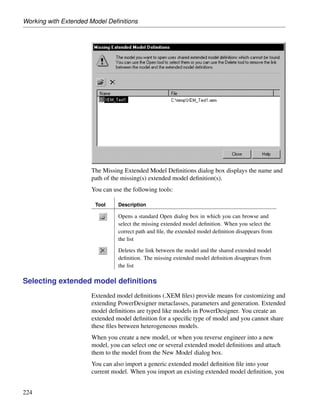
  Working with Extended Model Definitions . . . . . . . . . . .          219

6 Working with Eclipse                                               227
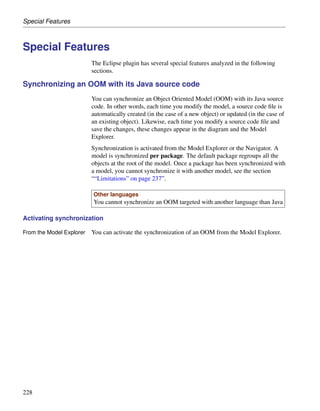
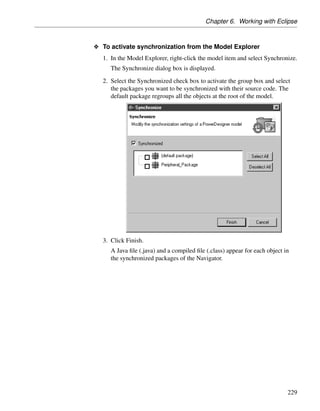
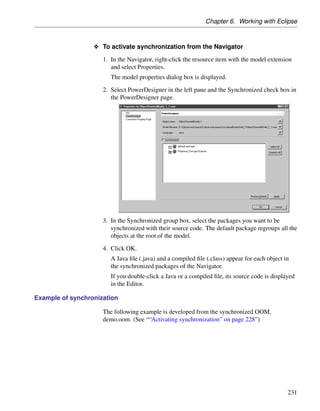
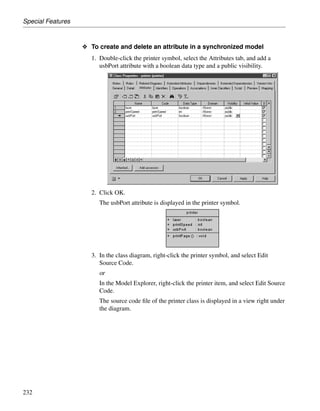
  Special Features . . . . . . . . . . . . . . . . . . . . . . . . . 228
  Generating an Eclipse Project . . . . . . . . . . . . . . . . . . 243
  Building and Deploying the Application Using Eclipse . . . . . 253

Index                                                                   271


iv
About This Manual

         Subject
         This book describes the PowerDesigner Eclipse Plugin environment. It
         shows you how to do the following:
         ♦ Get started with the PowerDesigner Eclipse Plugin
         ♦ Use the PowerDesigner interface on the Eclipse Platform
         ♦ Manage models in the Eclipse Platform
         ♦ Manage objects in the Eclipse Platform
         Audience
         This book is for anyone who wants to use PowerDesigner on the Eclipse
         Platform. It requires an understanding of the PowerDesigner modeling
         environment. Some experience with the different models of PowerDesigner
         might also be helpful but not required. For more information, see the
         Bibliography section at the end of this chapter.
         Documentation primer
         The PowerDesigner modeling environment supports several types of models:
         ♦ Conceptual Data Model (CDM) to model the overall logical structure of
           a data application, independent from any software or data storage
           structure considerations
         ♦ Physical Data Model (PDM) to model the overall physical structure of a
           database, taking into account DBMS software or data storage structure
           considerations
         ♦ Object Oriented Model (OOM) to model a software system using an
           object-oriented approach for Java or other object languages
         ♦ Business Process Model (BPM) to model the means by which one or
           more processes are accomplished in operating business practices
         ♦ XML Model (XSM) to model the structure of an XML file using a DTD
           or an XML schema
         ♦ Requirements Model (RQM) to list and document the customer needs
           that must be satisfied during a development process


                                                                                   v
♦ Information Liquidity Model (ILM) to model the replication of
       information from a source database to one or several remote databases
       using replication engines
     ♦ Free Model (FEM) to create any kind of chart diagram, in a context-free
       environment
     This book only explains how to use the PowerDesigner Eclipse Plugin. For
     information on the different models or aspects of PowerDesigner, consult the
     following books:
     General Features Guide     To get familiar with the PowerDesigner interface
     before learning how to use any of the models.
     Conceptual Data Model User’s Guide        To work with the CDM.
     Physical Data Model User’s Guide       To work with the PDM.
     Object Oriented Model User’s Guide       To work with the OOM.
     Business Process Model User’s Guide         To work with the BPM.
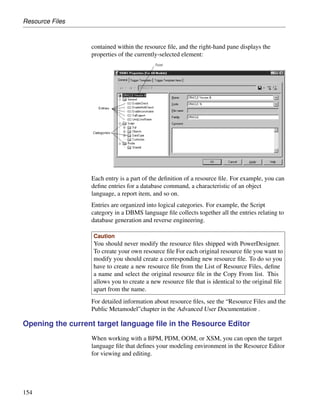
     XML Model User’s Guide       To work with the XSM.
     Requirements Model User’s Guide         To work with the RQM.
     Information Liquidity Model User’s Guide       To work with the ILM.
     Reports User’s Guide      To create reports for any or all models.
     Repository User’s Guide      To work in a multi-user environment using a
     central repository.
     Typographic conventions
     PowerDesigner documentation uses specific typefaces to help you readily
     identify specific items:
     ♦ monospace text (normal and bold)
         Used for: Code samples, commands, compiled functions and files,
         references to variables.
         Example: declare user_defined..., the BeforeInsertTrigger
         template.
     ♦ bold text
         Any new term.
         Example: A shortcut has a target object.
     ♦   SMALL CAPS

         Any key name.


vi
Example: Press the ENTER key.
Bibliography
Eclipse Website – http://www.eclipse.org
Eclipse online documentation – http://help.eclipse.org/help21/index.jsp


                                                                          vii
viii
CHAPTER 1


Getting Started with the PowerDesigner
Eclipse Plugin

About this chapter   This chapter explains the major PowerDesigner concepts, and introduces
                     you to the tools you will use to build your models.
Contents              Topic:                                                       page

                      The PowerDesigner Interface                                      2

                      Working with the Model Explorer                                  8
                      Creating a Model                                               10

                      Working with Objects                                           13

                      Working with Packages                                          21

                      Connecting to a Database                                       22

                      Next Steps                                                     33


                                                                                              1
The PowerDesigner Interface


The PowerDesigner Interface
                      This section describes the main components of the PowerDesigner interface.
                      When you launch the Eclipse Platform for the first time, it opens the
                      workbench window which initially displays the Resource perspective. A
                      perspective defines the initial set and layout of views in the workbench
                      window.
                      The Resource perspective contains different views:
                      ♦ The Navigator view displays a tree view of the projects and their
                        resources
                      ♦ The Editor area displays the content of the projects and resources

                      ♦ The Outline view displays a content outline of the file being edited.
                        (Except for a plain text file)
                      ♦ The Tasks view lists and marks all the tasks and problems to be solved
                      Click the title bar of a view to make it active. (The title bar turns blue). The
                      name of the active perspective is shown in the title bar of the window and its
                      icon is pushed-in in the shortcut bar.
                      We recommend you use the PowerDesigner perspective.

Activating the PowerDesigner perspective
                      To work with your PowerDesigner tool, you should activate the
                      PowerDesigner perspective.


2
Chapter 1. Getting Started with the PowerDesigner Eclipse Plugin


                      O To activate the PowerDesigner perspective
                        1. Click the Open a Perspective icon in the shortcut bar and select Other.
                           or
                           Select Window ® Open Perspective ® Other.
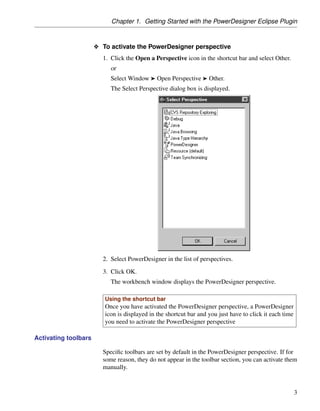
                           The Select Perspective dialog box is displayed.


                        2. Select PowerDesigner in the list of perspectives.

                        3. Click OK.
                           The workbench window displays the PowerDesigner perspective.

                         Using the shortcut bar
                         Once you have activated the PowerDesigner perspective, a PowerDesigner
                         icon is displayed in the shortcut bar and you just have to click it each time
                         you need to activate the PowerDesigner perspective

Activating toolbars

                        Specific toolbars are set by default in the PowerDesigner perspective. If for
                        some reason, they do not appear in the toolbar section, you can activate them
                        manually.


                                                                                                         3
The PowerDesigner Interface


                   O To activate the PowerDesigner toolbars and shortcuts
                      1. Select Window ® Customize Perspective.
                         or
                         Right-click the toolbar section and select Customize Perspective in the
                         contextual menu.
                         The Customize Perspective dialog box is displayed.
                      2. In the Shortcuts tab, select New in the Submenus list, and PowerDesigner
                         in the Shortcut Categories tree view. The Model icon is automatically
                         selected in the Shortcuts list.
                      3. In the Shortcuts tab, select Open Perspective in the Submenus list, and
                         PowerDesigner in the Shortcuts list.
                      4. In the Shortcuts tab, select Show View in the Submenus list, and Sybase
                         in the Shortcut Categories tree view. The Model Explorer, Modeling
                         Output and Modeling Result List icons are automatically selected in the
                         Shortcuts list.

                      5. In the Commands tab, select WorkSpace Modeling Diagram, WorkSpace
                         Modeling Standard and WorkSpace Modeling View.
                      6. Click OK.
                         The PowerDesigner toolbars appear next to the Eclipse toolbars. These
                         toolbars are common to all PowerDesigner modules. The modules
                         specific diagram toolbars and toolbars will appear automatically when
                         you open or create a specific model.

Using the Window menu

                      The Window menu supports all the features concerning perspectives:


4
Chapter 1. Getting Started with the PowerDesigner Eclipse Plugin


                        Feature                  Description

                        Open Perspective         Opens a perspective

                        Show View                Displays a view among the following: Bookmarks,
                                                 Model Explorer, Navigator, Outline, Output,
                                                 Properties, Modeling Result List, Tasks, Other

                        Customize Perspective    Opens a dialog box where you select items to be
                                                 displayed in the current perspective

                        Save Perspective As      Saves the current perspective with a predefined or
                                                 user-defined name, for future use

                        Reset Perspective        Resets the current perspective to its default param-
                                                 eters

                        Close Perspective        Closes the current perspective

                        Close All Perspectives   Closes all perspectives open in the workbench
                                                 window

Main window components
                       The main PowerDesigner window contains the following components.
Model Explorer         The Model Explorer pane allows you to manage the objects you use to
                       perform a modeling task. It displays your models and the objects belonging
                       to them in a tree view, and allows you to rapidly navigate between them.
                       The Model Explorer also has a tab that gives you access to a PowerDesigner
                       repository, where you can store all your models and associated files.
Navigator              The Navigator view displays a tree view of all the resource files attached to
                       Eclipse projects open in the workbench window. These resource files can be
                       model files, diagram files, source code files, specification files, or any type of
                       file. You can use the Navigator to open models, create new projects and
                       models, or even open object property sheets.
Editor area            The editor area is the primary pane that displays your present model
                       diagram or report outline.
Modeling Output        The Modeling Output shows the progress of any PowerDesigner process,
                       such as checking a model or generating or reverse engineering a database.
Modeling Result List   The Modeling Result List displays the results of a search or a model check.

Property sheets
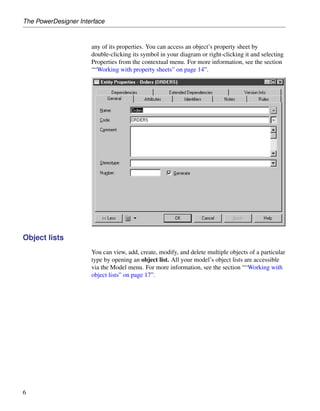
                       Each model object has a property sheet, which permits you to view and edit


                                                                                                        5
The PowerDesigner Interface


                      any of its properties. You can access an object’s property sheet by
                      double-clicking its symbol in your diagram or right-clicking it and selecting
                      Properties from the contextual menu. For more information, see the section
                      ““Working with property sheets” on page 14”.


Object lists
                      You can view, add, create, modify, and delete multiple objects of a particular
                      type by opening an object list. All your model’s object lists are accessible
                      via the Model menu. For more information, see the section ““Working with
                      object lists” on page 17”.


6
Chapter 1. Getting Started with the PowerDesigner Eclipse Plugin


                                                              7
Working with the Model Explorer


Working with the Model Explorer
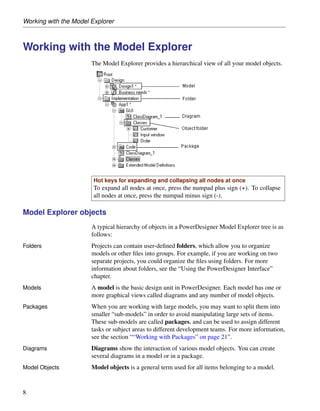
                       The Model Explorer provides a hierarchical view of all your model objects.


                        Hot keys for expanding and collapsing all nodes at once
                        To expand all nodes at once, press the numpad plus sign (+). To collapse
                        all nodes at once, press the numpad minus sign (-).

Model Explorer objects
                       A typical hierarchy of objects in a PowerDesigner Model Explorer tree is as
                       follows:
Folders                Projects can contain user-defined folders, which allow you to organize
                       models or other files into groups. For example, if you are working on two
                       separate projects, you could organize the files using folders. For more
                       information about folders, see the “Using the PowerDesigner Interface”
                       chapter.
Models                 A model is the basic design unit in PowerDesigner. Each model has one or
                       more graphical views called diagrams and any number of model objects.
Packages               When you are working with large models, you may want to split them into
                       smaller “sub-models” in order to avoid manipulating large sets of items.
                       These sub-models are called packages, and can be used to assign different
                       tasks or subject areas to different development teams. For more information,
                       see the section ““Working with Packages” on page 21”.
Diagrams               Diagrams show the interaction of various model objects. You can create
                       several diagrams in a model or in a package.
Model Objects          Model objects is a general term used for all items belonging to a model.


8
Chapter 1. Getting Started with the PowerDesigner Eclipse Plugin


                        Some model objects, such as a class in an Object-Oriented Model, have
                        graphical symbols while others, such as business rules, do not appear in
                        diagrams and can only be accessed from the Model Explorer or from an
                        object list. For more information, see the section ““Working with Objects”
                        on page 13”.
Reports                 You can document your PowerDesigner models by creating
                        automatically-generated single or multi-model reports in the Report Editor.

Model Explorer actions
Dragging and Dropping   You can drag and drop or copy objects in the Model Explorer, or from the
                        Model Explorer to the diagram window.
Searching               You can find the Model Explorer entry for any object you see in a diagram
                        by right-clicking the symbol and selecting Edit ® Find in the Model
                        Explorer from the contextual menu. This feature is also available from the
                        object’s property sheet (from the dropdown menu in the bottom left corner)
                        or from the contextual menu in a Result list.
                        Similarly, you can find the symbol (if one exists) for any object in the Model
                        Explorer by right-clicking the Model Explorer entry and selecting Find in
                        Diagram (or Find in Document View for an RQM).


                                                                                                      9
Creating a Model


Creating a Model
                     A model is the basic work unit in PowerDesigner. Every model is contained
                     within a project, and contains at least one diagram and any number of other
                     objects. Though a model may be split into packages for organizational
                     reasons or may contain several diagrams, it remains the fundamental basis
                     for your modeling work.
Creating a model

                   O To create a model
                     1. Select File ® New ® Model.
                        The New model dialog box is displayed.
                        If there is no project open in the Navigator view, the Create a new
                        project option is selected by default and the Add to an existing project
                        option is disabled. An Eclipse project will then be created for the new
                        model.
                        or
                        If there are projects already open in the Navigator view, you can select
                        the Add to an existing project option.
                        Select a project. (The new model will appear in the Navigator view
                        within the existing project)

                     2. If you selected an existing project, click Next.
                        Expand (+) the project, and if it contains folders, select the sub-folder
                        where folder in which the new model will appear.
                        You can also create a folder or a sub-folder, to do so select the project or
                        a folder, click the New Folder button, and type a name in the New Folder
                        dialog box and click OK. (The new model will appear in the Navigator
                        view within the new folder)

                     3. Click Finish in the Eclipse New model dialog box.
                        The New dialog box is displayed.

                     4. Select the appropriate model for your needs by clicking on it. Note that
                        the tabs on the right of the dialog box change depending on the model
                        currently selected.
                     5. Type a name in the Model name box. This is the name of the model. The
                        code of the model, which may be used for script or code generation, is
                        derived from this name according to the model naming conventions. You
                        can modify the name and/or code at any time from the model property


10
Chapter 1. Getting Started with the PowerDesigner Eclipse Plugin


   sheet by right-clicking the model entry in the Model Explorer and
   selecting Properties from the contextual menu.

6. Choose any appropriate options in the right hand tabs (for example, if
   you are creating a PDM, you will specify a particular DBMS to model or,
   for an OOM, you will specify an object language).
7. If you are creating a BPM, OOM, or PDM, you can also specify the type
   of diagram you want to start with (you can add additional diagrams to
   your model later by right-clicking on the model in the Model Explorer
   and selecting New ® Diagram_Type ).
8. Click OK. The new model will be created in your project in the Model
   Explorer, and its default diagram will be opened in the editor area.
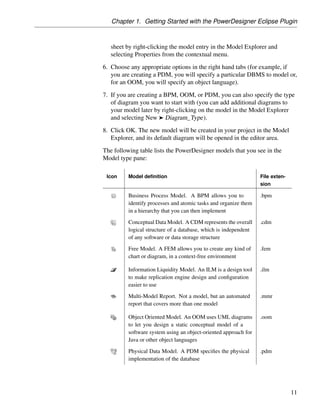
The following table lists the PowerDesigner models that you see in the
Model type pane:

 Icon     Model definition                                         File exten-
                                                                  sion

          Business Process Model. A BPM allows you to             .bpm
          identify processes and atomic tasks and organize them
          in a hierarchy that you can then implement

          Conceptual Data Model. A CDM represents the overall     .cdm
          logical structure of a database, which is independent
          of any software or data storage structure

          Free Model. A FEM allows you to create any kind of      .fem
          chart or diagram, in a context-free environment

          Information Liquidity Model. An ILM is a design tool    .ilm
          to make replication engine design and configuration
          easier to use

          Multi-Model Report. Not a model, but an automated       .mmr
          report that covers more than one model

          Object Oriented Model. An OOM uses UML diagrams         .oom
          to let you design a static conceptual model of a
          software system using an object-oriented approach for
          Java or other object languages

          Physical Data Model. A PDM specifies the physical        .pdm
          implementation of the database


                                                                                11
Creating a Model


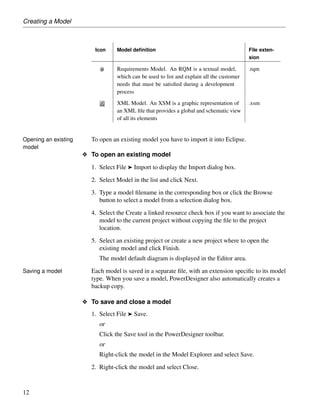
                         Icon     Model definition                                          File exten-
                                                                                           sion

                                  Requirements Model. An RQM is a textual model,           .rqm
                                  which can be used to list and explain all the customer
                                  needs that must be satisfied during a development
                                  process

                                  XML Model. An XSM is a graphic representation of         .xsm
                                  an XML file that provides a global and schematic view
                                  of all its elements


Opening an existing     To open an existing model you have to import it into Eclipse.
model
                      O To open an existing model
                        1. Select File ® Import to display the Import dialog box.
                        2. Select Model in the list and click Next.

                        3. Type a model filename in the corresponding box or click the Browse
                           button to select a model from a selection dialog box.
                        4. Select the Create a linked resource check box if you want to associate the
                           model to the current project without copying the file to the project
                           location.

                        5. Select an existing project or create a new project where to open the
                           existing model and click Finish.
                           The model default diagram is displayed in the Editor area.

Saving a model          Each model is saved in a separate file, with an extension specific to its model
                        type. When you save a model, PowerDesigner also automatically creates a
                        backup copy.

                      O To save and close a model
                        1. Select File ® Save.
                           or
                           Click the Save tool in the PowerDesigner toolbar.
                           or
                           Right-click the model in the Model Explorer and select Save.
                        2. Right-click the model and select Close.


12
Chapter 1. Getting Started with the PowerDesigner Eclipse Plugin


Working with Objects
                            Model objects are the building blocks of your models. They are listed as
                            items in the Model Explorer and often also appear as symbols in your
                            diagrams.
                            There are two main types of objects:
                            ♦ Ordinary Objects – such things as tables and entities, which are
                              self-sufficient, and can be created in isolation from other objects
                            ♦ Link Objects – such things as associations or dependencies, which link
                              two ordinary objects, and cannot be created in isolation

Creating objects
                            You can create objects:
                            ♦ Directly in your diagram, using the diagram toolbar tool (if the object can
                              be represented in a diagram by a symbol)
                            ♦ From the Model Explorer

                            ♦ From an object list
Creating an object from     Ordinary objects, such as classes (in an OOM), or tables (in a PDM) can be
the diagram toolbar         created independently in any free space in the diagram:

                          O To create an ordinary object from the diagram toolbar
                            1. Click an object creation tool in the diagram toolbar and note how the
                               pointer takes on the form of the selected object.
                            2. Click in a space in the diagram to create an object symbol there, and note
                               that an entry for the object is displayed in the Model Explorer.

                            3. Click elsewhere in the diagram to create another object symbol, or
                               right-click anywhere to release the object creation tool and return to the
                               pointer tool.

                            Link objects, such as messages (in an OOM), or references (in a PDM) are
                            drawn between two ordinary objects in the diagram:


                                                                                                        13
Working with Objects


                          O To create a link object from the diagram toolbar
                             1. Click a link object creation tool in the diagram toolbar and note how the
                                pointer takes on the form of the selected link object.

                             2. Click and hold inside an ordinary object, and then drag the pointer to
                                inside a second object. The link object is created when you release the
                                mouse button. Note that an entry for the link is displayed in the Model
                                Explorer.
                             3. Do the same again to link two other objects or right-click anywhere to
                                release the object creation tool and return to the pointer tool.

                          O To change the default name of a newly-created object
                             1. Click the object to select it.
                             2. Click it again (or press F2) to enter edit in place mode. Press E NTER after
                                you have completed typing the new name.
Creating an object from
the Model Explorer
                          O To create an object in the Model Explorer
                             1. Right-click the model, package or object category where you want to
                                create the object, and select New ® object_type to open a new default
                                object property sheet (see the section ““Working with property sheets” on
                                page 14”).
                             2. Type an object name and code in the General tab of the property sheet,
                                and then add any other relevant properties in the remaining fields of this
                                or the other tabs.

                             3. Click OK to confirm the creation of the object.
                             The object is created in the appropriate object category in the Model
                             Explorer, under the current model or package, and its symbol is added to the
                             current diagram.
Creating an object from      You can also create objects from the lists of your model objects available by
an object list               clicking Model ® object_type. For more information, see the section
                             ““Working with object lists” on page 17”.

Working with property sheets
                             All model objects created in PowerDesigner have property sheets.


14
Chapter 1. Getting Started with the PowerDesigner Eclipse Plugin


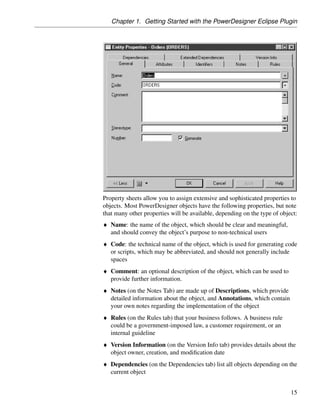
Property sheets allow you to assign extensive and sophisticated properties to
objects. Most PowerDesigner objects have the following properties, but note
that many other properties will be available, depending on the type of object:
♦ Name: the name of the object, which should be clear and meaningful,
  and should convey the object’s purpose to non-technical users
♦ Code: the technical name of the object, which is used for generating code
  or scripts, which may be abbreviated, and should not generally include
  spaces
♦ Comment: an optional description of the object, which can be used to
  provide further information.
♦ Notes (on the Notes Tab) are made up of Descriptions, which provide
  detailed information about the object, and Annotations, which contain
  your own notes regarding the implementation of the object
♦ Rules (on the Rules tab) that your business follows. A business rule
  could be a government-imposed law, a customer requirement, or an
  internal guideline
♦ Version Information (on the Version Info tab) provides details about the
  object owner, creation, and modification date
♦ Dependencies (on the Dependencies tab) list all objects depending on the
  current object


                                                                           15
Working with Objects


                         ♦ Extended Dependencies (on the Extended Dependencies tab) list all
                           objects which collaborate with the current object
Opening a property
sheet
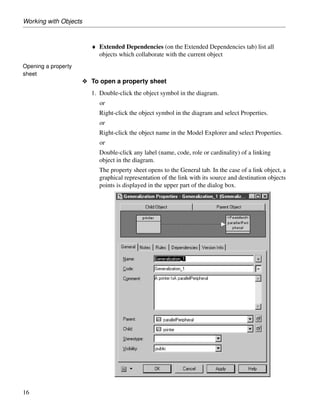
                       O To open a property sheet
                         1. Double-click the object symbol in the diagram.
                            or
                            Right-click the object symbol in the diagram and select Properties.
                            or
                            Right-click the object name in the Model Explorer and select Properties.
                            or
                            Double-click any label (name, code, role or cardinality) of a linking
                            object in the diagram.
                            The property sheet opens to the General tab. In the case of a link object, a
                            graphical representation of the link with its source and destination objects
                            points is displayed in the upper part of the dialog box.


16
Chapter 1. Getting Started with the PowerDesigner Eclipse Plugin


Specifying object        Property sheets behave like standard dialog boxes, and allow you to perform
properties               all the usual actions, such as typing and editing text in boxes, selecting check
                         boxes, and selecting values in lists.
                         Once you have defined or modified any properties, you can click Apply to
                         commit any changes and continue, or OK to commit any changes and close
                         the property sheet. Click Cancel if you want to discard any changes made.
Customizing a property   Since PowerDesigner property sheets can contain such a large, diverse
sheet                    amount of information, you may want to customize their display via the
                         Customize Property Sheet dropdown menu in the bottom-left corner. This
                         menu gives you the following options:

                          Command                     Description

                          Display Standard Pages      Displays a minimum number of tabs or the
                                                      tabs that you have defined as standard in the
                                                      Customize Standard Pages dialog box

                          Display All Pages           Displays all available tabs

                          Customize                   Allows you to define standard tabs
                         Any changes in the display options of property pages are immediately
                         applied to the current property sheet and become the default settings for any
                         property sheet of the same type that you subsequently open.

Working with object lists
                         Every object created in your model will appear in the object list of that type
                         that is available by selecting Model ® object_type, or by right-clicking your
                         model in the Model Explorer and selecting List of ® object_type from the
                         contextual menu.
                         An object list shows all objects of a certain type in the current package or
                         model, including those that do not have symbols in the current diagram. An
                         object list allows you to view, compare, and edit the properties of multiple
                         objects. You can add, create, modify, and delete objects directly in the list.
                         You can also filter the objects in the list and control which property columns
                         are displayed.
Opening an object list


                                                                                                      17
Working with Objects


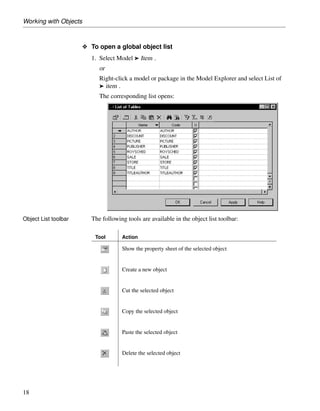
                       O To open a global object list
                          1. Select Model ® Item .
                             or
                             Right-click a model or package in the Model Explorer and select List of
                             ® item .
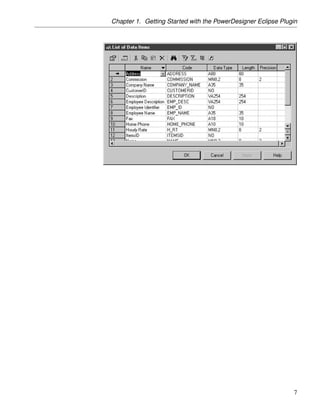
                             The corresponding list opens:


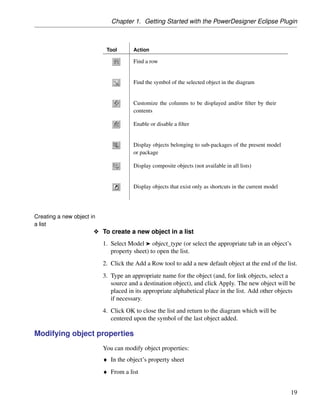
Object List toolbar       The following tools are available in the object list toolbar:

                           Tool       Action

                                      Show the property sheet of the selected object


                                      Create a new object


                                      Cut the selected object


                                      Copy the selected object


                                      Paste the selected object


                                      Delete the selected object


18
Chapter 1. Getting Started with the PowerDesigner Eclipse Plugin


                            Tool       Action

                                       Find a row


                                       Find the symbol of the selected object in the diagram


                                       Customize the columns to be displayed and/or filter by their
                                       contents

                                       Enable or disable a filter


                                       Display objects belonging to sub-packages of the present model
                                       or package

                                       Display composite objects (not available in all lists)


                                       Display objects that exist only as shortcuts in the current model


Creating a new object in
a list
                       O To create a new object in a list
                           1. Select Model ® object_type (or select the appropriate tab in an object’s
                              property sheet) to open the list.
                           2. Click the Add a Row tool to add a new default object at the end of the list.
                           3. Type an appropriate name for the object (and, for link objects, select a
                              source and a destination object), and click Apply. The new object will be
                              placed in its appropriate alphabetical place in the list. Add other objects
                              if necessary.
                           4. Click OK to close the list and return to the diagram which will be
                              centered upon the symbol of the last object added.

Modifying object properties
                           You can modify object properties:
                           ♦ In the object’s property sheet
                           ♦ From a list


                                                                                                           19
Working with Objects


Modifying properties in a
property sheet
                       O To modify an object’s properties in its property sheet
                            1. Right-click the object in the Model Explorer and select Properties.
                               or
                               Right-click the object symbol in the diagram and select Properties.
                               or
                               Double-click the object symbol in the diagram.

                            2. Modify the necessary properties in the different tabs.
                            3. Click OK to save your changes and close the property sheet.

                                Opening property sheets at the last accessed tab
                                Property sheets open to the General tab by default. However, you can
                                choose to open property sheets at the last accessed tab by selecting Tools
                                ® General Options ® Dialog, and selecting the Keep Last Tab option in
                                the Property Sheets groupbox.

Modifying properties in a
list
                       O To modify object properties in a list
                            1. Select Model ® object_type (or select the appropriate tab in an object’s
                               property sheet) to open the list.

                            2. Select the object that you want to modify and edit any of its properties
                               directly in the list.
                            3. Click OK to save your changes and close the list.


20
Chapter 1. Getting Started with the PowerDesigner Eclipse Plugin


Working with Packages
                     A package is a piece of a model. When working with large models, you can
                     split them into smaller subdivisions in order to avoid manipulating the entire
                     model at once. Packages can be useful to assign portions of a model,
                     representing different tasks and subject areas, to different development
                     teams.
                     Packages work like models, they can contain other packages, objects and
                     diagrams. You can create as many packages as you need in a model, and you
                     can also assign as many diagrams as you need to provide a specific view of
                     each package.
Creating a package   You can only create a package inside a model.
                     ♦ From a diagram: select the diagram toolbar’s Package tool and click in
                       the diagram
                     ♦ From the Model Explorer: right-click a model and select New ® Package
                     ♦ From the list of packages: select Model ® Packages to display the List of
                       Packages and click the Add a row tool to insert a new package in the list
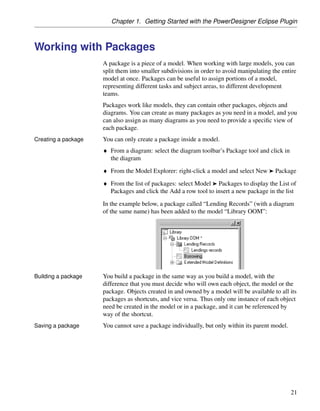
                     In the example below, a package called “Lending Records” (with a diagram
                     of the same name) has been added to the model “Library OOM”:


Building a package   You build a package in the same way as you build a model, with the
                     difference that you must decide who will own each object, the model or the
                     package. Objects created in and owned by a model will be available to all its
                     packages as shortcuts, and vice versa. Thus only one instance of each object
                     need be created in the model or in a package, and it can be referenced by
                     way of the shortcut.
Saving a package     You cannot save a package individually, but only within its parent model.


                                                                                                 21
Connecting to a Database


Connecting to a Database
                      PowerDesigner allows you to define data connections to access information
                      in different database management systems (DBMSs) using Structured Query
                      Language (SQL).
                      A data connection processes function calls and SQL requests coming from
                      PowerDesigner and sends them to a data source, and returns results to
                      PowerDesigner.
                      The PowerDesigner physical data model (PDM) and information liquidity
                      model (ILM) allow you to define data connections for target databases in
                      order to generate your models and reverse engineer your data sources. The
                      PowerDesigner repository requires a database to store your models and other
                      design documents.
See the Physical Data Model and Information Liquidity Model users
                      guides, and Working with the Repository .
                      PowerDesigner supports various forms of connection, and your choice will
                      depend on the interface that you have already installed:

                       You have. . .                    Configure a connection of type. . .

                       ODBC driver                      ODBC machine or file data source
                       DBMS client                      Native connection profile

                       JDBC driver                      JDBC connection profile

                       ADO.NET driver and DBMS          ADO.NET connection profile
                       client

                       OLE DB driver and DBMS client    OLE DB connection profile

                       DirectConnect driver             DirectConnect connection profile
For information about connecting with an ODBC driver, see
                      “Configuring ODBC machine and file data sources” on page 22.
For information about connecting with a DBMS client, or JDBC,
                      ADO.NET, OLE DB, or DirectConnect driver, see “Configuring connection
                      profiles” on page 24.

Configuring ODBC machine and file data sources
                      There are three types of Open Database Connectivity (ODBC) data sources:


22
Chapter 1. Getting Started with the PowerDesigner Eclipse Plugin


   Data source    Description

   Machine        Data source is created on the client machine, and is available
                  to the user currently logged onto the system. Machine data
                  sources are stored in the part of the registry containing
                  settings for the current user.

   System         Data source is created on the client machine, and is available
                  to all users regardless of whether a user is logged onto the
                  system or not. System data sources are stored in the part of
                  the registry containing settings for the current machine.

   File           Data source is stored as a file. A file data source has the
                  extension .dsn. It can be used by different users if it is placed
                  in the default location for file data sources. File data sources
                  are usually managed by database administrators.
  You define data sources using the Windows ODBC Administrator, which
  you can access directly from PowerDesigner:

O To define an ODBC data source
  1. Select Database ® Configure Connections to open the Configure Data
     Connections window, and click the ODBC Machine Data Source or
     ODBC File Data Sources tab.


  2. Click the Add Data Source tool (see “Data connection tools” on page 30)


                                                                                      23
Connecting to a Database


                           to open the Create New Data Source window, and select a File, User, or
                           Machine data source as appropriate and click Next.

                      3. Select the appropriate driver for your DBMS and click Next and then
                         Finish to access a driver-specific configuration dialog:


                      4. Enter the appropriate parameters and then click OK to return to the
                         Configure Data Connections window.
                      5. Click OK to return to your model.

Configuring connection profiles
                      Before you can connect to a database through a DBMS client, or JDBC,
                      ADO.NET, OLE DB, or DirectConnect driver, you must create an
                      appropriate connection profile.


24
Chapter 1. Getting Started with the PowerDesigner Eclipse Plugin


O To create a connection profile
  1. Select Database ® Configure Connections to open the Configure Data
     Connections Window, and click the Connection Profiles tab:


  2. Click the Add Data Source tool (see “Data connection tools” on page 30)
     to open a Connection Profile Definition window:


                                                                          25
Connecting to a Database


                      3. Enter the properties (see “Connection profile properties” on page 26)
                         appropriate to your method of connection.
                      4. Click the Test Connection button to open the Test Connection window,
                         and click OK to test your connection.


                      5. Click OK to close the profile definition, and return to the Configure Data
                         Connections window
                      6. Click Ok to return to your model

Connection profile properties

                      The following properties are available in the Connection Profile Definition
                      window:


26
Chapter 1. Getting Started with the PowerDesigner Eclipse Plugin


Property            Description

Connection pro-     Specifies the name of the connection profile.
file name

Directory           Specifies the directory in which the .dcp connection
                    file will be created. By default .dcp files are stored in
                    the Connection Profiles directory directly beneath the
                    PowerDesigner installation directory.

Description         Optional additional description of the connection profile.
Connection type     Specifies the type of connection profile. You can choose
                    between:
                    ♦ Native
                    ♦ ADO.NET
                    ♦ OLE DB
                    ♦ JDBC
                    ♦ DirectConnect
                    The choice of connection type will affect the remaining
                    fields to be completed.

DBMS type           Specifies the DBMS to which the connection profile will
                    connect. The list includes only those DBMSs supported
                    for the specified connection type.

Server name         [Native and DirectConnect only] Specifies the name of
                    the database server to connect to.

Database name       [Native and DirectConnect only] Specifies the name of
                    the database to connect to.

User name           Specifies the username to use when connecting.

Password            Specifies the password to use when connecting.

ADO.NET             [ADO.NET only] Specifies the namespace to use for the
namespace           connection.

OLE DB data         [OLE DB only] Specifies the data provider to use for the
provider            connection.
Data source         [ADO.NET and OLE DB only] Specifies the data source
                    to use for the connection.
Provider-specific    [ADO.NET and OLE DB only] Specifies a connection
connection string   string to use for the connection.


                                                                                27
Connecting to a Database


                       Property           Description

                       Use integrated     [ADO.NET] Specifies to use your windows login for
                       login              connecting to the database.

                       ADO release        [ADO.NET] Specifies the release to use for the connec-
                                          tion.

                       JDBC driver        [JDBC only] Specifies the driver class to use for the
                       class              connection.

                       JDBC connection    [JDBC only] Specifies the connection URL to use for the
                       URL                connection.

                       JDBC driver jar    [JDBC only] Specifies the driver jar file to use for the
                       files               connection.

                       Connection pa-     Specifies advanced connection parameters. Click the
                       rameters           parenthesis tool to the right of this field to access the
                                          Connection Parameters window (see “Connection Pa-
                                          rameters window” on page 28).


Connection Parameters window
                      You access this window by clicking the parenthesis tool to the right of the
                      Connection parameters field in the Connection Profile Definition window.

                   O To add a connection parameter
                      1. Click the Add a Row tool to create a new parameter.

                      2. Enter a name and value pair in the two columns.
                      3. Click OK to return to the Connection Profile Definition window. All the
                         parameters are listed in the read-only Connection parameters field.

Native connection profile example

                      In the example below, I have installed the Oracle DBMS client, and so create
                      a Native connection to my database, “Green”, on my server “Rainbow”.


28
Chapter 1. Getting Started with the PowerDesigner Eclipse Plugin


JDBC connection profile example

                    In the example below, I have installed the Sybase ASE JDBC driver. I
                    specify the appropriate driver class in the jar file, and assemble the
                    connection URL to create a JDBC connection to my database, “Green”, on
                    my server “Rainbow”.


                                                                                         29
Connecting to a Database


Data connection tools
                      The following tools are available in the Configure Data Connections
                      window:

                       Tool    Description

                               Properties – Opens the ODBC Setup or Connection Profile Definition
                               dialog for the selected profile.

                               Add Data Source – Creates a new connection.


                               Browse Data Source File [ODBC file data sources and connection
                               profiles] – Opens a file browser to select a .dcp profile file.

                               Delete – Deletes the selected connection.


                               Test Connection – Tests the selected connection.


30
Chapter 1. Getting Started with the PowerDesigner Eclipse Plugin


                   Tool    Description

                           ODBC Administrator [ODBC machine and file data sources] –
                           Opens the ODBC Data Sources Administrator window.

                           Change Connection Profiles Directory [Connection profiles] – Opens
                           a file browser in which to search for profiles. The default directory is
                           install_dir/Connection Profiles.

                           Refresh – Refreshes the list of connections.


                           Select All – Selects all the connections in the list. Connections that
                           are selected will be displayed in lists in the PowerDesigner interface.

                           Unselect All - Unselects all the connections in the list. Connections
                           that are not selected will not be displayed in lists in the PowerDe-
                           signer interface.


Connecting to a data source
                  When you connect to your database, PowerDesigner can communicate with
                  it for reverse-engineering, generation or any other form of request.

               O To connect to a data source
                  1. Select Database ® Connect to open the Connect to a Data Source
                     window:


                                                                                                     31
Connecting to a Database


                      2. Select one of the following radio buttons, depending on your chosen
                         method for connecting to your data source:
                        ♦ ODBC machine data source (see “Configuring ODBC machine and file
                           data sources” on page 22)
                           ♦ ODBC file data source (see “Configuring ODBC machine and file data
                             sources” on page 22) - use the tool to the right of the data source field
                             to browse to a new file
                           ♦ Connection profile (see “Configuring connection profiles” on page 24)
                             - use the tools to the right of the data source field to browse to a new
                             directory or file
                           You can use the Modify and Configure buttons to modify or configure
                           your connection.

                      3. Enter your user ID and password, and then click Connect. If prompted by
                         your data source, you may need to enter additional connection
                         parameters.

                       Connection time
                       You stay connected until you disconnect or terminate the shell session.

Running SQL queries against your database
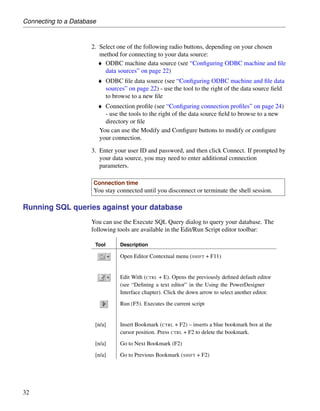
                      You can use the Execute SQL Query dialog to query your database. The
                      following tools are available in the Edit/Run Script editor toolbar:

                       Tool        Description

                                   Open Editor Contextual menu (SHIFT + F11)


                                   Edit With (CTRL + E). Opens the previously defined default editor
                                   (see “Defining a text editor” in the Using the PowerDesigner
                                   Interface chapter). Click the down arrow to select another editor.

                                   Run (F5). Executes the current script


                       [n/a]       Insert Bookmark (CTRL + F2) – inserts a blue bookmark box at the
                                   cursor position. Press CTRL + F2 to delete the bookmark.

                       [n/a]       Go to Next Bookmark (F2)

                       [n/a]       Go to Previous Bookmark (SHIFT + F2)


32
Chapter 1. Getting Started with the PowerDesigner Eclipse Plugin


Next Steps
                 Now that you are familiar with the PowerDesigner Interface, you will want
                 to start experimenting with a particular type of model suitable to your needs:

Requirements Model (RQM)
                 Now turn to the Requirements Model User’s Guide where you will learn
                 how to:
                 ♦ Add, modify, promote and demote requirements in the requirements
                   hierarchy

                 ♦ Allocate requirements to particular team members and add traceability
                   links to other model components
                 ♦ Import requirements from a structured MS Word document
                 ♦ View traceability and user allocation reports

Business Process Model (BPM)
                 Now turn to the Business Process Model User’s Guide where you will learn
                 how to:
                 ♦ Create Process Hierarchy, Business Process, Process Service, and
                   Composite Process diagrams

                 ♦ Manipulate Service Description Objects
                 ♦ Generate an executable BPM, and implement processes

Conceptual Data Model (CDM)
                 Now turn to the Conceptual Data Model User’s Guide where you will learn
                 how to:
                 ♦ Create business rules, domains, and data items

                 ♦ Create entities and relationships between them

                 ♦ Generate a PDM from your CDM

Physical Data Model (PDM)
                 Now turn to the Physical Data Model User’s Guide where you will learn
                 how to:


                                                                                            33
Next Steps


                  ♦ Create tables, columns, primary keys, indexes, and references and define
                    referential integrity

                  ♦ Create views, triggers, and abstract data types
                  ♦ Reverse engineer from and generate to database scripts
                  ♦ Work with multidimensional diagrams

Information Liquidity Model (ILM)
                  Now turn to the Information Liquidity Model User’s Guide where you will
                  learn how to:
                  ♦ Define databases, replication processes, event scripts, and other
                    replication objects
                  ♦ Reverse engineer from and generate to the Replication Server and
                    Mobilink replication engines

XML Model (XSM)
                  Now turn to the XML Model User’s Guide where you will learn how to:
                  ♦ Define elements, entities, and other components of an XML schema
                  ♦ Reverse engineer from and generate to DTD, XSD, and XDR files
                  ♦ Generate an XSM from a PDM or OOM

Object-Oriented Model (OOM)
                  Now turn to the Object-Oriented Model User’s Guide where you will learn
                  how to:
                  ♦ Design class, use case, and other standard UML diagrams
                  ♦ Generate a PDM with O/R mapping
                  ♦ Create an EJB
                  ♦ Deploy a component


34
CHAPTER 2


Using the PowerDesigner Interface

About this chapter   This chapter explains how to use the different PowerDesigner interface
                     components.
Contents              Topic:                                                        page

                      Managing Objects in the Model Explorer                           36

                      Folders                                                          39

                      Property Sheets                                                  41
                      Lists                                                            54

                      Setting PowerDesigner General Options                            67


                                                                                              35
Managing Objects in the Model Explorer


Managing Objects in the Model Explorer
                       The Model Explorer is a powerful feature for navigating and managing
                       PowerDesigner objects.

Creating an object in the Model Explorer
                       You can create objects in the Model Explorer. If the symbol of the new
                       object does not appear in the diagram you may have to select Symbol ®
                       Show Symbols and select the object check box in the Show Symbols dialog
                       box. Not all objects have symbols

                    O To create an object in the Model Explorer
                       1. Right-click the project, a model, a package or an object folder and select
                          New ® object type to create the object and open its property sheet.
                       2. Type a name and a code for the object.
                       3. Click OK.
                          The object is displayed in the Model Explorer.

                       Object has a symbol
                       You can see if an object has a symbol in the diagram by opening the object
                       list to which it belongs and customize the display of the list so the S[ymbol]
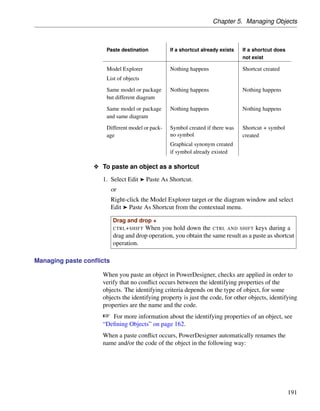
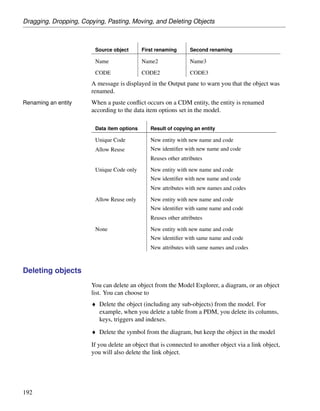
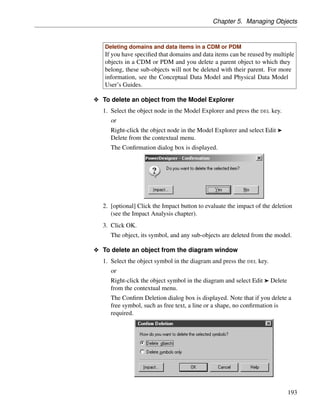
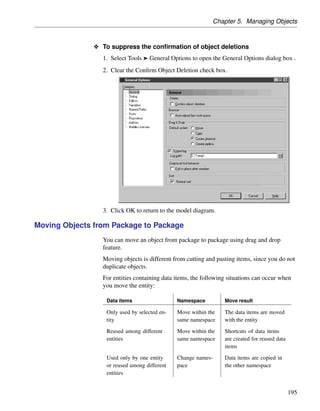
                       column is displayed. If the check box in the S column corresponding to the
                       object is selected, then the object has a symbol in the diagram.
For more information about object creation and management, see the
                       “Managing Objects” chapter.
For more information about customizing the display of a list, see the
                       ““Lists” on page 54” section.

Identifying stereotyped objects in the Model Explorer
                       You can easily locate in the Model Explorer stereotyped objects whose
                       stereotype is used as a metaclass. All objects having this stereotype are
                       grouped together within the object type folder. This is even more visible
                       when you attach an icon to this stereotype. You must collapse the object type
                       folder and expand it again to refresh the display and re-order the stereotyped
                       objects.
For more information about stereotypes used as a metaclass and how to
                       attach an icon to a stereotype, see “ Defining a stereotype” in the “Managing
                       Profiles” chapter in the Advanced User Documentation .


36
Chapter 2. Using the PowerDesigner Interface


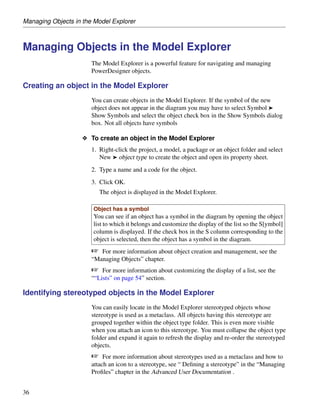
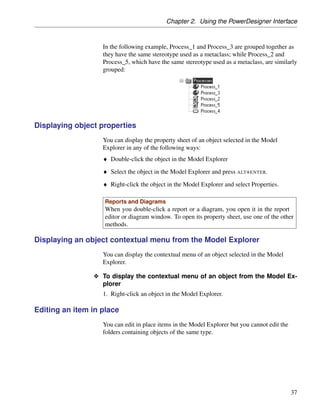
                   In the following example, Process_1 and Process_3 are grouped together as
                   they have the same stereotype used as a metaclass; while Process_2 and
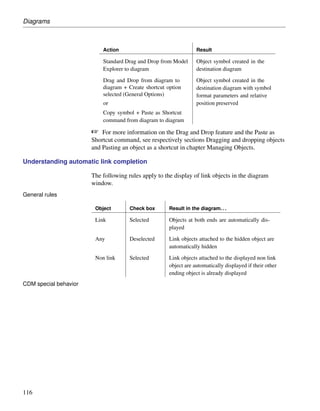
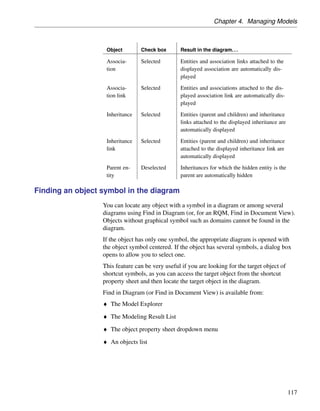
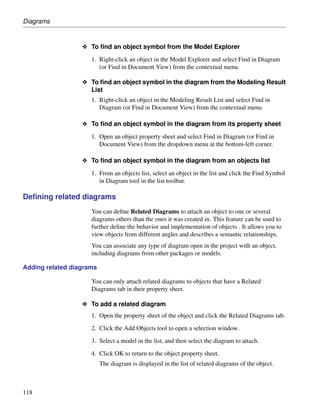
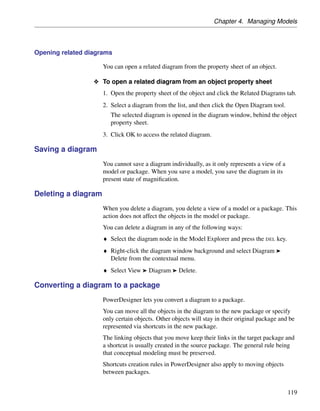
                   Process_5, which have the same stereotype used as a metaclass, are similarly
                   grouped:


Displaying object properties
                   You can display the property sheet of an object selected in the Model
                   Explorer in any of the following ways:
                   ♦ Double-click the object in the Model Explorer

                   ♦ Select the object in the Model Explorer and press ALT+ENTER.
                   ♦ Right-click the object in the Model Explorer and select Properties.

                    Reports and Diagrams
                    When you double-click a report or a diagram, you open it in the report
                    editor or diagram window. To open its property sheet, use one of the other
                    methods.

Displaying an object contextual menu from the Model Explorer
                   You can display the contextual menu of an object selected in the Model
                   Explorer.

                O To display the contextual menu of an object from the Model Ex-
                  plorer
                   1. Right-click an object in the Model Explorer.

Editing an item in place
                   You can edit in place items in the Model Explorer but you cannot edit the
                   folders containing objects of the same type.


                                                                                               37
Managing Objects in the Model Explorer


                    O To edit an item in place
                       1. Select an item in the Model Explorer.
                       2. Click again on the selected item.
                          or
                          Press F2.

Dragging and dropping items
                       You can drag and drop items to and from the Model Explorer.
For more information about the drag and drop feature, see “Dragging
                       and dropping objects” in the “Managing Objects” chapter.

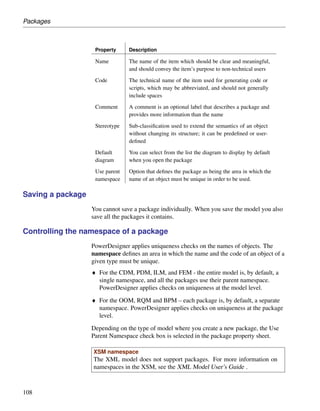
Finding objects in the Model Explorer
                       You can locate any model object in the Model Explorer using the Find in
                       Model Explorer feature. For example, to find:
                       ♦ A diagram in the Model Explorer - Right-click the diagram background
                         and select Edit ® Find in Model Explorer.
                       ♦ An object in the Model Explorer from its symbol - Right-click the
                         symbol in the diagram and select Edit ® Find in Model Explorer.
                       ♦ An object in the Model Explorer from its property sheet - Open an object
                         property sheet and select Find in Model Explorer from the dropdown
                         menu at the bottom-left corner.

                       ♦ An object in the Model Explorer from the Modeling Result List -
                         Right-click the object in the list and select Find in Model Explorer.

                       In each case„ the parents of the object in the Model Explorer are
                       automatically expanded and the found object is selected, to provide you with
                       a hierarchical view of the contents of your project.
                       Note that you cannot find Repository objects in the Model Explorer as they
                       are not visible.


38
Chapter 2. Using the PowerDesigner Interface


Folders
                       A folder is an optional container designed to help you organize the hierarchy
                       within a project. You use a folder to structure the contents of the project in
                       your local work environment. A folder cannot contain model objects, it only
                       contains other container objects like folders, models, or multi-model reports.
                       Folders are saved in the project file.

Creating a folder
                       Folders are not automatically created in PowerDesigner.
                       You can create folders from the project or from another folder.

                    O To create a new folder
                       1. Right-click the project or the folder where you want to create a new
                          folder and select New ® Folder.
                          The new folder is created below the selected item in the tree structure.
                       2. Type a name in the highlighted area. Folder names must be unique in the
                          folder hierarchy.
Renaming a folder      You modify the folder property from the Model Explorer.

                    O To rename a folder
                       1. Right-click the folder to rename and select Rename.
                          or
                          Select the folder and press F2 to edit the name in place.

Creating an item in, or adding an item to, a folder
                       A folder is a container for sub-folders, models and multi-model reports.

                    O To create a new item in a folder
                       1. Right-click the folder and select New ® New item.
                          The new item is inserted in the folder.
                       You can add an item to a folder by copying or moving it using the drag and
                       drop feature. However, you cannot paste or move an open model into a
                       folder.


                                                                                                     39
Folders


                       Multi-selection
                       You can add several items simultaneously by selecting them using the
                       CTRL key and dragging them to the target folder. However, if you select an
                       unauthorized item or an open model, the drag and drop will fail.

                    O To add an item to a folder
                       1. Select an item.
                       2. Press the CTRL key and drag the item to the folder if you want to copy the
                          item.
                          or
                          Press the SHIFT key and drag the item to the folder if you want to move
                          the item.
                          The new item is displayed in the folder.

Deleting a folder
                       When you delete a folder, you detach the models and reports it contains from
                       the project, but you do not delete the models and reports themselves.

                       Caution
                       Deleting a folder cannot be undone.

                    O To delete a folder
                       1. Select the folder in the tree view.
                       2. Right-click and select Edit ® Delete.
                          or
                          Click the Delete tool from the PowerDesigner toolbar.
                          or
                          Select Edit ® Delete from the PowerDesigner menu bar.


40
Chapter 2. Using the PowerDesigner Interface


Property Sheets
                  The properties of model objects can be viewed via their property sheets.
                  The title bar of the property sheet identifies the object, and provides the
                  name and code of the object.
                  Property sheets group properties in different tabs and you can customize
                  their display. Most PowerDesigner objects share the following standard tabs,
                  which are displayed by default the first time you open the product:

                    Standard tabs      Description

                    General            Contains information that identifies the object (Name,
                                       Code).

                    Rules              Contains business rules applied to the object.

                    Notes              Contains notes (Description and Annotation) for the
                                       object.

                    Version Info       Contains information about the origins of the object.

                    Dependencies       Shows items that depend on the current object and
                                       influence other objects.

                    Extended Depen-    Contains user-defined dependencies of the object.
                    dencies

Displaying a property sheet

                O To display a property sheet
                  1. Double-click an object symbol in the diagram.
                     or
                     Select an object symbol and press ALT + ENTER.
                     or
                     Right-click the object symbol and select Properties.
                     or
                     Right-click an object in the Model Explorer and select Properties.

                   Opening property sheets at last accessed tab
                   You can choose to open property sheets at the last accessed tab by selecting
                   Tools ® General Options ® Dialog, and selecting the option Keep Last Tab
                   in the Property Sheets groupbox.


                                                                                               41
Property Sheets


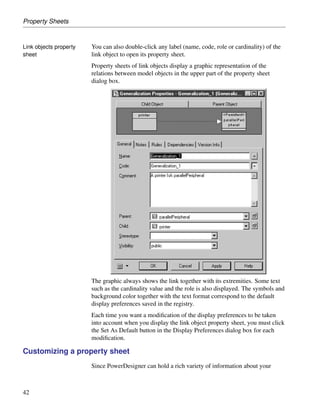
Link objects property   You can also double-click any label (name, code, role or cardinality) of the
sheet                   link object to open its property sheet.
                        Property sheets of link objects display a graphic representation of the
                        relations between model objects in the upper part of the property sheet
                        dialog box.


                        The graphic always shows the link together with its extremities. Some text
                        such as the cardinality value and the role is also displayed. The symbols and
                        background color together with the text format correspond to the default
                        display preferences saved in the registry.
                        Each time you want a modification of the display preferences to be taken
                        into account when you display the link object property sheet, you must click
                        the Set As Default button in the Display Preferences dialog box for each
                        modification.

Customizing a property sheet
                        Since PowerDesigner can hold a rich variety of information about your


42
Chapter 2. Using the PowerDesigner Interface


model objects, property sheets can become overloaded.
The More or Less button at the bottom left corner of the property sheet
allows you to toggle between displaying all the available property sheet tabs,
and a subset called “favorite” tabs.
You can customize your list of favorite tabs, and access various other
property sheet features, from the property sheet menu, which is accessible
from the bottom-left corner of all property sheets.

 Command            Description

 Find in Diagram    Finds the object in the diagram, found object is displayed
                    centered and selected.
 Find in Model      Finds the object in the Model Explorer and highlights it.
 Explorer

 Impact Analysis    Opens the Impact Analysis dialog box.

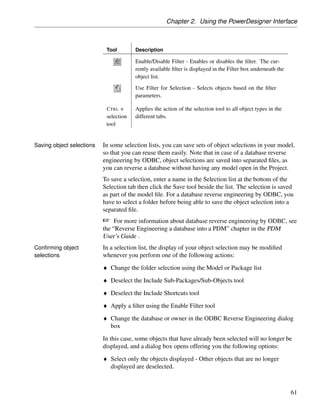
 Parent Proper-     Opens the property sheet of the parent object.
 ties

 Customize Fa-      Opens a sub-menu, which allows you to define favorite
 vorite Tabs        tabs:
                    ♦ Help – opens this help topic
                    ♦ Display All Tabs - Displays all available property tabs
                      for the current property sheet
                    ♦ Display Favorite Tabs for All - Displays favorite tabs
                      for all property sheets throughout all models
                    ♦ Display All Tabs for All - Displays all tabs for all prop-
                        erty sheets throughout all models
                    Beneath the sub-menu are listed all the tabs available for
                    the present object. Favorite tabs have a check against
                    them.
                    Click a tab in the list to select or remove it from the
                    list of favorite tabs. Note that the General tab cannot be
                    unchecked.
                    When you check or uncheck a tab such as Notes, Rules,
                    and Dependencies, which are common to many objects,
                    you are asked to confirm the change for all other ob-
                    jects. If you click No, only the current property sheet is
                    modified.


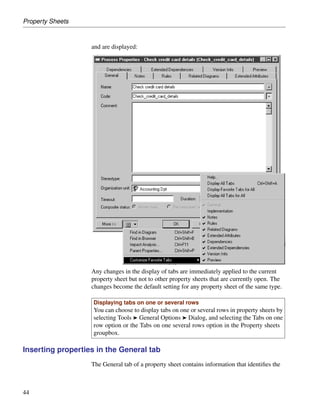
In the following example, all the tabs except Implementation are checked


                                                                                   43
Property Sheets


                   and are displayed:


                   Any changes in the display of tabs are immediately applied to the current
                   property sheet but not to other property sheets that are currently open. The
                   changes become the default setting for any property sheet of the same type.

                    Displaying tabs on one or several rows
                    You can choose to display tabs on one or several rows in property sheets by
                    selecting Tools ® General Options ® Dialog, and selecting the Tabs on one
                    row option or the Tabs on one several rows option in the Property sheets
                    groupbox.

Inserting properties in the General tab
                   The General tab of a property sheet contains information that identifies the


44
Chapter 2. Using the PowerDesigner Interface


                   object: the name should be clear and understandable and the code should be
                   shorter for generation needs. You can use up to 254 characters in the Name
                   and Code boxes but your current language or DBMS may be more
                   restrictive. The comment is used to provide additional information about the
                   object, there is no limitation in the Comment box, and you can type as many
                   characters as needed to specify the properties of the selected object.

                O To insert properties in the General tab
                   1. Type a name in the Name box, the Code box is automatically filled if the
                      Name to code mirroring general option is selected.
                      or
                      Type a code in the Code box if the Name to code mirroring general
                      option is not selected.
                      You can also use the Equals button at the end of the Name or Code box.
                   2. Type a comment in the Comment box.
                   3. Click Apply to validate the new properties.

Applying a business rule to an object
                   A business rule is a rule that your business follows. A business rule could be
                   a government-imposed law, a customer requirement, or an internal guideline.
                   Business rules complement model graphics with information that is not
                   easily represented graphically.
                   You can add business rules to the definition of the current object from its
                   property sheet.

                   U Column in the List of business rules


                   When you apply a business rule to an object, the U (Used) column beside
                   this business rule is automatically checked in the List of business rules to
                   indicate that the business rule is used by at least one object in the model.
                   The U column allows you to visualize unused business rules. You can then
                   delete them if necessary.

                O To apply a business rule to the current object
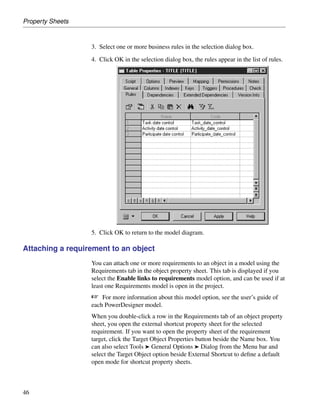
                   1. Open the property sheet of an object and click the Rules tab.
                   2. Click the Add Rules tool.


                                                                                                45
Property Sheets


                  3. Select one or more business rules in the selection dialog box.
                  4. Click OK in the selection dialog box, the rules appear in the list of rules.


                  5. Click OK to return to the model diagram.

Attaching a requirement to an object
                  You can attach one or more requirements to an object in a model using the
                  Requirements tab in the object property sheet. This tab is displayed if you
                  select the Enable links to requirements model option, and can be used if at
                  least one Requirements model is open in the project.
For more information about this model option, see the user’s guide of
                  each PowerDesigner model.
                  When you double-click a row in the Requirements tab of an object property
                  sheet, you open the external shortcut property sheet for the selected
                  requirement. If you want to open the property sheet of the requirement
                  target, click the Target Object Properties button beside the Name box. You
                  can also select Tools ® General Options ® Dialog from the Menu bar and
                  select the Target Object option beside External Shortcut to define a default
                  open mode for shortcut property sheets.


46
Chapter 2. Using the PowerDesigner Interface


               O To attach a requirement to an object
                  1. Open an object property sheet and click the Requirements tab.
                  2. Click the Add Objects tool in the toolbar to open a selection list of
                     Requirements models.
                  3. Select one or more requirements and click OK.
                     The selected requirements appear in the Requirements tab.
                  4. Click OK to close the property sheet.

Adding notes to an object
                  From the Notes tab, you can document objects using an RTF editor in the
                  Description and Annotation tabs.
For more information, see “Attaching notes to an object” in the
                  “Managing objects” chapter.

               O To add notes to an object
                  1. Double-click an object in the diagram to display the object property sheet.
                  2. Click the Notes tab, the Description sub-tab is displayed by default, you
                     can type a description.
                  3. Click the Annotation tab in the lower part of the object property sheet to
                     change tab and type annotations.
                  4. Click OK.

Displaying object dependencies
                  When you create an external shortcut, or when you attach a business rule to
                  an object, a dependency link is created between models or objects.
                  Dependencies are used to verify the use of an object or model. They can be
                  of two types:
                  ♦ Internal, when the links are within a model. These dependencies are
                    saved in the model and appear in the Dependencies tab of an object
                    property sheet
                  ♦ External, when the links exist between models. These dependencies are
                    created during intermodel generation or external shortcut creation, they
                    appear in the Dependencies tab if the related model is opened in the
                    project. If the related model is not available, you can use the repository to
                    retrieve external dependencies


                                                                                              47
Property Sheets
For more information about how to retrieve external links using the
                       repository, see “Auditing repository activities” in the “Managing
                       Repository Documents” chapter in the Repository User’s Guide.
                    PowerDesigner lists these links in the Dependency tab of the object’s
                    property sheet.

                     Model dependencies
                     The Dependencies tab of a model also lets you check the model origin
                     (Generated From tab) and destination (Generated As tab).

                  O To display object dependencies
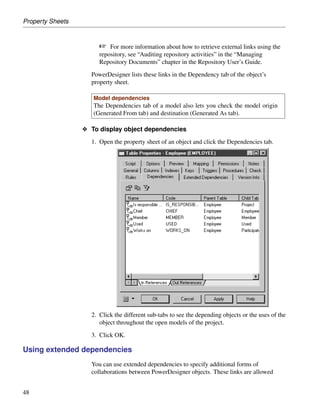
                    1. Open the property sheet of an object and click the Dependencies tab.


                    2. Click the different sub-tabs to see the depending objects or the uses of the
                       object throughout the open models of the project.
                    3. Click OK.

Using extended dependencies
                    You can use extended dependencies to specify additional forms of
                    collaborations between PowerDesigner objects. These links are allowed


48
Chapter 2. Using the PowerDesigner Interface


                       among objects of any type of model, but are not interpreted and checked by
                       PowerDesigner, as they are meant for documentation purposes only.
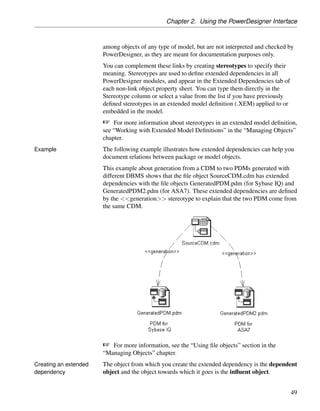
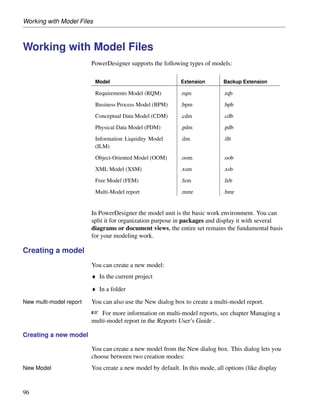
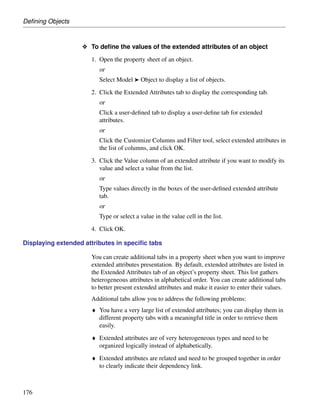
                       You can complement these links by creating stereotypes to specify their
                       meaning. Stereotypes are used to define extended dependencies in all
                       PowerDesigner modules, and appear in the Extended Dependencies tab of
                       each non-link object property sheet. You can type them directly in the
                       Stereotype column or select a value from the list if you have previously
                       defined stereotypes in an extended model definition (.XEM) applied to or
                       embedded in the model.
For more information about stereotypes in an extended model definition,
                       see “Working with Extended Model Definitions” in the “Managing Objects”
                       chapter.
Example                The following example illustrates how extended dependencies can help you
                       document relations between package or model objects.
                       This example about generation from a CDM to two PDMs generated with
                       different DBMS shows that the file object SourceCDM.cdm has extended
                       dependencies with the file objects GeneratedPDM.pdm (for Sybase IQ) and
                       GeneratedPDM2.pdm (for ASA7). These extended dependencies are defined
                       by the <<generation>> stereotype to explain that the two PDM come from
                       the same CDM.
For more information, see the “Using file objects” section in the
                       “Managing Objects” chapter.
Creating an extended   The object from which you create the extended dependency is the dependent
dependency             object and the object towards which it goes is the influent object.


                                                                                                  49
Property Sheets


                     You can create an extended dependency in either of the following ways:

                  O To create an extended dependency using the Link/Extended De-
                    pendency tool
                     1. Click the Link/Extended Dependency tool in the Palette.
                     2. Click inside the dependent object and while continuing to hold down the
                        mouse button, drag the cursor to the influent object where you release the
                        mouse button.

                      Moving extended dependencies
                      Extended dependencies behave like oriented links. When you move the
                      dependent object, you also move the extended dependency attached to it.
                      And when you move the influent object, it is replaced with a shortcut to
                      preserve the extended dependency definition.
                     Note that the Link/Extended Dependency tool cannot create an extended
                     dependency between objects belonging to different types of models as these
                     cannot have symbols in the same diagram.

                  O To create an extended dependency from the dependent object
                    property sheet
                    1. Open the property sheet of a non-link object, and click the Extended
                       Dependencies tab.
                     2. Click the Add Objects tool to open the Add Objects dialog box.
                     3. Select a model from among the models open in the project from the
                        Model box, a package from the list, and an object from one of the sub-
                        tabs.
                     4. Click OK.
                        The extended dependency you have created is displayed simultaneously
                        in the list of extended dependencies but also in the diagram if objects at
                        both extremities are displayed.
                     5. Click the Stereotype column for the extended dependency you have just
                        created and type a stereotype or select a stereotype from the list if
                        available.
                     6. Click OK.

Displaying object version information
                     PowerDesigner automatically manages version information about objects in
                     the model. All objects with property sheets have a Version Info tab, which
                     displays the following information:


50
Chapter 2. Using the PowerDesigner Interface


                   Version Info        Description

                   Creation User       Name of the User who created the object.

                   Creation Date       Date of creation of the object

                   Last Modification    Name of the User who made the last modification to the
                   User                object.

                   Last Modification    Date of the last modification of the object
                   Date

                   Generated From      Name of the origin object. Displayed when the object
                   Origin Object       has been generated from another object. Click the
                                       Origin Object Properties button to open the origin object
                                       property sheet
                  This information is read-only, you cannot modify any value in this tab.

Finding text using regular expressions
                  A regular expression is a pattern of text that describes one or more strings to
                  match when searching for text. You can use regular expressions to find script
                  text displayed in the Preview or Script tab of a table property sheet, the
                  Edit/Run Script editor, the Resource Editor, and various other windows.
                  In order to be able to search for text using regular expressions, you must
                  select the Regular Expression check box in the Find dialog box (or Replace
                  in Items dialog box in the Resource Editor) and type a regular expression in
                  the Find What box.
                  Regular expressions can contain ordinary characters and the following
                  metacharacters :

                   Metacharacter      Description

                                     Matches a special character
                                      Examples:
                                      ”n” matches “n”. “n” matches a newline character. “”
                                      matches “” and “(“ matches “(“

                   ^                  Matches the position at the beginning of the input string
                                      Examples:
                                      ”^Win” matches strings beginning with “Win

                   $                  Matches the position at the end of the input string
                                      Examples:
                                      ”then$” matches strings ending with “then”


                                                                                                   51
Property Sheets


                   Metacharacter     Description

                   *                 Matches the preceding character zero or more times
                                     Examples:
                                     ”zo*” matches “z” and “zoo”
                   +                 Matches the preceding character one or more times
                                     Examples:
                                     ”zo+” matches “zo” and “zoo”, but not “z”

                   ?                 Matches the preceding character zero or one time
                                     Examples:
                                     ”to?” matches either “t” or “to”

                   .                 Matches any single character except the newline n
                                     Examples:
                                     ”.ork” matches “Work”, “Fork” etc

                   []                Matches any one of the enclosed character
                                     Examples:
                                     ”[abc]” matches “a”, “b”, or “c” A range of character can
                                     be indicated with a dash “[a-z]”
For a complete list of metacharacters and their behavior in regular
                  expressions, see the Visual Basic Documentation .

Validating changes in a property sheet
                  To validate changes in a property sheet you can use the Apply button to
                  commit property changes and the OK button to save the property sheet
                  contents and close it.

                   Auto commit mode
                   You can modify the property sheet validation mode in the Options dialog
                   box. If you select the Auto commit mode, any change is committed as soon
                   as you change field in the property sheet. You have to use the Undo feature
                   to cancel a change.
For more information, see “Dialog box general options” on page 68.


52
Chapter 2. Using the PowerDesigner Interface


                O To validate changes in a property sheet
                  1. Click Apply if you are not in Auto Commit mode.
                     or
                     Change field in the property sheet if you are in Auto Commit mode.

Closing a property sheet

                O To close a property sheet
                  1. Click OK or Cancel if you are not in Auto Commit mode.
                     or
                     Click the Close button if you are in Auto Commit mode.


                                                                                         53
Lists


Lists
               PowerDesigner lists show objects of the same type belonging to the current
               package or model. You can add or create objects in lists
               You can multi-select items in a list in order to perform mass changes on
               object properties. You can select all items in the list by clicking the top-left
               corner box in the list.
               You can right-click an object in the list to access a contextual menu offering
               the following options:
               ♦ Find in Diagram
               ♦ Find in Model Explorer
               ♦ Impact Analysis
               ♦ Edit
               ♦ Properties
               ♦ Extended menus (created using the Resource Editor)
               The properties of the listed objects are organized in columns. Depending on
               the properties of the listed objects, the list may have a natural order. For
               example, a list of columns has an order that must be preserved.
Global lists   Global lists are accessible from the Model menu or from the contextual
               menu in the Model Explorer, and show all the objects of the type in the
               model. The title bar of the list identifies the object type, for example, List of
               Columns.


54
Chapter 2. Using the PowerDesigner Interface


              You can open a global list in either of the following ways:
              ♦ Select Model ® Item .
              ♦ Right-click a model in the Model Explorer and select List of ® Item from
                the contextual menu.

              Displaying shortcuts and objects from sub-packages in a list
              You can enable the display of shortcuts in a list by clicking the Include
              shortcuts tool. Shortcuts are grayed as they cannot be modified. When you
              include shortcuts whose target model is closed, some information may be
              unavailable. You can enable the display of Include Sub-packages tools are
              enabled in the selected list, all the object shortcuts of the current package
              and those of the sub-packages appear.
Child lists   Child lists are available on certain tabs of object property sheets, and list all
              of the child objects of that type belonging to the object
              For example, when you select the Columns tab in a table property sheet you
              display the list of columns in the selected table:


List tools
              The following tools are available in PowerDesigner lists:


                                                                                             55
Lists


        Tool   Description

               Opens the property sheet of the selected item


               [ordered lists only] Inserts a row before the selected row in the list


               Adds a row at the end of the list


               Opens an object selection dialog box to select objects and add them
               to the list. When you select an item you copy it to the list.

               Creates a new object and opens the corresponding property sheet


               [CDM only] Opens an object selection dialog box to reuse objects.
               When you select an item you create a link to the original item, you
               do not copy it.

               Deletes the row and stores it in the Clipboard


               Copies the selected row to the Clipboard


               Pastes the contents of the Clipboard


               Deletes the row


               Opens a Find dialog box to search an item in the list


               Finds the symbol in the diagram


               Opens a Filter dialog box to define a filter on the list


               Enables the filter on the list


               Includes objects in sub-packages in the list


56
Chapter 2. Using the PowerDesigner Interface


                     Tool      Description

                               Includes composite objects in the list (like sub-process, sub-activity,
                               sub state, etc.)

                               Includes object shortcuts in the list


                               [Related Diagrams tab] Opens a target model or a diagram**


                               Opens an object selection list to change the target object of a
                               shortcut


Modifying properties in a list
                    You can modify the properties of items in a list.
                    By default, you have to use the Apply button to commit changes and the OK
                    button to save the list contents.
                    You can modify the validation mode of lists in the Options dialog box. If
                    you select the Auto commit mode, any change is committed as soon as you
                    change a field in the list. You have to use the Undo feature to cancel the
                    change.
For more information, see “Dialog box general options” on page 68.

                 O To modify properties on a list
                    1. Select Model ® item to display a list dialog box.
                    2. Select an item in the list and type changes in the columns corresponding
                       to object properties.
                    3. Click OK.

Adding items to a list
                    If a list is ordered you can choose to add an item at the end or at a certain
                    point in the list. In general, you are not required to provide any specific
                    properties when you create an object. However, when you create a link
                    object, such as a reference, association link, or inheritance link, you must
                    specify the source and the destination.


                                                                                                         57
Lists


                        O To add items at the end of a list
                           1. Click the Add a Row tool or click an empty row at the end of the list

                        O To insert an item at a particular point of an ordered list
                           1. Select the item before which you want to insert a new item in the ordered
                              list, and click the Insert a Row tool.
                              The new item is inserted before the selected item in the list. It is
                              displayed with a default name you can modify.


Arranging items in an      In ordered lists, you can drag and drop objects to reorder them, or use the
ordered list               following buttons at the bottom of the list:


58
Chapter 2. Using the PowerDesigner Interface


                    Button     Moves cursor to

                               Move to the top of the list.


                               Move up one page


                               Move up one line


                               Move down one line


                               Move down one page


                               Move to the bottom of the list


Adding an item from a selection list
                   Selection lists allow you to select items from a list in order to associate them
                   with another object.
                   Most selection lists display objects contained in the current model or in
                   individual packages contained in that model.
                   Other selection lists such as the following allow you to display both objects
                   contained in the current model or its packages and objects contained in other
                   models or other packages of these models:
                   ♦ Select Diagrams. From this dialog box you can select the diagram to
                     which you want to apply pre-defined display preferences.
                   ♦ Add Shortcuts. From this dialog box you can select objects to include
                     them as shortcut in your model or package.
                   ♦ Add Objects. From this dialog box you can select objects to which you
                     want to attach extended dependencies.

Object selection   The following tools are available in selection lists:

                    Tool        Description

                    -           Model list - Lets you specify a model as the basis for the list.

                    -           Package list - Lets you specify a package as the basis for the list.


                                                                                                       59
Lists


        Tool   Description

        -      Owner List - [PDMs only] Lets you specify a user as the basis for
               the list. The list will contain only objects owned by the specified
               user or by no user. If you select User <NONE>, then all the
               objects are displayed.

               Include Sub-Packages - Includes objects contained in sub-
               packages (Include Sub-Packages) in the list.
               As this tool allows you to display all objects, regardless of their
               package, some objects in the list may have the same name and be
               difficult to identify. In this situation, you can use the Customize
               Columns and Filter tool, to display the Object Location column
               to identify where the objects are defined.

               Include Composite-Objects - Includes composite objects, such as
               sub-process, sub-activity, sub state, in the list

               Include External Shortcuts - Includes shortcuts to objects in other
               models in the list. The model containing the original objects must
               be open for external shortcuts to be available for selection. When
               generating, external shortcuts are generated as ordinary objects.

               Select All - Selects all check boxes in the current object type tab.
               To selects all check boxes in all object type tabs you can click the
               arrow and select All Lists or you can press the CTRL key and click
               the Select All tool.

               Deselect All - Deselects all check boxes in the current object type
               tab. To clear all check boxes in all object type tabs you can click
               the arrow and select All Lists or you can press the CTRL key and
               click the Deselect All tool.
               Use Graphical Selection - Uses the graphical selection.


               Move Selected Items to Top - Moves all selected objects to the
               top of the list.

               Move Selected Items to Bottom - Moves all selected objects to
               the bottom of the list.

               Customize Columns and Filter - Allows the definition of filter
               expression on the columns of the selection list.
               For more information about the Customize Columns and Filter
               dialog box, see “Filtering a list” on page 64.


60
Chapter 2. Using the PowerDesigner Interface


                            Tool        Description

                                        Enable/Disable Filter - Enables or disables the filter. The cur-
                                        rently available filter is displayed in the Filter box underneath the
                                        object list.
                                        Use Filter for Selection - Selects objects based on the filter
                                        parameters.

                            C TRL +     Applies the action of the selection tool to all object types in the
                            selection   different tabs.
                            tool


Saving object selections   In some selection lists, you can save sets of object selections in your model,
                           so that you can reuse them easily. Note that in case of a database reverse
                           engineering by ODBC, object selections are saved into separated files, as
                           you can reverse a database without having any model open in the Project.
                           To save a selection, enter a name in the Selection list at the bottom of the
                           Selection tab then click the Save tool beside the list. The selection is saved
                           as part of the model file. For a database reverse engineering by ODBC, you
                           have to select a folder before being able to save the object selection into a
                           separated file.
For more information about database reverse engineering by ODBC, see
                           the “Reverse Engineering a database into a PDM” chapter in the PDM
                           User’s Guide .
Confirming object           In a selection list, the display of your object selection may be modified
selections                 whenever you perform one of the following actions:
                           ♦ Change the folder selection using the Model or Package list
                           ♦ Deselect the Include Sub-Packages/Sub-Objects tool
                           ♦ Deselect the Include Shortcuts tool

                           ♦ Apply a filter using the Enable Filter tool
                           ♦ Change the database or owner in the ODBC Reverse Engineering dialog
                             box
                           In this case, some objects that have already been selected will no longer be
                           displayed, and a dialog box opens offering you the following options:
                           ♦ Select only the objects displayed - Other objects that are no longer
                             displayed are deselected.


                                                                                                               61
Lists


                   ♦ Keep the hidden objects in the selection – All the previously selected
                     objects are retained, including those that are no longer shown. This
                     allows you to take into account object selections you have made in
                     several packages for example.
                   ♦ Cancel - The commit of the selection list is canceled and the selection
                     page now displays all objects and sub-objects in the model to let you
                     modify your selection if necessary.
                   When you confirm your selection by clicking OK, the confirmation dialog
                   box will not be displayed again, while you continue to edit your selection,
                   even if you again modify your parameters.

Selecting an object from a selection tree
Browse tab         You can expand the tree in the Browse tab of the Select object dialog box to
                   select an item.
                   This dialog box opens when for example you:
                   ♦ Select an implementation process in another diagram in the BPM
                   ♦ Insert an RQM in an existing Word document.
                   ♦ Select any object attached to an object state in an OOM
                   ♦ Select a classifier as data type for a class attribute in a class diagram in an
                     OOM
                   If you double-click an object name in the tree view, you commit the
                   selection and close the dialog box.


62
Chapter 2. Using the PowerDesigner Interface


Index tab   From the Index tab, you can search for an object whose name you know
            fully or only partially but do not know where the object is defined. The
            search uses the Display Name/Code option you have defined in the model
            options. Object names are sorted alphabetically in the list. When you type a
            name or even just a letter in the expression field, the list automatically
            returns the corresponding results.
            The Properties button above the list allows you to open in read-only mode
            the property sheet of the selected object. If you select an object name in the
            list of the Index tab, then click the Browse tab, the object name is
            automatically selected in that tab. In the same way, when you select an
            object name in the Browse tab tree view, then click the Index tab, if empty,
            the expression field is initialized with the selected name, otherwise the
            expression content is preserved.
            If you double-click an object name in the list, you commit the selection and
            close the dialog box.
            Note that some selection dialog boxes, which display objects in a tree view
            may not have Browse and/or Index tabs.


                                                                                        63
Lists


Filtering a list
                      A filter restricts the list to those items that meet certain criteria.
                      PowerDesigner allows you to hide columns, modify column order, or define
                      a filter expression to modify the content of the rows.

                   O To customize the display of columns and/or define a filter expres-
                     sion
                     1. Click the Customize Columns and Filter tool to open the Customize
                        Columns and Filter dialog box.

                      2. Perform any of the following functions to filter the list:
                        ♦ Select columns to display by checking the D column
                        ♦ Enter any expressions to filter by in the Expression column. The Used
                          check box in the U column is automatically selected when you enter a
                          filter expression. If you want to keep the expression in memory but
                          disable it, you can clear this check box.
                        ♦ Use the arrows at the bottom of the dialog to change the order of
                          columns in the list. You can press SHIFT and ENTER or press SHIFT and
                          click OK to move all the selected rows on top of the list.


64
Chapter 2. Using the PowerDesigner Interface


                     3. Click OK to return to the list. The filter is applied by default, and the
                        Enable/Disable filter tool is depressed. Click this tool to toggle between
                        enabling and disabling the filter
                     You only customize the display of the current list. When you have defined
                     customization parameters, you have to apply them to the list.

Defining a filter expression

                     The Expression field in the Customize Columns and Filter dialog box is not
                     case-sensitive and accepts the following wildcards:

                       Wildcard       Description

                       *              Any string (from none to any number of characters)

                       ?              Any character
                       *             * is a normal character

                       ?             ? is a normal character
                     The following are examples of filter expressions

                       Expression     String values allowed

                       W*             Work
                                      Washington

                       *CODE          AREA CODE
                                      COUNTRY CODE
                                      CITY CODE


                                                                                                65
Lists


                     Expression      String values allowed

                     ????ER          Writer
                                     Seller

                     *_emp_???       div_emp_fun (code for the function of the employee in the
                                     division)
                                     _emp_idn (code for the identification of the employee in the
                                     division)

                     *?             Is this book ready for production?


Closing a list

                 O To close a list
                    1. Click Close if you are in Auto Commit mode.
                      or
                      Click OK or Cancel if you are not in Auto Commit mode.


66
Chapter 2. Using the PowerDesigner Interface


Setting PowerDesigner General Options
            You can control the look and behavior of the PowerDesigner interface
            through the general options. These options are saved in the registry of your
            local machine.
            To set general options, select Tools ® General Options. The following
            options are available under the General category:

             Option            Description

             Delete: Con-      Display a confirmation dialog box when you delete an
             firm object        object.
             deletion

             Model Ex-         Opens the last-edited project when you launch PowerDe-
             plorer : Auto-    signer. If this option is unchecked, PowerDesigner will
             reload last       open with an empty project.
             project

             Model Ex-         Allows you to specify the default result of dragging and
             plorer drag and   dropping an object (without any modifier key) in the Model
             drop: Default     Explorer. You can choose from the following:
             action            ♦ Move (Shift) – The object is displaced to the new loca-
                                  tion (parent object, package, model, etc)
                               ♦ Copy (Ctrl) – A copy of the object is created in the new
                                 location
                               ♦ Create Shortcut (Ctrl + shift) – A shortcut to the object
                                 is created in the new location
                               ♦ Create replica (Alt + shift) – A replica of the object is
                                  created in the new location
                               The modifier keys given after the option are valid no matter
                               what the default behavior.

             Output log:       Specifies the path to the log file where PowerDesigner
             Log path          records all of its outputs.

             Graphical tool    Allows you to directly modify the name of an object
             behavior: Edit    from the object symbol in the diagram without opening
             in place after    its property sheet whenever you create an object with the
             creation          palette

             Sort: Natural     Treats numbers numerically when sorting objects in the
             Sort              Model Explorer. For example, a naturally sorted list of
                               tables would have the order: Table_1, Table_3, Table_12,
                               Table_20.


                                                                                             67
Setting PowerDesigner General Options


Dialog box general options
                           To set general options for dialog boxes, select Tools ® General Options, and
                           select the Dialog category in the left hand pane. The following options are
                           available:
Operating modes

                            Option          Description

                            Auto Commit     Specifies that any change made in a property sheet is auto-
                                            matically committed in the object definition. You cancel a
                                            change by using the Undo feature.
                                            If this option is disabled, you must click Apply or OK to
                                            commit your changes.

                            Name to         Automatically updates the name or code of an object to
                            Code mir-       reflect changes in the other.
                            roring
Property sheets            In PowerDesigner, property sheets appear by default with a certain size and a
                           series of tabs in the upper part of the dialog box. The following options are
                           available for property sheets:

                            Option          Description

                            Keep size       Preserves the customized size you have defined

                            Keep last tab   Opens the property sheet to the last selected tab

                            Open mode       Controls how property sheets are opened. You can choose
                                            between:
                                            ♦ Open each object in the same property sheet
                                            ♦ Open each object in its own property sheet


                            Tabs mode       Controls the display of tabs. You can choose between:
                                            ♦ Tabs on one row - Aligns all tabs on a single line with
                                              arrow buttons < and > for browsing
                                            ♦ Tabs on several rows - Displays tabs on two lines, their
                                              size corresponding to the length of their title.


Shortcut property sheets   The following options are available:


68
Chapter 2. Using the PowerDesigner Interface


                    Option            Description

                    Internal Short-   Controls whether double-clicking an internal shortcut opens
                    cut               the property sheet for the shortcut or for the target object.
                                      You can switch from one mode to the other by pressing
                                      the SHIFT key while opening the property sheet. If the
                                      target object cannot be found (target model is closed for
                                      example), the shortcut property sheet automatically opens.

                    External Short-   Controls whether double-clicking an external shortcut
                    cut               opens the property sheet for the shortcut or for the target
                                      object.
For more information, see the “Managing Shortcuts” chapter.
Object lists       The following options are available:

                    Option            Description

                    Auto-insert       Specifies that a new item is created automatically in a list
                    rows              when you click an empty row

                    Use default       Specifies that new items are given default names upon
                    name              creation, allowing you to create multiple new objects
                                      without having to supply names or other properties.

Specifying text editors
                   When you are using PowerDesigner, you will need to edit such things as
                   descriptions and annotations for objects, or generated scripts like SQL in the
                   PDM or Java in the OOM
                   By default, all files are edited using PowerDesigner’s internal editor. You
                   can define an external text editor to launch automatically for editing various
                   kinds of objects. You can define as many text editors as you need, and the
                   same file extension can have several text editors allocated, with the first
                   listed acting as the default.

                O To define a text editor
                   1. Select Tools ® General Options and click the Editors category in the
                      left-hand pane.
                   2. Click the Insert a Row tool, and enter a file extension (such as .DOC,
                      .RTF, .TXT, .XLS) in the Extension column.
                      The Editor Name and Editor Command columns are both set to
                      <internal> to indicate that the internal PowerDesigner editor will be


                                                                                                      69
Setting PowerDesigner General Options


                         used to edit files with this extension.
                      3. [optional] Enter an editor name (such as MS Word, Notepad, MS Excel)
                         in the Editor Name column, and enter an editor command (such as
                         winword.exe) in the Editor Command column. You can click the ellipsis
                         button in this field to browse to the relevant directory.
                      4. Click OK to close the dialog box.

Defining environment variables
                      The following variables are created when you install PowerDesigner:

                       Variable        Description                                   Default

                       CMD             Windows command interpreter                   command.com
                                                                                     or cmd.exe

                       HOME            Variable defining the default home directory   —

                       J2EEVERIF       Batch program for verifying if the deploy-    verifier.bat
                                       ment jar for an EJB is correct

                       JAR             Command for archiving java files               jar.exe

                       JAVA            Command for running JAVA programs             java.exe

                       JAVAC           Command for compiling JAVA source files        javac.exe

                       JAVADOC         Command for defining JAVA doc comments         javadoc.exe
                      You can edit these variables and add your own.

                   O To define an environment variable
                      1. Select Tools ® General Options, and click the Variables category in the
                         left-hand pane.
                      2. Click in the row of an existing variable in order to edit its values, or click
                         the Add a Row tool to create a new variable.

                      3. Click OK to close the dialog box.

                      Variables defined here are used in commands in the GenerationCommands
                      sub-category of the JAVA object language, and can be used in the Generation
                      Template Language.
                      The syntax for using these variables in GTL requires that you add $ before
                      the variable name within the % signs, for example %$CMD%.


70
Chapter 2. Using the PowerDesigner Interface
For more information about the GTL, see the “Generation Reference
                  Guide: GTL” chapter in the Advanced User documentation .

Defining named paths
                  When you add a document or a model to the project, create an external
                  shortcut, or perform various other file operations, PowerDesigner saves the
                  paths to these external files in the project or model files.
                  However, in a team environment, when people exchange model files, the
                  links may be broken when one user opens the file of another .
                  To solve this potential problem, you can define named paths in
                  PowerDesigner. A team leader can define a list of names corresponding to
                  shared resource files and specify a folder structure. Then each team member
                  recreates the named paths on his/her workstation.
                  PowerDesigner provides a number of predefined named paths, each of which
                  is preceded by an underscore:

                   Name             Path

                   _DBMS            Folder where DBMS definition files are stored

                   _EXAMPLES        Folder where the demo examples are stored

                   _HOME            PowerDesigner installation folder

                   _LIBRARY         Folder where object libraries are stored
                   _OBJLANG         Folder where object language definition files are stored

                   _PRCSLANG        Folder where process language definition files are stored

                   _RTPLANG         Folder where report language definition files are stored

                   _XEM             Folder where extended model definition files are stored

                   _XMLLANG         Folder where XML language definition files are stored


_HOME predefined   _HOME is a very useful named path that facilitates the installation of your
named path        add-ins without having to modify your XEM or your XML or ActiveX
                  add-ins commands.
                  For example: %_HOME%add-insSpellCheckerSpellCheckAddIn.dll
                  By default, the path of a predefined named path corresponds to the
                  installation path you have selected. If you use files proceeding from another
                  directory, the path of the predefined named paths is not automatically
                  modified. You have to carry out this change manually.


                                                                                              71
Setting PowerDesigner General Options


                      You should not modify the name of a predefined named path. If you do so,
                      the predefined named path is preserved in the list and a new named path is
                      created with the name and path of the modified predefined named path.
                      If you modify the path of a predefined named path and want to cancel the
                      change, you have to select the predefined named path in the list, delete it and
                      click OK in the General Options dialog box. The next time you open the
                      Named Path page in the General Options dialog box, the deleted predefined
                      named path is displayed in the list with the default installation path.

How named paths are used

                      Named paths are used when you save a file and open it.
Saving a file          When you save a PowerDesigner model or project, the name of a named
                      path is substituted for the actual path . For example, if the HOME named
                      path is defined as:
                      HOME = c: Program Files Sybase

                      And you have the following path in your model:
                      c: Program Files Sybase PowerDesigner tempo_samples

                      When you save this file, the path will be saved as:
                      %HOME% PowerDesigner tempo_samples

Opening a file         When you open a file, named paths are replaced by the value of that path in
                      the local environment. For example:
                      %HOME% PowerDesigner tempo_samples

                      becomes:
                      c: Program Files Sybase PowerDesigner tempo_samples

                      If you open a file containing a named path not defined on the current
                      machine, the Unresolved Named Path dialog box open, offering you the
                      following options:
                      ♦ Ignore the named path and keep the file name unresolved - The link
                        between files is broken and you may have update problems.
                      ♦ Define a new named path . . . - Allows you to define the path on your
                        machine.

                      ♦ Browse another existing variable to replace with – Allows you to resolve
                        the path using one of your existing names paths.


72
Chapter 2. Using the PowerDesigner Interface


                        ♦ Directly browse the target file – Allows you to browse for another target
                          file. The selected file will replace the file you were trying to open

Creating a named path

                        You can create additional named paths. Your team should agree on the
                        names of any named paths to be created.

                  O To create a named path
                        1. Select Tools ® General Options, and then click the Named Paths category.
                        2. Click the Add a Row tool and enter a name and a path for the named path.


                        3. Click OK.

Defining default interface fonts
                        You can modify the default font proposed for:
                        ♦ User interface (lists)
                        ♦ Code editor (SQL preview)
                        ♦ RTF editor (description, annotation)


                                                                                                 73
Setting PowerDesigner General Options


                   O To define a default font
                      1. Select Tools ® General Options, and then click the Fonts category.

                      2. Specify the appropriate font format options.


                      3. Click OK.

Managing add-ins
                      An add-in is a module that adds a specific feature or service to


74
Chapter 2. Using the PowerDesigner Interface


PowerDesigner. PowerDesigner is installed with several add-ins.

 Add-in             Description

 Meta-integration   Uses the Meta Integration Model Bridge to import and
 Import Export      export 3rd party file formats. Commands are available
                    from the File ® Import and File ® Export menu. You
                    need to purchase bridges from Meta Integration.
                    www.metaintegration.net

 Microsoft Analy-   Imports multidimensional data from MS SQL Server into
 sis Services       a PDM. Microsoft Analysis Services must be installed
                    on the current machine.

 Microsoft Word     Imports and exports MS Word documents to and from
 Import Export      requirements models.

 .Net Reverse En-   Reverse engineers VB .Net and C# source files.
 gineering

 Spell Checker      Uses the MS Word spell checker for PowerDesigner
                    object names, codes, comments, descriptions, and anno-
                    tations

 XML Validation     Checks that an XML document conforms to the cur-
                    rent schema in the XML model. This add-in requires
                    MSXML 4.0
You enable an add-in by selecting its checkbox.


                                                                             75
Setting PowerDesigner General Options


.Net reverse engineering   In order to use the .Net binary reverse, you need to register the application
                           reverseapp.exe.
                           .Net Framework 1.1 must be installed. You must use the regasm.exe
                           program located in the Windows directory under the
                           Microsoft.NETFramework folder. The command line is the following:
                             regasm /codebase reverseapp.exe

                           The .net Assemblies command is displayed in the File ® Reverse engineer
                           menu. The executable can also be used separately from PowerDesigner.
                             ReverseApp -c|-v [-l ] [-r ] [-g]

                           -l: followed by library file name, this option can be repeated several times.
                           -r: recursively forces to reverse engineer parameter type and return type.
                           -g: does not display reverse engineering dialog box and directly proceeds
                           with reverse engineering.
                           -c: reverse engineers C# model.
                           -v: reverse engineers VB.Net model.
                           ReverseApp will retrieve the namespaces, classes, and other objects defined


76
Chapter 2. Using the PowerDesigner Interface


                         in these assemblies and create a corresponding Object-Oriented Model.
System and user add-ins Add-ins installed with PowerDesigner are called system add-ins, and are
                         declared in a Local Machine Registry key. If you modify system add-in
                         properties, you can click the Reset Values For System Add-In tool to recover
                         add-in parameters as they are registered in the Local Machine key:
                         You can create your own add-ins. User-defined add-ins are called user
                         add-ins, they are declared in a Current User Registry key.
                         An add-in has the following properties:

                           Property    Description

                           Name        Name of the add-in, this name must be unique in the PowerDe-
                                       signer environment. System add-in names cannot be modified

                           Type        Add-in type, it can be ActiveX or XML.
                                       An ActiveX add-in implements a specific interface that defines
                                       methods. These methods are invoked by PowerDesigner in order
                                       to dialog with menus and execute commands that are defined by
                                       the ActiveX.
                                       An XML add-in uses a declarative program with a language
                                       linked to an .EXE file or a VB script

                           Comment     Additional information about the add-in. System add-in com-
                                       ments cannot be modified

                           File        XML file containing the menu and command specifications for
                                       an XML add-in
                                       DLL or EXE files for an ActiveX add-in

                           Class       [ActiveX only] Name of the class that implements the ActiveX
                                       add-in interface


Declaring a user-defined add-in

                         You can create your own XML or ActiveX add-ins. For more information
                         about the add-in creation procedure, see the Scripting User’s Guide .
                         When you create an add-in you must declare it and enable it in the Add-ins
                         page of the General Options dialog box.

                      O To declare a user-defined add-in
                         1. Select Tools ® General Options, and then click the Add-Ins category.
                         2. Click the Add New XML Add-in or Add New ActiveX add-in tool.


                                                                                                      77
Setting PowerDesigner General Options


                      3. Enter the name of your add-in in the Name box.
                      4. Select the XML file corresponding to the XML add-in or select a DLL or
                         an EXE file corresponding to the ActiveX file. You can also use the
                         browse tool to select a file.
                      5. (ActiveX only) Enter the name of the ActiveX implementation class in
                         the Class box.


                      6. Click OK.


78
CHAPTER 3


Managing PowerDesigner Licenses

About this chapter   This chapter explains how to manage PowerDesigner licenses.
Contents              Topic:                                                       page

                      Understanding License Management in PowerDesigner              80

                      Requesting a License from Sybase Product Download Center       86

                      Using the License Management Wizard                            87


                                                                                          79
Understanding License Management in PowerDesigner


Understanding License Management in
PowerDesigner
                     PowerDesigner supports a framework of license management common to
                     other Sybase products. This system defines different types of licenses
                     corresponding to different types of use of the product. You can manage the
                     PowerDesigner licenses installed on your machine with a wizard.
                     This section explains the different types of licenses available in
                     PowerDesigner.

Trial version and Regular licenses
                     The trial version of PowerDesigner is a free copy of the product used for
                     evaluation purpose whereas a regular license needs to be purchased from
                     Sybase. In both cases you get a full-featured copy of PowerDesigner, but the
                     trial version is time-limited.

Trial
Definition            A trial version is free. It contains all the PowerDesigner features but you
                     cannot use it for more than 15 days after the installation date.
                     If you need more than 15 days to evaluate PowerDesigner, you can obtain an
                     extension from Sybase. This extension will be provided as a standalone local
                     license (see ““Standalone seat - Local license” on page 81”) established for a
                     limited period of time.
Business case        You run a PowerDesigner trial version to evaluate the product and compare
                     it with competitors. The trial version is a full-featured version of
                     PowerDesigner that allows you to perform any design task.

Regular

Definition            A regular license needs to be purchased from Sybase or from a reseller.
                     PowerDesigner is available in various packages that provide different levels
                     of functionality.
Business case        You use a license to design models with PowerDesigner.

Local and served licenses
                     When you are using a PowerDesigner license, you have to choose between a
                     local license dedicated to your computer and a served license provided by a
                     license server.


80
Chapter 3. Managing PowerDesigner Licenses


Standalone seat - Local license

Definition             A local license is designed to be used without a license server. Local
                      licenses are also called un-served licenses. A local license is dedicated to a
                      given machine and cannot be used on other workstations.
                      When you select the Standalone seat - Local license installation option you
                      have to declare the license file to authorize PowerDesigner on your machine.
                      See the ““Requesting a License from Sybase Product Download Center” on
                      page 86” section for more information on getting the license file.
                      Note that all PowerDesigner packages can be installed on your machine
                      when you select this installation option. You can evaluate these packages in
                      trial mode for 15 days after installation. However, only authorized packages
                      will actually work beyond the trial period.
Business case         Local licenses are more convenient in smaller design teams, when you do
                      not have many licenses and do not want to setup a license server. However
                      this configuration requires that you activate the licenses for each machine
                      separately and implies that you do not have centralized control over your
                      licenses.

Standalone seat - Served

Definition             A served standalone license is designed to be provided by a server. A
                      served standalone license is dedicated to a given machine and cannot be used
                      by other designers.
                      This configuration requires that an administrator installs a license server in
                      your organization (more information on how to setup a license server, see
                      the “Setting up a License Server” section in the “Installing PowerDesigner”
                      chapter in the Installation Guide ). Then, when you select the Standalone
                      seat - Served installation option, you will be prompted to define the license
                      server and the PowerDesigner package you want to use in order to fetch the
                      appropriate license from the server and authorize PowerDesigner on your
                      machine.
                      A served standalone license requires:
                      ♦ That you be connected to the license server when you start
                        PowerDesigner for the first time to fetch the license.
                      ♦ That you regularly connect to the license server. If you remain
                        disconnected from the license server for more than one month, your
                        license will be disabled on your machine. You will have to reconnect to
                        the server to be able to use your license again.
Business case         Served standalone licenses are used in larger design teams, when you want


                                                                                                   81
Understanding License Management in PowerDesigner


                      to prevent users from setting up their machine with an Internet connection
                      for downloading license files. In this mode, the license is activated once by
                      the administrator and not for each end user. The connection to a license
                      server may also be considered to be more secure.
                      You have full control over license usage using the server mode.

Floating license - Served

Definition             A served floating license is requested from a shared pool of licenses each
                      time you start PowerDesigner. The license server manages the pool of
                      licenses.
                      This type of license is not dedicated to a given machine and needs to be
                      requested and returned to the license server after use. This configuration also
                      requires that an administrator installs a license server in your organization
                      (more information on how to setup a license server, see the “Setting up a
                      License Server” section in the “Installing PowerDesigner” chapter in the
                      Installation Guide ).
                      A floating license can also be used in mobile mode. When you need to work
                      disconnected from the license server, you can borrow a floating license for
                      30 days and work offline during that period. See the ““Mobile mode” on
                      page 82” section for more information.
Business case         Served floating licenses are also used in large design team when you have
                      more users than licenses but not all users use PowerDesigner at the same
                      time, they can share a common pool of licenses. The floating license
                      solution can be better suited to this kind of organization.

Mobile mode
                      When you are using a floating license, you can use it in mobile mode. This
                      mode allows you to use the license without being connected to the license
                      server.
Borrowing a mobile    To use a floating license in mobile mode you need to borrow the license, you
license               can keep the mobile license for 30 days.


82
Chapter 3. Managing PowerDesigner Licenses


                     O To borrow a mobile license
                       1. Select Tools ® Take Mobile License.
                          A confirmation dialog box is displayed.


                       2. Click Yes to obtain a mobile license and click OK to confirm.
Returning a mobile     When you no longer need the mobile license you should return the license to
license                the server.
                       If you do not return the mobile license before 30 days, it is automatically
                       recovered by the server, and disabled on your machine even if you do not
                       connect to the server. In this case, you do not have to return the mobile
                       license the next time you connect to the license server.

                     O To return a mobile license
                       1. Select Tools ® Return Mobile License.
                          A confirmation dialog box is displayed.


                       2. Click Yes to return the mobile license and click OK to confirm.

License management
                       This section explains how licenses are managed within PowerDesigner.
                       PowerDesigner contains a set of models used for designing different types of
                       information. You cannot buy models individually, you must buy a package
                       that is a set of PowerDesigner models.
                       If you are using a served license    When you start PowerDesigner the
                       selected package authorization is requested from the license server. In case
                       of failure PowerDesigner does not start.
                       If you are using a standalone served license      PowerDesigner verifies
                       license on the server. If your workstation cannot connect to the license


                                                                                                     83
Understanding License Management in PowerDesigner


                         server, you will be able to use your license for 30 days and then it will be
                         disabled. You need to reconnect to the server to be able to use your license
                         again.
                         If you are using a local license     There is no selected package and
                         PowerDesigner is looking for all licensed packages in the local license file.
                         If a model is not authorized, it will not be available.
Grace period             A grace is a 15-day period that allows you to use PowerDesigner without a
                         license. Grace periods are not granted to floating license users.
                         You obtain a grace period in the following situations:
                         ♦ When you do not have a license for a model you choose to install (this
                           model is flagged “Trial” in the installation component list), you can test
                           this model for 15 days after the installation date.
                         ♦ When you have a license but you failed to obtain a license from the server
                           (standalone served license) or to read the license file (standalone local
                           license), you automatically obtain a grace period for using the product for
                           15 days after the last time you successfully took the license.
Check during execution   Floating license status is verified regularly in order to check that you are not
of floating license       using an expired license. If your license server is no longer responding for
                         example, a modal dialog box is displayed to warn you that you have 24
                         hours to fix the problem. When you click OK, a modeless dialog box is
                         displayed 24 hours later to prompt you to save your work, and a final
                         confirmation dialog box is displayed before the application shuts down.
Trial expiration         When the trial version you have been evaluating expires you can purchase a
                         license from Sybase to use PowerDesigner. Once you have the license, you
                         must use the License Management Wizard to define the license configuration
                         you want to use.
                         You can also obtain a trial extension from Sybase if you want to further
                         evaluate PowerDesigner.
Troubleshooting          If PowerDesigner repeatedly fails to obtain authorization from the license
                         file you can try to proceed as follows:
                         ♦ Move any file with the .lic extension from the PowerDesigner installation
                           folder to a safe place.

                         ♦ Make a backup copy of the file sysam.properties, and open it in a text
                           editor. Remove the lines starting by “Pd.LicenseMode” and
                           “Pd.Package” at the end of the file.
For more information about SySAM, you can look at the following Web
                         address http://www.sybase.com/sysam.


84
Chapter 3. Managing PowerDesigner Licenses


This turns your current installation into a trial version.
If you are still in the 15-day grace period     You can use PowerDesigner
normally.
If the grace period has expired You are prompted to use the License
Management Wizard to modify the type of license you are using. This
should let you re-enter a valid license key.


                                                                            85
Requesting a License from Sybase Product Download Center


Requesting a License from Sybase Product
Download Center
                       The Sybase Product Download Center (SPDC) is an online kiosk where
                       you can obtain license keys to enable a Sybase software.
                       A PowerDesigner license key is a file with the .lic extension containing the
                       information for authorizing PowerDesigner on your machine.
                       If you purchased PowerDesigner from Sybase         When your order is
                       processed, you will receive an E-mail with an URL, your login, and your
                       password for the Sybase Product Download Center. Note that this E-mail is
                       sent by subscribenet.com (not Sybase), make sure the subscribenet.com
                       domain is not listed in your spamfilter otherwise you will not receive this
                       message.
                       If you purchased PowerDesigner from a Sybase reseller         When your
                       order is processed, you will receive a certificate with a Web key registration
                       number and a download URL.
Host ID and computer   Before accessing the download site, make sure you know exactly your
name                   license configuration, the host ID and the name of the computer that will
                       receive the license key file. You can find the host ID and the computer name
                       in the License Management Wizard. When you select the Standalone Seat -
                       Local License option in the wizard, these details are automatically calculated
                       and displayed in the second page of the wizard. See the ““Selecting a license
                       file” on page 89” section.
                       If you download the license file for a license server, you also need the host
                       ID and the name of the server. You can find these information on the third
                       page of the license server installation program (see the “Setting up a License
                       Server” section, in the “Installing PowerDesigner” chapter in the Installation
                       Guide ).
                       If the computer has several Ethernet cards or if they are supposed to change,
                       you can use the volume serial number, which is another identification
                       number that you obtain by typing dir c: in a DOS prompt window


86
Chapter 3. Managing PowerDesigner Licenses


Using the License Management Wizard
                        The License Management Wizard offers the same options as the setup
                        program. Note that you do not need to be administrator on your machine to
                        access the wizard.
                        You can use the License Management Wizard to:
                        ♦ Activate a PowerDesigner license, typically when you switch from a trial
                          version to a regular license.
                        ♦ Modify your license configuration if you switch from one type of license
                          to another.
                        The following use cases explain different situations that may lead to using
                        the License Management Wizard.

Use cases
                        The following use cases explain different situations that may require a
                        change in license configuration.

From trial to license
                        You have been evaluating a PowerDesigner package with a trial version, and
                        you have decided to adopt PowerDesigner as your design tool. You can
                        switch from a trial version to a regular license using the License
                        Management Wizard.
                        If you had installed all the package components on your machine You
                        do not need to reinstall PowerDesigner, the new license file will activate a
                        regular PowerDesigner version that is not time-limited.
                        If you had installed only some package components on your machine
                        You will have to use the setup program to modify your current installation to
                        have the missing components installed. After setup, you will need the
                        License Management Wizard to modify your current license configuration.

Trial extension
Case 1                  You have been using a trial version of a PowerDesigner package, and need
                        more time to further evaluate the product you can obtain an extension from
                        Sybase. The extension is a standalone local license limited for a certain
                        period of time. You must change the license type to standalone local to be
                        able to use the trial extension.
Case 2                  You are working with a DataArchitect license for example and want to
                        evaluate a trial version of Studio. To do so, you must:


                                                                                                      87
Using the License Management Wizard


                     ♦ Call Sybase to obtain a trial extension (The extension is a standalone
                       local license limited for a certain period of time).

                     ♦ Run the install program in maintenance mode to install the missing
                       Studio components.
                     ♦ Use the wizard to switch to standalone local to be able to use the
                       extension file.

From standalone local to standalone served
                     More users are using PowerDesigner in your organization and your
                     administrator has decided to setup a license server to save deployment time
                     and avoid numerous Internet connections to SPDC from the different local
                     machines.
                     Before using the License Management Wizard to change license type, you
                     must make sure that the license server is running with the appropriate served
                     licenses.

From standalone to floating

                     In large design teams, when all designers are not using PowerDesigner at the
                     same time, you can switch from standalone to floating licenses. This allows
                     you to save money by buying less licenses and putting them in a common
                     pool of licenses that can be borrowed and returned according to the
                     designers’ needs.

Accessing the wizard
                     You access the License Management Wizard through the Tools ® License
                     Parameters command.
                     When you are in trial mode    A license agreement dialog box is displayed
                     when you validate the License Management Wizard.
                     When you are using a floating license in mobile mode A dialog box is
                     displayed to prompt you to return mobile licenses before accessing the
                     License Management Wizard.
                     When you are using a served license       An error message is displayed if
                     the server is not available and you cannot access the wizard.

Selecting a type of license
                     In the first page of the License Management Wizard you can activate a
                     license or modify the way your license is provided.


88
Chapter 3. Managing PowerDesigner Licenses


                    License type         Description

                    Standalone seat -    A local license is a dedicated license designed to be used
                    Local license        in a serverless configuration on a single machine.

                    Standalone seat -    A served standalone license is a dedicated license
                    Served               designed to be provided by a server and to be used on a
                                         single machine

                    Floating license -   A served floating license comes from a shared pool
                    Served               of licenses managed by a license server. This type of
                                         license is not dedicated to a given machine and needs to
                                         be borrowed and returned to the license server after use.
For more information on the different types of licenses, see the
                   ““Understanding License Management in PowerDesigner” on page 80”
                   section.
                   Select a type of license and click Next.

Selecting a license file
                   When you select the Standalone Seat - Local License option, this page


                                                                                                      89
Using the License Management Wizard


                     allows you to specify the license file that will be used.


                     If you already have a license file    You can click the Load button and
                     browse to the folder where your license file is located. The content of the
                     license file is automatically displayed in the License key box. You can click
                     Next.
                     If you do not have a license file    You need to download one from the
                     Sybase Product Download Center. As explained in section ““Requesting a
                     License from Sybase Product Download Center” on page 86” you will need
                     to provide either a login and password or a Web key registration to connect
                     to the SPDC site and obtain the license file.
                     In order to generate the license file, you must specify the host ID and
                     computer name of the computer where you will be running the
                     PowerDesigner license. By default, these boxes are initialized with the
                     current computer identification, however if the downloaded license file is to
                     be used on another machine you must change these default values otherwise
                     the license will not work on this computer.
                     If the computer has several Ethernet cards or if they are supposed to change,
                     you can use the volume serial number, which is another identification
                     number that you obtain by typing dir c: in a DOS prompt window.


90
Chapter 3. Managing PowerDesigner Licenses


Selecting a license server
                   When you select the Standalone Seat - Served or the Floating License -
                   Served option, this page allows you to identify the local server where the
                   licenses will be stored.


                   You must type the computer name of the server.
                   You can also type the TCP port number. This is optional, you should only
                   type a TCP port number if the administrator who installed the license server
                   defined a specific TCP port number. In this case, you must specify this
                   user-defined TCP port number.

Selecting a PowerDesigner package
                   When you select the Standalone Seat - Served or the Floating License -
                   Served option, and after defining the license server, this page allows you to
                   specify the PowerDesigner package you want to use.


                                                                                                91
Using the License Management Wizard


                     PowerDesigner is available in various packages that provide different levels
                     of functionality.
                     A package is available on the server if a license file defines it, the list
                     displays all packages available on the server but it does not reflect license
                     availability.
                     When you select a package that has no available license on the server, an
                     error message is displayed when you click Finish in the wizard. You can
                     click Back and modify the selected configuration. You can also click Cancel
                     to restore your previous configuration and wait for a license to be released or
                     ask your license administrator to update the license file on the server.

Wizard validation
                     When you commit the last page of the wizard the following changes occur:
                     ♦ If you have selected a standalone local license, the license file
                       information is added to the license folder as a new license file.
                     ♦ If you have selected a served option (standalone or floating) a new license
                       file is created to store the server name and port number.
                     ♦ If you have selected a different package, the new models of the package


92
Chapter 3. Managing PowerDesigner Licenses


will be available the next time you start PowerDesigner.


                                                            93
CHAPTER 4


Managing Models

About this chapter   This chapter describes model management functions.
Contents              Topic:                                              page

                      Working with Model Files                              96

                      Packages                                             107

                      Diagrams                                             111

                      Checking a Model                                     124

                      Using the Free Model                                 129

                      Naming Conventions                                   130
                      Spell Checking                                       147

                      Applying Model Transformations                       149

                      Resource Files                                       153

                      Interchanging Models using the XMI Format            156

                      Upgrading from Previous Versions of PowerDesigner    158


                                                                                 95
Working with Model Files


Working with Model Files
                         PowerDesigner supports the following types of models:

                           Model                            Extension        Backup Extension

                           Requirements Model (RQM)         .rqm             .rqb
                           Business Process Model (BPM)     .bpm             .bpb

                           Conceptual Data Model (CDM)      .cdm             .cdb

                           Physical Data Model (PDM)        .pdm             .pdb

                           Information Liquidity Model      .ilm             .ilb
                           (ILM)

                           Object-Oriented Model (OOM)      .oom             .oob

                           XML Model (XSM)                  .xsm             .xsb

                           Free Model (FEM)                 .fem             .feb

                           Multi-Model report               .mmr             .bmr


                         In PowerDesigner the model unit is the basic work environment. You can
                         split it for organization purpose in packages and display it with several
                         diagrams or document views, the entire set remains the fundamental basis
                         for your modeling work.

Creating a model
                         You can create a new model:
                         ♦ In the current project
                         ♦ In a folder

New multi-model report   You can also use the New dialog box to create a multi-model report.
For more information on multi-model reports, see chapter Managing a
                         multi-model report in the Reports User’s Guide .

Creating a new model

                         You can create a new model from the New dialog box. This dialog lets you
                         choose between two creation modes:
New Model                You create a new model by default. In this mode, all options (like display


96
Chapter 4. Managing Models


                     preferences or model options) are initialized from the PowerDesigner
                     environment (either from the registry or from hard coded default values).
New model from       You can create a new model using a model template. In this mode, the model
template             options and preferences are initialized with a model template. A model
                     template is a set of model options, display preferences, extension, or objects
                     saved in a model located in the template folder. You use model templates
                     when you need to reuse preferences and options in several models.
                     To create a model template you should create a new model, define the
                     options, preferences, and environment of the template, and save this model
                     into the template folder. You can create your own templates and save them in
                     a folder. You define this folder for user-defined templates using the Change
                     User-Defined Model Templates Folder tool. The list of templates displays
                     the content of both system (if any) and user-defined template folders.
                     If you wish to turn an existing model into a template, you can use an
                     accelerator for creating templates: click the Copy Model to User-Defined
                     Model Templates Folder tool, browse for a model, select it and click Open.
                     The model is copied to the folder of user-defined templates and becomes a
                     template available in the list.
                     To modify a model template     you have to modify the model saved as
                     template, to do so: open the model saved in the template folder, modify
                     options and preferences, and save it again in the template folder.

Creating a model from existing elements

                     There are several ways to create a new model from existing elements. You
                     can:
                     ♦ Import one or more existing PowerDesigner models
                     ♦ Import one or more Rose or ERwin models

                     ♦ Generate from another type of model or resource
                     ♦ Reverse engineer from another type of model or resource

                     ♦ Open a model from a previous version
For more information on the different methods of model creation, see
                     section on model creation in the different user’s guides.


                                                                                                 97
Working with Model Files


                           Model default name *
                           When you create a new model, the following symbol * (star) is displayed
                           beside the model default name in the Model Explorer, for example Busi-
                           nessProcessModel_1*. This symbol designates the state of a model to
                           be saved. The first time you save your model, the symbol is no longer
                           displayed.
                       When you select File ® New, you open the model creation dialog box, which
                       allows you to select the following:

                           When you select. . .          . . . you open

                           Business Process Model        A new model of the selected type
                           Conceptual Data Model
                           Free Model
                           Information Liquidity Model
                           Object-Oriented Model
                           Physical Data Model
                           Requirements Model
                           XML Model

                           Multi-Model Report            The Report Editor in order to create a report
                                                         on several models


Opening, saving, closing, and deleting models
                       You open, save, close, and delete models using the File menu or directly in
                       the Model Explorer.
Opening a model

                    O To open a model not in the present project
                       1. Select File ® Open from the PowerDesigner menu bar to open a file
                          selection dialog.
                       2. Browse to and select a model, and then click OK.
                             The model is added to the project and opened in the Model Explorer.
                       By default, when you open a project, the models linked to project are closed,
                       in order to save working memory.


98
Chapter 4. Managing Models


                 O To open a model which is closed in the project
                   1. Right-click the model node and select Open from the model contextual
                      menu.
                   You can open a model as read-only when you do not need to modify its
                   content.

                 O To open a model as read-only
                   1. Select File ® Open and select the Open as read-only check box in the
                      Open dialog box.
                      or
                      Right-click a model closed in the project and select Open As Read-only
                      in the contextual menu.
                      The model opens with (Read-only) specified in the title bar.

Saving a model     When a model contains unsaved changes, an asterisk is appended to its name
                   in the Model Explorer.
                   When you save a model or a multi-model report, PowerDesigner
                   automatically assigns to the file a unique identifying number called GUID
                   (Global Unique ID), and creates a backup copy of your file with the same
                   identifying number. The GUID is used:
                   ♦ In the Repository, to allow documents to be identified and updated

                   ♦ During model generation

                   The following formats are available when you save a model:

                     Format     Description

                     XML        [default] The saving and loading time is longer (1.5x) than
                                binary, and the file size is bigger (2.5x) than binary.
                                You can open and modify the contents of an XML model file.
                                XML is recommended for small models.

                     Binary     Saving and loading time is shorter than XML, and the file size is
                                smaller than XML
                                Recommended for big models.


                                                                                                   99
Working with Model Files


                    O To save a model
                       1. Select File ® Save.
                           or
                           Click the Save tool in the PowerDesigner toolbar.
                           or
                           Right-click the model entry in the Model Explorer and select Save from
                           the contextual menu.
                           If you did not define a file name when you created the new model, the
                           Save As dialog box asks you to indicate a name and a path for the file of
                           the new model.
                       You can create a backup version of a model with the same GUID as the
                       original.

                    O To save a model as a new file with the same GUID
                       1. Select File ® Save As.
                           or
                           Right-click the model node in the Model Explorer and select Save As
                           from the contextual menu.
                       You can save the model as a new model with a new GUID. This allows you
                       to develop two separate models in parallel, starting from the same set of
                       model objects.
                       Note that when you consolidate the new model in the Repository, the Update
                       mode will not be available. External shortcuts located in the new model may
                       also not work properly since the identity of the model has changed.

                    O To save a model as a new file with a new GUID
                       1. Select File ® Save As New Model.
                           or
                           Right-click the model node in the Model Explorer and select Save As
                           New Model from the contextual menu.

                       You can save the project and all the models it contains with a single click.


100
Chapter 4. Managing Models


                   O To save all models
                     1. Select File ® Save All.
                        or
                        Click the Save All tool in the PowerDesigner toolbar.
Renaming a model     You can rename a model in the Model Explorer.

                   O To rename a model in the Model Explorer
                     1. Select the model node in the Model Explorer.

                     2. Click in the selection to make the name editable.
                        or
                        Press F 2.
                        or
                        Right-click the node and select Rename from the contextual menu.
                     3. Type a new name for the model and press ENTER.
Closing a model      When you close a model you free up working memory, but the model
                     remains available in the project to be re-opened:

                   O To close a model
                     1. Right-click the model.
                     2. Select Close in the contextual menu.
                        If the model needs to be saved, a Save dialog box is displayed.
                        The node in the Model Explorer is tagged with a red dot.


Deleting a model     When you delete a model, you detach it from the current project, but do not
                     delete the corresponding file from your disk.


                                                                                             101
Working with Model Files


                    O To delete a model
                       1. Right-click the model node in the Model Explorer and select Detach
                          From Project from the contextual menu.
                           or
                           Select the model node in the Model Explorer and press DEL (or click the
                           Delete tool in the toolbar).
                           The model node and all its related items are removed from the current
                           project.

Adding legacy models to the project
                       Your current models can coexist with non-migrated V6 models like Process
                       Analyst Models (PAM) or Warehouse Architect Models (WAM) and also
                       external models like ERwin or Rational Rose.
                       This feature allows you to keep on working with the non-migrated or
                       external model application together with PowerDesigner within the same
                       project.

                    O To add a legacy model to your project
                       1. Right-click the project entry in the Model Explorer and select Add from
                          the contextual menu.
                           or
                           Drag the model from Windows Explorer, and drop it into the Model
                           Explorer.
                           or
                           Extract the model from the Repository (with the Add to project option
                           selected and the Open document option deselected).
                       Each time you add a model to the project, PowerDesigner lets you choose
                       for each one of them whether you want to:
                       ♦ Add non-migrated V6 models and external models to the project and
                         keep their original format
                       ♦ Open non-migrated V6 models and external models as PowerDesigner
                         models
                       When you choose to add a model to the project and keep its original format,
                       the model opens in its associated application every time you want to open it.
For more information on opening a PAM into a CDM, see chapter
                       Working with Conceptual Data Models in the Conceptual Data Model User’s
                       Guide .


102
Chapter 4. Managing Models
For more information on opening a PAM into a BPM, see chapter
                   Working with Business Process Models in the Business Process Model
                   User’s Guide .
For more information on importing a WAM into a PDM see chapter
                   Working with Physical Data Model in the Physical Data Model User’s Guide
                   .

Model properties
                   You can modify the properties of a model from its property sheet.

               O To open the model property sheet
                   1. Double-click the model node in the Model Explorer.
                      or
                      Right-click the model node, or the model diagram background, and select
                      Properties from the contextual menu.
                   All model types share the following common properties:

                    Property    Description

                    Name        The name of the item which should be clear and meaningful,
                                and should convey the item’s purpose to non-technical users. By
                                default, any new model is called Model n

                    Code        The technical name of the item used for generating code or
                                scripts, which may be abbreviated, and should not generally
                                include spaces

                    Comment     A comment is an optional label that describes a model and
                                provides more information than the name
                    Filename    Location of the model file. This box is empty if the model has
                                never been saved
                    Author      Author of the model. You can insert a name, a space, or nothing.
                                If you insert a space, the Author field in the title box remains
                                empty.
                                If you intentionally leave the box empty, the Author field in the
                                title box displays the user name from the Version Info page of
                                the model property sheet

                    Version     Version of the model. You can use this box to display the
                                repository version or a user defined version of the model. This
                                parameter is defined in the model display preferences


                                                                                                   103
Working with Model Files


                           Property   Description

                           Default    You can select from the list the diagram or view to display by
                           diagram/   default when you open the model
                           view


Generating a model
                       When you generate a PowerDesigner model, you can define generation
                       targets, options, and tasks.

Defining a generation target

                       The Targets page displays a list of target extended model definitions that can
                       be selected for generation.
                       If you use an extended model definition to extend a target language, you
                       must use an extended model definition designed for generation. To do this,
                       you must verify that the Complement Language Generation check box is
                       selected in the Extended Model Definition Editor.
For more information on extended model definitions used with target
                       languages, see chapter Generating for a language in the appropriate module
                       user’s guide.
                       If you use an extended model definition for extended generation, you must
                       use an extended model definition designed for generation that does not
                       complement the main generation. To do this, you must verify that the
                       Complement Language Generation check box is deselected in the Extended
                       Model Definition Editor.
For more information on the generation targets, see section Generation
                       category, in chapter Extended Model Definition Reference Guide in the
                       Advanced User Documentation .
                       The Targets page contains check boxes that allow you to select a category
                       that may contain multiple extended model definitions, whereas the radio
                       buttons allow you to select extended model definitions. The radio buttons are
                       mutually exclusive, as it is only possible to select one extended model
                       definition at a time.
For more information on how to create or import an extended model
                       definition, see section Working with extended model definitions in chapter
                       Extended Model Definition Reference Guide in the Advanced User
                       Documentation .


104
Chapter 4. Managing Models


Defining generation options

                      You can check your model before generation using the Check Model check
                      box. This check box is always available. The generation stops if an error is
                      found. You must correct this error before starting generation again.
For more information on the Check Model feature, see sections on
                      checking a model in the different user’s guides.
                      You can add any options you may need during generation in the
                      GenerationOptions sub-category of the target language or extended model
                      definition file. For example, you may want to sort the order in which the
                      operations are displayed according to their visibility in the OOM.
For more information on how to add options for generation, see section
                      Generation category in chapters Object Languages Reference Guide, Process
                      Language Reference Guide, XML Language Reference Guide and Extended
                      Model Definition Reference Guide in the Advanced User Documentation .
                      The Options page of the Generation dialog box may be empty, this means
                      that no option has been defined in the corresponding target file (target
                      language or extended model definition). If you use Java for example, you can
                      use standard generation options available by default in this object language.

Defining generation artifacts

                      The Artifacts tab contains the list of files that will be generated.
For more information, see “Customizing the generation of files for an
                      object” in the “Managing Objects” chapter.

Defining generation tasks

                      The Tasks page contains standard commands defined in the target language
                      and/or the extended model definition(s) attached to the model. You can
                      select any tasks to execute at generation time.
                      You can add any tasks you may need during generation in the
                      GenerationTasks sub-category of the target language or extended model
                      definition file. For example, you may add tasks in your current language in
                      order to automatically compile files, or run a Java application during
                      generation.
For more information on using these tasks in target languages, see
                      section Tasks category in chapters Process Languages Reference Guide,
                      XML Languages Reference Guide and Object Languages Reference Guide
                      in the Advanced User Documentation.


                                                                                               105
Working with Model Files
For more information on using these tasks in extended model
                       definitions, see section Commands and tasks in chapter Extended Model
                       Definition Reference Guide in the Advanced User Documentation.
                       You may use a language or an extended model definition that displays the
                       Tasks page of the Generation dialog box empty by default. This means that
                       no task has been defined in the corresponding target language or extended
                       model definition.

Sending a model via a messaging application
                       PowerDesigner uses the messaging application programming interface
                       (MAPI) to send model files by electronic mail.
                       This interface lets you use your internal messaging system to send model
                       files directly to other team members. Make sure your current email software
                       supports MAPI or verify your email software settings in Control Panel ®
                       Internet Options.

                    O To send a model using a messaging system
                       1. Select File ® Send to open a profile selection dialog box.
                       2. Select a profile and click OK.
                           The file transfers to your internal messaging system, which may ask you
                           for additional information, such as a destination.


106
Chapter 4. Managing Models


Packages
                 When you are working with large models, you can split any model into
                 smaller subdivisions, or packages, in order to avoid manipulating the entire
                 set of data of the model. Packages can be used to represent different tasks or
                 subject areas, or to distinguish between development teams.
                 You can create as many packages as you need in a model. The name of each
                 package must be unique in the model. You can decompose a package into
                 other packages, and there is no limitation to the decomposition depth.
                 Packages can contain the same kinds of items as models:
                 ♦ Model objects
                 ♦ Other packages
                 ♦ Diagrams, in order to have different views of the contents of the package.
                   Each package has a default diagram

Creating a package
                 You can create a package in any of the following ways:
                 ♦ Use the package tool in the diagram palette

                 ♦ Select Model ® Packages to access the List of Packages, and click the
                   Add a Row tool
                 ♦ Right-click the model or package in the Model Explorer and select New
                   ® Package

                 When you create a package in models with multiple kinds of diagrams, you
                 may be required to specify the type of diagram to create in the package.
For general information about creating objects, see “Creating an object”
                 in the Managing Objects chapter.

Package properties
                 Packages have properties displayed on property sheets. All packages share
                 the following common properties:


                                                                                           107
Packages


                    Property     Description

                    Name         The name of the item which should be clear and meaningful,
                                 and should convey the item’s purpose to non-technical users

                    Code         The technical name of the item used for generating code or
                                 scripts, which may be abbreviated, and should not generally
                                 include spaces
                    Comment      A comment is an optional label that describes a package and
                                 provides more information than the name
                    Stereotype   Sub-classification used to extend the semantics of an object
                                 without changing its structure; it can be predefined or user-
                                 defined

                    Default      You can select from the list the diagram to display by default
                    diagram      when you open the package

                    Use parent   Option that defines the package as being the area in which the
                    namespace    name of an object must be unique in order to be used.

Saving a package
                   You cannot save a package individually. When you save the model you also
                   save all the packages it contains.

Controlling the namespace of a package
                   PowerDesigner applies uniqueness checks on the names of objects. The
                   namespace defines an area in which the name and the code of an object of a
                   given type must be unique.
                   ♦ For the CDM, PDM, ILM, and FEM - the entire model is, by default, a
                     single namespace, and all the packages use their parent namespace.
                     PowerDesigner applies checks on uniqueness at the model level.
                   ♦ For the OOM, RQM and BPM – each package is, by default, a separate
                     namespace. PowerDesigner applies checks on uniqueness at the package
                     level.
                   Depending on the type of model where you create a new package, the Use
                   Parent Namespace check box is selected in the package property sheet.

                   XSM namespace
                   The XML model does not support packages. For more information on
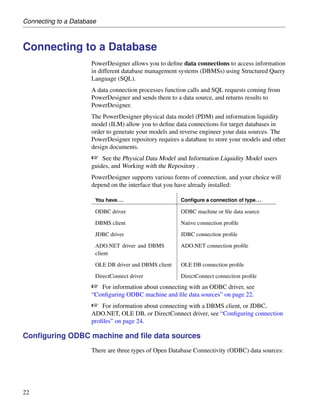
                   namespaces in the XSM, see the XML Model User’s Guide .


108
Chapter 4. Managing Models


  In the following example, the class Printer is located in the Peripheral
  Package of an OOM where each package is, by default, a separate
  namespace:


  If you were to select the Use Parent Namespace check box in the property
  sheet of Peripheral Package, the internal names of objects in this package
  would no longer be prefixed by the name of the package. The parent of the
  folder, in this case the model itself, becomes the namespace, and you could
  not create a Printer class in the Internal Network package, because
  PowerDesigner would verify its uniqueness in the entire model.

O To define the namespace of a package
  1. Open the property sheet of the package.
  2. Select or clear the Use Parent Namespace check box.


                                                                             109
Packages


           3. Click OK to return to the model diagram.


110
Chapter 4. Managing Models


Diagrams
                 A diagram is a graphical view of a model or a package. All models and
                 packages have at least one diagram.

                     Requirements Model views
                     In the Requirements Model, there are no diagrams, but rather views. For
                     more information, see the Requirements Model User’s Guide .
                 You can add additional diagrams to a model or package to split the display
                 and focus on certain portions of the system. You can also use multiple
                 diagrams to focus on different subject areas. They allow you to see the
                 symbols of the same objects, displayed with different kinds of information.
                 For example, in a Publishing model, different diagrams could define the
                 different activities involved in this industry: the printing diagram, the sales
                 diagram, the accounting diagram, the book selection committee diagram.

Creating a diagram
                 By default, any model or package opens with a default diagram. You can
                 create as many diagrams as you want in a model or in a package.
                 You can create a diagram in any of the following ways:
                 ♦ Select View ® Diagram ® New Diagram ® Diagram .

                 ♦ Right-click the background of your diagram and select Diagram ® New
                   Diagram ® Diagram from the contextual menu
                 ♦ Right-click the model node in the Model Explorer and select New ®
                   Diagram from the contextual menu
                 In each case you will be invited to specify a name, code, and optional
                 comment for the new diagram.

Diagram properties
                 You can modify an object’s properties from its property sheet. To open a
                 diagram property sheet, right-click its Model Explorer entry and select
                 Properties from the contextual menu, or right click the diagram background
                 and select Diagram ® Properties from the contextual menu. The General tab
                 contains the following properties:


                                                                                              111
Diagrams


                  Property     Description

                  Name         Specifies the name of the item which should be clear and
                               meaningful, and should convey the item’s purpose to non-
                               technical users
                  Code         Specifies the technical name of the item used for generating
                               code or scripts, which may be abbreviated, and should not
                               generally include spaces

                  Comment      Additional information concerning the diagram
                  Parent       Specifies the name of the parent model or package

                  Stereo-      Specifies a stereotype for the diagram. For example, a statechart
                  type         diagram can serve to model page flows in JSF and other web
                               frameworks.
                               You can use a profile to provide special processing for diagrams
                               and other objects carrying stereotypes. For more informa-
                               tion, see the “Managing Profiles” chapter in Advanced User
                               Documentation .
                  Page scale   Sets a default display for page scale. The page scale percentage
                               lets you define a page size according to your modeling needs.
                               If you have a lot of objects on several pages, you can reduce
                               the page scale percentage in order for all the objects to fit on a
                               single printable page

                  Default      Diagram by default. This check box is automatically selected if
                  Diagram      the diagram is the first created diagram


Navigating between and opening existing diagrams
                 You can open a diagram in any of the following ways:
                 ♦ Double-click the diagram entry in the Model Explorer.
                 ♦ Press CTRL + D, or select View ® Diagram ® Select Diagram to open the
                   Select Diagram dialog box, select a diagram node in the tree and click
                   OK.


112
Chapter 4. Managing Models


                    ♦ In the case of package diagrams, you can additionally:
                      • Select the Open Package Diagram tool from the Palette and click on a
                         package symbol.
                       • Press CTRL and double-click a package symbol.
                       • Right-click a package symbol and select Diagram ® Open Diagram
                         from the package contextual menu.

Showing and hiding diagram symbols
                    Not all PowerDesigner model objects have symbols. For those that do, the
                    symbol is, by default, displayed in the diagram when you create the object.
                    You can subsequently choose to show or hide the symbol.

Hiding a symbol

                    Hiding certain symbols can improve the readability of your diagram. When
                    you hide a symbol you do not delete it or the object.

                  O To hide a symbol from the Symbol menu
                    1. Select one or several symbols in the diagram.
                    2. Select Symbol ® Hide Symbols from the contextual menu.
                       The symbols are hidden in the diagram.

                       Hidden link objects
                       When you hide an object with link objects connected to it, the link
                       objects are also hidden. For example, if you hide a table symbol that
                       has a reference to another table, the selected table will be hidden with
                       the reference.


                                                                                             113
Diagrams


                  O To hide a symbol from the Show Symbols dialog box
                     1. Select Symbol ® Show Symbols (or right-click the diagram background
                        and select Diagram ® Show Symbols from the diagram contextual menu)
                        to open the Show Symbols dialog box.
                     2. Deselect the check box beside the visible symbol.
                     3. Click OK to return to the model diagram.

Displaying a hidden symbol

                     You can redisplay a hidden symbol.

                  O To display a hidden symbol
                     1. Select Symbol ® Show Symbols (or right-click the diagram background
                        and select Diagram ® Show Symbols from the diagram contextual menu)
                        to open the Show Symbols dialog box.
                     2. Select the appropriate object type sub-tab and select the check box beside
                        the appropriate symbol.


                     3. Click OK to return to the model diagram.

Working with the Show Symbols dialog box

                     The Show Symbols dialog box displays all objects belonging to the current
                     package. You can select objects from other packages for display in the
                     current diagram using the Add Objects tool.


114
Chapter 4. Managing Models


                          Object symbols are organized by object type in sub-tabs. Only relevant tabs
                          are displayed. For example, if your package contains only tables and
                          references, only the Table tab will be available, as references are contained
                          in table definitions. If shortcuts, extended dependencies and/or free symbols
                          are present in the package, they appear on their own sub-tabs.
                          The following tools are available for selecting symbols:

                           Tool             Description

                                            Allows you to select objects from other packages to display
                                            them in the current diagram.

                                            Selects all check boxes in the current object type page or
                                            selects all check boxes in all object type pages when you
                                            click the Down Arrowhead and select All Pages

                                            Deselects all check boxes in the current object type page or
                                            deselects all check boxes in all object type pages when you
                                            click the Down Arrowhead and select All Pages

                                            Moves all selected object to the top of the list


                                            Moves all selected object to the bottom of the list


                           C TRL + selec-   Selects all items in all object type pages
                           tion tool

                          Symbol deletion
                          You cannot delete a symbol from the Show Symbols dialog box. When a
                          symbol is hidden it is not deleted.
Show symbol directly in   If an object has no symbol, you can show it directly in the diagram without
the diagram               using the Show Symbols dialog box, by using the:
                          ♦ Drag and Drop feature
                          ♦ Paste as Shortcut command


                                                                                                           115
Diagrams


                           Action                                 Result

                           Standard Drag and Drop from Model      Object symbol created in the
                           Explorer to diagram                    destination diagram

                           Drag and Drop from diagram to          Object symbol created in the
                           diagram + Create shortcut option       destination diagram with symbol
                           selected (General Options)             format parameters and relative
                           or                                     position preserved
                           Copy symbol + Paste as Shortcut
                           command from diagram to diagram
For more information on the Drag and Drop feature and the Paste as
                       Shortcut command, see respectively sections Dragging and dropping objects
                       and Pasting an object as a shortcut in chapter Managing Objects.

Understanding automatic link completion

                       The following rules apply to the display of link objects in the diagram
                       window.
General rules

                        Object        Check box       Result in the diagram. . .

                        Link          Selected        Objects at both ends are automatically dis-
                                                      played

                        Any           Deselected      Link objects attached to the hidden object are
                                                      automatically hidden

                        Non link      Selected        Link objects attached to the displayed non link
                                                      object are automatically displayed if their other
                                                      ending object is already displayed
CDM special behavior


116
Chapter 4. Managing Models


                   Object        Check box       Result in the diagram. . .

                   Associa-      Selected        Entities and association links attached to the
                   tion                          displayed association are automatically dis-
                                                 played
                   Associa-      Selected        Entities and associations attached to the dis-
                   tion link                     played association link are automatically dis-
                                                 played

                   Inheritance   Selected        Entities (parent and children) and inheritance
                                                 links attached to the displayed inheritance are
                                                 automatically displayed

                   Inheritance   Selected        Entities (parent and children) and inheritance
                   link                          attached to the displayed inheritance link are
                                                 automatically displayed

                   Parent en-    Deselected      Inheritances for which the hidden entity is the
                   tity                          parent are automatically hidden

Finding an object symbol in the diagram
                  You can locate any object with a symbol in a diagram or among several
                  diagrams using Find in Diagram (or, for an RQM, Find in Document View).
                  Objects without graphical symbol such as domains cannot be found in the
                  diagram.
                  If the object has only one symbol, the appropriate diagram is opened with
                  the object symbol centered. If the object has several symbols, a dialog box
                  opens to allow you to select one.
                  This feature can be very useful if you are looking for the target object of
                  shortcut symbols, as you can access the target object from the shortcut
                  property sheet and then locate the target object in the diagram.
                  Find in Diagram (or Find in Document View) is available from:
                  ♦ The Model Explorer
                  ♦ The Modeling Result List

                  ♦ The object property sheet dropdown menu
                  ♦ An objects list


                                                                                                   117
Diagrams


                  O To find an object symbol from the Model Explorer
                     1. Right-click an object in the Model Explorer and select Find in Diagram
                        (or Find in Document View) from the contextual menu.

                  O To find an object symbol in the diagram from the Modeling Result
                    List
                     1. Right-click an object in the Modeling Result List and select Find in
                        Diagram (or Find in Document View) from the contextual menu.

                  O To find an object symbol in the diagram from its property sheet
                     1. Open an object property sheet and select Find in Diagram (or Find in
                        Document View) from the dropdown menu at the bottom-left corner.

                  O To find an object symbol in the diagram from an objects list
                     1. From an objects list, select an object in the list and click the Find Symbol
                        in Diagram tool in the list toolbar.

Defining related diagrams
                     You can define Related Diagrams to attach an object to one or several
                     diagrams others than the ones it was created in. This feature can be used to
                     further define the behavior and implementation of objects . It allows you to
                     view objects from different angles and describes a semantic relationships.
                     You can associate any type of diagram open in the project with an object,
                     including diagrams from other packages or models.

Adding related diagrams

                     You can only attach related diagrams to objects that have a Related
                     Diagrams tab in their property sheet.

                  O To add a related diagram
                     1. Open the property sheet of the object and click the Related Diagrams tab.
                     2. Click the Add Objects tool to open a selection window.
                     3. Select a model in the list, and then select the diagram to attach.
                     4. Click OK to return to the object property sheet.
                          The diagram is displayed in the list of related diagrams of the object.


118
Chapter 4. Managing Models


Opening related diagrams

                     You can open a related diagram from the property sheet of an object.

                  O To open a related diagram from an object property sheet
                     1. Open the property sheet of the object and click the Related Diagrams tab.
                     2. Select a diagram from the list, and then click the Open Diagram tool.
                        The selected diagram is opened in the diagram window, behind the object
                        property sheet.
                     3. Click OK to access the related diagram.

Saving a diagram
                     You cannot save a diagram individually, as it only represents a view of a
                     model or package. When you save a model, you save the diagram in its
                     present state of magnification.

Deleting a diagram
                     When you delete a diagram, you delete a view of a model or a package. This
                     action does not affect the objects in the model or package.
                     You can delete a diagram in any of the following ways:
                     ♦ Select the diagram node in the Model Explorer and press the DEL key.
                     ♦ Right-click the diagram window background and select Diagram ®
                       Delete from the contextual menu.
                     ♦ Select View ® Diagram ® Delete.

Converting a diagram to a package
                     PowerDesigner lets you convert a diagram to a package.
                     You can move all the objects in the diagram to the new package or specify
                     only certain objects. Other objects will stay in their original package and be
                     represented via shortcuts in the new package.
                     The linking objects that you move keep their links in the target package and
                     a shortcut is usually created in the source package. The general rule being
                     that conceptual modeling must be preserved.
                     Shortcuts creation rules in PowerDesigner also apply to moving objects
                     between packages.
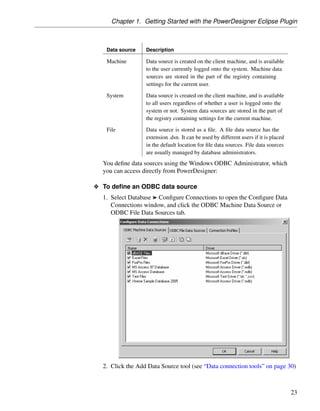

                                                                                                 119
Diagrams
For more information on shortcut creation, see the Managing Shortcuts
             chapter.

           O To convert a diagram to a package
             1. Select View ® Diagram ® Convert to Package.
                or
                Right-click the diagram background window and select Diagram ®
                Convert to Package from the contextual menu.
                or
                Right-click the diagram node in the Model Explorer and select Convert to
                Package from the contextual menu.
                In each case, the Convert Diagram to Package wizard opens. By default
                the sub-package takes the name of the diagram.


             2. [optional] Enter a different name and code for the new package.
             3. Click Next to open the Selecting Objects to Move page.
                This page lists all the objects in the diagram available to move to the new
                package. Objects are organized by object type, with a sub-tab for each
                object type. By default, all the objects are selected.


120
Chapter 4. Managing Models


                 4. [optional] Deselect any objects you do not want to move to the new
                    package. Objects deselected here will remain in the original package and
                    be represented in the new package via shortcuts.
                 5. Click Finish to create the new package and move the selected objects to it.
                    The new package and diagram are added in the Model Explorer.

Moving a diagram to a package
                 In some cases, you may want to move a diagram and some or all of the
                 objects it contains into another package (or composite object such as process
                 or activity).
                 The linking objects that you move with the diagram keep their links in the
                 target package and a shortcut is usually created in the source package. The
                 general rule being that the design of the original diagram must be preserved.
                 Shortcut creation rules in PowerDesigner also apply to moving objects
                 between packages.
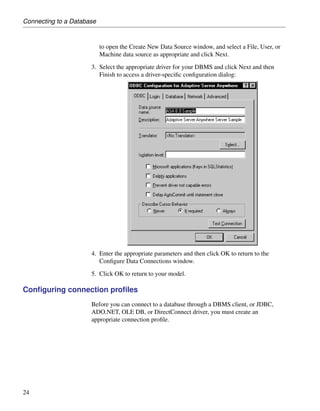
For more information on shortcut creation, see chapter Managing
                 shortcuts.
                 You can simply drag and drop the diagram from one package to another in
                 the Model Explorer. All objects in the diagram are automatically moved to
                 the target package.
                 You can use the wizard to control which objects in the diagram are moved to
                 the new package.


                                                                                           121
Diagrams


           O To move a diagram to a package using the wizard
             1. Select View ® Diagram ® Move to Package.
                or
                Right-click the diagram background window and select Diagram ® Move
                to Package from the contextual menu.
                or
                Right-click the diagram node in the Model Explorer and select Move to
                Package from the contextual menu.
                In each case, the Move Diagram to Package wizard opens:


             2. Select a target package in which you want to move the current diagram
                and click Next to open the Selecting Objects to Move page.
                This page lists all the objects in the diagram available to move to the new
                package. Objects are organized by object type, with a sub-tab for each
                object type. By default, all the objects are selected.


122
Chapter 4. Managing Models


                 3. [optional] Deselect any objects you do not want to move to the new
                    package. Objects deselected here will remain in the original package and
                    be represented in the new package via shortcuts.
                 4. Click Finish to move the diagram to the new package.

                  Last diagram in package
                  If the last diagram is moved or deleted from a package, a new diagram is
                  automatically created as all packages must contain at least one diagram.

Moving entities between packages in a CDM
                 In a CDM, when moving entities containing data items from one package to
                 another, the following rules apply:

                  Data items           Namespace         Move result

                  Only used by se-     Move within the   The data items are moved with the
                  lected entity        same namespace    entity

                  Reused among         Move within the   Shortcuts of data items are created
                  different entities   same namespace    for reused data items

                  Used only by one     Change names-     Data items are copied in the other
                  entity or reused     pace              namespace
                  among different
                  entities


                                                                                               123
Checking a Model


Checking a Model
                     You can check the validity of your model at any time. We recommend that
                     you check your model before generating code or another model from it. The
                     Check model option is enabled by default in the Generate dialog box and, if
                     an error is found, the generation is stopped.

                   O To check your model
                     1. Press F4, select Tools ® Check Model, or right-click the diagram
                        background and select Check Model from the contextual menu to open
                        the Check Model Parameters dialog box.
                        The options tab lists the types of objects to be checked, and the individual
                        checks to be performed are displayed with symbols indicating their
                        severity:


                     2. [optional] Select or deselect types of objects to check, and expand object
                        nodes to enable, disable, vary the severity of, and enable or disable
                        automatic correction of individual checks (see “Check model parameter
                        tools” on page 126).

                         Getting documentation for object checks
                         Right-click a check in the Check Model Parameters dialog box and
                         select Help from the contextual menu to display its documentation.

                     3. [optional] Click the Selection tab, and select or deselect individual
                        objects for checking. Sub-tabs are available for each type of object:


124
Chapter 4. Managing Models


    Selecting objects in the diagram
    If you have selected object symbols in your diagram before starting
    the model check, you can select them for checking by clicking the Use
    Graphical Selection tool in the Selection tab tool bar.
   For more information about selecting objects in Selection tabs, see the
   “Adding an item from a selection list” section in the “Using the
   PowerDesigner Interface” chapter.

4. [optional] Click Apply to save your selections so that they will be
   available for future model checks.

5. Click OK to launch the model check.
   The Check Model Modeling Result List displays errors and warnings
   based on the check options you have defined. For information about how
   to correct errors, see “Correcting errors in the check model Modeling
   Result List” on page 127.


                                                                         125
Checking a Model


Check model parameter tools
                   The following tools are available in the Check Model Parameters dialog box:


126
Chapter 4. Managing Models


                   Tool     Description

                            Select All – Click the arrow to the right of this tool to choose to
                            select all checks, all error checks, or all warning checks.

                            Deselect All - Click the arrow to the right of this tool to choose to
                            deselect all checks, all error checks, or all warning checks.

                            Error – Sets the selected check to error level. The check icon
                            will change accordingly. When errors are encountered, any model
                            generation is stopped.

                            Warning - Sets the selected check to error level. The check icon will
                            change accordingly. Warnings do not prevent generation from your
                            model.

                            Automatic correction – [enabled if automatic correction is available
                            for the selected check] Enables automatic correction for the selected
                            check. The check icon will change to bear a small red cross in its
                            bottom-right corner.
                            You should be aware of how automatic corrections can affect your
                            models. For example, in a PDM, if a column code length is longer
                            than the length specified in the MaxColumnLen field in the DBMS,
                            then PowerDesigner can automatically truncate the code to the
                            specified length. However, such truncation can make create duplicate
                            names and PowerDesigner will automatically rename the duplicated
                            column code. If you do not want this to occur, you should deselect
                            automatic correction for column code uniqueness.
                            All problems that can not be corrected automatically must be cor-
                            rected manually. For example, in a PDM, PowerDesigner will not
                            create a column for an existing index, and you will need to create the
                            appropriate column.

Correcting errors in the check model Modeling Result List
                  When errors and warnings are encountered during model checking, they are
                  listed in the Check Model Modeling Result List pane. You can correct the
                  problems either by invoking a automatic correction (if available) or by
                  opening the property sheet of the affected object and correcting it manually.
                  The following tools are available to assist you in correcting problems with
                  your model. If this toolbar is not displayed, select Tools ® Customize
                  Toolbars, select Check, and click OK.


                                                                                                     127
Checking a Model


                   Tool     Description

                            Correct error – Opens the property sheet of the affected object to
                            allow you to correct the error.

                            Display help – Provides documentation for the error or warning.


                            Check again – Re-performs the check, to allow you to verify your
                            correction.

                            Automatic correction – Only available if an automatic correction is
                            defined for this kind of error. Performs the automated correction.

                            First error – Goes to the first error in the list.


                            Previous error - Goes to the previous error in the list.


                            Next error - Goes to the next error in the list.


                            Last error - Goes to the last error in the list.


                   Right click menu
                   These and other options are also available by right-clicking an item in the
                   Check Model Modeling Result List.


128
Chapter 4. Managing Models


Using the Free Model
            The Free Model (FEM) allows you to create any kind of chart, diagram, in a
            context-free environment. For example, you could create a model to
            represent:
            ♦ how your models and documents relate to each other
            ♦ the organizations in your enterprise and how they interrelate

            ♦ a flowchart
            ♦ a hierarchy diagram
            ♦ the graphics you use in PowerPoint presentations and link them to the
              presentations they are used in

            ♦ the users in your Enterprise Repository and link them to symbols
              representing the groups they belong to

            ♦ an ORM model using ORM specific extended model definitions
            You can enrich the diagrams in the Free Model by selecting different
            bitmaps for each symbol and add extended attributes to collect specific
            metadata. VBScript and the Generic Generator make it possible to program
            your own semantics into this model and create specific generated code or
            other output particular to your own interpretation.


                                                                                      129
Naming Conventions


Naming Conventions
                       You can define naming conventions for your model objects in the Model
                       Options dialog box. You can:
                       ♦ Set rules to enforce predefined name and code formats for all the objects
                         within a model. When you type a name or a code that does not respect the
                         conventions, PowerDesigner adapts them to the required format. See
                         “Name/Code Format” on page 130.

                       ♦ Set conversion scripts in order to generate objects name from their code
                         or objects code from their name using specific macros and conversion
                         tables. This feature is only available when you select the Enable
                         name/code conversion option. See “Name and code conversion scripts”
                         on page 135.

                          Name into code conversion during inter-model generation
                          The name into code conversion is particularly useful for inter-model
                          generation, as it allows you to define how you want the codes of your
                          model objects to be generated. For more information on the name
                          into code conversion during the inter-model generation, see section on
                          inter-model generation options in the different modules user’s guides.

Name/Code Format
                       Name and code format encompasses constraints on length, character case
                       and type for the name and the code of objects.
                       You can set name and code format for:
                       ♦ Models and packages

                       ♦ Model objects
                       ♦ Reusable templates

Displaying the name or the code of objects

                       You can define whether the names or codes of objects are displayed.

                     O To define the display of names or codes
                       1. Select Tools ® Model Options to open the Model Options dialog.

                       2. Select the Naming Convention node in the Category tree view.


130
Chapter 4. Managing Models


                      3. Select the Name or Code radio button in the upper part of the dialog box.
                      4. Click OK to return to the model diagram.

Defining name and code format for a type of object

                      You can specify name and code formats for each type of object in a model.


                                                                                              131
Naming Conventions


                     O To define name and code format for a type of object
                       1. Select Tools ® Model Options to open the Model Options dialog box.
                       2. Select an object type beneath the Naming Convention node in the
                          Category tree view.

                           Other Objects category


                           Select the Other Objects category to define name and code format for
                           models and all objects that are not visible in the tree view.


                       3. Complete the appropriate properties on the Name and Code tabs (see
                          “Name and Code format properties” on page 134).
                       4. Click OK to return to the model diagram.

Creating a template for name and code format

                       You can define a template for name and code formats and reuse it for several
                       types of objects.

                     O To create a template for name and code format
                       1. Select Tools ® Model Options to open the Model Options dialog box.

                       2. Select the Naming Convention node in the Category tree view.


132
Chapter 4. Managing Models


3. Click the Ellipsis button beside the Naming Template box to open the
   List of Naming Templates:


4. Click the Add a Row button and type a naming template name.
5. Click the Properties tool to open the new naming template property sheet
   to the Detail page:


6. Complete the appropriate properties (see “Name and Code format
   properties” on page 134).

7. Click OK to return to the model diagram.


                                                                          133
Naming Conventions


                           Naming template modification
                           You can modify name and code format for a template by selecting it
                           from the Naming template list and clicking the Properties tool beside
                           the Naming template box.

Applying a naming template to a type of object

                       You can apply a naming template to any number of object types in your
                       model.

                     O To apply a naming template to an object type
                       1. Select Tools ® Model Options to open the Model Options dialog box.
                       2. Select an object type beneath the Naming Convention node in the
                          Category tree view.
                       3. Select the Name or Code tab and then select a template in the Naming
                          Template list.
                          The values of the selected template appear in the name format boxes.
                       4. Click OK to return to the model diagram.

Name and Code format properties

                       The following options are available for formatting names and codes:

                         Option         Description

                         Display        Displays the names of objects in the interface
                         Name

                         Display Code   Displays the codes of objects in the interface

                         Enable         Enables the use of conversion scripts and conversion tables
                         name/code      to generate a code from a name or a name from a code. See
                         conversions    section “Name and code conversion scripts” on page 135

                         Naming Tem-    Specifies a template for name and code format
                         plate


134
Chapter 4. Managing Models


                  Option          Description

                  Maximum         Maximum number of characters. In a PDM, this maximum
                  Length          number of characters can come from the Registry (if you
                                  defined a Maximum length and clicked the Set As Default
                                  button) or from the DBMS definition file. If a maximum
                                  length is declared in both the Registry and the DBMS,
                                  PowerDesigner uses the length with higher constraint. For
                                  example, in the case where the Registry = 128 and the DBMS
                                  = 30, PowerDesigner uses 30 characters for maximum length
                  Character       Indicates authorized character cases: Uppercase, Lowercase,
                  Case            and Mixed Case
                  Valid Charac-   List of authorized characters.
                  ters            You can specify a single character or character string in
                                  quotation marks. For example:
                                  "a", "xyz"

                                  You can specify an interval of characters between single
                                  quotation marks separated by a dash. For example:
                                  ’a’-’z’
                                  ’a’-’z’, ’A’-’Z’, ’0’-’9’

                                  By default, PowerDesigner allows the following valid char-
                                  acters for codes: ‘a’-’z’,’A’-’Z’,’0’-’9’,”_”

                  All Valid       Accepts all characters.

                  Invalid Char-   List of unauthorized characters. By default, PowerDesigner
                  acters          defines the following invalid characters for names:
                                  ”+-*/.,!:;”

                  No Accents      Removes accents from accented characters.

                  Default Char-   Character used to replace any invalid characters entered.
                  acter


Name and code conversion scripts
                 You can set conversion scripts in order to generate the name of an object
                 from its code or vice versa using conversion scripts and tables. Name/code
                 conversions can be applied to all named objects in a model or for each type
                 of object individually.
                 You must select the Enable name/code conversions check box in the upper
                 part of the Naming Convention page of the Model Options dialog box for


                                                                                                135
Naming Conventions


                         this feature to be available.

                          Enable name/code          Name/code behavior
                          conversion option

                          Selected                  Use of conversion scripts and conversion tables to
                                                    generate a code from a name or a name from a code
                                                    together with the application of naming conventions

                          Unselected                Names are copied from codes or codes are copied
                                                    from names together with the application of naming
                                                    conventions
Name to Code mirroring   When you create an object in PowerDesigner, you may have to type a name
mode                     and click the Equal button after the Code box to set the code equal to the
                         name because the Name to Code mirroring mode may not be selected in the
                         General Options dialog box.
                         You can select this operating mode to automatically set the code equal to the
                         name and thereby apply the conversion scripts you defined to both names
                         and codes.
For more information on the Name to Code mirroring option, see
                         section Defining dialog box operating mode in chapter using the
                         PowerDesigner interface
                         Conversion scripts allow you to alternatively generate a code from a name
                         and a name from a code. You define conversion scripts from the
                         corresponding tabs in the Naming Convention page of the Model Options
                         dialog box. Usually name into code conversion is the most commonly used:

                          Tab                 Description

                          Name To Code        You use it when you want to generate a code from a name

                          Code To Name        You use it when you want to generate a name from a code
                         Each tab allows you to:
                         ♦ Define a conversion script in the Conversion Script edit box to generate
                           the name from the code or the code from the name using macros

                         ♦ Select a conversion table from the Conversion table list. This allows you
                           to convert an expression to another, when using the .convert_name or
                           .convert_code macros. For more information on macros, see section
                           “Using a conversion script” on page 137. The use of conversion tables is
                           optional


136
Chapter 4. Managing Models


Using a conversion script
                  Default conversion scripts allow you to generate names from codes and
                  codes from names using macros. These are macros used in the Generation
                  Template Language (GTL) and recommended for the name/code
                  conversions.
                  Conversion scripts are used when you click the Equal button after a Name or
                  a Code box in the object property sheet or when you have selected the Name
                  to code mirroring option in the Dialog page of the General Options.
                  You can customize the default conversion scripts using any of the following
                  macros:
                  ♦ .foreach_part
                  ♦ .convert_name & .convert_code
                  ♦ .lowercase
                  ♦ .uppercase
                  ♦ .replace
                  ♦ .delete
For more information on the syntax of macro keywords used in the
                  Generation Template Language (GTL), see section Using macros in chapter
                  Generation Reference Guide in the Advanced User Documentation .


                                                                                          137
Naming Conventions


.foreach_part macro

                      The .foreach_part macro allows an iteration on each part of an expression.
                      The part separators will be specified into a pattern expression.
                      This macro is very useful when dealing with inter-model generation, as
                      models can have very different naming conventions. For example a Java
                      class attribute code may be “customerName” whereas a PDM table column
                      code may be “CUSTOMER_NAME”.
Syntax
                        . foreach_part (<Expression> [, <Separator Pattern>[,<Head> [,
                                 <Tail>]]])
                        [<Block>]
                        .next[(<Separator>)]

Parameters

                       Parameter        Description

                       <Expression>     Designates the expression scanned by the part iterator. This
                                        part iterator will stop on each character specified into the
                                        <PartSeparatorPattern>
                       <Separator       Defined into a double quoted string. Any character speci-
                       Pattern> (op-    fied into the pattern will be used as a part separator.
                       tional)          See below

                       <Block>          Encompasses the following variables:
                                        %CurrentPart%: Current part value,
                                        %IsFirst%: Determines if the current part is the first part of
                                        the expression,
                                        %IsLast%: Determines if the current part is the last part of
                                        the expression

                       <Separator>      A <separator> can be concatenated between each
                       (optional)       part. If you defined a character separator in the
                                        <PartSeparatorPattern>, the value of the <separator>
                                        will replace the character separator. If you defined a range
                                        separator in the <PartSeparatorPattern>, the table conver-
                                        sion you selected will return the corresponding value to
                                        replace the range separator

                       <Head> or        Expressions that can be added respectively at the beginning
                       <Tail> (op-      or at the end of the generated expression
                       tional)


138
Chapter 4. Managing Models


Separator           There are two types of separator:
                    ♦ A character separator that must be defined into an additional simple
                      quote and writes as follows: (%Name,”’<char>”’)
                    ♦ A range separator that must be used with a conversion table and writes as
                      follows: (%Name,”[<c1>-<c2>]”)
                    Both can also be combined: (%Name,”’<char>’,[<c1>-<c2>]”).
                    ‘<char>’ can be any character specified into the pattern for example: a, b ,
                    c, 0, 9.
                    [<c1> - <c2>] specifies a character taken into the range defined between
                    the two characters <c1> and <c2>. For example, [A-Z], [a-z] or [0-9]” can
                    be used as part separators.
                    By default, the <PartSeparatorPattern> is initialized by the pattern “ -_,t”.
                    If the specified pattern is empty the pattern is initialized using the default
                    value.
Examples
                    ♦ Script 1: Convert a name into a class code (JAVA naming convention)
                         .foreach_part(%Name%, "’ _-’")
                         %.FU:CurrentPart%
                         .next

                       The conversion script will output:
                         Name = Employee shareholder => Code = EmployeeShareholder

                    ♦ Script 2: Convert a name into a class attribute code (JAVA naming
                      convention)
                         .set_value(_First, true, new)
                         .foreach_part(%Name%, "’ _-’")
                         .if (%_First%)
                         %.L:CurrentPart%
                         .set_value(_First, false, update)
                         .else
                         %.FU:CurrentPart%
                         .endif
                         .next

                       The conversion script will output:
                         Name = Employee shareholder => Code = employeeShareholder


.convert_name & .convert_code macros

                    The .convert_name & .convert_code macros use a conversion table to get
                    the corresponding code from a name or the corresponding name from a code.


                                                                                               139
Naming Conventions


                     The .convert_name macro uses the conversion table of a name into a code
                     and the .convert_code macro uses the conversion table of a code into a name.
                     When no occurrence is found in the table, the name or the code is returned.
                     You can use these macros together with a user-defined conversion table that
                     you select in the Conversion Table list.
                     Conversion tables are not case sensitive. You can indifferently use
                     lower-or-uppercases in tables.
For more information on conversion tables, see section “Using a
                     conversion table” on page 141.
Syntax
                       .convert_name (<Expression>[,<Separator Character>[,<Separator
                                Pattern>],<code naming convention>])
                       .convert_code (<Expression>[,<Separator Character>[,<Separator
                                Pattern>]])

Parameters

                      Parameter               Description

                      <Expression>            Name or code to be converted in the corresponding
                                              conversion table

                      <Separator              Character generated each time a separator declared
                      Character> (optional)   in <Separator Pattern> is found in <Expression>.
                                              For example this character can be “_”

                      <Separator Pattern>     Declaration of the different separators likely to exist
                      (optional)              in the <Expression>. These separators will be
                                              replaced by the <Separator Character>. You can
                                              declare several separators, for example “/-_”

                      <Code naming            <firstLowerWord>: First word in lowercase, then
                      convention>             other first letters of other words in uppercase
                                              <FirstUpperChar>: First character of all words in
                                              uppercase
                                              <lower_case>: All words in lowercase and sepa-
                                              rated by an underscore
                                              <UPPER_CASE>: All words in uppercase and
                                              separated by an underscore
Code naming          If you use the code naming convention parameter with the convert_name
conventions          macro, the conversion script will automatically convert names according to
                     the selected parameter. This can be very useful when you need to adapt
                     codes to a particular target, for example PowerBuilder naming conventions


140
Chapter 4. Managing Models


                  require object codes to be always in lowercase and separated by an
                  underscore.
                  When you use a code naming convention parameter in the conversion script,
                  the conversion table is no longer used and the name is systematically
                  converted according to the pattern defined in the code naming convention
                  parameter.
                  You can also define a code naming convention for all the instances of a
                  selected metaclass using the resource editor, for more information on this
                  feature, see section Adding a metaclass to a profile in chapter Managing
                  Profiles in the Advanced User Documentation .
Example           You type the following script in the Name to Code page:
                    .convert_name(%Name%,"_","’-/’")

                  Note that both the <Separator Character> and the <Separator Pattern>
                  must be defined into a double quoted string, furthermore you should add
                  simple quotes around <Separator Pattern> to define the pattern syntax.
                  In this script, the separator patterns (- and /) are used to distinguish the
                  different words in the name. The separator character ( _ ) will be used to
                  separate the different characters of the name. So whenever a “-” or a “/”
                  separator pattern is encountered, it will be replaced by the “_” separator
                  character.
                  The script has to convert the name CLIENT-France/Address and uses the
                  following conversion table:

                   Name         Code

                   CLIENT       CLI

                   France       FR

                   Address      ADDR
                  The resulting code is:
                    CLI_FR_ADDR


Using a conversion table
                  Conversion tables provide a way to define a correspondence between the
                  name and the code of an object or the code and the name of an object.
                  Conversion tables are stored into separate CSV (Comma-Separated Values)
                  files and are shared by all models.


                                                                                                 141
Naming Conventions


                     PowerDesigner provides CSV file samples stored in the Resource
                     FilesConversion tables folder of the PowerDesigner installation directory.
                     You can also store the conversion tables you create in that directory.
                     Conversion tables are not case sensitive. You can indifferently use
                     lower-or-uppercases in tables.
                     A conversion table encompasses a Name column and a Code column.
                     Depending on the conversion type you use, a name or a code is returned
                     during the generation. However, if several different names have the same
                     code for example, only the first found name is returned.
                     The following example illustrates a Name To Code conversion where two
                     different names (Customer and Client) have the same code (CUST):


                     ♦ When converting the name into code, CUST will appear in the Code box
                       of both Client and Customer property sheet objects

                     ♦ When converting the code into name, only the first occurrence (Customer
                       = CUST) will be taken into account to appear in the Name box of the
                       Customer object property sheet
                     A selected conversion table will be operational only if you simultaneously
                     invoke it using the Convert_name or Convert_code macros in the Conversion
                     script edit box.
For more information on the Convert_name or Convert_code macros,
                     see section “Using a conversion script” on page 137.


142
Chapter 4. Managing Models


                   O To use a conversion table
                      1. Select a conversion table from the Conversion table list located in the
                         lower part of the Name To Code or Code to Name pages.

Creating a conversion table

                      You create a conversion table from the list of conversion tables.

                   O To create a conversion table
                      1. Select Tools ® Resources ® Conversion Tables to display the list of
                         available conversion tables.


                      2. Click the New tool, enter a name and click Save to open the Conversion
                         Table dialog.

                      3. Click the Add a Row tool.
                      4. Type a name in the Name column, and click the code into which you
                         want it to be converted in the Code column:


                                                                                                   143
Naming Conventions


                          You can create as many conversion pairs as required.
                       5. Click OK to return to the list of conversion tables, where the new table is
                          now available.

Modifying a conversion table

                       You modify a conversion table from the List of Conversion Tables.

                     O To modify a conversion table
                       1. Select Tools ® Resources ® Conversion Tables to display the list of
                          available conversion tables.

                       2. Select a conversion table in the list and click the Properties tool.


144
Chapter 4. Managing Models


                         Note that you can also modify a conversion table directly from the
                         Naming Convention page of the Model Options dialog box by selecting a
                         conversion table from the Conversion Table list and clicking the Edit the
                         selected conversion table tool.

                          Modifying a conversion table outside PowerDesigner
                          As a .CSV file, a conversion table can be modified in any external
                          text editor, like Notepad for example. However, if you modify your
                          conversion table outside PowerDesigner while the conversion tables
                          editor is running in the current session, your modifications will be taken
                          into account only if you close and re-open the conversion tables editor.

Deleting a conversion table

                      You delete a conversion table from the list of conversion tables.

                   O To delete a conversion table
                      1. Select Tools ® Resources ® Conversion Tables to display the list of
                         available conversion tables.
                      2. Select the conversion table that you want to delete from the list and click
                         the Delete tool.

Defining a code naming convention in a resource file
                      When you define code naming conventions in a model, these are not
                      automatically applied to the current model. To apply these code naming
                      conventions, you have to do one of the following actions:
                      ♦ Use the model to model generation feature, in this case you re-generate
                        the model and apply the new naming conventions

                      ♦ Create a new model
                      ♦ Use the Change Target Language to apply the same resource file to the
                        model but have the new naming conventions applied

                   O To define a code naming convention in a resource file
                      1. Open the DBMS, object language, process language, or XML language
                         editor.
                      2. Select a metaclass in the Profile category.

                      3. Select a Code Naming Convention from the list.


                                                                                                 145
Naming Conventions


                     4. Click OK.


146
Chapter 4. Managing Models


Spell Checking
                  Spell checking in PowerDesigner is only available if you have MS Word
                  2000 or higher installed on your machine, and if your system code page is
                  consistent with the model language. For example, for the spell checker to
                  work properly on a Chinese model, your system code page should be
                  Chinese.

Enabling the spell checker
                  The spell checker is a PowerDesigner add-in that needs to be enabled to
                  work properly.

                O To enable and configure the spell checker
                  1. Select Tools ® General Options to open the General Options dialog box.
                  2. Click the Add-Ins node in the Category tree view and select the Spell
                     Checker checkbox.
                  3. Click OK to return to the model diagram.
                  4. Select Tools ® Spell Checking Options to open the Spell Checking
                     Options dialog box.
                  5. Select the properties of model objects for which you want to check the
                     spelling. If you select Check sub-objects, then all the child objects of any
                     object you check will also be checked.

                  6. Select the language of your model in the Dictionary Language list, and
                     then click OK to return to the model diagram.

Using the spell checker

                O To use the spell checker
                  1. Right-click an object or a model node and select Spell Check in the
                     contextual menu.
                     Spell checking starts. If an error is found the Spell Checking dialog box
                     opens.
                  2. For each error, you can:
                    ♦ Click Change to accept the suggested replacement word
                    ♦ Type your own replacement and click Change
                    ♦ Click Change All to apply the change to the entire object or model


                                                                                             147
Spell Checking


                 ♦ Click Add to add the word to your custom dictionary
                 A message is displayed to inform you that spell checking is successful.


148
Chapter 4. Managing Models


Applying Model Transformations
                         Transformations are used to perform standard modifications to your model
                         objects. You can apply transformations either on demand or during
                         generation.
For information about creating transformations, see the “Managing
                         Profiles” chapter in the Advanced User Documentation .

Applying transformations during generation
                         Transformation profiles can be used during model generation:
                         ♦ pre-generation transformations are applied to the source model
                         ♦ post-generation transformations are applied to the target model
Inter model generation   During inter-model generation, it is impossible to execute both lists of
                         transformations of the same transformation profile, because the current
                         model is the source of generation but not the target as defined in the
                         following example.


Model to model           When you generate a model to the same type of model, you can execute both
generation               lists of transformations of the transformation profile provided you select the
                         same extended model definition in the source and in the target model.


                                                                                                    149
Applying Model Transformations


                   O To select transformations for generation
                      1. Select Tools ® Generate Model to open the Model Generation Options
                         dialog box.

                      2. Click the Details tab, and click the Enable Transformations to display the
                         Extended Model Definitions, Pre-generation, and Post-generation tabs.

                      3. Click the Extended Model Definitions tab to select the extended model
                         definitions in which you have defined your transformations.

                      4. Click the Pre-generation tab and select profiles and transformations to be
                         applied before generation. If you deselect a profile checkbox, none of its
                         transformations will be executed. You can drag and drop profiles to
                         modify transformation execution order. During generation,
                         transformations are executed in the following order:
                        ♦ The order of profiles in the pre and post generation pages
                         ♦ The order of transformations in the profile itself
                         ♦ The order in which objects are treated in the model, that is to say
                           beginning at the model level and recursing into sub-packages


150
Chapter 4. Managing Models


                 5. Click the Post-generation tab and select profiles and transformations to be
                    applied after generation.

                 6. Click OK in the Model Generation Options dialog box.

Applying transformations on demand
                 Transformations can also be applied on demand in your model as a sort of
                 design pattern. You can design a pattern using the transformation feature and
                 “play” it in your model in order to modify objects.
                 For example, if you are working in an OOM, you can create a transformation
                 that converts all analysis classes with the <<control>> stereotype into
                 components in order to add an implementation layer to your model.

                 Post-Generation Transformations only
                 You can only invoke post-generation transformations on demand.
                 There are two methods for applying transformations on demand in a model:
                 ♦ Add a transformation as a command in a main or contextual menu (see
                   “Defining menus in a profile” in the “Managing Profiles” chapter in the
                   Advanced User Documentation ).
                 ♦ Use the Apply Transformations window available from the Tools menu.


                                                                                          151
Applying Model Transformations


                   O To use the Apply Transformations window
                      1. Add one or more extended model definitions containing post-generation
                         transformations to your model

                      2. Select Tools ® Apply Transformations to open the Apply
                         Transformations window.
                      3. Select transformations profiles and transformations on the
                         Transformations tab.


                      4. [optional] Click the Selection tab and deselect any objects that you want
                         to exclude from the transformation.

                      5. Click OK to apply the transformations.


152
Chapter 4. Managing Models


Resource Files
                  The PowerDesigner modeling environment is powered by resource files,
                  which define the objects available in each model along with the methods for
                  generating and reverse-engineering them. You can view, copy, and edit these
                  XML-format resource files in order to customize and extend the behavior of
                  the environment. The following types of resource files are provided:
                  ♦ Target languages: define the standard objects available in a model.
                    Types of target language files include:
                    • Process languages (.xpl) – define a specific business process language
                      in the BPM (see the “Process Language Reference Guide” chapter in
                      the Advanced User Documentation ).
                     • Object languages (.xol) - define a specific object-oriented language in
                       the OOM (see the “Object Language Reference Guide” chapter in the
                       Advanced User Documentation ).
                     • DBMSs (.xdb) - define a specific DBMS in the PDM (see the “DBMS
                       Reference Guide” chapter in the Advanced User Documentation ).
                     • XML languages (.xsl) - define a specific XML language definition in
                       the XSM (see the “XML Language Reference Guide” chapter in the
                       Advanced User Documentation ).
                  ♦ Extended model definitions (.xem) – extend the standard definitions of
                    target languages to, for example, specify a persistence framework or
                    server in an OOM. You can create or attach one or more XEMs to a
                    model (see the “Extended Model Definitions Reference Guide” chapter in
                    the Advanced User Documentation ).
                  ♦ Report templates (.rtp) - specify the structure of a report. Editable
                    within the Report Template Editor (see the Reports User’s Guide ).
                  ♦ Report language files (.xrl) – translate the headings and other standard
                    text in a report (see the Reports User’s Guide ).

                  ♦ Conversion tables (.csv) - define conversions between the name and
                    code of an object (see “Using a conversion table” in the “Managing
                    Models” chapter).

Introduction to the Resource Editor
                  The resource editor allows you to view and edit the resources files provided
                  with PowerDesigner. The left-hand pane shows a tree view of the entries


                                                                                            153
Resource Files


                  contained within the resource file, and the right-hand pane displays the
                  properties of the currently-selected element:


                  Each entry is a part of the definition of a resource file. For example, you can
                  define entries for a database command, a characteristic of an object
                  language, a report item, and so on.
                  Entries are organized into logical categories. For example, the Script
                  category in a DBMS language file collects together all the entries relating to
                  database generation and reverse engineering.

                   Caution
                   You should never modify the resource files shipped with PowerDesigner.
                   To create your own resource file For each original resource file you want to
                   modify you should create a corresponding new resource file. To do so you
                   have to create a new resource file from the List of Resource Files, define
                   a name and select the original resource file in the Copy From list. This
                   allows you to create a new resource file that is identical to the original file
                   apart from the name.
                  For detailed information about resource files, see the “Resource Files and the
                  Public Metamodel”chapter in the Advanced User Documentation .

Opening the current target language file in the Resource Editor
                  When working with a BPM, PDM, OOM, or XSM, you can open the target
                  language file that defines your modeling environment in the Resource Editor
                  for viewing and editing.


154
Chapter 4. Managing Models


                O To open the current target language file
                  1. In a BPM, select Language ® Edit Current Process Language.
                  2. In a PDM, select Database ® Edit Current DBMS.

                  3. In an OOM, select Language ® Edit Current Object Language.
                  4. In an XSM, select Language ® Edit Current Language.
                     The target language file opens in the Resource Editor.

Opening any available resource file in the Resource Editor
                  You can open, inspect, and edit any resource file from the lists of resource
                  files.

                O To open a resource file
                  1. Select Tools ® Resources ® Type to open the relevant resource file list.
                  2. Select a file in the list, and then click the Properties tool.
                     The selected resource file opens in the Resource Editor.


                                                                                            155
Interchanging Models using the XMI Format


Interchanging Models using the XMI Format
                      PowerDesigner allows you to interchange Unified Modeling Language
                      (UML) models between different UML tool vendors using the XML
                      Metadata Interchange (XMI) standard file format.
                      XMI combines the benefits of web-based XML standard for defining,
                      validating and sharing document formats on the Web with the benefits of the
                      object-oriented UML. However, the current version of XMI does not support
                      diagrams interchange.
                      The current version of XMI is 1.1 and PowerDesigner uses the UML 1.3
                      DTD to generate XMI files.

Importing XMI files
                      When you import an XMI file, you have to choose an object language and
                      the diagram to open (class or use case). You can then select the .XML file to
                      import.
                      The corresponding OOM is displayed in the diagram window. By default all
                      symbols are visible in the diagram window.

                   O To import an XMI file as an OOM
                      1. Select File ® Import ® XMI File to open the New Object-Oriented
                         Model dialog box.
                      2. Select an object language from the Object Language list.

                      3. Select whether you want to Share or Copy the object language definition.
                      4. Select the type of the first diagram to open in the First Diagram list.


156
Chapter 4. Managing Models


                     5. Click OK, browse to your XMI file, and click Open.
                        A progress box shows the progress rate of the import process.
                        The General page in the Modeling Output, located in the lower part of the
                        PowerDesigner main window, shows the objects import order. At the end
                        of the import process, the OOM corresponding to the imported XMI file
                        is opened in the diagram window.

Exporting XMI files
                     You can export your PowerDesigner OOM as an XMI file to allow it to be
                     easily opened in other UML modeling tools or code generators like Java,
                     CORBA or C++. Note that only objects from the class diagram and from the
                     use case diagram are exported, and any symbols will be lost as only objects
                     are exported.

               O To export XMI files
                     1. Select File ® Export ® XMI File.
                     2. Enter a filename for your XMI file and click Save.
                        A progress box shows the progress rate of the export process.
                        The General page in the Modeling Output, located in the lower part of the
                        PowerDesigner main window, shows the objects export order. Your OOM
                        is exported as an XMI file.


                                                                                             157
Upgrading from Previous Versions of PowerDesigner


Upgrading from Previous Versions of
PowerDesigner
                       The resource files that customize PowerDesigner for particular target
                       languages or DBMSs are constantly evolving. When you open a model
                       created with a previous version of PowerDesigner, the resource file
                       associated with the model will be automatically upgraded if possible. Note
                       that it may be possible to upgrade a model created with v6.x or earlier but
                       only upgrading from v7.x or later is supported.

Replacing a DBMS from previous versions
                       All DBMSs stored in the installation directory are updated when you
                       upgrade PowerDesigner.
                       For DBMSs copied to the model file in previous PowerDesigner versions,
                       you will be invited to upgrade the DBMS when you open the old model.
                       When you open a PDM the following situations can occur:

                        DBMS type       Matching DBMS                    No match

                        Share           DBMS upgraded and message        Keep DBMS from previous
                                        in the Output window             version

                        Copy            A confirmation dialog box         Keep DBMS from previous
                                        lets you decide if you want      version
                                        to replace the DBMS, if you
                                        replace the DBMS, a message
                                        appears in the Modeling Output
                                        window
How to transfer DBMS   If you had customized your DBMS, you can use the following methods to
changes?               keep the changes in your definition file while switching to the current
                       version:
                       Shared DBMS Merge the current version DBMS with DBMS from a
                       previous version, using the merge feature available from the list of DBMS
                       (Tools ® Resources ® DBMS).
                       Copied DBMS      Create a new model using a current version DBMS fairly
                       similar to your modified DBMS, and merge it with a model using the DBMS
                       from a previous version.
                       In the merge dialog box, you should have the current version DBMS in the
                       right pane and the modified DBMS in the left pane. You should be careful
                       when you modify the current version DBMS: apply only the changes you


158
Chapter 4. Managing Models


                     remember, in case of changes in both DBMS versions, try to understand the
                     differences and avoid modifying the current version DBMS.

Replacing an object language from previous versions
                     All object languages stored in the installation directory are updated when
                     you upgrade PowerDesigner.
                     For object languages copied to the model file in previous PowerDesigner
                     versions, you will be invited to upgrade the object language when you open
                     the old model.
                     When you open an OOM the following situations can occur:
                     Shared object language     If the object language file is the original file
                     delivered with PowerDesigner, the object language is automatically replaced
                     as mentioned in the Output window. If the object language file is a renamed
                     copy of an object language shipped with PowerDesigner, a message box
                     appears to advise you to change object language.
                     Copied object language       A message box appears to advise you to change
                     object language. If you click Yes, the object language is automatically
                     replaced in your model. You lose all the changes performed on the definition
                     file. If you click No, the object language is not replaced and remains in the
                     previous version format, you cannot generate for the target language. If you
                     click Cancel the model is not opened.
Converting generic   If you had customized an object language from PowerDesigner v8.0 using
object language      the generic generation mechanism, the names of the templates may conflict
                     with the public names defined in the current version. You can use the script
                     _PublicNames.pl located in the Tools directory to avoid conflicts with
                     public names.


                                                                                              159
CHAPTER 5


Managing Objects

About this chapter   This chapter explains how to manage objects in PowerDesigner.
Contents              Topic:                                                           page

                      Defining Objects                                                   162

                      Business Rules                                                    178

                      Defining Extended Objects and Links                                183

                      Dragging, Dropping, Copying, Pasting, Moving, and Deleting Ob-    186
                      jects

                      Creating a Graphical Synonym for an Object                        198

                      Finding Objects                                                   201

                      Customizing the Generation of Files for an Object                 207
                      Using File Objects                                                215

                      Working with Extended Model Definitions                            219


                                                                                              161
Defining Objects


Defining Objects
                  Objects the things that you model with. For example, tables, data items,
                  generalizations, and packages are PowerDesigner objects.
                  There is detailed information about each object in the relevant model User
                  Guide. The following sections describe generic features available for all
                  objects.
                  All objects appear as nodes in the Model Explorer, and many are available
                  via object lists (in the Model menu) and have a symbol that can be displayed
                  in the diagram window.

                  Objects and Symbols
                  Objects appear in the Model Explorer. What you can see in the diagram
                  windows are instances of objects called symbols.
Namespaces        In PowerDesigner, each package can be a namespace. It is however possible
                  to expand the namespace to the parent of a given package. You can cascade
                  the expansion until you reach the level of the model itself.
                  Objects that appear in the Model Explorer obey the general rules that follow:

                   In Model Explorer                 Namespace      Uniqueness rule

                   Objects directly under a pack-    Model          Unique name and code in
                   age or a model (table, process,                  model
                   class)
                                                     Package        Unique name and code in
                                                                    package
                   Objects under parent object       Not applica-   Unique name and code in
                   (column, attribute)               ble            parent
                   Linking objects (reference,       Not applica-   Unique name and code
                   relationship)                     ble            between same end objects
                                                                    (i.e., parallel links with
                                                                    same name and code are
                                                                    not allowed between same
                                                                    end objects)
                  However, you may encounter some exceptions to those rules. For example
                  only the code of a reference allows to identify the object in the entire model,
                  when the “Unique code” option is selected in the Model Options dialog box.
                  PowerDesigner warns you when a general rule is not respected.
For more information about the management of namespace, see section


162
Chapter 5. Managing Objects


                       Managing the namespace in models in chapter Managing Models.

Creating an object
                       You can create objects in a model or in a package in three different ways:
                       ♦ Graphically, in the diagram window
                       ♦ In the Model Explorer
                       ♦ From an object list

Creating an object graphically

                       When objects support symbols, you can create them from the diagram
                       window using the tools available in the Palette.

                    O To create an object graphically
                       1. Click an object creation tool in the Palette.
                       2. Click an empty space in the diagram.
                          The symbol of the newly created object is displayed in the diagram
                          window. The corresponding node also is displayed in the Model Explorer.
                       3. Right-click to release the tool.
                       4. Double-click the symbol of the newly created object in the diagram
                          window to display the object property sheet.
                       5. Type an object name and an object code.
                       6. Click OK to return to the model diagram.

Creating a link object graphically

                       You can create link objects from the diagram window using the tools
                       available in the Palette.

                    O To create a link object graphically
                       1. Click a link object creation tool in the Palette.
                       2. Click inside the source object and, while continuing to hold down the
                          mouse button, drag the cursor to the destination object. Then, release the
                          mouse button.
                          A link object symbol is created and displayed between the two source
                          and destination objects.


                                                                                                 163
Defining Objects


                       3. Double-click the new link object symbol in the diagram to display the
                          link object property sheet.

                       4. Type a link object name and code.
                       5. Click OK to return to the model diagram.
Complete links         The Complete Links command available from the Tools menu allows you to
                       display the symbols of links existing in the model. If you select objects in
                       the diagram, the Complete Links command only applies to these objects.

Creating an object from the Model Explorer

                       You can create objects from the Model Explorer. Link objects can be created
                       from the Model Explorer only if you have previously defined the required
                       source and destination objects.

                    O To create an object from the Model Explorer
                       1. Right-click a model, package or an object category in the Model
                          Explorer, and select New ® object type from the contextual menu.
                          The object is created and its property sheet opens.
                       2. Type an object name and an object code.
                       3. [for link objects] Select a source and a destination object.

                       4. Click OK.
                          The object node is displayed under its corresponding category in the
                          Model Explorer.

                           Associated symbol in diagram
                           By default, when you create an object from the Model Explorer, it does
                           not have a symbol. You can create a symbol for the newly created object
                           by pressing the SHIFT key and dragging and dropping the node into the
                           diagram window.

Creating an object in an object list

                       You can create an object in an object list. Link objects can be created in a list
                       of objects only if you have previously defined the required source and
                       destination objects.


164
Chapter 5. Managing Objects


                O To create an object in a list of objects
                    1. Select Model ® object list to open the appropriate object list.
                    2. Click the Add a Row tool.
                       or
                       Click an empty line in the list.
                       or
                       [if the list is ordered] Click the Insert a row tool, .
                       A new item is added at the end of the list or before the selected row in the
                       list.

                    3. Type an object name and an object code.

                    4. [for link objects] Select a source and a destination object.
                    5. Click OK.

                        Associated symbol in diagram
                        By default, when you create an object in a list of objects, the symbol of
                        the new object is displayed in the current diagram.
For more details about object lists, see “Lists” in the Using the
                    PowerDesigner Interface chapter.

Object properties
                    You define an object with properties that appear in its property sheet.
                    Property sheets organize object properties on tabs.

                O To display an object’s property sheet
                    1. Double-click the object symbol or its entry in the Model Explorer.
                       or
                       Right-click the object symbol or its entry in the Model Explorer, and
                       select Properties from the contextual menu.
                    Different types of objects have different tabs, but almost all PowerDesigner
                    object property sheets have the following tabs:
                    ♦ General – provides basic information about the object. Almost all
                      objects have the following properties:
                      • Name - clearly identifies the object. By default names can have up to
                        254 characters, and can include upper, lower, and mixed case strings.


                                                                                               165
Defining Objects


                         • Code – is a reference for the object. It is used in scripts that are
                           generated from the model. By default, codes can have up to 254
                           characters, and can include upper, lower, and mixed case strings.
                         • Comment – [optional] provides a more detailed description of the
                           object. You can display (and edit) object comments on their many
                           diagram symbols using the “Comment” Display Preference. This
                           feature can be useful when importing an ERwin model into a CDM or
                           PDM.
                      ♦ Notes – lists additional information about the object. For more
                        information, see “Attaching notes to an object” on page 166.
                      ♦ Rules – lists the business rules that the system must follow. A business
                        rule could be a government-imposed law, a customer requirement, or an
                        internal guideline. For more information, see “Business Rules” on
                        page 178.
                      ♦ Version Info - provides details about the object owner, creation, and
                        modification date.

                      ♦ Dependencies - lists all the objects that depend on the object
                      ♦ Extended dependencies - lists all the objects on which the object
                        depends

                       Navigating between tabs
                       Use CTRL + PAGE DOWN or CTRL + PAGE UP to move to the next or to the
                       previous tab and display the corresponding object type tab.

                       Opening property sheets at last accessed tab
                       Property sheets open to the General tab by default. However, you can
                       choose to open property sheets at the last accessed tab by selecting Tools
                       ® General Options ® Dialog, and selecting the Keep Last Tab option in the
                       Property Sheets groupbox.

Attaching notes to an object

                      ♦ The Notes tab in an object property sheet contains two sub-tabs:
                        • Descriptions - in general, includes important information that does not
                          fit into the General tab. For example, a description of the Employee
                          entity might read: This entity has one occurrence for each employee in
                          our worldwide operations. This base should grow by 20 percent in
                          2002.


166
Chapter 5. Managing Objects


      • Annotations - contains notes regarding the implementation of a model
        or the objects it contains. For example, an annotation of the Employee
        entity might read: Verify list of attributes with Director of Human
        Resources.
   Both are editable directly in the tab with the internal PowerDesigner RTF
   editor, which includes the following tools:

    Tool      Description

              [ SHIFT + F11] Open Editor Menu.
              For more information, see “Working with free text” in the Model
              Graphics chapter.

              [C TRL + E] Edit With. Opens your default RTF editor you previ-
              ously defined or allows you to select another editor if you click the
              down arrow beside this tool.
For information about defining a default editor, see “Specifying
              external text editors” in the Using the PowerDesigner Interface
              chapter.
   You can insert the content of an existing text or RTF file in the RTF editor to
   use it as a standard for your descriptions or annotations. This can be very
   helpful to standardize objects notes as you can have a description or
   annotation RTF file for each object type, and open it when needed.

O To insert a .txt or .rtf file in the RTF editor
   1. Double-click an object in the diagram to display the object property sheet.
   2. Click the Notes tab.
   3. Click the tab (Description or Annotation) that contains the text you want
      to edit.
      The corresponding tab is displayed.

   4. Click the Open Menu tool and select Insert from the dropdown menu.
      A standard Open dialog box is displayed.
   5. Browse to the directory that contains the file to open.

   6. Click OK.
      The content of the file is displayed in the RTF editor.


                                                                                     167
Defining Objects


                      Object is annotated
                      You can see if an object in the diagram has notes by opening the object
                      list to which it belongs. If the check box corresponding to the object is
                      selected in the N column, the object in the diagram is annotated. For more
                      information about customizing the display of a list, see “Filtering a list” in
                      the Using the PowerDesigner Interface chapter.

Previewing the code to be generated from an object

                      Many objects have a Preview tab in their property sheets, that allow you to
                      preview the code to be generated from the object. This provides an easy way
                      to apply modifications to your code and update the model.
                      The following tools are available on this tab (though some may be
                      unavailable for certain objects):


168
Chapter 5. Managing Objects


                    Tool      Description                                            Keyboard
                                                                                     shortcut

                              Open Editor Contextual Menu                            S HIFT + F11


                              Edit With contextual menu. This allows you to          CTRL   +E
                              select an editor for the script

                              Refresh                                                F5


                              Select generation targets. This tool is available      CTRL   + F6
                              when at least one extended model definition
                              flagged for generation is linked to the model and
                              when it contains GeneratedFiles entries for the
                              current object. When available, it displays the
                              list of targets for the current object. If you add a
                              generation target, the corresponding tab is added
                              to the Preview tab. If you deselect a generation
                              target, the corresponding tab disappears from the
                              Preview tab

                              Show generation options. If you select the Show        CTRL   +W
                              Generation Options tool when available, the
                              Generation Options dialog box is displayed. You
                              can change generation options from this dialog
                              box and see the impact on the code

                              Ignore generation options. If you click the Ignore     CTRL   +D
                              Generation Options tool when available, the
                              preview ignores generation options selected by
                              using the Show generation options tool but uses a
                              predefined set of options
Script bookmarks   In the Preview tab, you can add and remove bookmarks at specific points in
                   the code and then navigate forwards or backwards from bookmark to
                   bookmark:


                                                                                                    169
Defining Objects


                       Keyboard       Description
                       shortcut

                       CTRL    + F2   Adds a new bookmark. A blue bookmark box is displayed. If
                                      you repeat this action from the same position, the bookmark is
                                      deleted and the blue marker disappears. Note that bookmarks
                                      are not printable and are lost if you use the Refresh, or Show
                                      Generation tools.

                       F2             Jumps to bookmark

                       SHIFT   + F2   Jumps to previous bookmark
For more information about how the Preview tab is used in the different
                      modules, see the appropriate user’s guide.

                   O To preview the code of an object
                      1. Double-click an object in the diagram to display its property sheet.
                      2. Click the Preview tab to preview the code.


                      3. Click OK.

Modifying object properties

                      You can modify the object properties using one of the following methods:


170
Chapter 5. Managing Objects


   ♦ From the object property sheet
   ♦ From the object type list

   ♦ From the object symbol in the diagram

O To modify an object’s properties from its property sheet
   1. Double-click the object symbol or its entry in the Model Explorer.
      or
      Right-click the object symbol or its entry in the Model Explorer, and
      select Properties from the contextual menu.

   2. Enter changes to object properties on the various tabs.

   3. Click OK to close the property sheet and return to the model diagram.
   Object lists display all the objects of a given type in the current model or
   package. If you want to edit the properties of multiple objects, you can often
   do this more quickly by editing in the object list.

O To modify one or more object’s properties from an object list
   1. Select Model ® Objects to display the corresponding List of Objects .
   2. Select the object that you want to modify by clicking the numbered bar in
      the left-hand column.
      or
      Click and hold as you select multiple lines.
      The line(s) of the selected object(s) are highlighted.


                                                                              171
Defining Objects


                    3. Modify any of the properties of the object(s) directly in the list.

                        Display the column you need
                        If you do not see the column you need, display it with the Customize
                        Columns and Filter tool. For details, see section Applying the cus-
                        tomization parameters to a list in chapter Using the PowerDesigner
                        Interface.
                       or
                       Double-click the arrow at the beginning of the line to display the object
                       property sheet. If you have selected multiple objects, the property sheet
                       of the first will be displayed. Modify the properties as required.
                    4. Click OK.
                    You can modify an object property (like name, code, stereotype, or
                    cardinality) directly from its symbol in the diagram without having to open
                    its property sheet. Note that you cannot modify read-only properties or
                    properties that display in a list (such as table columns), in this way.

                     Renaming an object from its symbol in the diagram
                     You can rename an object from its symbol in the diagram by right-clicking
                     the symbol and select Edit ® Rename from the contextual menu.
                    You can .

                  O To modify properties of an object from its symbol in the diagram
                    1. Click an object symbol and Press F 2.
                       or
                       Select an object symbol and then click it again.
                       or
                       Press CTRL while right-clicking a property name in the object symbol.
                       The object name, or the first object property if the name is not displayed,
                       becomes editable.
                    2. Modify the property of the object in the edit zone. You can navigate to
                       the next or previous editable property using TAB and SHIFT + TAB
                    3. Click outside the edit zone to commit the change
                       The normal checks are performed and in case of error, the edit is lost.


172
Chapter 5. Managing Objects


                   Edit in Place general option
                   You can also select the Edit in place after creation option in the General
                   Option dialog box to automatically be able to modify the name of objects
                   from their symbol in the diagram, whenever you create them from the
                   palette. For more information about how to select the Edit-in place
                   option, see section Defining the graphic tool behavior in chapter Using the
                   PowerDesigner Interface.

Renaming an object from the Model Explorer
                  You can rename an object in the Model Explorer, without having to open the
                  object property sheet.

               O To rename an object from the Model Explorer
                  1. Select the object node and press F 2.
                     or
                     Select the object node and then click it again.
                     or
                     Right-click the object and select Rename from the contextual menu.
                  2. Rename the object.

Analyzing object dependencies
                  Objects collaborate with other objects in a variety of ways. In an object’s
                  property sheet, the Dependencies tab shows the different links that exist
                  between the object and other objects in the model and any other models open
                  in the project.
For more information about displaying object dependencies, see
                  “Displaying object dependencies” in the Using the PowerDesigner Interface
                  chapter.
For more information about how to display the uses of an object in
                  closed models, see “Auditing repository activities” in the Managing
                  Repository Documents chapter in the Repository User’s Guide .

Using extended attributes
                  Extended attributes are used to complement the definition of a metaclass in
                  order to:
                  ♦ Control generation for a given generation target. In this case, extended
                    attributes are defined in the target language or DBMS of the model. For


                                                                                          173
Defining Objects


                                 example, in the Java object language, several metaclasses have extended
                                 attributes used for generating Javadoc comments.

                            ♦ Further define model objects in extended model definitions. For
                              example, in the extended model definition for Sybase ASA Proxy tables,
                              the extended attribute called GenerateAsProxyServer in the DataSource
                              metaclass is used to define the data source as a proxy server.
                            Some extended attributes are defined by default in the resource files that ship
                            with PowerDesigner. But you can also create additional extended attributes
                            according to your needs. To do so, you have to use the profile feature
                            available in the resource editor.
For more information about profiles in a resource files, see the
                            “Managing Profiles” chapter in the Advanced User Documentation .
Extended attribute          Each extended attribute has the following properties:
properties
                             Property      Description

                             Name          Name of extended attribute.

                             Data type     Extended attribute data type including boolean, color, date, file,
                                           float, font, etc or customized data types.

                             Value         Value of the extended attribute. This field displays the default
                                           value defined for the extended attribute data type.

                             R             Redefined value. This check box is selected if you modify the
                                           default value in the Value column, using either the down arrow
                                           or the ellipsis button.
How to define the value      You can define the value of an extended attribute in the Value column that is
of an extended attribute?   displayed in the Extended Attributes tab of an object property sheet. If
                            extended attributes are defined in a user-defined tab, it is even easier to
                            define their values, see “Displaying extended attributes in specific tabs” on
                            page 176.


174
Chapter 5. Managing Objects


You can also display and modify extended attributes in object lists, but you
need to modify the default display of the list using the Customize Columns
and Filter tool in the list toolbar. In the following example, some javadoc
extended attributes are displayed in the list of interfaces.


                                                                          175
Defining Objects


                   O To define the values of the extended attributes of an object
                      1. Open the property sheet of an object.
                         or
                         Select Model ® Object to display a list of objects.
                      2. Click the Extended Attributes tab to display the corresponding tab.
                         or
                         Click a user-defined tab to display a user-define tab for extended
                         attributes.
                         or
                         Click the Customize Columns and Filter tool, select extended attributes in
                         the list of columns, and click OK.
                      3. Click the Value column of an extended attribute if you want to modify its
                         value and select a value from the list.
                         or
                         Type values directly in the boxes of the user-defined extended attribute
                         tab.
                         or
                         Type or select a value in the value cell in the list.
                      4. Click OK.

Displaying extended attributes in specific tabs

                      You can create additional tabs in a property sheet when you want to improve
                      extended attributes presentation. By default, extended attributes are listed in
                      the Extended Attributes tab of an object’s property sheet. This list gathers
                      heterogeneous attributes in alphabetical order. You can create additional tabs
                      to better present extended attributes and make it easier to enter their values.
                      Additional tabs allow you to address the following problems:
                      ♦ You have a very large list of extended attributes; you can display them in
                        different property tabs with a meaningful title in order to retrieve them
                        easily.

                      ♦ Extended attributes are of very heterogeneous types and need to be
                        organized logically instead of alphabetically.
                      ♦ Extended attributes are related and need to be grouped together in order
                        to clearly indicate their dependency link.


176
Chapter 5. Managing Objects


♦ You need to define the extended attribute value using the appropriate
  editor.

To create an additional property tab you use the form extended feature
available from the Resource Editor. You can create a “Property tab” form for
a selected metaclass, stereotype or criterion and select the extended
attributes to display in this tab.
For more information see the “Managing Forms in a Profile” section, in
the “Managing Profiles” chapter in the Advanced User Documentation .


                                                                         177
Business Rules


Business Rules
                  A business rule is a rule that your business follows. It is a written statement
                  specifying what an information system must do or how it must be structured.
                  It could be a government-imposed law, a customer requirement, or an
                  internal guideline.
                  Business rules often start as simple observations, for example “customers
                  call toll-free numbers to place orders.” During the design process they
                  develop into more detailed expressions, for example what information a
                  customer supplies when placing an order or how much a customer can spend
                  based on a credit limit.
                  You can attach business rules to your model objects to guide and document
                  the creation of your model. For example, the rule “an employee belongs to
                  only one division” can help you graphically build the link between an
                  employee and a division.
                  Business rules complement model graphics with information that is not
                  easily represented graphically. For example, some rules specify physical
                  concerns in the form of formulas and validation rules. These technical
                  expressions do not have a graphical representation.
                  In the case of the PDM and OOM, you can generate business validation rules
                  attached to domains as check parameters.
                  Before you create business rules, formulate your rules by asking yourself the
                  following questions:
                  ♦ What business problems do I want to address?
                  ♦ Are there any procedures that my system must respect?
                  ♦ Do any specifications dictate the scope of my project?
                  ♦ Do any constraints limit my options?
                  ♦ How can each of these procedures, specifications, and constraints be
                    described?
                  ♦ How can each of these descriptions be classified? Possible classifications
                    are definitions, facts, formulas, requirements or validation rules

Creating a business rule
                  ♦ You can create a business rule in any of the following ways:
                  ♦ Select Model ® Business Rules to access the List of Classes, and click
                    the Add a Row tool


178
Chapter 5. Managing Objects


                  ♦ Right-click the model or package in the Model Explorer, and select New
                    ® Business Rule

                  ♦ Open the property sheet of the object to which you want to apply the rule,
                    click the Rules tab, and click the Create an Object tool
                  For general information about creating objects, see the “Getting Started with
                  PowerDesigner” chapter.

Business rule properties
                  You can modify an object’s properties from its property sheet. To open a
                  business rule property sheet, double-click its Model Explorer entry in the
                  Business Rules folder. The following sections detail the property sheet tabs
                  that contain the properties most commonly entered for business rules.
                  The General tab contains the following properties:

                   Property       Description

                   Name           The name of the item which should be clear and meaningful,
                                  and should convey the item’s purpose to non-technical users

                   Code           The technical name of the item used for generating code or
                                  scripts, which may be abbreviated, and should not generally
                                  include spaces

                   Comment        Descriptive label for the rule


                                                                                                179
Business Rules


                       Property      Description

                       Type          Specifies the nature of the business rule. You can choose
                                     between:
                                     ♦ Constraint – a check constraint on a value. In a PDM,
                                        constraint business rules can be generated in the database.
                                        For example, “The start date should be inferior to the end
                                        date of a project.”
                                     ♦ Definition – a property of the element in the system. For
                                       example; “A customer is a person identified by a name and
                                       an address”.
                                     ♦ Fact – a certainty in the system. For example, “A client
                                       may place one or more orders”.
                                     ♦ Formula – a calculation. For example, “The total order is
                                       the sum of all the order line costs”.
                                     ♦ OCL constraint [OOM only] – An Object Constraint Lan-
                                       guage expression. See “Business rule property sheet OCL
                                       Constraint tab” on page 180.
                                     ♦ Requirement – a functional specification. For example,
                                       “The model is designed so that total losses do not exceed
                                       10% of total sales”.
                                     ♦ Validation – a constraint on a value. For example, “The
                                       sum of all orders for a client must not be greater than that
                                       client’s allowance”.


Business rule property sheet Expression tab

                     A business rule typically starts out as a description. As you develop your
                     model and analyze your business problem, you can complete a rule by
                     adding a technical expression. Expressions are used primarily in CDMs and
                     PDMs.
                     Each business rule can include two types of expression, which you define on
                     the appropriate sub-tab:
                     ♦ Server

                     ♦ Client

Business rule property sheet OCL Constraint tab

                     This tab is only available for business rules with a type of OCL Constraint.
                     The Object Constraint Language is the UML expression language. Enter


180
Chapter 5. Managing Objects


                  your OCL expression in the text field.

Applying a business rule to a model object
                  You can apply business rules that you have created to your model objects.

                O To apply a business rule to an object
                  1. Open the property sheet of an object, and then click the Rules tab:


                  2. Click the Add Rules tool to open a selection window listing all the
                     business rules available in the model:


                                                                                           181
Business Rules


                 3. Select the business rules you want to add to the object, and then click OK
                    to return to the object’s property sheet.
                 4. Click OK to close the object property sheet and return to the model.

                    List of Business Rules U Column
                    When you apply a business rule to an object, its U (Used) column in the
                    List of Business Rules is automatically checked. This column allows
                    you to see what rules are unused, and delete them if necessary.


182
Chapter 5. Managing Objects


Defining Extended Objects and Links
                  Extended objects and links are additional objects that can be added in any
                  kind of model to let you design specific business needs or concepts that are
                  not supported by PowerDesigner standard objects.
                  Extended objects and links exist by default in the free model; they can also
                  be added to any other model to provide greater design flexibility.
For more information about the free model, see “Using the Free Model”
                  in the Managing Models chapter.
                  For example, you can use extended objects in a PDM to design database
                  specific objects that do not exist by default in the model. These objects are
                  not generated or reverse engineered by default, but you can add generated
                  files in order to define extended generation. You could also use extended
                  objects to design UDDI related data in an OOM.

How to use extended objects and links
                  Extended objects and extended links are available in all PowerDesigner
                  models. However, only the free model displays these objects by default. If
                  you want to use extended objects and/or links in another type of model, you
                  have to add the corresponding metaclasses and their tools in the current
                  model.
                  By default, extended objects and links do not appear in models other than
                  the free model. You have to add them in the Profile category of the resource
                  file attached to your model. The resource file can be an extended model
                  definition for those models that do not support languages like the CDM.
                  Once added, you can customize the extended objects and links using
                  stereotypes. You can also define extended collections for these metaclasses
                  in order to better integrate extended objects in the semantics or your model.
For more information about how to customize profiles, see chapter
                  Managing Profiles in the Advanced User documentation .
For more information about extended collections, see section Defining
                  an extended collection in a profile in chapter Managing Profiles in the
                  Advanced User documentation .

               O To add the extended object and link metaclasses to the current
                 model
                 1. Open a resource file in the resource editor.
                     You may have to create and attach an extended model definition if the
                     current model is a CDM.


                                                                                            183
Defining Extended Objects and Links


                      2. Right-click the Profile category and select Add Metaclasses in the
                         contextual menu.
                         The Metaclass Selection dialog box is displayed.
                      3. Click the PdCommon tab at the bottom of the dialog box to display the
                         list of objects common to all models.
                      4. Select the ExtendedLink and ExtendedObject check boxes and click OK.
                         The metaclasses are added to the profile. You can further define them
                         using stereotypes, custom tools and extended collections.
                      5. Click Apply in the resource editor.

Extended object properties
                      You can double-click any extended object symbol in the diagram to open its
                      property sheet:

                       Property      Description

                       Name          The name of the item which should be clear and meaningful,
                                     and should convey the item’s purpose to non-technical users

                       Code          The technical name of the item used for generating code or
                                     scripts, which may be abbreviated, and should not generally
                                     include spaces

                       Comment       Additional information about the extended object

                       Stereotype    Sub-classification used to extend the semantics of the extended
                                     object. You can create stereotypes in the Profile category of the
                                     resource file attached to the current model

Modifying the extended object display preferences
                      You can modify the following display preference for extended objects using
                      the Tools ® Display Preferences command:

                       Preference              Description

                       Stereotype              Displays the stereotype of the extended object

                       Comment                 Displays the comment of the extended object

Extended link properties
                      An extended link is a full-featured object that can be created between any
                      type of object in a model.


184
Chapter 5. Managing Objects


                    When you create an extended link, you have to define the following
                    properties.

                     Property     Description

                     Name         The name of the item which should be clear and meaningful,
                                  and should convey the item’s purpose to non-technical users

                     Code         The technical name of the item used for generating code or
                                  scripts, which may be abbreviated, and should not generally
                                  include spaces
                     Comment      Additional information about the extended object

                     Source       Name of the extended object origin of the extended link

                     Destina-     Name of the extended object destination of the extended link
                     tion

                     Stereotype   Sub-classification used to extend the semantics of the extended
                                  link. You can create stereotypes in the Profile category of the
                                  resource file attached to the current model
CanLinkKind event   You can use the CanLinkKind event handler to restrict the kind and
handler             stereotype of the objects you want to link together. The CanLinkKind event
                    handler has two input parameters: the source and the destination extremity
                    of the link, note that these cannot be shortcuts.
                    The CanLink event handler is called when you create a link using the
                    corresponding tool in the Palette or when you try to modify the ends of a
                    link from its property sheet.
For more information about the CanLinkKind event handler, see
                    “Defining an Event Handler in a Profile” in the “Managing Profiles” chapter
                    in the Advanced User Documentation .

Modifying the extended link display preferences
                    You can modify the following display preferences for an extended link using
                    the Tools ® Display Preferences command:

                     Preference         Description

                     Stereotype         Displays the stereotype of the extended link

                     Name               Displays the name of the extended link


                                                                                                   185
Dragging, Dropping, Copying, Pasting, Moving, and Deleting Objects


Dragging, Dropping, Copying, Pasting, Moving,
and Deleting Objects
                       Objects in the PowerDesigner working environment are easy to manipulate
                       and to reuse from one model or package to another.

Dragging and dropping objects
                       You can drag and drop objects to copy, move, create a shortcut or a replica in
                       the PowerDesigner modeling environment.
                       You can drag and drop objects from the Model Explorer, the diagram or the
                       Modeling Result List to the Model Explorer or diagram window but not to
                       the Modeling Result List.
                       By default you move an object (from one package or model to another) in
                       the Model Explorer by drag and drop.
                       You can change this behavior temporarily by pressing one or more of the
                       following keys:

                        Drag and         Result
                        drop with. . .

                        [no key}         Move (in the Model Explorer) or paste as shortcut (between
                                         diagrams)

                        SHIFT            Move

                        CTRL             Copy

                        SHIFT   + CTRL   Shortcut creation

                        SHIFT   + ALT    Replication creation

                        Right-click + drag and drop
                        If you select an object in the Model Explorer or diagram and then right-
                        click and drag it, when you release the right mouse button, a contextual
                        menu opens listing all the available drop actions.
                       You can modify the Model Explorer drag and drop default behavior from the
                       General Options dialog box.

                    O To modify the default drag and drop behavior
                       1. Select Tools ® General Options to open the General Options window.
                       2. Select a Model Explorer Drag & Drop Default action radio button .


186
Chapter 5. Managing Objects


                  3. Click OK.
                  See also “Setting PowerDesigner General Options” in the “Using the
                  PowerDesigner Interface” chapter.

Copying objects
                  You can copy objects from the following areas of the PowerDesigner
                  interface:
                  ♦ The Model Explorer

                  ♦ A diagram
                  ♦ A list of objects

                  ♦ The Modeling Result List

                  When you copy an object, you copy not only its properties but also the
                  properties of its related objects. For example, if you copy a CDM entity, you
                  also copy the attributes and business rules attached to that entity.
                  You can copy an object to the Clipboard in any of the following ways.


                                                                                           187
Dragging, Dropping, Copying, Pasting, Moving, and Deleting Objects


                    O To copy a selected object to the Clipboard
                       1. Select Edit ® Copy from the PowerDesigner menu bar.
                          or
                          Press CTRL + C on the keyboard.
                          or
                          Right-click and select Edit ® Copy from the contextual menu of the
                          object.
                          or
                          Open a list of objects, select one or several lines in the list and Press CTRL
                          + C on the keyboard.

Pasting objects
                       When you paste an object in PowerDesigner, you transfer all of its properties
                       from the Clipboard and create a new object, and not a graphical synonym or
                       a new instance of the copied object.
                       You can paste objects into the following locations:
                       ♦ A container node (folder, model or package) in the Model Explorer
                       ♦ A diagram
                       ♦ A list of objects
                       ♦ An external application

                    O To paste an object from the Clipboard inside PowerDesigner
                       1. Select Edit ® Paste from the PowerDesigner menu bar.
                          or
                          Press CTRL + V on the keyboard.
                          or
                          Right-click and select Edit ® Paste from the contextual menu of an
                          object.
                          or
                          Open a list of objects, select a line in the list and Press CTRL + V on the
                          keyboard.

                           Drag and drop +
                           CTRL When you hold down the CTRL key during a drag and drop
                           operation, you obtain the same result as a copy/paste operation.


188
Chapter 5. Managing Objects


                       If you paste the selected object into an external application, the following
                       will occur::

                        Copied item                     Paste result

                        Diagram symbol                  Image of the symbol (MS Word, PaintBrush)
                        List item from an object list   List in CSV format (MS Word, Excel)

                        Item from the Check Model-      List in CSV format (Excel)
                        ing Result List

                        Item from the Find Modeling     List in CSV format (Excel)
                        Result List

Pasting a shortcut

                       You can copy a shortcut and paste it in another model or package, the result
                       is a shortcut with the same properties as the original shortcut.
                       You can use the drag and drop feature for shortcut creation by:
                       ♦ Pressing the SHIFT and CTRL keys

                       ♦ Selecting the Create shortcut option as the default drag and drop behavior
For more information about selecting, shortcut creation as the default
                       drag and drop behavior see “Dragging and dropping objects” on page 186.
                       You can paste a shortcut into the following PowerDesigner targets:

                       ♦ The Model Explorer
                       ♦ A diagram
For more information about shortcuts, see the Managing Shortcuts
                       chapter.
Pasting in a diagram   When you paste a shortcut into a diagram the result is the following:


                                                                                                    189
Dragging, Dropping, Copying, Pasting, Moving, and Deleting Objects


                        Shortcut source              Paste result

                        Same model or package        New graphical synonym of shortcut No object
                        Same diagram                 creation

                        Same model or package        New shortcut symbol or graphical synonym
                        Different diagram            No object creation

                        Different model or package   If the shortcut does not exist, a shortcut with
                                                     its symbol are created
                                                     If the shortcut already exists without a symbol,
                                                     symbol is created
                                                     If a shortcut and a symbol already exist, a
                                                     graphical synonym is created
For more information about synonyms, see section “Creating a
                       Graphical Synonym for an Object” on page 198.

                    O To paste a shortcut
                       1. Select Edit ® Paste.

                           Disabled paste
                           You cannot paste a shortcut in a model or a package where the same
                           shortcut already exists.

Pasting an object as a shortcut

                       When you copy an object you can also paste it as a shortcut in a referencing
                       model or package.
For more information about shortcuts, see the Managing Shortcuts
                       chapter.
                       You can paste an object as a shortcut into:
                       ♦ The Model Explorer
                       ♦ A diagram
                       The paste as shortcut feature works according to the following rules:


190
Chapter 5. Managing Objects


                      Paste destination          If a shortcut already exists   If a shortcut does
                                                                                not exist

                      Model Explorer             Nothing happens                Shortcut created
                      List of objects

                      Same model or package      Nothing happens                Nothing happens
                      but different diagram

                      Same model or package      Nothing happens                Nothing happens
                      and same diagram

                      Different model or pack-   Symbol created if there was    Shortcut + symbol
                      age                        no symbol                      created
                                                 Graphical synonym created
                                                 if symbol already existed

                  O To paste an object as a shortcut
                    1. Select Edit ® Paste As Shortcut.
                          or
                          Right-click the Model Explorer target or the diagram window and select
                          Edit ® Paste As Shortcut from the contextual menu.

                          Drag and drop +
                          CTRL + SHIFT When you hold down the CTRL AND SHIFT keys during a
                          drag and drop operation, you obtain the same result as a paste as shortcut
                          operation.

Managing paste conflicts

                    When you paste an object in PowerDesigner, checks are applied in order to
                    verify that no conflict occurs between the identifying properties of the
                    objects. The identifying criteria depends on the type of object, for some
                    objects the identifying property is just the code, for other objects, identifying
                    properties are the name and the code.
For more information about the identifying properties of an object, see
                    “Defining Objects” on page 162.
                    When a paste conflict occurs, PowerDesigner automatically renames the
                    name and/or the code of the object in the following way:


                                                                                                     191
Dragging, Dropping, Copying, Pasting, Moving, and Deleting Objects


                        Source object       First renaming      Second renaming

                        Name                Name2               Name3

                        CODE                CODE2               CODE3
                       A message is displayed in the Output pane to warn you that the object was
                       renamed.
Renaming an entity     When a paste conflict occurs on a CDM entity, the entity is renamed
                       according to the data item options set in the model.

                        Data item options      Result of copying an entity

                        Unique Code            New entity with new name and code
                        Allow Reuse            New identifier with new name and code
                                               Reuses other attributes

                        Unique Code only       New entity with new name and code
                                               New identifier with new name and code
                                               New attributes with new names and codes

                        Allow Reuse only       New entity with new name and code
                                               New identifier with same name and code
                                               Reuses other attributes

                        None                   New entity with new name and code
                                               New identifier with same name and code
                                               New attributes with same names and codes


Deleting objects
                       You can delete an object from the Model Explorer, a diagram, or an object
                       list. You can choose to
                       ♦ Delete the object (including any sub-objects) from the model. For
                         example, when you delete a table from a PDM, you delete its columns,
                         keys, triggers and indexes.

                       ♦ Delete the symbol from the diagram, but keep the object in the model
                       If you delete an object that is connected to another object via a link object,
                       you will also delete the link object.


192
Chapter 5. Managing Objects


   Deleting domains and data items in a CDM or PDM
   If you have specified that domains and data items can be reused by multiple
   objects in a CDM or PDM and you delete a parent object to which they
   belong, these sub-objects will not be deleted with their parent. For more
   information, see the Conceptual Data Model and Physical Data Model
   User’s Guides.

O To delete an object from the Model Explorer
  1. Select the object node in the Model Explorer and press the DEL key.
     or
     Right-click the object node in the Model Explorer and select Edit ®
     Delete from the contextual menu.
     The Confirmation dialog box is displayed.


  2. [optional] Click the Impact button to evaluate the impact of the deletion
     (see the Impact Analysis chapter).
  3. Click OK.
     The object, its symbol, and any sub-objects are deleted from the model.

O To delete an object from the diagram window
  1. Select the object symbol in the diagram and press the DEL key.
     or
     Right-click the object symbol in the diagram and select Edit ® Delete
     from the contextual menu.
     The Confirm Deletion dialog box is displayed. Note that if you delete a
     free symbol, such as free text, a line or a shape, no confirmation is
     required.


                                                                             193
Dragging, Dropping, Copying, Pasting, Moving, and Deleting Objects


                       2. [optional] Click the Impact button to evaluate the impact of the deletion
                          (see the Impact Analysis chapter).

                       3. Choose one of the following delete options:
                         ♦ Delete objects – deletes the object, with all its properties and
                            sub-objects from the model
                         ♦ Delete symbols only – deletes the object symbol from the diagram, but
                           leaves the object available in the model for future use

                       4. Click OK.
                          The object (or only its symbol) is deleted from the model.

                    O To delete an object from a list
                       1. Select Model ® Object to display a list of objects.
                       2. Select one or more items in the list and then click the Delete button.
                          No confirmation dialog box opens. The object is deleted directed from
                          the model.

                       3. Click OK to close the list and return to the model diagram.

                        Undo deletion
                        You can select Edit ® Undo to undo the deletion. You can restore the
                        symbol in the diagram, by selecting Symbol ® Show Symbols and selecting
                        the object’s check box in the Show Symbols dialog box.

Suppressing the delete confirmation dialog box

                       By default, you are required to confirm any deletion of an object. You can
                       suppress these confirmation messages.


194
Chapter 5. Managing Objects


               O To suppress the confirmation of object deletions
                 1. Select Tools ® General Options to open the General Options dialog box .
                 2. Clear the Confirm Object Deletion check box.


                 3. Click OK to return to the model diagram.

Moving Objects from Package to Package
                 You can move an object from package to package using drag and drop
                 feature.
                 Moving objects is different from cutting and pasting items, since you do not
                 duplicate objects.
                 For entities containing data items, the following situations can occur when
                 you move the entity:

                   Data items                  Namespace         Move result

                   Only used by selected en-   Move within the   The data items are moved
                   tity                        same namespace    with the entity

                   Reused among different      Move within the   Shortcuts of data items
                   entities                    same namespace    are created for reused data
                                                                 items

                   Used only by one entity     Change names-     Data items are copied in
                   or reused among different   pace              the other namespace
                   entities


                                                                                               195
Dragging, Dropping, Copying, Pasting, Moving, and Deleting Objects
For more information about shortcut and copy rules see section Creating
                           a shortcut in chapter Managing shortcuts.
                           Moving objects is restricted as follows:
                           ♦ Models must be compatible (same resource file)
                           ♦ Global objects (business rule, domain, storage etc.) cannot be moved into
                             a sub-package
                           When you move an object from a package to another, linking objects that
                           you move keep their links in the target package and a shortcut is usually
                           created in the source package. The general rule being that conceptual
                           modeling must be preserved.
                           Shortcuts creation rules in PowerDesigner also apply to moving objects
                           between packages.
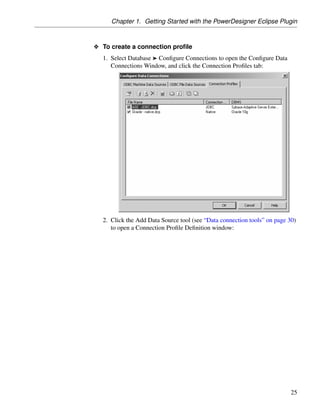
For more information about shortcuts creation, see chapter Managing
                           shortcuts.
Moving an object with a
non-oriented link
                            Source package                       Moving result

                                                                 In the source package, a
                                                                 shortcut of the moved entity is

                                                                 created:

                                                                 In the target pack-
                                                                 age, the moved entity is

                                                                 displayed:


Moving an object with an
oriented link


196
Chapter 5. Managing Objects


    Source package                      Moving result

                                        Example 1: Move TABLE_2
                                        In the source package, a shortcut
                                        of the parent table (TABLE_2) is


                                        created:


                                        In the target package, the
                                        parent table (TABLE_2) is

                                        displayed:

                                        Example 2: Move TABLE_1
                                        In the source package, only
                                        the parent table (TABLE_2) is

                                        displayed:

                                        In the target package, the
                                        child table (TABLE_1) is dis-
                                        played with the reference link and a
                                        shortcut is created for the parent table


                                        (TABLE_2):


O To move an object from a package to another
  1. Select an object.
  2. Press SHIFT while dragging the object to the target package.
     The object is moved to the new destination and a shortcut is created either
     in the source package or in the destination package depending on the link
     type.


                                                                                   197
Creating a Graphical Synonym for an Object


Creating a Graphical Synonym for an Object
                        A graphical synonym is an additional symbol for an object. It has no specific
                        definition in itself but takes the one of the object it represents.
                        By reproducing the same object at different places in the diagram, graphical
                        synonyms can improve the readability of the diagram as links become
                        shorter.
                        You can create as many graphical synonyms as you want within the same
                        diagram.
                        You can create graphical synonyms of graphical synonyms as they are
                        graphical representations of the same object. You can also create graphical
                        synonyms of object shortcuts.
                        In the diagram, the graphical synonym displays the name of the object
                        followed by a colon and the number of the occurrence.
                        This class is a graphical synonym for the class Printer.


Moving graphical        A graphical synonym exists in a diagram as long as the object it represents
synonyms                also exists.
                        If you move a graphical synonym from a package to another, it is moved to
                        the target package and shortcuts are created for the remaining graphical
                        synonyms in the source package.
Link object graphical   When you create a graphical synonym for a link object, you automatically
synonym                 create one for its extremities, provided they also support graphical
                        synonyms. If not, the creation of the graphical synonym for the link object
                        will fail.
                        The following object symbols do not support graphical synonyms:

                         Model            Object symbol

                         CDM              Inheritance
                         OOM              Swimlane, synchronization, decision

                         BPM              Swimlane, synchronization, decision
                        You cannot graphically distinguish a link object graphical synonym from a
                        simple link object, unless you display the name attribute in the diagram
                        using the Display Preferences dialog box. However, when you select a link


198
Chapter 5. Managing Objects


object in the diagram, the text (Graphical Synonym) is displayed in the
tooltip for the object link.
In the following example, the creation of the graphical synonym for this
reference has forced the creation of a graphical synonym for its extremities
(tables). The tooltip shows that the reference is a graphical synonym.


If you delete a link object graphical synonym, only the symbol is deleted
without asking any confirmation.
The following link objects do not support graphical synonyms:

 Model      Link object

 CDM        Inheritance link

 OOM        Transition (Activity and Statechart diagrams) Instance Link (Col-
            laboration and Object diagrams) Messages (Sequence and collabo-
            ration diagrams) Association class link (class diagram) Interaction
            Frame, Fragment, and Reference (Sequence)

 BPM        Flow

 All        Free symbol Line


                                                                                  199
Creating a Graphical Synonym for an Object


                    O To create a graphical synonym for an object
                       1. Right-click an object in the diagram.
                       2. Select Edit ® Create Graphical Synonym from the contextual menu.
                          The graphical synonym is displayed in the diagram window.

                        Navigating between graphical synonyms in a diagram
                        You can find a particular graphical synonym in a diagram by right-clicking
                        a graphical synonym in the diagram window and select Edit ® Find
                        Graphical Synonym from the contextual menu, then select a graphical
                        synonym from the list. The graphical synonym is centered and selected in
                        the diagram window.


200
Chapter 5. Managing Objects


Finding Objects
                  PowerDesigner lets you search for objects within all the models currently
                  open in your project in order for you to:
                  ♦ Locate objects in the different models in the project and modify their
                    properties
                  ♦ Find all the shortcuts related to a given object
                  ♦ Reuse objects from one model to another

               O To find an object
                  1. Select Edit ® Find Objects to open the Find Objects dialog box.
                  2. Specify the appropriate parameters on the Name and Location, User and
                     Date, and Advanced tabs. For more information, see “Find object
                     parameters” on page 201.
                  3. Click the Find Now button.
                     Find process messages are displayed in the Output pane in the lower part
                     of the PowerDesigner window.

                      Stopping the Find Objects process
                      Once you have started the Find Objects process, you can stop it at any
                      time by clicking the Stop button in the Find Object dialog box.
                     The Find Object dialog box remains open until the end of the process,
                     then it is closed and the Modeling Result List displays the result.


Find object parameters
                  You can define very precise parameters in the Find Objects dialog box:
                  ♦ The name and location of PowerDesigner objects.


                                                                                             201
Finding Objects


                    ♦ Advanced find criteria on the properties of PowerDesigner objects.
                    ♦ The creation or modification date of PowerDesigner objects.


Name and Location
parameters


                    The following parameters are available on this tab

                     Parameter      Description

                     Look in        Specifies the scope of the search. You can select the entire
                                    project, a folder, a model, or a package within a model. You
                                    may need to navigate up or down the dynamic list in order to
                                    make all possibilities available.

                     Model type     Specifies the type of PowerDesigner model to be searched.
                                    The options available in this list are affected by your choice
                                    in the Look in field.

                     Object type    Specifies the type of model objects to be searched. The
                                    options available in this list are affected by your choice in the
                                    Model type field.

                     Include        Specifies that object shortcuts that correspond to your criteria
                     shortcuts      will be searched.


202
Chapter 5. Managing Objects


                 Parameter      Description

                 Name           Specifies the object name to search for. You can use the
                                following special characters:
                                ♦ * - none to any number of characters
                                ♦ ? – exactly one character
                                ♦ * - * is a normal character
                                ♦ ? - ? is a normal character
                                ♦ - is a normal character
                                ♦ true/false - Boolean value (True is when the check box is
                                   selected in the interface)
                                For example:
                                W* finds “Work” and “Washington”
                                *IST finds “List” and “Specialist”
                                *96 finds “01/11/96” and “26/08/96”
                                ????ER finds “Writer” and “Seller” but not “inner”
                                COLN? finds “COLN1” and “COLN2”
                                *_emp_??? finds “Div_emp_fun” and “Div_emp_idn”
                 Code           Code of the object. You can type the exact code of the object
                                or use a string expression
                 Case sensi-    If you select this check box, you will find objects with case
                 tive           matching with the Name and Code expressions


User and Date
parameters


                The following parameters are available on this tab


                                                                                                203
Finding Objects


                       Parameter      Description

                       Created        Select this check box if you want to define creation parameters
                       check box

                       Created by     Name of the user who created the object

                       Date           Creation date criteria, you can search:
                                      ♦ Before a given date
                                      ♦ After a given date
                                      ♦ Between two dates
                                      ♦ During a period of time


                       Modified        Select this check box if you want to define modification
                       check box      parameters

                       Modified by     Name of the user who made the last modification to the object

                       Date           Modification date criteria, you can search:
                                      ♦ Before a given date
                                      ♦ After a given date
                                      ♦ Between two dates
                                      ♦ During a period of time


Advanced parameters   When you select an object type, the Advanced tab allows you to specify
                      advanced find parameters on each property of the selected object type. This
                      advanced search feature also supports the use of wildcards and string
                      expressions.


204
Chapter 5. Managing Objects


                  The following parameters are available on this tab: Note that if you do not
                  select an object type, you define advanced Find parameters only on the name
                  and code properties. These properties being common to all types of objects.

                   Find criteria    Description

                   U column (U      When selected, implies that the property will be taken into
                   for Used)        account during the Find process

                   Expression       Allows you to define a string expression that will become a
                                    find criteria on the selected property

                   Selected property with no expression defined
                   If you select the Used check box for a property without any expression, it
                   is equivalent to a null value, the find process will consequently look for
                   objects which selected property is null.

Using the Modeling Result List
                  From the Modeling Result List, you can:
                  ♦ Copy an object and paste it as a new object or a shortcut

                  ♦ Find an object in the Model Explorer

                  ♦ Find an object’s symbol in one or more diagrams
                  ♦ Modify the properties of an object


                                                                                                  205
Finding Objects


                  O To copy an object from the Modeling Result List
                    1. Right-click the object in the Modeling Result List and select Copy from
                       the contextual menu.

                    2. Select the appropriate destination in the Model Explorer or diagram
                       window and select Edit ® Paste or Edit ® Paste as Shortcut from the
                       contextual menu

                  O To find an object from the Modeling Result List in the Model Ex-
                    plorer
                    1. Right-click the object in the Modeling Result List and select Find in
                       Model Explorer from the contextual menu.
                       The object is highlighted in the Model Explorer

                     Objects identification
                     The Location column also allows you to know where objects have been
                     defined.

                  O To find the symbol(s) of object from the Modeling Result List
                    1. Right-click the object in the Modeling Result List and select Find in
                       Diagram from the contextual menu.
                       The appropriate diagram is opened and the symbol centered in the
                       window
                       or
                       When an object has several symbols within a model, a symbol selection
                       dialog box is displayed that lets you select an object symbol among all
                       instances of the object within the model diagrams.

                        Object without symbols
                        If you select an object that does not have an associated symbol in the
                        diagram, a warning message is displayed.

                  O To modify object properties from the Modeling Result List
                    1. Right-click the object in the Modeling Result List and select Properties
                       from the contextual menu.
                       The object’s property sheet opens.
                    2. Make any appropriate changes and then click OK


206
Chapter 5. Managing Objects


Customizing the Generation of Files for an Object
                         In PowerDesigner, you can define a generated file on a selected metaclass
                         (or stereotype or criterion), in this case a file is generated for each instance
                         of the metaclass existing in your model. The generated files mechanism is
                         defined in “Defining Templates and Generated Files in a Profile” in the
                         “Managing Profiles” chapter in the Advanced User Guide .
                         You can modify the default generation of files using artifacts. Artifacts are
                         used to generate files only for selected instances of a metaclass in order to:
                         ♦ Design a source file that includes the code of several objects in a single
                           file.
                         ♦ Generate only for selected instances of a metaclass.
                         ♦ Customize the generated file name and path.
C# and VB .NET reverse   Artifacts are visible in the C# and VB .NET object languages. This is to
engineering use case     support round-trip engineering for these languages: when you reverse
                         engineer C# or VB .NET code, each source file in the source code becomes
                         an artifact in PowerDesigner. The artifact allows you to re-generate the same
                         collection of objects while preserving file structure.

Using artifacts in a model
                         To be able to use an artifact in a model, you have to declare it in a resource
                         file attached to your model. To declare an artifact you have to create a
                         template called “DefaultTemplate” under an artifact stereotype or criterion
                         bearing the name of the corresponding file type to generate.
                         In the C# resource file, if you expand the Artifact folder, you can see that the
                         stereotype “Source” and the template “DefaultTemplate” are defined by
                         default. This means that when you create a new artifact and assign the
                         Source stereotype, this artifact inherits the default template defined below:


                                                                                                      207
Customizing the Generation of Files for an Object


Example                 You define the following artifact criterion in an extended model definition:


                        This criterion verifies that the last 4 characters of the artifact name are .TXT.
                        You also need to create the default template in order to define the content of
                        the generated file. In this example, DefaultTemplate is defined as follows:


208
Chapter 5. Managing Objects


  This is a text file.

  .foreach_item(ProductionObjects)
  %ShortDescription%
  .next(n)

You can now create artifacts in the model using the New ® Artifact
command in the model contextual menu. If you create an artifact with the
.TXT extension and select the correct target in the Template tab of the
artifact property sheet, the default template is automatically assigned to this
artifact. This means that the short description of each instance of object
associated with the current artifact will be written in the generated file:


You can now define instances of objects you want to include in the file
generated from the current artifact:


                                                                            209
Customizing the Generation of Files for an Object


Defining an artifact
                        Artifacts can replace the standard generation of files; by default, an artifact
                        generates the same code as the generated file but only for selected instances
                        of a metaclass.
                        An artifact has the following properties:

                         Property     Description

                         Name         Name of the artifact.

                         Comment      Descriptive comment for the artifact.
                         Stereo-      Sub-classification used to extend the semantics of an object
                         type         without changing its structure; it can be predefined or user-
                                      defined.

                         Encoding     Allows you to modify the default file encoding of the files to
                                      reverse engineer.
                        An artifact definition also includes the following properties:


210
Chapter 5. Managing Objects


    Property        Description

    Template        Template used to generate the content of the generated file.

    Objects         List of objects associated with the current artifact.

    Prerequisites   List of artifacts that must be generated before the current
                    artifact.

    Preview         Allows to visualize the generated code of the artifact.

O To define an artifact
  1. Double-click the symbol of an object with generated files, for example a
     class in C# language.

  2. Click the Generated Files tab.
     The Target column displays the resource file where the generated file is
     defined and the File Type column displays the type of the generated file.
     Each row in the list corresponds to a generated file type available for the
     current instance of a metaclass, you can customize the generation of this
     file using an artifact.
  3. Click the Create tool in the Artifact(s) column to add an artifact. This
     artifact will replace the standard file generation for the current object.


  4. Click Apply and click the Properties tool to define artifact properties.


                                                                                  211
Customizing the Generation of Files for an Object


                        5. Click OK in both property sheets.

Managing artifacts
                        Artifacts appear in the Artifact category of the Model Explorer. You can
                        perform the following actions to customize an artifact:
                        ♦ Change the artifact name using the Edit in place feature and avoid
                          opening the artifact property sheet

                        ♦ Drag and drop authorized objects from the diagram or the Model Explorer
                          to an artifact in order to add the code of this instance to the artifact
Artifact folder         An Artifact folder is used to create an artifact hierarchy for generation.
                        You can create as many folders as you need using the New ® Artifact Folder
                        command in the Artifact category or model contextual menu. The artifact
                        folder property sheet is displayed to let you define a name and comment for
                        the folder. You can then create artifacts in the folder structure.


Generated files tab
                        In the Generation dialog box, the Generated Files tab displays a checkbox
                        tree with generated files (with a dimmed icon) and artifacts. You can select
                        or deselect the files you want to generate.


212
Chapter 5. Managing Objects


                          You can modify generation options from this dialog box, and you can also
                          check artifact generation completeness: if an exclamation mark is displayed
                          on the artifact icon it means that one or several prerequisite artifacts are
                          missing.
                          If you click the Enforce Dependencies tool in the upper part of the dialog
                          box, the artifacts that are prerequisites of other artifacts are automatically
                          selected in the tree view in order to properly generate artifacts.
Generate from an artifact If you click the Generate command in the artifact folder contextual menu, a
folder                    Generation dialog box is displayed to let you manage the generation of a
                          given artifact folder. This dialog box also displays a checkbox tree with
                          children artifacts of the selected artifact folder.


                                                                                                       213
Customizing the Generation of Files for an Object


                        You can enforce dependencies in the Generation dialog box to make sure all
                        prerequisites are selected for generation.


214
Chapter 5. Managing Objects


Using File Objects
                   A file object is a graphical representation of a Windows supported file (for
                   example, a Java file, script SQL, or MS Word file). The file object can be
                   external to the model or embedded in it.
                   You can use a file object for different purposes in PowerDesigner. For
                   example you can:
                   ♦ Attach a file object to a PowerDesigner object to enrich its description
                   ♦ Attach a generated OOM class to a target Java file

Creating a file object
                   You can create a file object in any of the following ways:
                   ♦ Use the File tool in the diagram Palette.

                   ♦ Select Model ® Files to access the List of Files, and click the Add a Row
                     tool.
                   ♦ Right-click the model or package in the Model Explorer, and select New
                     ® File from the contextual menu.

                   ♦ Drag a file from Windows Explorer and drop it in the diagram or Model
                     Explorer.
                   For general information about creating objects, see “Creating an object” on
                   page 163.

File object properties
                   You can modify an object’s properties from its property sheet. To open a file
                   object property sheet, double-click its diagram symbol or its Model Explorer
                   entry in the Files folder. The General tab contains the following properties:

                    Property     Description

                    Name         The name of the item which should be clear and meaningful,
                                 and should convey the item’s purpose to non-technical users

                    Code         The technical name of the item used for generating code or
                                 scripts, which may be abbreviated, and should not generally
                                 include spaces

                    Comment      Descriptive label for the file object


                                                                                               215
Using File Objects


                     Property    Description

                     Stereo-     Sub-classification used to extend the semantics of the file object.
                     type        You can create stereotypes in the Profile category of the resource
                                 file attached to the current model.
                     Location    Specifies the nature of the file object. You can choose from the
                     type        following options:
                                 ♦ Embedded – the file is stored within the model and is saved
                                     when you save the model.
                                 ♦ External – the file is stored in the Windows file system, and
                                   you must enter its path in the Location field.
                                 ♦ URL – the file is on the web and you must enter its URL in
                                     the Location field
                                 If you subsequently change the type:
                                 ♦ From external to embedded – you will be prompted to import
                                     the contents of the file into the model
                                 ♦ From embedded to external – you will be warned that the
                                   existing contents will be lost.


                     Location    [External and URL types only] Path or URL to the file.

                     Extension   Extension of the file object name that indicates the application
                                 to open when the file object is embedded

                     Generate    File object is automatically included among the objects gener-
                                 ated from the model when you launch the inter-model generation
                                 process

                     Artifact    Specifies that the file object is not a piece of documentation, but
                                 rather forms an integral part of the application.
                                 If an artifact has an extension that is defined in the Editors
                                 page in the General Options dialog box and is linked to the
                                 <internal> editor (see “Specifying text editors” in the Using the
                                 PowerDesigner Interface chapter), a Contents tab is displayed
                                 in the artifact property sheet. The Contents tab allows you
                                 to edit the artifact file directly in the internal text editor of
                                 PowerDesigner.
                                 For more information about the use of artifact files, see “Files”
                                 in the Building Physical Diagrams chapter of the OOM User’s
                                 Guide .


216
Chapter 5. Managing Objects


Opening and editing file objects
                   When you work with an embedded object file, the content of the file is stored
                   into a temporary file while the associated application opens. Each time you
                   save your file in the associated application, its content is automatically
                   copied from the temporary file into your PowerDesigner model. If you
                   rename your file in the associated application, PowerDesigner will not be
                   able to recognize your file and its content will not be copied into your model.

                O To open a file object
                   1. Double-click the file object node in the Model Explorer, its symbol in the
                      diagram, or its entry in the List of Files.
                      The application associated with the file object extension opens. If the file
                      object extension has no association in Windows, a standard Open With
                      dialog box opens that lets you select the application you want to open the
                      file object.
                   A newly created file object has, by default, a .txt extension and opens in
                   Notepad. You can change the extension in the file object property sheet and
                   associate other editors with the extension.

                O To select an application program for a file object
                   1. Right-click a file object and select ® Open With ® Choose Program from
                      the contextual menu.
                   2. Browse to the directory that contains the program file you want, select it,
                      and click Open.
                      The file object automatically opens in the associated application program.
For more information about text editors, see “Specifying a text editor” in
                   the Using the PowerDesigner Interface chapter.

Attaching a file object to a PowerDesigner object
                   You can attach a file object to another object in any of the following ways:
                   ♦ Right-click an object symbol in the diagram and select File ® Add File
                     from the contextual menu.
                   ♦ Use the Link/Extended Dependency tool in the diagram palette to draw a
                     link from the object symbol to the file object symbol.
                   ♦ Open the property sheet of the object, click the Extended Dependencies
                     tab, and select the file object using the Add Objects tool..


                                                                                             217
Using File Objects


                     The connection between the object and the file object takes the form of an
                     extended dependency, and is visible:

                     ♦ Graphically in the diagram
                     ♦ On the Dependencies tab of the file object property sheet and on the
                       Extended Dependencies tab of the dependent object property sheet
                     ♦ Under the File menu item in the contextual menu of the dependent object
                       symbol.
For more information about extended dependencies, see “Displaying
                     object dependencies” in the Using the PowerDesigner Interface chapter.

Modifying the file object display preferences
                     You can modify the following display preference for a file object using the
                     Tools ® Display Preferences command:

                      Preference          Description

                      Location            Displays the location of the file object


218
Chapter 5. Managing Objects


Working with Extended Model Definitions
                      Extended model definitions provide means for customizing and extending
                      PowerDesigner metaclasses, parameters and generation. You use extended
                      model definitions to:
                      ♦ Extend the PowerDesigner metamodel and develop the definition of
                        metaclasses using profiles

                      ♦ Complement the generation targets and commands of an object language
                      ♦ Generate for an extended model definition
For more information about extended model definitions, see chapter
                      Extended Model Definitions Reference Guide in the Advanced User
                      documentation .
What is an extended   An extended model definition is made up of a number of categories. A
model definition?      category can contain other categories, entries, and values. These entries are
                      parameters recognizable by PowerDesigner.
                      The values for extended model definition categories and entries vary for
                      each extended model definition. Some entries may not exist in the extended
                      model definition file if they are not applicable to the particular extended
                      model definition.
How to use extended   You can create generic and specific extended model definitions.
model definitions?
                      ♦ A generic extended model definition is a library of metamodel extensions
                        and generation parameters saved in a file with the .XEM extension. This
                        file is stored in a central area and can be referenced by models to
                        guarantee data consistency and save time to the user
                      ♦ A specific extended model definition is embedded into a model and
                        develops object definitions and generation parameters in this particular
                        model

Creating an extended model definition
                      When you create a new extended model definition you can choose to:
                      ♦ Create a generic extended model definition file to reuse between models

                      ♦ Create a specific extended model definition for the needs of a given model
                      The creation procedure differs according to the type of extended model
                      definition you want to create.


                                                                                                219
Working with Extended Model Definitions


Creating a generic extended model definition

                      You can create generic extended model definitions to share information
                      between models of the same type.

                   O To create a generic extended model definition
                      1. Open a model.
                      2. Select Tools ® Resources ® Extended Model Definitions ® Model type.
                         The List of Extended Model Definitions is displayed.

                      3. Click the New tool to display the New Extended Model Definition
                         window.


                      4. Type a name for the new extended model definition in the Name box.

                      5. <optional> Select a model template from the Copy From box. The list is
                         empty if you create the first extended model definition.
                      6. Click OK.
                         A standard Save As dialog box is displayed.

                      7. Type a name.

                          Changing path
                          If you change the default path, extended model definitions do not appear
                          in the list of extended model definitions. If you want to save your
                          extended model definitions in a specific folder, you have to define
                          a specific named path in the General Options dialog box. For more
                          information about named path, see section Defining named paths in
                          chapter Using the PowerDesigner Interface.

                      8. Click Save.
                         The Extended Model Definition Properties dialog box is displayed. The
                         General tab displays all objects of the extended model definition together
                         with an editor of extended model definitions on the right side of the tree
                         view.


220
Chapter 5. Managing Objects


 9. Define the extended model definition.
For more information, see chapter Managing Profiles in the
    Advanced User documentation .
10. Click OK.
    The List of Extended Model Definitions displays the new extended model
    definition, whose name is followed by a star symbol to designate the state
    of an extended model definition to be saved. The first time you save your
    extended model definition, the symbol is no longer displayed.


11. Click Close.


                                                                         221
Working with Extended Model Definitions


                         A confirmation box prompts you to save the changes made to the
                         extended model definition, click Yes. The extended model definition is
                         saved in a file with the .XEM extension.

                          Importing an extended model definition file
                          If you want to integrate a generic extended model definition into a
                          model, you can import an extended model definition file.
For more information about importing extended model definitions,
                         see section “Selecting extended model definitions” on page 224.

Creating a specific extended model definition for a model

                      You can create an extended model definition for a specific model, in this
                      case, it has the same type as the current model.

                   O To create a specific extended model definition for a model
                      1. Open a model.
                      2. Select Model ® Extended Model Definitions to display the List of
                         Extended Model Definitions.
                      3. Click the Add a Row tool to create a new extended model definition.

                      4. Type a name for the extended model definition.
                      5. Click the Properties tool to display the property sheet of the extended
                         model definition.
                         You are asked to commit the creation of the extended model definition.

                      6. Click Yes.
                         The Extended Model Definition Properties dialog box is displayed.


222
Chapter 5. Managing Objects


                 7. Define the extended model definition.

Eclipse plugin userguide

  • 1.
    Working with theEclipse Plugin Sybase® PowerDesigner® 12.5 Windows
  • 2.
    Part number: DC00027-01-1250-01 Lastmodified: April 2007 Copyright © 1991-2007 Sybase, Inc. and its subsidiaries. All rights reserved. Information in this manual may change without notice and does not represent a commitment on the part of Sybase, Inc. and its subsidiaries. Sybase, Inc. provides the software described in this manual under a Sybase License Agreement. The software may be used only in accordance with the terms of the agreement. No part of this publication may be reproduced, transmitted, or translated in any form or by any means, electronic, mechanical, manual, optical, or otherwise, without the prior written permission of Sybase, Inc. and its subsidiaries. Use, duplication, or disclosure by the government is subject to the restrictions set forth in subparagraph (c)(1)(ii) of DFARS 52.227-7013 for the DOD and as set forth in FAR 52.227-19(a)-(d) for civilian agencies. Sybase, SYBASE (logo), ADA Workbench, Adaptable Windowing Environment, Adaptive Component Architecture, Adaptive Server, Adaptive Server Anywhere, Adaptive Server Enterprise, Adaptive Server Enterprise Monitor, Adaptive Server Enterprise Replication, Adaptive Server Everywhere, Advantage Database Server, Afaria, Answers Anywhere, AppModeler, APT Workbench, APT-Build, APT-Edit, APT-Execute, APT-Translator, APT-Library, ASEP, Avaki, Avaki (Arrow Design), Avaki Data Grid, AvantGo, Backup Server, BayCam, Bit-Wise, BizTracker, Certified PowerBuilder Developer, Certified SYBASE Professional, Certified SYBASE Professional Logo, ClearConnect, Client-Library, Client Services, CodeBank, Column Design, ComponentPack, Connection Manager, Convoy/DM, Copernicus, CSP, Data Pipeline, Data Workbench, DataArchitect, Database Analyzer, DataExpress, DataServer, DataWindow, DataWindow .NET, DB-Library, dbQueue, Dejima, Dejima Direct, Developers Workbench, DirectConnect Anywhere, DirectConnect, Distribution Director, Dynamic Mobility Model, e-ADK, E-Anywhere, e-Biz Integrator, E-Whatever, EC Gateway, ECMAP, ECRTP, eFulfillment Accelerator, EII Plus, Electronic Case Management, Embedded SQL, EMS, Enterprise Application Studio, Enterprise Client/Server, Enterprise Connect, Enterprise Data Studio, Enterprise Manager, Enterprise Portal (logo), Enterprise SQL Server Manager, Enterprise Work Architecture, Enterprise Work Designer, Enterprise Work Modeler, eProcurement Accelerator, eremote, Everything Works Better When Everything Works Together, EWA, ExtendedAssist, Extended Systems, ExtendedView, Financial Fusion, Financial Fusion (and design), Financial Fusion Server, Formula One, Fusion Powered e-Finance, Fusion Powered Financial Destinations, Fusion Powered STP, Gateway Manager, GeoPoint, GlobalFIX, iAnywhere, iAnywhere Solutions, ImpactNow, Industry Warehouse Studio, InfoMaker, Information Anywhere, Information Everywhere, InformationConnect, InphoMatch, InstaHelp, Intelligent Self-Care, InternetBuilder, iremote, iScript, Jaguar CTS, jConnect for JDBC, KnowledgeBase, Logical Memory Manager, lrLite, M2M Anywhere, Mach Desktop, Mail Anywhere Studio, Mainframe Connect, Maintenance Express, Manage Anywhere Studio, MAP, M-Business Anywhere, M-Business Channel, M-Business Network, M-Business Suite, MDI Access Server, MDI Database Gateway, media.splash, Message Anywhere Server, MetaWorks, MethodSet, mFolio, Mirror Activator, ML Query, MobiCATS, Mobil 365, Mobileway, MySupport, Net-Gateway, Net-Library, New Era of Networks, Next Generation Learning, Next Generation Learning Studio, O DEVICE, OASiS, OASiS logo, ObjectConnect, ObjectCycle, OmniConnect, OmniQ, OmniSQL Access Module, OmniSQL Toolkit, OneBridge, Open Biz, Open Business Interchange, Open Client, Open ClientConnect, Open Client/Server, Open Client/Server Interfaces, Open Gateway, Open Server, Open ServerConnect, Open Solutions, Optima++, Partnerships that Work, PB-Gen, PC APT Execute, PC DB-Net, PC Net Library, Pharma Anywhere, PhysicalArchitect, Pocket PowerBuilder, PocketBuilder, Power++, Power Through Knowledge, power.stop, PowerAMC, PowerBuilder, PowerBuilder Foundation Class Library, PowerDesigner, PowerDimensions, PowerDynamo, Powering the New Economy, PowerScript, PowerSite, PowerSocket, Powersoft, PowerStage, PowerStudio, PowerTips, Powersoft Portfolio, Powersoft Professional, PowerWare Desktop, PowerWare Enterprise, ProcessAnalyst, Pylon, Pylon Anywhere, Pylon Application Server, Pylon Conduit, Pylon PIM Server, Pylon Pro, QAnywhere, Rapport, Relational Beans, RepConnector, Report Workbench, Report-Execute, Replication Agent, Replication Driver, Replication Server, Replication Server Manager, Replication Toolkit, Resource Manager, RFID Anywhere, RW-DisplayLib, RW-Library, SAFE, SAFE/PRO, Sales Anywhere, Search Anywhere, SDF, Search Anywhere, Secure SQL Server, Secure SQL Toolset, Security Guardian, ShareSpool, Sharelink SKILS, smart.partners, smart.parts, smart.script, SOA Anywhere Trademark,SQL Advantage, SQL Anywhere, SQL Anywhere Studio, SQL Code Checker, SQL Debug, SQL Edit, SQL Edit/TPU, SQL Everywhere, SQL Modeler, SQL Remote, SQL Server, SQL Server Manager, SQL SMART, SQL Toolset, SQL Server/CFT, SQL Server/DBM, SQL Server SNMP SubAgent, SQL Station, SQLJ, Stage III Engineering, Startup.Com, STEP, SupportNow, S.W.I.F.T. Message Format Libraries, Sybase 365, Sybase Central, Sybase Client/Server Interfaces, Sybase Development Framework, Sybase Financial Server, Sybase Gateways, Sybase IQ, Sybase Learning Connection, Sybase MPP, SyberLearning LIVE, Sybase SQL Desktop, Sybase SQL Lifecycle, Sybase SQL Workgroup, Sybase Synergy Program, Sybase Virtual Server Architecture, Sybase User Workbench, SybaseWare, Syber Financial, SyberAssist, SybFlex, SybMD, SyBooks, System 10, System 11, System XI (logo), SystemTools, Tabular Data Stream, The Enterprise Client/Server Company, The Extensible Software Platform, The Future Is Wide Open, The Learning Connection, The Model For Client/Server Solutions, The Online Information Center, The Power of One, TotalFix, TradeForce, Transact-SQL, Translation Toolkit, Turning Imagination Into Reality, UltraLite, UltraLite.NET, UNIBOM, Unilib, Uninull, Unisep, Unistring, URK Runtime Kit for UniCode, Unwired Accelerator, Unwired Orchestrator,Viafone, Viewer, VisualWriter, VQL, WarehouseArchitect, Warehouse Control Center, Warehouse Studio, Warehouse WORKS, Watcom, Watcom SQL, Watcom SQL Server, Web Deployment Kit, Web.PB, Web.SQL, WebSights, WebViewer, WorkGroup SQL Server, XA-Library, XA-Server, XcelleNet, XP Server, XTNDConnect, and XTNDACCESS are trademarks of Sybase, Inc. or its subsidiaries. All other trademarks are the property of their respective owners. ii
  • 3.
    Contents About This Manual v 1 Getting Started with the PowerDesigner Eclipse Plugin 1 The PowerDesigner Interface . . . . . . . . . . . . . . . . . . 2 Working with the Model Explorer . . . . . . . . . . . . . . . . 8 Creating a Model . . . . . . . . . . . . . . . . . . . . . . . . . 10 Working with Objects . . . . . . . . . . . . . . . . . . . . . . . 13 Working with Packages . . . . . . . . . . . . . . . . . . . . . 21 Connecting to a Database . . . . . . . . . . . . . . . . . . . . 22 Next Steps . . . . . . . . . . . . . . . . . . . . . . . . . . . . 33 2 Using the PowerDesigner Interface 35 Managing Objects in the Model Explorer . . . . . . . . . . . . 36 Folders . . . . . . . . . . . . . . . . . . . . . . . . . . . . . . 39 Property Sheets . . . . . . . . . . . . . . . . . . . . . . . . . 41 Lists . . . . . . . . . . . . . . . . . . . . . . . . . . . . . . . . 54 Setting PowerDesigner General Options . . . . . . . . . . . . 67 3 Managing PowerDesigner Licenses 79 Understanding License Management in PowerDesigner . . . 80 Requesting a License from Sybase Product Download Center 86 Using the License Management Wizard . . . . . . . . . . . . 87 4 Managing Models 95 Working with Model Files . . . . . . . . . . . . . . . . . . . . 96 Packages . . . . . . . . . . . . . . . . . . . . . . . . . . . . . 107 Diagrams . . . . . . . . . . . . . . . . . . . . . . . . . . . . . 111 Checking a Model . . . . . . . . . . . . . . . . . . . . . . . . 124 Using the Free Model . . . . . . . . . . . . . . . . . . . . . . 129 Naming Conventions . . . . . . . . . . . . . . . . . . . . . . . 130 Spell Checking . . . . . . . . . . . . . . . . . . . . . . . . . . 147 Applying Model Transformations . . . . . . . . . . . . . . . . 149 Resource Files . . . . . . . . . . . . . . . . . . . . . . . . . . 153 Interchanging Models using the XMI Format . . . . . . . . . . 156 Upgrading from Previous Versions of PowerDesigner . . . . . 158 iii
  • 4.
    5 Managing Objects 161 Defining Objects . . . . . . . . . . . . . . . . . . . . . . . . . 162 Business Rules . . . . . . . . . . . . . . . . . . . . . . . . . . 178 Defining Extended Objects and Links . . . . . . . . . . . . . 183 Dragging, Dropping, Copying, Pasting, Moving, and Deleting Objects . . . . . . . . . . . . . . . . . . . . . . . . . . . 186 Creating a Graphical Synonym for an Object . . . . . . . . . 198 Finding Objects . . . . . . . . . . . . . . . . . . . . . . . . . . 201 Customizing the Generation of Files for an Object . . . . . . 207 Using File Objects . . . . . . . . . . . . . . . . . . . . . . . . 215 Working with Extended Model Definitions . . . . . . . . . . . 219 6 Working with Eclipse 227 Special Features . . . . . . . . . . . . . . . . . . . . . . . . . 228 Generating an Eclipse Project . . . . . . . . . . . . . . . . . . 243 Building and Deploying the Application Using Eclipse . . . . . 253 Index 271 iv
  • 5.
    About This Manual Subject This book describes the PowerDesigner Eclipse Plugin environment. It shows you how to do the following: ♦ Get started with the PowerDesigner Eclipse Plugin ♦ Use the PowerDesigner interface on the Eclipse Platform ♦ Manage models in the Eclipse Platform ♦ Manage objects in the Eclipse Platform Audience This book is for anyone who wants to use PowerDesigner on the Eclipse Platform. It requires an understanding of the PowerDesigner modeling environment. Some experience with the different models of PowerDesigner might also be helpful but not required. For more information, see the Bibliography section at the end of this chapter. Documentation primer The PowerDesigner modeling environment supports several types of models: ♦ Conceptual Data Model (CDM) to model the overall logical structure of a data application, independent from any software or data storage structure considerations ♦ Physical Data Model (PDM) to model the overall physical structure of a database, taking into account DBMS software or data storage structure considerations ♦ Object Oriented Model (OOM) to model a software system using an object-oriented approach for Java or other object languages ♦ Business Process Model (BPM) to model the means by which one or more processes are accomplished in operating business practices ♦ XML Model (XSM) to model the structure of an XML file using a DTD or an XML schema ♦ Requirements Model (RQM) to list and document the customer needs that must be satisfied during a development process v
  • 6.
    ♦ Information LiquidityModel (ILM) to model the replication of information from a source database to one or several remote databases using replication engines ♦ Free Model (FEM) to create any kind of chart diagram, in a context-free environment This book only explains how to use the PowerDesigner Eclipse Plugin. For information on the different models or aspects of PowerDesigner, consult the following books: General Features Guide To get familiar with the PowerDesigner interface before learning how to use any of the models. Conceptual Data Model User’s Guide To work with the CDM. Physical Data Model User’s Guide To work with the PDM. Object Oriented Model User’s Guide To work with the OOM. Business Process Model User’s Guide To work with the BPM. XML Model User’s Guide To work with the XSM. Requirements Model User’s Guide To work with the RQM. Information Liquidity Model User’s Guide To work with the ILM. Reports User’s Guide To create reports for any or all models. Repository User’s Guide To work in a multi-user environment using a central repository. Typographic conventions PowerDesigner documentation uses specific typefaces to help you readily identify specific items: ♦ monospace text (normal and bold) Used for: Code samples, commands, compiled functions and files, references to variables. Example: declare user_defined..., the BeforeInsertTrigger template. ♦ bold text Any new term. Example: A shortcut has a target object. ♦ SMALL CAPS Any key name. vi
  • 7.
    Example: Press theENTER key. Bibliography Eclipse Website – http://www.eclipse.org Eclipse online documentation – http://help.eclipse.org/help21/index.jsp vii
  • 8.
  • 9.
    CHAPTER 1 Getting Startedwith the PowerDesigner Eclipse Plugin About this chapter This chapter explains the major PowerDesigner concepts, and introduces you to the tools you will use to build your models. Contents Topic: page The PowerDesigner Interface 2 Working with the Model Explorer 8 Creating a Model 10 Working with Objects 13 Working with Packages 21 Connecting to a Database 22 Next Steps 33 1
  • 10.
    The PowerDesigner Interface ThePowerDesigner Interface This section describes the main components of the PowerDesigner interface. When you launch the Eclipse Platform for the first time, it opens the workbench window which initially displays the Resource perspective. A perspective defines the initial set and layout of views in the workbench window. The Resource perspective contains different views: ♦ The Navigator view displays a tree view of the projects and their resources ♦ The Editor area displays the content of the projects and resources ♦ The Outline view displays a content outline of the file being edited. (Except for a plain text file) ♦ The Tasks view lists and marks all the tasks and problems to be solved Click the title bar of a view to make it active. (The title bar turns blue). The name of the active perspective is shown in the title bar of the window and its icon is pushed-in in the shortcut bar. We recommend you use the PowerDesigner perspective. Activating the PowerDesigner perspective To work with your PowerDesigner tool, you should activate the PowerDesigner perspective. 2
  • 11.
    Chapter 1. GettingStarted with the PowerDesigner Eclipse Plugin O To activate the PowerDesigner perspective 1. Click the Open a Perspective icon in the shortcut bar and select Other. or Select Window ® Open Perspective ® Other. The Select Perspective dialog box is displayed. 2. Select PowerDesigner in the list of perspectives. 3. Click OK. The workbench window displays the PowerDesigner perspective. Using the shortcut bar Once you have activated the PowerDesigner perspective, a PowerDesigner icon is displayed in the shortcut bar and you just have to click it each time you need to activate the PowerDesigner perspective Activating toolbars Specific toolbars are set by default in the PowerDesigner perspective. If for some reason, they do not appear in the toolbar section, you can activate them manually. 3
  • 12.
    The PowerDesigner Interface O To activate the PowerDesigner toolbars and shortcuts 1. Select Window ® Customize Perspective. or Right-click the toolbar section and select Customize Perspective in the contextual menu. The Customize Perspective dialog box is displayed. 2. In the Shortcuts tab, select New in the Submenus list, and PowerDesigner in the Shortcut Categories tree view. The Model icon is automatically selected in the Shortcuts list. 3. In the Shortcuts tab, select Open Perspective in the Submenus list, and PowerDesigner in the Shortcuts list. 4. In the Shortcuts tab, select Show View in the Submenus list, and Sybase in the Shortcut Categories tree view. The Model Explorer, Modeling Output and Modeling Result List icons are automatically selected in the Shortcuts list. 5. In the Commands tab, select WorkSpace Modeling Diagram, WorkSpace Modeling Standard and WorkSpace Modeling View. 6. Click OK. The PowerDesigner toolbars appear next to the Eclipse toolbars. These toolbars are common to all PowerDesigner modules. The modules specific diagram toolbars and toolbars will appear automatically when you open or create a specific model. Using the Window menu The Window menu supports all the features concerning perspectives: 4
  • 13.
    Chapter 1. GettingStarted with the PowerDesigner Eclipse Plugin Feature Description Open Perspective Opens a perspective Show View Displays a view among the following: Bookmarks, Model Explorer, Navigator, Outline, Output, Properties, Modeling Result List, Tasks, Other Customize Perspective Opens a dialog box where you select items to be displayed in the current perspective Save Perspective As Saves the current perspective with a predefined or user-defined name, for future use Reset Perspective Resets the current perspective to its default param- eters Close Perspective Closes the current perspective Close All Perspectives Closes all perspectives open in the workbench window Main window components The main PowerDesigner window contains the following components. Model Explorer The Model Explorer pane allows you to manage the objects you use to perform a modeling task. It displays your models and the objects belonging to them in a tree view, and allows you to rapidly navigate between them. The Model Explorer also has a tab that gives you access to a PowerDesigner repository, where you can store all your models and associated files. Navigator The Navigator view displays a tree view of all the resource files attached to Eclipse projects open in the workbench window. These resource files can be model files, diagram files, source code files, specification files, or any type of file. You can use the Navigator to open models, create new projects and models, or even open object property sheets. Editor area The editor area is the primary pane that displays your present model diagram or report outline. Modeling Output The Modeling Output shows the progress of any PowerDesigner process, such as checking a model or generating or reverse engineering a database. Modeling Result List The Modeling Result List displays the results of a search or a model check. Property sheets Each model object has a property sheet, which permits you to view and edit 5
  • 14.
    The PowerDesigner Interface any of its properties. You can access an object’s property sheet by double-clicking its symbol in your diagram or right-clicking it and selecting Properties from the contextual menu. For more information, see the section ““Working with property sheets” on page 14”. Object lists You can view, add, create, modify, and delete multiple objects of a particular type by opening an object list. All your model’s object lists are accessible via the Model menu. For more information, see the section ““Working with object lists” on page 17”. 6
  • 15.
    Chapter 1. GettingStarted with the PowerDesigner Eclipse Plugin 7
  • 16.
    Working with theModel Explorer Working with the Model Explorer The Model Explorer provides a hierarchical view of all your model objects. Hot keys for expanding and collapsing all nodes at once To expand all nodes at once, press the numpad plus sign (+). To collapse all nodes at once, press the numpad minus sign (-). Model Explorer objects A typical hierarchy of objects in a PowerDesigner Model Explorer tree is as follows: Folders Projects can contain user-defined folders, which allow you to organize models or other files into groups. For example, if you are working on two separate projects, you could organize the files using folders. For more information about folders, see the “Using the PowerDesigner Interface” chapter. Models A model is the basic design unit in PowerDesigner. Each model has one or more graphical views called diagrams and any number of model objects. Packages When you are working with large models, you may want to split them into smaller “sub-models” in order to avoid manipulating large sets of items. These sub-models are called packages, and can be used to assign different tasks or subject areas to different development teams. For more information, see the section ““Working with Packages” on page 21”. Diagrams Diagrams show the interaction of various model objects. You can create several diagrams in a model or in a package. Model Objects Model objects is a general term used for all items belonging to a model. 8
  • 17.
    Chapter 1. GettingStarted with the PowerDesigner Eclipse Plugin Some model objects, such as a class in an Object-Oriented Model, have graphical symbols while others, such as business rules, do not appear in diagrams and can only be accessed from the Model Explorer or from an object list. For more information, see the section ““Working with Objects” on page 13”. Reports You can document your PowerDesigner models by creating automatically-generated single or multi-model reports in the Report Editor. Model Explorer actions Dragging and Dropping You can drag and drop or copy objects in the Model Explorer, or from the Model Explorer to the diagram window. Searching You can find the Model Explorer entry for any object you see in a diagram by right-clicking the symbol and selecting Edit ® Find in the Model Explorer from the contextual menu. This feature is also available from the object’s property sheet (from the dropdown menu in the bottom left corner) or from the contextual menu in a Result list. Similarly, you can find the symbol (if one exists) for any object in the Model Explorer by right-clicking the Model Explorer entry and selecting Find in Diagram (or Find in Document View for an RQM). 9
  • 18.
    Creating a Model Creatinga Model A model is the basic work unit in PowerDesigner. Every model is contained within a project, and contains at least one diagram and any number of other objects. Though a model may be split into packages for organizational reasons or may contain several diagrams, it remains the fundamental basis for your modeling work. Creating a model O To create a model 1. Select File ® New ® Model. The New model dialog box is displayed. If there is no project open in the Navigator view, the Create a new project option is selected by default and the Add to an existing project option is disabled. An Eclipse project will then be created for the new model. or If there are projects already open in the Navigator view, you can select the Add to an existing project option. Select a project. (The new model will appear in the Navigator view within the existing project) 2. If you selected an existing project, click Next. Expand (+) the project, and if it contains folders, select the sub-folder where folder in which the new model will appear. You can also create a folder or a sub-folder, to do so select the project or a folder, click the New Folder button, and type a name in the New Folder dialog box and click OK. (The new model will appear in the Navigator view within the new folder) 3. Click Finish in the Eclipse New model dialog box. The New dialog box is displayed. 4. Select the appropriate model for your needs by clicking on it. Note that the tabs on the right of the dialog box change depending on the model currently selected. 5. Type a name in the Model name box. This is the name of the model. The code of the model, which may be used for script or code generation, is derived from this name according to the model naming conventions. You can modify the name and/or code at any time from the model property 10
  • 19.
    Chapter 1. GettingStarted with the PowerDesigner Eclipse Plugin sheet by right-clicking the model entry in the Model Explorer and selecting Properties from the contextual menu. 6. Choose any appropriate options in the right hand tabs (for example, if you are creating a PDM, you will specify a particular DBMS to model or, for an OOM, you will specify an object language). 7. If you are creating a BPM, OOM, or PDM, you can also specify the type of diagram you want to start with (you can add additional diagrams to your model later by right-clicking on the model in the Model Explorer and selecting New ® Diagram_Type ). 8. Click OK. The new model will be created in your project in the Model Explorer, and its default diagram will be opened in the editor area. The following table lists the PowerDesigner models that you see in the Model type pane: Icon Model definition File exten- sion Business Process Model. A BPM allows you to .bpm identify processes and atomic tasks and organize them in a hierarchy that you can then implement Conceptual Data Model. A CDM represents the overall .cdm logical structure of a database, which is independent of any software or data storage structure Free Model. A FEM allows you to create any kind of .fem chart or diagram, in a context-free environment Information Liquidity Model. An ILM is a design tool .ilm to make replication engine design and configuration easier to use Multi-Model Report. Not a model, but an automated .mmr report that covers more than one model Object Oriented Model. An OOM uses UML diagrams .oom to let you design a static conceptual model of a software system using an object-oriented approach for Java or other object languages Physical Data Model. A PDM specifies the physical .pdm implementation of the database 11
  • 20.
    Creating a Model Icon Model definition File exten- sion Requirements Model. An RQM is a textual model, .rqm which can be used to list and explain all the customer needs that must be satisfied during a development process XML Model. An XSM is a graphic representation of .xsm an XML file that provides a global and schematic view of all its elements Opening an existing To open an existing model you have to import it into Eclipse. model O To open an existing model 1. Select File ® Import to display the Import dialog box. 2. Select Model in the list and click Next. 3. Type a model filename in the corresponding box or click the Browse button to select a model from a selection dialog box. 4. Select the Create a linked resource check box if you want to associate the model to the current project without copying the file to the project location. 5. Select an existing project or create a new project where to open the existing model and click Finish. The model default diagram is displayed in the Editor area. Saving a model Each model is saved in a separate file, with an extension specific to its model type. When you save a model, PowerDesigner also automatically creates a backup copy. O To save and close a model 1. Select File ® Save. or Click the Save tool in the PowerDesigner toolbar. or Right-click the model in the Model Explorer and select Save. 2. Right-click the model and select Close. 12
  • 21.
    Chapter 1. GettingStarted with the PowerDesigner Eclipse Plugin Working with Objects Model objects are the building blocks of your models. They are listed as items in the Model Explorer and often also appear as symbols in your diagrams. There are two main types of objects: ♦ Ordinary Objects – such things as tables and entities, which are self-sufficient, and can be created in isolation from other objects ♦ Link Objects – such things as associations or dependencies, which link two ordinary objects, and cannot be created in isolation Creating objects You can create objects: ♦ Directly in your diagram, using the diagram toolbar tool (if the object can be represented in a diagram by a symbol) ♦ From the Model Explorer ♦ From an object list Creating an object from Ordinary objects, such as classes (in an OOM), or tables (in a PDM) can be the diagram toolbar created independently in any free space in the diagram: O To create an ordinary object from the diagram toolbar 1. Click an object creation tool in the diagram toolbar and note how the pointer takes on the form of the selected object. 2. Click in a space in the diagram to create an object symbol there, and note that an entry for the object is displayed in the Model Explorer. 3. Click elsewhere in the diagram to create another object symbol, or right-click anywhere to release the object creation tool and return to the pointer tool. Link objects, such as messages (in an OOM), or references (in a PDM) are drawn between two ordinary objects in the diagram: 13
  • 22.
    Working with Objects O To create a link object from the diagram toolbar 1. Click a link object creation tool in the diagram toolbar and note how the pointer takes on the form of the selected link object. 2. Click and hold inside an ordinary object, and then drag the pointer to inside a second object. The link object is created when you release the mouse button. Note that an entry for the link is displayed in the Model Explorer. 3. Do the same again to link two other objects or right-click anywhere to release the object creation tool and return to the pointer tool. O To change the default name of a newly-created object 1. Click the object to select it. 2. Click it again (or press F2) to enter edit in place mode. Press E NTER after you have completed typing the new name. Creating an object from the Model Explorer O To create an object in the Model Explorer 1. Right-click the model, package or object category where you want to create the object, and select New ® object_type to open a new default object property sheet (see the section ““Working with property sheets” on page 14”). 2. Type an object name and code in the General tab of the property sheet, and then add any other relevant properties in the remaining fields of this or the other tabs. 3. Click OK to confirm the creation of the object. The object is created in the appropriate object category in the Model Explorer, under the current model or package, and its symbol is added to the current diagram. Creating an object from You can also create objects from the lists of your model objects available by an object list clicking Model ® object_type. For more information, see the section ““Working with object lists” on page 17”. Working with property sheets All model objects created in PowerDesigner have property sheets. 14
  • 23.
    Chapter 1. GettingStarted with the PowerDesigner Eclipse Plugin Property sheets allow you to assign extensive and sophisticated properties to objects. Most PowerDesigner objects have the following properties, but note that many other properties will be available, depending on the type of object: ♦ Name: the name of the object, which should be clear and meaningful, and should convey the object’s purpose to non-technical users ♦ Code: the technical name of the object, which is used for generating code or scripts, which may be abbreviated, and should not generally include spaces ♦ Comment: an optional description of the object, which can be used to provide further information. ♦ Notes (on the Notes Tab) are made up of Descriptions, which provide detailed information about the object, and Annotations, which contain your own notes regarding the implementation of the object ♦ Rules (on the Rules tab) that your business follows. A business rule could be a government-imposed law, a customer requirement, or an internal guideline ♦ Version Information (on the Version Info tab) provides details about the object owner, creation, and modification date ♦ Dependencies (on the Dependencies tab) list all objects depending on the current object 15
  • 24.
    Working with Objects ♦ Extended Dependencies (on the Extended Dependencies tab) list all objects which collaborate with the current object Opening a property sheet O To open a property sheet 1. Double-click the object symbol in the diagram. or Right-click the object symbol in the diagram and select Properties. or Right-click the object name in the Model Explorer and select Properties. or Double-click any label (name, code, role or cardinality) of a linking object in the diagram. The property sheet opens to the General tab. In the case of a link object, a graphical representation of the link with its source and destination objects points is displayed in the upper part of the dialog box. 16
  • 25.
    Chapter 1. GettingStarted with the PowerDesigner Eclipse Plugin Specifying object Property sheets behave like standard dialog boxes, and allow you to perform properties all the usual actions, such as typing and editing text in boxes, selecting check boxes, and selecting values in lists. Once you have defined or modified any properties, you can click Apply to commit any changes and continue, or OK to commit any changes and close the property sheet. Click Cancel if you want to discard any changes made. Customizing a property Since PowerDesigner property sheets can contain such a large, diverse sheet amount of information, you may want to customize their display via the Customize Property Sheet dropdown menu in the bottom-left corner. This menu gives you the following options: Command Description Display Standard Pages Displays a minimum number of tabs or the tabs that you have defined as standard in the Customize Standard Pages dialog box Display All Pages Displays all available tabs Customize Allows you to define standard tabs Any changes in the display options of property pages are immediately applied to the current property sheet and become the default settings for any property sheet of the same type that you subsequently open. Working with object lists Every object created in your model will appear in the object list of that type that is available by selecting Model ® object_type, or by right-clicking your model in the Model Explorer and selecting List of ® object_type from the contextual menu. An object list shows all objects of a certain type in the current package or model, including those that do not have symbols in the current diagram. An object list allows you to view, compare, and edit the properties of multiple objects. You can add, create, modify, and delete objects directly in the list. You can also filter the objects in the list and control which property columns are displayed. Opening an object list 17
  • 26.
    Working with Objects O To open a global object list 1. Select Model ® Item . or Right-click a model or package in the Model Explorer and select List of ® item . The corresponding list opens: Object List toolbar The following tools are available in the object list toolbar: Tool Action Show the property sheet of the selected object Create a new object Cut the selected object Copy the selected object Paste the selected object Delete the selected object 18
  • 27.
    Chapter 1. GettingStarted with the PowerDesigner Eclipse Plugin Tool Action Find a row Find the symbol of the selected object in the diagram Customize the columns to be displayed and/or filter by their contents Enable or disable a filter Display objects belonging to sub-packages of the present model or package Display composite objects (not available in all lists) Display objects that exist only as shortcuts in the current model Creating a new object in a list O To create a new object in a list 1. Select Model ® object_type (or select the appropriate tab in an object’s property sheet) to open the list. 2. Click the Add a Row tool to add a new default object at the end of the list. 3. Type an appropriate name for the object (and, for link objects, select a source and a destination object), and click Apply. The new object will be placed in its appropriate alphabetical place in the list. Add other objects if necessary. 4. Click OK to close the list and return to the diagram which will be centered upon the symbol of the last object added. Modifying object properties You can modify object properties: ♦ In the object’s property sheet ♦ From a list 19
  • 28.
    Working with Objects Modifyingproperties in a property sheet O To modify an object’s properties in its property sheet 1. Right-click the object in the Model Explorer and select Properties. or Right-click the object symbol in the diagram and select Properties. or Double-click the object symbol in the diagram. 2. Modify the necessary properties in the different tabs. 3. Click OK to save your changes and close the property sheet. Opening property sheets at the last accessed tab Property sheets open to the General tab by default. However, you can choose to open property sheets at the last accessed tab by selecting Tools ® General Options ® Dialog, and selecting the Keep Last Tab option in the Property Sheets groupbox. Modifying properties in a list O To modify object properties in a list 1. Select Model ® object_type (or select the appropriate tab in an object’s property sheet) to open the list. 2. Select the object that you want to modify and edit any of its properties directly in the list. 3. Click OK to save your changes and close the list. 20
  • 29.
    Chapter 1. GettingStarted with the PowerDesigner Eclipse Plugin Working with Packages A package is a piece of a model. When working with large models, you can split them into smaller subdivisions in order to avoid manipulating the entire model at once. Packages can be useful to assign portions of a model, representing different tasks and subject areas, to different development teams. Packages work like models, they can contain other packages, objects and diagrams. You can create as many packages as you need in a model, and you can also assign as many diagrams as you need to provide a specific view of each package. Creating a package You can only create a package inside a model. ♦ From a diagram: select the diagram toolbar’s Package tool and click in the diagram ♦ From the Model Explorer: right-click a model and select New ® Package ♦ From the list of packages: select Model ® Packages to display the List of Packages and click the Add a row tool to insert a new package in the list In the example below, a package called “Lending Records” (with a diagram of the same name) has been added to the model “Library OOM”: Building a package You build a package in the same way as you build a model, with the difference that you must decide who will own each object, the model or the package. Objects created in and owned by a model will be available to all its packages as shortcuts, and vice versa. Thus only one instance of each object need be created in the model or in a package, and it can be referenced by way of the shortcut. Saving a package You cannot save a package individually, but only within its parent model. 21
  • 30.
    Connecting to aDatabase Connecting to a Database PowerDesigner allows you to define data connections to access information in different database management systems (DBMSs) using Structured Query Language (SQL). A data connection processes function calls and SQL requests coming from PowerDesigner and sends them to a data source, and returns results to PowerDesigner. The PowerDesigner physical data model (PDM) and information liquidity model (ILM) allow you to define data connections for target databases in order to generate your models and reverse engineer your data sources. The PowerDesigner repository requires a database to store your models and other design documents.
  • 31.
    See the PhysicalData Model and Information Liquidity Model users guides, and Working with the Repository . PowerDesigner supports various forms of connection, and your choice will depend on the interface that you have already installed: You have. . . Configure a connection of type. . . ODBC driver ODBC machine or file data source DBMS client Native connection profile JDBC driver JDBC connection profile ADO.NET driver and DBMS ADO.NET connection profile client OLE DB driver and DBMS client OLE DB connection profile DirectConnect driver DirectConnect connection profile
  • 32.
    For information aboutconnecting with an ODBC driver, see “Configuring ODBC machine and file data sources” on page 22.
  • 33.
    For information aboutconnecting with a DBMS client, or JDBC, ADO.NET, OLE DB, or DirectConnect driver, see “Configuring connection profiles” on page 24. Configuring ODBC machine and file data sources There are three types of Open Database Connectivity (ODBC) data sources: 22
  • 34.
    Chapter 1. GettingStarted with the PowerDesigner Eclipse Plugin Data source Description Machine Data source is created on the client machine, and is available to the user currently logged onto the system. Machine data sources are stored in the part of the registry containing settings for the current user. System Data source is created on the client machine, and is available to all users regardless of whether a user is logged onto the system or not. System data sources are stored in the part of the registry containing settings for the current machine. File Data source is stored as a file. A file data source has the extension .dsn. It can be used by different users if it is placed in the default location for file data sources. File data sources are usually managed by database administrators. You define data sources using the Windows ODBC Administrator, which you can access directly from PowerDesigner: O To define an ODBC data source 1. Select Database ® Configure Connections to open the Configure Data Connections window, and click the ODBC Machine Data Source or ODBC File Data Sources tab. 2. Click the Add Data Source tool (see “Data connection tools” on page 30) 23
  • 35.
    Connecting to aDatabase to open the Create New Data Source window, and select a File, User, or Machine data source as appropriate and click Next. 3. Select the appropriate driver for your DBMS and click Next and then Finish to access a driver-specific configuration dialog: 4. Enter the appropriate parameters and then click OK to return to the Configure Data Connections window. 5. Click OK to return to your model. Configuring connection profiles Before you can connect to a database through a DBMS client, or JDBC, ADO.NET, OLE DB, or DirectConnect driver, you must create an appropriate connection profile. 24
  • 36.
    Chapter 1. GettingStarted with the PowerDesigner Eclipse Plugin O To create a connection profile 1. Select Database ® Configure Connections to open the Configure Data Connections Window, and click the Connection Profiles tab: 2. Click the Add Data Source tool (see “Data connection tools” on page 30) to open a Connection Profile Definition window: 25
  • 37.
    Connecting to aDatabase 3. Enter the properties (see “Connection profile properties” on page 26) appropriate to your method of connection. 4. Click the Test Connection button to open the Test Connection window, and click OK to test your connection. 5. Click OK to close the profile definition, and return to the Configure Data Connections window 6. Click Ok to return to your model Connection profile properties The following properties are available in the Connection Profile Definition window: 26
  • 38.
    Chapter 1. GettingStarted with the PowerDesigner Eclipse Plugin Property Description Connection pro- Specifies the name of the connection profile. file name Directory Specifies the directory in which the .dcp connection file will be created. By default .dcp files are stored in the Connection Profiles directory directly beneath the PowerDesigner installation directory. Description Optional additional description of the connection profile. Connection type Specifies the type of connection profile. You can choose between: ♦ Native ♦ ADO.NET ♦ OLE DB ♦ JDBC ♦ DirectConnect The choice of connection type will affect the remaining fields to be completed. DBMS type Specifies the DBMS to which the connection profile will connect. The list includes only those DBMSs supported for the specified connection type. Server name [Native and DirectConnect only] Specifies the name of the database server to connect to. Database name [Native and DirectConnect only] Specifies the name of the database to connect to. User name Specifies the username to use when connecting. Password Specifies the password to use when connecting. ADO.NET [ADO.NET only] Specifies the namespace to use for the namespace connection. OLE DB data [OLE DB only] Specifies the data provider to use for the provider connection. Data source [ADO.NET and OLE DB only] Specifies the data source to use for the connection. Provider-specific [ADO.NET and OLE DB only] Specifies a connection connection string string to use for the connection. 27
  • 39.
    Connecting to aDatabase Property Description Use integrated [ADO.NET] Specifies to use your windows login for login connecting to the database. ADO release [ADO.NET] Specifies the release to use for the connec- tion. JDBC driver [JDBC only] Specifies the driver class to use for the class connection. JDBC connection [JDBC only] Specifies the connection URL to use for the URL connection. JDBC driver jar [JDBC only] Specifies the driver jar file to use for the files connection. Connection pa- Specifies advanced connection parameters. Click the rameters parenthesis tool to the right of this field to access the Connection Parameters window (see “Connection Pa- rameters window” on page 28). Connection Parameters window You access this window by clicking the parenthesis tool to the right of the Connection parameters field in the Connection Profile Definition window. O To add a connection parameter 1. Click the Add a Row tool to create a new parameter. 2. Enter a name and value pair in the two columns. 3. Click OK to return to the Connection Profile Definition window. All the parameters are listed in the read-only Connection parameters field. Native connection profile example In the example below, I have installed the Oracle DBMS client, and so create a Native connection to my database, “Green”, on my server “Rainbow”. 28
  • 40.
    Chapter 1. GettingStarted with the PowerDesigner Eclipse Plugin JDBC connection profile example In the example below, I have installed the Sybase ASE JDBC driver. I specify the appropriate driver class in the jar file, and assemble the connection URL to create a JDBC connection to my database, “Green”, on my server “Rainbow”. 29
  • 41.
    Connecting to aDatabase Data connection tools The following tools are available in the Configure Data Connections window: Tool Description Properties – Opens the ODBC Setup or Connection Profile Definition dialog for the selected profile. Add Data Source – Creates a new connection. Browse Data Source File [ODBC file data sources and connection profiles] – Opens a file browser to select a .dcp profile file. Delete – Deletes the selected connection. Test Connection – Tests the selected connection. 30
  • 42.
    Chapter 1. GettingStarted with the PowerDesigner Eclipse Plugin Tool Description ODBC Administrator [ODBC machine and file data sources] – Opens the ODBC Data Sources Administrator window. Change Connection Profiles Directory [Connection profiles] – Opens a file browser in which to search for profiles. The default directory is install_dir/Connection Profiles. Refresh – Refreshes the list of connections. Select All – Selects all the connections in the list. Connections that are selected will be displayed in lists in the PowerDesigner interface. Unselect All - Unselects all the connections in the list. Connections that are not selected will not be displayed in lists in the PowerDe- signer interface. Connecting to a data source When you connect to your database, PowerDesigner can communicate with it for reverse-engineering, generation or any other form of request. O To connect to a data source 1. Select Database ® Connect to open the Connect to a Data Source window: 31
  • 43.
    Connecting to aDatabase 2. Select one of the following radio buttons, depending on your chosen method for connecting to your data source: ♦ ODBC machine data source (see “Configuring ODBC machine and file data sources” on page 22) ♦ ODBC file data source (see “Configuring ODBC machine and file data sources” on page 22) - use the tool to the right of the data source field to browse to a new file ♦ Connection profile (see “Configuring connection profiles” on page 24) - use the tools to the right of the data source field to browse to a new directory or file You can use the Modify and Configure buttons to modify or configure your connection. 3. Enter your user ID and password, and then click Connect. If prompted by your data source, you may need to enter additional connection parameters. Connection time You stay connected until you disconnect or terminate the shell session. Running SQL queries against your database You can use the Execute SQL Query dialog to query your database. The following tools are available in the Edit/Run Script editor toolbar: Tool Description Open Editor Contextual menu (SHIFT + F11) Edit With (CTRL + E). Opens the previously defined default editor (see “Defining a text editor” in the Using the PowerDesigner Interface chapter). Click the down arrow to select another editor. Run (F5). Executes the current script [n/a] Insert Bookmark (CTRL + F2) – inserts a blue bookmark box at the cursor position. Press CTRL + F2 to delete the bookmark. [n/a] Go to Next Bookmark (F2) [n/a] Go to Previous Bookmark (SHIFT + F2) 32
  • 44.
    Chapter 1. GettingStarted with the PowerDesigner Eclipse Plugin Next Steps Now that you are familiar with the PowerDesigner Interface, you will want to start experimenting with a particular type of model suitable to your needs: Requirements Model (RQM) Now turn to the Requirements Model User’s Guide where you will learn how to: ♦ Add, modify, promote and demote requirements in the requirements hierarchy ♦ Allocate requirements to particular team members and add traceability links to other model components ♦ Import requirements from a structured MS Word document ♦ View traceability and user allocation reports Business Process Model (BPM) Now turn to the Business Process Model User’s Guide where you will learn how to: ♦ Create Process Hierarchy, Business Process, Process Service, and Composite Process diagrams ♦ Manipulate Service Description Objects ♦ Generate an executable BPM, and implement processes Conceptual Data Model (CDM) Now turn to the Conceptual Data Model User’s Guide where you will learn how to: ♦ Create business rules, domains, and data items ♦ Create entities and relationships between them ♦ Generate a PDM from your CDM Physical Data Model (PDM) Now turn to the Physical Data Model User’s Guide where you will learn how to: 33
  • 45.
    Next Steps ♦ Create tables, columns, primary keys, indexes, and references and define referential integrity ♦ Create views, triggers, and abstract data types ♦ Reverse engineer from and generate to database scripts ♦ Work with multidimensional diagrams Information Liquidity Model (ILM) Now turn to the Information Liquidity Model User’s Guide where you will learn how to: ♦ Define databases, replication processes, event scripts, and other replication objects ♦ Reverse engineer from and generate to the Replication Server and Mobilink replication engines XML Model (XSM) Now turn to the XML Model User’s Guide where you will learn how to: ♦ Define elements, entities, and other components of an XML schema ♦ Reverse engineer from and generate to DTD, XSD, and XDR files ♦ Generate an XSM from a PDM or OOM Object-Oriented Model (OOM) Now turn to the Object-Oriented Model User’s Guide where you will learn how to: ♦ Design class, use case, and other standard UML diagrams ♦ Generate a PDM with O/R mapping ♦ Create an EJB ♦ Deploy a component 34
  • 46.
    CHAPTER 2 Using thePowerDesigner Interface About this chapter This chapter explains how to use the different PowerDesigner interface components. Contents Topic: page Managing Objects in the Model Explorer 36 Folders 39 Property Sheets 41 Lists 54 Setting PowerDesigner General Options 67 35
  • 47.
    Managing Objects inthe Model Explorer Managing Objects in the Model Explorer The Model Explorer is a powerful feature for navigating and managing PowerDesigner objects. Creating an object in the Model Explorer You can create objects in the Model Explorer. If the symbol of the new object does not appear in the diagram you may have to select Symbol ® Show Symbols and select the object check box in the Show Symbols dialog box. Not all objects have symbols O To create an object in the Model Explorer 1. Right-click the project, a model, a package or an object folder and select New ® object type to create the object and open its property sheet. 2. Type a name and a code for the object. 3. Click OK. The object is displayed in the Model Explorer. Object has a symbol You can see if an object has a symbol in the diagram by opening the object list to which it belongs and customize the display of the list so the S[ymbol] column is displayed. If the check box in the S column corresponding to the object is selected, then the object has a symbol in the diagram.
  • 48.
    For more informationabout object creation and management, see the “Managing Objects” chapter.
  • 49.
    For more informationabout customizing the display of a list, see the ““Lists” on page 54” section. Identifying stereotyped objects in the Model Explorer You can easily locate in the Model Explorer stereotyped objects whose stereotype is used as a metaclass. All objects having this stereotype are grouped together within the object type folder. This is even more visible when you attach an icon to this stereotype. You must collapse the object type folder and expand it again to refresh the display and re-order the stereotyped objects.
  • 50.
    For more informationabout stereotypes used as a metaclass and how to attach an icon to a stereotype, see “ Defining a stereotype” in the “Managing Profiles” chapter in the Advanced User Documentation . 36
  • 51.
    Chapter 2. Usingthe PowerDesigner Interface In the following example, Process_1 and Process_3 are grouped together as they have the same stereotype used as a metaclass; while Process_2 and Process_5, which have the same stereotype used as a metaclass, are similarly grouped: Displaying object properties You can display the property sheet of an object selected in the Model Explorer in any of the following ways: ♦ Double-click the object in the Model Explorer ♦ Select the object in the Model Explorer and press ALT+ENTER. ♦ Right-click the object in the Model Explorer and select Properties. Reports and Diagrams When you double-click a report or a diagram, you open it in the report editor or diagram window. To open its property sheet, use one of the other methods. Displaying an object contextual menu from the Model Explorer You can display the contextual menu of an object selected in the Model Explorer. O To display the contextual menu of an object from the Model Ex- plorer 1. Right-click an object in the Model Explorer. Editing an item in place You can edit in place items in the Model Explorer but you cannot edit the folders containing objects of the same type. 37
  • 52.
    Managing Objects inthe Model Explorer O To edit an item in place 1. Select an item in the Model Explorer. 2. Click again on the selected item. or Press F2. Dragging and dropping items You can drag and drop items to and from the Model Explorer.
  • 53.
    For more informationabout the drag and drop feature, see “Dragging and dropping objects” in the “Managing Objects” chapter. Finding objects in the Model Explorer You can locate any model object in the Model Explorer using the Find in Model Explorer feature. For example, to find: ♦ A diagram in the Model Explorer - Right-click the diagram background and select Edit ® Find in Model Explorer. ♦ An object in the Model Explorer from its symbol - Right-click the symbol in the diagram and select Edit ® Find in Model Explorer. ♦ An object in the Model Explorer from its property sheet - Open an object property sheet and select Find in Model Explorer from the dropdown menu at the bottom-left corner. ♦ An object in the Model Explorer from the Modeling Result List - Right-click the object in the list and select Find in Model Explorer. In each case„ the parents of the object in the Model Explorer are automatically expanded and the found object is selected, to provide you with a hierarchical view of the contents of your project. Note that you cannot find Repository objects in the Model Explorer as they are not visible. 38
  • 54.
    Chapter 2. Usingthe PowerDesigner Interface Folders A folder is an optional container designed to help you organize the hierarchy within a project. You use a folder to structure the contents of the project in your local work environment. A folder cannot contain model objects, it only contains other container objects like folders, models, or multi-model reports. Folders are saved in the project file. Creating a folder Folders are not automatically created in PowerDesigner. You can create folders from the project or from another folder. O To create a new folder 1. Right-click the project or the folder where you want to create a new folder and select New ® Folder. The new folder is created below the selected item in the tree structure. 2. Type a name in the highlighted area. Folder names must be unique in the folder hierarchy. Renaming a folder You modify the folder property from the Model Explorer. O To rename a folder 1. Right-click the folder to rename and select Rename. or Select the folder and press F2 to edit the name in place. Creating an item in, or adding an item to, a folder A folder is a container for sub-folders, models and multi-model reports. O To create a new item in a folder 1. Right-click the folder and select New ® New item. The new item is inserted in the folder. You can add an item to a folder by copying or moving it using the drag and drop feature. However, you cannot paste or move an open model into a folder. 39
  • 55.
    Folders Multi-selection You can add several items simultaneously by selecting them using the CTRL key and dragging them to the target folder. However, if you select an unauthorized item or an open model, the drag and drop will fail. O To add an item to a folder 1. Select an item. 2. Press the CTRL key and drag the item to the folder if you want to copy the item. or Press the SHIFT key and drag the item to the folder if you want to move the item. The new item is displayed in the folder. Deleting a folder When you delete a folder, you detach the models and reports it contains from the project, but you do not delete the models and reports themselves. Caution Deleting a folder cannot be undone. O To delete a folder 1. Select the folder in the tree view. 2. Right-click and select Edit ® Delete. or Click the Delete tool from the PowerDesigner toolbar. or Select Edit ® Delete from the PowerDesigner menu bar. 40
  • 56.
    Chapter 2. Usingthe PowerDesigner Interface Property Sheets The properties of model objects can be viewed via their property sheets. The title bar of the property sheet identifies the object, and provides the name and code of the object. Property sheets group properties in different tabs and you can customize their display. Most PowerDesigner objects share the following standard tabs, which are displayed by default the first time you open the product: Standard tabs Description General Contains information that identifies the object (Name, Code). Rules Contains business rules applied to the object. Notes Contains notes (Description and Annotation) for the object. Version Info Contains information about the origins of the object. Dependencies Shows items that depend on the current object and influence other objects. Extended Depen- Contains user-defined dependencies of the object. dencies Displaying a property sheet O To display a property sheet 1. Double-click an object symbol in the diagram. or Select an object symbol and press ALT + ENTER. or Right-click the object symbol and select Properties. or Right-click an object in the Model Explorer and select Properties. Opening property sheets at last accessed tab You can choose to open property sheets at the last accessed tab by selecting Tools ® General Options ® Dialog, and selecting the option Keep Last Tab in the Property Sheets groupbox. 41
  • 57.
    Property Sheets Link objectsproperty You can also double-click any label (name, code, role or cardinality) of the sheet link object to open its property sheet. Property sheets of link objects display a graphic representation of the relations between model objects in the upper part of the property sheet dialog box. The graphic always shows the link together with its extremities. Some text such as the cardinality value and the role is also displayed. The symbols and background color together with the text format correspond to the default display preferences saved in the registry. Each time you want a modification of the display preferences to be taken into account when you display the link object property sheet, you must click the Set As Default button in the Display Preferences dialog box for each modification. Customizing a property sheet Since PowerDesigner can hold a rich variety of information about your 42
  • 58.
    Chapter 2. Usingthe PowerDesigner Interface model objects, property sheets can become overloaded. The More or Less button at the bottom left corner of the property sheet allows you to toggle between displaying all the available property sheet tabs, and a subset called “favorite” tabs. You can customize your list of favorite tabs, and access various other property sheet features, from the property sheet menu, which is accessible from the bottom-left corner of all property sheets. Command Description Find in Diagram Finds the object in the diagram, found object is displayed centered and selected. Find in Model Finds the object in the Model Explorer and highlights it. Explorer Impact Analysis Opens the Impact Analysis dialog box. Parent Proper- Opens the property sheet of the parent object. ties Customize Fa- Opens a sub-menu, which allows you to define favorite vorite Tabs tabs: ♦ Help – opens this help topic ♦ Display All Tabs - Displays all available property tabs for the current property sheet ♦ Display Favorite Tabs for All - Displays favorite tabs for all property sheets throughout all models ♦ Display All Tabs for All - Displays all tabs for all prop- erty sheets throughout all models Beneath the sub-menu are listed all the tabs available for the present object. Favorite tabs have a check against them. Click a tab in the list to select or remove it from the list of favorite tabs. Note that the General tab cannot be unchecked. When you check or uncheck a tab such as Notes, Rules, and Dependencies, which are common to many objects, you are asked to confirm the change for all other ob- jects. If you click No, only the current property sheet is modified. In the following example, all the tabs except Implementation are checked 43
  • 59.
    Property Sheets and are displayed: Any changes in the display of tabs are immediately applied to the current property sheet but not to other property sheets that are currently open. The changes become the default setting for any property sheet of the same type. Displaying tabs on one or several rows You can choose to display tabs on one or several rows in property sheets by selecting Tools ® General Options ® Dialog, and selecting the Tabs on one row option or the Tabs on one several rows option in the Property sheets groupbox. Inserting properties in the General tab The General tab of a property sheet contains information that identifies the 44
  • 60.
    Chapter 2. Usingthe PowerDesigner Interface object: the name should be clear and understandable and the code should be shorter for generation needs. You can use up to 254 characters in the Name and Code boxes but your current language or DBMS may be more restrictive. The comment is used to provide additional information about the object, there is no limitation in the Comment box, and you can type as many characters as needed to specify the properties of the selected object. O To insert properties in the General tab 1. Type a name in the Name box, the Code box is automatically filled if the Name to code mirroring general option is selected. or Type a code in the Code box if the Name to code mirroring general option is not selected. You can also use the Equals button at the end of the Name or Code box. 2. Type a comment in the Comment box. 3. Click Apply to validate the new properties. Applying a business rule to an object A business rule is a rule that your business follows. A business rule could be a government-imposed law, a customer requirement, or an internal guideline. Business rules complement model graphics with information that is not easily represented graphically. You can add business rules to the definition of the current object from its property sheet. U Column in the List of business rules When you apply a business rule to an object, the U (Used) column beside this business rule is automatically checked in the List of business rules to indicate that the business rule is used by at least one object in the model. The U column allows you to visualize unused business rules. You can then delete them if necessary. O To apply a business rule to the current object 1. Open the property sheet of an object and click the Rules tab. 2. Click the Add Rules tool. 45
  • 61.
    Property Sheets 3. Select one or more business rules in the selection dialog box. 4. Click OK in the selection dialog box, the rules appear in the list of rules. 5. Click OK to return to the model diagram. Attaching a requirement to an object You can attach one or more requirements to an object in a model using the Requirements tab in the object property sheet. This tab is displayed if you select the Enable links to requirements model option, and can be used if at least one Requirements model is open in the project.
  • 62.
    For more informationabout this model option, see the user’s guide of each PowerDesigner model. When you double-click a row in the Requirements tab of an object property sheet, you open the external shortcut property sheet for the selected requirement. If you want to open the property sheet of the requirement target, click the Target Object Properties button beside the Name box. You can also select Tools ® General Options ® Dialog from the Menu bar and select the Target Object option beside External Shortcut to define a default open mode for shortcut property sheets. 46
  • 63.
    Chapter 2. Usingthe PowerDesigner Interface O To attach a requirement to an object 1. Open an object property sheet and click the Requirements tab. 2. Click the Add Objects tool in the toolbar to open a selection list of Requirements models. 3. Select one or more requirements and click OK. The selected requirements appear in the Requirements tab. 4. Click OK to close the property sheet. Adding notes to an object From the Notes tab, you can document objects using an RTF editor in the Description and Annotation tabs.
  • 64.
    For more information,see “Attaching notes to an object” in the “Managing objects” chapter. O To add notes to an object 1. Double-click an object in the diagram to display the object property sheet. 2. Click the Notes tab, the Description sub-tab is displayed by default, you can type a description. 3. Click the Annotation tab in the lower part of the object property sheet to change tab and type annotations. 4. Click OK. Displaying object dependencies When you create an external shortcut, or when you attach a business rule to an object, a dependency link is created between models or objects. Dependencies are used to verify the use of an object or model. They can be of two types: ♦ Internal, when the links are within a model. These dependencies are saved in the model and appear in the Dependencies tab of an object property sheet ♦ External, when the links exist between models. These dependencies are created during intermodel generation or external shortcut creation, they appear in the Dependencies tab if the related model is opened in the project. If the related model is not available, you can use the repository to retrieve external dependencies 47
  • 65.
  • 66.
    For more informationabout how to retrieve external links using the repository, see “Auditing repository activities” in the “Managing Repository Documents” chapter in the Repository User’s Guide. PowerDesigner lists these links in the Dependency tab of the object’s property sheet. Model dependencies The Dependencies tab of a model also lets you check the model origin (Generated From tab) and destination (Generated As tab). O To display object dependencies 1. Open the property sheet of an object and click the Dependencies tab. 2. Click the different sub-tabs to see the depending objects or the uses of the object throughout the open models of the project. 3. Click OK. Using extended dependencies You can use extended dependencies to specify additional forms of collaborations between PowerDesigner objects. These links are allowed 48
  • 67.
    Chapter 2. Usingthe PowerDesigner Interface among objects of any type of model, but are not interpreted and checked by PowerDesigner, as they are meant for documentation purposes only. You can complement these links by creating stereotypes to specify their meaning. Stereotypes are used to define extended dependencies in all PowerDesigner modules, and appear in the Extended Dependencies tab of each non-link object property sheet. You can type them directly in the Stereotype column or select a value from the list if you have previously defined stereotypes in an extended model definition (.XEM) applied to or embedded in the model.
  • 68.
    For more informationabout stereotypes in an extended model definition, see “Working with Extended Model Definitions” in the “Managing Objects” chapter. Example The following example illustrates how extended dependencies can help you document relations between package or model objects. This example about generation from a CDM to two PDMs generated with different DBMS shows that the file object SourceCDM.cdm has extended dependencies with the file objects GeneratedPDM.pdm (for Sybase IQ) and GeneratedPDM2.pdm (for ASA7). These extended dependencies are defined by the <<generation>> stereotype to explain that the two PDM come from the same CDM.
  • 69.
    For more information,see the “Using file objects” section in the “Managing Objects” chapter. Creating an extended The object from which you create the extended dependency is the dependent dependency object and the object towards which it goes is the influent object. 49
  • 70.
    Property Sheets You can create an extended dependency in either of the following ways: O To create an extended dependency using the Link/Extended De- pendency tool 1. Click the Link/Extended Dependency tool in the Palette. 2. Click inside the dependent object and while continuing to hold down the mouse button, drag the cursor to the influent object where you release the mouse button. Moving extended dependencies Extended dependencies behave like oriented links. When you move the dependent object, you also move the extended dependency attached to it. And when you move the influent object, it is replaced with a shortcut to preserve the extended dependency definition. Note that the Link/Extended Dependency tool cannot create an extended dependency between objects belonging to different types of models as these cannot have symbols in the same diagram. O To create an extended dependency from the dependent object property sheet 1. Open the property sheet of a non-link object, and click the Extended Dependencies tab. 2. Click the Add Objects tool to open the Add Objects dialog box. 3. Select a model from among the models open in the project from the Model box, a package from the list, and an object from one of the sub- tabs. 4. Click OK. The extended dependency you have created is displayed simultaneously in the list of extended dependencies but also in the diagram if objects at both extremities are displayed. 5. Click the Stereotype column for the extended dependency you have just created and type a stereotype or select a stereotype from the list if available. 6. Click OK. Displaying object version information PowerDesigner automatically manages version information about objects in the model. All objects with property sheets have a Version Info tab, which displays the following information: 50
  • 71.
    Chapter 2. Usingthe PowerDesigner Interface Version Info Description Creation User Name of the User who created the object. Creation Date Date of creation of the object Last Modification Name of the User who made the last modification to the User object. Last Modification Date of the last modification of the object Date Generated From Name of the origin object. Displayed when the object Origin Object has been generated from another object. Click the Origin Object Properties button to open the origin object property sheet This information is read-only, you cannot modify any value in this tab. Finding text using regular expressions A regular expression is a pattern of text that describes one or more strings to match when searching for text. You can use regular expressions to find script text displayed in the Preview or Script tab of a table property sheet, the Edit/Run Script editor, the Resource Editor, and various other windows. In order to be able to search for text using regular expressions, you must select the Regular Expression check box in the Find dialog box (or Replace in Items dialog box in the Resource Editor) and type a regular expression in the Find What box. Regular expressions can contain ordinary characters and the following metacharacters : Metacharacter Description Matches a special character Examples: ”n” matches “n”. “n” matches a newline character. “” matches “” and “(“ matches “(“ ^ Matches the position at the beginning of the input string Examples: ”^Win” matches strings beginning with “Win $ Matches the position at the end of the input string Examples: ”then$” matches strings ending with “then” 51
  • 72.
    Property Sheets Metacharacter Description * Matches the preceding character zero or more times Examples: ”zo*” matches “z” and “zoo” + Matches the preceding character one or more times Examples: ”zo+” matches “zo” and “zoo”, but not “z” ? Matches the preceding character zero or one time Examples: ”to?” matches either “t” or “to” . Matches any single character except the newline n Examples: ”.ork” matches “Work”, “Fork” etc [] Matches any one of the enclosed character Examples: ”[abc]” matches “a”, “b”, or “c” A range of character can be indicated with a dash “[a-z]”
  • 73.
    For a completelist of metacharacters and their behavior in regular expressions, see the Visual Basic Documentation . Validating changes in a property sheet To validate changes in a property sheet you can use the Apply button to commit property changes and the OK button to save the property sheet contents and close it. Auto commit mode You can modify the property sheet validation mode in the Options dialog box. If you select the Auto commit mode, any change is committed as soon as you change field in the property sheet. You have to use the Undo feature to cancel a change.
  • 74.
    For more information,see “Dialog box general options” on page 68. 52
  • 75.
    Chapter 2. Usingthe PowerDesigner Interface O To validate changes in a property sheet 1. Click Apply if you are not in Auto Commit mode. or Change field in the property sheet if you are in Auto Commit mode. Closing a property sheet O To close a property sheet 1. Click OK or Cancel if you are not in Auto Commit mode. or Click the Close button if you are in Auto Commit mode. 53
  • 76.
    Lists Lists PowerDesigner lists show objects of the same type belonging to the current package or model. You can add or create objects in lists You can multi-select items in a list in order to perform mass changes on object properties. You can select all items in the list by clicking the top-left corner box in the list. You can right-click an object in the list to access a contextual menu offering the following options: ♦ Find in Diagram ♦ Find in Model Explorer ♦ Impact Analysis ♦ Edit ♦ Properties ♦ Extended menus (created using the Resource Editor) The properties of the listed objects are organized in columns. Depending on the properties of the listed objects, the list may have a natural order. For example, a list of columns has an order that must be preserved. Global lists Global lists are accessible from the Model menu or from the contextual menu in the Model Explorer, and show all the objects of the type in the model. The title bar of the list identifies the object type, for example, List of Columns. 54
  • 77.
    Chapter 2. Usingthe PowerDesigner Interface You can open a global list in either of the following ways: ♦ Select Model ® Item . ♦ Right-click a model in the Model Explorer and select List of ® Item from the contextual menu. Displaying shortcuts and objects from sub-packages in a list You can enable the display of shortcuts in a list by clicking the Include shortcuts tool. Shortcuts are grayed as they cannot be modified. When you include shortcuts whose target model is closed, some information may be unavailable. You can enable the display of Include Sub-packages tools are enabled in the selected list, all the object shortcuts of the current package and those of the sub-packages appear. Child lists Child lists are available on certain tabs of object property sheets, and list all of the child objects of that type belonging to the object For example, when you select the Columns tab in a table property sheet you display the list of columns in the selected table: List tools The following tools are available in PowerDesigner lists: 55
  • 78.
    Lists Tool Description Opens the property sheet of the selected item [ordered lists only] Inserts a row before the selected row in the list Adds a row at the end of the list Opens an object selection dialog box to select objects and add them to the list. When you select an item you copy it to the list. Creates a new object and opens the corresponding property sheet [CDM only] Opens an object selection dialog box to reuse objects. When you select an item you create a link to the original item, you do not copy it. Deletes the row and stores it in the Clipboard Copies the selected row to the Clipboard Pastes the contents of the Clipboard Deletes the row Opens a Find dialog box to search an item in the list Finds the symbol in the diagram Opens a Filter dialog box to define a filter on the list Enables the filter on the list Includes objects in sub-packages in the list 56
  • 79.
    Chapter 2. Usingthe PowerDesigner Interface Tool Description Includes composite objects in the list (like sub-process, sub-activity, sub state, etc.) Includes object shortcuts in the list [Related Diagrams tab] Opens a target model or a diagram** Opens an object selection list to change the target object of a shortcut Modifying properties in a list You can modify the properties of items in a list. By default, you have to use the Apply button to commit changes and the OK button to save the list contents. You can modify the validation mode of lists in the Options dialog box. If you select the Auto commit mode, any change is committed as soon as you change a field in the list. You have to use the Undo feature to cancel the change.
  • 80.
    For more information,see “Dialog box general options” on page 68. O To modify properties on a list 1. Select Model ® item to display a list dialog box. 2. Select an item in the list and type changes in the columns corresponding to object properties. 3. Click OK. Adding items to a list If a list is ordered you can choose to add an item at the end or at a certain point in the list. In general, you are not required to provide any specific properties when you create an object. However, when you create a link object, such as a reference, association link, or inheritance link, you must specify the source and the destination. 57
  • 81.
    Lists O To add items at the end of a list 1. Click the Add a Row tool or click an empty row at the end of the list O To insert an item at a particular point of an ordered list 1. Select the item before which you want to insert a new item in the ordered list, and click the Insert a Row tool. The new item is inserted before the selected item in the list. It is displayed with a default name you can modify. Arranging items in an In ordered lists, you can drag and drop objects to reorder them, or use the ordered list following buttons at the bottom of the list: 58
  • 82.
    Chapter 2. Usingthe PowerDesigner Interface Button Moves cursor to Move to the top of the list. Move up one page Move up one line Move down one line Move down one page Move to the bottom of the list Adding an item from a selection list Selection lists allow you to select items from a list in order to associate them with another object. Most selection lists display objects contained in the current model or in individual packages contained in that model. Other selection lists such as the following allow you to display both objects contained in the current model or its packages and objects contained in other models or other packages of these models: ♦ Select Diagrams. From this dialog box you can select the diagram to which you want to apply pre-defined display preferences. ♦ Add Shortcuts. From this dialog box you can select objects to include them as shortcut in your model or package. ♦ Add Objects. From this dialog box you can select objects to which you want to attach extended dependencies. Object selection The following tools are available in selection lists: Tool Description - Model list - Lets you specify a model as the basis for the list. - Package list - Lets you specify a package as the basis for the list. 59
  • 83.
    Lists Tool Description - Owner List - [PDMs only] Lets you specify a user as the basis for the list. The list will contain only objects owned by the specified user or by no user. If you select User <NONE>, then all the objects are displayed. Include Sub-Packages - Includes objects contained in sub- packages (Include Sub-Packages) in the list. As this tool allows you to display all objects, regardless of their package, some objects in the list may have the same name and be difficult to identify. In this situation, you can use the Customize Columns and Filter tool, to display the Object Location column to identify where the objects are defined. Include Composite-Objects - Includes composite objects, such as sub-process, sub-activity, sub state, in the list Include External Shortcuts - Includes shortcuts to objects in other models in the list. The model containing the original objects must be open for external shortcuts to be available for selection. When generating, external shortcuts are generated as ordinary objects. Select All - Selects all check boxes in the current object type tab. To selects all check boxes in all object type tabs you can click the arrow and select All Lists or you can press the CTRL key and click the Select All tool. Deselect All - Deselects all check boxes in the current object type tab. To clear all check boxes in all object type tabs you can click the arrow and select All Lists or you can press the CTRL key and click the Deselect All tool. Use Graphical Selection - Uses the graphical selection. Move Selected Items to Top - Moves all selected objects to the top of the list. Move Selected Items to Bottom - Moves all selected objects to the bottom of the list. Customize Columns and Filter - Allows the definition of filter expression on the columns of the selection list. For more information about the Customize Columns and Filter dialog box, see “Filtering a list” on page 64. 60
  • 84.
    Chapter 2. Usingthe PowerDesigner Interface Tool Description Enable/Disable Filter - Enables or disables the filter. The cur- rently available filter is displayed in the Filter box underneath the object list. Use Filter for Selection - Selects objects based on the filter parameters. C TRL + Applies the action of the selection tool to all object types in the selection different tabs. tool Saving object selections In some selection lists, you can save sets of object selections in your model, so that you can reuse them easily. Note that in case of a database reverse engineering by ODBC, object selections are saved into separated files, as you can reverse a database without having any model open in the Project. To save a selection, enter a name in the Selection list at the bottom of the Selection tab then click the Save tool beside the list. The selection is saved as part of the model file. For a database reverse engineering by ODBC, you have to select a folder before being able to save the object selection into a separated file.
  • 85.
    For more informationabout database reverse engineering by ODBC, see the “Reverse Engineering a database into a PDM” chapter in the PDM User’s Guide . Confirming object In a selection list, the display of your object selection may be modified selections whenever you perform one of the following actions: ♦ Change the folder selection using the Model or Package list ♦ Deselect the Include Sub-Packages/Sub-Objects tool ♦ Deselect the Include Shortcuts tool ♦ Apply a filter using the Enable Filter tool ♦ Change the database or owner in the ODBC Reverse Engineering dialog box In this case, some objects that have already been selected will no longer be displayed, and a dialog box opens offering you the following options: ♦ Select only the objects displayed - Other objects that are no longer displayed are deselected. 61
  • 86.
    Lists ♦ Keep the hidden objects in the selection – All the previously selected objects are retained, including those that are no longer shown. This allows you to take into account object selections you have made in several packages for example. ♦ Cancel - The commit of the selection list is canceled and the selection page now displays all objects and sub-objects in the model to let you modify your selection if necessary. When you confirm your selection by clicking OK, the confirmation dialog box will not be displayed again, while you continue to edit your selection, even if you again modify your parameters. Selecting an object from a selection tree Browse tab You can expand the tree in the Browse tab of the Select object dialog box to select an item. This dialog box opens when for example you: ♦ Select an implementation process in another diagram in the BPM ♦ Insert an RQM in an existing Word document. ♦ Select any object attached to an object state in an OOM ♦ Select a classifier as data type for a class attribute in a class diagram in an OOM If you double-click an object name in the tree view, you commit the selection and close the dialog box. 62
  • 87.
    Chapter 2. Usingthe PowerDesigner Interface Index tab From the Index tab, you can search for an object whose name you know fully or only partially but do not know where the object is defined. The search uses the Display Name/Code option you have defined in the model options. Object names are sorted alphabetically in the list. When you type a name or even just a letter in the expression field, the list automatically returns the corresponding results. The Properties button above the list allows you to open in read-only mode the property sheet of the selected object. If you select an object name in the list of the Index tab, then click the Browse tab, the object name is automatically selected in that tab. In the same way, when you select an object name in the Browse tab tree view, then click the Index tab, if empty, the expression field is initialized with the selected name, otherwise the expression content is preserved. If you double-click an object name in the list, you commit the selection and close the dialog box. Note that some selection dialog boxes, which display objects in a tree view may not have Browse and/or Index tabs. 63
  • 88.
    Lists Filtering a list A filter restricts the list to those items that meet certain criteria. PowerDesigner allows you to hide columns, modify column order, or define a filter expression to modify the content of the rows. O To customize the display of columns and/or define a filter expres- sion 1. Click the Customize Columns and Filter tool to open the Customize Columns and Filter dialog box. 2. Perform any of the following functions to filter the list: ♦ Select columns to display by checking the D column ♦ Enter any expressions to filter by in the Expression column. The Used check box in the U column is automatically selected when you enter a filter expression. If you want to keep the expression in memory but disable it, you can clear this check box. ♦ Use the arrows at the bottom of the dialog to change the order of columns in the list. You can press SHIFT and ENTER or press SHIFT and click OK to move all the selected rows on top of the list. 64
  • 89.
    Chapter 2. Usingthe PowerDesigner Interface 3. Click OK to return to the list. The filter is applied by default, and the Enable/Disable filter tool is depressed. Click this tool to toggle between enabling and disabling the filter You only customize the display of the current list. When you have defined customization parameters, you have to apply them to the list. Defining a filter expression The Expression field in the Customize Columns and Filter dialog box is not case-sensitive and accepts the following wildcards: Wildcard Description * Any string (from none to any number of characters) ? Any character * * is a normal character ? ? is a normal character The following are examples of filter expressions Expression String values allowed W* Work Washington *CODE AREA CODE COUNTRY CODE CITY CODE 65
  • 90.
    Lists Expression String values allowed ????ER Writer Seller *_emp_??? div_emp_fun (code for the function of the employee in the division) _emp_idn (code for the identification of the employee in the division) *? Is this book ready for production? Closing a list O To close a list 1. Click Close if you are in Auto Commit mode. or Click OK or Cancel if you are not in Auto Commit mode. 66
  • 91.
    Chapter 2. Usingthe PowerDesigner Interface Setting PowerDesigner General Options You can control the look and behavior of the PowerDesigner interface through the general options. These options are saved in the registry of your local machine. To set general options, select Tools ® General Options. The following options are available under the General category: Option Description Delete: Con- Display a confirmation dialog box when you delete an firm object object. deletion Model Ex- Opens the last-edited project when you launch PowerDe- plorer : Auto- signer. If this option is unchecked, PowerDesigner will reload last open with an empty project. project Model Ex- Allows you to specify the default result of dragging and plorer drag and dropping an object (without any modifier key) in the Model drop: Default Explorer. You can choose from the following: action ♦ Move (Shift) – The object is displaced to the new loca- tion (parent object, package, model, etc) ♦ Copy (Ctrl) – A copy of the object is created in the new location ♦ Create Shortcut (Ctrl + shift) – A shortcut to the object is created in the new location ♦ Create replica (Alt + shift) – A replica of the object is created in the new location The modifier keys given after the option are valid no matter what the default behavior. Output log: Specifies the path to the log file where PowerDesigner Log path records all of its outputs. Graphical tool Allows you to directly modify the name of an object behavior: Edit from the object symbol in the diagram without opening in place after its property sheet whenever you create an object with the creation palette Sort: Natural Treats numbers numerically when sorting objects in the Sort Model Explorer. For example, a naturally sorted list of tables would have the order: Table_1, Table_3, Table_12, Table_20. 67
  • 92.
    Setting PowerDesigner GeneralOptions Dialog box general options To set general options for dialog boxes, select Tools ® General Options, and select the Dialog category in the left hand pane. The following options are available: Operating modes Option Description Auto Commit Specifies that any change made in a property sheet is auto- matically committed in the object definition. You cancel a change by using the Undo feature. If this option is disabled, you must click Apply or OK to commit your changes. Name to Automatically updates the name or code of an object to Code mir- reflect changes in the other. roring Property sheets In PowerDesigner, property sheets appear by default with a certain size and a series of tabs in the upper part of the dialog box. The following options are available for property sheets: Option Description Keep size Preserves the customized size you have defined Keep last tab Opens the property sheet to the last selected tab Open mode Controls how property sheets are opened. You can choose between: ♦ Open each object in the same property sheet ♦ Open each object in its own property sheet Tabs mode Controls the display of tabs. You can choose between: ♦ Tabs on one row - Aligns all tabs on a single line with arrow buttons < and > for browsing ♦ Tabs on several rows - Displays tabs on two lines, their size corresponding to the length of their title. Shortcut property sheets The following options are available: 68
  • 93.
    Chapter 2. Usingthe PowerDesigner Interface Option Description Internal Short- Controls whether double-clicking an internal shortcut opens cut the property sheet for the shortcut or for the target object. You can switch from one mode to the other by pressing the SHIFT key while opening the property sheet. If the target object cannot be found (target model is closed for example), the shortcut property sheet automatically opens. External Short- Controls whether double-clicking an external shortcut cut opens the property sheet for the shortcut or for the target object.
  • 94.
    For more information,see the “Managing Shortcuts” chapter. Object lists The following options are available: Option Description Auto-insert Specifies that a new item is created automatically in a list rows when you click an empty row Use default Specifies that new items are given default names upon name creation, allowing you to create multiple new objects without having to supply names or other properties. Specifying text editors When you are using PowerDesigner, you will need to edit such things as descriptions and annotations for objects, or generated scripts like SQL in the PDM or Java in the OOM By default, all files are edited using PowerDesigner’s internal editor. You can define an external text editor to launch automatically for editing various kinds of objects. You can define as many text editors as you need, and the same file extension can have several text editors allocated, with the first listed acting as the default. O To define a text editor 1. Select Tools ® General Options and click the Editors category in the left-hand pane. 2. Click the Insert a Row tool, and enter a file extension (such as .DOC, .RTF, .TXT, .XLS) in the Extension column. The Editor Name and Editor Command columns are both set to <internal> to indicate that the internal PowerDesigner editor will be 69
  • 95.
    Setting PowerDesigner GeneralOptions used to edit files with this extension. 3. [optional] Enter an editor name (such as MS Word, Notepad, MS Excel) in the Editor Name column, and enter an editor command (such as winword.exe) in the Editor Command column. You can click the ellipsis button in this field to browse to the relevant directory. 4. Click OK to close the dialog box. Defining environment variables The following variables are created when you install PowerDesigner: Variable Description Default CMD Windows command interpreter command.com or cmd.exe HOME Variable defining the default home directory — J2EEVERIF Batch program for verifying if the deploy- verifier.bat ment jar for an EJB is correct JAR Command for archiving java files jar.exe JAVA Command for running JAVA programs java.exe JAVAC Command for compiling JAVA source files javac.exe JAVADOC Command for defining JAVA doc comments javadoc.exe You can edit these variables and add your own. O To define an environment variable 1. Select Tools ® General Options, and click the Variables category in the left-hand pane. 2. Click in the row of an existing variable in order to edit its values, or click the Add a Row tool to create a new variable. 3. Click OK to close the dialog box. Variables defined here are used in commands in the GenerationCommands sub-category of the JAVA object language, and can be used in the Generation Template Language. The syntax for using these variables in GTL requires that you add $ before the variable name within the % signs, for example %$CMD%. 70
  • 96.
    Chapter 2. Usingthe PowerDesigner Interface
  • 97.
    For more informationabout the GTL, see the “Generation Reference Guide: GTL” chapter in the Advanced User documentation . Defining named paths When you add a document or a model to the project, create an external shortcut, or perform various other file operations, PowerDesigner saves the paths to these external files in the project or model files. However, in a team environment, when people exchange model files, the links may be broken when one user opens the file of another . To solve this potential problem, you can define named paths in PowerDesigner. A team leader can define a list of names corresponding to shared resource files and specify a folder structure. Then each team member recreates the named paths on his/her workstation. PowerDesigner provides a number of predefined named paths, each of which is preceded by an underscore: Name Path _DBMS Folder where DBMS definition files are stored _EXAMPLES Folder where the demo examples are stored _HOME PowerDesigner installation folder _LIBRARY Folder where object libraries are stored _OBJLANG Folder where object language definition files are stored _PRCSLANG Folder where process language definition files are stored _RTPLANG Folder where report language definition files are stored _XEM Folder where extended model definition files are stored _XMLLANG Folder where XML language definition files are stored _HOME predefined _HOME is a very useful named path that facilitates the installation of your named path add-ins without having to modify your XEM or your XML or ActiveX add-ins commands. For example: %_HOME%add-insSpellCheckerSpellCheckAddIn.dll By default, the path of a predefined named path corresponds to the installation path you have selected. If you use files proceeding from another directory, the path of the predefined named paths is not automatically modified. You have to carry out this change manually. 71
  • 98.
    Setting PowerDesigner GeneralOptions You should not modify the name of a predefined named path. If you do so, the predefined named path is preserved in the list and a new named path is created with the name and path of the modified predefined named path. If you modify the path of a predefined named path and want to cancel the change, you have to select the predefined named path in the list, delete it and click OK in the General Options dialog box. The next time you open the Named Path page in the General Options dialog box, the deleted predefined named path is displayed in the list with the default installation path. How named paths are used Named paths are used when you save a file and open it. Saving a file When you save a PowerDesigner model or project, the name of a named path is substituted for the actual path . For example, if the HOME named path is defined as: HOME = c: Program Files Sybase And you have the following path in your model: c: Program Files Sybase PowerDesigner tempo_samples When you save this file, the path will be saved as: %HOME% PowerDesigner tempo_samples Opening a file When you open a file, named paths are replaced by the value of that path in the local environment. For example: %HOME% PowerDesigner tempo_samples becomes: c: Program Files Sybase PowerDesigner tempo_samples If you open a file containing a named path not defined on the current machine, the Unresolved Named Path dialog box open, offering you the following options: ♦ Ignore the named path and keep the file name unresolved - The link between files is broken and you may have update problems. ♦ Define a new named path . . . - Allows you to define the path on your machine. ♦ Browse another existing variable to replace with – Allows you to resolve the path using one of your existing names paths. 72
  • 99.
    Chapter 2. Usingthe PowerDesigner Interface ♦ Directly browse the target file – Allows you to browse for another target file. The selected file will replace the file you were trying to open Creating a named path You can create additional named paths. Your team should agree on the names of any named paths to be created. O To create a named path 1. Select Tools ® General Options, and then click the Named Paths category. 2. Click the Add a Row tool and enter a name and a path for the named path. 3. Click OK. Defining default interface fonts You can modify the default font proposed for: ♦ User interface (lists) ♦ Code editor (SQL preview) ♦ RTF editor (description, annotation) 73
  • 100.
    Setting PowerDesigner GeneralOptions O To define a default font 1. Select Tools ® General Options, and then click the Fonts category. 2. Specify the appropriate font format options. 3. Click OK. Managing add-ins An add-in is a module that adds a specific feature or service to 74
  • 101.
    Chapter 2. Usingthe PowerDesigner Interface PowerDesigner. PowerDesigner is installed with several add-ins. Add-in Description Meta-integration Uses the Meta Integration Model Bridge to import and Import Export export 3rd party file formats. Commands are available from the File ® Import and File ® Export menu. You need to purchase bridges from Meta Integration. www.metaintegration.net Microsoft Analy- Imports multidimensional data from MS SQL Server into sis Services a PDM. Microsoft Analysis Services must be installed on the current machine. Microsoft Word Imports and exports MS Word documents to and from Import Export requirements models. .Net Reverse En- Reverse engineers VB .Net and C# source files. gineering Spell Checker Uses the MS Word spell checker for PowerDesigner object names, codes, comments, descriptions, and anno- tations XML Validation Checks that an XML document conforms to the cur- rent schema in the XML model. This add-in requires MSXML 4.0 You enable an add-in by selecting its checkbox. 75
  • 102.
    Setting PowerDesigner GeneralOptions .Net reverse engineering In order to use the .Net binary reverse, you need to register the application reverseapp.exe. .Net Framework 1.1 must be installed. You must use the regasm.exe program located in the Windows directory under the Microsoft.NETFramework folder. The command line is the following: regasm /codebase reverseapp.exe The .net Assemblies command is displayed in the File ® Reverse engineer menu. The executable can also be used separately from PowerDesigner. ReverseApp -c|-v [-l ] [-r ] [-g] -l: followed by library file name, this option can be repeated several times. -r: recursively forces to reverse engineer parameter type and return type. -g: does not display reverse engineering dialog box and directly proceeds with reverse engineering. -c: reverse engineers C# model. -v: reverse engineers VB.Net model. ReverseApp will retrieve the namespaces, classes, and other objects defined 76
  • 103.
    Chapter 2. Usingthe PowerDesigner Interface in these assemblies and create a corresponding Object-Oriented Model. System and user add-ins Add-ins installed with PowerDesigner are called system add-ins, and are declared in a Local Machine Registry key. If you modify system add-in properties, you can click the Reset Values For System Add-In tool to recover add-in parameters as they are registered in the Local Machine key: You can create your own add-ins. User-defined add-ins are called user add-ins, they are declared in a Current User Registry key. An add-in has the following properties: Property Description Name Name of the add-in, this name must be unique in the PowerDe- signer environment. System add-in names cannot be modified Type Add-in type, it can be ActiveX or XML. An ActiveX add-in implements a specific interface that defines methods. These methods are invoked by PowerDesigner in order to dialog with menus and execute commands that are defined by the ActiveX. An XML add-in uses a declarative program with a language linked to an .EXE file or a VB script Comment Additional information about the add-in. System add-in com- ments cannot be modified File XML file containing the menu and command specifications for an XML add-in DLL or EXE files for an ActiveX add-in Class [ActiveX only] Name of the class that implements the ActiveX add-in interface Declaring a user-defined add-in You can create your own XML or ActiveX add-ins. For more information about the add-in creation procedure, see the Scripting User’s Guide . When you create an add-in you must declare it and enable it in the Add-ins page of the General Options dialog box. O To declare a user-defined add-in 1. Select Tools ® General Options, and then click the Add-Ins category. 2. Click the Add New XML Add-in or Add New ActiveX add-in tool. 77
  • 104.
    Setting PowerDesigner GeneralOptions 3. Enter the name of your add-in in the Name box. 4. Select the XML file corresponding to the XML add-in or select a DLL or an EXE file corresponding to the ActiveX file. You can also use the browse tool to select a file. 5. (ActiveX only) Enter the name of the ActiveX implementation class in the Class box. 6. Click OK. 78
  • 105.
    CHAPTER 3 Managing PowerDesignerLicenses About this chapter This chapter explains how to manage PowerDesigner licenses. Contents Topic: page Understanding License Management in PowerDesigner 80 Requesting a License from Sybase Product Download Center 86 Using the License Management Wizard 87 79
  • 106.
    Understanding License Managementin PowerDesigner Understanding License Management in PowerDesigner PowerDesigner supports a framework of license management common to other Sybase products. This system defines different types of licenses corresponding to different types of use of the product. You can manage the PowerDesigner licenses installed on your machine with a wizard. This section explains the different types of licenses available in PowerDesigner. Trial version and Regular licenses The trial version of PowerDesigner is a free copy of the product used for evaluation purpose whereas a regular license needs to be purchased from Sybase. In both cases you get a full-featured copy of PowerDesigner, but the trial version is time-limited. Trial Definition A trial version is free. It contains all the PowerDesigner features but you cannot use it for more than 15 days after the installation date. If you need more than 15 days to evaluate PowerDesigner, you can obtain an extension from Sybase. This extension will be provided as a standalone local license (see ““Standalone seat - Local license” on page 81”) established for a limited period of time. Business case You run a PowerDesigner trial version to evaluate the product and compare it with competitors. The trial version is a full-featured version of PowerDesigner that allows you to perform any design task. Regular Definition A regular license needs to be purchased from Sybase or from a reseller. PowerDesigner is available in various packages that provide different levels of functionality. Business case You use a license to design models with PowerDesigner. Local and served licenses When you are using a PowerDesigner license, you have to choose between a local license dedicated to your computer and a served license provided by a license server. 80
  • 107.
    Chapter 3. ManagingPowerDesigner Licenses Standalone seat - Local license Definition A local license is designed to be used without a license server. Local licenses are also called un-served licenses. A local license is dedicated to a given machine and cannot be used on other workstations. When you select the Standalone seat - Local license installation option you have to declare the license file to authorize PowerDesigner on your machine. See the ““Requesting a License from Sybase Product Download Center” on page 86” section for more information on getting the license file. Note that all PowerDesigner packages can be installed on your machine when you select this installation option. You can evaluate these packages in trial mode for 15 days after installation. However, only authorized packages will actually work beyond the trial period. Business case Local licenses are more convenient in smaller design teams, when you do not have many licenses and do not want to setup a license server. However this configuration requires that you activate the licenses for each machine separately and implies that you do not have centralized control over your licenses. Standalone seat - Served Definition A served standalone license is designed to be provided by a server. A served standalone license is dedicated to a given machine and cannot be used by other designers. This configuration requires that an administrator installs a license server in your organization (more information on how to setup a license server, see the “Setting up a License Server” section in the “Installing PowerDesigner” chapter in the Installation Guide ). Then, when you select the Standalone seat - Served installation option, you will be prompted to define the license server and the PowerDesigner package you want to use in order to fetch the appropriate license from the server and authorize PowerDesigner on your machine. A served standalone license requires: ♦ That you be connected to the license server when you start PowerDesigner for the first time to fetch the license. ♦ That you regularly connect to the license server. If you remain disconnected from the license server for more than one month, your license will be disabled on your machine. You will have to reconnect to the server to be able to use your license again. Business case Served standalone licenses are used in larger design teams, when you want 81
  • 108.
    Understanding License Managementin PowerDesigner to prevent users from setting up their machine with an Internet connection for downloading license files. In this mode, the license is activated once by the administrator and not for each end user. The connection to a license server may also be considered to be more secure. You have full control over license usage using the server mode. Floating license - Served Definition A served floating license is requested from a shared pool of licenses each time you start PowerDesigner. The license server manages the pool of licenses. This type of license is not dedicated to a given machine and needs to be requested and returned to the license server after use. This configuration also requires that an administrator installs a license server in your organization (more information on how to setup a license server, see the “Setting up a License Server” section in the “Installing PowerDesigner” chapter in the Installation Guide ). A floating license can also be used in mobile mode. When you need to work disconnected from the license server, you can borrow a floating license for 30 days and work offline during that period. See the ““Mobile mode” on page 82” section for more information. Business case Served floating licenses are also used in large design team when you have more users than licenses but not all users use PowerDesigner at the same time, they can share a common pool of licenses. The floating license solution can be better suited to this kind of organization. Mobile mode When you are using a floating license, you can use it in mobile mode. This mode allows you to use the license without being connected to the license server. Borrowing a mobile To use a floating license in mobile mode you need to borrow the license, you license can keep the mobile license for 30 days. 82
  • 109.
    Chapter 3. ManagingPowerDesigner Licenses O To borrow a mobile license 1. Select Tools ® Take Mobile License. A confirmation dialog box is displayed. 2. Click Yes to obtain a mobile license and click OK to confirm. Returning a mobile When you no longer need the mobile license you should return the license to license the server. If you do not return the mobile license before 30 days, it is automatically recovered by the server, and disabled on your machine even if you do not connect to the server. In this case, you do not have to return the mobile license the next time you connect to the license server. O To return a mobile license 1. Select Tools ® Return Mobile License. A confirmation dialog box is displayed. 2. Click Yes to return the mobile license and click OK to confirm. License management This section explains how licenses are managed within PowerDesigner. PowerDesigner contains a set of models used for designing different types of information. You cannot buy models individually, you must buy a package that is a set of PowerDesigner models. If you are using a served license When you start PowerDesigner the selected package authorization is requested from the license server. In case of failure PowerDesigner does not start. If you are using a standalone served license PowerDesigner verifies license on the server. If your workstation cannot connect to the license 83
  • 110.
    Understanding License Managementin PowerDesigner server, you will be able to use your license for 30 days and then it will be disabled. You need to reconnect to the server to be able to use your license again. If you are using a local license There is no selected package and PowerDesigner is looking for all licensed packages in the local license file. If a model is not authorized, it will not be available. Grace period A grace is a 15-day period that allows you to use PowerDesigner without a license. Grace periods are not granted to floating license users. You obtain a grace period in the following situations: ♦ When you do not have a license for a model you choose to install (this model is flagged “Trial” in the installation component list), you can test this model for 15 days after the installation date. ♦ When you have a license but you failed to obtain a license from the server (standalone served license) or to read the license file (standalone local license), you automatically obtain a grace period for using the product for 15 days after the last time you successfully took the license. Check during execution Floating license status is verified regularly in order to check that you are not of floating license using an expired license. If your license server is no longer responding for example, a modal dialog box is displayed to warn you that you have 24 hours to fix the problem. When you click OK, a modeless dialog box is displayed 24 hours later to prompt you to save your work, and a final confirmation dialog box is displayed before the application shuts down. Trial expiration When the trial version you have been evaluating expires you can purchase a license from Sybase to use PowerDesigner. Once you have the license, you must use the License Management Wizard to define the license configuration you want to use. You can also obtain a trial extension from Sybase if you want to further evaluate PowerDesigner. Troubleshooting If PowerDesigner repeatedly fails to obtain authorization from the license file you can try to proceed as follows: ♦ Move any file with the .lic extension from the PowerDesigner installation folder to a safe place. ♦ Make a backup copy of the file sysam.properties, and open it in a text editor. Remove the lines starting by “Pd.LicenseMode” and “Pd.Package” at the end of the file.
  • 111.
    For more informationabout SySAM, you can look at the following Web address http://www.sybase.com/sysam. 84
  • 112.
    Chapter 3. ManagingPowerDesigner Licenses This turns your current installation into a trial version. If you are still in the 15-day grace period You can use PowerDesigner normally. If the grace period has expired You are prompted to use the License Management Wizard to modify the type of license you are using. This should let you re-enter a valid license key. 85
  • 113.
    Requesting a Licensefrom Sybase Product Download Center Requesting a License from Sybase Product Download Center The Sybase Product Download Center (SPDC) is an online kiosk where you can obtain license keys to enable a Sybase software. A PowerDesigner license key is a file with the .lic extension containing the information for authorizing PowerDesigner on your machine. If you purchased PowerDesigner from Sybase When your order is processed, you will receive an E-mail with an URL, your login, and your password for the Sybase Product Download Center. Note that this E-mail is sent by subscribenet.com (not Sybase), make sure the subscribenet.com domain is not listed in your spamfilter otherwise you will not receive this message. If you purchased PowerDesigner from a Sybase reseller When your order is processed, you will receive a certificate with a Web key registration number and a download URL. Host ID and computer Before accessing the download site, make sure you know exactly your name license configuration, the host ID and the name of the computer that will receive the license key file. You can find the host ID and the computer name in the License Management Wizard. When you select the Standalone Seat - Local License option in the wizard, these details are automatically calculated and displayed in the second page of the wizard. See the ““Selecting a license file” on page 89” section. If you download the license file for a license server, you also need the host ID and the name of the server. You can find these information on the third page of the license server installation program (see the “Setting up a License Server” section, in the “Installing PowerDesigner” chapter in the Installation Guide ). If the computer has several Ethernet cards or if they are supposed to change, you can use the volume serial number, which is another identification number that you obtain by typing dir c: in a DOS prompt window 86
  • 114.
    Chapter 3. ManagingPowerDesigner Licenses Using the License Management Wizard The License Management Wizard offers the same options as the setup program. Note that you do not need to be administrator on your machine to access the wizard. You can use the License Management Wizard to: ♦ Activate a PowerDesigner license, typically when you switch from a trial version to a regular license. ♦ Modify your license configuration if you switch from one type of license to another. The following use cases explain different situations that may lead to using the License Management Wizard. Use cases The following use cases explain different situations that may require a change in license configuration. From trial to license You have been evaluating a PowerDesigner package with a trial version, and you have decided to adopt PowerDesigner as your design tool. You can switch from a trial version to a regular license using the License Management Wizard. If you had installed all the package components on your machine You do not need to reinstall PowerDesigner, the new license file will activate a regular PowerDesigner version that is not time-limited. If you had installed only some package components on your machine You will have to use the setup program to modify your current installation to have the missing components installed. After setup, you will need the License Management Wizard to modify your current license configuration. Trial extension Case 1 You have been using a trial version of a PowerDesigner package, and need more time to further evaluate the product you can obtain an extension from Sybase. The extension is a standalone local license limited for a certain period of time. You must change the license type to standalone local to be able to use the trial extension. Case 2 You are working with a DataArchitect license for example and want to evaluate a trial version of Studio. To do so, you must: 87
  • 115.
    Using the LicenseManagement Wizard ♦ Call Sybase to obtain a trial extension (The extension is a standalone local license limited for a certain period of time). ♦ Run the install program in maintenance mode to install the missing Studio components. ♦ Use the wizard to switch to standalone local to be able to use the extension file. From standalone local to standalone served More users are using PowerDesigner in your organization and your administrator has decided to setup a license server to save deployment time and avoid numerous Internet connections to SPDC from the different local machines. Before using the License Management Wizard to change license type, you must make sure that the license server is running with the appropriate served licenses. From standalone to floating In large design teams, when all designers are not using PowerDesigner at the same time, you can switch from standalone to floating licenses. This allows you to save money by buying less licenses and putting them in a common pool of licenses that can be borrowed and returned according to the designers’ needs. Accessing the wizard You access the License Management Wizard through the Tools ® License Parameters command. When you are in trial mode A license agreement dialog box is displayed when you validate the License Management Wizard. When you are using a floating license in mobile mode A dialog box is displayed to prompt you to return mobile licenses before accessing the License Management Wizard. When you are using a served license An error message is displayed if the server is not available and you cannot access the wizard. Selecting a type of license In the first page of the License Management Wizard you can activate a license or modify the way your license is provided. 88
  • 116.
    Chapter 3. ManagingPowerDesigner Licenses License type Description Standalone seat - A local license is a dedicated license designed to be used Local license in a serverless configuration on a single machine. Standalone seat - A served standalone license is a dedicated license Served designed to be provided by a server and to be used on a single machine Floating license - A served floating license comes from a shared pool Served of licenses managed by a license server. This type of license is not dedicated to a given machine and needs to be borrowed and returned to the license server after use.
  • 117.
    For more informationon the different types of licenses, see the ““Understanding License Management in PowerDesigner” on page 80” section. Select a type of license and click Next. Selecting a license file When you select the Standalone Seat - Local License option, this page 89
  • 118.
    Using the LicenseManagement Wizard allows you to specify the license file that will be used. If you already have a license file You can click the Load button and browse to the folder where your license file is located. The content of the license file is automatically displayed in the License key box. You can click Next. If you do not have a license file You need to download one from the Sybase Product Download Center. As explained in section ““Requesting a License from Sybase Product Download Center” on page 86” you will need to provide either a login and password or a Web key registration to connect to the SPDC site and obtain the license file. In order to generate the license file, you must specify the host ID and computer name of the computer where you will be running the PowerDesigner license. By default, these boxes are initialized with the current computer identification, however if the downloaded license file is to be used on another machine you must change these default values otherwise the license will not work on this computer. If the computer has several Ethernet cards or if they are supposed to change, you can use the volume serial number, which is another identification number that you obtain by typing dir c: in a DOS prompt window. 90
  • 119.
    Chapter 3. ManagingPowerDesigner Licenses Selecting a license server When you select the Standalone Seat - Served or the Floating License - Served option, this page allows you to identify the local server where the licenses will be stored. You must type the computer name of the server. You can also type the TCP port number. This is optional, you should only type a TCP port number if the administrator who installed the license server defined a specific TCP port number. In this case, you must specify this user-defined TCP port number. Selecting a PowerDesigner package When you select the Standalone Seat - Served or the Floating License - Served option, and after defining the license server, this page allows you to specify the PowerDesigner package you want to use. 91
  • 120.
    Using the LicenseManagement Wizard PowerDesigner is available in various packages that provide different levels of functionality. A package is available on the server if a license file defines it, the list displays all packages available on the server but it does not reflect license availability. When you select a package that has no available license on the server, an error message is displayed when you click Finish in the wizard. You can click Back and modify the selected configuration. You can also click Cancel to restore your previous configuration and wait for a license to be released or ask your license administrator to update the license file on the server. Wizard validation When you commit the last page of the wizard the following changes occur: ♦ If you have selected a standalone local license, the license file information is added to the license folder as a new license file. ♦ If you have selected a served option (standalone or floating) a new license file is created to store the server name and port number. ♦ If you have selected a different package, the new models of the package 92
  • 121.
    Chapter 3. ManagingPowerDesigner Licenses will be available the next time you start PowerDesigner. 93
  • 123.
    CHAPTER 4 Managing Models Aboutthis chapter This chapter describes model management functions. Contents Topic: page Working with Model Files 96 Packages 107 Diagrams 111 Checking a Model 124 Using the Free Model 129 Naming Conventions 130 Spell Checking 147 Applying Model Transformations 149 Resource Files 153 Interchanging Models using the XMI Format 156 Upgrading from Previous Versions of PowerDesigner 158 95
  • 124.
    Working with ModelFiles Working with Model Files PowerDesigner supports the following types of models: Model Extension Backup Extension Requirements Model (RQM) .rqm .rqb Business Process Model (BPM) .bpm .bpb Conceptual Data Model (CDM) .cdm .cdb Physical Data Model (PDM) .pdm .pdb Information Liquidity Model .ilm .ilb (ILM) Object-Oriented Model (OOM) .oom .oob XML Model (XSM) .xsm .xsb Free Model (FEM) .fem .feb Multi-Model report .mmr .bmr In PowerDesigner the model unit is the basic work environment. You can split it for organization purpose in packages and display it with several diagrams or document views, the entire set remains the fundamental basis for your modeling work. Creating a model You can create a new model: ♦ In the current project ♦ In a folder New multi-model report You can also use the New dialog box to create a multi-model report.
  • 125.
    For more informationon multi-model reports, see chapter Managing a multi-model report in the Reports User’s Guide . Creating a new model You can create a new model from the New dialog box. This dialog lets you choose between two creation modes: New Model You create a new model by default. In this mode, all options (like display 96
  • 126.
    Chapter 4. ManagingModels preferences or model options) are initialized from the PowerDesigner environment (either from the registry or from hard coded default values). New model from You can create a new model using a model template. In this mode, the model template options and preferences are initialized with a model template. A model template is a set of model options, display preferences, extension, or objects saved in a model located in the template folder. You use model templates when you need to reuse preferences and options in several models. To create a model template you should create a new model, define the options, preferences, and environment of the template, and save this model into the template folder. You can create your own templates and save them in a folder. You define this folder for user-defined templates using the Change User-Defined Model Templates Folder tool. The list of templates displays the content of both system (if any) and user-defined template folders. If you wish to turn an existing model into a template, you can use an accelerator for creating templates: click the Copy Model to User-Defined Model Templates Folder tool, browse for a model, select it and click Open. The model is copied to the folder of user-defined templates and becomes a template available in the list. To modify a model template you have to modify the model saved as template, to do so: open the model saved in the template folder, modify options and preferences, and save it again in the template folder. Creating a model from existing elements There are several ways to create a new model from existing elements. You can: ♦ Import one or more existing PowerDesigner models ♦ Import one or more Rose or ERwin models ♦ Generate from another type of model or resource ♦ Reverse engineer from another type of model or resource ♦ Open a model from a previous version
  • 127.
    For more informationon the different methods of model creation, see section on model creation in the different user’s guides. 97
  • 128.
    Working with ModelFiles Model default name * When you create a new model, the following symbol * (star) is displayed beside the model default name in the Model Explorer, for example Busi- nessProcessModel_1*. This symbol designates the state of a model to be saved. The first time you save your model, the symbol is no longer displayed. When you select File ® New, you open the model creation dialog box, which allows you to select the following: When you select. . . . . . you open Business Process Model A new model of the selected type Conceptual Data Model Free Model Information Liquidity Model Object-Oriented Model Physical Data Model Requirements Model XML Model Multi-Model Report The Report Editor in order to create a report on several models Opening, saving, closing, and deleting models You open, save, close, and delete models using the File menu or directly in the Model Explorer. Opening a model O To open a model not in the present project 1. Select File ® Open from the PowerDesigner menu bar to open a file selection dialog. 2. Browse to and select a model, and then click OK. The model is added to the project and opened in the Model Explorer. By default, when you open a project, the models linked to project are closed, in order to save working memory. 98
  • 129.
    Chapter 4. ManagingModels O To open a model which is closed in the project 1. Right-click the model node and select Open from the model contextual menu. You can open a model as read-only when you do not need to modify its content. O To open a model as read-only 1. Select File ® Open and select the Open as read-only check box in the Open dialog box. or Right-click a model closed in the project and select Open As Read-only in the contextual menu. The model opens with (Read-only) specified in the title bar. Saving a model When a model contains unsaved changes, an asterisk is appended to its name in the Model Explorer. When you save a model or a multi-model report, PowerDesigner automatically assigns to the file a unique identifying number called GUID (Global Unique ID), and creates a backup copy of your file with the same identifying number. The GUID is used: ♦ In the Repository, to allow documents to be identified and updated ♦ During model generation The following formats are available when you save a model: Format Description XML [default] The saving and loading time is longer (1.5x) than binary, and the file size is bigger (2.5x) than binary. You can open and modify the contents of an XML model file. XML is recommended for small models. Binary Saving and loading time is shorter than XML, and the file size is smaller than XML Recommended for big models. 99
  • 130.
    Working with ModelFiles O To save a model 1. Select File ® Save. or Click the Save tool in the PowerDesigner toolbar. or Right-click the model entry in the Model Explorer and select Save from the contextual menu. If you did not define a file name when you created the new model, the Save As dialog box asks you to indicate a name and a path for the file of the new model. You can create a backup version of a model with the same GUID as the original. O To save a model as a new file with the same GUID 1. Select File ® Save As. or Right-click the model node in the Model Explorer and select Save As from the contextual menu. You can save the model as a new model with a new GUID. This allows you to develop two separate models in parallel, starting from the same set of model objects. Note that when you consolidate the new model in the Repository, the Update mode will not be available. External shortcuts located in the new model may also not work properly since the identity of the model has changed. O To save a model as a new file with a new GUID 1. Select File ® Save As New Model. or Right-click the model node in the Model Explorer and select Save As New Model from the contextual menu. You can save the project and all the models it contains with a single click. 100
  • 131.
    Chapter 4. ManagingModels O To save all models 1. Select File ® Save All. or Click the Save All tool in the PowerDesigner toolbar. Renaming a model You can rename a model in the Model Explorer. O To rename a model in the Model Explorer 1. Select the model node in the Model Explorer. 2. Click in the selection to make the name editable. or Press F 2. or Right-click the node and select Rename from the contextual menu. 3. Type a new name for the model and press ENTER. Closing a model When you close a model you free up working memory, but the model remains available in the project to be re-opened: O To close a model 1. Right-click the model. 2. Select Close in the contextual menu. If the model needs to be saved, a Save dialog box is displayed. The node in the Model Explorer is tagged with a red dot. Deleting a model When you delete a model, you detach it from the current project, but do not delete the corresponding file from your disk. 101
  • 132.
    Working with ModelFiles O To delete a model 1. Right-click the model node in the Model Explorer and select Detach From Project from the contextual menu. or Select the model node in the Model Explorer and press DEL (or click the Delete tool in the toolbar). The model node and all its related items are removed from the current project. Adding legacy models to the project Your current models can coexist with non-migrated V6 models like Process Analyst Models (PAM) or Warehouse Architect Models (WAM) and also external models like ERwin or Rational Rose. This feature allows you to keep on working with the non-migrated or external model application together with PowerDesigner within the same project. O To add a legacy model to your project 1. Right-click the project entry in the Model Explorer and select Add from the contextual menu. or Drag the model from Windows Explorer, and drop it into the Model Explorer. or Extract the model from the Repository (with the Add to project option selected and the Open document option deselected). Each time you add a model to the project, PowerDesigner lets you choose for each one of them whether you want to: ♦ Add non-migrated V6 models and external models to the project and keep their original format ♦ Open non-migrated V6 models and external models as PowerDesigner models When you choose to add a model to the project and keep its original format, the model opens in its associated application every time you want to open it.
  • 133.
    For more informationon opening a PAM into a CDM, see chapter Working with Conceptual Data Models in the Conceptual Data Model User’s Guide . 102
  • 134.
  • 135.
    For more informationon opening a PAM into a BPM, see chapter Working with Business Process Models in the Business Process Model User’s Guide .
  • 136.
    For more informationon importing a WAM into a PDM see chapter Working with Physical Data Model in the Physical Data Model User’s Guide . Model properties You can modify the properties of a model from its property sheet. O To open the model property sheet 1. Double-click the model node in the Model Explorer. or Right-click the model node, or the model diagram background, and select Properties from the contextual menu. All model types share the following common properties: Property Description Name The name of the item which should be clear and meaningful, and should convey the item’s purpose to non-technical users. By default, any new model is called Model n Code The technical name of the item used for generating code or scripts, which may be abbreviated, and should not generally include spaces Comment A comment is an optional label that describes a model and provides more information than the name Filename Location of the model file. This box is empty if the model has never been saved Author Author of the model. You can insert a name, a space, or nothing. If you insert a space, the Author field in the title box remains empty. If you intentionally leave the box empty, the Author field in the title box displays the user name from the Version Info page of the model property sheet Version Version of the model. You can use this box to display the repository version or a user defined version of the model. This parameter is defined in the model display preferences 103
  • 137.
    Working with ModelFiles Property Description Default You can select from the list the diagram or view to display by diagram/ default when you open the model view Generating a model When you generate a PowerDesigner model, you can define generation targets, options, and tasks. Defining a generation target The Targets page displays a list of target extended model definitions that can be selected for generation. If you use an extended model definition to extend a target language, you must use an extended model definition designed for generation. To do this, you must verify that the Complement Language Generation check box is selected in the Extended Model Definition Editor.
  • 138.
    For more informationon extended model definitions used with target languages, see chapter Generating for a language in the appropriate module user’s guide. If you use an extended model definition for extended generation, you must use an extended model definition designed for generation that does not complement the main generation. To do this, you must verify that the Complement Language Generation check box is deselected in the Extended Model Definition Editor.
  • 139.
    For more informationon the generation targets, see section Generation category, in chapter Extended Model Definition Reference Guide in the Advanced User Documentation . The Targets page contains check boxes that allow you to select a category that may contain multiple extended model definitions, whereas the radio buttons allow you to select extended model definitions. The radio buttons are mutually exclusive, as it is only possible to select one extended model definition at a time.
  • 140.
    For more informationon how to create or import an extended model definition, see section Working with extended model definitions in chapter Extended Model Definition Reference Guide in the Advanced User Documentation . 104
  • 141.
    Chapter 4. ManagingModels Defining generation options You can check your model before generation using the Check Model check box. This check box is always available. The generation stops if an error is found. You must correct this error before starting generation again.
  • 142.
    For more informationon the Check Model feature, see sections on checking a model in the different user’s guides. You can add any options you may need during generation in the GenerationOptions sub-category of the target language or extended model definition file. For example, you may want to sort the order in which the operations are displayed according to their visibility in the OOM.
  • 143.
    For more informationon how to add options for generation, see section Generation category in chapters Object Languages Reference Guide, Process Language Reference Guide, XML Language Reference Guide and Extended Model Definition Reference Guide in the Advanced User Documentation . The Options page of the Generation dialog box may be empty, this means that no option has been defined in the corresponding target file (target language or extended model definition). If you use Java for example, you can use standard generation options available by default in this object language. Defining generation artifacts The Artifacts tab contains the list of files that will be generated.
  • 144.
    For more information,see “Customizing the generation of files for an object” in the “Managing Objects” chapter. Defining generation tasks The Tasks page contains standard commands defined in the target language and/or the extended model definition(s) attached to the model. You can select any tasks to execute at generation time. You can add any tasks you may need during generation in the GenerationTasks sub-category of the target language or extended model definition file. For example, you may add tasks in your current language in order to automatically compile files, or run a Java application during generation.
  • 145.
    For more informationon using these tasks in target languages, see section Tasks category in chapters Process Languages Reference Guide, XML Languages Reference Guide and Object Languages Reference Guide in the Advanced User Documentation. 105
  • 146.
  • 147.
    For more informationon using these tasks in extended model definitions, see section Commands and tasks in chapter Extended Model Definition Reference Guide in the Advanced User Documentation. You may use a language or an extended model definition that displays the Tasks page of the Generation dialog box empty by default. This means that no task has been defined in the corresponding target language or extended model definition. Sending a model via a messaging application PowerDesigner uses the messaging application programming interface (MAPI) to send model files by electronic mail. This interface lets you use your internal messaging system to send model files directly to other team members. Make sure your current email software supports MAPI or verify your email software settings in Control Panel ® Internet Options. O To send a model using a messaging system 1. Select File ® Send to open a profile selection dialog box. 2. Select a profile and click OK. The file transfers to your internal messaging system, which may ask you for additional information, such as a destination. 106
  • 148.
    Chapter 4. ManagingModels Packages When you are working with large models, you can split any model into smaller subdivisions, or packages, in order to avoid manipulating the entire set of data of the model. Packages can be used to represent different tasks or subject areas, or to distinguish between development teams. You can create as many packages as you need in a model. The name of each package must be unique in the model. You can decompose a package into other packages, and there is no limitation to the decomposition depth. Packages can contain the same kinds of items as models: ♦ Model objects ♦ Other packages ♦ Diagrams, in order to have different views of the contents of the package. Each package has a default diagram Creating a package You can create a package in any of the following ways: ♦ Use the package tool in the diagram palette ♦ Select Model ® Packages to access the List of Packages, and click the Add a Row tool ♦ Right-click the model or package in the Model Explorer and select New ® Package When you create a package in models with multiple kinds of diagrams, you may be required to specify the type of diagram to create in the package.
  • 149.
    For general informationabout creating objects, see “Creating an object” in the Managing Objects chapter. Package properties Packages have properties displayed on property sheets. All packages share the following common properties: 107
  • 150.
    Packages Property Description Name The name of the item which should be clear and meaningful, and should convey the item’s purpose to non-technical users Code The technical name of the item used for generating code or scripts, which may be abbreviated, and should not generally include spaces Comment A comment is an optional label that describes a package and provides more information than the name Stereotype Sub-classification used to extend the semantics of an object without changing its structure; it can be predefined or user- defined Default You can select from the list the diagram to display by default diagram when you open the package Use parent Option that defines the package as being the area in which the namespace name of an object must be unique in order to be used. Saving a package You cannot save a package individually. When you save the model you also save all the packages it contains. Controlling the namespace of a package PowerDesigner applies uniqueness checks on the names of objects. The namespace defines an area in which the name and the code of an object of a given type must be unique. ♦ For the CDM, PDM, ILM, and FEM - the entire model is, by default, a single namespace, and all the packages use their parent namespace. PowerDesigner applies checks on uniqueness at the model level. ♦ For the OOM, RQM and BPM – each package is, by default, a separate namespace. PowerDesigner applies checks on uniqueness at the package level. Depending on the type of model where you create a new package, the Use Parent Namespace check box is selected in the package property sheet. XSM namespace The XML model does not support packages. For more information on namespaces in the XSM, see the XML Model User’s Guide . 108
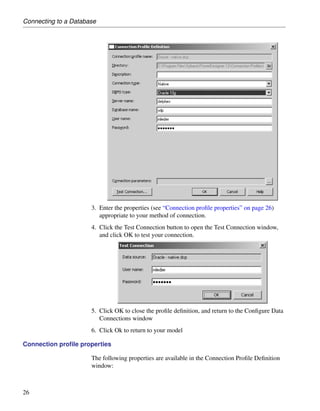
  • 151.
    Chapter 4. ManagingModels In the following example, the class Printer is located in the Peripheral Package of an OOM where each package is, by default, a separate namespace: If you were to select the Use Parent Namespace check box in the property sheet of Peripheral Package, the internal names of objects in this package would no longer be prefixed by the name of the package. The parent of the folder, in this case the model itself, becomes the namespace, and you could not create a Printer class in the Internal Network package, because PowerDesigner would verify its uniqueness in the entire model. O To define the namespace of a package 1. Open the property sheet of the package. 2. Select or clear the Use Parent Namespace check box. 109
  • 152.
    Packages 3. Click OK to return to the model diagram. 110
  • 153.
    Chapter 4. ManagingModels Diagrams A diagram is a graphical view of a model or a package. All models and packages have at least one diagram. Requirements Model views In the Requirements Model, there are no diagrams, but rather views. For more information, see the Requirements Model User’s Guide . You can add additional diagrams to a model or package to split the display and focus on certain portions of the system. You can also use multiple diagrams to focus on different subject areas. They allow you to see the symbols of the same objects, displayed with different kinds of information. For example, in a Publishing model, different diagrams could define the different activities involved in this industry: the printing diagram, the sales diagram, the accounting diagram, the book selection committee diagram. Creating a diagram By default, any model or package opens with a default diagram. You can create as many diagrams as you want in a model or in a package. You can create a diagram in any of the following ways: ♦ Select View ® Diagram ® New Diagram ® Diagram . ♦ Right-click the background of your diagram and select Diagram ® New Diagram ® Diagram from the contextual menu ♦ Right-click the model node in the Model Explorer and select New ® Diagram from the contextual menu In each case you will be invited to specify a name, code, and optional comment for the new diagram. Diagram properties You can modify an object’s properties from its property sheet. To open a diagram property sheet, right-click its Model Explorer entry and select Properties from the contextual menu, or right click the diagram background and select Diagram ® Properties from the contextual menu. The General tab contains the following properties: 111
  • 154.
    Diagrams Property Description Name Specifies the name of the item which should be clear and meaningful, and should convey the item’s purpose to non- technical users Code Specifies the technical name of the item used for generating code or scripts, which may be abbreviated, and should not generally include spaces Comment Additional information concerning the diagram Parent Specifies the name of the parent model or package Stereo- Specifies a stereotype for the diagram. For example, a statechart type diagram can serve to model page flows in JSF and other web frameworks. You can use a profile to provide special processing for diagrams and other objects carrying stereotypes. For more informa- tion, see the “Managing Profiles” chapter in Advanced User Documentation . Page scale Sets a default display for page scale. The page scale percentage lets you define a page size according to your modeling needs. If you have a lot of objects on several pages, you can reduce the page scale percentage in order for all the objects to fit on a single printable page Default Diagram by default. This check box is automatically selected if Diagram the diagram is the first created diagram Navigating between and opening existing diagrams You can open a diagram in any of the following ways: ♦ Double-click the diagram entry in the Model Explorer. ♦ Press CTRL + D, or select View ® Diagram ® Select Diagram to open the Select Diagram dialog box, select a diagram node in the tree and click OK. 112
  • 155.
    Chapter 4. ManagingModels ♦ In the case of package diagrams, you can additionally: • Select the Open Package Diagram tool from the Palette and click on a package symbol. • Press CTRL and double-click a package symbol. • Right-click a package symbol and select Diagram ® Open Diagram from the package contextual menu. Showing and hiding diagram symbols Not all PowerDesigner model objects have symbols. For those that do, the symbol is, by default, displayed in the diagram when you create the object. You can subsequently choose to show or hide the symbol. Hiding a symbol Hiding certain symbols can improve the readability of your diagram. When you hide a symbol you do not delete it or the object. O To hide a symbol from the Symbol menu 1. Select one or several symbols in the diagram. 2. Select Symbol ® Hide Symbols from the contextual menu. The symbols are hidden in the diagram. Hidden link objects When you hide an object with link objects connected to it, the link objects are also hidden. For example, if you hide a table symbol that has a reference to another table, the selected table will be hidden with the reference. 113
  • 156.
    Diagrams O To hide a symbol from the Show Symbols dialog box 1. Select Symbol ® Show Symbols (or right-click the diagram background and select Diagram ® Show Symbols from the diagram contextual menu) to open the Show Symbols dialog box. 2. Deselect the check box beside the visible symbol. 3. Click OK to return to the model diagram. Displaying a hidden symbol You can redisplay a hidden symbol. O To display a hidden symbol 1. Select Symbol ® Show Symbols (or right-click the diagram background and select Diagram ® Show Symbols from the diagram contextual menu) to open the Show Symbols dialog box. 2. Select the appropriate object type sub-tab and select the check box beside the appropriate symbol. 3. Click OK to return to the model diagram. Working with the Show Symbols dialog box The Show Symbols dialog box displays all objects belonging to the current package. You can select objects from other packages for display in the current diagram using the Add Objects tool. 114
  • 157.
    Chapter 4. ManagingModels Object symbols are organized by object type in sub-tabs. Only relevant tabs are displayed. For example, if your package contains only tables and references, only the Table tab will be available, as references are contained in table definitions. If shortcuts, extended dependencies and/or free symbols are present in the package, they appear on their own sub-tabs. The following tools are available for selecting symbols: Tool Description Allows you to select objects from other packages to display them in the current diagram. Selects all check boxes in the current object type page or selects all check boxes in all object type pages when you click the Down Arrowhead and select All Pages Deselects all check boxes in the current object type page or deselects all check boxes in all object type pages when you click the Down Arrowhead and select All Pages Moves all selected object to the top of the list Moves all selected object to the bottom of the list C TRL + selec- Selects all items in all object type pages tion tool Symbol deletion You cannot delete a symbol from the Show Symbols dialog box. When a symbol is hidden it is not deleted. Show symbol directly in If an object has no symbol, you can show it directly in the diagram without the diagram using the Show Symbols dialog box, by using the: ♦ Drag and Drop feature ♦ Paste as Shortcut command 115
  • 158.
    Diagrams Action Result Standard Drag and Drop from Model Object symbol created in the Explorer to diagram destination diagram Drag and Drop from diagram to Object symbol created in the diagram + Create shortcut option destination diagram with symbol selected (General Options) format parameters and relative or position preserved Copy symbol + Paste as Shortcut command from diagram to diagram
  • 159.
    For more informationon the Drag and Drop feature and the Paste as Shortcut command, see respectively sections Dragging and dropping objects and Pasting an object as a shortcut in chapter Managing Objects. Understanding automatic link completion The following rules apply to the display of link objects in the diagram window. General rules Object Check box Result in the diagram. . . Link Selected Objects at both ends are automatically dis- played Any Deselected Link objects attached to the hidden object are automatically hidden Non link Selected Link objects attached to the displayed non link object are automatically displayed if their other ending object is already displayed CDM special behavior 116
  • 160.
    Chapter 4. ManagingModels Object Check box Result in the diagram. . . Associa- Selected Entities and association links attached to the tion displayed association are automatically dis- played Associa- Selected Entities and associations attached to the dis- tion link played association link are automatically dis- played Inheritance Selected Entities (parent and children) and inheritance links attached to the displayed inheritance are automatically displayed Inheritance Selected Entities (parent and children) and inheritance link attached to the displayed inheritance link are automatically displayed Parent en- Deselected Inheritances for which the hidden entity is the tity parent are automatically hidden Finding an object symbol in the diagram You can locate any object with a symbol in a diagram or among several diagrams using Find in Diagram (or, for an RQM, Find in Document View). Objects without graphical symbol such as domains cannot be found in the diagram. If the object has only one symbol, the appropriate diagram is opened with the object symbol centered. If the object has several symbols, a dialog box opens to allow you to select one. This feature can be very useful if you are looking for the target object of shortcut symbols, as you can access the target object from the shortcut property sheet and then locate the target object in the diagram. Find in Diagram (or Find in Document View) is available from: ♦ The Model Explorer ♦ The Modeling Result List ♦ The object property sheet dropdown menu ♦ An objects list 117
  • 161.
    Diagrams O To find an object symbol from the Model Explorer 1. Right-click an object in the Model Explorer and select Find in Diagram (or Find in Document View) from the contextual menu. O To find an object symbol in the diagram from the Modeling Result List 1. Right-click an object in the Modeling Result List and select Find in Diagram (or Find in Document View) from the contextual menu. O To find an object symbol in the diagram from its property sheet 1. Open an object property sheet and select Find in Diagram (or Find in Document View) from the dropdown menu at the bottom-left corner. O To find an object symbol in the diagram from an objects list 1. From an objects list, select an object in the list and click the Find Symbol in Diagram tool in the list toolbar. Defining related diagrams You can define Related Diagrams to attach an object to one or several diagrams others than the ones it was created in. This feature can be used to further define the behavior and implementation of objects . It allows you to view objects from different angles and describes a semantic relationships. You can associate any type of diagram open in the project with an object, including diagrams from other packages or models. Adding related diagrams You can only attach related diagrams to objects that have a Related Diagrams tab in their property sheet. O To add a related diagram 1. Open the property sheet of the object and click the Related Diagrams tab. 2. Click the Add Objects tool to open a selection window. 3. Select a model in the list, and then select the diagram to attach. 4. Click OK to return to the object property sheet. The diagram is displayed in the list of related diagrams of the object. 118
  • 162.
    Chapter 4. ManagingModels Opening related diagrams You can open a related diagram from the property sheet of an object. O To open a related diagram from an object property sheet 1. Open the property sheet of the object and click the Related Diagrams tab. 2. Select a diagram from the list, and then click the Open Diagram tool. The selected diagram is opened in the diagram window, behind the object property sheet. 3. Click OK to access the related diagram. Saving a diagram You cannot save a diagram individually, as it only represents a view of a model or package. When you save a model, you save the diagram in its present state of magnification. Deleting a diagram When you delete a diagram, you delete a view of a model or a package. This action does not affect the objects in the model or package. You can delete a diagram in any of the following ways: ♦ Select the diagram node in the Model Explorer and press the DEL key. ♦ Right-click the diagram window background and select Diagram ® Delete from the contextual menu. ♦ Select View ® Diagram ® Delete. Converting a diagram to a package PowerDesigner lets you convert a diagram to a package. You can move all the objects in the diagram to the new package or specify only certain objects. Other objects will stay in their original package and be represented via shortcuts in the new package. The linking objects that you move keep their links in the target package and a shortcut is usually created in the source package. The general rule being that conceptual modeling must be preserved. Shortcuts creation rules in PowerDesigner also apply to moving objects between packages. 119
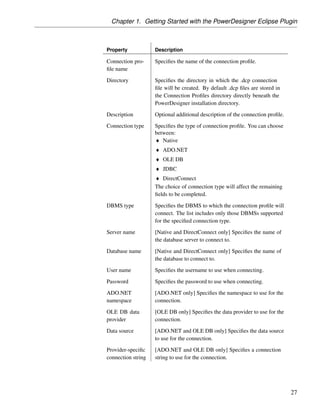
  • 163.
  • 164.
    For more informationon shortcut creation, see the Managing Shortcuts chapter. O To convert a diagram to a package 1. Select View ® Diagram ® Convert to Package. or Right-click the diagram background window and select Diagram ® Convert to Package from the contextual menu. or Right-click the diagram node in the Model Explorer and select Convert to Package from the contextual menu. In each case, the Convert Diagram to Package wizard opens. By default the sub-package takes the name of the diagram. 2. [optional] Enter a different name and code for the new package. 3. Click Next to open the Selecting Objects to Move page. This page lists all the objects in the diagram available to move to the new package. Objects are organized by object type, with a sub-tab for each object type. By default, all the objects are selected. 120
  • 165.
    Chapter 4. ManagingModels 4. [optional] Deselect any objects you do not want to move to the new package. Objects deselected here will remain in the original package and be represented in the new package via shortcuts. 5. Click Finish to create the new package and move the selected objects to it. The new package and diagram are added in the Model Explorer. Moving a diagram to a package In some cases, you may want to move a diagram and some or all of the objects it contains into another package (or composite object such as process or activity). The linking objects that you move with the diagram keep their links in the target package and a shortcut is usually created in the source package. The general rule being that the design of the original diagram must be preserved. Shortcut creation rules in PowerDesigner also apply to moving objects between packages.
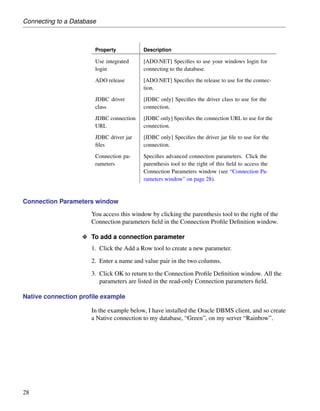
  • 166.
    For more informationon shortcut creation, see chapter Managing shortcuts. You can simply drag and drop the diagram from one package to another in the Model Explorer. All objects in the diagram are automatically moved to the target package. You can use the wizard to control which objects in the diagram are moved to the new package. 121
  • 167.
    Diagrams O To move a diagram to a package using the wizard 1. Select View ® Diagram ® Move to Package. or Right-click the diagram background window and select Diagram ® Move to Package from the contextual menu. or Right-click the diagram node in the Model Explorer and select Move to Package from the contextual menu. In each case, the Move Diagram to Package wizard opens: 2. Select a target package in which you want to move the current diagram and click Next to open the Selecting Objects to Move page. This page lists all the objects in the diagram available to move to the new package. Objects are organized by object type, with a sub-tab for each object type. By default, all the objects are selected. 122
  • 168.
    Chapter 4. ManagingModels 3. [optional] Deselect any objects you do not want to move to the new package. Objects deselected here will remain in the original package and be represented in the new package via shortcuts. 4. Click Finish to move the diagram to the new package. Last diagram in package If the last diagram is moved or deleted from a package, a new diagram is automatically created as all packages must contain at least one diagram. Moving entities between packages in a CDM In a CDM, when moving entities containing data items from one package to another, the following rules apply: Data items Namespace Move result Only used by se- Move within the The data items are moved with the lected entity same namespace entity Reused among Move within the Shortcuts of data items are created different entities same namespace for reused data items Used only by one Change names- Data items are copied in the other entity or reused pace namespace among different entities 123
  • 169.
    Checking a Model Checkinga Model You can check the validity of your model at any time. We recommend that you check your model before generating code or another model from it. The Check model option is enabled by default in the Generate dialog box and, if an error is found, the generation is stopped. O To check your model 1. Press F4, select Tools ® Check Model, or right-click the diagram background and select Check Model from the contextual menu to open the Check Model Parameters dialog box. The options tab lists the types of objects to be checked, and the individual checks to be performed are displayed with symbols indicating their severity: 2. [optional] Select or deselect types of objects to check, and expand object nodes to enable, disable, vary the severity of, and enable or disable automatic correction of individual checks (see “Check model parameter tools” on page 126). Getting documentation for object checks Right-click a check in the Check Model Parameters dialog box and select Help from the contextual menu to display its documentation. 3. [optional] Click the Selection tab, and select or deselect individual objects for checking. Sub-tabs are available for each type of object: 124
  • 170.
    Chapter 4. ManagingModels Selecting objects in the diagram If you have selected object symbols in your diagram before starting the model check, you can select them for checking by clicking the Use Graphical Selection tool in the Selection tab tool bar. For more information about selecting objects in Selection tabs, see the “Adding an item from a selection list” section in the “Using the PowerDesigner Interface” chapter. 4. [optional] Click Apply to save your selections so that they will be available for future model checks. 5. Click OK to launch the model check. The Check Model Modeling Result List displays errors and warnings based on the check options you have defined. For information about how to correct errors, see “Correcting errors in the check model Modeling Result List” on page 127. 125
  • 171.
    Checking a Model Checkmodel parameter tools The following tools are available in the Check Model Parameters dialog box: 126
  • 172.
    Chapter 4. ManagingModels Tool Description Select All – Click the arrow to the right of this tool to choose to select all checks, all error checks, or all warning checks. Deselect All - Click the arrow to the right of this tool to choose to deselect all checks, all error checks, or all warning checks. Error – Sets the selected check to error level. The check icon will change accordingly. When errors are encountered, any model generation is stopped. Warning - Sets the selected check to error level. The check icon will change accordingly. Warnings do not prevent generation from your model. Automatic correction – [enabled if automatic correction is available for the selected check] Enables automatic correction for the selected check. The check icon will change to bear a small red cross in its bottom-right corner. You should be aware of how automatic corrections can affect your models. For example, in a PDM, if a column code length is longer than the length specified in the MaxColumnLen field in the DBMS, then PowerDesigner can automatically truncate the code to the specified length. However, such truncation can make create duplicate names and PowerDesigner will automatically rename the duplicated column code. If you do not want this to occur, you should deselect automatic correction for column code uniqueness. All problems that can not be corrected automatically must be cor- rected manually. For example, in a PDM, PowerDesigner will not create a column for an existing index, and you will need to create the appropriate column. Correcting errors in the check model Modeling Result List When errors and warnings are encountered during model checking, they are listed in the Check Model Modeling Result List pane. You can correct the problems either by invoking a automatic correction (if available) or by opening the property sheet of the affected object and correcting it manually. The following tools are available to assist you in correcting problems with your model. If this toolbar is not displayed, select Tools ® Customize Toolbars, select Check, and click OK. 127
  • 173.
    Checking a Model Tool Description Correct error – Opens the property sheet of the affected object to allow you to correct the error. Display help – Provides documentation for the error or warning. Check again – Re-performs the check, to allow you to verify your correction. Automatic correction – Only available if an automatic correction is defined for this kind of error. Performs the automated correction. First error – Goes to the first error in the list. Previous error - Goes to the previous error in the list. Next error - Goes to the next error in the list. Last error - Goes to the last error in the list. Right click menu These and other options are also available by right-clicking an item in the Check Model Modeling Result List. 128
  • 174.
    Chapter 4. ManagingModels Using the Free Model The Free Model (FEM) allows you to create any kind of chart, diagram, in a context-free environment. For example, you could create a model to represent: ♦ how your models and documents relate to each other ♦ the organizations in your enterprise and how they interrelate ♦ a flowchart ♦ a hierarchy diagram ♦ the graphics you use in PowerPoint presentations and link them to the presentations they are used in ♦ the users in your Enterprise Repository and link them to symbols representing the groups they belong to ♦ an ORM model using ORM specific extended model definitions You can enrich the diagrams in the Free Model by selecting different bitmaps for each symbol and add extended attributes to collect specific metadata. VBScript and the Generic Generator make it possible to program your own semantics into this model and create specific generated code or other output particular to your own interpretation. 129
  • 175.
    Naming Conventions Naming Conventions You can define naming conventions for your model objects in the Model Options dialog box. You can: ♦ Set rules to enforce predefined name and code formats for all the objects within a model. When you type a name or a code that does not respect the conventions, PowerDesigner adapts them to the required format. See “Name/Code Format” on page 130. ♦ Set conversion scripts in order to generate objects name from their code or objects code from their name using specific macros and conversion tables. This feature is only available when you select the Enable name/code conversion option. See “Name and code conversion scripts” on page 135. Name into code conversion during inter-model generation The name into code conversion is particularly useful for inter-model generation, as it allows you to define how you want the codes of your model objects to be generated. For more information on the name into code conversion during the inter-model generation, see section on inter-model generation options in the different modules user’s guides. Name/Code Format Name and code format encompasses constraints on length, character case and type for the name and the code of objects. You can set name and code format for: ♦ Models and packages ♦ Model objects ♦ Reusable templates Displaying the name or the code of objects You can define whether the names or codes of objects are displayed. O To define the display of names or codes 1. Select Tools ® Model Options to open the Model Options dialog. 2. Select the Naming Convention node in the Category tree view. 130
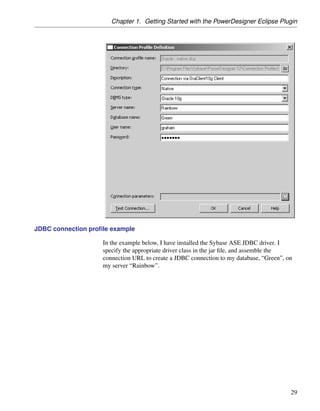
  • 176.
    Chapter 4. ManagingModels 3. Select the Name or Code radio button in the upper part of the dialog box. 4. Click OK to return to the model diagram. Defining name and code format for a type of object You can specify name and code formats for each type of object in a model. 131
  • 177.
    Naming Conventions O To define name and code format for a type of object 1. Select Tools ® Model Options to open the Model Options dialog box. 2. Select an object type beneath the Naming Convention node in the Category tree view. Other Objects category Select the Other Objects category to define name and code format for models and all objects that are not visible in the tree view. 3. Complete the appropriate properties on the Name and Code tabs (see “Name and Code format properties” on page 134). 4. Click OK to return to the model diagram. Creating a template for name and code format You can define a template for name and code formats and reuse it for several types of objects. O To create a template for name and code format 1. Select Tools ® Model Options to open the Model Options dialog box. 2. Select the Naming Convention node in the Category tree view. 132
  • 178.
    Chapter 4. ManagingModels 3. Click the Ellipsis button beside the Naming Template box to open the List of Naming Templates: 4. Click the Add a Row button and type a naming template name. 5. Click the Properties tool to open the new naming template property sheet to the Detail page: 6. Complete the appropriate properties (see “Name and Code format properties” on page 134). 7. Click OK to return to the model diagram. 133
  • 179.
    Naming Conventions Naming template modification You can modify name and code format for a template by selecting it from the Naming template list and clicking the Properties tool beside the Naming template box. Applying a naming template to a type of object You can apply a naming template to any number of object types in your model. O To apply a naming template to an object type 1. Select Tools ® Model Options to open the Model Options dialog box. 2. Select an object type beneath the Naming Convention node in the Category tree view. 3. Select the Name or Code tab and then select a template in the Naming Template list. The values of the selected template appear in the name format boxes. 4. Click OK to return to the model diagram. Name and Code format properties The following options are available for formatting names and codes: Option Description Display Displays the names of objects in the interface Name Display Code Displays the codes of objects in the interface Enable Enables the use of conversion scripts and conversion tables name/code to generate a code from a name or a name from a code. See conversions section “Name and code conversion scripts” on page 135 Naming Tem- Specifies a template for name and code format plate 134
  • 180.
    Chapter 4. ManagingModels Option Description Maximum Maximum number of characters. In a PDM, this maximum Length number of characters can come from the Registry (if you defined a Maximum length and clicked the Set As Default button) or from the DBMS definition file. If a maximum length is declared in both the Registry and the DBMS, PowerDesigner uses the length with higher constraint. For example, in the case where the Registry = 128 and the DBMS = 30, PowerDesigner uses 30 characters for maximum length Character Indicates authorized character cases: Uppercase, Lowercase, Case and Mixed Case Valid Charac- List of authorized characters. ters You can specify a single character or character string in quotation marks. For example: "a", "xyz" You can specify an interval of characters between single quotation marks separated by a dash. For example: ’a’-’z’ ’a’-’z’, ’A’-’Z’, ’0’-’9’ By default, PowerDesigner allows the following valid char- acters for codes: ‘a’-’z’,’A’-’Z’,’0’-’9’,”_” All Valid Accepts all characters. Invalid Char- List of unauthorized characters. By default, PowerDesigner acters defines the following invalid characters for names: ”+-*/.,!:;” No Accents Removes accents from accented characters. Default Char- Character used to replace any invalid characters entered. acter Name and code conversion scripts You can set conversion scripts in order to generate the name of an object from its code or vice versa using conversion scripts and tables. Name/code conversions can be applied to all named objects in a model or for each type of object individually. You must select the Enable name/code conversions check box in the upper part of the Naming Convention page of the Model Options dialog box for 135
  • 181.
    Naming Conventions this feature to be available. Enable name/code Name/code behavior conversion option Selected Use of conversion scripts and conversion tables to generate a code from a name or a name from a code together with the application of naming conventions Unselected Names are copied from codes or codes are copied from names together with the application of naming conventions Name to Code mirroring When you create an object in PowerDesigner, you may have to type a name mode and click the Equal button after the Code box to set the code equal to the name because the Name to Code mirroring mode may not be selected in the General Options dialog box. You can select this operating mode to automatically set the code equal to the name and thereby apply the conversion scripts you defined to both names and codes.
  • 182.
    For more informationon the Name to Code mirroring option, see section Defining dialog box operating mode in chapter using the PowerDesigner interface Conversion scripts allow you to alternatively generate a code from a name and a name from a code. You define conversion scripts from the corresponding tabs in the Naming Convention page of the Model Options dialog box. Usually name into code conversion is the most commonly used: Tab Description Name To Code You use it when you want to generate a code from a name Code To Name You use it when you want to generate a name from a code Each tab allows you to: ♦ Define a conversion script in the Conversion Script edit box to generate the name from the code or the code from the name using macros ♦ Select a conversion table from the Conversion table list. This allows you to convert an expression to another, when using the .convert_name or .convert_code macros. For more information on macros, see section “Using a conversion script” on page 137. The use of conversion tables is optional 136
  • 183.
    Chapter 4. ManagingModels Using a conversion script Default conversion scripts allow you to generate names from codes and codes from names using macros. These are macros used in the Generation Template Language (GTL) and recommended for the name/code conversions. Conversion scripts are used when you click the Equal button after a Name or a Code box in the object property sheet or when you have selected the Name to code mirroring option in the Dialog page of the General Options. You can customize the default conversion scripts using any of the following macros: ♦ .foreach_part ♦ .convert_name & .convert_code ♦ .lowercase ♦ .uppercase ♦ .replace ♦ .delete
  • 184.
    For more informationon the syntax of macro keywords used in the Generation Template Language (GTL), see section Using macros in chapter Generation Reference Guide in the Advanced User Documentation . 137
  • 185.
    Naming Conventions .foreach_part macro The .foreach_part macro allows an iteration on each part of an expression. The part separators will be specified into a pattern expression. This macro is very useful when dealing with inter-model generation, as models can have very different naming conventions. For example a Java class attribute code may be “customerName” whereas a PDM table column code may be “CUSTOMER_NAME”. Syntax . foreach_part (<Expression> [, <Separator Pattern>[,<Head> [, <Tail>]]]) [<Block>] .next[(<Separator>)] Parameters Parameter Description <Expression> Designates the expression scanned by the part iterator. This part iterator will stop on each character specified into the <PartSeparatorPattern> <Separator Defined into a double quoted string. Any character speci- Pattern> (op- fied into the pattern will be used as a part separator. tional) See below <Block> Encompasses the following variables: %CurrentPart%: Current part value, %IsFirst%: Determines if the current part is the first part of the expression, %IsLast%: Determines if the current part is the last part of the expression <Separator> A <separator> can be concatenated between each (optional) part. If you defined a character separator in the <PartSeparatorPattern>, the value of the <separator> will replace the character separator. If you defined a range separator in the <PartSeparatorPattern>, the table conver- sion you selected will return the corresponding value to replace the range separator <Head> or Expressions that can be added respectively at the beginning <Tail> (op- or at the end of the generated expression tional) 138
  • 186.
    Chapter 4. ManagingModels Separator There are two types of separator: ♦ A character separator that must be defined into an additional simple quote and writes as follows: (%Name,”’<char>”’) ♦ A range separator that must be used with a conversion table and writes as follows: (%Name,”[<c1>-<c2>]”) Both can also be combined: (%Name,”’<char>’,[<c1>-<c2>]”). ‘<char>’ can be any character specified into the pattern for example: a, b , c, 0, 9. [<c1> - <c2>] specifies a character taken into the range defined between the two characters <c1> and <c2>. For example, [A-Z], [a-z] or [0-9]” can be used as part separators. By default, the <PartSeparatorPattern> is initialized by the pattern “ -_,t”. If the specified pattern is empty the pattern is initialized using the default value. Examples ♦ Script 1: Convert a name into a class code (JAVA naming convention) .foreach_part(%Name%, "’ _-’") %.FU:CurrentPart% .next The conversion script will output: Name = Employee shareholder => Code = EmployeeShareholder ♦ Script 2: Convert a name into a class attribute code (JAVA naming convention) .set_value(_First, true, new) .foreach_part(%Name%, "’ _-’") .if (%_First%) %.L:CurrentPart% .set_value(_First, false, update) .else %.FU:CurrentPart% .endif .next The conversion script will output: Name = Employee shareholder => Code = employeeShareholder .convert_name & .convert_code macros The .convert_name & .convert_code macros use a conversion table to get the corresponding code from a name or the corresponding name from a code. 139
  • 187.
    Naming Conventions The .convert_name macro uses the conversion table of a name into a code and the .convert_code macro uses the conversion table of a code into a name. When no occurrence is found in the table, the name or the code is returned. You can use these macros together with a user-defined conversion table that you select in the Conversion Table list. Conversion tables are not case sensitive. You can indifferently use lower-or-uppercases in tables.
  • 188.
    For more informationon conversion tables, see section “Using a conversion table” on page 141. Syntax .convert_name (<Expression>[,<Separator Character>[,<Separator Pattern>],<code naming convention>]) .convert_code (<Expression>[,<Separator Character>[,<Separator Pattern>]]) Parameters Parameter Description <Expression> Name or code to be converted in the corresponding conversion table <Separator Character generated each time a separator declared Character> (optional) in <Separator Pattern> is found in <Expression>. For example this character can be “_” <Separator Pattern> Declaration of the different separators likely to exist (optional) in the <Expression>. These separators will be replaced by the <Separator Character>. You can declare several separators, for example “/-_” <Code naming <firstLowerWord>: First word in lowercase, then convention> other first letters of other words in uppercase <FirstUpperChar>: First character of all words in uppercase <lower_case>: All words in lowercase and sepa- rated by an underscore <UPPER_CASE>: All words in uppercase and separated by an underscore Code naming If you use the code naming convention parameter with the convert_name conventions macro, the conversion script will automatically convert names according to the selected parameter. This can be very useful when you need to adapt codes to a particular target, for example PowerBuilder naming conventions 140
  • 189.
    Chapter 4. ManagingModels require object codes to be always in lowercase and separated by an underscore. When you use a code naming convention parameter in the conversion script, the conversion table is no longer used and the name is systematically converted according to the pattern defined in the code naming convention parameter. You can also define a code naming convention for all the instances of a selected metaclass using the resource editor, for more information on this feature, see section Adding a metaclass to a profile in chapter Managing Profiles in the Advanced User Documentation . Example You type the following script in the Name to Code page: .convert_name(%Name%,"_","’-/’") Note that both the <Separator Character> and the <Separator Pattern> must be defined into a double quoted string, furthermore you should add simple quotes around <Separator Pattern> to define the pattern syntax. In this script, the separator patterns (- and /) are used to distinguish the different words in the name. The separator character ( _ ) will be used to separate the different characters of the name. So whenever a “-” or a “/” separator pattern is encountered, it will be replaced by the “_” separator character. The script has to convert the name CLIENT-France/Address and uses the following conversion table: Name Code CLIENT CLI France FR Address ADDR The resulting code is: CLI_FR_ADDR Using a conversion table Conversion tables provide a way to define a correspondence between the name and the code of an object or the code and the name of an object. Conversion tables are stored into separate CSV (Comma-Separated Values) files and are shared by all models. 141
  • 190.
    Naming Conventions PowerDesigner provides CSV file samples stored in the Resource FilesConversion tables folder of the PowerDesigner installation directory. You can also store the conversion tables you create in that directory. Conversion tables are not case sensitive. You can indifferently use lower-or-uppercases in tables. A conversion table encompasses a Name column and a Code column. Depending on the conversion type you use, a name or a code is returned during the generation. However, if several different names have the same code for example, only the first found name is returned. The following example illustrates a Name To Code conversion where two different names (Customer and Client) have the same code (CUST): ♦ When converting the name into code, CUST will appear in the Code box of both Client and Customer property sheet objects ♦ When converting the code into name, only the first occurrence (Customer = CUST) will be taken into account to appear in the Name box of the Customer object property sheet A selected conversion table will be operational only if you simultaneously invoke it using the Convert_name or Convert_code macros in the Conversion script edit box.
  • 191.
    For more informationon the Convert_name or Convert_code macros, see section “Using a conversion script” on page 137. 142
  • 192.
    Chapter 4. ManagingModels O To use a conversion table 1. Select a conversion table from the Conversion table list located in the lower part of the Name To Code or Code to Name pages. Creating a conversion table You create a conversion table from the list of conversion tables. O To create a conversion table 1. Select Tools ® Resources ® Conversion Tables to display the list of available conversion tables. 2. Click the New tool, enter a name and click Save to open the Conversion Table dialog. 3. Click the Add a Row tool. 4. Type a name in the Name column, and click the code into which you want it to be converted in the Code column: 143
  • 193.
    Naming Conventions You can create as many conversion pairs as required. 5. Click OK to return to the list of conversion tables, where the new table is now available. Modifying a conversion table You modify a conversion table from the List of Conversion Tables. O To modify a conversion table 1. Select Tools ® Resources ® Conversion Tables to display the list of available conversion tables. 2. Select a conversion table in the list and click the Properties tool. 144
  • 194.
    Chapter 4. ManagingModels Note that you can also modify a conversion table directly from the Naming Convention page of the Model Options dialog box by selecting a conversion table from the Conversion Table list and clicking the Edit the selected conversion table tool. Modifying a conversion table outside PowerDesigner As a .CSV file, a conversion table can be modified in any external text editor, like Notepad for example. However, if you modify your conversion table outside PowerDesigner while the conversion tables editor is running in the current session, your modifications will be taken into account only if you close and re-open the conversion tables editor. Deleting a conversion table You delete a conversion table from the list of conversion tables. O To delete a conversion table 1. Select Tools ® Resources ® Conversion Tables to display the list of available conversion tables. 2. Select the conversion table that you want to delete from the list and click the Delete tool. Defining a code naming convention in a resource file When you define code naming conventions in a model, these are not automatically applied to the current model. To apply these code naming conventions, you have to do one of the following actions: ♦ Use the model to model generation feature, in this case you re-generate the model and apply the new naming conventions ♦ Create a new model ♦ Use the Change Target Language to apply the same resource file to the model but have the new naming conventions applied O To define a code naming convention in a resource file 1. Open the DBMS, object language, process language, or XML language editor. 2. Select a metaclass in the Profile category. 3. Select a Code Naming Convention from the list. 145
  • 195.
    Naming Conventions 4. Click OK. 146
  • 196.
    Chapter 4. ManagingModels Spell Checking Spell checking in PowerDesigner is only available if you have MS Word 2000 or higher installed on your machine, and if your system code page is consistent with the model language. For example, for the spell checker to work properly on a Chinese model, your system code page should be Chinese. Enabling the spell checker The spell checker is a PowerDesigner add-in that needs to be enabled to work properly. O To enable and configure the spell checker 1. Select Tools ® General Options to open the General Options dialog box. 2. Click the Add-Ins node in the Category tree view and select the Spell Checker checkbox. 3. Click OK to return to the model diagram. 4. Select Tools ® Spell Checking Options to open the Spell Checking Options dialog box. 5. Select the properties of model objects for which you want to check the spelling. If you select Check sub-objects, then all the child objects of any object you check will also be checked. 6. Select the language of your model in the Dictionary Language list, and then click OK to return to the model diagram. Using the spell checker O To use the spell checker 1. Right-click an object or a model node and select Spell Check in the contextual menu. Spell checking starts. If an error is found the Spell Checking dialog box opens. 2. For each error, you can: ♦ Click Change to accept the suggested replacement word ♦ Type your own replacement and click Change ♦ Click Change All to apply the change to the entire object or model 147
  • 197.
    Spell Checking ♦ Click Add to add the word to your custom dictionary A message is displayed to inform you that spell checking is successful. 148
  • 198.
    Chapter 4. ManagingModels Applying Model Transformations Transformations are used to perform standard modifications to your model objects. You can apply transformations either on demand or during generation.
  • 199.
    For information aboutcreating transformations, see the “Managing Profiles” chapter in the Advanced User Documentation . Applying transformations during generation Transformation profiles can be used during model generation: ♦ pre-generation transformations are applied to the source model ♦ post-generation transformations are applied to the target model Inter model generation During inter-model generation, it is impossible to execute both lists of transformations of the same transformation profile, because the current model is the source of generation but not the target as defined in the following example. Model to model When you generate a model to the same type of model, you can execute both generation lists of transformations of the transformation profile provided you select the same extended model definition in the source and in the target model. 149
  • 200.
    Applying Model Transformations O To select transformations for generation 1. Select Tools ® Generate Model to open the Model Generation Options dialog box. 2. Click the Details tab, and click the Enable Transformations to display the Extended Model Definitions, Pre-generation, and Post-generation tabs. 3. Click the Extended Model Definitions tab to select the extended model definitions in which you have defined your transformations. 4. Click the Pre-generation tab and select profiles and transformations to be applied before generation. If you deselect a profile checkbox, none of its transformations will be executed. You can drag and drop profiles to modify transformation execution order. During generation, transformations are executed in the following order: ♦ The order of profiles in the pre and post generation pages ♦ The order of transformations in the profile itself ♦ The order in which objects are treated in the model, that is to say beginning at the model level and recursing into sub-packages 150
  • 201.
    Chapter 4. ManagingModels 5. Click the Post-generation tab and select profiles and transformations to be applied after generation. 6. Click OK in the Model Generation Options dialog box. Applying transformations on demand Transformations can also be applied on demand in your model as a sort of design pattern. You can design a pattern using the transformation feature and “play” it in your model in order to modify objects. For example, if you are working in an OOM, you can create a transformation that converts all analysis classes with the <<control>> stereotype into components in order to add an implementation layer to your model. Post-Generation Transformations only You can only invoke post-generation transformations on demand. There are two methods for applying transformations on demand in a model: ♦ Add a transformation as a command in a main or contextual menu (see “Defining menus in a profile” in the “Managing Profiles” chapter in the Advanced User Documentation ). ♦ Use the Apply Transformations window available from the Tools menu. 151
  • 202.
    Applying Model Transformations O To use the Apply Transformations window 1. Add one or more extended model definitions containing post-generation transformations to your model 2. Select Tools ® Apply Transformations to open the Apply Transformations window. 3. Select transformations profiles and transformations on the Transformations tab. 4. [optional] Click the Selection tab and deselect any objects that you want to exclude from the transformation. 5. Click OK to apply the transformations. 152
  • 203.
    Chapter 4. ManagingModels Resource Files The PowerDesigner modeling environment is powered by resource files, which define the objects available in each model along with the methods for generating and reverse-engineering them. You can view, copy, and edit these XML-format resource files in order to customize and extend the behavior of the environment. The following types of resource files are provided: ♦ Target languages: define the standard objects available in a model. Types of target language files include: • Process languages (.xpl) – define a specific business process language in the BPM (see the “Process Language Reference Guide” chapter in the Advanced User Documentation ). • Object languages (.xol) - define a specific object-oriented language in the OOM (see the “Object Language Reference Guide” chapter in the Advanced User Documentation ). • DBMSs (.xdb) - define a specific DBMS in the PDM (see the “DBMS Reference Guide” chapter in the Advanced User Documentation ). • XML languages (.xsl) - define a specific XML language definition in the XSM (see the “XML Language Reference Guide” chapter in the Advanced User Documentation ). ♦ Extended model definitions (.xem) – extend the standard definitions of target languages to, for example, specify a persistence framework or server in an OOM. You can create or attach one or more XEMs to a model (see the “Extended Model Definitions Reference Guide” chapter in the Advanced User Documentation ). ♦ Report templates (.rtp) - specify the structure of a report. Editable within the Report Template Editor (see the Reports User’s Guide ). ♦ Report language files (.xrl) – translate the headings and other standard text in a report (see the Reports User’s Guide ). ♦ Conversion tables (.csv) - define conversions between the name and code of an object (see “Using a conversion table” in the “Managing Models” chapter). Introduction to the Resource Editor The resource editor allows you to view and edit the resources files provided with PowerDesigner. The left-hand pane shows a tree view of the entries 153
  • 204.
    Resource Files contained within the resource file, and the right-hand pane displays the properties of the currently-selected element: Each entry is a part of the definition of a resource file. For example, you can define entries for a database command, a characteristic of an object language, a report item, and so on. Entries are organized into logical categories. For example, the Script category in a DBMS language file collects together all the entries relating to database generation and reverse engineering. Caution You should never modify the resource files shipped with PowerDesigner. To create your own resource file For each original resource file you want to modify you should create a corresponding new resource file. To do so you have to create a new resource file from the List of Resource Files, define a name and select the original resource file in the Copy From list. This allows you to create a new resource file that is identical to the original file apart from the name. For detailed information about resource files, see the “Resource Files and the Public Metamodel”chapter in the Advanced User Documentation . Opening the current target language file in the Resource Editor When working with a BPM, PDM, OOM, or XSM, you can open the target language file that defines your modeling environment in the Resource Editor for viewing and editing. 154
  • 205.
    Chapter 4. ManagingModels O To open the current target language file 1. In a BPM, select Language ® Edit Current Process Language. 2. In a PDM, select Database ® Edit Current DBMS. 3. In an OOM, select Language ® Edit Current Object Language. 4. In an XSM, select Language ® Edit Current Language. The target language file opens in the Resource Editor. Opening any available resource file in the Resource Editor You can open, inspect, and edit any resource file from the lists of resource files. O To open a resource file 1. Select Tools ® Resources ® Type to open the relevant resource file list. 2. Select a file in the list, and then click the Properties tool. The selected resource file opens in the Resource Editor. 155
  • 206.
    Interchanging Models usingthe XMI Format Interchanging Models using the XMI Format PowerDesigner allows you to interchange Unified Modeling Language (UML) models between different UML tool vendors using the XML Metadata Interchange (XMI) standard file format. XMI combines the benefits of web-based XML standard for defining, validating and sharing document formats on the Web with the benefits of the object-oriented UML. However, the current version of XMI does not support diagrams interchange. The current version of XMI is 1.1 and PowerDesigner uses the UML 1.3 DTD to generate XMI files. Importing XMI files When you import an XMI file, you have to choose an object language and the diagram to open (class or use case). You can then select the .XML file to import. The corresponding OOM is displayed in the diagram window. By default all symbols are visible in the diagram window. O To import an XMI file as an OOM 1. Select File ® Import ® XMI File to open the New Object-Oriented Model dialog box. 2. Select an object language from the Object Language list. 3. Select whether you want to Share or Copy the object language definition. 4. Select the type of the first diagram to open in the First Diagram list. 156
  • 207.
    Chapter 4. ManagingModels 5. Click OK, browse to your XMI file, and click Open. A progress box shows the progress rate of the import process. The General page in the Modeling Output, located in the lower part of the PowerDesigner main window, shows the objects import order. At the end of the import process, the OOM corresponding to the imported XMI file is opened in the diagram window. Exporting XMI files You can export your PowerDesigner OOM as an XMI file to allow it to be easily opened in other UML modeling tools or code generators like Java, CORBA or C++. Note that only objects from the class diagram and from the use case diagram are exported, and any symbols will be lost as only objects are exported. O To export XMI files 1. Select File ® Export ® XMI File. 2. Enter a filename for your XMI file and click Save. A progress box shows the progress rate of the export process. The General page in the Modeling Output, located in the lower part of the PowerDesigner main window, shows the objects export order. Your OOM is exported as an XMI file. 157
  • 208.
    Upgrading from PreviousVersions of PowerDesigner Upgrading from Previous Versions of PowerDesigner The resource files that customize PowerDesigner for particular target languages or DBMSs are constantly evolving. When you open a model created with a previous version of PowerDesigner, the resource file associated with the model will be automatically upgraded if possible. Note that it may be possible to upgrade a model created with v6.x or earlier but only upgrading from v7.x or later is supported. Replacing a DBMS from previous versions All DBMSs stored in the installation directory are updated when you upgrade PowerDesigner. For DBMSs copied to the model file in previous PowerDesigner versions, you will be invited to upgrade the DBMS when you open the old model. When you open a PDM the following situations can occur: DBMS type Matching DBMS No match Share DBMS upgraded and message Keep DBMS from previous in the Output window version Copy A confirmation dialog box Keep DBMS from previous lets you decide if you want version to replace the DBMS, if you replace the DBMS, a message appears in the Modeling Output window How to transfer DBMS If you had customized your DBMS, you can use the following methods to changes? keep the changes in your definition file while switching to the current version: Shared DBMS Merge the current version DBMS with DBMS from a previous version, using the merge feature available from the list of DBMS (Tools ® Resources ® DBMS). Copied DBMS Create a new model using a current version DBMS fairly similar to your modified DBMS, and merge it with a model using the DBMS from a previous version. In the merge dialog box, you should have the current version DBMS in the right pane and the modified DBMS in the left pane. You should be careful when you modify the current version DBMS: apply only the changes you 158
  • 209.
    Chapter 4. ManagingModels remember, in case of changes in both DBMS versions, try to understand the differences and avoid modifying the current version DBMS. Replacing an object language from previous versions All object languages stored in the installation directory are updated when you upgrade PowerDesigner. For object languages copied to the model file in previous PowerDesigner versions, you will be invited to upgrade the object language when you open the old model. When you open an OOM the following situations can occur: Shared object language If the object language file is the original file delivered with PowerDesigner, the object language is automatically replaced as mentioned in the Output window. If the object language file is a renamed copy of an object language shipped with PowerDesigner, a message box appears to advise you to change object language. Copied object language A message box appears to advise you to change object language. If you click Yes, the object language is automatically replaced in your model. You lose all the changes performed on the definition file. If you click No, the object language is not replaced and remains in the previous version format, you cannot generate for the target language. If you click Cancel the model is not opened. Converting generic If you had customized an object language from PowerDesigner v8.0 using object language the generic generation mechanism, the names of the templates may conflict with the public names defined in the current version. You can use the script _PublicNames.pl located in the Tools directory to avoid conflicts with public names. 159
  • 211.
    CHAPTER 5 Managing Objects Aboutthis chapter This chapter explains how to manage objects in PowerDesigner. Contents Topic: page Defining Objects 162 Business Rules 178 Defining Extended Objects and Links 183 Dragging, Dropping, Copying, Pasting, Moving, and Deleting Ob- 186 jects Creating a Graphical Synonym for an Object 198 Finding Objects 201 Customizing the Generation of Files for an Object 207 Using File Objects 215 Working with Extended Model Definitions 219 161
  • 212.
    Defining Objects Defining Objects Objects the things that you model with. For example, tables, data items, generalizations, and packages are PowerDesigner objects. There is detailed information about each object in the relevant model User Guide. The following sections describe generic features available for all objects. All objects appear as nodes in the Model Explorer, and many are available via object lists (in the Model menu) and have a symbol that can be displayed in the diagram window. Objects and Symbols Objects appear in the Model Explorer. What you can see in the diagram windows are instances of objects called symbols. Namespaces In PowerDesigner, each package can be a namespace. It is however possible to expand the namespace to the parent of a given package. You can cascade the expansion until you reach the level of the model itself. Objects that appear in the Model Explorer obey the general rules that follow: In Model Explorer Namespace Uniqueness rule Objects directly under a pack- Model Unique name and code in age or a model (table, process, model class) Package Unique name and code in package Objects under parent object Not applica- Unique name and code in (column, attribute) ble parent Linking objects (reference, Not applica- Unique name and code relationship) ble between same end objects (i.e., parallel links with same name and code are not allowed between same end objects) However, you may encounter some exceptions to those rules. For example only the code of a reference allows to identify the object in the entire model, when the “Unique code” option is selected in the Model Options dialog box. PowerDesigner warns you when a general rule is not respected.
  • 213.
    For more informationabout the management of namespace, see section 162
  • 214.
    Chapter 5. ManagingObjects Managing the namespace in models in chapter Managing Models. Creating an object You can create objects in a model or in a package in three different ways: ♦ Graphically, in the diagram window ♦ In the Model Explorer ♦ From an object list Creating an object graphically When objects support symbols, you can create them from the diagram window using the tools available in the Palette. O To create an object graphically 1. Click an object creation tool in the Palette. 2. Click an empty space in the diagram. The symbol of the newly created object is displayed in the diagram window. The corresponding node also is displayed in the Model Explorer. 3. Right-click to release the tool. 4. Double-click the symbol of the newly created object in the diagram window to display the object property sheet. 5. Type an object name and an object code. 6. Click OK to return to the model diagram. Creating a link object graphically You can create link objects from the diagram window using the tools available in the Palette. O To create a link object graphically 1. Click a link object creation tool in the Palette. 2. Click inside the source object and, while continuing to hold down the mouse button, drag the cursor to the destination object. Then, release the mouse button. A link object symbol is created and displayed between the two source and destination objects. 163
  • 215.
    Defining Objects 3. Double-click the new link object symbol in the diagram to display the link object property sheet. 4. Type a link object name and code. 5. Click OK to return to the model diagram. Complete links The Complete Links command available from the Tools menu allows you to display the symbols of links existing in the model. If you select objects in the diagram, the Complete Links command only applies to these objects. Creating an object from the Model Explorer You can create objects from the Model Explorer. Link objects can be created from the Model Explorer only if you have previously defined the required source and destination objects. O To create an object from the Model Explorer 1. Right-click a model, package or an object category in the Model Explorer, and select New ® object type from the contextual menu. The object is created and its property sheet opens. 2. Type an object name and an object code. 3. [for link objects] Select a source and a destination object. 4. Click OK. The object node is displayed under its corresponding category in the Model Explorer. Associated symbol in diagram By default, when you create an object from the Model Explorer, it does not have a symbol. You can create a symbol for the newly created object by pressing the SHIFT key and dragging and dropping the node into the diagram window. Creating an object in an object list You can create an object in an object list. Link objects can be created in a list of objects only if you have previously defined the required source and destination objects. 164
  • 216.
    Chapter 5. ManagingObjects O To create an object in a list of objects 1. Select Model ® object list to open the appropriate object list. 2. Click the Add a Row tool. or Click an empty line in the list. or [if the list is ordered] Click the Insert a row tool, . A new item is added at the end of the list or before the selected row in the list. 3. Type an object name and an object code. 4. [for link objects] Select a source and a destination object. 5. Click OK. Associated symbol in diagram By default, when you create an object in a list of objects, the symbol of the new object is displayed in the current diagram.
  • 217.
    For more detailsabout object lists, see “Lists” in the Using the PowerDesigner Interface chapter. Object properties You define an object with properties that appear in its property sheet. Property sheets organize object properties on tabs. O To display an object’s property sheet 1. Double-click the object symbol or its entry in the Model Explorer. or Right-click the object symbol or its entry in the Model Explorer, and select Properties from the contextual menu. Different types of objects have different tabs, but almost all PowerDesigner object property sheets have the following tabs: ♦ General – provides basic information about the object. Almost all objects have the following properties: • Name - clearly identifies the object. By default names can have up to 254 characters, and can include upper, lower, and mixed case strings. 165
  • 218.
    Defining Objects • Code – is a reference for the object. It is used in scripts that are generated from the model. By default, codes can have up to 254 characters, and can include upper, lower, and mixed case strings. • Comment – [optional] provides a more detailed description of the object. You can display (and edit) object comments on their many diagram symbols using the “Comment” Display Preference. This feature can be useful when importing an ERwin model into a CDM or PDM. ♦ Notes – lists additional information about the object. For more information, see “Attaching notes to an object” on page 166. ♦ Rules – lists the business rules that the system must follow. A business rule could be a government-imposed law, a customer requirement, or an internal guideline. For more information, see “Business Rules” on page 178. ♦ Version Info - provides details about the object owner, creation, and modification date. ♦ Dependencies - lists all the objects that depend on the object ♦ Extended dependencies - lists all the objects on which the object depends Navigating between tabs Use CTRL + PAGE DOWN or CTRL + PAGE UP to move to the next or to the previous tab and display the corresponding object type tab. Opening property sheets at last accessed tab Property sheets open to the General tab by default. However, you can choose to open property sheets at the last accessed tab by selecting Tools ® General Options ® Dialog, and selecting the Keep Last Tab option in the Property Sheets groupbox. Attaching notes to an object ♦ The Notes tab in an object property sheet contains two sub-tabs: • Descriptions - in general, includes important information that does not fit into the General tab. For example, a description of the Employee entity might read: This entity has one occurrence for each employee in our worldwide operations. This base should grow by 20 percent in 2002. 166
  • 219.
    Chapter 5. ManagingObjects • Annotations - contains notes regarding the implementation of a model or the objects it contains. For example, an annotation of the Employee entity might read: Verify list of attributes with Director of Human Resources. Both are editable directly in the tab with the internal PowerDesigner RTF editor, which includes the following tools: Tool Description [ SHIFT + F11] Open Editor Menu. For more information, see “Working with free text” in the Model Graphics chapter. [C TRL + E] Edit With. Opens your default RTF editor you previ- ously defined or allows you to select another editor if you click the down arrow beside this tool.
  • 220.
    For information aboutdefining a default editor, see “Specifying external text editors” in the Using the PowerDesigner Interface chapter. You can insert the content of an existing text or RTF file in the RTF editor to use it as a standard for your descriptions or annotations. This can be very helpful to standardize objects notes as you can have a description or annotation RTF file for each object type, and open it when needed. O To insert a .txt or .rtf file in the RTF editor 1. Double-click an object in the diagram to display the object property sheet. 2. Click the Notes tab. 3. Click the tab (Description or Annotation) that contains the text you want to edit. The corresponding tab is displayed. 4. Click the Open Menu tool and select Insert from the dropdown menu. A standard Open dialog box is displayed. 5. Browse to the directory that contains the file to open. 6. Click OK. The content of the file is displayed in the RTF editor. 167
  • 221.
    Defining Objects Object is annotated You can see if an object in the diagram has notes by opening the object list to which it belongs. If the check box corresponding to the object is selected in the N column, the object in the diagram is annotated. For more information about customizing the display of a list, see “Filtering a list” in the Using the PowerDesigner Interface chapter. Previewing the code to be generated from an object Many objects have a Preview tab in their property sheets, that allow you to preview the code to be generated from the object. This provides an easy way to apply modifications to your code and update the model. The following tools are available on this tab (though some may be unavailable for certain objects): 168
  • 222.
    Chapter 5. ManagingObjects Tool Description Keyboard shortcut Open Editor Contextual Menu S HIFT + F11 Edit With contextual menu. This allows you to CTRL +E select an editor for the script Refresh F5 Select generation targets. This tool is available CTRL + F6 when at least one extended model definition flagged for generation is linked to the model and when it contains GeneratedFiles entries for the current object. When available, it displays the list of targets for the current object. If you add a generation target, the corresponding tab is added to the Preview tab. If you deselect a generation target, the corresponding tab disappears from the Preview tab Show generation options. If you select the Show CTRL +W Generation Options tool when available, the Generation Options dialog box is displayed. You can change generation options from this dialog box and see the impact on the code Ignore generation options. If you click the Ignore CTRL +D Generation Options tool when available, the preview ignores generation options selected by using the Show generation options tool but uses a predefined set of options Script bookmarks In the Preview tab, you can add and remove bookmarks at specific points in the code and then navigate forwards or backwards from bookmark to bookmark: 169
  • 223.
    Defining Objects Keyboard Description shortcut CTRL + F2 Adds a new bookmark. A blue bookmark box is displayed. If you repeat this action from the same position, the bookmark is deleted and the blue marker disappears. Note that bookmarks are not printable and are lost if you use the Refresh, or Show Generation tools. F2 Jumps to bookmark SHIFT + F2 Jumps to previous bookmark
  • 224.
    For more informationabout how the Preview tab is used in the different modules, see the appropriate user’s guide. O To preview the code of an object 1. Double-click an object in the diagram to display its property sheet. 2. Click the Preview tab to preview the code. 3. Click OK. Modifying object properties You can modify the object properties using one of the following methods: 170
  • 225.
    Chapter 5. ManagingObjects ♦ From the object property sheet ♦ From the object type list ♦ From the object symbol in the diagram O To modify an object’s properties from its property sheet 1. Double-click the object symbol or its entry in the Model Explorer. or Right-click the object symbol or its entry in the Model Explorer, and select Properties from the contextual menu. 2. Enter changes to object properties on the various tabs. 3. Click OK to close the property sheet and return to the model diagram. Object lists display all the objects of a given type in the current model or package. If you want to edit the properties of multiple objects, you can often do this more quickly by editing in the object list. O To modify one or more object’s properties from an object list 1. Select Model ® Objects to display the corresponding List of Objects . 2. Select the object that you want to modify by clicking the numbered bar in the left-hand column. or Click and hold as you select multiple lines. The line(s) of the selected object(s) are highlighted. 171
  • 226.
    Defining Objects 3. Modify any of the properties of the object(s) directly in the list. Display the column you need If you do not see the column you need, display it with the Customize Columns and Filter tool. For details, see section Applying the cus- tomization parameters to a list in chapter Using the PowerDesigner Interface. or Double-click the arrow at the beginning of the line to display the object property sheet. If you have selected multiple objects, the property sheet of the first will be displayed. Modify the properties as required. 4. Click OK. You can modify an object property (like name, code, stereotype, or cardinality) directly from its symbol in the diagram without having to open its property sheet. Note that you cannot modify read-only properties or properties that display in a list (such as table columns), in this way. Renaming an object from its symbol in the diagram You can rename an object from its symbol in the diagram by right-clicking the symbol and select Edit ® Rename from the contextual menu. You can . O To modify properties of an object from its symbol in the diagram 1. Click an object symbol and Press F 2. or Select an object symbol and then click it again. or Press CTRL while right-clicking a property name in the object symbol. The object name, or the first object property if the name is not displayed, becomes editable. 2. Modify the property of the object in the edit zone. You can navigate to the next or previous editable property using TAB and SHIFT + TAB 3. Click outside the edit zone to commit the change The normal checks are performed and in case of error, the edit is lost. 172
  • 227.
    Chapter 5. ManagingObjects Edit in Place general option You can also select the Edit in place after creation option in the General Option dialog box to automatically be able to modify the name of objects from their symbol in the diagram, whenever you create them from the palette. For more information about how to select the Edit-in place option, see section Defining the graphic tool behavior in chapter Using the PowerDesigner Interface. Renaming an object from the Model Explorer You can rename an object in the Model Explorer, without having to open the object property sheet. O To rename an object from the Model Explorer 1. Select the object node and press F 2. or Select the object node and then click it again. or Right-click the object and select Rename from the contextual menu. 2. Rename the object. Analyzing object dependencies Objects collaborate with other objects in a variety of ways. In an object’s property sheet, the Dependencies tab shows the different links that exist between the object and other objects in the model and any other models open in the project.
  • 228.
    For more informationabout displaying object dependencies, see “Displaying object dependencies” in the Using the PowerDesigner Interface chapter.
  • 229.
    For more informationabout how to display the uses of an object in closed models, see “Auditing repository activities” in the Managing Repository Documents chapter in the Repository User’s Guide . Using extended attributes Extended attributes are used to complement the definition of a metaclass in order to: ♦ Control generation for a given generation target. In this case, extended attributes are defined in the target language or DBMS of the model. For 173
  • 230.
    Defining Objects example, in the Java object language, several metaclasses have extended attributes used for generating Javadoc comments. ♦ Further define model objects in extended model definitions. For example, in the extended model definition for Sybase ASA Proxy tables, the extended attribute called GenerateAsProxyServer in the DataSource metaclass is used to define the data source as a proxy server. Some extended attributes are defined by default in the resource files that ship with PowerDesigner. But you can also create additional extended attributes according to your needs. To do so, you have to use the profile feature available in the resource editor.
  • 231.
    For more informationabout profiles in a resource files, see the “Managing Profiles” chapter in the Advanced User Documentation . Extended attribute Each extended attribute has the following properties: properties Property Description Name Name of extended attribute. Data type Extended attribute data type including boolean, color, date, file, float, font, etc or customized data types. Value Value of the extended attribute. This field displays the default value defined for the extended attribute data type. R Redefined value. This check box is selected if you modify the default value in the Value column, using either the down arrow or the ellipsis button. How to define the value You can define the value of an extended attribute in the Value column that is of an extended attribute? displayed in the Extended Attributes tab of an object property sheet. If extended attributes are defined in a user-defined tab, it is even easier to define their values, see “Displaying extended attributes in specific tabs” on page 176. 174
  • 232.
    Chapter 5. ManagingObjects You can also display and modify extended attributes in object lists, but you need to modify the default display of the list using the Customize Columns and Filter tool in the list toolbar. In the following example, some javadoc extended attributes are displayed in the list of interfaces. 175
  • 233.
    Defining Objects O To define the values of the extended attributes of an object 1. Open the property sheet of an object. or Select Model ® Object to display a list of objects. 2. Click the Extended Attributes tab to display the corresponding tab. or Click a user-defined tab to display a user-define tab for extended attributes. or Click the Customize Columns and Filter tool, select extended attributes in the list of columns, and click OK. 3. Click the Value column of an extended attribute if you want to modify its value and select a value from the list. or Type values directly in the boxes of the user-defined extended attribute tab. or Type or select a value in the value cell in the list. 4. Click OK. Displaying extended attributes in specific tabs You can create additional tabs in a property sheet when you want to improve extended attributes presentation. By default, extended attributes are listed in the Extended Attributes tab of an object’s property sheet. This list gathers heterogeneous attributes in alphabetical order. You can create additional tabs to better present extended attributes and make it easier to enter their values. Additional tabs allow you to address the following problems: ♦ You have a very large list of extended attributes; you can display them in different property tabs with a meaningful title in order to retrieve them easily. ♦ Extended attributes are of very heterogeneous types and need to be organized logically instead of alphabetically. ♦ Extended attributes are related and need to be grouped together in order to clearly indicate their dependency link. 176
  • 234.
    Chapter 5. ManagingObjects ♦ You need to define the extended attribute value using the appropriate editor. To create an additional property tab you use the form extended feature available from the Resource Editor. You can create a “Property tab” form for a selected metaclass, stereotype or criterion and select the extended attributes to display in this tab.
  • 235.
    For more informationsee the “Managing Forms in a Profile” section, in the “Managing Profiles” chapter in the Advanced User Documentation . 177
  • 236.
    Business Rules Business Rules A business rule is a rule that your business follows. It is a written statement specifying what an information system must do or how it must be structured. It could be a government-imposed law, a customer requirement, or an internal guideline. Business rules often start as simple observations, for example “customers call toll-free numbers to place orders.” During the design process they develop into more detailed expressions, for example what information a customer supplies when placing an order or how much a customer can spend based on a credit limit. You can attach business rules to your model objects to guide and document the creation of your model. For example, the rule “an employee belongs to only one division” can help you graphically build the link between an employee and a division. Business rules complement model graphics with information that is not easily represented graphically. For example, some rules specify physical concerns in the form of formulas and validation rules. These technical expressions do not have a graphical representation. In the case of the PDM and OOM, you can generate business validation rules attached to domains as check parameters. Before you create business rules, formulate your rules by asking yourself the following questions: ♦ What business problems do I want to address? ♦ Are there any procedures that my system must respect? ♦ Do any specifications dictate the scope of my project? ♦ Do any constraints limit my options? ♦ How can each of these procedures, specifications, and constraints be described? ♦ How can each of these descriptions be classified? Possible classifications are definitions, facts, formulas, requirements or validation rules Creating a business rule ♦ You can create a business rule in any of the following ways: ♦ Select Model ® Business Rules to access the List of Classes, and click the Add a Row tool 178
  • 237.
    Chapter 5. ManagingObjects ♦ Right-click the model or package in the Model Explorer, and select New ® Business Rule ♦ Open the property sheet of the object to which you want to apply the rule, click the Rules tab, and click the Create an Object tool For general information about creating objects, see the “Getting Started with PowerDesigner” chapter. Business rule properties You can modify an object’s properties from its property sheet. To open a business rule property sheet, double-click its Model Explorer entry in the Business Rules folder. The following sections detail the property sheet tabs that contain the properties most commonly entered for business rules. The General tab contains the following properties: Property Description Name The name of the item which should be clear and meaningful, and should convey the item’s purpose to non-technical users Code The technical name of the item used for generating code or scripts, which may be abbreviated, and should not generally include spaces Comment Descriptive label for the rule 179
  • 238.
    Business Rules Property Description Type Specifies the nature of the business rule. You can choose between: ♦ Constraint – a check constraint on a value. In a PDM, constraint business rules can be generated in the database. For example, “The start date should be inferior to the end date of a project.” ♦ Definition – a property of the element in the system. For example; “A customer is a person identified by a name and an address”. ♦ Fact – a certainty in the system. For example, “A client may place one or more orders”. ♦ Formula – a calculation. For example, “The total order is the sum of all the order line costs”. ♦ OCL constraint [OOM only] – An Object Constraint Lan- guage expression. See “Business rule property sheet OCL Constraint tab” on page 180. ♦ Requirement – a functional specification. For example, “The model is designed so that total losses do not exceed 10% of total sales”. ♦ Validation – a constraint on a value. For example, “The sum of all orders for a client must not be greater than that client’s allowance”. Business rule property sheet Expression tab A business rule typically starts out as a description. As you develop your model and analyze your business problem, you can complete a rule by adding a technical expression. Expressions are used primarily in CDMs and PDMs. Each business rule can include two types of expression, which you define on the appropriate sub-tab: ♦ Server ♦ Client Business rule property sheet OCL Constraint tab This tab is only available for business rules with a type of OCL Constraint. The Object Constraint Language is the UML expression language. Enter 180
  • 239.
    Chapter 5. ManagingObjects your OCL expression in the text field. Applying a business rule to a model object You can apply business rules that you have created to your model objects. O To apply a business rule to an object 1. Open the property sheet of an object, and then click the Rules tab: 2. Click the Add Rules tool to open a selection window listing all the business rules available in the model: 181
  • 240.
    Business Rules 3. Select the business rules you want to add to the object, and then click OK to return to the object’s property sheet. 4. Click OK to close the object property sheet and return to the model. List of Business Rules U Column When you apply a business rule to an object, its U (Used) column in the List of Business Rules is automatically checked. This column allows you to see what rules are unused, and delete them if necessary. 182
  • 241.
    Chapter 5. ManagingObjects Defining Extended Objects and Links Extended objects and links are additional objects that can be added in any kind of model to let you design specific business needs or concepts that are not supported by PowerDesigner standard objects. Extended objects and links exist by default in the free model; they can also be added to any other model to provide greater design flexibility.
  • 242.
    For more informationabout the free model, see “Using the Free Model” in the Managing Models chapter. For example, you can use extended objects in a PDM to design database specific objects that do not exist by default in the model. These objects are not generated or reverse engineered by default, but you can add generated files in order to define extended generation. You could also use extended objects to design UDDI related data in an OOM. How to use extended objects and links Extended objects and extended links are available in all PowerDesigner models. However, only the free model displays these objects by default. If you want to use extended objects and/or links in another type of model, you have to add the corresponding metaclasses and their tools in the current model. By default, extended objects and links do not appear in models other than the free model. You have to add them in the Profile category of the resource file attached to your model. The resource file can be an extended model definition for those models that do not support languages like the CDM. Once added, you can customize the extended objects and links using stereotypes. You can also define extended collections for these metaclasses in order to better integrate extended objects in the semantics or your model.
  • 243.
    For more informationabout how to customize profiles, see chapter Managing Profiles in the Advanced User documentation .
  • 244.
    For more informationabout extended collections, see section Defining an extended collection in a profile in chapter Managing Profiles in the Advanced User documentation . O To add the extended object and link metaclasses to the current model 1. Open a resource file in the resource editor. You may have to create and attach an extended model definition if the current model is a CDM. 183
  • 245.
    Defining Extended Objectsand Links 2. Right-click the Profile category and select Add Metaclasses in the contextual menu. The Metaclass Selection dialog box is displayed. 3. Click the PdCommon tab at the bottom of the dialog box to display the list of objects common to all models. 4. Select the ExtendedLink and ExtendedObject check boxes and click OK. The metaclasses are added to the profile. You can further define them using stereotypes, custom tools and extended collections. 5. Click Apply in the resource editor. Extended object properties You can double-click any extended object symbol in the diagram to open its property sheet: Property Description Name The name of the item which should be clear and meaningful, and should convey the item’s purpose to non-technical users Code The technical name of the item used for generating code or scripts, which may be abbreviated, and should not generally include spaces Comment Additional information about the extended object Stereotype Sub-classification used to extend the semantics of the extended object. You can create stereotypes in the Profile category of the resource file attached to the current model Modifying the extended object display preferences You can modify the following display preference for extended objects using the Tools ® Display Preferences command: Preference Description Stereotype Displays the stereotype of the extended object Comment Displays the comment of the extended object Extended link properties An extended link is a full-featured object that can be created between any type of object in a model. 184
  • 246.
    Chapter 5. ManagingObjects When you create an extended link, you have to define the following properties. Property Description Name The name of the item which should be clear and meaningful, and should convey the item’s purpose to non-technical users Code The technical name of the item used for generating code or scripts, which may be abbreviated, and should not generally include spaces Comment Additional information about the extended object Source Name of the extended object origin of the extended link Destina- Name of the extended object destination of the extended link tion Stereotype Sub-classification used to extend the semantics of the extended link. You can create stereotypes in the Profile category of the resource file attached to the current model CanLinkKind event You can use the CanLinkKind event handler to restrict the kind and handler stereotype of the objects you want to link together. The CanLinkKind event handler has two input parameters: the source and the destination extremity of the link, note that these cannot be shortcuts. The CanLink event handler is called when you create a link using the corresponding tool in the Palette or when you try to modify the ends of a link from its property sheet.
  • 247.
    For more informationabout the CanLinkKind event handler, see “Defining an Event Handler in a Profile” in the “Managing Profiles” chapter in the Advanced User Documentation . Modifying the extended link display preferences You can modify the following display preferences for an extended link using the Tools ® Display Preferences command: Preference Description Stereotype Displays the stereotype of the extended link Name Displays the name of the extended link 185
  • 248.
    Dragging, Dropping, Copying,Pasting, Moving, and Deleting Objects Dragging, Dropping, Copying, Pasting, Moving, and Deleting Objects Objects in the PowerDesigner working environment are easy to manipulate and to reuse from one model or package to another. Dragging and dropping objects You can drag and drop objects to copy, move, create a shortcut or a replica in the PowerDesigner modeling environment. You can drag and drop objects from the Model Explorer, the diagram or the Modeling Result List to the Model Explorer or diagram window but not to the Modeling Result List. By default you move an object (from one package or model to another) in the Model Explorer by drag and drop. You can change this behavior temporarily by pressing one or more of the following keys: Drag and Result drop with. . . [no key} Move (in the Model Explorer) or paste as shortcut (between diagrams) SHIFT Move CTRL Copy SHIFT + CTRL Shortcut creation SHIFT + ALT Replication creation Right-click + drag and drop If you select an object in the Model Explorer or diagram and then right- click and drag it, when you release the right mouse button, a contextual menu opens listing all the available drop actions. You can modify the Model Explorer drag and drop default behavior from the General Options dialog box. O To modify the default drag and drop behavior 1. Select Tools ® General Options to open the General Options window. 2. Select a Model Explorer Drag & Drop Default action radio button . 186
  • 249.
    Chapter 5. ManagingObjects 3. Click OK. See also “Setting PowerDesigner General Options” in the “Using the PowerDesigner Interface” chapter. Copying objects You can copy objects from the following areas of the PowerDesigner interface: ♦ The Model Explorer ♦ A diagram ♦ A list of objects ♦ The Modeling Result List When you copy an object, you copy not only its properties but also the properties of its related objects. For example, if you copy a CDM entity, you also copy the attributes and business rules attached to that entity. You can copy an object to the Clipboard in any of the following ways. 187
  • 250.
    Dragging, Dropping, Copying,Pasting, Moving, and Deleting Objects O To copy a selected object to the Clipboard 1. Select Edit ® Copy from the PowerDesigner menu bar. or Press CTRL + C on the keyboard. or Right-click and select Edit ® Copy from the contextual menu of the object. or Open a list of objects, select one or several lines in the list and Press CTRL + C on the keyboard. Pasting objects When you paste an object in PowerDesigner, you transfer all of its properties from the Clipboard and create a new object, and not a graphical synonym or a new instance of the copied object. You can paste objects into the following locations: ♦ A container node (folder, model or package) in the Model Explorer ♦ A diagram ♦ A list of objects ♦ An external application O To paste an object from the Clipboard inside PowerDesigner 1. Select Edit ® Paste from the PowerDesigner menu bar. or Press CTRL + V on the keyboard. or Right-click and select Edit ® Paste from the contextual menu of an object. or Open a list of objects, select a line in the list and Press CTRL + V on the keyboard. Drag and drop + CTRL When you hold down the CTRL key during a drag and drop operation, you obtain the same result as a copy/paste operation. 188
  • 251.
    Chapter 5. ManagingObjects If you paste the selected object into an external application, the following will occur:: Copied item Paste result Diagram symbol Image of the symbol (MS Word, PaintBrush) List item from an object list List in CSV format (MS Word, Excel) Item from the Check Model- List in CSV format (Excel) ing Result List Item from the Find Modeling List in CSV format (Excel) Result List Pasting a shortcut You can copy a shortcut and paste it in another model or package, the result is a shortcut with the same properties as the original shortcut. You can use the drag and drop feature for shortcut creation by: ♦ Pressing the SHIFT and CTRL keys ♦ Selecting the Create shortcut option as the default drag and drop behavior
  • 252.
    For more informationabout selecting, shortcut creation as the default drag and drop behavior see “Dragging and dropping objects” on page 186. You can paste a shortcut into the following PowerDesigner targets: ♦ The Model Explorer ♦ A diagram
  • 253.
    For more informationabout shortcuts, see the Managing Shortcuts chapter. Pasting in a diagram When you paste a shortcut into a diagram the result is the following: 189
  • 254.
    Dragging, Dropping, Copying,Pasting, Moving, and Deleting Objects Shortcut source Paste result Same model or package New graphical synonym of shortcut No object Same diagram creation Same model or package New shortcut symbol or graphical synonym Different diagram No object creation Different model or package If the shortcut does not exist, a shortcut with its symbol are created If the shortcut already exists without a symbol, symbol is created If a shortcut and a symbol already exist, a graphical synonym is created
  • 255.
    For more informationabout synonyms, see section “Creating a Graphical Synonym for an Object” on page 198. O To paste a shortcut 1. Select Edit ® Paste. Disabled paste You cannot paste a shortcut in a model or a package where the same shortcut already exists. Pasting an object as a shortcut When you copy an object you can also paste it as a shortcut in a referencing model or package.
  • 256.
    For more informationabout shortcuts, see the Managing Shortcuts chapter. You can paste an object as a shortcut into: ♦ The Model Explorer ♦ A diagram The paste as shortcut feature works according to the following rules: 190
  • 257.
    Chapter 5. ManagingObjects Paste destination If a shortcut already exists If a shortcut does not exist Model Explorer Nothing happens Shortcut created List of objects Same model or package Nothing happens Nothing happens but different diagram Same model or package Nothing happens Nothing happens and same diagram Different model or pack- Symbol created if there was Shortcut + symbol age no symbol created Graphical synonym created if symbol already existed O To paste an object as a shortcut 1. Select Edit ® Paste As Shortcut. or Right-click the Model Explorer target or the diagram window and select Edit ® Paste As Shortcut from the contextual menu. Drag and drop + CTRL + SHIFT When you hold down the CTRL AND SHIFT keys during a drag and drop operation, you obtain the same result as a paste as shortcut operation. Managing paste conflicts When you paste an object in PowerDesigner, checks are applied in order to verify that no conflict occurs between the identifying properties of the objects. The identifying criteria depends on the type of object, for some objects the identifying property is just the code, for other objects, identifying properties are the name and the code.
  • 258.
    For more informationabout the identifying properties of an object, see “Defining Objects” on page 162. When a paste conflict occurs, PowerDesigner automatically renames the name and/or the code of the object in the following way: 191
  • 259.
    Dragging, Dropping, Copying,Pasting, Moving, and Deleting Objects Source object First renaming Second renaming Name Name2 Name3 CODE CODE2 CODE3 A message is displayed in the Output pane to warn you that the object was renamed. Renaming an entity When a paste conflict occurs on a CDM entity, the entity is renamed according to the data item options set in the model. Data item options Result of copying an entity Unique Code New entity with new name and code Allow Reuse New identifier with new name and code Reuses other attributes Unique Code only New entity with new name and code New identifier with new name and code New attributes with new names and codes Allow Reuse only New entity with new name and code New identifier with same name and code Reuses other attributes None New entity with new name and code New identifier with same name and code New attributes with same names and codes Deleting objects You can delete an object from the Model Explorer, a diagram, or an object list. You can choose to ♦ Delete the object (including any sub-objects) from the model. For example, when you delete a table from a PDM, you delete its columns, keys, triggers and indexes. ♦ Delete the symbol from the diagram, but keep the object in the model If you delete an object that is connected to another object via a link object, you will also delete the link object. 192
  • 260.
    Chapter 5. ManagingObjects Deleting domains and data items in a CDM or PDM If you have specified that domains and data items can be reused by multiple objects in a CDM or PDM and you delete a parent object to which they belong, these sub-objects will not be deleted with their parent. For more information, see the Conceptual Data Model and Physical Data Model User’s Guides. O To delete an object from the Model Explorer 1. Select the object node in the Model Explorer and press the DEL key. or Right-click the object node in the Model Explorer and select Edit ® Delete from the contextual menu. The Confirmation dialog box is displayed. 2. [optional] Click the Impact button to evaluate the impact of the deletion (see the Impact Analysis chapter). 3. Click OK. The object, its symbol, and any sub-objects are deleted from the model. O To delete an object from the diagram window 1. Select the object symbol in the diagram and press the DEL key. or Right-click the object symbol in the diagram and select Edit ® Delete from the contextual menu. The Confirm Deletion dialog box is displayed. Note that if you delete a free symbol, such as free text, a line or a shape, no confirmation is required. 193
  • 261.
    Dragging, Dropping, Copying,Pasting, Moving, and Deleting Objects 2. [optional] Click the Impact button to evaluate the impact of the deletion (see the Impact Analysis chapter). 3. Choose one of the following delete options: ♦ Delete objects – deletes the object, with all its properties and sub-objects from the model ♦ Delete symbols only – deletes the object symbol from the diagram, but leaves the object available in the model for future use 4. Click OK. The object (or only its symbol) is deleted from the model. O To delete an object from a list 1. Select Model ® Object to display a list of objects. 2. Select one or more items in the list and then click the Delete button. No confirmation dialog box opens. The object is deleted directed from the model. 3. Click OK to close the list and return to the model diagram. Undo deletion You can select Edit ® Undo to undo the deletion. You can restore the symbol in the diagram, by selecting Symbol ® Show Symbols and selecting the object’s check box in the Show Symbols dialog box. Suppressing the delete confirmation dialog box By default, you are required to confirm any deletion of an object. You can suppress these confirmation messages. 194
  • 262.
    Chapter 5. ManagingObjects O To suppress the confirmation of object deletions 1. Select Tools ® General Options to open the General Options dialog box . 2. Clear the Confirm Object Deletion check box. 3. Click OK to return to the model diagram. Moving Objects from Package to Package You can move an object from package to package using drag and drop feature. Moving objects is different from cutting and pasting items, since you do not duplicate objects. For entities containing data items, the following situations can occur when you move the entity: Data items Namespace Move result Only used by selected en- Move within the The data items are moved tity same namespace with the entity Reused among different Move within the Shortcuts of data items entities same namespace are created for reused data items Used only by one entity Change names- Data items are copied in or reused among different pace the other namespace entities 195
  • 263.
    Dragging, Dropping, Copying,Pasting, Moving, and Deleting Objects
  • 264.
    For more informationabout shortcut and copy rules see section Creating a shortcut in chapter Managing shortcuts. Moving objects is restricted as follows: ♦ Models must be compatible (same resource file) ♦ Global objects (business rule, domain, storage etc.) cannot be moved into a sub-package When you move an object from a package to another, linking objects that you move keep their links in the target package and a shortcut is usually created in the source package. The general rule being that conceptual modeling must be preserved. Shortcuts creation rules in PowerDesigner also apply to moving objects between packages.
  • 265.
    For more informationabout shortcuts creation, see chapter Managing shortcuts. Moving an object with a non-oriented link Source package Moving result In the source package, a shortcut of the moved entity is created: In the target pack- age, the moved entity is displayed: Moving an object with an oriented link 196
  • 266.
    Chapter 5. ManagingObjects Source package Moving result Example 1: Move TABLE_2 In the source package, a shortcut of the parent table (TABLE_2) is created: In the target package, the parent table (TABLE_2) is displayed: Example 2: Move TABLE_1 In the source package, only the parent table (TABLE_2) is displayed: In the target package, the child table (TABLE_1) is dis- played with the reference link and a shortcut is created for the parent table (TABLE_2): O To move an object from a package to another 1. Select an object. 2. Press SHIFT while dragging the object to the target package. The object is moved to the new destination and a shortcut is created either in the source package or in the destination package depending on the link type. 197
  • 267.
    Creating a GraphicalSynonym for an Object Creating a Graphical Synonym for an Object A graphical synonym is an additional symbol for an object. It has no specific definition in itself but takes the one of the object it represents. By reproducing the same object at different places in the diagram, graphical synonyms can improve the readability of the diagram as links become shorter. You can create as many graphical synonyms as you want within the same diagram. You can create graphical synonyms of graphical synonyms as they are graphical representations of the same object. You can also create graphical synonyms of object shortcuts. In the diagram, the graphical synonym displays the name of the object followed by a colon and the number of the occurrence. This class is a graphical synonym for the class Printer. Moving graphical A graphical synonym exists in a diagram as long as the object it represents synonyms also exists. If you move a graphical synonym from a package to another, it is moved to the target package and shortcuts are created for the remaining graphical synonyms in the source package. Link object graphical When you create a graphical synonym for a link object, you automatically synonym create one for its extremities, provided they also support graphical synonyms. If not, the creation of the graphical synonym for the link object will fail. The following object symbols do not support graphical synonyms: Model Object symbol CDM Inheritance OOM Swimlane, synchronization, decision BPM Swimlane, synchronization, decision You cannot graphically distinguish a link object graphical synonym from a simple link object, unless you display the name attribute in the diagram using the Display Preferences dialog box. However, when you select a link 198
  • 268.
    Chapter 5. ManagingObjects object in the diagram, the text (Graphical Synonym) is displayed in the tooltip for the object link. In the following example, the creation of the graphical synonym for this reference has forced the creation of a graphical synonym for its extremities (tables). The tooltip shows that the reference is a graphical synonym. If you delete a link object graphical synonym, only the symbol is deleted without asking any confirmation. The following link objects do not support graphical synonyms: Model Link object CDM Inheritance link OOM Transition (Activity and Statechart diagrams) Instance Link (Col- laboration and Object diagrams) Messages (Sequence and collabo- ration diagrams) Association class link (class diagram) Interaction Frame, Fragment, and Reference (Sequence) BPM Flow All Free symbol Line 199
  • 269.
    Creating a GraphicalSynonym for an Object O To create a graphical synonym for an object 1. Right-click an object in the diagram. 2. Select Edit ® Create Graphical Synonym from the contextual menu. The graphical synonym is displayed in the diagram window. Navigating between graphical synonyms in a diagram You can find a particular graphical synonym in a diagram by right-clicking a graphical synonym in the diagram window and select Edit ® Find Graphical Synonym from the contextual menu, then select a graphical synonym from the list. The graphical synonym is centered and selected in the diagram window. 200
  • 270.
    Chapter 5. ManagingObjects Finding Objects PowerDesigner lets you search for objects within all the models currently open in your project in order for you to: ♦ Locate objects in the different models in the project and modify their properties ♦ Find all the shortcuts related to a given object ♦ Reuse objects from one model to another O To find an object 1. Select Edit ® Find Objects to open the Find Objects dialog box. 2. Specify the appropriate parameters on the Name and Location, User and Date, and Advanced tabs. For more information, see “Find object parameters” on page 201. 3. Click the Find Now button. Find process messages are displayed in the Output pane in the lower part of the PowerDesigner window. Stopping the Find Objects process Once you have started the Find Objects process, you can stop it at any time by clicking the Stop button in the Find Object dialog box. The Find Object dialog box remains open until the end of the process, then it is closed and the Modeling Result List displays the result. Find object parameters You can define very precise parameters in the Find Objects dialog box: ♦ The name and location of PowerDesigner objects. 201
  • 271.
    Finding Objects ♦ Advanced find criteria on the properties of PowerDesigner objects. ♦ The creation or modification date of PowerDesigner objects. Name and Location parameters The following parameters are available on this tab Parameter Description Look in Specifies the scope of the search. You can select the entire project, a folder, a model, or a package within a model. You may need to navigate up or down the dynamic list in order to make all possibilities available. Model type Specifies the type of PowerDesigner model to be searched. The options available in this list are affected by your choice in the Look in field. Object type Specifies the type of model objects to be searched. The options available in this list are affected by your choice in the Model type field. Include Specifies that object shortcuts that correspond to your criteria shortcuts will be searched. 202
  • 272.
    Chapter 5. ManagingObjects Parameter Description Name Specifies the object name to search for. You can use the following special characters: ♦ * - none to any number of characters ♦ ? – exactly one character ♦ * - * is a normal character ♦ ? - ? is a normal character ♦ - is a normal character ♦ true/false - Boolean value (True is when the check box is selected in the interface) For example: W* finds “Work” and “Washington” *IST finds “List” and “Specialist” *96 finds “01/11/96” and “26/08/96” ????ER finds “Writer” and “Seller” but not “inner” COLN? finds “COLN1” and “COLN2” *_emp_??? finds “Div_emp_fun” and “Div_emp_idn” Code Code of the object. You can type the exact code of the object or use a string expression Case sensi- If you select this check box, you will find objects with case tive matching with the Name and Code expressions User and Date parameters The following parameters are available on this tab 203
  • 273.
    Finding Objects Parameter Description Created Select this check box if you want to define creation parameters check box Created by Name of the user who created the object Date Creation date criteria, you can search: ♦ Before a given date ♦ After a given date ♦ Between two dates ♦ During a period of time Modified Select this check box if you want to define modification check box parameters Modified by Name of the user who made the last modification to the object Date Modification date criteria, you can search: ♦ Before a given date ♦ After a given date ♦ Between two dates ♦ During a period of time Advanced parameters When you select an object type, the Advanced tab allows you to specify advanced find parameters on each property of the selected object type. This advanced search feature also supports the use of wildcards and string expressions. 204
  • 274.
    Chapter 5. ManagingObjects The following parameters are available on this tab: Note that if you do not select an object type, you define advanced Find parameters only on the name and code properties. These properties being common to all types of objects. Find criteria Description U column (U When selected, implies that the property will be taken into for Used) account during the Find process Expression Allows you to define a string expression that will become a find criteria on the selected property Selected property with no expression defined If you select the Used check box for a property without any expression, it is equivalent to a null value, the find process will consequently look for objects which selected property is null. Using the Modeling Result List From the Modeling Result List, you can: ♦ Copy an object and paste it as a new object or a shortcut ♦ Find an object in the Model Explorer ♦ Find an object’s symbol in one or more diagrams ♦ Modify the properties of an object 205
  • 275.
    Finding Objects O To copy an object from the Modeling Result List 1. Right-click the object in the Modeling Result List and select Copy from the contextual menu. 2. Select the appropriate destination in the Model Explorer or diagram window and select Edit ® Paste or Edit ® Paste as Shortcut from the contextual menu O To find an object from the Modeling Result List in the Model Ex- plorer 1. Right-click the object in the Modeling Result List and select Find in Model Explorer from the contextual menu. The object is highlighted in the Model Explorer Objects identification The Location column also allows you to know where objects have been defined. O To find the symbol(s) of object from the Modeling Result List 1. Right-click the object in the Modeling Result List and select Find in Diagram from the contextual menu. The appropriate diagram is opened and the symbol centered in the window or When an object has several symbols within a model, a symbol selection dialog box is displayed that lets you select an object symbol among all instances of the object within the model diagrams. Object without symbols If you select an object that does not have an associated symbol in the diagram, a warning message is displayed. O To modify object properties from the Modeling Result List 1. Right-click the object in the Modeling Result List and select Properties from the contextual menu. The object’s property sheet opens. 2. Make any appropriate changes and then click OK 206
  • 276.
    Chapter 5. ManagingObjects Customizing the Generation of Files for an Object In PowerDesigner, you can define a generated file on a selected metaclass (or stereotype or criterion), in this case a file is generated for each instance of the metaclass existing in your model. The generated files mechanism is defined in “Defining Templates and Generated Files in a Profile” in the “Managing Profiles” chapter in the Advanced User Guide . You can modify the default generation of files using artifacts. Artifacts are used to generate files only for selected instances of a metaclass in order to: ♦ Design a source file that includes the code of several objects in a single file. ♦ Generate only for selected instances of a metaclass. ♦ Customize the generated file name and path. C# and VB .NET reverse Artifacts are visible in the C# and VB .NET object languages. This is to engineering use case support round-trip engineering for these languages: when you reverse engineer C# or VB .NET code, each source file in the source code becomes an artifact in PowerDesigner. The artifact allows you to re-generate the same collection of objects while preserving file structure. Using artifacts in a model To be able to use an artifact in a model, you have to declare it in a resource file attached to your model. To declare an artifact you have to create a template called “DefaultTemplate” under an artifact stereotype or criterion bearing the name of the corresponding file type to generate. In the C# resource file, if you expand the Artifact folder, you can see that the stereotype “Source” and the template “DefaultTemplate” are defined by default. This means that when you create a new artifact and assign the Source stereotype, this artifact inherits the default template defined below: 207
  • 277.
    Customizing the Generationof Files for an Object Example You define the following artifact criterion in an extended model definition: This criterion verifies that the last 4 characters of the artifact name are .TXT. You also need to create the default template in order to define the content of the generated file. In this example, DefaultTemplate is defined as follows: 208
  • 278.
    Chapter 5. ManagingObjects This is a text file. .foreach_item(ProductionObjects) %ShortDescription% .next(n) You can now create artifacts in the model using the New ® Artifact command in the model contextual menu. If you create an artifact with the .TXT extension and select the correct target in the Template tab of the artifact property sheet, the default template is automatically assigned to this artifact. This means that the short description of each instance of object associated with the current artifact will be written in the generated file: You can now define instances of objects you want to include in the file generated from the current artifact: 209
  • 279.
    Customizing the Generationof Files for an Object Defining an artifact Artifacts can replace the standard generation of files; by default, an artifact generates the same code as the generated file but only for selected instances of a metaclass. An artifact has the following properties: Property Description Name Name of the artifact. Comment Descriptive comment for the artifact. Stereo- Sub-classification used to extend the semantics of an object type without changing its structure; it can be predefined or user- defined. Encoding Allows you to modify the default file encoding of the files to reverse engineer. An artifact definition also includes the following properties: 210
  • 280.
    Chapter 5. ManagingObjects Property Description Template Template used to generate the content of the generated file. Objects List of objects associated with the current artifact. Prerequisites List of artifacts that must be generated before the current artifact. Preview Allows to visualize the generated code of the artifact. O To define an artifact 1. Double-click the symbol of an object with generated files, for example a class in C# language. 2. Click the Generated Files tab. The Target column displays the resource file where the generated file is defined and the File Type column displays the type of the generated file. Each row in the list corresponds to a generated file type available for the current instance of a metaclass, you can customize the generation of this file using an artifact. 3. Click the Create tool in the Artifact(s) column to add an artifact. This artifact will replace the standard file generation for the current object. 4. Click Apply and click the Properties tool to define artifact properties. 211
  • 281.
    Customizing the Generationof Files for an Object 5. Click OK in both property sheets. Managing artifacts Artifacts appear in the Artifact category of the Model Explorer. You can perform the following actions to customize an artifact: ♦ Change the artifact name using the Edit in place feature and avoid opening the artifact property sheet ♦ Drag and drop authorized objects from the diagram or the Model Explorer to an artifact in order to add the code of this instance to the artifact Artifact folder An Artifact folder is used to create an artifact hierarchy for generation. You can create as many folders as you need using the New ® Artifact Folder command in the Artifact category or model contextual menu. The artifact folder property sheet is displayed to let you define a name and comment for the folder. You can then create artifacts in the folder structure. Generated files tab In the Generation dialog box, the Generated Files tab displays a checkbox tree with generated files (with a dimmed icon) and artifacts. You can select or deselect the files you want to generate. 212
  • 282.
    Chapter 5. ManagingObjects You can modify generation options from this dialog box, and you can also check artifact generation completeness: if an exclamation mark is displayed on the artifact icon it means that one or several prerequisite artifacts are missing. If you click the Enforce Dependencies tool in the upper part of the dialog box, the artifacts that are prerequisites of other artifacts are automatically selected in the tree view in order to properly generate artifacts. Generate from an artifact If you click the Generate command in the artifact folder contextual menu, a folder Generation dialog box is displayed to let you manage the generation of a given artifact folder. This dialog box also displays a checkbox tree with children artifacts of the selected artifact folder. 213
  • 283.
    Customizing the Generationof Files for an Object You can enforce dependencies in the Generation dialog box to make sure all prerequisites are selected for generation. 214
  • 284.
    Chapter 5. ManagingObjects Using File Objects A file object is a graphical representation of a Windows supported file (for example, a Java file, script SQL, or MS Word file). The file object can be external to the model or embedded in it. You can use a file object for different purposes in PowerDesigner. For example you can: ♦ Attach a file object to a PowerDesigner object to enrich its description ♦ Attach a generated OOM class to a target Java file Creating a file object You can create a file object in any of the following ways: ♦ Use the File tool in the diagram Palette. ♦ Select Model ® Files to access the List of Files, and click the Add a Row tool. ♦ Right-click the model or package in the Model Explorer, and select New ® File from the contextual menu. ♦ Drag a file from Windows Explorer and drop it in the diagram or Model Explorer. For general information about creating objects, see “Creating an object” on page 163. File object properties You can modify an object’s properties from its property sheet. To open a file object property sheet, double-click its diagram symbol or its Model Explorer entry in the Files folder. The General tab contains the following properties: Property Description Name The name of the item which should be clear and meaningful, and should convey the item’s purpose to non-technical users Code The technical name of the item used for generating code or scripts, which may be abbreviated, and should not generally include spaces Comment Descriptive label for the file object 215
  • 285.
    Using File Objects Property Description Stereo- Sub-classification used to extend the semantics of the file object. type You can create stereotypes in the Profile category of the resource file attached to the current model. Location Specifies the nature of the file object. You can choose from the type following options: ♦ Embedded – the file is stored within the model and is saved when you save the model. ♦ External – the file is stored in the Windows file system, and you must enter its path in the Location field. ♦ URL – the file is on the web and you must enter its URL in the Location field If you subsequently change the type: ♦ From external to embedded – you will be prompted to import the contents of the file into the model ♦ From embedded to external – you will be warned that the existing contents will be lost. Location [External and URL types only] Path or URL to the file. Extension Extension of the file object name that indicates the application to open when the file object is embedded Generate File object is automatically included among the objects gener- ated from the model when you launch the inter-model generation process Artifact Specifies that the file object is not a piece of documentation, but rather forms an integral part of the application. If an artifact has an extension that is defined in the Editors page in the General Options dialog box and is linked to the <internal> editor (see “Specifying text editors” in the Using the PowerDesigner Interface chapter), a Contents tab is displayed in the artifact property sheet. The Contents tab allows you to edit the artifact file directly in the internal text editor of PowerDesigner. For more information about the use of artifact files, see “Files” in the Building Physical Diagrams chapter of the OOM User’s Guide . 216
  • 286.
    Chapter 5. ManagingObjects Opening and editing file objects When you work with an embedded object file, the content of the file is stored into a temporary file while the associated application opens. Each time you save your file in the associated application, its content is automatically copied from the temporary file into your PowerDesigner model. If you rename your file in the associated application, PowerDesigner will not be able to recognize your file and its content will not be copied into your model. O To open a file object 1. Double-click the file object node in the Model Explorer, its symbol in the diagram, or its entry in the List of Files. The application associated with the file object extension opens. If the file object extension has no association in Windows, a standard Open With dialog box opens that lets you select the application you want to open the file object. A newly created file object has, by default, a .txt extension and opens in Notepad. You can change the extension in the file object property sheet and associate other editors with the extension. O To select an application program for a file object 1. Right-click a file object and select ® Open With ® Choose Program from the contextual menu. 2. Browse to the directory that contains the program file you want, select it, and click Open. The file object automatically opens in the associated application program.
  • 287.
    For more informationabout text editors, see “Specifying a text editor” in the Using the PowerDesigner Interface chapter. Attaching a file object to a PowerDesigner object You can attach a file object to another object in any of the following ways: ♦ Right-click an object symbol in the diagram and select File ® Add File from the contextual menu. ♦ Use the Link/Extended Dependency tool in the diagram palette to draw a link from the object symbol to the file object symbol. ♦ Open the property sheet of the object, click the Extended Dependencies tab, and select the file object using the Add Objects tool.. 217
  • 288.
    Using File Objects The connection between the object and the file object takes the form of an extended dependency, and is visible: ♦ Graphically in the diagram ♦ On the Dependencies tab of the file object property sheet and on the Extended Dependencies tab of the dependent object property sheet ♦ Under the File menu item in the contextual menu of the dependent object symbol.
  • 289.
    For more informationabout extended dependencies, see “Displaying object dependencies” in the Using the PowerDesigner Interface chapter. Modifying the file object display preferences You can modify the following display preference for a file object using the Tools ® Display Preferences command: Preference Description Location Displays the location of the file object 218
  • 290.
    Chapter 5. ManagingObjects Working with Extended Model Definitions Extended model definitions provide means for customizing and extending PowerDesigner metaclasses, parameters and generation. You use extended model definitions to: ♦ Extend the PowerDesigner metamodel and develop the definition of metaclasses using profiles ♦ Complement the generation targets and commands of an object language ♦ Generate for an extended model definition
  • 291.
    For more informationabout extended model definitions, see chapter Extended Model Definitions Reference Guide in the Advanced User documentation . What is an extended An extended model definition is made up of a number of categories. A model definition? category can contain other categories, entries, and values. These entries are parameters recognizable by PowerDesigner. The values for extended model definition categories and entries vary for each extended model definition. Some entries may not exist in the extended model definition file if they are not applicable to the particular extended model definition. How to use extended You can create generic and specific extended model definitions. model definitions? ♦ A generic extended model definition is a library of metamodel extensions and generation parameters saved in a file with the .XEM extension. This file is stored in a central area and can be referenced by models to guarantee data consistency and save time to the user ♦ A specific extended model definition is embedded into a model and develops object definitions and generation parameters in this particular model Creating an extended model definition When you create a new extended model definition you can choose to: ♦ Create a generic extended model definition file to reuse between models ♦ Create a specific extended model definition for the needs of a given model The creation procedure differs according to the type of extended model definition you want to create. 219
  • 292.
    Working with ExtendedModel Definitions Creating a generic extended model definition You can create generic extended model definitions to share information between models of the same type. O To create a generic extended model definition 1. Open a model. 2. Select Tools ® Resources ® Extended Model Definitions ® Model type. The List of Extended Model Definitions is displayed. 3. Click the New tool to display the New Extended Model Definition window. 4. Type a name for the new extended model definition in the Name box. 5. <optional> Select a model template from the Copy From box. The list is empty if you create the first extended model definition. 6. Click OK. A standard Save As dialog box is displayed. 7. Type a name. Changing path If you change the default path, extended model definitions do not appear in the list of extended model definitions. If you want to save your extended model definitions in a specific folder, you have to define a specific named path in the General Options dialog box. For more information about named path, see section Defining named paths in chapter Using the PowerDesigner Interface. 8. Click Save. The Extended Model Definition Properties dialog box is displayed. The General tab displays all objects of the extended model definition together with an editor of extended model definitions on the right side of the tree view. 220
  • 293.
    Chapter 5. ManagingObjects 9. Define the extended model definition.
  • 294.
    For more information,see chapter Managing Profiles in the Advanced User documentation . 10. Click OK. The List of Extended Model Definitions displays the new extended model definition, whose name is followed by a star symbol to designate the state of an extended model definition to be saved. The first time you save your extended model definition, the symbol is no longer displayed. 11. Click Close. 221
  • 295.
    Working with ExtendedModel Definitions A confirmation box prompts you to save the changes made to the extended model definition, click Yes. The extended model definition is saved in a file with the .XEM extension. Importing an extended model definition file If you want to integrate a generic extended model definition into a model, you can import an extended model definition file.
  • 296.
    For more informationabout importing extended model definitions, see section “Selecting extended model definitions” on page 224. Creating a specific extended model definition for a model You can create an extended model definition for a specific model, in this case, it has the same type as the current model. O To create a specific extended model definition for a model 1. Open a model. 2. Select Model ® Extended Model Definitions to display the List of Extended Model Definitions. 3. Click the Add a Row tool to create a new extended model definition. 4. Type a name for the extended model definition. 5. Click the Properties tool to display the property sheet of the extended model definition. You are asked to commit the creation of the extended model definition. 6. Click Yes. The Extended Model Definition Properties dialog box is displayed. 222
  • 297.
    Chapter 5. ManagingObjects 7. Define the extended model definition.