© 2009-2019 Mastex Software BV
user manual
201902
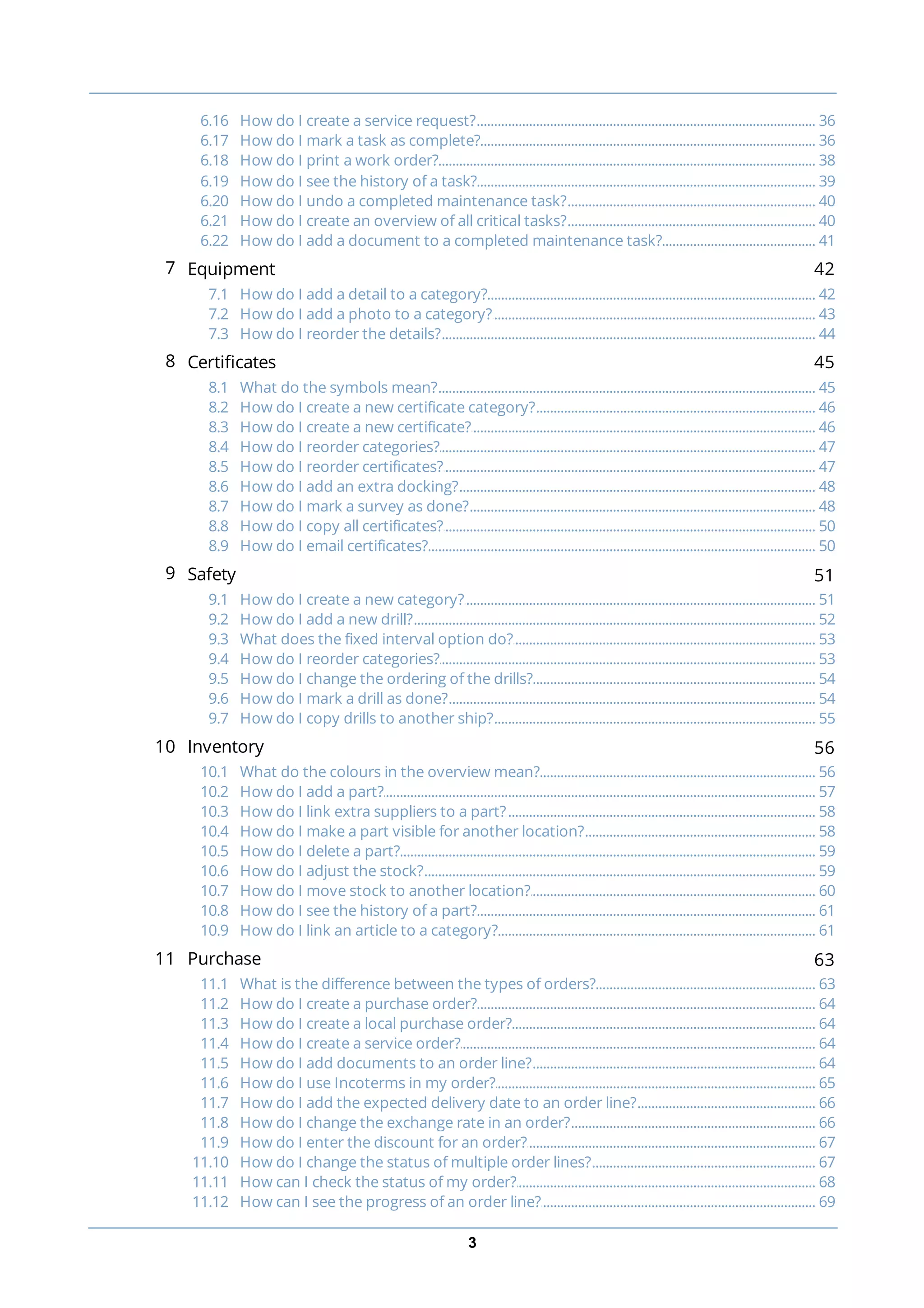
2
1 Getting started with MXSuite 6
............................................................................................................................................................... 61.1 MXSuite fleet management software
............................................................................................................................................................... 61.2 Mastex Software BV
............................................................................................................................................................... 71.3 System requirements
............................................................................................................................................................... 71.4 Registration number MXSuite
............................................................................................................................................................... 81.5 Starting MXSuite
............................................................................................................................................................... 91.6 How do I change my MXSuite password?
............................................................................................................................................................... 101.7 What do the colours mean?
............................................................................................................................................................... 101.8 Date and time notation in MXSuite
2 View settings 11
............................................................................................................................................................... 112.1 How do I filter in a view?
............................................................................................................................................................... 122.2 How do I group columns?
............................................................................................................................................................... 122.3 How do I search in a view?
............................................................................................................................................................... 122.4 How do I print a view?
............................................................................................................................................................... 122.5 How can I change the ordering in a view?
3 Fleetwide overview 14
............................................................................................................................................................... 143.1 How do I change the order of my ships?
............................................................................................................................................................... 143.2 Why am I missing a module in the overview?
............................................................................................................................................................... 153.3 How do I get an overview of the expired certificates for the entire fleet?
............................................................................................................................................................... 153.4 How do I see a budget summary for the whole fleet?
............................................................................................................................................................... 153.5 What is the function of the Warnings button in the fleet overview?
4 Summary 16
............................................................................................................................................................... 164.1 How do I know which maintenance activities to perform?
............................................................................................................................................................... 174.2 How do I know which orders to process?
............................................................................................................................................................... 174.3 How do I update the running hours?
............................................................................................................................................................... 184.4 How do I create a new running hours machine?
............................................................................................................................................................... 184.5 How do I use the docking overview?
............................................................................................................................................................... 184.6 What is the status of my annual budget?
............................................................................................................................................................... 194.7 How do I see an overview of all document tasks?
............................................................................................................................................................... 194.8 How do I send a message to another user?
............................................................................................................................................................... 204.9 How do I know which of my crew members' documents are about to expire?
............................................................................................................................................................... 214.10 How do I check for a new version?
5 Cash book 22
............................................................................................................................................................... 225.1 How do I create a new cash book?
............................................................................................................................................................... 225.2 How do I create new transactions?
6 Maintenance 24
............................................................................................................................................................... 246.1 How do I create a new category?
............................................................................................................................................................... 256.2 How do I hide categories and make them visible?
............................................................................................................................................................... 266.3 How do I copy or move a category, job or task?
............................................................................................................................................................... 266.4 How do I search for a category?
............................................................................................................................................................... 276.5 How do I mark a category as critical?
............................................................................................................................................................... 276.6 How do I add a photo to a category?
............................................................................................................................................................... 286.7 How do I change the order of a category, job or task?
............................................................................................................................................................... 286.8 How do I create a job?
............................................................................................................................................................... 286.9 How do I relate jobs?
............................................................................................................................................................... 316.10 How do I create a maintenance task?
............................................................................................................................................................... 336.11 What does the fixed interval option do?
............................................................................................................................................................... 336.12 How do I make the task description visible in the work list?
............................................................................................................................................................... 346.13 How do I add documents to a task?
............................................................................................................................................................... 346.14 How do I link spare part(s) to a task?
............................................................................................................................................................... 356.15 How do I order the required parts for a task?
3
............................................................................................................................................................... 366.16 How do I create a service request?
............................................................................................................................................................... 366.17 How do I mark a task as complete?
............................................................................................................................................................... 386.18 How do I print a work order?
............................................................................................................................................................... 396.19 How do I see the history of a task?
............................................................................................................................................................... 406.20 How do I undo a completed maintenance task?
............................................................................................................................................................... 406.21 How do I create an overview of all critical tasks?
............................................................................................................................................................... 416.22 How do I add a document to a completed maintenance task?
7 Equipment 42
............................................................................................................................................................... 427.1 How do I add a detail to a category?
............................................................................................................................................................... 437.2 How do I add a photo to a category?
............................................................................................................................................................... 447.3 How do I reorder the details?
8 Certificates 45
............................................................................................................................................................... 458.1 What do the symbols mean?
............................................................................................................................................................... 468.2 How do I create a new certificate category?
............................................................................................................................................................... 468.3 How do I create a new certificate?
............................................................................................................................................................... 478.4 How do I reorder categories?
............................................................................................................................................................... 478.5 How do I reorder certificates?
............................................................................................................................................................... 488.6 How do I add an extra docking?
............................................................................................................................................................... 488.7 How do I mark a survey as done?
............................................................................................................................................................... 508.8 How do I copy all certificates?
............................................................................................................................................................... 508.9 How do I email certificates?
9 Safety 51
............................................................................................................................................................... 519.1 How do I create a new category?
............................................................................................................................................................... 529.2 How do I add a new drill?
............................................................................................................................................................... 539.3 What does the fixed interval option do?
............................................................................................................................................................... 539.4 How do I reorder categories?
............................................................................................................................................................... 549.5 How do I change the ordering of the drills?
............................................................................................................................................................... 549.6 How do I mark a drill as done?
............................................................................................................................................................... 559.7 How do I copy drills to another ship?
10 Inventory 56
............................................................................................................................................................... 5610.1 What do the colours in the overview mean?
............................................................................................................................................................... 5710.2 How do I add a part?
............................................................................................................................................................... 5810.3 How do I link extra suppliers to a part?
............................................................................................................................................................... 5810.4 How do I make a part visible for another location?
............................................................................................................................................................... 5910.5 How do I delete a part?
............................................................................................................................................................... 5910.6 How do I adjust the stock?
............................................................................................................................................................... 6010.7 How do I move stock to another location?
............................................................................................................................................................... 6110.8 How do I see the history of a part?
............................................................................................................................................................... 6110.9 How do I link an article to a category?
11 Purchase 63
............................................................................................................................................................... 6311.1 What is the difference between the types of orders?
............................................................................................................................................................... 6411.2 How do I create a purchase order?
............................................................................................................................................................... 6411.3 How do I create a local purchase order?
............................................................................................................................................................... 6411.4 How do I create a service order?
............................................................................................................................................................... 6411.5 How do I add documents to an order line?
............................................................................................................................................................... 6511.6 How do I use Incoterms in my order?
............................................................................................................................................................... 6611.7 How do I add the expected delivery date to an order line?
............................................................................................................................................................... 6611.8 How do I change the exchange rate in an order?
............................................................................................................................................................... 6711.9 How do I enter the discount for an order?
............................................................................................................................................................... 6711.10 How do I change the status of multiple order lines?
............................................................................................................................................................... 6811.11 How can I check the status of my order?
............................................................................................................................................................... 6911.12 How can I see the progress of an order line?
4
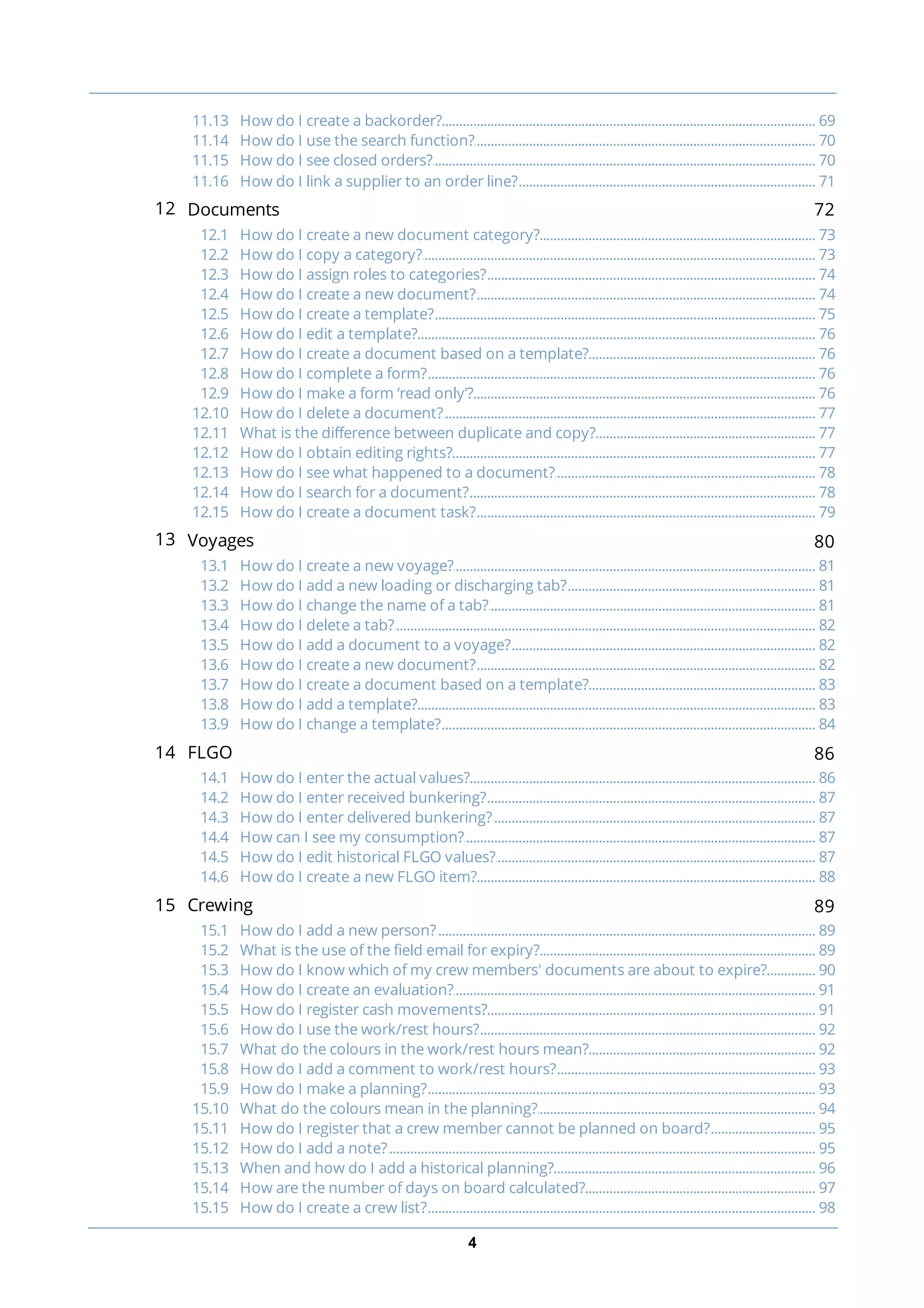
............................................................................................................................................................... 6911.13 How do I create a backorder?
............................................................................................................................................................... 7011.14 How do I use the search function?
............................................................................................................................................................... 7011.15 How do I see closed orders?
............................................................................................................................................................... 7111.16 How do I link a supplier to an order line?
12 Documents 72
............................................................................................................................................................... 7312.1 How do I create a new document category?
............................................................................................................................................................... 7312.2 How do I copy a category?
............................................................................................................................................................... 7412.3 How do I assign roles to categories?
............................................................................................................................................................... 7412.4 How do I create a new document?
............................................................................................................................................................... 7512.5 How do I create a template?
............................................................................................................................................................... 7612.6 How do I edit a template?
............................................................................................................................................................... 7612.7 How do I create a document based on a template?
............................................................................................................................................................... 7612.8 How do I complete a form?
............................................................................................................................................................... 7612.9 How do I make a form ‘read only’?
............................................................................................................................................................... 7712.10 How do I delete a document?
............................................................................................................................................................... 7712.11 What is the difference between duplicate and copy?
............................................................................................................................................................... 7712.12 How do I obtain editing rights?
............................................................................................................................................................... 7812.13 How do I see what happened to a document?
............................................................................................................................................................... 7812.14 How do I search for a document?
............................................................................................................................................................... 7912.15 How do I create a document task?
13 Voyages 80
............................................................................................................................................................... 8113.1 How do I create a new voyage?
............................................................................................................................................................... 8113.2 How do I add a new loading or discharging tab?
............................................................................................................................................................... 8113.3 How do I change the name of a tab?
............................................................................................................................................................... 8213.4 How do I delete a tab?
............................................................................................................................................................... 8213.5 How do I add a document to a voyage?
............................................................................................................................................................... 8213.6 How do I create a new document?
............................................................................................................................................................... 8313.7 How do I create a document based on a template?
............................................................................................................................................................... 8313.8 How do I add a template?
............................................................................................................................................................... 8413.9 How do I change a template?
14 FLGO 86
............................................................................................................................................................... 8614.1 How do I enter the actual values?
............................................................................................................................................................... 8714.2 How do I enter received bunkering?
............................................................................................................................................................... 8714.3 How do I enter delivered bunkering?
............................................................................................................................................................... 8714.4 How can I see my consumption?
............................................................................................................................................................... 8714.5 How do I edit historical FLGO values?
............................................................................................................................................................... 8814.6 How do I create a new FLGO item?
15 Crewing 89
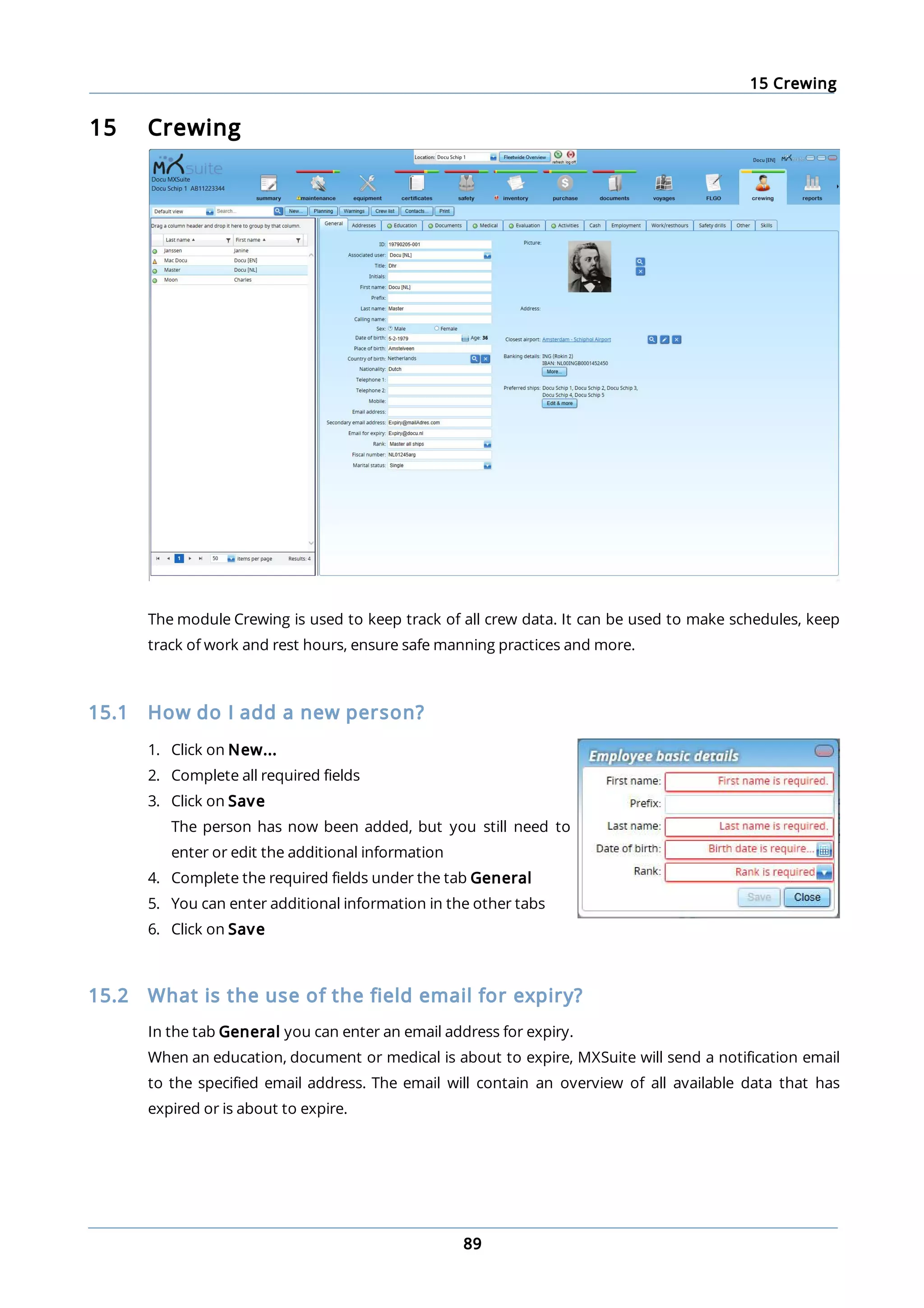
............................................................................................................................................................... 8915.1 How do I add a new person?
............................................................................................................................................................... 8915.2 What is the use of the field email for expiry?
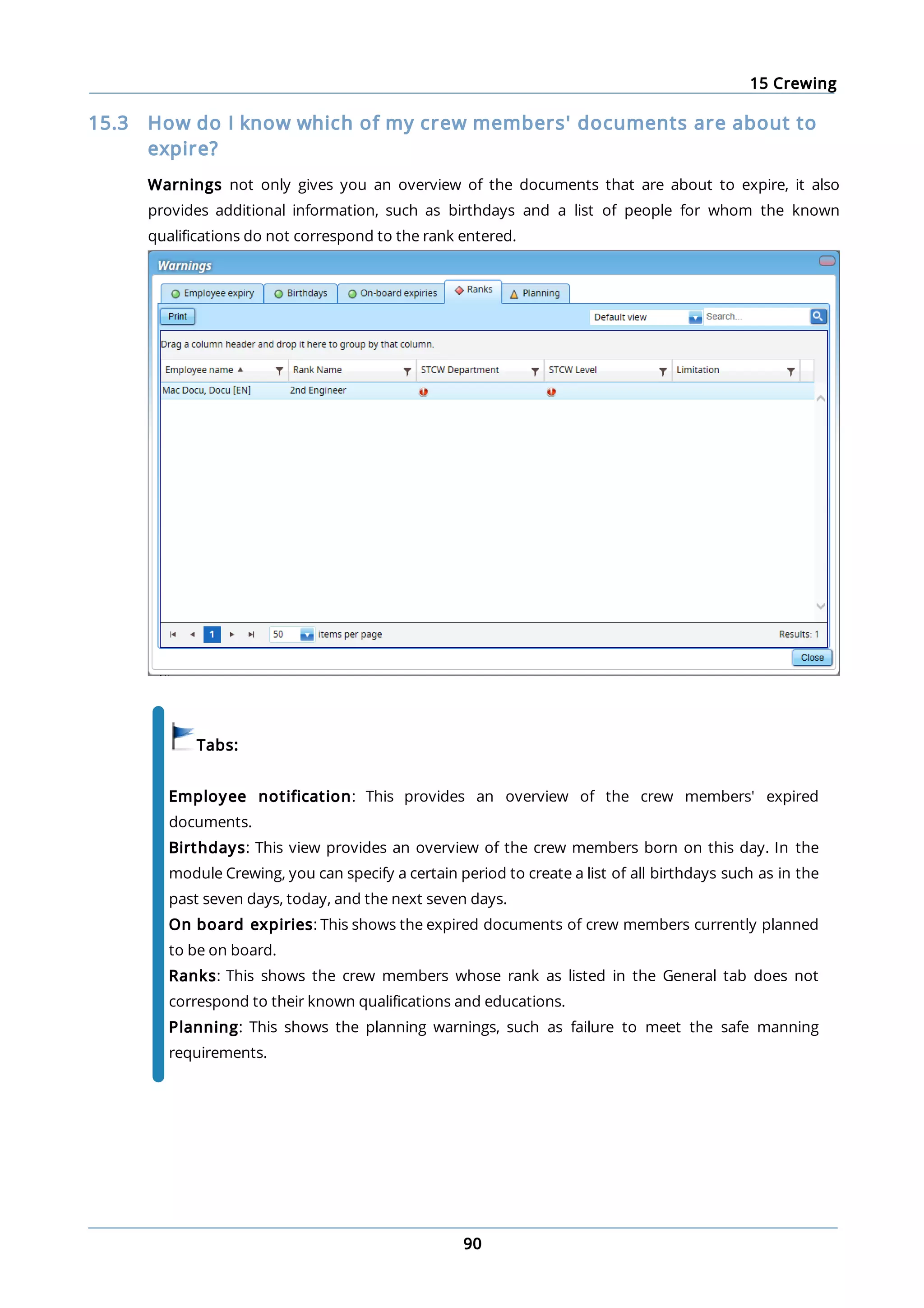
............................................................................................................................................................... 9015.3 How do I know which of my crew members' documents are about to expire?
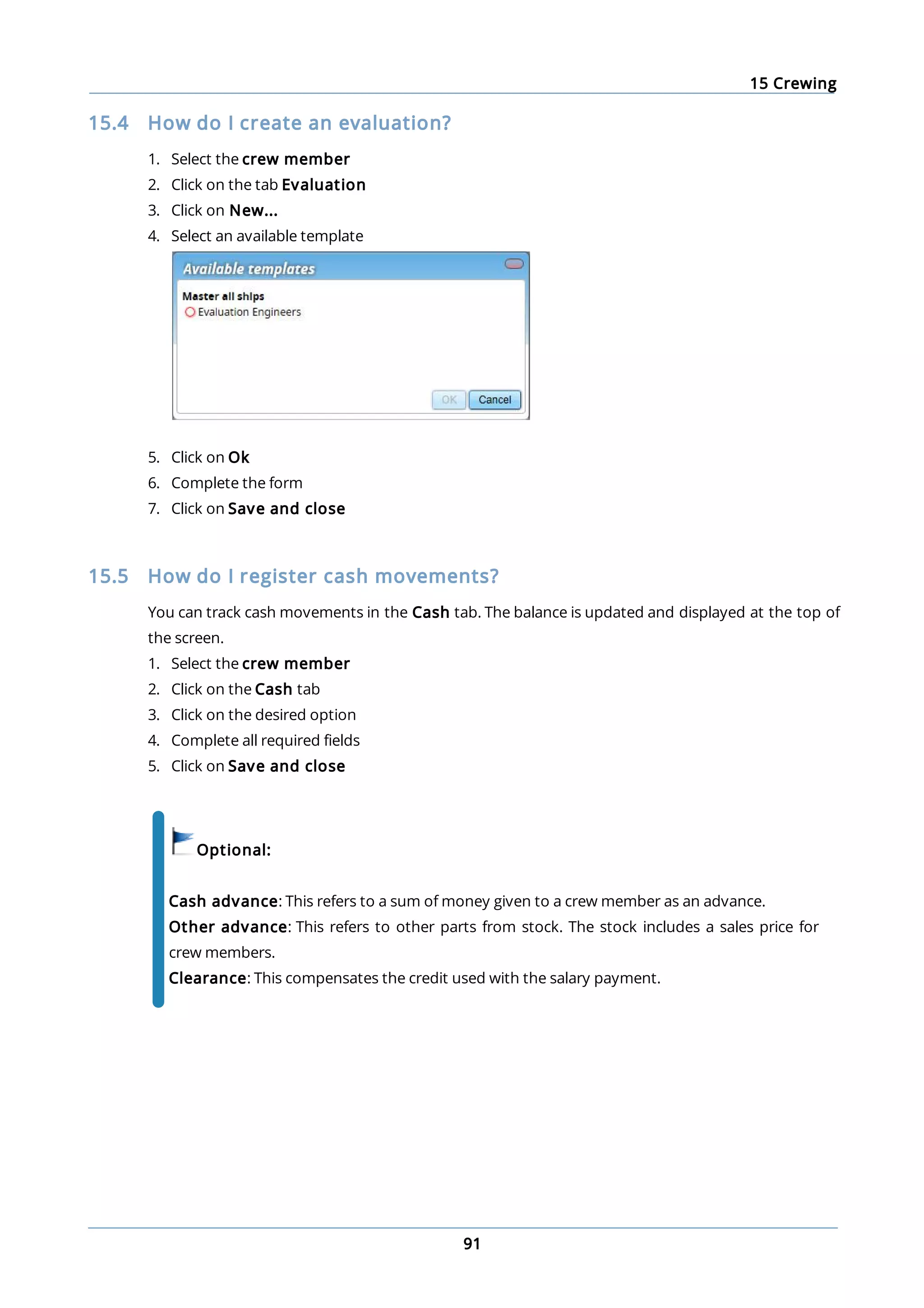
............................................................................................................................................................... 9115.4 How do I create an evaluation?
............................................................................................................................................................... 9115.5 How do I register cash movements?
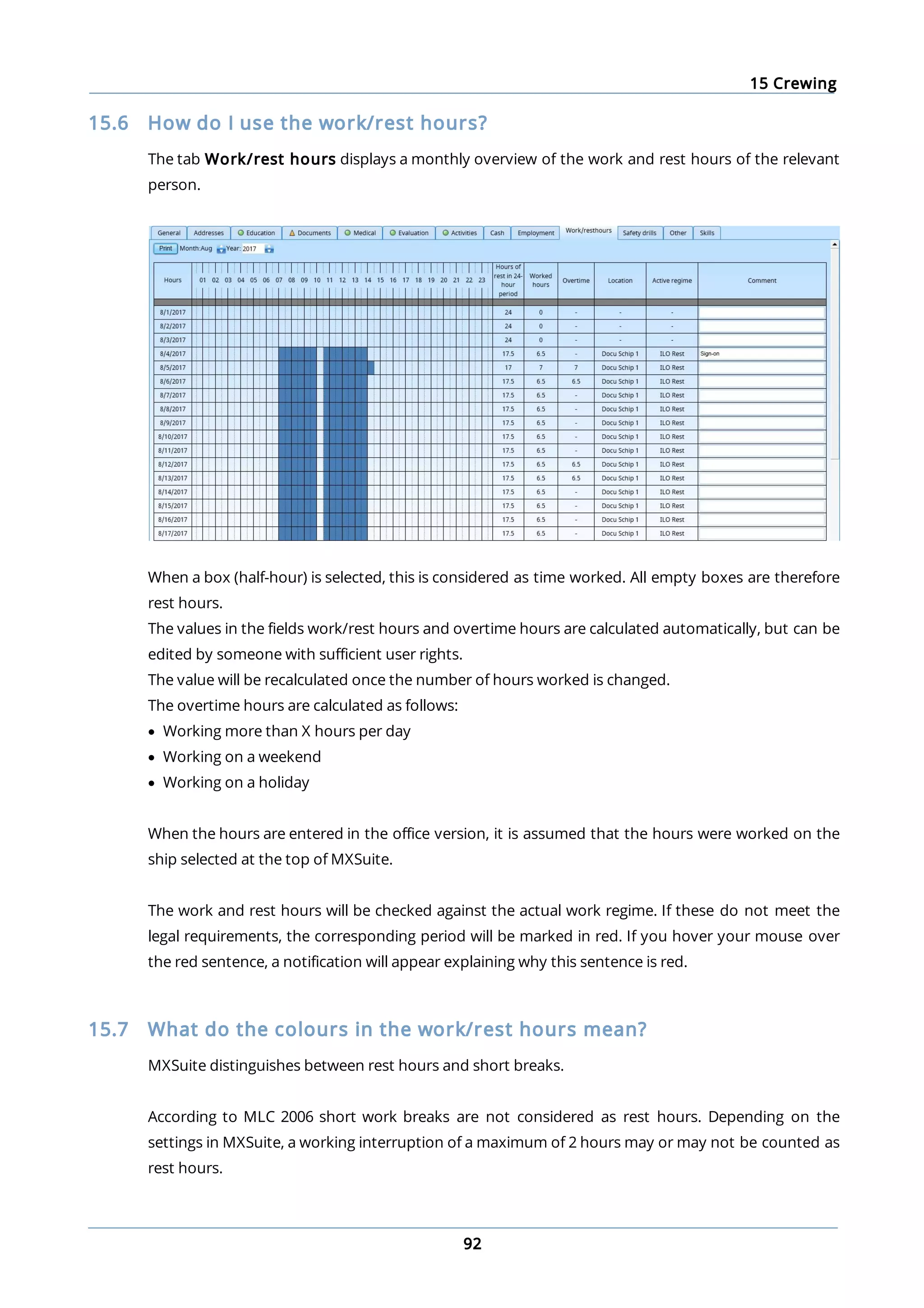
............................................................................................................................................................... 9215.6 How do I use the work/rest hours?
............................................................................................................................................................... 9215.7 What do the colours in the work/rest hours mean?
............................................................................................................................................................... 9315.8 How do I add a comment to work/rest hours?
............................................................................................................................................................... 9315.9 How do I make a planning?
............................................................................................................................................................... 9415.10 What do the colours mean in the planning?
............................................................................................................................................................... 9515.11 How do I register that a crew member cannot be planned on board?
............................................................................................................................................................... 9515.12 How do I add a note?
............................................................................................................................................................... 9615.13 When and how do I add a historical planning?
............................................................................................................................................................... 9715.14 How are the number of days on board calculated?
............................................................................................................................................................... 9815.15 How do I create a crew list?
5
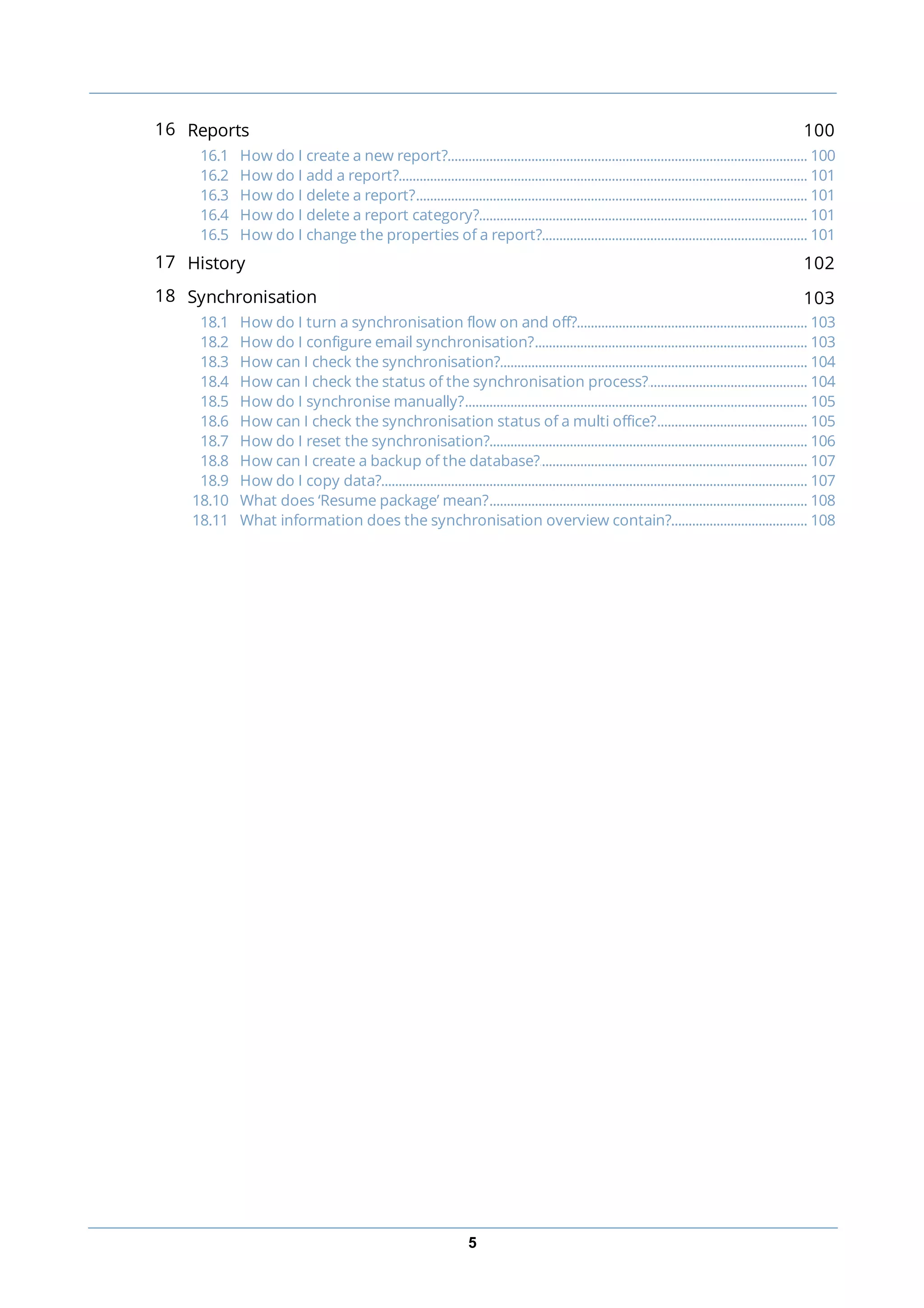
16 Reports 100
............................................................................................................................................................... 10016.1 How do I create a new report?
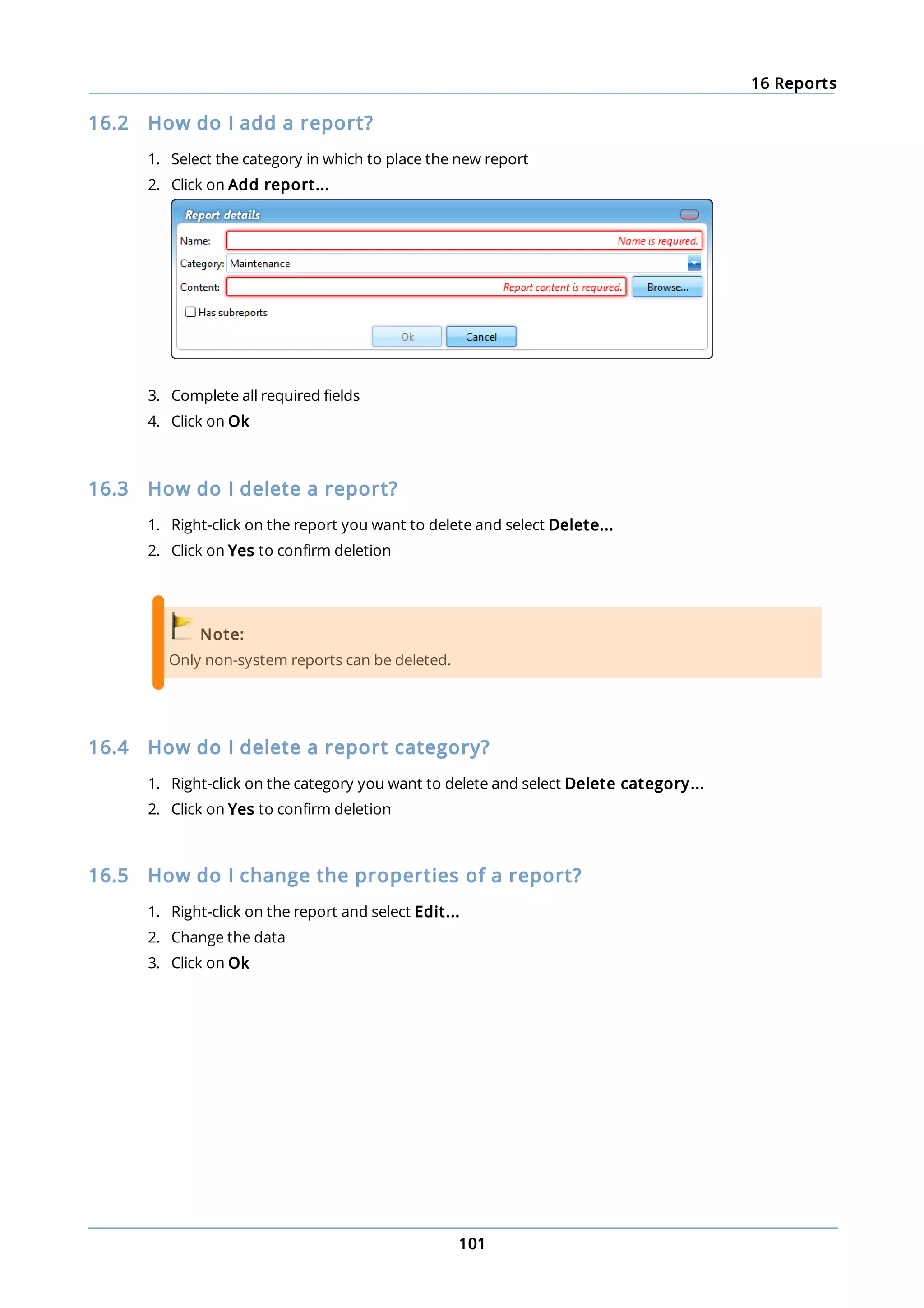
............................................................................................................................................................... 10116.2 How do I add a report?
............................................................................................................................................................... 10116.3 How do I delete a report?
............................................................................................................................................................... 10116.4 How do I delete a report category?
............................................................................................................................................................... 10116.5 How do I change the properties of a report?
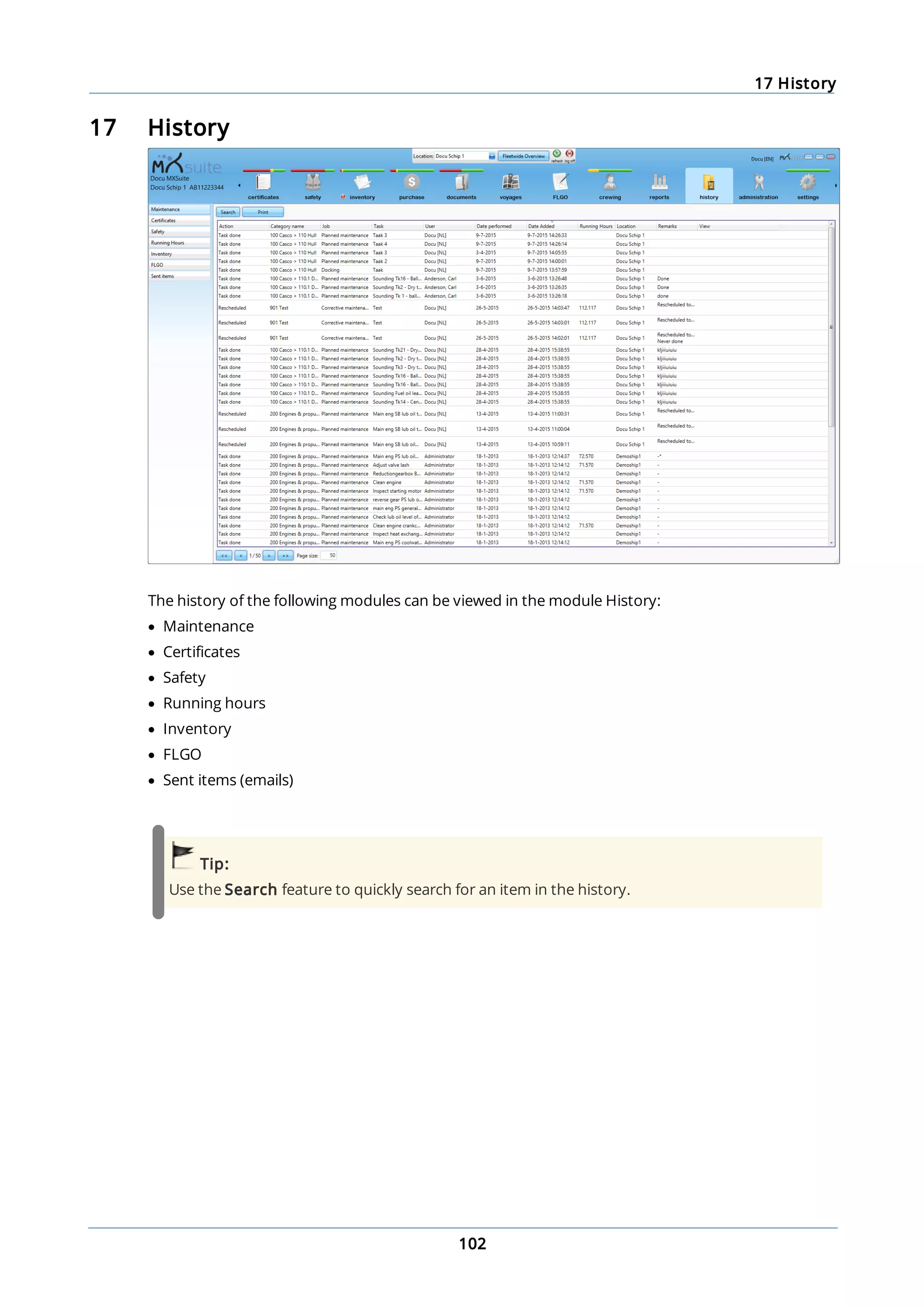
17 History 102
18 Synchronisation 103
............................................................................................................................................................... 10318.1 How do I turn a synchronisation flow on and off?
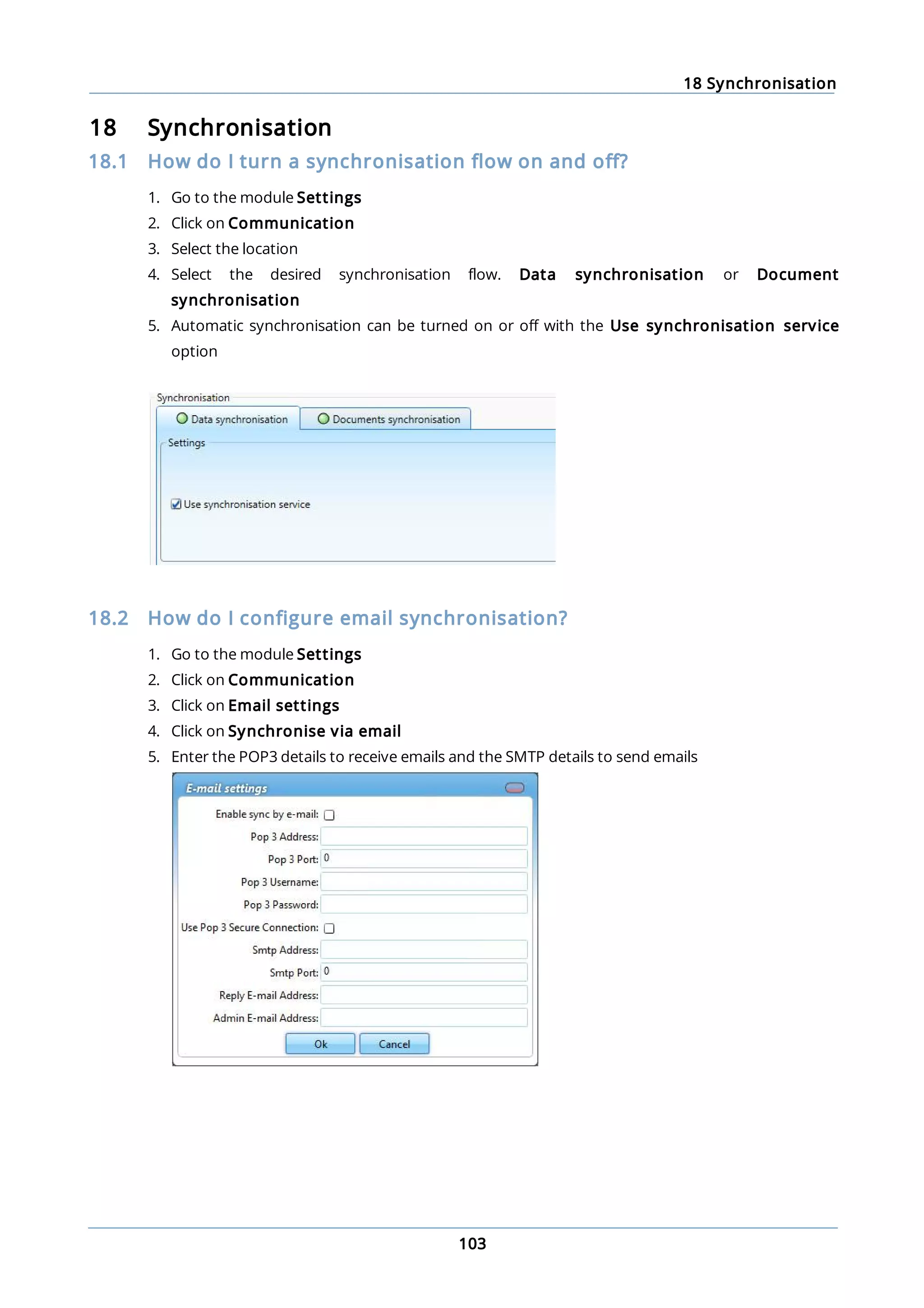
............................................................................................................................................................... 10318.2 How do I configure email synchronisation?
............................................................................................................................................................... 10418.3 How can I check the synchronisation?
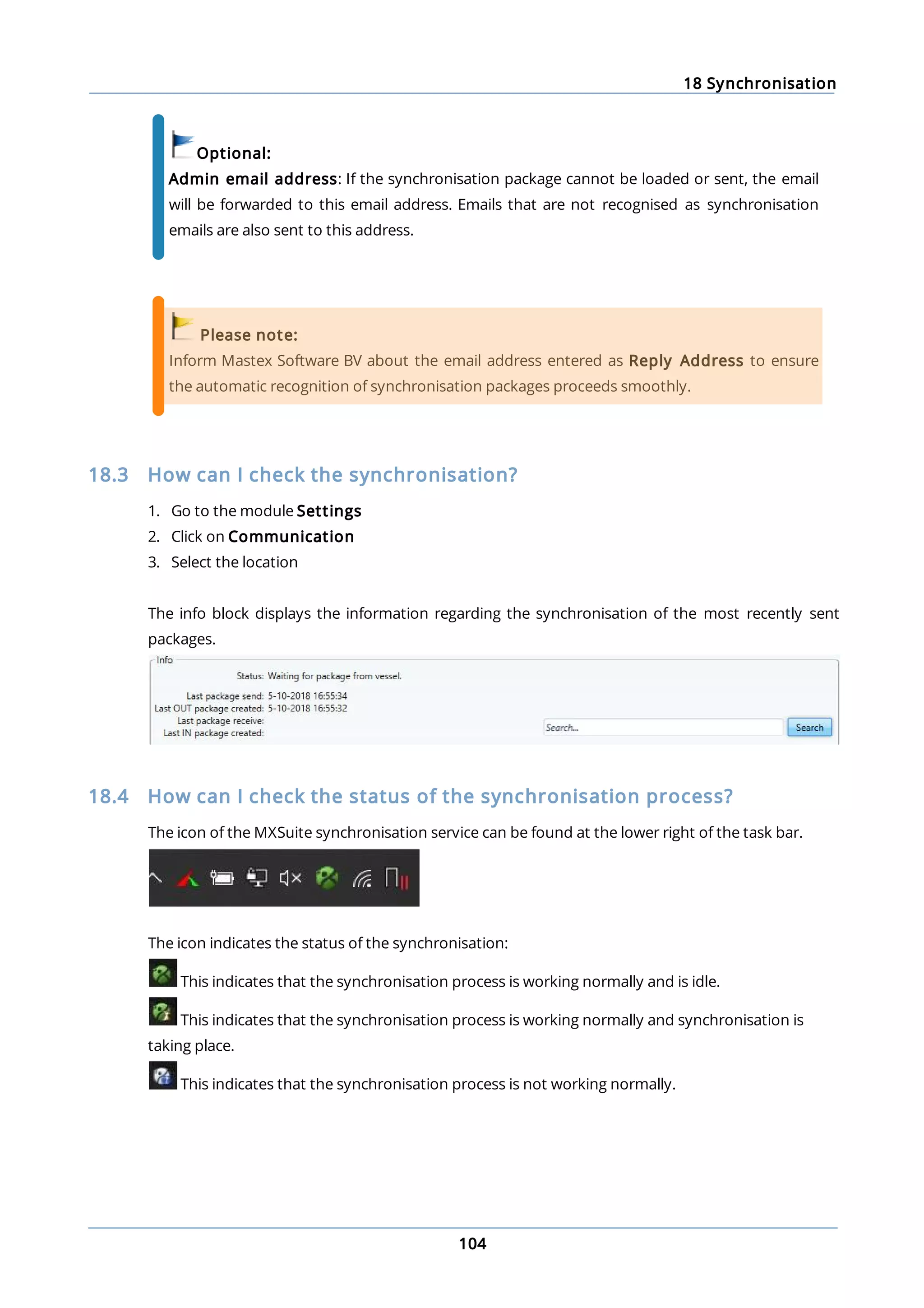
............................................................................................................................................................... 10418.4 How can I check the status of the synchronisation process?
............................................................................................................................................................... 10518.5 How do I synchronise manually?
............................................................................................................................................................... 10518.6 How can I check the synchronisation status of a multi office?
............................................................................................................................................................... 10618.7 How do I reset the synchronisation?
............................................................................................................................................................... 10718.8 How can I create a backup of the database?
............................................................................................................................................................... 10718.9 How do I copy data?
............................................................................................................................................................... 10818.10 What does ‘Resume package’ mean?
............................................................................................................................................................... 10818.11 What information does the synchronisation overview contain?
1 Getting started with MXSuite
6
1 Getting started with MXSuite
1.1 MXSuite fleet management software
Tools are needed in order to manage your fleet properly. With a range of modules, MXSuite gives
you the chance to optimise fleet management, from maintenance to certificates and from
purchasing to crewing. Data is available at the click of the mouse and can be automatically
exchanged between ship and office.
MXSuite was developed using the latest technological advancements, but is easy and effective
thanks to its simple user interface. This means users with minimal knowledge of computer systems
can also use the software.
We wish you the best of luck with MXSuite!
1.2 Mastex Software BV
MXSuite is developed by Mastex Software BV. New features are added daily to MXSuite and we are
working on continuous improvement. Despite the fact that MXSuite is easy to use, we created this
user manual to make the use of MXSuite even easier.
If your question is not answered in the user manual, first contact your MXSuite supplier. If you
purchased MXSuite directly via Mastex Software BV, you can contact our help-desk instead. The
telephone help-desk is available on weekdays from 8:30 AM to 5:00 PM (CET). You can also contact
us by email.
To make optimal use of MXSuite and to get the most out of your organisation, Mastex Software BV
offers training programmes on location and at our own training facilities. In consultation with you,
we can create a basic training programme or course that is tailored to your specific needs. Feel free
to contact us to discuss the available options.
Contact information:
Telephone +31 78 202 02 02
Support email success@mastexsoftware.com
Sales email sales@mastexsoftware.com
Website www.mastexsoftware.com
1 Getting started with MXSuite
7
1.3 System requirements
To be able to use MXSuite, your system must meet the following requirements.
Component Minimal requirements
Processor x64 Processor 2GHz. AMD Opteron, AMD Athlon 64, Intel Xeon, Intel
Pentium IV
Memory 2 GB RAM
Operating system Windows 7
Windows 2008
Hard drive 80 GB
Graphics VGA resolution 1024x768
Database Microsoft SQL Server 2012 Express
To make optimal use of MXSuite the following is recommended:
Component Recommended
Processor Intel i5 / i7 processor
Memory 4 GB RAM
Operating system Windows 10
Windows Server 2012 R2 / 2016
Hard drive 80 GB; SSD
Graphics Full HD, resolution 1920x1080
Database At office: Microsoft SQL Server 2012 / 2014 / 2016 Standard
On board: Microsoft SQL Server 2012 / 2014 / 2016 Express
Note:
The delivery of MXSuite includes the database program Microsoft SQL Server Express by
default. While this version is offered for free by Microsoft, please bear the following limits in
mind:
· Maximum 1 GB memory usage
· A maximum of 10 GB of data storage (attachments in MXSuite are not included)
When you start reaching these limits, we recommend switching to the Standard edition of
SQL Server. In practice, the office version will likely need to be switched to the Standard
version in due time.
1.4 Registration number MXSuite
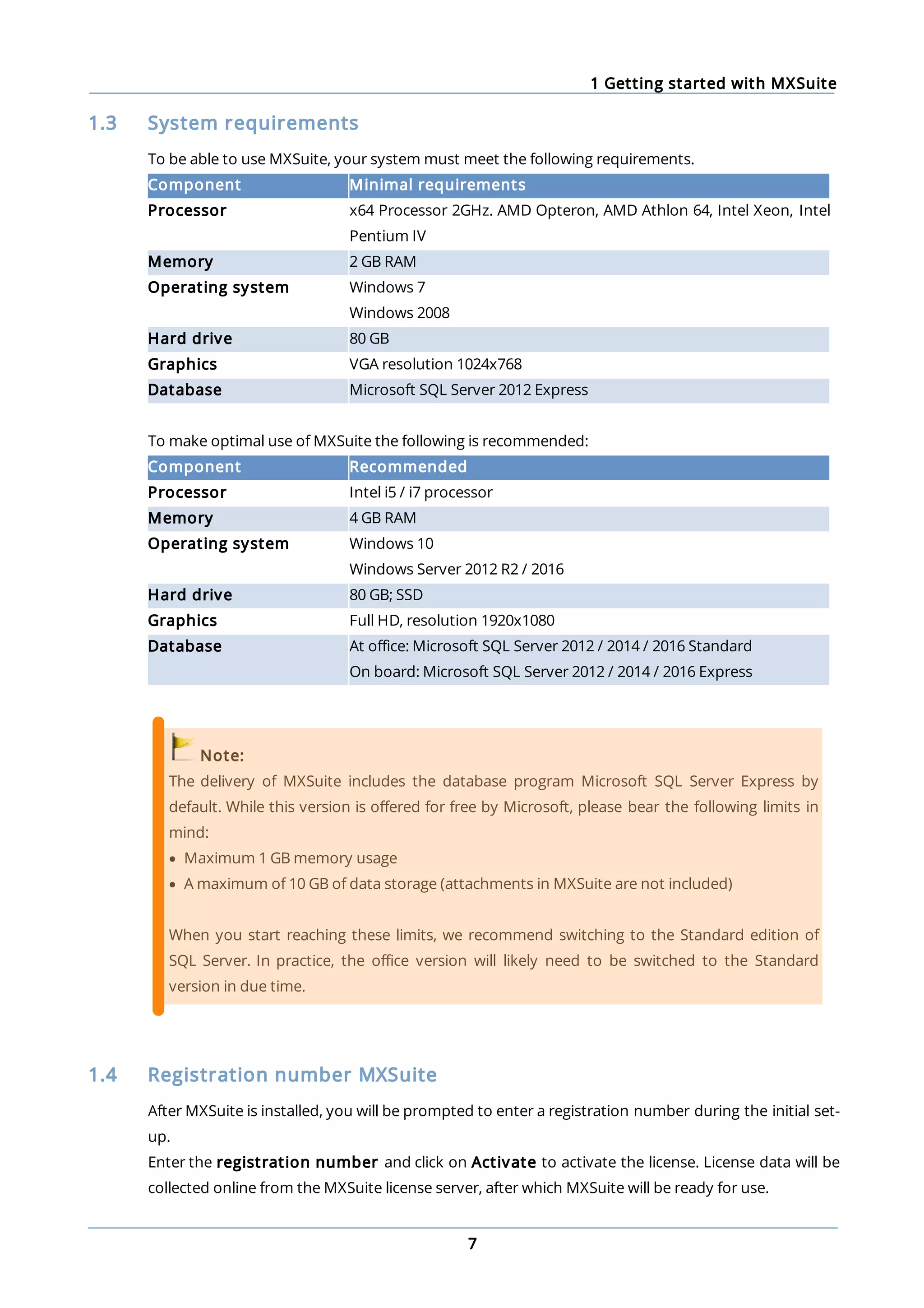
After MXSuite is installed, you will be prompted to enter a registration number during the initial set-
up.
Enter the registration number and click on Activate to activate the license. License data will be
collected online from the MXSuite license server, after which MXSuite will be ready for use.
1 Getting started with MXSuite
8
1.5 Starting MXSuite
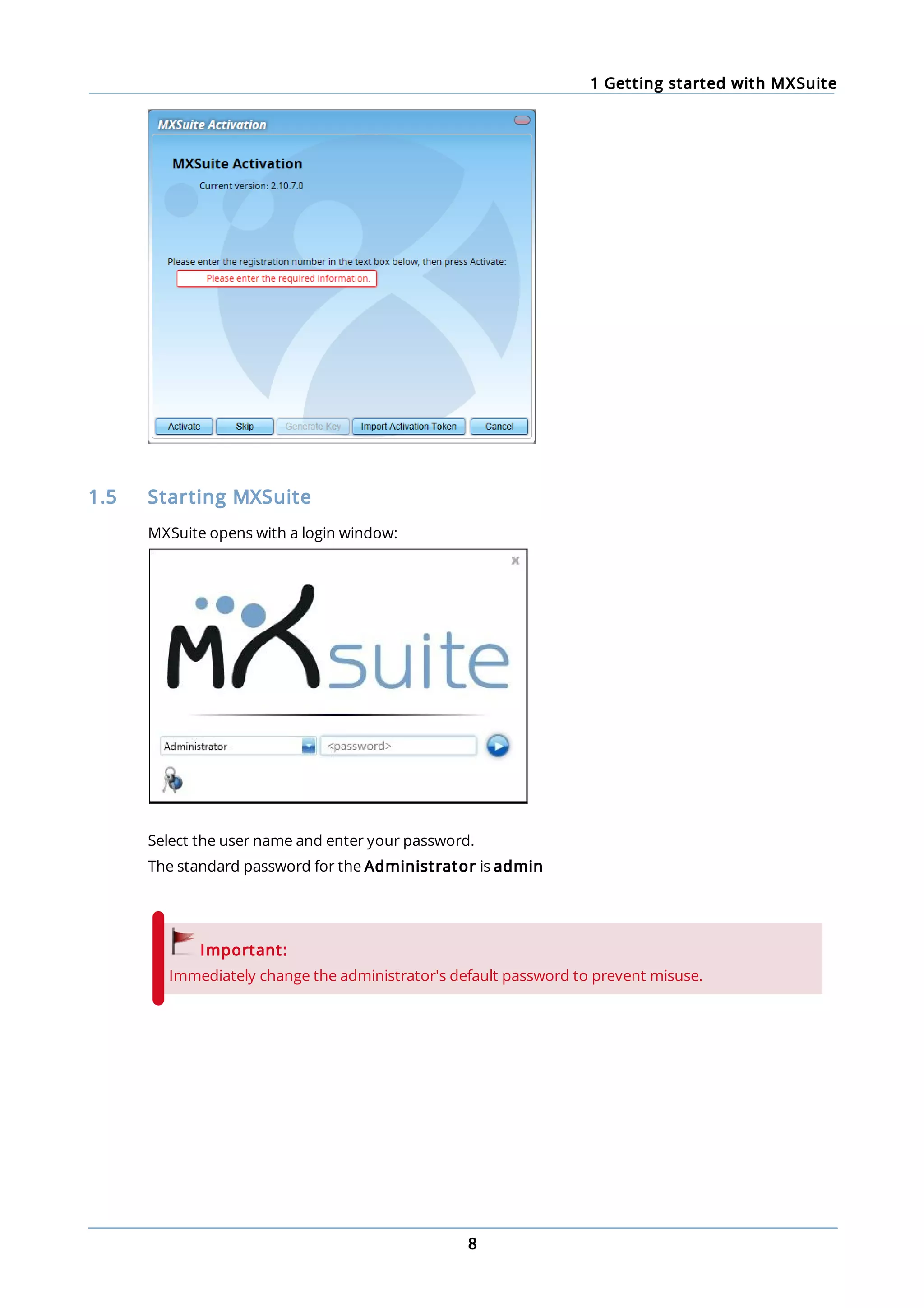
MXSuite opens with a login window:
Select the user name and enter your password.
The standard password for the Administrator is admin
Important:
Immediately change the administrator's default password to prevent misuse.
1 Getting started with MXSuite
9
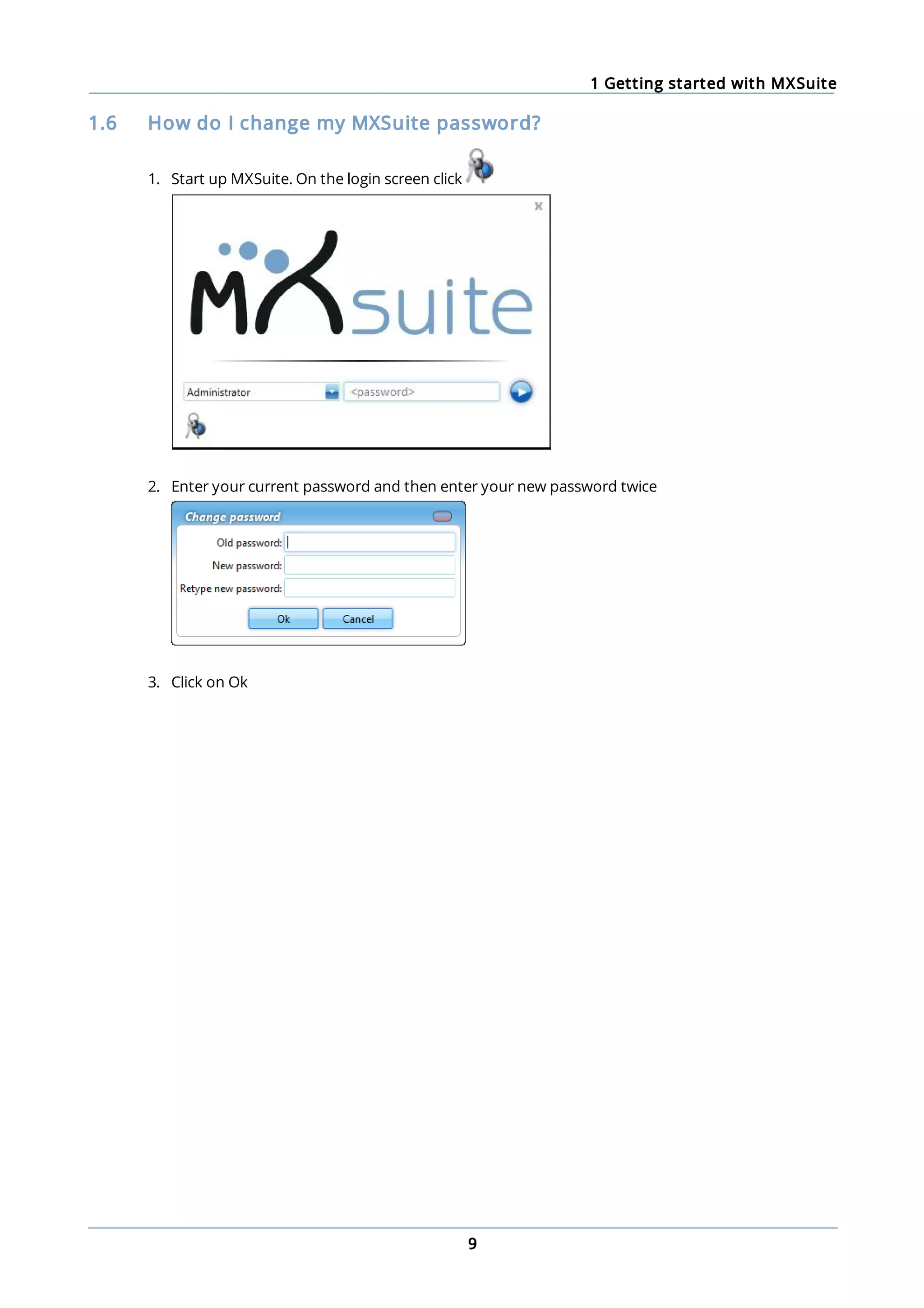
1.6 How do I change my MXSuite password?
1. Start up MXSuite. On the login screen click
2. Enter your current password and then enter your new password twice
3. Click on Ok
1 Getting started with MXSuite
10
1.7 What do the colours mean?
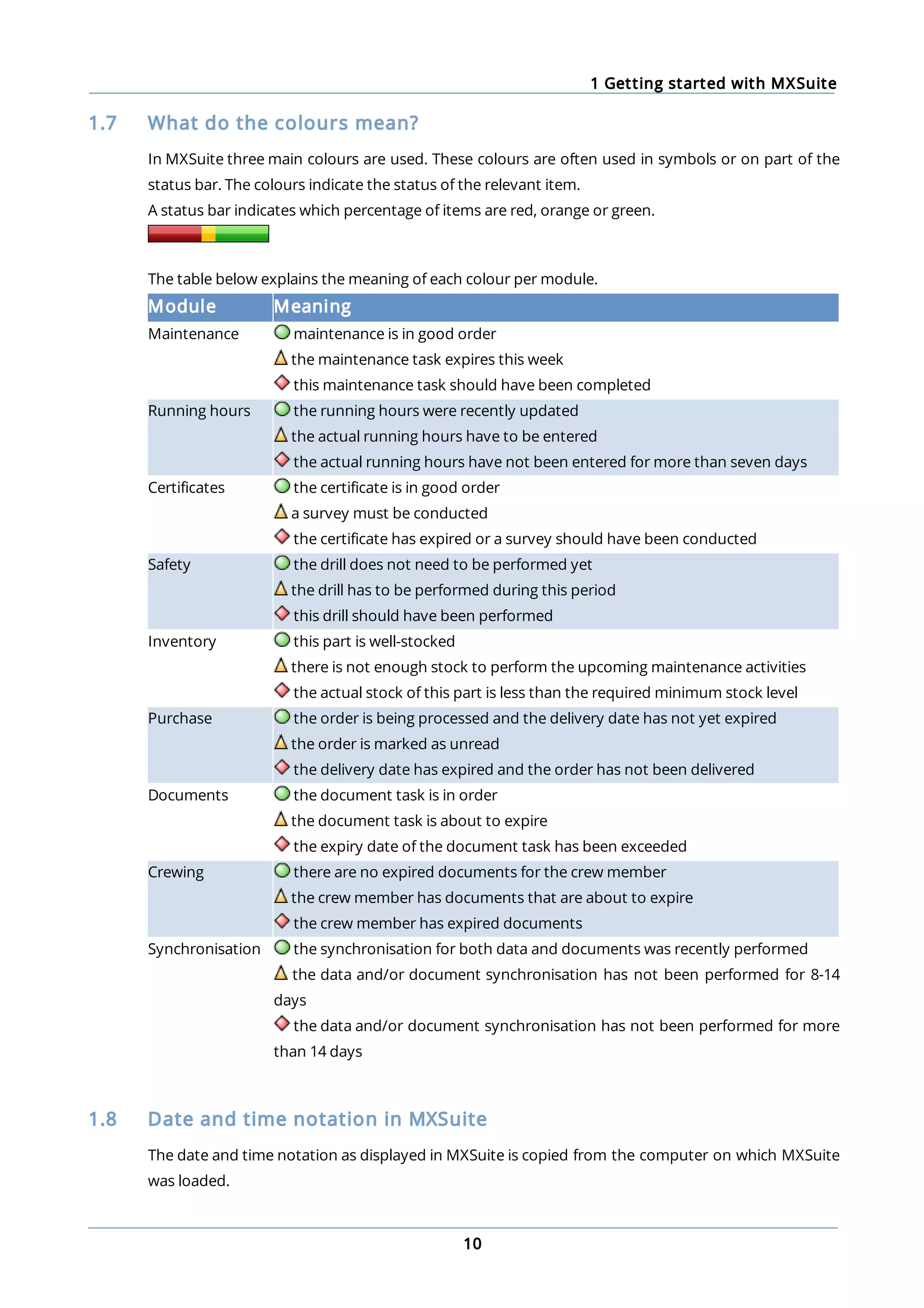
In MXSuite three main colours are used. These colours are often used in symbols or on part of the
status bar. The colours indicate the status of the relevant item.
A status bar indicates which percentage of items are red, orange or green.
The table below explains the meaning of each colour per module.
Module Meaning
Maintenance maintenance is in good order
the maintenance task expires this week
this maintenance task should have been completed
Running hours the running hours were recently updated
the actual running hours have to be entered
the actual running hours have not been entered for more than seven days
Certificates the certificate is in good order
a survey must be conducted
the certificate has expired or a survey should have been conducted
Safety the drill does not need to be performed yet
the drill has to be performed during this period
this drill should have been performed
Inventory this part is well-stocked
there is not enough stock to perform the upcoming maintenance activities
the actual stock of this part is less than the required minimum stock level
Purchase the order is being processed and the delivery date has not yet expired
the order is marked as unread
the delivery date has expired and the order has not been delivered
Documents the document task is in order
the document task is about to expire
the expiry date of the document task has been exceeded
Crewing there are no expired documents for the crew member
the crew member has documents that are about to expire
the crew member has expired documents
Synchronisation the synchronisation for both data and documents was recently performed
the data and/or document synchronisation has not been performed for 8-14
days
the data and/or document synchronisation has not been performed for more
than 14 days
1.8 Date and time notation in MXSuite
The date and time notation as displayed in MXSuite is copied from the computer on which MXSuite
was loaded.
2 View settings
11
2 View settings
In MXSuite, results are displayed in different ways. These are known as views.
A view determines which data is displayed on the screen. It also determines the order, the columns
and the way the data is ordered. Per user the most recent view is saved and displayed next time by
default.
The following view options are possible:
· Select different views
· Order by columns
· Filter data
· Search for specific words within the selected view
· Print the data in the selected view
Note:
The views can be configured to the user's needs. This chapter uses the default settings. Texts
or images may therefore differ from your situation.
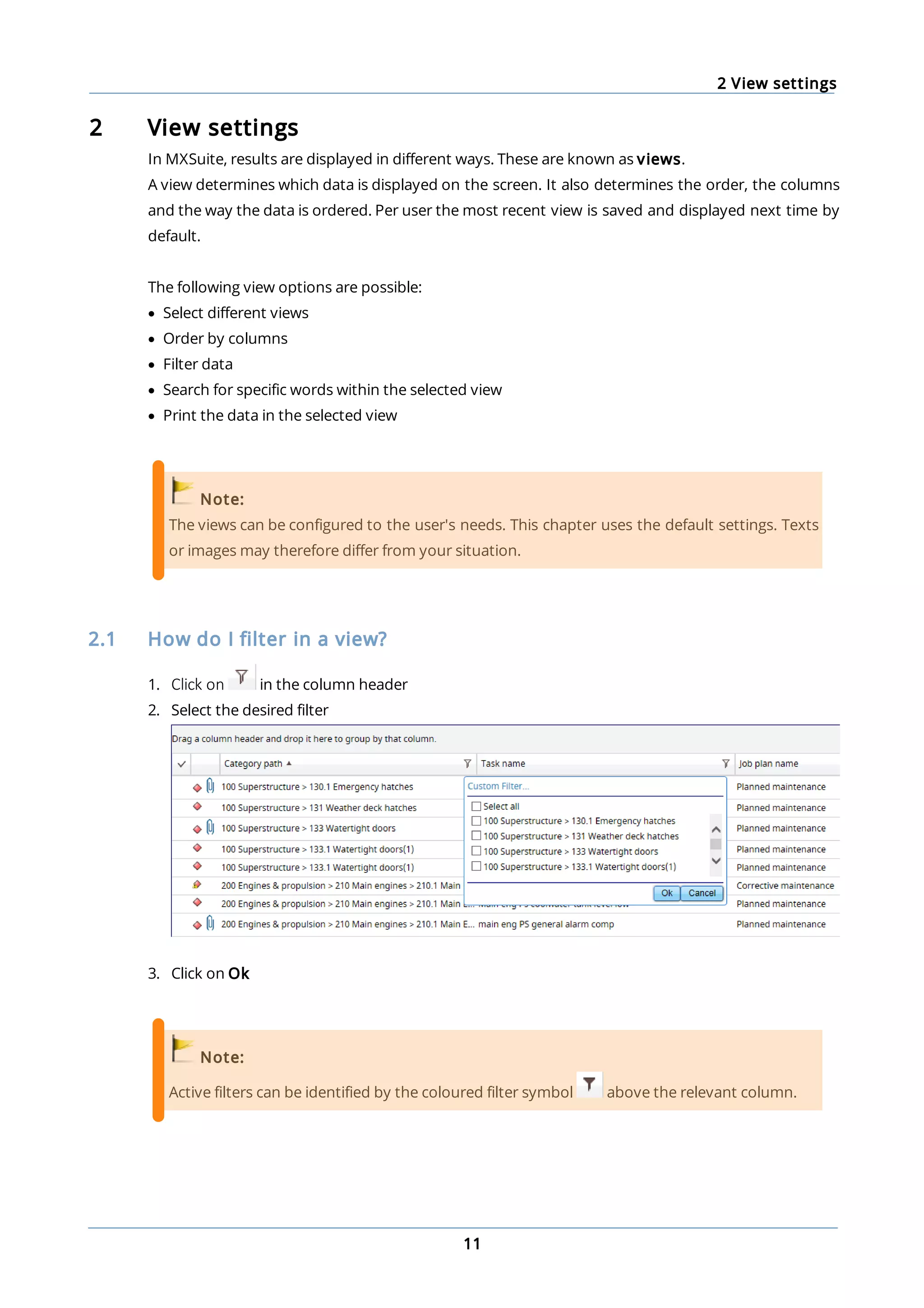
2.1 How do I filter in a view?
1. Click on in the column header
2. Select the desired filter
3. Click on Ok
Note:
Active filters can be identified by the coloured filter symbol above the relevant column.
2 View settings
12
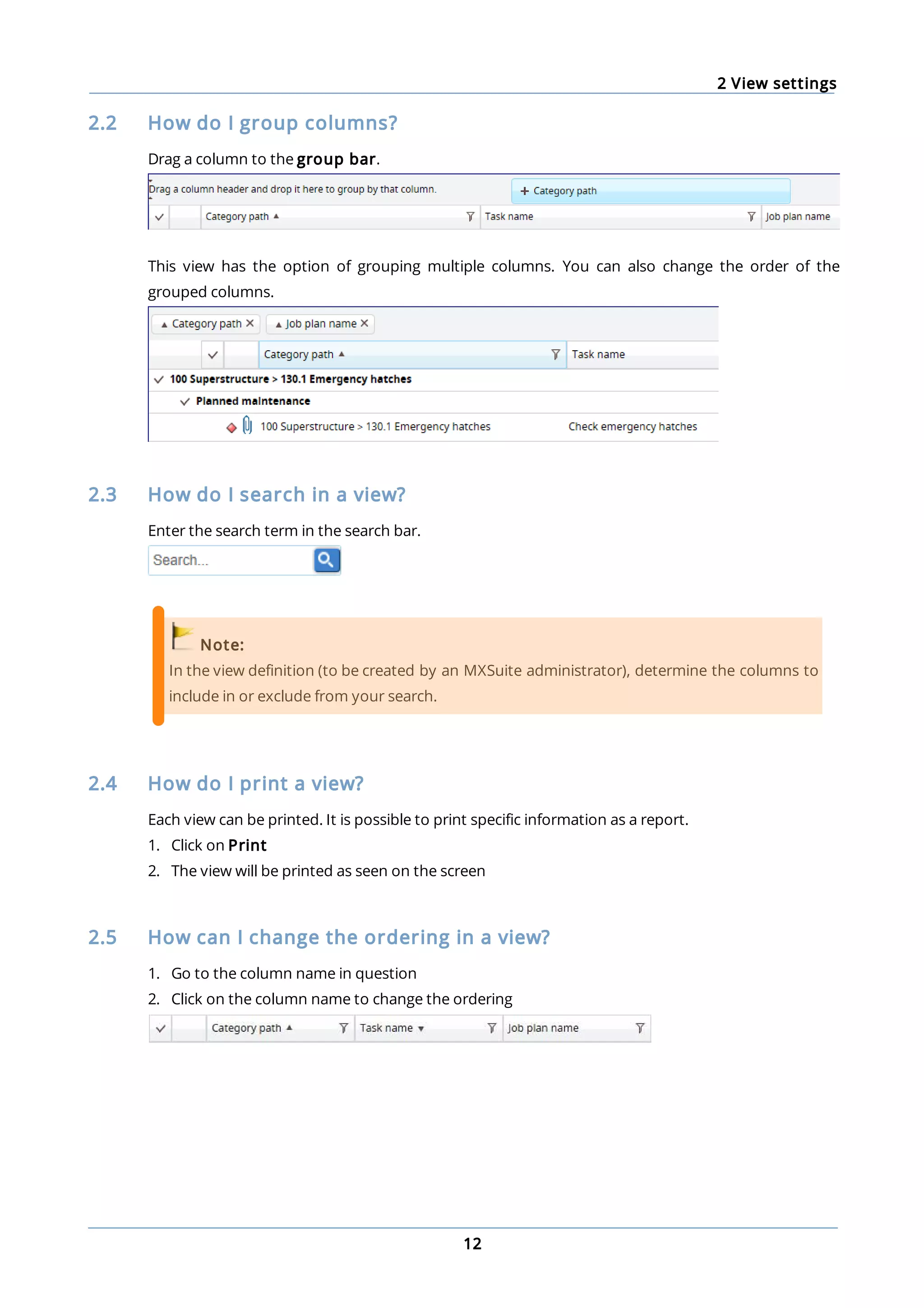
2.2 How do I group columns?
Drag a column to the group bar.
This view has the option of grouping multiple columns. You can also change the order of the
grouped columns.
2.3 How do I search in a view?
Enter the search term in the search bar.
Note:
In the view definition (to be created by an MXSuite administrator), determine the columns to
include in or exclude from your search.
2.4 How do I print a view?
Each view can be printed. It is possible to print specific information as a report.
1. Click on Print
2. The view will be printed as seen on the screen
2.5 How can I change the ordering in a view?
1. Go to the column name in question
2. Click on the column name to change the ordering
2 View settings
13
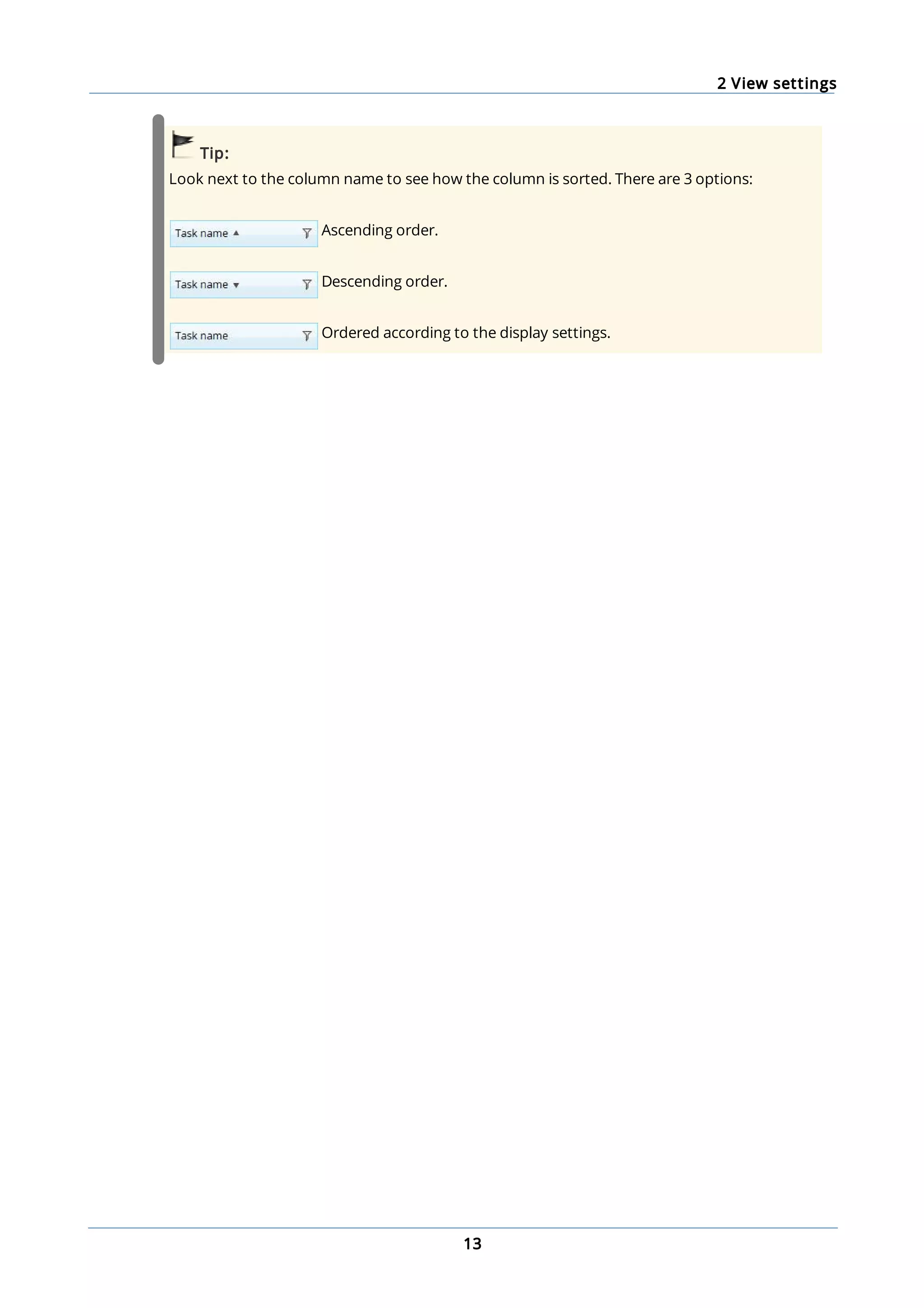
Tip:
Look next to the column name to see how the column is sorted. There are 3 options:
Ascending order.
Descending order.
Ordered according to the display settings.
3 Fleetwide overview
14
3 Fleetwide overview
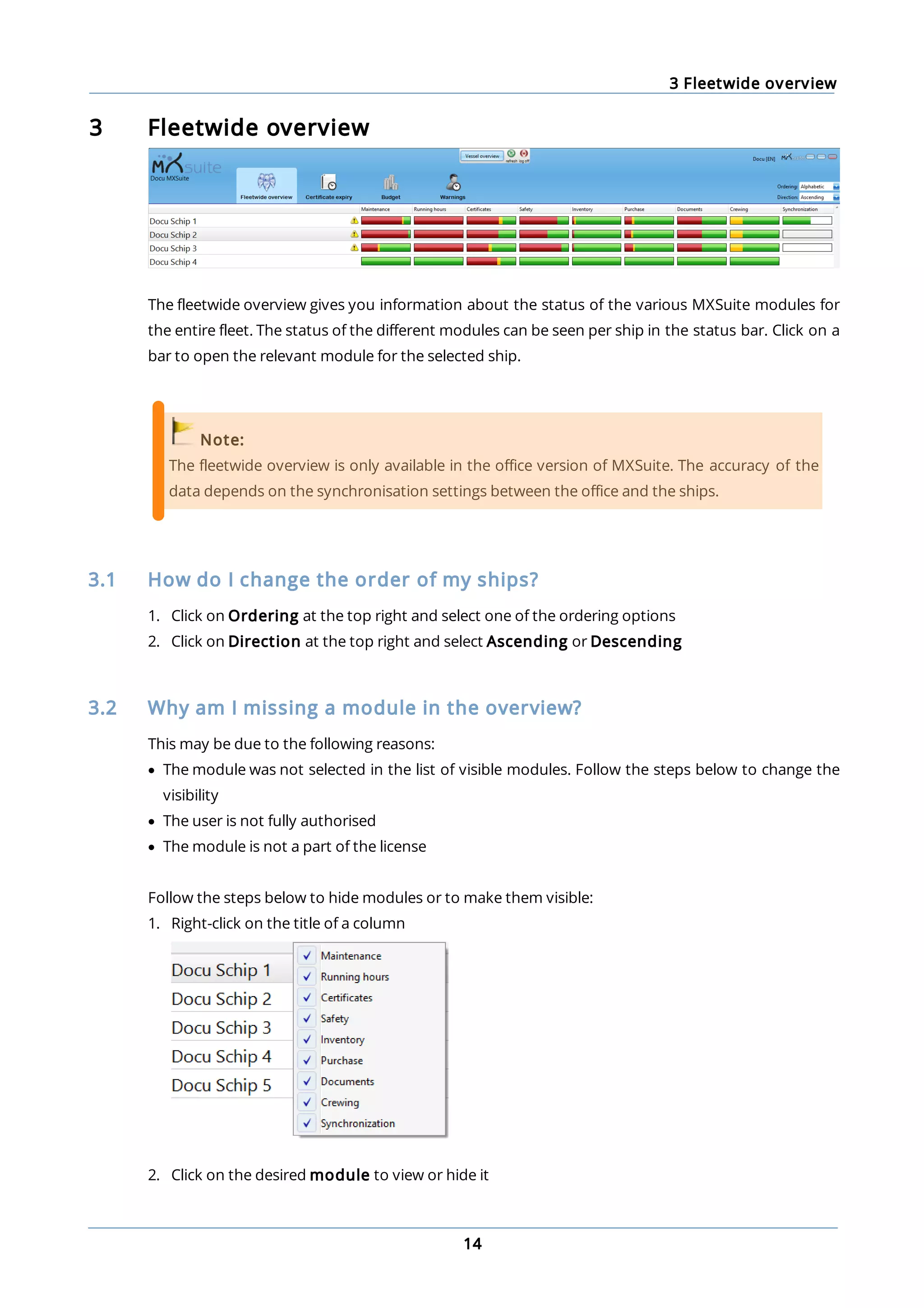
The fleetwide overview gives you information about the status of the various MXSuite modules for
the entire fleet. The status of the different modules can be seen per ship in the status bar. Click on a
bar to open the relevant module for the selected ship.
Note:
The fleetwide overview is only available in the office version of MXSuite. The accuracy of the
data depends on the synchronisation settings between the office and the ships.
3.1 How do I change the order of my ships?
1. Click on Ordering at the top right and select one of the ordering options
2. Click on Direction at the top right and select Ascending or Descending
3.2 Why am I missing a module in the overview?
This may be due to the following reasons:
· The module was not selected in the list of visible modules. Follow the steps below to change the
visibility
· The user is not fully authorised
· The module is not a part of the license
Follow the steps below to hide modules or to make them visible:
1. Right-click on the title of a column
2. Click on the desired module to view or hide it
3 Fleetwide overview
15
3.3 How do I get an overview of the expired certificates for the entire
fleet?
In the fleetwide overview, click on Certificate expiry.
This generates an overview of the certificates as defined in the selected view. If multiple views have
been configured, these can be selected using the button at the top right of the screen.
3.4 How do I see a budget summary for the whole fleet?
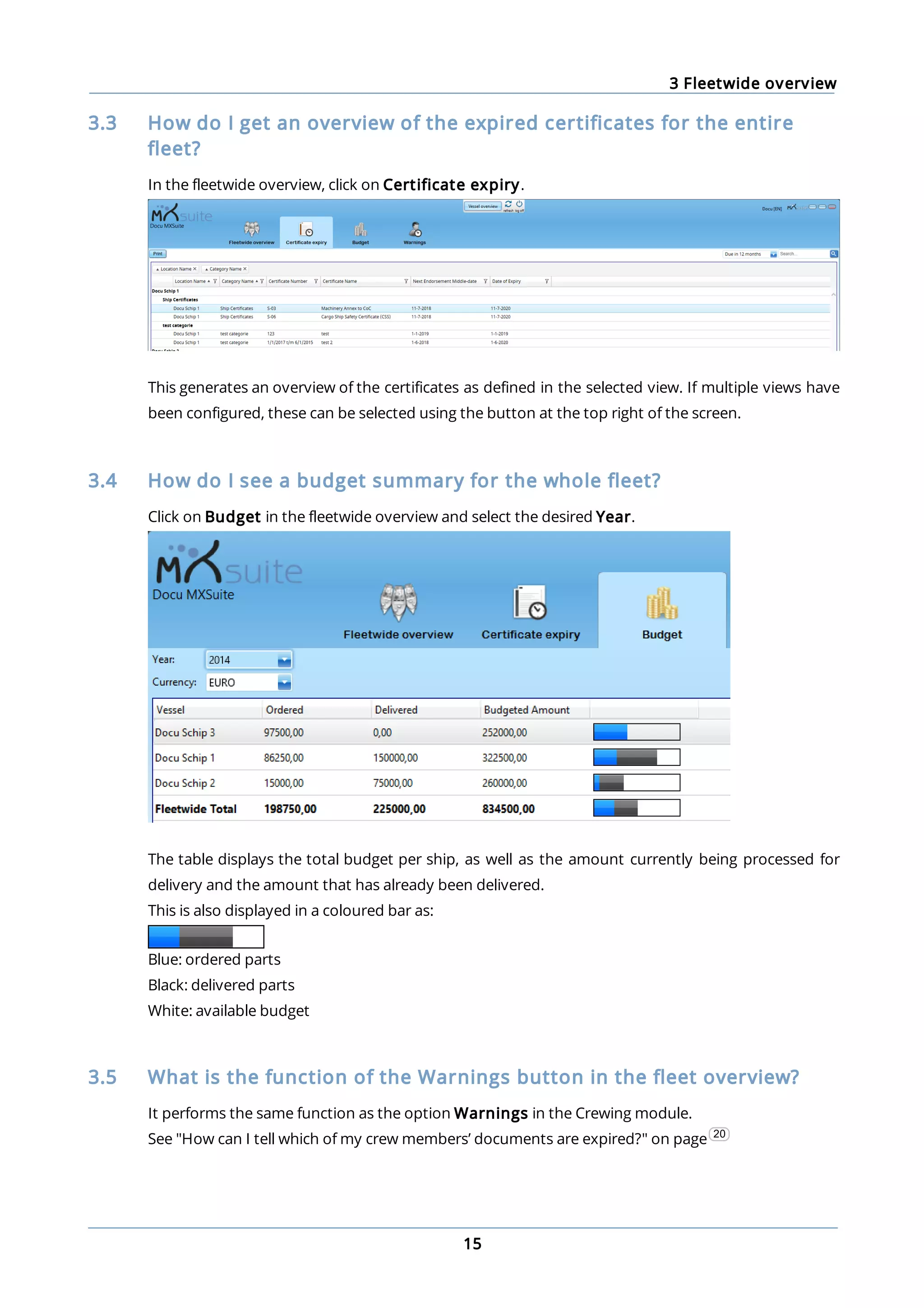
Click on Budget in the fleetwide overview and select the desired Year.
The table displays the total budget per ship, as well as the amount currently being processed for
delivery and the amount that has already been delivered.
This is also displayed in a coloured bar as:
Blue: ordered parts
Black: delivered parts
White: available budget
3.5 What is the function of the Warnings button in the fleet overview?
It performs the same function as the option Warnings in the Crewing module.
See "How can I tell which of my crew members’ documents are expired?" on page 20
4 Summary
16
4 Summary
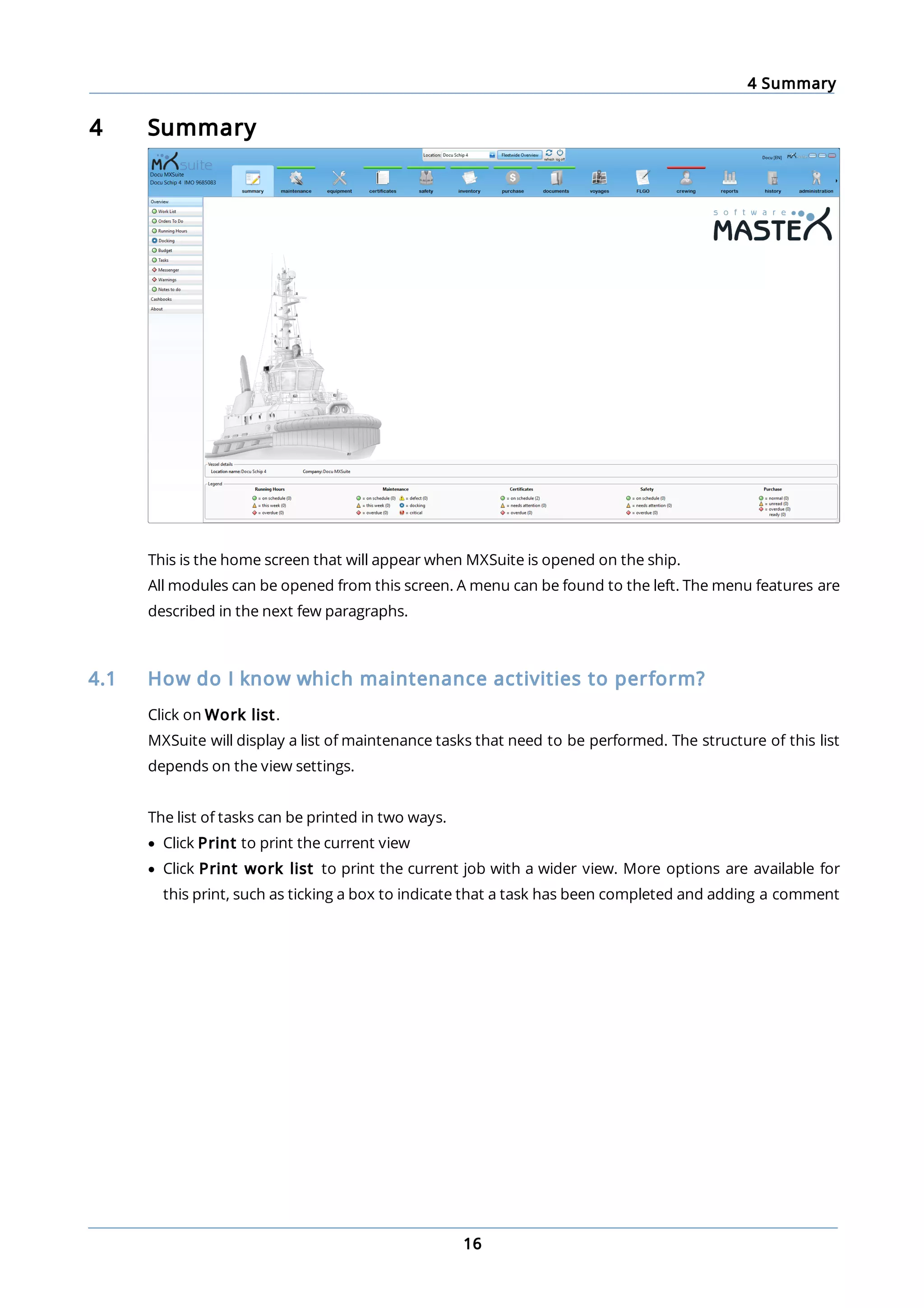
This is the home screen that will appear when MXSuite is opened on the ship.
All modules can be opened from this screen. A menu can be found to the left. The menu features are
described in the next few paragraphs.
4.1 How do I know which maintenance activities to perform?
Click on Work list.
MXSuite will display a list of maintenance tasks that need to be performed. The structure of this list
depends on the view settings.
The list of tasks can be printed in two ways.
· Click Print to print the current view
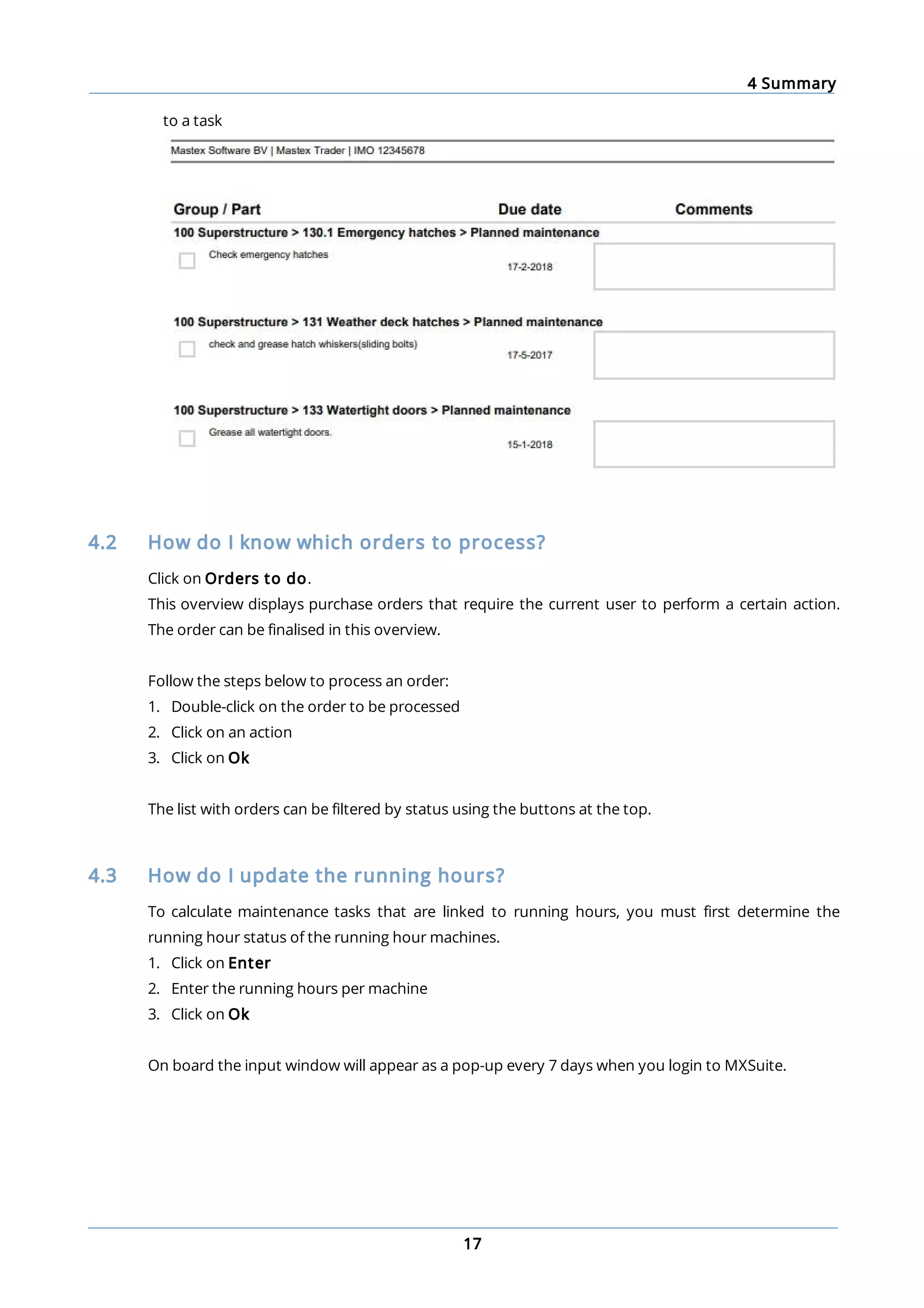
· Click Print work list to print the current job with a wider view. More options are available for
this print, such as ticking a box to indicate that a task has been completed and adding a comment
4 Summary
17
to a task
4.2 How do I know which orders to process?
Click on Orders to do.
This overview displays purchase orders that require the current user to perform a certain action.
The order can be finalised in this overview.
Follow the steps below to process an order:
1. Double-click on the order to be processed
2. Click on an action
3. Click on Ok
The list with orders can be filtered by status using the buttons at the top.
4.3 How do I update the running hours?
To calculate maintenance tasks that are linked to running hours, you must first determine the
running hour status of the running hour machines.
1. Click on Enter
2. Enter the running hours per machine
3. Click on Ok
On board the input window will appear as a pop-up every 7 days when you login to MXSuite.
4 Summary
18
Note:
If the calculated weekly average is higher than 168 hours, you will not be able to save new
running hours. If you are sure about the entered running hours, manually change the average
to a value between 0 and 168. You will then be able to save the running hours.
4.4 How do I create a new running hours machine?
1. Click on Running hours
2. Click on New...
3. Enter the name
4. Click on Ok
4.5 How do I use the docking overview?
In addition to time-related tasks and tasks based on running hours, there are also docking tasks.
The docking overview shows all created tasks that are linked to a planned docking. The overview of
docking tasks can be filtered based on the status of the task. You can also use the search bar.
Tasks that have been linked to a docking can be identified by the gear symbol. The colour of the
symbol indicates the status:
This task is planned for a future docking
This task is planned for a docking that is currently being carried out
This task is planned for a docking that has already been carried out
The list with docking tasks can be printed or sent by email by using the corresponding buttons at
the top of the screen.
In addition to the task overview, the planned dockings are also illustrated in a graph. This view is
based on the module Certificates, which also shows an overview of dockings.
4.6 What is the status of my annual budget?
1. Click on Budget
2. Select the year of the budget you want to see
An annual budget will appear for each ledger account. The coloured bar shows the status of the
budget per ledger account, per year.
The bar will be blue for orders
The bar will be grey for deliveries
A mark will indicate when a budget has been exceeded
4 Summary
19
4.7 How do I see an overview of all document tasks?
Click on Tasks.
In Tasks, an overview is displayed of all tasks that are linked to a document from the module
Documents.
Click on a task to view and edit the information. Document tasks are generally created in the
module Documents, but they can also be created in this overview by clicking on New...
Tip:
If you select User view, only tasks of relevance to the current user will be displayed.
4.8 How do I send a message to another user?
Messages can be sent between the office and the ships using Messenger.
1. Click on Messenger
2. Click on New
3. Write your message
4. Select Location and user (if applicable)
5. Click on Send
A new message will appear as a post-it note in the overview.
4 Summary
20
4.9 How do I know which of my crew members' documents are about to
expire?
Warnings not only gives you an overview of the documents that are about to expire, it also
provides additional information, such as birthdays and a list of people for whom the known
qualifications do not correspond to the rank entered.
Tabs:
Employee notification: This provides an overview of the crew members' expired
documents.
Birthdays: This view provides an overview of the crew members born on this day. In the
module Crewing, you can specify a certain period to create a list of all birthdays such as in the
past seven days, today, and the next seven days.
On board expiries: This shows the expired documents of crew members currently planned
to be on board.
Ranks: This shows the crew members whose rank as listed in the General tab does not
correspond to their known qualifications and educations.
Planning: This shows the planning warnings, such as failure to meet the safe manning
requirements.
4 Summary
21
4.10 How do I check for a new version?
1. Go to the module Summary
2. Click on About
The latest version number will appear.
3. Click on Check for Updates...
4. Follow the steps in the installation wizard
5 Cash book
22
5 Cash book
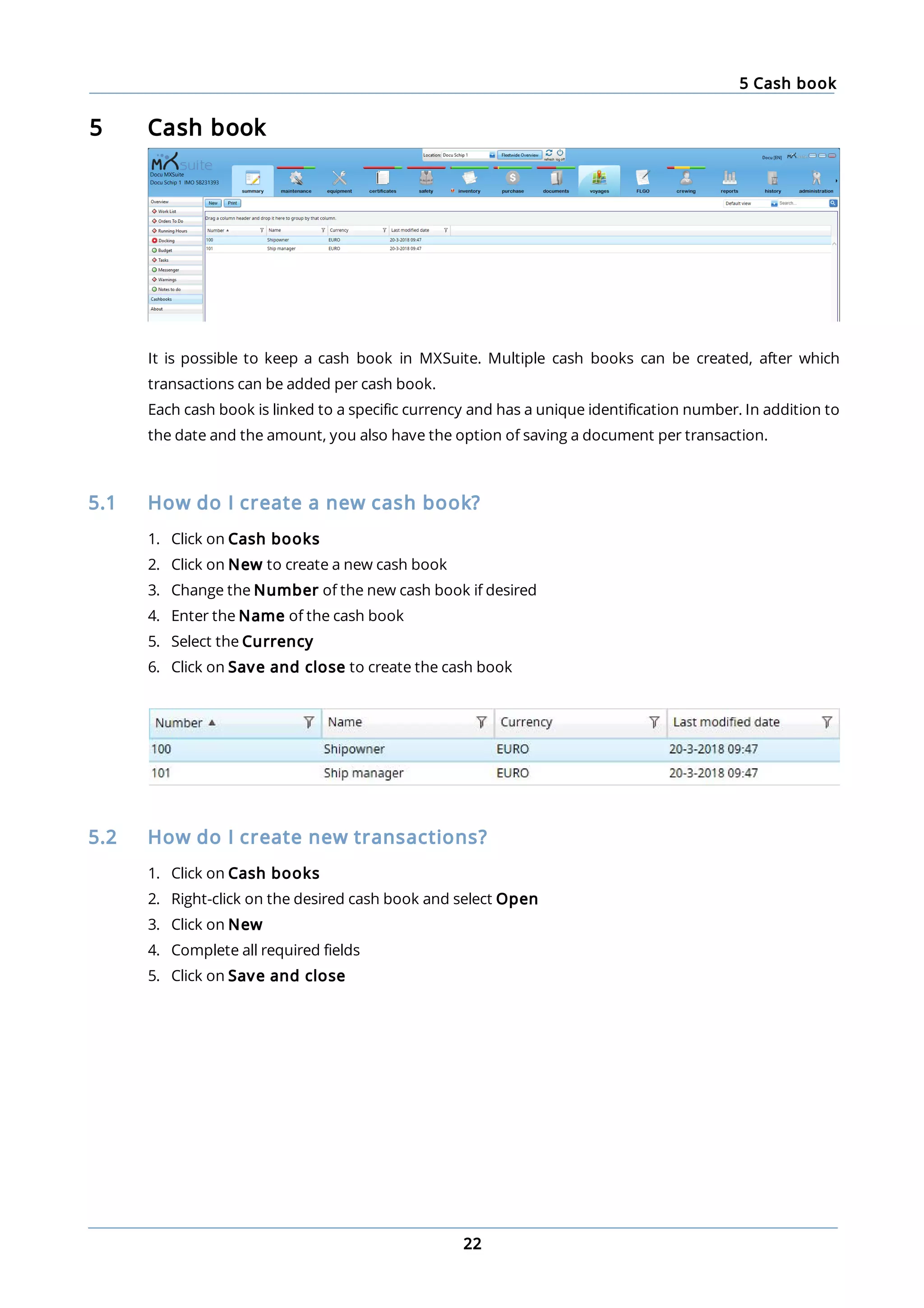
It is possible to keep a cash book in MXSuite. Multiple cash books can be created, after which
transactions can be added per cash book.
Each cash book is linked to a specific currency and has a unique identification number. In addition to
the date and the amount, you also have the option of saving a document per transaction.
5.1 How do I create a new cash book?
1. Click on Cash books
2. Click on New to create a new cash book
3. Change the Number of the new cash book if desired
4. Enter the Name of the cash book
5. Select the Currency
6. Click on Save and close to create the cash book
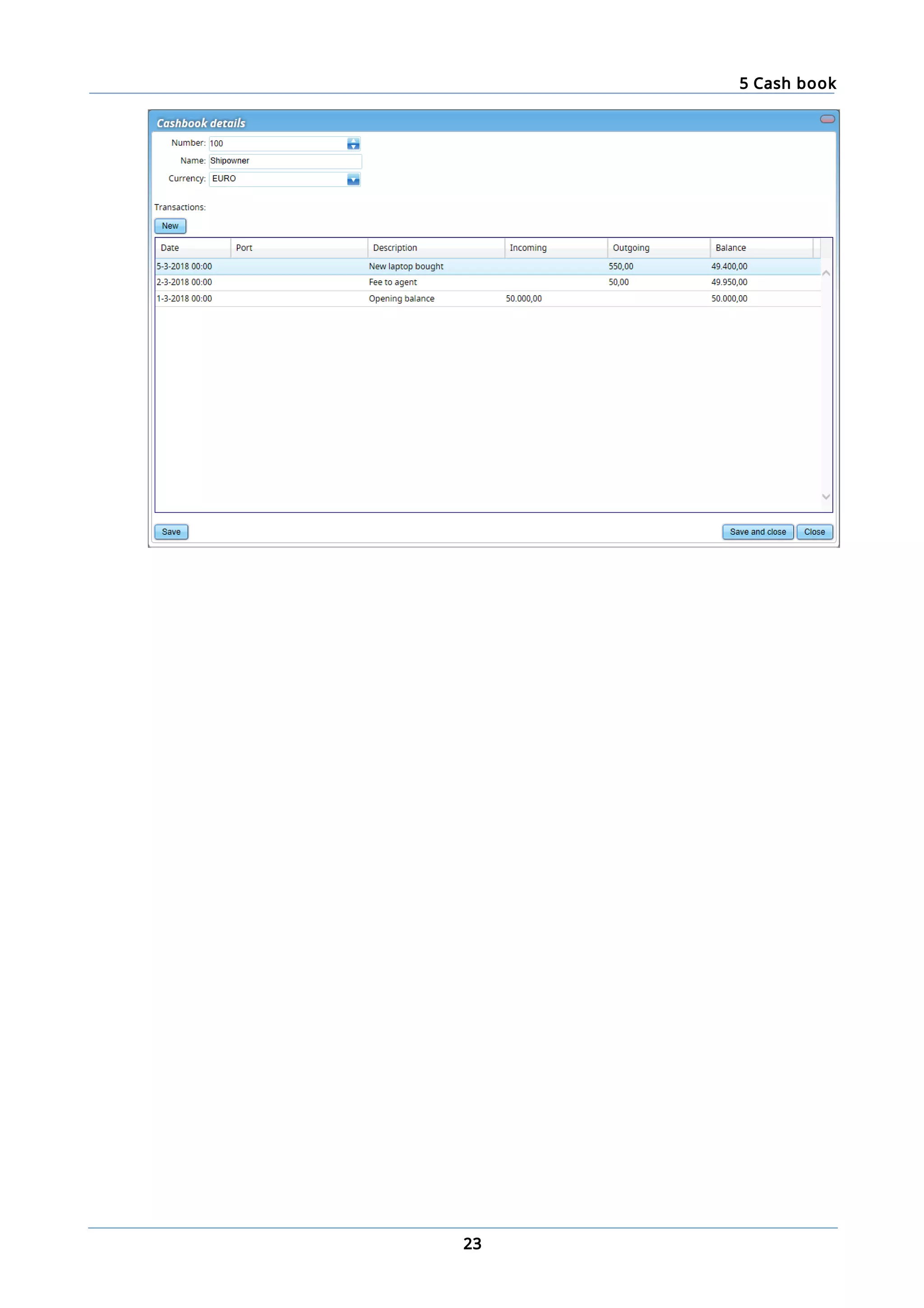
5.2 How do I create new transactions?
1. Click on Cash books
2. Right-click on the desired cash book and select Open
3. Click on New
4. Complete all required fields
5. Click on Save and close
5 Cash book
23
6 Maintenance
24
6 Maintenance
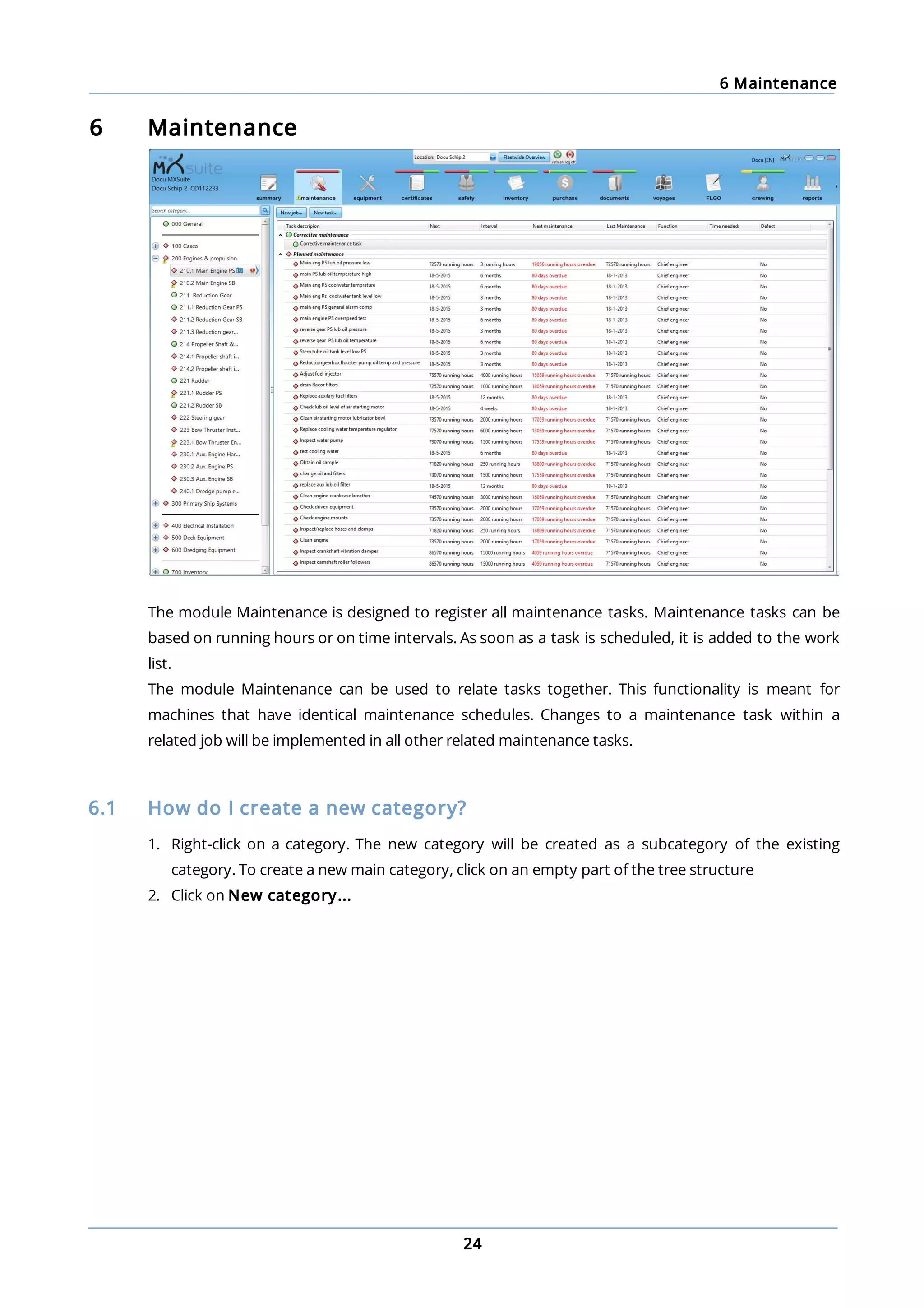
The module Maintenance is designed to register all maintenance tasks. Maintenance tasks can be
based on running hours or on time intervals. As soon as a task is scheduled, it is added to the work
list.
The module Maintenance can be used to relate tasks together. This functionality is meant for
machines that have identical maintenance schedules. Changes to a maintenance task within a
related job will be implemented in all other related maintenance tasks.
6.1 How do I create a new category?
1. Right-click on a category. The new category will be created as a subcategory of the existing
category. To create a new main category, click on an empty part of the tree structure
2. Click on New category...
6 Maintenance
25
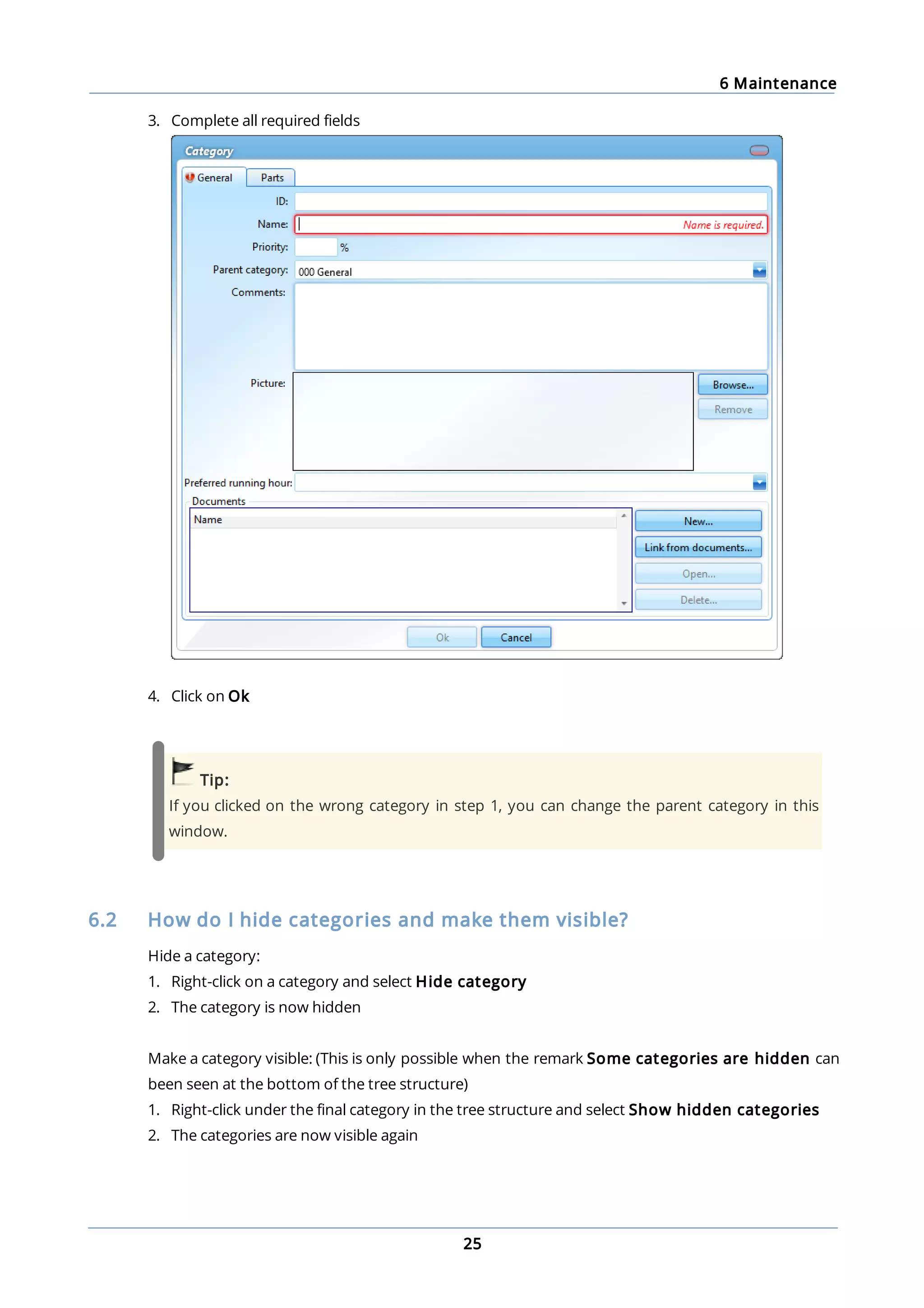
3. Complete all required fields
4. Click on Ok
Tip:
If you clicked on the wrong category in step 1, you can change the parent category in this
window.
6.2 How do I hide categories and make them visible?
Hide a category:
1. Right-click on a category and select Hide category
2. The category is now hidden
Make a category visible: (This is only possible when the remark Some categories are hidden can
been seen at the bottom of the tree structure)
1. Right-click under the final category in the tree structure and select Show hidden categories
2. The categories are now visible again
6 Maintenance
26
6.3 How do I copy or move a category, job or task?
1. Right-click on a category, job or task and select Copy... or Move...
2. Select the location to which the category must be copied or moved
3. Click on Ok
When moving a category, you will be prompted to copy the history as well. If you select this option,
a copy of the history will be moved to the new location. If you do not select this option, the history
will only be available in the current location.
Note:
A new expiry date will be calculated for time-specific tasks copied to the new location. This is
calculated as follows: expiry date = date + interval.
The date used:
· The birth date of the ship, as listed on the docking certificate
· The current date, in the absence of a docking certificate
6.4 How do I search for a category?
Use the search bar at the top of the tree structure to search for a category.
1. Enter the name or partial name of the category
2. Click on
3. The tree structure will now only show the categories in which the search term appears
Tip:
To display all categories, delete the search term and click on .
6 Maintenance
27
6.5 How do I mark a category as critical?
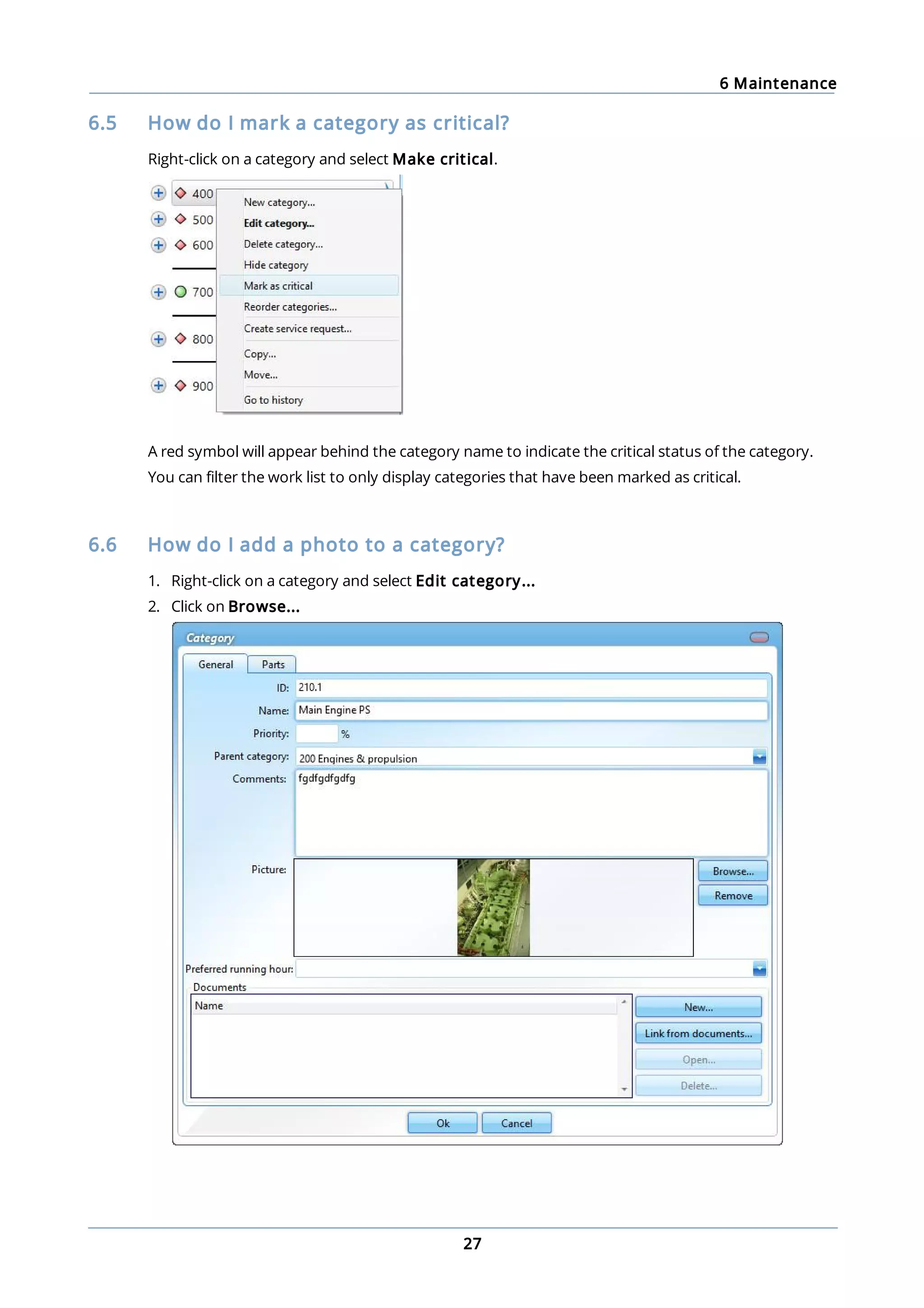
Right-click on a category and select Make critical.
A red symbol will appear behind the category name to indicate the critical status of the category.
You can filter the work list to only display categories that have been marked as critical.
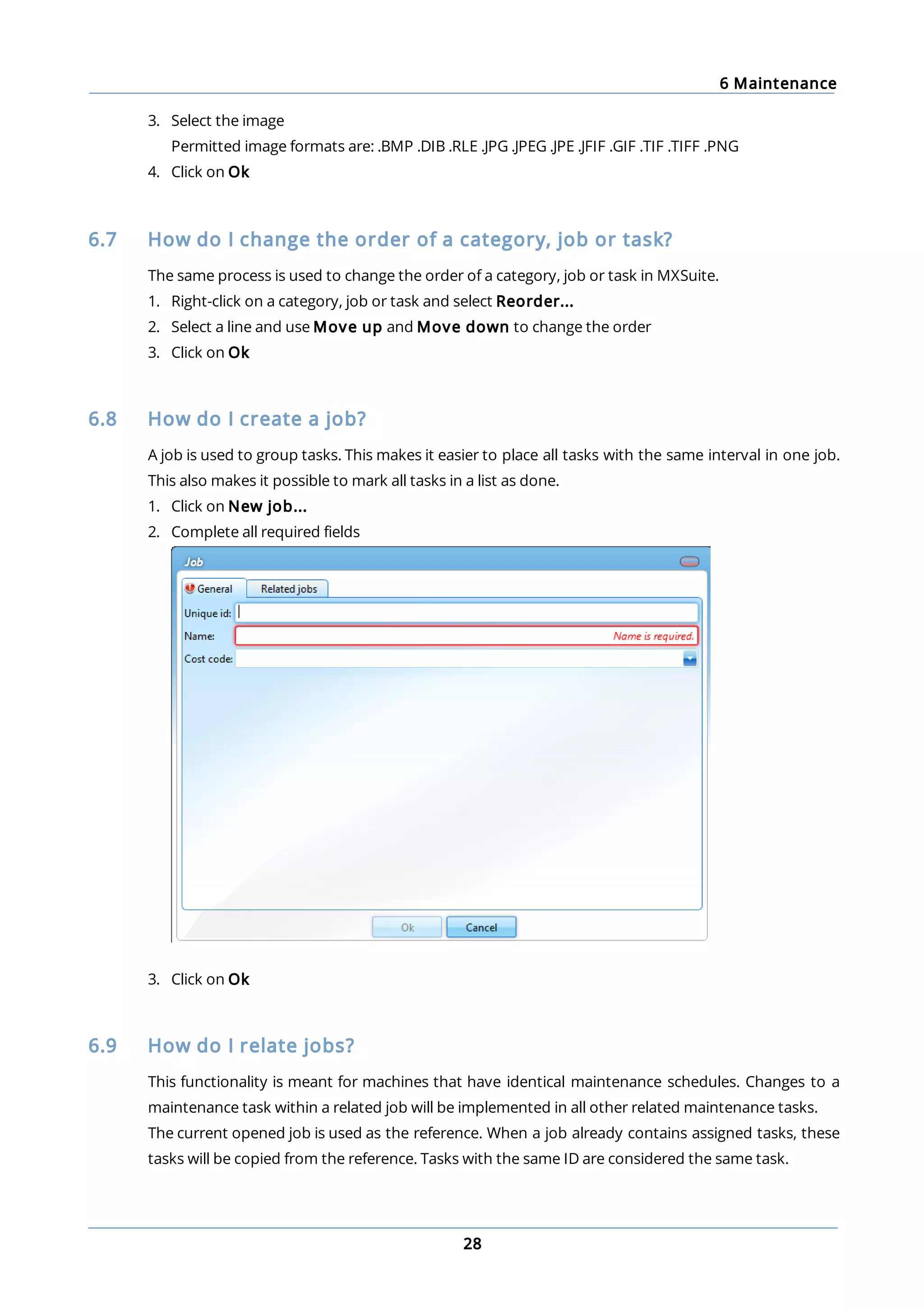
6.6 How do I add a photo to a category?
1. Right-click on a category and select Edit category...
2. Click on Browse...
6 Maintenance
28
3. Select the image
Permitted image formats are: .BMP .DIB .RLE .JPG .JPEG .JPE .JFIF .GIF .TIF .TIFF .PNG
4. Click on Ok
6.7 How do I change the order of a category, job or task?
The same process is used to change the order of a category, job or task in MXSuite.
1. Right-click on a category, job or task and select Reorder...
2. Select a line and use Move up and Move down to change the order
3. Click on Ok
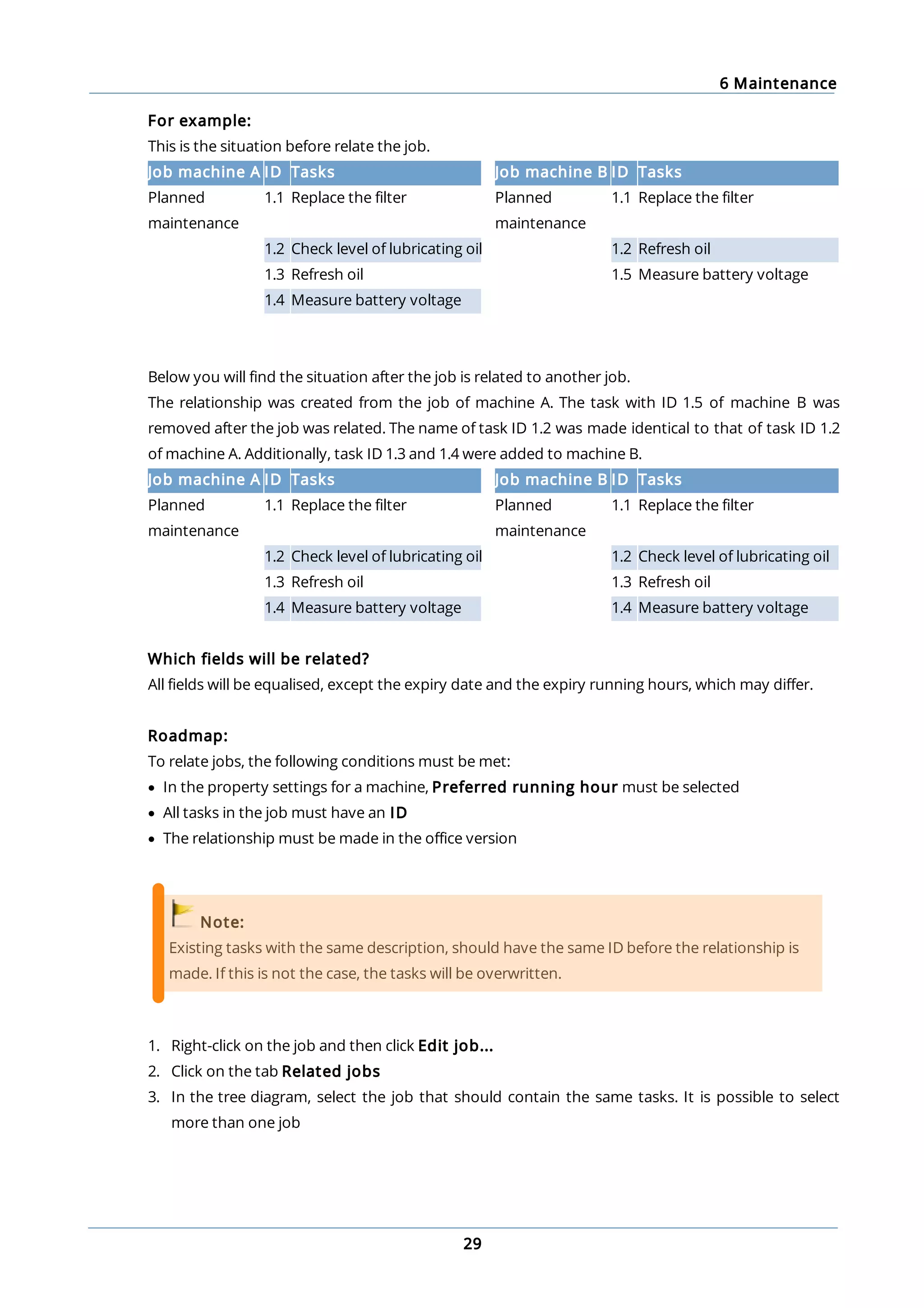
6.8 How do I create a job?
A job is used to group tasks. This makes it easier to place all tasks with the same interval in one job.
This also makes it possible to mark all tasks in a list as done.
1. Click on New job...
2. Complete all required fields
3. Click on Ok
6.9 How do I relate jobs?
This functionality is meant for machines that have identical maintenance schedules. Changes to a
maintenance task within a related job will be implemented in all other related maintenance tasks.
The current opened job is used as the reference. When a job already contains assigned tasks, these
tasks will be copied from the reference. Tasks with the same ID are considered the same task.
6 Maintenance
29
For example:
This is the situation before relate the job.
Job machine A ID Tasks Job machine B ID Tasks
Planned
maintenance
1.1 Replace the filter Planned
maintenance
1.1 Replace the filter
1.2 Check level of lubricating oil 1.2 Refresh oil
1.3 Refresh oil 1.5 Measure battery voltage
1.4 Measure battery voltage
Below you will find the situation after the job is related to another job.
The relationship was created from the job of machine A. The task with ID 1.5 of machine B was
removed after the job was related. The name of task ID 1.2 was made identical to that of task ID 1.2
of machine A. Additionally, task ID 1.3 and 1.4 were added to machine B.
Job machine A ID Tasks Job machine B ID Tasks
Planned
maintenance
1.1 Replace the filter Planned
maintenance
1.1 Replace the filter
1.2 Check level of lubricating oil 1.2 Check level of lubricating oil
1.3 Refresh oil 1.3 Refresh oil
1.4 Measure battery voltage 1.4 Measure battery voltage
Which fields will be related?
All fields will be equalised, except the expiry date and the expiry running hours, which may differ.
Roadmap:
To relate jobs, the following conditions must be met:
· In the property settings for a machine, Preferred running hour must be selected
· All tasks in the job must have an ID
· The relationship must be made in the office version
Note:
Existing tasks with the same description, should have the same ID before the relationship is
made. If this is not the case, the tasks will be overwritten.
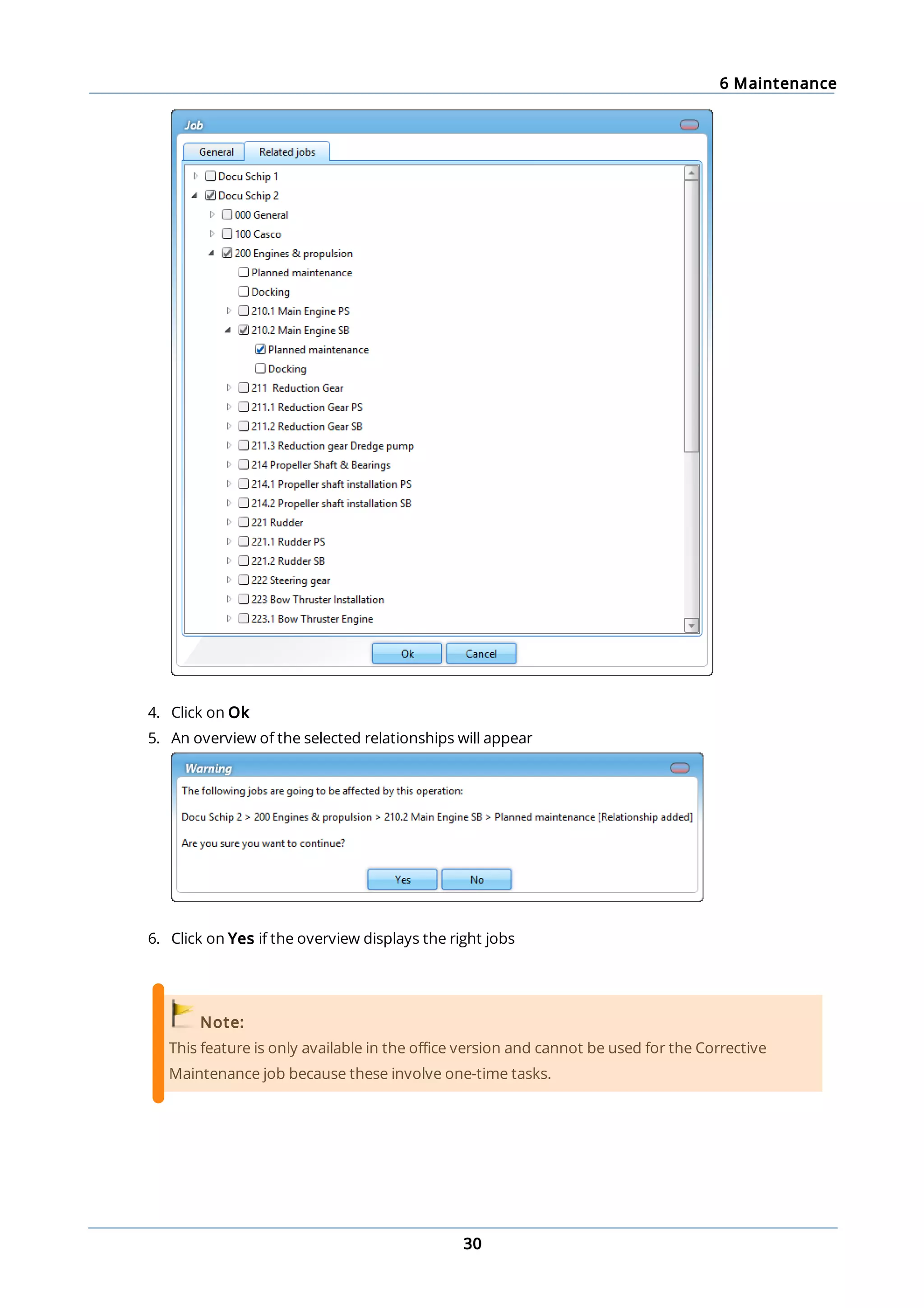
1. Right-click on the job and then click Edit job...
2. Click on the tab Related jobs
3. In the tree diagram, select the job that should contain the same tasks. It is possible to select
more than one job
6 Maintenance
30
4. Click on Ok
5. An overview of the selected relationships will appear
6. Click on Yes if the overview displays the right jobs
Note:
This feature is only available in the office version and cannot be used for the Corrective
Maintenance job because these involve one-time tasks.
6 Maintenance
31
Important:
Failure to correctly perform the mentioned steps to relate jobs can result in data loss!
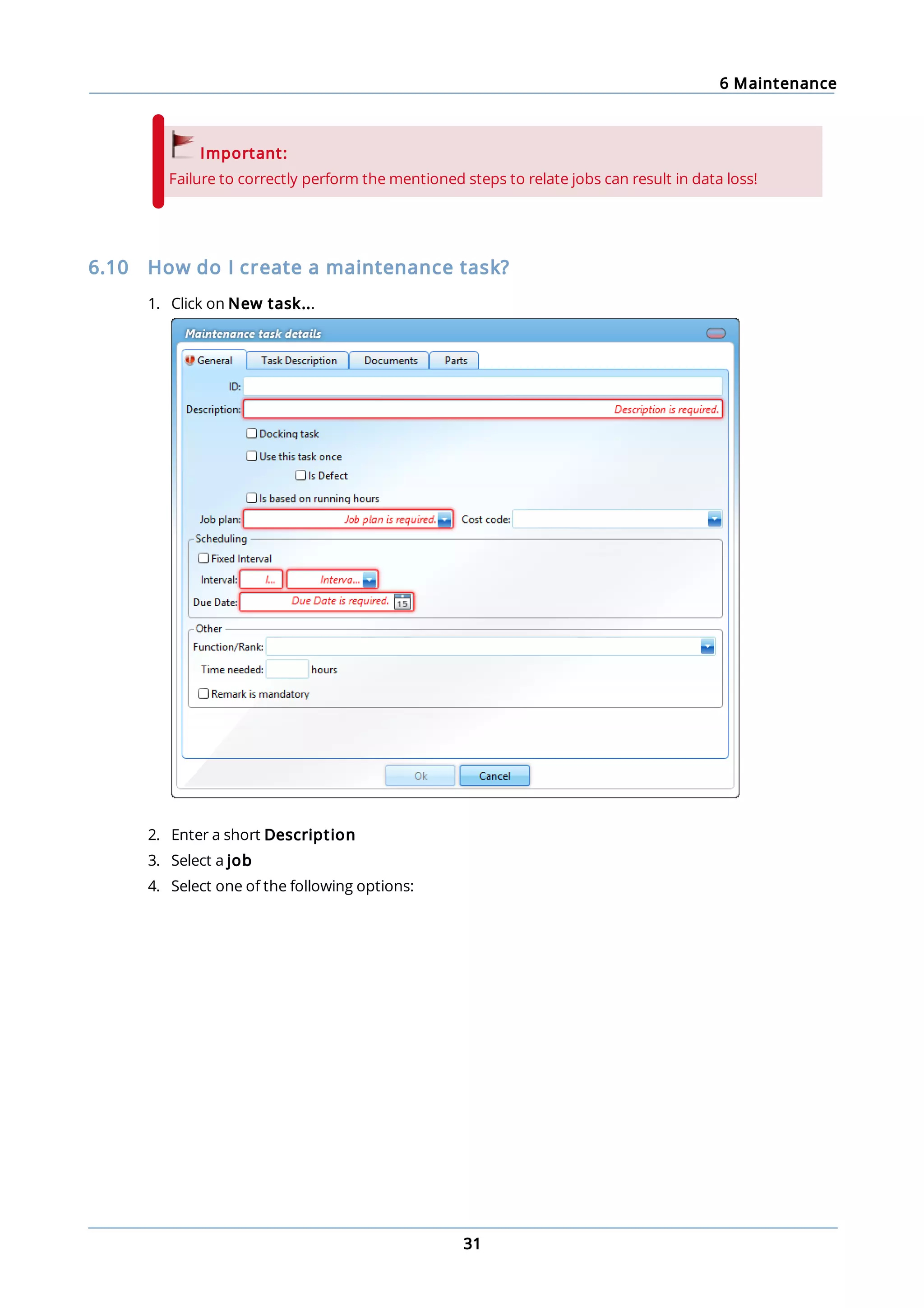
6.10 How do I create a maintenance task?
1. Click on New task...
2. Enter a short Description
3. Select a job
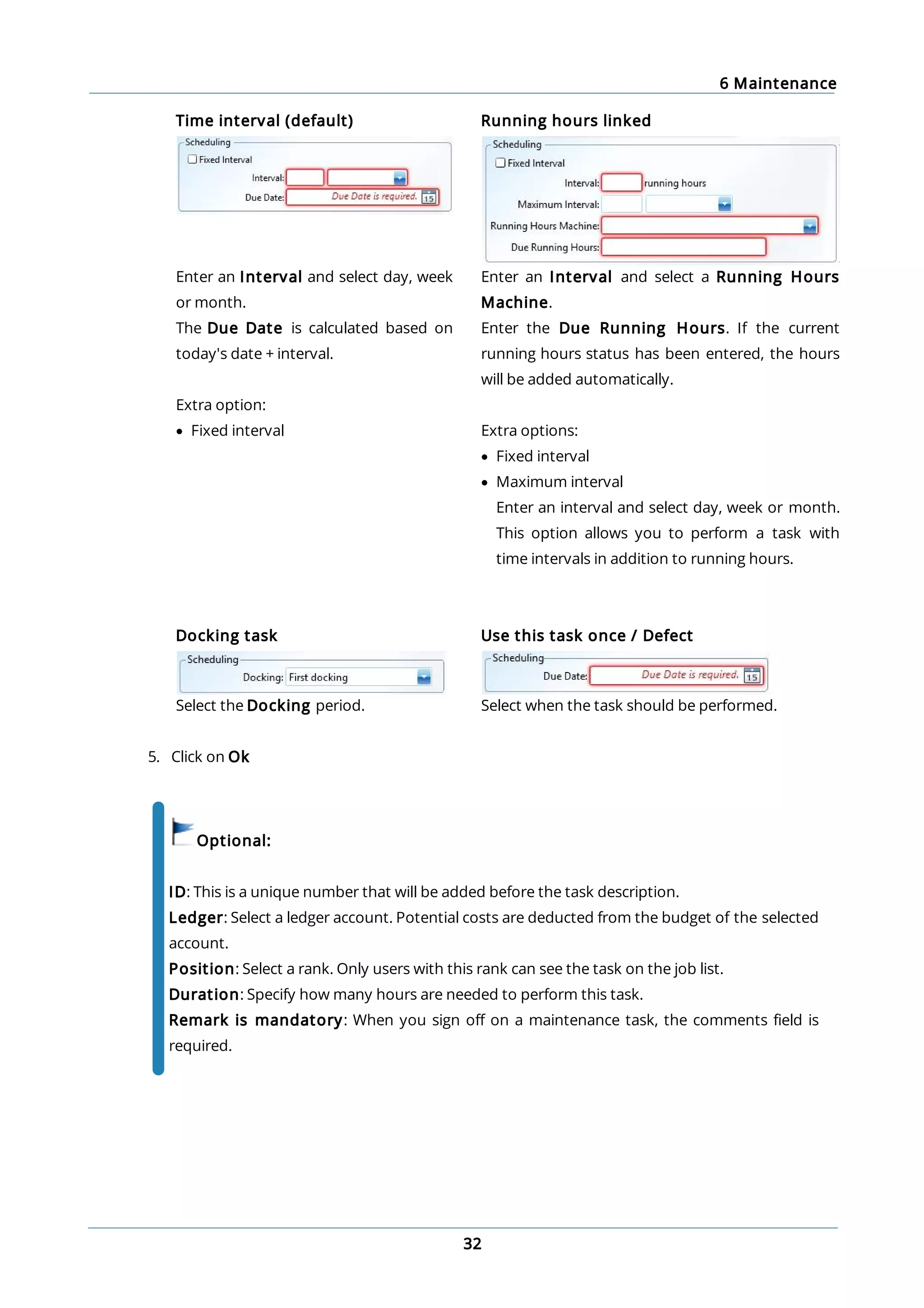
4. Select one of the following options:
6 Maintenance
32
Time interval (default) Running hours linked
Enter an Interval and select day, week
or month.
The Due Date is calculated based on
today's date + interval.
Extra option:
· Fixed interval
Enter an Interval and select a Running Hours
Machine.
Enter the Due Running Hours. If the current
running hours status has been entered, the hours
will be added automatically.
Extra options:
· Fixed interval
· Maximum interval
Enter an interval and select day, week or month.
This option allows you to perform a task with
time intervals in addition to running hours.
Docking task
Select the Docking period.
Use this task once / Defect
Select when the task should be performed.
5. Click on Ok
Optional:
ID: This is a unique number that will be added before the task description.
Ledger: Select a ledger account. Potential costs are deducted from the budget of the selected
account.
Position: Select a rank. Only users with this rank can see the task on the job list.
Duration: Specify how many hours are needed to perform this task.
Remark is mandatory: When you sign off on a maintenance task, the comments field is
required.
6 Maintenance
33
6.11 What does the fixed interval option do?
The fixed interval option can be selected when you create a:
· maintenance task
· safety drill
The following table clarifies what this option does.
A task or a drill has an interval of one month.
No fixed interval Fixed interval
Expiration date 1 January 1 January
Date of first execution 3 January 3 January
Next expiration date 3 February 1 February
Date of second execution 6 February 6 February
Next expiration date 6 March 1 March
With a fixed interval, the next expiration date is always calculated from the first expiration date.
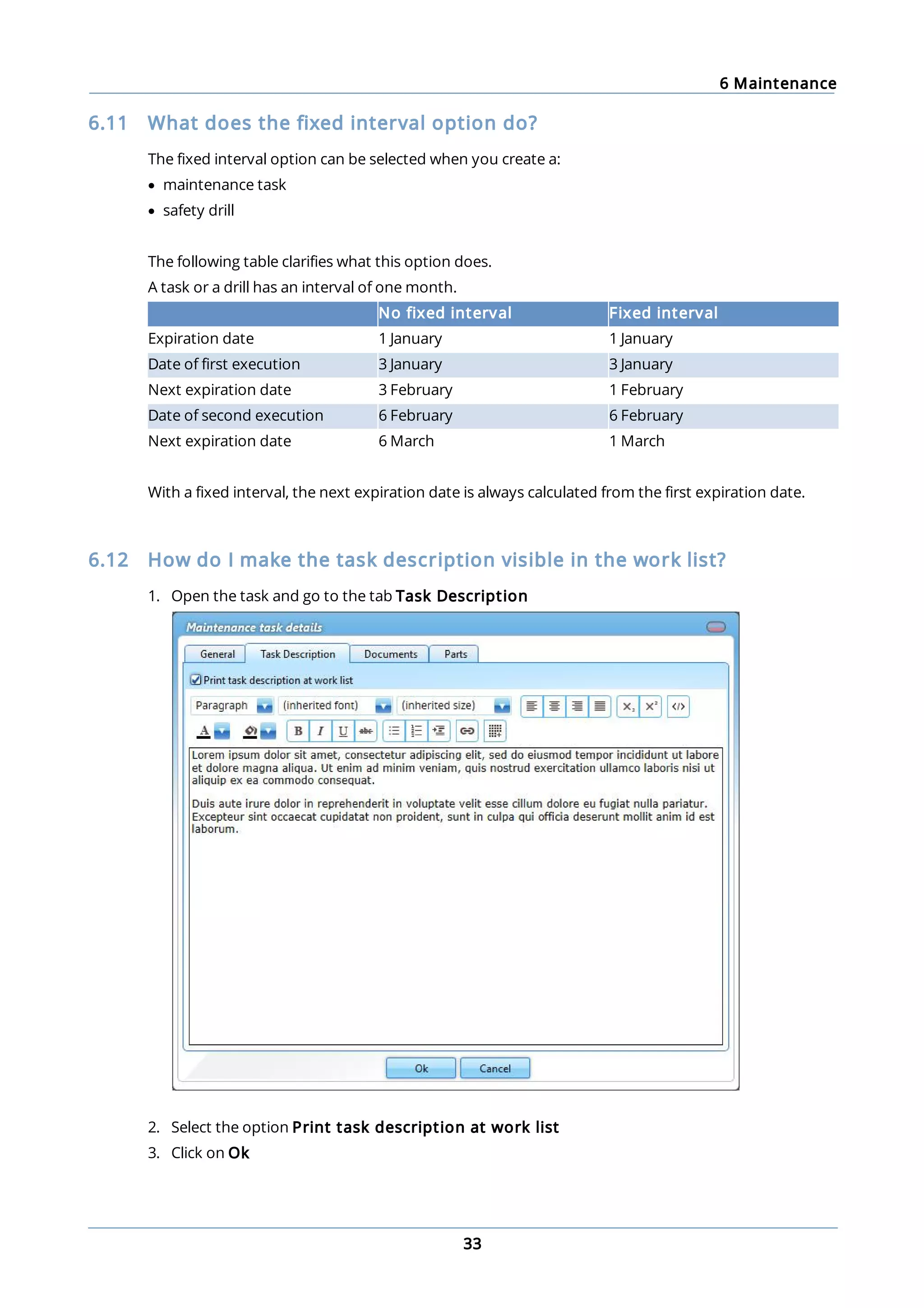
6.12 How do I make the task description visible in the work list?
1. Open the task and go to the tab Task Description
2. Select the option Print task description at work list
3. Click on Ok
6 Maintenance
34
6.13 How do I add documents to a task?
1. Right-click on a task and select Edit task...
2. Go to the tab Documents
3. Click on New... and select the document
4. Click on Ok
Tip:
The option Link from documents... makes it possible to add a document from the module
Documents.
6.14 How do I link spare part(s) to a task?
1. Right-click on a maintenance task and select Edit task...
2. Go to the tab Parts
6 Maintenance
35
3. Click on Select Part(s)...
4. Select the part(s) (you can select multiple parts using Ctrl or Shift)
5. Click on Ok
6. Enter the quantity of parts needed. When executing the task, the stock of the selected parts will
be updated
6.15 How do I order the required parts for a task?
1. Right-click on a task and select Create requisition...
2. Select the parts you want to order
3. Click on Ok
6 Maintenance
36
6.16 How do I create a service request?
1. Right-click on a category and select Create service request...
2. Note in the description the reason for the service request
3. Click on Save & send
Tip:
If a defect is registered in the category, this defect will also be included in the service request.
6.17 How do I mark a task as complete?
A maintenance task can be performed from the work list and from the module Maintenance.
1. Double-click on a task
6 Maintenance
37
2. Enter a Remark
3. Click on Task done
4. The task will be removed from the work list and will be added back to the list at a predetermined
interval
Follow the steps below to mark multiple tasks as done:
1. Mark the tasks that are done by selecting these under column P (all tasks with a P will be
selected)
2. Click on Mark selection as done
3. Enter a Remark (in the image below it is required as this is a task with a mandatory comments
field)
6 Maintenance
38
4. Click on Tasks done
5. The tasks will now be removed from the work list and will be re-added at a predetermined
interval
6.18 How do I print a work order?
1. Double-click on a task
2. Click on Print work order
3. The work order will open in the standard browser
6 Maintenance
39
4. Click on Print
6.19 How do I see the history of a task?
1. Go to the module History
2. Click on Search
3. Use the filters to add the history of the corresponding task to the overview
6 Maintenance
40
Tip:
Right-click on a category, job or task and select Show history. MXSuite will then open the
module History and display the data for the selected category, job or task.
6.20 How do I undo a completed maintenance task?
1. Go to the module History
2. Select Maintenance
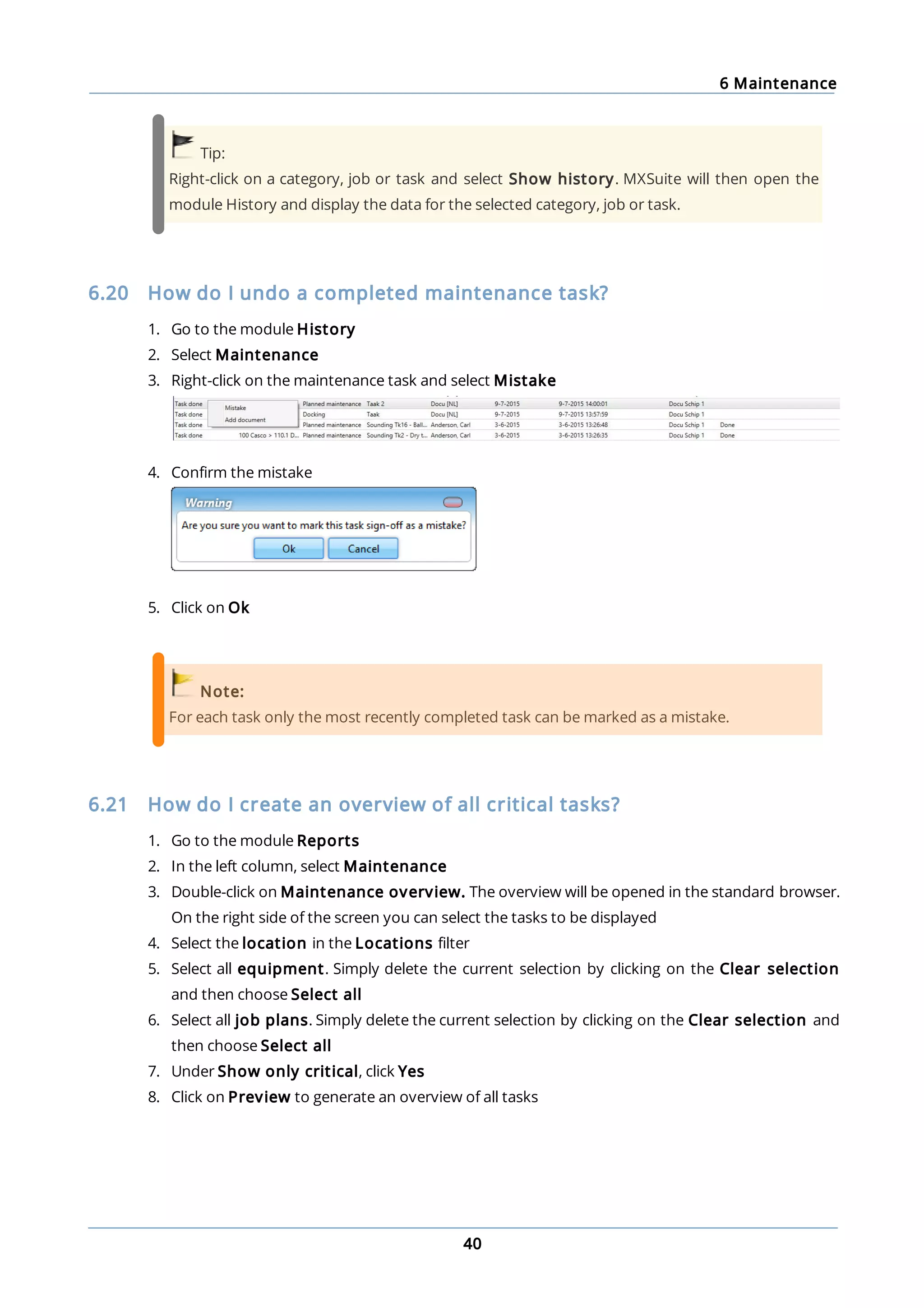
3. Right-click on the maintenance task and select Mistake
4. Confirm the mistake
5. Click on Ok
Note:
For each task only the most recently completed task can be marked as a mistake.
6.21 How do I create an overview of all critical tasks?
1. Go to the module Reports
2. In the left column, select Maintenance
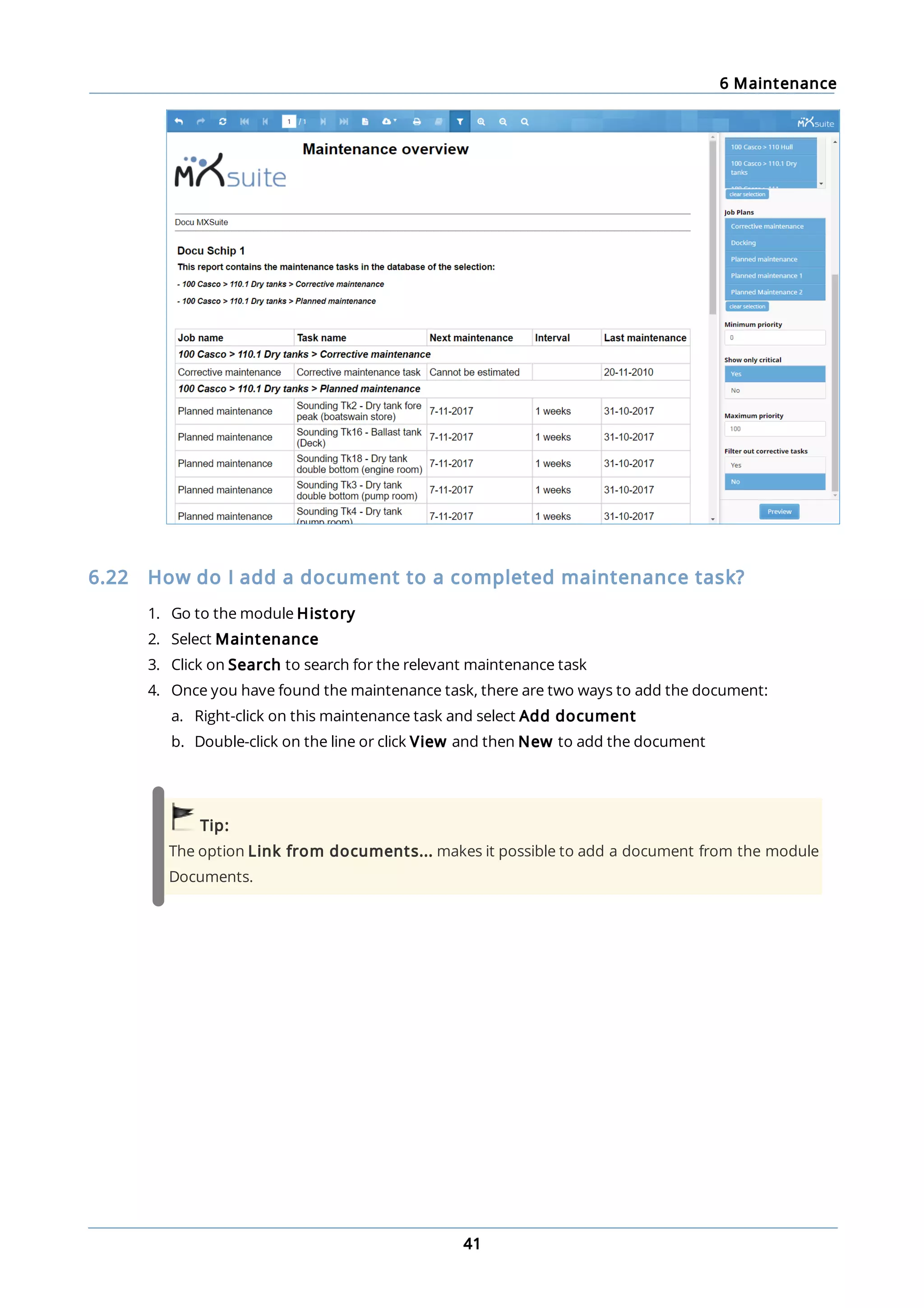
3. Double-click on Maintenance overview. The overview will be opened in the standard browser.
On the right side of the screen you can select the tasks to be displayed
4. Select the location in the Locations filter
5. Select all equipment. Simply delete the current selection by clicking on the Clear selection
and then choose Select all
6. Select all job plans. Simply delete the current selection by clicking on the Clear selection and
then choose Select all
7. Under Show only critical, click Yes
8. Click on Preview to generate an overview of all tasks
6 Maintenance
41
6.22 How do I add a document to a completed maintenance task?
1. Go to the module History
2. Select Maintenance
3. Click on Search to search for the relevant maintenance task
4. Once you have found the maintenance task, there are two ways to add the document:
a. Right-click on this maintenance task and select Add document
b. Double-click on the line or click View and then New to add the document
Tip:
The option Link from documents... makes it possible to add a document from the module
Documents.
7 Equipment
42
7 Equipment
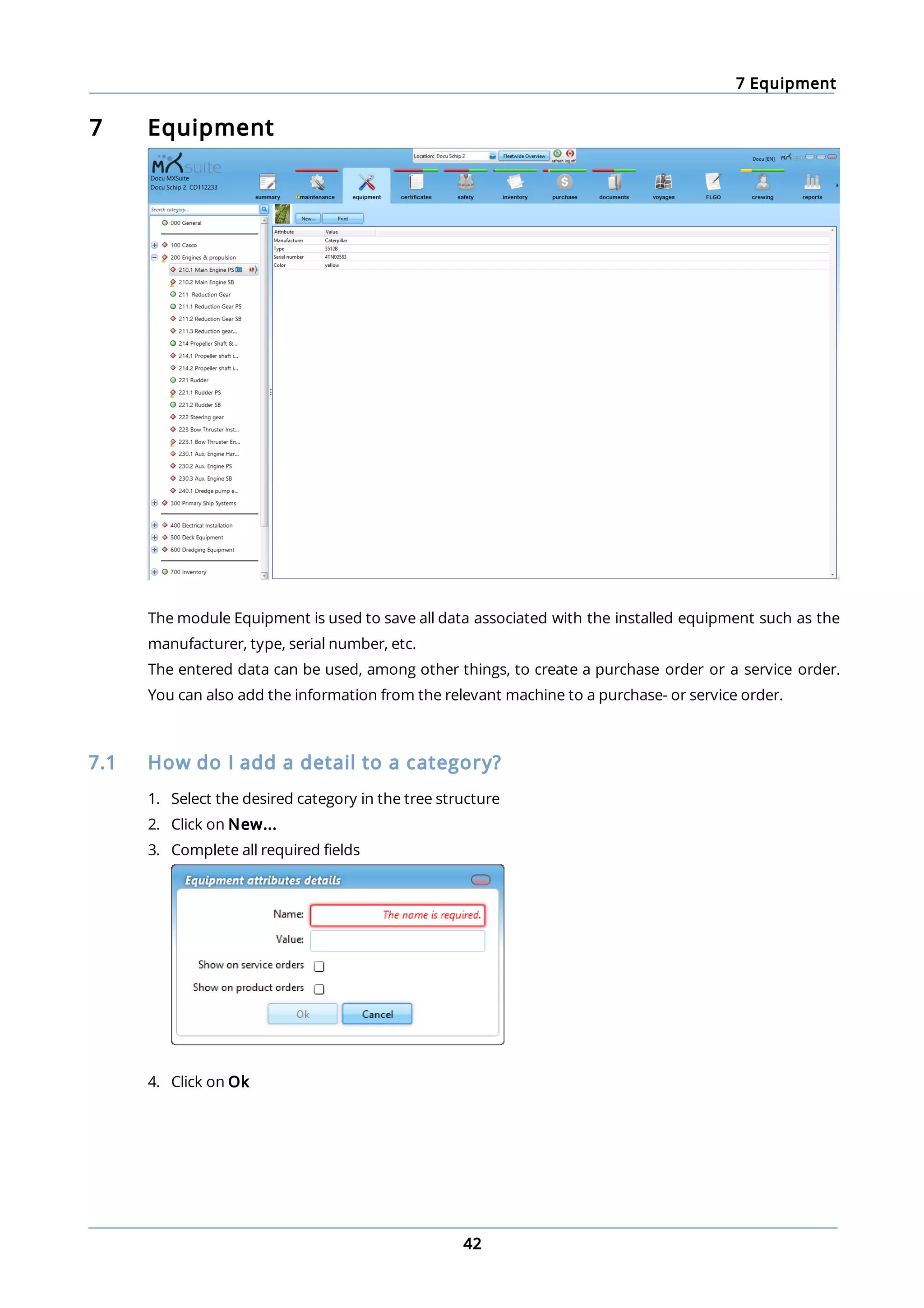
The module Equipment is used to save all data associated with the installed equipment such as the
manufacturer, type, serial number, etc.
The entered data can be used, among other things, to create a purchase order or a service order.
You can also add the information from the relevant machine to a purchase- or service order.
7.1 How do I add a detail to a category?
1. Select the desired category in the tree structure
2. Click on New...
3. Complete all required fields
4. Click on Ok
7 Equipment
43
Optional:
Show on service orders: Select this option to send the detail along with a service order.
Show on product orders: Select this option to send the detail along with a product order.
7.2 How do I add a photo to a category?
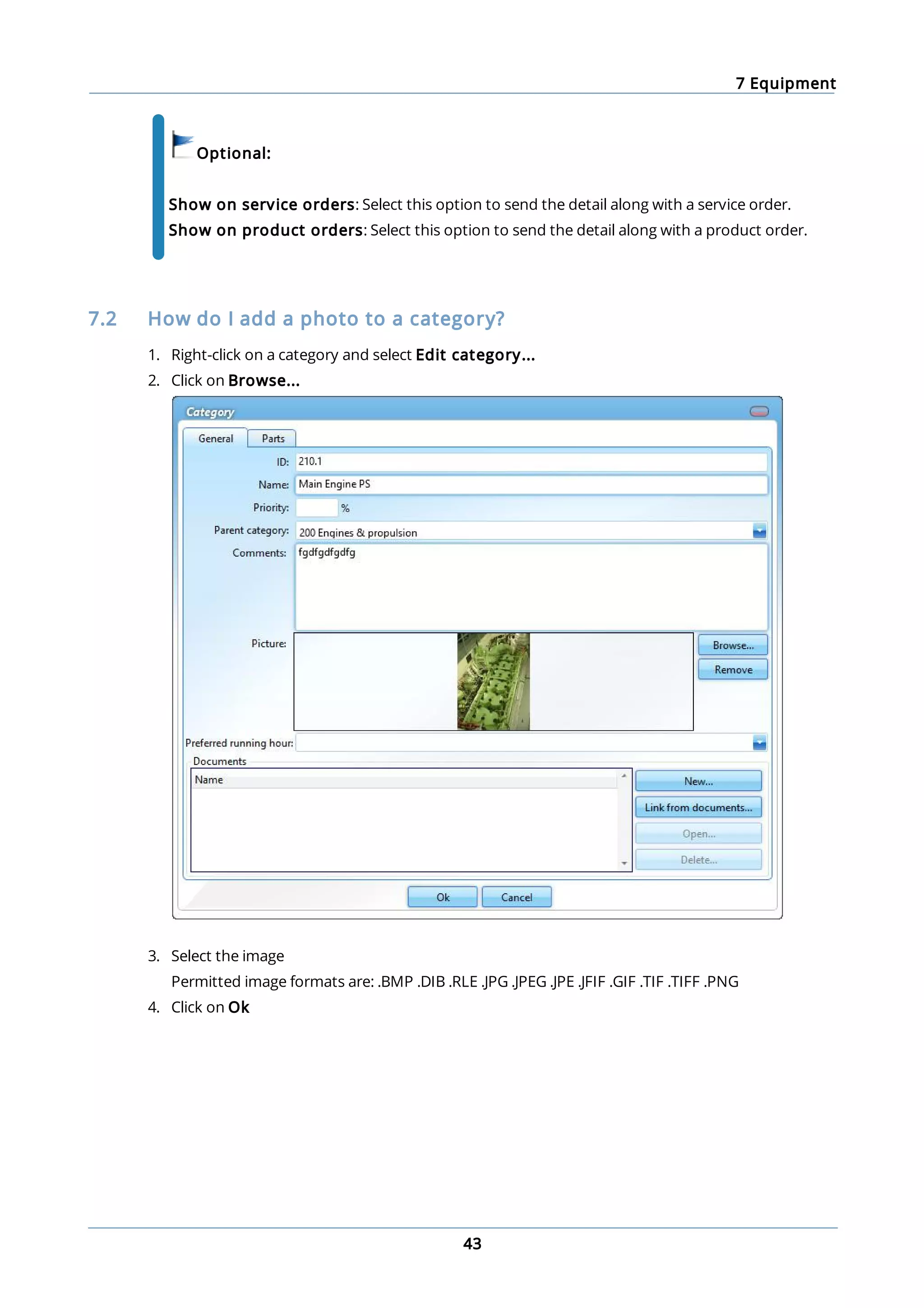
1. Right-click on a category and select Edit category...
2. Click on Browse...
3. Select the image
Permitted image formats are: .BMP .DIB .RLE .JPG .JPEG .JPE .JFIF .GIF .TIF .TIFF .PNG
4. Click on Ok
7 Equipment
44
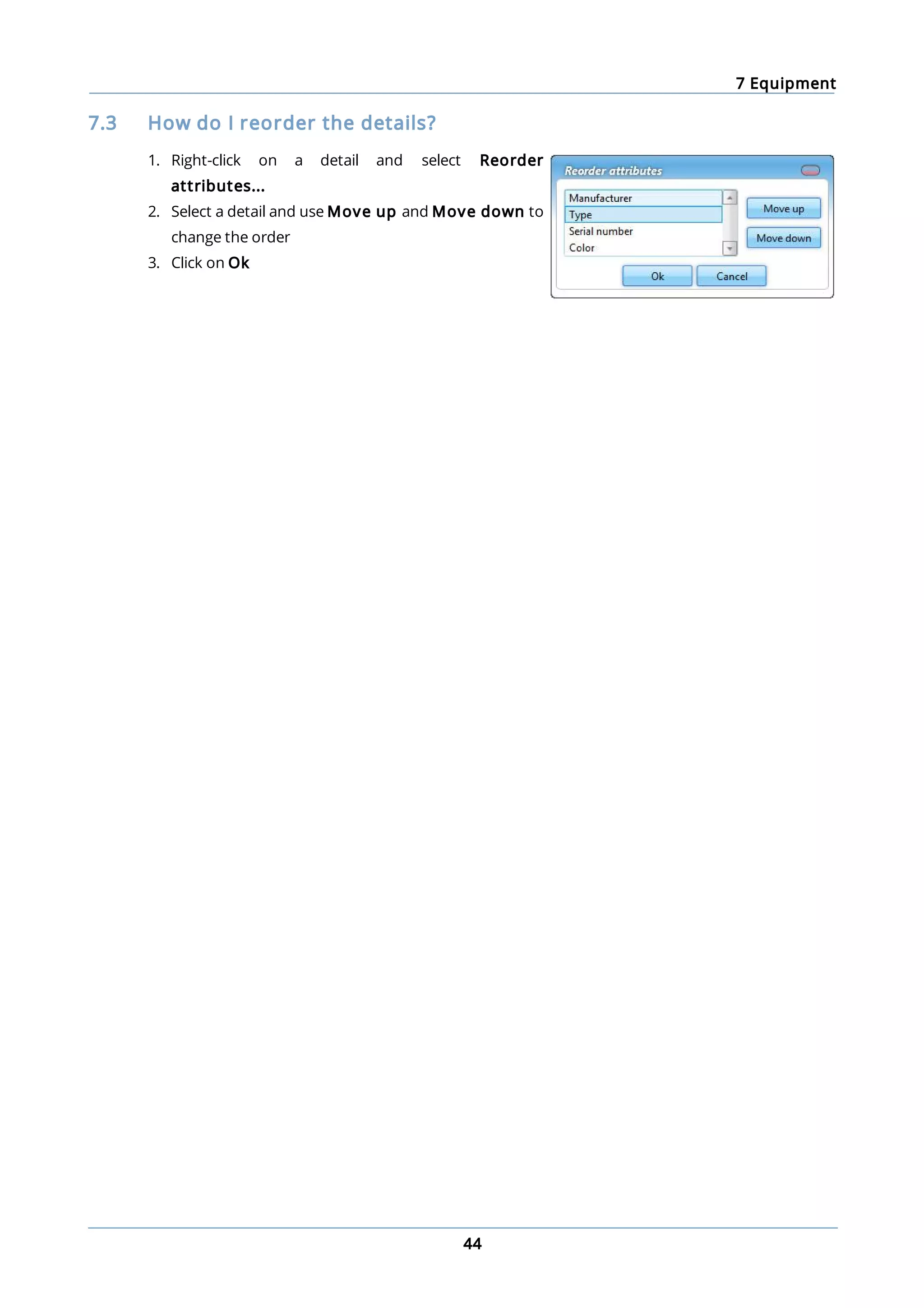
7.3 How do I reorder the details?
1. Right-click on a detail and select Reorder
attributes...
2. Select a detail and use Move up and Move down to
change the order
3. Click on Ok
8 Certificates
45
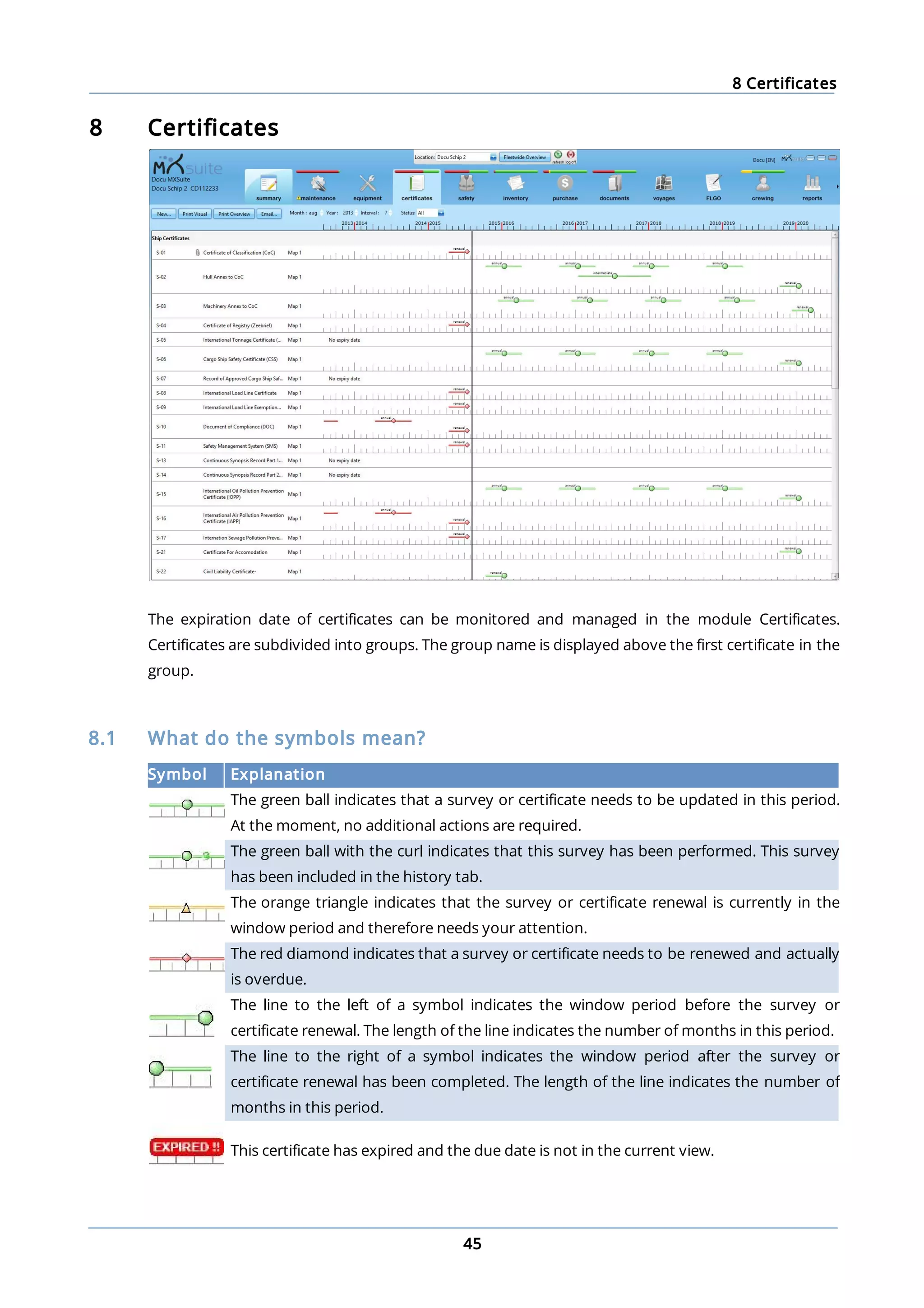
8 Certificates
The expiration date of certificates can be monitored and managed in the module Certificates.
Certificates are subdivided into groups. The group name is displayed above the first certificate in the
group.
8.1 What do the symbols mean?
Symbol Explanation
The green ball indicates that a survey or certificate needs to be updated in this period.
At the moment, no additional actions are required.
The green ball with the curl indicates that this survey has been performed. This survey
has been included in the history tab.
The orange triangle indicates that the survey or certificate renewal is currently in the
window period and therefore needs your attention.
The red diamond indicates that a survey or certificate needs to be renewed and actually
is overdue.
The line to the left of a symbol indicates the window period before the survey or
certificate renewal. The length of the line indicates the number of months in this period.
The line to the right of a symbol indicates the window period after the survey or
certificate renewal has been completed. The length of the line indicates the number of
months in this period.
This certificate has expired and the due date is not in the current view.
8 Certificates
46
8.2 How do I create a new certificate category?
1. Right-click on a certificate and select Edit
2. Type the name of the category in the Category field
3. Click on Ok
The new category can be selected when creating a new certificate or editing an existing certificate.
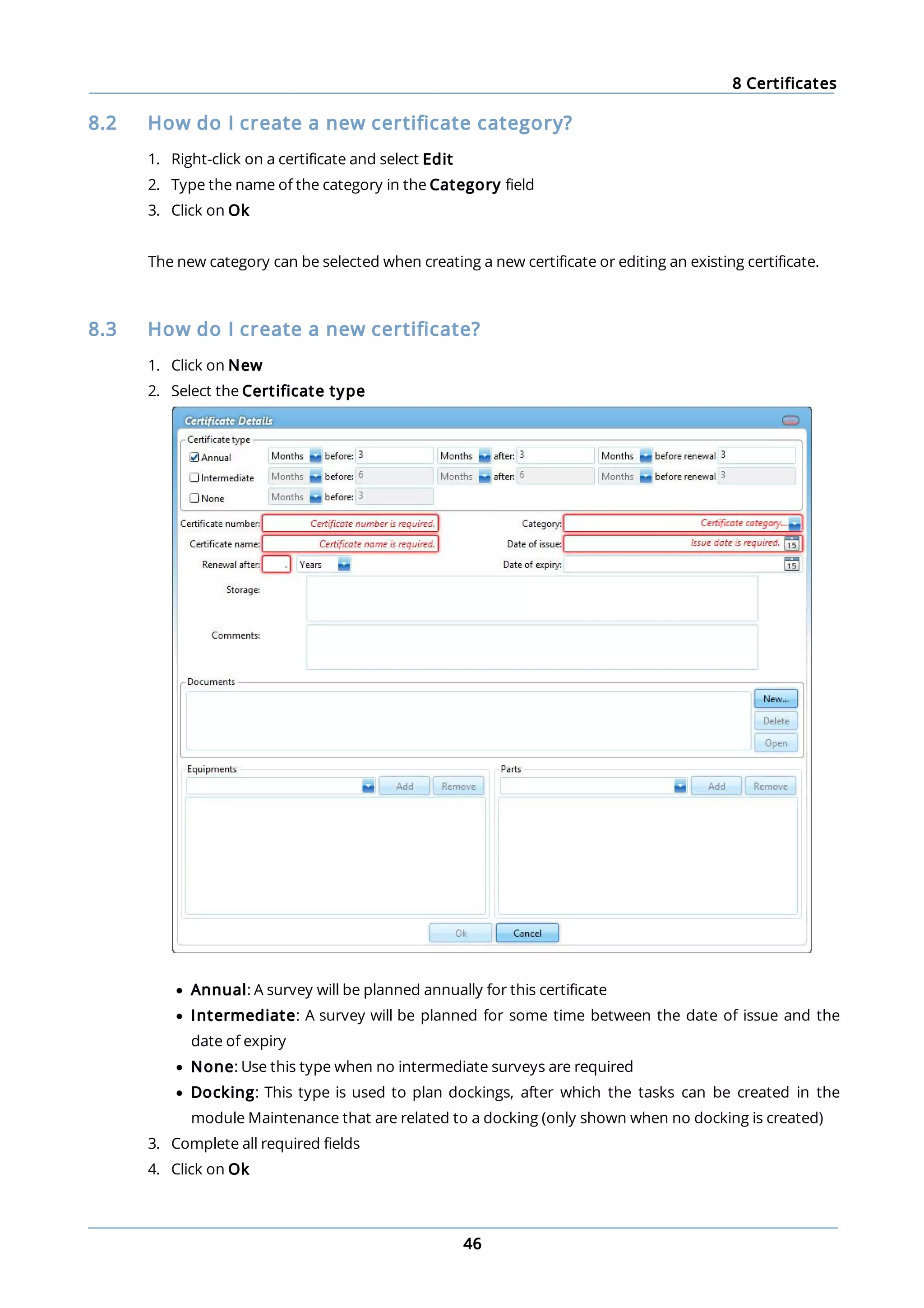
8.3 How do I create a new certificate?
1. Click on New
2. Select the Certificate type
· Annual: A survey will be planned annually for this certificate
· Intermediate: A survey will be planned for some time between the date of issue and the
date of expiry
· None: Use this type when no intermediate surveys are required
· Docking: This type is used to plan dockings, after which the tasks can be created in the
module Maintenance that are related to a docking (only shown when no docking is created)
3. Complete all required fields
4. Click on Ok
8 Certificates
47
Tip:
If a certificate is entered with an issue date but without an expiry date, enter a 0 in Renewal
after. This will remove the expiry date from the screen.
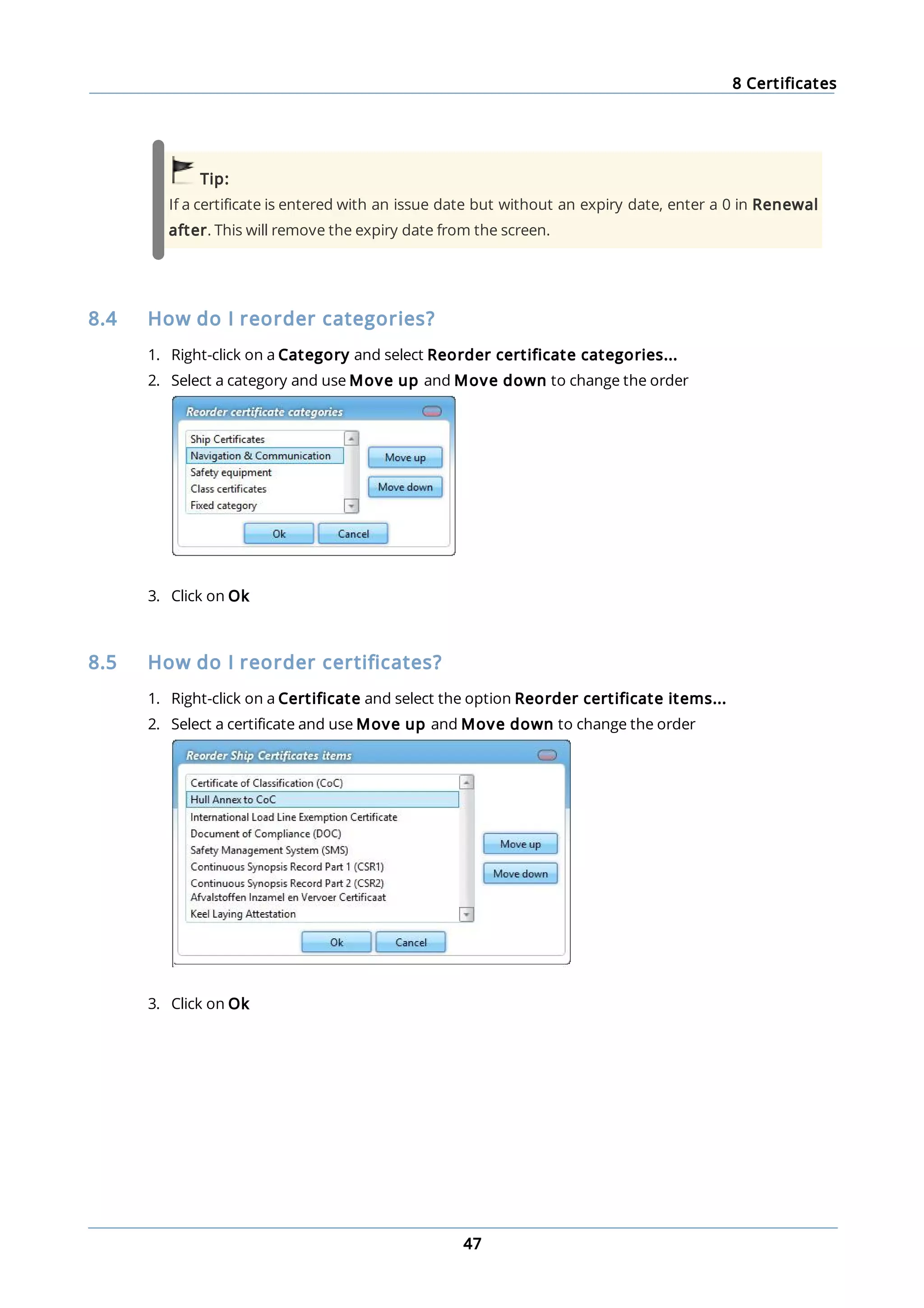
8.4 How do I reorder categories?
1. Right-click on a Category and select Reorder certificate categories...
2. Select a category and use Move up and Move down to change the order
3. Click on Ok
8.5 How do I reorder certificates?
1. Right-click on a Certificate and select the option Reorder certificate items...
2. Select a certificate and use Move up and Move down to change the order
3. Click on Ok
8 Certificates
48
8.6 How do I add an extra docking?
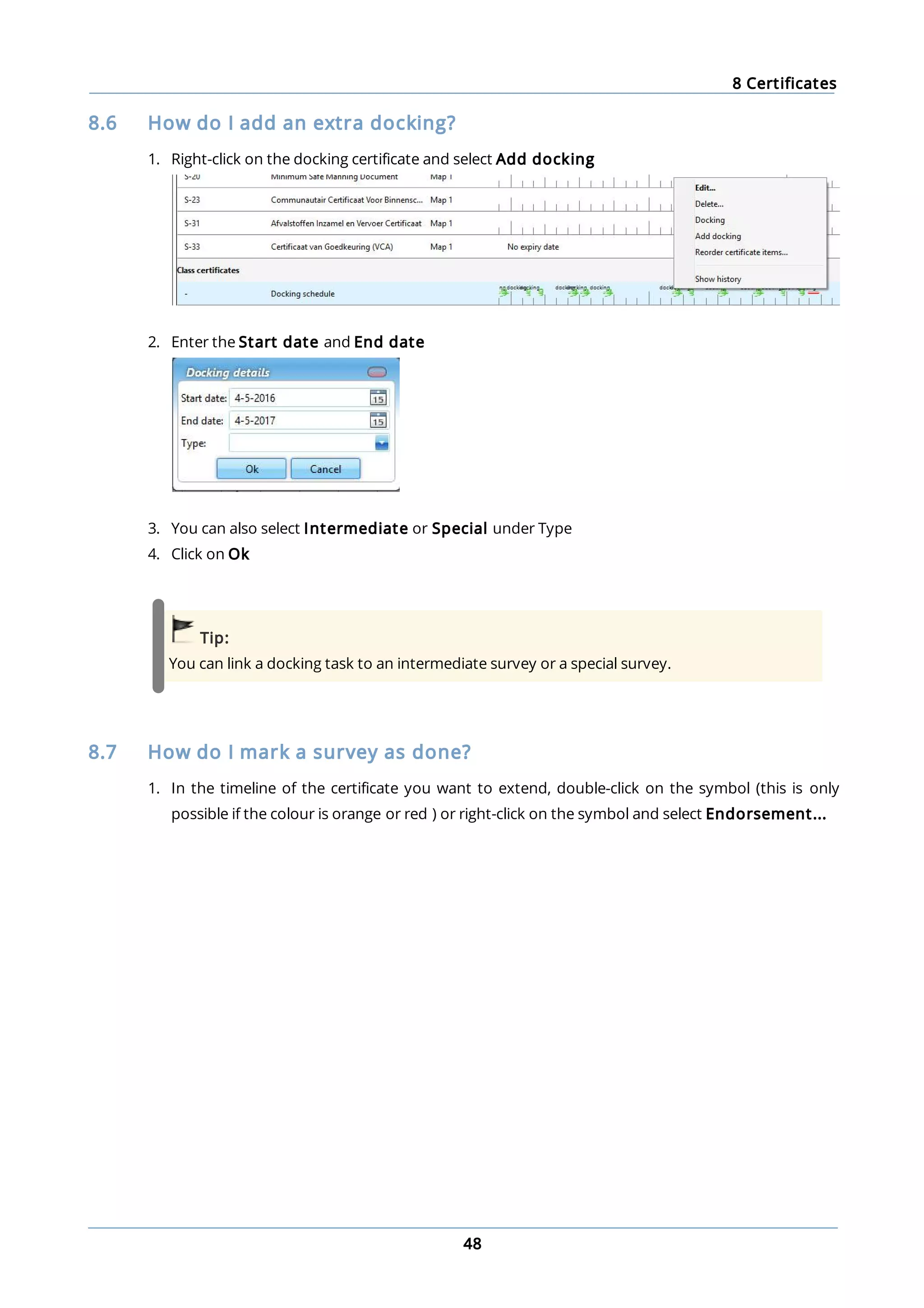
1. Right-click on the docking certificate and select Add docking
2. Enter the Start date and End date
3. You can also select Intermediate or Special under Type
4. Click on Ok
Tip:
You can link a docking task to an intermediate survey or a special survey.
8.7 How do I mark a survey as done?
1. In the timeline of the certificate you want to extend, double-click on the symbol (this is only
possible if the colour is orange or red ) or right-click on the symbol and select Endorsement...
8 Certificates
49
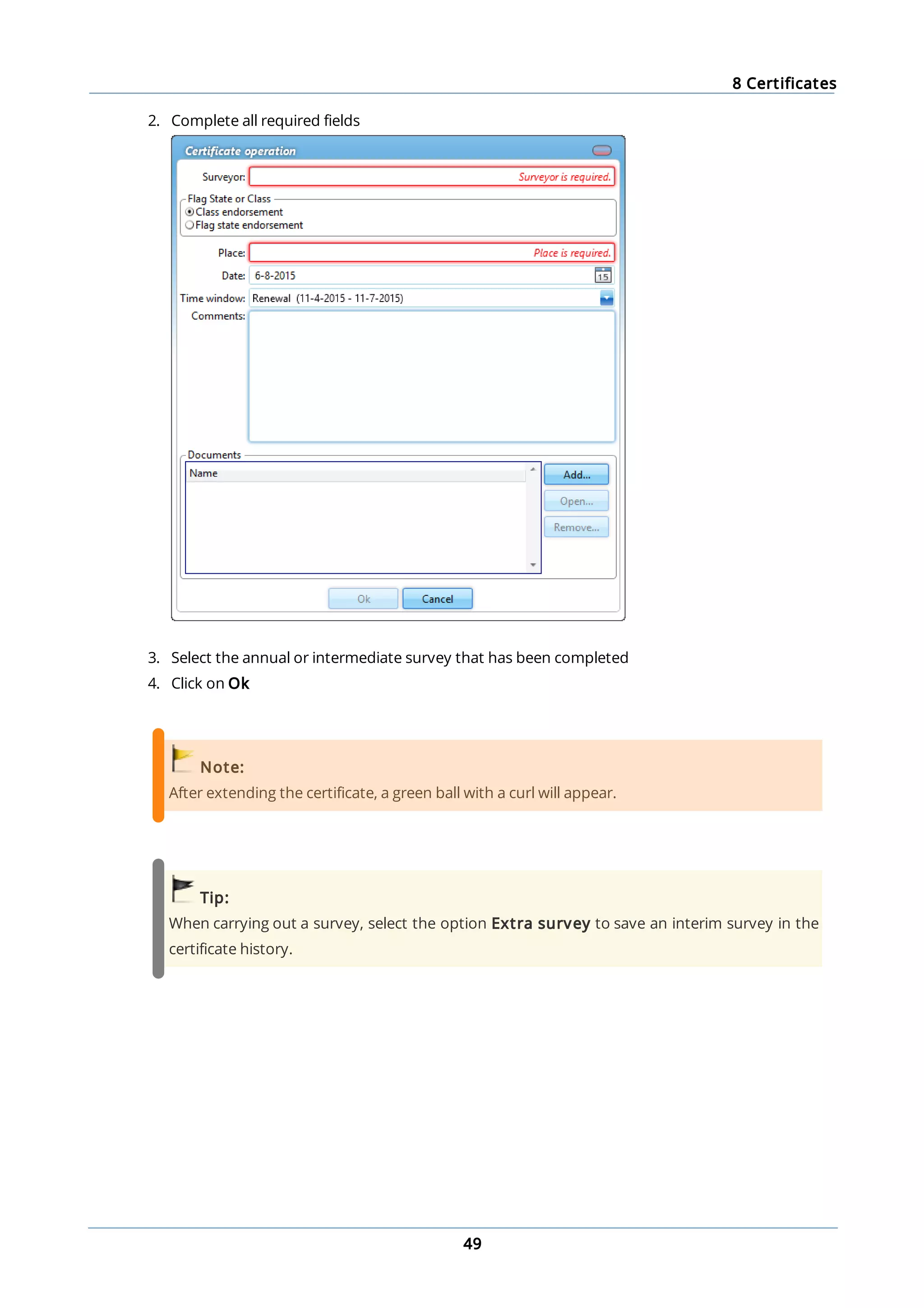
2. Complete all required fields
3. Select the annual or intermediate survey that has been completed
4. Click on Ok
Note:
After extending the certificate, a green ball with a curl will appear.
Tip:
When carrying out a survey, select the option Extra survey to save an interim survey in the
certificate history.
8 Certificates
50
8.8 How do I copy all certificates?
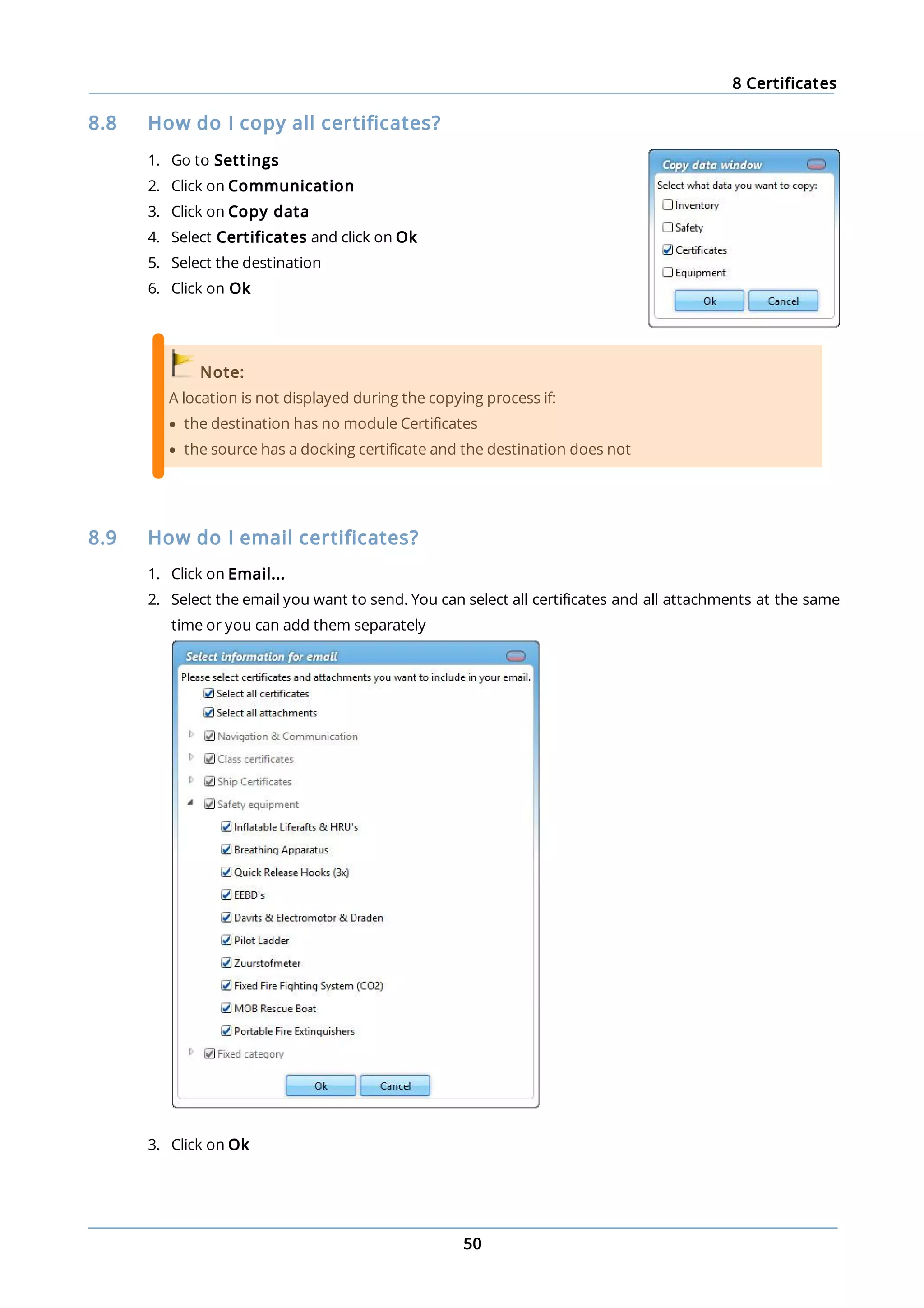
1. Go to Settings
2. Click on Communication
3. Click on Copy data
4. Select Certificates and click on Ok
5. Select the destination
6. Click on Ok
Note:
A location is not displayed during the copying process if:
· the destination has no module Certificates
· the source has a docking certificate and the destination does not
8.9 How do I email certificates?
1. Click on Email...
2. Select the email you want to send. You can select all certificates and all attachments at the same
time or you can add them separately
3. Click on Ok
9 Safety
51
9 Safety
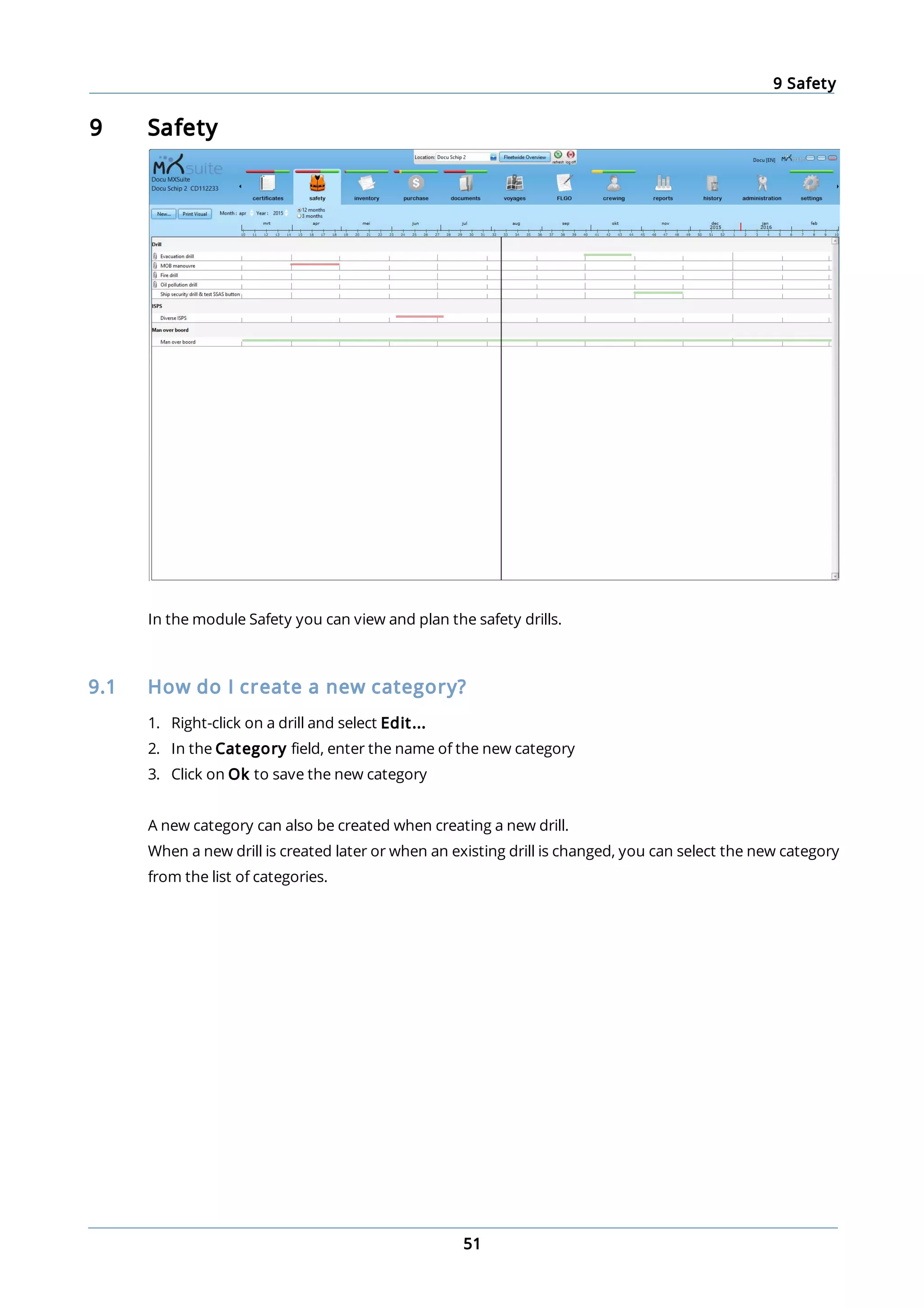
In the module Safety you can view and plan the safety drills.
9.1 How do I create a new category?
1. Right-click on a drill and select Edit...
2. In the Category field, enter the name of the new category
3. Click on Ok to save the new category
A new category can also be created when creating a new drill.
When a new drill is created later or when an existing drill is changed, you can select the new category
from the list of categories.
9 Safety
52
9.2 How do I add a new drill?
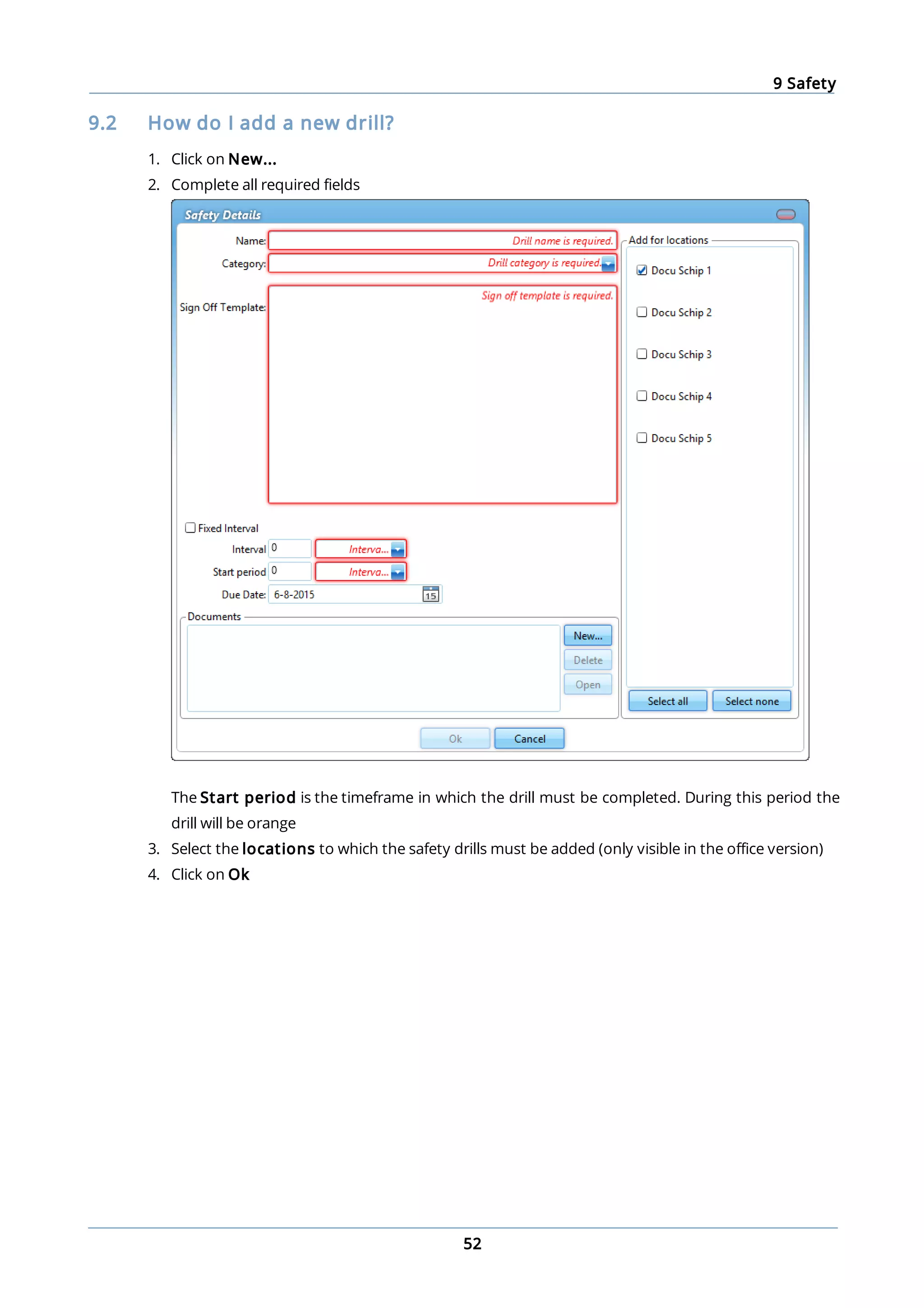
1. Click on New...
2. Complete all required fields
The Start period is the timeframe in which the drill must be completed. During this period the
drill will be orange
3. Select the locations to which the safety drills must be added (only visible in the office version)
4. Click on Ok
9 Safety
53
Note:
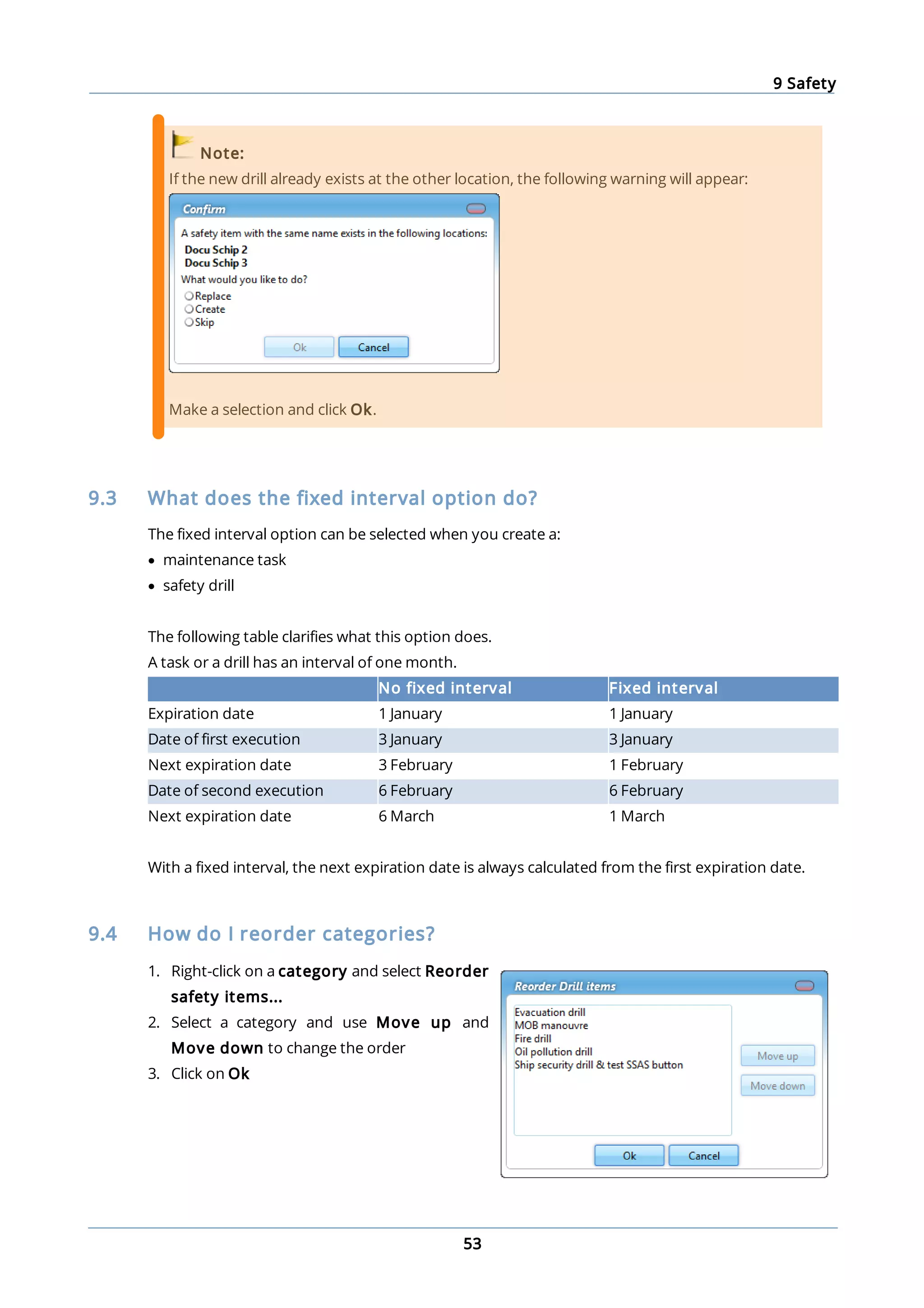
If the new drill already exists at the other location, the following warning will appear:
Make a selection and click Ok.
9.3 What does the fixed interval option do?
The fixed interval option can be selected when you create a:
· maintenance task
· safety drill
The following table clarifies what this option does.
A task or a drill has an interval of one month.
No fixed interval Fixed interval
Expiration date 1 January 1 January
Date of first execution 3 January 3 January
Next expiration date 3 February 1 February
Date of second execution 6 February 6 February
Next expiration date 6 March 1 March
With a fixed interval, the next expiration date is always calculated from the first expiration date.
9.4 How do I reorder categories?
1. Right-click on a category and select Reorder
safety items...
2. Select a category and use Move up and
Move down to change the order
3. Click on Ok
9 Safety
54
9.5 How do I change the ordering of the drills?
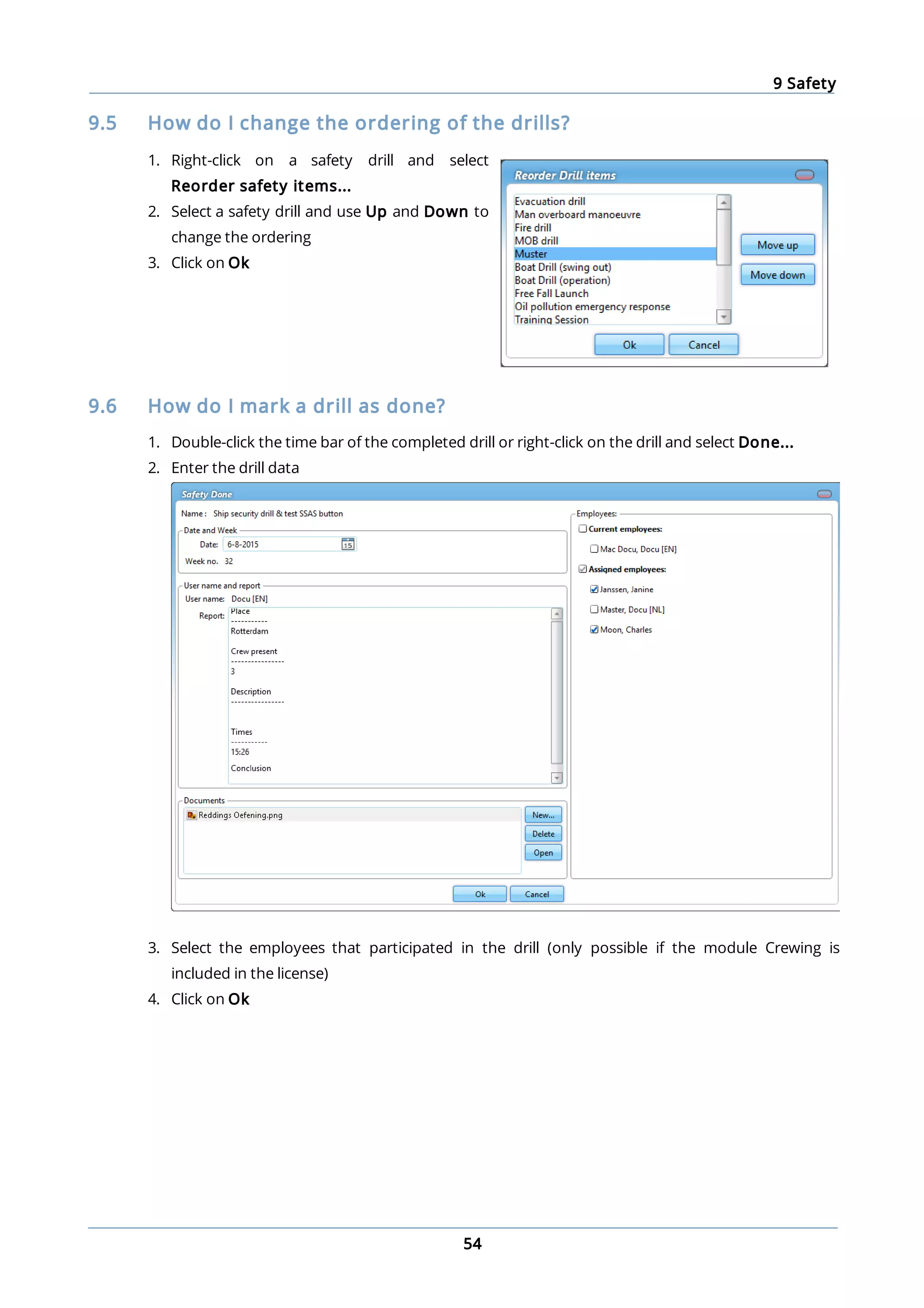
1. Right-click on a safety drill and select
Reorder safety items...
2. Select a safety drill and use Up and Down to
change the ordering
3. Click on Ok
9.6 How do I mark a drill as done?
1. Double-click the time bar of the completed drill or right-click on the drill and select Done...
2. Enter the drill data
3. Select the employees that participated in the drill (only possible if the module Crewing is
included in the license)
4. Click on Ok
9 Safety
55
9.7 How do I copy drills to another ship?
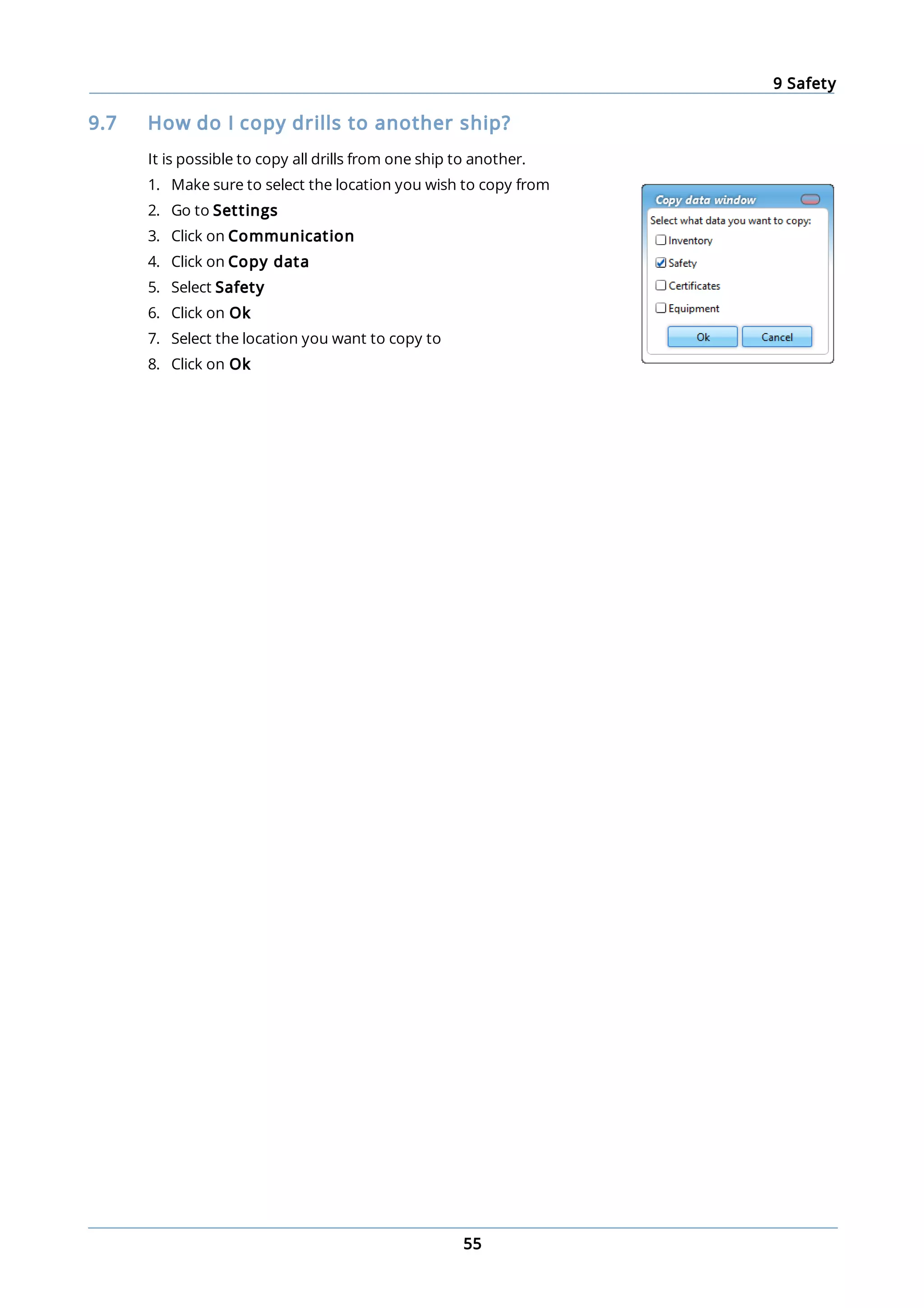
It is possible to copy all drills from one ship to another.
1. Make sure to select the location you wish to copy from
2. Go to Settings
3. Click on Communication
4. Click on Copy data
5. Select Safety
6. Click on Ok
7. Select the location you want to copy to
8. Click on Ok
10 Inventory
56
10 Inventory
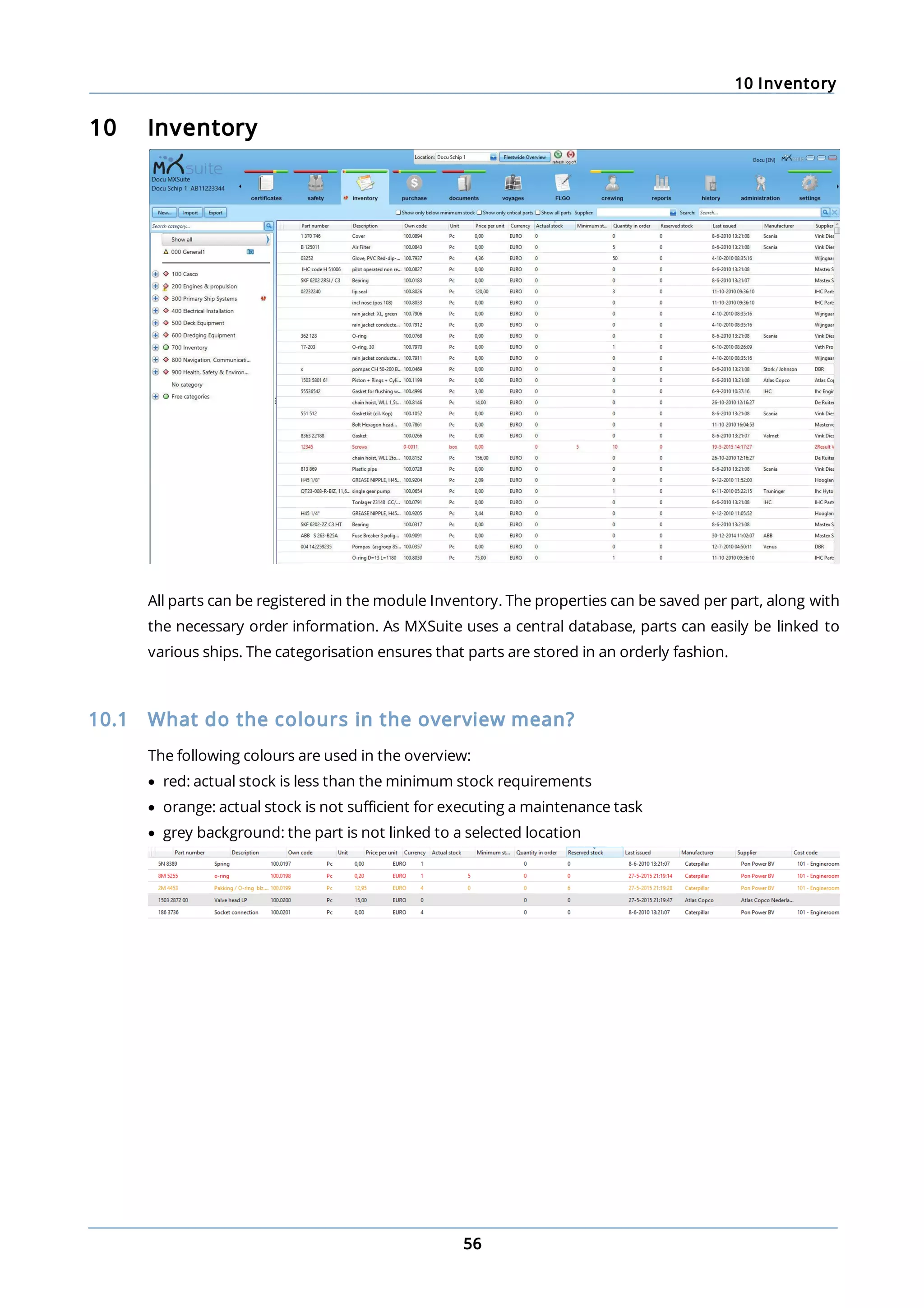
All parts can be registered in the module Inventory. The properties can be saved per part, along with
the necessary order information. As MXSuite uses a central database, parts can easily be linked to
various ships. The categorisation ensures that parts are stored in an orderly fashion.
10.1 What do the colours in the overview mean?
The following colours are used in the overview:
· red: actual stock is less than the minimum stock requirements
· orange: actual stock is not sufficient for executing a maintenance task
· grey background: the part is not linked to a selected location
10 Inventory
57
10.2 How do I add a part?
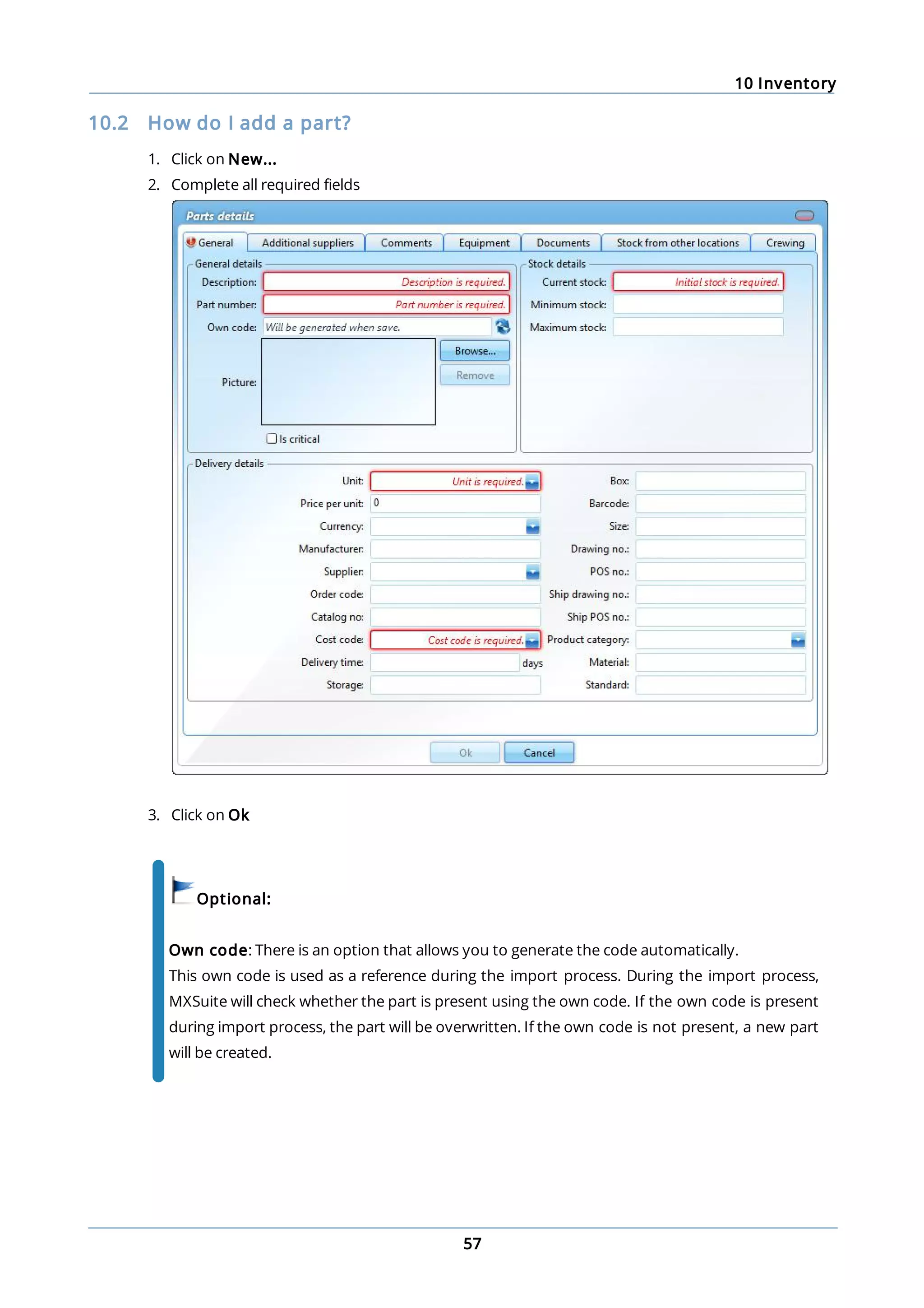
1. Click on New...
2. Complete all required fields
3. Click on Ok
Optional:
Own code: There is an option that allows you to generate the code automatically.
This own code is used as a reference during the import process. During the import process,
MXSuite will check whether the part is present using the own code. If the own code is present
during import process, the part will be overwritten. If the own code is not present, a new part
will be created.
10 Inventory
58
10.3 How do I link extra suppliers to a part?
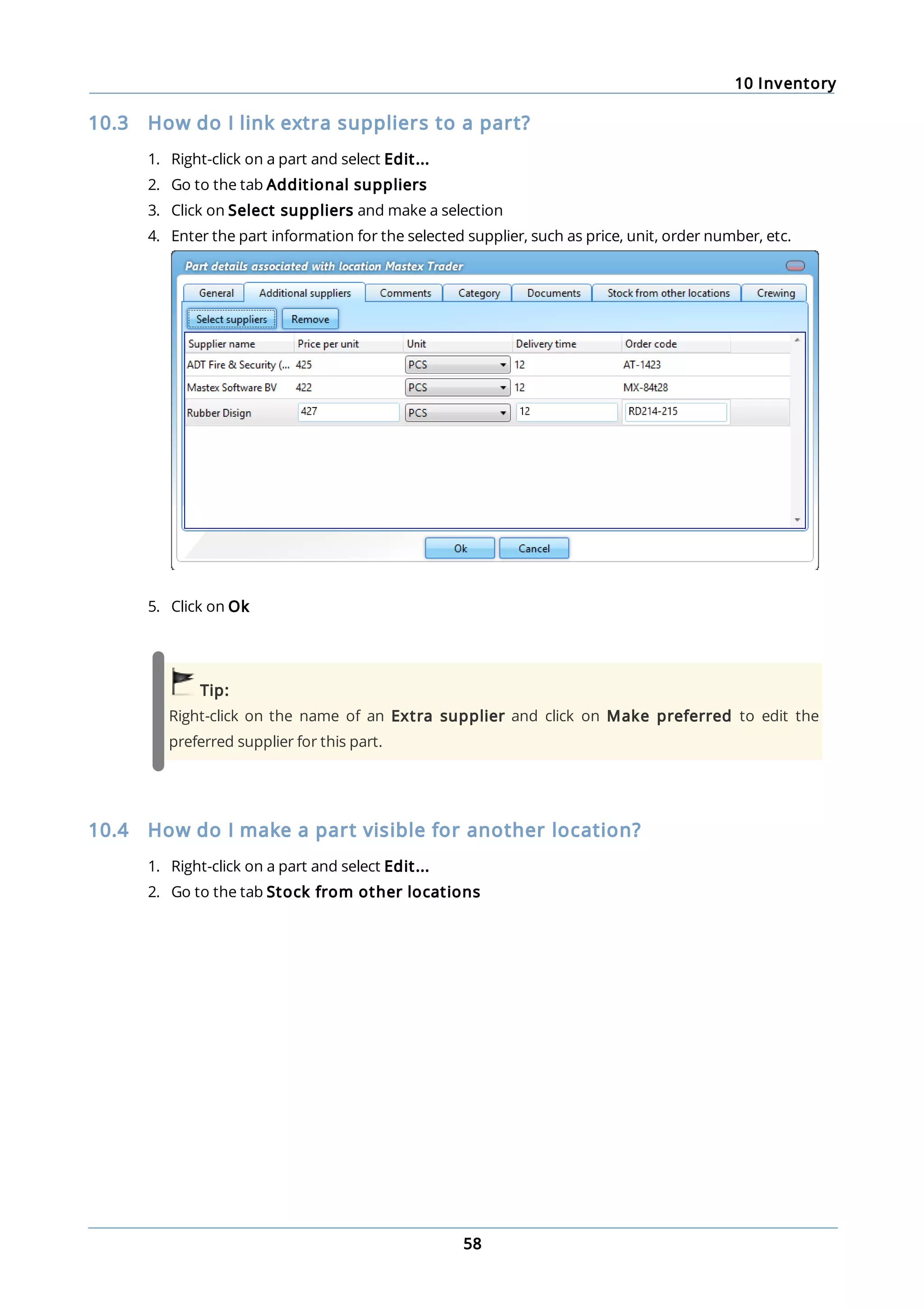
1. Right-click on a part and select Edit...
2. Go to the tab Additional suppliers
3. Click on Select suppliers and make a selection
4. Enter the part information for the selected supplier, such as price, unit, order number, etc.
5. Click on Ok
Tip:
Right-click on the name of an Extra supplier and click on Make preferred to edit the
preferred supplier for this part.
10.4 How do I make a part visible for another location?
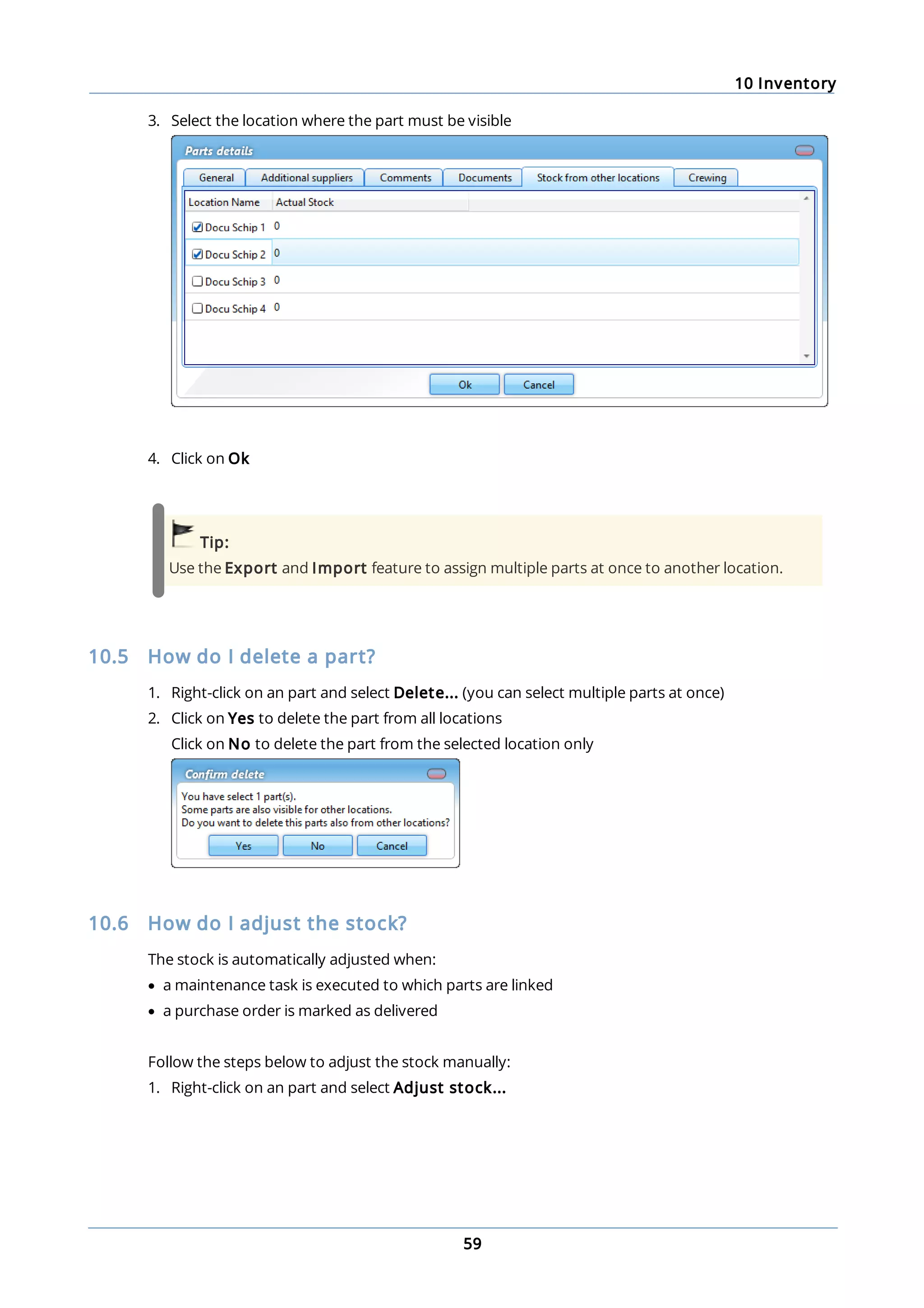
1. Right-click on a part and select Edit...
2. Go to the tab Stock from other locations
10 Inventory
59
3. Select the location where the part must be visible
4. Click on Ok
Tip:
Use the Export and Import feature to assign multiple parts at once to another location.
10.5 How do I delete a part?
1. Right-click on an part and select Delete... (you can select multiple parts at once)
2. Click on Yes to delete the part from all locations
Click on No to delete the part from the selected location only
10.6 How do I adjust the stock?
The stock is automatically adjusted when:
· a maintenance task is executed to which parts are linked
· a purchase order is marked as delivered
Follow the steps below to adjust the stock manually:
1. Right-click on an part and select Adjust stock...
10 Inventory
60
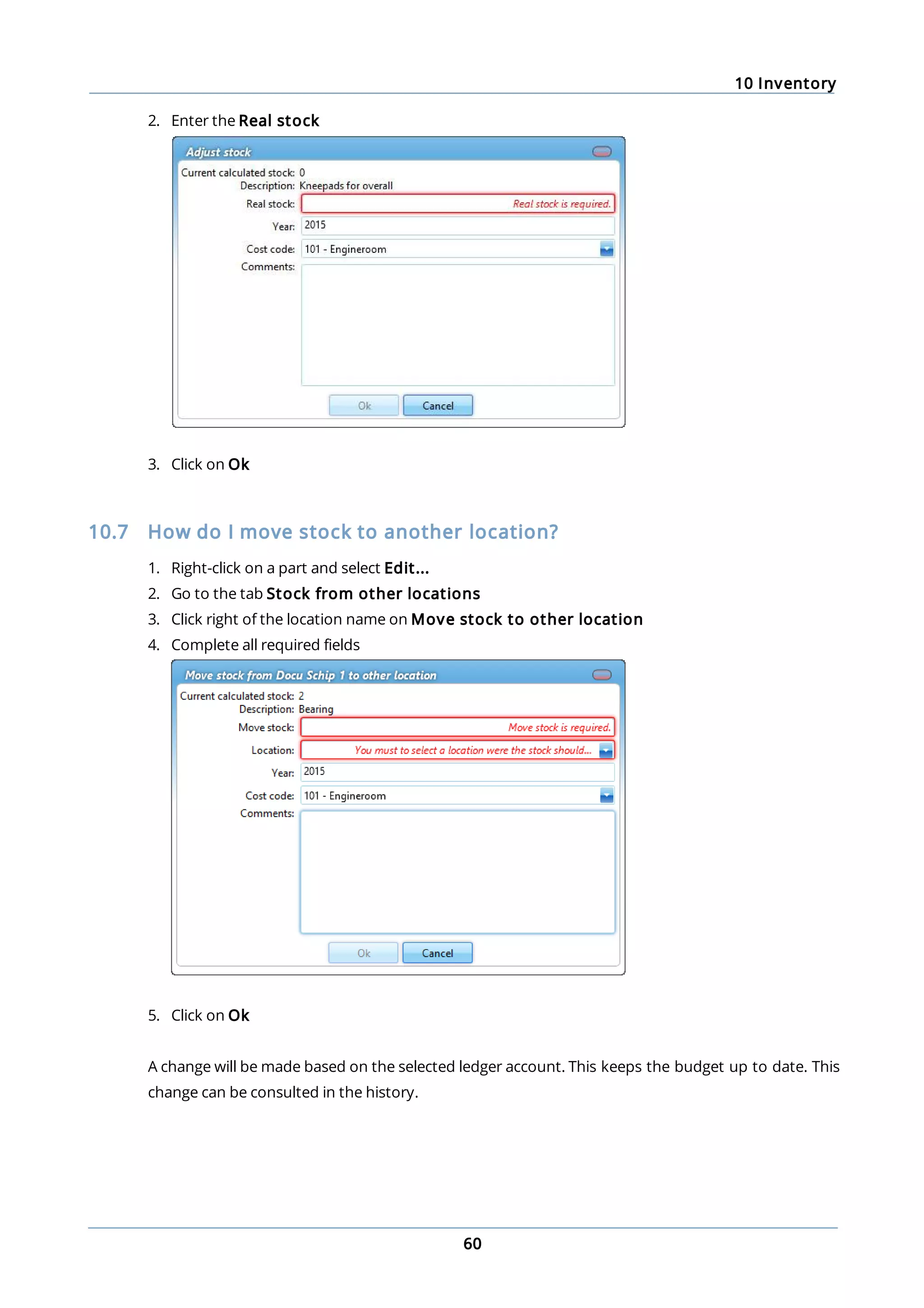
2. Enter the Real stock
3. Click on Ok
10.7 How do I move stock to another location?
1. Right-click on a part and select Edit...
2. Go to the tab Stock from other locations
3. Click right of the location name on Move stock to other location
4. Complete all required fields
5. Click on Ok
A change will be made based on the selected ledger account. This keeps the budget up to date. This
change can be consulted in the history.
10 Inventory
61
10.8 How do I see the history of a part?
1. Go to the module History
2. Select Inventory
3. Click on Search
4. Use the Filters to add the history of the right part to the overview
Tip:
Right-click on an article and select Show history. MXSuite will now open the module History
and display the data for the selected part.
10.9 How do I link an article to a category?
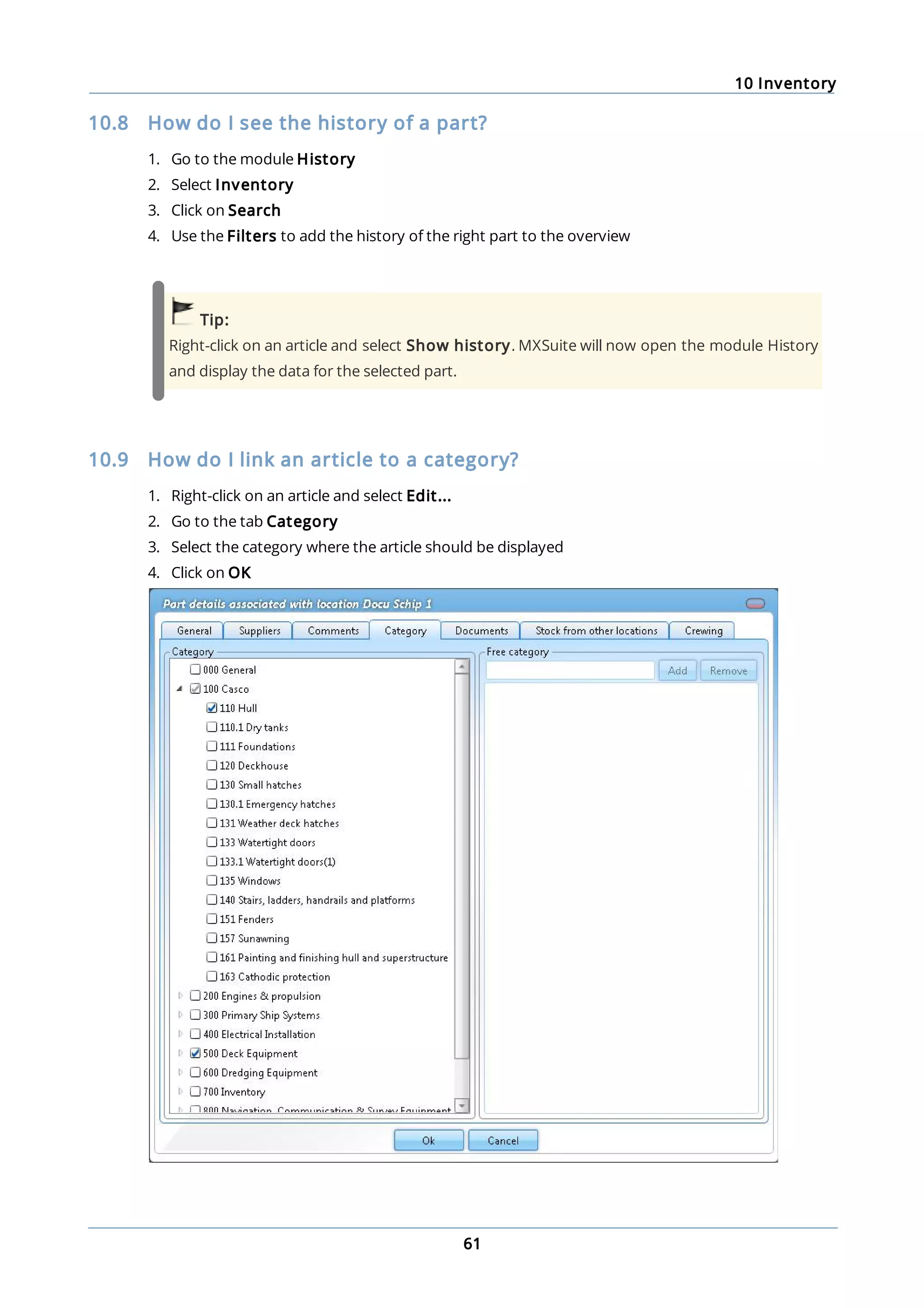
1. Right-click on an article and select Edit...
2. Go to the tab Category
3. Select the category where the article should be displayed
4. Click on OK
10 Inventory
62
Tip:
If an article is created while a category is selected, the article will be linked to the selected
category.
11 Purchase
63
11 Purchase
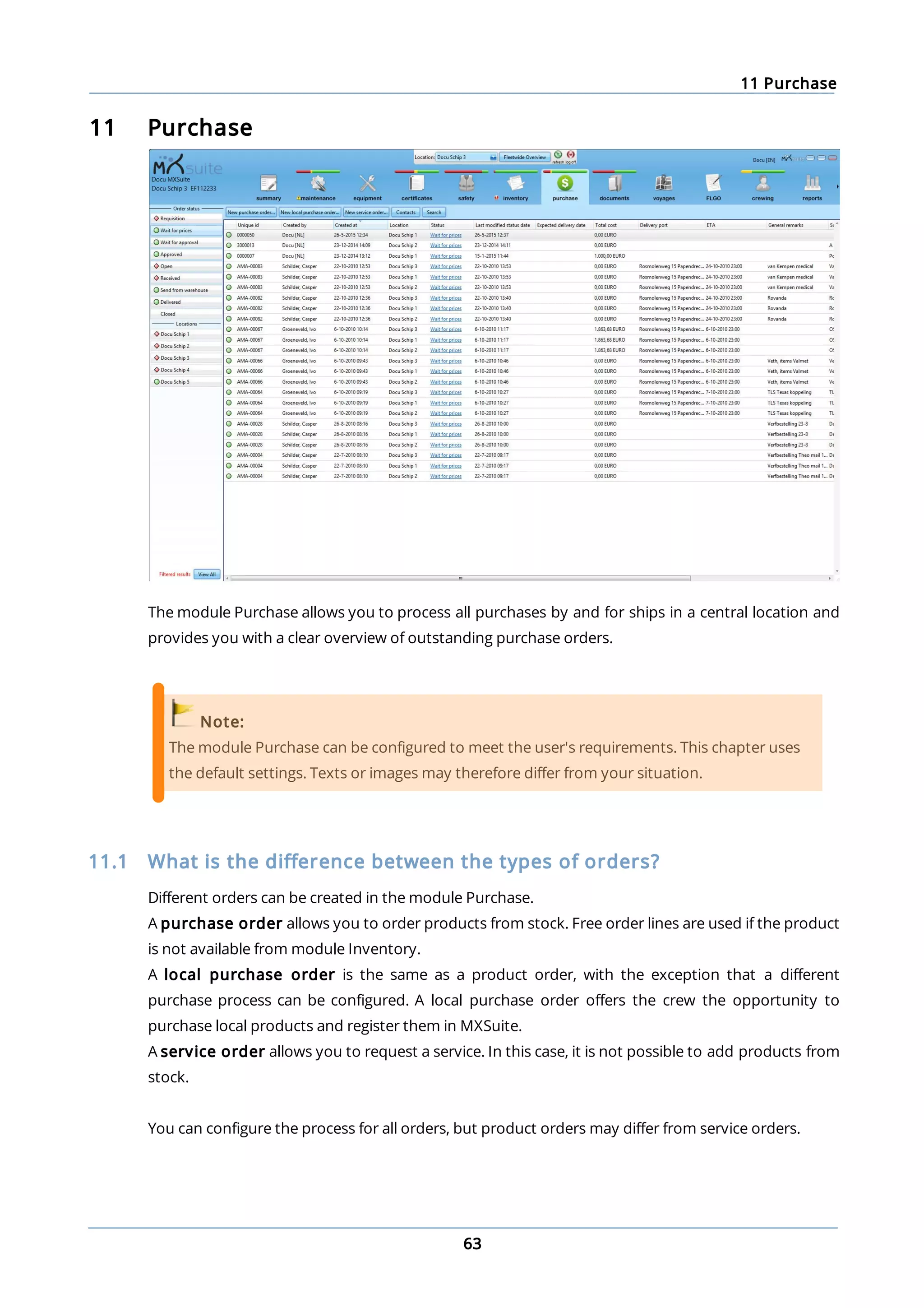
The module Purchase allows you to process all purchases by and for ships in a central location and
provides you with a clear overview of outstanding purchase orders.
Note:
The module Purchase can be configured to meet the user's requirements. This chapter uses
the default settings. Texts or images may therefore differ from your situation.
11.1 What is the difference between the types of orders?
Different orders can be created in the module Purchase.
A purchase order allows you to order products from stock. Free order lines are used if the product
is not available from module Inventory.
A local purchase order is the same as a product order, with the exception that a different
purchase process can be configured. A local purchase order offers the crew the opportunity to
purchase local products and register them in MXSuite.
A service order allows you to request a service. In this case, it is not possible to add products from
stock.
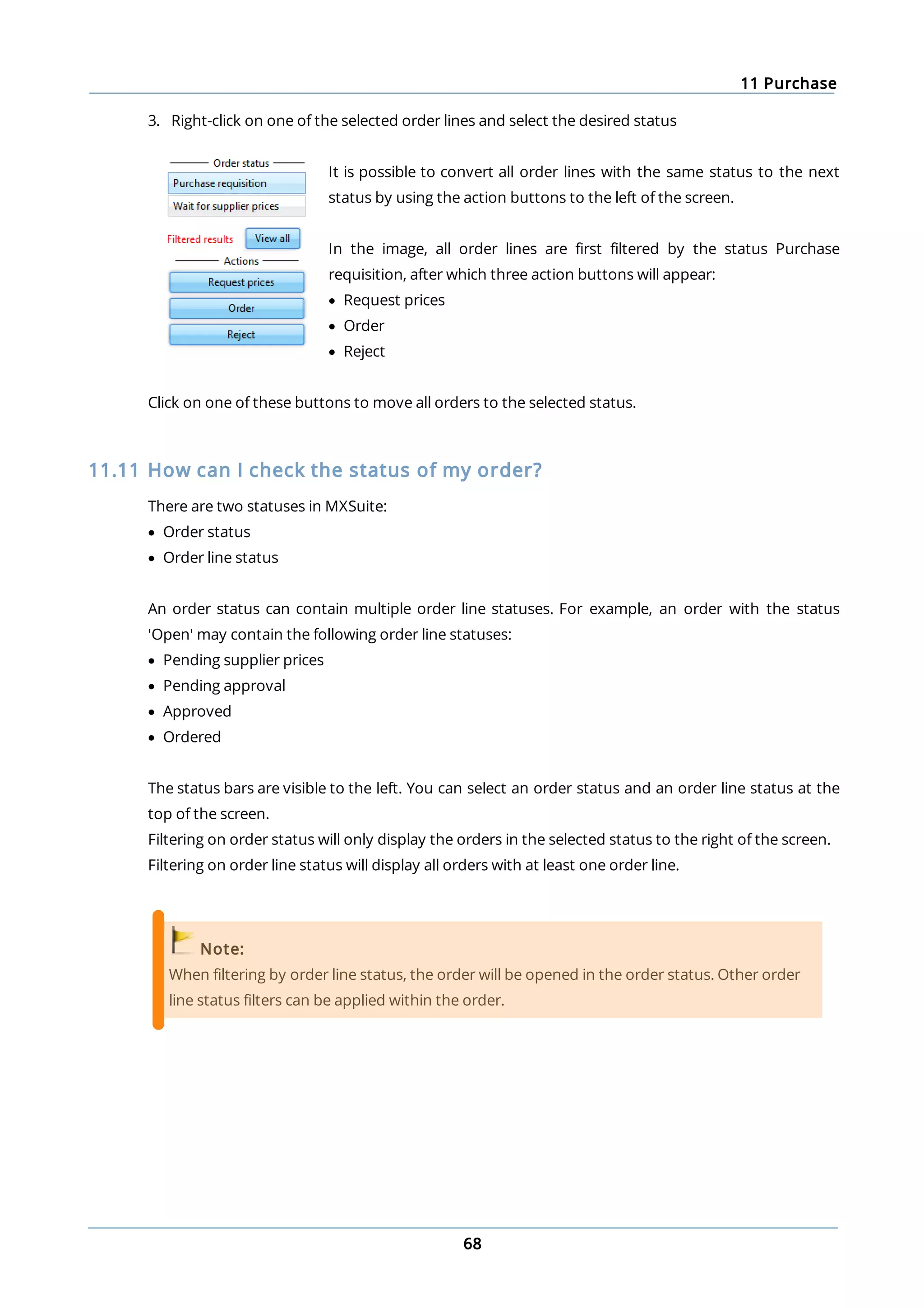
You can configure the process for all orders, but product orders may differ from service orders.
11 Purchase
64
11.2 How do I create a purchase order?
1. Click on New purchase order...
2. Enter a search term in the column own code and click on to open the list of parts
3. Select one or more parts and click on Ok
4. The selected parts will be added to the order
5. Order lines can be automatically added to an order by clicking on Insert required inventory.
This will add all parts to the order whose stock is lower than the minimum requirement and for
which no previous order has been placed
6. Enter the desired amount for all order lines
7. Click on Save & send to save the order and to forward it for further processing. Click on Save
as draft to edit the order or to send it at a later date
11.3 How do I create a local purchase order?
1. Click on New local purchase order...
2. Enter a search term in the column own code and click on to open the list of parts
3. Select one or more parts and click on Ok
4. The selected parts will be added to the order
5. Enter the desired amount for all order lines
6. Click on Save & send to save the order and to forward it for further processing. Click on Save
as draft to edit the order or to send it at a later date
11.4 How do I create a service order?
1. Click on New service order...
2. At the top right of the window, select the machine that needs servicing
3. Clearly indicate the necessary service in the order line
4. Click on Save & send to save the order and to forward it for further processing. Click on Save
as draft to edit the order or to send it at a later date
11.5 How do I add documents to an order line?
You can add documents per order line.
1. Click on in front of the order line
2. Click on Add in Documents
11 Purchase
65
Tip:
If the option Email is selected, the document will be included when the order will be emailed
to the supplier.
11.6 How do I use Incoterms in my order?
The international Incoterms are used to determine the rights and duties of buyers and sellers during
the international transport of goods.
The Incoterm of relevance to the order can be selected or changed at the top right of the order
screen.
11 Purchase
66
When an Incoterm is selected for which the transport costs are borne by the customer, MXSuite
adds an extra order line to the order on which the order costs are mentioned.
Tip:
Using Incoterm Ex Works, a line with transport costs is added to the order.
11.7 How do I add the expected delivery date to an order line?
1. Open a purchase order
2. Right-click on an order line and select Set expected delivery date...
3. Select a date
4. Click Ok
Tip:
You can select multiple order lines using Ctrl or Shift.
11.8 How do I change the exchange rate in an order?
1. Open a purchase order
2. Select the desired order line and click on Currency
3. Select the desired currency
4. Open the tab Financial
5. You can now change the exchange rate for this order. The exchange rate as configured in
MXSuite module Administration is used by default
6. Click on Ok
11 Purchase
67
11.9 How do I enter the discount for an order?
1. Open an order
2. Enter the percentage or the discount price
3. Click on Ok
Note:
Only one value is necessary. If a discount percentage is entered, the discount price will be
calculated. If a discount price is entered, the discount percentage will be calculated.
11.10 How do I change the status of multiple order lines?
1. Open a purchase order
2. Select the order lines to be moved to another status
11 Purchase
68
3. Right-click on one of the selected order lines and select the desired status
It is possible to convert all order lines with the same status to the next
status by using the action buttons to the left of the screen.
In the image, all order lines are first filtered by the status Purchase
requisition, after which three action buttons will appear:
· Request prices
· Order
· Reject
Click on one of these buttons to move all orders to the selected status.
11.11 How can I check the status of my order?
There are two statuses in MXSuite:
· Order status
· Order line status
An order status can contain multiple order line statuses. For example, an order with the status
'Open' may contain the following order line statuses:
· Pending supplier prices
· Pending approval
· Approved
· Ordered
The status bars are visible to the left. You can select an order status and an order line status at the
top of the screen.
Filtering on order status will only display the orders in the selected status to the right of the screen.
Filtering on order line status will display all orders with at least one order line.
Note:
When filtering by order line status, the order will be opened in the order status. Other order
line status filters can be applied within the order.
11 Purchase
69
11.12 How can I see the progress of an order line?
Right-click on an order line and select View progress details...
11.13 How do I create a backorder?
When an order has not been delivered in full, a backorder can be created for the non-delivered
parts.
1. Mark an order line as Delivered (status name depends on the configuration)
2. Enter the number of delivered parts and any additional delivery comments
3. Click on Ok
4. Click on Make backorder
5. A new order line will be created in the existing order with the number of non-delivered parts
11 Purchase
70
Tip:
In addition to creating a backorder, you can also skip the difference. This option allows you to
move the order to the next status without creating a backorder.
11.14 How do I use the search function?
Click on Search to open the search window.
Important:
When the search screen is closed, the search filter stays active.
Note:
When the list with orders is filtered by status or location, the search will only be performed
within those parameters.
11.15 How do I see closed orders?
1. Click on Search to open the search screen
2. Select the option Include closed orders
3. You will now see closed orders in the order overview
Closed orders can be identified by the lack of an icon.
The status of the order also makes it clear that it has been closed.
Tip:
Select the order status Closed to see only the closed orders.
This status is only visible if the closed orders are included in
the overview.
11 Purchase
71
11.16 How do I link a supplier to an order line?
1. Open a product order
2. Select the order lines you want to link to a supplier
3. Right-click on a selected order line and select Select supplier...
4. Select the suppliers used for the order line by using the buttons and
5. Click on Save & close
12 Documents
72
12 Documents
In the module Documents, documents can be easily managed and synchronised across the entire
fleet to ensure that ships have instant access to accurate documentation.
Documents can also be created based on a template, to ensure that all created documents follow
the right layout. User forms can also be created in this module.
12 Documents
73
12.1 How do I create a new document category?
1. Click New Category... or right-click on an empty part of the tree structure and select New...
2. Complete all required fields
3. In the middle column, select the user groups that can view this new category and assign the
desired rights
4. In the right column, select the locations that can view this category
5. Click on Save and close
Tip:
Right-click on an existing category and then click New... to fill the above category.
12.2 How do I copy a category?
1. Right-click on the category and select Copy
2. Select the location you want to copy the category to
3. Right-click on the category and select Paste
4. A new category will be created with the copied documents. The pop-up window shows how
many documents and categories have been copied
12 Documents
74
12.3 How do I assign roles to categories?
1. Right-click on a document category and select Edit...
2. In the central column (visible for user groups) you can select a role per user group
12.4 How do I create a new document?
1. Click on New document
2. Click on to select the document
3. Enter or edit the name. The name of the document will be automatically generated based on
the chosen document
4. In the right column, select the locations for which the document should be visible
5. Complete all required fields
6. Click on Save and close
12 Documents
75
Optional:
Description: Enter a description of the document.
Tags: To be able to search for certain words using the search function.
Confidential: Indicate whether this is a confidential document. Only authorised users will
have access to this document. This document will not appear in the list for non-authorised
users.
Sign: If the document has to be signed before it can be opened, select this option. In order to
open the document, the user will first be prompted to enter the password.
Notify user: The user will be notified of any changes to the document when starting
MXSuite.
Editable: Select this option if the document needs to be edited. This makes it possible to edit
the document at a later date and save it in the database.
12.5 How do I create a template?
1. Click on Templates at the top left
2. In the screen Manage templates, click on New... You can now enter the basic information from
the new template
3. Click on to link the document
4. Enter the Name for the template
5. Select the Categories for which the template can be used
12 Documents
76
6. Select the Locations that can use the template
7. Select the User groups that can use the template
8. Click on Save and close to create the template
12.6 How do I edit a template?
1. Click on Templates at the top left
2. Right-click on the template and select Edit template...
3. The template can now be edited in an external editor
4. Save the file in the external editor and close the editor
5. Click on Save
12.7 How do I create a document based on a template?
1. Click on New template document
2. Select a template from the drop-down menu
3. Complete all required fields
4. Select the location in which the document has to be visible
5. Click on Save and close to create a document based on the template
12.8 How do I complete a form?
1. Click on New form and select the desired form
2. Enter at a minimum the mandatory fields
3. Select the location(s) where the form should be displayed
4. Click on Save and close to create the form
5. Enter at a minimum the mandatory fields
6. Click on Save and close
12.9 How do I make a form ‘read only’?
1. Right-click on the form
2. Select Edit properties...
3. Select the option Is closed
12 Documents
77
Please note:
You may find that the option Is closed is not visible after step 2. In that case, click on More
details >> and go to step 3.
Important!
Only users with the authorisation Allowed to reopen form may reopen the form.
12.10 How do I delete a document?
1. Right-click on the relevant document in the document list and select Delete...
2. Select the location from which the document should be deleted
3. Click on Ok
4. Choose Select all to delete the document from the office version as well
12.11 What is the difference between duplicate and copy?
When you duplicate a document or category, they can only be copied in the same category.
When you copy a document or category, you can also copy them to another category.
12.12 How do I obtain editing rights?
To prevent discrepancies in the content of a document, an editable document cannot be edited at
multiple locations at the same time. This means it can either be edited in the office or on the ship. If
the menu option Edit document is not available, editing rights must be requested.
1. Right-click on the document
2. Select the option Request edit
This request will be sent via synchronisation to the location that currently has editing rights. A
subsequent synchronisation will accept the request and grant editing rights.
Note:
The location that adds the document in MXSuite has editing rights by default.
12 Documents
78
12.13 How do I see what happened to a document?
1. Right-click on a document
2. Select View log...
12.14 How do I search for a document?
1. Enter a search term into Search...
2. All documents that contain the search term will be displayed
Note:
The search will be carried out at all locations. The search can be specified by selecting a specific
view option or category.
Only the document properties are searched (e.g. name, description, tags, etc.), not the
document content.
12 Documents
79
12.15 How do I create a document task?
1. Right-click on the document and select Add task
2. Enter the fields Due date and Description
3. Assign the task to a user
4. Select the Status
5. Click on Save and close
Optional:
Private: only visible by this person; not synchronised to the ship.
Confidential: only visible to the authorised user group.
13 Voyages
80
13 Voyages
The module Voyages was designed to clearly register all travel data. You can add voyage documents,
voyage times and important notes. You can design this module to suit your own preferences. To do
so, simply change the preference settings in the module Administration. This manual describes the
default settings.
Tip:
You can edit the default names of the Loading and Discharging tabs in the module
Administration. For example: you can view country and port names the tabs.
13 Voyages
81
13.1 How do I create a new voyage?
1. Click on New...
2. Complete all required fields
Click on to select a date and time or on to use the current date and time
Click on to search for a port
3. Click on Save
13.2 How do I add a new loading or discharging tab?
1. Right-click on a Loading or Discharging tab
2. Click on Add loading tab to add a loading tab
Click on Add discharging tab to add a discharging tab
3. Complete all required fields
4. Click on Save
13.3 How do I change the name of a tab?
1. Right-click on a Tab and select Rename
2. Change the name of the tab and press Enter
13 Voyages
82
13.4 How do I delete a tab?
1. Right-click on a Tab and select Delete
2. Confirm that you want to delete the tab in the pop-up that appears
13.5 How do I add a document to a voyage?
1. Open a voyage and select the tab you want to add a document to
2. Click on Documents...
3. The new documents can be added to the pop-up window
There are two kinds of documents that can be added:
· Documents
· Documents based on a template
13.6 How do I create a new document?
1. Click on New document
2. Click on to select the document
3. Enter or edit the name. The name of the document will be automatically generated based on
the chosen document
13 Voyages
83
4. In the right column, select the locations for which the document should be visible
5. Complete all required fields
6. Click on Save and close
Optional:
Description: Enter a description of the document.
Tags: To be able to search for certain words using the search function.
Confidential: Indicate whether this is a confidential document. Only authorised users will
have access to this document. This document will not appear in the list for non-authorised
users.
Sign: If the document has to be signed before it can be opened, select this option. In order to
open the document, the user will first be prompted to enter the password.
Notify user: The user will be notified of any changes to the document when starting
MXSuite.
Editable: Select this option if the document needs to be edited. This makes it possible to edit
the document at a later date and save it in the database.
13.7 How do I create a document based on a template?
1. Click on New template document
2. Select a template from the drop-down menu
3. Complete all required fields
4. Select the location in which the document has to be visible
5. Click on Save and close to create a document based on the template
13.8 How do I add a template?
A template is used to create a new document for a voyage based on an existing document that is
used as a template.
1. Click on Templates
2. Click on New...
3. Select the category/categories for which you want to create the template and click on Ok
13 Voyages
84
4. Complete all required fields
5. Select the user groups that are authorised to use this template
6. Click on Save and close
13.9 How do I change a template?
1. Click on Templates
2. Right-click on the template and select Edit template...
3. The template will be opened in the corresponding program (external editor) for editing. The
template in the picture will be opened with Microsoft Word
4. Change the template in the corresponding program and save it
13 Voyages
85
5. Close the external editor
6. Click on Save
14 FLGO
86
14 FLGO
FLGO stands for Fuel, Lube and Gas Oil. By regularly entering the actual stock and all bunkered
quantities, the module FLGO can calculate the consumption of each preferred period. This provides
insight into consumption and costs.
14.1 How do I enter the actual values?
1. Click on Update values
2. Enter the actual measured values and click on Save
14 FLGO
87
14.2 How do I enter received bunkering?
1. Click on Fill bunkering
2. At Operation type, select Received and enter the received quantities
3. Click on Save
14.3 How do I enter delivered bunkering?
1. Click on Fill bunkering
2. At Operation type, select Delivered and enter the delivered quantities
3. Click on Save
14.4 How can I see my consumption?
1. Click on Print
2. Select a Start period and End period
3. Select a Location
4. Click on Preview
14.5 How do I edit historical FLGO values?
1. Go to the module History
2. Select FLGO
3. Click on Search to search for the incorrect value
4. Right-click on a line
a. Click on Edit... to edit a line
b. Click on Delete... to delete a line
14 FLGO
88
14.6 How do I create a new FLGO item?
1. Go to the module Settings
2. Click on FLGO items
3. Click on New
4. Enter the mandatory fields and click on OK
Tip:
If the desired unit cannot be selected, the MXSuite administrator can add this.
15 Crewing
89
15 Crewing
The module Crewing is used to keep track of all crew data. It can be used to make schedules, keep
track of work and rest hours, ensure safe manning practices and more.
15.1 How do I add a new person?
1. Click on New...
2. Complete all required fields
3. Click on Save
The person has now been added, but you still need to
enter or edit the additional information
4. Complete the required fields under the tab General
5. You can enter additional information in the other tabs
6. Click on Save
15.2 What is the use of the field email for expiry?
In the tab General you can enter an email address for expiry.
When an education, document or medical is about to expire, MXSuite will send a notification email
to the specified email address. The email will contain an overview of all available data that has
expired or is about to expire.
15 Crewing
90
15.3 How do I know which of my crew members' documents are about to
expire?
Warnings not only gives you an overview of the documents that are about to expire, it also
provides additional information, such as birthdays and a list of people for whom the known
qualifications do not correspond to the rank entered.
Tabs:
Employee notification: This provides an overview of the crew members' expired
documents.
Birthdays: This view provides an overview of the crew members born on this day. In the
module Crewing, you can specify a certain period to create a list of all birthdays such as in the
past seven days, today, and the next seven days.
On board expiries: This shows the expired documents of crew members currently planned
to be on board.
Ranks: This shows the crew members whose rank as listed in the General tab does not
correspond to their known qualifications and educations.
Planning: This shows the planning warnings, such as failure to meet the safe manning
requirements.
15 Crewing
91
15.4 How do I create an evaluation?
1. Select the crew member
2. Click on the tab Evaluation
3. Click on New...
4. Select an available template
5. Click on Ok
6. Complete the form
7. Click on Save and close
15.5 How do I register cash movements?
You can track cash movements in the Cash tab. The balance is updated and displayed at the top of
the screen.
1. Select the crew member
2. Click on the Cash tab
3. Click on the desired option
4. Complete all required fields
5. Click on Save and close
Optional:
Cash advance: This refers to a sum of money given to a crew member as an advance.
Other advance: This refers to other parts from stock. The stock includes a sales price for
crew members.
Clearance: This compensates the credit used with the salary payment.
15 Crewing
92
15.6 How do I use the work/rest hours?
The tab Work/rest hours displays a monthly overview of the work and rest hours of the relevant
person.
When a box (half-hour) is selected, this is considered as time worked. All empty boxes are therefore
rest hours.
The values in the fields work/rest hours and overtime hours are calculated automatically, but can be
edited by someone with sufficient user rights.
The value will be recalculated once the number of hours worked is changed.
The overtime hours are calculated as follows:
· Working more than X hours per day
· Working on a weekend
· Working on a holiday
When the hours are entered in the office version, it is assumed that the hours were worked on the
ship selected at the top of MXSuite.
The work and rest hours will be checked against the actual work regime. If these do not meet the
legal requirements, the corresponding period will be marked in red. If you hover your mouse over
the red sentence, a notification will appear explaining why this sentence is red.
15.7 What do the colours in the work/rest hours mean?
MXSuite distinguishes between rest hours and short breaks.
According to MLC 2006 short work breaks are not considered as rest hours. Depending on the
settings in MXSuite, a working interruption of a maximum of 2 hours may or may not be counted as
rest hours.
15 Crewing
93
Rest hours are indicated in light blue.
Work hours are indicated in dark blue.
Short work interruptions that are not viewed as rest hours are indicated with shading.
15.8 How do I add a comment to work/rest hours?
1. Right-click on a date and select Comment...
2. Enter the comment and click on Save and close
15.9 How do I make a planning?
The Planning section has an overview of the ships with the scheduled crew members listed by
rank.
15 Crewing
94
1. Right-click on a non-scheduled part of a rank and click on New...
2. Complete all required fields
3. Click on Save and close or Save & Recurring
With the function Save & Recurring it is possible to create a recurring schedule
4. Enter the fields for recurring schedules and click on Save and close
Note:
If an employee cannot be scheduled on a specific ship, check to make sure the ship has been
listed as one of the employee's preferred ships.
15.10 What do the colours mean in the planning?
When safe manning does not require a certain rank to be scheduled, this rank will be displayed as a
white line.
15 Crewing
95
A red line indicates that this rank is required according to the safe manning, but has not yet been
scheduled.
15.11 How do I register that a crew member cannot be planned on board?
1. Select the crew member
2. Click on the tab Activities
3. Click on New and select New note
4. Complete all required fields
5. Enter the date from when the crew member is unavailable for planning
6. Enter the date until the crew member is unavailable for planning
7. Click on Save and close or Save and send
15.12 How do I add a note?
1. Select the crew member
2. Click on the tab Activities
15 Crewing
96
3. Click on New and select New note
4. Complete all required fields
5. Click on Save and close or Save and send
If you select Save and send, you will be able to send the note via email
15.13 When and how do I add a historical planning?
To get an idea of someone's experience level, it can be useful to add the accumulated sailing history.
To do so, use the option historical planning.
Follow the steps to add a historical planning:
1. Select the crew member
2. Click on the tab Activities
3. Click on New and select New historical
15 Crewing
97
4. Complete all required fields
5. Unlike normal planning, which involves selecting a ship from the available ships in the license,
this option allows you to enter the name of any ship
6. Click on Save and close
15.14 How are the number of days on board calculated?
In the tab Activities the number of days that a person has been on board is displayed. The days on
board are calculated as the difference between the sign-on date and the sign-off date, which are
specified in the planning.
Sometimes, the sign-on day or sign-off day is not counted as day on board. This is due to the
settings in MXSuite, where you can indicate whether half-days are calculated as full days.
15 Crewing
98
15.15 How do I create a crew list?
1. Click on Crew list
2. Select the crew to display on the Crew list
3. Click on Print
15 Crewing
99
4. Select the necessary data in the right-hand column
5. Click on Preview
16 Reports
100
16 Reports
The module Reports accurately displays all database information. This gives users the opportunity
to view the information they need and add them to a report.
MXSuite contains several default reports. You can also add your own reports to this module.
Reports cannot be created in MXSuite, but require Microsoft SQL Report Builder v3. Users with
sufficient knowledge of SQL Server and the MXSuite database structure can create their own
reports. Mastex Software BV also offers this service.
16.1 How do I create a new report?
Reports cannot be created in MXSuite. To do this, use Microsoft Report Builder (which can be
downloaded for free from the Microsoft website).
Creating a report requires knowledge of Microsoft SQL Server.
Mastex Software BV does not offer support in creating reports. However, we can create reports for
you.
16 Reports
101
16.2 How do I add a report?
1. Select the category in which to place the new report
2. Click on Add report...
3. Complete all required fields
4. Click on Ok
16.3 How do I delete a report?
1. Right-click on the report you want to delete and select Delete...
2. Click on Yes to confirm deletion
Note:
Only non-system reports can be deleted.
16.4 How do I delete a report category?
1. Right-click on the category you want to delete and select Delete category...
2. Click on Yes to confirm deletion
16.5 How do I change the properties of a report?
1. Right-click on the report and select Edit...
2. Change the data
3. Click on Ok
17 History
102
17 History
The history of the following modules can be viewed in the module History:
· Maintenance
· Certificates
· Safety
· Running hours
· Inventory
· FLGO
· Sent items (emails)
Tip:
Use the Search feature to quickly search for an item in the history.
18 Synchronisation
103
18 Synchronisation
18.1 How do I turn a synchronisation flow on and off?
1. Go to the module Settings
2. Click on Communication
3. Select the location
4. Select the desired synchronisation flow. Data synchronisation or Document
synchronisation
5. Automatic synchronisation can be turned on or off with the Use synchronisation service
option
18.2 How do I configure email synchronisation?
1. Go to the module Settings
2. Click on Communication
3. Click on Email settings
4. Click on Synchronise via email
5. Enter the POP3 details to receive emails and the SMTP details to send emails
18 Synchronisation
104
Optional:
Admin email address: If the synchronisation package cannot be loaded or sent, the email
will be forwarded to this email address. Emails that are not recognised as synchronisation
emails are also sent to this address.
Please note:
Inform Mastex Software BV about the email address entered as Reply Address to ensure
the automatic recognition of synchronisation packages proceeds smoothly.
18.3 How can I check the synchronisation?
1. Go to the module Settings
2. Click on Communication
3. Select the location
The info block displays the information regarding the synchronisation of the most recently sent
packages.
18.4 How can I check the status of the synchronisation process?
The icon of the MXSuite synchronisation service can be found at the lower right of the task bar.
The icon indicates the status of the synchronisation:
This indicates that the synchronisation process is working normally and is idle.
This indicates that the synchronisation process is working normally and synchronisation is
taking place.
This indicates that the synchronisation process is not working normally.
18 Synchronisation
105
18.5 How do I synchronise manually?
To create and save a synchronisation package:
1. Go to the module Settings
2. Click on Communication
3. Select the location
4. Click on Export last or on Create package
5. Select Offline
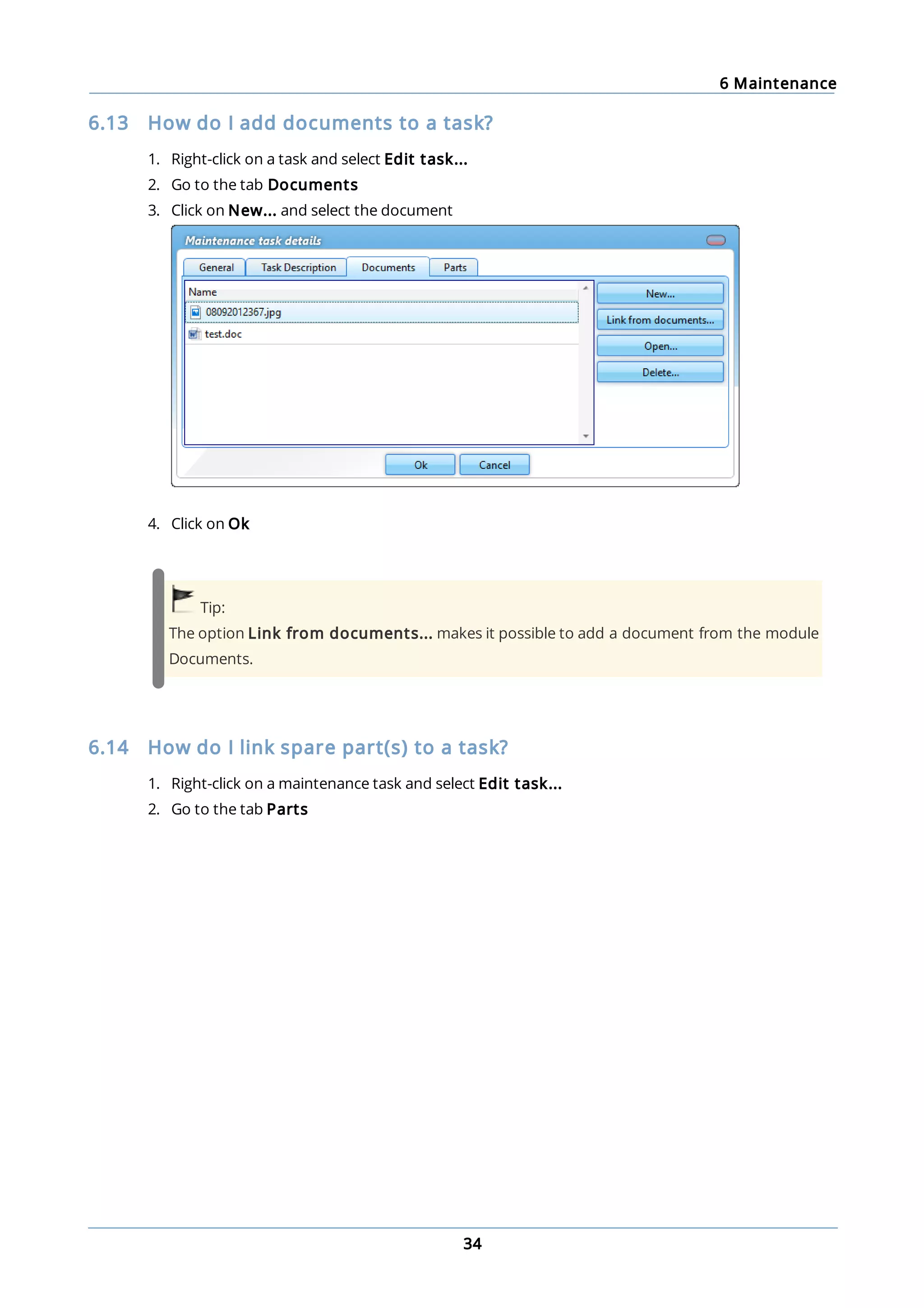
6. Click on Ok
7. Save the file to the desired location
To load a synchronisation package:
1. Go to the module Settings
2. Click on Communication
3. Select the location
4. Click on Load package
5. Select Offline
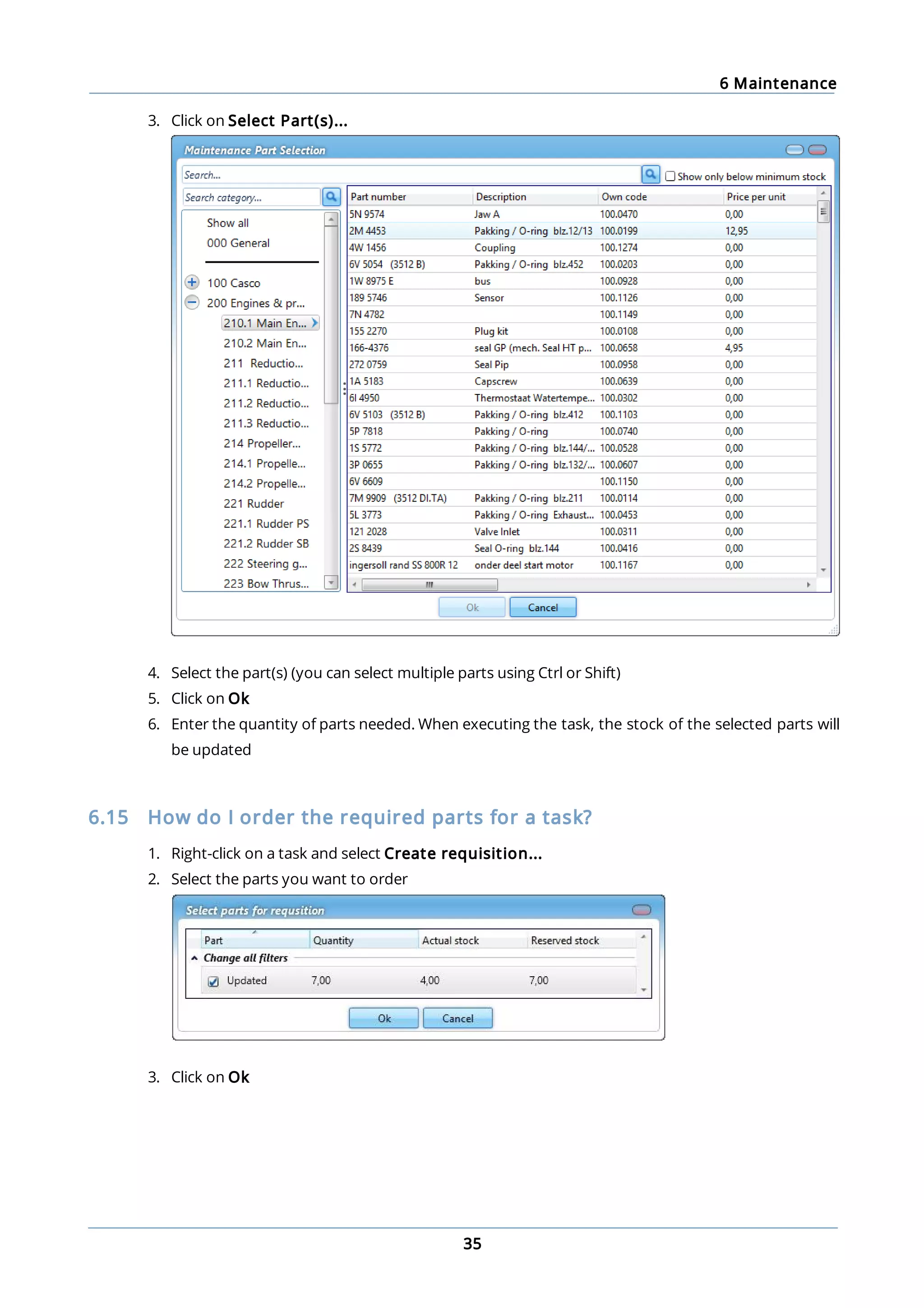
6. Click on Ok
7. Open the desired file
The file name is structured as follows:
<ship name>_Data_<package number>.mxs
<ship name>_Documents_<package number>.mxs
18.6 How can I check the synchronisation status of a multi office?
1. Go to the module Settings
2. Click on Communication
3. Click on Locations
4. Select the desired office location
18 Synchronisation
106
Please note:
The synchronisation status of a multi-office location is only visible at a primary office location
and at the secondary office location concerned.
18.7 How do I reset the synchronisation?
The synchronisation needs to be done both in the office and on board the ship.
In the office:
1. Go to the module Settings
2. Click on Communication
3. Click on Reset Synchronisation
4. Answer the verification question with Yes
5. Click on Create a package to create the first synchronisation package
6. Note down the Reset Sync Code as displayed in the office version
On board the ship:
7. Go to the module Settings
8. Click on Communication
9. Click on Reset Synchronisation
10. Run the Reset Sync Code from point 6 and click on Yes
11. Click on Load Package to load the first synchronisation package
18 Synchronisation
107
Please note:
A new Reset Sync Code is created each day, with each one being valid for just a single day.
Important!
The time between resetting the synchronisation and loading the first package on board the
ship must be as short as possible. If tasks, certificates and exercises have been signed off on
board the ship and the first package has not yet been processed, the new expiry date can be
overwritten by the first synchronisation package.
18.8 How can I create a backup of the database?
1. Go to the module Settings
2. Click on Communication
3. Click on Backup Database
4. Save the file to the desired location
Important!
When the backup has been returned, general data (such as countries and ports) may appear
multiple times in MXSuite.
18.9 How do I copy data?
1. Select the ship you want to copy data from
2. Go to the module Settings
3. Click on Communication
4. Click on Copy Data
5. Select the data to be copied
6. Click on OK
18 Synchronisation
108
7. Select the destination and click on OK
Please note:
If Machines is selected, the following is copied:
· Categories
· Category details
· Task lists
· Tasks
· Related machine running hours
· Linked documents
· Linked articles
Important!
It is not possible to copy machines if both MXSuite Gold and Silver licenses are present.
18.10 What does ‘Resume package’ mean?
The button Resume package is visible when a synchronisation package is not completely loaded.
This can occur if the loading of the synchronisation package is terminated prematurely owing to the
computer being restarted, the database being temporarily inaccessible or another error message.
Clicking on Resume package continues the package loading process.
18.11 What information does the synchronisation overview contain?
The following columns are visible in the synchronisation overview.
18 Synchronisation
109
Order number: Synchronisation packages are assigned successive numbers and are only
loaded if the number of the synchronisation package follows the number of
the previous synchronisation package.
Package Direction: OUT: the package is sent to the other location.
IN: the package is received from the other location.
Creation Date: The date that the synchronisation package was created at the other
location. Changes in MXSuite have been processed in the synchronisation
package through to this date.
Sent/Received Date: The synchronisation package was sent from or received at the current
location at this time and date. If a synchronisation package is resent by
means of the button Export last, the date will be updated.
Size (bytes) This is the size of the synchronisation package in bytes. If a package is
approximately 1200 bytes in size, the package will be empty.

User manual MXSuite ENG 201902

  • 1.
    © 2009-2019 MastexSoftware BV user manual 201902
  • 2.
    2 1 Getting startedwith MXSuite 6 ............................................................................................................................................................... 61.1 MXSuite fleet management software ............................................................................................................................................................... 61.2 Mastex Software BV ............................................................................................................................................................... 71.3 System requirements ............................................................................................................................................................... 71.4 Registration number MXSuite ............................................................................................................................................................... 81.5 Starting MXSuite ............................................................................................................................................................... 91.6 How do I change my MXSuite password? ............................................................................................................................................................... 101.7 What do the colours mean? ............................................................................................................................................................... 101.8 Date and time notation in MXSuite 2 View settings 11 ............................................................................................................................................................... 112.1 How do I filter in a view? ............................................................................................................................................................... 122.2 How do I group columns? ............................................................................................................................................................... 122.3 How do I search in a view? ............................................................................................................................................................... 122.4 How do I print a view? ............................................................................................................................................................... 122.5 How can I change the ordering in a view? 3 Fleetwide overview 14 ............................................................................................................................................................... 143.1 How do I change the order of my ships? ............................................................................................................................................................... 143.2 Why am I missing a module in the overview? ............................................................................................................................................................... 153.3 How do I get an overview of the expired certificates for the entire fleet? ............................................................................................................................................................... 153.4 How do I see a budget summary for the whole fleet? ............................................................................................................................................................... 153.5 What is the function of the Warnings button in the fleet overview? 4 Summary 16 ............................................................................................................................................................... 164.1 How do I know which maintenance activities to perform? ............................................................................................................................................................... 174.2 How do I know which orders to process? ............................................................................................................................................................... 174.3 How do I update the running hours? ............................................................................................................................................................... 184.4 How do I create a new running hours machine? ............................................................................................................................................................... 184.5 How do I use the docking overview? ............................................................................................................................................................... 184.6 What is the status of my annual budget? ............................................................................................................................................................... 194.7 How do I see an overview of all document tasks? ............................................................................................................................................................... 194.8 How do I send a message to another user? ............................................................................................................................................................... 204.9 How do I know which of my crew members' documents are about to expire? ............................................................................................................................................................... 214.10 How do I check for a new version? 5 Cash book 22 ............................................................................................................................................................... 225.1 How do I create a new cash book? ............................................................................................................................................................... 225.2 How do I create new transactions? 6 Maintenance 24 ............................................................................................................................................................... 246.1 How do I create a new category? ............................................................................................................................................................... 256.2 How do I hide categories and make them visible? ............................................................................................................................................................... 266.3 How do I copy or move a category, job or task? ............................................................................................................................................................... 266.4 How do I search for a category? ............................................................................................................................................................... 276.5 How do I mark a category as critical? ............................................................................................................................................................... 276.6 How do I add a photo to a category? ............................................................................................................................................................... 286.7 How do I change the order of a category, job or task? ............................................................................................................................................................... 286.8 How do I create a job? ............................................................................................................................................................... 286.9 How do I relate jobs? ............................................................................................................................................................... 316.10 How do I create a maintenance task? ............................................................................................................................................................... 336.11 What does the fixed interval option do? ............................................................................................................................................................... 336.12 How do I make the task description visible in the work list? ............................................................................................................................................................... 346.13 How do I add documents to a task? ............................................................................................................................................................... 346.14 How do I link spare part(s) to a task? ............................................................................................................................................................... 356.15 How do I order the required parts for a task?
  • 3.
    3 ............................................................................................................................................................... 366.16 Howdo I create a service request? ............................................................................................................................................................... 366.17 How do I mark a task as complete? ............................................................................................................................................................... 386.18 How do I print a work order? ............................................................................................................................................................... 396.19 How do I see the history of a task? ............................................................................................................................................................... 406.20 How do I undo a completed maintenance task? ............................................................................................................................................................... 406.21 How do I create an overview of all critical tasks? ............................................................................................................................................................... 416.22 How do I add a document to a completed maintenance task? 7 Equipment 42 ............................................................................................................................................................... 427.1 How do I add a detail to a category? ............................................................................................................................................................... 437.2 How do I add a photo to a category? ............................................................................................................................................................... 447.3 How do I reorder the details? 8 Certificates 45 ............................................................................................................................................................... 458.1 What do the symbols mean? ............................................................................................................................................................... 468.2 How do I create a new certificate category? ............................................................................................................................................................... 468.3 How do I create a new certificate? ............................................................................................................................................................... 478.4 How do I reorder categories? ............................................................................................................................................................... 478.5 How do I reorder certificates? ............................................................................................................................................................... 488.6 How do I add an extra docking? ............................................................................................................................................................... 488.7 How do I mark a survey as done? ............................................................................................................................................................... 508.8 How do I copy all certificates? ............................................................................................................................................................... 508.9 How do I email certificates? 9 Safety 51 ............................................................................................................................................................... 519.1 How do I create a new category? ............................................................................................................................................................... 529.2 How do I add a new drill? ............................................................................................................................................................... 539.3 What does the fixed interval option do? ............................................................................................................................................................... 539.4 How do I reorder categories? ............................................................................................................................................................... 549.5 How do I change the ordering of the drills? ............................................................................................................................................................... 549.6 How do I mark a drill as done? ............................................................................................................................................................... 559.7 How do I copy drills to another ship? 10 Inventory 56 ............................................................................................................................................................... 5610.1 What do the colours in the overview mean? ............................................................................................................................................................... 5710.2 How do I add a part? ............................................................................................................................................................... 5810.3 How do I link extra suppliers to a part? ............................................................................................................................................................... 5810.4 How do I make a part visible for another location? ............................................................................................................................................................... 5910.5 How do I delete a part? ............................................................................................................................................................... 5910.6 How do I adjust the stock? ............................................................................................................................................................... 6010.7 How do I move stock to another location? ............................................................................................................................................................... 6110.8 How do I see the history of a part? ............................................................................................................................................................... 6110.9 How do I link an article to a category? 11 Purchase 63 ............................................................................................................................................................... 6311.1 What is the difference between the types of orders? ............................................................................................................................................................... 6411.2 How do I create a purchase order? ............................................................................................................................................................... 6411.3 How do I create a local purchase order? ............................................................................................................................................................... 6411.4 How do I create a service order? ............................................................................................................................................................... 6411.5 How do I add documents to an order line? ............................................................................................................................................................... 6511.6 How do I use Incoterms in my order? ............................................................................................................................................................... 6611.7 How do I add the expected delivery date to an order line? ............................................................................................................................................................... 6611.8 How do I change the exchange rate in an order? ............................................................................................................................................................... 6711.9 How do I enter the discount for an order? ............................................................................................................................................................... 6711.10 How do I change the status of multiple order lines? ............................................................................................................................................................... 6811.11 How can I check the status of my order? ............................................................................................................................................................... 6911.12 How can I see the progress of an order line?
  • 4.
    4 ............................................................................................................................................................... 6911.13 Howdo I create a backorder? ............................................................................................................................................................... 7011.14 How do I use the search function? ............................................................................................................................................................... 7011.15 How do I see closed orders? ............................................................................................................................................................... 7111.16 How do I link a supplier to an order line? 12 Documents 72 ............................................................................................................................................................... 7312.1 How do I create a new document category? ............................................................................................................................................................... 7312.2 How do I copy a category? ............................................................................................................................................................... 7412.3 How do I assign roles to categories? ............................................................................................................................................................... 7412.4 How do I create a new document? ............................................................................................................................................................... 7512.5 How do I create a template? ............................................................................................................................................................... 7612.6 How do I edit a template? ............................................................................................................................................................... 7612.7 How do I create a document based on a template? ............................................................................................................................................................... 7612.8 How do I complete a form? ............................................................................................................................................................... 7612.9 How do I make a form ‘read only’? ............................................................................................................................................................... 7712.10 How do I delete a document? ............................................................................................................................................................... 7712.11 What is the difference between duplicate and copy? ............................................................................................................................................................... 7712.12 How do I obtain editing rights? ............................................................................................................................................................... 7812.13 How do I see what happened to a document? ............................................................................................................................................................... 7812.14 How do I search for a document? ............................................................................................................................................................... 7912.15 How do I create a document task? 13 Voyages 80 ............................................................................................................................................................... 8113.1 How do I create a new voyage? ............................................................................................................................................................... 8113.2 How do I add a new loading or discharging tab? ............................................................................................................................................................... 8113.3 How do I change the name of a tab? ............................................................................................................................................................... 8213.4 How do I delete a tab? ............................................................................................................................................................... 8213.5 How do I add a document to a voyage? ............................................................................................................................................................... 8213.6 How do I create a new document? ............................................................................................................................................................... 8313.7 How do I create a document based on a template? ............................................................................................................................................................... 8313.8 How do I add a template? ............................................................................................................................................................... 8413.9 How do I change a template? 14 FLGO 86 ............................................................................................................................................................... 8614.1 How do I enter the actual values? ............................................................................................................................................................... 8714.2 How do I enter received bunkering? ............................................................................................................................................................... 8714.3 How do I enter delivered bunkering? ............................................................................................................................................................... 8714.4 How can I see my consumption? ............................................................................................................................................................... 8714.5 How do I edit historical FLGO values? ............................................................................................................................................................... 8814.6 How do I create a new FLGO item? 15 Crewing 89 ............................................................................................................................................................... 8915.1 How do I add a new person? ............................................................................................................................................................... 8915.2 What is the use of the field email for expiry? ............................................................................................................................................................... 9015.3 How do I know which of my crew members' documents are about to expire? ............................................................................................................................................................... 9115.4 How do I create an evaluation? ............................................................................................................................................................... 9115.5 How do I register cash movements? ............................................................................................................................................................... 9215.6 How do I use the work/rest hours? ............................................................................................................................................................... 9215.7 What do the colours in the work/rest hours mean? ............................................................................................................................................................... 9315.8 How do I add a comment to work/rest hours? ............................................................................................................................................................... 9315.9 How do I make a planning? ............................................................................................................................................................... 9415.10 What do the colours mean in the planning? ............................................................................................................................................................... 9515.11 How do I register that a crew member cannot be planned on board? ............................................................................................................................................................... 9515.12 How do I add a note? ............................................................................................................................................................... 9615.13 When and how do I add a historical planning? ............................................................................................................................................................... 9715.14 How are the number of days on board calculated? ............................................................................................................................................................... 9815.15 How do I create a crew list?
  • 5.
    5 16 Reports 100 ...............................................................................................................................................................10016.1 How do I create a new report? ............................................................................................................................................................... 10116.2 How do I add a report? ............................................................................................................................................................... 10116.3 How do I delete a report? ............................................................................................................................................................... 10116.4 How do I delete a report category? ............................................................................................................................................................... 10116.5 How do I change the properties of a report? 17 History 102 18 Synchronisation 103 ............................................................................................................................................................... 10318.1 How do I turn a synchronisation flow on and off? ............................................................................................................................................................... 10318.2 How do I configure email synchronisation? ............................................................................................................................................................... 10418.3 How can I check the synchronisation? ............................................................................................................................................................... 10418.4 How can I check the status of the synchronisation process? ............................................................................................................................................................... 10518.5 How do I synchronise manually? ............................................................................................................................................................... 10518.6 How can I check the synchronisation status of a multi office? ............................................................................................................................................................... 10618.7 How do I reset the synchronisation? ............................................................................................................................................................... 10718.8 How can I create a backup of the database? ............................................................................................................................................................... 10718.9 How do I copy data? ............................................................................................................................................................... 10818.10 What does ‘Resume package’ mean? ............................................................................................................................................................... 10818.11 What information does the synchronisation overview contain?
  • 6.
    1 Getting startedwith MXSuite 6 1 Getting started with MXSuite 1.1 MXSuite fleet management software Tools are needed in order to manage your fleet properly. With a range of modules, MXSuite gives you the chance to optimise fleet management, from maintenance to certificates and from purchasing to crewing. Data is available at the click of the mouse and can be automatically exchanged between ship and office. MXSuite was developed using the latest technological advancements, but is easy and effective thanks to its simple user interface. This means users with minimal knowledge of computer systems can also use the software. We wish you the best of luck with MXSuite! 1.2 Mastex Software BV MXSuite is developed by Mastex Software BV. New features are added daily to MXSuite and we are working on continuous improvement. Despite the fact that MXSuite is easy to use, we created this user manual to make the use of MXSuite even easier. If your question is not answered in the user manual, first contact your MXSuite supplier. If you purchased MXSuite directly via Mastex Software BV, you can contact our help-desk instead. The telephone help-desk is available on weekdays from 8:30 AM to 5:00 PM (CET). You can also contact us by email. To make optimal use of MXSuite and to get the most out of your organisation, Mastex Software BV offers training programmes on location and at our own training facilities. In consultation with you, we can create a basic training programme or course that is tailored to your specific needs. Feel free to contact us to discuss the available options. Contact information: Telephone +31 78 202 02 02 Support email success@mastexsoftware.com Sales email sales@mastexsoftware.com Website www.mastexsoftware.com
  • 7.
    1 Getting startedwith MXSuite 7 1.3 System requirements To be able to use MXSuite, your system must meet the following requirements. Component Minimal requirements Processor x64 Processor 2GHz. AMD Opteron, AMD Athlon 64, Intel Xeon, Intel Pentium IV Memory 2 GB RAM Operating system Windows 7 Windows 2008 Hard drive 80 GB Graphics VGA resolution 1024x768 Database Microsoft SQL Server 2012 Express To make optimal use of MXSuite the following is recommended: Component Recommended Processor Intel i5 / i7 processor Memory 4 GB RAM Operating system Windows 10 Windows Server 2012 R2 / 2016 Hard drive 80 GB; SSD Graphics Full HD, resolution 1920x1080 Database At office: Microsoft SQL Server 2012 / 2014 / 2016 Standard On board: Microsoft SQL Server 2012 / 2014 / 2016 Express Note: The delivery of MXSuite includes the database program Microsoft SQL Server Express by default. While this version is offered for free by Microsoft, please bear the following limits in mind: · Maximum 1 GB memory usage · A maximum of 10 GB of data storage (attachments in MXSuite are not included) When you start reaching these limits, we recommend switching to the Standard edition of SQL Server. In practice, the office version will likely need to be switched to the Standard version in due time. 1.4 Registration number MXSuite After MXSuite is installed, you will be prompted to enter a registration number during the initial set- up. Enter the registration number and click on Activate to activate the license. License data will be collected online from the MXSuite license server, after which MXSuite will be ready for use.
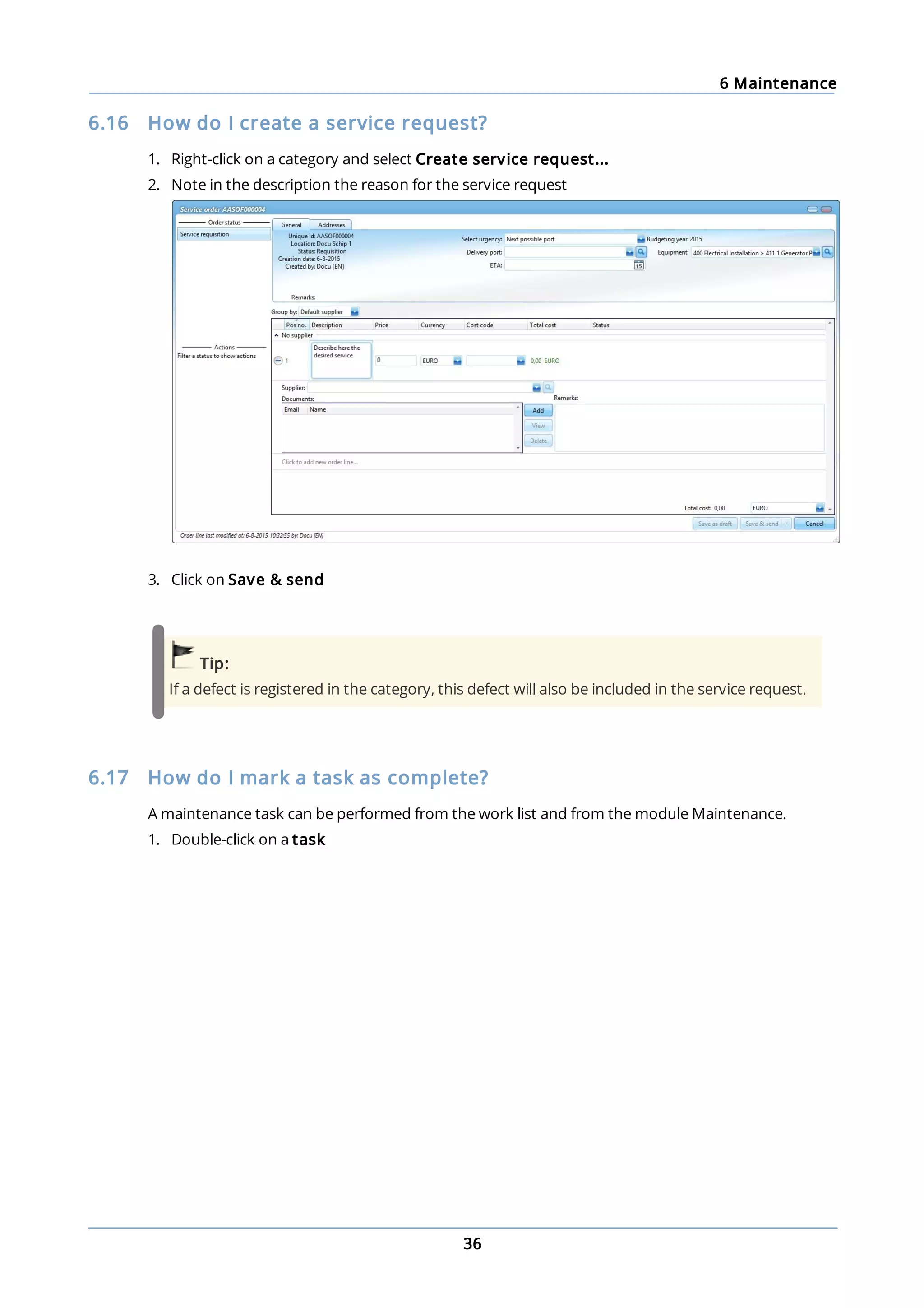
  • 8.
    1 Getting startedwith MXSuite 8 1.5 Starting MXSuite MXSuite opens with a login window: Select the user name and enter your password. The standard password for the Administrator is admin Important: Immediately change the administrator's default password to prevent misuse.
  • 9.
    1 Getting startedwith MXSuite 9 1.6 How do I change my MXSuite password? 1. Start up MXSuite. On the login screen click 2. Enter your current password and then enter your new password twice 3. Click on Ok
  • 10.
    1 Getting startedwith MXSuite 10 1.7 What do the colours mean? In MXSuite three main colours are used. These colours are often used in symbols or on part of the status bar. The colours indicate the status of the relevant item. A status bar indicates which percentage of items are red, orange or green. The table below explains the meaning of each colour per module. Module Meaning Maintenance maintenance is in good order the maintenance task expires this week this maintenance task should have been completed Running hours the running hours were recently updated the actual running hours have to be entered the actual running hours have not been entered for more than seven days Certificates the certificate is in good order a survey must be conducted the certificate has expired or a survey should have been conducted Safety the drill does not need to be performed yet the drill has to be performed during this period this drill should have been performed Inventory this part is well-stocked there is not enough stock to perform the upcoming maintenance activities the actual stock of this part is less than the required minimum stock level Purchase the order is being processed and the delivery date has not yet expired the order is marked as unread the delivery date has expired and the order has not been delivered Documents the document task is in order the document task is about to expire the expiry date of the document task has been exceeded Crewing there are no expired documents for the crew member the crew member has documents that are about to expire the crew member has expired documents Synchronisation the synchronisation for both data and documents was recently performed the data and/or document synchronisation has not been performed for 8-14 days the data and/or document synchronisation has not been performed for more than 14 days 1.8 Date and time notation in MXSuite The date and time notation as displayed in MXSuite is copied from the computer on which MXSuite was loaded.
  • 11.
    2 View settings 11 2View settings In MXSuite, results are displayed in different ways. These are known as views. A view determines which data is displayed on the screen. It also determines the order, the columns and the way the data is ordered. Per user the most recent view is saved and displayed next time by default. The following view options are possible: · Select different views · Order by columns · Filter data · Search for specific words within the selected view · Print the data in the selected view Note: The views can be configured to the user's needs. This chapter uses the default settings. Texts or images may therefore differ from your situation. 2.1 How do I filter in a view? 1. Click on in the column header 2. Select the desired filter 3. Click on Ok Note: Active filters can be identified by the coloured filter symbol above the relevant column.
  • 12.
    2 View settings 12 2.2How do I group columns? Drag a column to the group bar. This view has the option of grouping multiple columns. You can also change the order of the grouped columns. 2.3 How do I search in a view? Enter the search term in the search bar. Note: In the view definition (to be created by an MXSuite administrator), determine the columns to include in or exclude from your search. 2.4 How do I print a view? Each view can be printed. It is possible to print specific information as a report. 1. Click on Print 2. The view will be printed as seen on the screen 2.5 How can I change the ordering in a view? 1. Go to the column name in question 2. Click on the column name to change the ordering
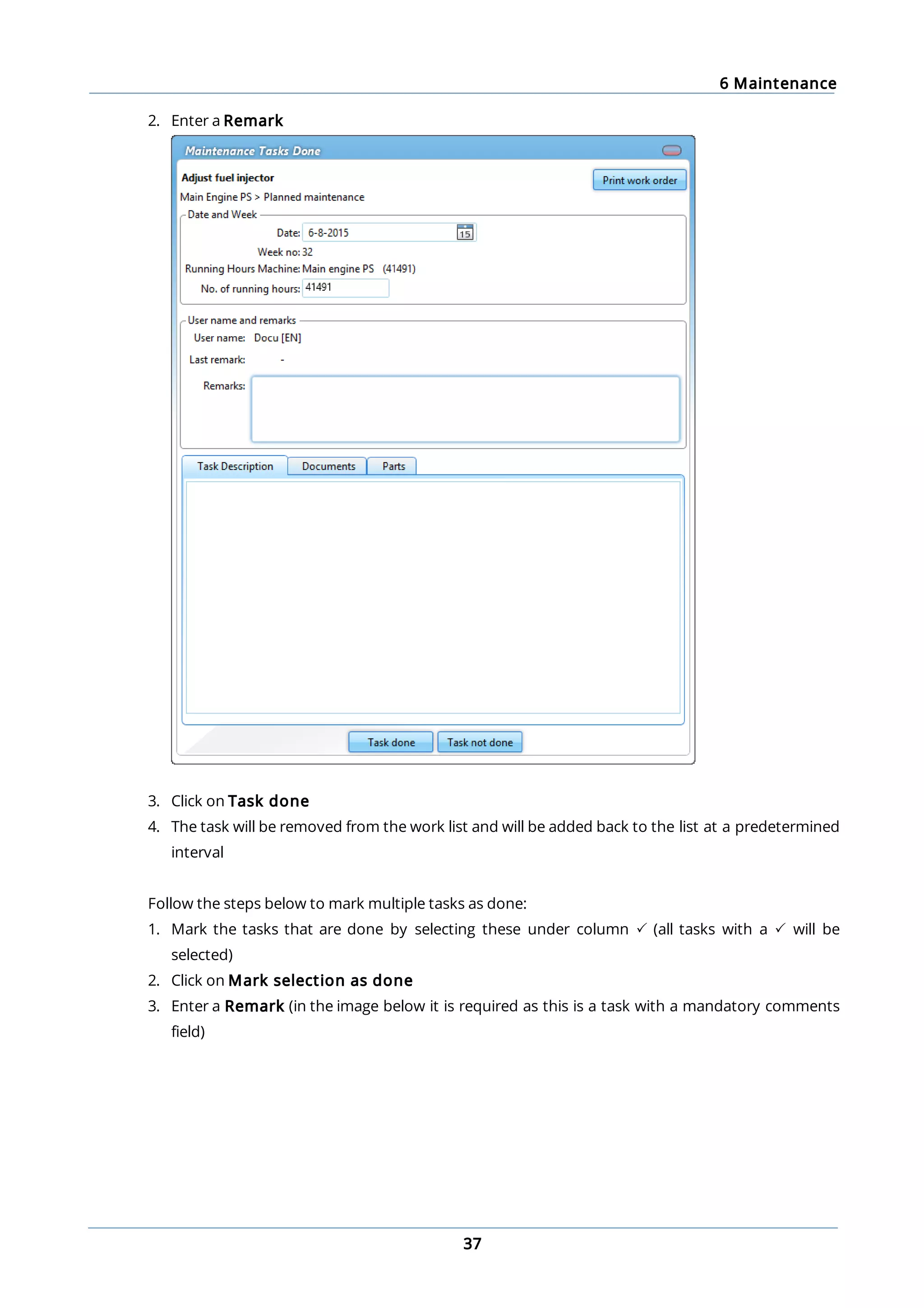
  • 13.
    2 View settings 13 Tip: Looknext to the column name to see how the column is sorted. There are 3 options: Ascending order. Descending order. Ordered according to the display settings.
  • 14.
    3 Fleetwide overview 14 3Fleetwide overview The fleetwide overview gives you information about the status of the various MXSuite modules for the entire fleet. The status of the different modules can be seen per ship in the status bar. Click on a bar to open the relevant module for the selected ship. Note: The fleetwide overview is only available in the office version of MXSuite. The accuracy of the data depends on the synchronisation settings between the office and the ships. 3.1 How do I change the order of my ships? 1. Click on Ordering at the top right and select one of the ordering options 2. Click on Direction at the top right and select Ascending or Descending 3.2 Why am I missing a module in the overview? This may be due to the following reasons: · The module was not selected in the list of visible modules. Follow the steps below to change the visibility · The user is not fully authorised · The module is not a part of the license Follow the steps below to hide modules or to make them visible: 1. Right-click on the title of a column 2. Click on the desired module to view or hide it
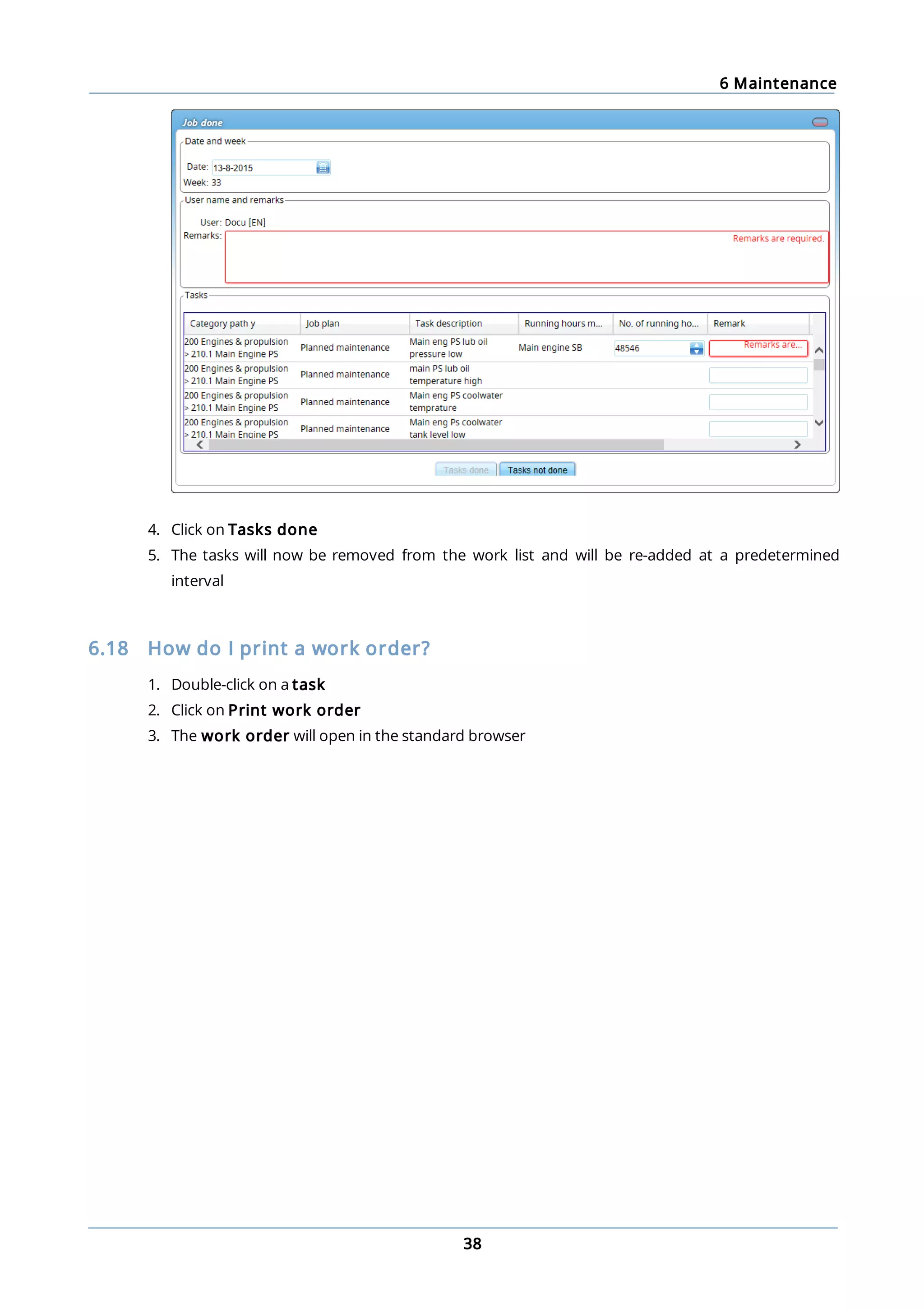
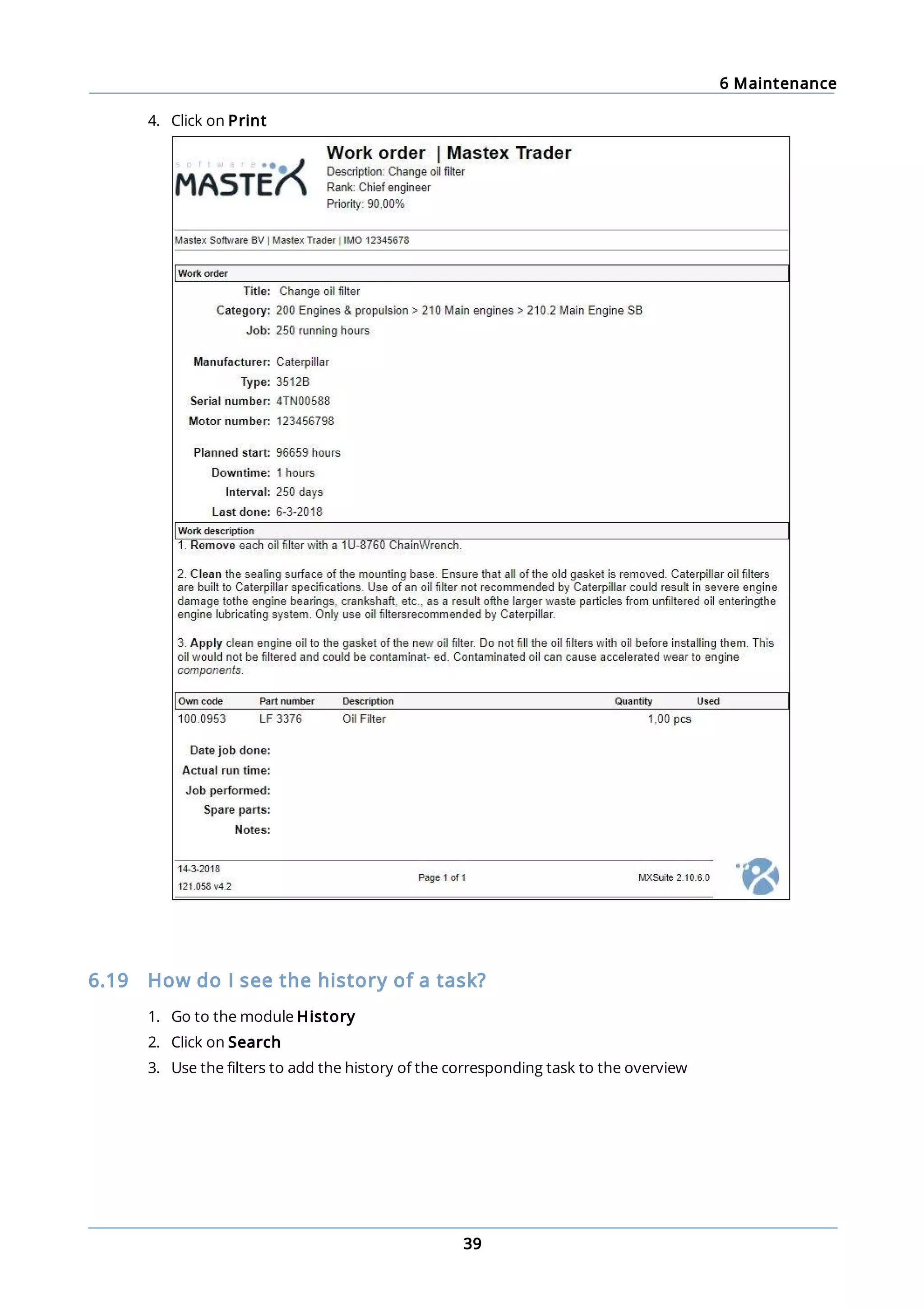
  • 15.
    3 Fleetwide overview 15 3.3How do I get an overview of the expired certificates for the entire fleet? In the fleetwide overview, click on Certificate expiry. This generates an overview of the certificates as defined in the selected view. If multiple views have been configured, these can be selected using the button at the top right of the screen. 3.4 How do I see a budget summary for the whole fleet? Click on Budget in the fleetwide overview and select the desired Year. The table displays the total budget per ship, as well as the amount currently being processed for delivery and the amount that has already been delivered. This is also displayed in a coloured bar as: Blue: ordered parts Black: delivered parts White: available budget 3.5 What is the function of the Warnings button in the fleet overview? It performs the same function as the option Warnings in the Crewing module. See "How can I tell which of my crew members’ documents are expired?" on page 20
  • 16.
    4 Summary 16 4 Summary Thisis the home screen that will appear when MXSuite is opened on the ship. All modules can be opened from this screen. A menu can be found to the left. The menu features are described in the next few paragraphs. 4.1 How do I know which maintenance activities to perform? Click on Work list. MXSuite will display a list of maintenance tasks that need to be performed. The structure of this list depends on the view settings. The list of tasks can be printed in two ways. · Click Print to print the current view · Click Print work list to print the current job with a wider view. More options are available for this print, such as ticking a box to indicate that a task has been completed and adding a comment
  • 17.
    4 Summary 17 to atask 4.2 How do I know which orders to process? Click on Orders to do. This overview displays purchase orders that require the current user to perform a certain action. The order can be finalised in this overview. Follow the steps below to process an order: 1. Double-click on the order to be processed 2. Click on an action 3. Click on Ok The list with orders can be filtered by status using the buttons at the top. 4.3 How do I update the running hours? To calculate maintenance tasks that are linked to running hours, you must first determine the running hour status of the running hour machines. 1. Click on Enter 2. Enter the running hours per machine 3. Click on Ok On board the input window will appear as a pop-up every 7 days when you login to MXSuite.
  • 18.
    4 Summary 18 Note: If thecalculated weekly average is higher than 168 hours, you will not be able to save new running hours. If you are sure about the entered running hours, manually change the average to a value between 0 and 168. You will then be able to save the running hours. 4.4 How do I create a new running hours machine? 1. Click on Running hours 2. Click on New... 3. Enter the name 4. Click on Ok 4.5 How do I use the docking overview? In addition to time-related tasks and tasks based on running hours, there are also docking tasks. The docking overview shows all created tasks that are linked to a planned docking. The overview of docking tasks can be filtered based on the status of the task. You can also use the search bar. Tasks that have been linked to a docking can be identified by the gear symbol. The colour of the symbol indicates the status: This task is planned for a future docking This task is planned for a docking that is currently being carried out This task is planned for a docking that has already been carried out The list with docking tasks can be printed or sent by email by using the corresponding buttons at the top of the screen. In addition to the task overview, the planned dockings are also illustrated in a graph. This view is based on the module Certificates, which also shows an overview of dockings. 4.6 What is the status of my annual budget? 1. Click on Budget 2. Select the year of the budget you want to see An annual budget will appear for each ledger account. The coloured bar shows the status of the budget per ledger account, per year. The bar will be blue for orders The bar will be grey for deliveries A mark will indicate when a budget has been exceeded
  • 19.
    4 Summary 19 4.7 Howdo I see an overview of all document tasks? Click on Tasks. In Tasks, an overview is displayed of all tasks that are linked to a document from the module Documents. Click on a task to view and edit the information. Document tasks are generally created in the module Documents, but they can also be created in this overview by clicking on New... Tip: If you select User view, only tasks of relevance to the current user will be displayed. 4.8 How do I send a message to another user? Messages can be sent between the office and the ships using Messenger. 1. Click on Messenger 2. Click on New 3. Write your message 4. Select Location and user (if applicable) 5. Click on Send A new message will appear as a post-it note in the overview.
  • 20.
    4 Summary 20 4.9 Howdo I know which of my crew members' documents are about to expire? Warnings not only gives you an overview of the documents that are about to expire, it also provides additional information, such as birthdays and a list of people for whom the known qualifications do not correspond to the rank entered. Tabs: Employee notification: This provides an overview of the crew members' expired documents. Birthdays: This view provides an overview of the crew members born on this day. In the module Crewing, you can specify a certain period to create a list of all birthdays such as in the past seven days, today, and the next seven days. On board expiries: This shows the expired documents of crew members currently planned to be on board. Ranks: This shows the crew members whose rank as listed in the General tab does not correspond to their known qualifications and educations. Planning: This shows the planning warnings, such as failure to meet the safe manning requirements.
  • 21.
    4 Summary 21 4.10 Howdo I check for a new version? 1. Go to the module Summary 2. Click on About The latest version number will appear. 3. Click on Check for Updates... 4. Follow the steps in the installation wizard
  • 22.
    5 Cash book 22 5Cash book It is possible to keep a cash book in MXSuite. Multiple cash books can be created, after which transactions can be added per cash book. Each cash book is linked to a specific currency and has a unique identification number. In addition to the date and the amount, you also have the option of saving a document per transaction. 5.1 How do I create a new cash book? 1. Click on Cash books 2. Click on New to create a new cash book 3. Change the Number of the new cash book if desired 4. Enter the Name of the cash book 5. Select the Currency 6. Click on Save and close to create the cash book 5.2 How do I create new transactions? 1. Click on Cash books 2. Right-click on the desired cash book and select Open 3. Click on New 4. Complete all required fields 5. Click on Save and close
  • 23.
  • 24.
    6 Maintenance 24 6 Maintenance Themodule Maintenance is designed to register all maintenance tasks. Maintenance tasks can be based on running hours or on time intervals. As soon as a task is scheduled, it is added to the work list. The module Maintenance can be used to relate tasks together. This functionality is meant for machines that have identical maintenance schedules. Changes to a maintenance task within a related job will be implemented in all other related maintenance tasks. 6.1 How do I create a new category? 1. Right-click on a category. The new category will be created as a subcategory of the existing category. To create a new main category, click on an empty part of the tree structure 2. Click on New category...
  • 25.
    6 Maintenance 25 3. Completeall required fields 4. Click on Ok Tip: If you clicked on the wrong category in step 1, you can change the parent category in this window. 6.2 How do I hide categories and make them visible? Hide a category: 1. Right-click on a category and select Hide category 2. The category is now hidden Make a category visible: (This is only possible when the remark Some categories are hidden can been seen at the bottom of the tree structure) 1. Right-click under the final category in the tree structure and select Show hidden categories 2. The categories are now visible again
  • 26.
    6 Maintenance 26 6.3 Howdo I copy or move a category, job or task? 1. Right-click on a category, job or task and select Copy... or Move... 2. Select the location to which the category must be copied or moved 3. Click on Ok When moving a category, you will be prompted to copy the history as well. If you select this option, a copy of the history will be moved to the new location. If you do not select this option, the history will only be available in the current location. Note: A new expiry date will be calculated for time-specific tasks copied to the new location. This is calculated as follows: expiry date = date + interval. The date used: · The birth date of the ship, as listed on the docking certificate · The current date, in the absence of a docking certificate 6.4 How do I search for a category? Use the search bar at the top of the tree structure to search for a category. 1. Enter the name or partial name of the category 2. Click on 3. The tree structure will now only show the categories in which the search term appears Tip: To display all categories, delete the search term and click on .
  • 27.
    6 Maintenance 27 6.5 Howdo I mark a category as critical? Right-click on a category and select Make critical. A red symbol will appear behind the category name to indicate the critical status of the category. You can filter the work list to only display categories that have been marked as critical. 6.6 How do I add a photo to a category? 1. Right-click on a category and select Edit category... 2. Click on Browse...
  • 28.
    6 Maintenance 28 3. Selectthe image Permitted image formats are: .BMP .DIB .RLE .JPG .JPEG .JPE .JFIF .GIF .TIF .TIFF .PNG 4. Click on Ok 6.7 How do I change the order of a category, job or task? The same process is used to change the order of a category, job or task in MXSuite. 1. Right-click on a category, job or task and select Reorder... 2. Select a line and use Move up and Move down to change the order 3. Click on Ok 6.8 How do I create a job? A job is used to group tasks. This makes it easier to place all tasks with the same interval in one job. This also makes it possible to mark all tasks in a list as done. 1. Click on New job... 2. Complete all required fields 3. Click on Ok 6.9 How do I relate jobs? This functionality is meant for machines that have identical maintenance schedules. Changes to a maintenance task within a related job will be implemented in all other related maintenance tasks. The current opened job is used as the reference. When a job already contains assigned tasks, these tasks will be copied from the reference. Tasks with the same ID are considered the same task.
  • 29.
    6 Maintenance 29 For example: Thisis the situation before relate the job. Job machine A ID Tasks Job machine B ID Tasks Planned maintenance 1.1 Replace the filter Planned maintenance 1.1 Replace the filter 1.2 Check level of lubricating oil 1.2 Refresh oil 1.3 Refresh oil 1.5 Measure battery voltage 1.4 Measure battery voltage Below you will find the situation after the job is related to another job. The relationship was created from the job of machine A. The task with ID 1.5 of machine B was removed after the job was related. The name of task ID 1.2 was made identical to that of task ID 1.2 of machine A. Additionally, task ID 1.3 and 1.4 were added to machine B. Job machine A ID Tasks Job machine B ID Tasks Planned maintenance 1.1 Replace the filter Planned maintenance 1.1 Replace the filter 1.2 Check level of lubricating oil 1.2 Check level of lubricating oil 1.3 Refresh oil 1.3 Refresh oil 1.4 Measure battery voltage 1.4 Measure battery voltage Which fields will be related? All fields will be equalised, except the expiry date and the expiry running hours, which may differ. Roadmap: To relate jobs, the following conditions must be met: · In the property settings for a machine, Preferred running hour must be selected · All tasks in the job must have an ID · The relationship must be made in the office version Note: Existing tasks with the same description, should have the same ID before the relationship is made. If this is not the case, the tasks will be overwritten. 1. Right-click on the job and then click Edit job... 2. Click on the tab Related jobs 3. In the tree diagram, select the job that should contain the same tasks. It is possible to select more than one job
  • 30.
    6 Maintenance 30 4. Clickon Ok 5. An overview of the selected relationships will appear 6. Click on Yes if the overview displays the right jobs Note: This feature is only available in the office version and cannot be used for the Corrective Maintenance job because these involve one-time tasks.
  • 31.
    6 Maintenance 31 Important: Failure tocorrectly perform the mentioned steps to relate jobs can result in data loss! 6.10 How do I create a maintenance task? 1. Click on New task... 2. Enter a short Description 3. Select a job 4. Select one of the following options:
  • 32.
    6 Maintenance 32 Time interval(default) Running hours linked Enter an Interval and select day, week or month. The Due Date is calculated based on today's date + interval. Extra option: · Fixed interval Enter an Interval and select a Running Hours Machine. Enter the Due Running Hours. If the current running hours status has been entered, the hours will be added automatically. Extra options: · Fixed interval · Maximum interval Enter an interval and select day, week or month. This option allows you to perform a task with time intervals in addition to running hours. Docking task Select the Docking period. Use this task once / Defect Select when the task should be performed. 5. Click on Ok Optional: ID: This is a unique number that will be added before the task description. Ledger: Select a ledger account. Potential costs are deducted from the budget of the selected account. Position: Select a rank. Only users with this rank can see the task on the job list. Duration: Specify how many hours are needed to perform this task. Remark is mandatory: When you sign off on a maintenance task, the comments field is required.
  • 33.
    6 Maintenance 33 6.11 Whatdoes the fixed interval option do? The fixed interval option can be selected when you create a: · maintenance task · safety drill The following table clarifies what this option does. A task or a drill has an interval of one month. No fixed interval Fixed interval Expiration date 1 January 1 January Date of first execution 3 January 3 January Next expiration date 3 February 1 February Date of second execution 6 February 6 February Next expiration date 6 March 1 March With a fixed interval, the next expiration date is always calculated from the first expiration date. 6.12 How do I make the task description visible in the work list? 1. Open the task and go to the tab Task Description 2. Select the option Print task description at work list 3. Click on Ok
  • 34.
    6 Maintenance 34 6.13 Howdo I add documents to a task? 1. Right-click on a task and select Edit task... 2. Go to the tab Documents 3. Click on New... and select the document 4. Click on Ok Tip: The option Link from documents... makes it possible to add a document from the module Documents. 6.14 How do I link spare part(s) to a task? 1. Right-click on a maintenance task and select Edit task... 2. Go to the tab Parts
  • 35.
    6 Maintenance 35 3. Clickon Select Part(s)... 4. Select the part(s) (you can select multiple parts using Ctrl or Shift) 5. Click on Ok 6. Enter the quantity of parts needed. When executing the task, the stock of the selected parts will be updated 6.15 How do I order the required parts for a task? 1. Right-click on a task and select Create requisition... 2. Select the parts you want to order 3. Click on Ok
  • 36.
    6 Maintenance 36 6.16 Howdo I create a service request? 1. Right-click on a category and select Create service request... 2. Note in the description the reason for the service request 3. Click on Save & send Tip: If a defect is registered in the category, this defect will also be included in the service request. 6.17 How do I mark a task as complete? A maintenance task can be performed from the work list and from the module Maintenance. 1. Double-click on a task
  • 37.
    6 Maintenance 37 2. Entera Remark 3. Click on Task done 4. The task will be removed from the work list and will be added back to the list at a predetermined interval Follow the steps below to mark multiple tasks as done: 1. Mark the tasks that are done by selecting these under column P (all tasks with a P will be selected) 2. Click on Mark selection as done 3. Enter a Remark (in the image below it is required as this is a task with a mandatory comments field)
  • 38.
    6 Maintenance 38 4. Clickon Tasks done 5. The tasks will now be removed from the work list and will be re-added at a predetermined interval 6.18 How do I print a work order? 1. Double-click on a task 2. Click on Print work order 3. The work order will open in the standard browser
  • 39.
    6 Maintenance 39 4. Clickon Print 6.19 How do I see the history of a task? 1. Go to the module History 2. Click on Search 3. Use the filters to add the history of the corresponding task to the overview
  • 40.
    6 Maintenance 40 Tip: Right-click ona category, job or task and select Show history. MXSuite will then open the module History and display the data for the selected category, job or task. 6.20 How do I undo a completed maintenance task? 1. Go to the module History 2. Select Maintenance 3. Right-click on the maintenance task and select Mistake 4. Confirm the mistake 5. Click on Ok Note: For each task only the most recently completed task can be marked as a mistake. 6.21 How do I create an overview of all critical tasks? 1. Go to the module Reports 2. In the left column, select Maintenance 3. Double-click on Maintenance overview. The overview will be opened in the standard browser. On the right side of the screen you can select the tasks to be displayed 4. Select the location in the Locations filter 5. Select all equipment. Simply delete the current selection by clicking on the Clear selection and then choose Select all 6. Select all job plans. Simply delete the current selection by clicking on the Clear selection and then choose Select all 7. Under Show only critical, click Yes 8. Click on Preview to generate an overview of all tasks
  • 41.
    6 Maintenance 41 6.22 Howdo I add a document to a completed maintenance task? 1. Go to the module History 2. Select Maintenance 3. Click on Search to search for the relevant maintenance task 4. Once you have found the maintenance task, there are two ways to add the document: a. Right-click on this maintenance task and select Add document b. Double-click on the line or click View and then New to add the document Tip: The option Link from documents... makes it possible to add a document from the module Documents.
  • 42.
    7 Equipment 42 7 Equipment Themodule Equipment is used to save all data associated with the installed equipment such as the manufacturer, type, serial number, etc. The entered data can be used, among other things, to create a purchase order or a service order. You can also add the information from the relevant machine to a purchase- or service order. 7.1 How do I add a detail to a category? 1. Select the desired category in the tree structure 2. Click on New... 3. Complete all required fields 4. Click on Ok
  • 43.
    7 Equipment 43 Optional: Show onservice orders: Select this option to send the detail along with a service order. Show on product orders: Select this option to send the detail along with a product order. 7.2 How do I add a photo to a category? 1. Right-click on a category and select Edit category... 2. Click on Browse... 3. Select the image Permitted image formats are: .BMP .DIB .RLE .JPG .JPEG .JPE .JFIF .GIF .TIF .TIFF .PNG 4. Click on Ok
  • 44.
    7 Equipment 44 7.3 Howdo I reorder the details? 1. Right-click on a detail and select Reorder attributes... 2. Select a detail and use Move up and Move down to change the order 3. Click on Ok
  • 45.
    8 Certificates 45 8 Certificates Theexpiration date of certificates can be monitored and managed in the module Certificates. Certificates are subdivided into groups. The group name is displayed above the first certificate in the group. 8.1 What do the symbols mean? Symbol Explanation The green ball indicates that a survey or certificate needs to be updated in this period. At the moment, no additional actions are required. The green ball with the curl indicates that this survey has been performed. This survey has been included in the history tab. The orange triangle indicates that the survey or certificate renewal is currently in the window period and therefore needs your attention. The red diamond indicates that a survey or certificate needs to be renewed and actually is overdue. The line to the left of a symbol indicates the window period before the survey or certificate renewal. The length of the line indicates the number of months in this period. The line to the right of a symbol indicates the window period after the survey or certificate renewal has been completed. The length of the line indicates the number of months in this period. This certificate has expired and the due date is not in the current view.
  • 46.
    8 Certificates 46 8.2 Howdo I create a new certificate category? 1. Right-click on a certificate and select Edit 2. Type the name of the category in the Category field 3. Click on Ok The new category can be selected when creating a new certificate or editing an existing certificate. 8.3 How do I create a new certificate? 1. Click on New 2. Select the Certificate type · Annual: A survey will be planned annually for this certificate · Intermediate: A survey will be planned for some time between the date of issue and the date of expiry · None: Use this type when no intermediate surveys are required · Docking: This type is used to plan dockings, after which the tasks can be created in the module Maintenance that are related to a docking (only shown when no docking is created) 3. Complete all required fields 4. Click on Ok
  • 47.
    8 Certificates 47 Tip: If acertificate is entered with an issue date but without an expiry date, enter a 0 in Renewal after. This will remove the expiry date from the screen. 8.4 How do I reorder categories? 1. Right-click on a Category and select Reorder certificate categories... 2. Select a category and use Move up and Move down to change the order 3. Click on Ok 8.5 How do I reorder certificates? 1. Right-click on a Certificate and select the option Reorder certificate items... 2. Select a certificate and use Move up and Move down to change the order 3. Click on Ok
  • 48.
    8 Certificates 48 8.6 Howdo I add an extra docking? 1. Right-click on the docking certificate and select Add docking 2. Enter the Start date and End date 3. You can also select Intermediate or Special under Type 4. Click on Ok Tip: You can link a docking task to an intermediate survey or a special survey. 8.7 How do I mark a survey as done? 1. In the timeline of the certificate you want to extend, double-click on the symbol (this is only possible if the colour is orange or red ) or right-click on the symbol and select Endorsement...
  • 49.
    8 Certificates 49 2. Completeall required fields 3. Select the annual or intermediate survey that has been completed 4. Click on Ok Note: After extending the certificate, a green ball with a curl will appear. Tip: When carrying out a survey, select the option Extra survey to save an interim survey in the certificate history.
  • 50.
    8 Certificates 50 8.8 Howdo I copy all certificates? 1. Go to Settings 2. Click on Communication 3. Click on Copy data 4. Select Certificates and click on Ok 5. Select the destination 6. Click on Ok Note: A location is not displayed during the copying process if: · the destination has no module Certificates · the source has a docking certificate and the destination does not 8.9 How do I email certificates? 1. Click on Email... 2. Select the email you want to send. You can select all certificates and all attachments at the same time or you can add them separately 3. Click on Ok
  • 51.
    9 Safety 51 9 Safety Inthe module Safety you can view and plan the safety drills. 9.1 How do I create a new category? 1. Right-click on a drill and select Edit... 2. In the Category field, enter the name of the new category 3. Click on Ok to save the new category A new category can also be created when creating a new drill. When a new drill is created later or when an existing drill is changed, you can select the new category from the list of categories.
  • 52.
    9 Safety 52 9.2 Howdo I add a new drill? 1. Click on New... 2. Complete all required fields The Start period is the timeframe in which the drill must be completed. During this period the drill will be orange 3. Select the locations to which the safety drills must be added (only visible in the office version) 4. Click on Ok
  • 53.
    9 Safety 53 Note: If thenew drill already exists at the other location, the following warning will appear: Make a selection and click Ok. 9.3 What does the fixed interval option do? The fixed interval option can be selected when you create a: · maintenance task · safety drill The following table clarifies what this option does. A task or a drill has an interval of one month. No fixed interval Fixed interval Expiration date 1 January 1 January Date of first execution 3 January 3 January Next expiration date 3 February 1 February Date of second execution 6 February 6 February Next expiration date 6 March 1 March With a fixed interval, the next expiration date is always calculated from the first expiration date. 9.4 How do I reorder categories? 1. Right-click on a category and select Reorder safety items... 2. Select a category and use Move up and Move down to change the order 3. Click on Ok
  • 54.
    9 Safety 54 9.5 Howdo I change the ordering of the drills? 1. Right-click on a safety drill and select Reorder safety items... 2. Select a safety drill and use Up and Down to change the ordering 3. Click on Ok 9.6 How do I mark a drill as done? 1. Double-click the time bar of the completed drill or right-click on the drill and select Done... 2. Enter the drill data 3. Select the employees that participated in the drill (only possible if the module Crewing is included in the license) 4. Click on Ok
  • 55.
    9 Safety 55 9.7 Howdo I copy drills to another ship? It is possible to copy all drills from one ship to another. 1. Make sure to select the location you wish to copy from 2. Go to Settings 3. Click on Communication 4. Click on Copy data 5. Select Safety 6. Click on Ok 7. Select the location you want to copy to 8. Click on Ok
  • 56.
    10 Inventory 56 10 Inventory Allparts can be registered in the module Inventory. The properties can be saved per part, along with the necessary order information. As MXSuite uses a central database, parts can easily be linked to various ships. The categorisation ensures that parts are stored in an orderly fashion. 10.1 What do the colours in the overview mean? The following colours are used in the overview: · red: actual stock is less than the minimum stock requirements · orange: actual stock is not sufficient for executing a maintenance task · grey background: the part is not linked to a selected location
  • 57.
    10 Inventory 57 10.2 Howdo I add a part? 1. Click on New... 2. Complete all required fields 3. Click on Ok Optional: Own code: There is an option that allows you to generate the code automatically. This own code is used as a reference during the import process. During the import process, MXSuite will check whether the part is present using the own code. If the own code is present during import process, the part will be overwritten. If the own code is not present, a new part will be created.
  • 58.
    10 Inventory 58 10.3 Howdo I link extra suppliers to a part? 1. Right-click on a part and select Edit... 2. Go to the tab Additional suppliers 3. Click on Select suppliers and make a selection 4. Enter the part information for the selected supplier, such as price, unit, order number, etc. 5. Click on Ok Tip: Right-click on the name of an Extra supplier and click on Make preferred to edit the preferred supplier for this part. 10.4 How do I make a part visible for another location? 1. Right-click on a part and select Edit... 2. Go to the tab Stock from other locations
  • 59.
    10 Inventory 59 3. Selectthe location where the part must be visible 4. Click on Ok Tip: Use the Export and Import feature to assign multiple parts at once to another location. 10.5 How do I delete a part? 1. Right-click on an part and select Delete... (you can select multiple parts at once) 2. Click on Yes to delete the part from all locations Click on No to delete the part from the selected location only 10.6 How do I adjust the stock? The stock is automatically adjusted when: · a maintenance task is executed to which parts are linked · a purchase order is marked as delivered Follow the steps below to adjust the stock manually: 1. Right-click on an part and select Adjust stock...
  • 60.
    10 Inventory 60 2. Enterthe Real stock 3. Click on Ok 10.7 How do I move stock to another location? 1. Right-click on a part and select Edit... 2. Go to the tab Stock from other locations 3. Click right of the location name on Move stock to other location 4. Complete all required fields 5. Click on Ok A change will be made based on the selected ledger account. This keeps the budget up to date. This change can be consulted in the history.
  • 61.
    10 Inventory 61 10.8 Howdo I see the history of a part? 1. Go to the module History 2. Select Inventory 3. Click on Search 4. Use the Filters to add the history of the right part to the overview Tip: Right-click on an article and select Show history. MXSuite will now open the module History and display the data for the selected part. 10.9 How do I link an article to a category? 1. Right-click on an article and select Edit... 2. Go to the tab Category 3. Select the category where the article should be displayed 4. Click on OK
  • 62.
    10 Inventory 62 Tip: If anarticle is created while a category is selected, the article will be linked to the selected category.
  • 63.
    11 Purchase 63 11 Purchase Themodule Purchase allows you to process all purchases by and for ships in a central location and provides you with a clear overview of outstanding purchase orders. Note: The module Purchase can be configured to meet the user's requirements. This chapter uses the default settings. Texts or images may therefore differ from your situation. 11.1 What is the difference between the types of orders? Different orders can be created in the module Purchase. A purchase order allows you to order products from stock. Free order lines are used if the product is not available from module Inventory. A local purchase order is the same as a product order, with the exception that a different purchase process can be configured. A local purchase order offers the crew the opportunity to purchase local products and register them in MXSuite. A service order allows you to request a service. In this case, it is not possible to add products from stock. You can configure the process for all orders, but product orders may differ from service orders.
  • 64.
    11 Purchase 64 11.2 Howdo I create a purchase order? 1. Click on New purchase order... 2. Enter a search term in the column own code and click on to open the list of parts 3. Select one or more parts and click on Ok 4. The selected parts will be added to the order 5. Order lines can be automatically added to an order by clicking on Insert required inventory. This will add all parts to the order whose stock is lower than the minimum requirement and for which no previous order has been placed 6. Enter the desired amount for all order lines 7. Click on Save & send to save the order and to forward it for further processing. Click on Save as draft to edit the order or to send it at a later date 11.3 How do I create a local purchase order? 1. Click on New local purchase order... 2. Enter a search term in the column own code and click on to open the list of parts 3. Select one or more parts and click on Ok 4. The selected parts will be added to the order 5. Enter the desired amount for all order lines 6. Click on Save & send to save the order and to forward it for further processing. Click on Save as draft to edit the order or to send it at a later date 11.4 How do I create a service order? 1. Click on New service order... 2. At the top right of the window, select the machine that needs servicing 3. Clearly indicate the necessary service in the order line 4. Click on Save & send to save the order and to forward it for further processing. Click on Save as draft to edit the order or to send it at a later date 11.5 How do I add documents to an order line? You can add documents per order line. 1. Click on in front of the order line 2. Click on Add in Documents
  • 65.
    11 Purchase 65 Tip: If theoption Email is selected, the document will be included when the order will be emailed to the supplier. 11.6 How do I use Incoterms in my order? The international Incoterms are used to determine the rights and duties of buyers and sellers during the international transport of goods. The Incoterm of relevance to the order can be selected or changed at the top right of the order screen.
  • 66.
    11 Purchase 66 When anIncoterm is selected for which the transport costs are borne by the customer, MXSuite adds an extra order line to the order on which the order costs are mentioned. Tip: Using Incoterm Ex Works, a line with transport costs is added to the order. 11.7 How do I add the expected delivery date to an order line? 1. Open a purchase order 2. Right-click on an order line and select Set expected delivery date... 3. Select a date 4. Click Ok Tip: You can select multiple order lines using Ctrl or Shift. 11.8 How do I change the exchange rate in an order? 1. Open a purchase order 2. Select the desired order line and click on Currency 3. Select the desired currency 4. Open the tab Financial 5. You can now change the exchange rate for this order. The exchange rate as configured in MXSuite module Administration is used by default 6. Click on Ok
  • 67.
    11 Purchase 67 11.9 Howdo I enter the discount for an order? 1. Open an order 2. Enter the percentage or the discount price 3. Click on Ok Note: Only one value is necessary. If a discount percentage is entered, the discount price will be calculated. If a discount price is entered, the discount percentage will be calculated. 11.10 How do I change the status of multiple order lines? 1. Open a purchase order 2. Select the order lines to be moved to another status
  • 68.
    11 Purchase 68 3. Right-clickon one of the selected order lines and select the desired status It is possible to convert all order lines with the same status to the next status by using the action buttons to the left of the screen. In the image, all order lines are first filtered by the status Purchase requisition, after which three action buttons will appear: · Request prices · Order · Reject Click on one of these buttons to move all orders to the selected status. 11.11 How can I check the status of my order? There are two statuses in MXSuite: · Order status · Order line status An order status can contain multiple order line statuses. For example, an order with the status 'Open' may contain the following order line statuses: · Pending supplier prices · Pending approval · Approved · Ordered The status bars are visible to the left. You can select an order status and an order line status at the top of the screen. Filtering on order status will only display the orders in the selected status to the right of the screen. Filtering on order line status will display all orders with at least one order line. Note: When filtering by order line status, the order will be opened in the order status. Other order line status filters can be applied within the order.
  • 69.
    11 Purchase 69 11.12 Howcan I see the progress of an order line? Right-click on an order line and select View progress details... 11.13 How do I create a backorder? When an order has not been delivered in full, a backorder can be created for the non-delivered parts. 1. Mark an order line as Delivered (status name depends on the configuration) 2. Enter the number of delivered parts and any additional delivery comments 3. Click on Ok 4. Click on Make backorder 5. A new order line will be created in the existing order with the number of non-delivered parts
  • 70.
    11 Purchase 70 Tip: In additionto creating a backorder, you can also skip the difference. This option allows you to move the order to the next status without creating a backorder. 11.14 How do I use the search function? Click on Search to open the search window. Important: When the search screen is closed, the search filter stays active. Note: When the list with orders is filtered by status or location, the search will only be performed within those parameters. 11.15 How do I see closed orders? 1. Click on Search to open the search screen 2. Select the option Include closed orders 3. You will now see closed orders in the order overview Closed orders can be identified by the lack of an icon. The status of the order also makes it clear that it has been closed. Tip: Select the order status Closed to see only the closed orders. This status is only visible if the closed orders are included in the overview.
  • 71.
    11 Purchase 71 11.16 Howdo I link a supplier to an order line? 1. Open a product order 2. Select the order lines you want to link to a supplier 3. Right-click on a selected order line and select Select supplier... 4. Select the suppliers used for the order line by using the buttons and 5. Click on Save & close
  • 72.
    12 Documents 72 12 Documents Inthe module Documents, documents can be easily managed and synchronised across the entire fleet to ensure that ships have instant access to accurate documentation. Documents can also be created based on a template, to ensure that all created documents follow the right layout. User forms can also be created in this module.
  • 73.
    12 Documents 73 12.1 Howdo I create a new document category? 1. Click New Category... or right-click on an empty part of the tree structure and select New... 2. Complete all required fields 3. In the middle column, select the user groups that can view this new category and assign the desired rights 4. In the right column, select the locations that can view this category 5. Click on Save and close Tip: Right-click on an existing category and then click New... to fill the above category. 12.2 How do I copy a category? 1. Right-click on the category and select Copy 2. Select the location you want to copy the category to 3. Right-click on the category and select Paste 4. A new category will be created with the copied documents. The pop-up window shows how many documents and categories have been copied
  • 74.
    12 Documents 74 12.3 Howdo I assign roles to categories? 1. Right-click on a document category and select Edit... 2. In the central column (visible for user groups) you can select a role per user group 12.4 How do I create a new document? 1. Click on New document 2. Click on to select the document 3. Enter or edit the name. The name of the document will be automatically generated based on the chosen document 4. In the right column, select the locations for which the document should be visible 5. Complete all required fields 6. Click on Save and close
  • 75.
    12 Documents 75 Optional: Description: Entera description of the document. Tags: To be able to search for certain words using the search function. Confidential: Indicate whether this is a confidential document. Only authorised users will have access to this document. This document will not appear in the list for non-authorised users. Sign: If the document has to be signed before it can be opened, select this option. In order to open the document, the user will first be prompted to enter the password. Notify user: The user will be notified of any changes to the document when starting MXSuite. Editable: Select this option if the document needs to be edited. This makes it possible to edit the document at a later date and save it in the database. 12.5 How do I create a template? 1. Click on Templates at the top left 2. In the screen Manage templates, click on New... You can now enter the basic information from the new template 3. Click on to link the document 4. Enter the Name for the template 5. Select the Categories for which the template can be used
  • 76.
    12 Documents 76 6. Selectthe Locations that can use the template 7. Select the User groups that can use the template 8. Click on Save and close to create the template 12.6 How do I edit a template? 1. Click on Templates at the top left 2. Right-click on the template and select Edit template... 3. The template can now be edited in an external editor 4. Save the file in the external editor and close the editor 5. Click on Save 12.7 How do I create a document based on a template? 1. Click on New template document 2. Select a template from the drop-down menu 3. Complete all required fields 4. Select the location in which the document has to be visible 5. Click on Save and close to create a document based on the template 12.8 How do I complete a form? 1. Click on New form and select the desired form 2. Enter at a minimum the mandatory fields 3. Select the location(s) where the form should be displayed 4. Click on Save and close to create the form 5. Enter at a minimum the mandatory fields 6. Click on Save and close 12.9 How do I make a form ‘read only’? 1. Right-click on the form 2. Select Edit properties... 3. Select the option Is closed
  • 77.
    12 Documents 77 Please note: Youmay find that the option Is closed is not visible after step 2. In that case, click on More details >> and go to step 3. Important! Only users with the authorisation Allowed to reopen form may reopen the form. 12.10 How do I delete a document? 1. Right-click on the relevant document in the document list and select Delete... 2. Select the location from which the document should be deleted 3. Click on Ok 4. Choose Select all to delete the document from the office version as well 12.11 What is the difference between duplicate and copy? When you duplicate a document or category, they can only be copied in the same category. When you copy a document or category, you can also copy them to another category. 12.12 How do I obtain editing rights? To prevent discrepancies in the content of a document, an editable document cannot be edited at multiple locations at the same time. This means it can either be edited in the office or on the ship. If the menu option Edit document is not available, editing rights must be requested. 1. Right-click on the document 2. Select the option Request edit This request will be sent via synchronisation to the location that currently has editing rights. A subsequent synchronisation will accept the request and grant editing rights. Note: The location that adds the document in MXSuite has editing rights by default.
  • 78.
    12 Documents 78 12.13 Howdo I see what happened to a document? 1. Right-click on a document 2. Select View log... 12.14 How do I search for a document? 1. Enter a search term into Search... 2. All documents that contain the search term will be displayed Note: The search will be carried out at all locations. The search can be specified by selecting a specific view option or category. Only the document properties are searched (e.g. name, description, tags, etc.), not the document content.
  • 79.
    12 Documents 79 12.15 Howdo I create a document task? 1. Right-click on the document and select Add task 2. Enter the fields Due date and Description 3. Assign the task to a user 4. Select the Status 5. Click on Save and close Optional: Private: only visible by this person; not synchronised to the ship. Confidential: only visible to the authorised user group.
  • 80.
    13 Voyages 80 13 Voyages Themodule Voyages was designed to clearly register all travel data. You can add voyage documents, voyage times and important notes. You can design this module to suit your own preferences. To do so, simply change the preference settings in the module Administration. This manual describes the default settings. Tip: You can edit the default names of the Loading and Discharging tabs in the module Administration. For example: you can view country and port names the tabs.
  • 81.
    13 Voyages 81 13.1 Howdo I create a new voyage? 1. Click on New... 2. Complete all required fields Click on to select a date and time or on to use the current date and time Click on to search for a port 3. Click on Save 13.2 How do I add a new loading or discharging tab? 1. Right-click on a Loading or Discharging tab 2. Click on Add loading tab to add a loading tab Click on Add discharging tab to add a discharging tab 3. Complete all required fields 4. Click on Save 13.3 How do I change the name of a tab? 1. Right-click on a Tab and select Rename 2. Change the name of the tab and press Enter
  • 82.
    13 Voyages 82 13.4 Howdo I delete a tab? 1. Right-click on a Tab and select Delete 2. Confirm that you want to delete the tab in the pop-up that appears 13.5 How do I add a document to a voyage? 1. Open a voyage and select the tab you want to add a document to 2. Click on Documents... 3. The new documents can be added to the pop-up window There are two kinds of documents that can be added: · Documents · Documents based on a template 13.6 How do I create a new document? 1. Click on New document 2. Click on to select the document 3. Enter or edit the name. The name of the document will be automatically generated based on the chosen document
  • 83.
    13 Voyages 83 4. Inthe right column, select the locations for which the document should be visible 5. Complete all required fields 6. Click on Save and close Optional: Description: Enter a description of the document. Tags: To be able to search for certain words using the search function. Confidential: Indicate whether this is a confidential document. Only authorised users will have access to this document. This document will not appear in the list for non-authorised users. Sign: If the document has to be signed before it can be opened, select this option. In order to open the document, the user will first be prompted to enter the password. Notify user: The user will be notified of any changes to the document when starting MXSuite. Editable: Select this option if the document needs to be edited. This makes it possible to edit the document at a later date and save it in the database. 13.7 How do I create a document based on a template? 1. Click on New template document 2. Select a template from the drop-down menu 3. Complete all required fields 4. Select the location in which the document has to be visible 5. Click on Save and close to create a document based on the template 13.8 How do I add a template? A template is used to create a new document for a voyage based on an existing document that is used as a template. 1. Click on Templates 2. Click on New... 3. Select the category/categories for which you want to create the template and click on Ok
  • 84.
    13 Voyages 84 4. Completeall required fields 5. Select the user groups that are authorised to use this template 6. Click on Save and close 13.9 How do I change a template? 1. Click on Templates 2. Right-click on the template and select Edit template... 3. The template will be opened in the corresponding program (external editor) for editing. The template in the picture will be opened with Microsoft Word 4. Change the template in the corresponding program and save it
  • 85.
    13 Voyages 85 5. Closethe external editor 6. Click on Save
  • 86.
    14 FLGO 86 14 FLGO FLGOstands for Fuel, Lube and Gas Oil. By regularly entering the actual stock and all bunkered quantities, the module FLGO can calculate the consumption of each preferred period. This provides insight into consumption and costs. 14.1 How do I enter the actual values? 1. Click on Update values 2. Enter the actual measured values and click on Save
  • 87.
    14 FLGO 87 14.2 Howdo I enter received bunkering? 1. Click on Fill bunkering 2. At Operation type, select Received and enter the received quantities 3. Click on Save 14.3 How do I enter delivered bunkering? 1. Click on Fill bunkering 2. At Operation type, select Delivered and enter the delivered quantities 3. Click on Save 14.4 How can I see my consumption? 1. Click on Print 2. Select a Start period and End period 3. Select a Location 4. Click on Preview 14.5 How do I edit historical FLGO values? 1. Go to the module History 2. Select FLGO 3. Click on Search to search for the incorrect value 4. Right-click on a line a. Click on Edit... to edit a line b. Click on Delete... to delete a line
  • 88.
    14 FLGO 88 14.6 Howdo I create a new FLGO item? 1. Go to the module Settings 2. Click on FLGO items 3. Click on New 4. Enter the mandatory fields and click on OK Tip: If the desired unit cannot be selected, the MXSuite administrator can add this.
  • 89.
    15 Crewing 89 15 Crewing Themodule Crewing is used to keep track of all crew data. It can be used to make schedules, keep track of work and rest hours, ensure safe manning practices and more. 15.1 How do I add a new person? 1. Click on New... 2. Complete all required fields 3. Click on Save The person has now been added, but you still need to enter or edit the additional information 4. Complete the required fields under the tab General 5. You can enter additional information in the other tabs 6. Click on Save 15.2 What is the use of the field email for expiry? In the tab General you can enter an email address for expiry. When an education, document or medical is about to expire, MXSuite will send a notification email to the specified email address. The email will contain an overview of all available data that has expired or is about to expire.
  • 90.
    15 Crewing 90 15.3 Howdo I know which of my crew members' documents are about to expire? Warnings not only gives you an overview of the documents that are about to expire, it also provides additional information, such as birthdays and a list of people for whom the known qualifications do not correspond to the rank entered. Tabs: Employee notification: This provides an overview of the crew members' expired documents. Birthdays: This view provides an overview of the crew members born on this day. In the module Crewing, you can specify a certain period to create a list of all birthdays such as in the past seven days, today, and the next seven days. On board expiries: This shows the expired documents of crew members currently planned to be on board. Ranks: This shows the crew members whose rank as listed in the General tab does not correspond to their known qualifications and educations. Planning: This shows the planning warnings, such as failure to meet the safe manning requirements.
  • 91.
    15 Crewing 91 15.4 Howdo I create an evaluation? 1. Select the crew member 2. Click on the tab Evaluation 3. Click on New... 4. Select an available template 5. Click on Ok 6. Complete the form 7. Click on Save and close 15.5 How do I register cash movements? You can track cash movements in the Cash tab. The balance is updated and displayed at the top of the screen. 1. Select the crew member 2. Click on the Cash tab 3. Click on the desired option 4. Complete all required fields 5. Click on Save and close Optional: Cash advance: This refers to a sum of money given to a crew member as an advance. Other advance: This refers to other parts from stock. The stock includes a sales price for crew members. Clearance: This compensates the credit used with the salary payment.
  • 92.
    15 Crewing 92 15.6 Howdo I use the work/rest hours? The tab Work/rest hours displays a monthly overview of the work and rest hours of the relevant person. When a box (half-hour) is selected, this is considered as time worked. All empty boxes are therefore rest hours. The values in the fields work/rest hours and overtime hours are calculated automatically, but can be edited by someone with sufficient user rights. The value will be recalculated once the number of hours worked is changed. The overtime hours are calculated as follows: · Working more than X hours per day · Working on a weekend · Working on a holiday When the hours are entered in the office version, it is assumed that the hours were worked on the ship selected at the top of MXSuite. The work and rest hours will be checked against the actual work regime. If these do not meet the legal requirements, the corresponding period will be marked in red. If you hover your mouse over the red sentence, a notification will appear explaining why this sentence is red. 15.7 What do the colours in the work/rest hours mean? MXSuite distinguishes between rest hours and short breaks. According to MLC 2006 short work breaks are not considered as rest hours. Depending on the settings in MXSuite, a working interruption of a maximum of 2 hours may or may not be counted as rest hours.
  • 93.
    15 Crewing 93 Rest hoursare indicated in light blue. Work hours are indicated in dark blue. Short work interruptions that are not viewed as rest hours are indicated with shading. 15.8 How do I add a comment to work/rest hours? 1. Right-click on a date and select Comment... 2. Enter the comment and click on Save and close 15.9 How do I make a planning? The Planning section has an overview of the ships with the scheduled crew members listed by rank.
  • 94.
    15 Crewing 94 1. Right-clickon a non-scheduled part of a rank and click on New... 2. Complete all required fields 3. Click on Save and close or Save & Recurring With the function Save & Recurring it is possible to create a recurring schedule 4. Enter the fields for recurring schedules and click on Save and close Note: If an employee cannot be scheduled on a specific ship, check to make sure the ship has been listed as one of the employee's preferred ships. 15.10 What do the colours mean in the planning? When safe manning does not require a certain rank to be scheduled, this rank will be displayed as a white line.
  • 95.
    15 Crewing 95 A redline indicates that this rank is required according to the safe manning, but has not yet been scheduled. 15.11 How do I register that a crew member cannot be planned on board? 1. Select the crew member 2. Click on the tab Activities 3. Click on New and select New note 4. Complete all required fields 5. Enter the date from when the crew member is unavailable for planning 6. Enter the date until the crew member is unavailable for planning 7. Click on Save and close or Save and send 15.12 How do I add a note? 1. Select the crew member 2. Click on the tab Activities
  • 96.
    15 Crewing 96 3. Clickon New and select New note 4. Complete all required fields 5. Click on Save and close or Save and send If you select Save and send, you will be able to send the note via email 15.13 When and how do I add a historical planning? To get an idea of someone's experience level, it can be useful to add the accumulated sailing history. To do so, use the option historical planning. Follow the steps to add a historical planning: 1. Select the crew member 2. Click on the tab Activities 3. Click on New and select New historical
  • 97.
    15 Crewing 97 4. Completeall required fields 5. Unlike normal planning, which involves selecting a ship from the available ships in the license, this option allows you to enter the name of any ship 6. Click on Save and close 15.14 How are the number of days on board calculated? In the tab Activities the number of days that a person has been on board is displayed. The days on board are calculated as the difference between the sign-on date and the sign-off date, which are specified in the planning. Sometimes, the sign-on day or sign-off day is not counted as day on board. This is due to the settings in MXSuite, where you can indicate whether half-days are calculated as full days.
  • 98.
    15 Crewing 98 15.15 Howdo I create a crew list? 1. Click on Crew list 2. Select the crew to display on the Crew list 3. Click on Print
  • 99.
    15 Crewing 99 4. Selectthe necessary data in the right-hand column 5. Click on Preview
  • 100.
    16 Reports 100 16 Reports Themodule Reports accurately displays all database information. This gives users the opportunity to view the information they need and add them to a report. MXSuite contains several default reports. You can also add your own reports to this module. Reports cannot be created in MXSuite, but require Microsoft SQL Report Builder v3. Users with sufficient knowledge of SQL Server and the MXSuite database structure can create their own reports. Mastex Software BV also offers this service. 16.1 How do I create a new report? Reports cannot be created in MXSuite. To do this, use Microsoft Report Builder (which can be downloaded for free from the Microsoft website). Creating a report requires knowledge of Microsoft SQL Server. Mastex Software BV does not offer support in creating reports. However, we can create reports for you.
  • 101.
    16 Reports 101 16.2 Howdo I add a report? 1. Select the category in which to place the new report 2. Click on Add report... 3. Complete all required fields 4. Click on Ok 16.3 How do I delete a report? 1. Right-click on the report you want to delete and select Delete... 2. Click on Yes to confirm deletion Note: Only non-system reports can be deleted. 16.4 How do I delete a report category? 1. Right-click on the category you want to delete and select Delete category... 2. Click on Yes to confirm deletion 16.5 How do I change the properties of a report? 1. Right-click on the report and select Edit... 2. Change the data 3. Click on Ok
  • 102.
    17 History 102 17 History Thehistory of the following modules can be viewed in the module History: · Maintenance · Certificates · Safety · Running hours · Inventory · FLGO · Sent items (emails) Tip: Use the Search feature to quickly search for an item in the history.
  • 103.
    18 Synchronisation 103 18 Synchronisation 18.1How do I turn a synchronisation flow on and off? 1. Go to the module Settings 2. Click on Communication 3. Select the location 4. Select the desired synchronisation flow. Data synchronisation or Document synchronisation 5. Automatic synchronisation can be turned on or off with the Use synchronisation service option 18.2 How do I configure email synchronisation? 1. Go to the module Settings 2. Click on Communication 3. Click on Email settings 4. Click on Synchronise via email 5. Enter the POP3 details to receive emails and the SMTP details to send emails
  • 104.
    18 Synchronisation 104 Optional: Admin emailaddress: If the synchronisation package cannot be loaded or sent, the email will be forwarded to this email address. Emails that are not recognised as synchronisation emails are also sent to this address. Please note: Inform Mastex Software BV about the email address entered as Reply Address to ensure the automatic recognition of synchronisation packages proceeds smoothly. 18.3 How can I check the synchronisation? 1. Go to the module Settings 2. Click on Communication 3. Select the location The info block displays the information regarding the synchronisation of the most recently sent packages. 18.4 How can I check the status of the synchronisation process? The icon of the MXSuite synchronisation service can be found at the lower right of the task bar. The icon indicates the status of the synchronisation: This indicates that the synchronisation process is working normally and is idle. This indicates that the synchronisation process is working normally and synchronisation is taking place. This indicates that the synchronisation process is not working normally.
  • 105.
    18 Synchronisation 105 18.5 Howdo I synchronise manually? To create and save a synchronisation package: 1. Go to the module Settings 2. Click on Communication 3. Select the location 4. Click on Export last or on Create package 5. Select Offline 6. Click on Ok 7. Save the file to the desired location To load a synchronisation package: 1. Go to the module Settings 2. Click on Communication 3. Select the location 4. Click on Load package 5. Select Offline 6. Click on Ok 7. Open the desired file The file name is structured as follows: <ship name>_Data_<package number>.mxs <ship name>_Documents_<package number>.mxs 18.6 How can I check the synchronisation status of a multi office? 1. Go to the module Settings 2. Click on Communication 3. Click on Locations 4. Select the desired office location
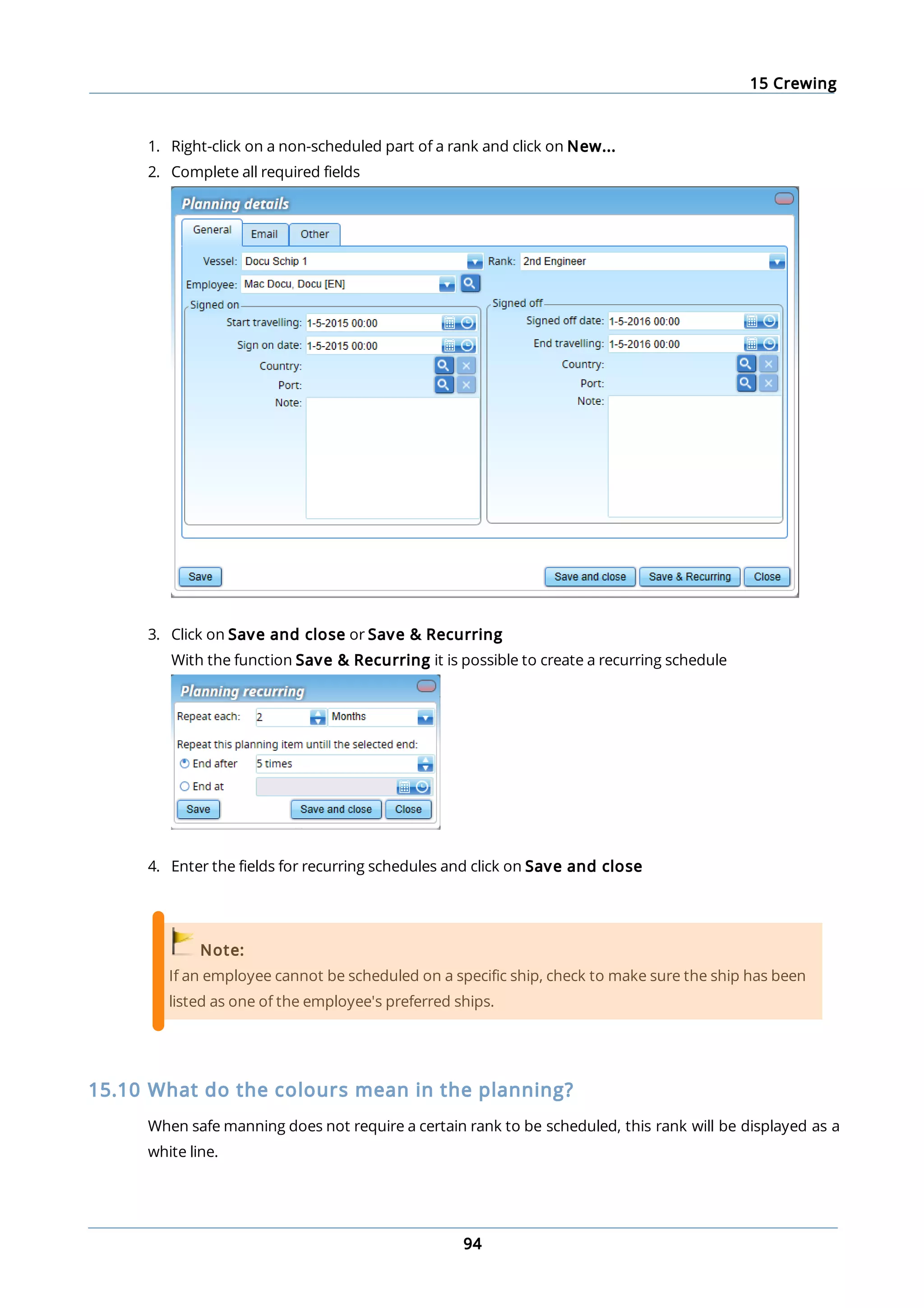
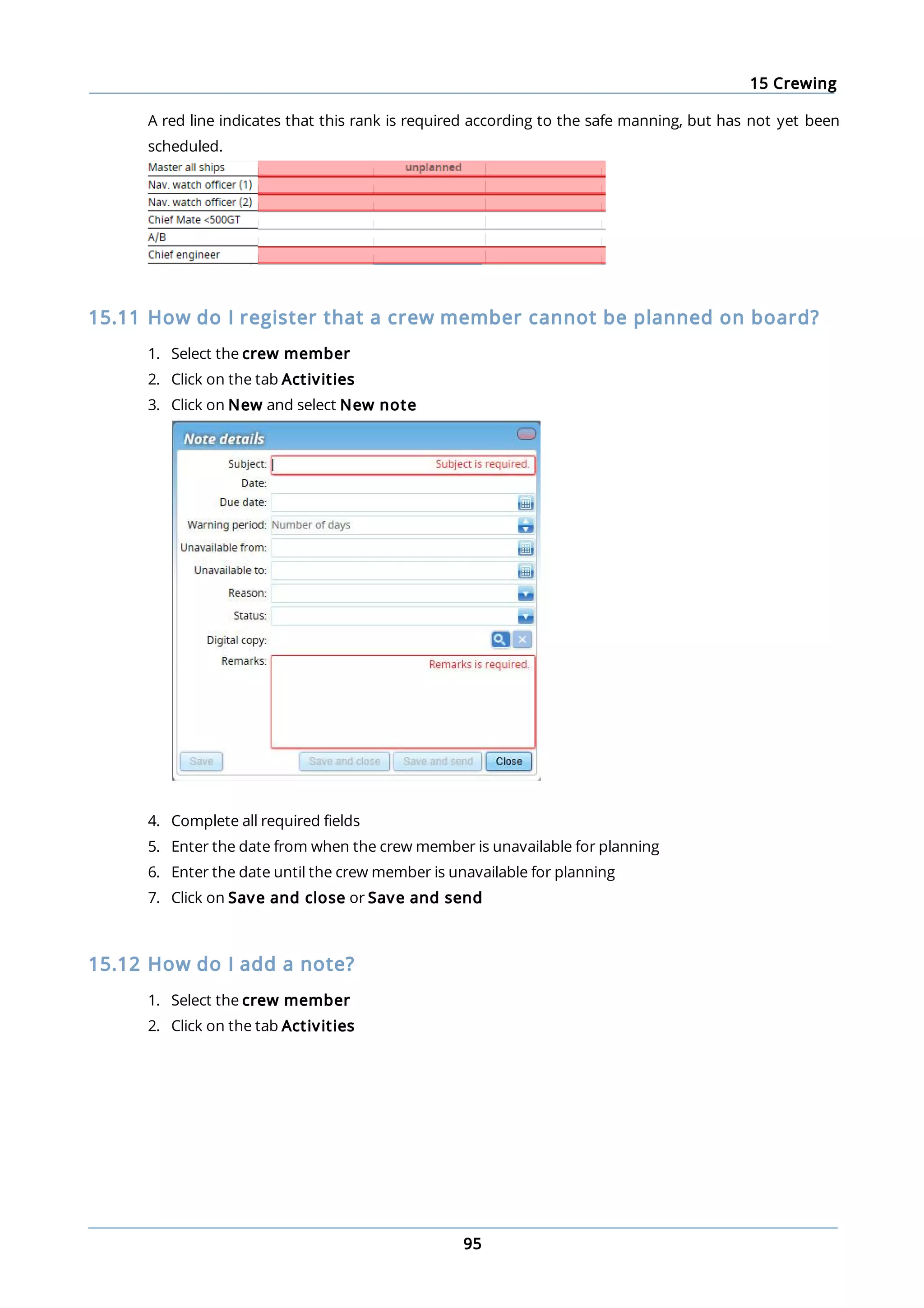
  • 106.
    18 Synchronisation 106 Please note: Thesynchronisation status of a multi-office location is only visible at a primary office location and at the secondary office location concerned. 18.7 How do I reset the synchronisation? The synchronisation needs to be done both in the office and on board the ship. In the office: 1. Go to the module Settings 2. Click on Communication 3. Click on Reset Synchronisation 4. Answer the verification question with Yes 5. Click on Create a package to create the first synchronisation package 6. Note down the Reset Sync Code as displayed in the office version On board the ship: 7. Go to the module Settings 8. Click on Communication 9. Click on Reset Synchronisation 10. Run the Reset Sync Code from point 6 and click on Yes 11. Click on Load Package to load the first synchronisation package
  • 107.
    18 Synchronisation 107 Please note: Anew Reset Sync Code is created each day, with each one being valid for just a single day. Important! The time between resetting the synchronisation and loading the first package on board the ship must be as short as possible. If tasks, certificates and exercises have been signed off on board the ship and the first package has not yet been processed, the new expiry date can be overwritten by the first synchronisation package. 18.8 How can I create a backup of the database? 1. Go to the module Settings 2. Click on Communication 3. Click on Backup Database 4. Save the file to the desired location Important! When the backup has been returned, general data (such as countries and ports) may appear multiple times in MXSuite. 18.9 How do I copy data? 1. Select the ship you want to copy data from 2. Go to the module Settings 3. Click on Communication 4. Click on Copy Data 5. Select the data to be copied 6. Click on OK
  • 108.
    18 Synchronisation 108 7. Selectthe destination and click on OK Please note: If Machines is selected, the following is copied: · Categories · Category details · Task lists · Tasks · Related machine running hours · Linked documents · Linked articles Important! It is not possible to copy machines if both MXSuite Gold and Silver licenses are present. 18.10 What does ‘Resume package’ mean? The button Resume package is visible when a synchronisation package is not completely loaded. This can occur if the loading of the synchronisation package is terminated prematurely owing to the computer being restarted, the database being temporarily inaccessible or another error message. Clicking on Resume package continues the package loading process. 18.11 What information does the synchronisation overview contain? The following columns are visible in the synchronisation overview.
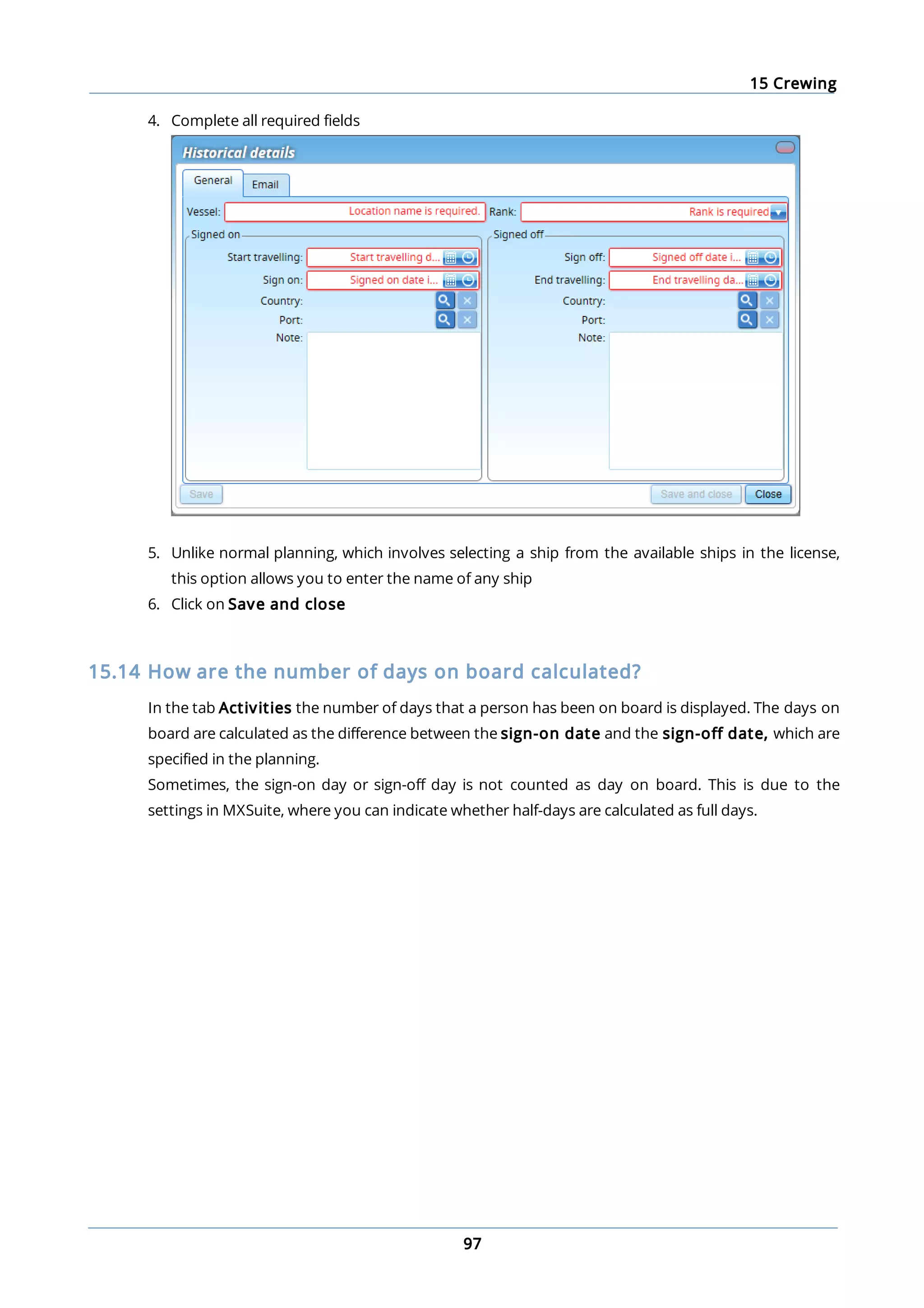
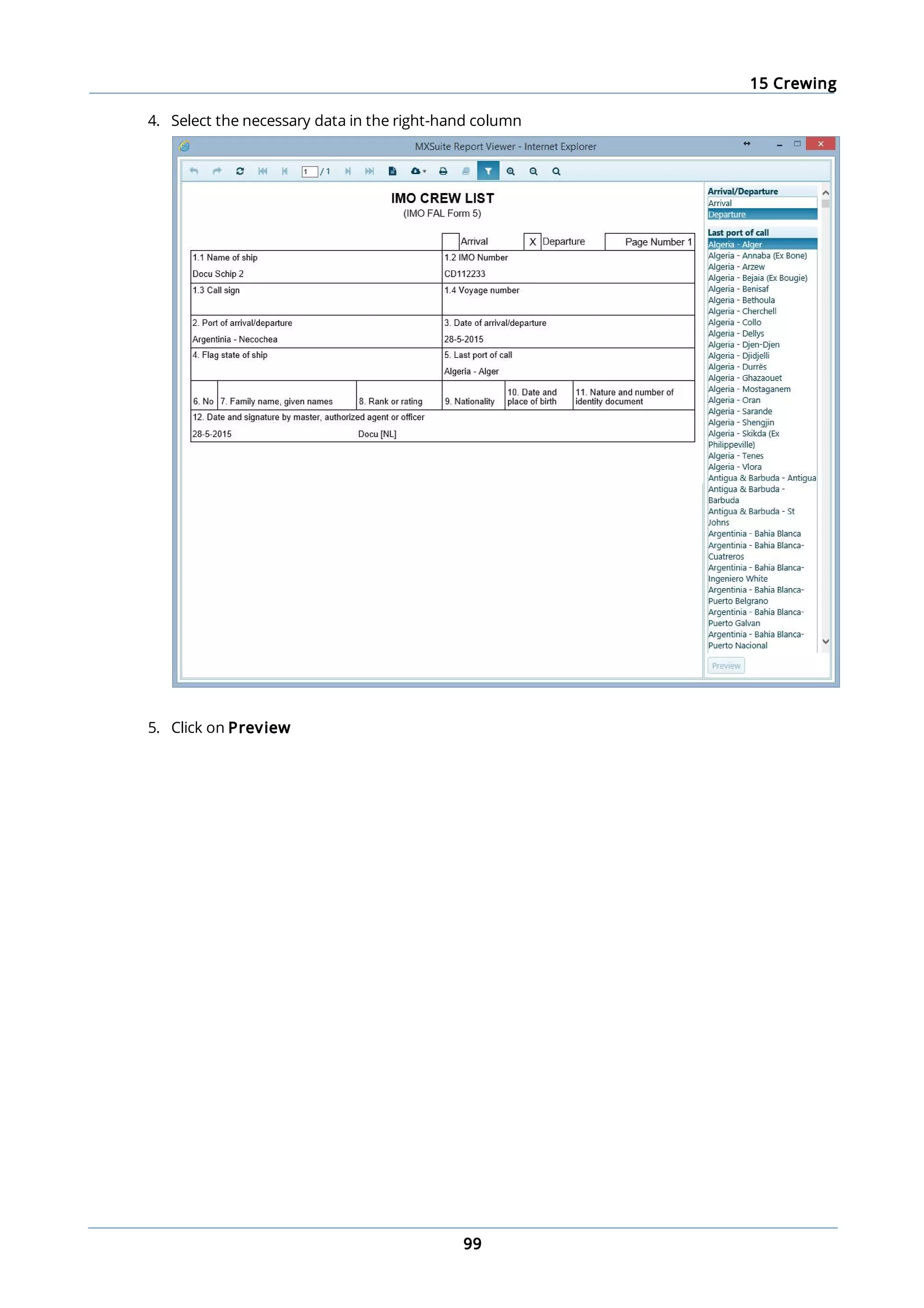
  • 109.
    18 Synchronisation 109 Order number:Synchronisation packages are assigned successive numbers and are only loaded if the number of the synchronisation package follows the number of the previous synchronisation package. Package Direction: OUT: the package is sent to the other location. IN: the package is received from the other location. Creation Date: The date that the synchronisation package was created at the other location. Changes in MXSuite have been processed in the synchronisation package through to this date. Sent/Received Date: The synchronisation package was sent from or received at the current location at this time and date. If a synchronisation package is resent by means of the button Export last, the date will be updated. Size (bytes) This is the size of the synchronisation package in bytes. If a package is approximately 1200 bytes in size, the package will be empty.