iPad in Education
Assoc. Prof. Dr Azmi Mohd Tamil (UKM)
based on lectures by
Assoc. Prof. Dr Azma Putra (UTeM)
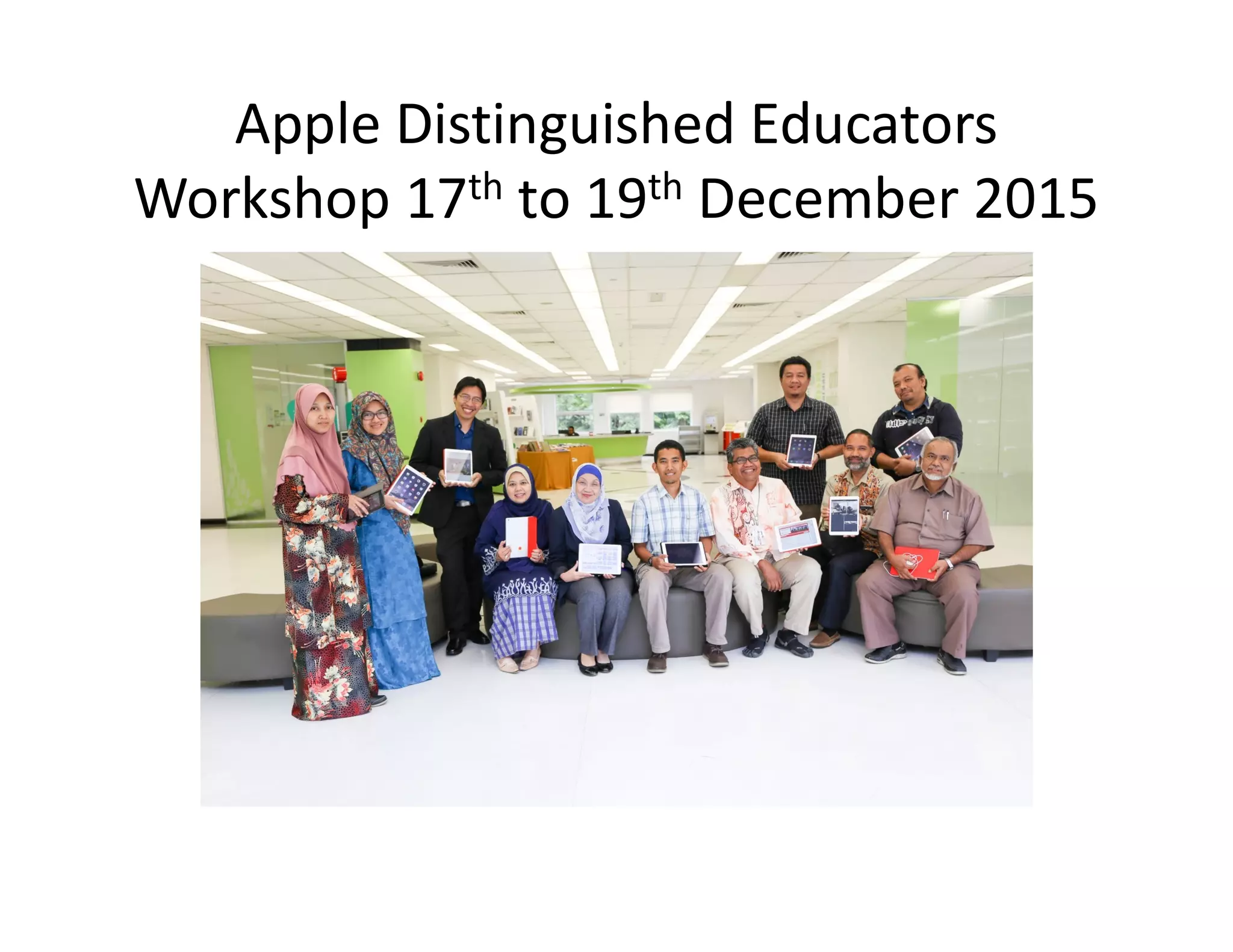
Apple Distinguished Educators
Workshop 17th to 19th December 2015
Sharing the Knowledge
• Based on the 3 days of training with Dr Azma
Putra, I will divide the slides into 3 parts;
– Part 1 – Screencasting the iPad contents onto the
large screen using AirPlay.large screen using AirPlay.
– Part 2 – Using iPad apps to create teaching
materials.
– Part 3 – Using iTunesU to share teaching materials
with students.
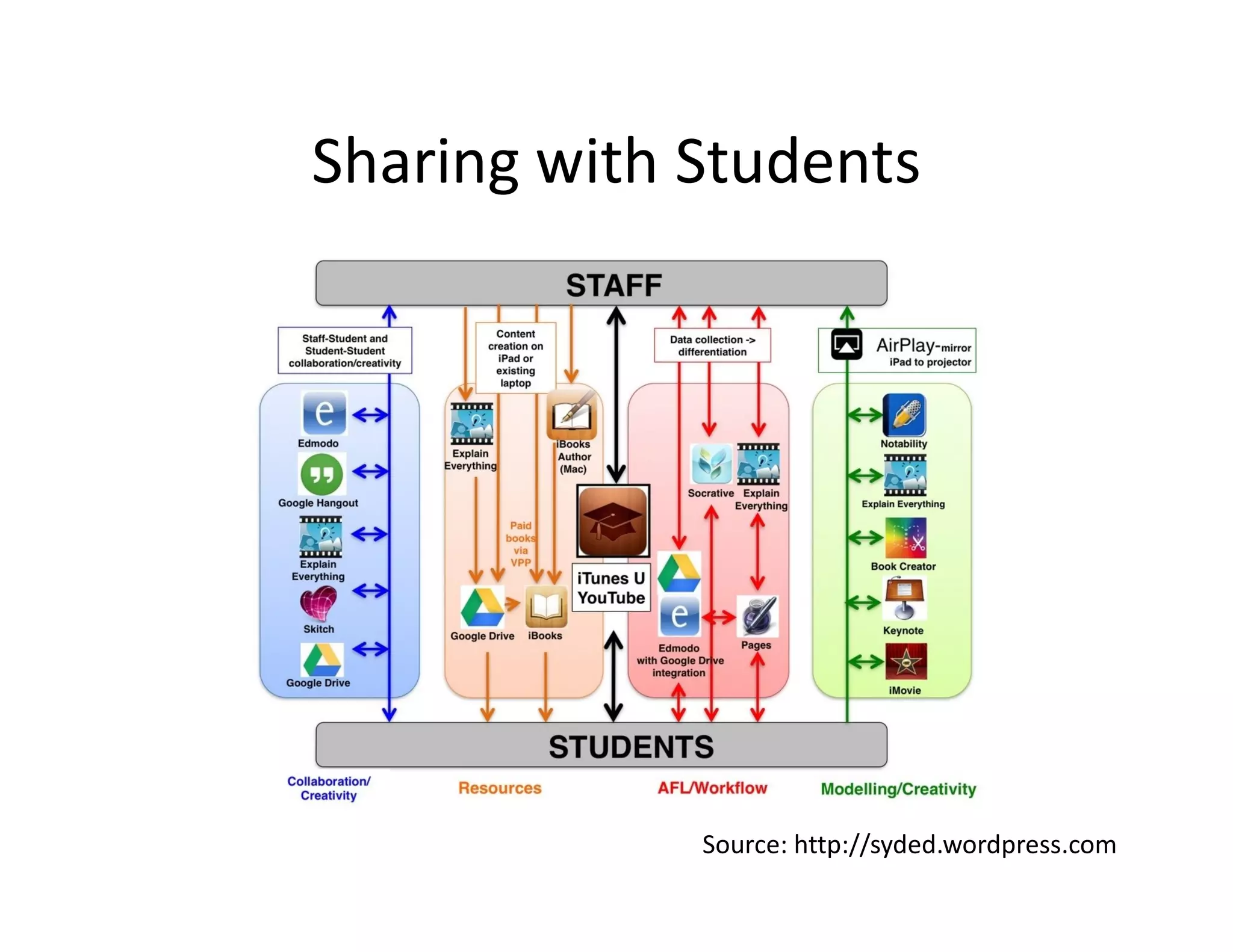
Sharing with Students
Source: http://syded.wordpress.com
iPad in Education
Part 1 – Screencasting Using AirPlay.
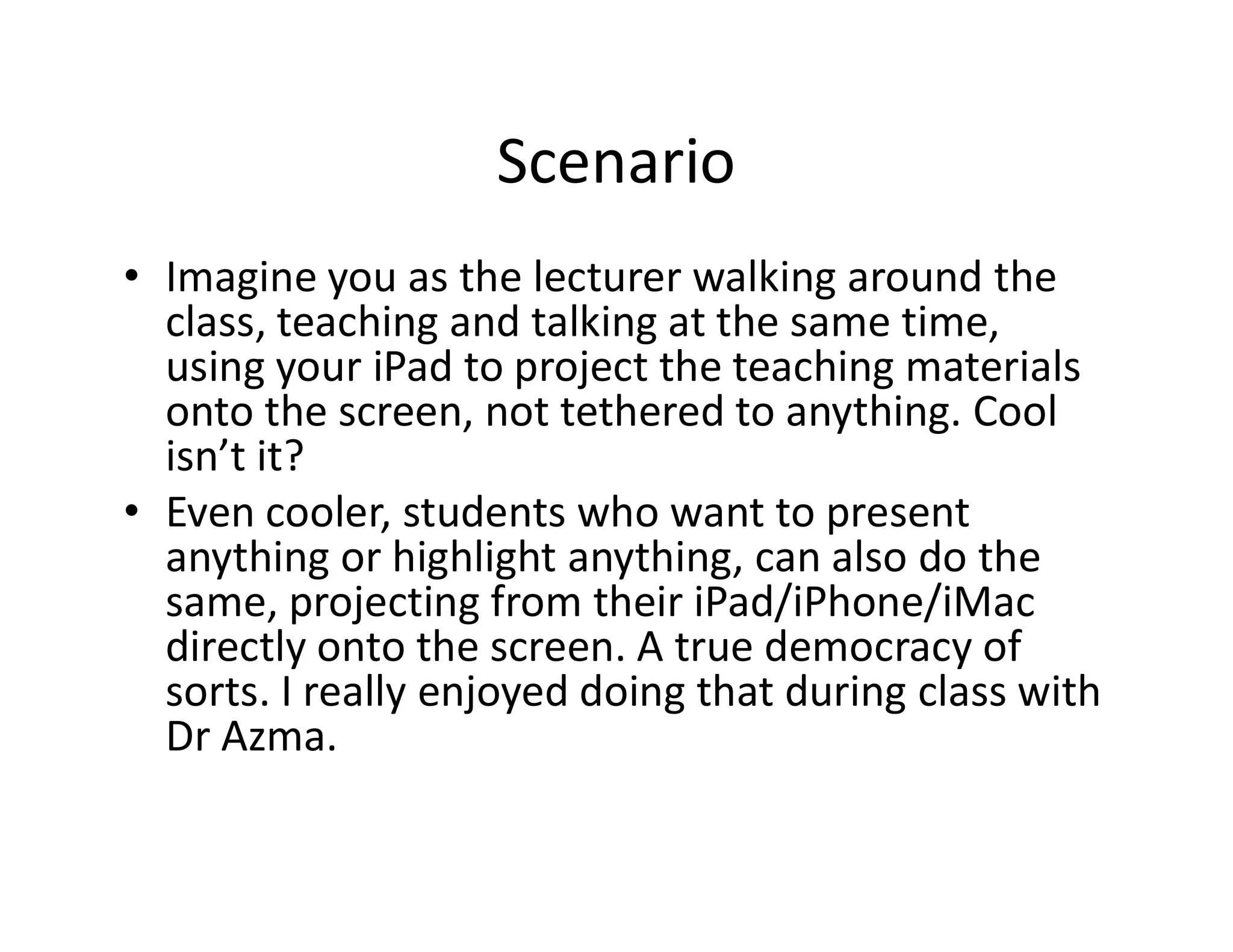
Screencasting using AirPlay
Dr Azma projecting/mirroring wirelessly the screen of his iPad onto the screen.
Scenario
• Imagine you as the lecturer walking around the
class, teaching and talking at the same time,
using your iPad to project the teaching materials
onto the screen, not tethered to anything. Cool
isn’t it?isn’t it?
• Even cooler, students who want to present
anything or highlight anything, can also do the
same, projecting from their iPad/iPhone/iMac
directly onto the screen. A true democracy of
sorts. I really enjoyed doing that during class with
Dr Azma.
What do you need to screencast?
• In an ideal situation, the institution would
provide everything required such as wi-fi
connection, Apple TV and LCD Projector.
• The lecturer can just waltz into the classroom• The lecturer can just waltz into the classroom
with his/her iPad and start teaching.
• Unfortunately it is not so at most places, so
we have to create the necessary infrastructure
ourselves.
What do you need to screencast?
• iPad/iPhone/iMac – as the content source.
• Apple TV (RM729 for 32GB; RM949 for 64GB)
or Android box such as Minix Neo X8H
(RM690) with AirPin Pro – as the wireless(RM690) with AirPin Pro – as the wireless
receiver.
• TV/LCD Projector – as the display.
• HDMI to VGA converter with audio (RM60)– if
the display device only supports VGA.
• Wireless internet connection (wi-fi).
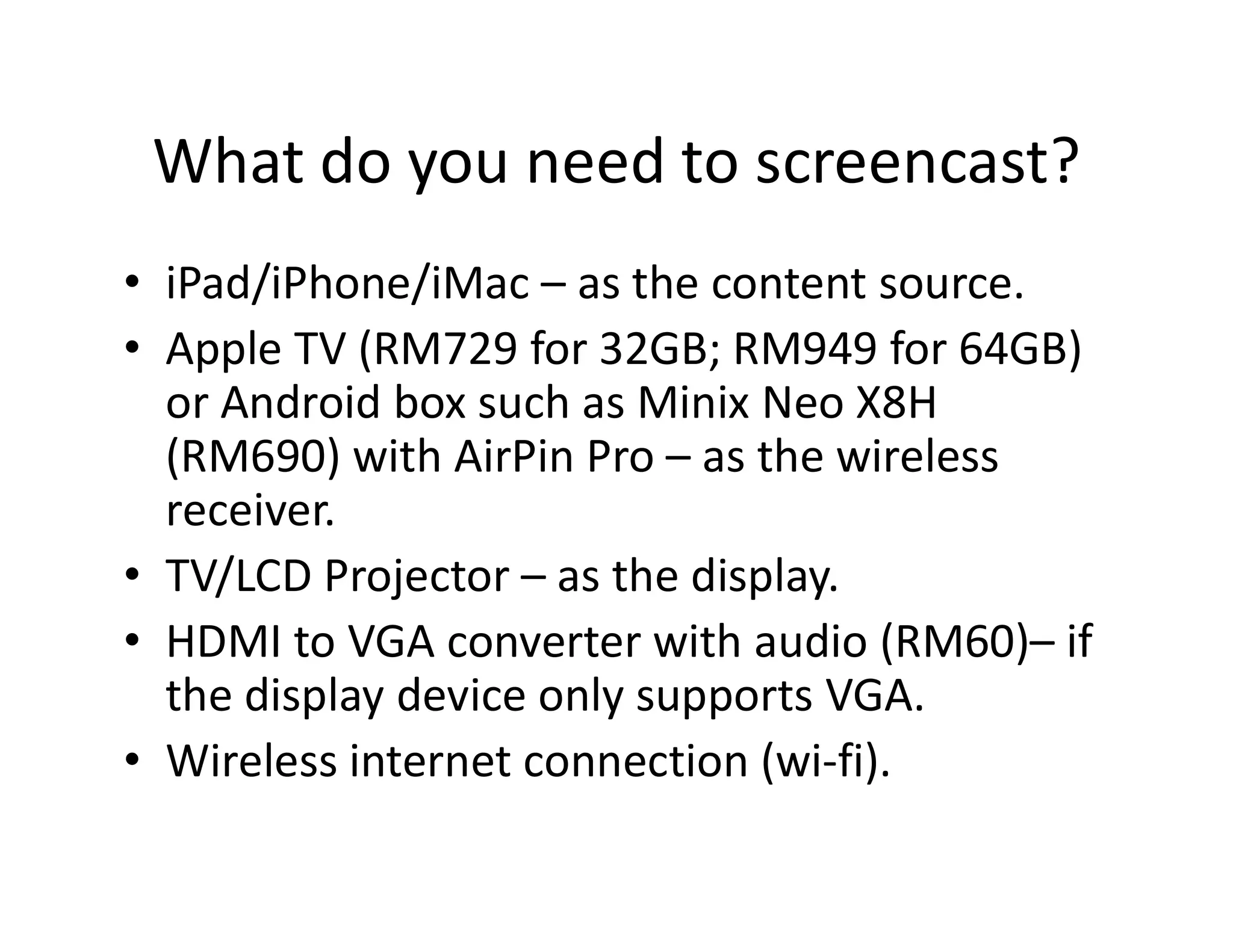
Schematic Diagram
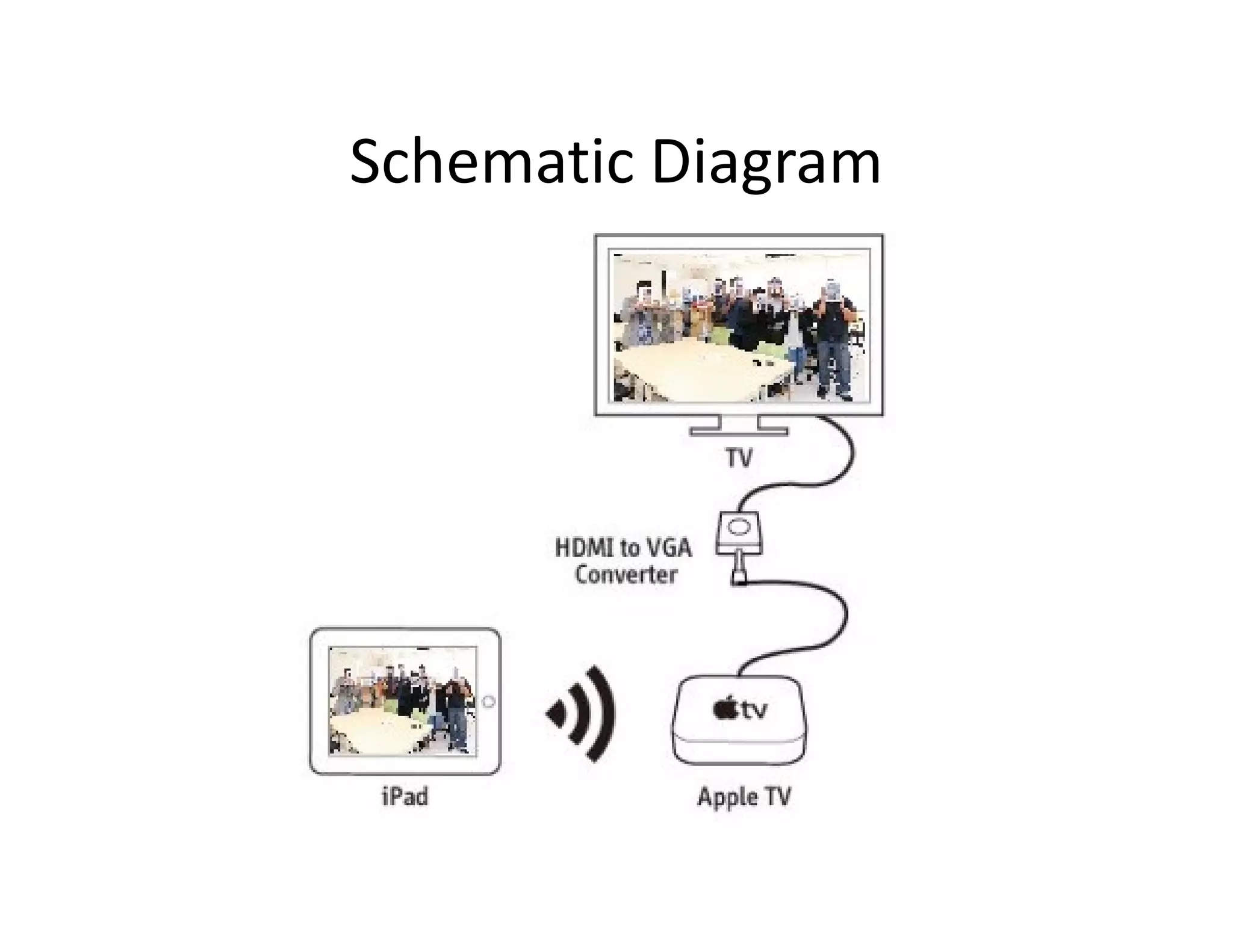
Connecting to Projector
Source: http://blog.ipevo.com
Step by step instruction
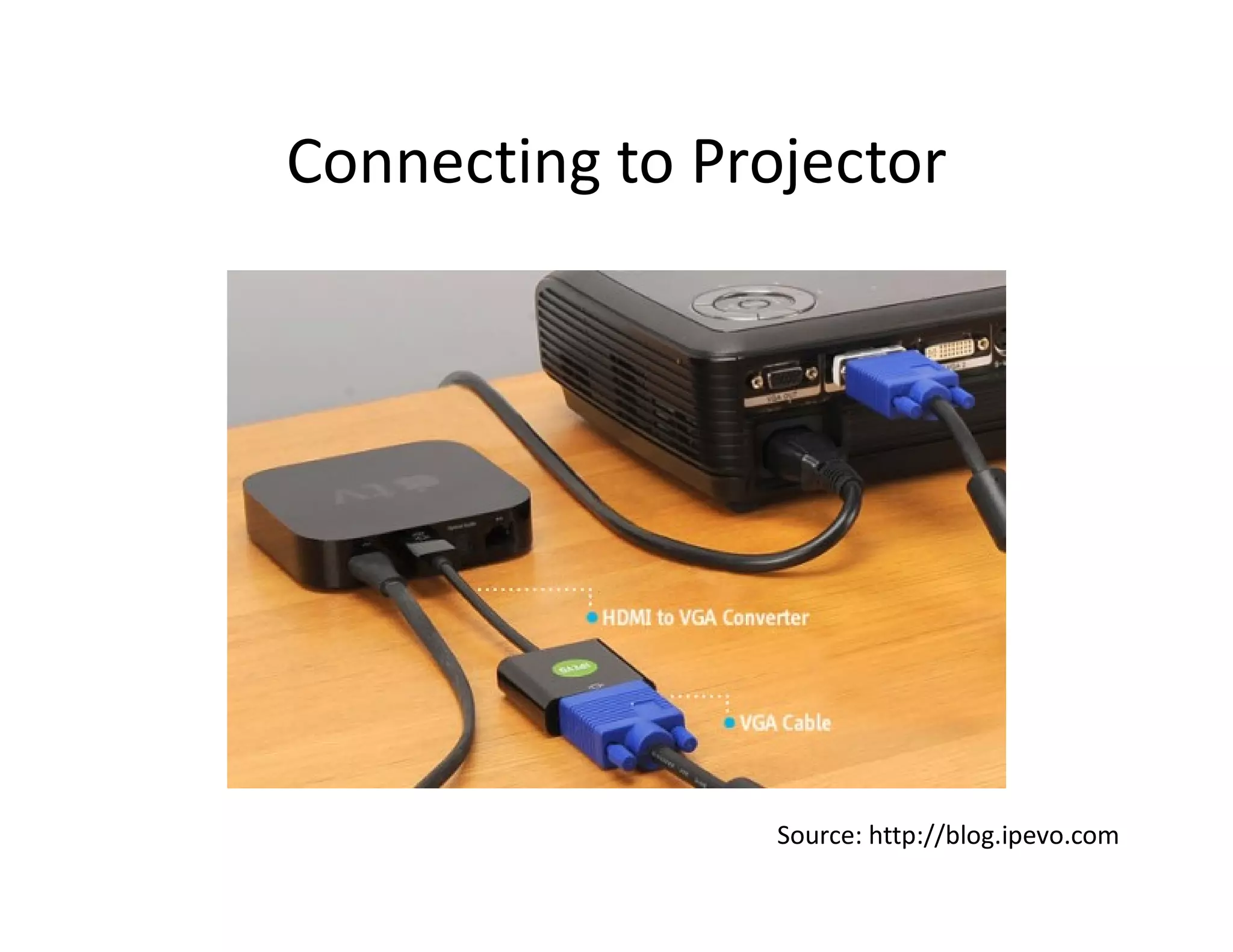
• Connect your VGA display device to the
HDMI-VGA Converter, then connect the
HDMI-VGA Converter to Apple TV/Minix
Neo-X8H.
• Click on “Settings” on your iPad and
select your usual wi-fi network.
• Power up the Apple TV/Minix Neo-X8H• Power up the Apple TV/Minix Neo-X8H
and your display device. Connect the
Apple TV/Minix Neo-X8H to the same
wi-fi network as your iPad.
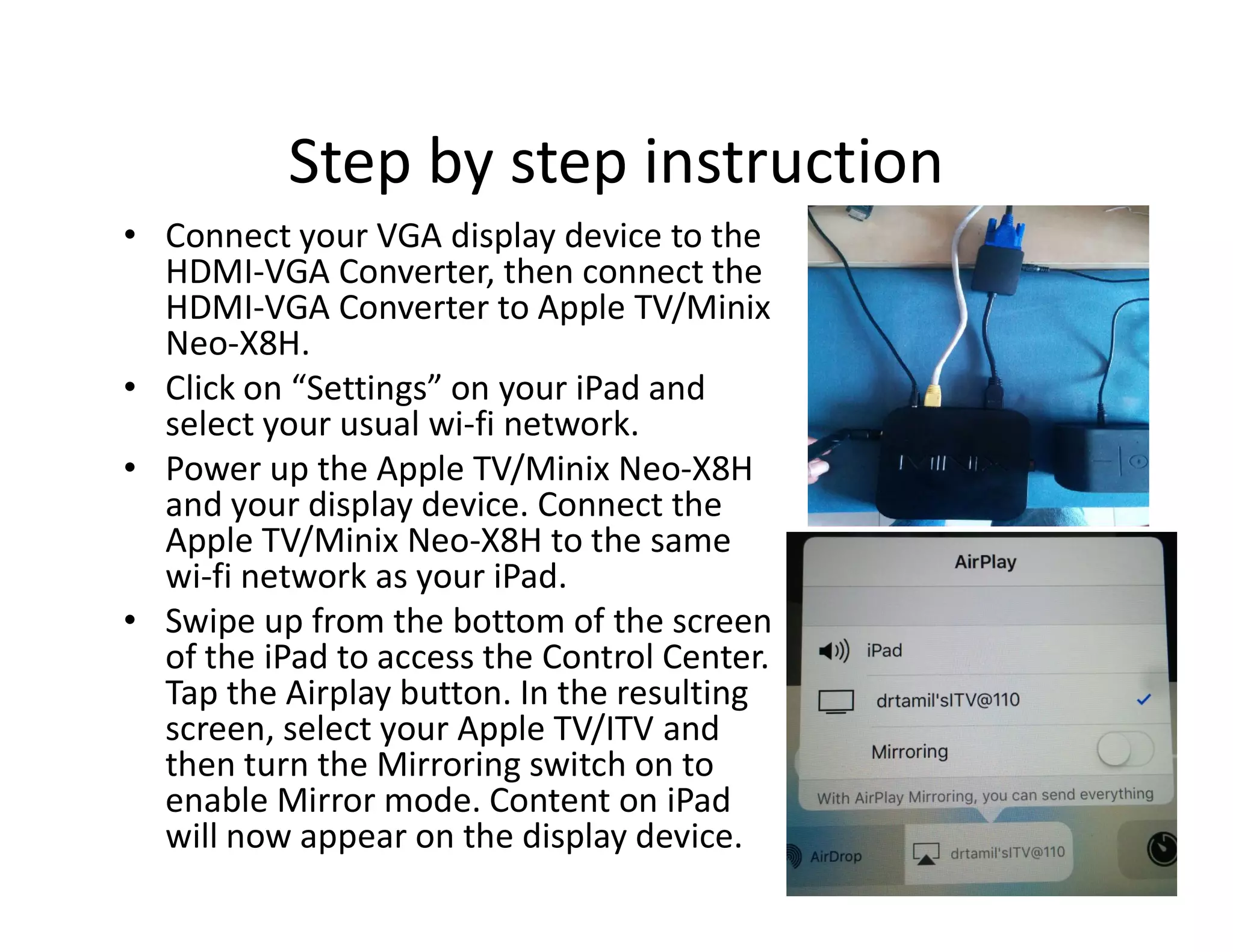
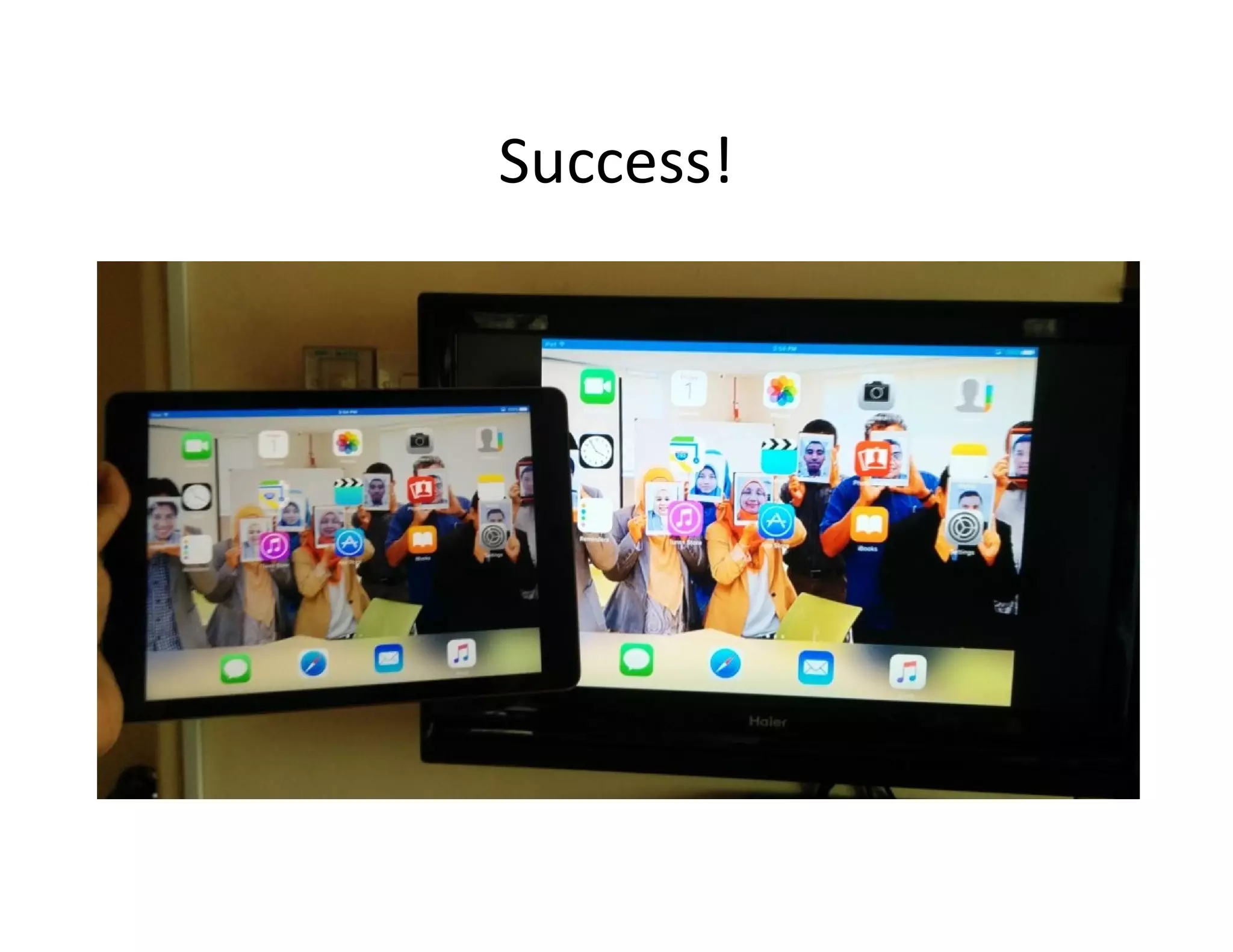
• Swipe up from the bottom of the screen
of the iPad to access the Control Center.
Tap the Airplay button. In the resulting
screen, select your Apple TV/ITV and
then turn the Mirroring switch on to
enable Mirror mode. Content on iPad
will now appear on the display device.
Success!
Next in “iPad in Education”
Part 2: Using iPad apps to create
teaching materials.

iPad in Education Part 1 - Screencasting

  • 1.
    iPad in Education Assoc.Prof. Dr Azmi Mohd Tamil (UKM) based on lectures by Assoc. Prof. Dr Azma Putra (UTeM)
  • 2.
    Apple Distinguished Educators Workshop17th to 19th December 2015
  • 3.
    Sharing the Knowledge •Based on the 3 days of training with Dr Azma Putra, I will divide the slides into 3 parts; – Part 1 – Screencasting the iPad contents onto the large screen using AirPlay.large screen using AirPlay. – Part 2 – Using iPad apps to create teaching materials. – Part 3 – Using iTunesU to share teaching materials with students.
  • 4.
    Sharing with Students Source:http://syded.wordpress.com
  • 5.
    iPad in Education Part1 – Screencasting Using AirPlay.
  • 6.
    Screencasting using AirPlay DrAzma projecting/mirroring wirelessly the screen of his iPad onto the screen.
  • 7.
    Scenario • Imagine youas the lecturer walking around the class, teaching and talking at the same time, using your iPad to project the teaching materials onto the screen, not tethered to anything. Cool isn’t it?isn’t it? • Even cooler, students who want to present anything or highlight anything, can also do the same, projecting from their iPad/iPhone/iMac directly onto the screen. A true democracy of sorts. I really enjoyed doing that during class with Dr Azma.
  • 8.
    What do youneed to screencast? • In an ideal situation, the institution would provide everything required such as wi-fi connection, Apple TV and LCD Projector. • The lecturer can just waltz into the classroom• The lecturer can just waltz into the classroom with his/her iPad and start teaching. • Unfortunately it is not so at most places, so we have to create the necessary infrastructure ourselves.
  • 9.
    What do youneed to screencast? • iPad/iPhone/iMac – as the content source. • Apple TV (RM729 for 32GB; RM949 for 64GB) or Android box such as Minix Neo X8H (RM690) with AirPin Pro – as the wireless(RM690) with AirPin Pro – as the wireless receiver. • TV/LCD Projector – as the display. • HDMI to VGA converter with audio (RM60)– if the display device only supports VGA. • Wireless internet connection (wi-fi).
  • 10.
  • 11.
    Connecting to Projector Source:http://blog.ipevo.com
  • 12.
    Step by stepinstruction • Connect your VGA display device to the HDMI-VGA Converter, then connect the HDMI-VGA Converter to Apple TV/Minix Neo-X8H. • Click on “Settings” on your iPad and select your usual wi-fi network. • Power up the Apple TV/Minix Neo-X8H• Power up the Apple TV/Minix Neo-X8H and your display device. Connect the Apple TV/Minix Neo-X8H to the same wi-fi network as your iPad. • Swipe up from the bottom of the screen of the iPad to access the Control Center. Tap the Airplay button. In the resulting screen, select your Apple TV/ITV and then turn the Mirroring switch on to enable Mirror mode. Content on iPad will now appear on the display device.
  • 13.
  • 14.
    Next in “iPadin Education” Part 2: Using iPad apps to create teaching materials.