Introduction to
MS Word 007
Contents
i ord Process n
› Fea es of ord Processin
Startin MS Word
Co onen s of Wo d Wind
Crea in a New D
Savine a Docnfne6iU'
enine<in Ekistifle Document
i Closin document
S-Word
Word Processing
It refers to the act of processing the textual infoimation
including typing, editing, formatting and printing. Word
processors are the class of the software application that
are designed for generating various documents like
letters, resumes, notices etc. There are many word
processors available in the market. Some of them are MS-
WORD, Word Star, Write, Word Pefect, Lotus Notes etc.
Features of Word Processing
› Word Wrap
› Saving a document
› Overtyping
› Insertion
› Cursor Control
› Deletion
› Block Movement
› Formatting
› Copying
› Find & Replace
› Spelling Checker
r Printing
› Protecting Files
› Mail Merge
› Thesaurus
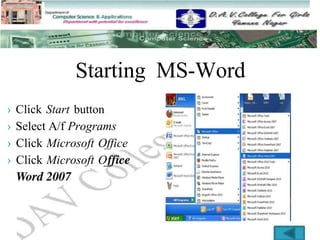
Starting MS-Word
› Click Start button
› Select A/f Programs
› Click Microsoft Office
› Click Microsoft O
_
Components of Word Windo
Burton
Ribbtan
Ruler
Windo ’s
Cuntrul
ComponentsContd..
› Title Bar : It displays
OName of Application (Microsoft Word)
OName of currently active Word document
› Office Button : The Microsoft Office button peforms
many of the functions that were located in the File menu of
older versions of Word. This button allows you to create a
new document, open an existing document, save or save
as, print, send (through email or fax), publish or close.
Components Contd..
› Window ContrOlS : Set of three buttons in top right corner.
DMinimize button
OMaximize / Restore button
DClose button
› Quick Access Toolbar : It is a customizable toolbar that
contains commands that we may want to use. The quick
access toolbar can be placed above or below the ribbon. To
change the location of the toolbar, click on the arrow at the
end of the toolbar and click on Show Below the Ribbon.
Components Contd..
Ribbon : The Ribbon is the panel at the top portion of the
document. It has seven tabs: Home, Insert, Page Layout,
References, Mailings, Review, and View that contain many
new and existing features of Word. Each tab is divided into
groups. The groups are logical collections of features
designed to perform functions that you will utilize in
developing or editing Word document. Commonly used
features are displayed on the Ribbon, to view additional
features within each group, click on the arrow at the bottom
right of each group.
Components (Ribbon) Contd..
Each of the tabs contains the following tools:
Home: Clipboard, Fonts, Paragraph, Styles, and Editing
Insert: Pages, Tables, Illustrations, Links, Header & Footer,
Text, and Symbols
Page Layout: Themes, Page Setup, Page Background,
Paragraph, Arrange
References: Table of Contents, Footnote, Citation &
MbliopgaphyJCaptions, M d e ndpTae¡ofAuthoritie¡p y
1
Components (Ribbon) Contd..
Mailings: Create, Start Mail Merge, Write & Insert Fields,
Preview Results, Finish
Review: Proofing, Comments, Tracking, Changes,
Compare, Protect
View: Document Views, Show/Hide, Zoom, Window,
Macros
Components Contd..
› Ruler : It is a measuring tool. It can be either displayed on
screen or kept it hidden. To toggle the display of ruler on or
off , select view tab and the click ruler. There are two types
of ruler :
Horizontal Ruler : Used to set layout of the document. It
allows to set indents, tabs and change page margins.
Vertical Ruler : It gives an idea about length of page.
Components Contd..
› Scroll Bar : Each document consists of vertical scroll bar.
Scroll box indicates which part of the document is currently
on screen. The scroll box allows rapid movement in two
ways :
Dragging the scroll box
Clicking the scroll box
› Status Bar : It provides infoimation about active document
like Page Count, Word Count. View Controls & Zoom
Slider is also displayed on status bar.
Creating a New Document
Methods are
› Click on Office button & Select New.
or
› Click New button on Quick Access Toolbar.
or
› Press Ctrl +N.
The New Dialog box will be appeared. Select Blank
Document & click Create button. A new document will be
displayed & now we can type the text.
Saving a Document
Methods are
› Click on Office button & Select Save.
or
› Click Save button on Quick Access Toolbar.
or
› Press Ctrl +S.
A Dialog box will be appeared. Type File Name & Click
Save .
Opening an Existing Document
Methods are
› Click on Office button & Click Open.
or
› Click Open button on Quick Access Toolbar.
or
› Press Ctrl +O.
Open Dialog box will be appeared. From this box, open
document by double clicking on it or type File Name and
click Open button.
Closing a Document
Always save before closing. If we don't save changes, the
changes cannot be retrieved. Closing a document removes it
from the computer's memory. Office will ask to save if we
made any changes. To close a document Click on Office
button & Click Close option.
Quitting MS-Word
Quitting an application removes the application from
memory. An icon will no longer be seen on the Taskbar for
that application. To quit an application either Click Office
button and click Exit Word button or Click Close * button.
Micro Soft Word 2007 Basics Present.pptx

Micro Soft Word 2007 Basics Present.pptx

  • 1.
  • 2.
    Contents i ord Processn › Fea es of ord Processin Startin MS Word Co onen s of Wo d Wind Crea in a New D Savine a Docnfne6iU' enine<in Ekistifle Document i Closin document S-Word
  • 3.
    Word Processing It refersto the act of processing the textual infoimation including typing, editing, formatting and printing. Word processors are the class of the software application that are designed for generating various documents like letters, resumes, notices etc. There are many word processors available in the market. Some of them are MS- WORD, Word Star, Write, Word Pefect, Lotus Notes etc.
  • 4.
    Features of WordProcessing › Word Wrap › Saving a document › Overtyping › Insertion › Cursor Control › Deletion › Block Movement › Formatting › Copying › Find & Replace › Spelling Checker r Printing › Protecting Files › Mail Merge › Thesaurus
  • 5.
    Starting MS-Word › ClickStart button › Select A/f Programs › Click Microsoft Office › Click Microsoft O _
  • 6.
    Components of WordWindo Burton Ribbtan Ruler Windo ’s Cuntrul
  • 7.
    ComponentsContd.. › Title Bar: It displays OName of Application (Microsoft Word) OName of currently active Word document › Office Button : The Microsoft Office button peforms many of the functions that were located in the File menu of older versions of Word. This button allows you to create a new document, open an existing document, save or save as, print, send (through email or fax), publish or close.
  • 8.
    Components Contd.. › WindowContrOlS : Set of three buttons in top right corner. DMinimize button OMaximize / Restore button DClose button › Quick Access Toolbar : It is a customizable toolbar that contains commands that we may want to use. The quick access toolbar can be placed above or below the ribbon. To change the location of the toolbar, click on the arrow at the end of the toolbar and click on Show Below the Ribbon.
  • 9.
    Components Contd.. Ribbon :The Ribbon is the panel at the top portion of the document. It has seven tabs: Home, Insert, Page Layout, References, Mailings, Review, and View that contain many new and existing features of Word. Each tab is divided into groups. The groups are logical collections of features designed to perform functions that you will utilize in developing or editing Word document. Commonly used features are displayed on the Ribbon, to view additional features within each group, click on the arrow at the bottom right of each group.
  • 10.
    Components (Ribbon) Contd.. Eachof the tabs contains the following tools: Home: Clipboard, Fonts, Paragraph, Styles, and Editing Insert: Pages, Tables, Illustrations, Links, Header & Footer, Text, and Symbols Page Layout: Themes, Page Setup, Page Background, Paragraph, Arrange References: Table of Contents, Footnote, Citation & MbliopgaphyJCaptions, M d e ndpTae¡ofAuthoritie¡p y 1
  • 11.
    Components (Ribbon) Contd.. Mailings:Create, Start Mail Merge, Write & Insert Fields, Preview Results, Finish Review: Proofing, Comments, Tracking, Changes, Compare, Protect View: Document Views, Show/Hide, Zoom, Window, Macros
  • 12.
    Components Contd.. › Ruler: It is a measuring tool. It can be either displayed on screen or kept it hidden. To toggle the display of ruler on or off , select view tab and the click ruler. There are two types of ruler : Horizontal Ruler : Used to set layout of the document. It allows to set indents, tabs and change page margins. Vertical Ruler : It gives an idea about length of page.
  • 13.
    Components Contd.. › ScrollBar : Each document consists of vertical scroll bar. Scroll box indicates which part of the document is currently on screen. The scroll box allows rapid movement in two ways : Dragging the scroll box Clicking the scroll box › Status Bar : It provides infoimation about active document like Page Count, Word Count. View Controls & Zoom Slider is also displayed on status bar.
  • 14.
    Creating a NewDocument Methods are › Click on Office button & Select New. or › Click New button on Quick Access Toolbar. or › Press Ctrl +N. The New Dialog box will be appeared. Select Blank Document & click Create button. A new document will be displayed & now we can type the text.
  • 15.
    Saving a Document Methodsare › Click on Office button & Select Save. or › Click Save button on Quick Access Toolbar. or › Press Ctrl +S. A Dialog box will be appeared. Type File Name & Click Save .
  • 16.
    Opening an ExistingDocument Methods are › Click on Office button & Click Open. or › Click Open button on Quick Access Toolbar. or › Press Ctrl +O. Open Dialog box will be appeared. From this box, open document by double clicking on it or type File Name and click Open button.
  • 17.
    Closing a Document Alwayssave before closing. If we don't save changes, the changes cannot be retrieved. Closing a document removes it from the computer's memory. Office will ask to save if we made any changes. To close a document Click on Office button & Click Close option.
  • 18.
    Quitting MS-Word Quitting anapplication removes the application from memory. An icon will no longer be seen on the Taskbar for that application. To quit an application either Click Office button and click Exit Word button or Click Close * button.